In the Kimi K3.1 Pro launch video, we showed what we'd been making with Kimi: 3D websites, mechanical parts, buildings, small game demos, and game preview videos with AAA-style visuals.
So how do you get the most out of Kimi for 3D work? How do you go from an idea to something detailed and interactive, with compelling scenes and camera movement?
You may have heard of Blender, Three.js, or Rhino, seen characters generated by Tripo or Meshy, or come across game engines like Unity, Unreal Engine, and Godot—but still be unsure where to start.
This guide isn't about memorizing technical terms, and you don't need to. You can create your own original 3D projects with Kimi without first learning Blender, Three.js, or Unreal Engine.
In this guide, we'll share the 3D workflows we use internally on the Kimi team and help you get to know the Kimi K3.1 Pro model and Kimi's official harnesses.
2 Approaches of 3D Modeling: Parametric and Mesh Modeling
The first step in a 3D project is to have Kimi build the 3D models.
Agents like Kimi build 3D models in two main ways. They can write code to construct 3D models directly, or call 3D generation services such as Tripo, Meshy, and Hyper3D. Each approach suits different tasks:
Parametric modeling: For objects that can be described through dimensions, structures, and rules, such as product forms, furniture, mechanical parts, and buildings.
Mesh modeling: For detailed people, animal characters, statues, monsters, and complex props.
When building 3D models directly through code, Kimi can also choose the right tools to use. Many operations available through buttons in Blender, Unity, Unreal Engine, and Godot can also be expressed in Python. We specifically trained Kimi K3.1 Pro to use 3D tools through Python scripts, so even specialized software without MCP support can be part of its workflow.
For mesh modeling, language models like K3.1 Pro still struggle, while diffusion models such as Tripo are better suited to the task. These diffusion models have learned the shapes of many 3D objects and can infer three-dimensional structure from the outlines and occlusions in a reference image. When you request a person, an animal, or another subject better suited to mesh generation, Kimi automatically prepares the prompt and reference images and calls a tool such as Tripo to complete the task.
For different tasks, Kimi combines these 2 approaches and the corresponding tools:
Of course, Kimi can't guarantee a perfect result every time. Some tasks take several rounds of refinement, while a few practical techniques can help you avoid common problems. We'll cover ways to address these in the practical tips section.
Building Games: Assemble 3D Models and Design Gameplay in Game Engines
Once you have 3D models, you can start building a game or a cinematic piece.
A game engine brings 3D assets and gameplay together to make a playable experience. It lets characters walk, objects collide, and players complete tasks or earn points. You can also design camera movement and shot changes.
Kimi can write code and call tools to import 3D models into game engines, assemble scenes, and build up gameplay step by step. We've adapted Kimi to work with common engines such as Unreal Engine, Unity, and Godot. Unreal Engine and Unity suit larger game projects, while Godot is a good fit for quickly developing smaller games.
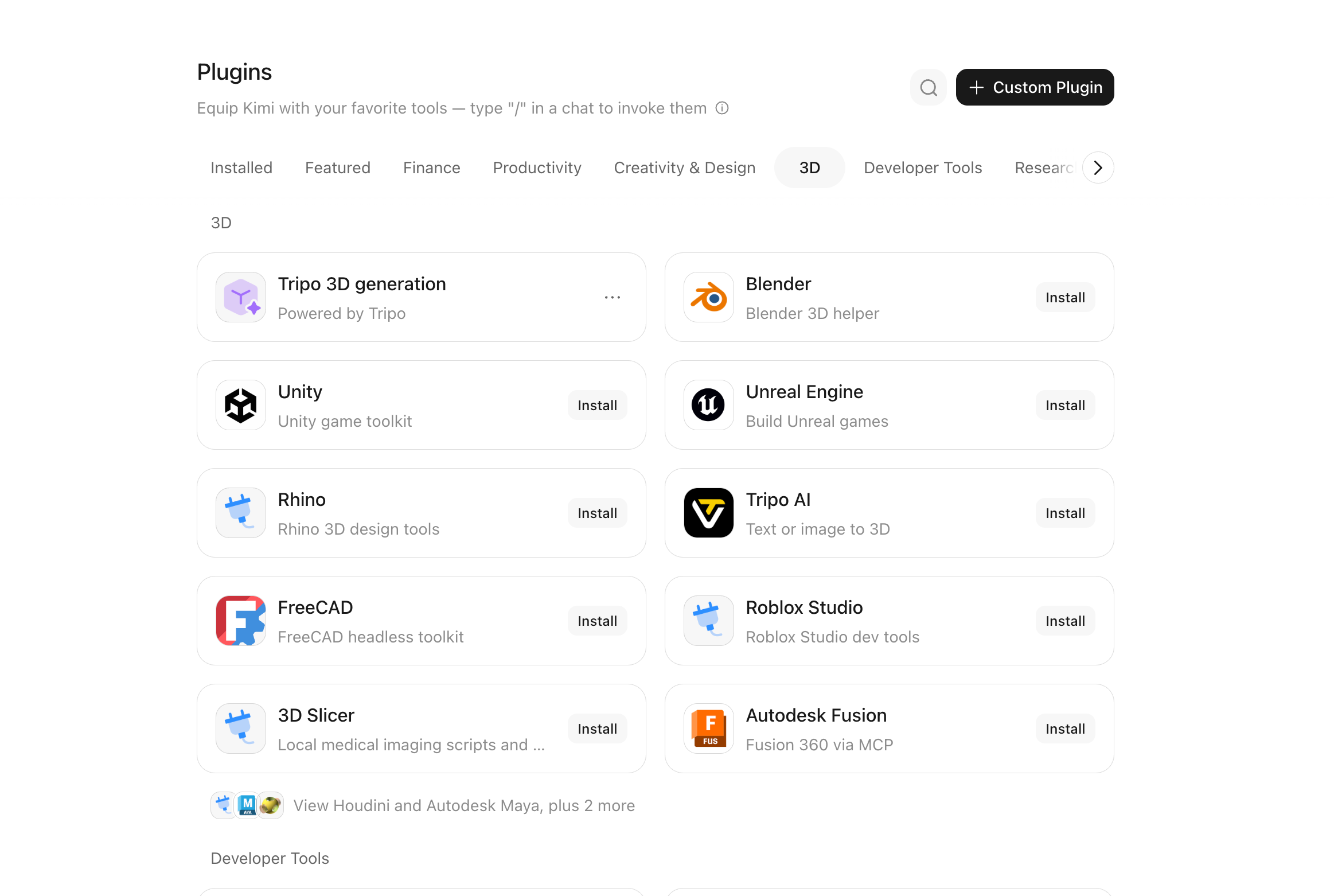
Below are the 3D modeling and game engine plugins Kimi currently supports: (Plugins that require locally installed software are available only in Kimi Work)
Choose Kimi Models and Harnesses
Kimi Harnesses and Model Choices
Kimi offers several ways to work, from direct model access to agent products. The right starting point depends on what you're making.
For a quick 3D website or a simple standalone model, start at Kimi.ai. No download or installation is needed.
To work with modeling software and game engines, assemble 3D scenes, or build complex gameplay, use Kimi Work or Kimi Code. They can operate local software such as Unity and Unreal Engine and iterate on projects stored on your computer.
To integrate Kimi models into your existing workflow, use the Kimi API.
These environments can also work together. For example, quickly test several ideas in parallel at Kimi.ai, then hand the project to Kimi Code for further development.
3D Make: Kimi's Skills, Plugins, and Workflows for 3D Work
We've also introduced 3D Make in Kimi.ai and Kimi Work. It gives you access to the 3D generation skills and specialized workflows we've prepared to help you create more detailed 3D projects.
In most cases, you don't need to remember the name of every skill or plugin. Describe your goal, and Kimi will choose what to use. If you want to specify a workflow, refer to the table below:
Try It Yourself: Step-by-Step Guides to Four Projects
Now let's walk through four examples to see how to choose a harness and create better 3D projects.
Example 1: Build a Celestial Palace in Unreal Engine
Plugins: Blender, Unreal Engine, and MetaHuman.
For the official Kimi K3.1 Pro launch video, we used K3.1 Pro and Unreal Engine 5.8 to build a celestial palace inspired by Chinese mythology, with the main character created in MetaHuman. Here is the full process.
To try a similar project, start by using an AI image generator to visualize the scene you have in mind—for example, a swordsman walking through a celestial palace as a giant dragon rises into the evening sky:

Then give this image to Kimi and use a prompt like the one below to have it write code, gather assets, and assemble the scene:
Get one representative shot right first, then expand the scene, create the character, and add detail. This makes it easier to keep the style and visual quality consistent.
Once the basic scene is built, you can make yourself the game's main character. Use Epic Games' official Live Link Face app to record a 20-second video of yourself, then tell Kimi:
After importing the character, you can adjust its parameters in MetaHuman Editor yourself or ask Kimi to do it for you:
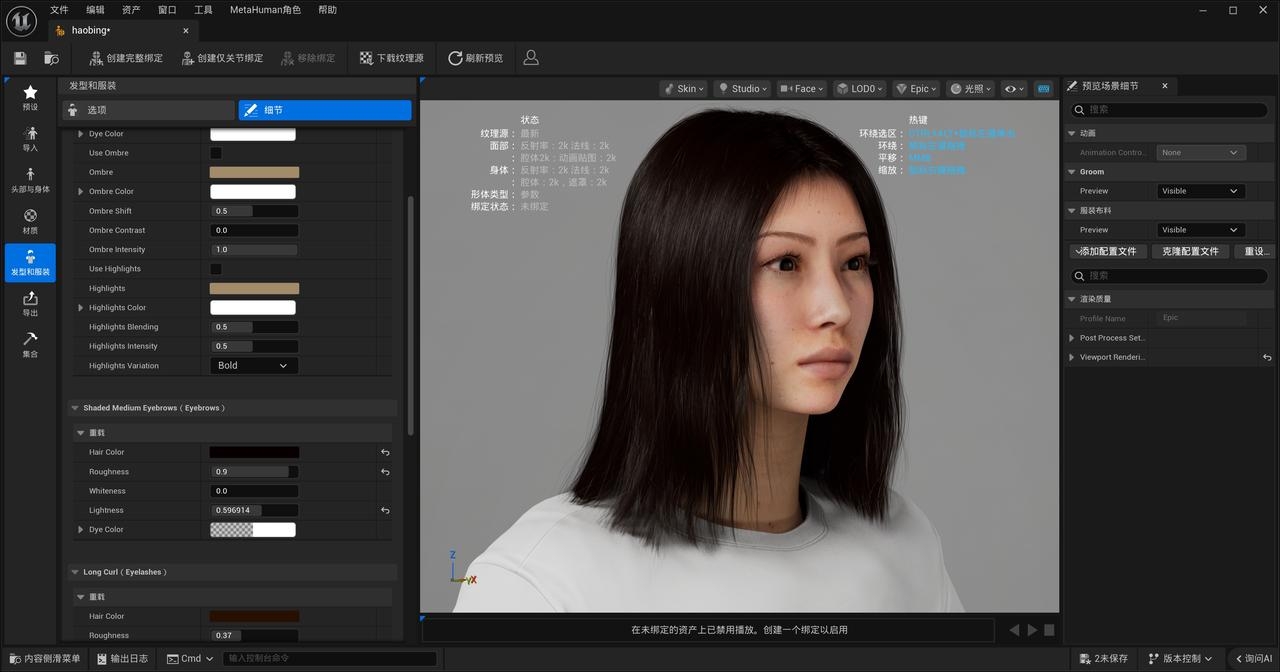
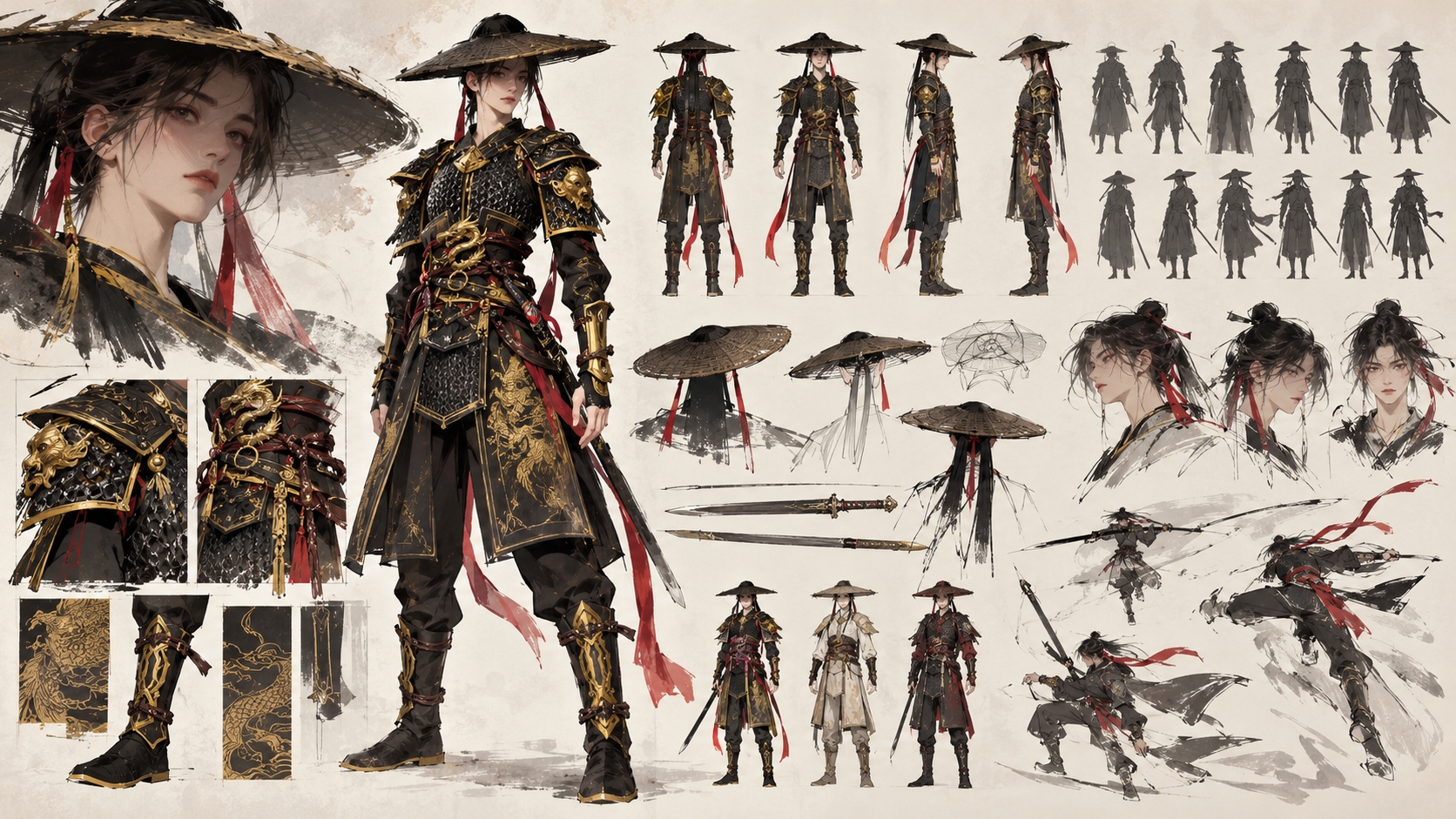
Next, refine the character model with clothing, weapons, and other details. For example, give Kimi reference images of the outfit from multiple angles and ask it to make the clothing in Blender. Iterate until you are happy with it.
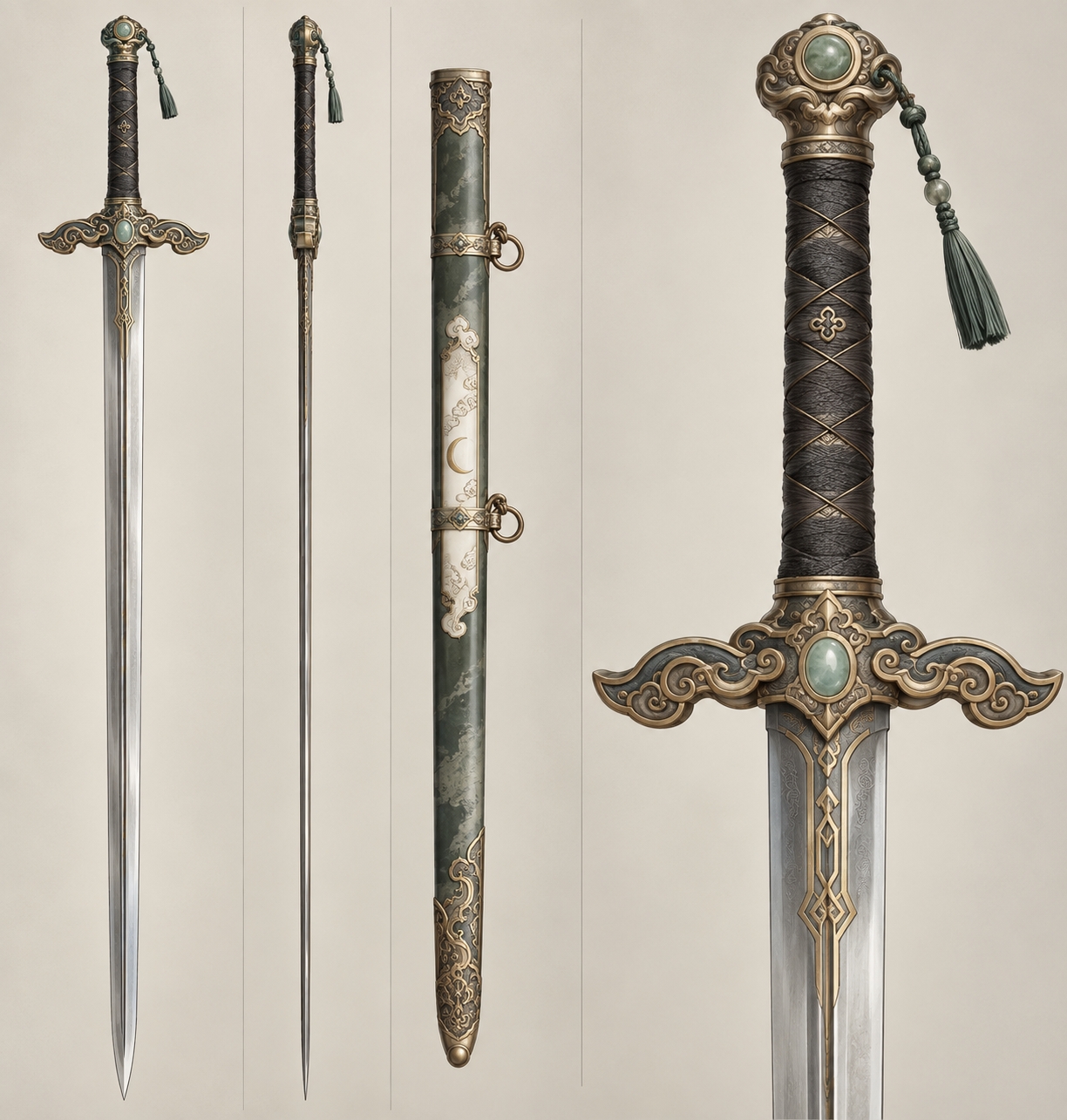
You can also create reference images for the weapons with an AI image generator, then ask Kimi to build them in Blender:
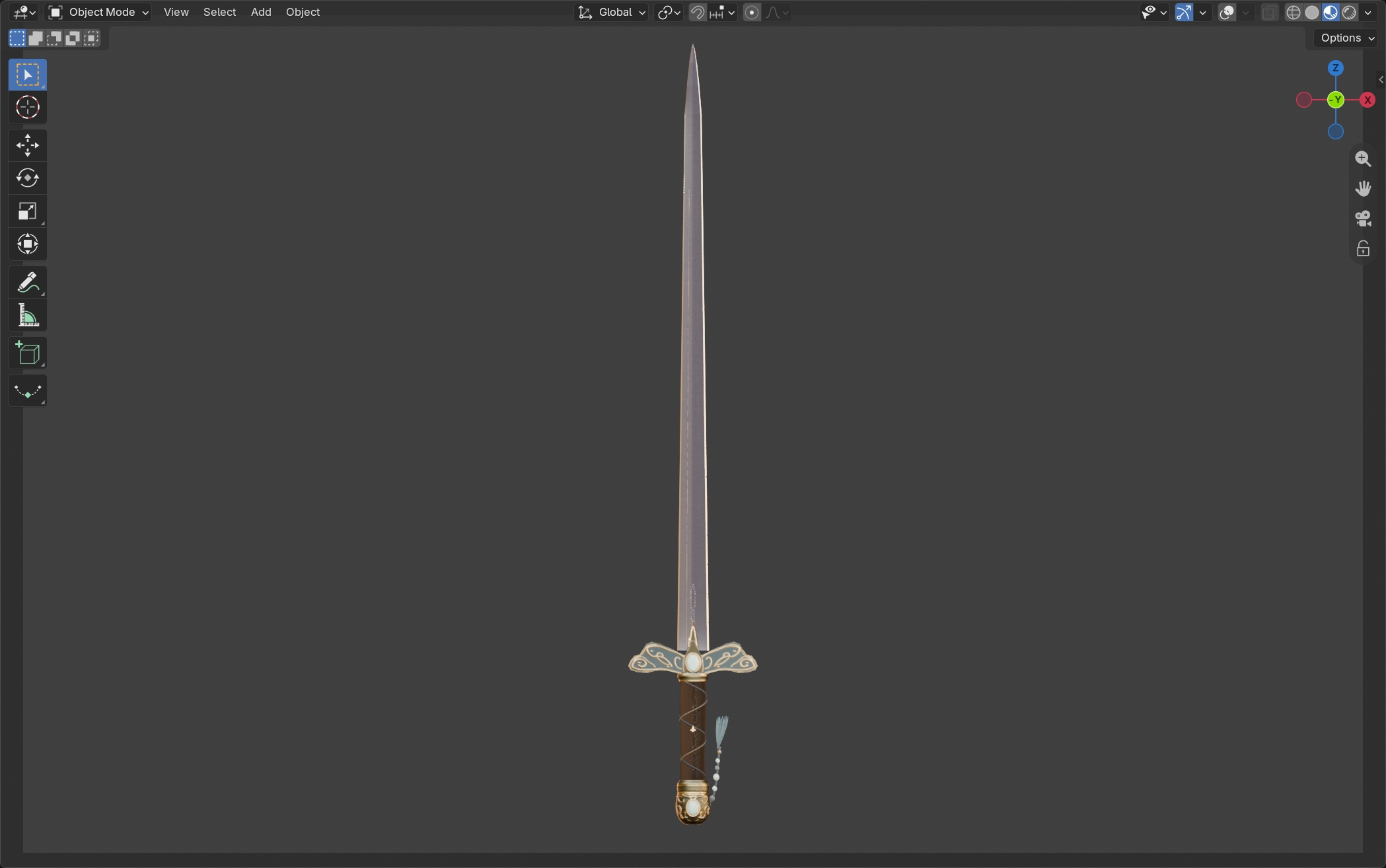
Finally, ask Kimi to assemble all the assets and add impact effects and camera movement. Keep adjusting the layout and positions until you get a result like this:
The project brought procedural modeling, digital characters, and engine rendering together:
Build the elements in Blender. Start with a reference image for each element; AI-generated images can work here, too. Have Kimi use procedural modeling in Blender to build the colonnade and dragon from those references, then iterate until the shapes and details feel right.
Assemble the scene in Unreal Engine. Bring the architecture, dragon, and MetaHuman character into one space. Adjust their scale and placement, then frame the camera to emphasize the contrast between the character and the enormous buildings.
Finish the visuals. The source models in this scene contained 36 million triangles in total. Kimi chose Nanite to render the detailed geometry and Lumen for dynamic global illumination and reflections.
Example 2: Design a Desk Lamp You Can 3D Print
Start with: 3D Make at Kimi.ai.
Skill: 3d-printing.
Start with a reference image of a lamp you like. Here, we take inspiration from the architectural lamps by Xiaohongshu creator Jinzhou Chengge (锦州琛哥) to make a lamp based on a Fujian tulou, a traditional earthen building.
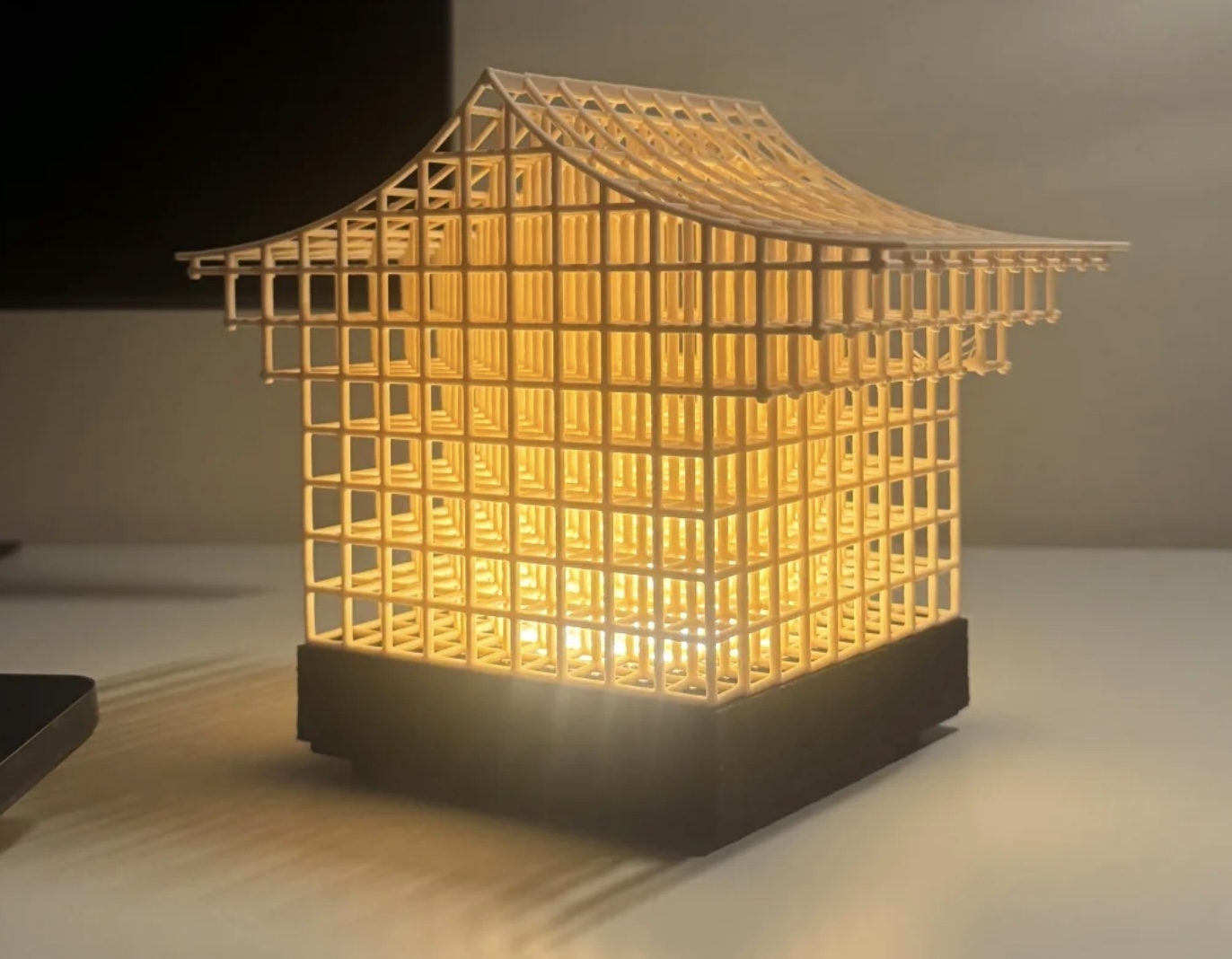
Tell Kimi the dimensions you want, and share the specifications of the lighting and battery components you plan to use. It can account for their placement during modeling and leave room for installation and ventilation:
Kimi will build the model using Blender, CAD tools, or other suitable software. You can then keep iterating to make the shade wider, the base steadier, or the details richer.
Finally, before 3D printing, ask Kimi to import the files into a slicer and help check the dimensions and supports to assess whether the model is ready to print.
Example 3: Generate a Building in Blender Entirely Through Code
Tool: Blender.
Kimi K3.1 Pro can create a solid architectural model from a single prompt by controlling Blender entirely through code. Remember to set the thinking effor to "Max" or "High" for more detailed modeling.
To try a similar project, describe the architectural features and interior spaces you want:
Before modeling, Kimi researches publicly available design information to establish the building's exterior and interior design. It then uses Blender to generate the models one by one and assemble them.
For materials and landscaping, Kimi also searches for stone and wood textures and realistic tree models, then applies the textures to the corresponding materials.
Example 4: Build a Miniature City with Tripo and Blender
Start with: Kimi Work.
Plugins: Tripo 3D and Blender.
Having Kimi call Tripo to generate detailed individual assets is another way to enrich a 3D project.
For example, give Kimi a city reference image and specify which elements it should generate with Tripo:
Kimi will work through these three steps on its own:
Build the scene with code. Kimi creates the terrain, lays out streets and steps along its contours, and generates and arranges trees using rules. Hill height, road width, step count, and tree density can all be parameters you adjust later.
Add distinctive assets with Tripo. Generate fountains, statues, and other objects separately, check their shapes, then import them into Blender.
Bring everything together in Blender. Adjust the position and scale of each asset. Check that roads connect, steps meet properly, and objects sit on the ground. Then set up materials, lighting, and cameras.
After receiving Kimi's first result, review the layout before adding detail.
Ask Kimi for a top-down view and a street-level view to check the spatial relationships. Once you are happy with them, add the landscape assets and camera movement. Keep the .blend project and modeling scripts so you can expand the city later.
5 Tips from Kimi Team
We've spent a lot of time with Kimi K3.1 Pro and its different environments while building the product and making our launch videos. These are five practices that have consistently helped our team get better results.
1. Use Reference Images and Videos
Reference images and videos often communicate more clearly than a written description.
For a single model, choose an image with the whole subject visible, a simple background, and a clear silhouette. If you provide multiple angles, make sure the shape, proportions, and accessories are consistent across them. If you don't have a suitable image, ask Kimi to help define the composition and use an image generation tool to create a concept image. Settle on the form before you start modeling. For mechanical parts, include dimensions such as hole diameter, hole spacing, and plate thickness.
Video references help, too. Along with the visual style, they can show how you want the camera to move and how one scene should transition into the next.
2. Let Kimi Write Complex Prompts
You don't need to know all the modeling terminology. Ask Kimi to analyze your references and turn the idea into a production brief:
Check its interpretation, add the details you care about most, then say: “Start building from this prompt.”
Kimi can often turn an idea into a more specific prompt than we would write ourselves. “A matte white shell, dark gray joints, and a blue display” gives it more to work with than “polished and futuristic.” Requirements such as exact dimensions, polygon counts, and rigging still need to be carried through into tool settings or later production steps.
3. Build the Scene, Then Refine Models, Materials, and Lighting
For a complex scene, ask Kimi to start with simple shapes such as boxes and cylinders. This is called a blockout, and it helps you check scale, placement, and spatial relationships before investing in detail.
Look at the result after each step. Rotate the model all the way around, actually play the game, or watch the full camera move. If something is wrong, attach a screenshot and point to the problem:
Be explicit about what you want to keep, too. That helps Kimi focus the next round of changes.
Once the form is right, refine the materials and lighting.
If a model looks too plastic, its surface roughness may need adjusting. If metal looks dull, it may need better environmental reflections. Keep the model and camera fixed and ask Kimi to compare a few lighting setups:
The HDRIs available from Poly Haven are worth trying here. They capture the brightness and color of a surrounding environment and can supply both lighting and reflections for your scene.
4. Build on Existing Assets and Animation Libraries
For tables, chairs, trees, rocks, sounds, and animation, you can start with assets that already exist.
Choose an asset pack with a consistent style, then have Kimi make the characters and props that are specific to your project. For interactive websites, established animation libraries can also help you create richer presentations.
Here are three resources to try:
Poly Haven is a public 3D asset library maintained by its team and contributing artists. It offers models, material textures, and environment lighting, and works well for realistic scenes. Its assets use the CC0 license, so you can use them commercially, modify them, and redistribute them for free, without required attribution. License details.
Kenney offers coordinated game asset packs, including 3D models, interfaces, and sound effects. They're useful for quickly building small games with a consistent style. The game assets use the CC0 license, allowing commercial use without required attribution. License details.
GSAP is a JavaScript animation library created by GreenSock and now part of Webflow. It can sequence movement, scaling, rotation, and color changes, and work with Three.js to animate models and cameras. Its plugins and tools are free to use in commercial projects, subject to its custom license. Official announcement.
When building a scene, you can ask Kimi to find resources first and place the downloaded assets in your project directory:
For a showcase website, name the animation library and describe the effect you want. Kimi can work out how to put them together:
Finish one small scene or one complete animation before expanding it. Check that the interaction feels natural and loading is smooth, then add more content. Keep the asset packs and animation code that work well so you can reuse them.
5. Save What Works as a Skill
Once you've made something you're happy with, ask Kimi to turn the workflow into a skill you can use again.
For example, after building a product showcase website, you could have Kimi save the material and lighting templates, camera settings, preview checks, and export formats. Include the relevant scripts and references, too.
An asset library stores what you use. A skill stores how you work. As your projects accumulate, the next one can start with models, templates, and workflows you've already developed.
What's Next for K3.1 Pro
K3.1 Pro has shown us more of what's possible with AI in 3D creation. It has also made the remaining limitations clearer, along with the problems we want to solve next:
Rigging. Making character movement and body deformation more natural.
More complex materials and physics simulation. Making surfaces and motion more convincing, from metal, diamonds, and fur to flowing water and flames.
More complete, believable 3D worlds. Keeping scale and style consistent across complex scenes, with natural interactions and physical behavior.
We'll keep improving the Kimi models and the harnesses they work in, so Kimi can make better use of professional tools, handle more complex scenes, and help you turn ideas into creative pieces that you can see and play.
Happy building!