Kimi Work is our local AI agent, with direct access to the files, browser, and everyday tools on your computer.
Compared with using Kimi on the web, Kimi Work removes the usual upload-and-download loop: it works directly with local files, and saves the finished results back to your computer.
This guide covers the basics of Kimi Work, along with several advanced capabilities.
Download, Install, and Set Up
Visit the Kimi Work website, download and install the app, and sign in with your Kimi account to get started.
Before starting your first task, you can adjust a few settings:
Project permissions: Choose from Manual Approval, Default, or Fully Automatic. For most tasks, Default is a good place to start.
Model and reasoning effort: We recommend K3 High. For complex tasks, consider a higher reasoning effort. It may take a little longer, but can lead to better results.
Creating a Project
Project is the workspace for Kimi Work, usually linked to a local folder on your computer. Within a project, Kimi Work can read files, edit existing ones, and create new ones. When setting one up, you can either connect to an existing folder or start with a new one.
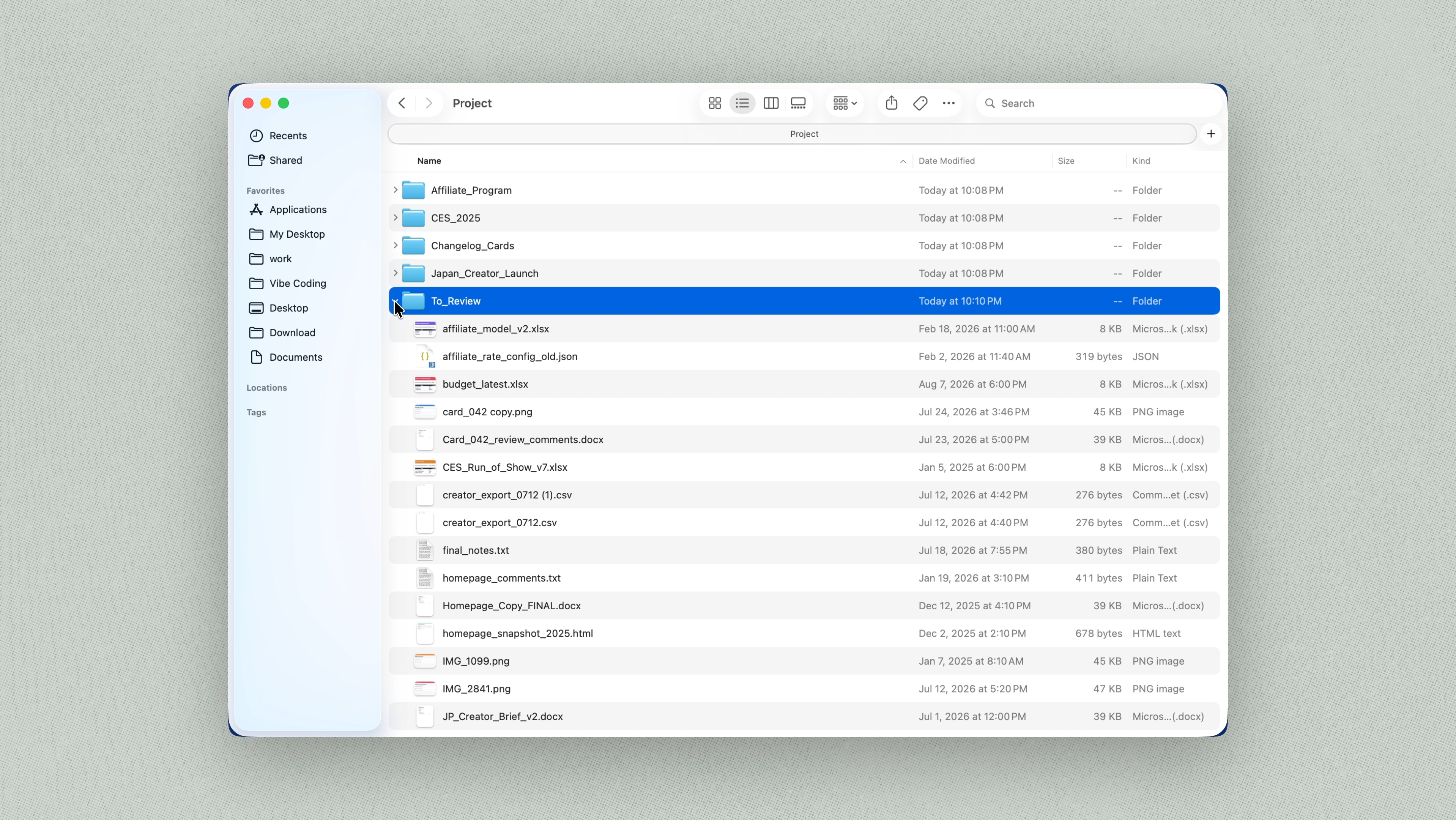
To get a feel for how Kimi Work handles a project, let's start with something simple: file organization.
What used to require manual review and sorting can now be handled by Kimi Work in bulk, with only uncertain cases left for you to confirm.
Kimi Browser Extension: Work in Your Browser
The information you need is not always in local files. It may be spread across websites, social media, or online systems that require you to sign in.
With the Kimi Browser Extension, Kimi Work can handle many common browser actions, from opening pages and searching to clicking through online workflows.
To get started, open Plugins in the sidebar, install Kimi Browser Extension, and follow the setup steps.
You can hand everyday browser tasks to Kimi, such as:
Social media research: Browse feeds using accounts you are already signed into, and summarize trends and insights.
Form filling: Enter and submit information in web applications and online forms.
Computer Use: Work with Desktop Apps
Computer Use expands Kimi Work's access to desktop applications.
Once installed from Plugins, Kimi can see your screen and handle actions like clicking, scrolling, and typing, replacing many of the manual steps you would otherwise perform yourself.
Workflows that once required multiple rounds of manual checking can now run as one continuous task.
Before a product launch, our product team asks Kimi Work to follow a checklist and simulate user interactions. It identifies and records issues, fixes them, and then verifies the changes across different scenarios.
Agent Swarm: An AI Team Built for Your Task
As tasks grow in scope, it can be more effective to split the work into smaller parts and run them in parallel. This works particularly well for:
Batch tasks: Repetitive work at scale, such as converting hundreds of files into a consistent format.
Complex tasks: Work that spans multiple areas, such as a business review combining sales data, user feedback, and customer support issues. Each area can be processed separately before the findings are brought together.
This is where Agent Swarm comes in. Select K3 Swarm, and Kimi will automatically divide the work and coordinate multiple agents based on the task.
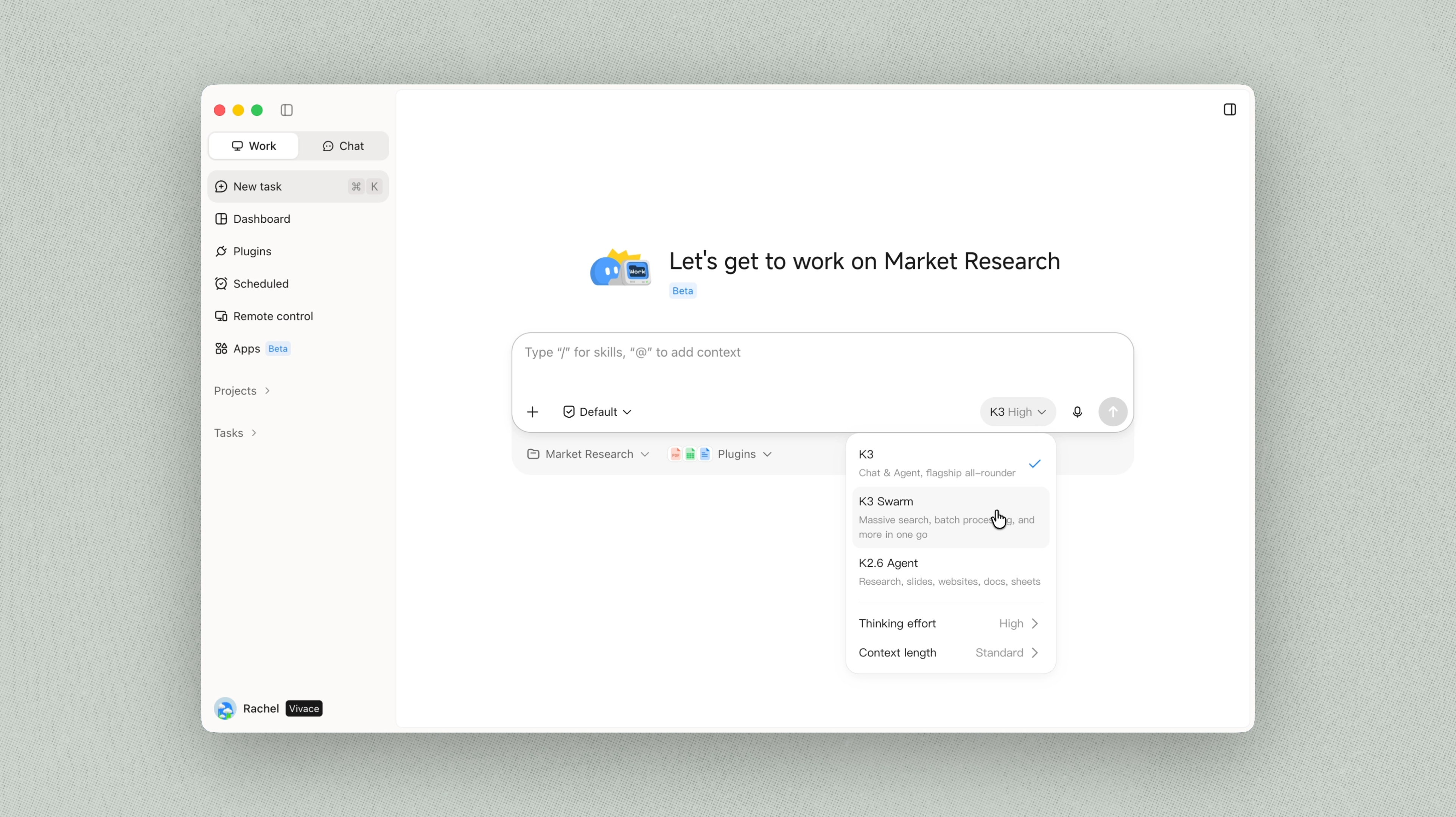
For a market research project on the semiconductor industry, you could use a prompt like this:
Agent Swarm breaks the task into parallel workstreams:
Data collection: Organize market, asset, and historical data.
Strategy validation: Evaluate each strategy's performance.
Risk analysis: Assess key risks and synthesize findings.
Report writing: Turn the analysis into final deliverables.
Work that might once have taken days can now be completed in hours. In this case, Agent Swarm analyzed 10 years of data across 100 semiconductor assets, evaluated five strategies, and produced professional research reports and presentations.
Moving from a single agent to a coordinated team, even larger and more complex work becomes easier to take on.
Goal: Keep Iterating Until It's Right
Some tasks, such as building a small game or debugging a program, take several rounds of testing and revision to get right. Manually reviewing each round and providing feedback can quickly become time-consuming.
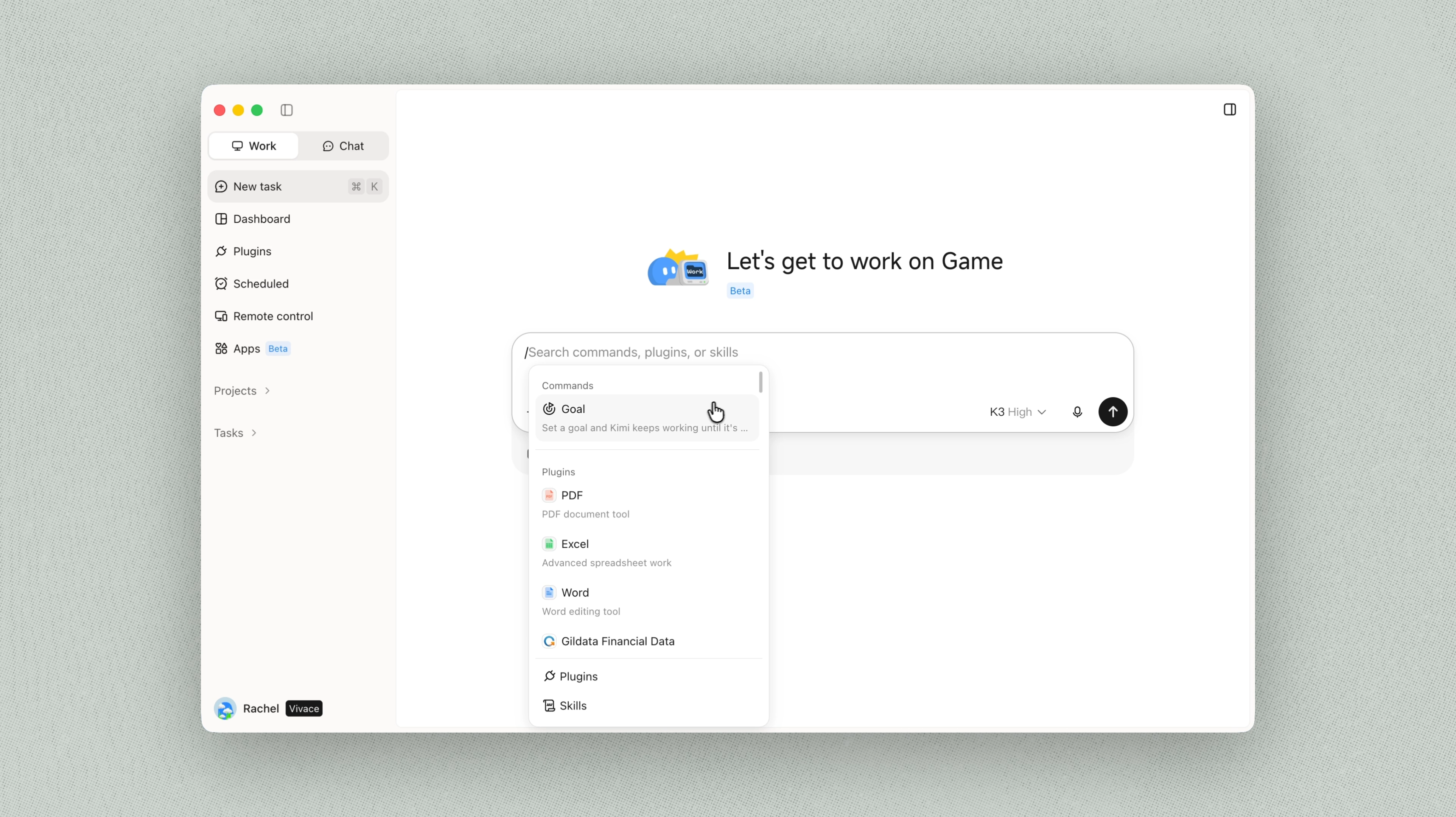
For these tasks, try Goal mode. Describe the outcome you want, and the agent will keep testing, checking, and refining its work until it meets your requirements.
Type / in the input box and select Goal.
Keep the goal simple, with three things clearly defined:
Measurable end state: What should be delivered?
Verification method: What needs to be tested and verified before the task is complete?
Constraints: What should the agent follow or avoid along the way?
For example:
Once the goal is set, Kimi can take it from there. There is no need to monitor the task or review every iteration as it continues to build, test, and refine the work on its own.
A standard task may run for ten to twenty minutes, while Goal mode can keep working toward the same outcome for hours.
Below are several versions from the process, showing how the result evolved with each iteration.
Plugins: Connect Kimi to Professional Tools and Workflows
Plugins extend Kimi Work with the tools, data, and specialized methods used in professional workflows.
Open Plugins in the sidebar to explore three main categories:
Connectors: Connect to tools such as Google Workspace, email, Notion, Canva, Blender, Unity, and more.
Methods and workflows: Apply specialized approaches for finance, coding, design, and other professional fields.
Databases: Access sources such as Wind, scientific databases, and academic research databases.
Once a plugin is installed, click Use to get started, or type / in the input box to call it up quickly.
Kimi Work also supports custom plugins. Type /, select plugin-builder, and describe what you want to build. For example:
Custom plugins let you connect third-party software, build on open-source projects, and turn repeatable workflows into reusable capabilities.
AGENTS.md: Set Project Guidelines
AGENTS.md defines the persistent instructions for a project—the rules and requirements Kimi should follow across tasks. Once set, they remain available whenever Kimi works in that project.
You can create and refine these instructions through simple conversation. For example, if you want Kimi Work to cite files consistently and keep information traceable across the project, you might start with:
Kimi Work creates and saves AGENTS.md automatically. Once set, the same instructions carry across future tasks, so you do not need to write them again each time.
Dashboard: Keep What Matters in View
Dashboard brings the information you care about into one view. Each dashboard is made up of widgets that you can arrange and customize to fit what you want to follow, then pin directly to your desktop for easy access.
Two ready-made templates offer a quick way to get started:
Daily Finance: Keep market conditions, stock quotes, and charts together in one view.
Hello World: See what else a dashboard can be—from trip plans and habit trackers to Pomodoro timers and favorite playlists.
You can also create a dashboard around your own needs. Click the plus button on the Dashboard page, and Kimi Work will guide you through the setup and build the widgets and layout for you.
Start from Here
The examples above are only a few possibilities. As Kimi Work becomes part of different workflows, we expect the most useful use cases to come from the work people already do every day.
We will keep improving Kimi Work, helping it become a more reliable part of your daily work.