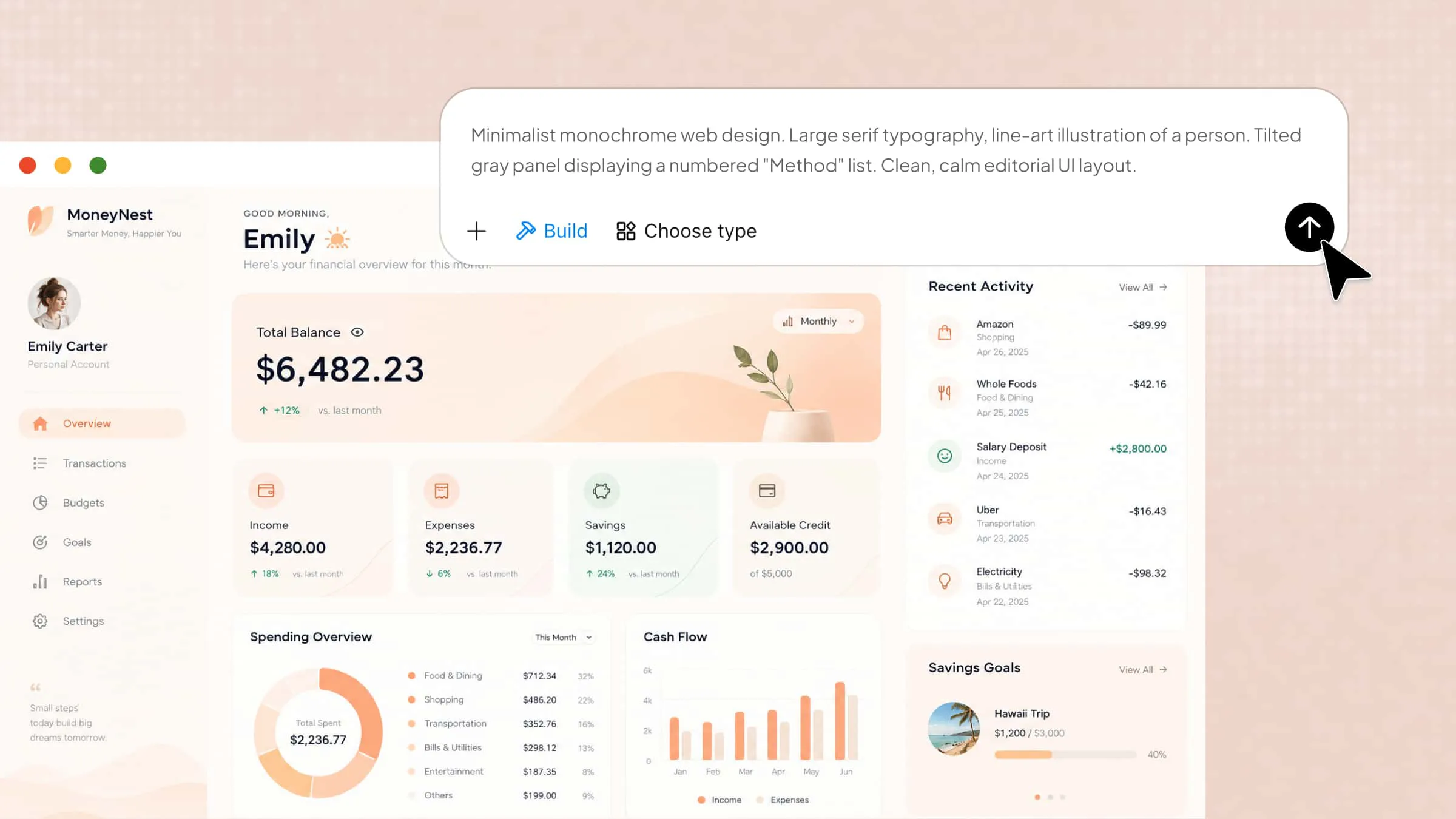
You may have a great idea for an app but feel unsure about where to start, especially if you have never written a line of code. The good news is that creating an app no longer requires programming skills or a team of developers. With the right tools, you can turn your idea into a working app, add the features you need, and get it ready to share. In this article, you will learn how to build an app without coding using Kimi Build.
Why build an app without coding
Building an app without coding makes the development process easier, faster, and more accessible, even if you have no technical background. It gives you more room to focus on your ideas instead of worrying about programming or complex tools. Here are some key benefits of choosing a no-code approach.
Lower the barrier to app development: No-code tools allow people without programming knowledge to turn their ideas into applications using natural-language prompts, visual editors, and prebuilt components.
Reduce development time: Generate app interfaces and core layouts without writing code from scratch. This helps simplify the initial development process and speeds up prototyping.
Save development costs: Reduce the need to hire developers for every early-stage design or prototype. Individuals and small teams can explore app ideas with fewer initial resources.
Make customization more accessible: Adjust layouts, colors, typography, images, and interactive elements through visual editing or natural-language instructions without manually modifying source code.
Test and refine ideas quickly: Build prototypes, preview app interactions, and make changes based on feedback. This makes it easier to experiment with different features and improve the app before a wider release.
How to build an app without coding
Kimi Build, an AI website builder, takes the complexity out of app development by letting you create digital products with natural-language prompts. You simply explain what you want your app to do, who it is for, and which features it should have. The tool then helps turn those instructions into a structured app that you can review and improve. Let's look at the four steps involved in creating your app.
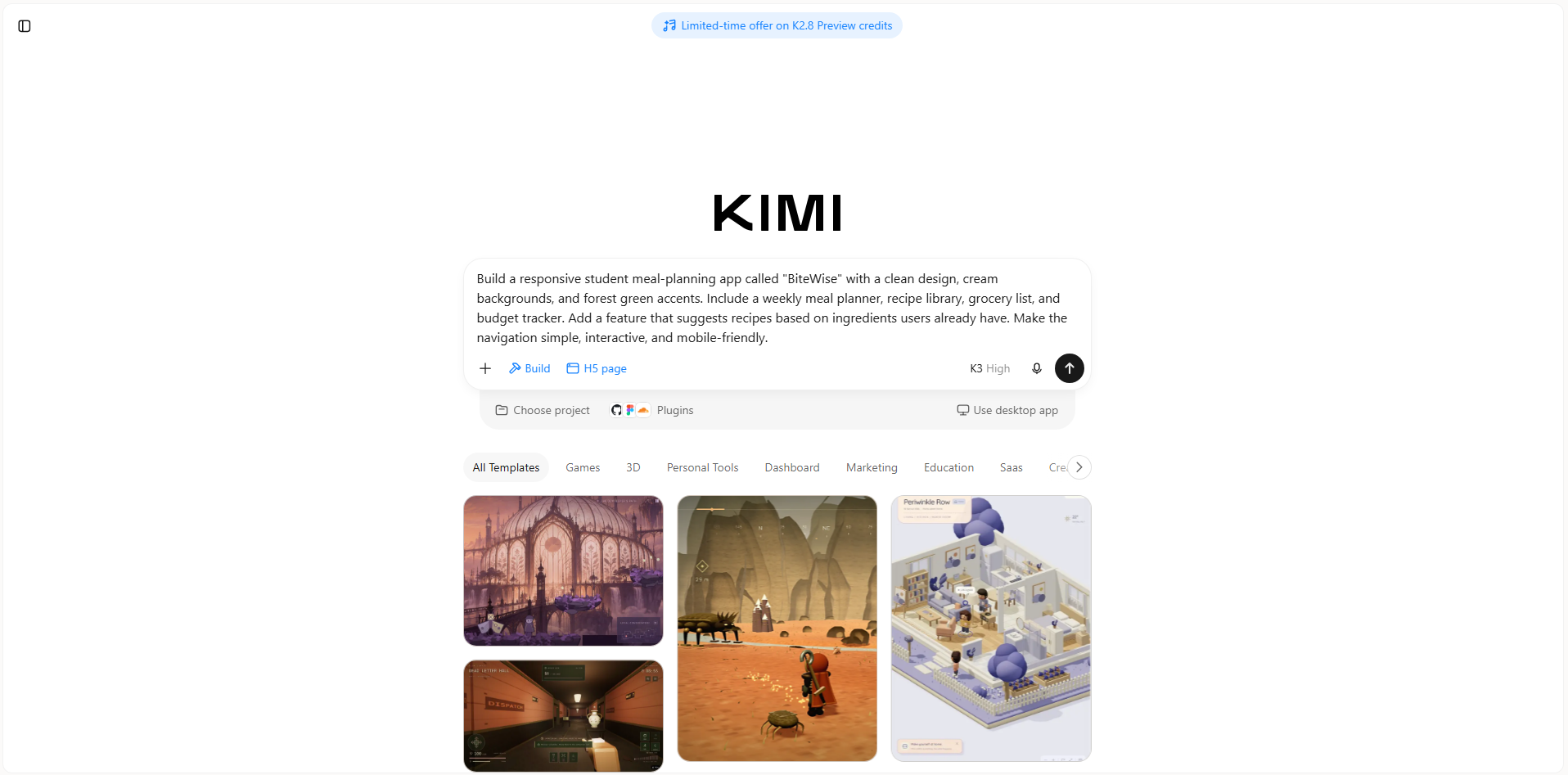
Step 1: Describe your app idea in a detailed prompt
Start by opening Kimi Build and explaining what you want your app to do. Include its target audience, main features, preferred design, and overall purpose so the AI can understand your requirements.
Example prompt
Step 2: Let AI generate your app
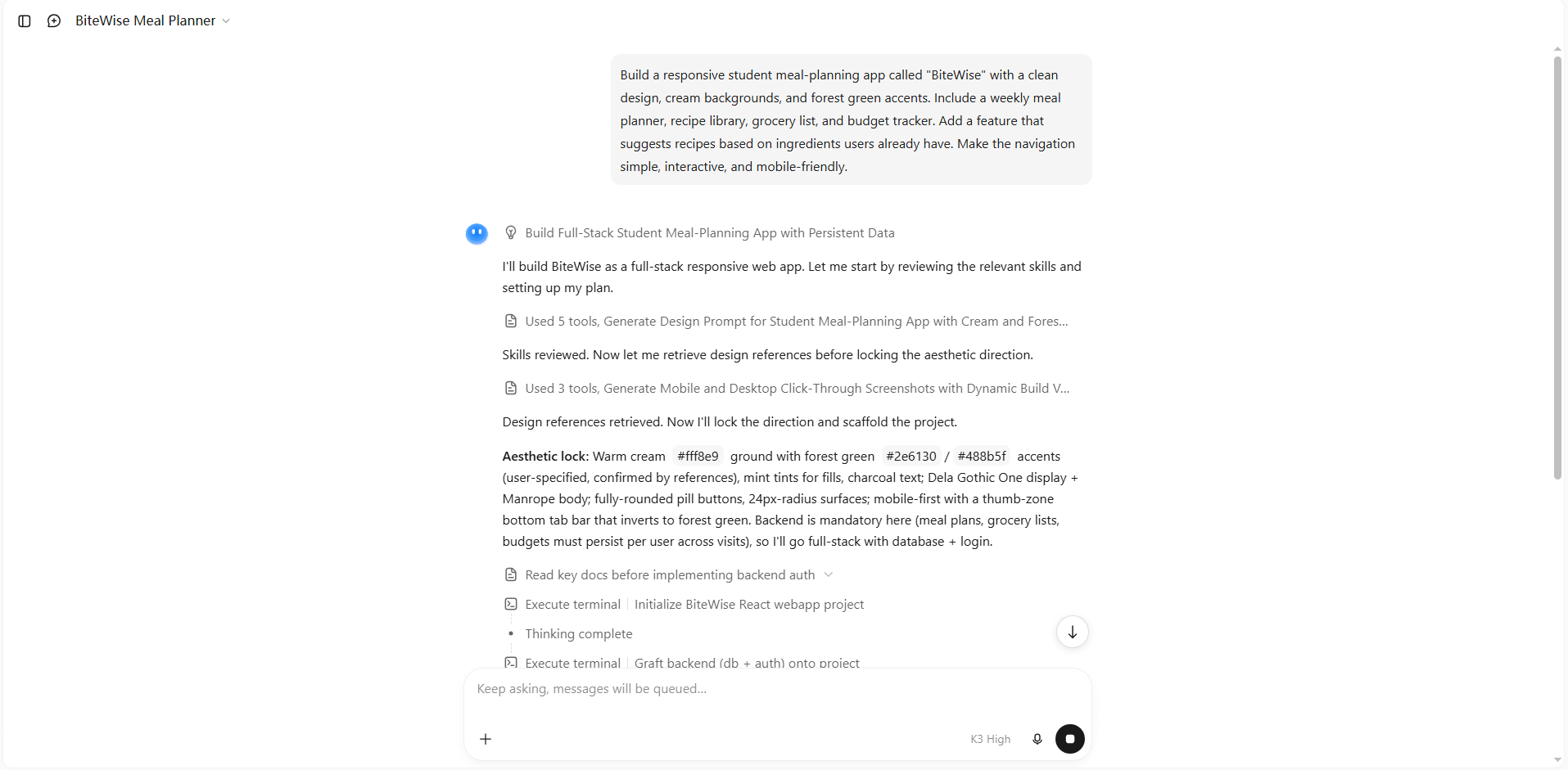
After submitting your prompt, Kimi Build will start generating your app based on the instructions. It will create the main layout, navigation, and requested features. Once the first version is ready, review the result and check whether it matches your idea.
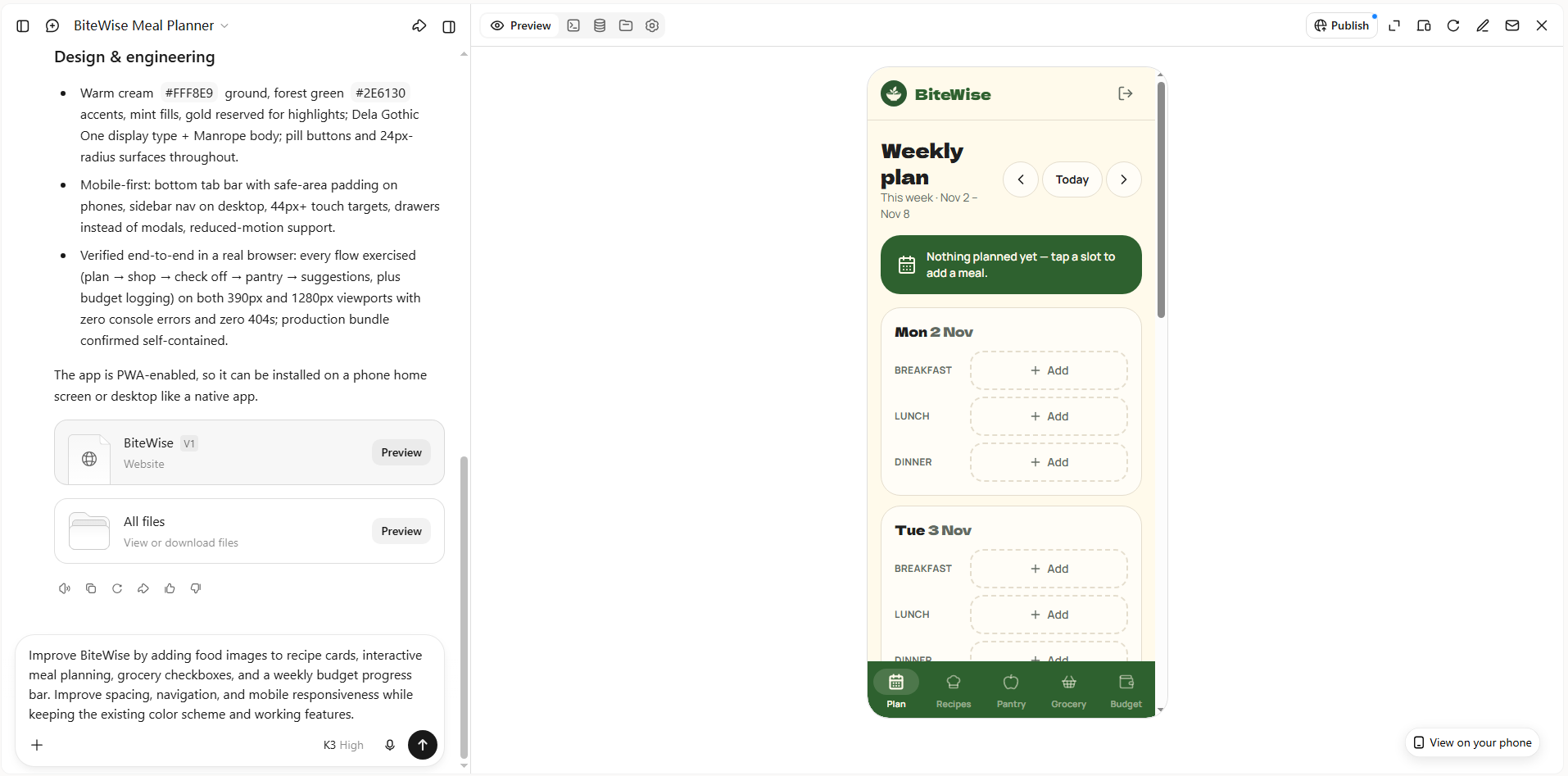
Step 3: Refine the layout and app features
If you want to improve the design or add missing features, simply give Kimi Build another prompt. You can request changes to individual sections, adjust the layout, or make interactive elements more useful.
Step 4: Preview and export your finished app
Preview your app and test its buttons, navigation, and main features to make sure everything works properly. Check the mobile layout and make any final adjustments before using the available export or publishing options to share your finished app.
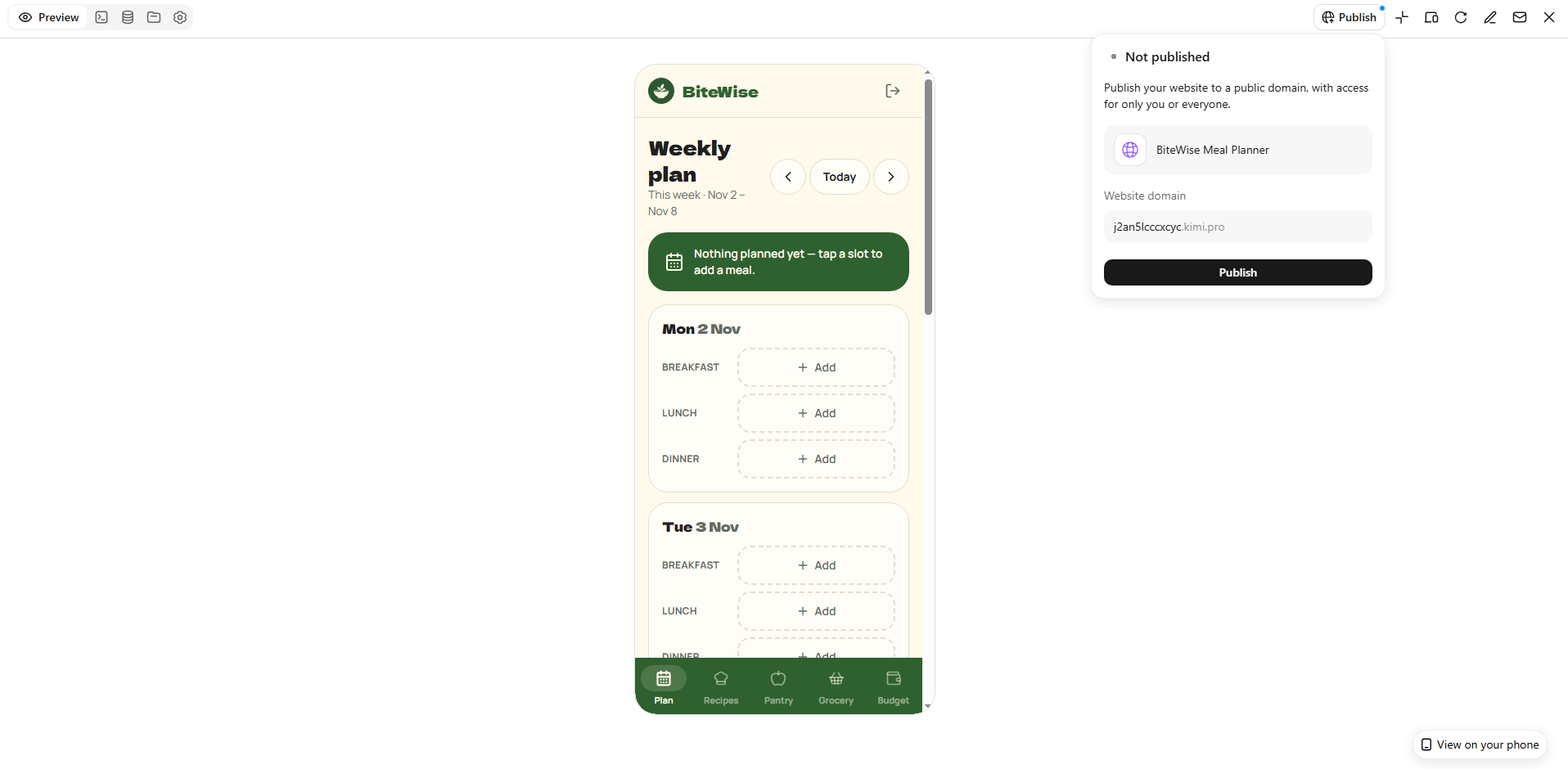
What makes Kimi Build a good app builder
Kimi Build makes app creation easier with AI-powered features that simplify design and development. Let's explore what makes it a useful choice for building apps without coding:
Generate apps from prompts and visual references: Describe your app idea, core features, page structure, and visual style, or upload screenshots, images, and videos as references. Kimi Build turns your input into functional app interfaces that you can further customize.
Create interactive app interfaces: Generate webpages with interactive components, navigation, and functional elements. Build interfaces where users can explore different sections, interact with buttons, and experience how different app features work together.
Customize app designs through flexible editing: Refine your app using natural-language prompts, element comments, or manual editing. Adjust layouts, text, images, colors, and other interface elements to better match your requirements without rebuilding the entire project.
Track changes and restore previous versions: Keep track of design iterations through version history. Review earlier versions and roll back to a previous state when needed, making it easier to experiment with changes while preserving earlier work.
Preview and publish your app: Preview your app to check its appearance, layouts, and interactions. Once the design is ready, publish the project and share it through a generated link.
What you can build with Kimi Build: Real examples
You can use Kimi Build to create different types of apps depending on your needs, whether you want to manage daily tasks, support a business, or organize personal activities. Here are some practical examples of apps you can build by describing your requirements in simple prompts.
Personal finance tracker
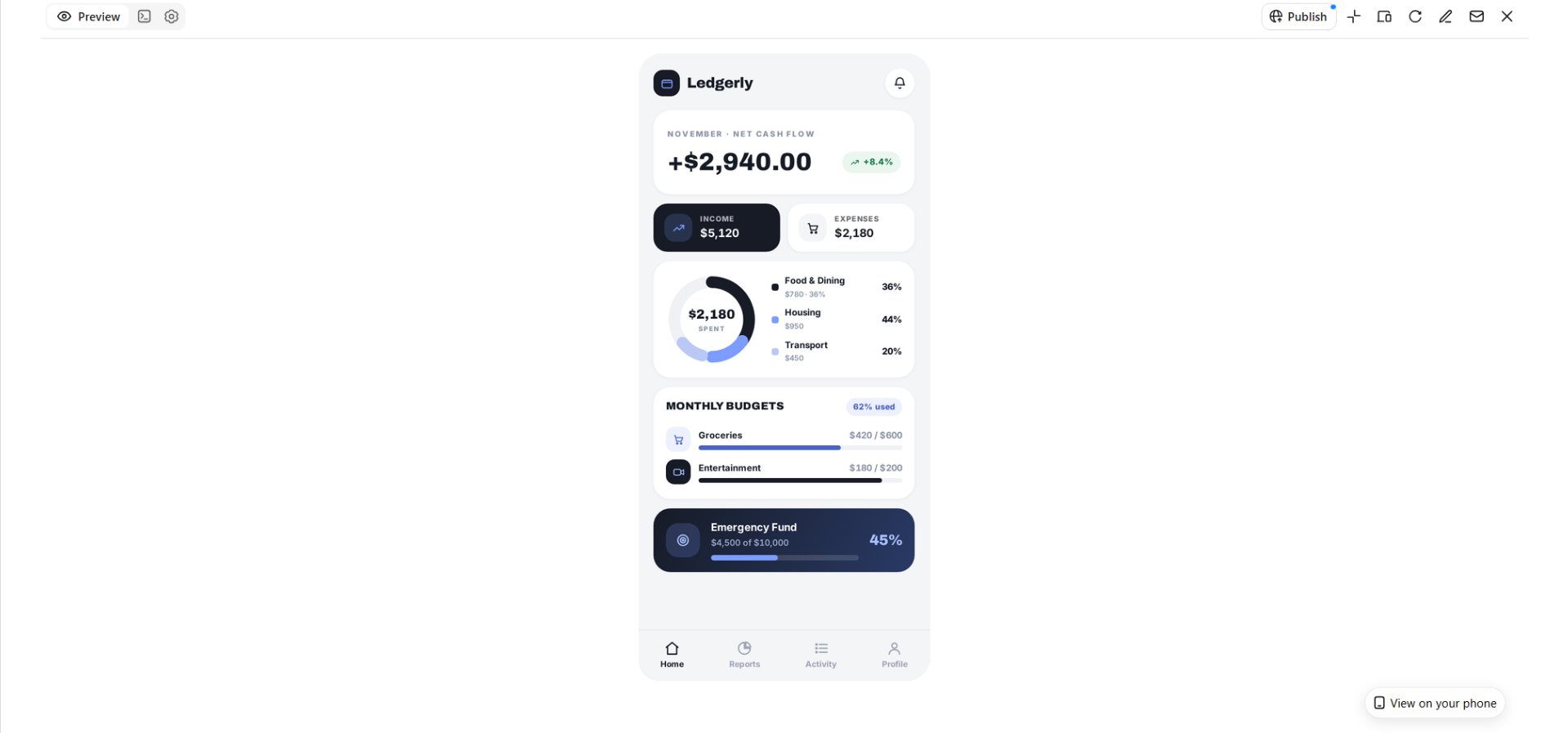
A personal finance tracker helps users keep their money organized and understand their spending habits. You can create a dashboard to record income, expenses, and monthly budgets in one place. Add savings goals and spending charts to make financial progress easier to follow. This type of app is useful for managing everyday expenses and building better saving habits.
Example prompt
Fitness and workout planning
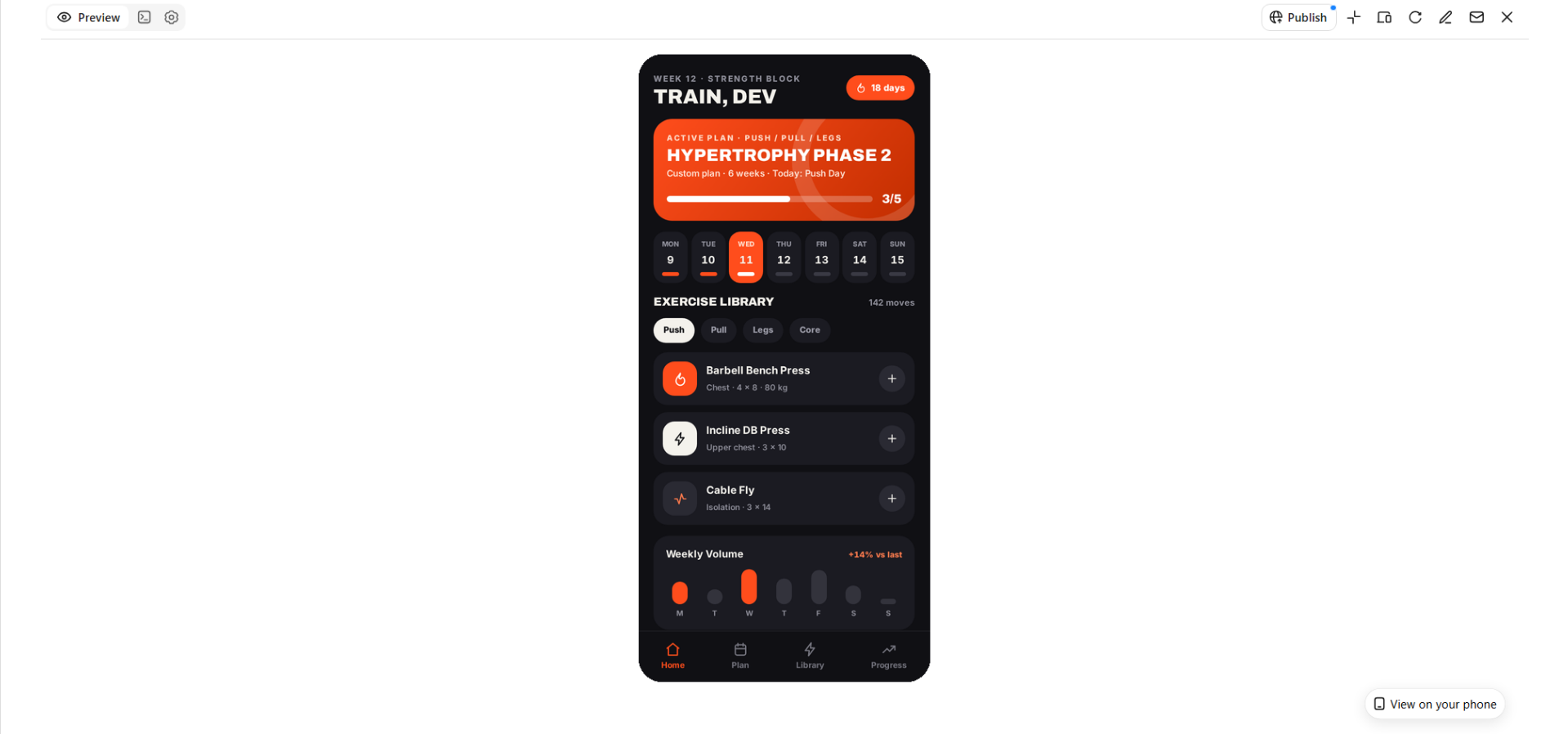
A fitness app can help users plan their exercise routines and stay consistent with their goals. You can include weekly workout schedules, exercise libraries, and personalized training plans. Add progress charts and workout tracking to help users monitor their improvement over time. A clear layout makes it easier to follow routines and manage fitness activities.
Example prompt
Online learning platform
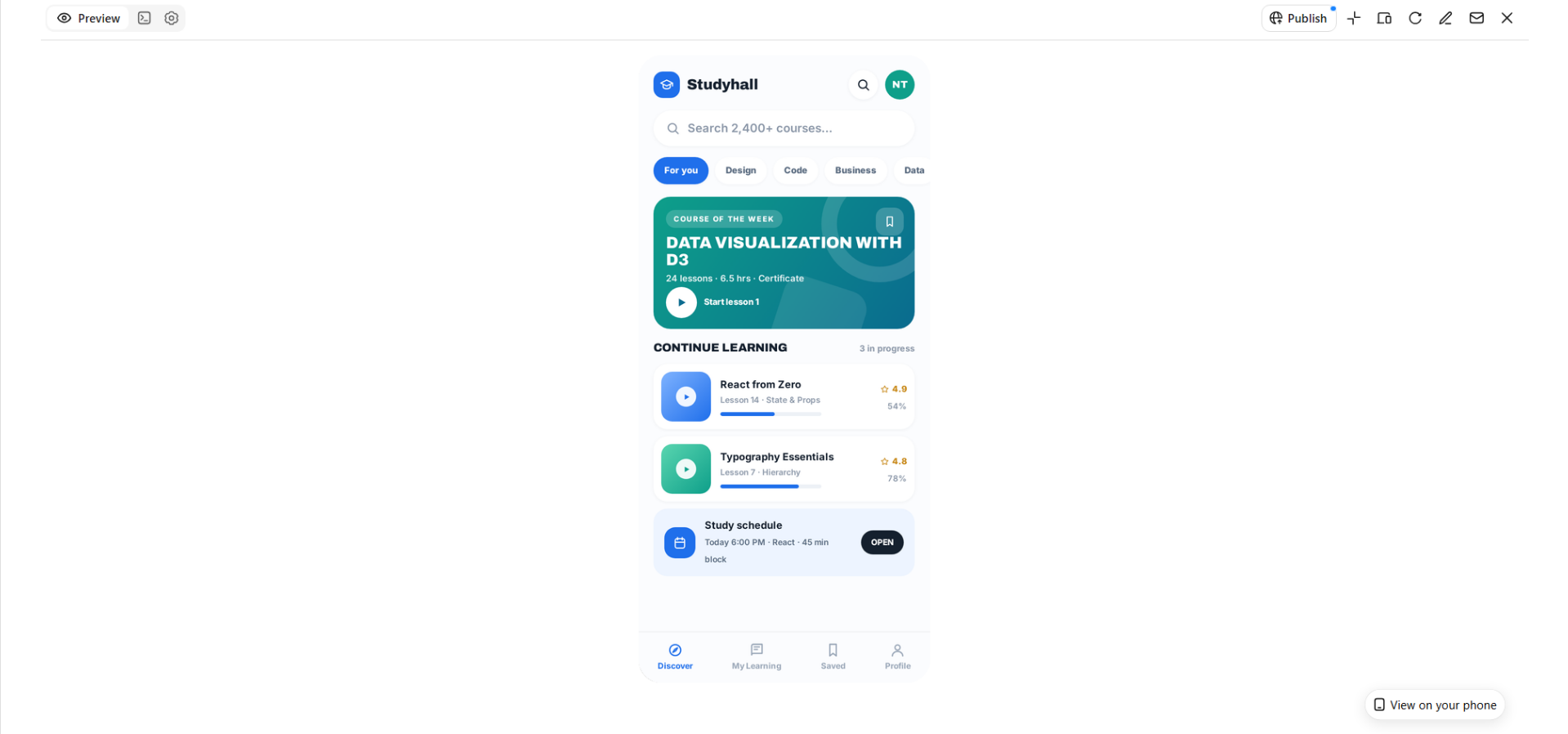
An online learning platform makes it easier for students to access courses and organize their studies. You can create course discovery pages, lesson sections, and personalized student dashboards. Include progress tracking, bookmarks, and study schedules to help learners stay organized. This type of app works well for educators, tutors, and online course creators.
Example prompt
Restaurant ordering app
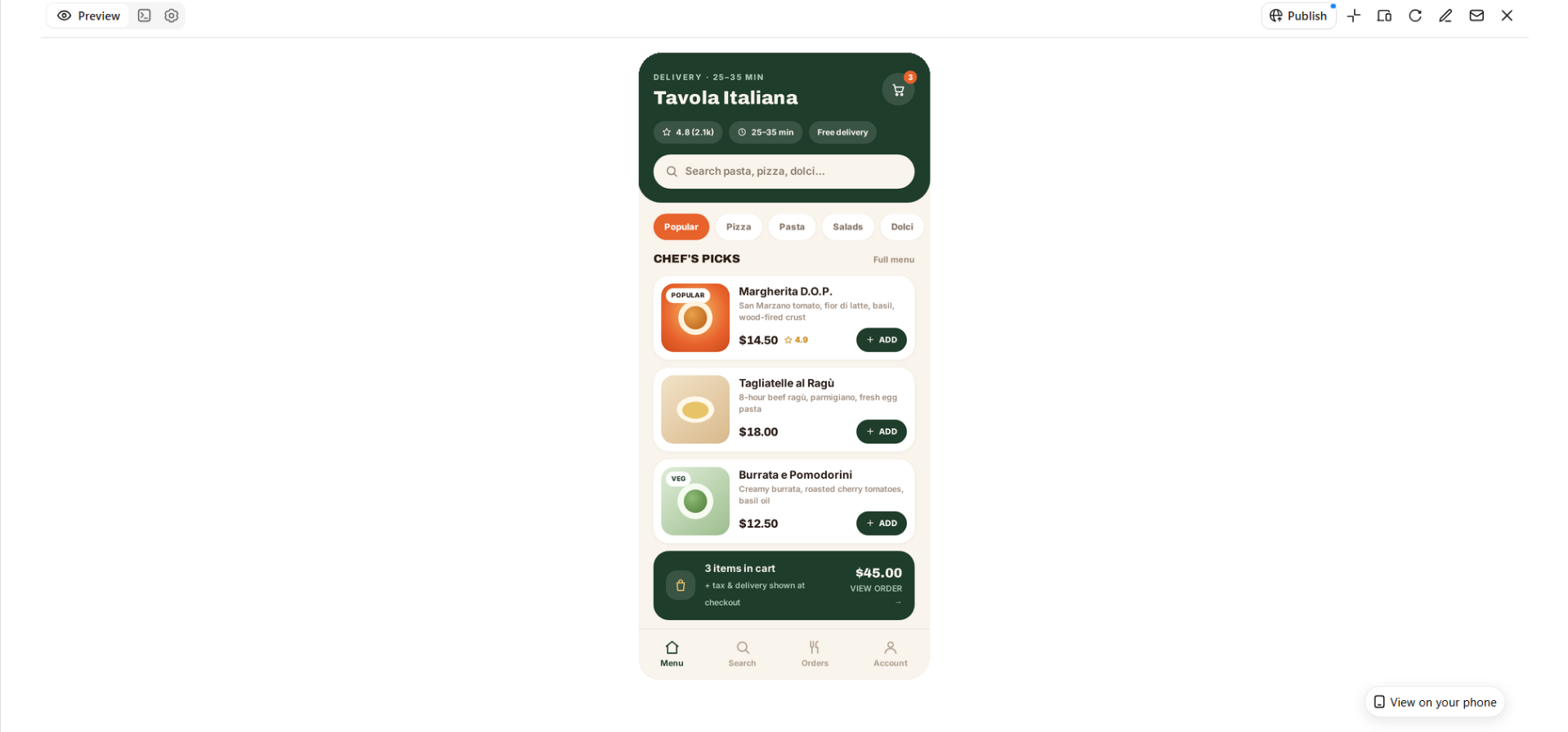
A restaurant ordering app lets customers explore menus and place orders without visiting the restaurant. You can add food categories, product images, item customization, and a shopping cart. Include an order summary so customers can review their selections before checkout. A simple ordering flow makes the experience easier for both customers and restaurant owners.
Example prompt
Project management app
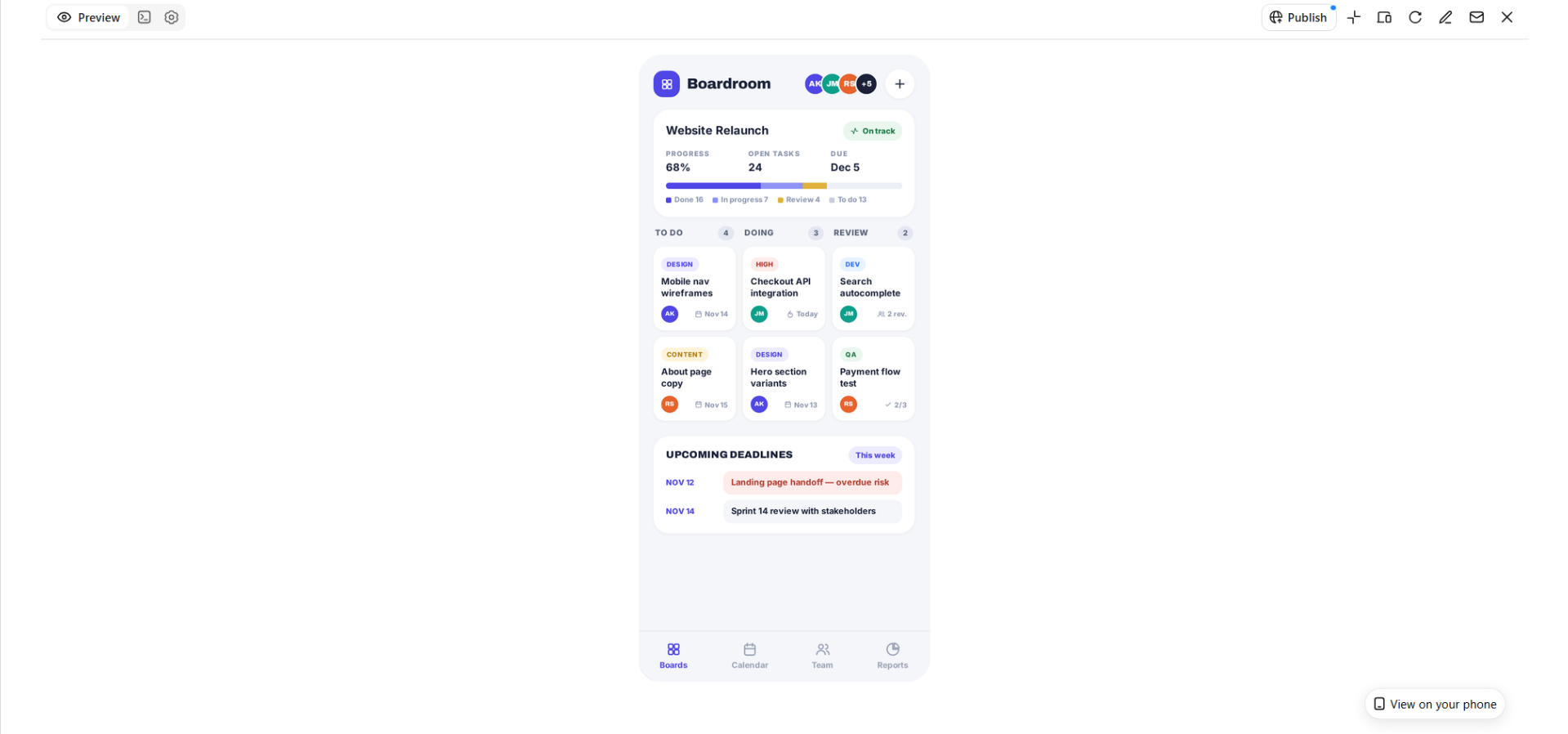
A project management app helps individuals and teams organize tasks and keep projects on track. You can create Kanban boards, assign tasks, set deadlines, and highlight priorities. Add calendar views and project status summaries to make progress easier to monitor. This is a useful option for managing team activities and keeping everyone organized.
Example prompt
Expert tips for building an app without coding
Building an app without coding is simple, but a little planning can make the final result much more useful and easier to navigate. Before creating your app, think about what users need and how they will interact with its features. Keep these practical tips in mind to get better results from Kimi Build.
Define your app goal before starting
Before opening Kimi Build, be clear about what you want your app to achieve. Think about the problem it should solve and who will use it. A clear goal helps you write better prompts and choose features that serve a real purpose.
Choose a simple, focused feature set
You do not need to add every possible feature to your first app version. Start with the essential functions that support its main purpose. Once the basic app works well, you can introduce additional features without making the experience confusing.
Plan screens and user flow first
Think about which screens your app needs and how users will move between them. For example, a shopping app may need a home page, product page, cart, and checkout screen. Planning this flow beforehand helps Kimi Build create a more organized layout.
Test early with real users
Do not wait until your app is completely finished before testing it. Share an early version with a few people and ask them to try its main features. Their experience can help you identify confusing sections, broken buttons, and areas that need improvement.
Keep the design clean and consistent
Use a consistent color palette, readable fonts, and similar layouts across different screens. Avoid adding too many buttons, visual effects, or unnecessary elements that distract users. A simple design makes your app easier to understand and navigate.
Update the app based on feedback
Your first version does not have to be perfect because there is always room for improvement. Pay attention to user suggestions and identify features that need adjustments. Use follow-up prompts in Kimi Build to make changes and gradually improve the overall app experience.
Conclusion
Understanding how to build an app without coding experience opens up new ways to turn your ideas into practical digital products. You do not need to get everything right in your first attempt; start with a clear idea, explore different possibilities, and improve as you go. Kimi Build makes it easier to take that first step with AI-powered app creation. Give Kimi Build a try and see what you can create with just a few simple prompts.