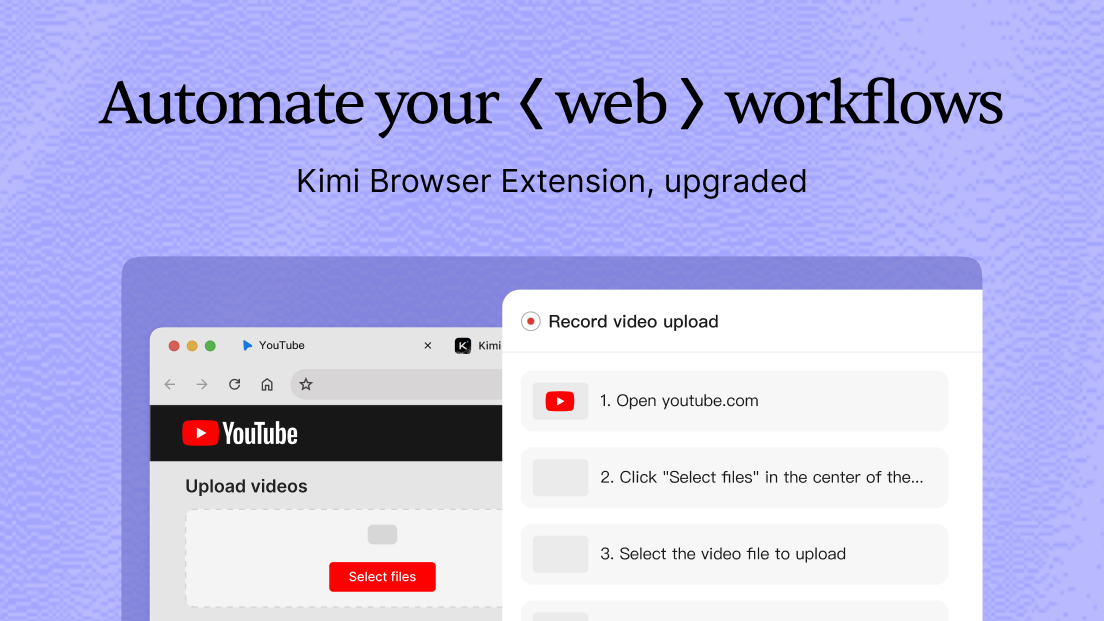
Let Kimi handle work directly in your browser.
Uploading invoices in bulk, listing products, organizing business data, connecting a personal knowledge base, filling out online applications, and submitting resumes: much of our work involves repeating tasks on the web. The steps themselves are not complicated, but repetitive actions take time and make it easy to miss details.
The Kimi WebBridge browser extension has been upgraded to the Kimi Browser Extension. It gives you access to Kimi in your browser, so you can chat with Kimi directly in the sidebar and have it read pages, click buttons, fill out forms, and extract information. For web tasks you need to repeat, you can also save the steps as a skill to reuse in future work.
Use Kimi directly in your browser sidebar
Once you have installed the Kimi Browser Extension and signed in to your Kimi account, you can open a chat alongside your current browser page. Describe the task you want Kimi to complete and how you would like it to proceed. It will use the page content to carry out the corresponding actions in your browser.
The Kimi Browser Extension can use your existing website login sessions in the browser. When working on a task, you do not need to copy page content into another window first or explain each next step. When a task involves multiple pages, Kimi can organize the relevant pages into a single tab group. You can also use @ to select pages within that group or select text on a page to provide context for the task.
Record web actions to create reusable skills
Some web tasks involve multiple steps that are difficult to describe precisely in words alone. Now you can demonstrate the process directly, showing Kimi which pages to open, which criteria to select, and how to verify the results.
Use “Record actions as a skill” in the sidebar, then perform the web task once as you normally would. Kimi will create a reusable skill from the steps you take. The next time you need to handle a similar task, you can use that skill directly, reducing the need to repeat your instructions.
If you have already completed a task in the Kimi Browser Extension, you can also use “Save conversation as a skill” in the sidebar to save the workflow from that conversation. The saved skill is a reusable web workflow, not a new plugin. The revised steps and requirements can be reused in future tasks.
Save common web workflows as skills
For websites that involve many interactions, you can use “Turn a webpage into a skill” in the Kimi Browser Extension to analyze the page structure. It can help you identify common actions on a page and turn repeatable web workflows into reusable skills and CLI tools.
For example, in a business system you are authorized to use and where the relevant actions are permitted, you can save a set of steps for querying, filtering, and organizing information. When you need to perform similar tasks later, simply use the workflow you have saved.
Whether Kimi can connect to a website and perform actions depends on the website’s technical setup, your account permissions, and its terms of service. Only use the Kimi Browser Extension on websites you are authorized to access and where the relevant actions are permitted.
Continue using the extension with Kimi Work and Kimi Code
The Kimi Browser Extension now supports Chrome and Edge, and you can continue using it with Kimi Work and Kimi Code. The browser sidebar provides a new way to access it, while existing ways to use it remain supported.
In Kimi Work, you can install the Kimi Browser Extension from the plugin marketplace, then type “/” in the input box and select the Kimi Browser Extension. In Kimi Code, you can enable the Kimi Browser Extension in Settings. Here, the Kimi Browser Extension provides the ability to perform browser actions, while skills are the reusable web workflows you have saved. This lets you continue using browser capabilities in Kimi Work or Kimi Code to complete tasks that require web interactions.
Start with one web task
Open the Kimi Browser Extension, sign in to your Kimi account, and choose a web task you need to repeat. You can describe the task directly or record yourself performing it. Once the task is complete, save any workflow you expect to reuse as a skill.
When a task involves personal information, account permissions, or form submissions, verify the target and content of the action before proceeding, and use the relevant features in accordance with the website’s terms of service.