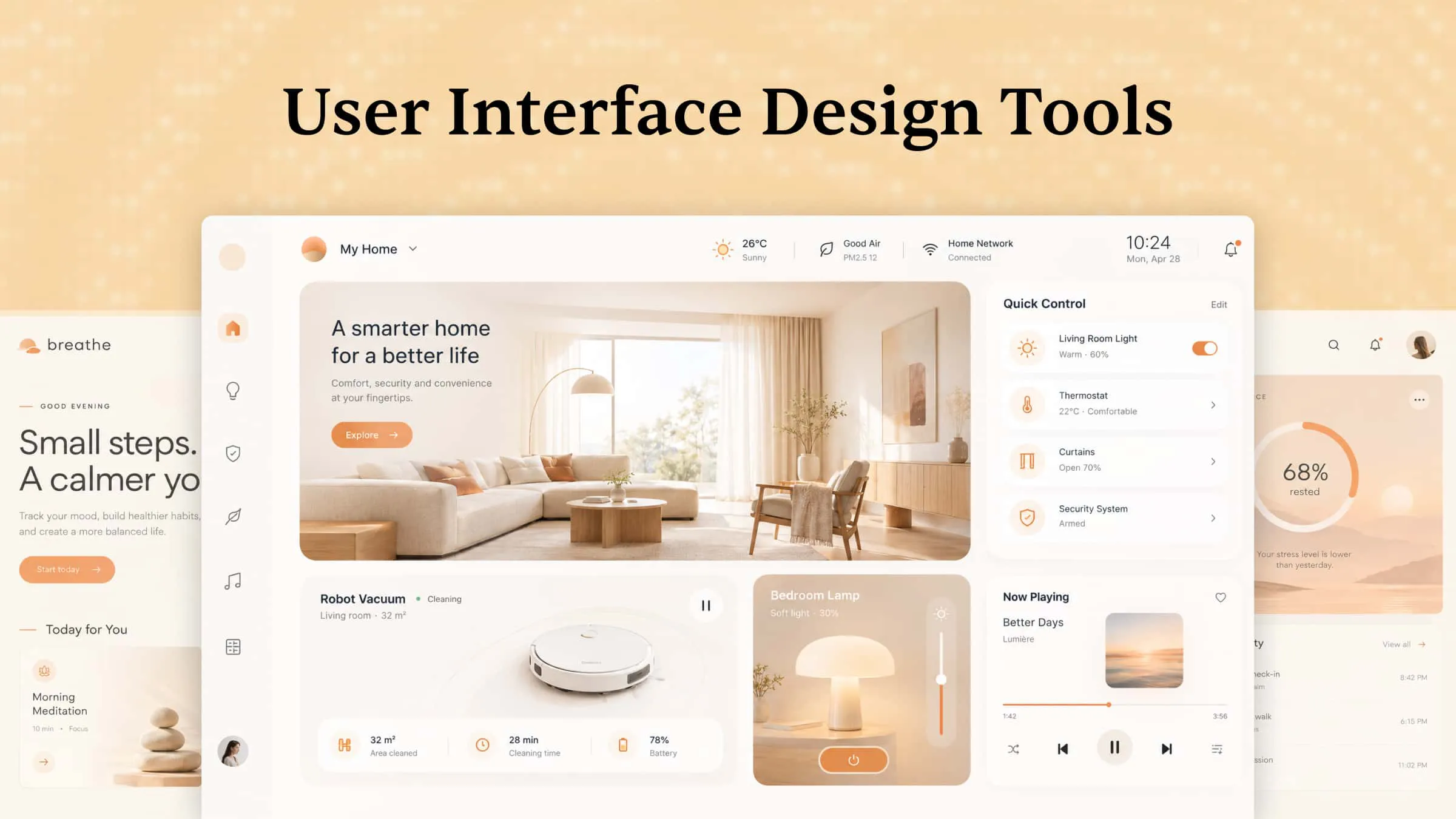
Whether you are designing a website, mobile app, or digital product, the right tools can make the process much easier. Good UI design tools help you turn ideas into clear layouts, test designs, and create user-friendly interfaces. With so many options available, finding the right one can be challenging. Explore 10 tools in this article to find the best fit for your design needs.
Overview of 10 user interface design tools
The right UI design tool depends on your workflow, whether you need AI-powered interface generation, collaborative design, wireframing, or interactive prototyping. The following table lists 10 UI design tools by their key features and suitable use cases to help you understand what each tool offers.
Explore 10 UI design tools every designer should know
Choosing the right UI design software can save time, simplify your workflow, and make it easier to bring your ideas to life. Each option offers different features, so let's explore 10 UI tools and see what makes each one worth considering.
Kimi Build
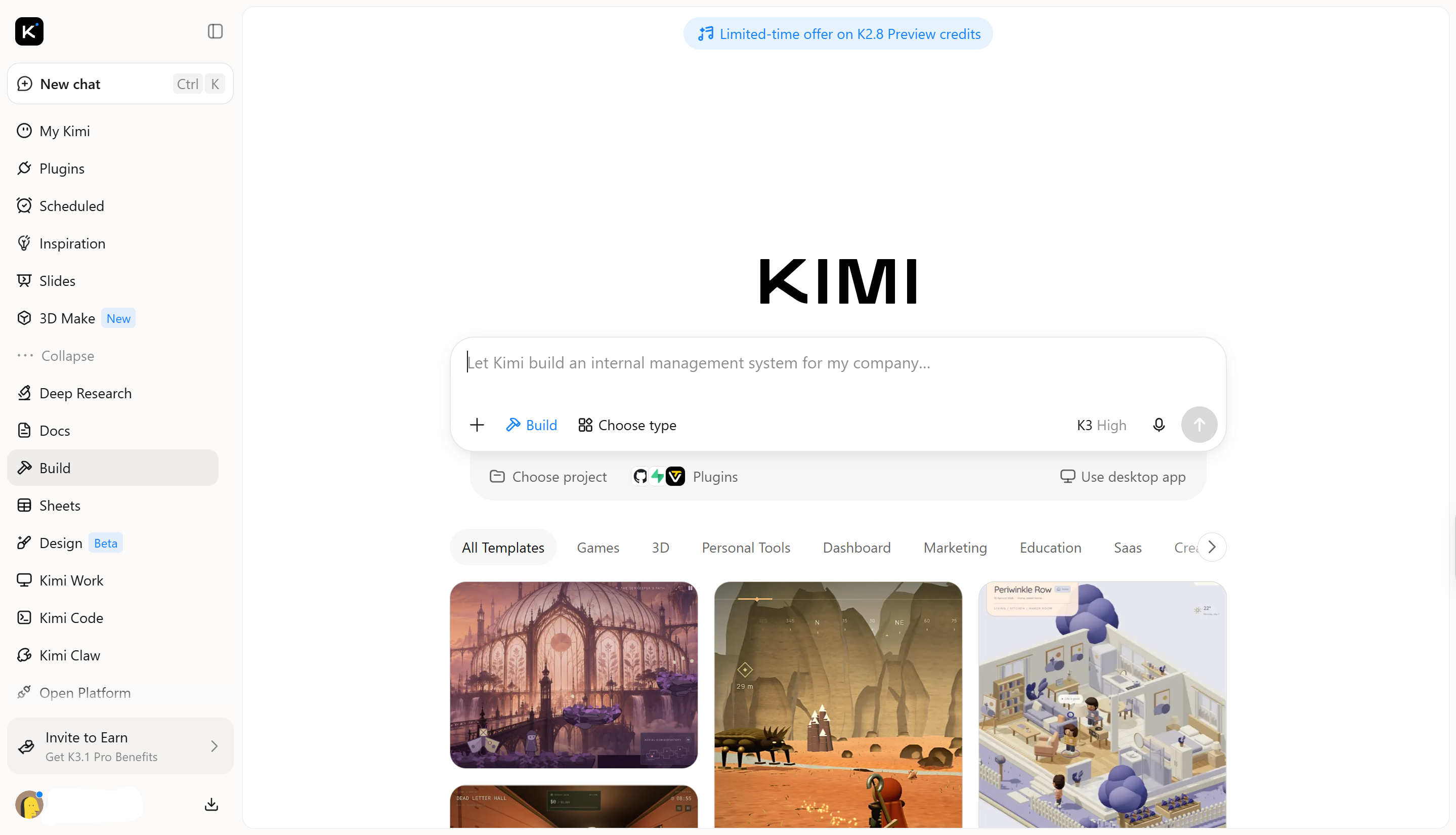
Kimi Build is an AI website builder that turns text prompts into functional websites and applications. It helps designers move beyond static layouts by generating page structures, interactive elements, and working interfaces from simple instructions. This makes it easier to take a design idea from concept to a live product without building everything from scratch.
Main features
Generate UI designs from prompts and references: Describe your design ideas in natural language or upload screenshots, images, and video references. Kimi Build turns them into functional webpage designs that you can further customize.
Create visually appealing and well-structured interfaces: Generate interfaces with coordinated colors, typography, layouts, and interactive elements. From polished landing pages to multi-page websites, Kimi Build helps create visually consistent designs with clear content hierarchy and engaging visual details.
Customize UI elements through natural language and visual editing: Refine generated interfaces by describing the changes you want in chat or selecting specific webpage elements and adding comments. You can adjust layouts, colors, typography, buttons, and other interface details without manually rebuilding the entire page.
Build responsive UI designs for different devices: Create webpages that adapt to desktop, tablet, and mobile screens. Preview your designs in different screen sizes and refine layouts to make sure interface elements remain accessible and visually consistent across devices.
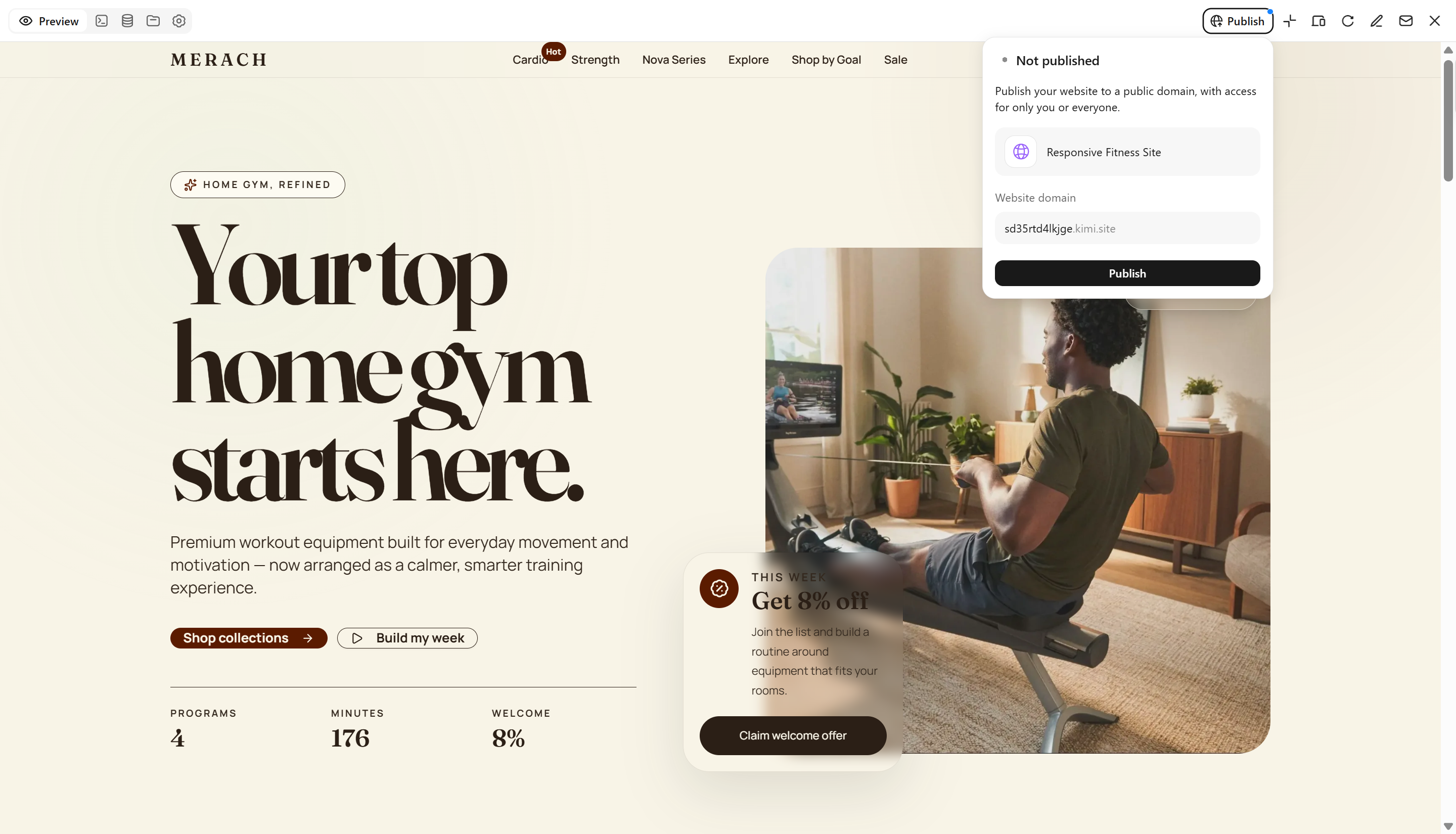
Turn UI designs into functional websites and publish them: Go beyond static mockups by generating working webpages with interactive elements and supporting functionality. Preview the results, refine the design, and publish your website with a shareable link when it is ready.
Suitable for
Creating websites and landing pages from prompts
Turning UI ideas into working prototypes
Redesigning existing webpages and layouts
Building responsive, interactive websites
How to design an interactive interface with AI
Designing an interactive interface with AI is easier when you have a clear idea of what you want to build. You can start with a simple prompt, refine the design, and add interactive elements as you go. Follow these steps to create your own interface with Kimi Build.
Step 1: Upload the file and write a prompt
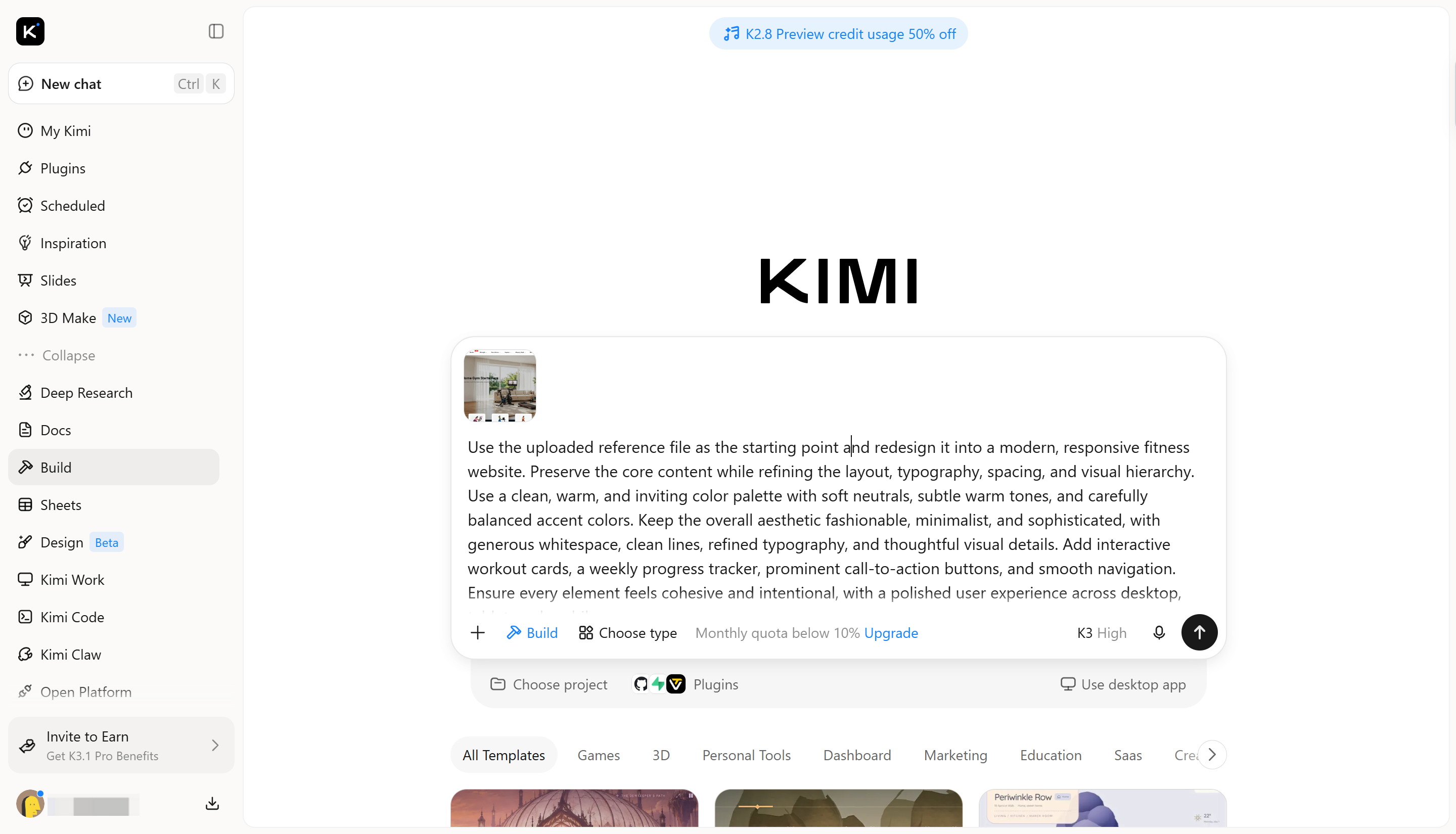
Upload a screenshot, image, or existing design that shows the interface you want to create. Then describe your requirements clearly, including the layout, colors, typography, buttons, and interactive features. For example, you can use this prompt:
Example prompt:
Step 2: Edit and refine your design
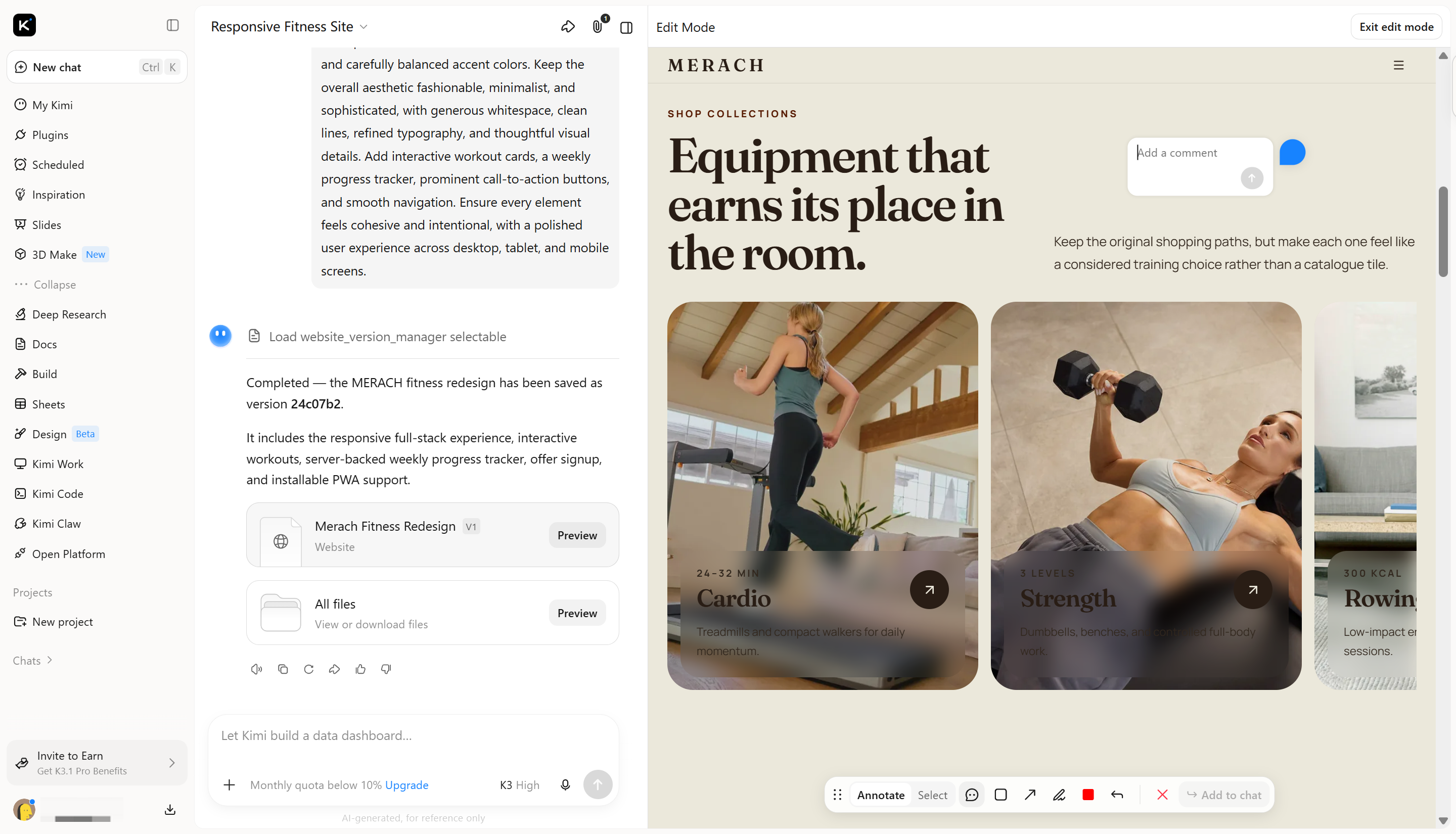
Once Kimi Build generates the webpage, review the layout, colors, typography, and interactive elements. You can refine the result in several ways: enter a prompt in the chatbox to describe the changes you want, click "Edit" to make manual adjustments directly on the page, or leave comments on specific elements to request targeted changes. Continue editing until the design matches your requirements.
Step 3: Review and publish
Preview your design on different screen sizes and make any necessary changes. You can ask AI to adjust specific elements or use visual editing to refine the interface. Once everything looks right, publish your website and share it through its live link.
Figma
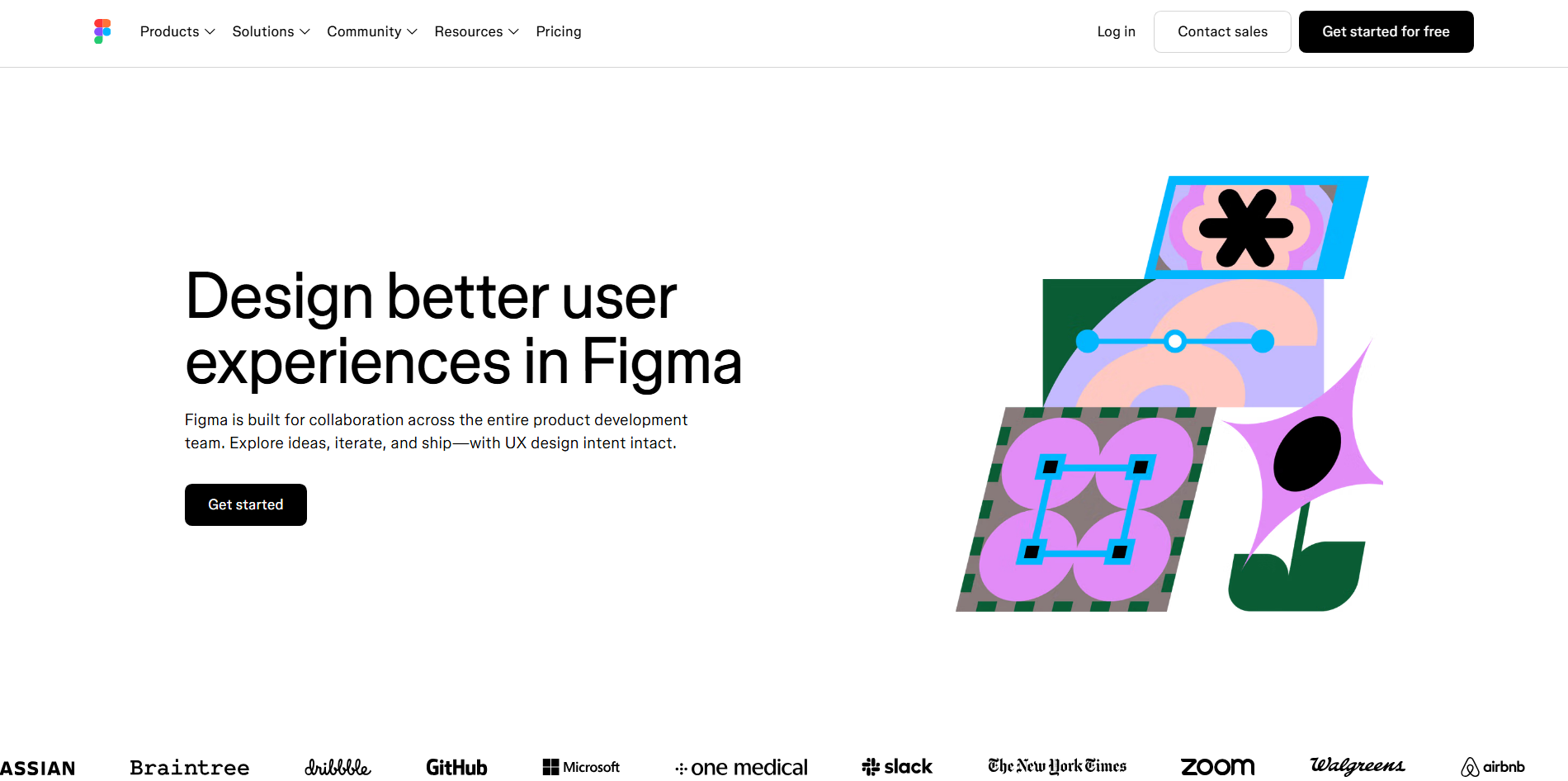
Figma is a browser-based UI and UX design platform used to create digital interfaces, prototypes, and design systems. It provides a shared workspace where designers can work on the same project in real time. Its vector editing and prototyping features make it useful for everything from simple wireframes to detailed application designs. It also supports collaboration between designers, developers, and other team members.
Main features
Real-time collaboration: Multiple designers can work on the same file simultaneously. They can leave comments, share feedback, and make changes without sending files back and forth.
Interactive prototyping: Connect screens, add clickable elements, and create transitions to demonstrate how an interface works. This helps teams test user flows before development begins.
Reusable design systems: Create shared components, styles, and variables for consistent interface elements. Designers can update these resources across multiple screens and projects.
Developer handoff: Share design specifications, inspect properties, and access assets for development. This makes it easier for developers to turn approved designs into working interfaces.
Suitable for
Designing website and mobile app interfaces
Creating interactive prototypes and user flows
Building reusable design systems
Collaborating with remote design teams
Sketch
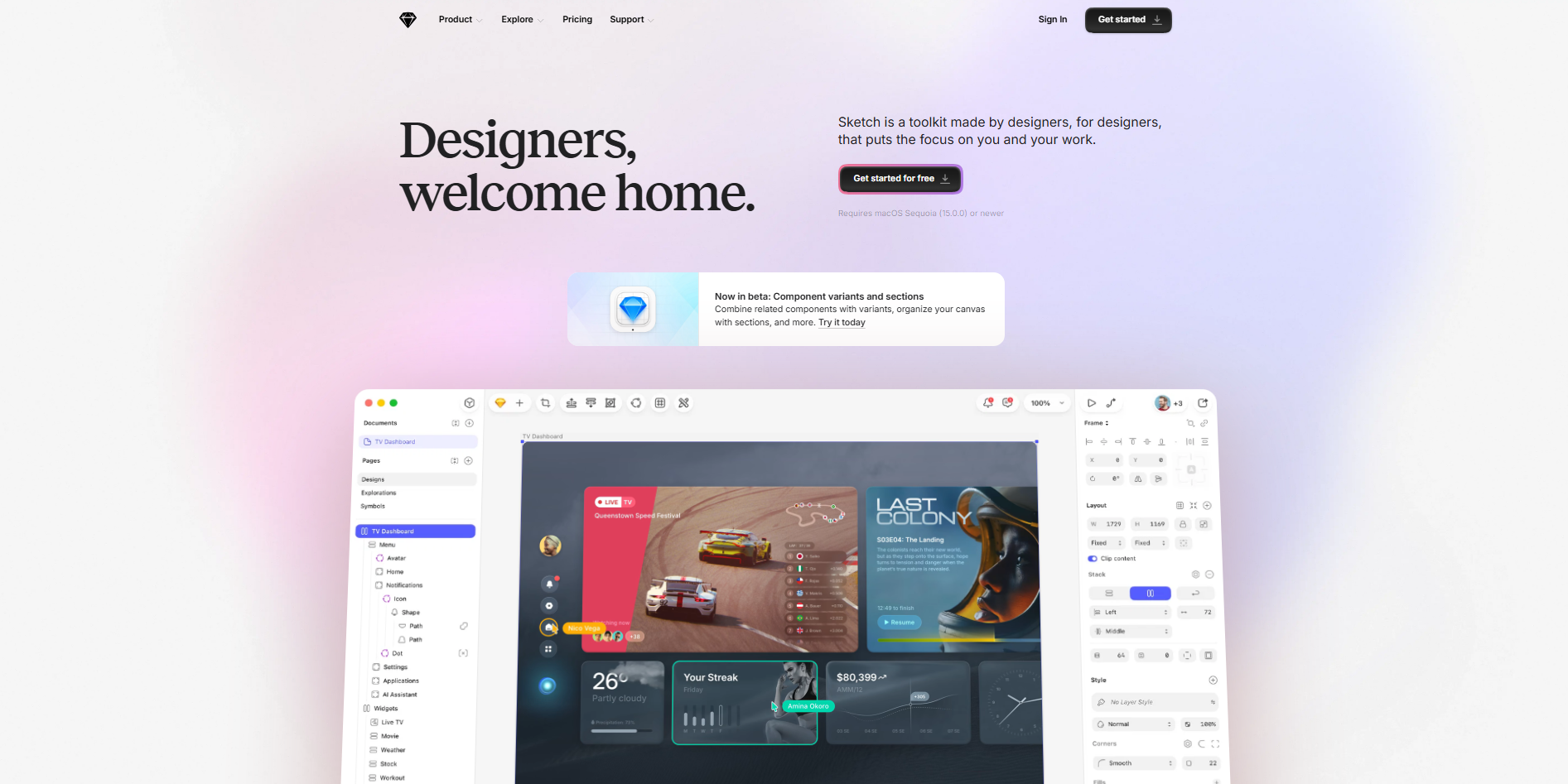
Sketch is a vector-based user interface design tool built primarily for macOS. It provides a focused workspace for creating website layouts, mobile app screens, and other digital products. Designers can use its artboards, symbols, and shared styles to organize complex design projects. Its browser-based collaboration features also help teams review designs and share work with developers.
Main features
Vector editing: Create and edit scalable shapes, icons, and interface elements with precision. Vector-based designs remain sharp when resized for different screen dimensions.
Symbols and components: Save frequently used elements as reusable symbols and components. Changes to shared elements can be applied across different parts of a design.
Prototyping: Connect artboards and add interactions to demonstrate how users move through an interface. This makes it easier to review navigation and screen layouts.
Developer handoff: Share designs through the web app and provide developers with measurements, properties, and downloadable assets. This helps reduce confusion during implementation.
Suitable for
Designing macOS and iOS application interfaces
Creating scalable vector graphics and icons
Maintaining consistent design systems
Preparing design files for developer handoff
Framer
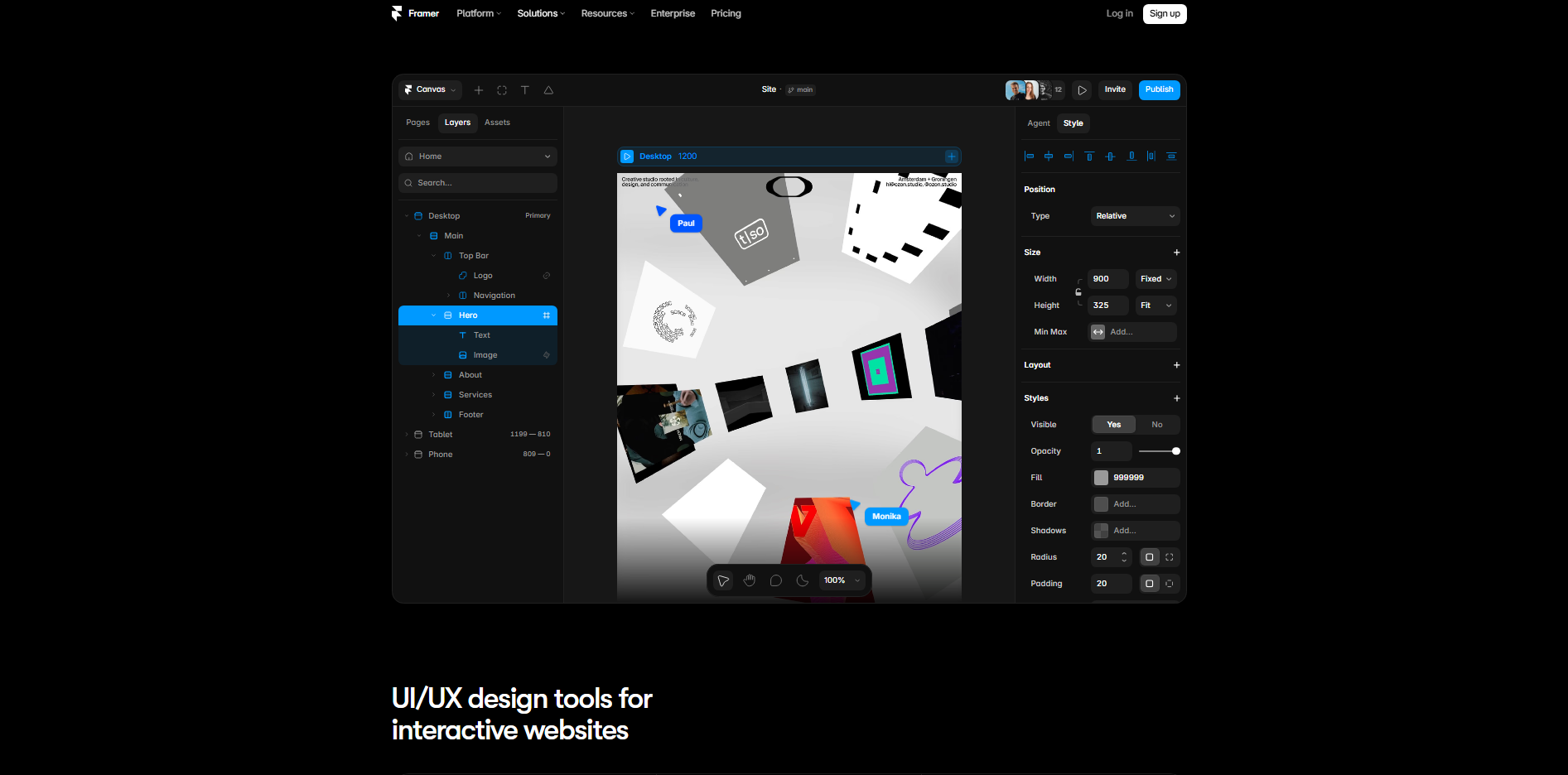
Framer is a visual website design and development platform that helps designers create interactive, responsive websites. It combines a visual editor with publishing tools, allowing users to move from page design to a live website. Designers can add animations, responsive layouts, and reusable components without writing extensive code. It also includes content management and website optimization features.
Main features
Visual website editing: Build webpages using a flexible visual editor with layouts, sections, and reusable elements. You can adjust page structures and styling while viewing the results.
Animations and interactions: Add scroll effects, hover states, transitions, and other motion effects. These features make websites feel more engaging and responsive to user actions.
Content management: Use its built-in CMS to organize and manage dynamic website content. This is useful for blogs, portfolios, and websites that need regular updates.
Responsive design: Adjust layouts for desktop, tablet, and mobile screens. You can preview different screen sizes and refine elements to maintain a consistent experience.
Suitable for
Building and publishing responsive websites
Creating animated landing pages
Designing interactive portfolios
Managing blogs and dynamic website content
Uizard
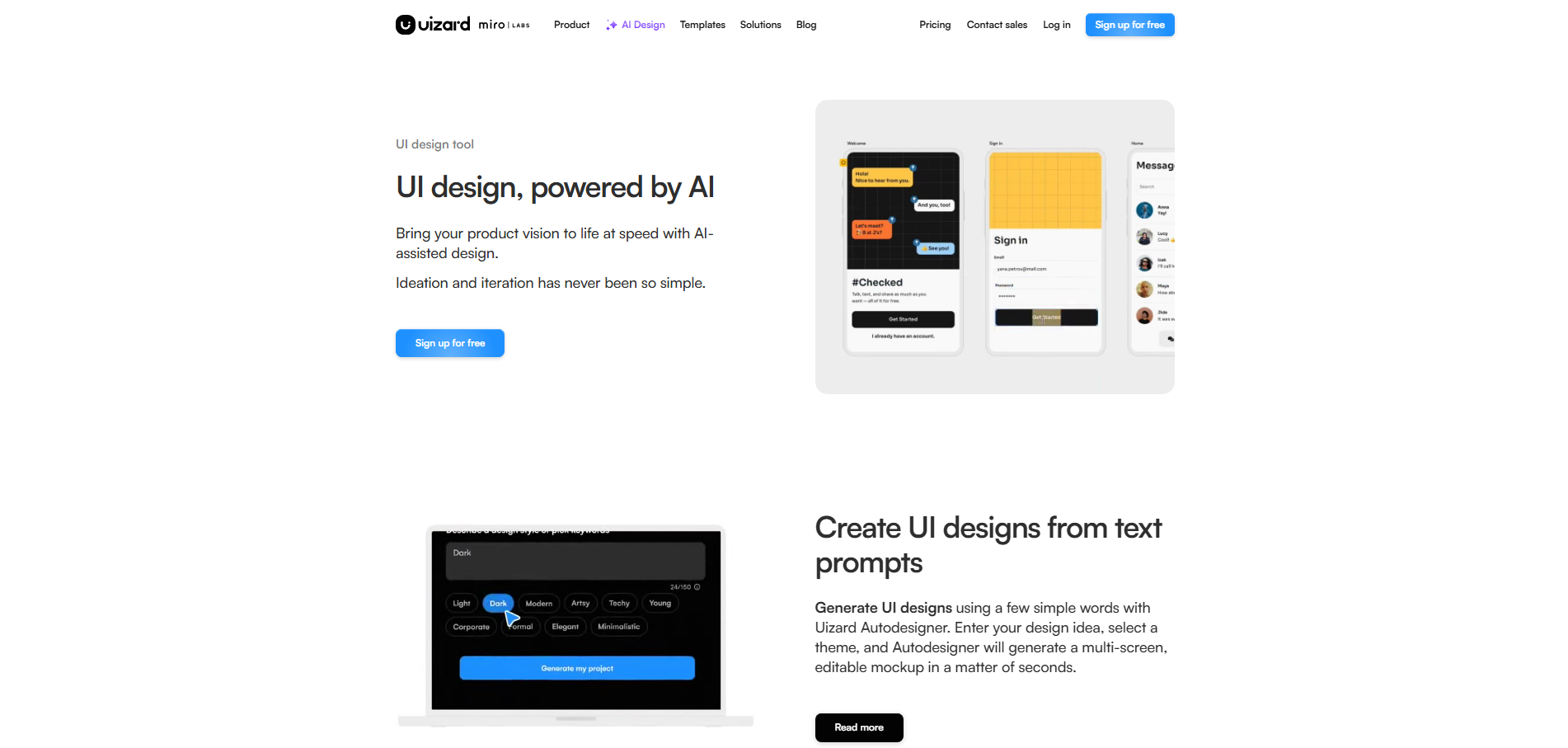
Uizard is an AI UI design tool that helps users turn ideas into digital interface designs. It can generate screens from text descriptions and visual references, making the initial design process faster. The platform also provides editing tools for refining layouts and organizing interface elements. Its beginner-friendly approach makes it useful for people without extensive design experience.
Main features
AI design generation: Describe an application or website in simple language and generate interface screens from your prompt. You can use the generated layouts as a starting point for further design work.
Screenshot scanning: Upload screenshots of existing interfaces and convert them into editable designs. This helps recreate layouts and explore alternative visual styles.
Wireframe creation: Quickly create low-fidelity layouts to plan page structures and user flows. You can organize content and interface elements before focusing on visual details.
Theme customization: Apply different colors, typography, and visual styles to your designs. This helps you explore multiple design directions without rebuilding every screen.
Suitable for
Generating UI designs from text prompts
Turning screenshots into editable layouts
Creating website and app wireframes
Exploring design ideas without advanced skills
Proto.io
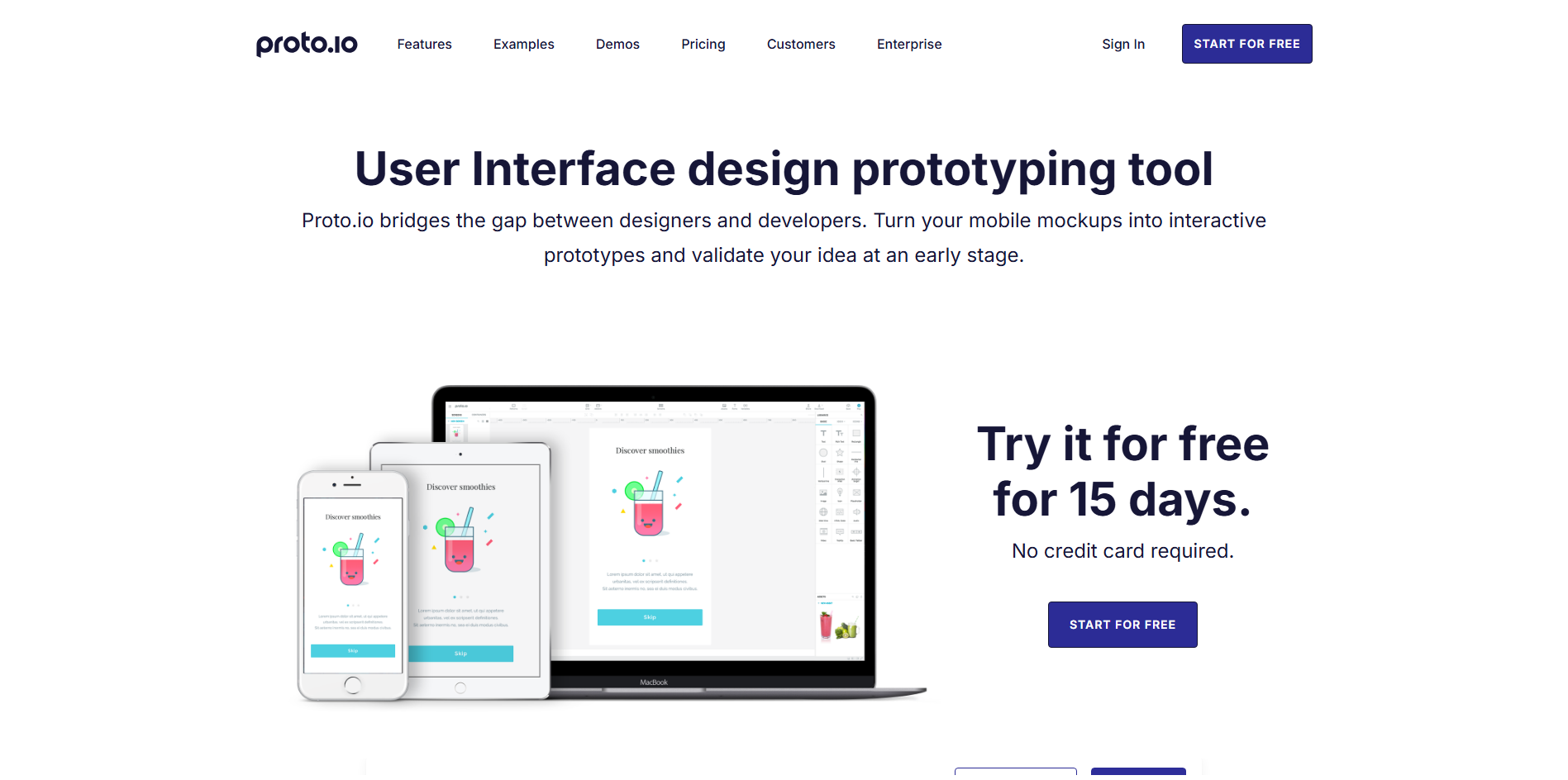
Proto.io is a prototyping platform designed to create realistic, interactive previews of digital products. It lets designers build detailed prototypes without developing the actual application. Its editing tools support different screen layouts, animations, and user interactions. Teams can also share prototypes with others to collect feedback and test user experiences before development.
Main features
High-fidelity prototyping: Create detailed prototypes that closely resemble finished websites and applications. Add visual elements to demonstrate how the final product may look and behave.
Animations and transitions: Add animated effects, screen transitions, and interactive responses to interface elements. These details help make prototypes feel closer to real applications.
Interactive components: Build buttons, menus, sliders, and other elements that respond to user actions. This allows you to demonstrate complete user journeys.
User testing and sharing: Share prototypes with stakeholders and testers to collect feedback. This helps identify usability problems before investing time in development.
Suitable for
Creating realistic app prototypes
Testing complex user interactions
Demonstrating animations and transitions
Collecting feedback before development
Google Stitch
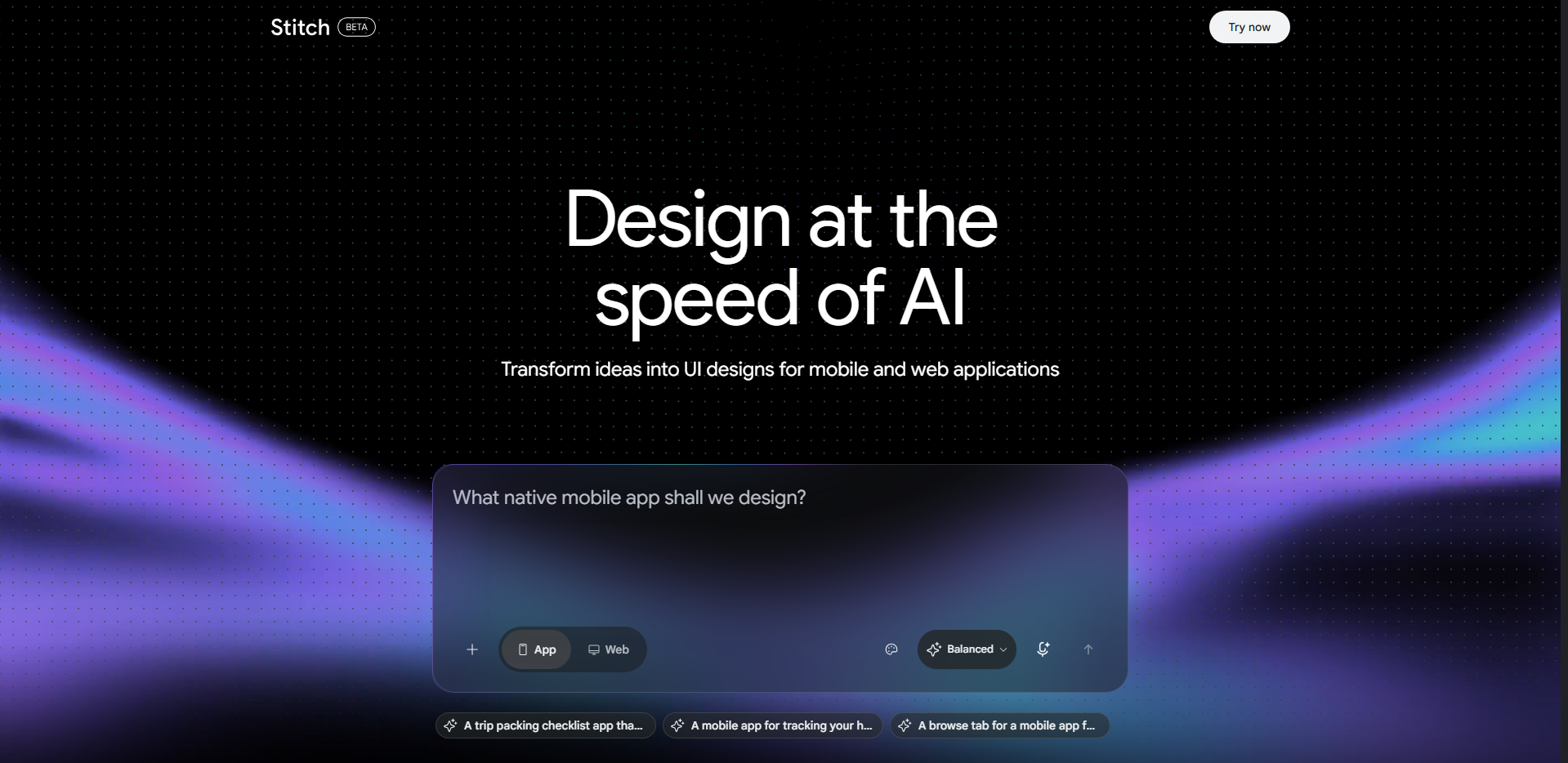
Google Stitch is an AI-based UI design tool developed by Google. It helps users generate UI designs from text prompts and visual references. Instead of manually creating every screen, you can describe your idea and let AI produce an initial design. You can then refine the generated interface and use the results as a starting point for development.
Main features
Prompt-based UI generation: Describe the website or app you want to create using natural language. Stitch generates interface layouts based on your instructions, helping you explore ideas quickly.
Image-based design generation: Provide visual references to guide the design process. This helps translate existing ideas, sketches, or screenshots into digital interface concepts.
Design customization: Refine generated layouts by changing elements and adjusting your instructions. You can explore different visual directions without starting from scratch.
Code export: Move beyond visual concepts by exporting generated designs into code. This provides a starting point for developers who want to turn interface ideas into working products.
Suitable for
Generating interfaces from text prompts
Turning sketches into digital UI concepts
Exploring different website layouts
Moving from UI designs to code
Balsamiq
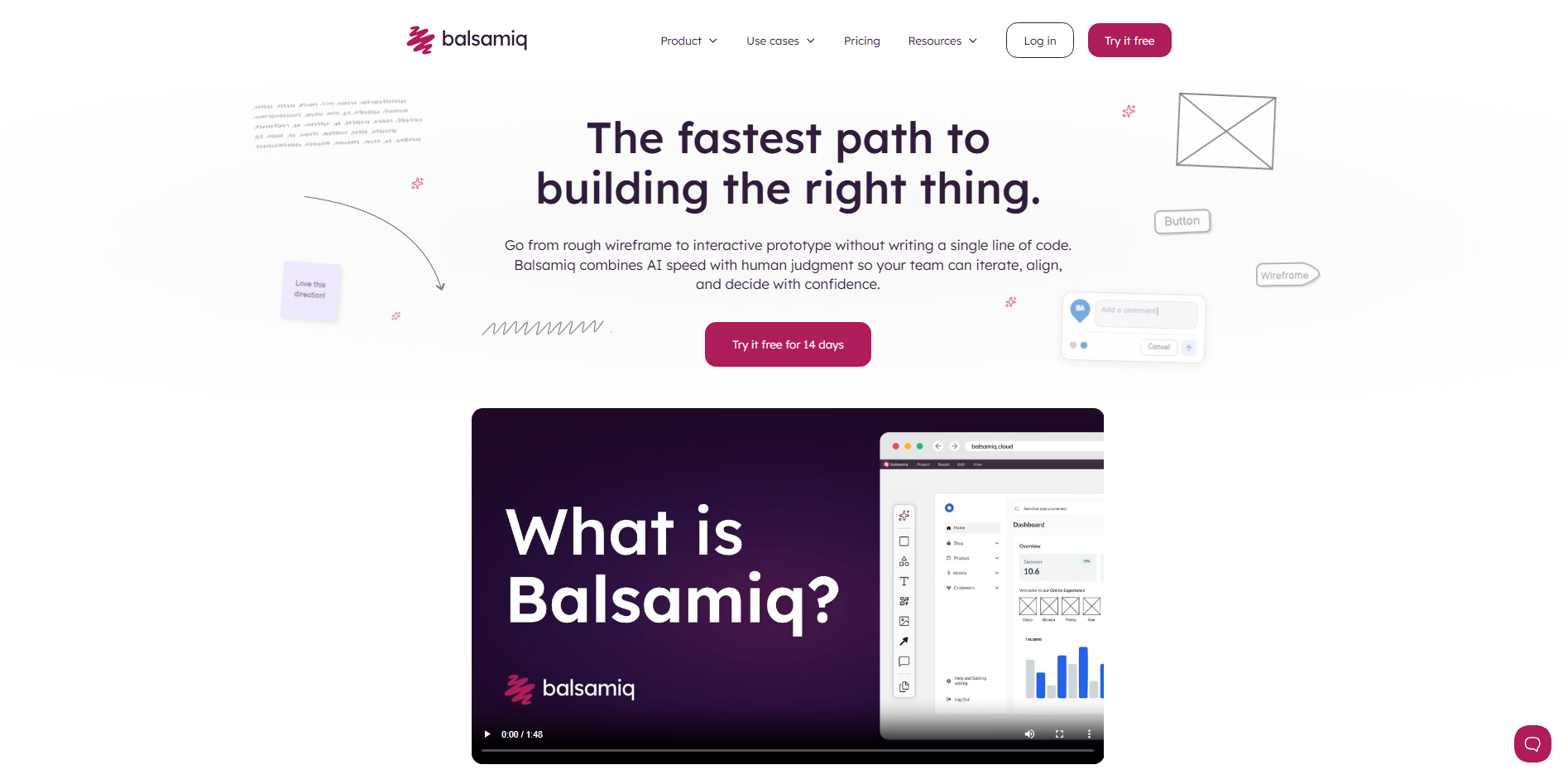
Balsamiq is a wireframing tool designed to help teams plan digital interfaces before visual design begins. It focuses on simple, low-fidelity layouts rather than detailed graphics and styling. Its drag-and-drop editor makes it easy to arrange elements such as buttons, menus, and content sections. This makes Balsamiq particularly useful during the early stages of website and app development.
Main features
Drag-and-drop editor: Choose interface elements from a built-in component library and place them on your canvas. This makes it easy to create page layouts without designing every element manually.
Low-fidelity wireframes: Create simple sketches of webpages and application screens. The basic visual style keeps attention on structure, content, and functionality rather than decorative details.
Reusable components: Save frequently used interface elements and reuse them across different wireframes. This helps maintain consistency when planning multiple screens.
Collaboration and feedback: Share wireframes with teammates and stakeholders for review. Their feedback can help clarify requirements before detailed design work begins.
Suitable for
Planning website and app layouts
Creating quick low-fidelity wireframes
Organizing content and navigation
Discussing early design ideas with teams
Lunacy
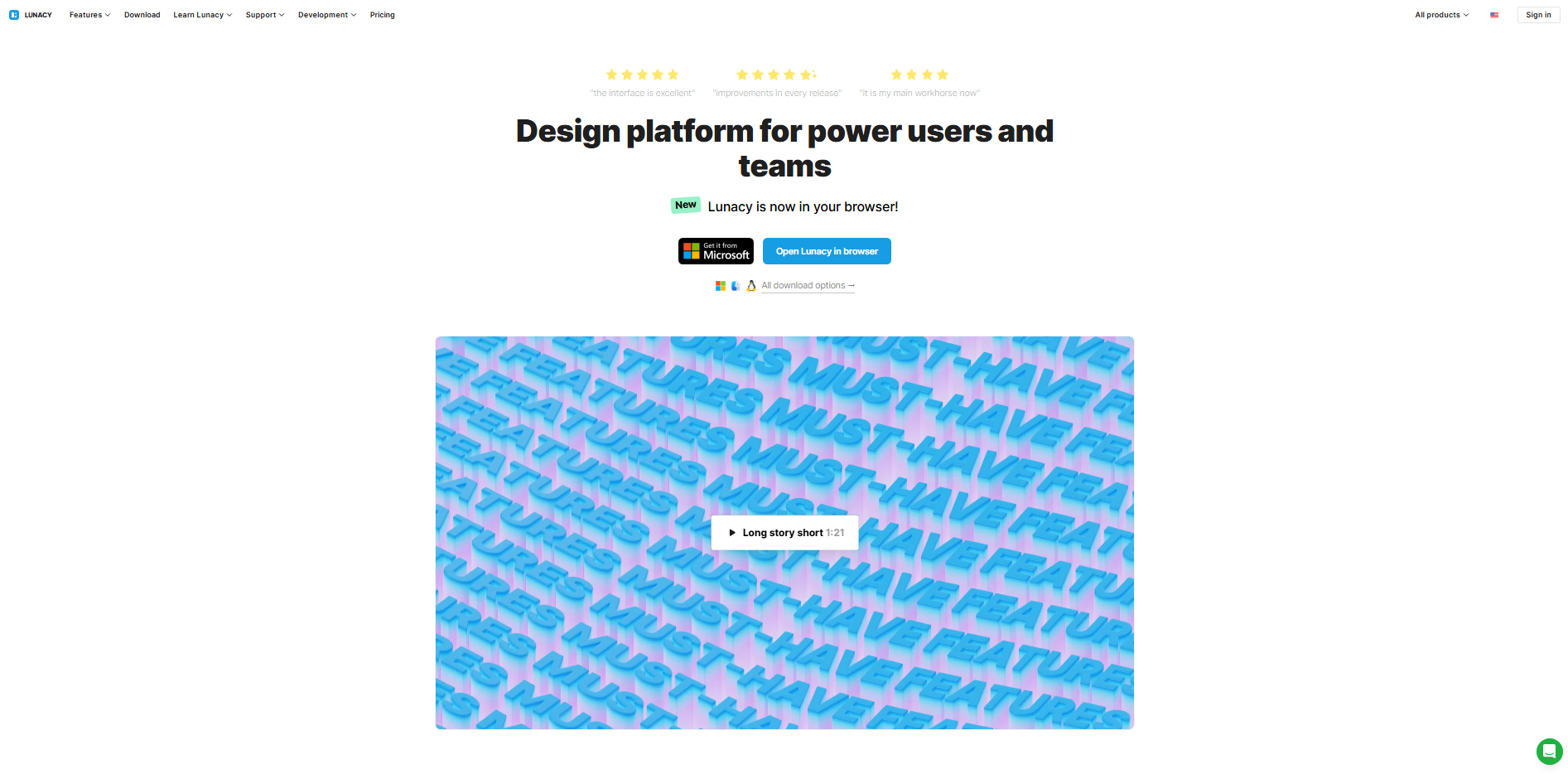
Lunacy is a graphic design and UI design application developed by Icons8. It supports interface design, vector editing, and prototyping in one workspace. Unlike many browser-based design platforms, Lunacy also offers desktop applications for Windows, macOS, and Linux. Its built-in assets and AI-powered tools help designers work on visual projects without relying on multiple applications.
Main features
Cross-platform editing: Work on design projects through desktop applications on different operating systems. This gives teams more flexibility when choosing their preferred devices.
Built-in design assets: Access icons, illustrations, photos, and other visual resources directly within the application. These assets help speed up the process of creating polished interfaces.
AI-powered tools: Use AI features for tasks such as background removal, image enhancement, and generating visual content. These tools can simplify common design tasks and reduce manual editing.
Prototyping and collaboration: Create interactive previews and share designs with other team members. This makes it easier to review interface ideas and collect feedback.
Suitable for
Designing website and app interfaces
Creating vector graphics and illustrations
Finding visual assets for design projects
Working across Windows, macOS, and Linux
Marvel
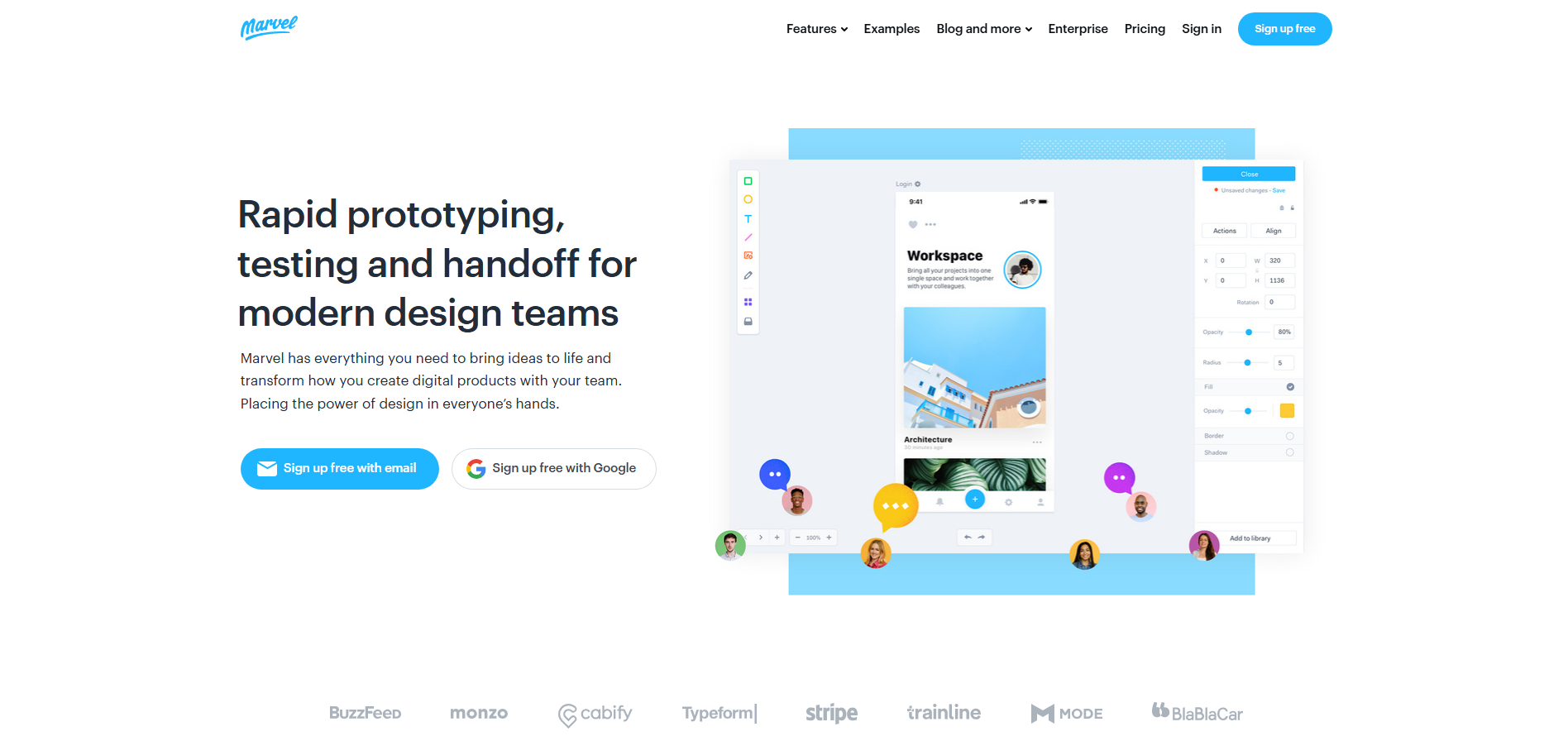
Marvel is a digital design and prototyping platform that helps teams turn interface ideas into interactive experiences. It provides tools for creating wireframes, designing screens, and connecting them into clickable prototypes. Designers can also use it to test how people interact with their designs and identify areas that need improvement.
Main features
Wireframe creation: Build basic screen layouts using ready-made interface elements. This helps you organize content and plan how users will navigate a website or application.
Clickable prototypes: Link different screens and add interactive hotspots to demonstrate user journeys. You can share these prototypes to show how a product is expected to work.
User testing: Collect feedback on prototypes and observe how users interact with different elements. This helps identify confusing navigation and usability issues before development.
Design handoff: Share design specifications and assets with developers. This makes it easier to communicate how interface elements should be implemented.
Suitable for
Creating website and app wireframes
Building clickable interface prototypes
Testing user journeys and usability
Sharing designs with developers and stakeholders
How do you choose the right UI design tool
With so many design platforms available, choosing the right one depends on what you want to create and how you prefer to work. Some focus on visual design, while others offer AI generation, prototyping, and publishing features. Consider these factors to find a UI design tool that fits your needs.
Define your design goals and project requirements
Start by deciding what you want to design, whether it is a website, mobile app, dashboard, or digital product. Consider the project's size, complexity, and expected results before comparing tools. This helps you choose a platform with the features you actually need.
Consider AI generation capabilities
If you want to speed up your workflow, look for tools that generate layouts from text prompts, images, or screenshots. Some UI software can turn simple ideas into editable designs, saving time during the early stages. Check whether their AI features match your project requirements.
Check customization and editing flexibility
A good AI UI design tool should let you adjust colors, typography, spacing, layouts, and interface elements. Look for flexible editing options rather than relying only on ready-made templates. This is especially useful when following specific branding or design guidelines.
Evaluate prototyping and interaction features
Static designs cannot always show how an interface behaves. Look for features that let you connect screens, create clickable buttons, add transitions, and test user flows. These options help identify usability problems before development.
Check responsive design and compatibility
Your designs should work well across desktop, tablet, and mobile screens. Choose a tool that supports responsive layouts and lets you preview different screen sizes. Also, check its compatibility with your operating system and existing workflow.
Consider collaboration and developer handoff
If you work with a team, look for shared files, comments, and real-time feedback. Developer handoff features also make it easier to share design specifications, assets, and measurements. This keeps everyone aligned and reduces unnecessary revisions.
Conclusion
A great interface is not just about how a design looks but also how easily people can use it. Choosing suitable UI design tools can help you create better digital experiences without making the process unnecessarily complicated. If you want to take your ideas beyond static designs, explore Kimi Build. Try it to create, customize, and publish functional websites with AI.