AI Markdown to Word Converter
Convert Markdown to Word with Kimi Docs, a Markdown to Word Converter that helps you turn structured text into polished, editable documents. Create and refine documents, organize content, and prepare professional files for work and study with less manual formatting.
Make Markdown to Word conversion easy with AI
Convert Markdown into structured Word documents
Converting Markdown to Word should be more than transferring text between file formats. Kimi Docs helps turn Markdown content into well-organized Word documents with clear headings, sections, and readable paragraphs. This makes it easier to prepare reports, research papers, and other professional documents without spending excessive time on manual formatting.
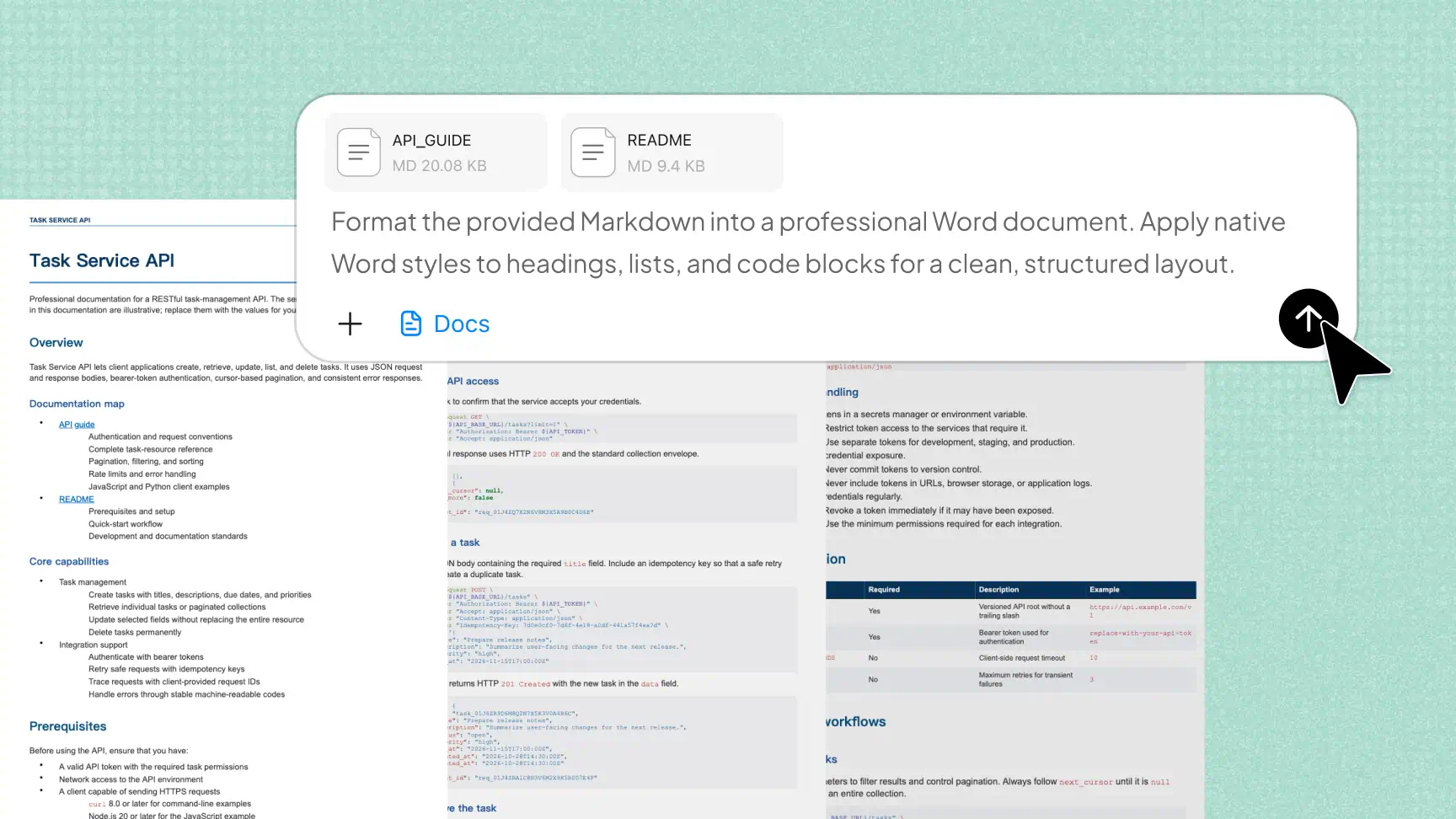
Preserve technical content and formatting
From code blocks and data tables to checklists and LaTeX mathematical formulas, technical content often requires specific formatting to remain useful. Kimi Docs helps retain these elements during Markdown to Word conversion, making it easier to prepare technical documentation, academic materials, and structured reports without rebuilding every element manually.
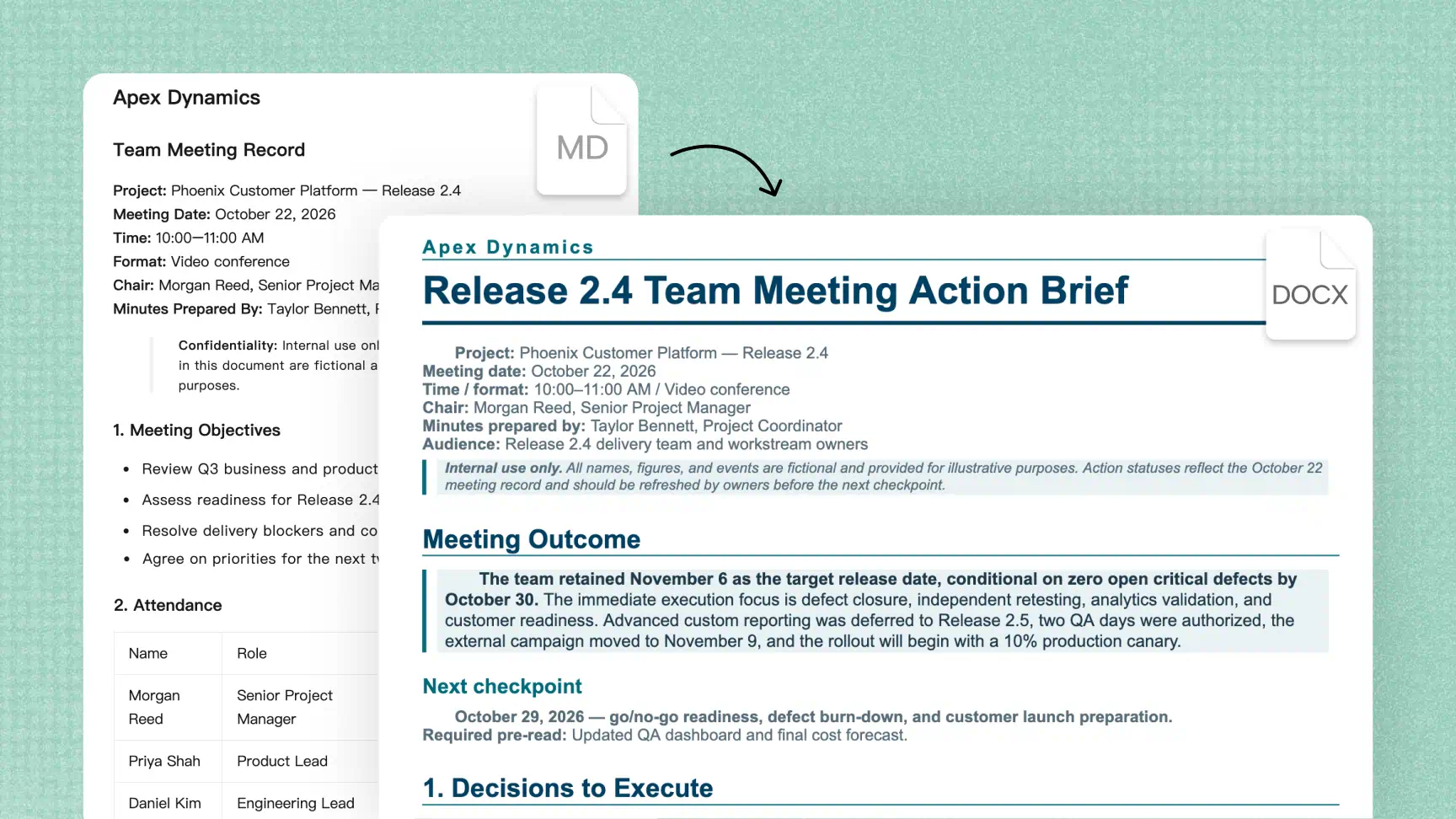
Refine content with AI prompts
Markdown files often include tables, code blocks, checklists, and mathematical formulas that need to remain clear and accurate during conversion. Kimi Docs helps organize these elements, though complex formatting may require additional review. Check the converted document to ensure all technical content displays correctly.
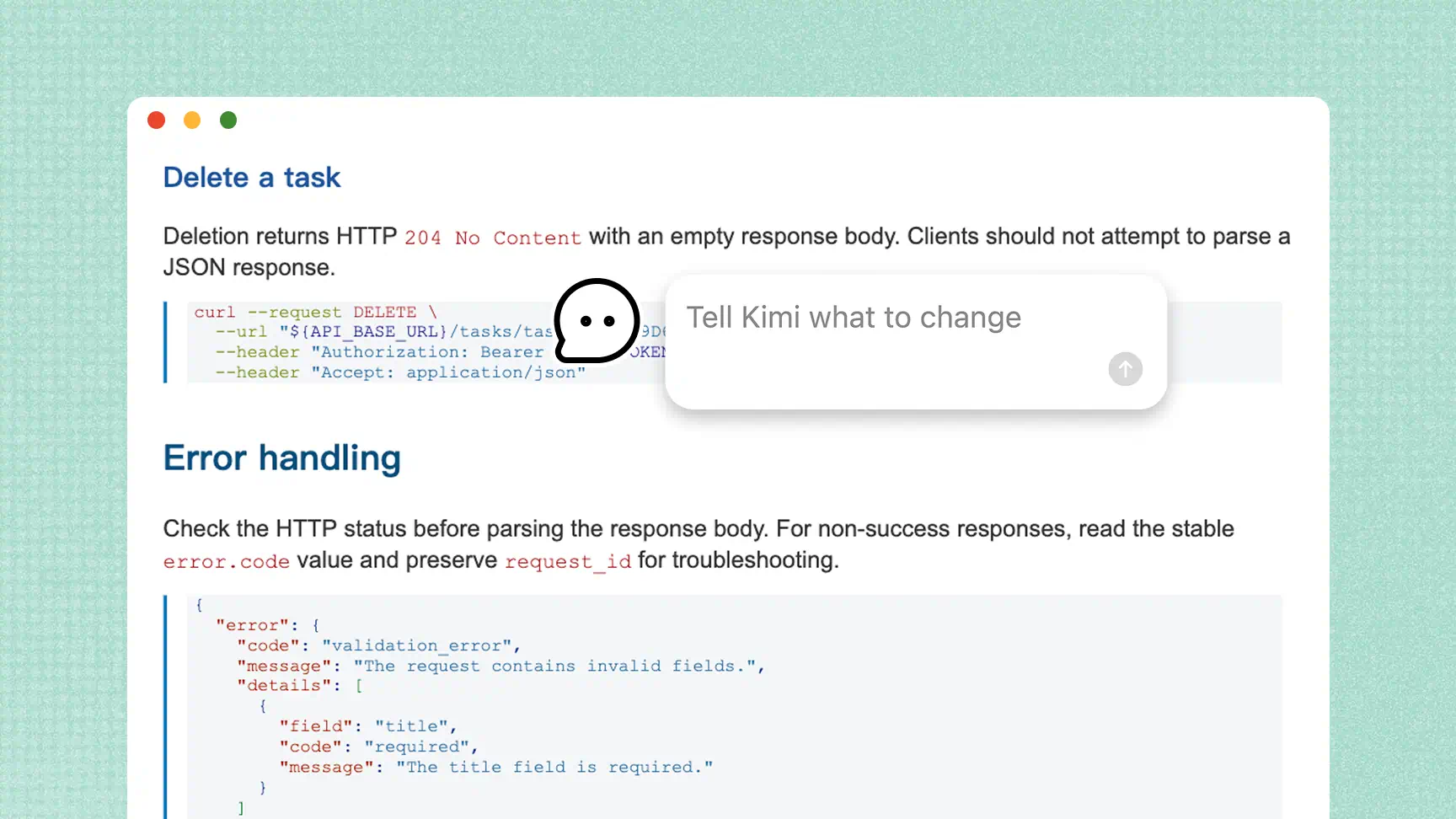
Review and export the final document
Preview your Markdown document in real time as you edit, so you can check its layout and formatting before exporting. Kimi Docs helps you review the final presentation and prepare a clean, readable document. Your documents are saved online, allowing you to revisit and access them whenever you need.
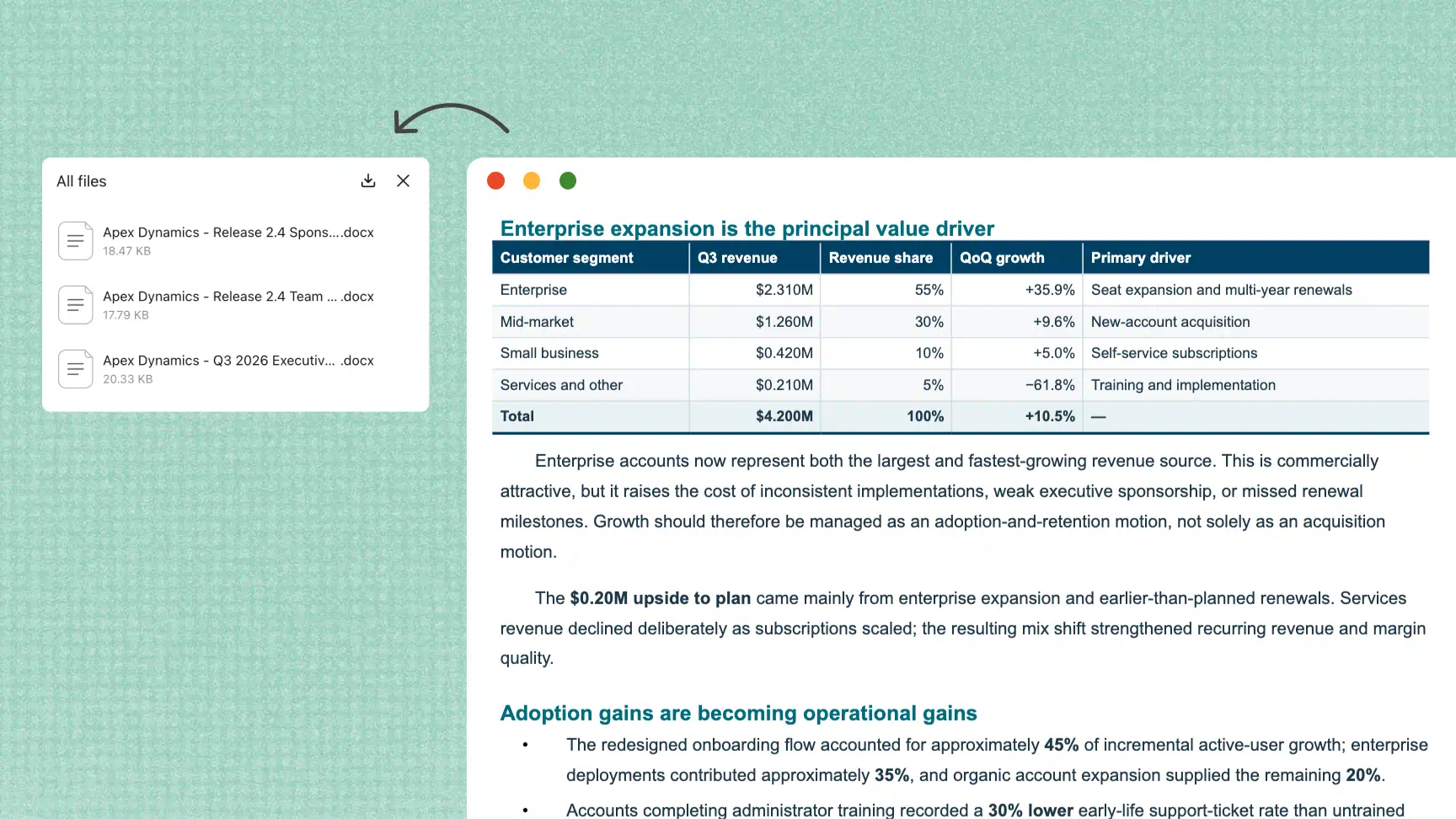
How to convert Markdown to Word with AI
Upload your Markdown content
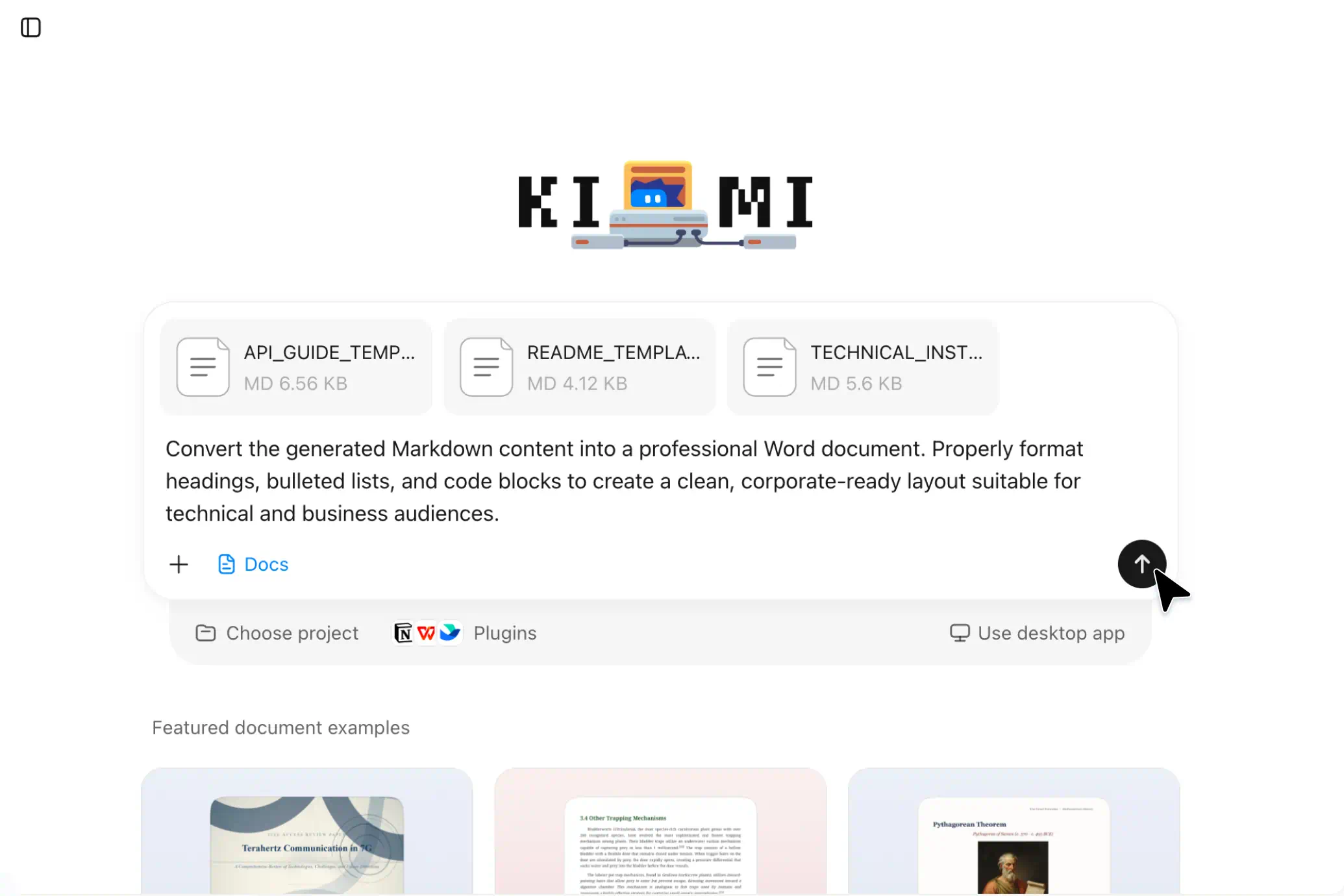
Open Kimi Docs and upload your Markdown file or paste the content you want to format. Keep headings, lists, tables, and code blocks clearly organized to help maintain the document’s structure.
Convert and refine the document
Use a clear prompt to ask Kimi Docs to organize your content into a professional, Word-ready document. Review the output, refine the wording, and check headings, spacing, and tables to ensure the layout meets your needs.
Review and export your Word file
Check the final document for formatting issues, missing content, and consistency. If the required export option is supported, download the document in Word format, such as .docx, so you can edit, share, or use it for work and study.
Use cases for an AI Markdown to Word converter

Technical documentation
Convert Markdown-based API guides, README files, and technical instructions into editable Word documents. Preserve the structure of headings, lists, and code examples to make technical information easier to review, share, and update.

Academic papers and study notes
Turn research notes, lecture summaries, and study materials into organized Word documents. Refine explanations and format supported tables or mathematical formulas to make academic content easier to read, revise, and share.

Business reports and project documentation
Transform Markdown meeting notes, project updates, and analytical reports into Word files for team collaboration. A Markdown to Word converter can help clarify key findings, reorganize sections, and prepare reports for different audiences.

E-books and digital publications
Convert Markdown manuscripts, article drafts, and book chapters into editable Word documents for further editing. Organize chapters and subheadings, refine the text, and review the layout before sharing manuscripts with editors or preparing them for publication.