Using appropriate question slides can improve your presentations quality. Well-designed question slide templates help you create interactive moments for quizzes, polls, and discussions. Different layouts and styles allow you to present questions clearly while maintaining a consistent visual style. Explore 10 question and answer PowerPoint slide templates for your next presentation.
Overview of 10 question slides templates
Use the right question slide format to make your presentation more interactive and engaging. Different layouts can help you introduce a topic, encourage audience participation, present research insights, or guide discussions. The table below highlights 10 question-focused PPT templates, their design characteristics, ideal use cases, and key visual elements to help you choose the best style for your presentation.
| PPT template | Design features | Visual elements | Use cases |
|---|---|---|---|
| Question mark slide | Uses a large question mark as the main visual to highlight a key question and capture attention. | 3D question marks, centered questions, attention-grabbing animations | Presentation openings, problem introduction, audience engagement |
| Speech bubble template | Presents questions through conversational bubbles to create an interactive discussion style. | Large speech bubbles, smaller response bubbles, conversational layout | Interviews, brainstorming sessions, opinion sharing, group discussions |
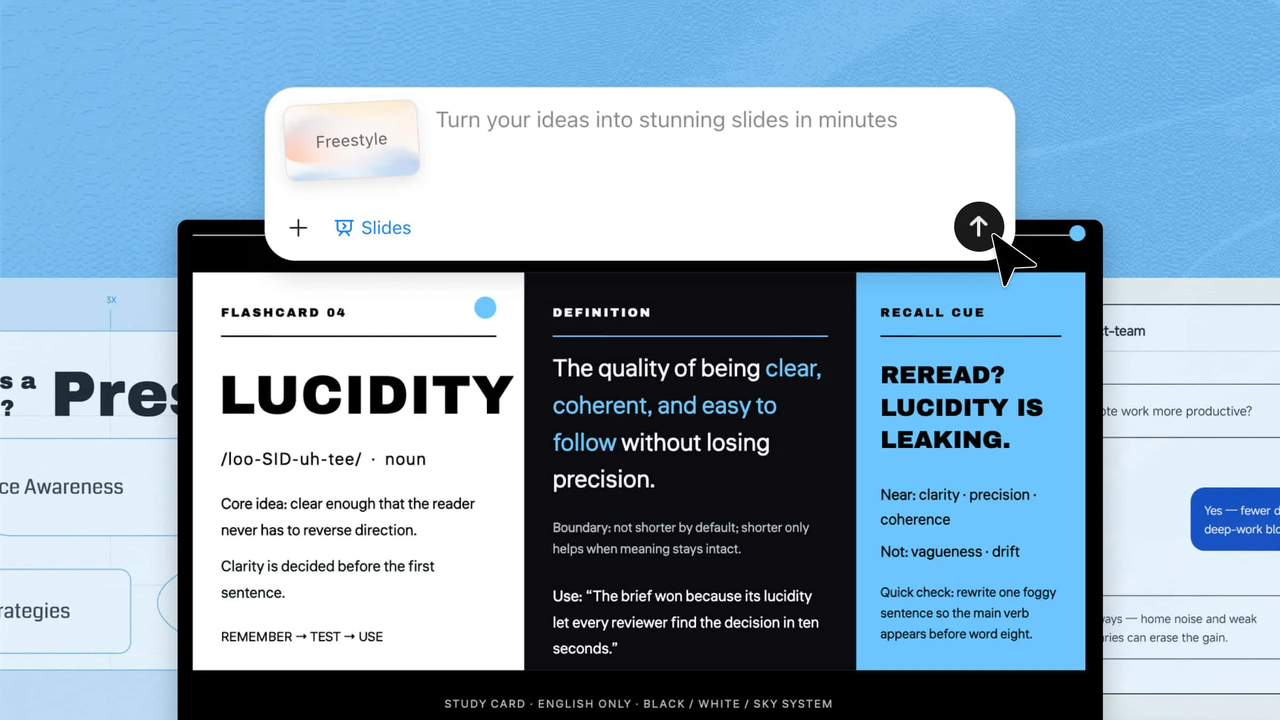
| Flashcard slide | Places questions on cards and reveals answers through interactive transitions. | Flashcards, front-and-back design, flip animations | Quizzes, classroom activities, learning sessions, knowledge checks |
| Puzzle piece template | Shows how different ideas or factors connect together through puzzle pieces. | Interlocking puzzle pieces, labels, connecting animations | Strategy discussions, business analysis, problem-solving presentations |
| Chat bubble slide | Uses a messaging-style interface to make questions feel like a natural conversation. | Chat bubbles, timestamps, typing indicators, message animations | FAQs, customer scenarios, interviews, informal discussions |
| Magnifying glass template | Uses a search and investigation concept to focus attention on important details. | Magnifying glass, highlighted keywords, exploration effects | Research questions, case studies, investigations, problem analysis |
| Multiple-choice question slide | Displays a question with multiple answer options to encourage audience participation. | Answer cards, choice buttons, correct-answer highlights | Training sessions, quizzes, classroom activities, polls |
| Sticky note question slide | Uses sticky notes to present questions and ideas in a collaborative style. | Sticky notes, free-form arrangement, drop-in animations | Workshops, brainstorming, feedback sessions, creative discussions |
| Conversation card template | Organizes questions into separate cards for structured discussions. | Question cards, card layouts, sequential animations | Team meetings, interviews, workshops, discussion-based presentations |
| Before-and-after question slide | Compares two situations with a question to emphasize changes and improvements. | Before/after sections, comparison visuals, transition effects | Case studies, transformation stories, results presentations |
10 question slide templates you need to try
Question slides can add variety to your presentation and encourage the audience to take part. With different styles and layouts, you can make each question feel more engaging and memorable. If you want to create polished question slides faster, try Kimi Slides, an AI presentation maker that can turn your ideas into ready-to-edit slides with professional designs and animations. Here are 10 question slide templates worth trying.
Question mark slide
A question mark slide uses a large question mark as the main visual to immediately draw attention to a key question. It is useful for opening a discussion, introducing a problem, or encouraging the audience to think. Its simple design keeps the focus on the question.
How to use
Step 1: Enter your prompt
Enter a prompt that describes the question, visual style, layout, and animation you want for the slide.
Prompt:
Step 2: Let AI generate your PPT
Kimi Slides turns your prompt into a question-focused slide with the specified question mark design and animations.
Step 3: Review and export the PPT
Check the question, layout, and animations, then make any edits and export the finished slide.
Speech bubble template
A speech bubble template presents questions in conversational bubbles to create a discussion-like feel. It works well for interviews, audience opinions, brainstorming, and group discussions. Different bubbles can represent different people or viewpoints.
How to use
Step 1: Enter your prompt
Describe the conversation, questions, responses, and visual arrangement you want to include. Mention the speech bubble style and animations, so the generated slide feels like an active discussion.
Prompt:
Step 2: Let AI generate your PPT
Kimi Slides creates the speech bubbles, conversation text, and sequential animations from your prompt.
Step 3: Review and export the PPT
Check the dialogue and bubble placement, adjust anything needed, and export the slide.
Flashcard slide
A flashcard slide places a question inside a card that can be revealed during the presentation. It is useful for quizzes, learning activities, revision, and knowledge checks. The card format makes the question feel interactive and easy to follow.
How to use
Step 1: Enter your prompt
Tell Kimi Slides what question and answer should appear on the flashcard and how you want the card to reveal the answer. You can also specify an educational or quiz-focused visual style.
Prompt:
Step 2: Let AI generate your PPT
Kimi Slides builds the flashcard with your question, answer, and card-flip animation.
Step 3: Review and export the PPT
Check the question, answer reveal, and card design before exporting the completed slide.
Puzzle piece template
A puzzle piece template uses connected pieces to show how different questions or ideas fit together. It is useful for problem-solving, strategy sessions, and discussions about related factors. Each piece can represent one part of a larger question.
How to use
Step 1: Enter your prompt
Describe the main question and the ideas that should appear on each puzzle piece. Include how the pieces should connect and animate to make the relationship between the ideas clear.
Prompt:
Step 2: Let AI generate your PPT
Kimi Slides arranges the puzzle pieces, labels, and connecting animations based on your prompt.
Step 3: Review and export the PPT
Check the piece arrangement and animations, then edit and export the final slide.
Chat bubble slide
A chat bubble slide uses messaging-style bubbles to make questions feel like a natural conversation. It works well for FAQs, customer scenarios, interviews, and informal discussions. The familiar chat format makes the content easy to understand.
How to use
Step 1: Enter your prompt
Provide the topic of the conversation, the main question, and the responses you want to show. Specify messaging-style elements such as typing indicators or sequential animations for a realistic chat effect.
Prompt:
Step 2: Let AI generate your PPT
Kimi Slides creates the chat bubbles, messages, and typing animations to match your prompt.
Step 3: Review and export the PPT
Review the conversation and message sequence, then make changes and export the slide.
Magnifying glass template
A magnifying glass template uses the visual idea of searching or examining something closely. It is useful for research questions, investigations, case studies, and problem analysis. The design helps direct attention toward an important detail.
How to use
Step 1: Enter your prompt
Explain what topic needs to be investigated and which details the magnifying glass should highlight. Include movement and highlighting effects to make the investigation feel interactive.
Prompt:
Step 2: Let AI generate your PPT
Kimi Slides builds the investigation slide with the magnifying glass, keywords, and movement effects.
Step 3: Review and export the PPT
Check the highlighted details and animation flow, then adjust and export the slide.
Multiple-choice question slide
A multiple-choice question slide presents one question with several answer options. It is ideal for quizzes, training sessions, classroom activities, polls, and audience participation. Clear choices make it easy for viewers to respond quickly.
How to use
Step 1: Enter your prompt
Enter the main question along with the answer choices and identify the correct answer if you want it highlighted. You can also describe how each option should appear during the presentation.
Prompt:
Step 2: Let AI generate your PPT
Kimi Slides creates the question, answer choices, and sequential reveal animations.
Step 3: Review and export the PPT
Check the options and the correct answer highlight, then edit and export the slide.
Sticky note question slide
A sticky note question slide uses colorful notes to display questions or ideas in a casual arrangement. It is useful for brainstorming, workshops, feedback sessions, and creative activities. The informal design makes the slide feel collaborative and engaging.
How to use
Step 1: Enter your prompt
Describe the main question and the ideas you want to place on the sticky notes. Specify their arrangement, colors, and entrance animations to create a brainstorming-style slide.
Prompt:
Step 2: Let AI generate your PPT
Kimi Slides generates the sticky notes, questions, arrangements, and drop-in animations.
Step 3: Review and export the PPT
Check the notes and their placement, make any edits, and export the completed slide.
Conversation card template
A conversation card template organizes questions into separate cards for a structured discussion. It works well for interviews, team activities, workshops, and discussion-based presentations. Each card can focus on a different question or topic.
How to use
Step 1: Enter your prompt
Tell Kimi Slides what discussion questions should appear on each card and how the cards should be organized. Add animation instructions to make the cards appear in a clear sequence.
Prompt:
Step 2: Let AI generate your PPT
Kimi Slides creates the conversation cards, questions, and card-by-card animations.
Step 3: Review and export the PPT
Review the card content and sequence, then adjust and export the final slide.
Before-and-after question slide
A before-and-after question slide compares two situations while using a question to highlight the change. It is useful for showing results, transformations, case studies, and improvements. The visual contrast makes the difference easy to understand.
How to use
Step 1: Enter your prompt
Describe the two situations you want to compare and the question that connects them. Mention the transition effect and visual contrast you want between the before and after sections.
Prompt:
Step 2: Let AI generate your PPT
Kimi Slides builds the before-and-after sections with the comparison visuals and transition effect.
Step 3: Review and export the PPT
Check both versions and the transition, then make edits and export the slide.
Why use Kimi Slides for creating question slides
Once you've found a question-and-answer PPT slide style that fits your presentation, Kimi Slides can help you build and refine it with less manual work. It gives you flexible ways to turn your content into clear, engaging slides while keeping the design easy to customize. Here are some of its key features.
Create question slides from your content and references: Start with text, images, or existing presentation materials, and Kimi Slides can transform them into polished question slides. You can also provide PPT templates as style references, allowing AI to generate slides with a consistent visual look without manually arranging each element.
Choose layouts that fit different question styles: Create different visual structures for Q&A slides, quiz slides, discussion prompts, and interactive activities based on your presentation needs.
Turn complex topics into clear, structured questions: Kimi Slides helps transform detailed information into concise questions, key points, and supporting content, organizing them into a logical flow that makes discussions, quizzes, and presentations easier to follow.
Add visuals to make questions more engaging: Incorporate icons, illustrations, images, and other visual elements to make question slides more interactive instead of relying only on text.
Refine and customize your slides flexibly: Select individual slide elements to make direct changes, or use natural-language instructions to adjust questions, layouts, text, and visuals. Save different versions to compare changes or return to previous designs.
Preview and export editable PPTX files: Preview your completed question slides online before exporting them as a PPTX presentation. Continue editing text, visuals, layouts, and other elements in PowerPoint to customize your slides before presenting.
When to use question slides in presentations
Question slides can make presentations more interactive when you want people to think, respond, or share their views. They work across classrooms, meetings, training sessions, and live events, with each setting using them in a different way.
Classroom quizzes
Turn a regular lesson into a quick challenge by placing a question on screen and giving students time to think before revealing the answer. A question slide image can add diagrams, pictures, or clues to make the quiz more interesting. It's also an easy way for teachers to check understanding without adding a formal test.
Corporate training checks
Training sessions can become passive when employees only listen and take notes. Add short questions between topics to see whether key concepts have actually stuck. A questions and discussion slide can also open up discussion around workplace situations, processes, or new policies.
Webinar Q&A sessions
Keep online sessions from feeling like a one-way conversation by bringing audience questions into the presentation. Instead of showing a long list, group related questions into clear question slides and address them one by one. This makes the Q&A easier to follow and gives attendees more opportunities to participate.
Live audience polls
Want to know what the room is thinking? Put a question and a few choices on screen, then let everyone vote before revealing the results. A bold questions-and-answers slide can make the poll stand out and give the audience an immediate visual cue to respond.
Meeting icebreakers
A simple prompt can change the mood of a quiet meeting in seconds. Ask something light, such as "What's one skill you'd love to learn this year?" and let team members share their answers. A fun questions slide gives everyone an easy starting point, especially when people don't know each other well.
Trivia nights
Bring some competition to the screen with questions that challenge the audience's memory, speed, or general knowledge. Use images, multiple choices, or hidden answers to build suspense before revealing the winner. A funny questions PowerPoint slide can also help organize different rounds and keep the game moving.
Conclusion
A good question slide can give your presentation a stronger sense of flow and make key moments more memorable. The style you choose should fit your topic, audience, and the kind of response you want to encourage. Keep your questions simple, focused, and easy to act on. Create your next question slide with Kimi Slides and see how quickly your presentation comes together.