AI 3D Text Generator
Create dimensional lettering with an AI 3D text generator. Customize shapes, colors, materials, and depth to bring your ideas to life. Use Kimi 3D Make to refine your 3D designs, prepare assets for creative projects, and showcase your work online.
Create distinctive 3D text designs with powerful features
Bring your ideas to life with custom 3D text
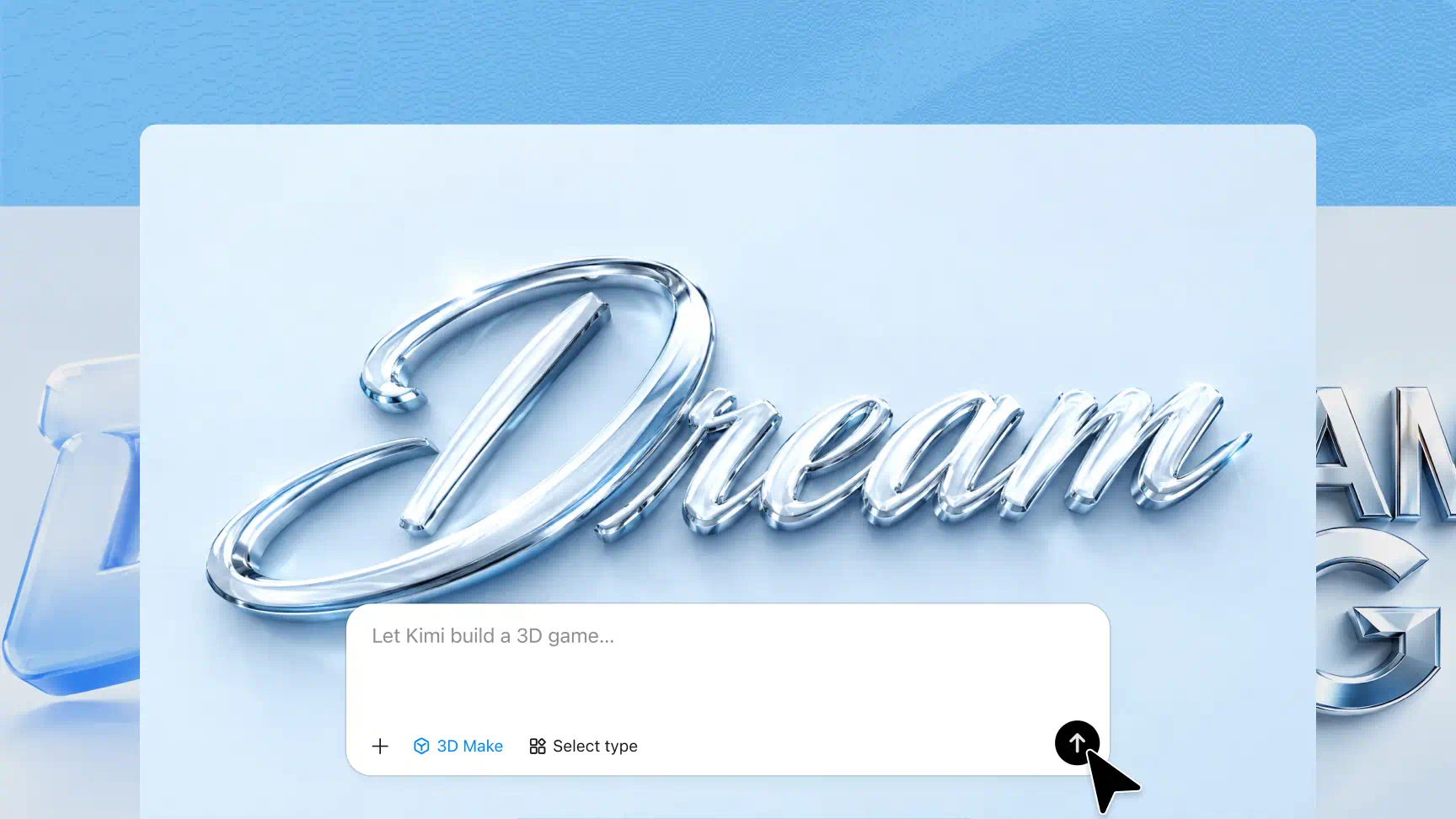
Turn words and short phrases into dimensional typography with Kimi 3D Make. Describe your preferred style or upload a reference image to guide the design, from bold display lettering to polished text with distinctive materials and visual effects.
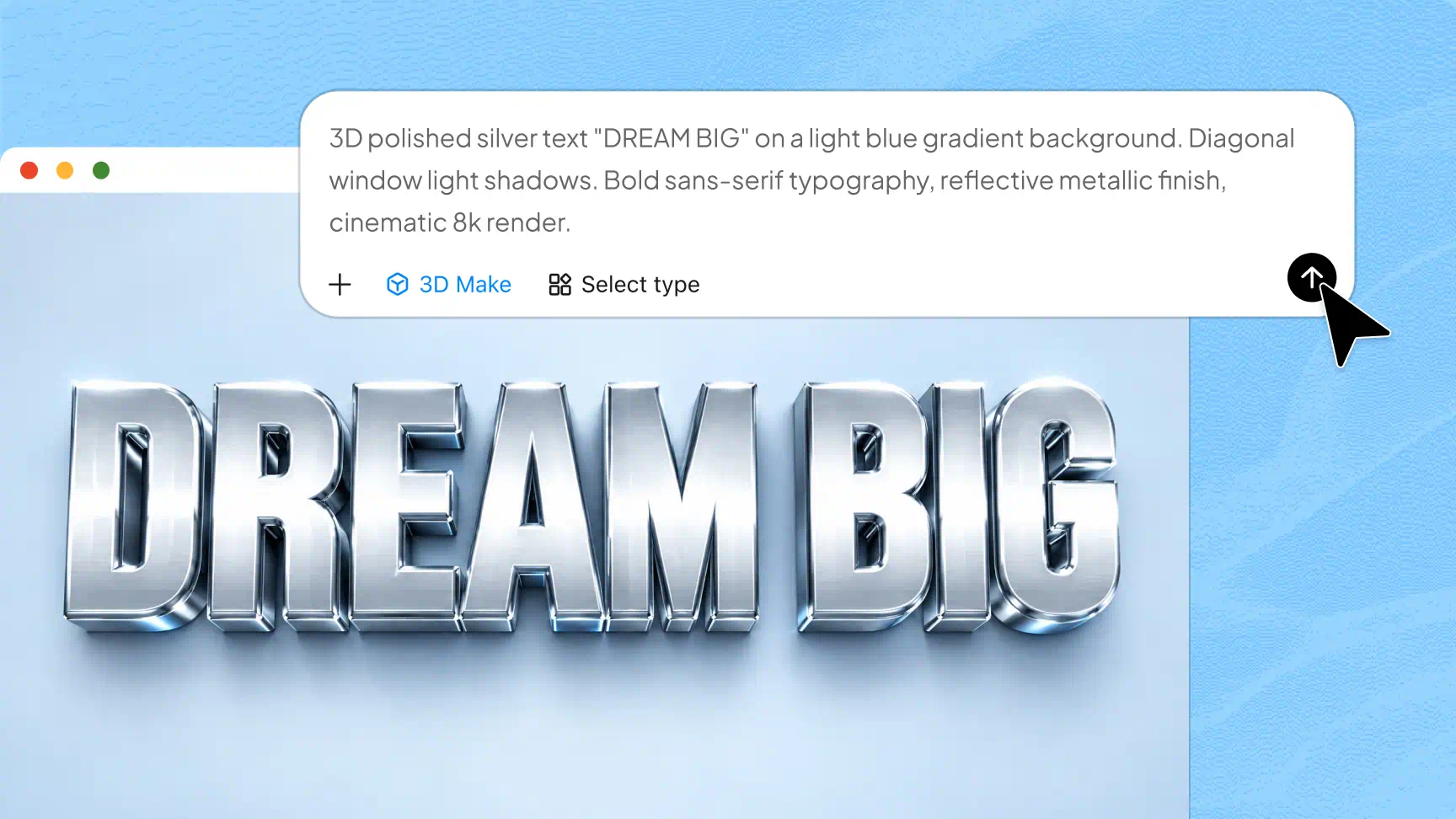
Create visually striking 3D typography with refined details
Design detailed lettering with balanced proportions, rich material textures, and realistic lighting. Experiment with metallic finishes, bold styles, and creative effects to develop distinctive designs using an AI 3D text generator.
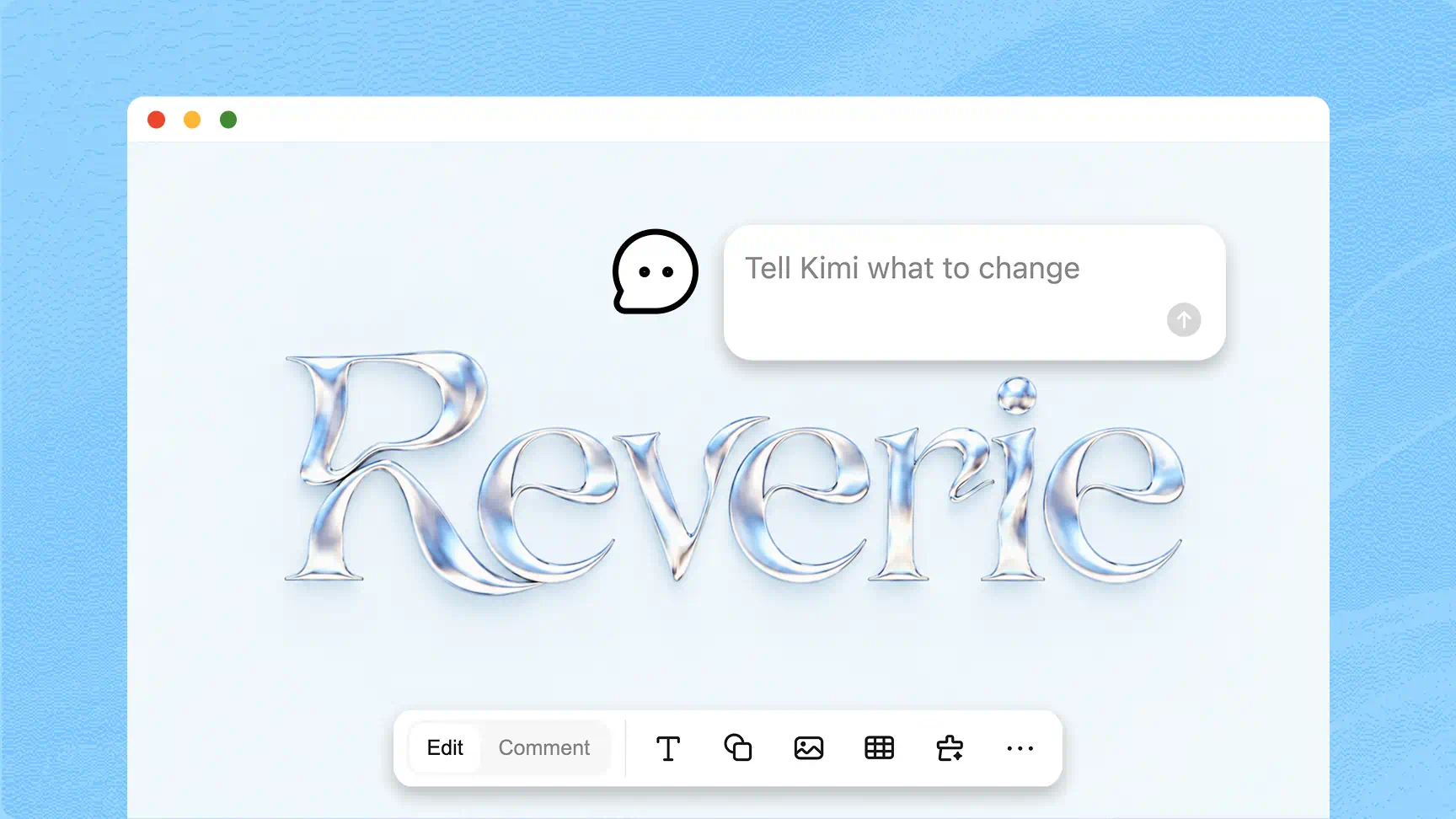
Edit and refine your 3D text with flexible controls
Use conversational prompts or comments on specific elements to adjust letter proportions, extrusion depth, colors, materials, and lighting. This flexible process helps you customize your 3D font and refine individual details without rebuilding the entire design.
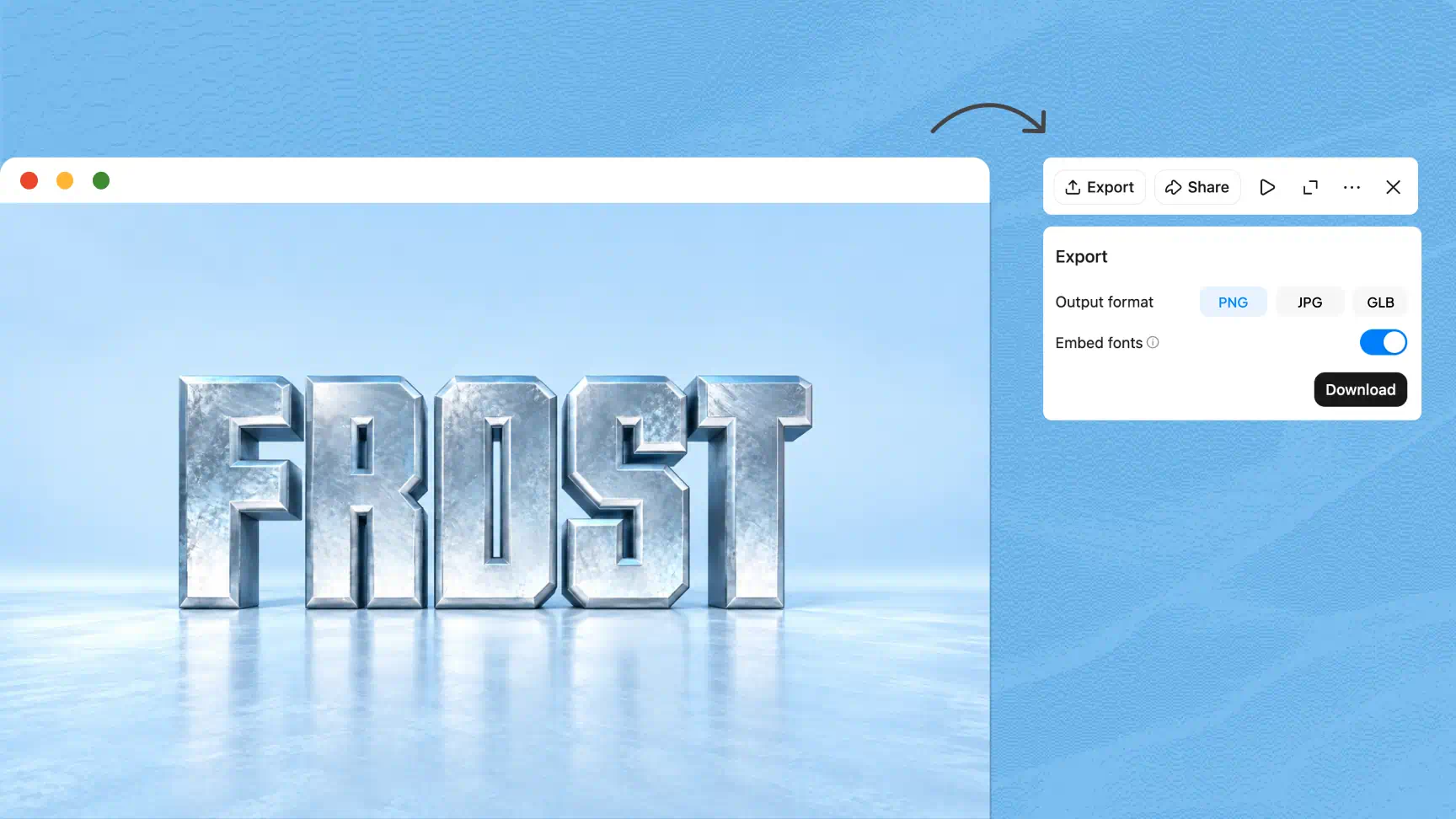
Export 3D text in formats for different creative projects
Export your 3D text designs in supported formats, including PNG, JPG, GLB, and BLEND. Use image exports in posters, presentations, and marketing materials, or import 3D files into compatible tools for further editing and use in digital content and interactive experiences.
How to create 3D text with AI
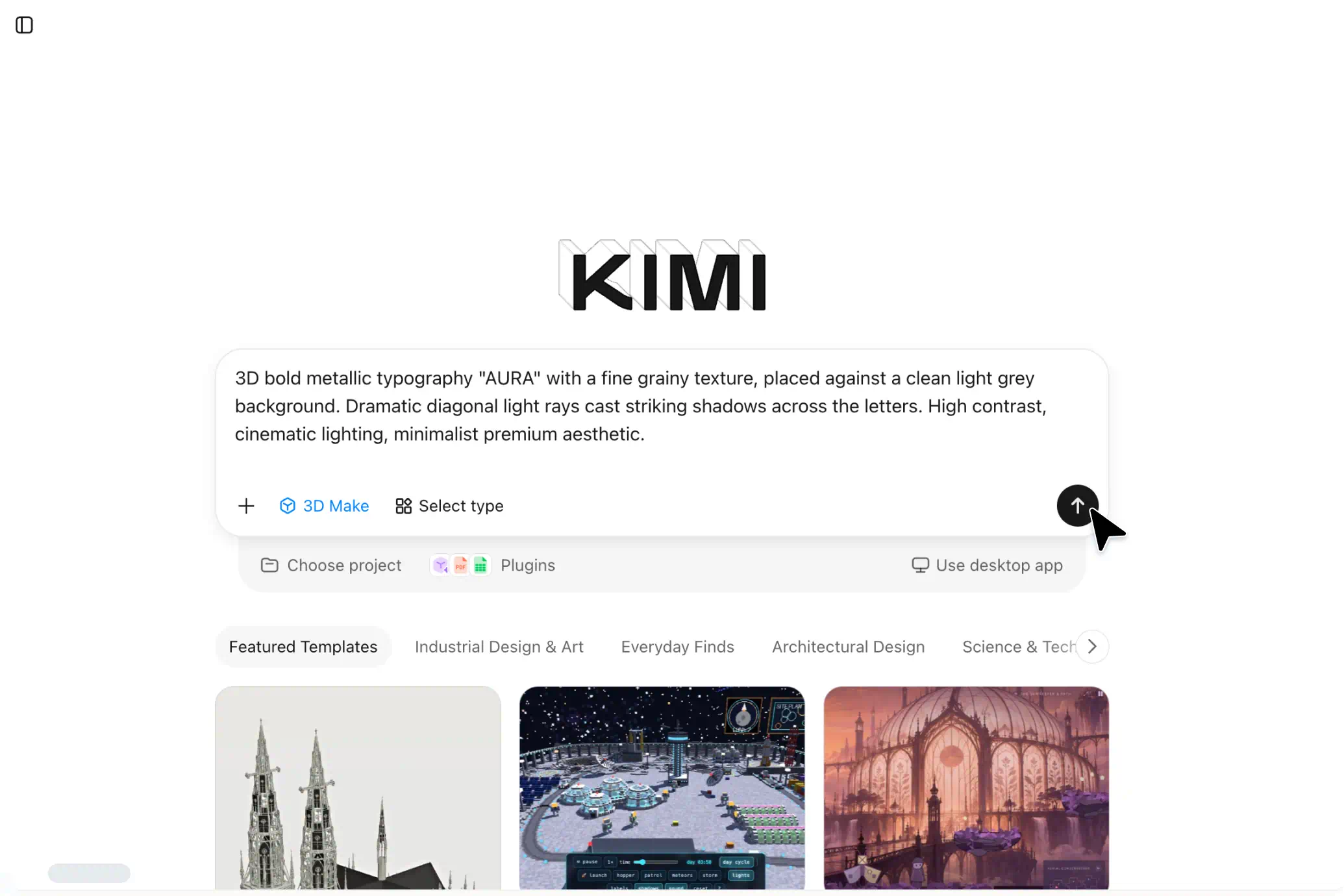
Describe your 3D text concept
Open Kimi 3D Make and enter the text you want to create. Describe your preferred lettering style, colors, materials, and visual effects, or upload a reference image to guide the design.
Customize and refine your design
Review the generated 3D text and identify any details you want to improve. Use prompts or comments on specific elements to adjust letter shapes, depth, textures, colors, and lighting until the design matches your vision.
Export and use your 3D text
Choose how you want to use your finished lettering. Export it in a supported format for graphic layouts and presentations, display it on a dedicated webpage, or bring the 3D file into a compatible editing workflow for further development.
Creative applications for 3D text design

Branding and logos
Create dimensional lettering for brand identities, logo concepts, and promotional assets. A 3D text generator helps explore different lettering styles that reflect your brand's visual identity.

Posters and advertising
Design attention-grabbing headlines for promotional posters, product launches, event campaigns, and digital ads. Use bold 3D typography to make key messages stand out.

Social media and video
Create 3D titles for social media posts, video covers, intros, and promotional content. Custom 3D fonts add depth and visual interest to digital content.

Websites and digital experiences
Use 3D lettering in portfolio showcases, product displays, landing pages, and interactive presentations. Export compatible assets to incorporate your designs into web projects.
Games and 3D projects
Develop stylized game titles, logo concepts, and environmental lettering for compatible 3D workflows. A 3D letter generator can help you explore distinctive text styles for game visuals and digital scenes.