Memory tips
With memory enabled, Kimi can refer to saved information and past chats when they are relevant. Specific background and preferences help it understand what you need.
Choose where to put your information
| What you need | Where to put it | Example |
|---|---|---|
| Help Kimi understand your background, habits, or interests | Tell Kimi in a chat and ask it to remember | “Remember that I am an elementary school math teacher.” |
| Set an ongoing preference for how Kimi replies | Settings → Personalization → Chat settings | “Reply in English by default. Give the conclusion first, then explain.” |
| Set requirements for one project | Project instructions and files | “This project is for beginners. Follow the terminology in the project glossary.” |
| Give instructions for the current task only | The current chat | “For this answer, use Spanish and stay under 200 words.” |
Memory is used according to its relevance to the current question. State essential requirements directly in the current chat or project instructions.
Share background that helps with future tasks
Focus on information relevant to how you use Kimi, such as your profession, familiar tools, or intended audience.
You can also tell Kimi what you already know so it can adjust the depth of its explanations:
Put ongoing response preferences in Chat settings
- Open your profile menu and select Settings.
- Under Personalization, select Chat settings. You can also go directly to Settings → Personalization → Chat settings.
- Enter your preferences in Instructions for Kimi, then select Save. You can also set your Preferred name and Occupation.
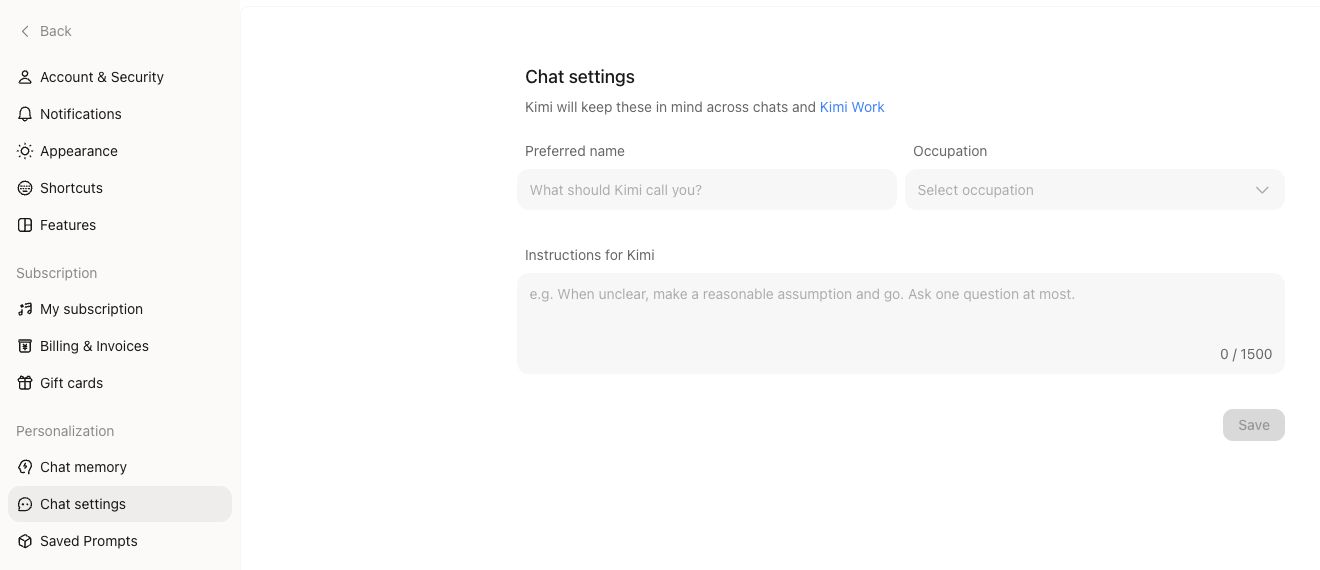
For example:
These instructions help Kimi adjust its responses. For important facts, check the cited sources and whether the information applies to your task.
Say exactly what changed
Include both the old and new information when making a correction. This is clearer than simply saying “That is wrong.”
After a new chat starts, the system organizes information from past conversations into Memory Space. Updates may take time. Check later under Settings → Personalization → Chat memory → Memory Space. If outdated information keeps being used, delete that memory and save the corrected information again.
Use project instructions and files for ongoing work
Use Projects to keep requirements and reference materials together when work spans multiple chats. Memory availability in projects differs from regular chats, so put essential background in project instructions or files.
For example, save the following as project instructions and upload the glossary you want Kimi to follow:
Continue a discussion with memory
State the current task and the background you want Kimi to consider. For example:
- “Based on what you know about my work, help me plan a beginner-friendly React learning schedule.”
- “Recommend three songs based on the music preferences I mentioned earlier, and explain your choices.”
- “Use our earlier project discussions to list what we have confirmed so far. List anything uncertain separately.”
If an answer cites memory, check the indicator at the end of the message to see what it referred to. Add any missing or misunderstood information directly to the current chat.
Review and clean up periodically
Review saved information in Memory Space, correct outdated details, delete memories you no longer need, or export a copy. To stop creating and using memories, turn memory off under Settings → Personalization → Chat memory. Kimi will then neither use memory nor create new memories in new chats.
Kimi refuses to save sensitive information such as identity document or bank card numbers as memory. See Memory for settings, privacy, migration, and rollout details. If your account still shows Memory Instructions, the new Memory Space controls may not be available yet.
Was this article helpful?