Getting started with Kimi Code CLI
Kimi Code CLI is an AI agent that runs in the terminal, helping you carry out software development tasks and day-to-day terminal operations — reading and modifying code, running shell commands, searching files, fetching web pages, and autonomously planning and adjusting its next steps based on feedback as it works.
It fits scenarios such as:
- Writing and modifying code: implementing new features, fixing bugs, completing refactors
- Understanding a project: exploring an unfamiliar codebase and answering questions about architecture and implementation
- Automating tasks: batch-processing files, running builds and tests, chaining multiple scripts together
The CLI is written in TypeScript, distributed via npm, and runs on Node.js.
Before you start
- Operating system: macOS, Linux, or Windows (via PowerShell)
- Kimi account: an active Kimi membership subscription, or a callable API key
Installation
Two installation options are available: the official install script (recommended, no pre-installed Node.js required) and a global npm install.
Install script (recommended)
macOS / Linux:
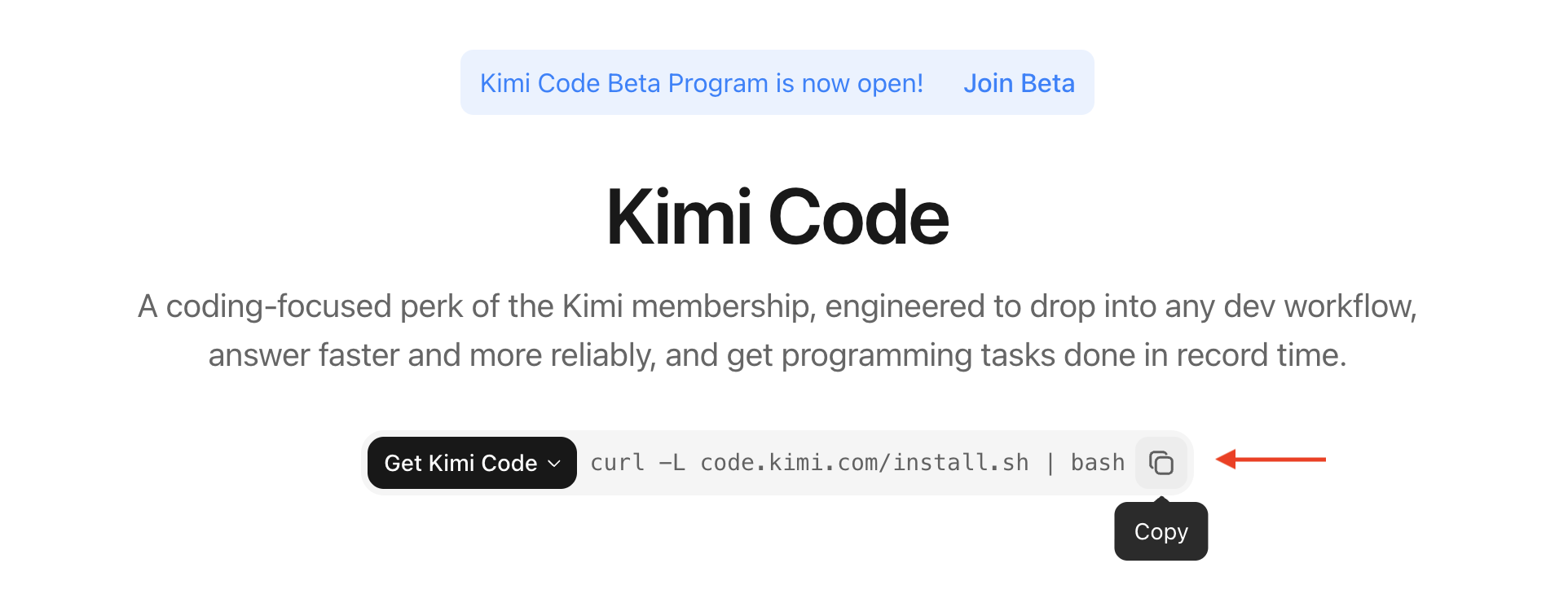
Windows (PowerShell):
The script automatically downloads the latest release, verifies the checksum, and places the kimi executable on your PATH.
On Windows, install Git for Windows before first launch. Kimi Code CLI uses the bundled Git Bash as its shell environment; if Git Bash is installed in a custom location, set KIMI_SHELL_PATH to the absolute path of bash.exe.
npm installation
If you already have Node.js 22.19.0 or later installed, you can install directly via npm:
Or with pnpm:
Verify installation
After installation, verify that the executable is ready:
If the kimi command is not found, try reopening your terminal or running source ~/.bashrc (or ~/.zshrc).
Because of macOS Gatekeeper, the first run of
kimimay take noticeably longer. You can speed up subsequent launches by adding your terminal app to System Settings → Privacy & Security → Developer Tools.
Upgrade and uninstall
Upgrade: run kimi upgrade — the CLI checks for the latest version and presents update options. Choose Install update now to upgrade based on your current install source. You can also upgrade directly via the package manager:
Uninstall: if you installed via the script, delete the kimi executable. If you installed via npm:
First launch
Interactive terminal
Move into your project directory and run kimi to start the interactive UI:
Single instruction
To run a single instruction without entering the interactive UI, use -p:
Resume session
To resume the previous session, add -C:
First login
On first launch you need to configure an API source. In the interactive UI, enter /login to begin the login flow:
/login opens a platform selector supporting two options:
- Kimi Code (OAuth) — device-code flow; open the link on any device, sign in, and enter the code to authorize
- Kimi Platform API key — enter an API key from
platform.kimi.comorplatform.kimi.ai
To sign out, enter /logout to clear the current credentials.
If you want to connect Anthropic, OpenAI, Google, or other providers, edit ~/.kimi-code/config.toml directly to configure the API key. For the full reference of all config options, see environment variables and configuration overrides documentation.
Generate AGENTS.md
Run the /init command in your project directory. Kimi Code CLI will automatically scan the project structure and generate an AGENTS.md file:
AGENTS.md is used to provide AI with project background information, build steps, code conventions, and other context to help AI understand your project more accurately.
Your first conversation
Once logged in, describe a task in natural language. A good starting point is to let Kimi Code CLI familiarize itself with the project:
Kimi Code CLI automatically calls file-reading, search, and other tools to browse the relevant content before responding. Read-only operations are executed automatically by default without requiring confirmation. For operations that modify files or run shell commands, it asks for your confirmation before proceeding.
You can also describe a more concrete task directly:
Kimi Code CLI plans the steps, modifies the code, runs the tests, and tells you what it did at each step.
Not sure what to do? Type /help at any time to open the built-in command and keyboard shortcut panel. Use ↑/↓ to browse and Esc to close. To exit, type /exit, press Ctrl-C twice, or press Ctrl-D with the input box empty.
Common commands and keyboard shortcuts
Session commands
| Command | Description |
|---|---|
/new | Start a new session, clearing the current context |
/sessions | Browse session history and choose one to resume |
/model | Switch the current model |
/compact | Manually compress the context to free up tokens |
/fork | Fork the current session, keeping history but continuing independently |
Most-used keyboard shortcuts
| Shortcut | Description |
|---|---|
Esc | Interrupt streaming output / close a popup |
Ctrl-C | Interrupt output; press twice while idle to exit |
Shift-Tab | Toggle Plan mode |
Ctrl-S | Inject a message mid-stream without waiting for the current response to finish |
Ctrl-O | Collapse / expand tool output |
For the full list, type /help or visit Interaction & input.
Where data is stored
Kimi Code CLI stores its local data under ~/.kimi-code/ by default — config files, session records, logs, and the update cache. To move it elsewhere, point to a new path via the KIMI_CODE_HOME environment variable. For the full directory layout, see environment variables documentation.
FAQ
I entered my API Key, but it says authentication failed.
First, confirm that your Key and Base URL belong to the same platform. api.kimi.com and api.moonshot.cn are two completely independent account systems, and their API Keys are not interchangeable:
| Platform | Base URL | Billing | Key creation |
|---|---|---|---|
| Kimi Code | OpenAI compatible: https://api.kimi.com/coding/v1Anthropic compatible: https://api.kimi.com/coding/ | Kimi membership subscription (includes credits) | Kimi Code Console |
| Kimi Open Platform | https://api.moonshot.cn/v1 | Pay-as-you-go | Kimi Open Platform |
The kimi command is not found after installation.
The installation script adds kimi to your PATH, but you need to restart the terminal or run source ~/.bashrc (or source ~/.zshrc) for it to take effect. If it's still not found, check if ~/.local/bin is in your PATH.
The browser did not pop up after running /login.
In a remote server or headless environment, /login will display a URL. Manually copy it into your browser to complete the authorization.
If you have any issues or suggestions, provide feedback on GitHub Issues.
Next steps
- Interaction & input — input box operations, approval flow, Plan mode, and YOLO mode explained
- Sessions & context — resuming sessions, compressing context, exporting sessions
- Common use cases — prompt examples for typical tasks
Was this article helpful?