Building a presentation can be a time-consuming task when you have to write, arrange, and design every slide yourself. You may know exactly what you want to say but still struggle to turn those ideas into attractive slides. AI offers a simple way to speed up the process and create professional presentations with much less work. Read on to learn how to generate slides with AI and bring your presentation ideas to life.
How to generate presentation slides with AI
Creating presentation slides with AI becomes easier when you use a tool that can handle both content and slide design in one workflow. Kimi Slides, an AI presentation maker, turns your instructions into structured presentations, automatically organizing content, layouts, and visual elements. Start with a simple prompt, then refine the generated slides to fit your topic, style, and presentation needs. Follow the steps below to generate slides using AI from start to finish.
Step 1: Define your presentation topic and goals
Before creating your slides, clearly define what your presentation is about and what you want your audience to understand or do after viewing it. A clear goal gives the AI enough direction to build relevant content and organize the slides logically. Keep your topic focused and decide on the main points you want to cover. You can consider details such as:
Presentation topic: What is the main subject you want to discuss?
Audience: Who will view or use the presentation?
Main goal: What should the audience learn, understand, or take away?
Key points: What important ideas or information should the slides include?
Presentation length: How many slides or how much content do you need?
Step 2: Prepare your content and enter a clear prompt
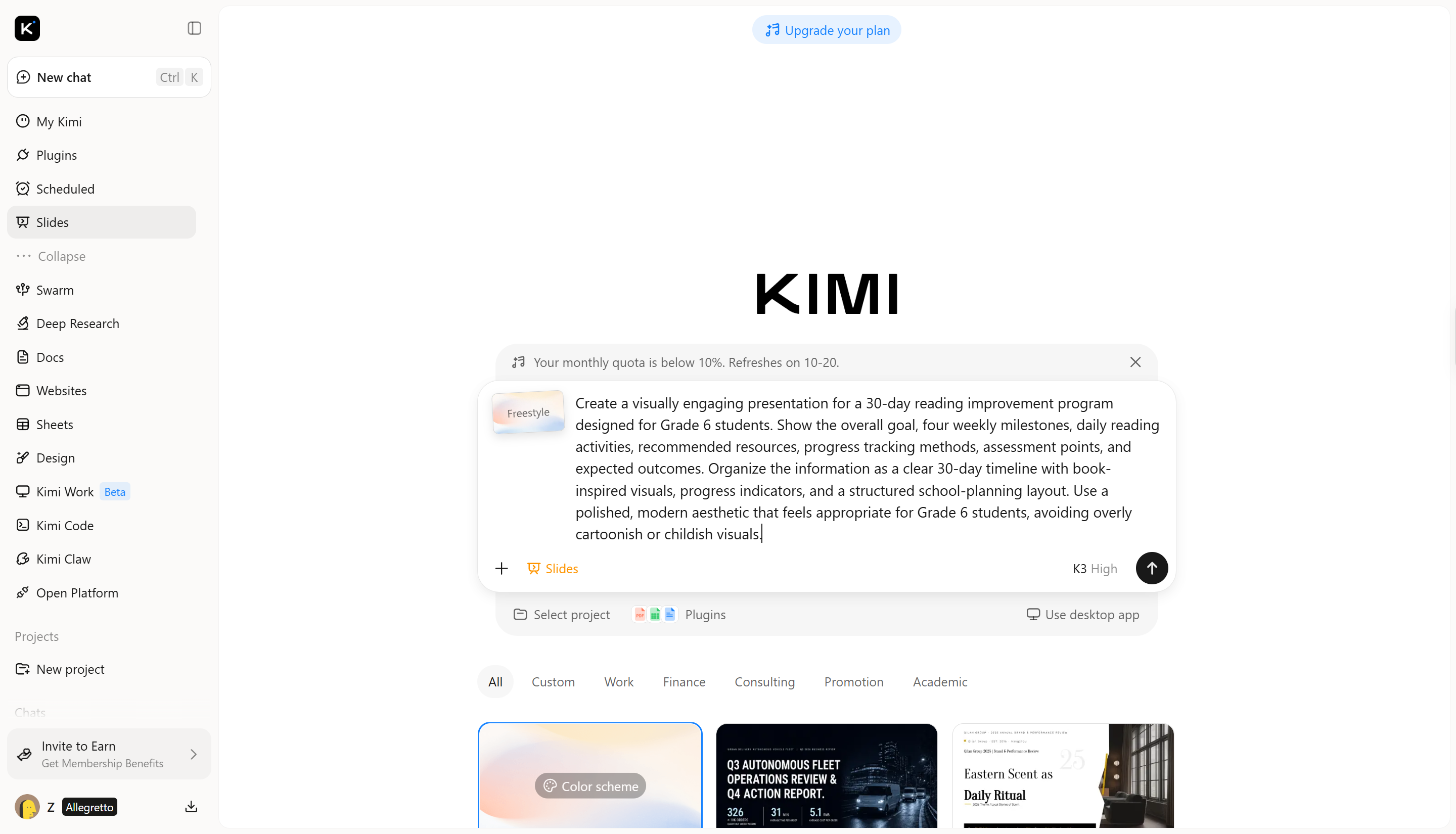
Prepare the main information you want to include and turn it into a clear prompt for Kimi Slides. Mention your topic, audience, preferred slide count, key points, and the style you want for the presentation. The more specific your prompt is, the easier it is for the AI to create slides that match your needs. Include any important facts, examples, or instructions you want Kimi Slides to use.
Example prompt:
Step 3: Generate the presentation and refine the slide content
Enter your prompt in Kimi Slides to generate the initial presentation. Review the slides and refine them to match your goals. You can enter follow-up prompts directly in the chat to revise the presentation, click "Edit" to comment on and modify specific elements, or manually adjust the content and layout for more precise control.
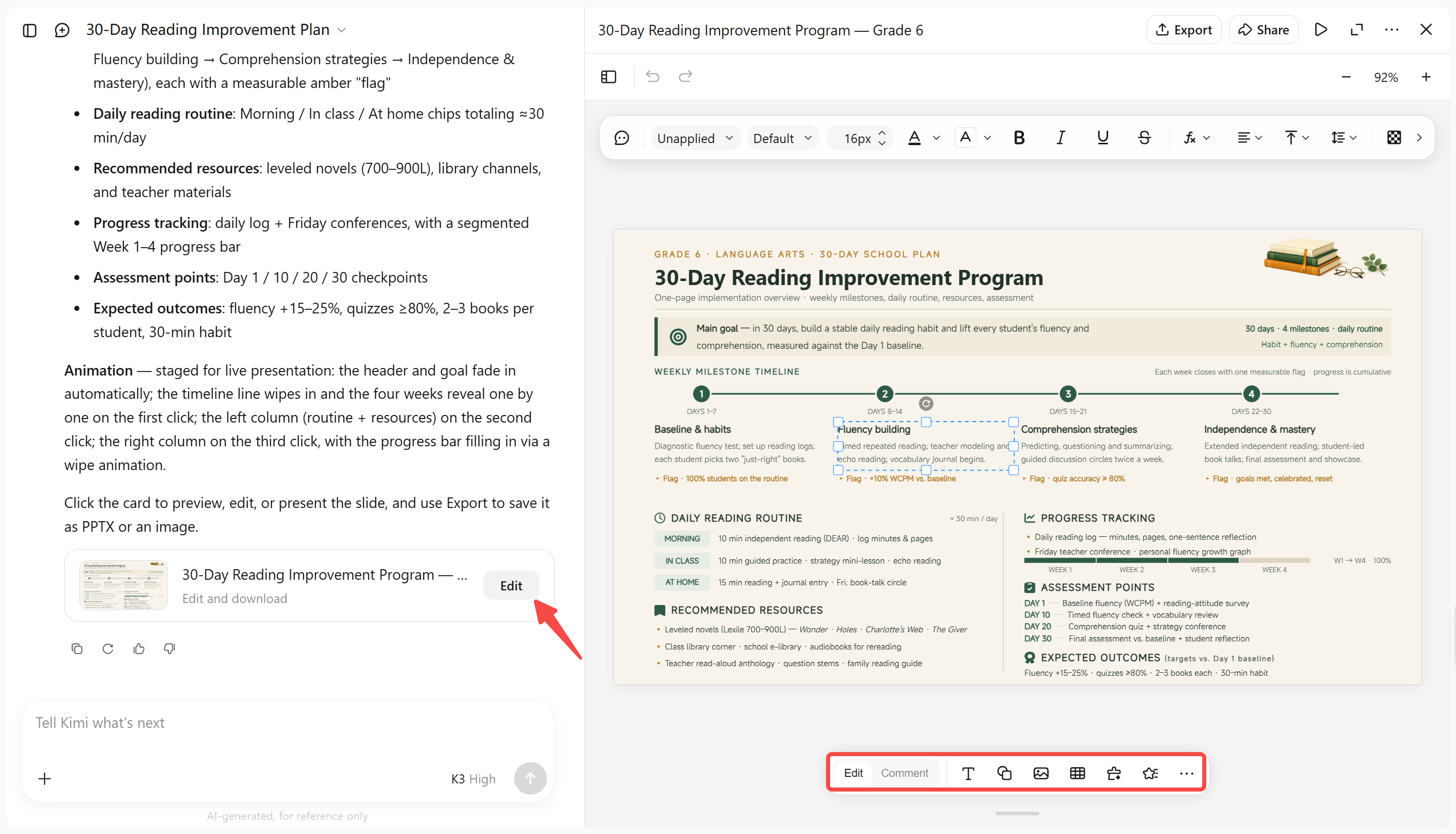
Step 4: Review the completed presentation and download the PPTX file
Once the slides are finalized, review the entire presentation from beginning to end to catch spelling errors, repeated information, weak visuals, or layout issues. When everything looks correct, use Kimi Slides' export or download option to save the presentation as a PPTX file.
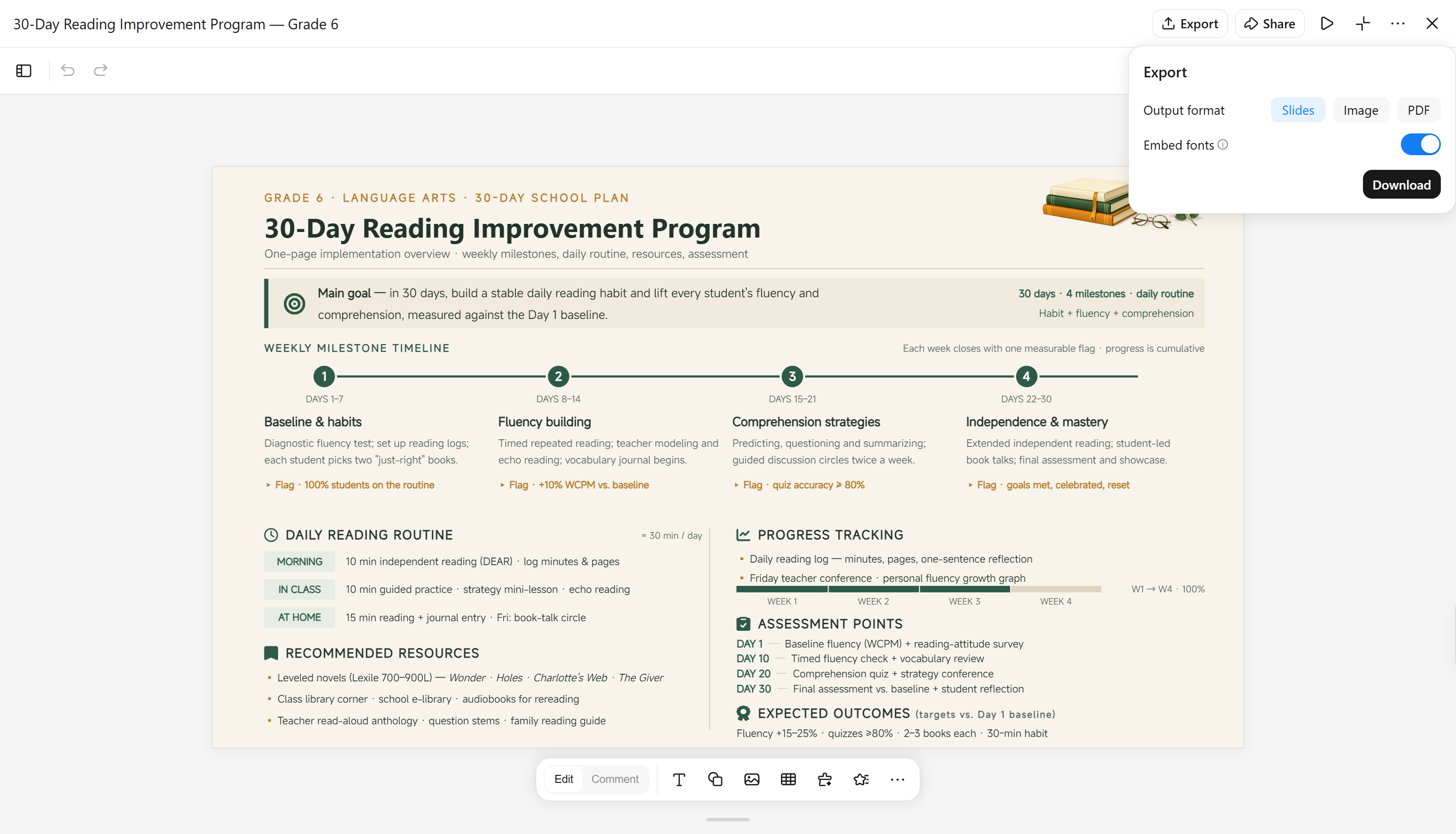
Why choose Kimi Slides for generating slides
Kimi Slides helps simplify the slide creation process by turning ideas into polished presentations with AI-powered features. Explore the key features that make Kimi Slides a practical choice for generating professional slides:
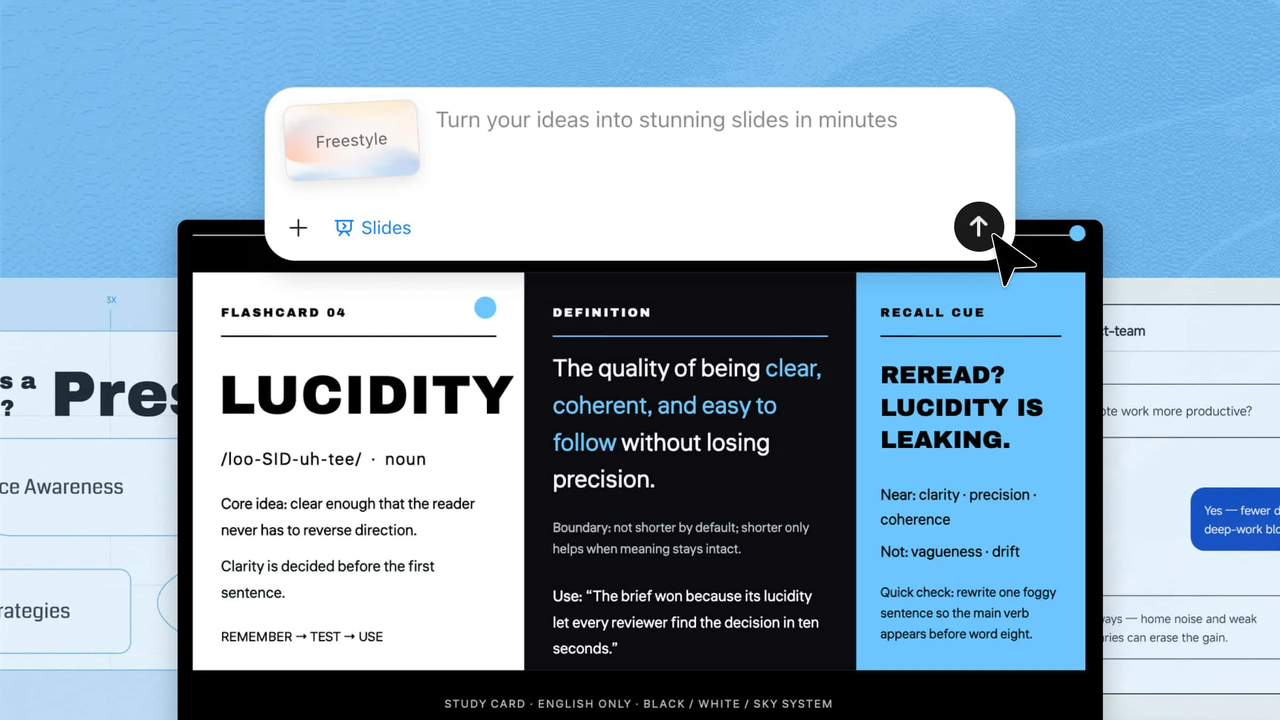
Turn a simple idea into a complete presentation: Start with a topic, a rough idea, or a short prompt. Kimi Slides can organize your thoughts into a logical structure and generate a complete slide deck, so you don't have to build every slide from scratch.
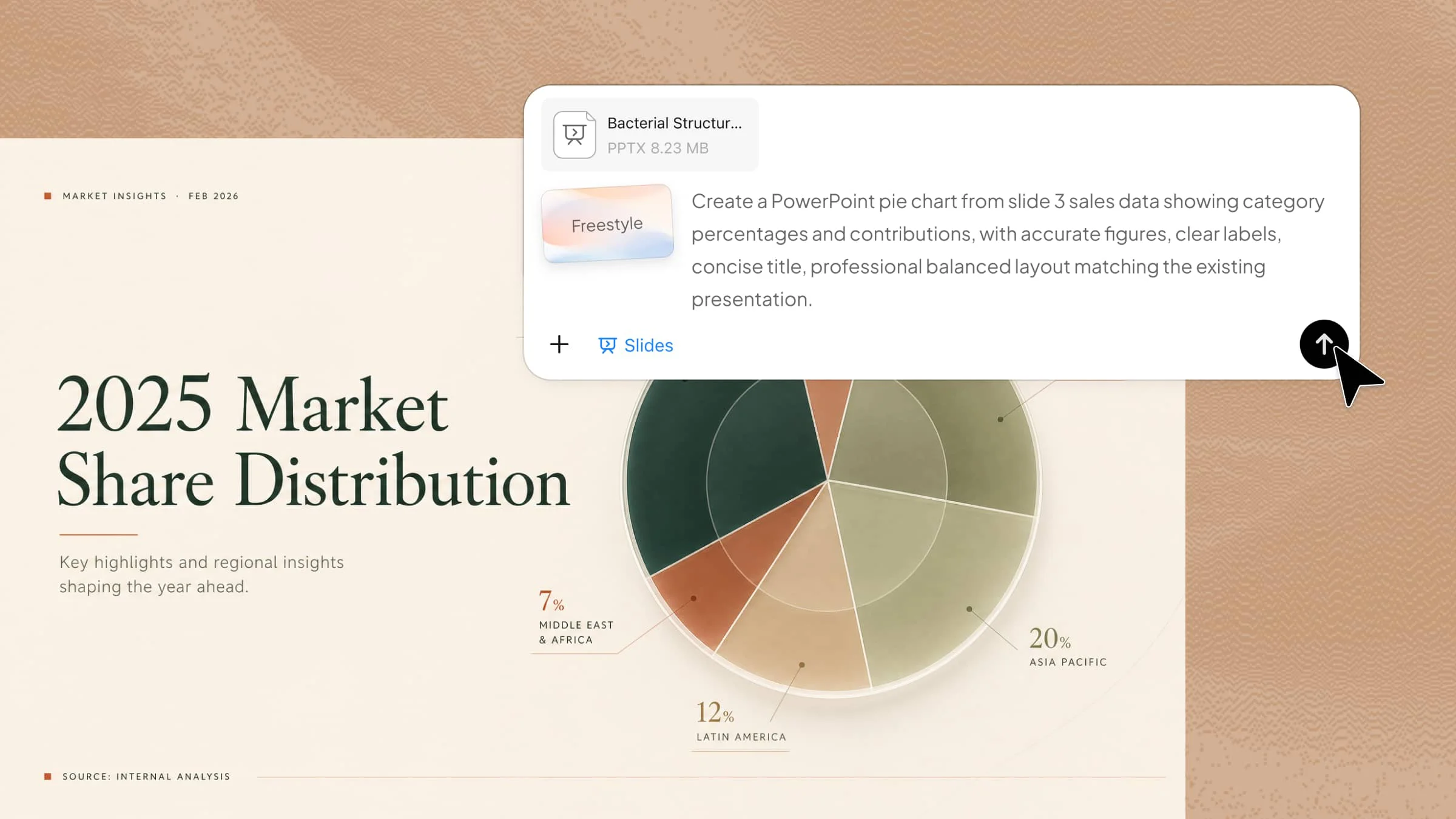
Transform existing content into ready-to-use slides: Upload PDFs, Word documents, spreadsheets, images, or other materials, and Kimi Slides can extract the key information and turn lengthy content into a clear, well-structured presentation.
Research your topic and build content with sources: For topics that require more than the information you provide, Kimi Slides can research the web, gather relevant information, and incorporate sourced content into your slides to make the presentation more informative and traceable.
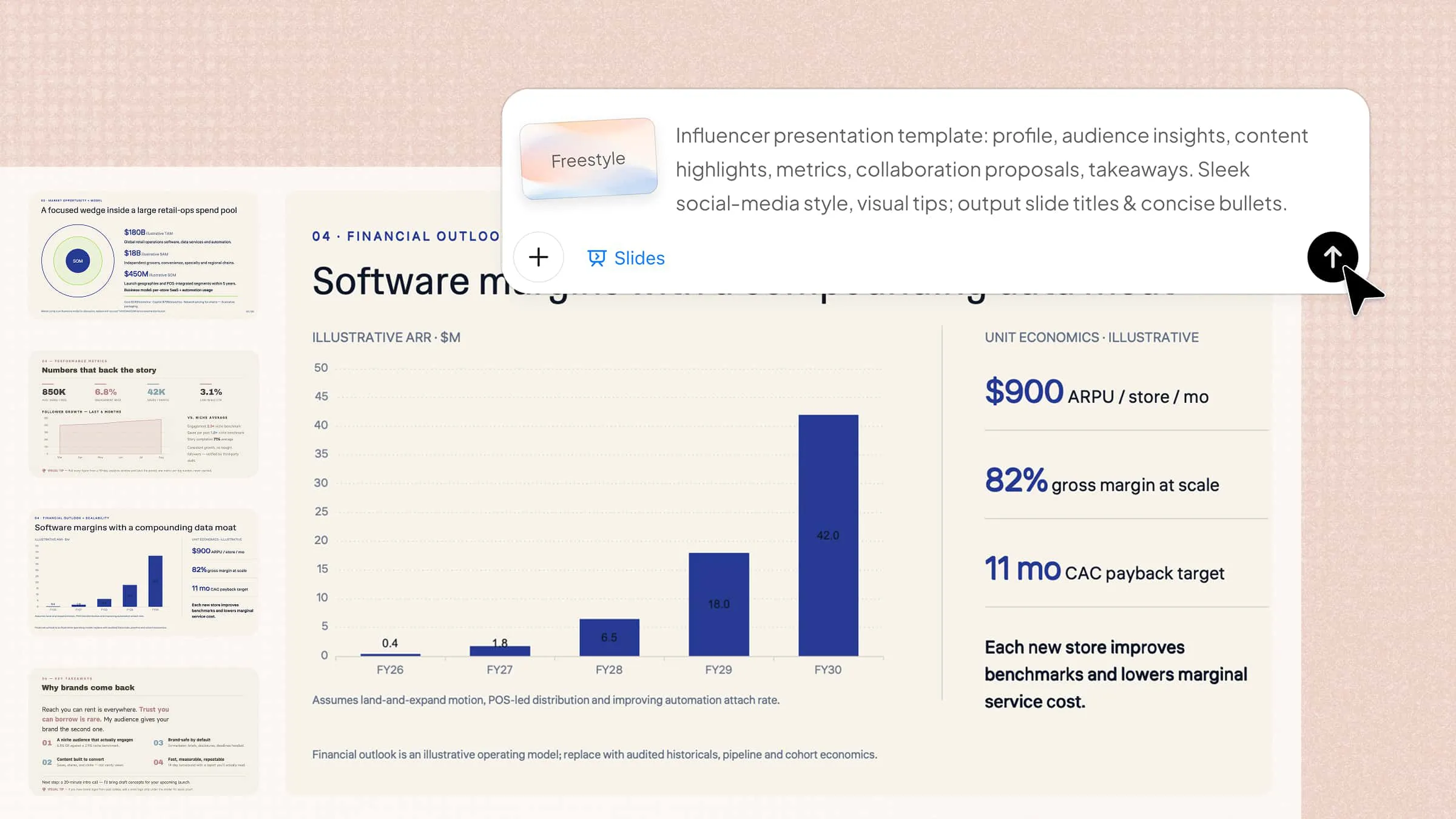
Create polished layouts, charts, and visuals automatically: Kimi Slides adapts slide layouts to different types of content and generates visual elements such as charts, diagrams, and graphics. This helps turn information-heavy material into slides that are easier to follow and present.
Keep refining your slides after AI generation: AI generation is only the starting point. You can continue editing the content and visual elements, refine individual slides, and export the finished presentation as PPTX or PNG when it's ready.
Use cases of the AI slide maker
AI slide makers are useful in fields where clear communication and visual storytelling matter. From business presentations to academic projects, these tools help organize ideas and save time. Here are some common use cases.
Business presentations
AI slide makers help businesses turn ideas, reports, and plans into structured presentations for meetings and decision-making. They can organize key information, create professional layouts, and highlight important data in a clear way. Teams can use them for strategy updates, project reviews, financial reports, and internal communication. This makes it easier to present complex information in a simple and engaging format.
Sales pitches
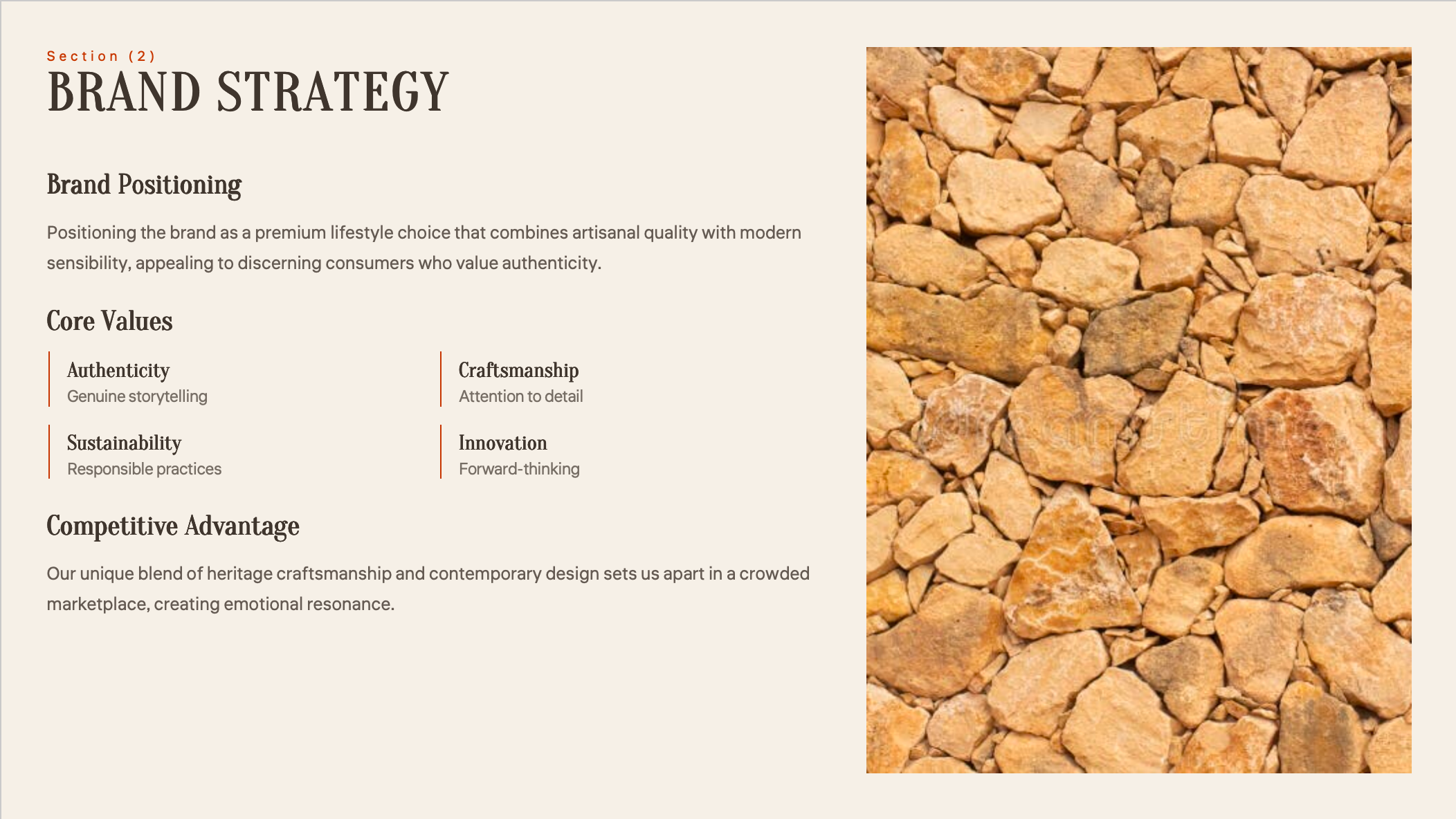
Sales teams can use AI slide makers to create persuasive presentations that showcase products, services, and solutions. These tools help arrange customer pain points, benefits, pricing details, and success stories into a logical flow. AI-generated visuals and layouts can make pitches more engaging while saving time on manual design work. This allows sales professionals to focus more on their message and audience.
Marketing presentations
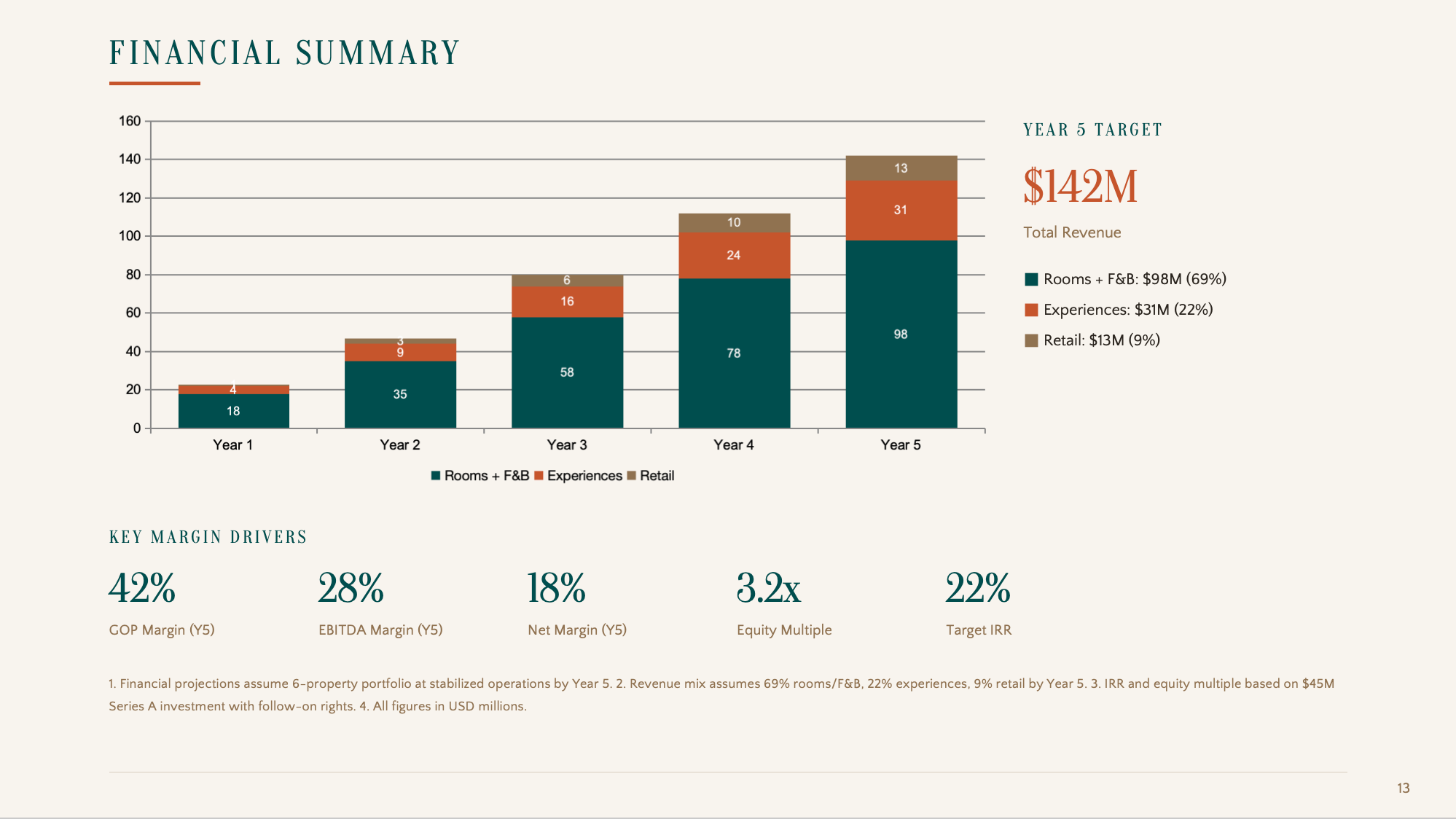
AI slide makers support marketing teams in presenting campaigns, market research, and brand strategies with professional visuals. They can transform ideas and data into attractive slides that explain trends, customer insights, and promotional plans. Marketers can quickly create presentations for clients, stakeholders, or team discussions. This helps communicate marketing goals more effectively.

Educational presentations
Teachers, students, and trainers can use AI slide makers to create learning materials that are easier to understand. These tools can organize lessons, summarize topics, and add visuals that support better learning. Students can also use them for assignments, projects, and classroom presentations. This makes educational content more structured and engaging.

Research presentations
Researchers can use AI slide makers to present complex findings, studies, and data in a clearer format. They can help organize research objectives, methods, results, and conclusions into a logical presentation structure. Charts, summaries, and visual elements can make technical information easier for audiences to follow. This is useful for conferences, academic discussions, and research reviews.

Personal presentations
AI slide makers are also helpful for personal projects such as portfolios, travel plans, event presentations, or personal introductions. They can turn simple ideas into visually appealing slides without requiring advanced design skills. Users can customize themes, layouts, and content based on their purpose. This makes it easier to create polished presentations for different personal needs.

Tips to write better prompts for AI slides
A clear prompt helps AI understand your presentation needs and create slides that match your expectations. The more details you provide, the easier it becomes for the tool to organize content and layouts, and deliver useful results. These tips can help you write better instructions and generate slides with AI effectively.
Define the topic and presentation goal
Clearly mention your presentation topic and what you want to achieve. A defined goal helps AI create relevant content based on whether you want to inform, explain, or persuade your audience. This makes the generated slides more focused and useful.
Specify the target audience
Tell the AI who will view your presentation so it can adjust the language and level of detail. A student presentation may need simple explanations, while a professional audience may require deeper insights. This helps you generate slides that fit your viewers.
Provide the key points and source materials
Share the main ideas, notes, documents, or references you want to include. Providing source materials helps AI create more accurate and organized slides. It also makes it easier to generate slides from text with AI using your existing information.
Set the slide count and structure
Mention the number of slides and the flow you want for your presentation. You can define sections like introduction, main points, and conclusion to keep the content organized. This helps AI create a balanced presentation without unnecessary details.
Describe the tone and visual style
Explain the design style and tone you want, such as professional, modern, simple, or creative. Clear visual instructions help AI create slides that match your presentation purpose. This also improves consistency across the entire deck.
Add specific content requirements
Mention any elements you need, such as images, charts, statistics, or examples. Detailed instructions help AI understand your expectations and create more complete slides. Even when you generate slides with AI for free, better prompts can lead to better results.
Conclusion
A great presentation depends on clear ideas, strong structure, and visuals that help your audience understand the message. AI slide tools make it easier to organize information and create professional presentations without unnecessary effort. Whether you start from text, research, or a simple idea, you can generate slides with AI more effectively with the right approach. Kimi Slides helps bring these possibilities together in one workflow.