A hyperlink in PowerPoint adds a connection between presentation content and another destination, making it possible to move beyond the information displayed on a single slide. It can serve different purposes depending on the context, from providing supplementary material to creating convenient access to related content. Understanding the available hyperlink options can help you use this PowerPoint feature more effectively.
Why should you use hyperlinks in PowerPoint
Hyperlinks add functionality to presentations that ordinary slide content cannot provide, particularly when information needs to extend beyond the current page. Here are some points to consider before hyperlinking the content.
Navigation control
A hyperlink can take you directly to a designated slide, section, or location within the deck. This gives presenters precise control over where they move next without manually searching through numerous slides.
Interactivity
Clickable elements can transform passive viewing into an active experience by inviting the audience to select relevant information. Hyperlink text in PowerPoint is particularly useful when you want interaction without introducing additional visual elements.
External resources
Presentations can serve as gateways to websites, research papers, videos, cloud files, or other supplementary material. A hyperlink image in PowerPoint can provide a visually intuitive entry point to such resources.
Non-linear flow
Hyperlinks support presentations where the sequence may change according to questions, audience interest, or discussion priorities. Instead of following a predetermined route, presenters can move between relevant sections as the situation demands.
Cross-referencing
Related material can be connected without reproducing the same explanation on multiple slides. A hyperlink in a PowerPoint presentation can associate a summary with its detailed evidence, appendix, definition, or supporting section.
Live efficiency
During a live presentation, immediate access to frequently used destinations can reduce interruptions caused by switching applications or locating files manually. This is especially valuable when demonstrations, references, or supplementary materials need to be opened at a specific moment.
Overview of two ways to add hyperlinks to PowerPoint
There are two main ways to add hyperlinks to a PowerPoint presentation: use Kimi Slides to add links with natural-language instructions, or use PowerPoint's built-in tools to add them manually. The table below summarizes the steps involved and when each method is most useful.
| Method | How it works | Key advantage | Suitable for |
|---|---|---|---|
| Kimi Slides | Describe the desired links, destinations, and placement in natural language, then let AI apply them to the presentation. | Faster setup with less manual work, especially for multiple links. | Adding multiple hyperlinks quickly |
| PowerPoint | Select a text, image, shape, or other element and use PowerPoint's built-in Link or Action options to set the destination. | It gives you direct control over each hyperlink and its destination. | Adding and controlling individual links |
How to add hyperlinks to PowerPoint with an AI tool
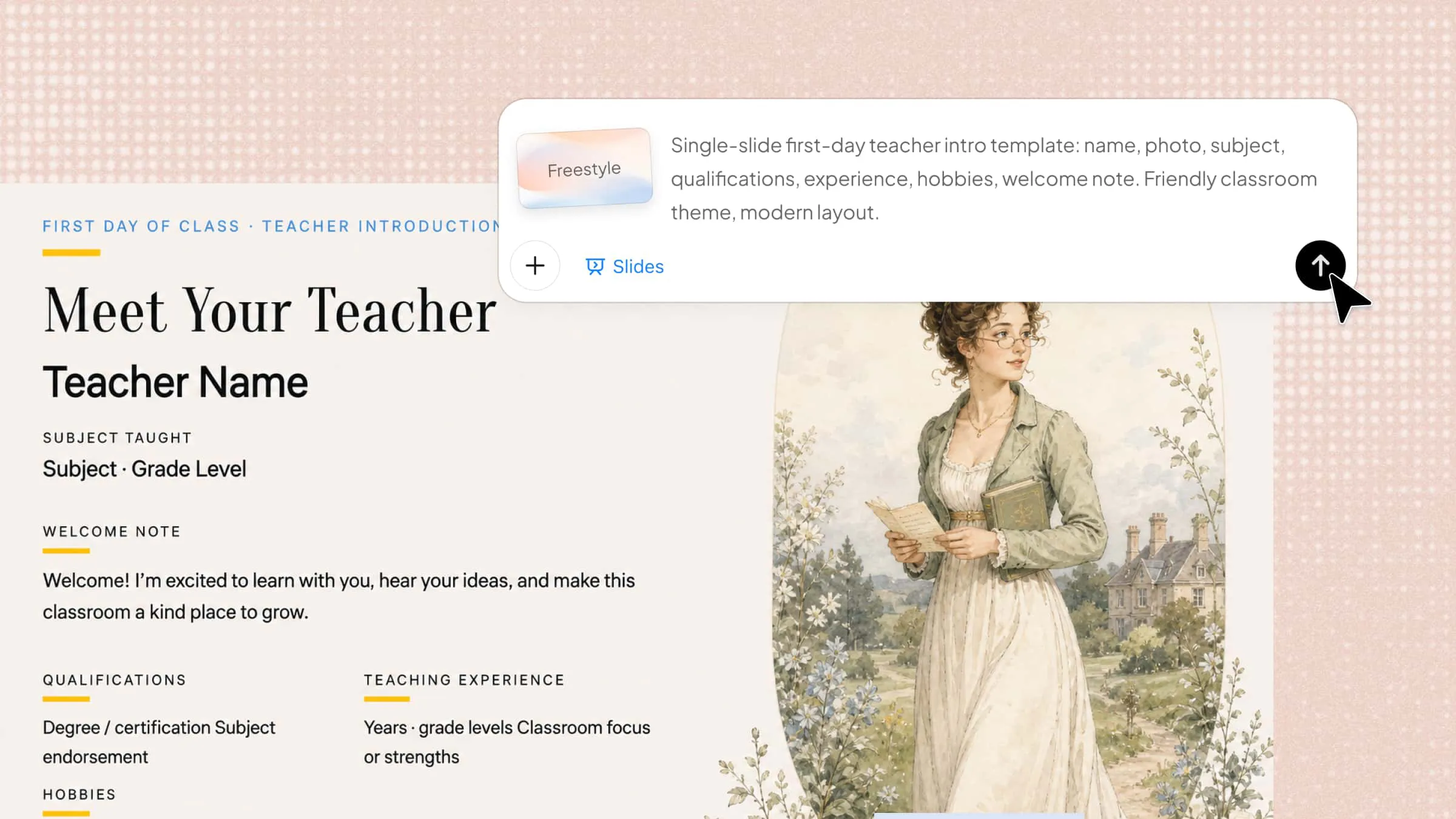
Kimi Slides is an AI presentation maker that lets you create and edit PowerPoint presentations with natural-language instructions. You can upload an existing PPT and specify which text, images, or other elements should link to a webpage, slide, or other destination. Follow these steps to add hyperlinks to your PowerPoint with AI.
Step 1: Enter the prompt
Describe the type of hyperlink you need, its destination, and where it should appear in the presentation. Keep your instructions precise enough for the AI to understand the intended placement and purpose.

Step 2: Edit your PPT
Once Kimi Slides generates the initial result, review the presentation and make changes where needed. You can use natural-language instructions to modify the hyperlinks, update their destinations, change the linked text or elements, or adjust their placement. You can also refine other parts of the presentation while keeping the overall design consistent.

Step 3: Download the PPT file
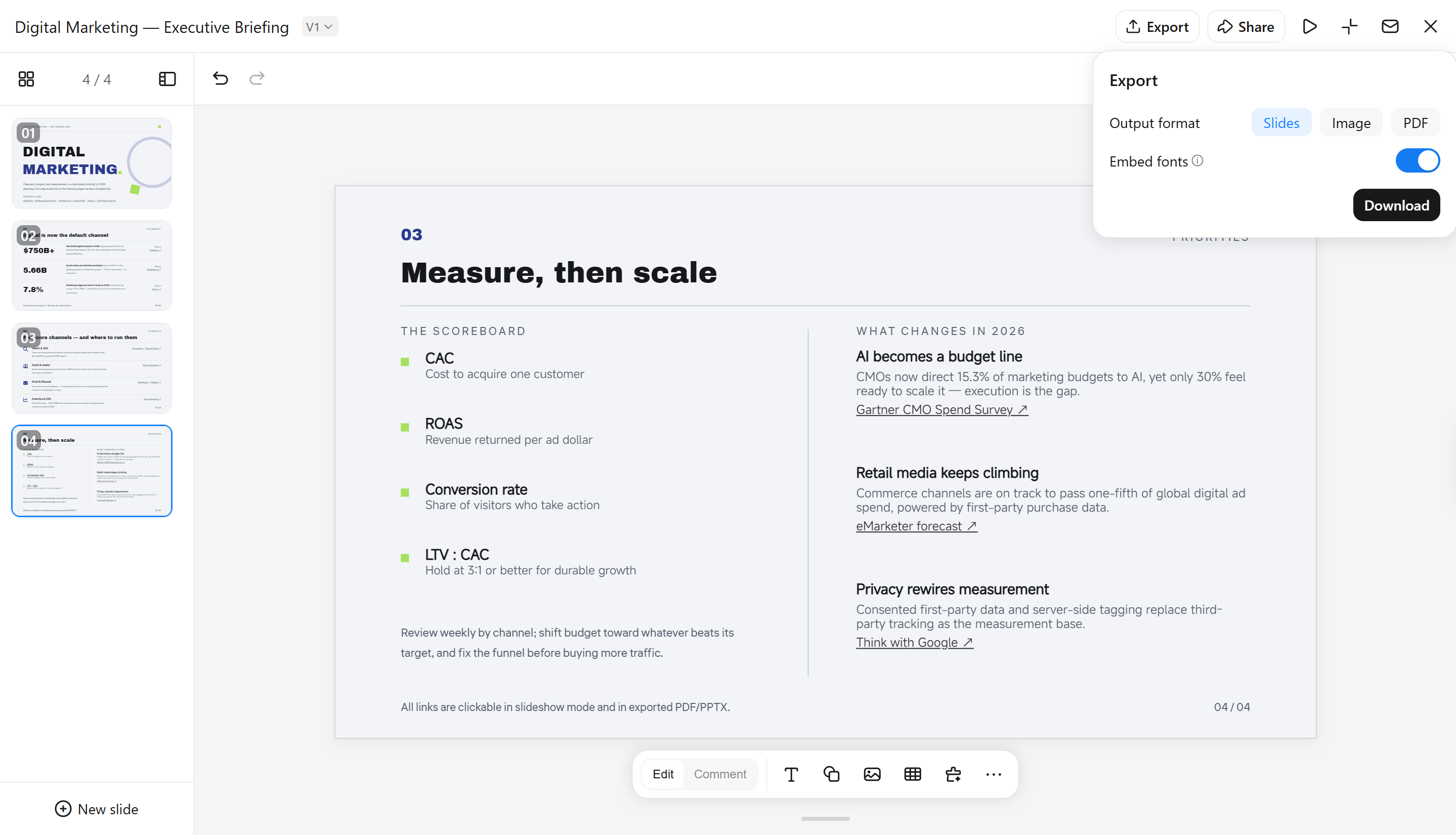
Once the hyperlinks and presentation layout are ready, preview the updated PPT and check that the links work as expected. Make any final adjustments if necessary, then download the PowerPoint file for further editing, sharing, or presenting.
Main features of Kimi Slides
Add hyperlinks with natural-language instructions
Specify the destination and placement in plain language, and Kimi Slides can incorporate clickable links into relevant text or visual elements while retaining manual editing control.
Edit links and text your way
Revise destinations, anchor text, and accompanying copy through conversational commands or direct editing, with additional control over typography and visual formatting.
Generate presentation-ready layouts
Produce visually coherent slides where buttons, linked elements, and supporting content are positioned within a deliberate hierarchy, preserving both usability and aesthetic balance.
Export to editable PowerPoint
Download the finished deck as an editable PPTX file, allowing further refinement of hyperlinks, typography, colors, positioning, and other presentation components in PowerPoint.
How to add hyperlinks to PowerPoint manually
If you prefer having direct control over your presentation, PowerPoint's built-in linking tools offer a straightforward way to create connections between different types of content. The following methods cover the most useful linking options you can apply while editing your slides manually.
Link to an external website
External links are useful when a presentation needs to point audiences toward information that exists beyond the slide deck. Learning how to hyperlink a website in PowerPoint can connect a presentation with research sources, online demonstrations, reference pages, or relevant web content without placing lengthy material on the slide.
Here are the guidelines for adding external links in PPT:
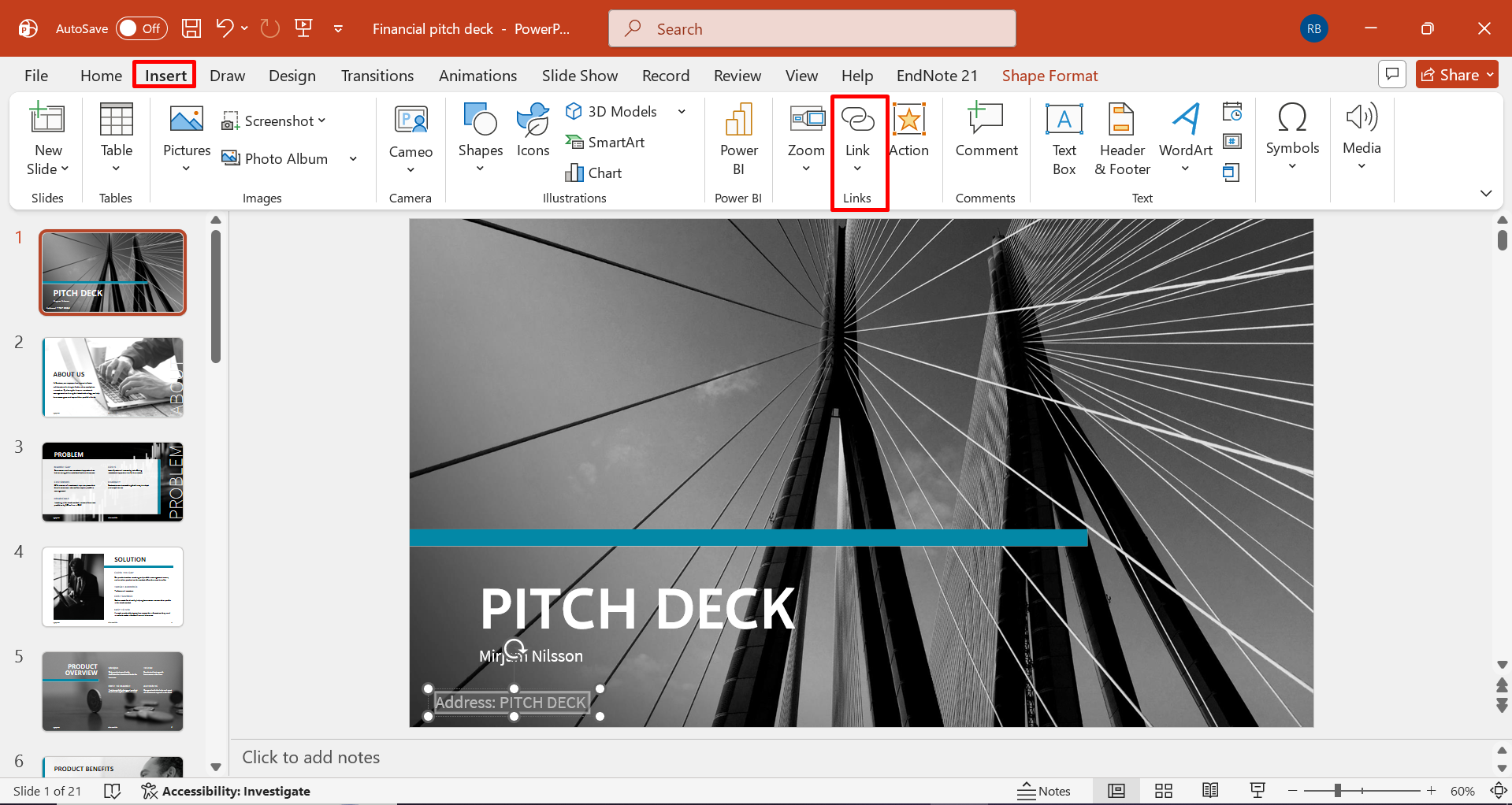
Step 1: Open the link dialog
Select the text, shape, icon, or image that should serve as the clickable element. Go to "Insert" > "Link" or right-click the selected element and choose "Link" to access the hyperlink options.
Step 2: Enter the web address
Select the option for an existing file or web page, then enter or paste the complete website address into the designated field.
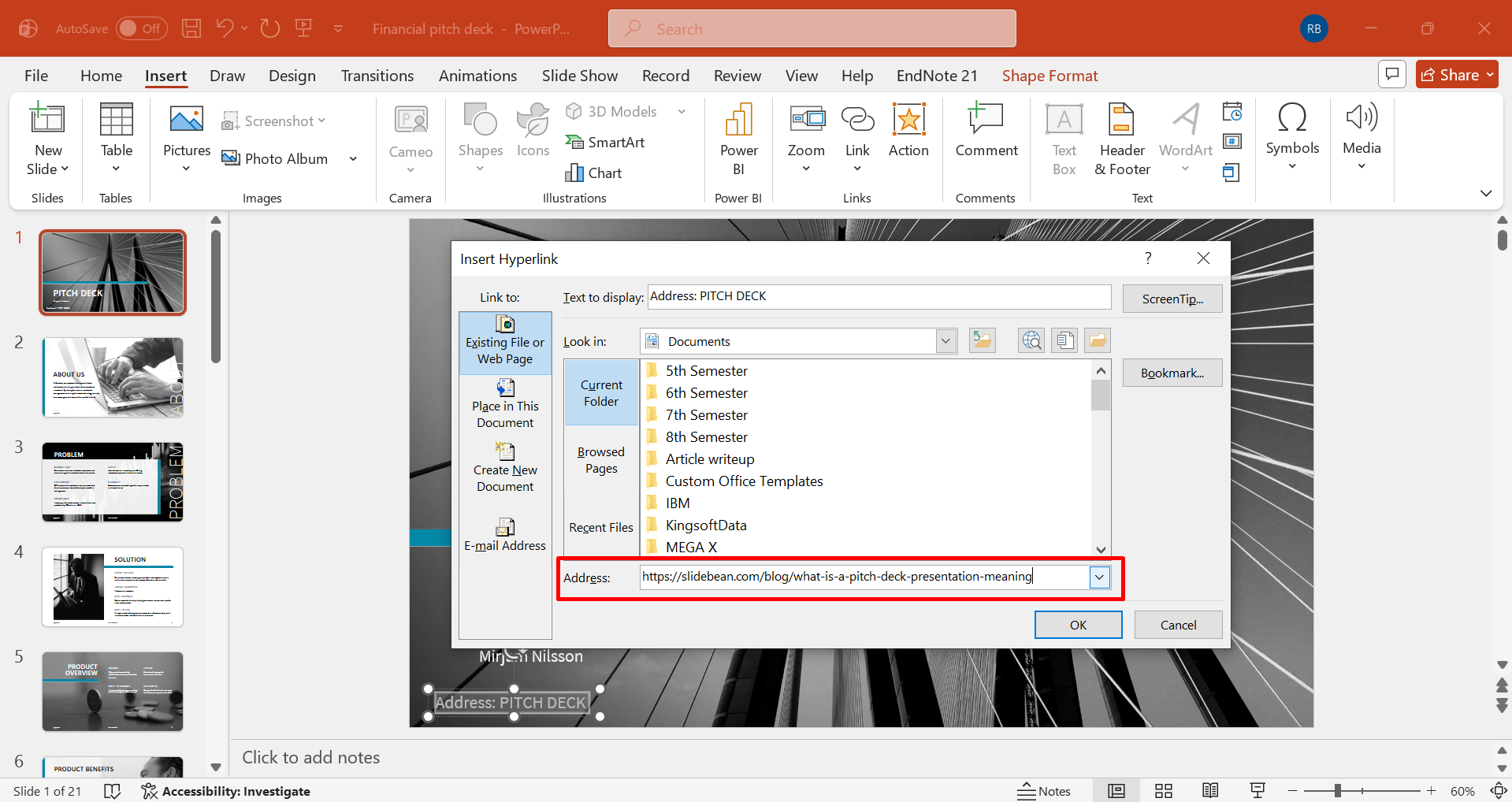
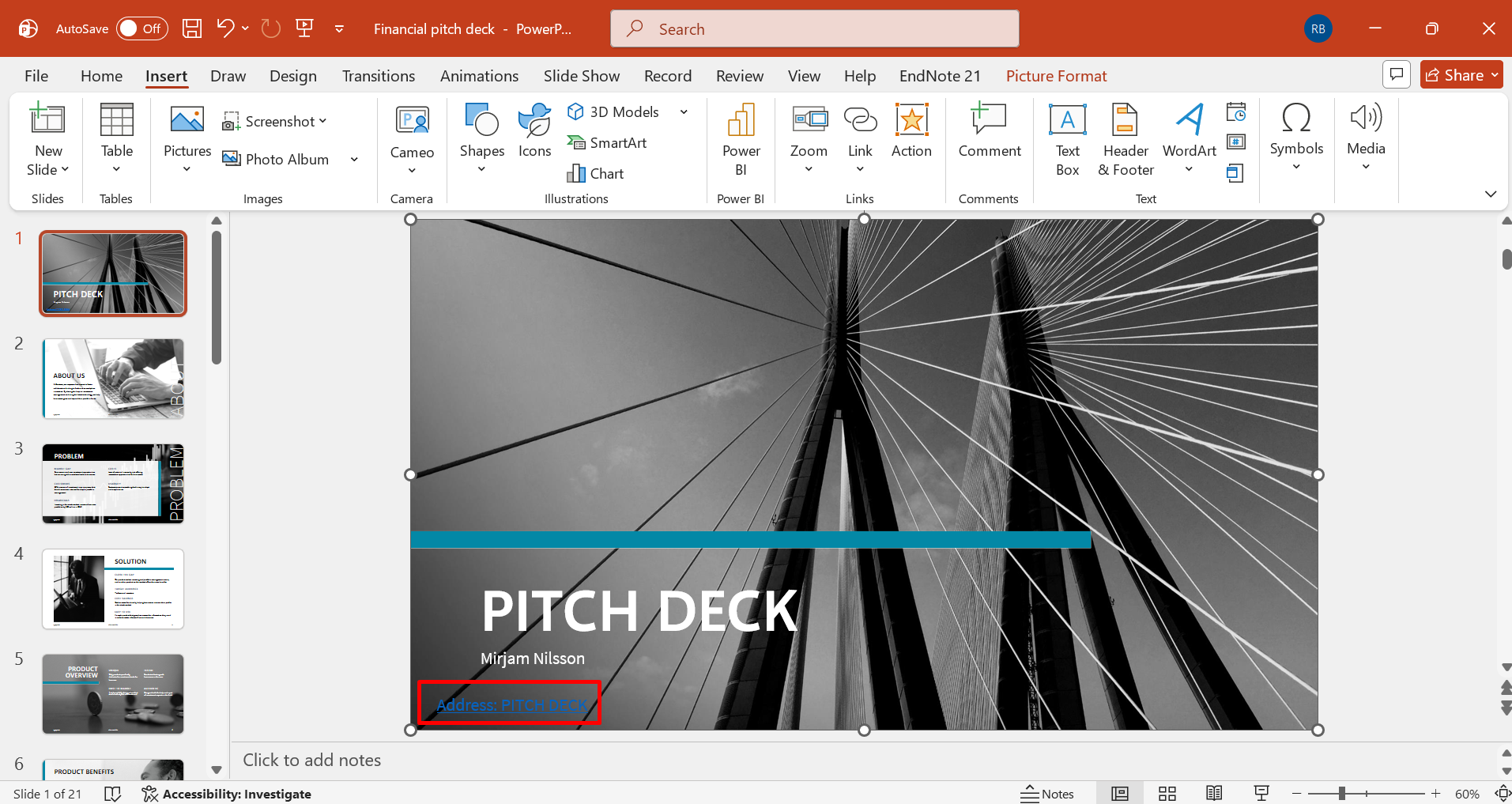
Step 3: Confirm the destination
Select "OK" to apply the hyperlink, then switch to "Slide Show" mode and test the link to ensure it opens the intended webpage.
Link to a file or document
A presentation can also provide direct access to supporting files stored separately from the slide deck. Knowing how to create a hyperlink in PowerPoint is particularly valuable when supplementary reports, spreadsheets, PDFs, or other documents need to remain accessible without being reproduced on the slides. Follow these steps to link slides to a specific document:
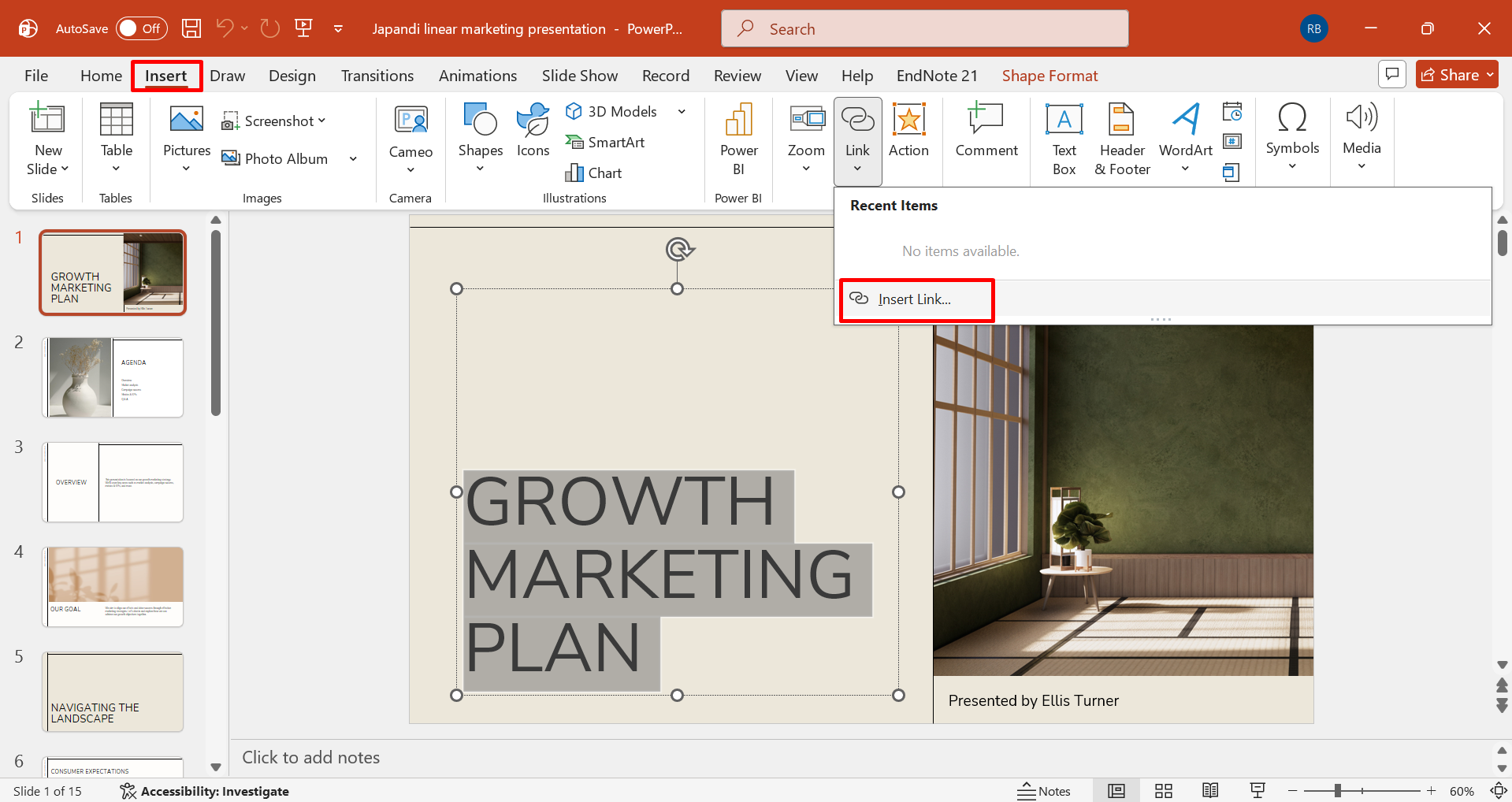
Step 1: Select the linked content
Choose the text, shape, picture, or other object that you want viewers to use as the document link. Right-click the selected object and choose "Link", or use the corresponding command under the "Insert" tab.
Step 2: Locate the document
Select "Existing File or Web Page," browse to the required document, and choose the specific file you want to associate with the object. Confirm the selection with "OK," then save the presentation so the newly assigned destination is retained.
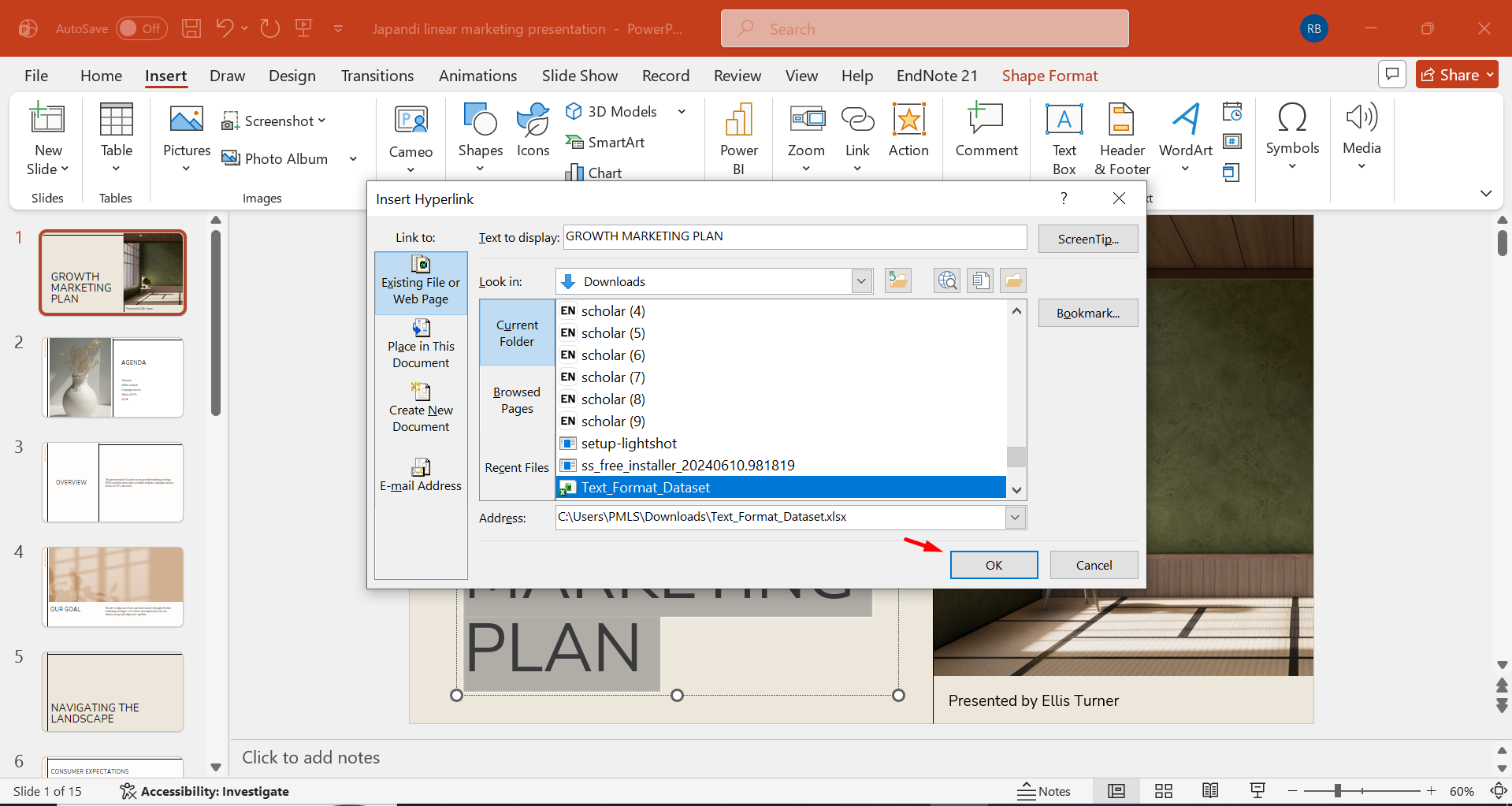
Step 3: Verify file accessibility
Test the link before presenting, particularly if the document is stored outside the presentation folder or will be transferred to another computer.
Link to a custom show or navigation button
Internal links can give a presentation a more adaptable architecture, particularly when viewers may need to move between sections according to their interests. Understanding how to use hyperlinks in PowerPoint makes it possible to create navigation buttons that direct audiences toward selected slides or custom presentation paths. Follow the steps given below to link to a custom show:
Step 1: Design the navigation element
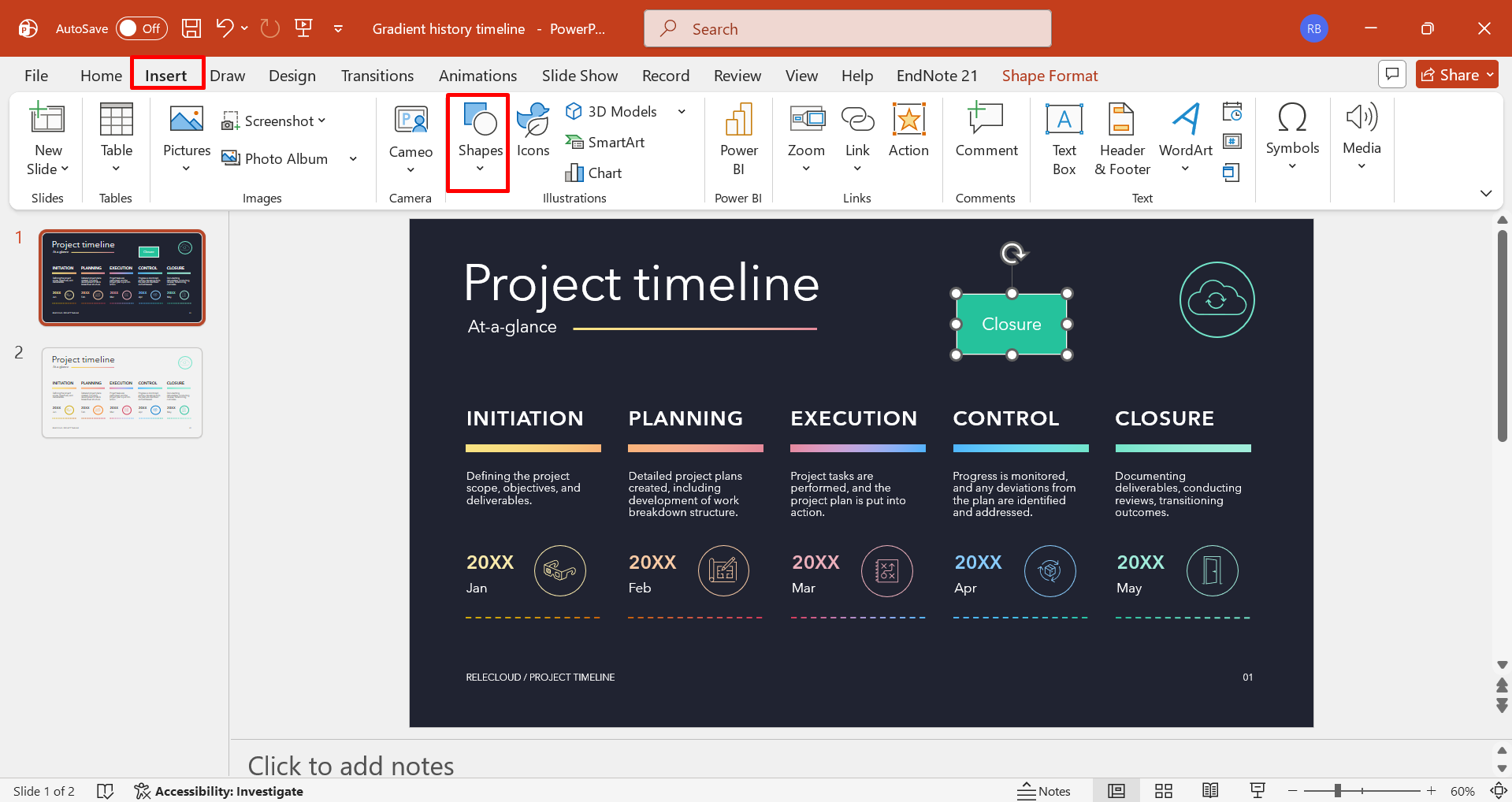
Insert a shape, button, icon, or text label that clearly indicates the destination or action it represents. Select the element, open "Insert" > "Action" or the hyperlink settings, and access the controls for defining its presentation behavior.
Step 2: Choose the internal destination
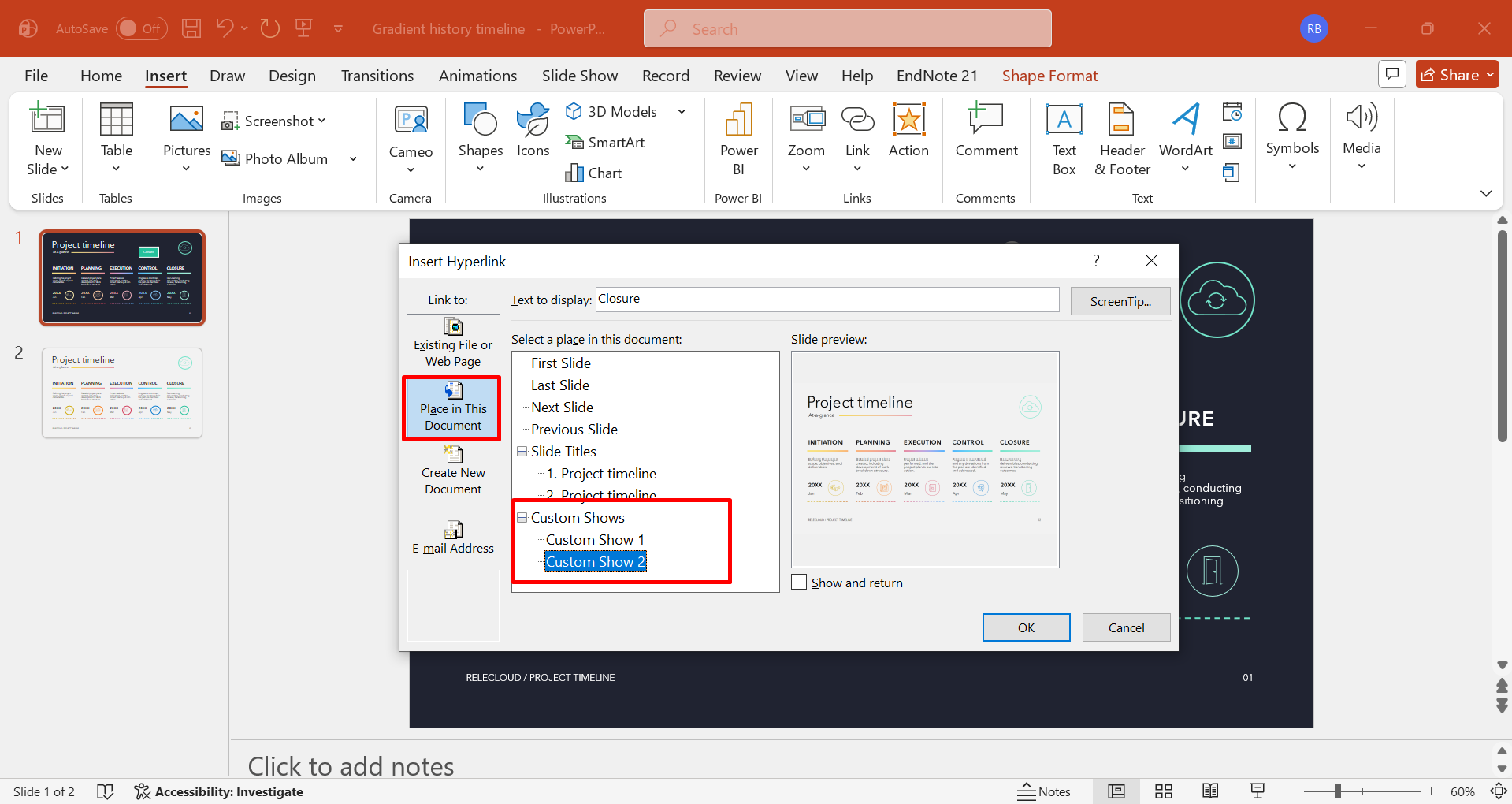
Select the option for linking to a specific slide or custom show, then identify the relevant section from the available presentation destinations. Confirm whether the action should occur through a mouse click or another available interaction, then apply the selected setting.
Step 3: Test the presentation route
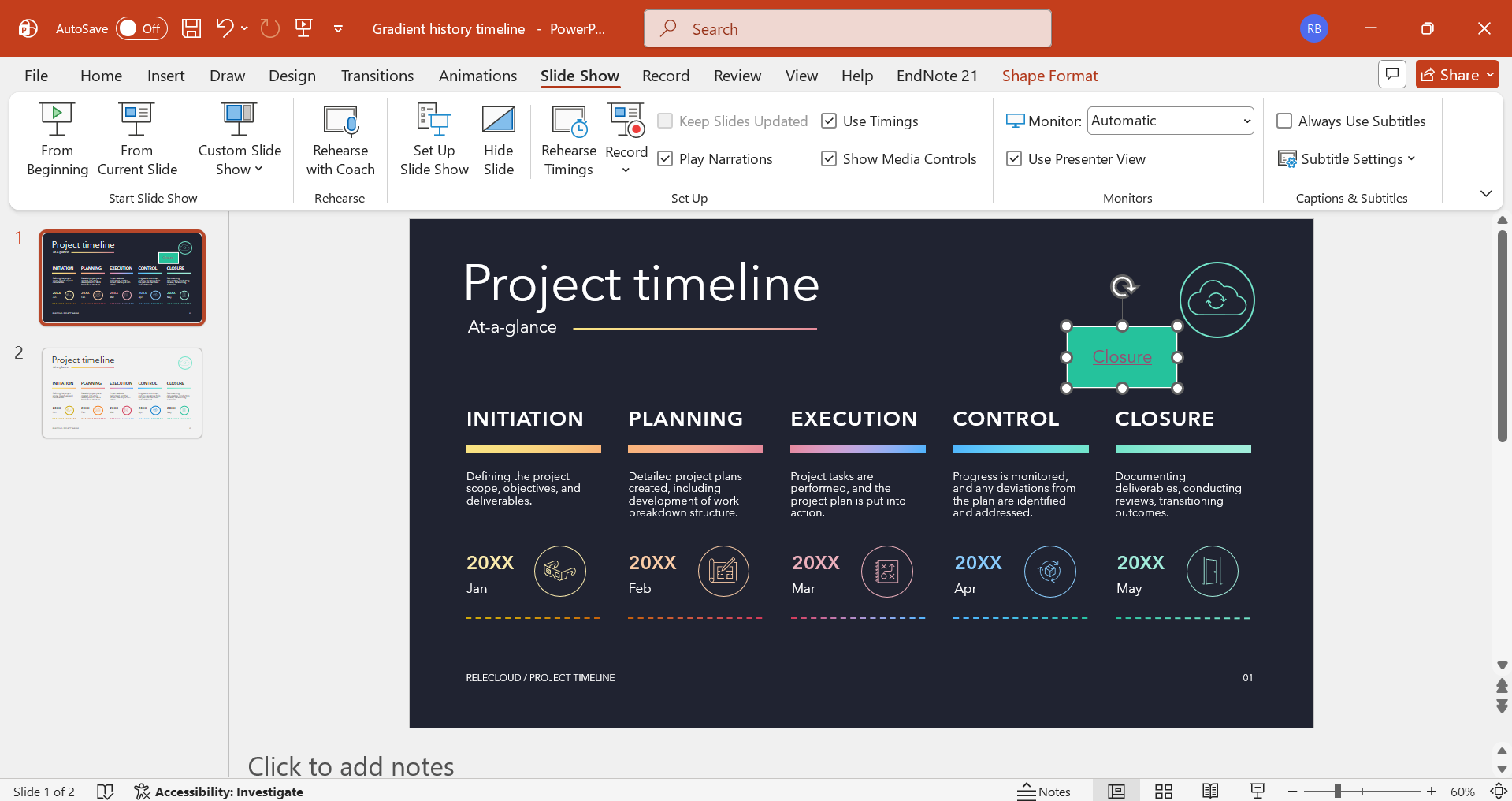
Enter "Slide Show" mode and activate the navigation element to confirm that it reaches the intended section and returns appropriately when required.
Link to an email address
Email hyperlinks provide a direct communication channel from within a presentation, which is useful when viewers need to contact a presenter, team, or organization. Using how to add a hyperlink in PowerPoint for email-related elements can make contact information immediately actionable without adding extra communication instructions to the slide. The steps below emphasize how to link an email address in PowerPoint:
Step 1: Choose an email address
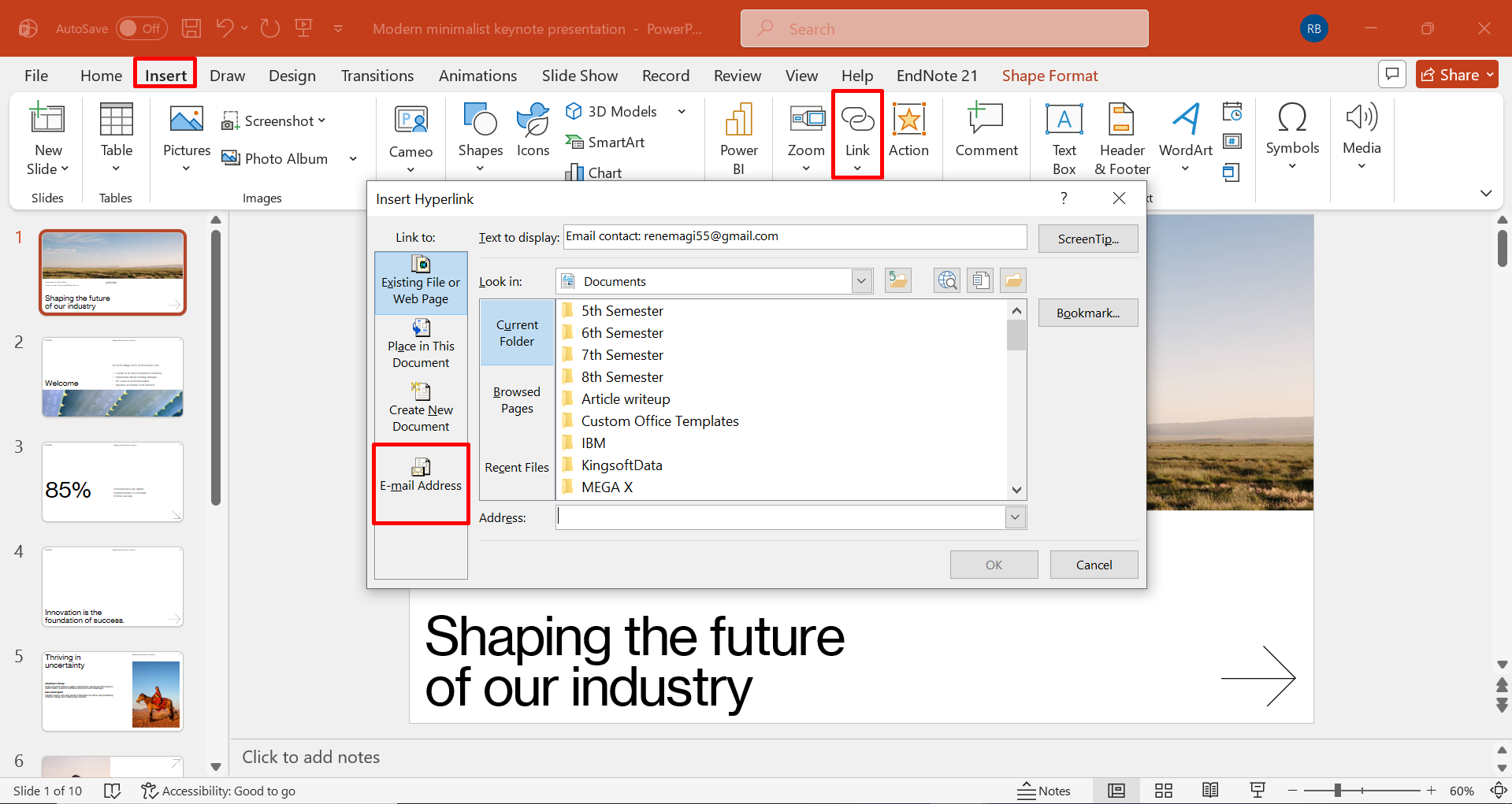
Highlight the email address or choose the text, shape, or image you want to make interactive. Right-click the selected element and choose "Link," or navigate to "Insert" > "Link" to open the hyperlink dialog. Select "E-mail Address" from the available options, then enter the recipient's email address in the designated field.
Step 2: Add email
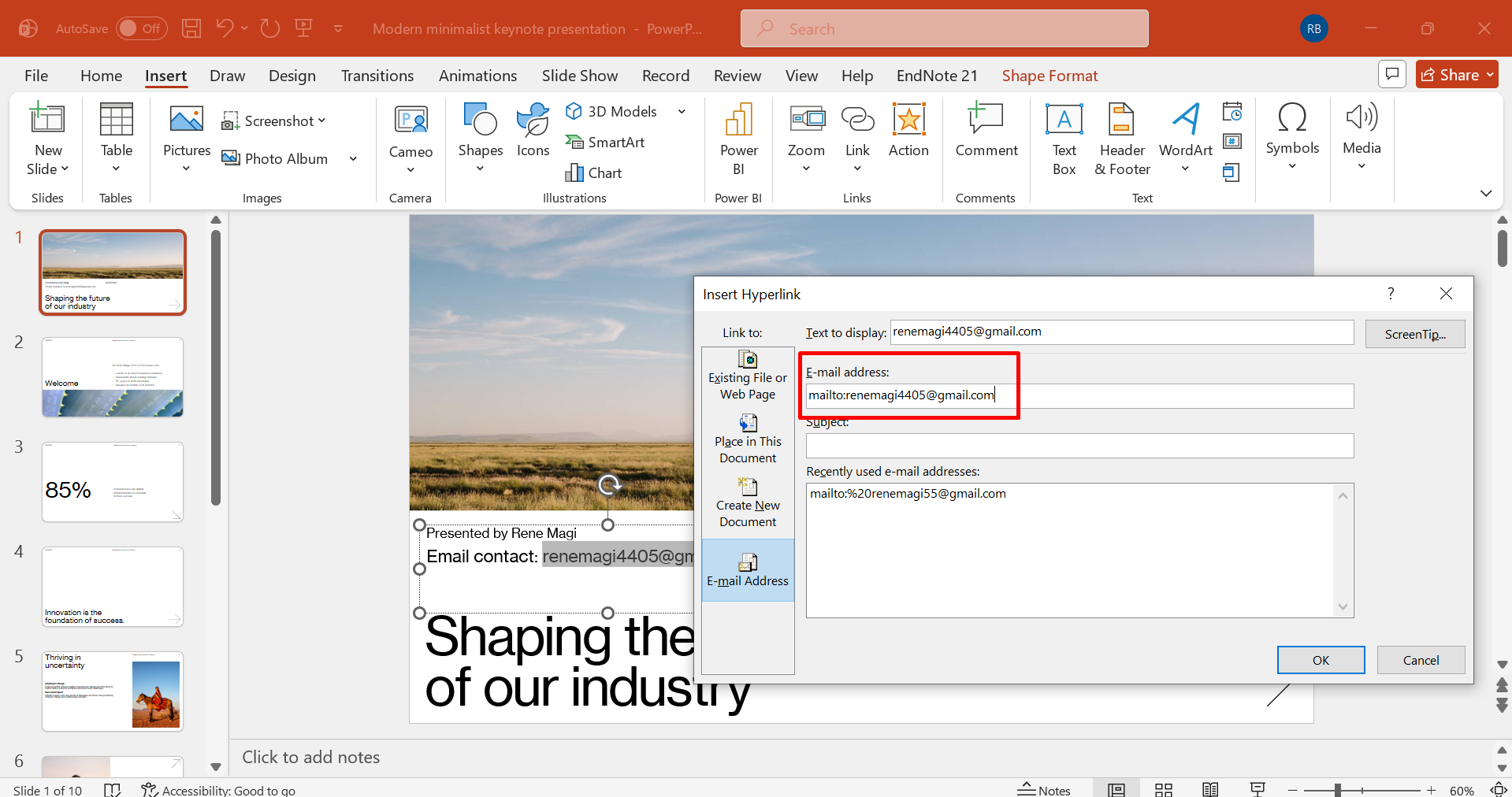
If useful, enter a predefined subject so the recipient's email application can populate it automatically when the link is activated.
Step 3: Apply and test
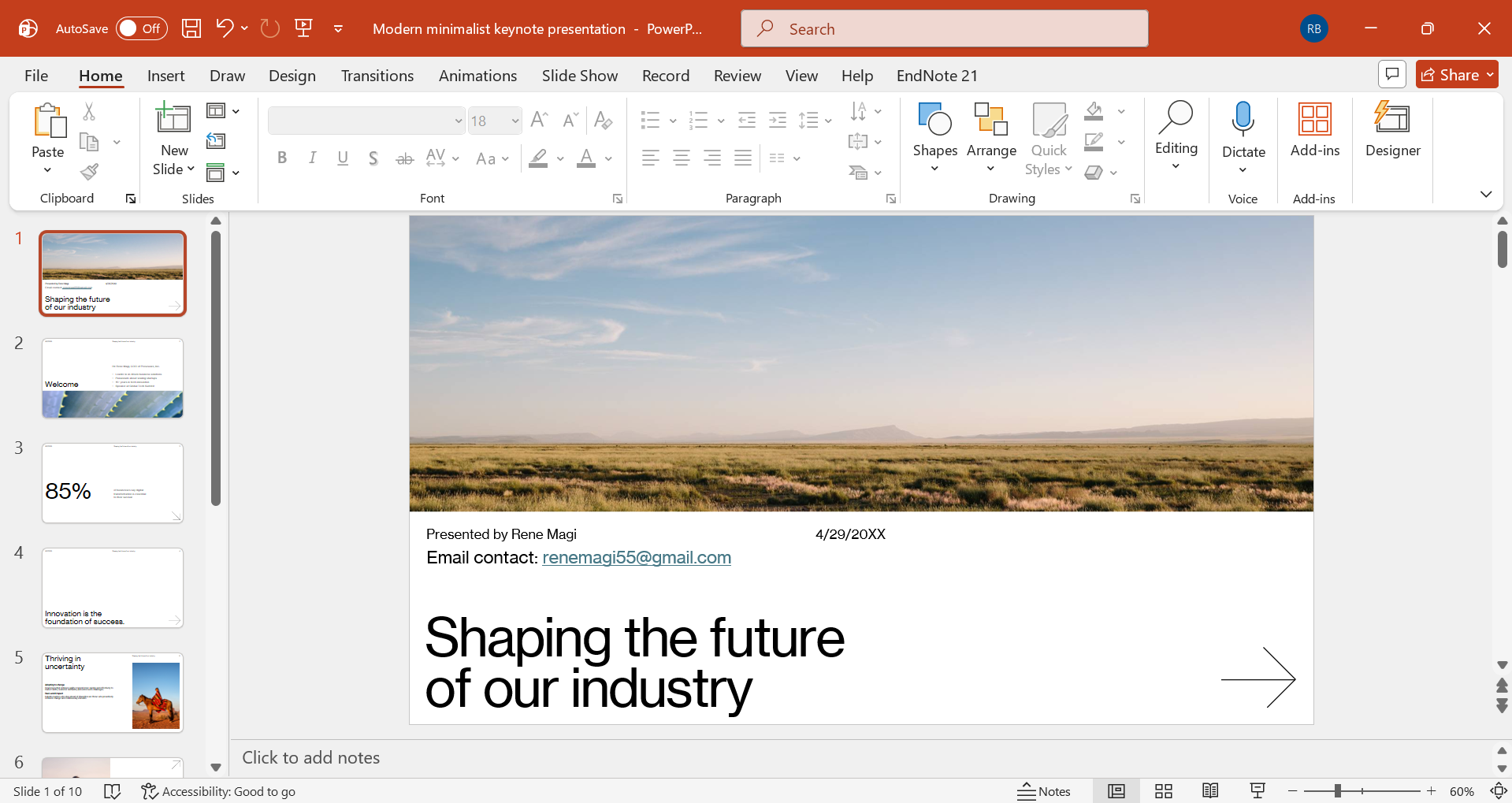
Save the presentation and test the link to confirm that it launches the configured email application correctly.
Link to another slide
Internal slide links are valuable when a presentation contains related sections that viewers may need to access in a different sequence. Knowing how to hyperlink in PowerPoint to another slide allows you to establish direct connections between slides, supporting presentations that require quick movement between explanations, references, or supporting material. Here are the steps to link to another slide in PowerPoint:
Step 1: Choose the navigation object
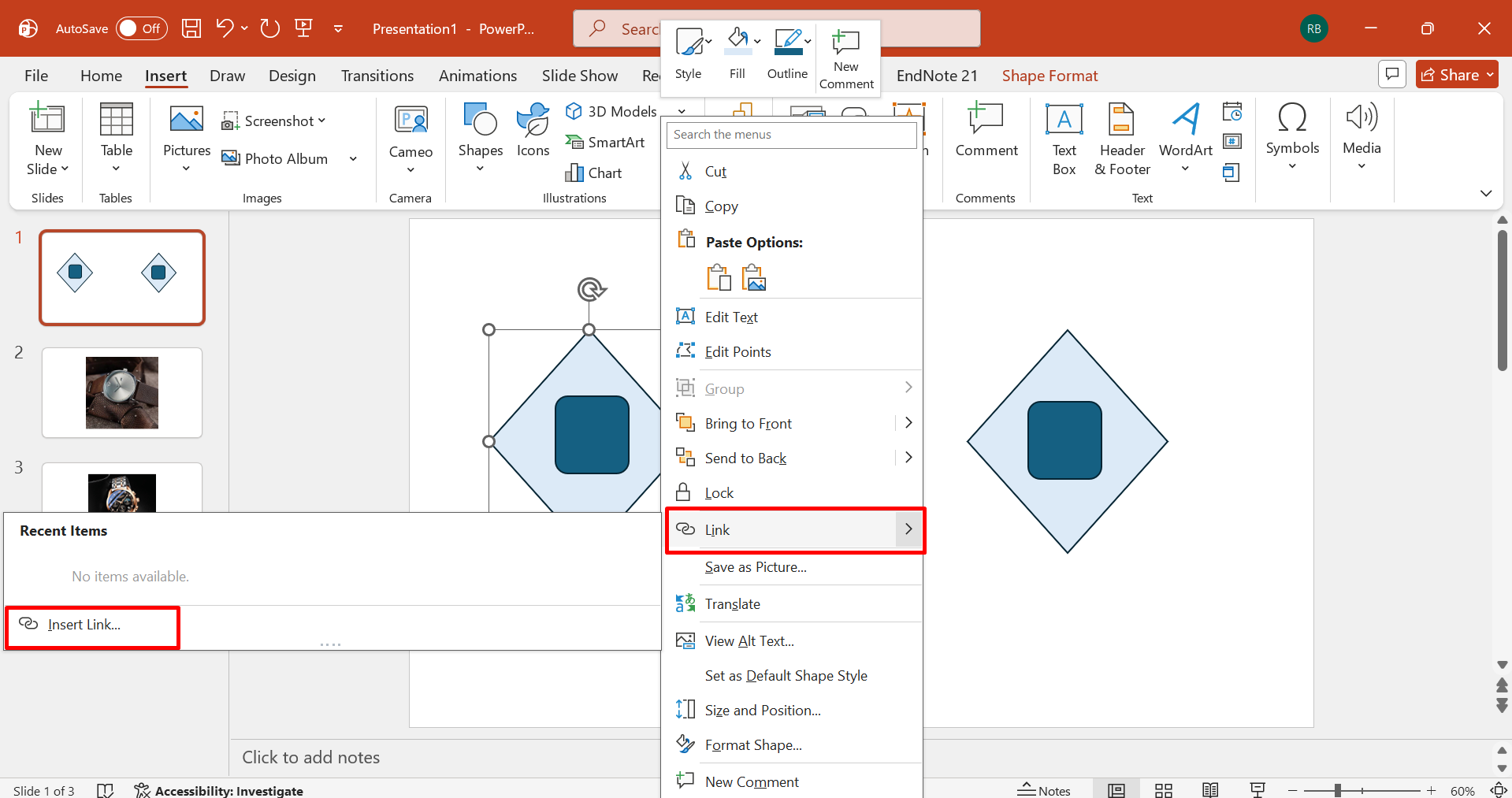
Select the text, shape, icon, or other element that will act as the link to the destination slide. With the selected object, press Ctrl + K, which is a hyperlink shortcut key in PowerPoint. From there, choose "Link," or use "Insert" > "Link" from PowerPoint's ribbon.
Step 2: Select a presentation location
Choose "Place in This Document" to display the slides available within the current presentation.
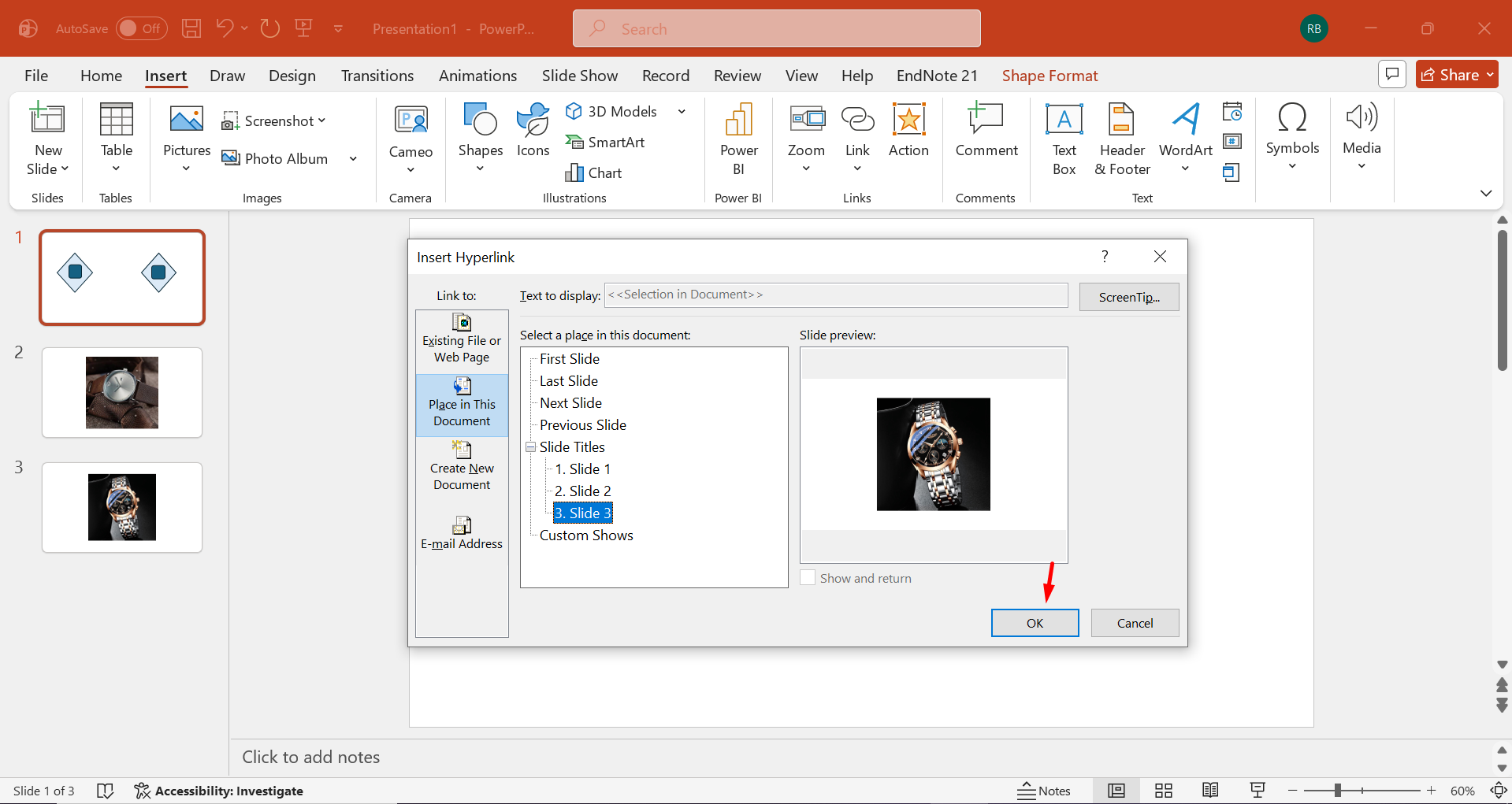
Step 3: Specify the destination
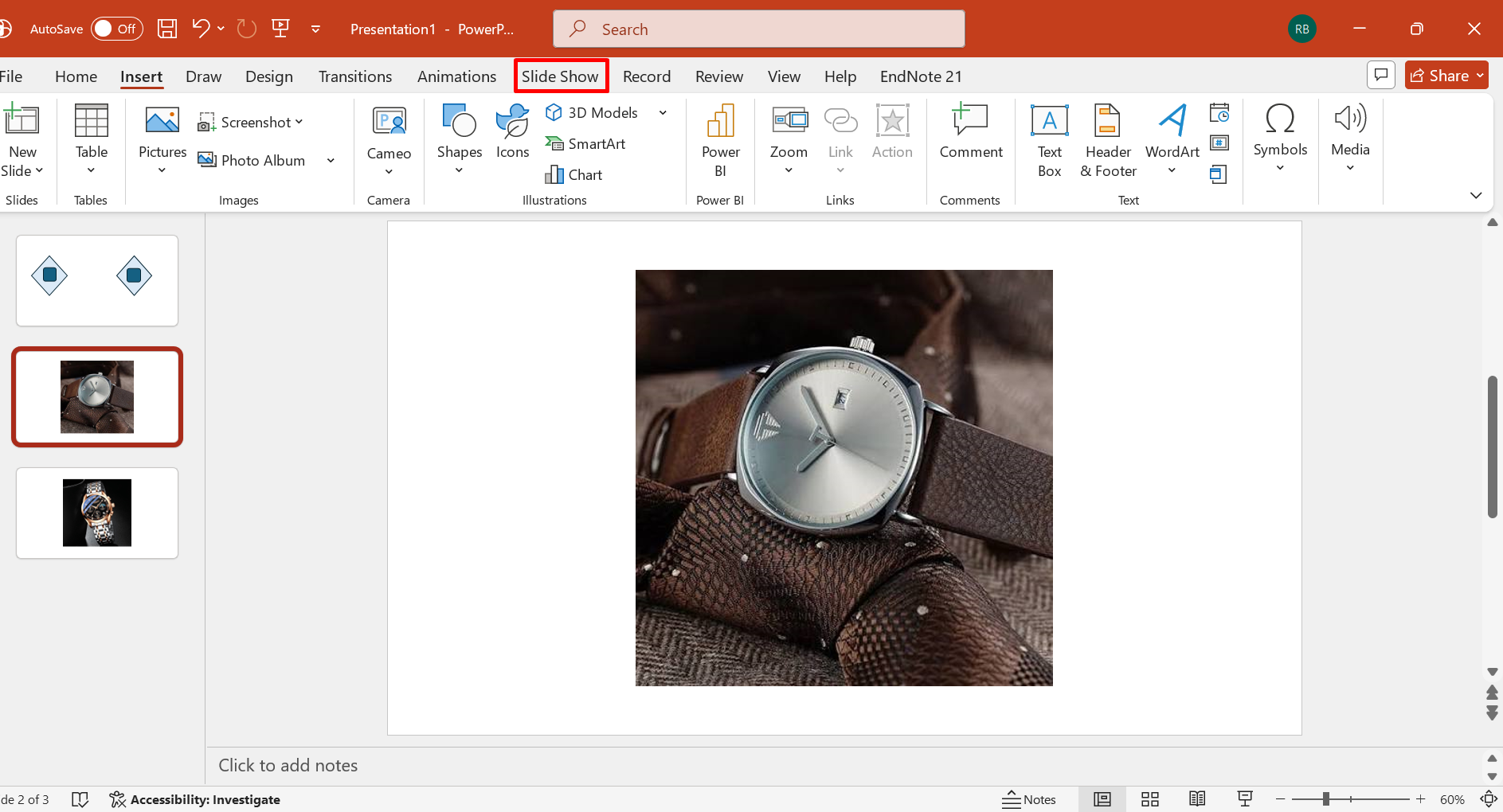
Select the exact slide you want the audience to reach when the linked element is activated. Hit the "OK" button, open the "Slide Show" mode, and activate the link to verify that it directs to the intended slide.
Troubleshooting common PowerPoint hyperlink errors
Even a correctly inserted hyperlink can malfunction because of file locations, presentation settings, object formatting, or destination references. The fixes below address these issues individually so you can identify the source of the problem without altering unrelated elements.
Broken path: Relink or embed
When the destination file has been moved or renamed, PowerPoint may retain an obsolete address. Re-establish the connection with the current location or embed the resource directly when portability is important.
Not clickable in Slide Show: Single-click
If a link appears inactive during presentation mode, verify that you are using the expected single-click interaction rather than selecting the object first. If a hyperlink in PowerPoint is not working, test the same element in Slide Show after saving the presentation.
Cannot open file: Refresh path
A destination that exists but cannot be opened often points to an outdated or inaccessible file location. Edit the hyperlink and browse to the current file rather than manually retaining an obsolete address.
Wrong link color: Edit theme colors
Hyperlink colors are influenced by the presentation's theme rather than solely by the linked text itself. If you need to know how to rename a hyperlink in PowerPoint, edit the displayed text separately while retaining the underlying destination.
Shape/image not clickable: Link the object
Visual elements do not become interactive merely because they resemble buttons or contain related text. Select the actual shape or image and assign the destination through PowerPoint's hyperlink command.
Breaks on a new PC: Use a relative path
Links tied to a specific computer location can fail when the presentation is transferred elsewhere. Keeping linked files within a shared folder structure and using relative addressing improves portability across devices.
Mailto not opening: Check "mailto:" format
Email links require a properly formatted mailto: address, so PowerPoint can hand the request to the configured mail application. If how to enable hyperlinks in PowerPoint is the concern, first verify that the email destination itself uses the correct protocol.
Slide link fails: Confirm slide number
Internal navigation depends on the destination slide remaining correctly referenced within the presentation. Reopen the hyperlink settings and select the intended slide directly if restructuring has caused the original target to shift.
Conclusion
In conclusion, knowing how to add hyperlinks to PowerPoint makes presentations more interactive by providing quick access to webpages, files, emails, and other slides. Choosing the right linking method and using clear labels helps keep navigation simple and effective. For a faster approach, Kimi Slides can simplify hyperlink creation with natural-language editing and editable PPTX output, making it easier to refine interactive presentations.