PowerPoint presentations can feel limiting when your audience has to move through every slide in a fixed order. PowerPoint action buttons make it easier to create an interactive presentation by letting viewers jump to specific slides, open files, or visit webpages with a simple click. However, setting them up correctly can be confusing for beginners, especially when links or actions are misplaced. In this guide, you'll learn how to add and customize action buttons in PowerPoint for smoother, more interactive presentations.
What is an action button in PowerPoint?
An action button in PowerPoint is a built-in interactive shape. It mainly performs a specific action when clicked during a slideshow. It can take you to another slide, play media, or trigger another presentation command. The main goal is to make navigation and interaction easier for both the presenter and the audience. There is no need to move through slides in a fixed order. These action buttons enable you to control where the presentation goes next.
Types of action buttons in PowerPoint
PowerPoint provides several built-in action button shapes. So, you can use them to control all the actions during a slideshow or presentation. Here are the main types of action buttons in PowerPoint.
Back or Previous
The "Back" or "Previous" button takes viewers to the slide immediately before the current one. It is useful when users need to review earlier information or move backward through an interactive presentation.
Forward or Next
The "Forward" or "Next" button moves viewers to the following slide in the presentation. It provides convenient navigation and allows users to continue without manually using keyboard or mouse controls.
Beginning
The "Beginning" button takes viewers directly to the first slide of the presentation. It is useful for longer presentations where users need a quick way to return to the starting point.
End
The "End" button takes viewers directly to the final slide of the presentation. It is helpful when users want to quickly skip to the conclusion without moving through every slide.
Home
The "Home" button returns viewers to a designated main or menu slide. It is especially useful for interactive presentations with multiple sections, allowing users to return to the main navigation page easily.
Information
The "Information" button can direct viewers to a slide containing additional details or background information. It helps keep the main slides simple while giving users access to supporting content when needed.
Return
The "Return" button takes viewers back to the slide they were previously viewing after following an interactive link. It is useful for presentations where users move between menus, sections, and supporting slides.
Movie
The "Movie" button is designed for actions related to video or movie content within a presentation. Its actual behavior depends on the video or media action assigned to the button.
Document
The "Document" button can be used to open or access a linked document or file. It is useful for providing supporting materials such as reports, PDFs, worksheets, or reference files.
Sound
The "Sound" button is used for actions involving audio content in a presentation. It can trigger a sound file, narration, or sound effect based on the action assigned to the button.
Help
The "Help" button can direct viewers to instructions or guidance about using the presentation. It is particularly helpful for interactive slideshows where viewers may need information about navigation or available features.
Overview of two ways to add action buttons in PowerPoint
Both Kimi Slides and PowerPoint can be used to add action buttons to presentations. The table below summarizes what each method offers and how it can be used.
| Method | Key capabilities | Ideal use case |
|---|---|---|
| Kimi Slides | Add and customize action buttons through natural-language prompts, while keeping the presentation’s existing design and layout consistent | Creating interactive presentations with multiple buttons or repeated navigation elements |
| PowerPoint | Use built-in Action Buttons to configure navigation, hyperlinks, sounds, and other actions directly in the presentation | Adding specific action buttons with hands-on control over their settings |
How to add action buttons in PowerPoint with AI
Kimi Slides is an AI presentation maker that can help create and edit PowerPoint presentations. It can simplify tasks that would otherwise require manual editing. So, you can upload an existing PPT file and describe the changes you want promptly. It can then process your instructions and generate an updated presentation. This can save time when you need to add multiple elements, such as action buttons, across different slides.
Follow the steps below to learn how to insert an action button in PowerPoint.
Step 1: Upload your PPT file and enter the prompt
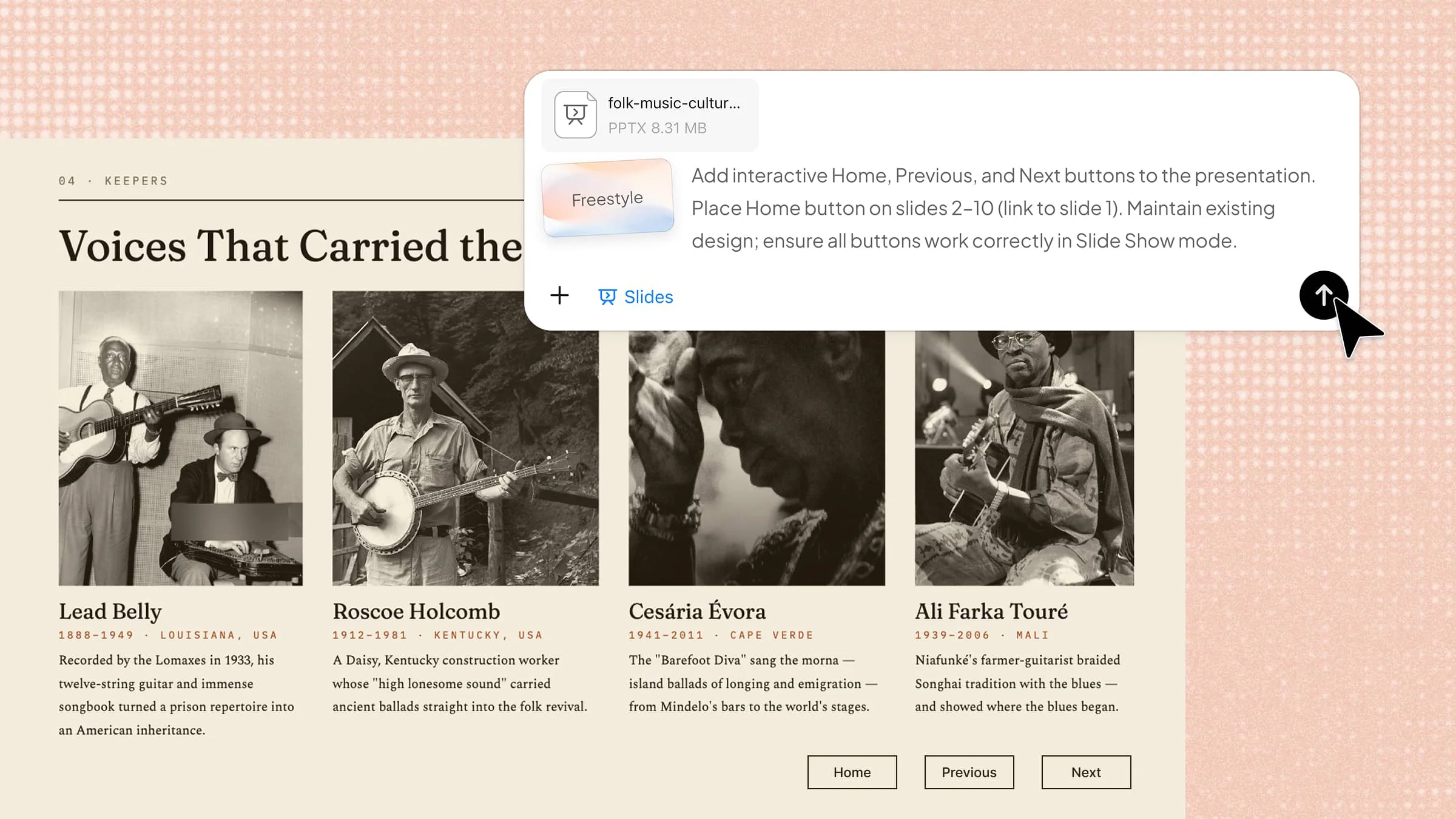
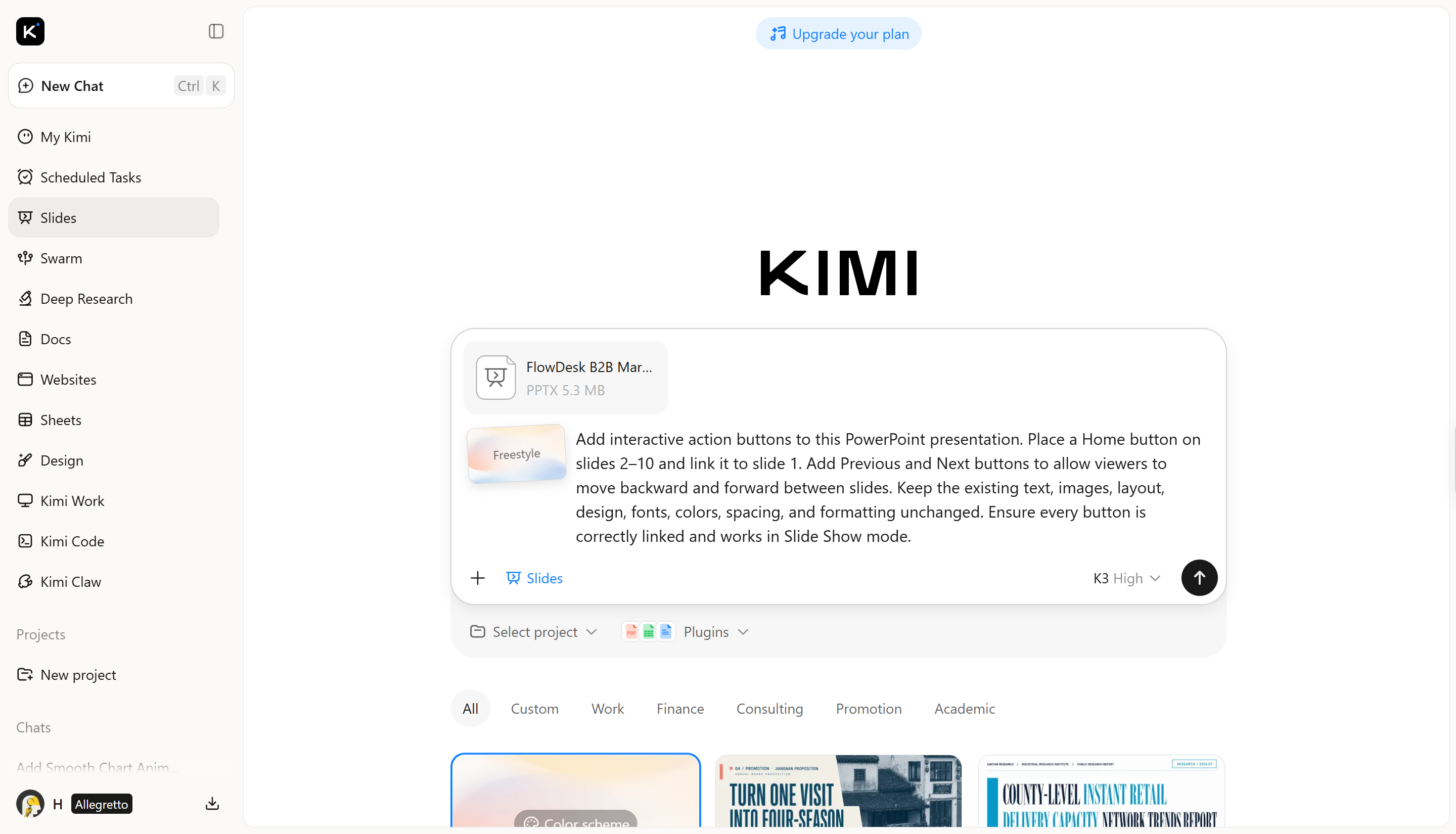
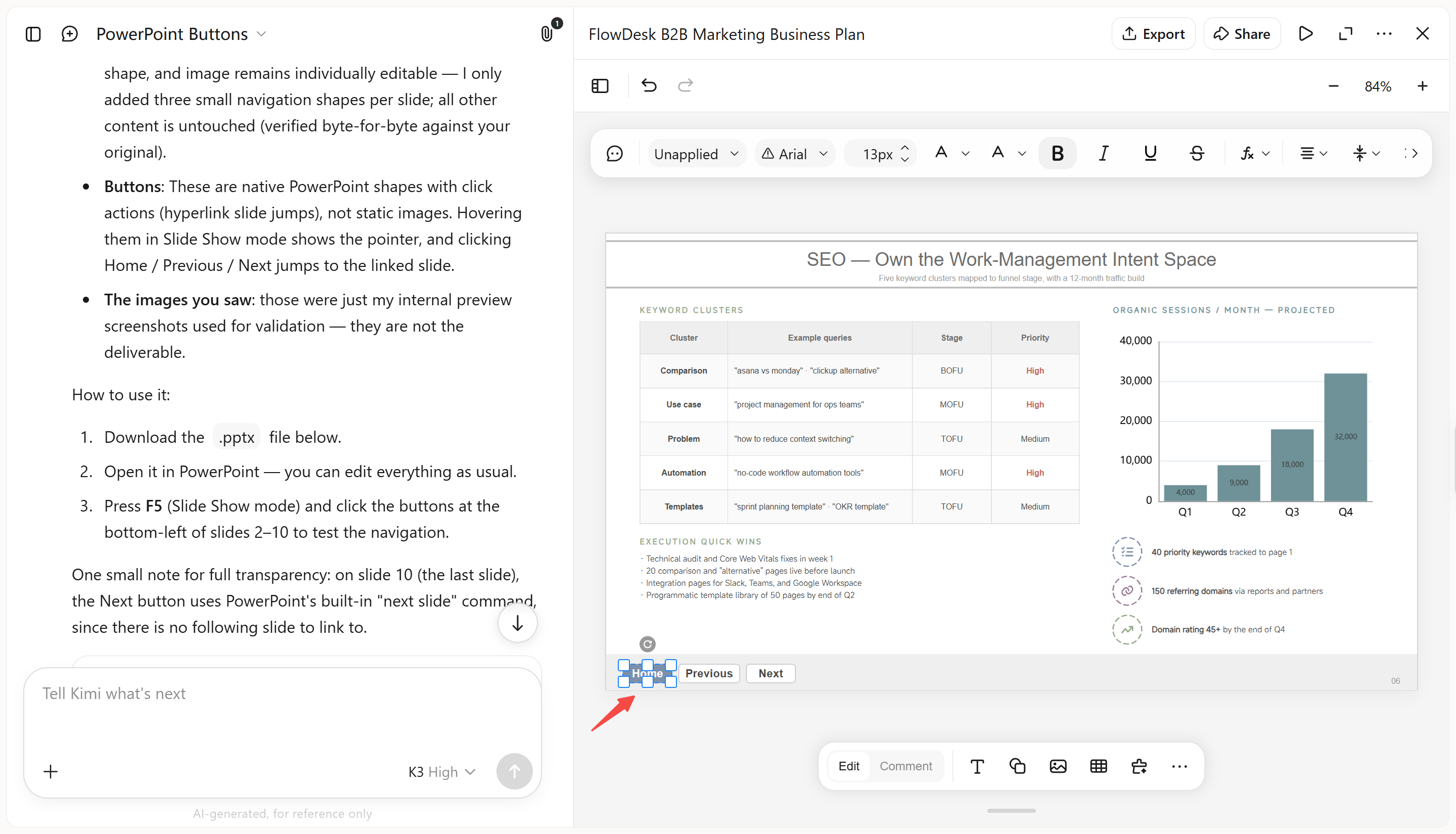
First of all, upload your PowerPoint file to Kimi Slides. Then, enter a detailed prompt explaining where you want the action buttons and what each button should do. After you submit the prompt, Kimi Slides processes your presentation. The AI will generate an updated version of your PowerPoint file.
Step 2: Edit your PPT
Once Kimi Slides generates the initial result, review the updated presentation and make any necessary changes. You can edit the action buttons, adjust their placement or labels, and refine their links or navigation behavior to match your presentation. Use AI prompts to request further changes if needed, while keeping the rest of your slide design consistent.
Step 3: Preview and download the PPT file
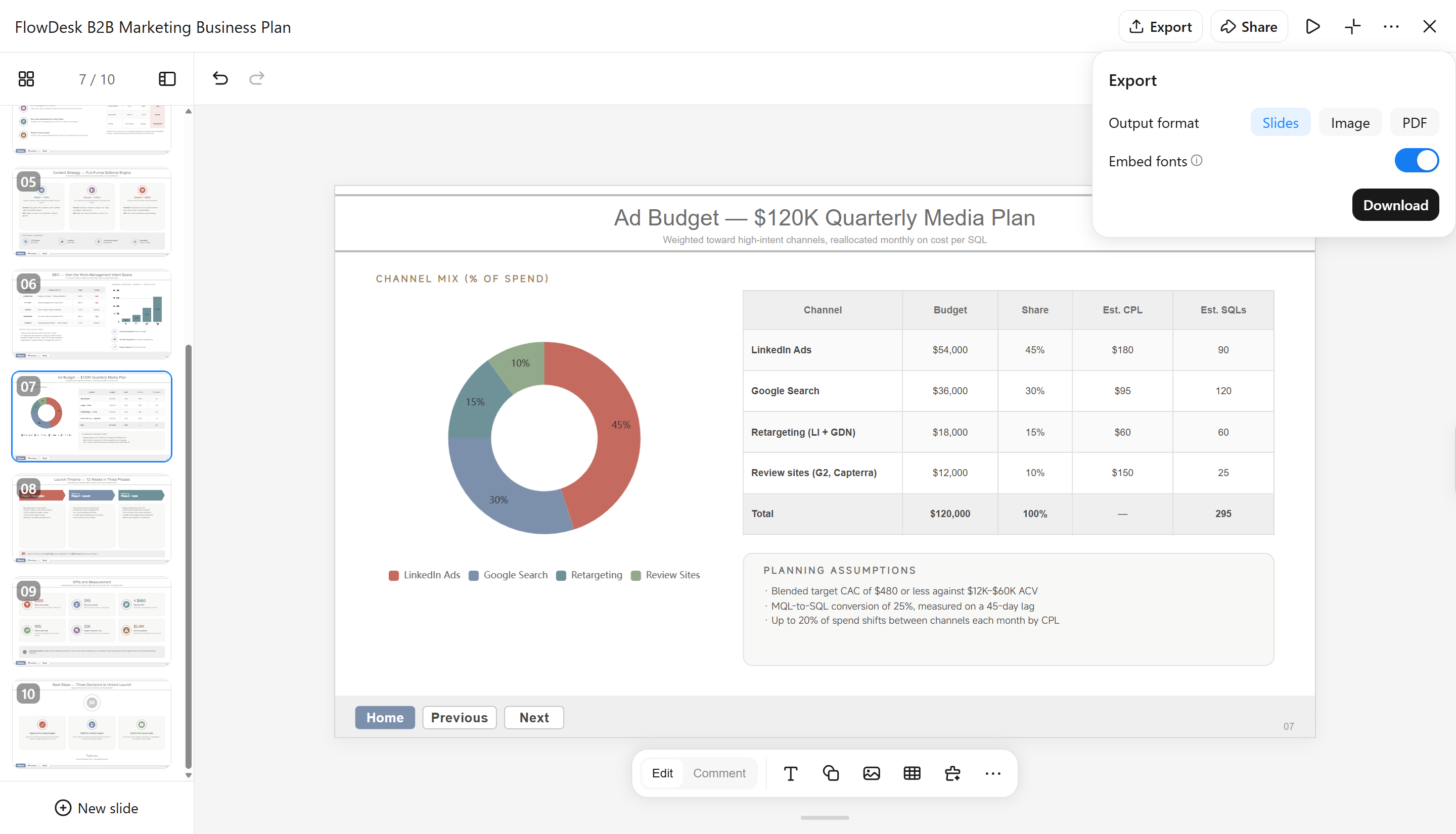
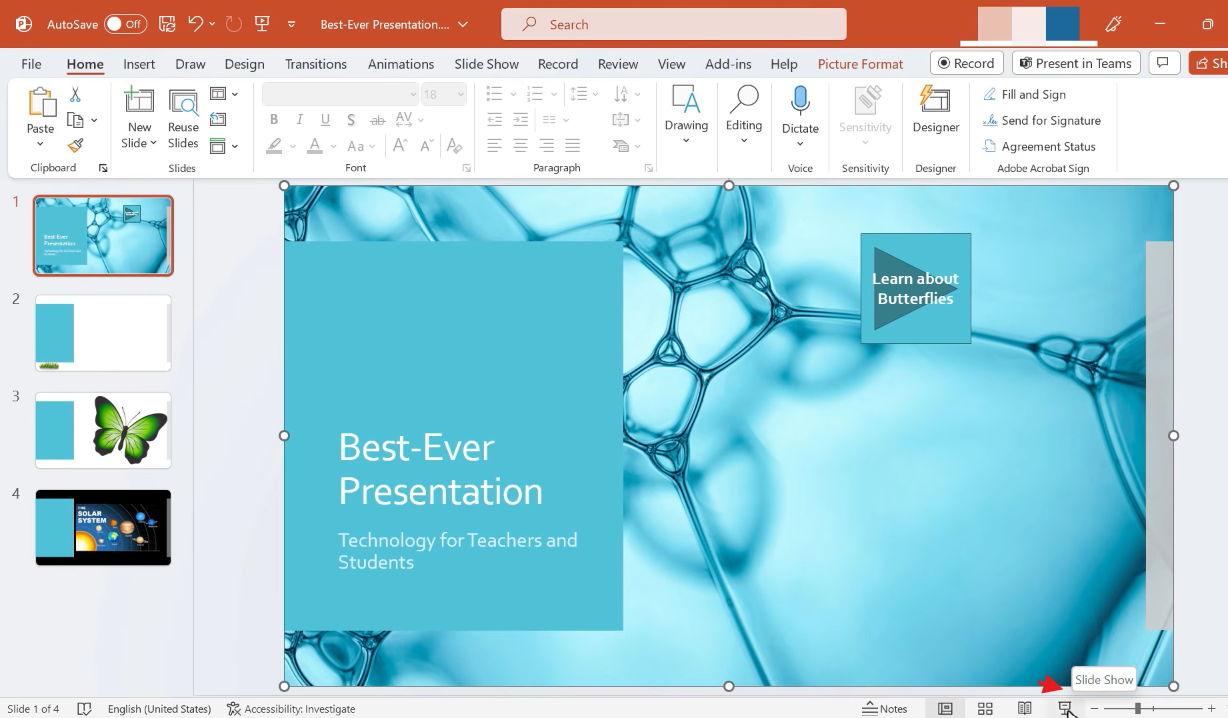
Preview the updated presentation in Slide Show mode and test the action buttons to make sure each one takes you to the intended slide. If everything works as expected, download the finished PowerPoint file and use it for your presentation.
Main features of Kimi Slides
Primarily, Kimi Slides provides several features that can make it easier to create and prepare interactive PowerPoint presentations. Here are explanations of the main features.
Create a clear interactive slide structure: With Kimi Slides, you can change your ideas into a structured presentation with clearly separated sections. This makes it easier to decide where navigation buttons should lead. Additionally, you can organize related content into logical slide groups. A clear structure also helps create smoother navigation.
Design polished navigation elements: You can also create visually appealing slides with layouts, icons, labels, and other design elements. These elements can provide a strong visual foundation for interactive navigation. Kimi also enables you to use styling for navigation controls across the deck. This helps the action buttons look like part of the presentation.
Customize and refine slides: Kimi Slides supports flexible ways to refine your presentation. You can make changes manually, select a specific element and leave a comment for AI to edit it, or describe broader changes directly with a natural-language prompt. This lets you choose the editing method that works best for each change while keeping full control over the final design.
Create consistent designs across interactive slides: This tool can help maintain a consistent visual style throughout the presentation. The typography, spacing, layouts, and visual hierarchy can follow a similar design across slides. Generally, this is important for interactive presentations with repeated navigation controls.
Export editable PPTX for adding action buttons: Using the Kimi tool, you export the presentation as an editable PowerPoint file. Later on, you can open the file in PowerPoint and add or fine-tune Action Buttons, hyperlinks, and other interactive features. This gives you more control over the final navigation setup.
How to add action buttons in PowerPoint with built-in tool
PowerPoint has a built-in Action Buttons feature. This enables you to add interactive controls directly to your slides. You can use these buttons to move between slides, open files, play sounds, and perform other actions. The process only takes a few steps. Here are details about how to add action buttons in PowerPoint.
Step 1: Select an Action Button
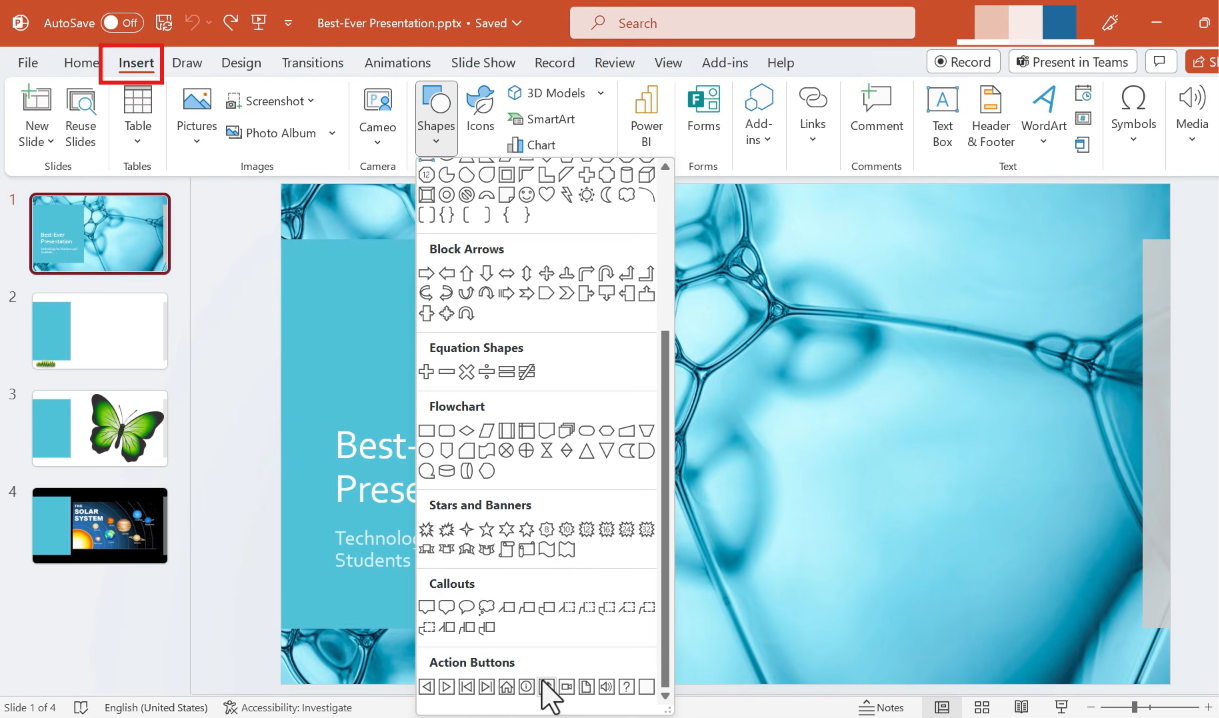
First of all, you have to open your presentation and select the slide where you want to add the button. Go to "Insert" > "Shapes", then scroll to the "Action Buttons" section. Choose the button you need and drag on the slide to draw it.
Step 2: Set the button action
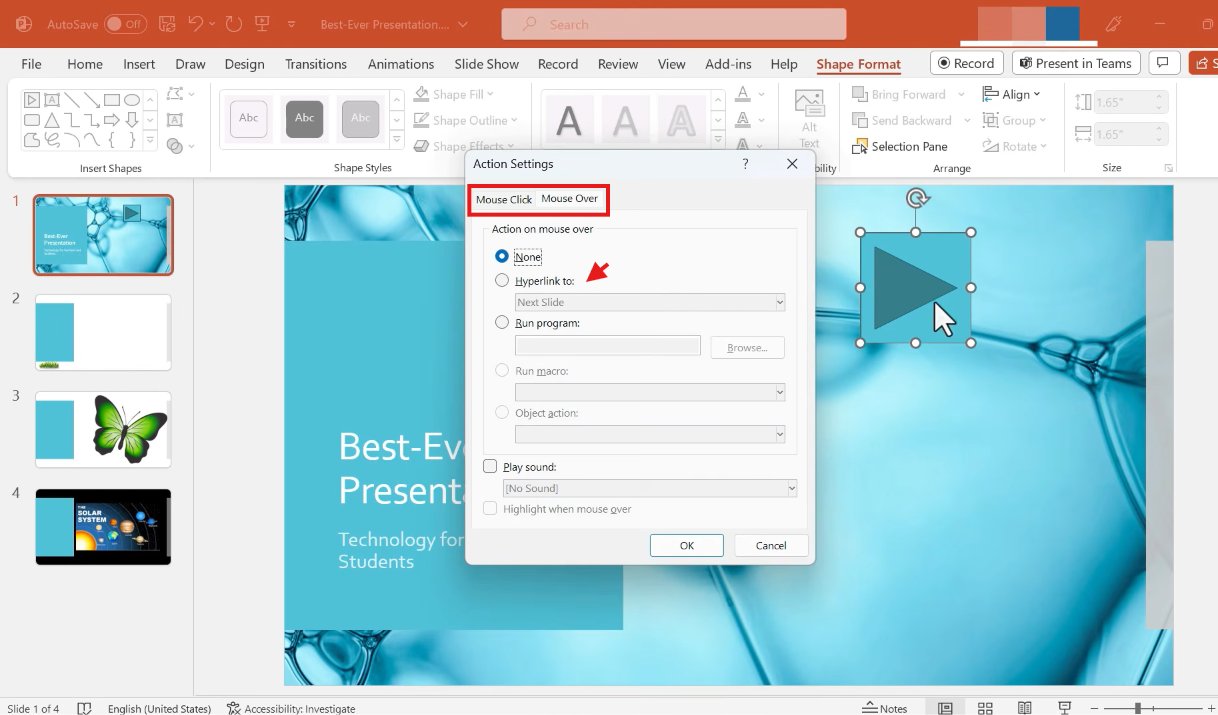
Once you draw the button, the "Action Settings" dialog box will appear. Under "Mouse Click," select "Hyperlink to" and choose where the button should take the viewer. You can also choose options such as "Play sound" or other available actions, then click "OK".
Step 3: Test the Action Button
Finally, move to "Slide Show > From Current Slide". Then, click the button to test its action. Make sure to check that it takes you to the intended destination. If the button does not work, return to "Action Settings" and correct the configuration before presenting.
Tips for using PowerPoint action buttons
Action buttons can make your PowerPoint presentation easier to navigate and more interactive. A few simple adjustments can help you use them effectively without making the slides feel cluttered.
Use clear labels: Choose labels such as Next, Back, Home, or Menu, so viewers immediately understand what each button does.
Keep button placement consistent: Use the same position and style for navigation buttons across slides to make them easy to find.
Link to the right destination: Double-check that each button points to the intended slide, section, or external resource before presenting.
Use action buttons selectively: Add buttons where they improve navigation or interaction rather than placing them on every slide.
Test buttons in Slide Show mode: Click each button in presentation mode to make sure the links and actions work as expected.
Make buttons easy to click: Use a sufficiently large clickable area and provide enough contrast with the background.
Conclusion
To sum up, PowerPoint action buttons have practical uses in navigation, interactive training, self-guided presentations, and linked content. You can add them manually in PowerPoint or use an AI tool to prepare the presentation structure first. Kimi Slides can help you create and organize your slides, giving you a well-structured presentation.