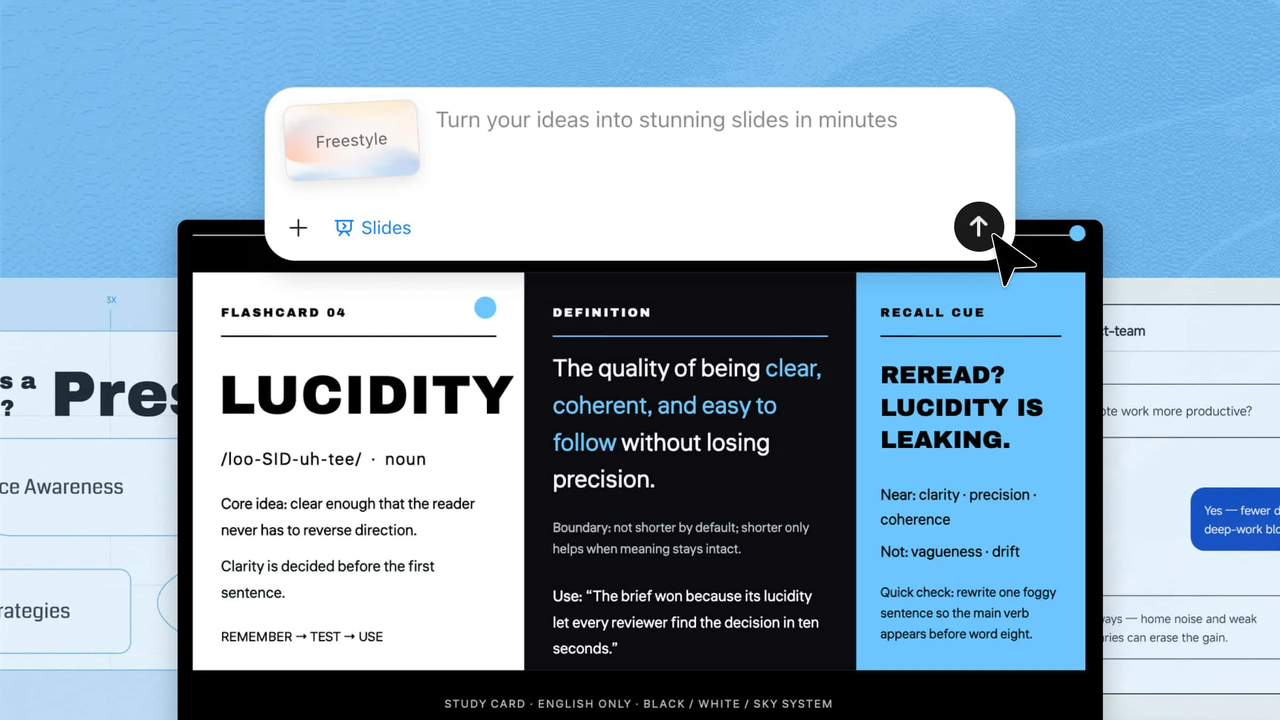
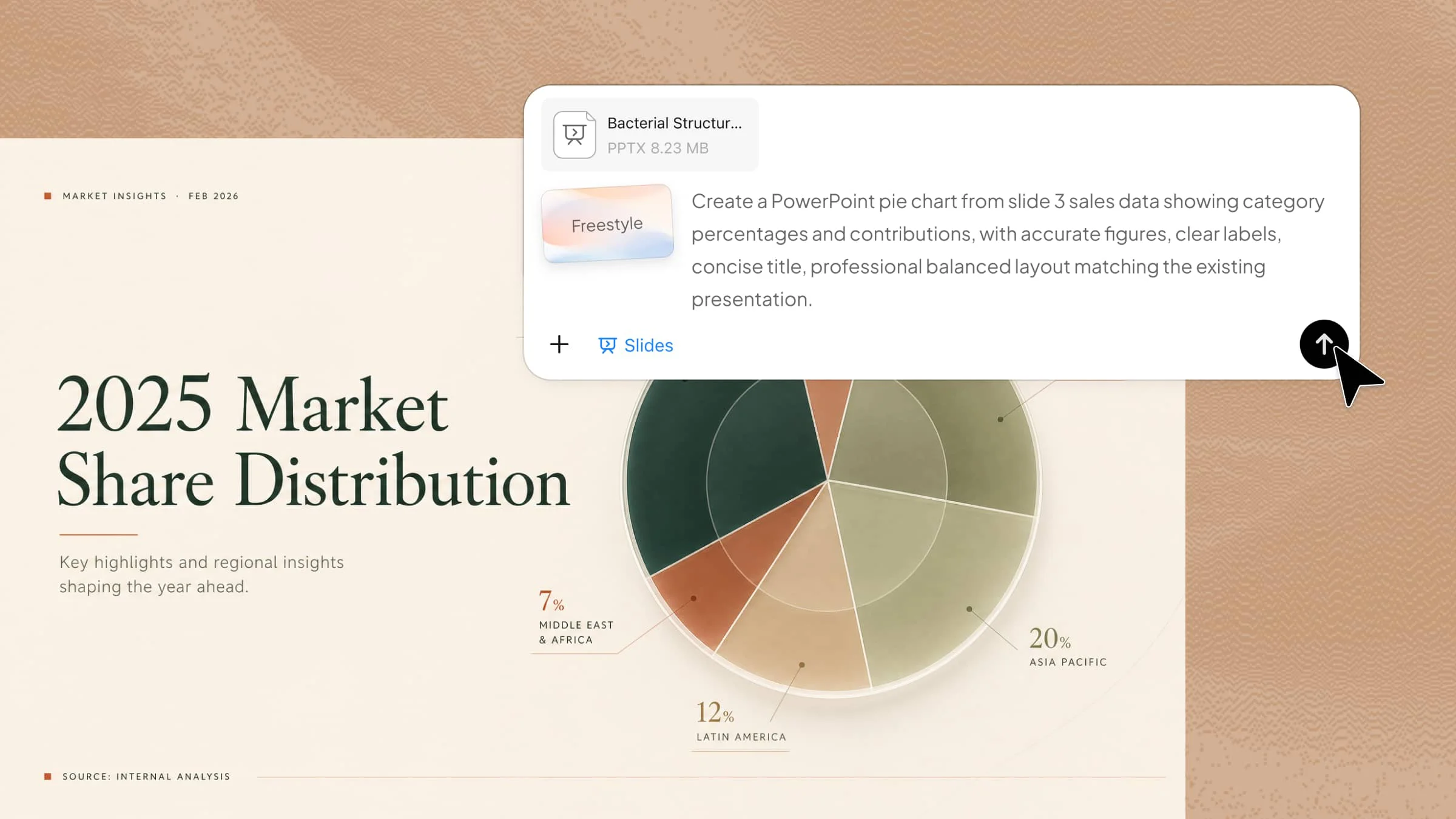
Presentations can take time when you want your project to look clear, polished, and engaging. Starting from a blank slide can make it harder to organize your ideas and visuals. Ready-made templates give you a simple way to build better slides faster. This article explores project presentation PPT templates for free download that you can use in your project.
Overview of 10 project presentation PPT templates
Explore the 10 project presentation PPT templates below to find the right format for planning, progress updates, team introductions, and project overviews.
| Template | Key content | Recommended visual format | Suitable for |
|---|---|---|---|
| Project summary template | Objectives, activities, findings, outcomes | Four-section summary with icons and progress indicators | Giving a quick overview of a project |
| Project proposal template | Problem, solution, objectives, budget, benefits, timeline | Problem-to-solution flow with timeline | Introducing a new project and seeking approval |
| Project scope template | Objectives, included features, deliverables, exclusions | Central concept with connected scope areas | Defining project boundaries before work starts |
| Project plan template | Phases, tasks, responsibilities, deadlines | Horizontal roadmap with milestones | Showing how a project will be completed |
| Project timeline template | Phases, dates, activities, milestones | Timeline with sequential phases | Visualizing project schedules and milestones |
| Project execution template | Execution stages, teams, activities, outputs | Workflow with connected stages and arrows | Explaining how project work will be carried out |
| Project status template | Progress, completed work, risks, milestones, KPIs | Dashboard with progress bar and status cards | Reporting current project progress |
| Project report template | Objectives, activities, metrics, challenges, recommendations | Metrics, charts, findings, and recommendation sections | Presenting project findings and performance |
| Team structure template | Departments, roles, responsibilities, hierarchy | Organizational chart | Explaining project roles and reporting relationships |
| Project results template | Targets, actual results, improvements, key achievements | Metric cards with before-and-after comparisons | Demonstrating project achievements after completion |
10 simple PPT templates for project presentation worth using
Choosing the right template can make your project slides easier to organize and more engaging to view. With Kimi Slides, an AI presentation maker, you can turn your ideas into polished slides with clear layouts and visual elements. Let's explore 10 popular PPT templates for project presentations.
Project summary template
A project summary template gives a quick overview of a project in a clear and simple format. It highlights the main goal, key activities, important findings, and final outcome. Use it when you need to explain the most important project details quickly.
How to use
Step 1: Enter your prompt
Start by telling Kimi Slides what project you are presenting and what information you want to highlight. Include the main goal, activities, findings, results, and preferred visual style.
Prompt:
Step 2: Let AI generate your PPT
Let it build the summary slide with the requested sections, visuals, and animations.
Step 3: Review and export the PPT
Check that the project details are accurate and easy to follow, make any needed edits, and export the finished presentation.
Project proposal template
A project proposal template helps present a new idea before work begins. It can cover the problem, proposed solution, goals, budget, timeline, and expected benefits. Use it when seeking approval from clients, managers, teachers, or stakeholders.
How to use
Step 1: Enter your prompt
Describe the project you want to propose and provide the main details, such as the problem, solution, objectives, costs, and expected benefits.
Prompt:
Step 2: Let AI generate your PPT
Kimi Slides will organize the proposal details into clear sections with connected visuals, key information, and suitable animations.
Step 3: Review and export the PPT
Make sure the solution, budget, benefits, and timeline are correct, then refine the content and export your presentation.
Project scope template
A project scope template explains what a project will and will not include. It helps define objectives, deliverables, responsibilities, and boundaries before work starts. You can use it to keep teams aligned and avoid unnecessary changes later.
How to use
Step 1: Enter your prompt
Tell Kimi Slides about your project and clearly list what should be included and excluded. Mention the main objectives, features, deliverables, and boundaries to help AI build an accurate scope.
Prompt:
Step 2: Let AI generate your PPT
Kimi Slides will turn your project requirements into organized scope sections with connected visuals and animations.
Step 3: Review and export the PPT
Check that the included features, exclusions, and deliverables are clearly separated, then make final edits and export.
Project plan template
A project plan template turns a project idea into an organized action plan. It can show tasks, responsibilities, resources, milestones, and deadlines. Use it to explain how a project will move from preparation to completion with clear goals and measurable results.
How to use
Step 1: Enter your prompt
Give Kimi Slides the project phases, tasks, deadlines, and responsible teams you want to include. Be specific about the order of activities so the AI can create a logical plan.
Prompt:
Step 2: Let AI generate your PPT
Kimi Slides will transform the project phases, deadlines, and responsibilities into an animated roadmap.
Step 3: Review and export the PPT
Verify that every phase, deadline, and responsibility is correct, then adjust the roadmap and export.
Project timeline template
A project timeline template shows when activities and milestones will happen. It makes deadlines and project phases easier to understand at a glance. Use it for project planning, progress meetings, and stakeholder updates throughout the entire project lifecycle.
How to use
Step 1: Enter your prompt
Provide the project name, major phases, dates, and important milestones. Clear timing information lets Kimi Slides arrange the project activities in the right order.
Prompt:
Step 2: Let AI generate your PPT
Kimi Slides will arrange your phases and dates into a visual timeline with milestones and sequential animations.
Step 3: Review and export the PPT
Check every date, phase, and milestone, then make any corrections before exporting.
Project execution template
A project execution template explains how planned activities will be carried out. It can highlight work stages, assigned teams, resources, and key actions. Use it when you need to show the practical process behind project delivery.
How to use
Step 1: Enter your prompt
Describe the project and explain the main execution stages, teams, activities, and expected outputs.
Prompt:
Step 2: Let AI generate your PPT
Kimi Slides will arrange the execution stages into a connected workflow with relevant visuals and animations.
Step 3: Review and export the PPT
Check that the activities, teams, and outputs match your execution plan, then edit and export the presentation.
Project status template
A project status template provides a quick snapshot of current project progress. It can show completed work, ongoing tasks, upcoming milestones, risks, and overall progress. Use it for weekly meetings, management updates, and stakeholder reports.
How to use
Step 1: Enter your prompt
Share the current project progress, completed tasks, ongoing work, upcoming milestones, risks, and key performance indicators.
Prompt:
Step 2: Let AI generate your PPT
Kimi Slides will turn the updates into a visual dashboard with progress indicators, status cards, risks, and milestones.
Step 3: Review and export the PPT
Confirm that the progress, risks, milestones, and indicators are up to date, then make final adjustments and export.
Project report template
A project report template organizes important project information into a clear visual summary. It can include objectives, activities, performance data, challenges, and recommendations. Use it to present findings and results to stakeholders or decision-makers.
How to use
Step 1: Enter your prompt
Provide project objectives, completed activities, performance figures, challenges, findings, and recommendations. The more specific your information is, the more accurately Kimi Slides can structure the report.
Prompt:
Step 2: Let AI generate your PPT
Kimi Slides will organize the report data into visual metrics, charts, findings, and recommendations.
Step 3: Review and export the PPT
Check that all figures and conclusions are accurate, improve unclear sections, and export the final presentation.
Team structure template
A team structure template shows who is involved in a project and how responsibilities are divided. It can display leadership, departments, roles, and reporting relationships. Use it to help everyone understand their position within the project team.
How to use
Step 1: Enter your prompt
List the project leader, departments, team members, roles, and reporting relationships you want to show.
Prompt:
Step 2: Let AI generate your PPT
Kimi Slides will build the organizational chart and connect each role according to the project hierarchy.
Step 3: Review and export the PPT
Make sure the names, roles, departments, and reporting connections are correct, then refine and export.
Project results template
A project results template focuses on what a project achieved after completion. It can highlight outcomes, performance improvements, targets, and measurable results. People use it to demonstrate project value and show whether the original goals were achieved.
How to use
Step 1: Enter your prompt
Give Kimi Slides the project targets, actual results, performance figures, and key achievements you want to present. Include before-and-after data where possible to make the results easier to compare.
Prompt:
Step 2: Let AI generate your PPT
Kimi Slides will convert the project outcomes into comparison visuals, metric cards, and animated results.
Step 3: Review and export the PPT
Check each target and actual result carefully, confirm the figures, and make any final edits before exporting.
How does Kimi Slides help create project presentation PPTs?
Turning project details into polished slides can take time when you handle the structure, visuals, and design separately. As an AI PPT maker, Kimi Slides brings these tasks together to make the process faster and simpler. Explore the key features below.
Turn project information into structured presentations: Add project briefs, documents, notes, images, or reference materials, and Kimi Slides helps transform scattered information into organized slides with a logical flow, including project background, goals, plans, progress, and results.
Generate rich visuals to explain complex ideas: Turn detailed information, processes, timelines, and data into visually engaging slides with charts, diagrams, illustrations, icons, and other design elements. Kimi Slides helps create clear visual representations that make complex topics easier to present.
Create professional project layouts automatically: Generate slide designs suitable for project plans, business proposals, team presentations, and project reports, with layouts that balance text, visuals, and data presentation.
Maintain a consistent presentation style across slides: Apply coordinated layouts, typography, and visual elements to create polished project presentations with a unified and professional appearance.
Flexible editing and version control: Edit slide content, layouts, images, and design elements with AI assistance or natural-language instructions. Kimi Slides automatically saves each AI-edited version, allowing you to review changes, compare different versions, and select the most suitable result.
Preview and export ready-to-use PowerPoint files: Preview completed project presentations online and export them as editable PPTX files. Kimi Slides helps you quickly review, share, and use your finished presentations in PowerPoint format.
Tips to choose a project presentation PPT template
A good project presentation starts with a template that supports your message rather than distracting from it. Instead of picking a design based only on appearance, think about your project's content, audience, and presentation style. Keep these points in mind to find a template that works well from the first slide to the last.
Match the template to your project type and purpose
Choose professional PPT templates for project presentations based on what you need to present, whether it is a proposal, plan, report, or progress update. The right design should support your message instead of distracting from it.
Choose a clear and organized slide structure
A good template should make it easy to arrange your introduction, objectives, process, findings, and conclusion. A well-designed project overview slide can give your audience a quick understanding of the main idea. Make sure each section has enough space without making the slides feel crowded.
Select templates with useful visual elements
Charts, timelines, icons, diagrams, and other visuals can help explain project information more clearly. Choose PPT templates for project presentations that include elements relevant to your content. This can save time while making complex data and processes easier to understand.
Keep the design simple and professional
Avoid templates with excessive decorations, distracting effects, or overly complex layouts. A clean design keeps attention on your project information and makes the presentation easier to follow. Simple visual choices can also make your slides look more polished and credible.
Choose readable fonts and appropriate colors
Your text should remain easy to read from a distance, especially during live presentations. Use clear fonts and a balanced color palette that provides enough contrast between text and background. Avoid using too many colors, as they can make an otherwise professional presentation look messy.
Ensure the template is easy to customize
Look for templates that let you quickly change text, images, colors, charts, and other elements. Easy customization allows you to adapt the design to your project's needs without rebuilding slides from scratch. This is especially useful when you need to make last-minute changes before presenting.
Conclusion
A good project presentation should make your ideas easier to understand, not make slide design more difficult. The right template gives you a strong starting point while leaving room to add your own ideas and style. If you're looking for project presentation PPT templates for free download, choose one that fits your purpose and keeps your message clear. For a faster way to turn your project ideas into polished slides, give Kimi Slides a try. Start creating your next presentation with Kimi Slides and see how simple the process can be.