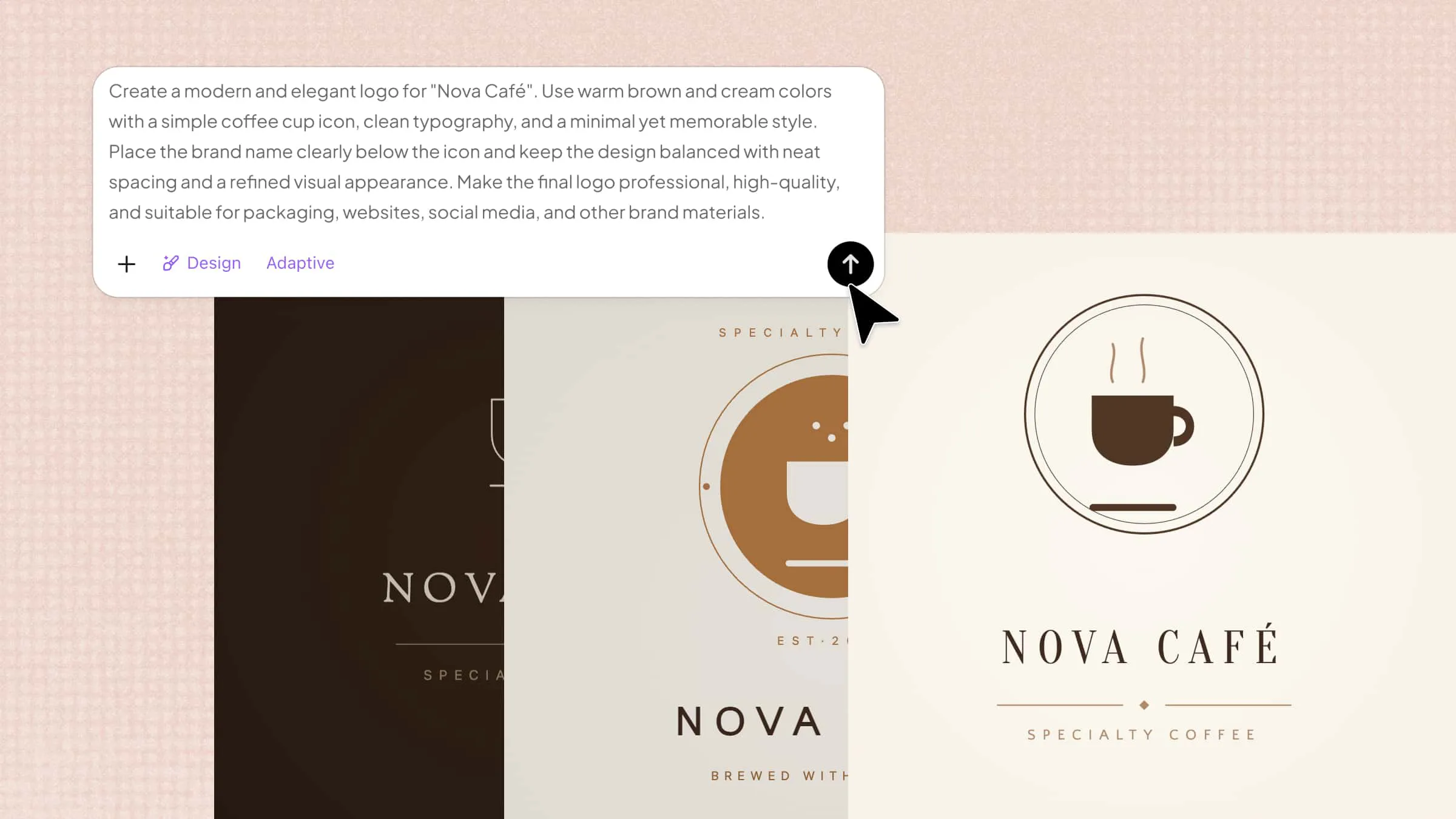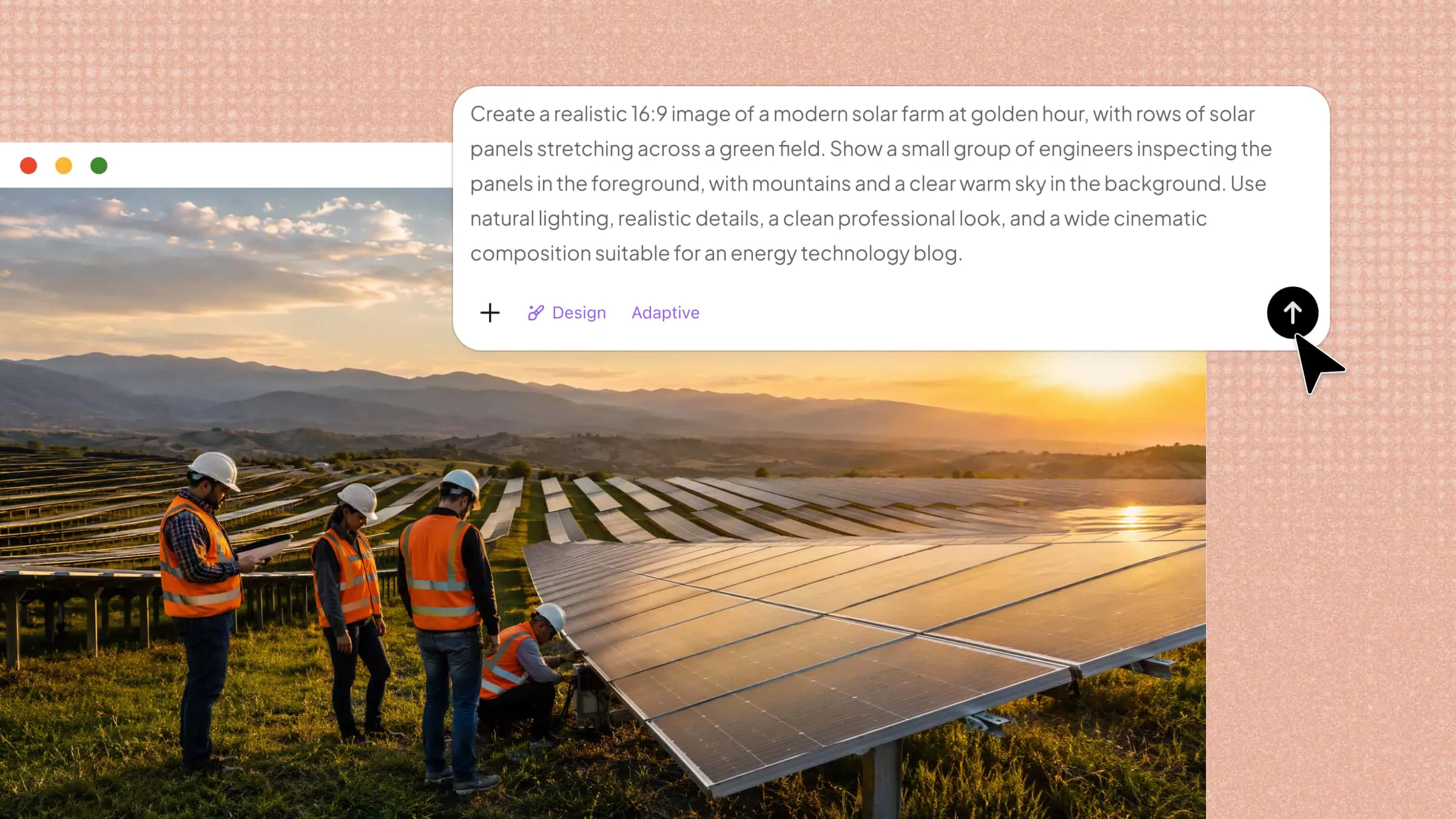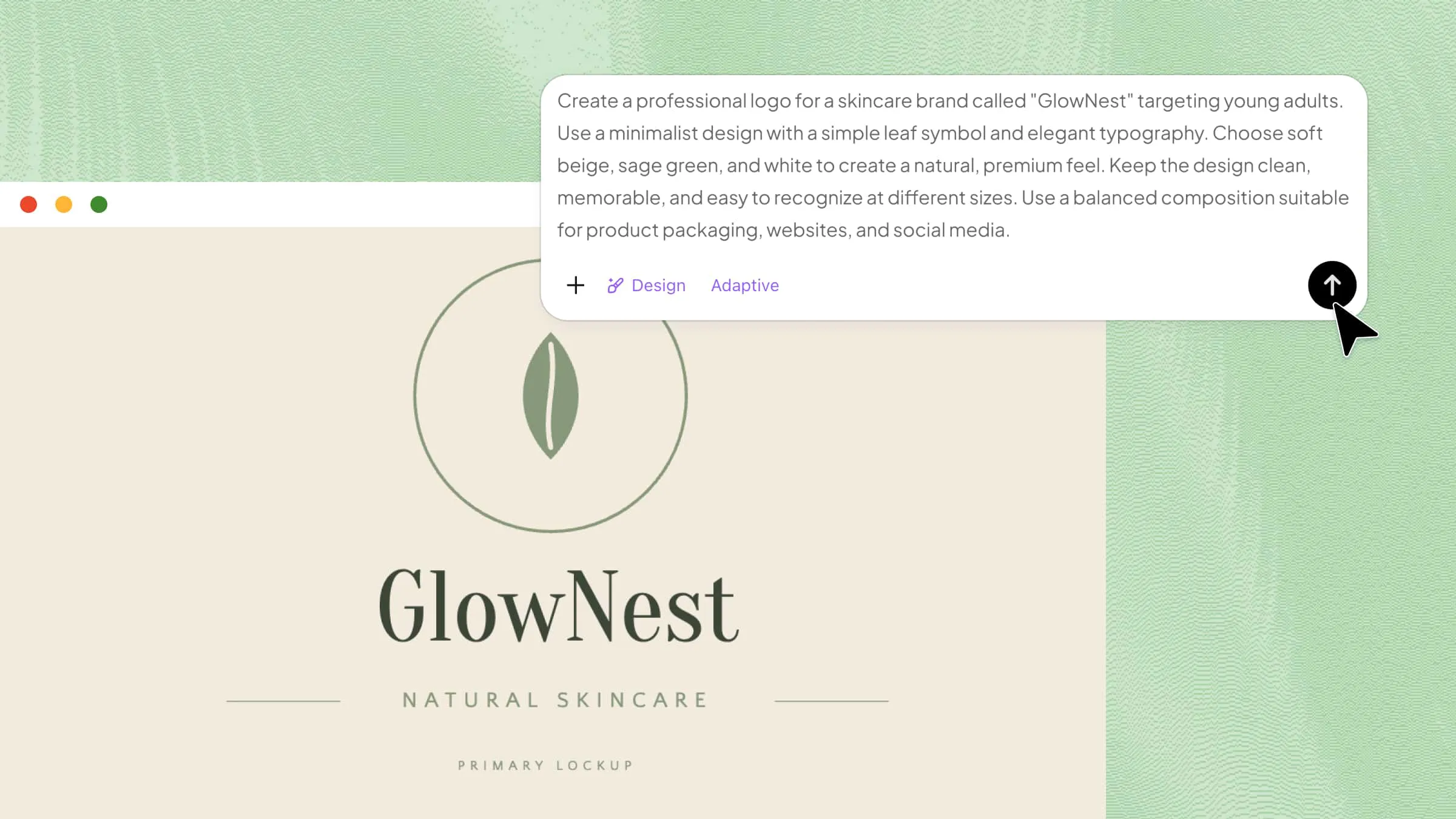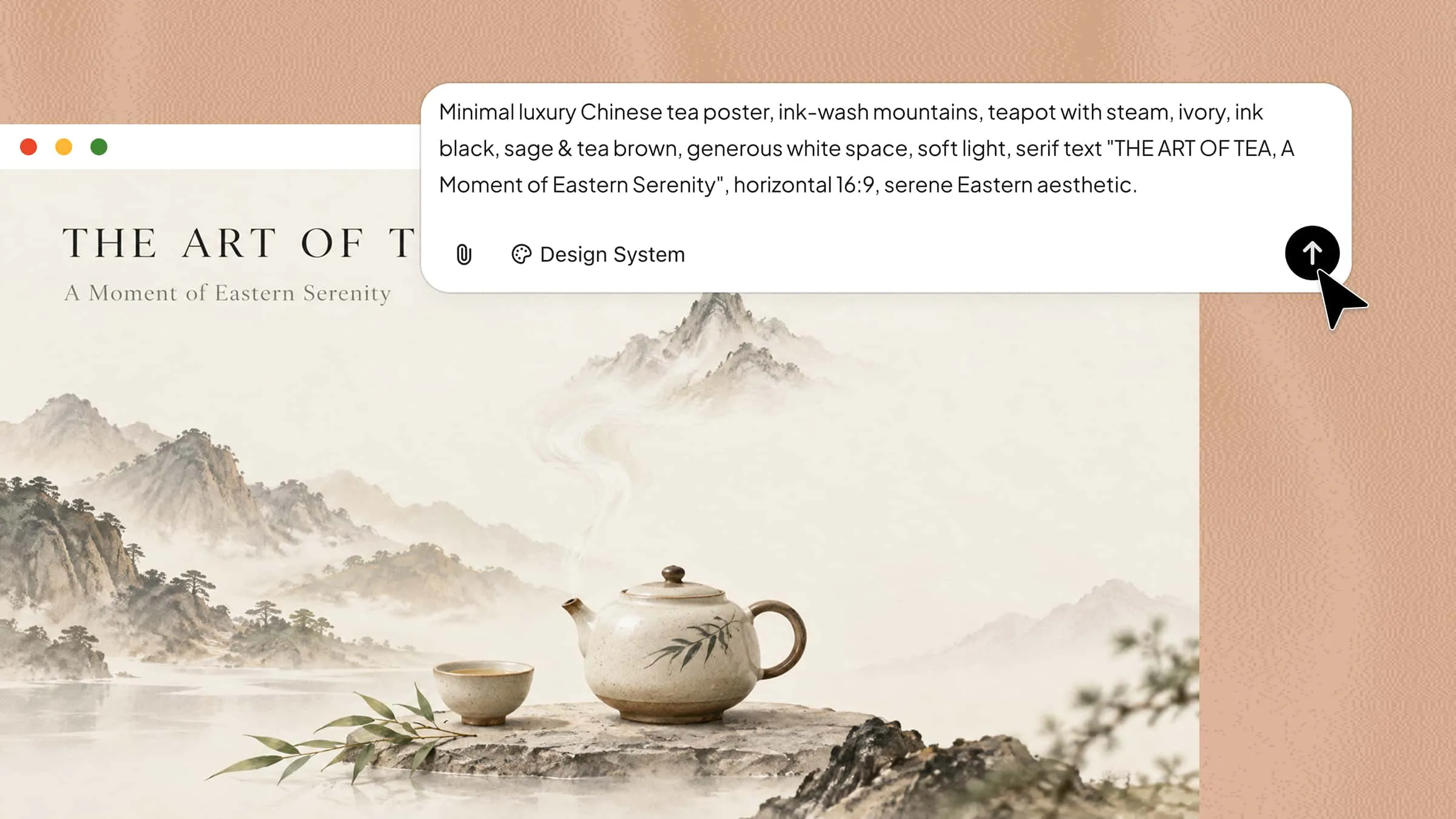
If you need a specific image but can't find one that meets your expectation, you can create it yourself using AI. Simply describe what you want, and AI can turn your words into an image that matches your idea. Learning how to convert text to picture with AI makes it easier to create visuals for your projects, social media posts, or personal use without any design skills. Read on to explore a simple way to bring your ideas to life.
How to convert text to image using AI
Kimi Design converts written descriptions into images using AI. To create an image, you can describe what you want — the subject, the setting, the colors, the style, and the mood — in everyday language. The AI generates a visual based on those details. You don't need any design experience, and the same process applies whether the image is for a social media post, a blog article, or a presentation. In the following four steps, we'll show you how to get your first image.
Step 1: Write a clear prompt for your desired image
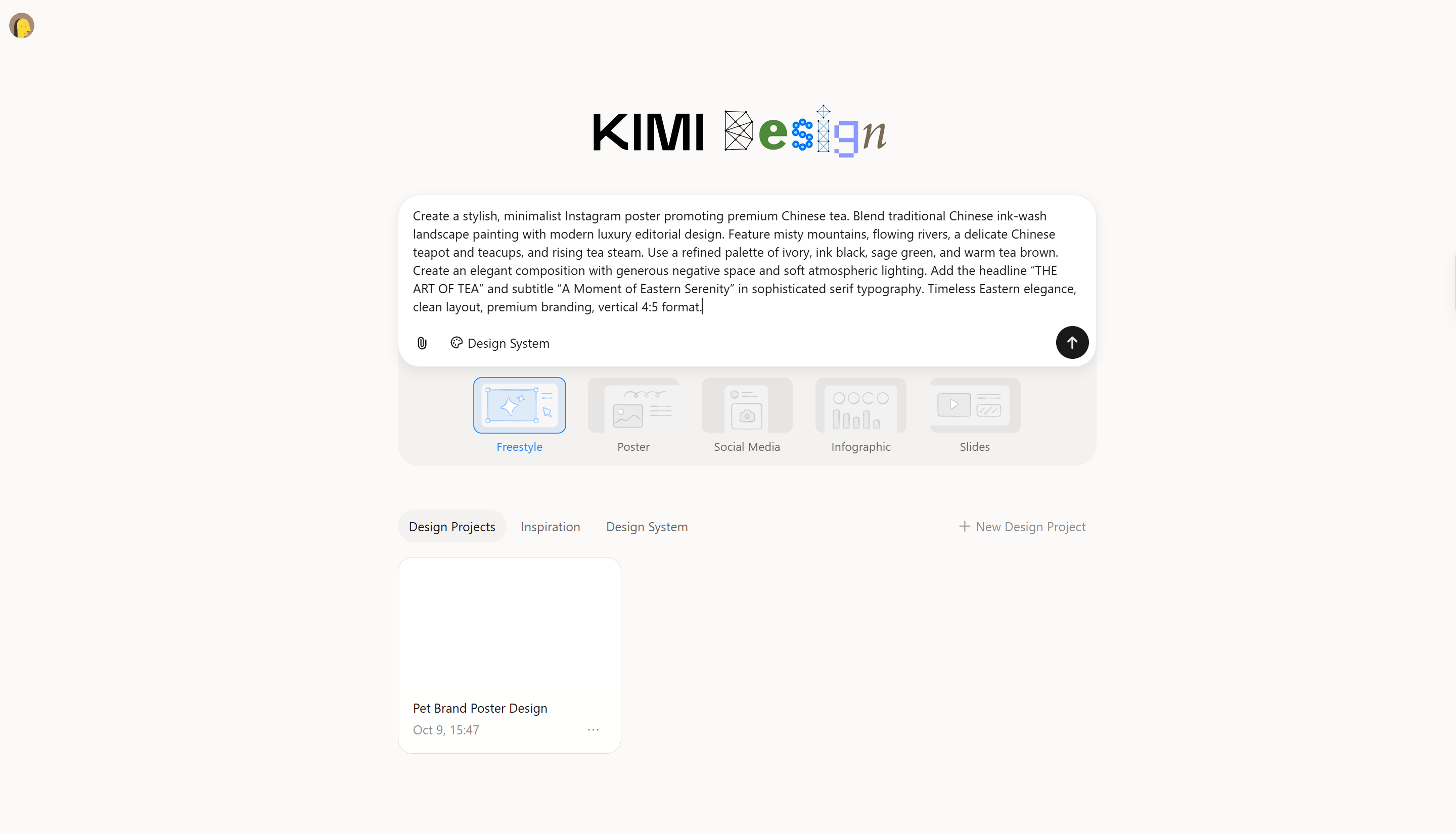
Start by describing the image you want, including the subject, setting, lighting, visual style, and desired dimensions or aspect ratio. Specific details help the AI create a picture that matches your idea.
Example prompt:
Step 2: Let Kimi Design create your picture
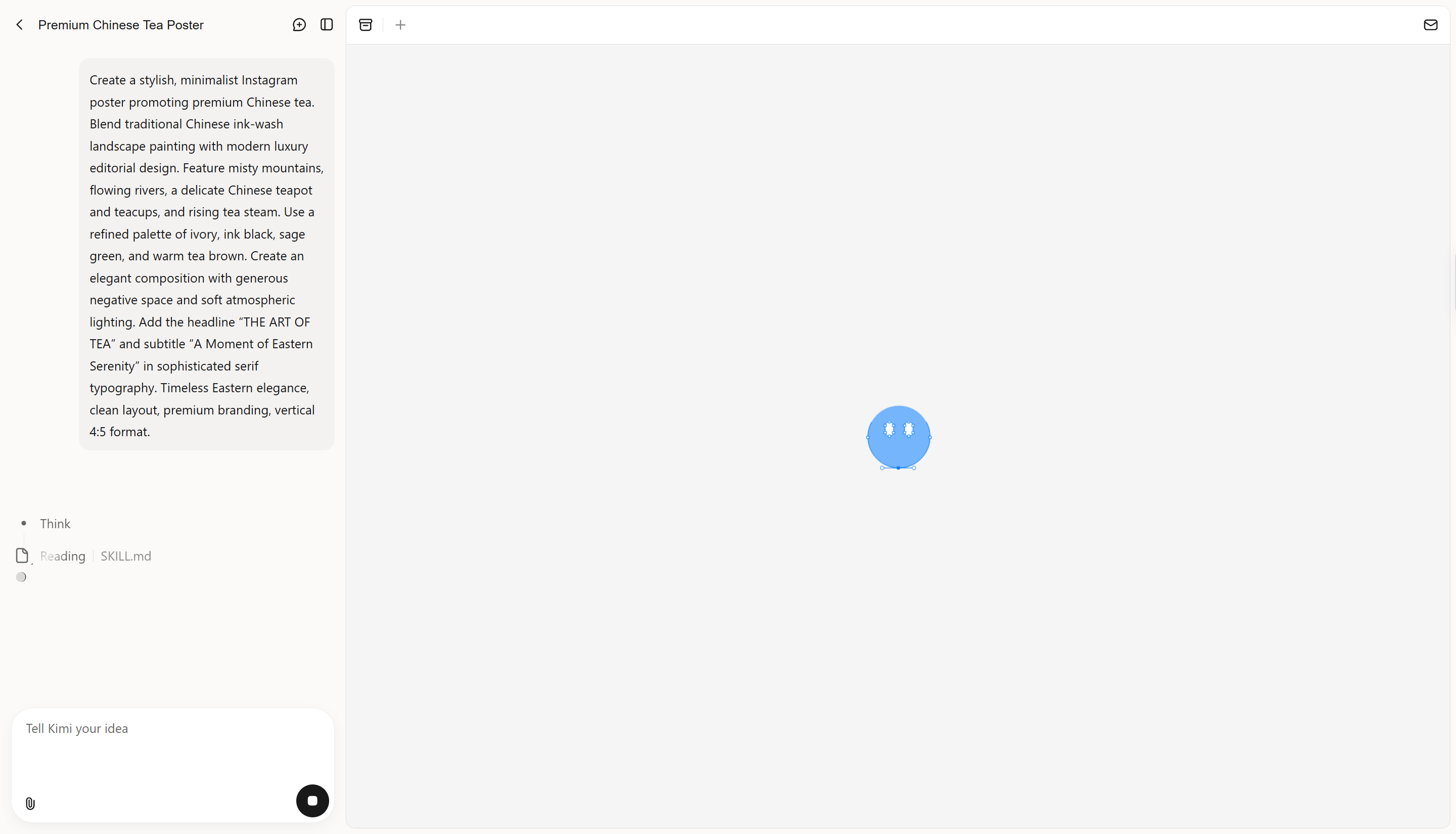
Once you submit your prompt, Kimi Design processes your instructions to generate an image. The AI interprets the details you provided, including the subject, setting, and visual style, to create a picture based on your description.
Step 3: Fine-tune the image's layout and visual details
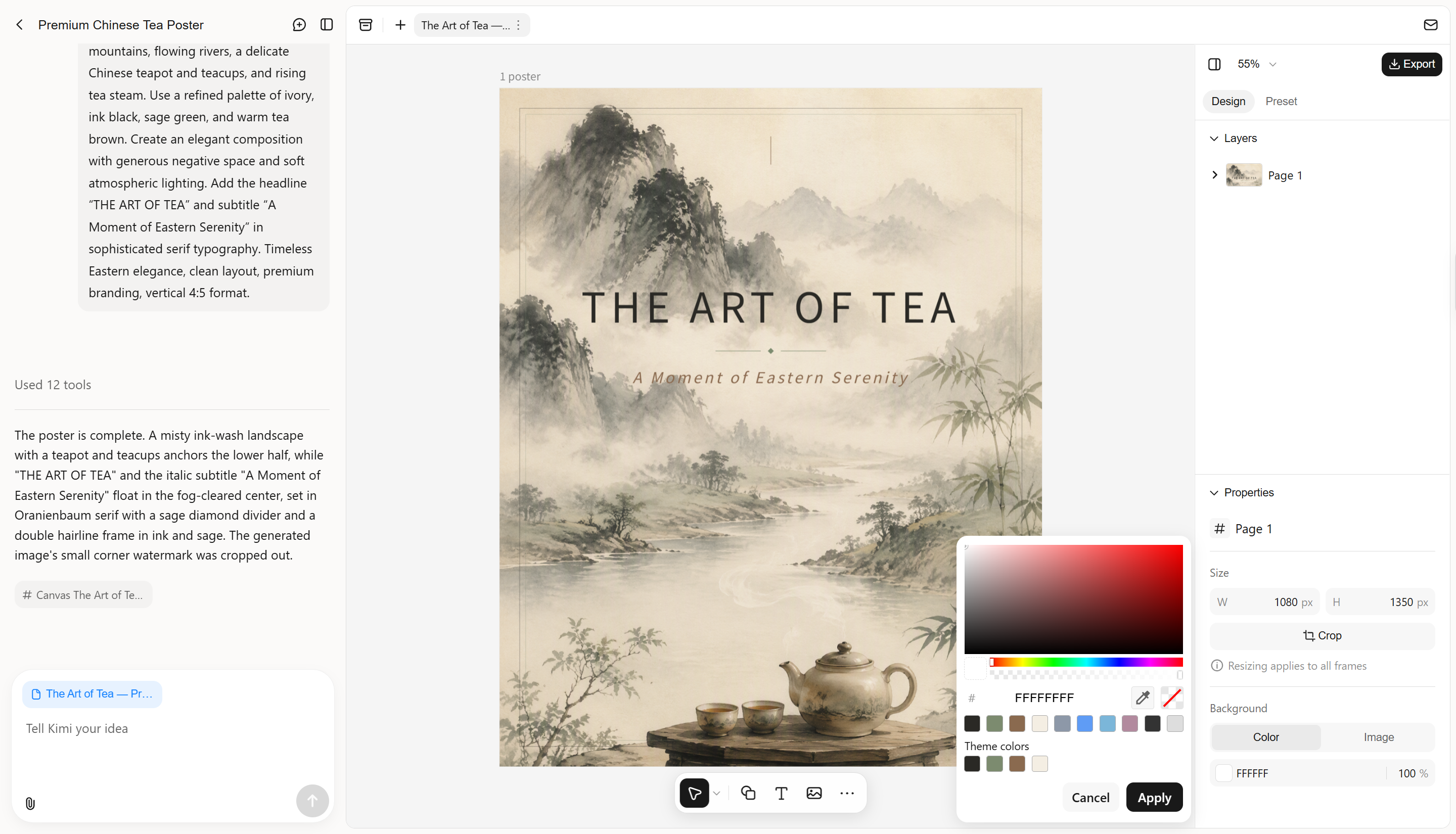
If the image needs improvement, adjust your prompt to change specific details without altering the entire scene. You can refine the lighting, subject placement, or background to get a more natural result.
Step 4: Review the final image and export your design
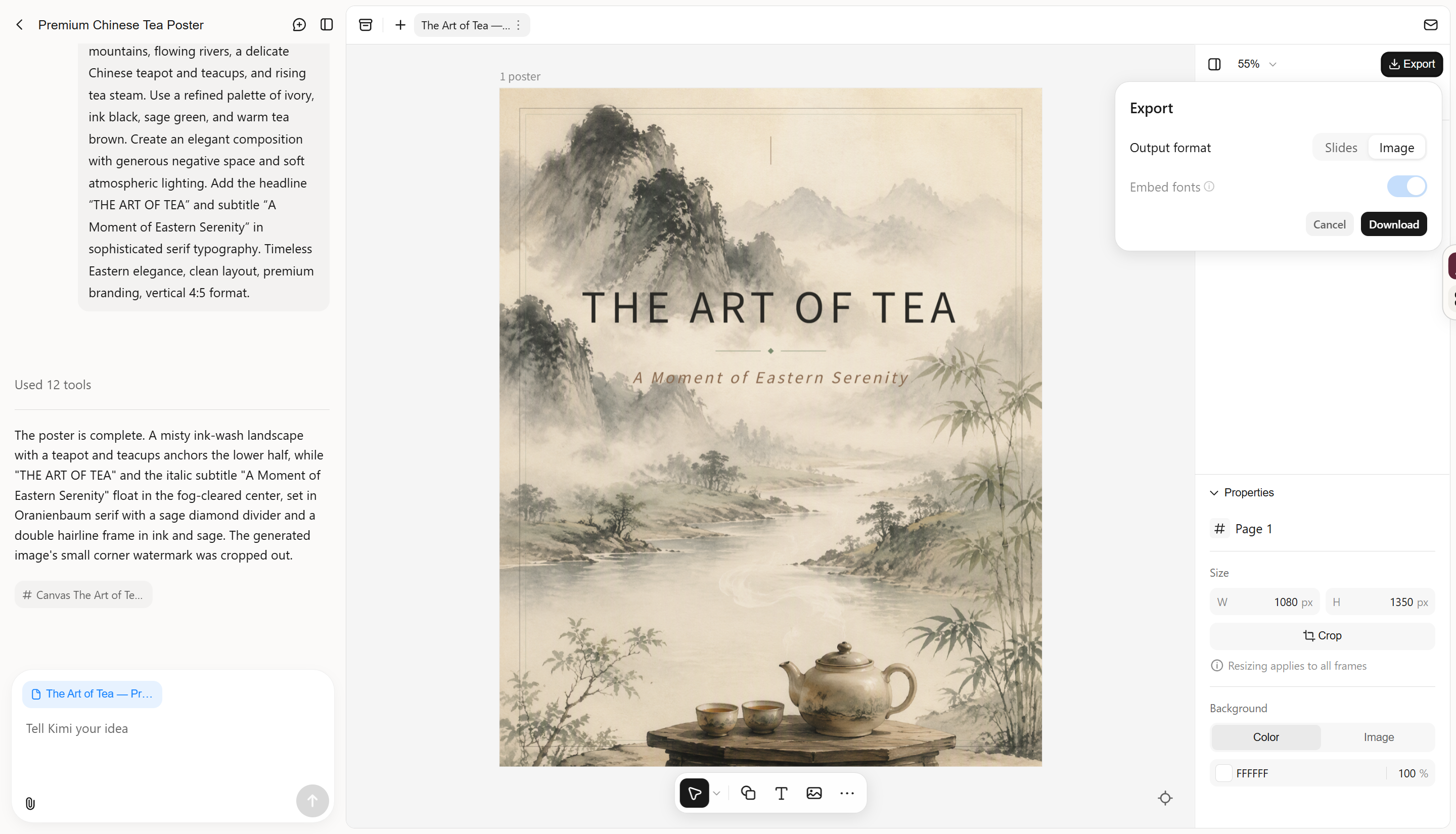
Once you're satisfied with the result, export it as an image or slides using Kimi Design's available download options.
Why use Kimi Design for text-to-image creation
The right tool can make the process easier, give you more creative freedom, and help you create visuals for different needs without spending hours on design. Here's what makes Kimi Design useful for text-to-image creation.
Create visuals without design experience
Turn simple text prompts, images, or video references into custom visuals without needing professional design skills. Describe what you want in natural language and let AI handle the initial design work, helping you save time and effort from concept to creation.
Adapt designs to different styles and formats
Explore a wide range of visual directions, from clean editorial layouts and hand-drawn illustrations to 3D graphics and vintage aesthetics. Set canvas dimensions for social media, presentations, print materials, or other creative projects.
Fine-tune every detail with flexible editing
Use conversational instructions to revise colors, layouts, typography, and individual design elements. Add comments to target specific areas or switch to manual editing when you need more precise control.
Explore design options and preserve previous versions
Generate alternative designs to explore different visual directions, then revisit earlier versions whenever you want to compare ideas or restore a previous result. Once you're satisfied, export your design as PNG, JPG, or PPTX for sharing, publishing, or further editing.
Practical tips for better text to image results
Getting a good result from text-to-image AI depends on how clearly you describe your idea. A few small changes to your prompt can make a big difference in the final image, helping you avoid unwanted details and get closer to the result you want. Keep these practical tips in mind when creating your next image.
Be specific about the main subject
Clearly describe what you want the main subject to show instead of using broad terms. Include details such as appearance, clothing, or surroundings to help the AI understand your idea. For example, "a young woman in a blue coat walking through a snowy street" gives better direction than "a woman outdoors."
Describe the composition and perspective
Explain where the subject should appear and how the scene should be framed. You can request a close-up, a wide shot, or a view from above, depending on your needs. These details help you control the layout and draw attention to the right elements.
Choose a consistent visual style
Decide whether you want a realistic photograph, watercolor painting, 3D render, or simple illustration. Including a clear style helps the AI create a more consistent result. Avoid mixing unrelated styles unless you want an unusual visual effect.
Include lighting, color, and mood
Lighting and color influence how an image looks and feels. Describe whether you want soft daylight, warm sunset tones, or dramatic shadows. You can also mention a mood, such as calm, cheerful, or mysterious, to guide the overall appearance.
Set the intended aspect ratio early
Consider where you plan to use the image before generating it. Vertical images work well for reels and stories, while landscape formats suit blog banners and presentations. Choosing the right dimensions early helps prevent important details from being cropped.
Refine one detail at a time
If the first result isn't quite right, avoid rewriting the entire prompt. Change one element, such as lighting, background, or subject placement, while keeping the parts that already work. This makes it easier to see which adjustments improve the image.
Use reference images when visual accuracy matters
Reference images can guide the AI when you need a specific layout, product appearance, or character design. Explain which details to follow, such as colors, shapes, or composition. Review the result afterward, as the AI may not reproduce every detail exactly.
Conclusion
Learning how to convert text to picture with AI gives you a simple way to turn ideas into visuals for social media, personal projects, and everyday creative needs. Describe your subject, style, and preferred dimensions, then refine your prompt to get closer to the result you want. Try Kimi Design to create editable designs from your text prompts and bring your ideas to life.