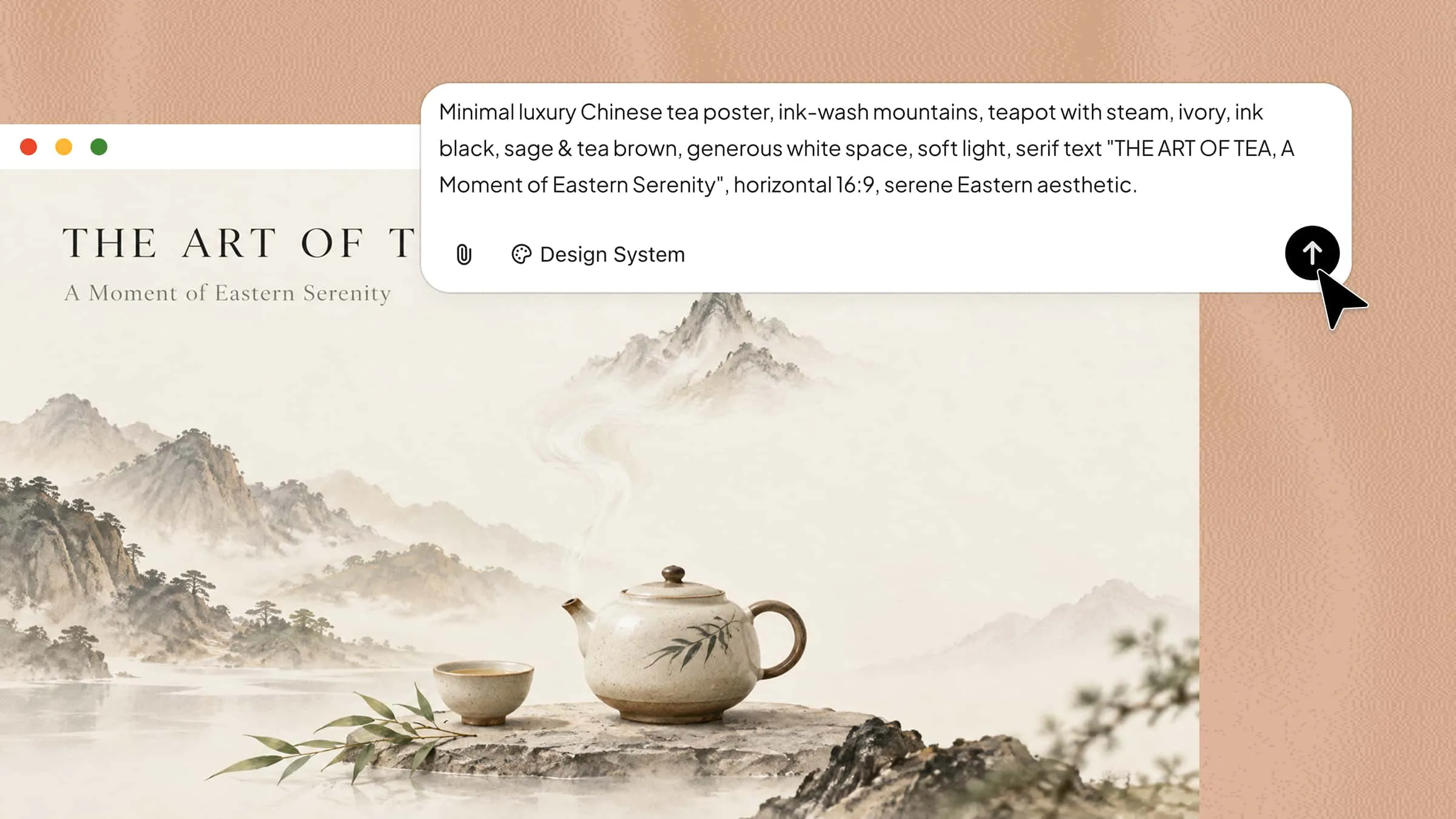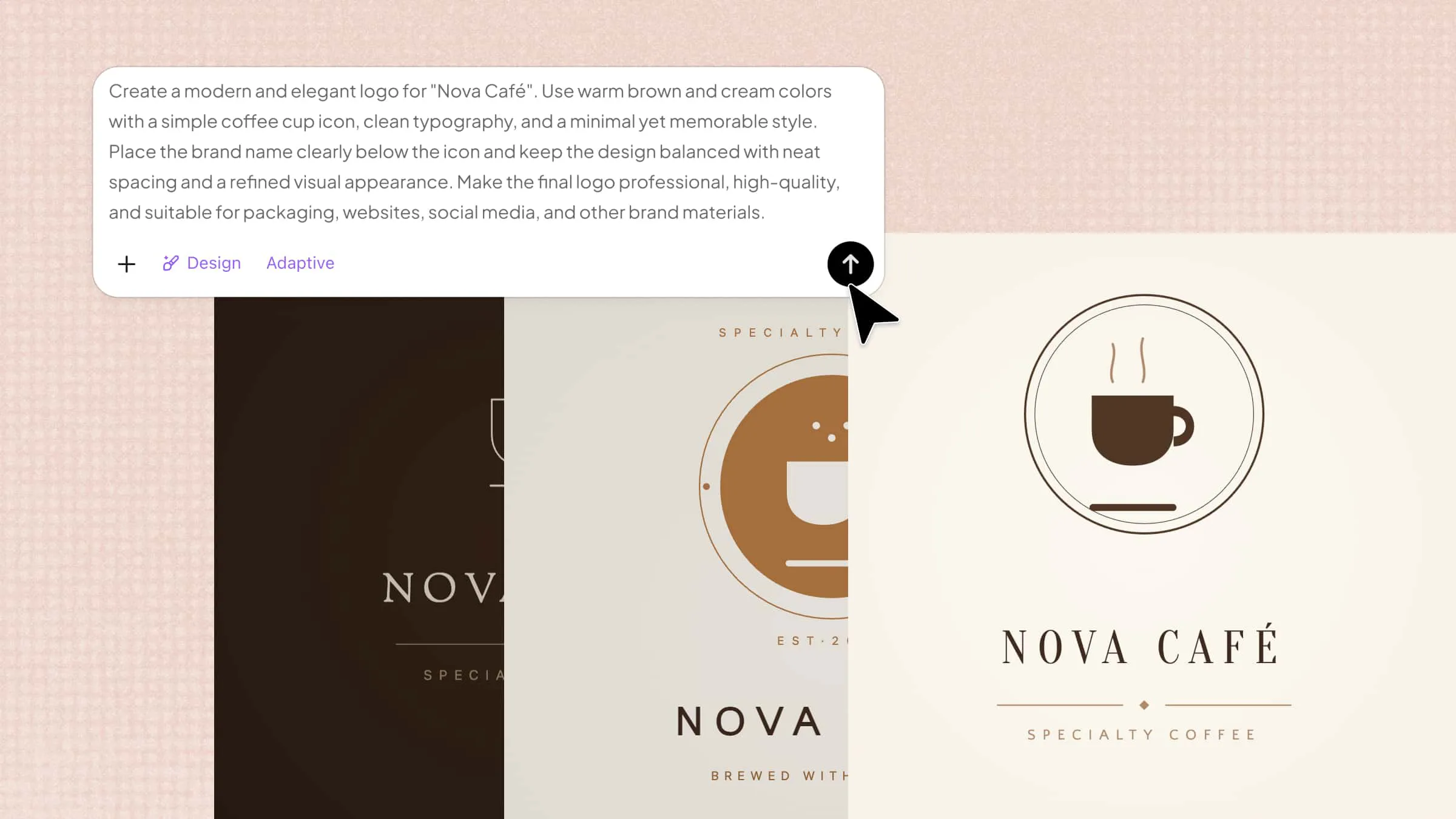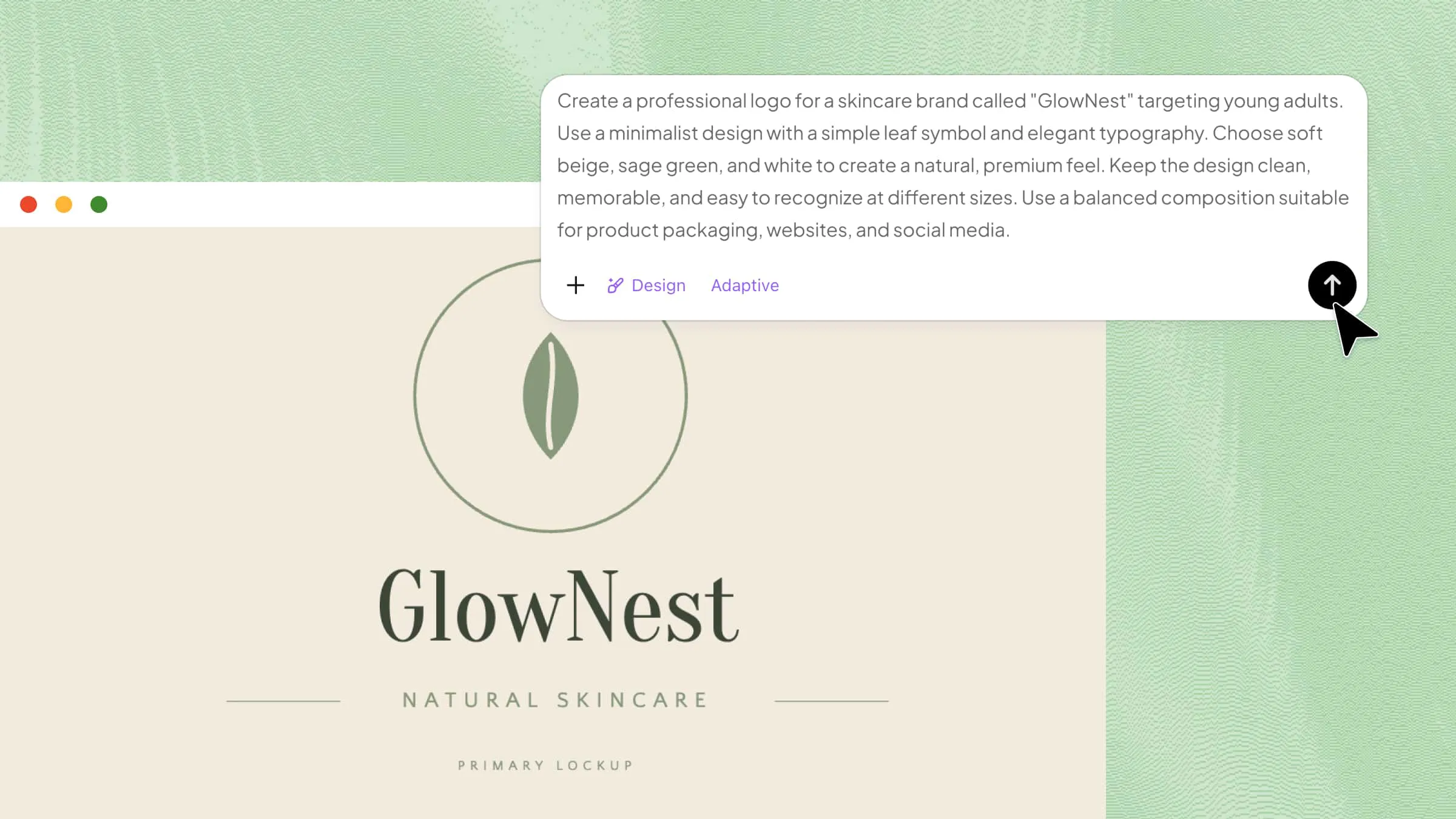
A memorable logo is essential for building a recognizable brand, but designing one from scratch can be difficult without the right skills or tools. AI simplifies the process by generating logo ideas from a simple text prompt. In this guide, you'll learn how to make a logo with AI and create a professional-looking design, even as a beginner.
How to make a logo using AI for beginners
You don't need professional design skills to create a logo that represents your brand. With the right AI tool, you can turn your ideas into a polished design in just a few steps.
Kimi Design makes logo creation easier by helping you transform text prompts into visual designs. You can describe your brand, choose a style, and refine the results to match your vision. It's a practical option for beginners who want to explore different logo ideas without starting from a blank canvas. Here's how to get started in four simple steps.
Step 1: Define your logo design details
Open Kimi Design and describe the logo you want to create. Include your brand name, industry, target audience, preferred colors, and visual style. You can also specify whether you want a text-based logo, a symbol, or a combination of both. A clear prompt helps AI generate designs that match your brand identity.
Example prompt:
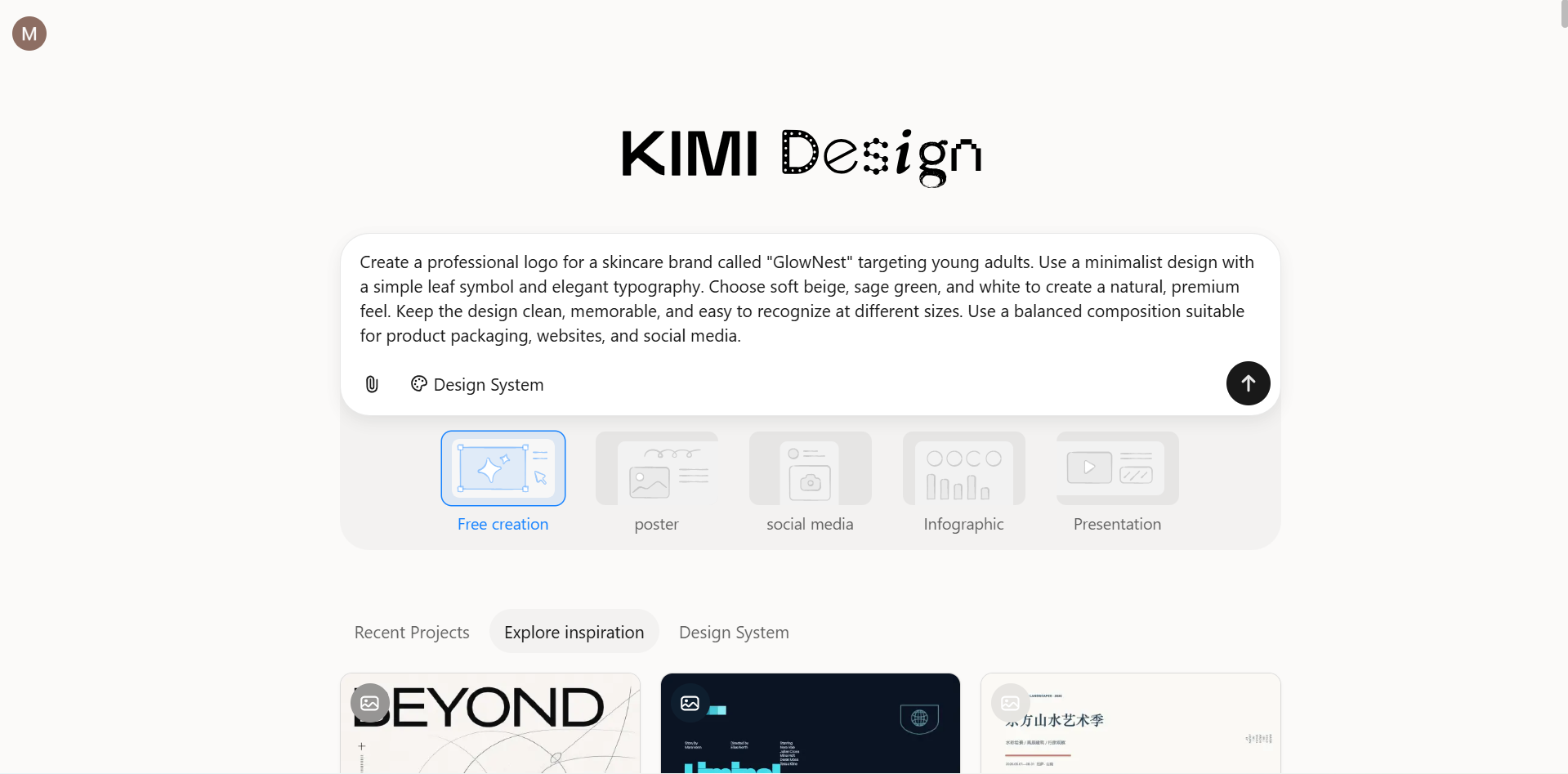
Step 2: Let AI generate the logo
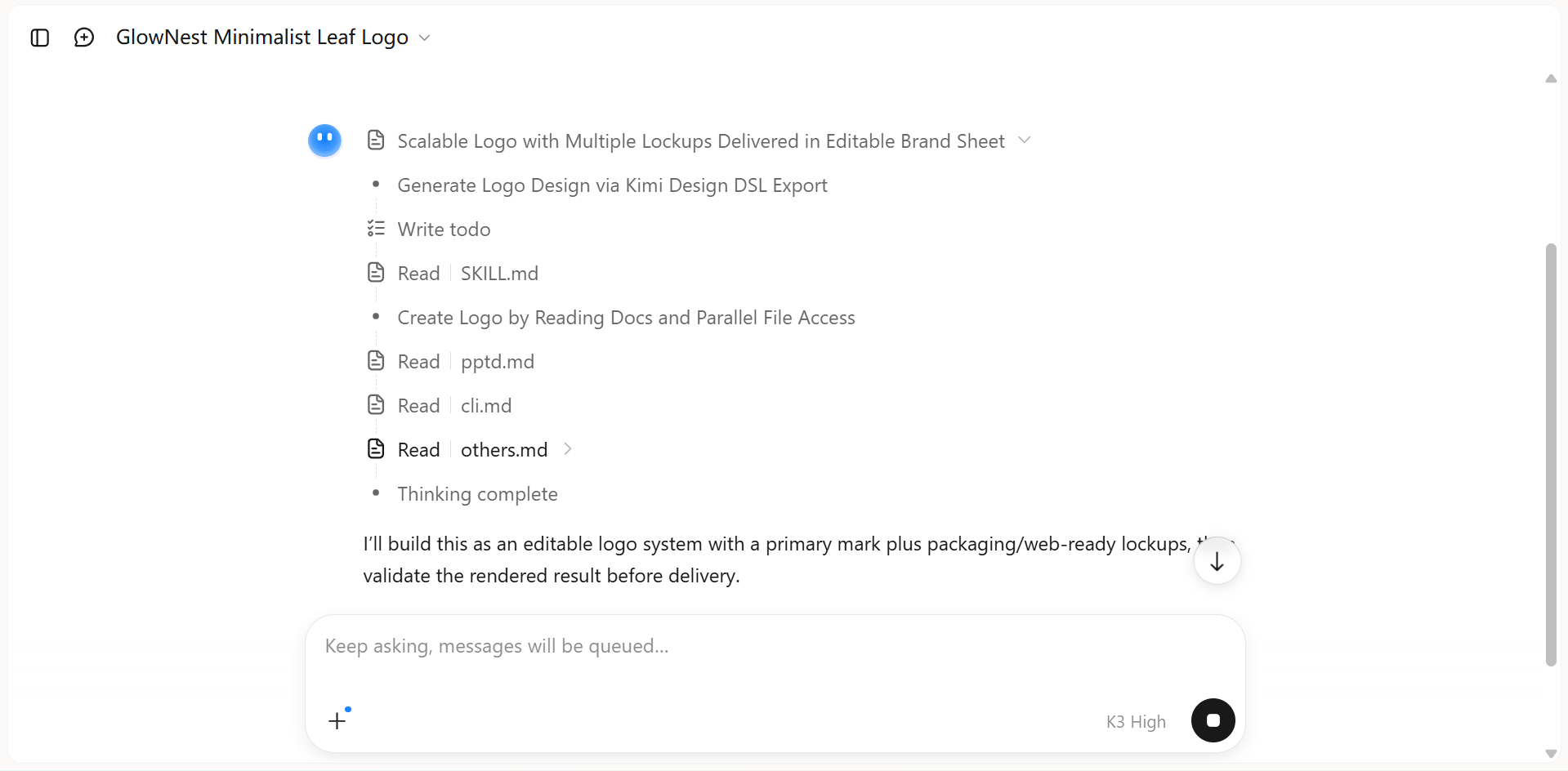
Kimi Design turns your prompt into a logo that reflects your brand requirements. Review the colors, typography, and symbols to ensure they match your brand's personality. Compare the generated designs, choose the best option, and adjust your prompt if you want a different result.
Step 3: Customize and refine your logo
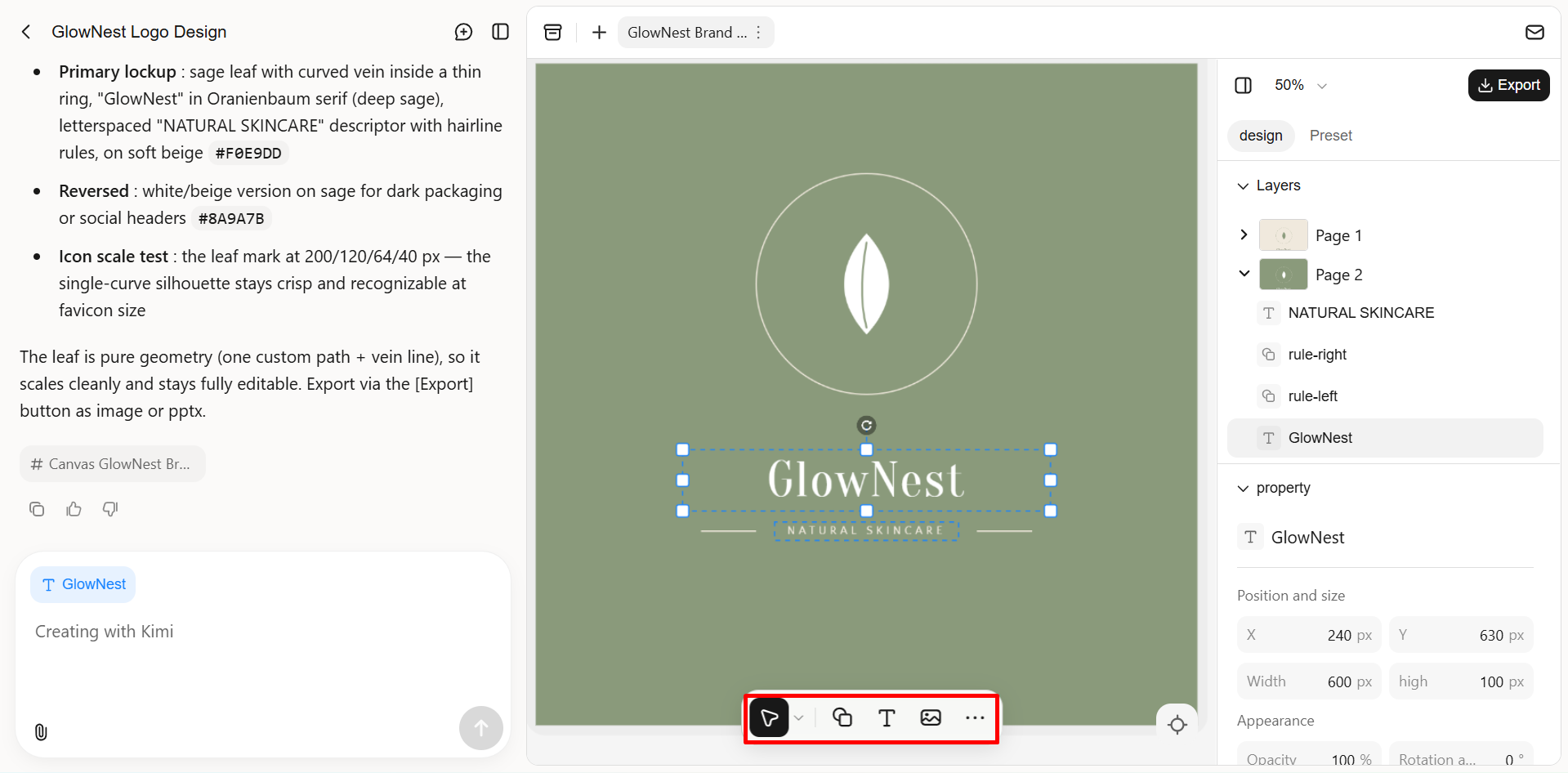
Enter editing mode and start refining your chosen logo. Adjust its colors, typography, layout, and symbols using Kimi Design's editing tools, or provide additional AI instructions to make targeted changes. Keep the design simple, balanced, and consistent with your brand identity.
Step 4: Review and download your logo
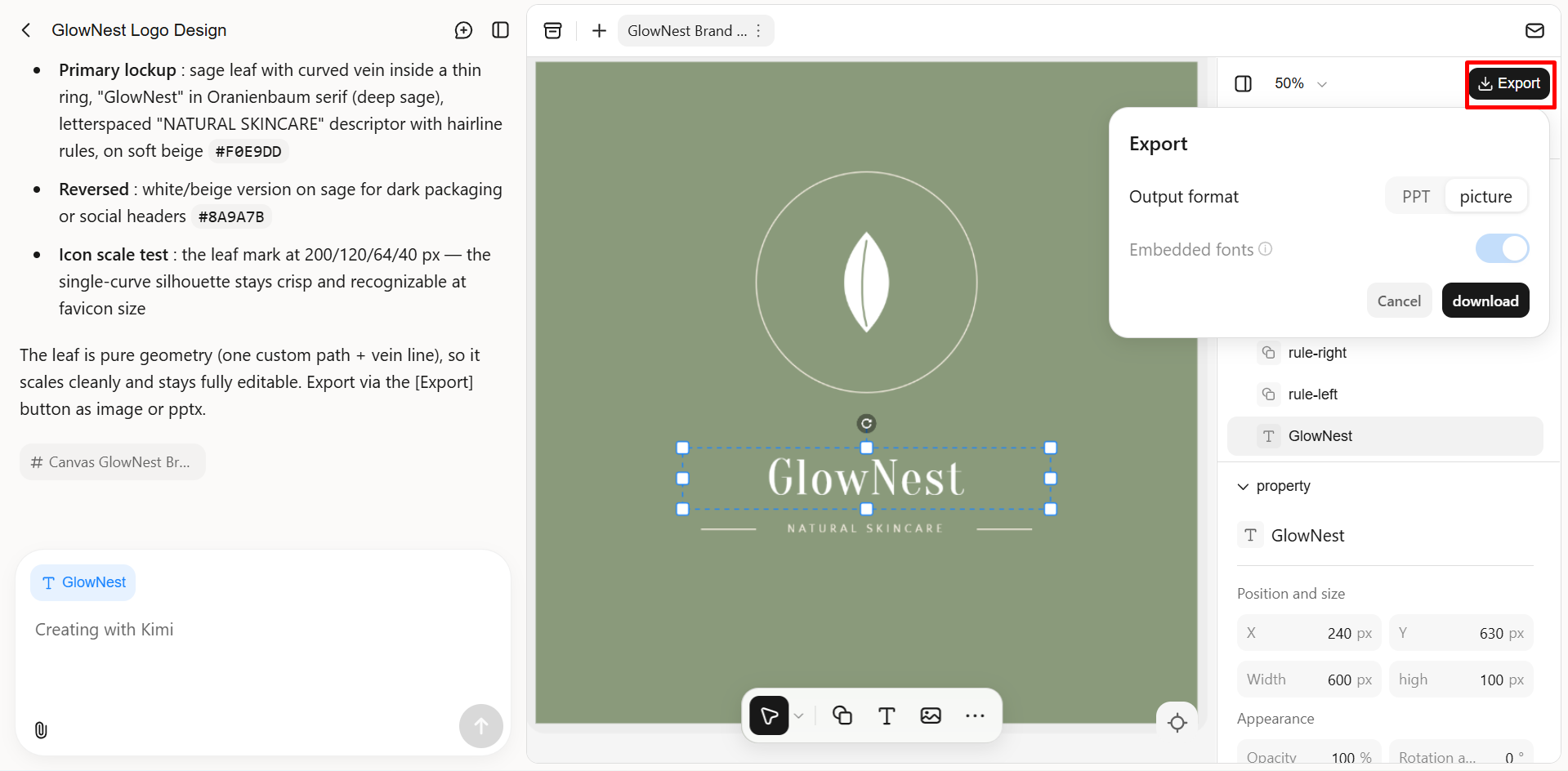
Before downloading, check your logo's spelling, colors, layout, and readability at different sizes and against light or dark backgrounds. Once satisfied, export it in a format that best fits your needs—PNG or JPG for digital use, PDF for print, PPTX or Google Slides for presentations. Choose a high-resolution version or a transparent background if available, so your logo is ready to use across your branding materials.
Why create custom AI logos with Kimi Design?
A well-designed logo helps your brand stand out and creates a consistent visual identity. Kimi Design simplifies how to make a logo using AI by turning your ideas into logo concepts you can review and refine to match your brand's style.
Turn your brand vision into logo concepts
Kimi Design turns brand information into a clear starting point for logo creation. It can work with details such as your audience, preferred colors, visual preferences, or key brand elements, while reference images can provide additional visual direction when words are not enough. Based on these inputs, Kimi Design generates logo concepts that give you a strong visual foundation to build on.
Refine logos easily with AI or canvas editing
Kimi Design supports both conversational AI edits and direct canvas adjustments throughout the design process. You can tell AI what to change, add, remove, or emphasize, while comments allow you to point out specific parts that need attention. For more hands-on control, you can also modify individual elements directly on the canvas.
Experiment with different directions for your identity
Kimi Design saves every version, so you can revisit earlier concepts as your visual identity evolves. It supports multiple variations across typography, color, composition, and visual style, allowing you to explore different directions without losing earlier concepts. You can also adjust the canvas size to match your intended use, making it easier to develop a logo that works with your overall brand identity.
Get the files you need for different applications
Kimi Design supports PNG, JPG, PDF, PPTX, and Google Slides exports for different branding needs. Use the appropriate format for digital content, presentations, websites, or print, with transparent backgrounds available when needed.
Turn one logo into a consistent visual system
Your logo can serve as the starting point for a wider range of branded designs. Use it alongside your brand colors, typography, and visual direction to create social posts, promotional graphics, presentations, and campaign materials. Instead of designing each asset from scratch, carry the same visual identity across the content your brand produces.
Pro tips for creating standout AI logos
A good logo should be memorable, easy to recognize, and consistent with your brand identity. When learning how to design a logo, these practical tips can help you get better results from AI tools and create a design that works across different platforms.
Start with a clear brand message
Define what your brand represents and who your target audience is before generating a logo. A clear brand message helps AI create designs that reflect your business values and personality.
Use specific words in your prompt
Describe your preferred style, symbols, typography, colors, and overall mood instead of using vague instructions. Specific details help AI generate logo concepts that better match your vision.
Keep the design simple and bold
Avoid unnecessary details, complex patterns, and too many decorative elements. A simple design is easier to recognize and works better across websites, packaging, business cards, and social media.
Choose two or three brand colors
Limit your palette to two or three complementary colors to keep your logo consistent and visually appealing. Select shades that suit your brand personality and remain clear against different backgrounds.
Test your logo at small sizes
Preview your logo as a small social media icon, website favicon, or product label. Make sure the text and symbols remain clear and recognizable when the design is scaled down.
Generate several versions and refine the best one
Create multiple concepts by adjusting your prompt, colors, or visual style. Compare the results, select the strongest design, and refine it until it matches your brand identity.
Conclusion
Creating a professional logo no longer requires advanced design skills or expensive software. With AI tools like Kimi Design, you can explore creative concepts, customize designs, and develop a logo that reflects your brand identity. If you're wondering how to make a logo design that stands out, start with a clear prompt, experiment with different styles, and refine the results to suit your needs. With the right approach, you can turn a simple idea into a memorable logo for your business.