How Kimi Browser Extension Works
Workflow
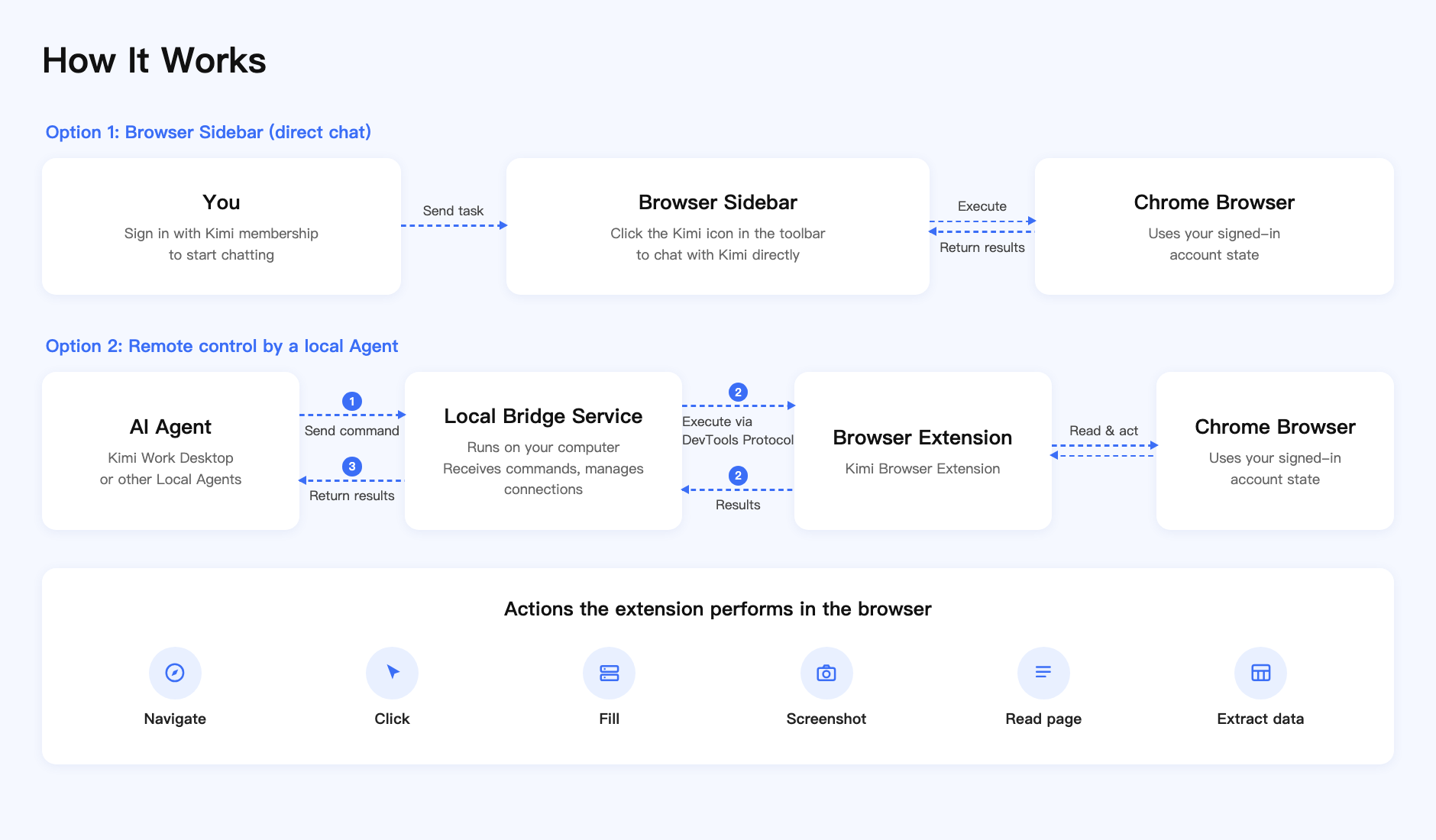
Kimi Browser Extension supports two ways of use — sidebar chat and remote control by a local Agent — and works as follows:
- Browser Sidebar: Click the Kimi icon in the toolbar to open the sidebar, then sign in with your Kimi account to chat directly
- Local Bridge Service: A local service runs on your computer to receive instructions from the Agent
- Browser Extension: Executes specific actions in the browser based on the Chrome DevTools Protocol
- Security Isolation: All execution happens locally—login states and web page content never leave your device
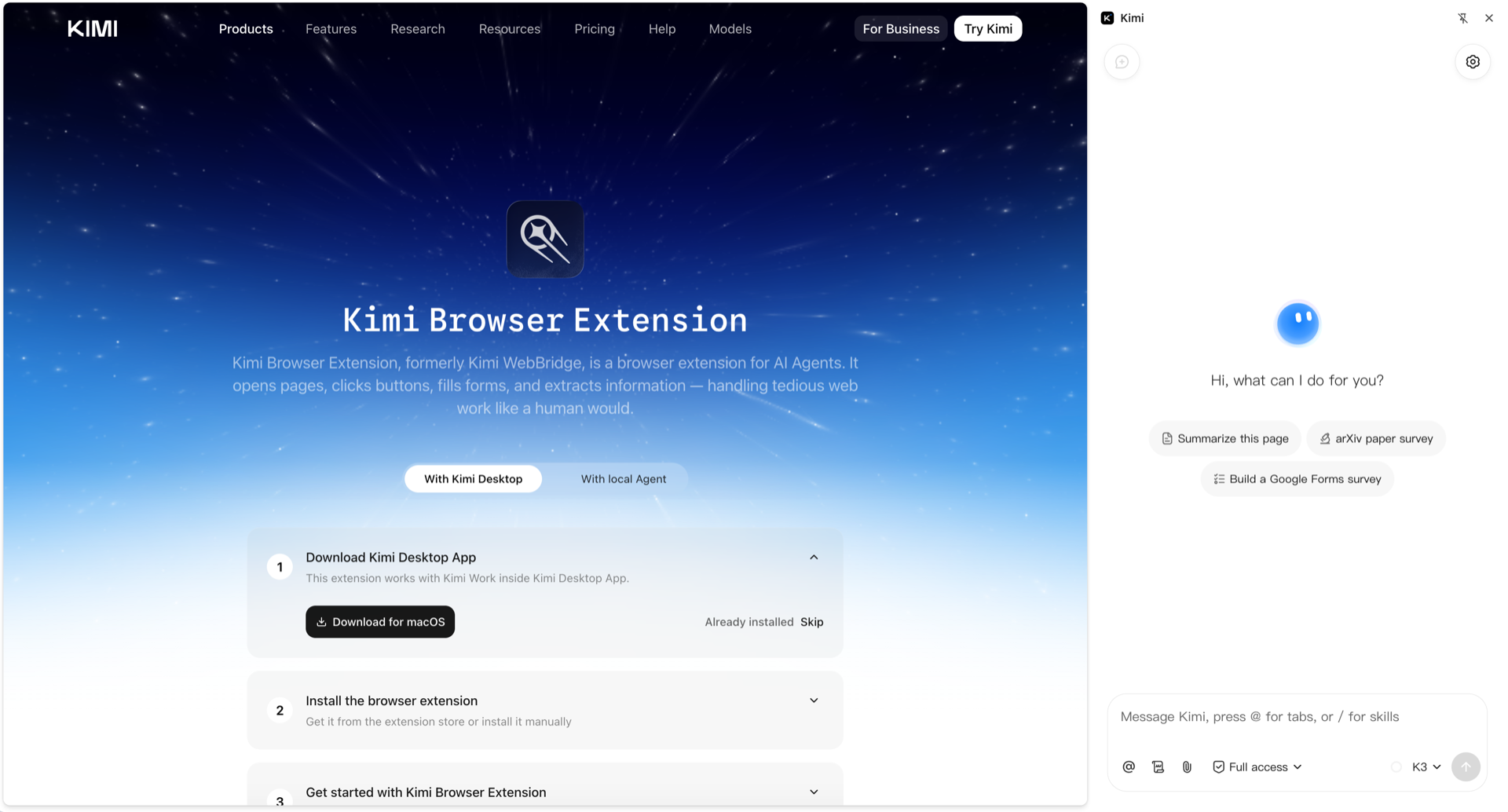
Extension Interface
Click the Kimi Browser Extension icon in the browser toolbar to expand the sidebar and send a task.
Features
| Feature | Description |
|---|---|
| Web Navigation | Automatically open specified URLs |
| Element Clicking | Simulate clicks on buttons, links, and other page elements |
| Form Filling | Automatically input text and select options |
| Page Screenshots | Capture the current page or a specific area |
| Content Extraction | Read page text, tables, and other structured data |
| Login Session Persistence | Use existing login states saved in the browser |
Use cases:
- E-commerce price comparison: Automatically search for products and compare prices across multiple platforms
- Information research: Deeply browse web pages and extract structured information
- Form filling: Automatically fill out various online forms
- Data entry: Automatically organize and enter web data into a specified format
For more use cases, please refer to the Kimi Browser Extension official website.
Was this article helpful?