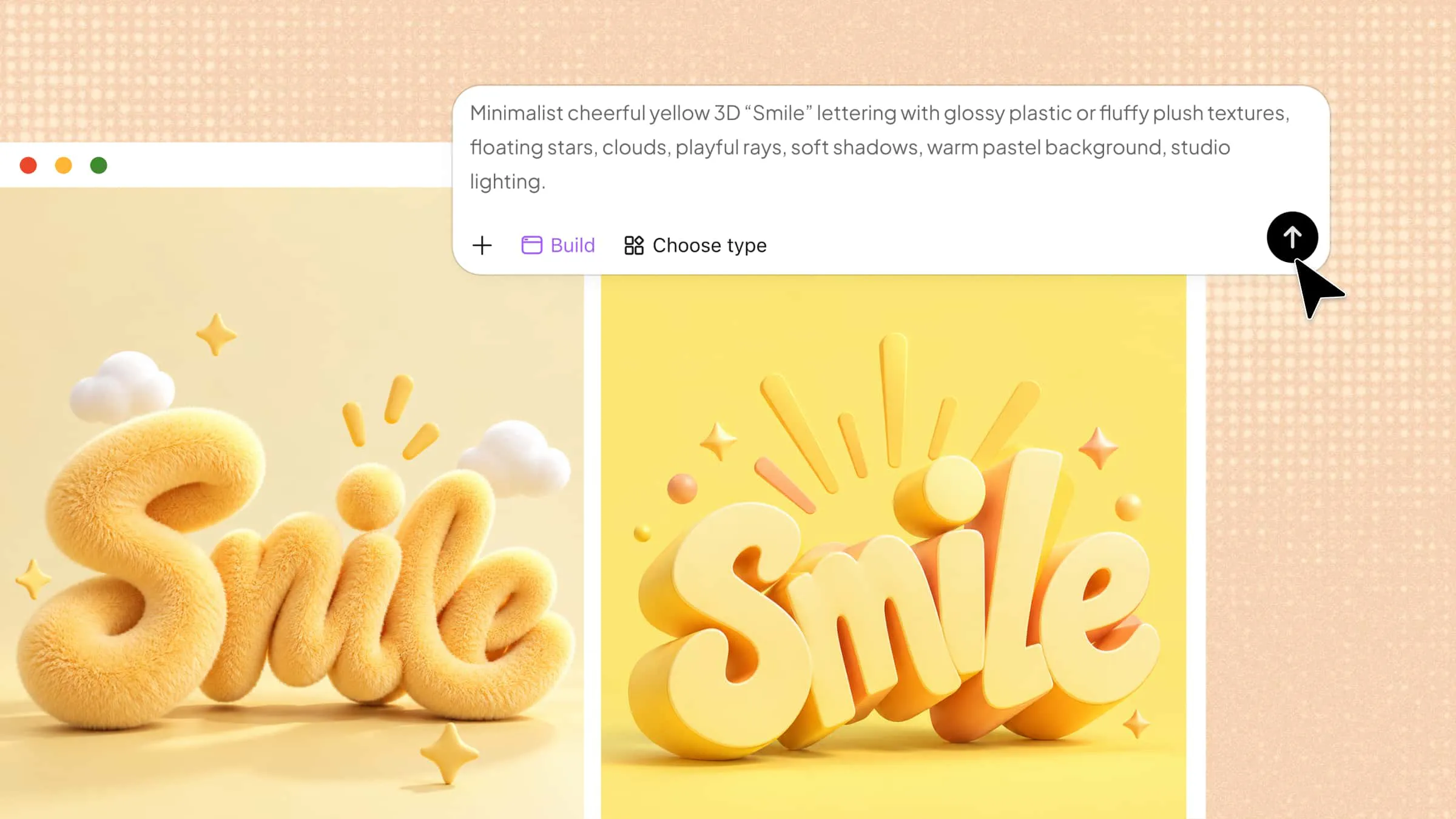
Creating 3D text in Illustrator can feel tricky when you want your words to look deep, realistic, and visually appealing. Flat text may not give your design the impact you need, especially for posters, logos, or social media graphics. But Adobe Illustrator has tools that make it easier to turn ordinary text into 3D designs. In this article, you'll learn how to make 3D text in Illustrator from scratch with simple, step-by-step instructions.
How to create 3D text in Illustrator
Adobe Illustrator provides various tools to transform simple text into a 3D design that has depth, shading, and realistic details. You can create this look by blending two text forms, applying color gradients, and adding shadows and reflections. This method allows you to manage the text's look, colors, and depth without depending on just one 3D effect. Follow these steps to craft your own 3D text in Illustrator from the beginning.
Step 1: Create and format your text
Open Adobe Illustrator and create a new document.
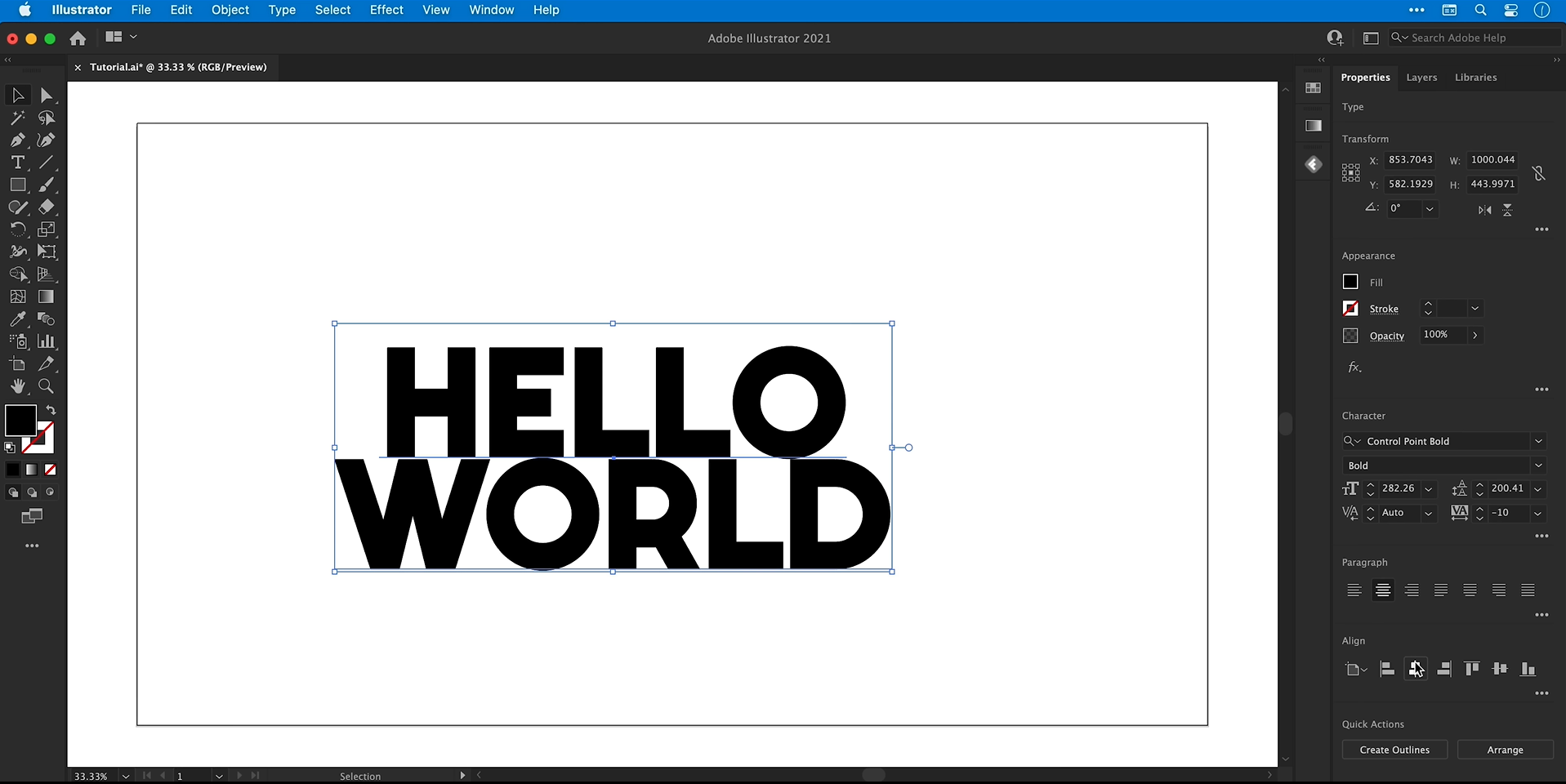
Select the "Type Tool (T)" and click on the artboard to type your text. For this example, you can use "HELLO WORLD."
Select the text and adjust its font, size, and alignment using the top toolbar or the "Character" panel.
Choose a bold, readable font that will make the 3D effect more visible. If your text spans multiple lines, adjust the leading to control the space between them.
Use the Selection Tool (V) to resize the text and position it in the center of the artboard.
Step 2: Prepare the colors and background
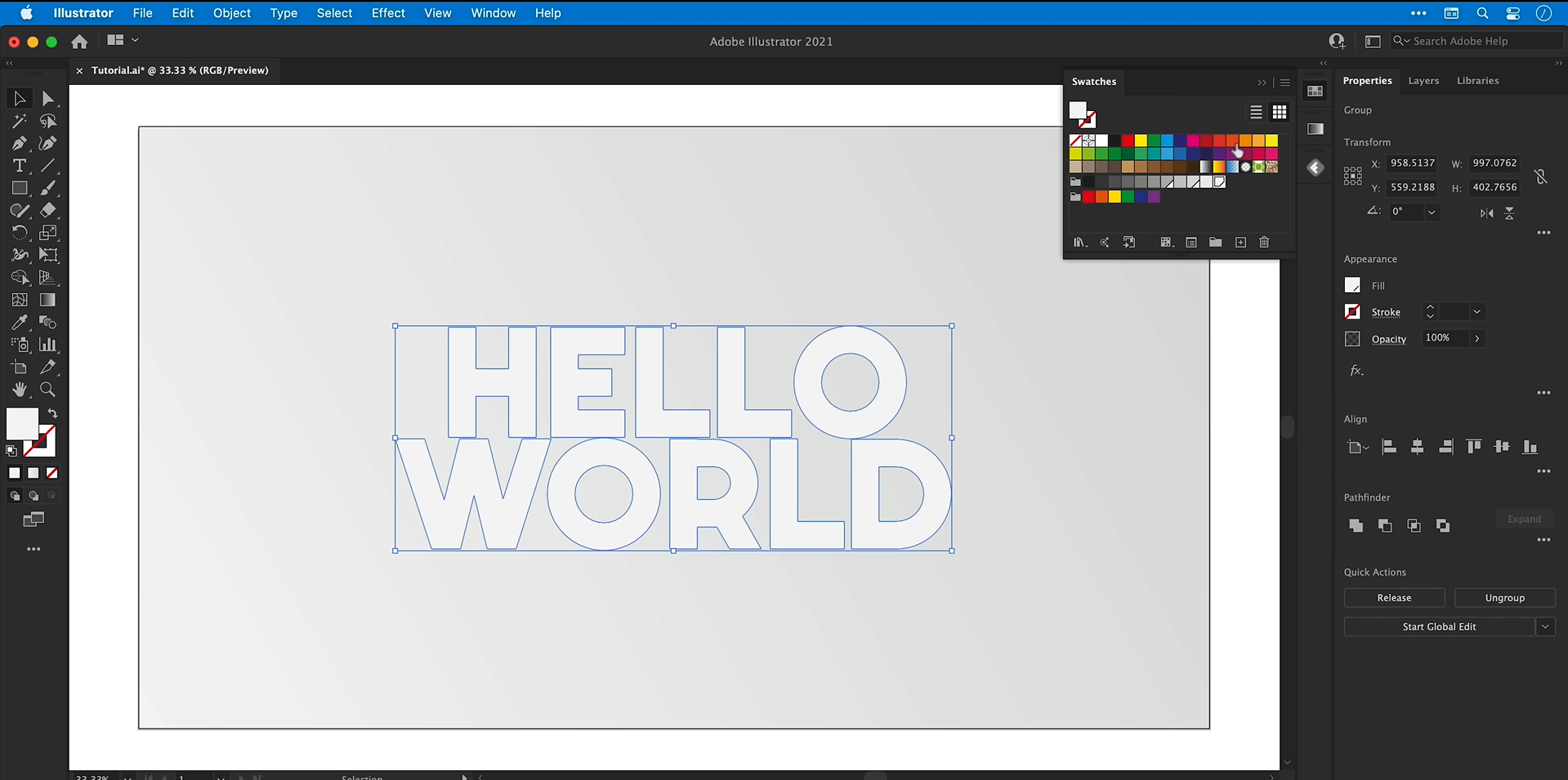
Open "Window" > "Swatches" and prepare three shades of gray: light, medium, and dark. These will be used for the text, depth, and shadows.
Select the text and apply the lightest gray as its fill color.
Select the "Rectangle Tool" (M) and draw a rectangle covering the artboard.
Open "Window" > "Gradient" and apply a linear gradient to the rectangle. Replace the default colors with your preferred gray shades and adjust the angle.
Right-click the rectangle and select "Arrange" > "Send to Back." Next, choose "Object," then "Lock," and finally "Selection" to stop any unintentional shifting.
Step 3: Create the 3D depth with blend
Select the text and go to "Type" > "Create Outlines" to convert it into vector shapes. Keep an editable copy beforehand if needed.
Copy the outlined text using "Edit" > "Copy," then select "Edit" > "Paste in Place" to duplicate it.
Change the copied text to the darkest gray. Hold
Alt + Shifton Windows orOption + Shifton Mac while scaling it slightly inward from the center.Right-click the smaller copy and select "Arrange" > "Send Backward" to place it behind the original text.
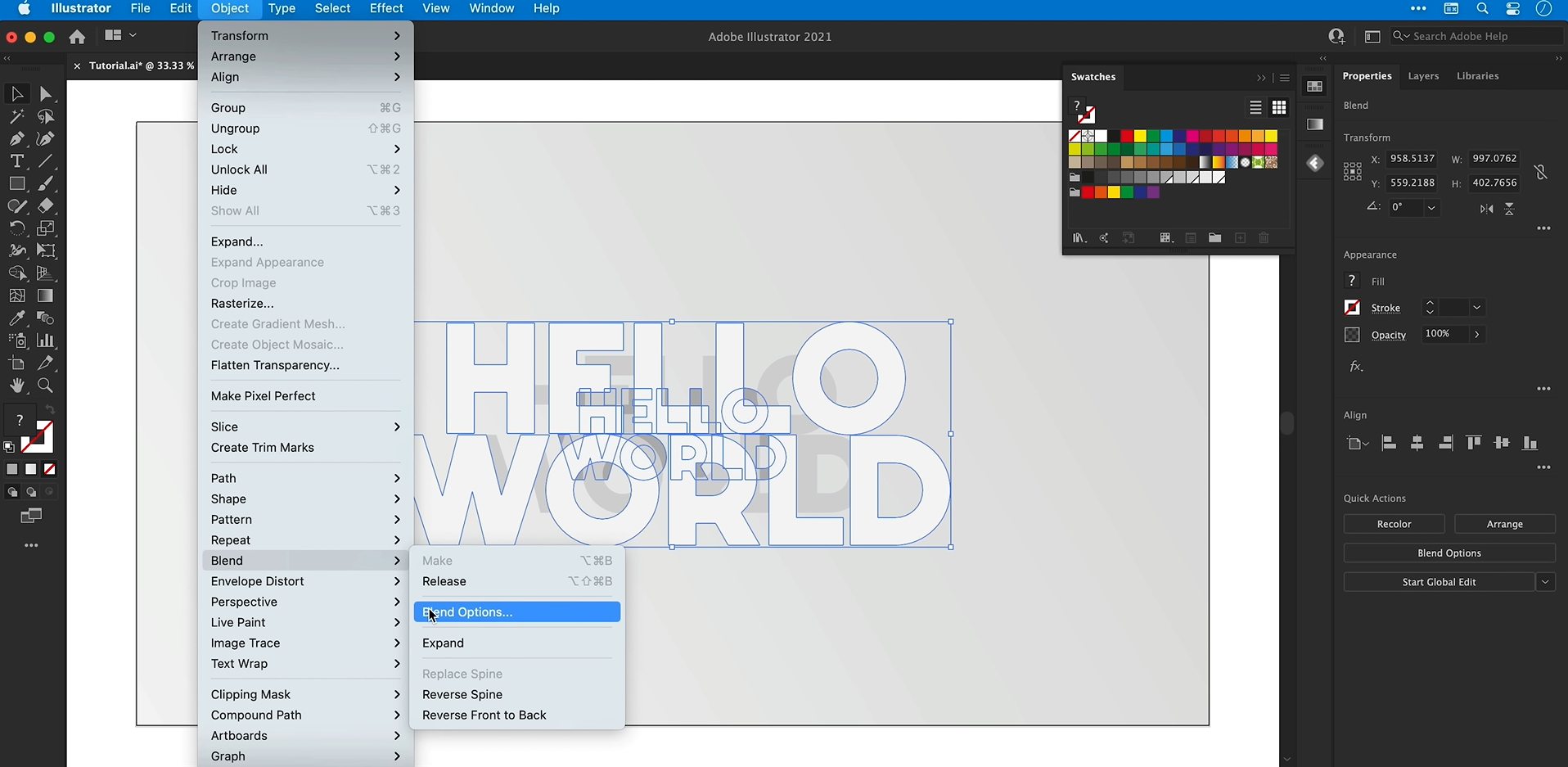
Select both text shapes and go to "Object" > "Blend" > "Make."
Open "Object" > "Blend" > "Blend Options," enable Preview, and set Spacing to "Specified Steps." Increase the number of steps, such as 500, to create a smoother blend.
Adjust the rear shape's color or position if necessary to refine the depth.
Step 4: Add a gradient to the front text
Double-click the blended object to enter "Isolation Mode" and select the original front text shape.
Copy it, exit "Isolation Mode", and choose "Edit" > "Paste in Front."
Select the new copy and use the "Eyedropper Tool" (I) to sample the gradient from the background rectangle.
Open the "Gradient" panel to adjust the colors and gradient angle until the front face looks right.
To cover the entire text with a gradient, first select the shape you copied and then go to "Object" > "Compound Path" > "Make." If the look changes in an unplanned way, apply the gradient again.
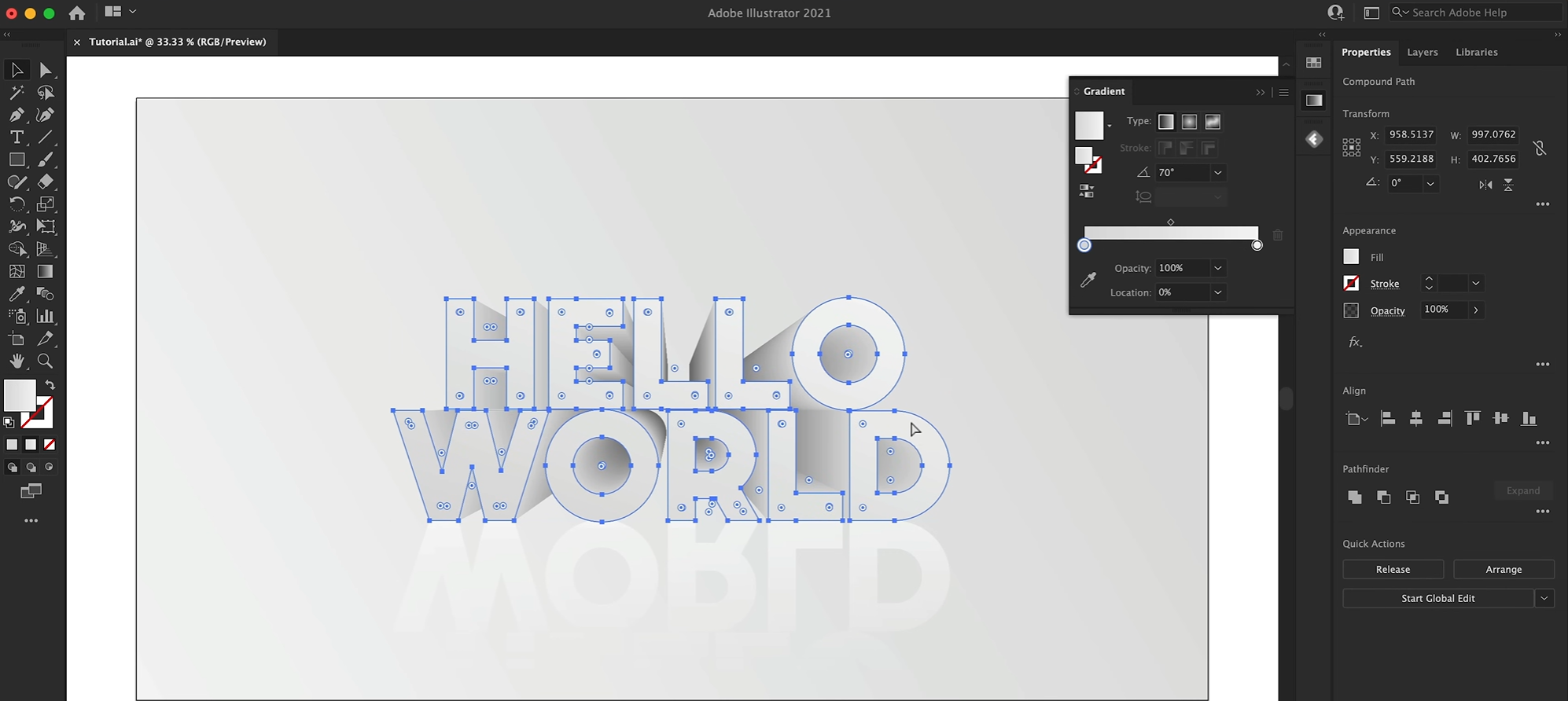
Step 5: Add a reflection and shadow
Select the gradient-filled front text, copy it, and choose "Edit" > "Paste in Place."
Open the Transform panel and use the vertical flip option to turn the copy upside down. Drag it beneath the main text while holding Shift to keep it aligned.
Adjust the reflection's gradient so it fades into the background. Set the bottom color stop to 0% opacity and reduce the overall opacity if needed.
To create a shadow, copy the main text and paste it in place. Change its fill to dark gray.
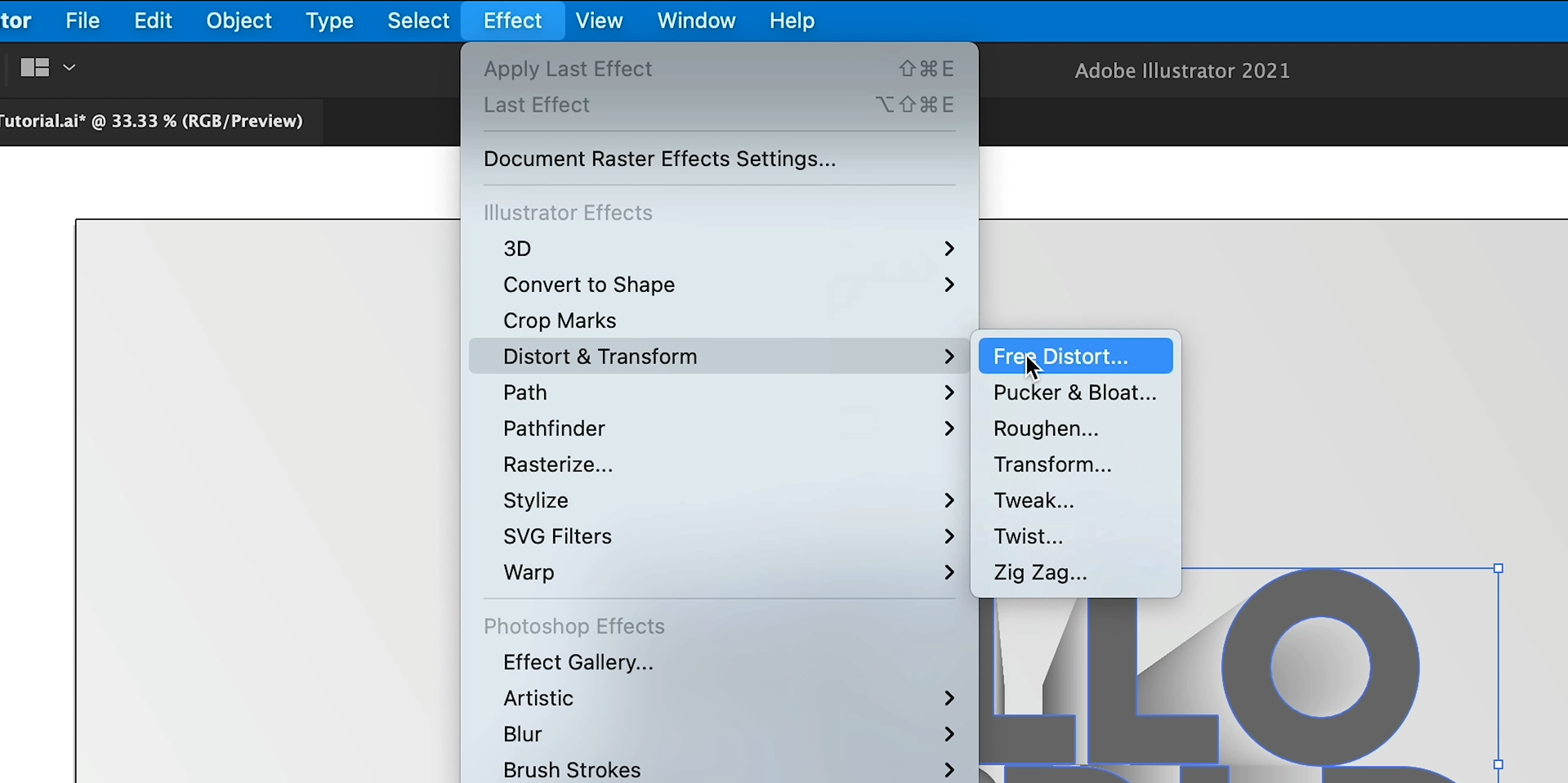
Go to "Effect" > "Distort & Transform" > "Free Distort" and adjust the corner points to flatten and stretch the copy into a shadow beneath the text.
Apply "Effect" > "Blur" > "Gaussian Blur" to soften the edges, then reduce the shadow's opacity.
Step 6: Refine and color the final design
Adjust the depth, gradient, reflection, and shadow until all elements work together. Use the "Gradient Tool" (G) to refine the gradient directly on the artwork.
Select the text elements and choose "Object" > "Group" to keep the design together.
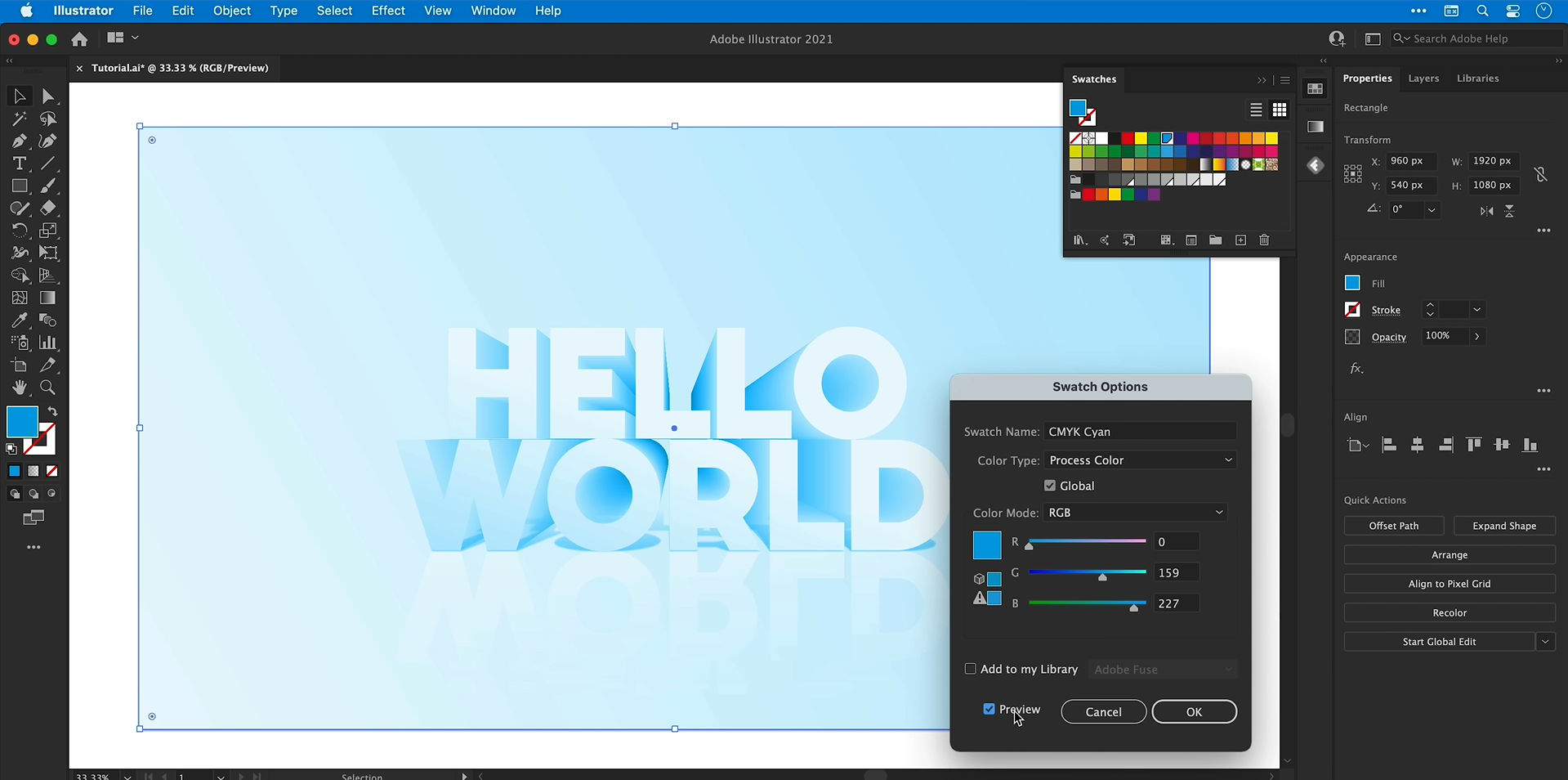
To change the overall color, draw a rectangle over the entire artboard and select "Object" > "Arrange" > "Bring to Front."
Apply a color to the rectangle, then open "Window" > "Transparency" and change the blending mode to Color.
Adjust the overlay's color and opacity to achieve your desired look. Lock or hide the overlay before making further edits to the text.
Benefits of using Illustrator for 3D text
Adobe Illustrator gives you more control over how your 3D text looks, from its shape to its colors and shadows. These features make it easier to create designs that fit different creative projects.
Built-in 3D tools
Illustrator has 3D effects that assist in transforming two-dimensional text into 3D artwork. You can modify how it looks without having to create every single detail manually.
Sharp vector shapes
Illustrator works with vector images, which means your text remains clear when you change its size. This is helpful when you are creating designs for various screen dimensions or printing options.
Editable depth and bevels
You can easily modify the depth and bevels to alter the thickness or intricacy of your text's appearance. These adjustments allow you to design various styles without needing to begin anew.
Easy materials and shadows
You can customize materials, lighting, and shadows to give your text more depth and dimension. These adjustments help the design look more realistic and visually balanced.
Great for logos and posters
3D text can make titles, logos, and promotional graphics stand out. Illustrator gives you the flexibility to customize the design to match your project's style.
Troubleshooting 3D text problems in Illustrator
Creating 3D text in Illustrator can occasionally result in issues with how it looks, the lighting, or making changes. These common issues are generally simple to resolve once you identify the settings that need modification.
3D text looks blurry or pixelated
Check the raster effects resolution in your document settings and use a suitable resolution when exporting. For designs that should stay clear at various sizes, opt for a vector format like SVG or PDF.
Extruded text looks too thick or distorted
Reduce extrusion depth and text thickness in 3D and material settings. You can also change the rotation and perspective to make the text clearer and easier to read.
Lighting makes the text too dark or flat
Modify the angle and strength of the lighting in the 3D and Materials section to enhance the visual effect. Adjusting the brightness and darkness helps showcase the dimension of every character.
Metallic materials do not look realistic
Adjust the material settings and lighting to create more visible reflections. Combining bright highlights with darker areas can make gold, silver, and chrome effects look more convincing.
Text becomes difficult to edit after applying 3D effects
Keep a separate copy of your original text before converting it into outlines or expanding its appearance. This gives you an editable version if you need to change the font, wording, or size later.
3D text looks different after exporting
Review the format and settings used when exporting to ensure that colors, transparency, and effects display correctly. Open the exported file to check the result, and select SVG or PDF for vector graphics or PNG and JPG for raster images based on your requirements.
Bonus tip: Turn simple text into stunning 3D designs with AI
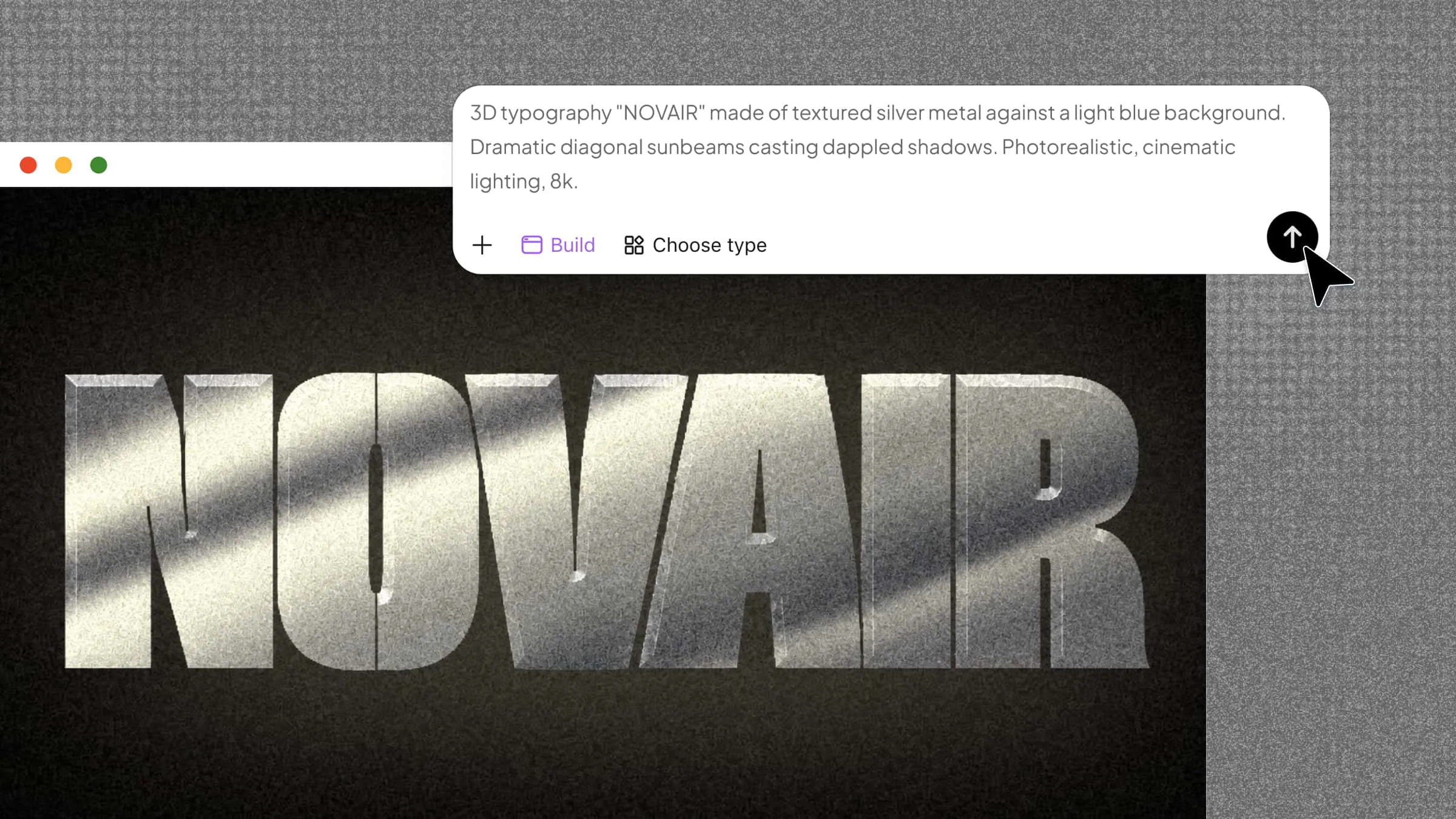
Creating 3D text in Illustrator gives you control over fine details, but learning its tools can take time, especially for beginners. If you want to explore 3D typography through a more prompt-driven workflow, Kimi Build lets you turn your ideas into dimensional lettering by describing your preferred style, colors, materials, and visual effects. You can experiment with different looks, refine the results with targeted changes, and create 3D text for posters, logos, social media graphics, and other creative projects.
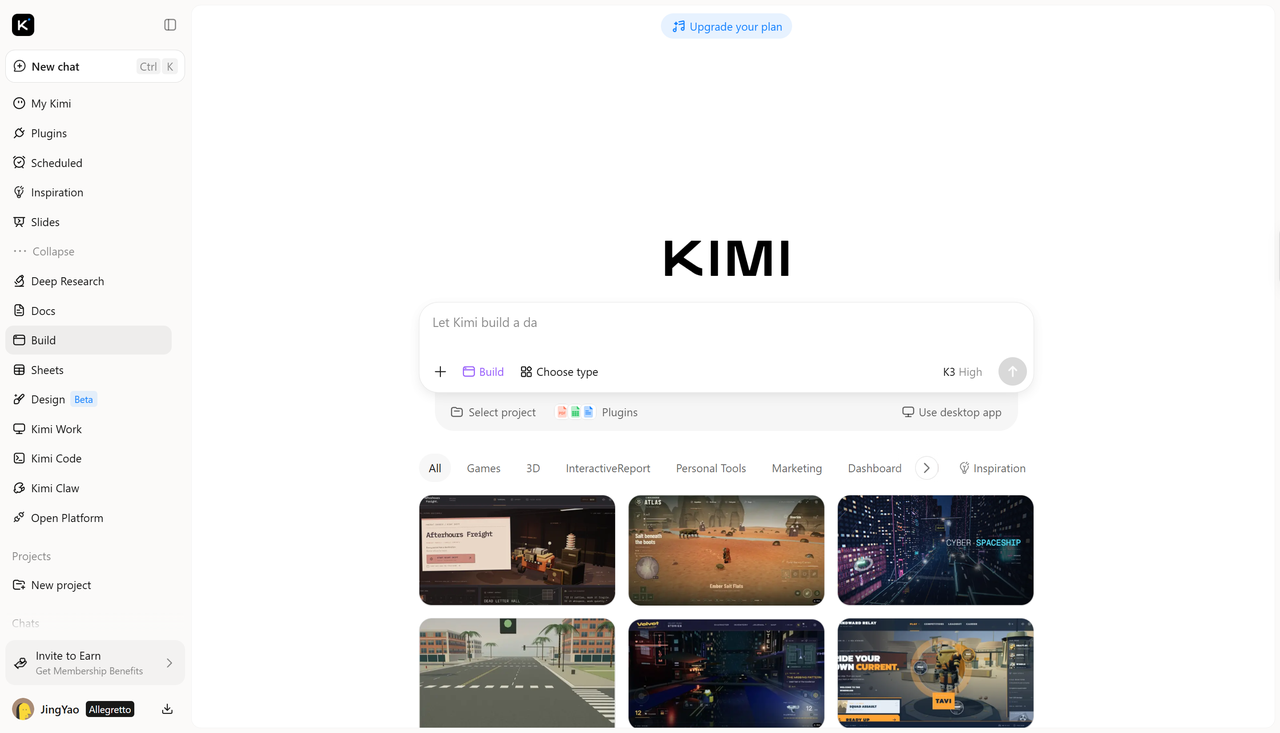
How to use Kimi Build for 3D text effects
Follow these simple steps to create and refine your 3D text designs using Kimi Build.
Step 1: Describe your 3D text design
Start by explaining the text you want to create, including its wording, visual style, colors, and intended use. Give Kimi Build clear details about the 3D depth, lighting, shadows, and background so it can generate a design that matches your idea. You can refine the prompt later to adjust the appearance.
A 3D text design with the phrase SO FAR SO GOOD" in bold isometric 3D typography, letters extruded deep with fine horizontal line shading layers creating a ribbed wireframe look, two stacked lines of text, limited color palette of off-white paper background and deep teal, retro Swiss grid layout with tiny registration marks and crop marks on the edges, minimalist vintage print style, flat graphic design, high contrast, sharp vector edges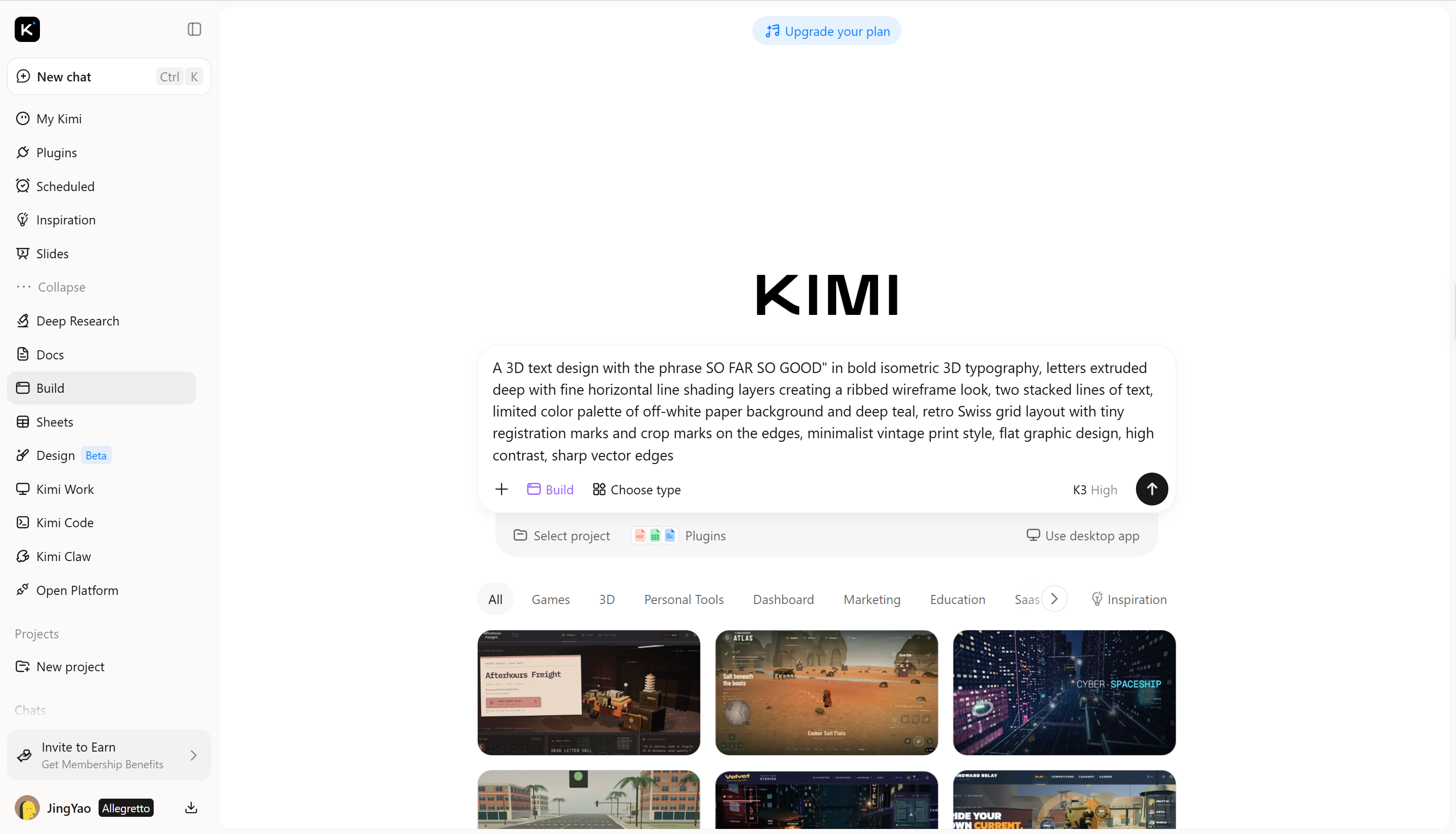
Step 2: Edit and refine the 3D text
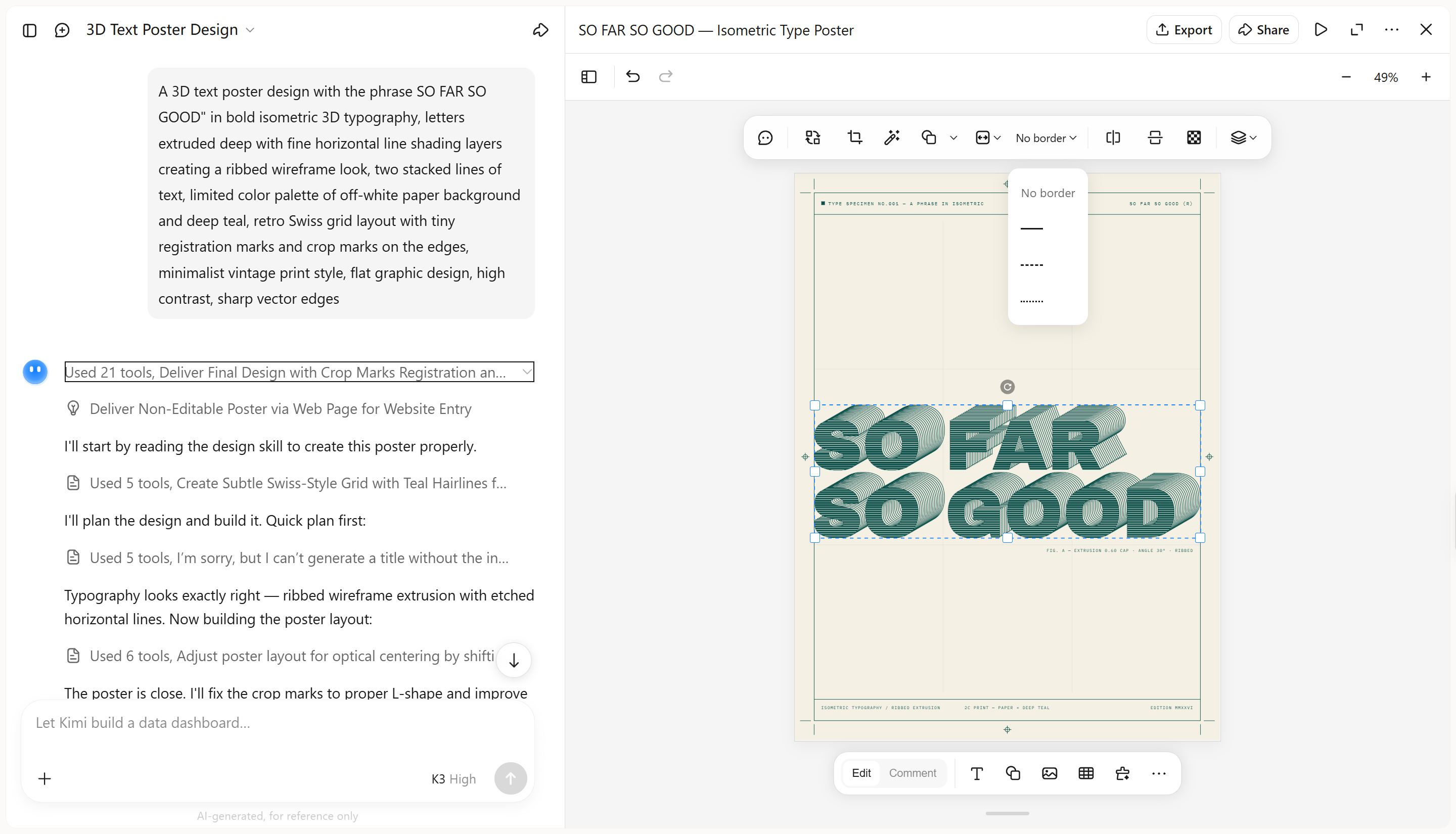
Once Kimi Build creates your design, inspect the depth, shadows, and letter shapes to see how well they match your concept. Select "Edit" to adjust individual elements manually, leave comments on specific areas for AI-assisted revisions, or describe the changes you want in the chat box. Refine the details until the lettering fits your intended style and use case.
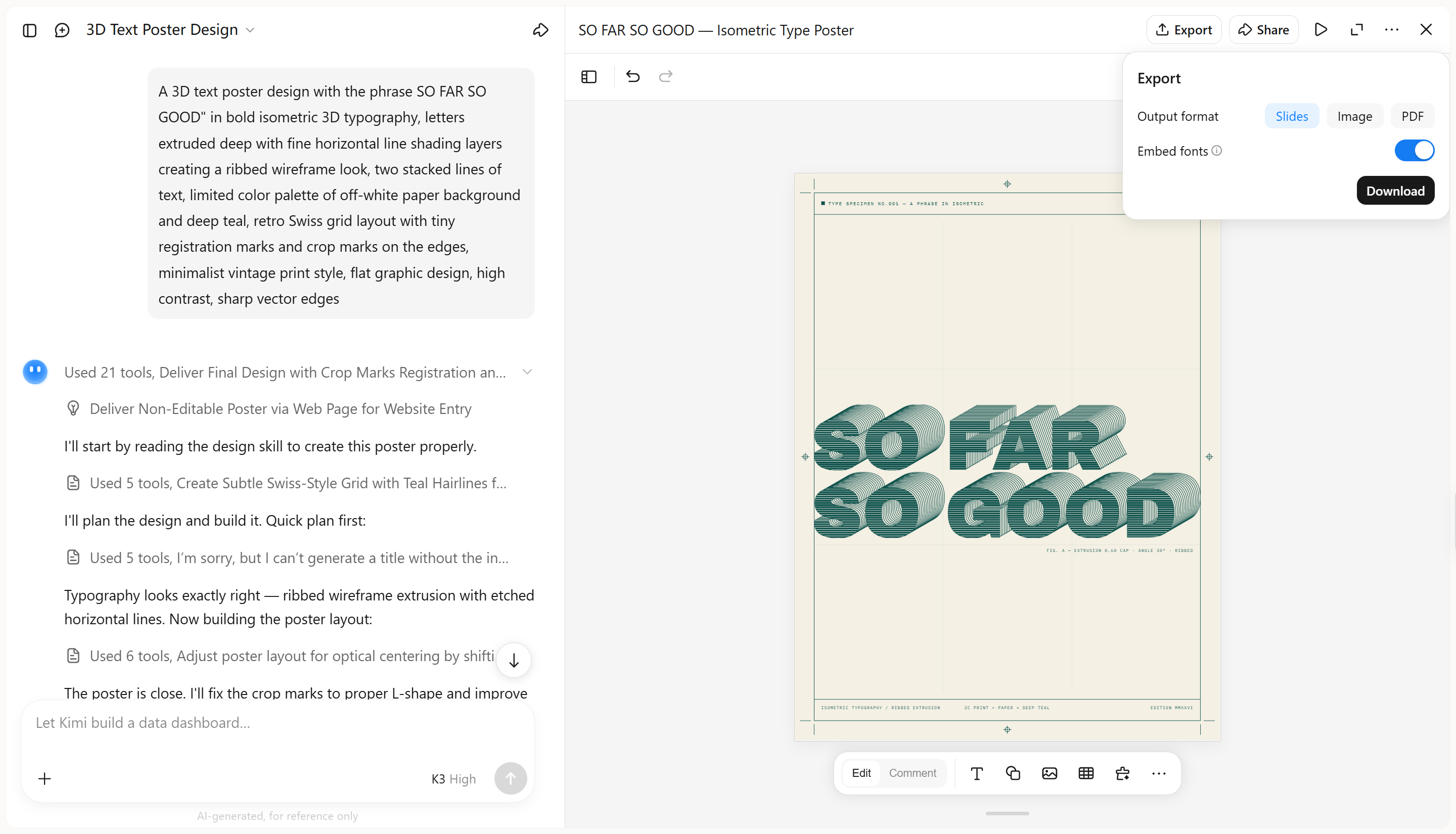
Step 3: Review and export your design
Review your 3D text design to ensure the wording is readable, the depth looks clear, and the colors and shadows work well together. Once you're satisfied with the result, export or download the design in a suitable available format for your intended use.
Key features of Kimi Build
Transform simple prompts into dimensional lettering
Turn a word, slogan, or title into stylized 3D typography by describing the desired shape, color palette, surface finish, and visual mood. Kimi Build helps translate your ideas into distinctive lettering without requiring you to construct each effect manually.
Edit designs through conversation, comments, and manual controls
Make changes in the way that suits your workflow. Describe revisions in chat, comment on specific design elements for targeted changes, or adjust details manually. Refine typography, materials, colors, lighting, and depth while keeping the rest of your design intact where possible.
Experiment with different 3D text styles
Kimi Build lets you upload a reference image and use prompts to recreate its 3D typography style with high visual fidelity. Capture distinctive details such as letter shapes, extrusion depth, material finishes, lighting, and shadows to bring the reference design closer to your intended result.
Restore earlier versions and export your designs
Keep track of design iterations and revisit previous versions when you want to undo changes or compare earlier results. When your design is ready, export it in supported formats such as PNG and JPG for further editing or sharing.
Conclusion
Creating 3D text in Illustrator gives you detailed control over depth, colors, gradients, and shadows, making it a flexible option for customized typography. If you're new to 3D design or want to explore different styles more easily, Kimi Build offers a beginner-friendly way to create 3D text through prompts and refine the results with quick edits. Choose the workflow that best matches your experience, design preferences, and creative goals.