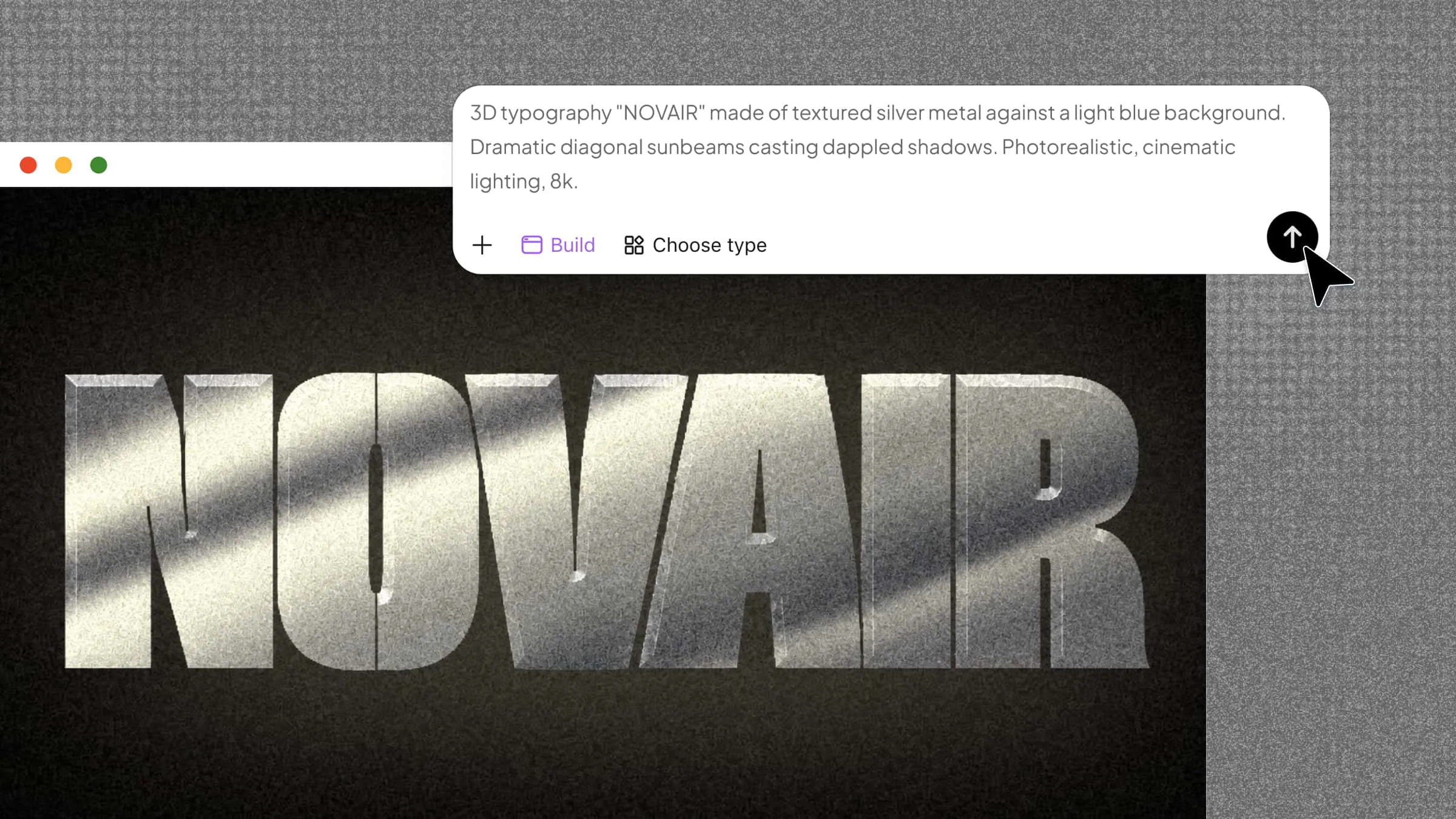
Creating realistic 3D text in Photoshop can be challenging, especially when you need smooth edges, convincing depth, and natural-looking shadows. Uneven textures, misaligned angles, and incorrect lighting can make your text look flat or unrealistic. Adjusting these details manually can also take time, particularly for beginners. This guide walks you through the steps to make 3D text in Photoshop and achieve a polished, professional-looking result.
How to make 3D text in Photoshop
Photoshop lets you create 3D text by duplicating text layers and applying layer effects to build depth and dimension. You can adjust the extrusion, colors, shadows, and highlights to achieve your desired look while keeping your design organized and editable. Follow the steps below to learn how to make 3D letters in Photoshop, even if you're new to the process.
Step 1: Create a Gradient background
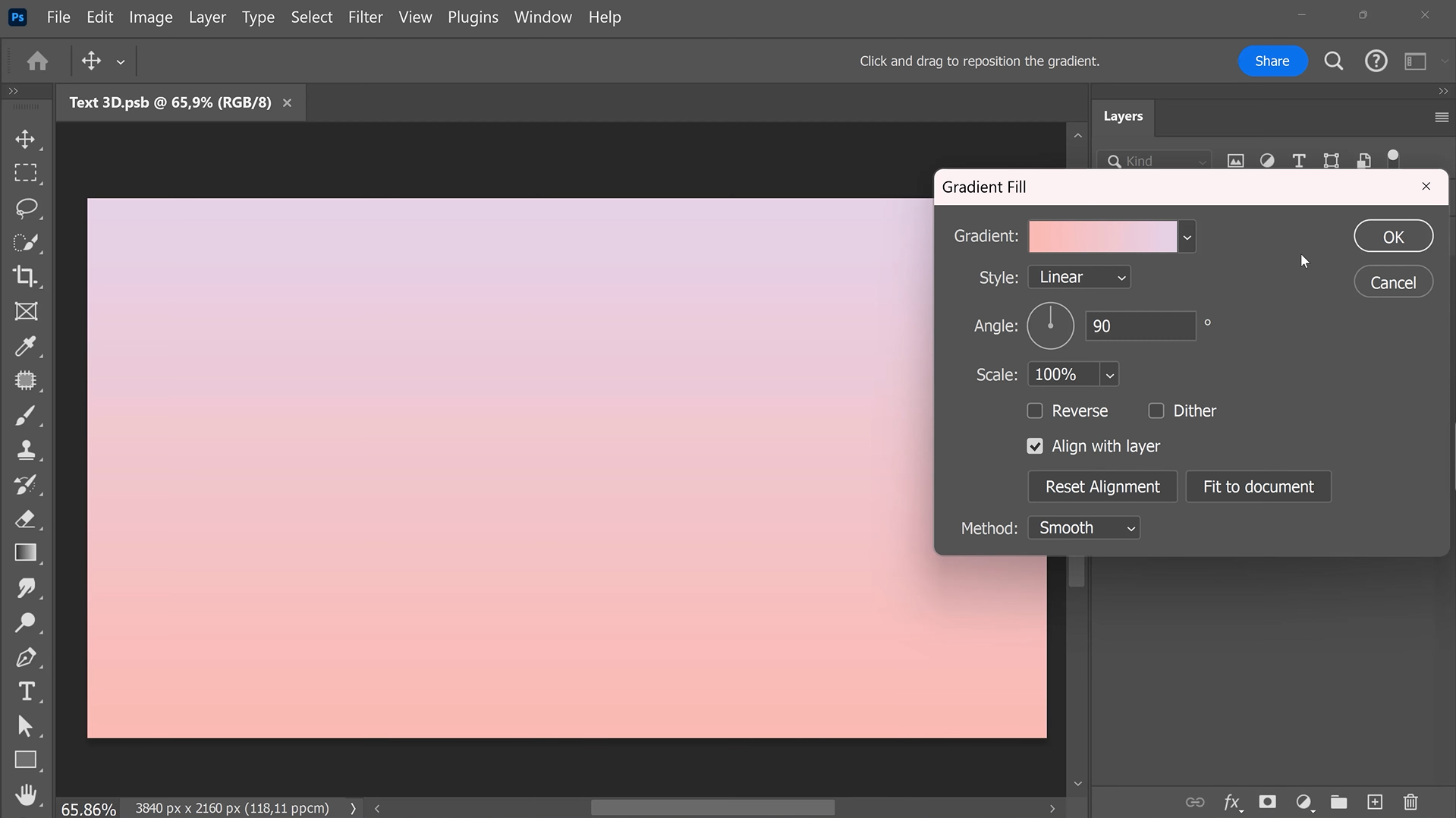
First of all, open the "Layers" panel and click "New Fill" or Adjustment Layer". Select "Gradient Fill", choose your colors, and click "OK" to apply the background.
Step 2: Add and position your text
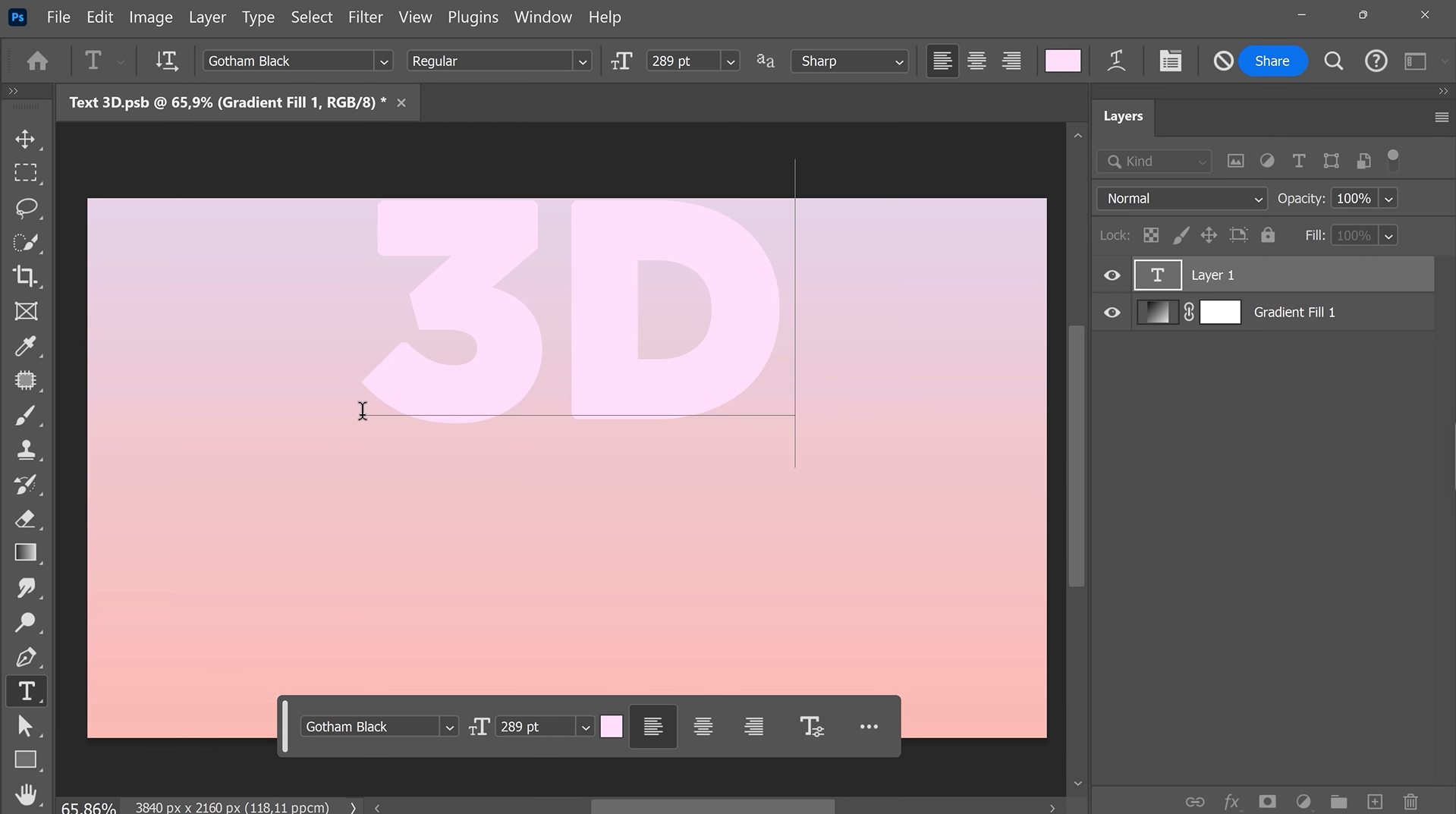
Select the "Text Tool," type your desired word, and choose a bold font. Then use the "Move Tool" (V) to center the text on your canvas.
Step 3: Apply a drop shadow to your Text
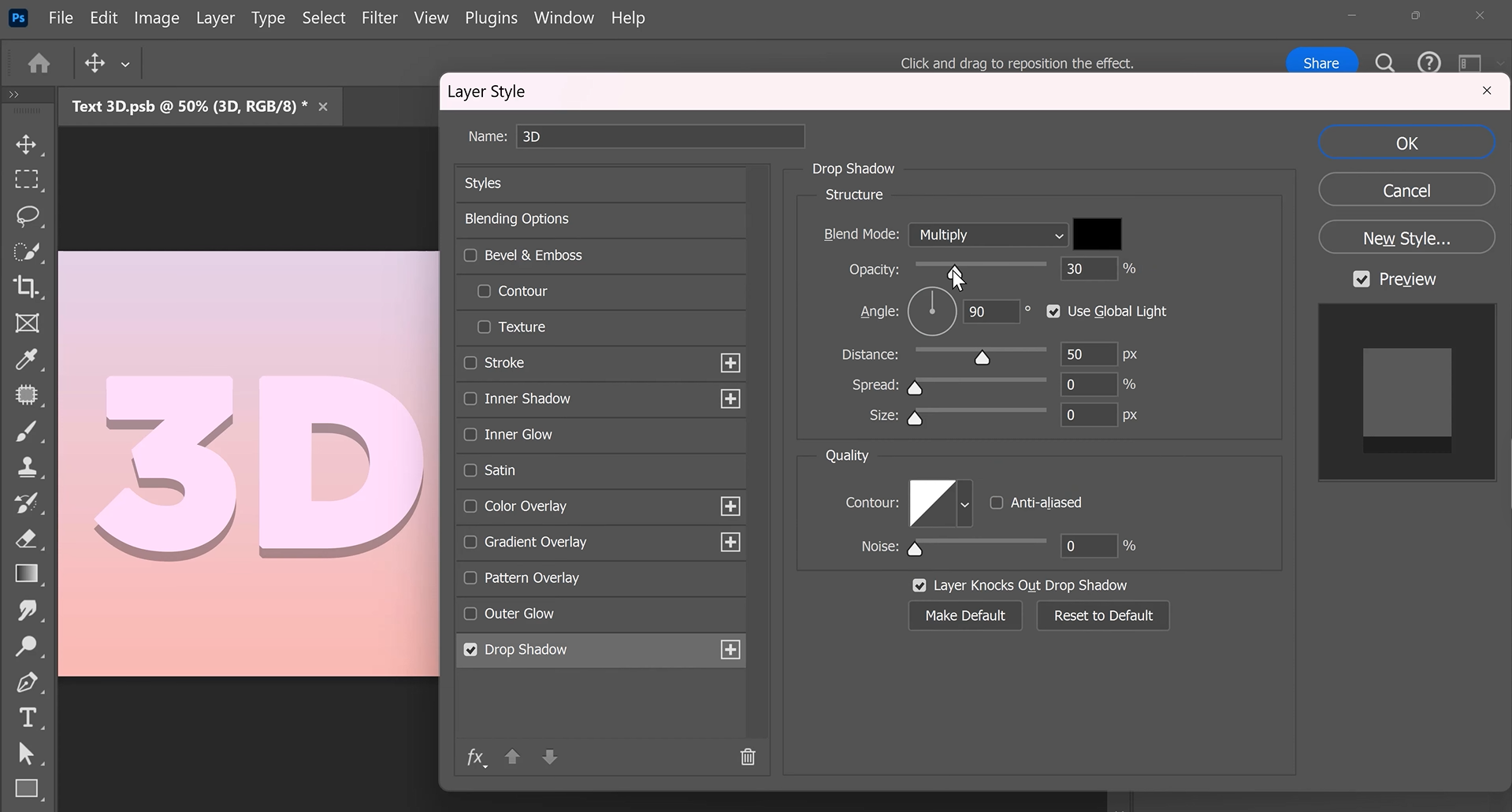
Next, double-click the text layer to open the "Layer Style" panel and enable "Drop Shadow." Set the opacity, distance, size, spread, and angle. Click "OK" to apply the effect.
Step 4: Set up the text transformation
The next step is to select your text layer and press Ctrl + T. At this moment, tap the Up Arrow once, then press "Enter" to save the change. This sets the direction for the 3D depth.
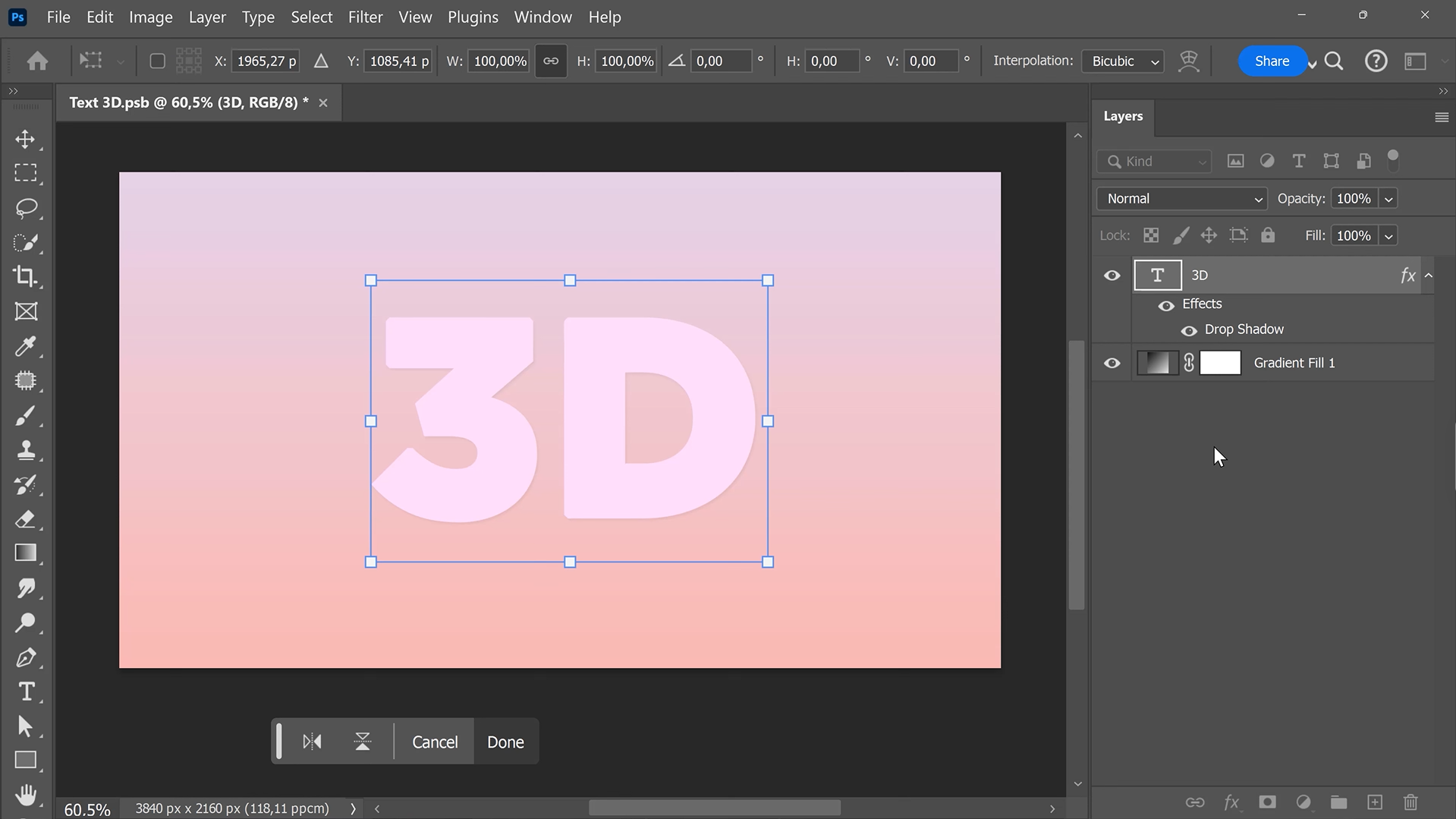
Step 5: Create the 3D text depth
Now, hold Ctrl + Alt + Shift and repeatedly press T to create duplicate layers. Keep going until your text has enough depth. Instantly, you have to select all the duplicates, press Ctrl + G, and group them.
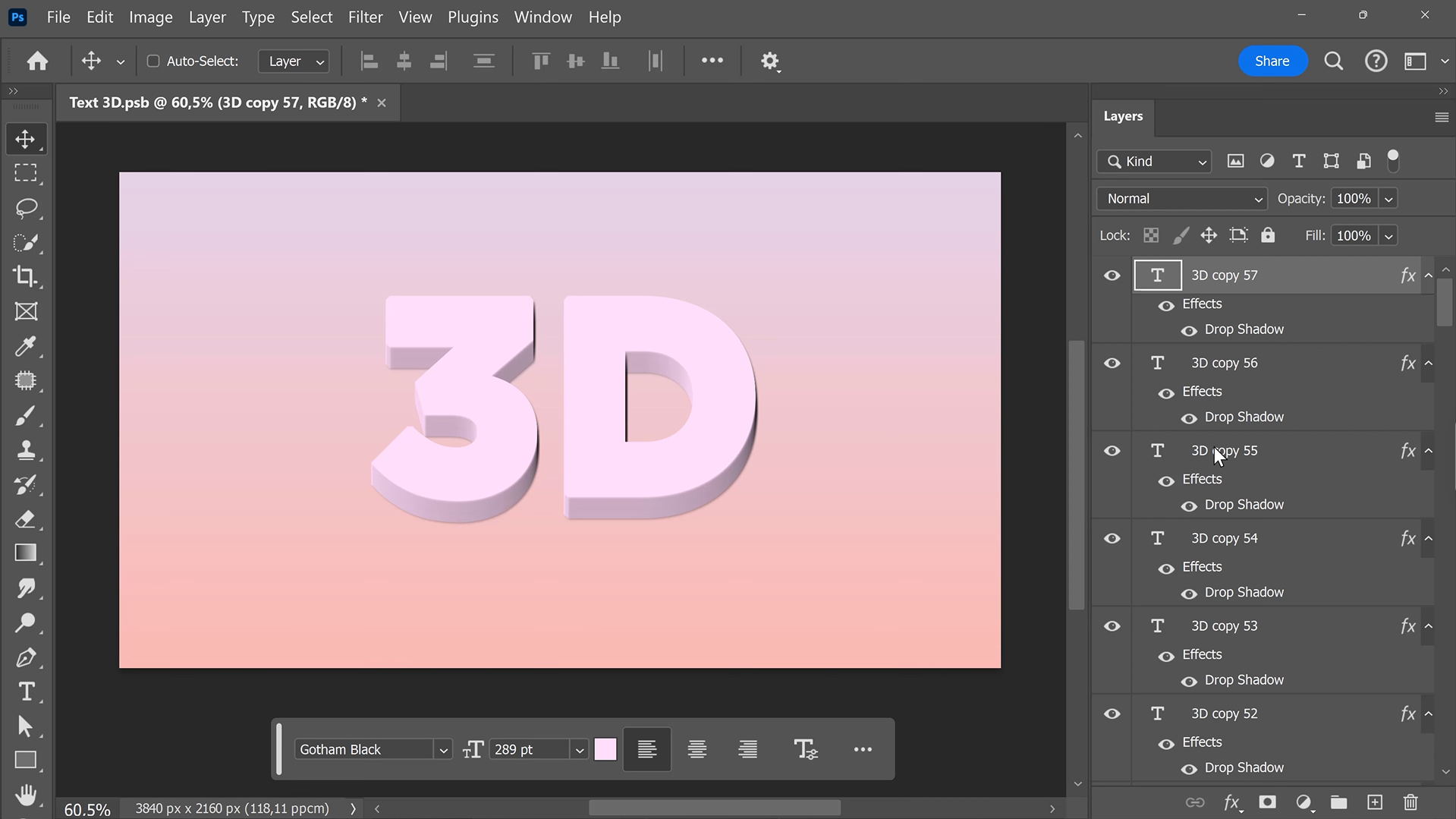
Step 6: Add the final drop shadow
In the last step, double-click the new group to open "Layer Styles". Enable "Drop Shadow" and adjust the settings until the 3D text stands out against the background.
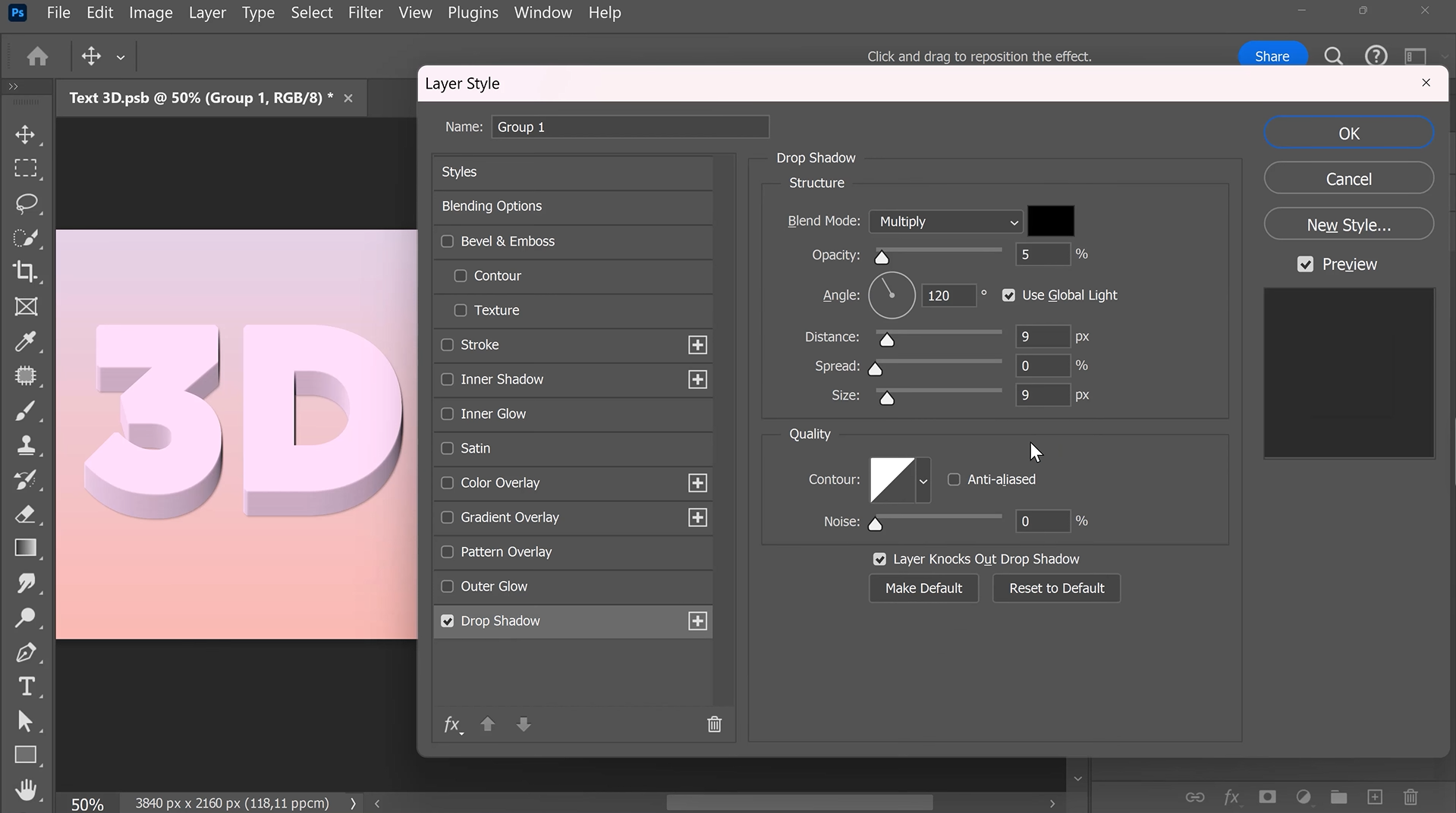
Different types of 3D text in Photoshop
Photoshop allows you to create a variety of 3D text effects, depending on the style you want to achieve. Some effects emphasize depth and dimension, while others use lighting, textures, and reflections to create a more realistic or artistic look. Below are six popular 3D text styels in Photoshop you can try in your designs.
Extruded 3D text
This type of text gives letters visible depth. It makes words look thick and solid. You can create this effect by duplicating text layers in the background and shifting them slightly. Darker side layers help separate the front face from the depth. This 3D text Photoshop style works well for posters, gaming graphics, and bold headlines.
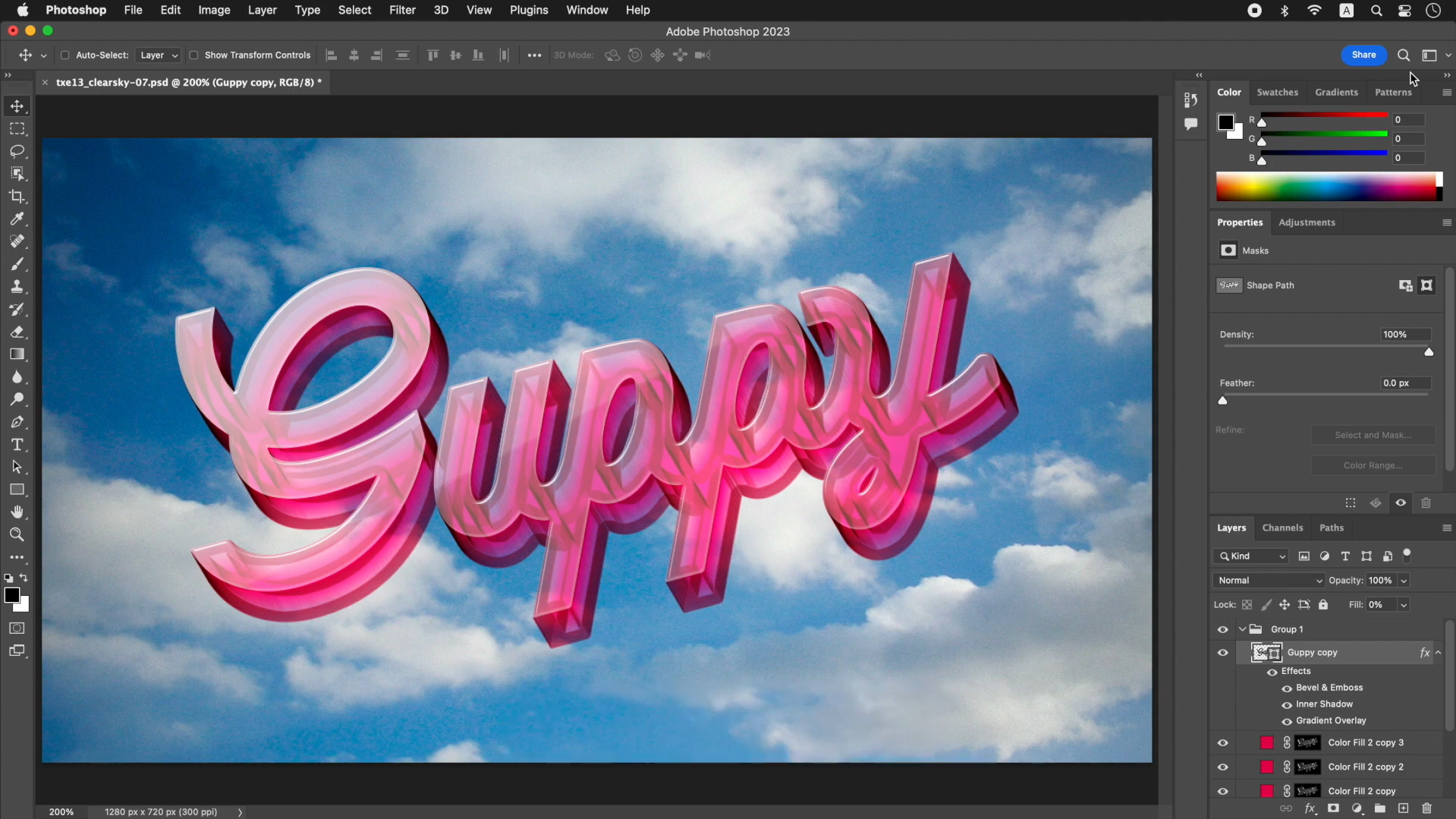
Beveled text
The beveled text has angled edges. It makes letters look raised. In Photoshop, you can create this effect with the Bevel & Emboss layer style. Later on, it provides an option to adjust the highlights and shadows for control. It works well for logos, titles, and polished graphic designs.
Inflated text
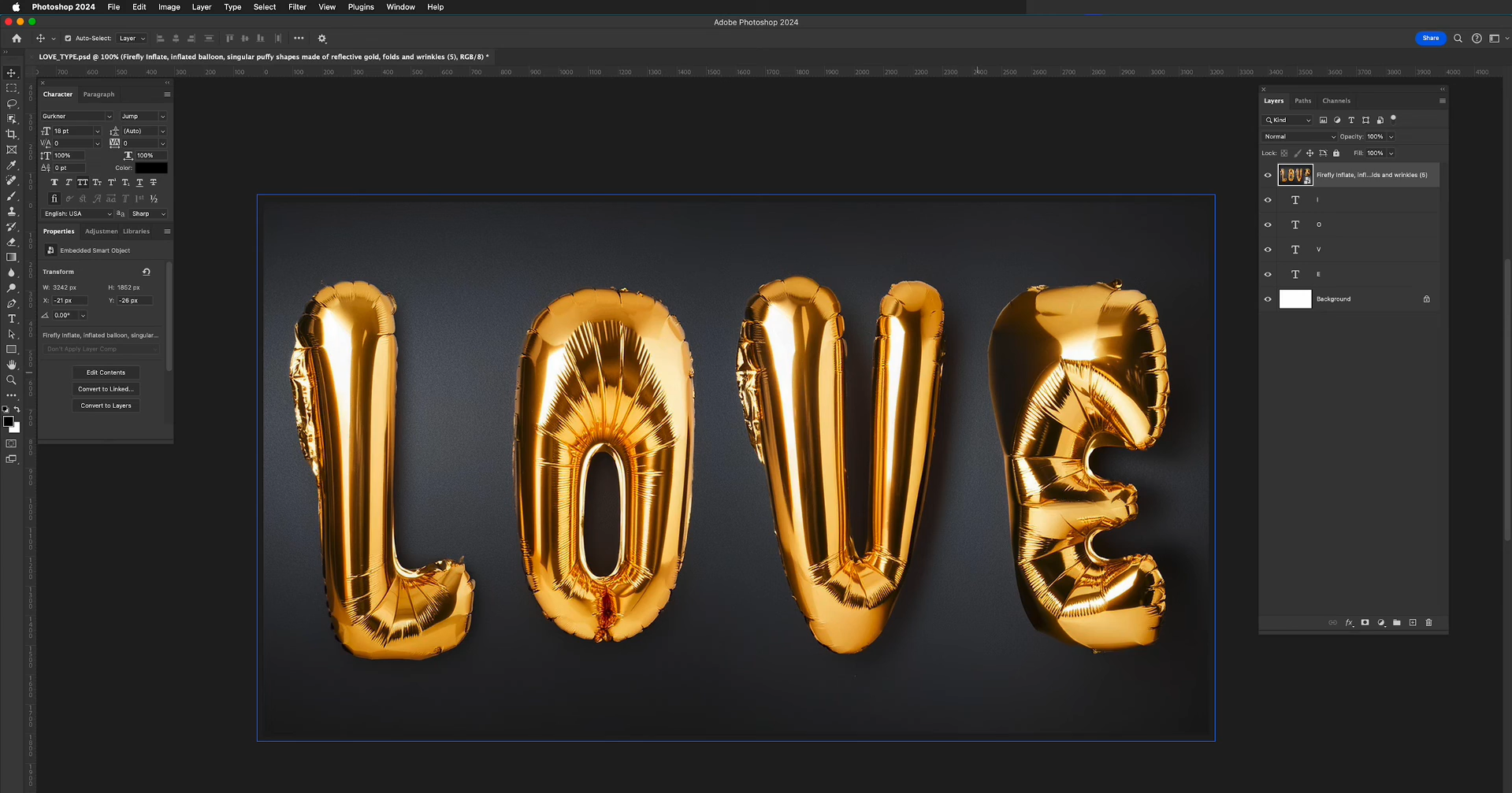
Basically, the inflated text gives letters a soft, rounded, and balloon-like appearance. You can create it by using gradients, highlights, shadows, and rounded shapes. Usually, this style suits social media graphics, product promotions, and creative posters.
Metallic text
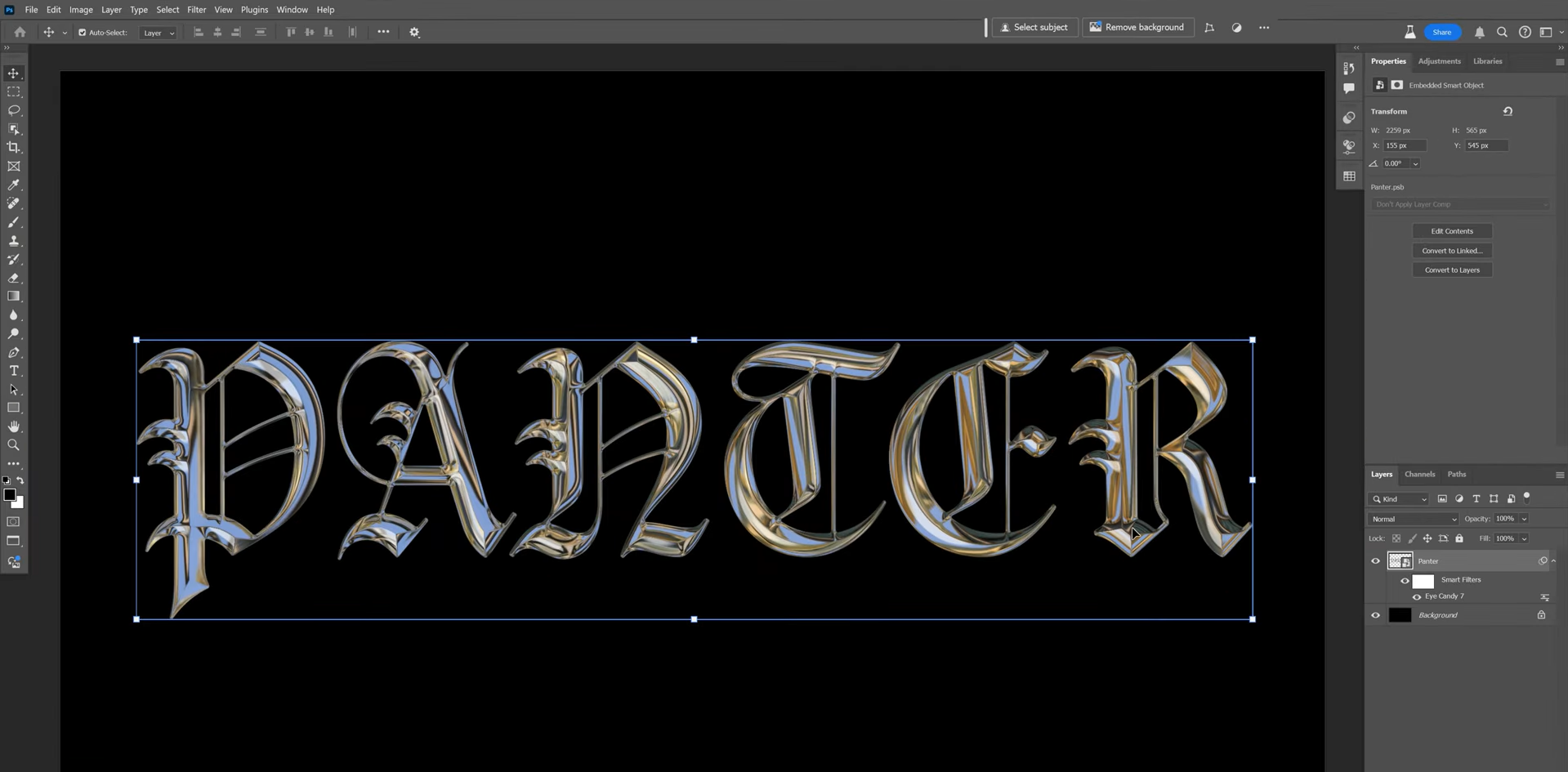
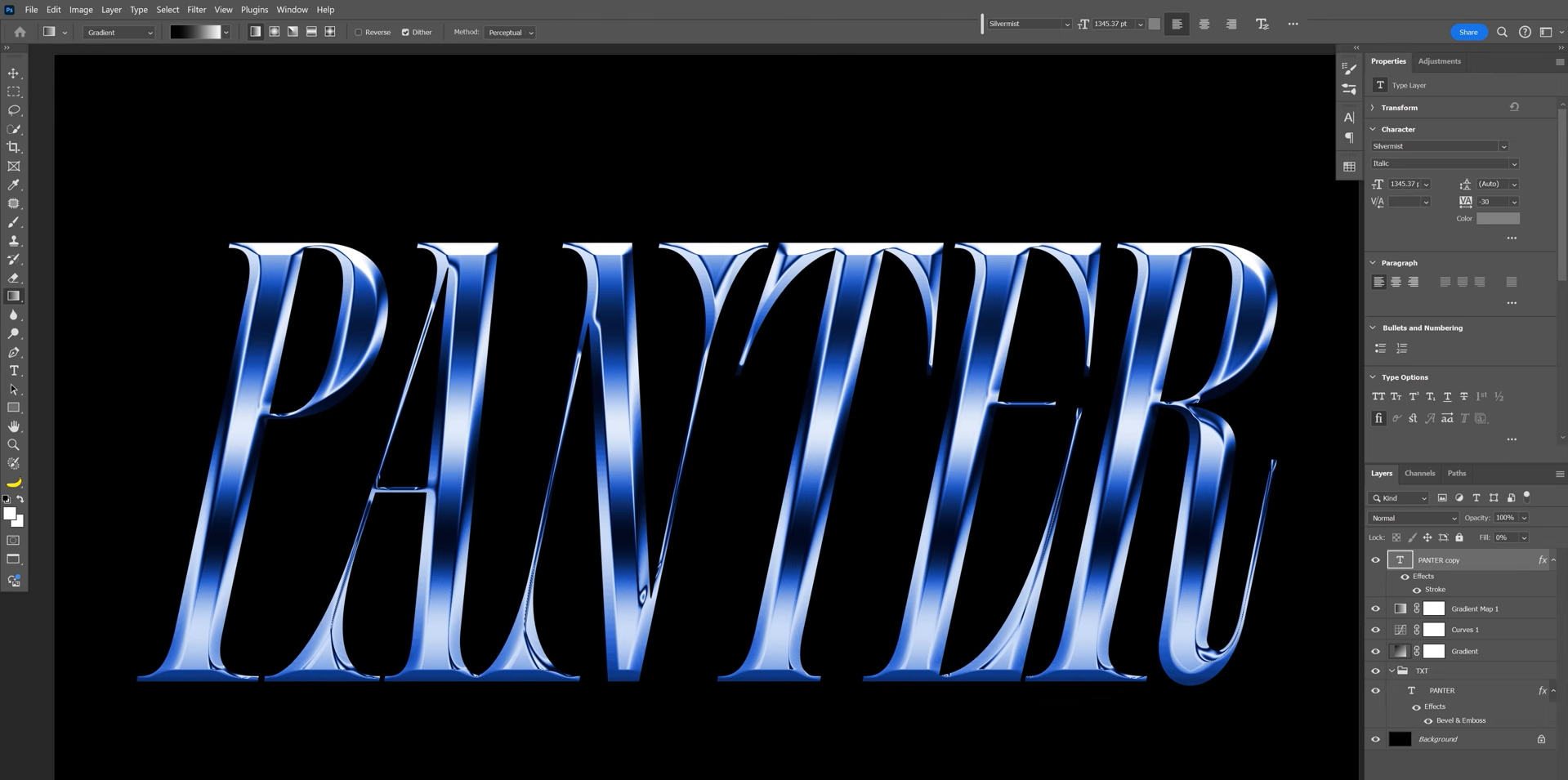
With metallic 3D text in Photoshop, you can make your letters look like polished steel, gold, or silver. With Photoshop, you can use a gradient to create the look of reflected light. This effect works well for luxury branding, gaming titles, and bold promotional graphics.
Glass text
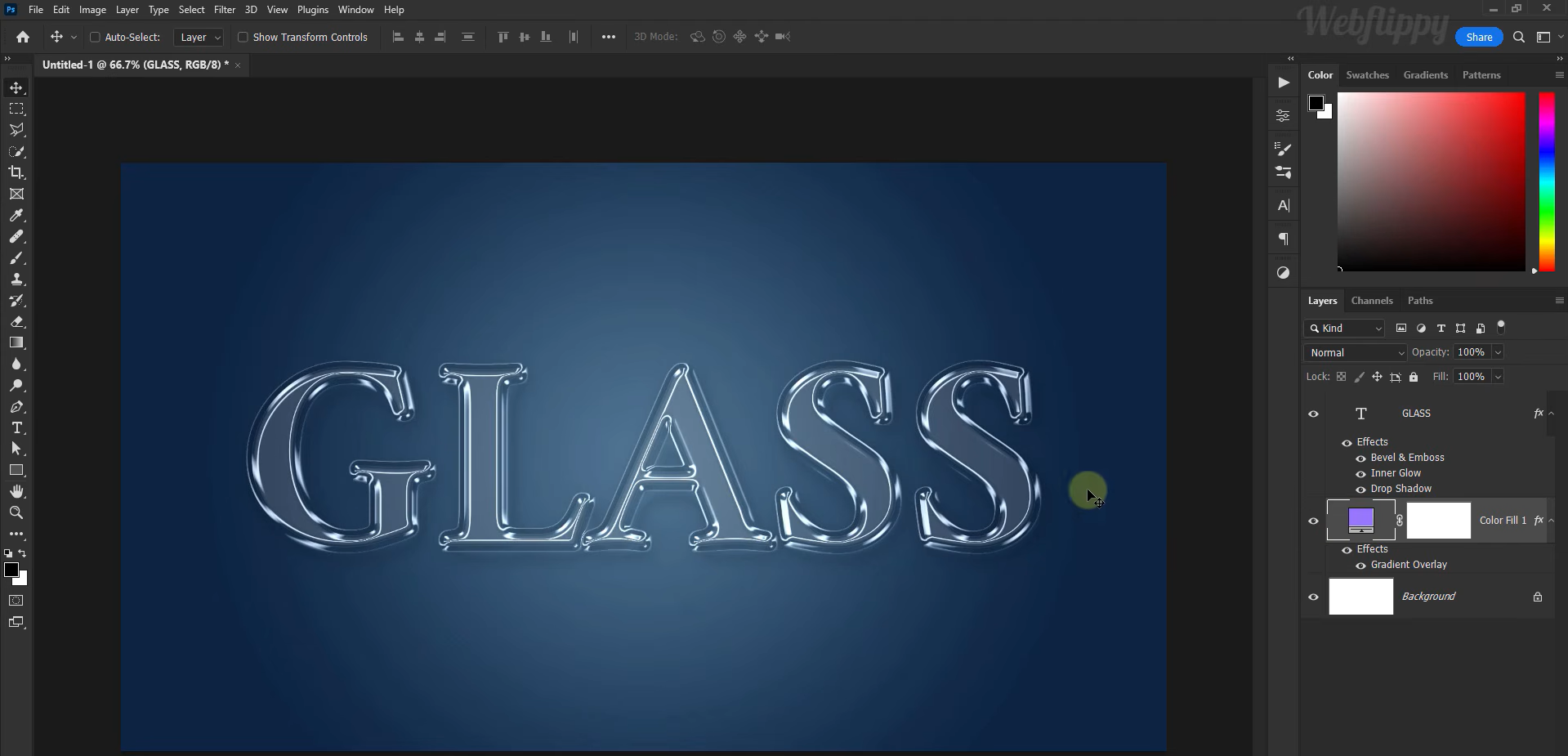
This 3D text Photoshop effect gives your letters a glossy appearance. You can build this effect with subtle highlights and carefully placed shadows. Mostly, it suits personal branding templates, technology graphics, and promotional posters.
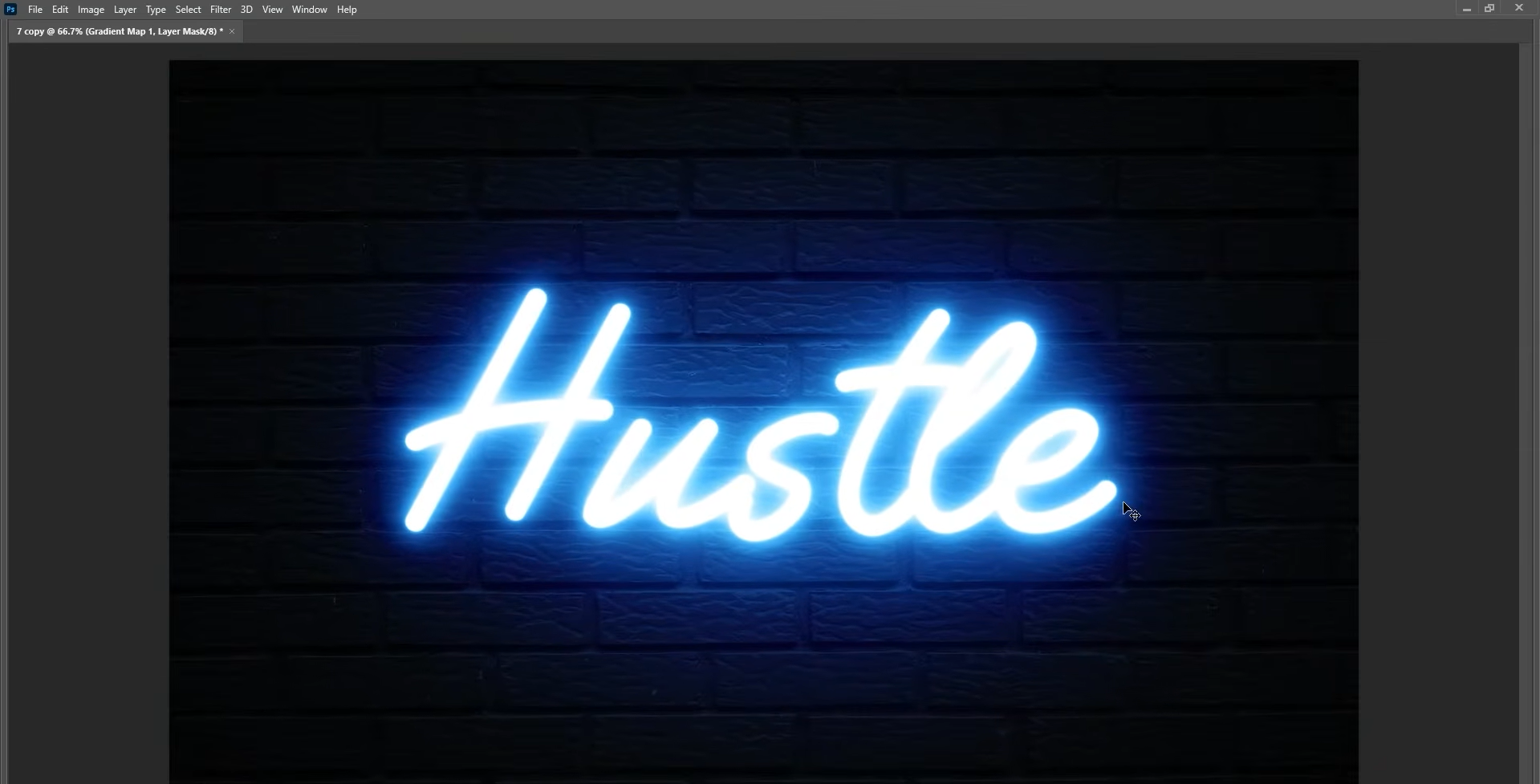
Neon glow text
With neon text, your letters look like glowing tubes against a darker background. You can create it by starting with a bright text color and then applying Outer Glow. This effect is ideal for music posters, gaming graphics, and nightlife promotions.
Practice techniques for better 3D text in Photoshop
Sometimes, small adjustments can make a big difference in the appearance of your 3D text. The tips below will help you create 3D text in Photoshop that looks balanced.
Choose bold fonts for stronger depth
First of all, take a start with a bold font that has clear letterforms. These letters give the 3D effect more room to show. Thin fonts can work too. However, their depth may be harder to see. If you're new to this effect, you can use a bold sans-serif font first.
Adjust extrusion depth to match the design
The right text depth depends on the size and purpose of your text. A small extrusion works well for simple designs, while deeper sides create a more pronounced 3D effect. Add depth gradually and check how the text looks against the background as you go.
Use lighting to emphasize the 3D effect
Usually, the lighting helps show the difference between the front of your text and its sides. Small highlights on the edges keep the opposite sides darker. In Photoshop, you can adjust lighting through Bevel & Emboss. You need to keep the light direction consistent.
Combine contrasting colors for better visibility
The selection of the right color matters a lot. You have to choose colors that clearly separate the front face from the extruded sides. For example, pair bright yellow text with dark orange sides. This contrast makes the depth easier to see.
Add shadows to separate text from the background
A soft drop shadow can help your text stand out. You can adjust the opacity, distance, and size. Make sure to adjust all these elements. So the letters feel separate from the background. It's best to keep the shadow subtle for a clean look.
Keep perspective and spacing consistent
Always extrude the sides in the same direction and at the same angle across every letter. Generally, uneven offsets can make the text look distorted. Furthermore, you need to leave enough space between letters. So that their shapes remain clear.
Bonus tip: Turn simple prompts into eye-catching 3D text with AI
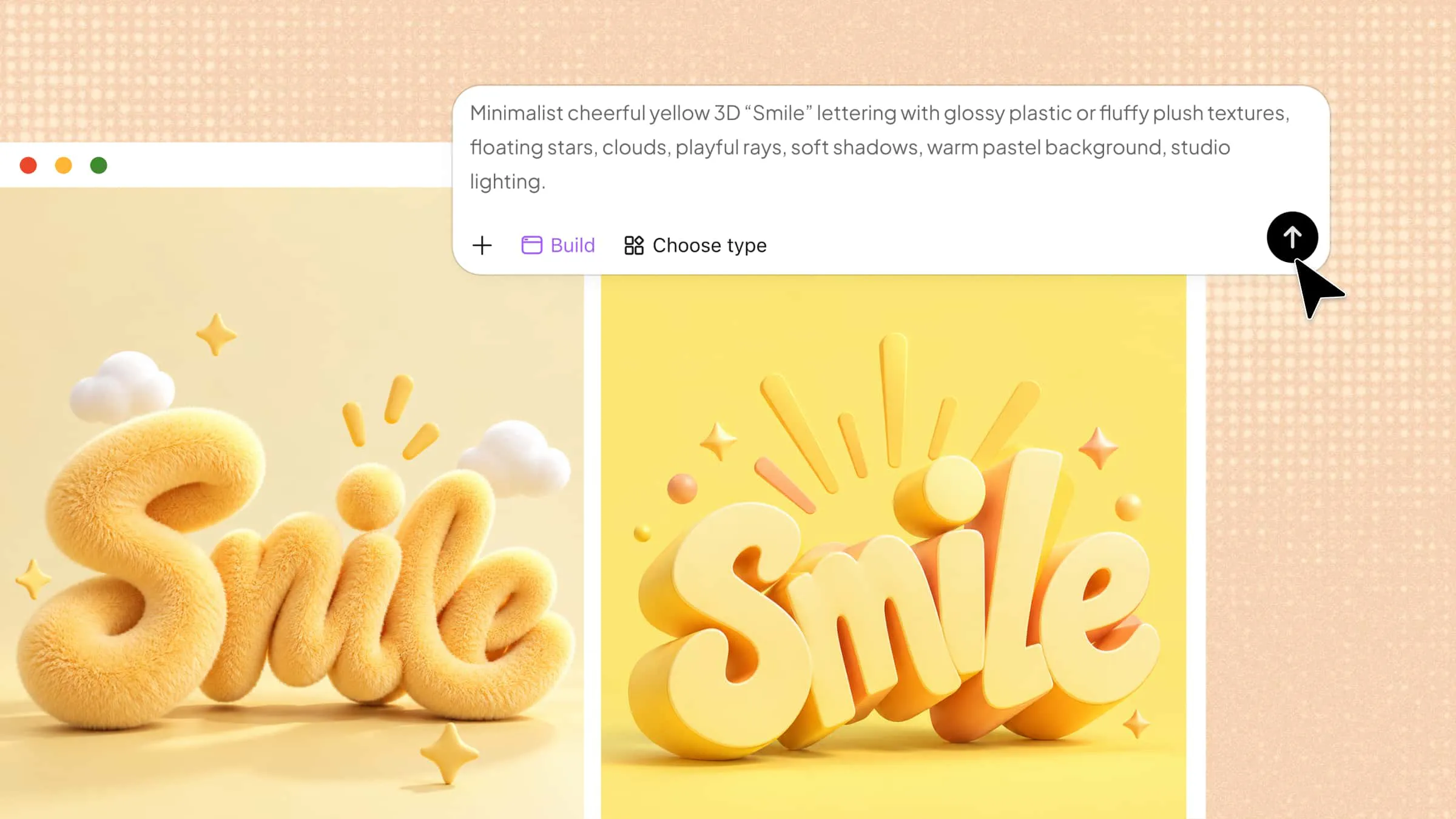
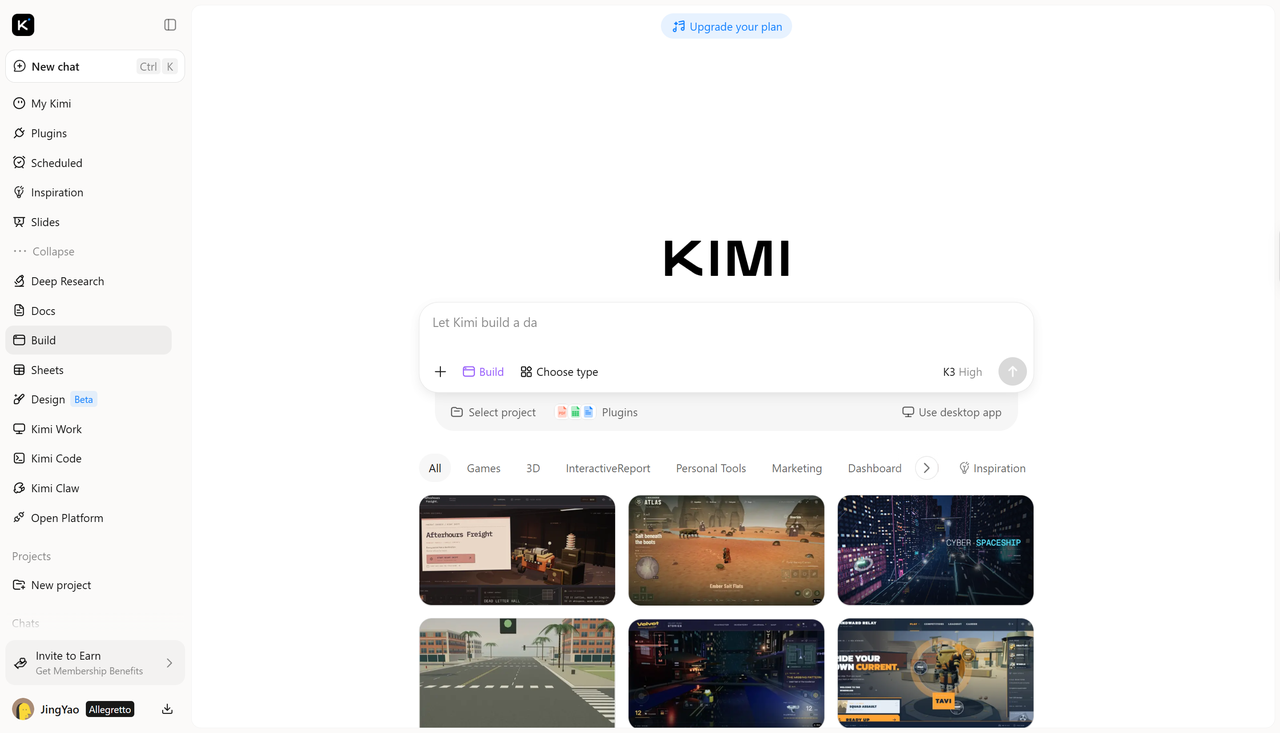
Creating 3D text in Photoshop can take time, especially when you need to adjust extrusion, lighting, and shadows manually. If you're looking for a simpler approach, Kimi Build offers a beginner-friendly method. Simply describe the 3D text you want or upload a reference image to guide the style, colors, depth, and lighting. It generates a 3D text design based on your input, without requiring you to adjust every effect by hand. If you want to make changes, you can provide additional instructions through chat.
How to create 3D text with AI in Kimi Build
Here are simple, straightforward steps that enable you to create 3D text in Kimi.
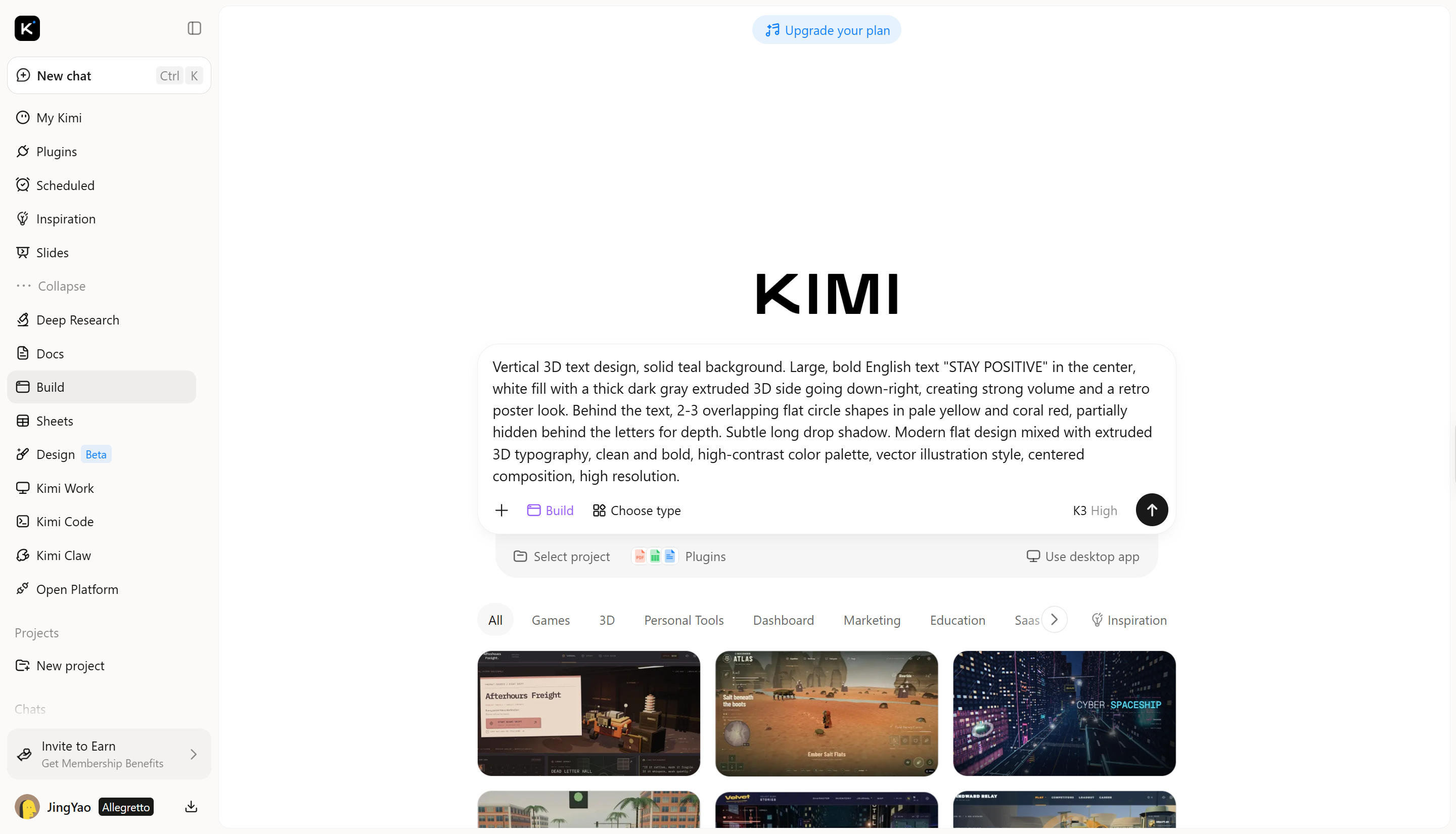
Step 1: Describe your 3D text design
Open Kimi Build and start a new project. Enter a detailed prompt describing your desired text, style, colors, background, and lighting. You can also upload a reference image to guide the visual style and help Kimi Build generate a design closer to your vision.
Step 2: Edit and refine the 3D text
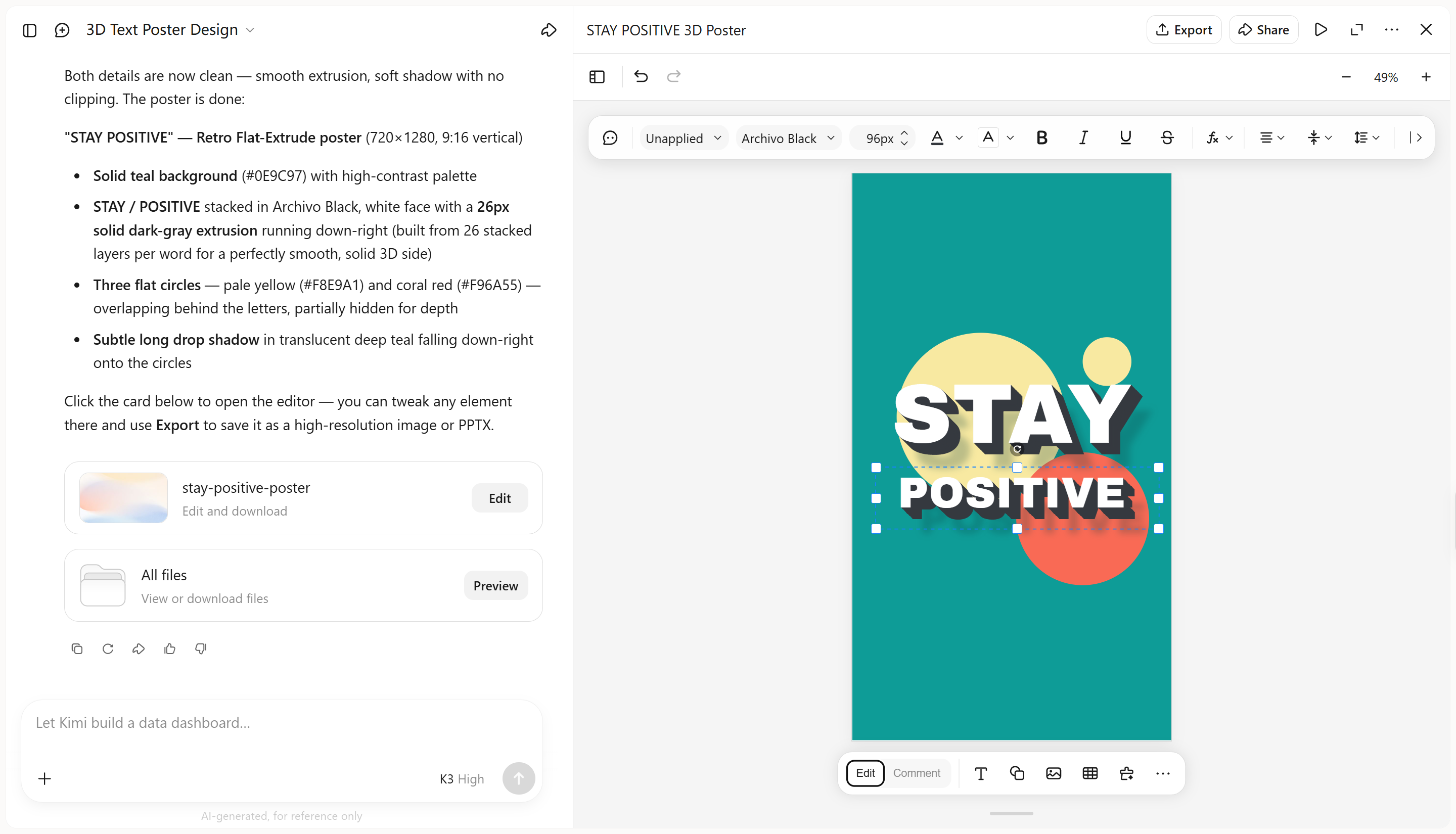
Click "Edit" to make manual adjustments, comment on specific elements to ask AI to modify them, or enter prompts in the chat box to refine the lettering style, colors, lighting, and other visual details.
Step 3: Review and export your design
Make sure to check the final text for spelling, readability, and visual balance. If the result meets your needs, use the download option to save it.
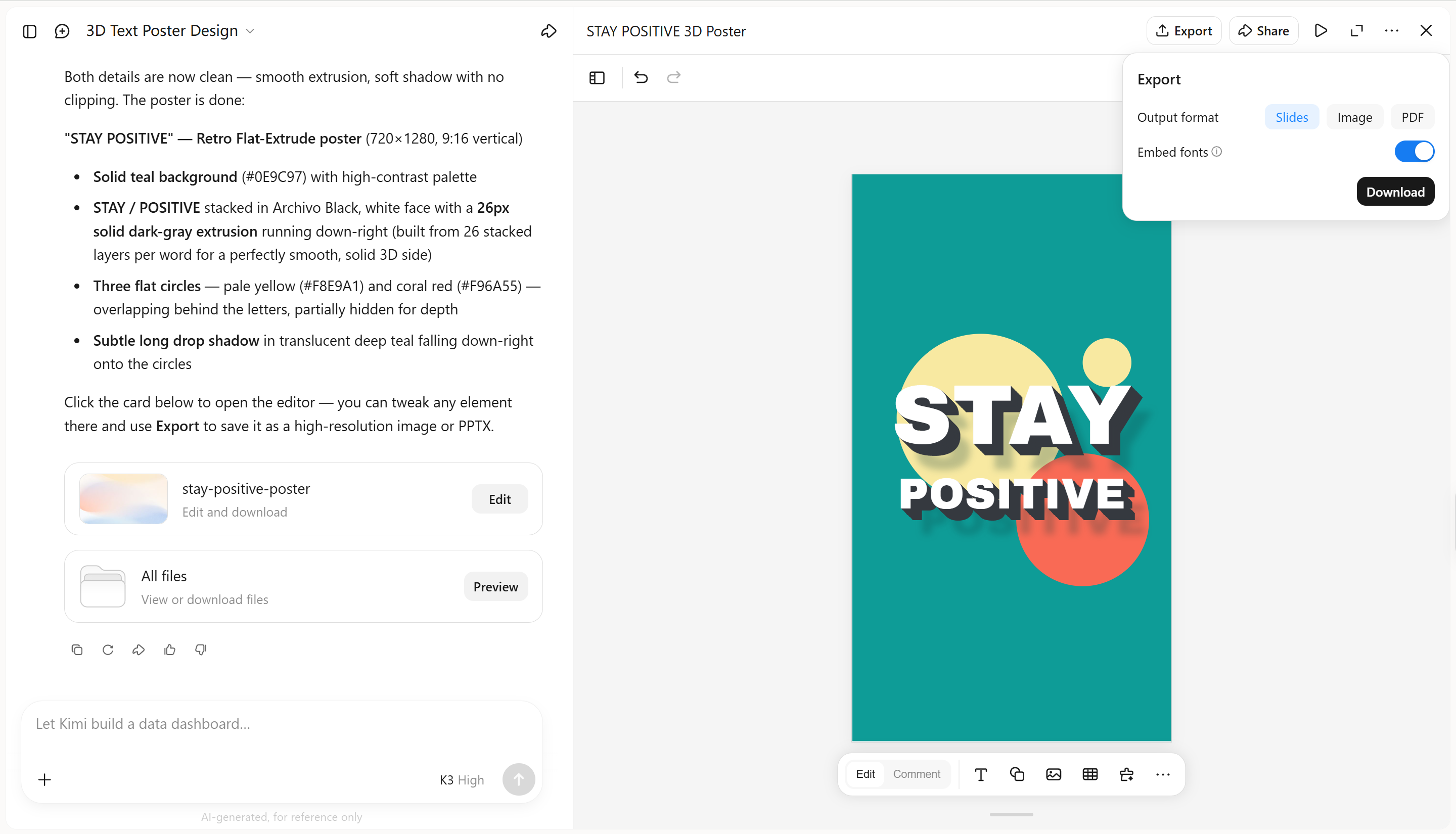
Key features of Kimi Build
Generate dimensional typography from your ideas
Describe the text and visual style you want, from metallic lettering and glossy surfaces to playful, inflated characters. Kimi Build transforms your prompt into 3D text designs, giving you a starting point to explore different typographic styles.
Refine every detail with flexible editing tools
Improve your design through conversational prompts, comments on specific elements, or manual adjustments. Fine-tune letter shapes, colors, textures, extrusion depth, lighting, and shadows to achieve the desired look with greater control over individual details.
Generate 3D text visuals for multiple channels
Kimi Build supports creating 3D text visuals for event posters, product promotions, brand graphics, digital banners, and video titles. Generate dimensional lettering that fits different design contexts, helping you create distinctive visuals for a range of audiences and platforms.
Track design versions and export your results
Review previous versions and return to an earlier design when needed, making it easier to explore alternatives without losing progress. Export your finished visuals in supported formats, including PNG and JPG, for convenient use in your next step.
Conclusion
Creating 3D text in Photoshop becomes easier when you understand how to use extrusion, bevels, lighting, and shadows. Start with simple effects and gradually refine your design as you gain confidence. For beginners looking for a more accessible approach, Kimi Build offers another way to create 3D text. Describe your ideas promptly or upload a reference image to guide the style, then refine the result with additional instructions until it matches your vision.