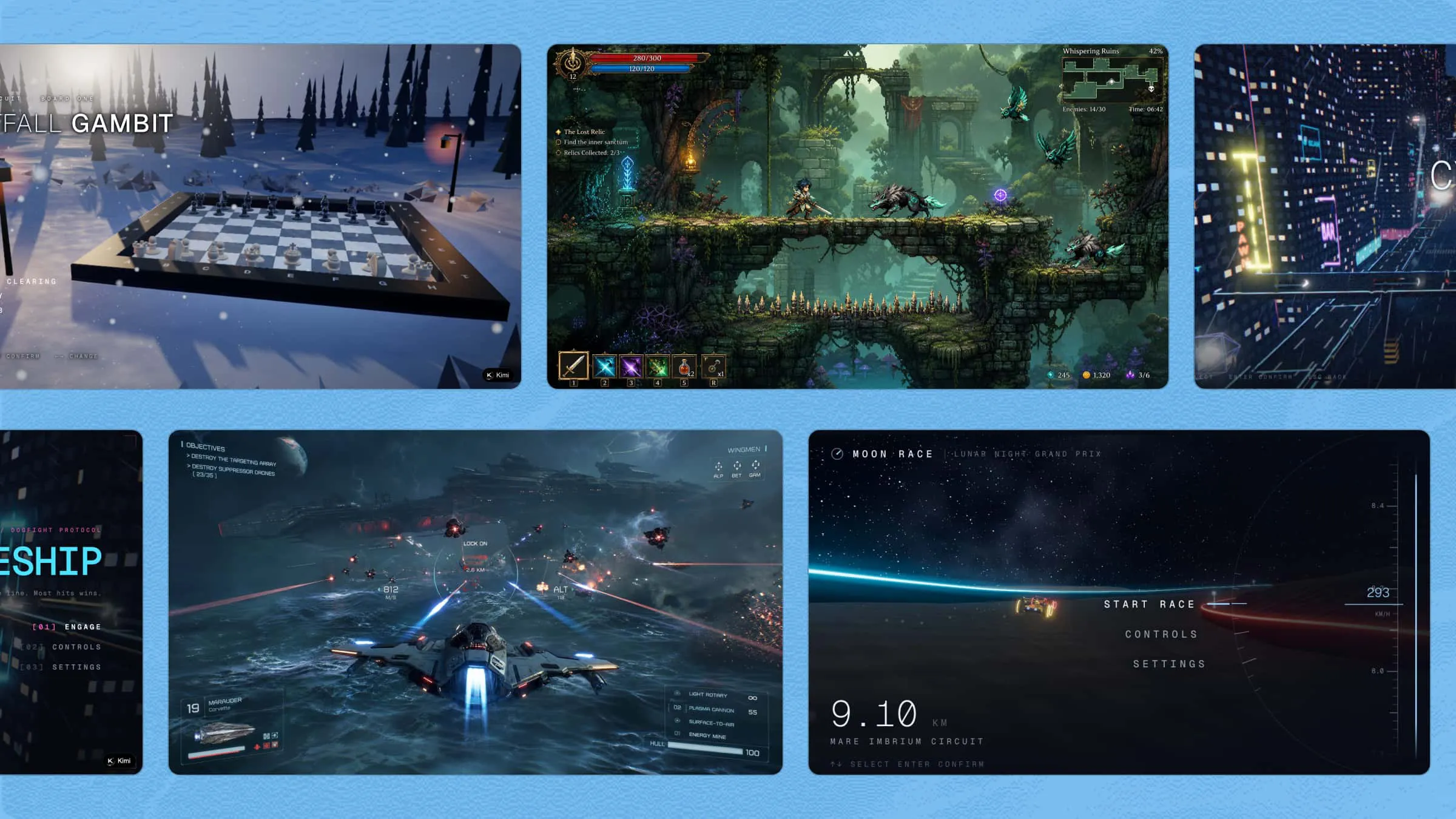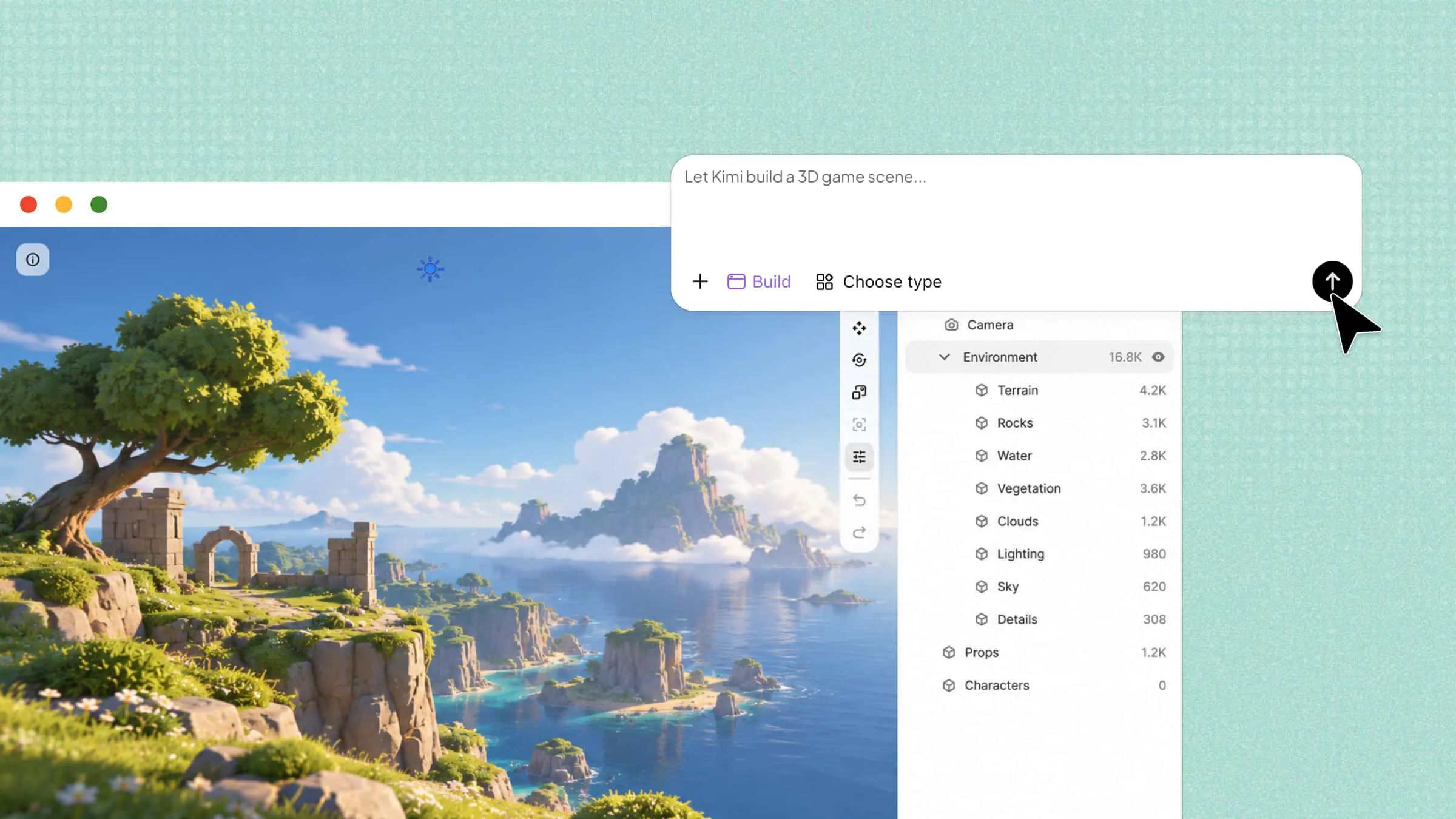
Whether you're a beginner or an experienced designer, choosing the right 3D software can help you bring your ideas to life. Some tools are free to use, while others offer advanced features for creating detailed models and stunning visuals. With so many options available, finding the right free and paid 3D graphic software can save you time and money. Read on to explore 10 useful tools and find the one that best fits your needs and budget.
Overview of 10 advanced 3D graphic design software
powered asset generation to professional modeling and engineering design, each tool has its own strengths. The table below compares their key features, supported platforms, learning curves, and ideal use cases to help you choose the right option for your project.
| 3D graphics software | Core capabilities | Skill level | Suitable for |
|---|---|---|---|
| Kimi Build | AI text-to-3D and image-to-3D generation | Beginner-friendly | Generating 3D assets from prompts and reference images |
| Blender | Modeling, sculpting, animation, materials, rendering, and visual effects | Intermediate to advanced | Comprehensive 3D creation and animation |
| SketchUp | Push-pull modeling, precise dimensions, components, and scene creation | Beginner to intermediate | Architecture, interior design, and spatial planning |
| Tinkercad | Browser-based shape modeling, solid and hole operations, and basic circuit simulation | Beginner | Education, simple models, and 3D printing |
| FreeCAD | Parametric CAD, constrained sketches, technical drawings, and engineering tools | Intermediate | Mechanical design and dimension-driven models |
| OpenSCAD | Script-based modeling, parametric variables, and Boolean operations | Intermediate to advanced | Programmable and repeatable 3D designs |
| Fusion 360 | CAD, CAM, CAE, assemblies, simulation, and manufacturing preparation | Intermediate to advanced | Product engineering and manufacturing |
| Meshmixer | Mesh repair, sculpting, hollowing, and printability checks | Beginner to intermediate | Editing existing meshes and preparing models for 3D printing |
| Onshape | Cloud CAD, parametric modeling, assemblies, version control, and collaboration | Intermediate | Collaborative mechanical design |
| Vectary | Browser-based 3D editing, materials, lighting, and interactive presentations | Beginner to intermediate | Product visualization and interactive web content |
10 free and paid 3D graphics software to try
There are many tools available for turning creative ideas into 3D visuals. While some are simple enough for beginners, others are built for detailed and professional work. Let's look at 10 options worth considering.
Kimi Build
Kimi Build is an AI-powered tool for creating 3D assets from text descriptions or reference images. It supports image-to-3D, text-to-3D, and GLB, glTF, and OBJ exports for compatible workflows. The generated models contain actual 3D geometry that can be used in supported 3D applications rather than relying only on flat visual approximations.
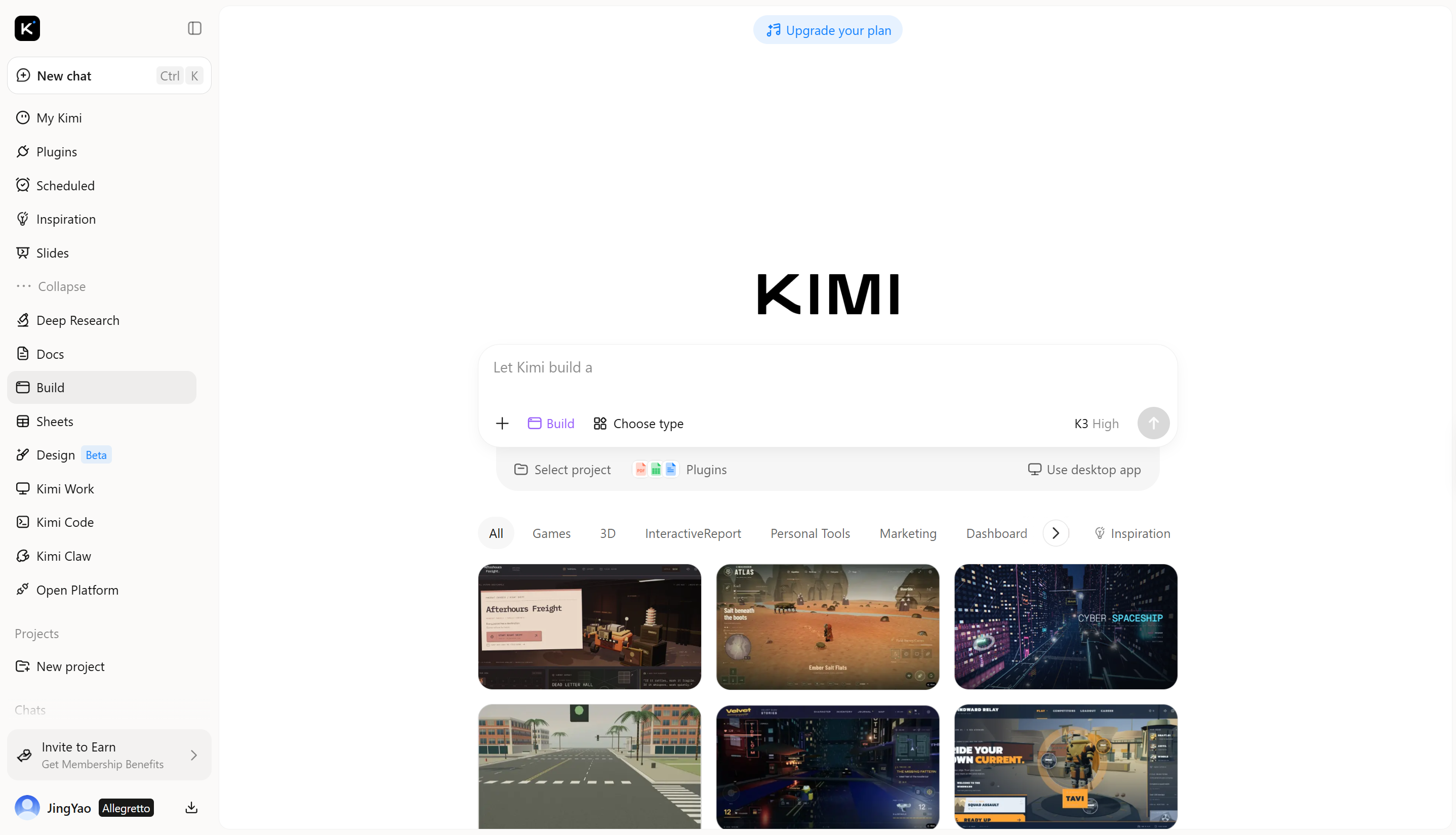
Main features
Kimi Build offers features that help simplify the 3D creation process, from turning simple ideas into models to developing more detailed designs. Here are some of its key features.
Create 3D graphics from images and ideas
Start with a reference image, a text description, or both. Turn visual references and creative ideas into 3D graphics while keeping important shapes, proportions, and visual characteristics intact.
Build richer shapes, surfaces, and structures
Create 3D graphics with detailed geometry, realistic materials, surface textures, and complex structural elements. Repeating features such as tiles, railings, and brackets can be generated with consistent spacing and proportions.
Shape your designs with AI-assisted editing
Keep refining your graphics after generation. Describe the element you want to change through natural language, leave comments on specific areas, or make manual adjustments for more precise creative control.
Review and prepare graphics for your workflow
Compare your creations with their references, inspect geometry for potential issues, and review the overall result before delivery. Export finished 3D graphics in formats suited to different creative, web, AR, game development, and 3D printing workflows.
Suitable for
Creating 3D assets from text prompts and reference images
Developing product concepts and architectural models
Generating editable geometry for Blender workflows
Preparing 3D assets for web projects and digital presentations
How to make 3D graphics with Kimi Build
Creating 3D graphics with Kimi Build starts with a simple idea or reference image. Follow these steps to generate your model and refine it for your project.
Step 1: Enter your prompt
Describe the object you want to create, including its shape, materials, colors, and important components. Alternatively, use a reference image to guide the model's appearance.
Example prompt:
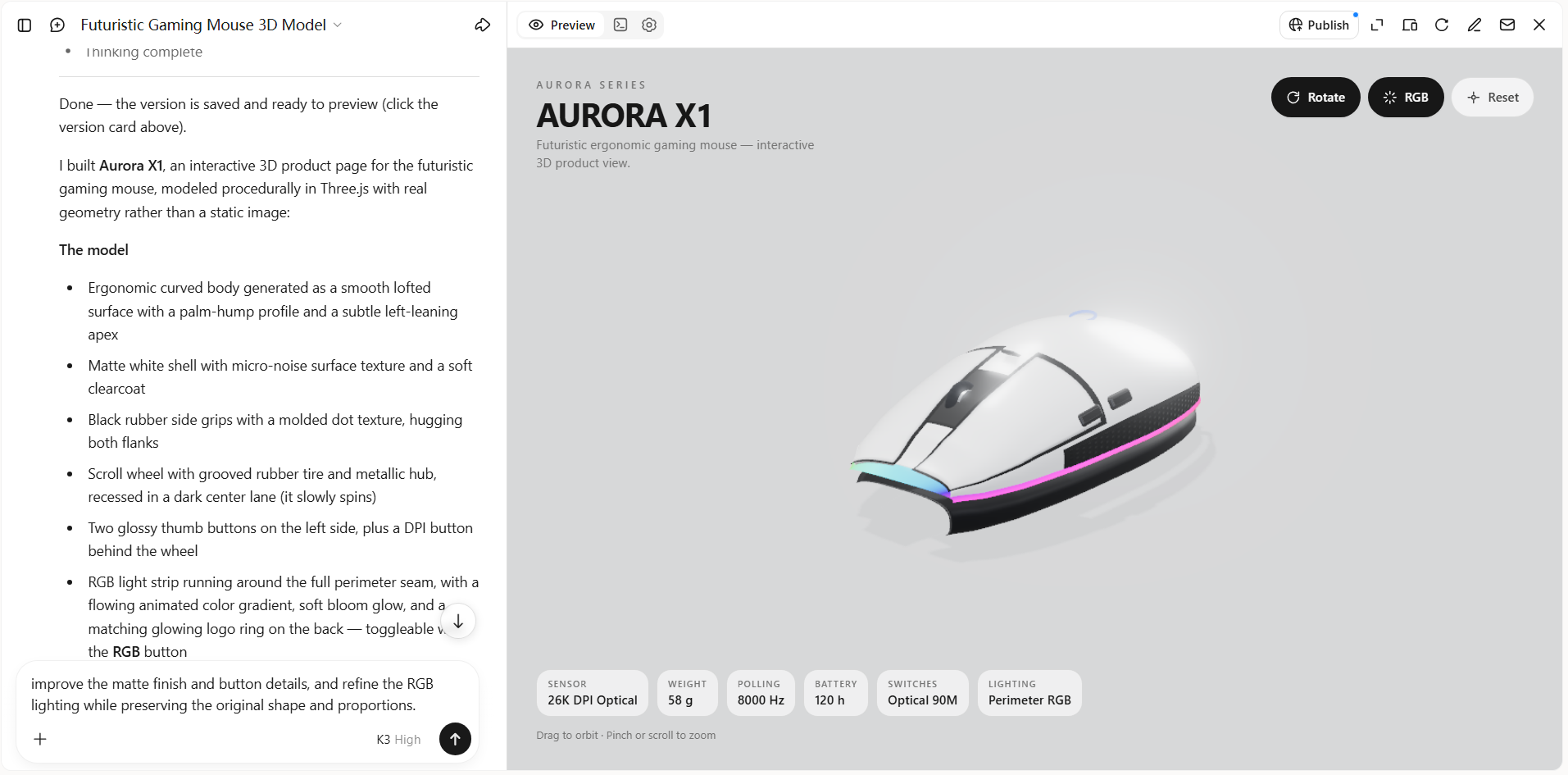
Create a detailed 3D model of a futuristic gaming mouse with an ergonomic curved body, a matte white shell, black side grips, a scroll wheel, and two thumb buttons. Add subtle RGB lighting along the sides and realistic surface textures. Keep the proportions accurate, the edges smooth, and the geometry clean. Display the mouse as a standalone product on a plain light-gray background.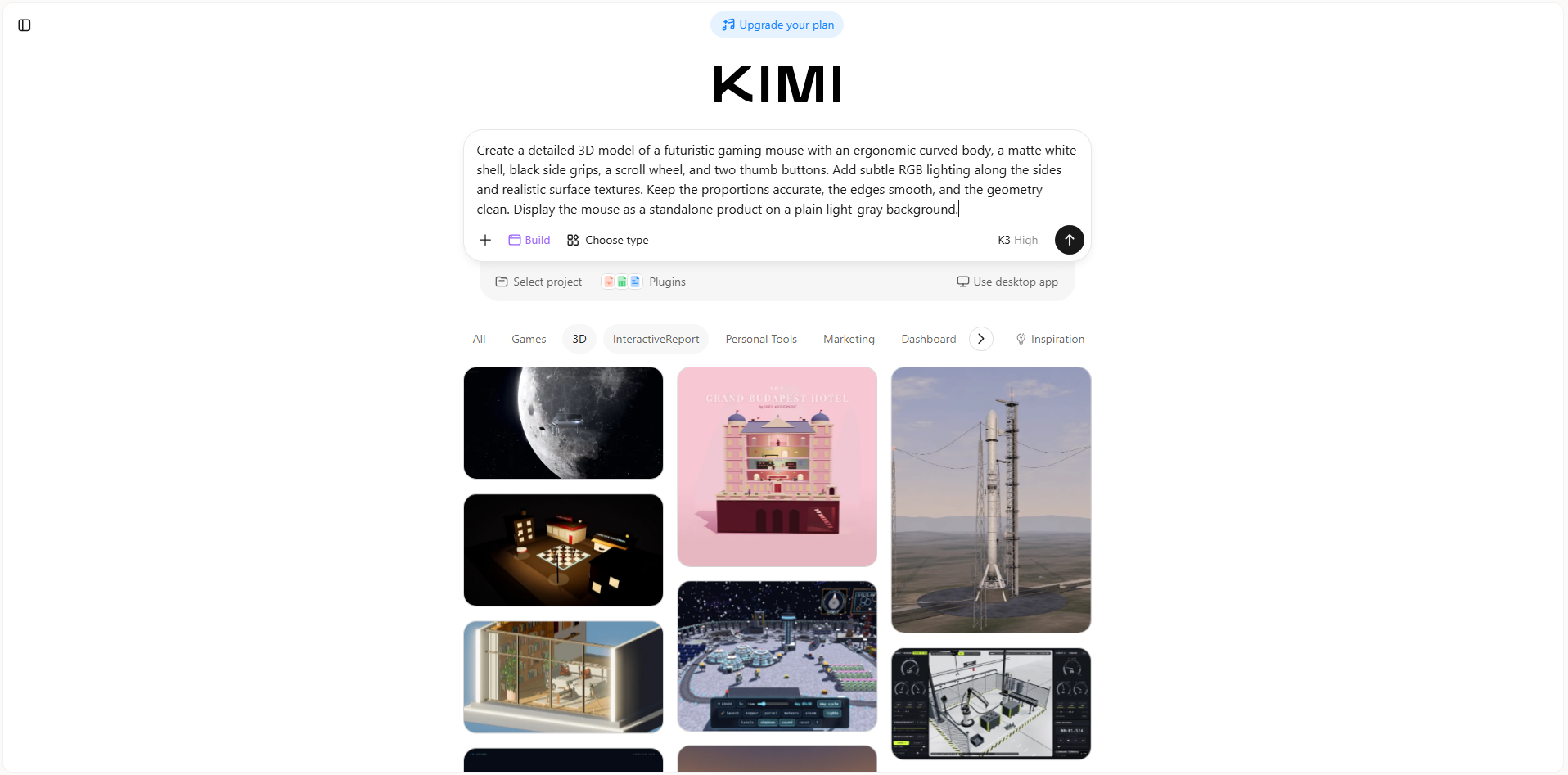
Step 2: Edit and refine
Review the generated geometry and compare it with your intended design. For advanced refinement, upload the reference image in Kimi Work and use Blender to adjust the model.
Step 3: Export and share
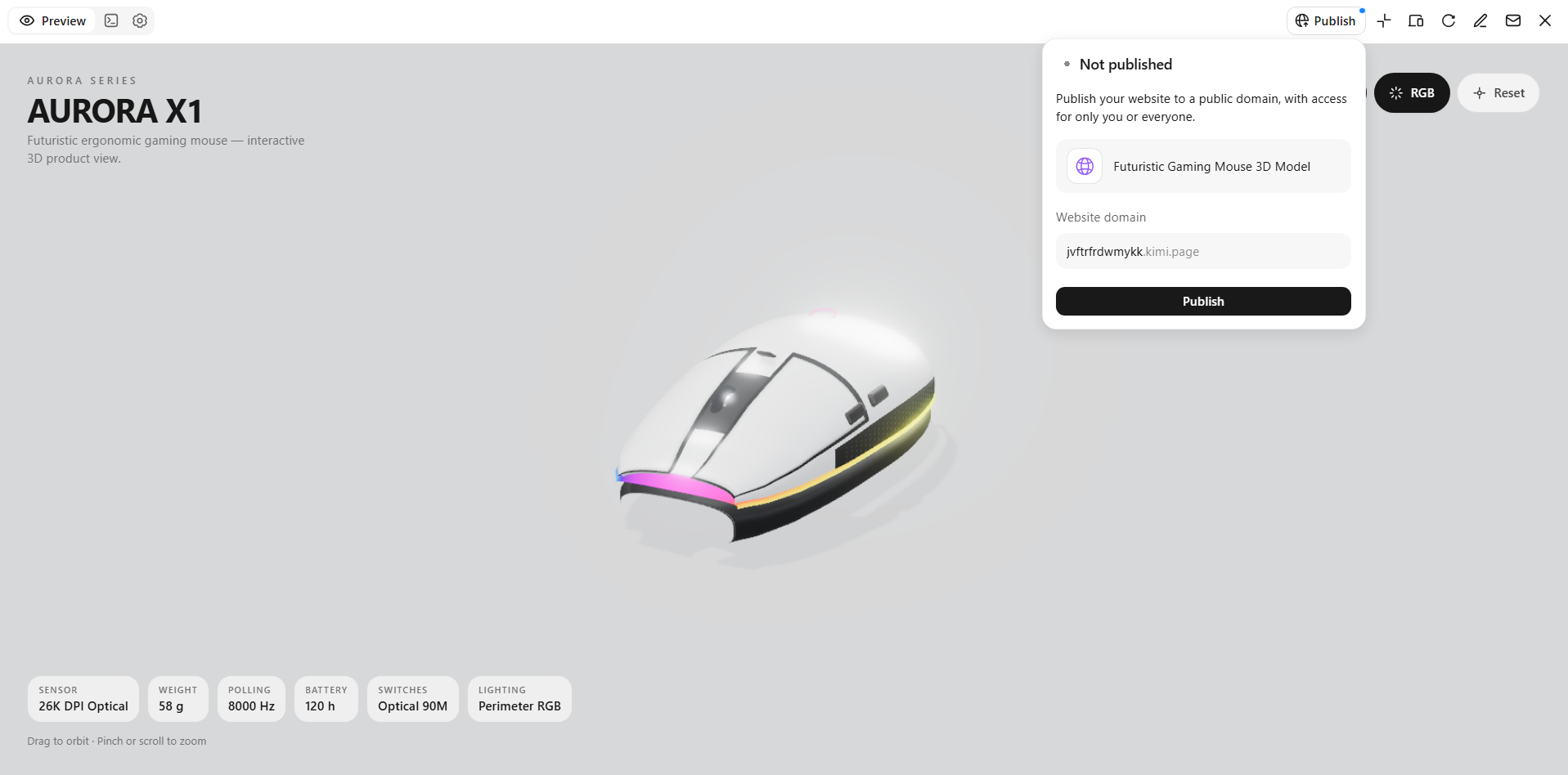
Export your finished model in a format supported by the tool you use. Kimi Build supports GLB, glTF, and OBJ, while Kimi Work supports formats including BLEND, FBX, STL, and USDZ. For 3D printing, check and repair the mesh where necessary before sending it to a printer.
Blender
Blender is a free, open-source 3D graphics software used for modeling, animation, rendering, and visual effects. It supports polygon modeling, sculpting, UV mapping, and procedural workflows through its node-based tools. Users can create detailed objects, realistic materials and cinematic visuals within one application. Its extensive toolset makes it suitable for both independent creators and professional production teams.
Main features
Polygon modeling and sculpting: Create 3D objects by editing vertices, edges, and faces or scu,lpting organic forms. These tools support everything from simple objects to detailed characters.
Materials and rendering: Apply textures, lighting, and surface properties using Blender's material system. Its Cycles and Eevee renderers support different approaches to producing finished visuals.
Animation and rigging: Build character rigs, animate objects, and create movement using keyframes. These features are useful for motion graphics, product demonstrations, and animated scenes.
Procedural design with nodes: Use Geometry Nodes to generate and modify complex shapes through node-based workflows. This helps automate repetitive modeling tasks and create variations efficiently.
Suitable for
3D artists creating detailed models and scenes
Animators producing characters and motion graphics
Game developers building 3D assets
Designers creating product visualizations and visual effects
SketchUp
SketchUp is a 3D modeling application focused on architectural design, interior planning, and spatial visualization. Its push-pull modeling method lets users turn flat faces into three-dimensional forms with simple operations. The software supports accurate dimensions, component-based modeling, and scene creation for presenting design concepts. It is useful when designing buildings, furniture, and other structures.
Main features
Push-pull modeling: Extend flat surfaces into 3D shapes without building complex meshes manually. This makes it convenient to create walls, roofs, furniture, and basic structures.
Precise measurements: Enter dimensions and use drawing guides to maintain accurate proportions. This is helpful when planning spaces or creating models based on real measurements.
Components and groups: Combine geometry into reusable components and organize related objects into groups. Repeated items such as windows, doors, and chairs are easier to manage.
Architectural visualization: Apply materials, arrange camera views, and create scenes to communicate a design. Additional rendering tools can help produce more realistic presentations.
Suitable for
Architects developing building concepts
Interior designers planning rooms and furniture
Landscape designers arranging outdoor spaces
Construction professionals communicating design layouts
Tinkercad
Tinkercad is a browser-based 3D design application that introduces users to modeling through simple geometric shapes. Its drag-and-drop interface lets users combine solid objects, subtract shapes, and adjust dimensions without advanced modeling knowledge. The platform also supports basic electronics simulation and block-based coding for educational projects.
Main features
Shape-based modeling: Combine basic geometric objects to build new designs. Users can create simple holders, toys, enclosures, and decorative objects by arranging and resizing shapes.
Hole and solid operations: Use solid shapes to add geometry and hole shapes to subtract material. These operations make it easy to create openings, cutouts, and hollowed designs.
3D printing preparation: Adjust model dimensions and export supported 3D file formats for compatible printing workflows. Designs should still be checked for wall thickness and printability before production.
Electronics simulation: Build basic virtual circuits with supported electronic components and microcontrollers. The simulator helps learners explore circuit behavior without immediately using physical hardware.
Suitable for
Students learning basic 3D modeling
Beginners designing simple printable objects
Teachers preparing hands-on STEM activities
Hobbyists exploring basic electronics and coding
FreeCAD
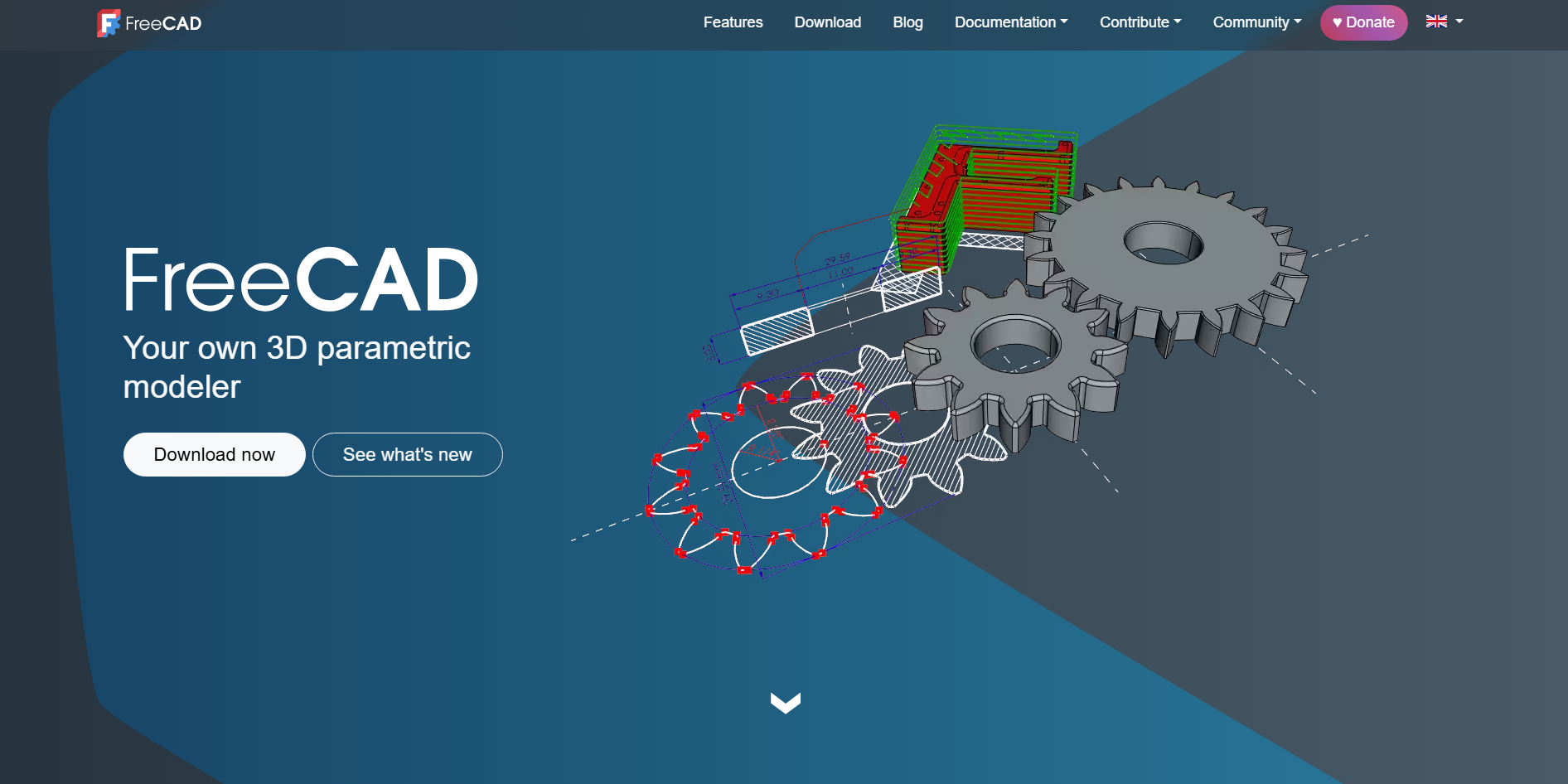
FreeCAD is a free, open-source parametric CAD application designed for engineering, mechanical design, and technical modeling. It uses a feature-based workflow in which sketches, dimensions, and operations define how a model is built. Users can modify earlier parameters and update dependent features without recreating the entire design. Its specialized workbenches support solid modeling and other engineering tasks.
Main features
Parametric modeling: Create models using editable dimensions and feature histories. Changing a sketch or parameter can update dependent geometry throughout the design.
Sketch-based design: Draw 2D profiles and constrain their geometry with dimensions and relationships. These sketches can serve as the basis for extrusions, revolutions, and other solid operations.
Technical drawing generation: Produce drawing views from 3D models for communicating dimensions and design details. This helps prepare engineering documentation for manufacturing and review.
Specialized workbenches: Switch between workbenches for different CAD and engineering tasks. Tools for mesh handling, finite element analysis, and manufacturing-related workflows are available, although some require additional setup.
Suitable for
Mechanical engineers designing components
Students learning parametric CAD
Product designers developing dimensioned parts
Makers creating editable models for fabrication
OpenSCAD
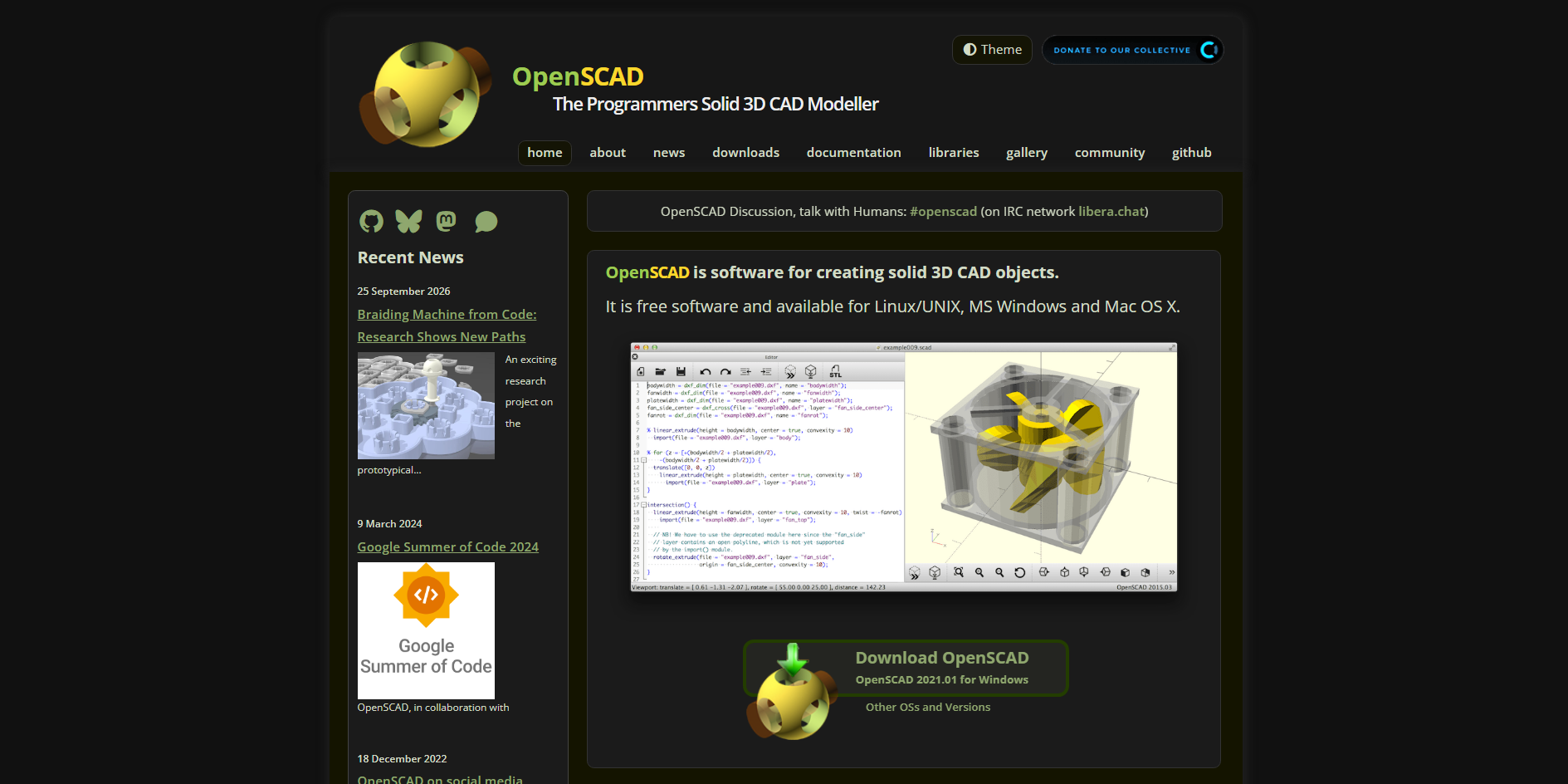
OpenSCAD is a free, open-source 3D CAD application that creates models through a programming-based approach rather than conventional direct manipulation. Users define shapes, dimensions, transformations, and Boolean operations using a scripting language. The software generates geometry from the written instructions, making designs reproducible and easy to modify through parameters.
Main features
Script-based modeling: Define objects using readable code instead of manually editing every surface. This approach makes it easier to reproduce designs and maintain consistent modeling logic.
Parametric variables: Assign values to dimensions and reuse them throughout a script. Updating a parameter can generate a new model size without rewriting the entire design.
Boolean geometry: Combine, intersect, or subtract solid shapes using code. These operations support the creation of brackets, enclosures, cutouts, and other functional components.
Reusable modules: Organize scripts into modules that define repeatable shapes and operations. This helps keep complex designs structured and simplifies the creation of product variations.
Suitable for
Programmers creating 3D models
Engineers designing dimension-driven components
Makers building customizable 3D-printable parts
Users generating repeatable geometric designs
Fusion 360
Fusion 360 is an integrated product development application that combines 3D CAD, computer-aided manufacturing (CAM), and computer-aided engineering (CAE) capabilities. It supports parametric and direct modeling, allowing users to build dimensionally accurate parts and modify existing geometry. Its toolset includes assemblies, technical drawings, simulation features, and CNC machining preparation.
Main features
Integrated CAD modeling: Create solid parts, surface geometry, and assemblies using parametric and direct modeling tools. Designers can develop mechanical components and update their dimensions as requirements change.
CAM toolpaths: Prepare machining operations for compatible CNC equipment using supported manufacturing tools. Users can configure cutting strategies and simulate toolpaths before production.
Engineering simulation: Evaluate supported design conditions using available simulation studies. These tools can help assess structural performance and identify potential issues before manufacturing.
Collaborative product development: Manage design versions and collaborate through supported cloud-based project workflows. This helps teams review changes and coordinate product development.
Suitable for
Mechanical engineers designing products
CNC machinists preparing manufacturing operations
Product development teams validating designs
Industrial designers developing functional prototypes
Meshmixer
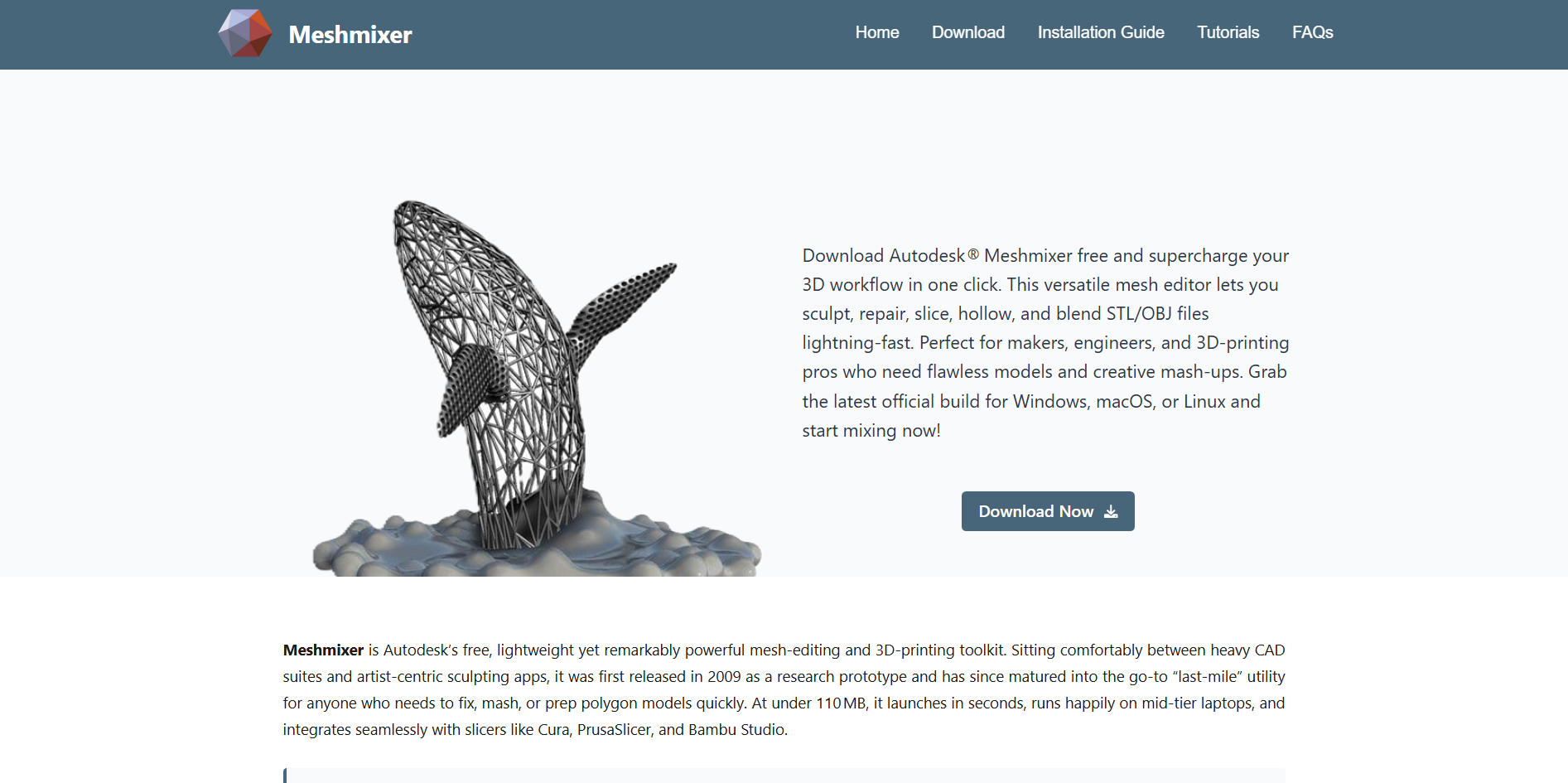
Meshmixer is a mesh-focused 3D editing application developed by Autodesk for working with polygon-based models. Unlike parametric CAD tools, it emphasizes manipulating existing meshes, repairing geometry, and preparing objects for fabrication. Its tools support mesh sculpting, surface editing, hollowing, and the inspection of models for common printing problems.
Main features
Mesh repair: Inspect and fix common mesh issues such as holes and disconnected surfaces. Repair tools can help prepare imported models for further editing or 3D printing.
Sculpting and surface editing: Modify polygon meshes using brushes and local editing tools. This is useful for reshaping organic forms or adjusting details on existing models.
Hollowing and internal structures: Create hollow models and add drainage openings where appropriate. These functions can reduce material use in certain resin-printing workflows.
Printability analysis: Inspect models for issues such as thin regions, unstable geometry, or problematic overhangs. Automated checks can help identify areas that may need correction before printing.
Suitable for
3D printing enthusiasts repairing mesh files
Designers modifying imported 3D models
Sculptors refining polygon-based objects
Makers preparing models for resin printing
Onshape
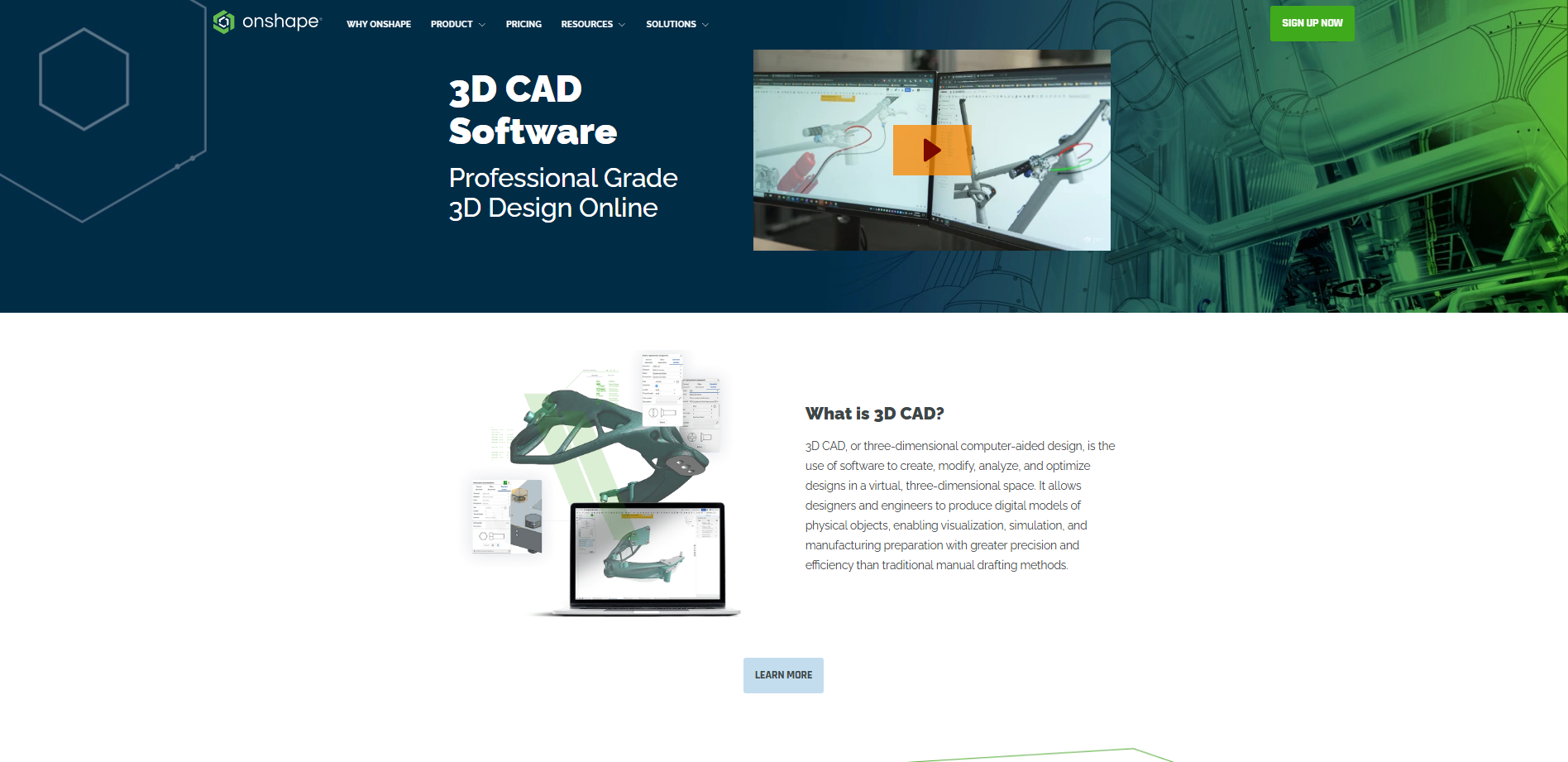
Onshape is a cloud-based CAD and product development platform that runs through a web browser. It supports parametric part modeling, multi-part assemblies, technical drawings, and version-controlled design workflows. Because designs are stored and managed online, team members can collaborate without passing files back and forth manually.
Main features
Cloud-based CAD: Create and edit models through a supported browser without installing a traditional desktop CAD application. Design data is managed online, making it easier to access projects across compatible devices.
Parametric part modeling: Build components from sketches, constraints, and feature operations. Editing earlier features allows users to update a model while preserving its design logic.
Assembly design: Combine parts and define how they fit and move relative to one another. This supports the development and review of mechanical products with multiple components.
Real-time collaboration: Allow multiple team members to review and work on shared design documents. Version history and branching help track changes and manage different design options.
Suitable for
Engineering teams working remotely
Mechanical designers creating assemblies
Students learning cloud-based CAD
Product developers collaborating across locations
Vectary
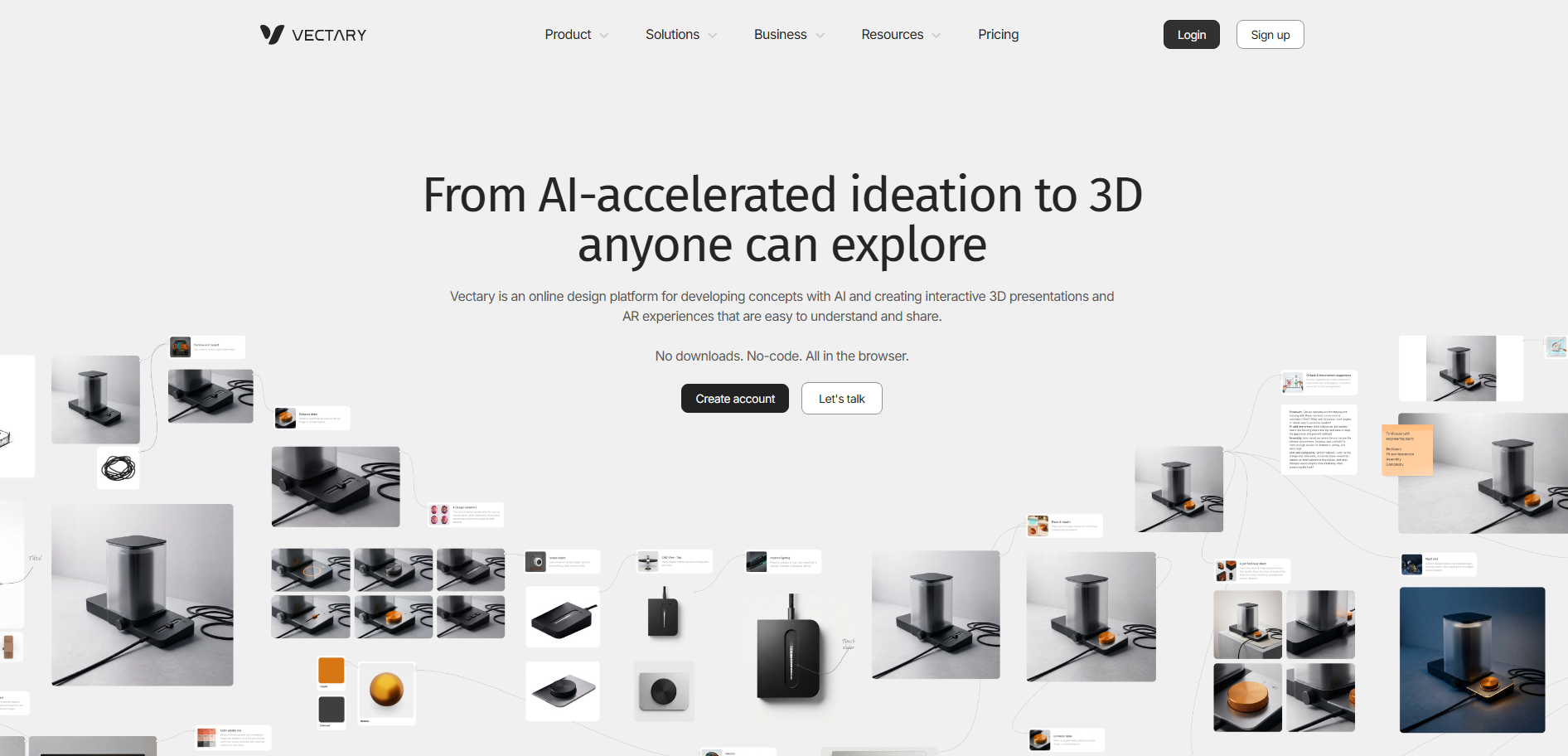
Vectary is a browser-based 3D design platform focused on accessible modeling, product visualization, and interactive 3D content. It combines a visual editing environment with tools for working with objects, materials, lighting, and scenes. Users can build compositions, import supported 3D assets, and prepare interactive presentations without relying entirely on traditional desktop modeling workflows.
Main features
Browser-based 3D editing: Create and arrange 3D scenes within a compatible web browser. This provides a convenient workflow for users who want to work without setting up complex desktop software.
Materials and lighting: Adjust surface appearances and lighting to improve the presentation of objects. These controls help produce more polished product visuals and digital scenes.
Interactive 3D presentations: Prepare scenes that viewers can explore through supported interactive publishing features. This can help businesses present products and design concepts online.
3D asset importing: Bring compatible external models into a scene for further arrangement and presentation. Supported formats and export options depend on the current platform capabilities and plan.
Suitable for
Designers creating online product visuals
Marketing teams preparing interactive presentations
Beginners exploring browser-based 3D design
Creators building interactive web experiences
How to choose the right 3D graphics software
Choosing the right 3D graphics software depends on what you want to create, your experience, and the tools you need. Some programs focus on modeling, while others offer advanced rendering, animation, or engineering features. Consider the following factors to find software that fits your goals, computer, and budget.
Define your goal first
Decide what you want to create before choosing software. Blender is useful for animation and visual effects, while Fusion 360 is better suited to product design and engineering. Matching the software to your goals helps you avoid unnecessary features.
Check your skill level
Choose software that matches your experience. Beginners may find Tinkercad easier to learn because of its simple interface, while experienced users may prefer Blender or FreeCAD for complex projects. You can explore more advanced tools as your skills improve.
Compare modeling and rendering tools
Different 3D graphics software offers different capabilities. Some tools focus on creating models, while others provide advanced lighting, materials, animation, and rendering. Choose based on whether you need technical precision or polished visuals.
Review file format support
Check which file formats the software supports before starting a project. Formats such as OBJ, STL, FBX, and glTF are used for different purposes, including 3D printing and animation. Compatible formats make it easier to transfer models between different 3D computer graphics software tools.
Match software to your computer
Consider your computer's processing power, memory, and graphics card. Advanced modeling and rendering may require stronger hardware, while browser-based tools can suit simpler projects. Always check the system requirements before installing software.
Conclusion
Getting started with 3D design is easier when you choose a tool that fits your needs instead of focusing on the number of features. Take time to explore different free and paid 3D graphing software options before deciding which one suits your workflow. As your projects grow, you can explore more advanced capabilities. Want to create 3D models from your own ideas? Try Kimi Build to turn text prompts and reference images into 3D assets.