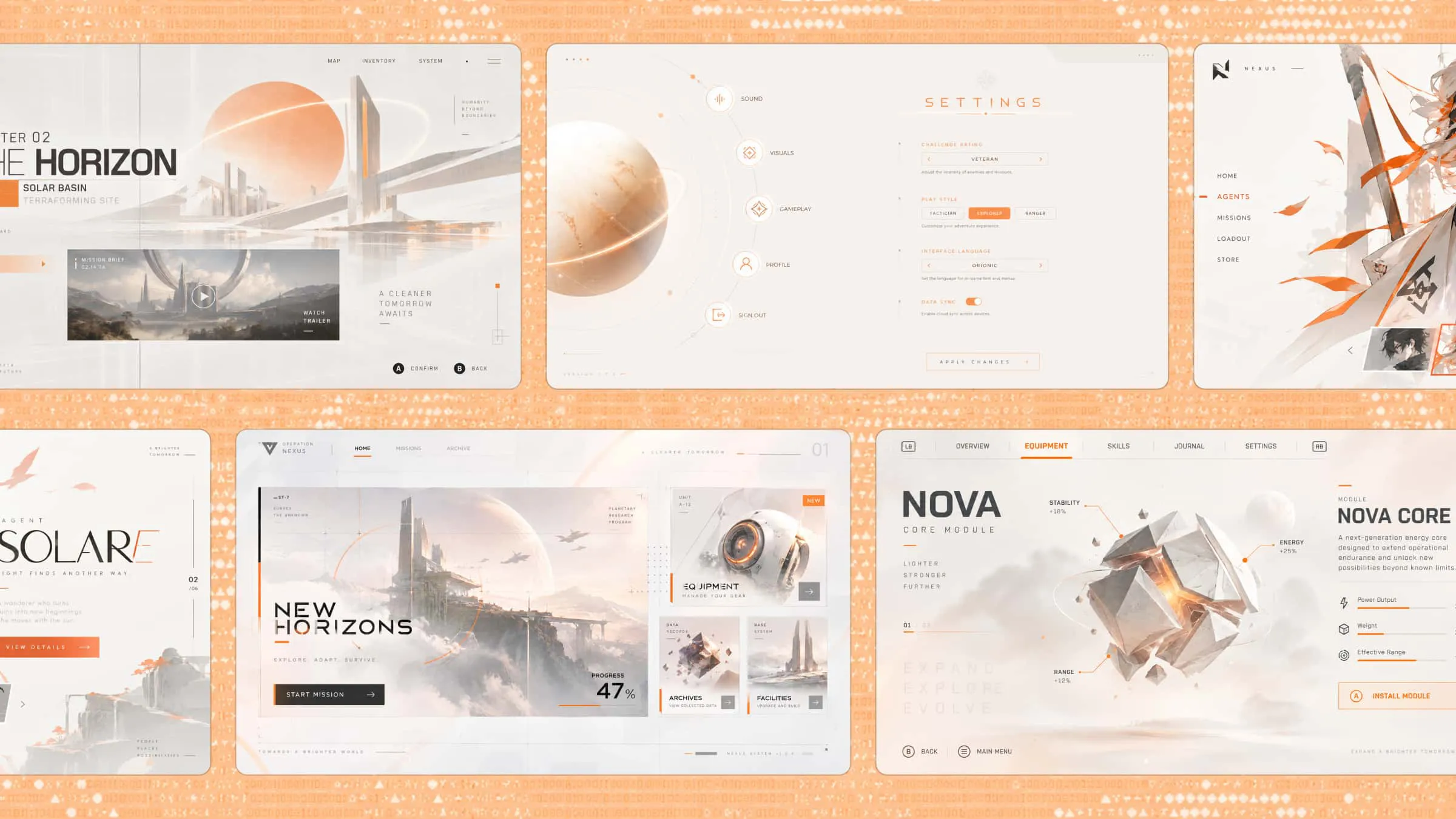
Think about playing a game where you cannot find your health bar, understand the controls, or check your progress. Even the most exciting game can become frustrating when its on-screen elements are difficult to use. Good game user interface design keeps everything clear and accessible, allowing players to focus on the action instead of figuring out how things work. Read on to explore its fundamentals, common examples, important design principles, and creative ideas for your next game project.
What is game UI design
Game interface design is the process of creating visual elements that help players interact with a video game. It includes menus, buttons, health bars, maps, scoreboards, and inventory screens. Its purpose is to make game information and controls easy to understand. A good UI also matches the game's style and improves the overall playing experience.
Game UI vs. game UX design
Game UI and game UX are closely connected, but they address different aspects of the player experience.
Game UX typically considers the player's journey and the decisions they need to make. UX designers may create user flows and wireframes to determine how players move between different screens. UI designers then translate these structures into visual interfaces using typography, colors, shapes, and interactive elements.
For example, when designing an RPG inventory, UX design determines how players browse, sort, compare, and equip items. UI design determines how item slots, descriptions, equipment panels, and action buttons look and behave. Both disciplines work together to create an interface that is visually appealing and easy to use.
Four types of game UI
Game interfaces can appear in different ways depending on how players interact with them and how they fit into the game world. Each type serves a different purpose and helps present information in its own way. Let's look at the 4 main types of game UI and how they work:
Diegetic UI
Diegetic UI consists of interface elements that exist within the game's fictional world. Both the player and the in-game character can see or interact with them.
Examples include holographic displays, wearable devices, in-game mobile phones, and wrist-mounted navigation systems.
This approach makes interface elements feel like a natural part of the game environment rather than an additional layer placed over the screen.
Design considerations:
Match interface elements to the game's setting and technology.
Integrate information into objects that make sense within the story.
Maintain sufficient contrast and readability.
Provide options for scaling and visibility when in-world information is difficult to read.
Non-diegetic UI
Non-diegetic UI includes interface elements that exist outside the fictional game world and are visible only to the player.
Traditional health bars, ammunition counters, minimaps, score displays, and menu screens are common examples.
This approach is particularly useful when players need to access important information quickly during gameplay.
Design considerations:
Place essential information in predictable positions.
Establish a clear hierarchy between primary and secondary details.
Use recognizable icons and consistent visual patterns.
Keep the interface compact enough to avoid obstructing gameplay.
Spatial UI
Spatial UI places interface information within the game environment, but the elements are not necessarily visible to the characters.
Examples include floating labels above characters, enemy outlines, objective markers, and interaction prompts attached to objects.
Spatial UI helps players identify important objects and understand their surroundings without constantly opening separate menus.
Design considerations:
Position markers close to their corresponding objects.
Use recognizable shapes for different objectives.
Avoid overlapping labels and markers.
Make important information visible against different environmental backgrounds.
Meta UI
Meta UI communicates game information through visual effects or changes to the screen rather than conventional interface panels.
Examples include blood splatters around the screen when a character takes damage, screen distortion when a character is injured, and visual overlays that indicate status changes.
Meta UI can reinforce the atmosphere and emotional impact of gameplay while communicating information indirectly.
Design considerations:
Make visual effects recognizable and consistent.
Ensure players can distinguish different status changes.
Avoid excessive flashing or distracting effects.
Offer reduced-motion options where appropriate.
Main elements of game UI design
Game AI UI design is made up of several visual elements that work together to guide players throughout their experience. From basic controls to character upgrades, each element helps players access information and game features more easily. Here are the key elements to understand when designing a game UI.
HUD design
The Heads-Up Display (HUD) shows important information while players are playing. It can include health bars, energy levels, scores, timers, and ammunition counts. A clear HUD helps players check these details without taking their attention away from the game.
Main menu and navigation UI
The main menu gives players access to important game options before they start playing. It usually includes buttons for starting a game, loading progress, adjusting settings, and viewing other features. Simple navigation helps players find what they need without getting confused.
Inventory and equipment UI
Inventory UI helps players view, organize, and manage the items they collect during gameplay. It may display weapons, tools, clothing, resources, and other useful objects. Equipment screens also allow players to change their gear and prepare for different challenges.
Character selection and customization UI
This UI allows players to choose their characters and change their appearance before or during gameplay. Options may include hairstyles, outfits, facial features, colors, and accessories. A well-organized design makes it easier to explore customization options and create a character that matches their preferences.
Skill tree and progression UI
Skill tree UI shows the abilities and upgrades players can unlock as they progress through a game. It often uses connected branches or paths to display different skills and their requirements. This helps players understand their choices and plan how to improve their characters.
Multiplayer and social UI
Multiplayer UI provides tools that help players communicate and interact with others during a game. It may include player lists, chat windows, friend invitations, team status, and voice chat controls. These features make it easier to coordinate with teammates and enjoy shared gameplay.
Map and navigation UI
Map UI helps players understand their surroundings and find important locations within the game world. It can show landmarks, missions, routes, enemies, and other points of interest. Clear maps and navigation markers make exploring easier and help players reach their objectives.
In-game store UI
An in-game store allows players to browse and purchase items using game currency or real money. It may include character skins, weapons, upgrades, outfits, and other digital content. Clear categories, item previews, and pricing help players understand their options before making a purchase.
Game UI design examples to get inspired
Exploring different game UI concepts can help you understand how visual elements, navigation, and interactive components come together to shape the player experience. The following examples, created by Kimi Build, showcase different approaches to game interface design, from immersive visual styles to intuitive controls and creative layouts. Use them as inspiration for developing your own game UI.
Mothglass Ascent
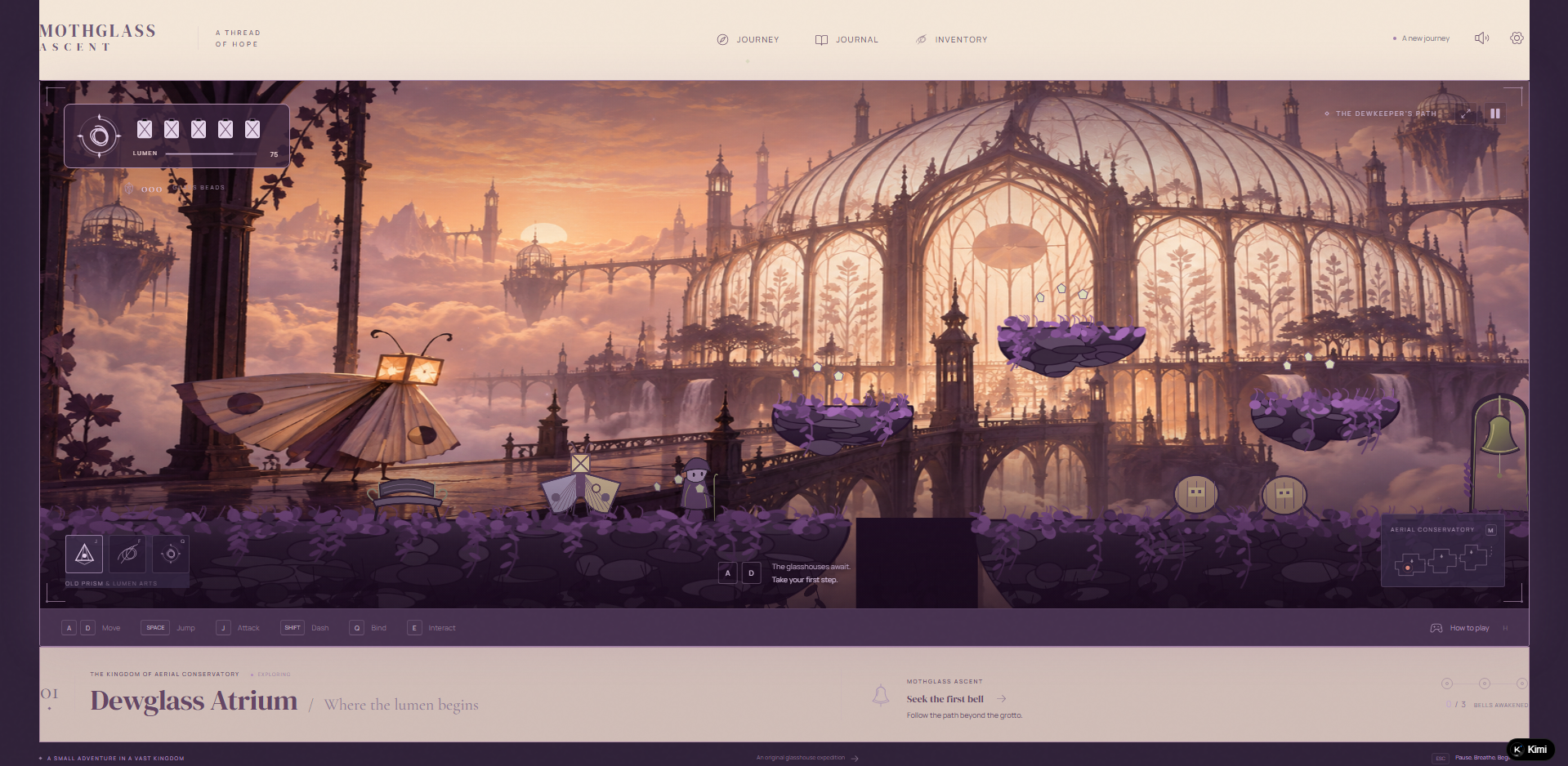
Mothglass Ascent uses an atmospheric visual style that gives the game a distinct identity. Its interface can be explored through the way on-screen elements fit into the surrounding environment. The visual presentation helps create a consistent experience without making the screen feel disconnected from the game world.
Play link: https://fvdvh4vvua6gu.ok.kimi.link
Cinderhorn Atlas
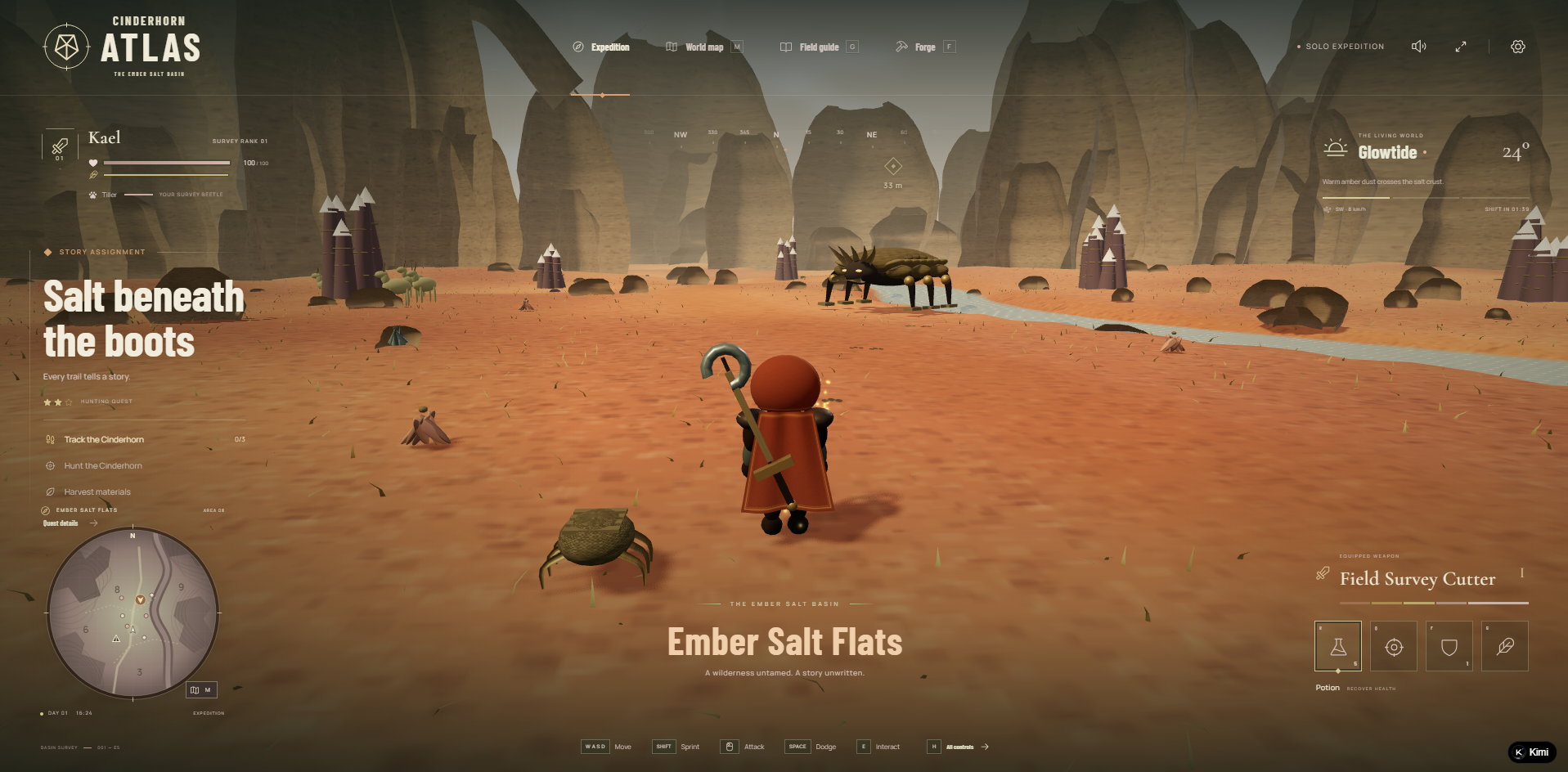
Cinderhorn Atlas features a visual direction that brings its game world and interface together. Its overall presentation highlights how colors, backgrounds, and on-screen elements can support the game's setting. The arrangement of visual details also plays a role in keeping the screen organized.
Play link: https://2gskgm24qudg4.ok.kimi.link
Small Hours Studio
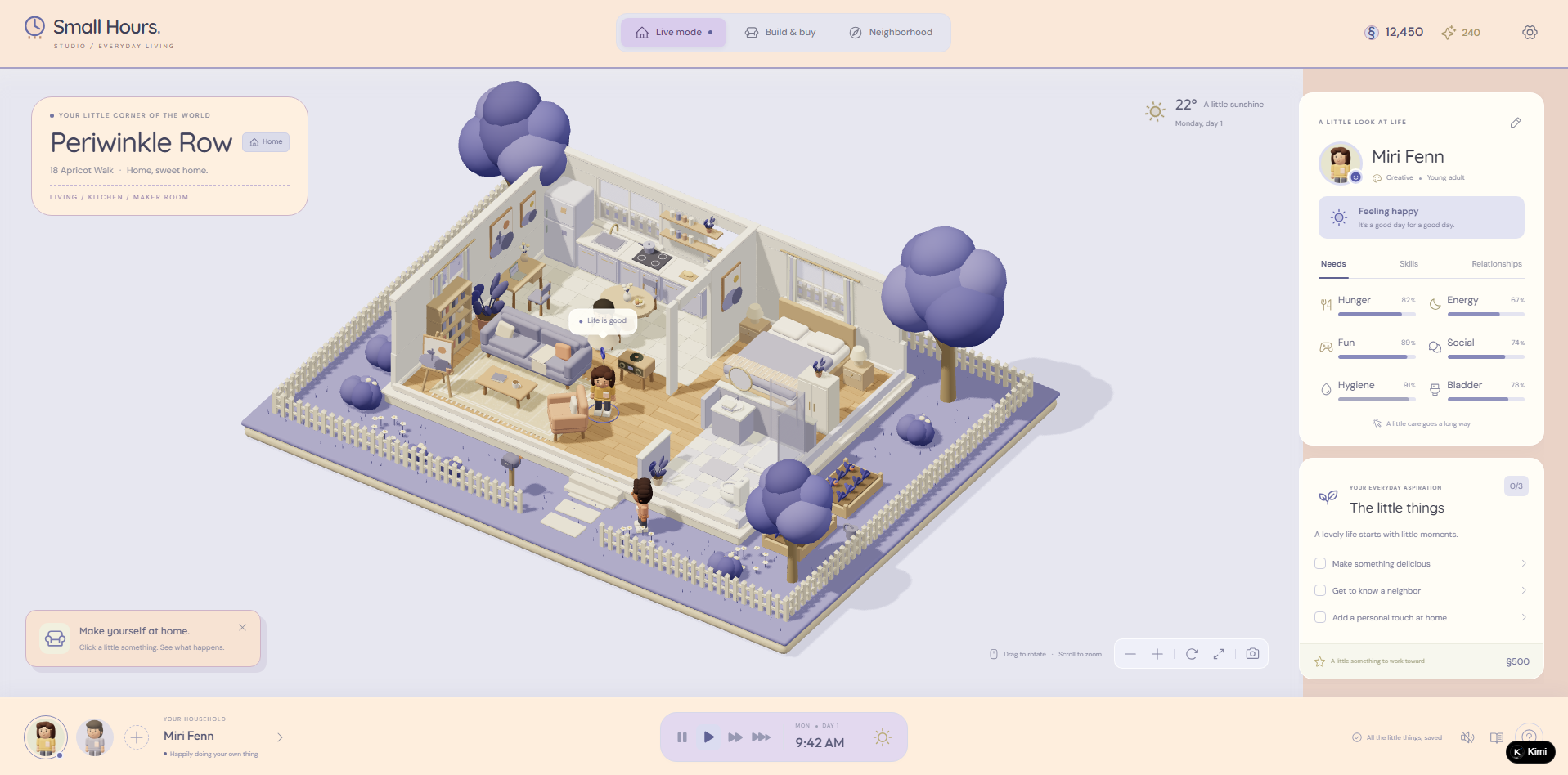
Small Hours Studio has a distinctive presentation where visual consistency helps shape the overall experience. Its colors, typography, and layout contribute to the game's identity. The way these elements are arranged can make menus and other on-screen details feel like part of the same world.
Play link: https://pwoinno53cnvc.ok.kimi.link
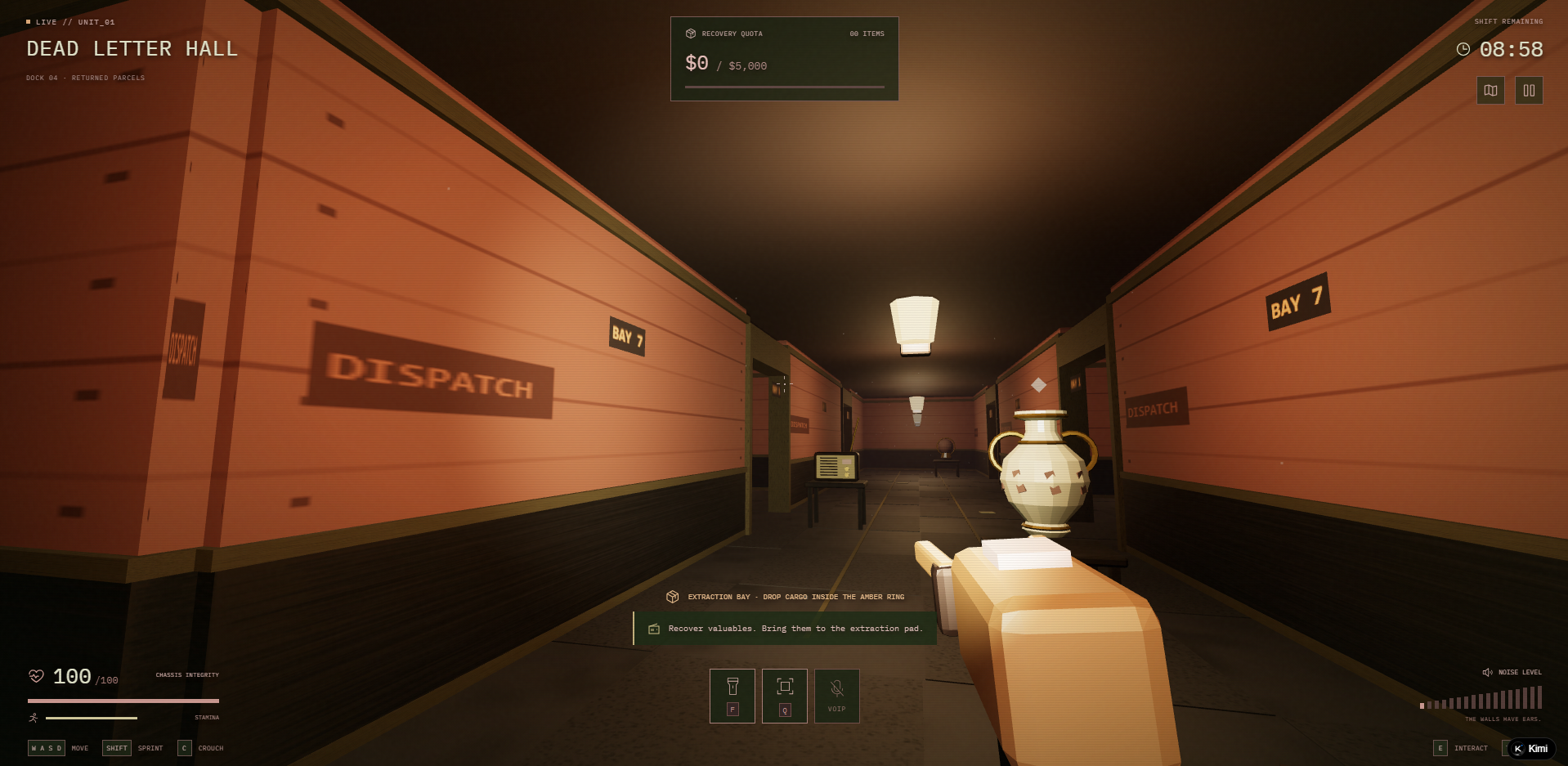
Afterhours Freight
Afterhours Freight presents its game world through a focused visual style and carefully arranged screen elements. Its interface can be explored through the placement of information and the way different sections appear during gameplay. A balanced layout helps keep details visible without overcrowding the screen.
Play link: https://mqrhslewzbdc6.ok.kimi.link
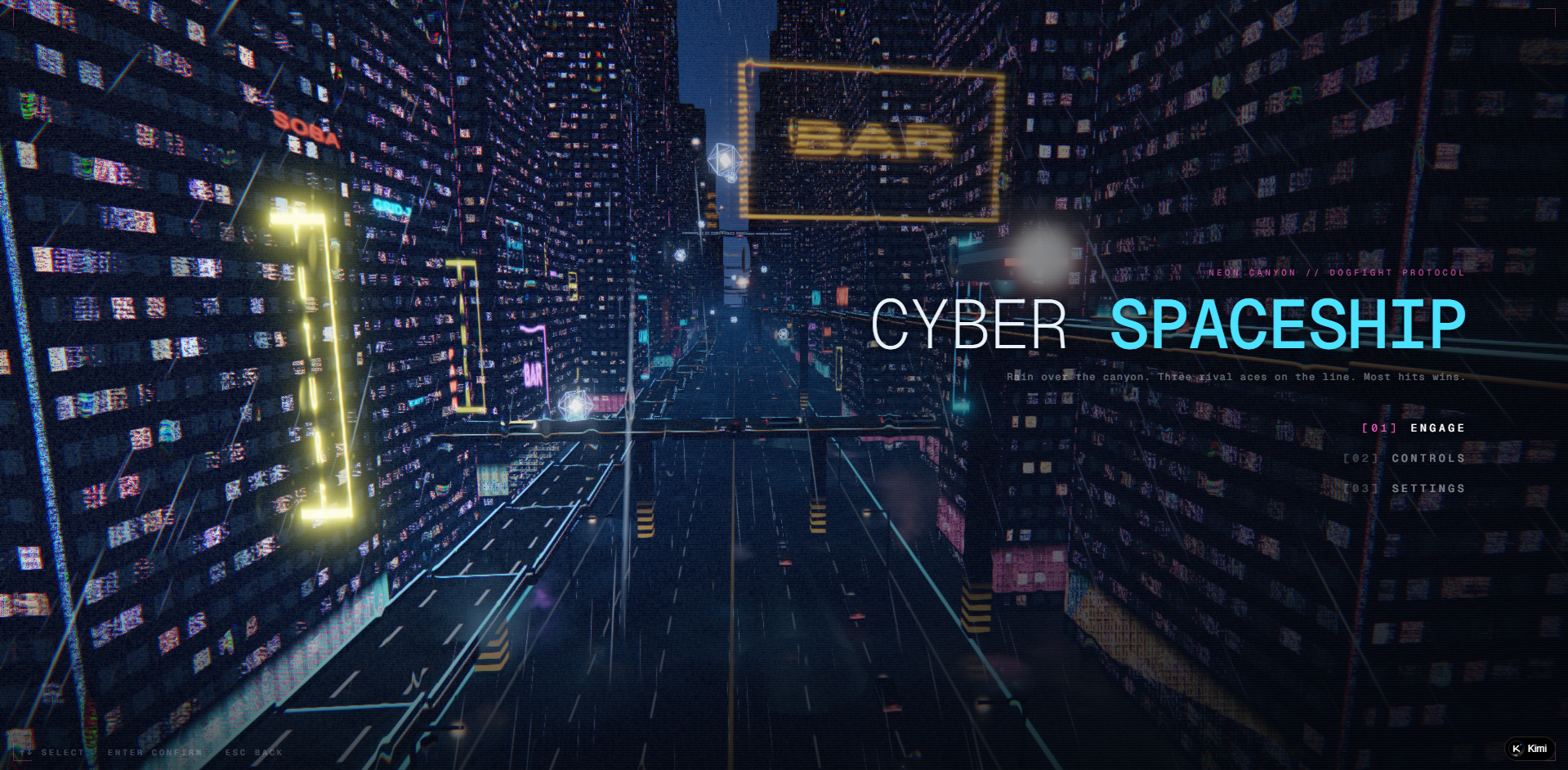
Cyberpunk Dogfight
Cyberpunk Dogfight follows a futuristic visual direction with a strong cyberpunk feel. Its interface style can complement the fast-paced setting through bold colors, digital displays, and prominent visual elements. This combination gives the game a more immersive appearance while keeping the focus on the action.
Play link: https://4tplki545weoq.ok.kimi.link
How to design game UI with Kimi Build
Kimi Build, an AI game maker, helps you turn game UI ideas into visual interface concepts using text prompts and visual references. Whether you want to create a fantasy RPG menu, a sci-fi game HUD, or a character selection screen, you can describe your requirements, upload reference images, and let AI generate an initial design. You can then refine individual elements and publish your finished project.
Follow these steps to create game website UI designs with Kimi Build.
Step 1: Describe your game UI requirements and upload references
Start by describing the game interface you want to create. Include the game genre, interface components, layout, visual style, color palette, and intended interactions. You can also upload reference images, such as game screenshots, UI sketches, character artwork, or mood boards, to guide the visual direction.
For example, if you want to create a fantasy RPG HUD, provide a screenshot of your game environment and describe the interface elements you need. Kimi Build can use both your prompt and visual references to generate a design that better matches your concept.
Example prompt:
Create a fantasy RPG game HUD based on the uploaded screenshot. Include a health bar, stamina indicator, minimap, weapon icons, and quest information. Follow the reference's dark fantasy atmosphere, muted color palette, and visual style. Keep the layout organized and ensure important gameplay information is easy to identify.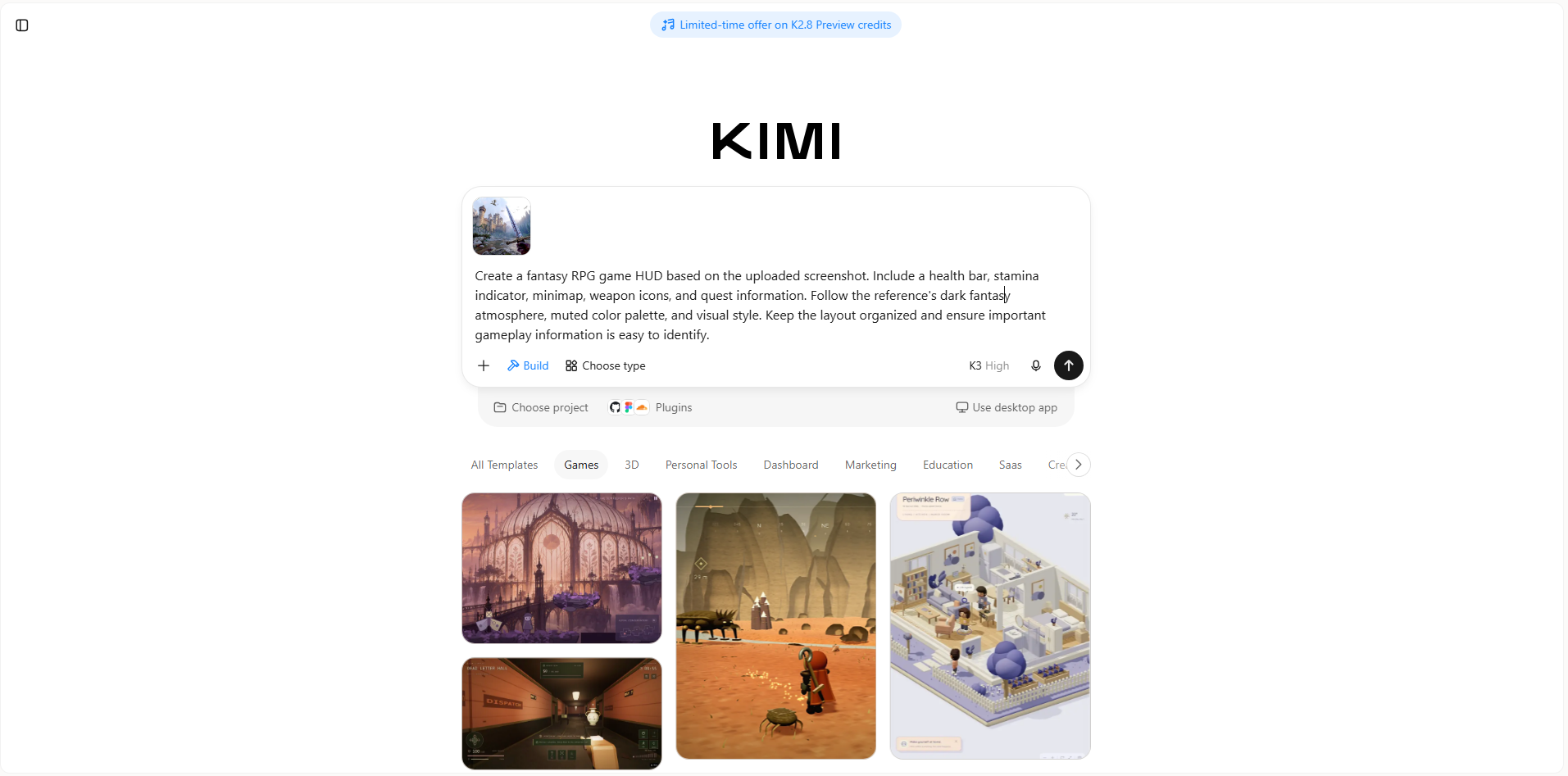
Step 2: Let AI generate your game UI
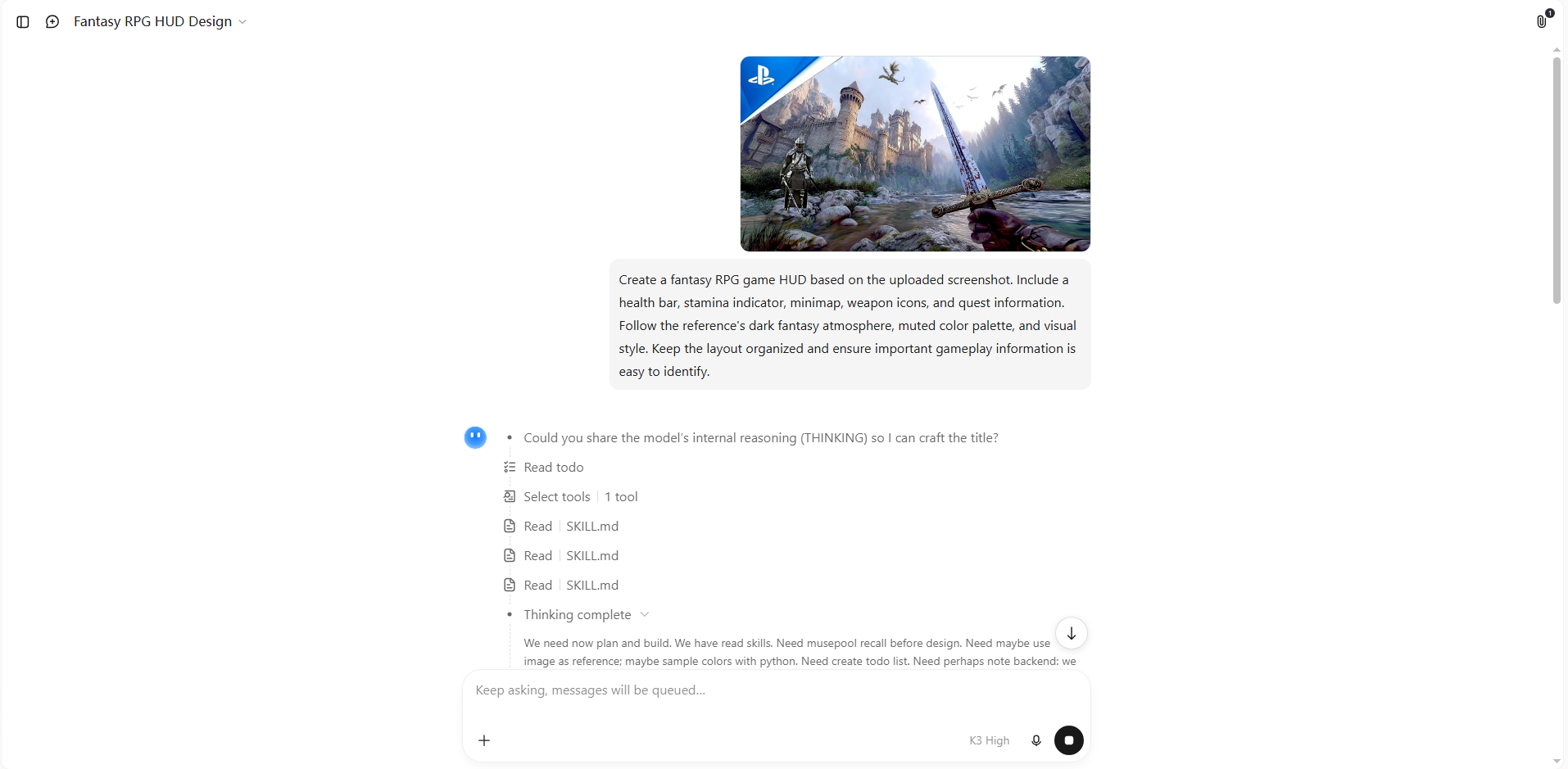
After entering your prompt and uploading references, let Kimi Build generate the initial design. It can turn your description into a visual interface concept, helping you explore layouts, visual elements, and different design directions.
Review the generated result to see whether it includes the required components and matches your intended style. You can also experiment with different prompts to explore alternative layouts, colors, and visual treatments.
Step 3: Edit and optimize the interface
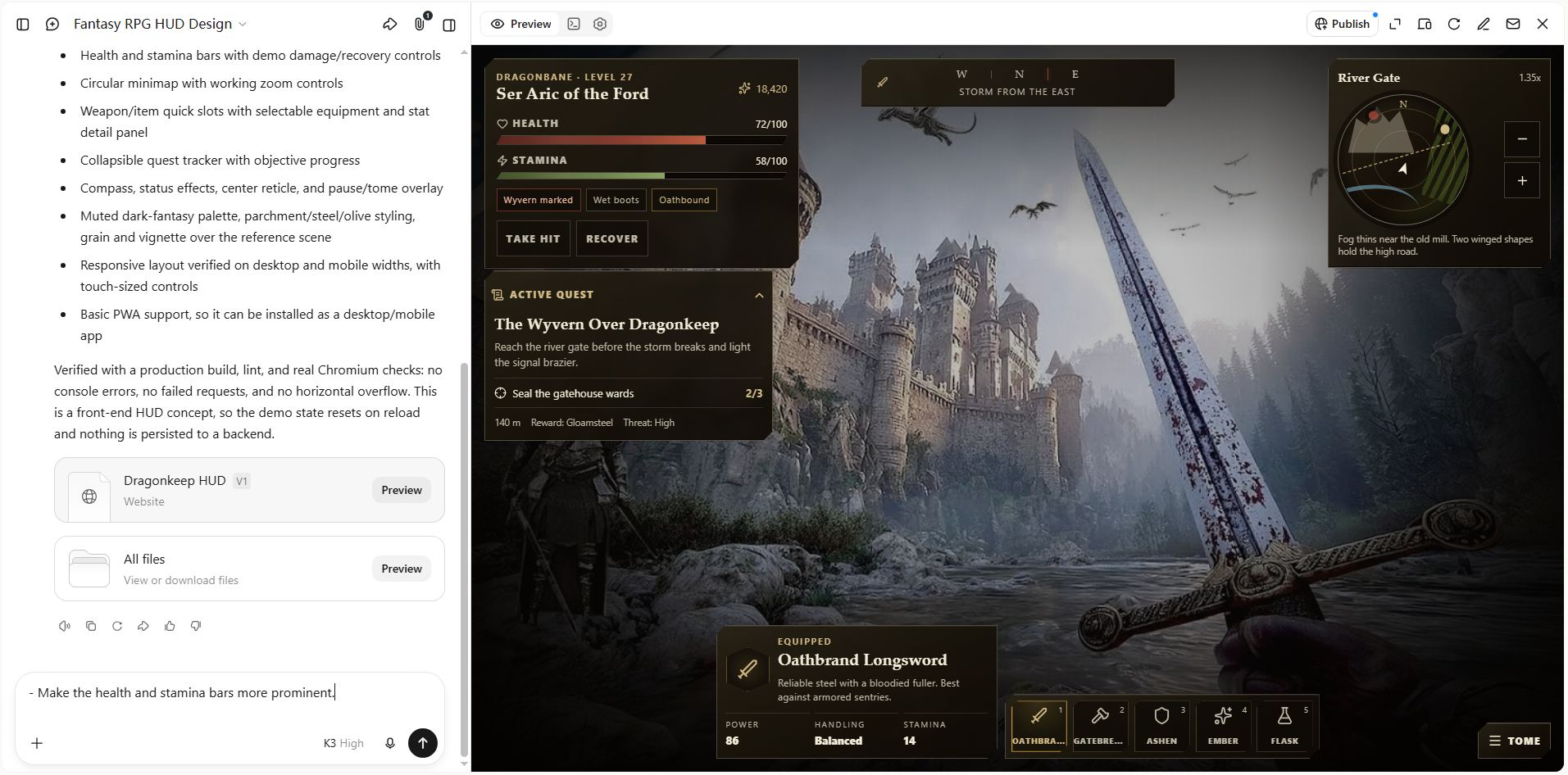
Once the initial design is ready, refine it through conversational prompts, comments on individual elements, or manual edits.
For example, you can ask Kimi Build to:
Make the health and stamina bars more prominent.
Adjust the inventory panel to display more item slots.
Change the button colors to match the game's visual identity.
Improve text contrast and spacing.
Replace generic icons with more suitable fantasy-themed elements.
Reorganize the menu to make navigation clearer.
Continue refining the interface until its visual style, layout, and components meet your requirements.
Step 4: Publish and share your game UI project
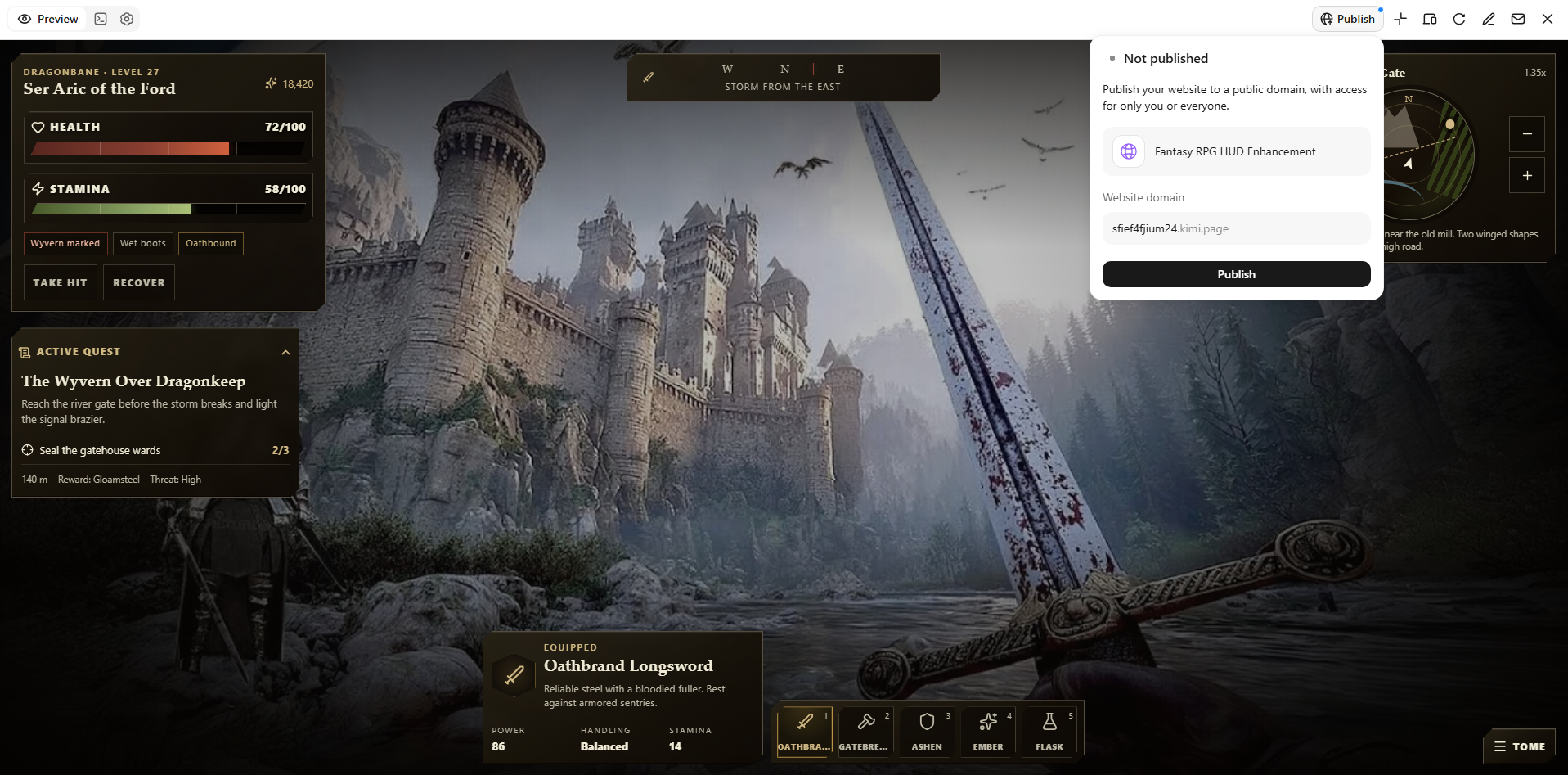
When you're satisfied with the result, publish your project through Kimi Build and generate a shareable link. You can use the published interface to present your design concept, share it with teammates, or collect feedback for further improvements.
Publishing makes it easier to showcase your game UI concept and communicate your design direction before moving into further development.
Key features of Kimi Build for game UI design
Creating a game UI takes more than arranging buttons and choosing colors. You also need tools to bring your designs to life and explore different styles. Kimi Build offers features that make this process easier. Here's what you can do with it:
Generate game UI from prompts and visual references: Describe the interface you want to create, including its game genre, layout, components, and visual direction. You can also upload screenshots, sketches, or other reference images to guide the design. Kimi Build turns your ideas into visual game interfaces, such as HUDs, main menus, inventory screens, and character selection pages.
Create cohesive visual styles across game interfaces: Define the visual direction of your game by describing its colors, lighting, textures, typography, and overall atmosphere. Kimi Build can carry these visual choices throughout the experience, helping different interface elements fit the same game world.
Build interactive game UI experiences: Go beyond static interface mockups by creating playable game experiences with interface elements and gameplay logic. You can explore how menus, status indicators, buttons, and other visual components work within the broader game experience.
Refine layouts and interactions through prompts: Continue improving your game UI with natural-language instructions. Adjust component positions, change colors, refine visual details, or modify gameplay interactions. You can also use visual annotations to point out specific elements that need changes.
Preview, test, and share your game UI: Preview your creation online and test how the interface works as part of the game. Version history lets you revisit earlier iterations, while publishing and sharing options make it easier to present your work and collect feedback.
Tips for making a well-designed game UI
A well-designed game UI should make it easy for players to understand information and interact with different features. Every visual element should have a clear purpose and support the overall gameplay experience. Keep the following tips in mind when working on a 3D or 2D game UI design:
Prioritize readability and clarity
Make sure players can read text, understand icons, and find important information without difficulty. Choose clear fonts, suitable text sizes, and colors that stand out against the background. Avoid adding too many details that could distract players during gameplay.
Establish a clear visual hierarchy
Arrange interface elements based on their importance, so players know where to look first. Important details, such as health bars, scores, and action buttons, should be easy to notice. Use different sizes, colors, and spacing to separate key information from less important details.
Match the game's visual style
Your UI should feel like a natural part of the game rather than a separate design. Choose colors, fonts, icons, and shapes that match its setting and overall mood. For example, a fantasy game may use decorative elements, while a sci-fi game may feature futuristic panels and digital displays.
Match the platform and input method
Design the interface according to the device and controls players use. Mobile games need larger touch-friendly buttons, while PC games can use keyboard shortcuts and mouse controls. Console interfaces should also work smoothly with controllers and remain easy to navigate from a distance.
Maintain consistency across screens
Use the same fonts, colors, button styles, and spacing throughout the game. Keep similar actions and navigation elements in familiar positions across different screens. This makes the interface easier to learn and helps players move between menus without confusion.
Provide immediate and clear feedback
Players should know when their actions have been successful or when something needs their attention. Use animations, sound effects, highlights, or short messages to respond to clicks and in-game actions. Clear feedback makes interactions feel more natural and helps players understand what is happening.
Include accessibility in the design process
Make your game UI comfortable for players with different needs and abilities. Use readable text, sufficient color contrast, adjustable text sizes, and clear icons. You can also include options for colorblind players, subtitles, and customizable controls to make the game more accessible.
Conclusion
A thoughtful game user interface design can make the difference between a confusing game and an enjoyable experience. The key is to keep every element useful, clear, and connected to the overall gameplay. With the right approach, you can turn your creative ideas into engaging game interfaces. Try Kimi Build to create your own game UI and explore different design possibilities. Get started with Kimi and bring your next game concept to life.