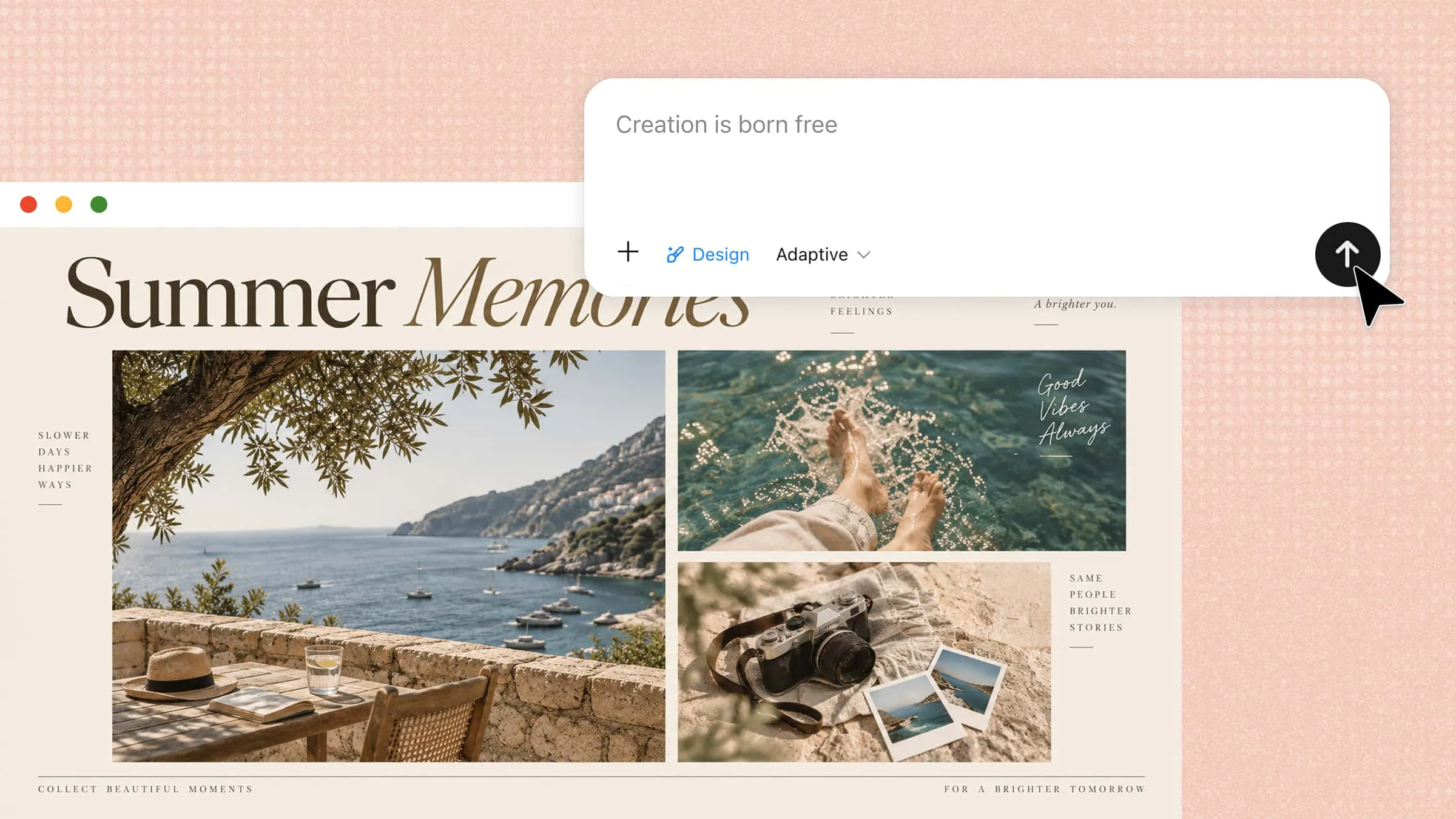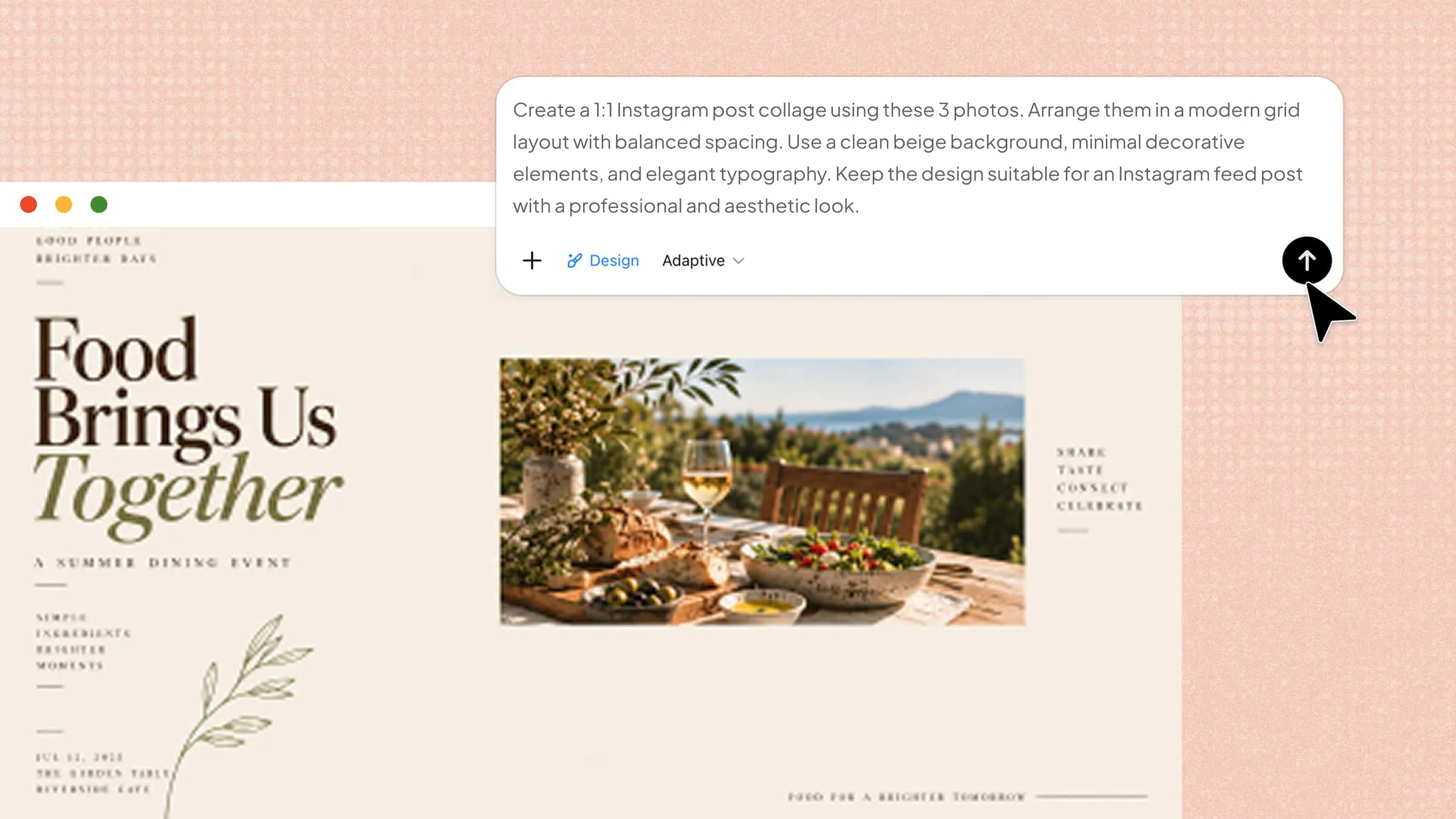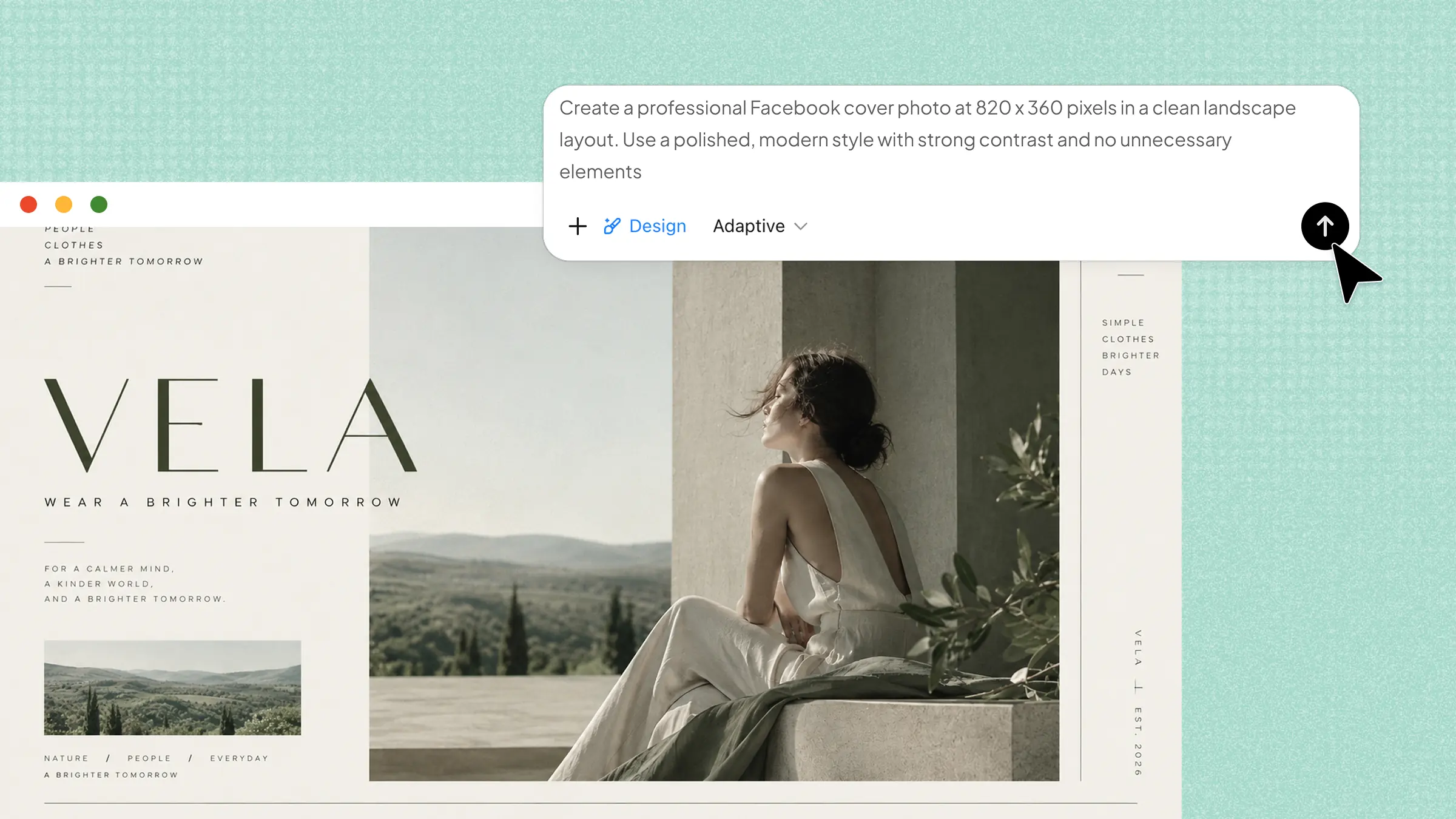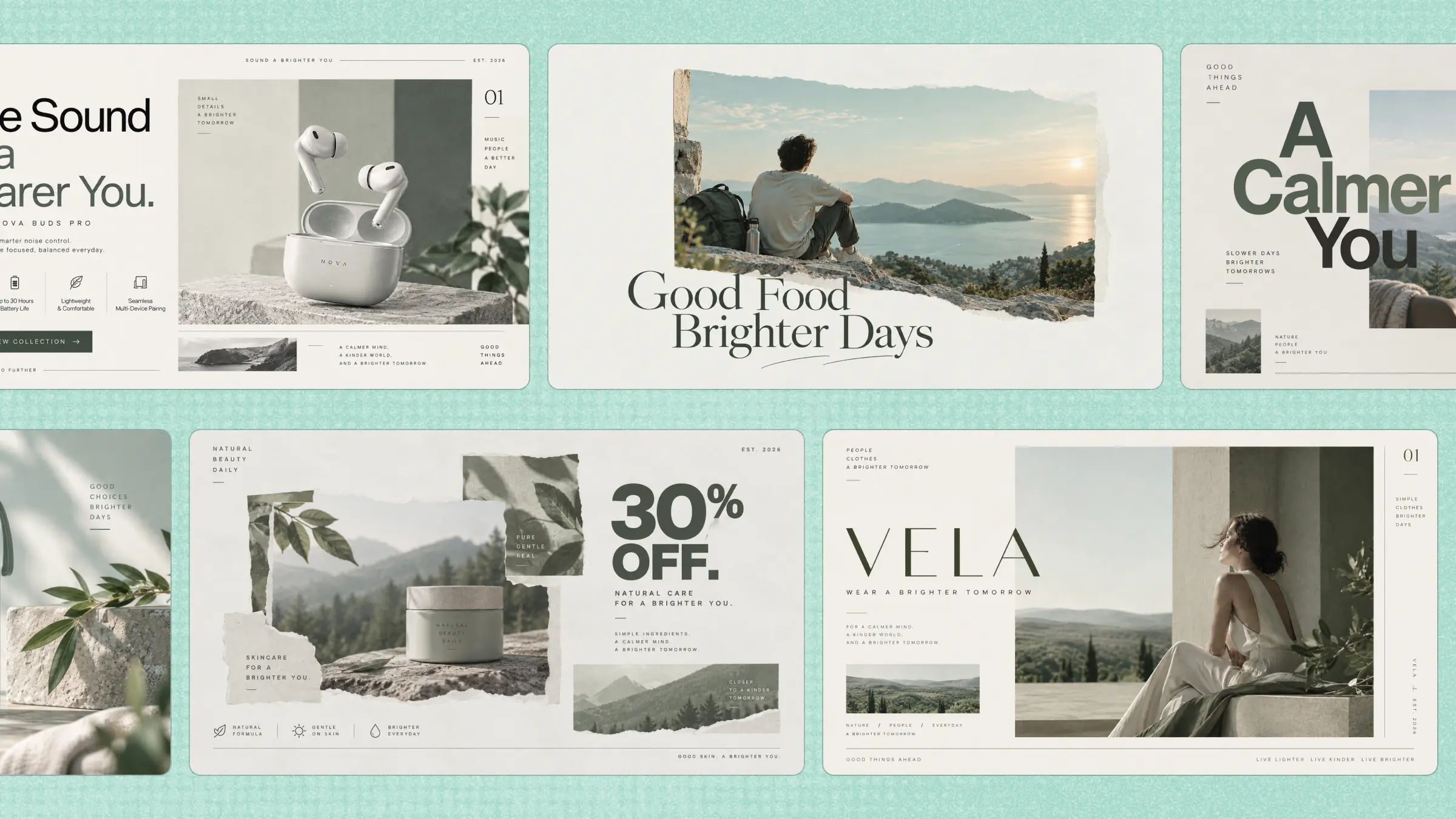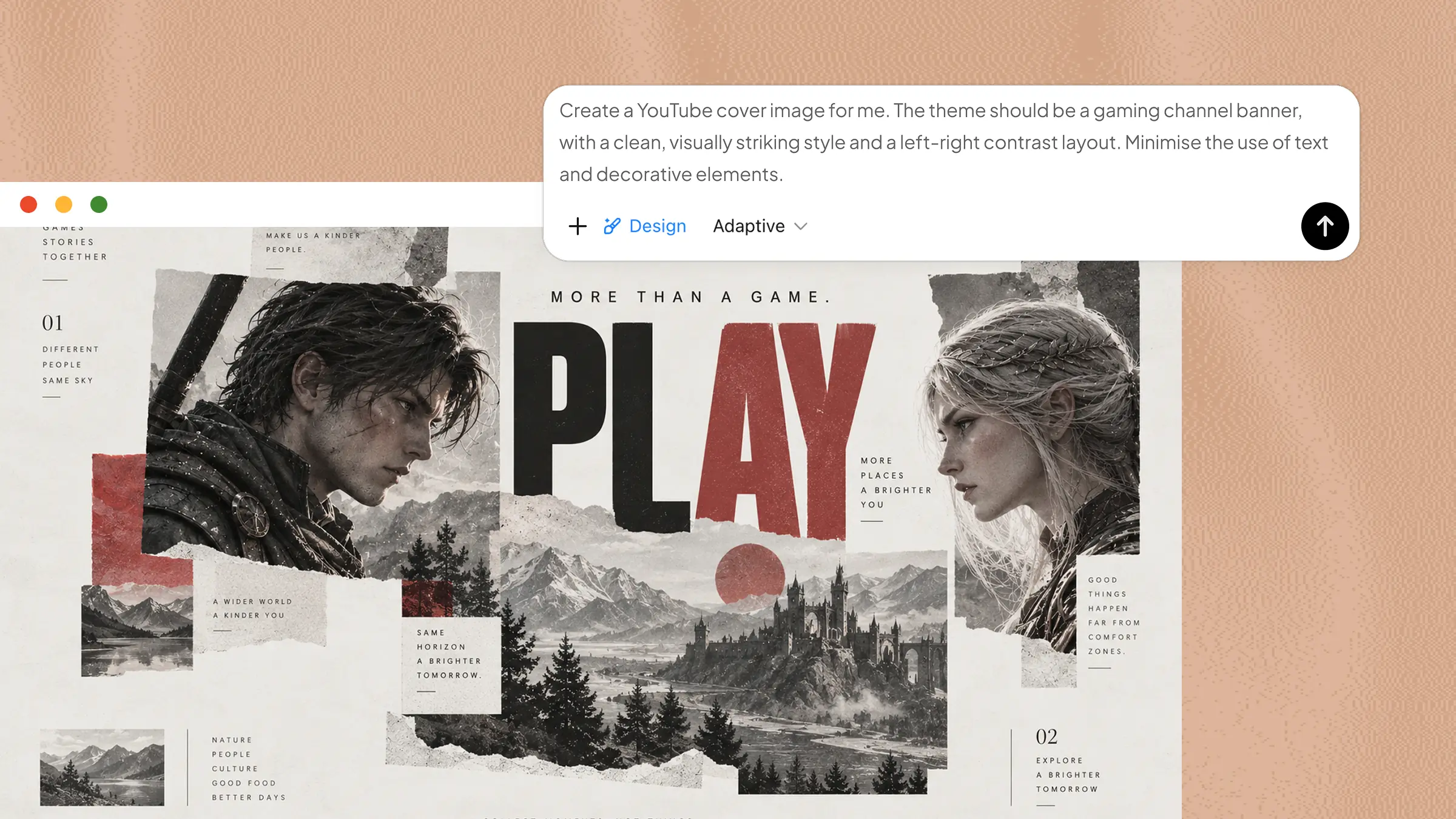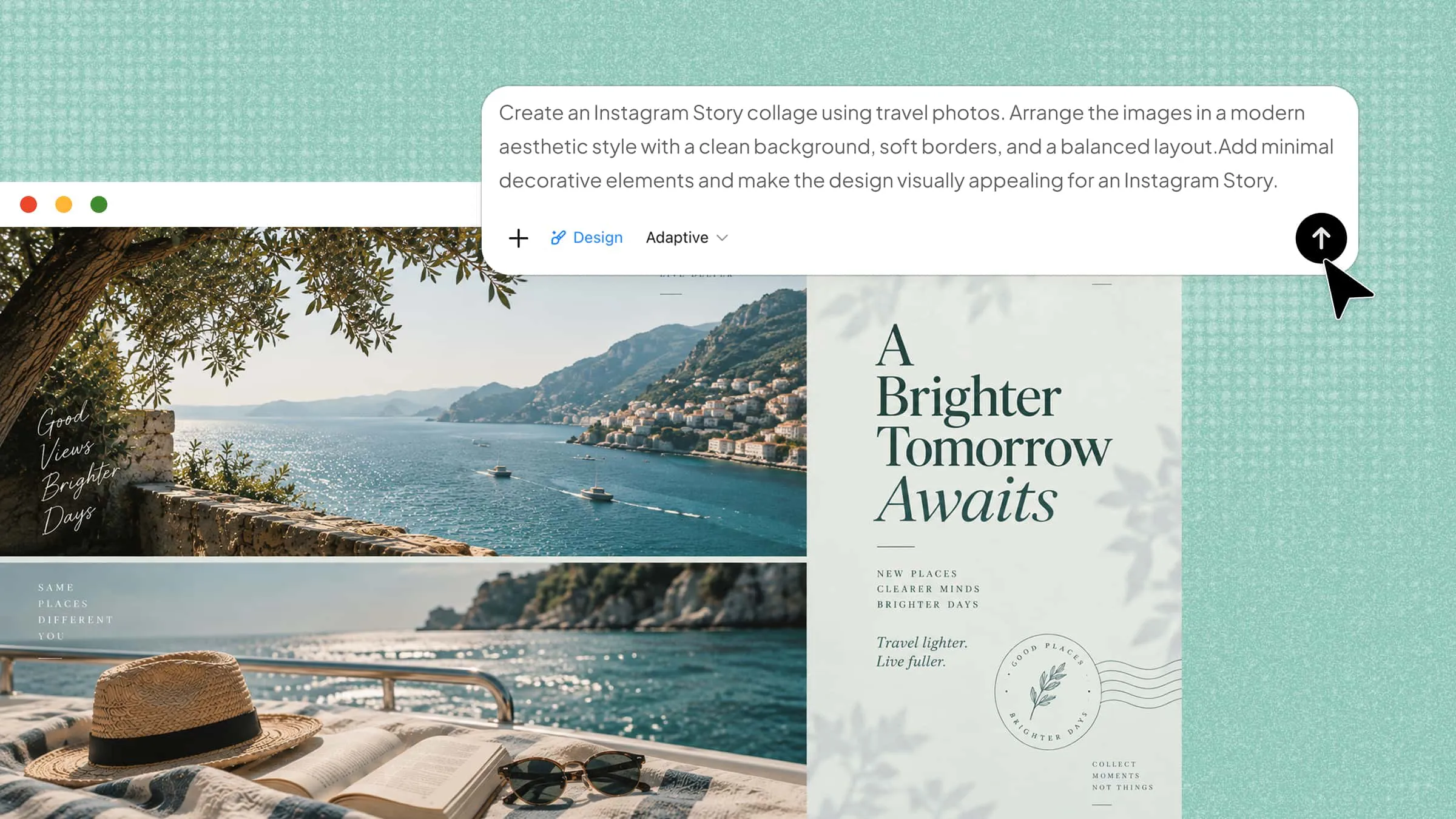
If you want to share multiple photos in one Instagram post or Story, arranging them into a collage can be difficult when you do not know where to start. Choosing the right images, layout, and design style can make the process confusing and may leave your collage looking unbalanced. A few simple techniques can help you create a clean and creative collage that matches your idea. In this article, you will learn how to make a collage on Instagram and create visually appealing posts with ease.
Overview of 2 methods for making an Instagram collage
There are different ways to create an Instagram collage depending on how much control and customization you need. If you want a quick collage using Instagram's built-in features, continue with the first method. If you prefer a more flexible approach with AI assistance and advanced design options, explore the Kimi Design method below.
| Method | Creative control | Required skills | Final result | Suitable for |
|---|---|---|---|---|
| Instagram built-in tool | Basic adjustments with simple photo placement and positioning | No design experience needed | A simple collage ready to share on Instagram | Users who want to quickly combine photos for Stories |
| Kimi Design | Advanced control over layouts, styles, elements, and overall appearance | Only a clear idea or prompt is needed | A refined AI-generated collage suitable for Instagram posts and Stories | Users who want more customized and polished collage designs |
How to make a collage on Instagram
Creating a collage on Instagram is a simple way to combine multiple photos into one creative Story. You can use Instagram's built-in collage tools to arrange memories, events, or ideas in different layouts. The app offers options like cutouts, grids, and custom photo arrangements to match your style. Follow these steps to create an engaging collage directly from your Instagram Story.
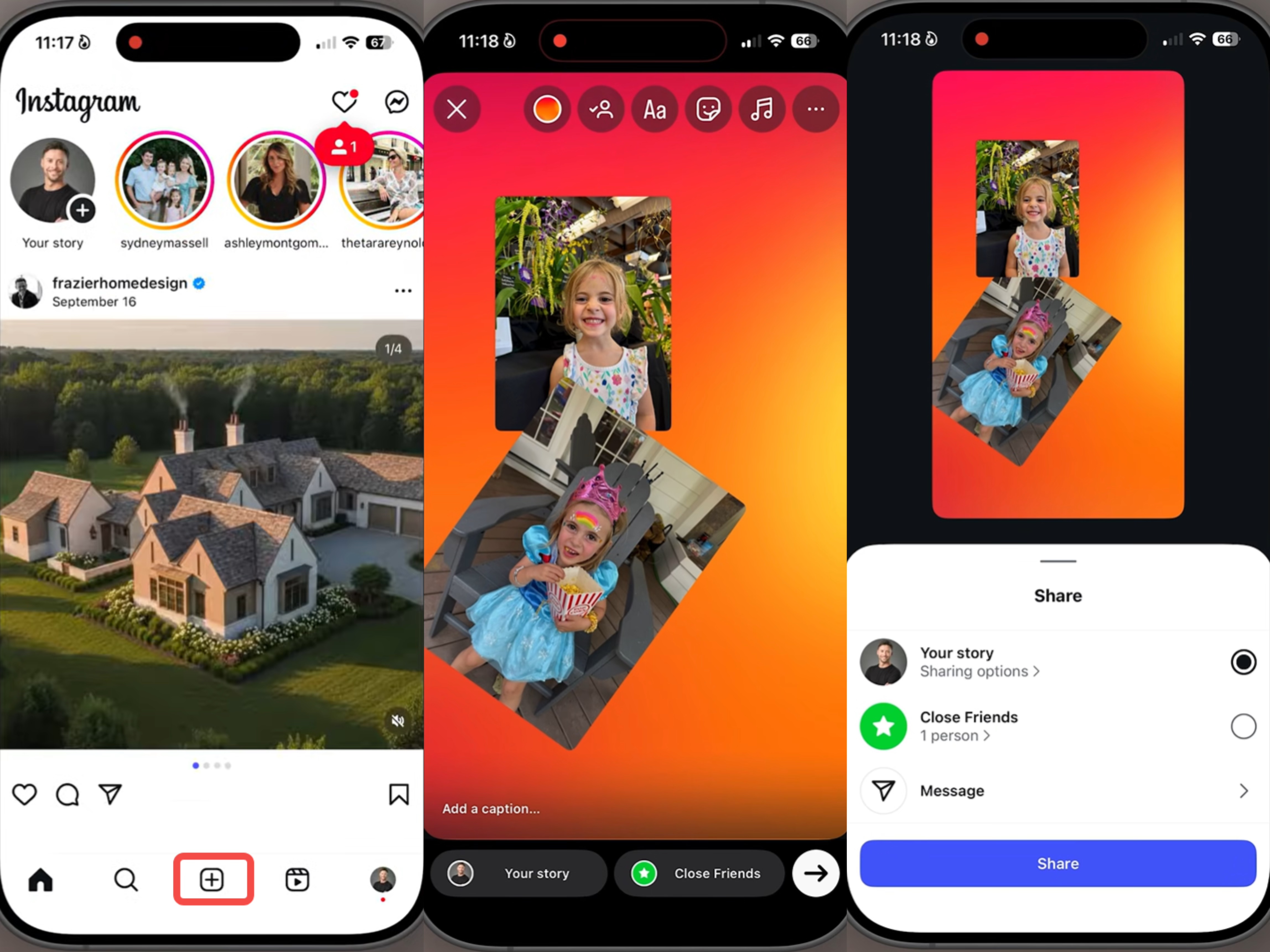
Step 1: Start a new Instagram Story
Open Instagram, tap the "+" button, and select "Story". You can use a plain background by choosing the "Aa" option and adjusting the background color if needed.
Step 2: Add and arrange photos
Tap the "Sticker" icon and select "Photo" to add an image from your gallery. Repeat the process to add more photos, then pinch to resize, drag to reposition, or rotate each photo. You can also adjust the stacking order by moving the photos around.
Step 3: Review and share your collage
Continue adding and arranging photos until you're happy with the composition. When finished, tap "Share" to publish the collage to your Instagram Story.
How to make an Instagram collage with AI
While Instagram provides simple tools for creating photo collages, you may need more flexibility when designing a collage with a specific style or creative vision. AI tools can help you experiment with different layouts, improve the arrangement of your images, and create more polished designs in less time.
Kimi Design helps you create creative and visually appealing collages with the power of AI. You can describe your idea, arrange photos, refine layouts, and add design elements to create a more polished result. Whether you want a collage for Instagram posts, Stories, or personal projects, Kimi Design makes the process faster and easier. Follow the steps below to create a photo collage with AI using Kimi Design.
Step 1: Define your Instagram collage details
Start by deciding what you want the final design to look like. Think about the purpose of your collage, the type of photos you want to include, the overall style, and the mood you want to create. Providing clear details helps Kimi Design understand your idea and generate a result that matches your vision.
Consider these details before creating your prompt:
Purpose of the collage: Decide whether you want a collage for an Instagram Story, post, product showcase, travel memories, or personal moments.
Number of photos: Mention how many images you want to include so the layout can be planned properly.
Style and theme: Choose a visual style such as minimal, modern, colorful, vintage, or aesthetic.
Design elements: Add details like text, stickers, borders, backgrounds, or decorative elements you want in the collage.
Photo arrangement: Describe how you want the images placed, such as a grid layout, overlapping photos, or a creative composition.
Set the right dimensions
The correct Instagram dimensions help your collage look clear and well-fitted on the platform. For Instagram Stories, use 1080 × 1920 pixels (9:16), while Instagram feed posts work well with 1080 × 1080 pixels (1:1) for square designs or 1080 × 1350 pixels (4:5) for portrait posts.
Example prompt:
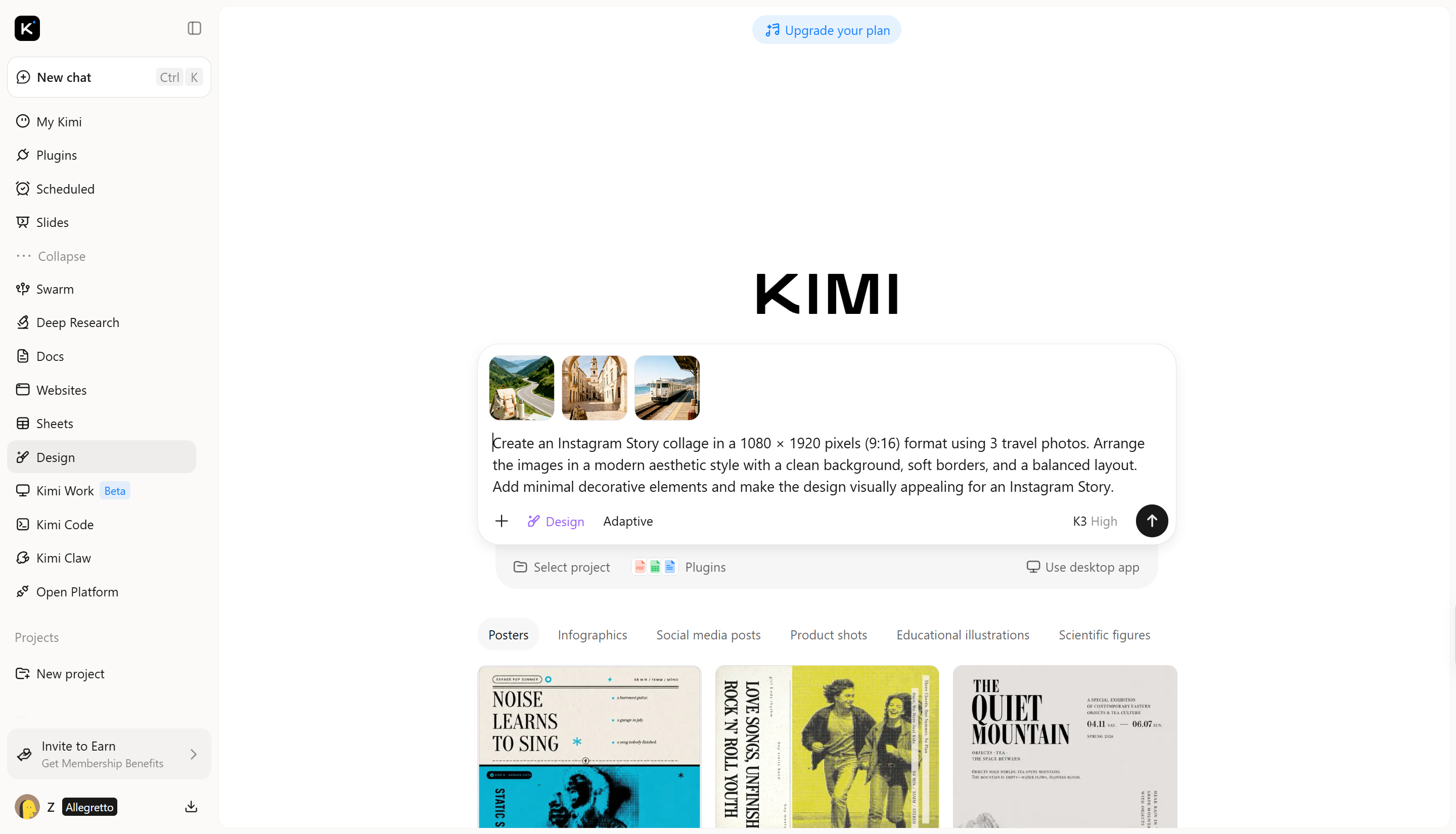
Step 2: Let AI generate the Instagram collage
After defining your collage details and dimensions, enter your prompt into Kimi Design to generate the first version of your collage. The AI will use your instructions to arrange images, apply the selected style, and create a layout that matches your idea.
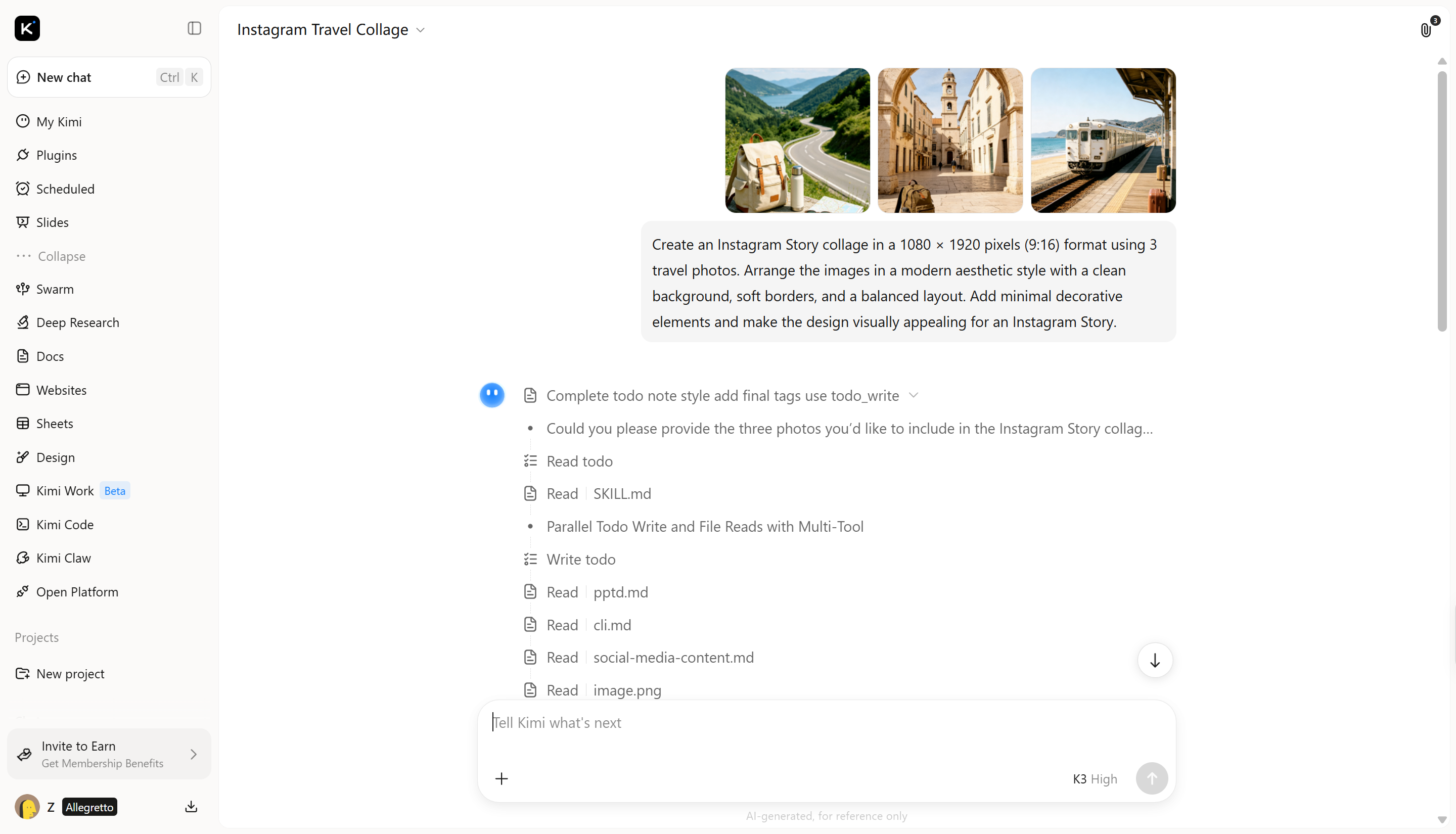
Step 3: Edit your Instagram collage
Once the AI creates your collage, you can refine it to make the final design more personalized. Adjust the image placement, replace photos, change text, modify design elements, or improve the overall arrangement until the collage looks the way you want.
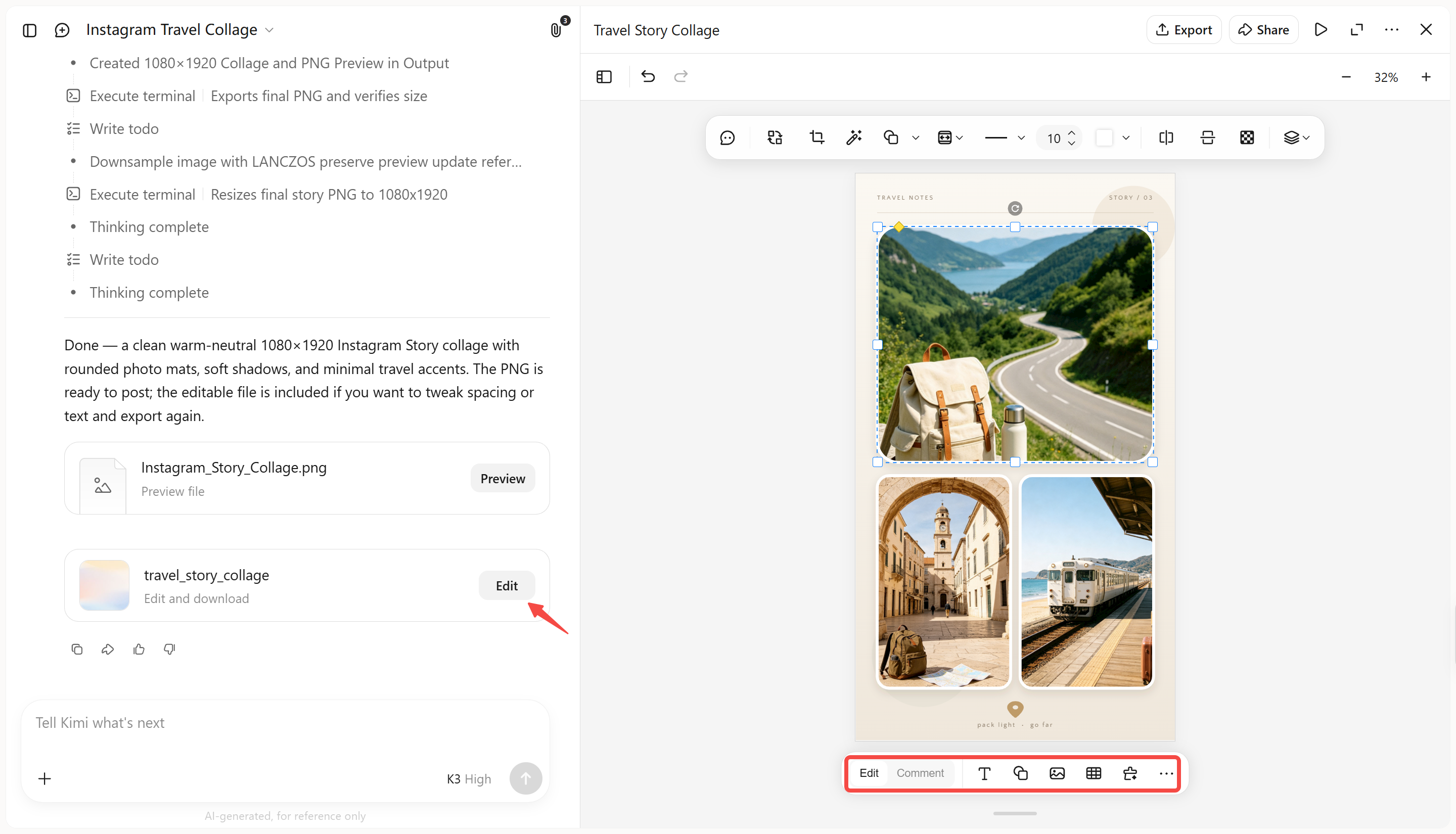
Step 4: Review and export the collage
Before sharing your collage on Instagram, review every detail to make sure the images, text, and layout look balanced. Once you are satisfied with the final design, export the collage in the correct format and upload it directly to your Instagram Story or post.
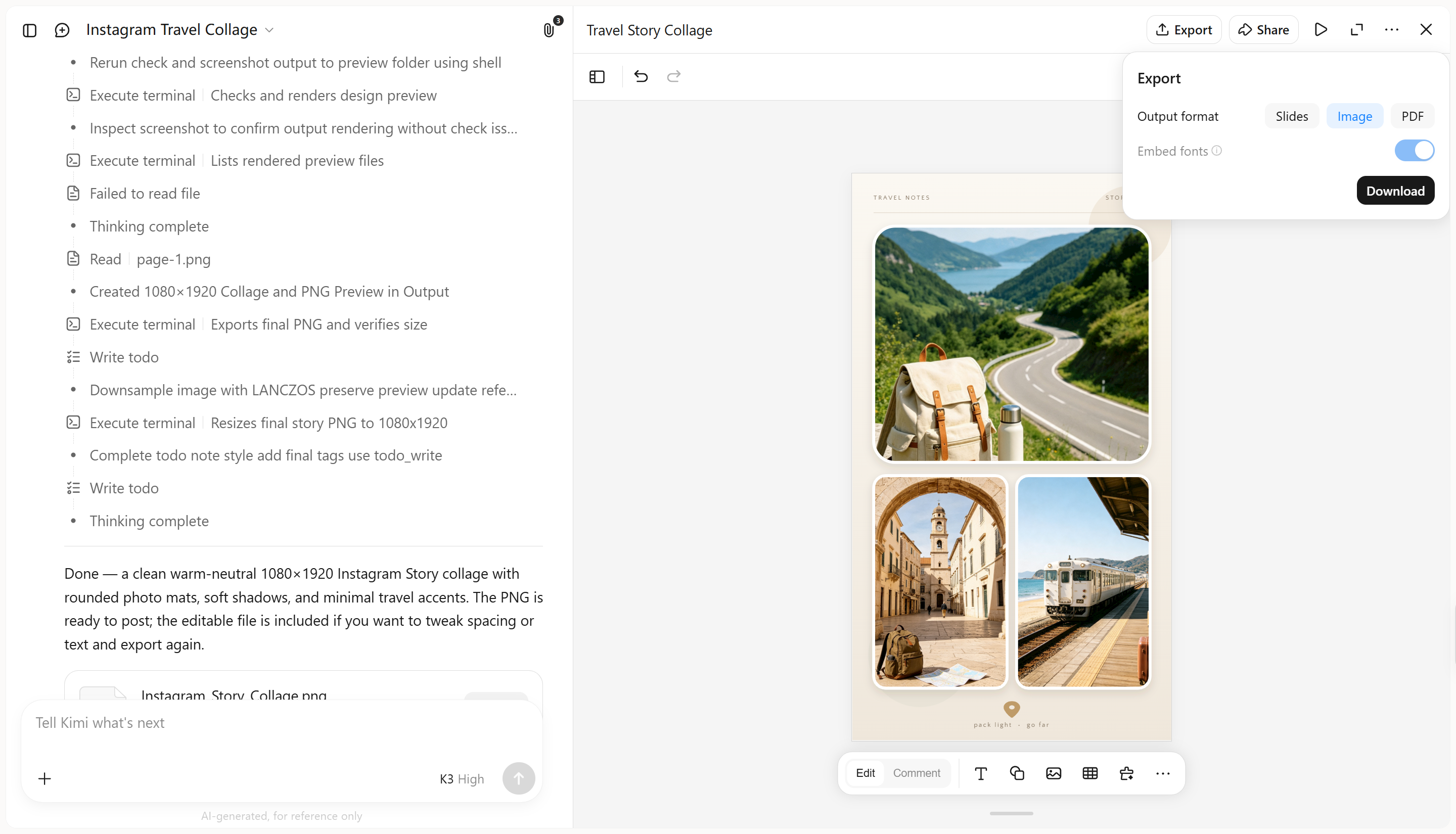
Step 5: Upload to Instagram
After exporting your finished collage, it is ready to be shared with your audience on Instagram. Open the Instagram app, choose whether you want to upload it as a Story or feed post, and select the saved collage from your gallery. Add any final touches like captions, stickers, or tags before publishing it.
Why use Kimi Design for making an Instagram collage
Kimi Design gives you more flexibility to create Instagram collages that match your style. Here are some ways it can help you design better visuals with ease.
Turn your photos into a cohesive Instagram collage
Describe the look you want for your collage, such as a clean photo grid, scrapbook style, or editorial layout. You can also upload photos and visual references, and Kimi Design arranges them into a cohesive composition with suitable spacing, typography, colors, and decorative elements.
Create layouts that fit your Instagram content
Combine multiple photos, text, graphics, and other visual elements into a balanced layout for Instagram posts or Stories. Kimi Design helps organize different content without making the collage feel crowded or disconnected.
Give your collage a distinctive visual style
Instead of simply placing photos into a preset grid, describe the mood, colors, composition, or aesthetic you want. Kimi Design can turn these creative directions into a collage that matches the visual style of your Instagram content.
Refine your collage through conversation or direct editing
Ask Kimi Design to rearrange photos, change the layout, adjust colors, rewrite text, or explore another visual direction. You can also comment on specific areas or manually edit text, images, shapes, colors, and positions.
Try different collage ideas and export the final design
Experiment with different layouts and creative directions while keeping previous versions available to revisit. When your collage is ready, export it in formats such as PNG, JPG, or PDF for sharing on Instagram or further editing.
Tips for making a collage on Instagram
When you create a collage on Instagram, small design choices can make a big difference in how your final post looks. A well-planned collage feels more organized, attractive, and easier for viewers to understand. Keep these tips in mind to make a collage that looks balanced and engaging.
Choose a clear theme and visual direction
Start by deciding the overall mood and purpose of your collage before adding images. Whether you want a travel memory, product showcase, or aesthetic design, a clear theme helps every element feel connected. This makes your collage look more intentional and professional.
Select photos that work well together
Choose images that share a similar style, color tone, or story so they look natural when placed together. Avoid mixing too many unrelated photos, as this can make the collage feel messy. Matching images help you create Instagram story collage designs that look more appealing.
Pick a layout that matches your content
The right layout helps present your photos in a way that fits your message. A simple grid works well for multiple images, while overlapping or creative layouts can add more personality. Choose a structure that highlights your photos without making the design crowded.
Create a clear visual hierarchy
Arrange your images and design elements so viewers know where to look first. Use larger photos, important text, or standout elements to guide attention. A good visual order helps your audience understand the main focus of your collage quickly.
Keep colors, spacing, and typography consistent
Using matching colors, balanced spacing, and similar text styles creates a cleaner appearance. Avoid adding too many different fonts or design elements that distract from the photos. Consistency helps you make a collage on Instagram that feels polished and visually pleasing.
Check the Instagram format before sharing
Before posting, make sure your collage fits the correct Instagram dimensions and does not crop important details. Review the final design on your phone to see how it appears in the app. This final check helps ensure your collage looks clear and professional after uploading.
Conclusion
Learning how to create a collage on Instagram helps you combine photos into creative and engaging designs. With the right approach, you can create visuals that match your style and purpose. Try different ideas and layouts to make your collages more appealing. For more creative control, use Kimi Design to create polished Instagram collages with ease. Bring your ideas to life with AI-powered designs from Kimi Design.