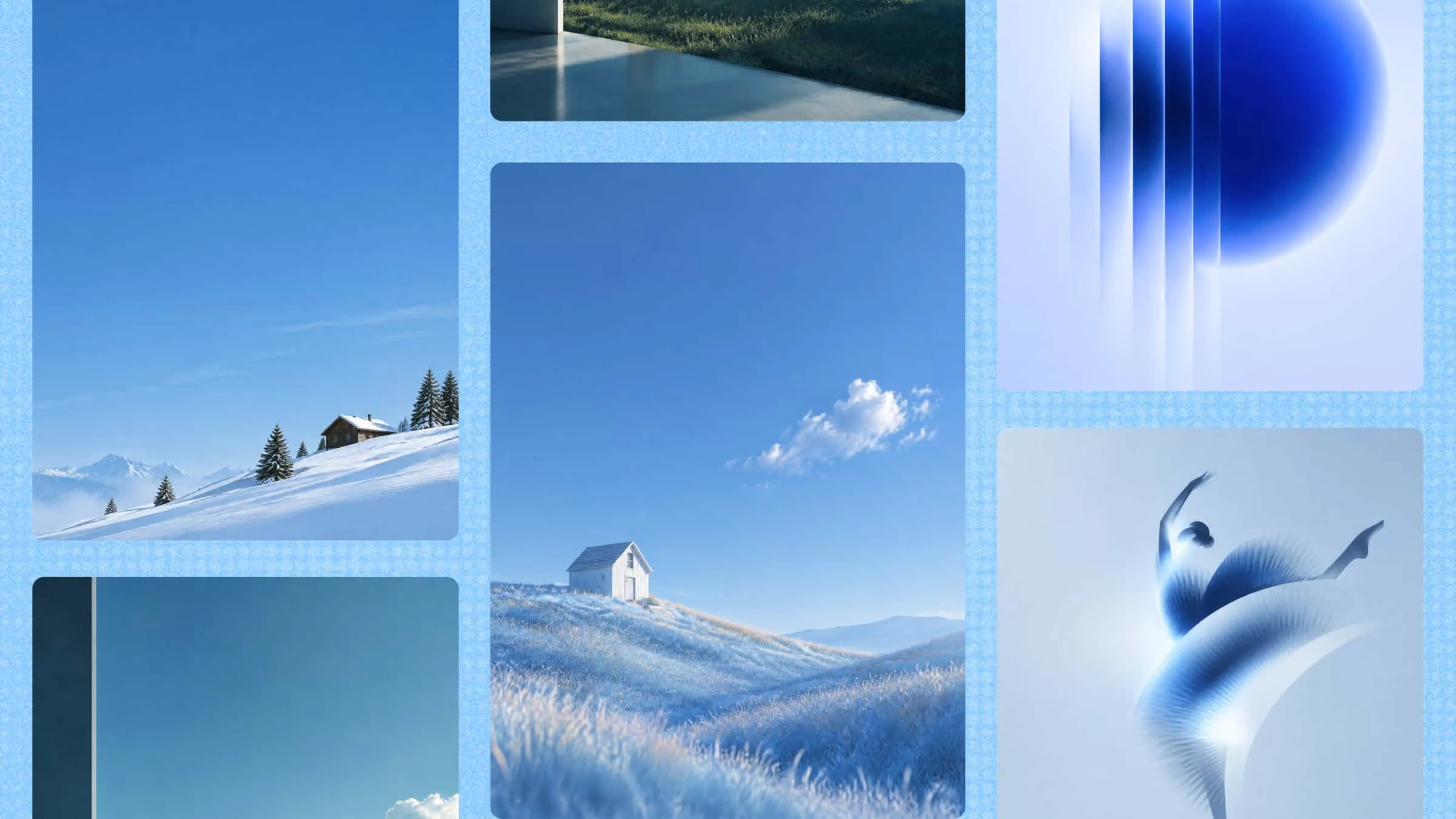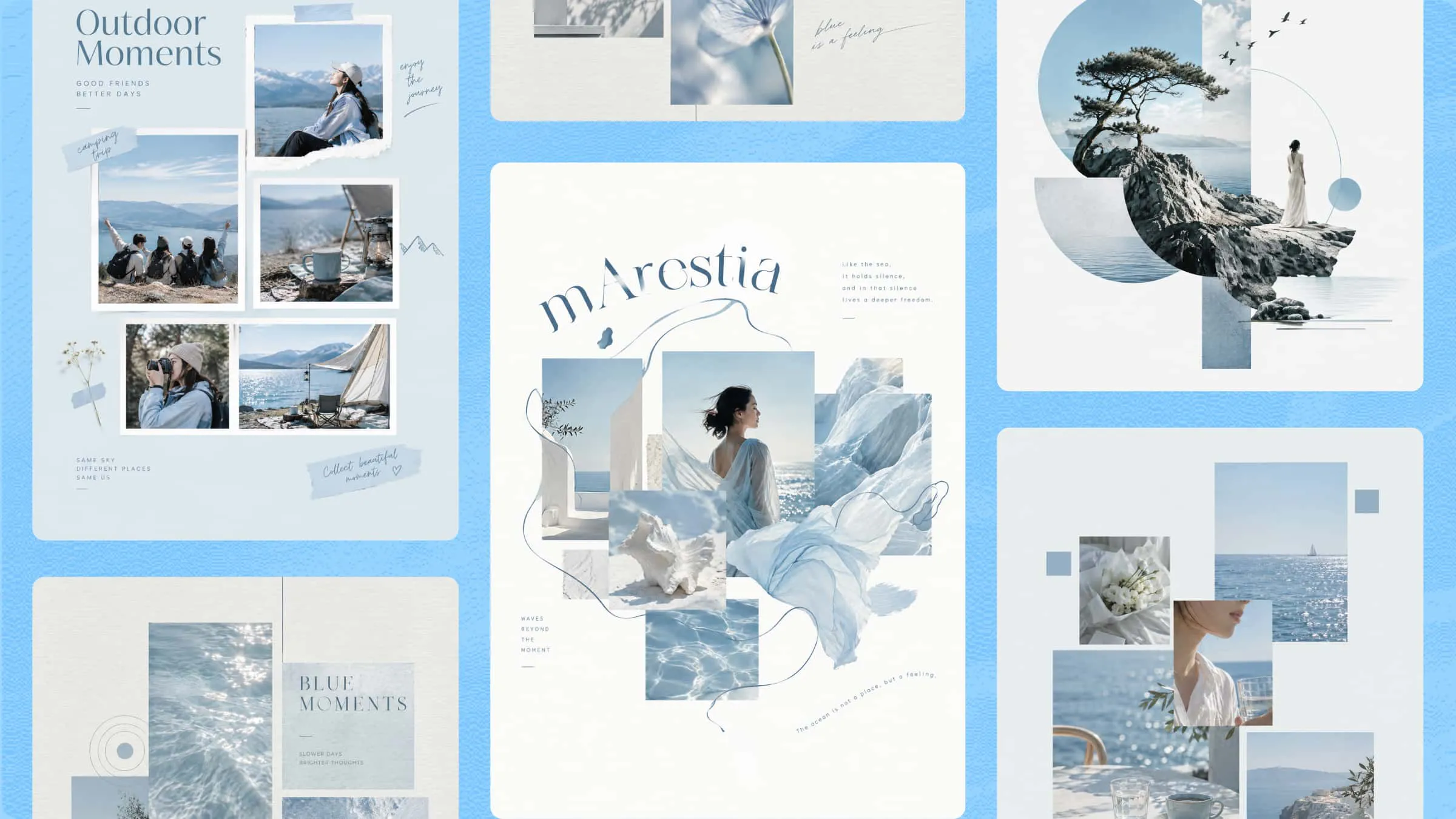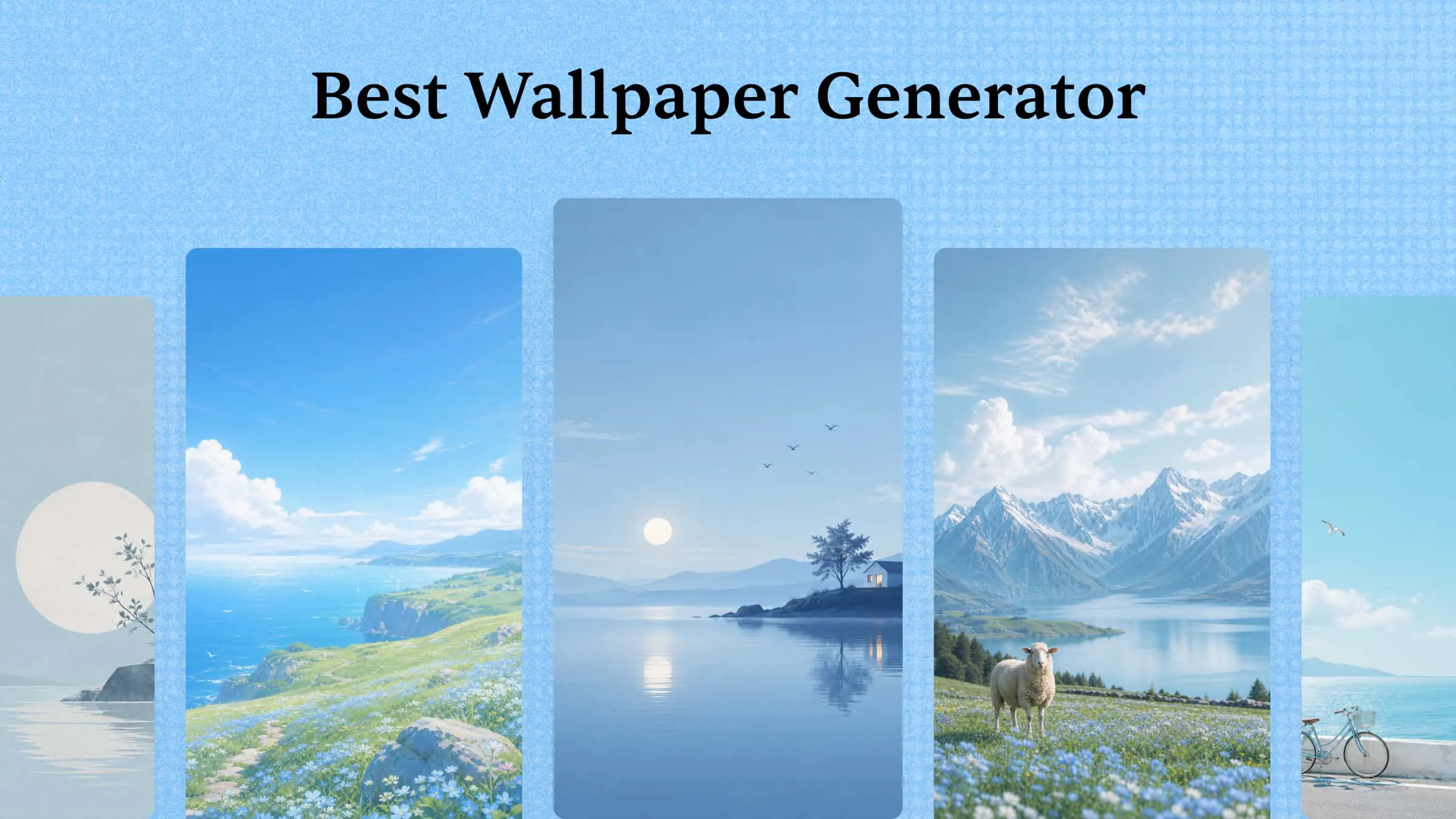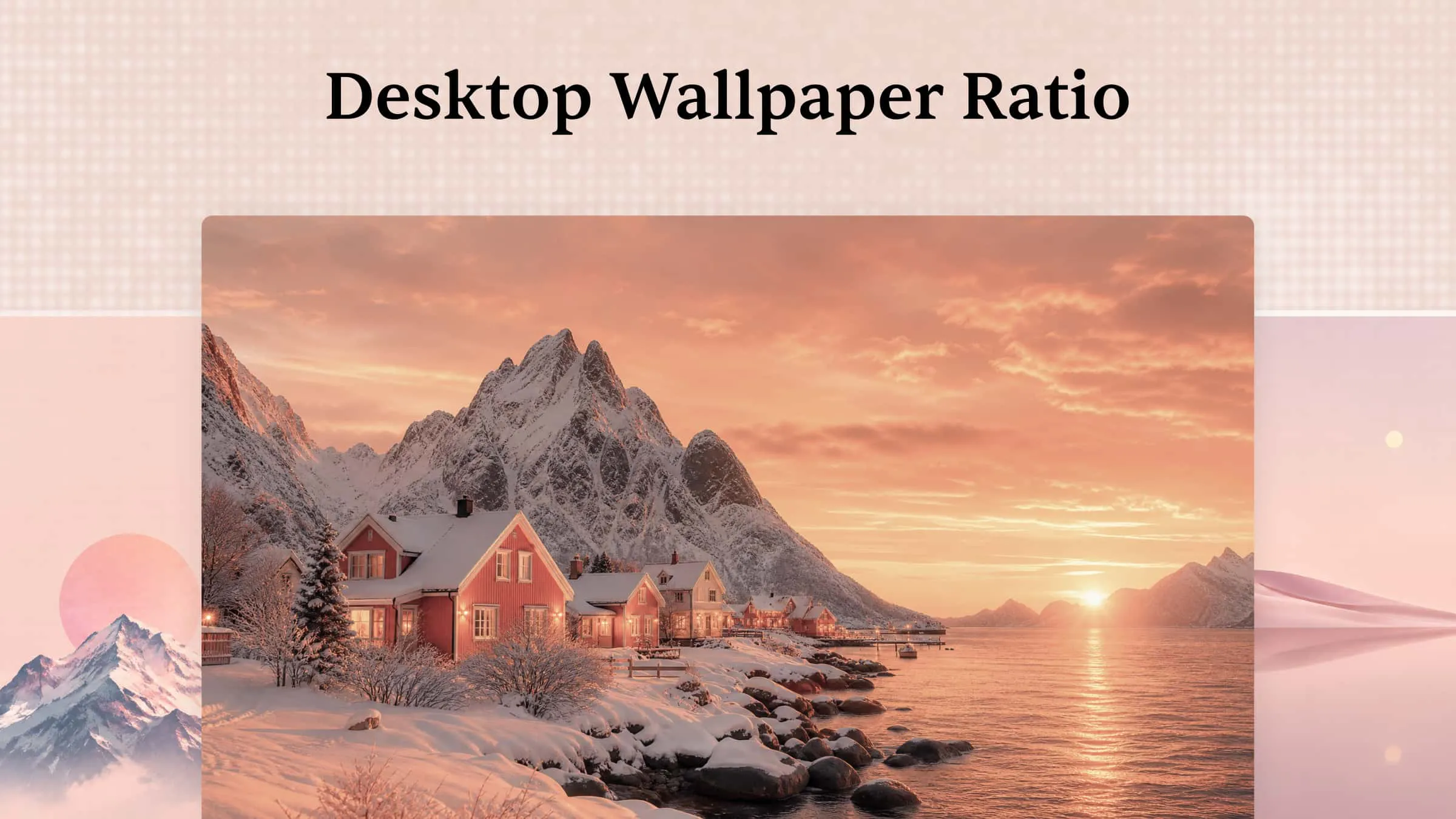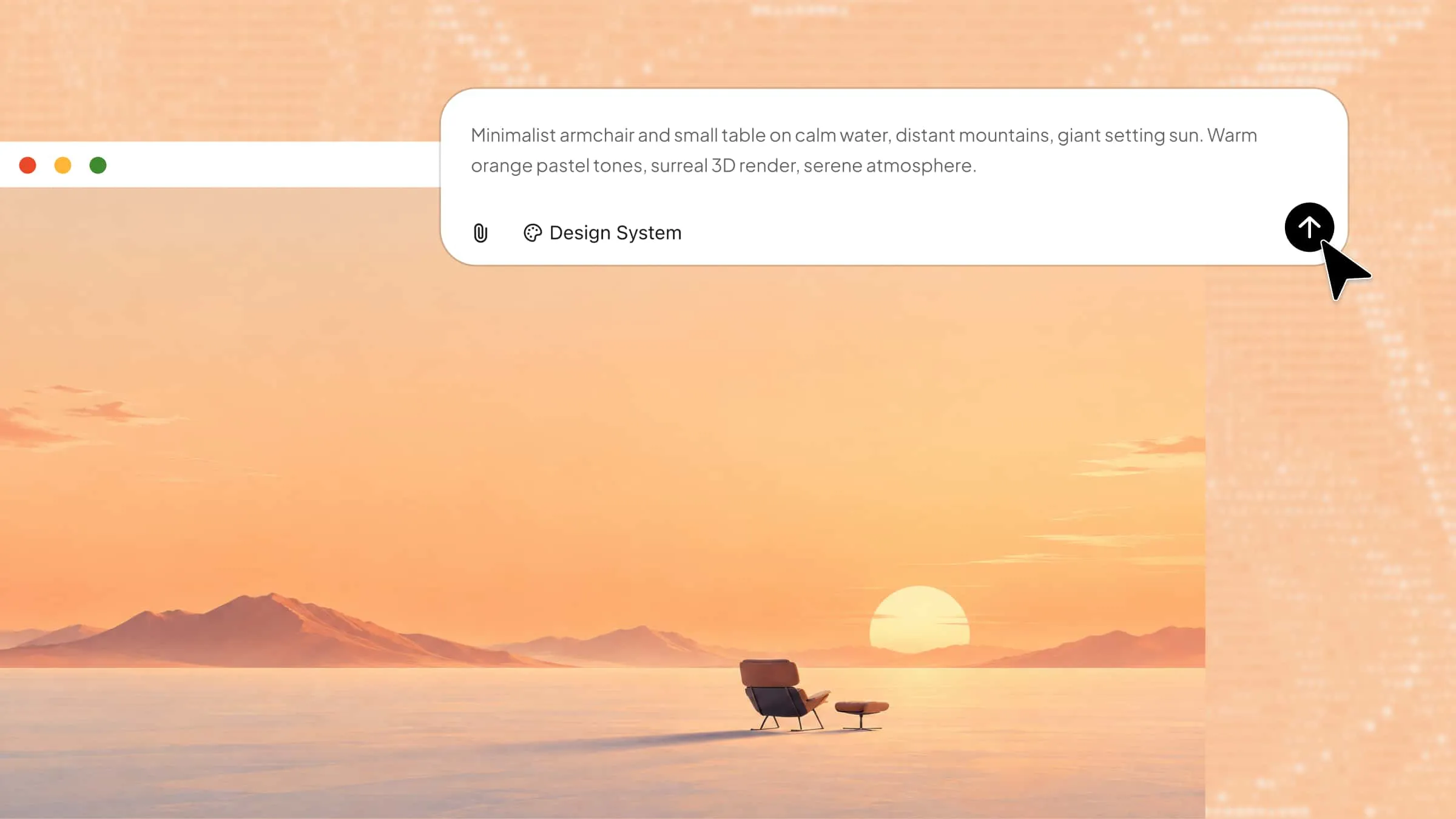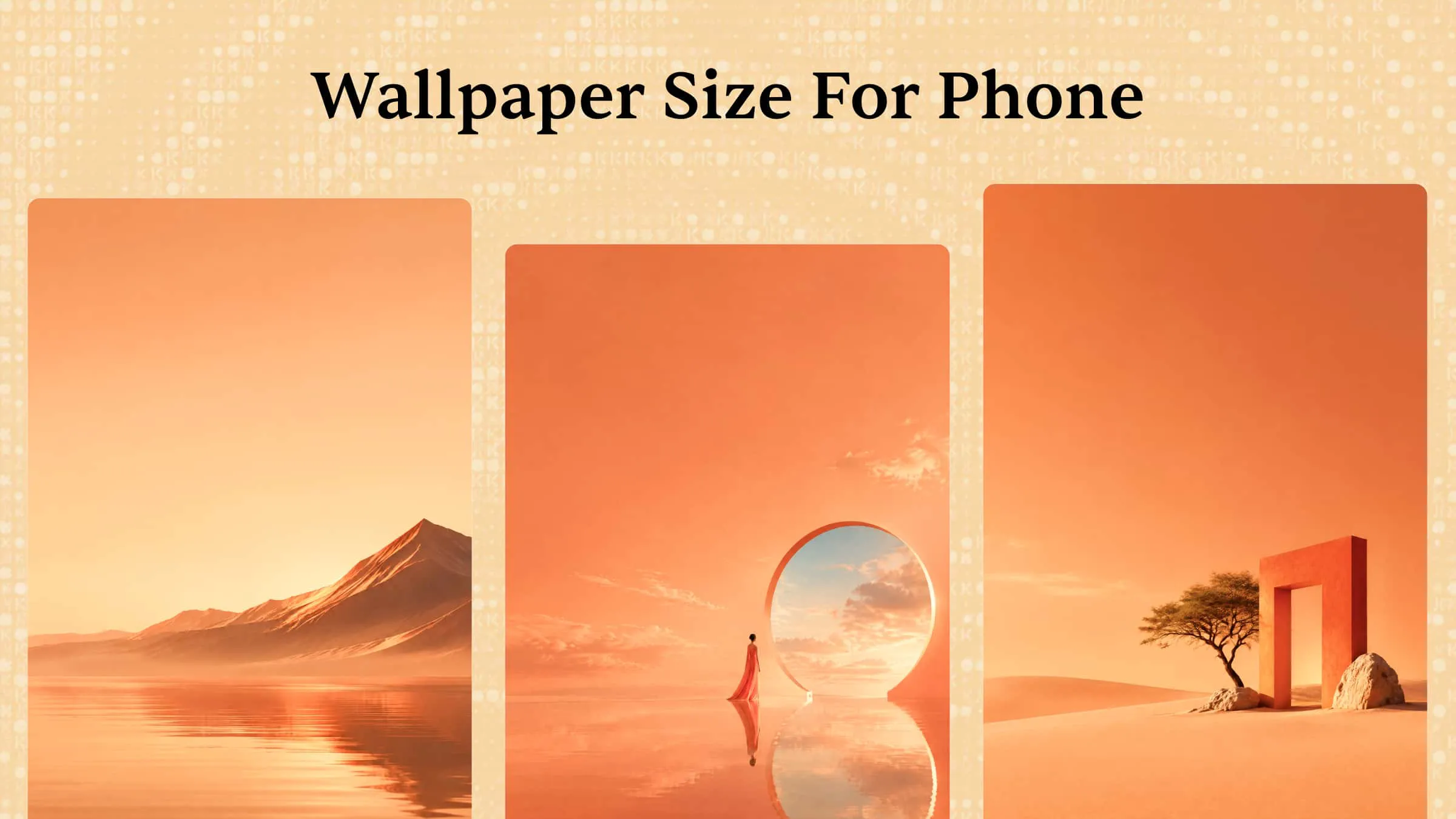
A great phone wallpaper can lose its appeal when the image appears blurry, stretched, or awkwardly cropped on your screen. This often happens when the wallpaper does not match your phone's screen resolution or aspect ratio. Since iPhones and Android devices come in different screen sizes, choosing the right dimensions is essential for a proper fit. Knowing the correct phone wallpaper dimensions helps you create backgrounds that look sharp and well-aligned. This guide covers the recommended wallpaper sizes for both iPhone and Android, along with practical tips for achieving clear, well-fitted results.
What are the standard phone wallpaper dimensions
Phone wallpaper dimensions refer to an image's width and height, typically measured in pixels (px). Since smartphone screens are vertically oriented, wallpapers usually follow a portrait aspect ratio. However, the recommended resolution varies depending on the device, screen size, and manufacturer.
Common cell phone wallpaper dimensions include:
| Wallpaper dimensions | Aspect ratio | Common use |
|---|---|---|
| 1080 × 1920 px | 9:16 | General-purpose vertical wallpapers |
| 1080 × 2340 px | 9:19.5 | Many modern smartphones |
| 1080 × 2400 px | 9:20 | Android smartphones |
| 1206 × 2622 px | 9:19.5 | Recent iPhone models |
| 1440 × 3120 px | 9:19.5 | High-resolution Android phones |
These dimensions serve as general guidelines rather than fixed standards. For the best display quality, choose a wallpaper that matches your phone's native screen resolution or offers a higher resolution with the same aspect ratio.
Understanding resolution and aspect ratio
Two key factors affect how well a wallpaper fits your phone screen:
Resolution: Refers to the number of pixels in an image, expressed as width × height. Higher resolution generally provides sharper details, particularly on high-density screens.
Aspect ratio: Describes the proportional relationship between an image's width and height. For example, a 1080 × 2400 px image has a 9:20 aspect ratio, which is common for modern smartphones.
When the wallpaper and screen have different aspect ratios, your phone may automatically crop, resize, or reposition the image to fit the display. This can cut off important details or affect the overall composition. While choosing the correct phone wallpaper size in pixels helps maintain image quality and ensures a better fit.
iPhone wallpaper dimensions
iPhone wallpaper dimensions vary by model and generation because different iPhones use different screen resolutions. Most recent models feature tall displays with an aspect ratio close to 9:19.5, although their exact pixel measurements differ.
The following table highlights common iPhone screen resolutions to help you choose the right phone wallpaper size for your device.
| iPhone model | Display resolution | Approximate aspect ratio |
|---|---|---|
| iPhone 18 Pro Max | 1320 × 2868 px | 9:19.55 |
| iPhone 18 Pro | 1206 × 2622 px | 9:19.57 |
| iPhone 17 Pro Max | 1320 × 2868 px | 9:19.55 |
| iPhone 17 Pro | 1206 × 2622 px | 9:19.57 |
| iPhone 17 | 1206 × 2622 px | 9:19.57 |
| iPhone 16 Pro Max | 1320 × 2868 px | 9:19.55 |
| iPhone 16 Pro | 1206 × 2622 px | 9:19.57 |
| iPhone 16 Plus | 1290 × 2796 px | 9:19.51 |
| iPhone 16 | 1179 × 2556 px | 9:19.51 |
| iPhone 15 | 1179 × 2556 px | 9:19.51 |
| iPhone 14 | 1170 × 2532 px | 9:19.48 |
| iPhone 13 | 1170 × 2532 px | 9:19.5 |
| iPhone SE (3rd generation) | 750 × 1334 px | 9:16 |
Android phone wallpaper dimensions
Unlike iPhones, Android devices come from various manufacturers, including Samsung, Google, and OnePlus, each offering different screen sizes and resolutions. This means Android phone wallpaper dimensions vary by model, with differences in display resolution and aspect ratio. Therefore, no single wallpaper size works for every Android phone.
The following are examples of common Android display resolutions to help you choose a suitable wallpaper size.
| Android model | Display resolution | Approximate aspect ratio |
|---|---|---|
| Samsung Galaxy S25 Ultra | 1440 × 3120 px | 9:19.5 |
| Samsung Galaxy S25 | 1080 × 2340 px | 9:19.5 |
| Google Pixel 10 | 1080 × 2424 px | 9:20.2 |
| Google Pixel 9 Pro | 1280 × 2856 px | 9:20.1 |
| OnePlus 13 | 1440 × 3168 px | 9:19.8 |
Lock screen vs. home screen wallpaper dimensions
Although lock screen and home screen wallpapers generally share the same screen resolution, their layouts serve different purposes. The lock screen needs to accommodate the clock and notifications, while the home screen must work well with app icons and widgets. When customizing your phone wallpaper, consider the following layout differences to keep both screens visually appealing and easy to use.
Lock screen wallpaper
The lock screen displays the clock, date, notifications, and sometimes widgets. Your wallpaper should accommodate these elements while keeping the main image visible.
When designing a lock screen wallpaper, consider the following:
Leave enough clear space around the clock and date to keep them readable.
Avoid placing important subjects where notifications typically appear.
Position the main visual elements where they remain visible without overlapping interface components.
Choose a background with sufficient contrast, so the clock, date, and other text are easy to read.
Home screen wallpaper
The home screen contains app icons, folders, widgets, and shortcuts. Choose a background that complements these elements without making the display look crowded.
Keep these points in mind when designing a home screen wallpaper:
Use a relatively simple background to make app icons easy to recognize.
Avoid placing busy patterns or detailed elements behind frequently used apps.
Choose balanced colors that provide enough contrast between the wallpaper and icons.
Leave sufficient space for widgets, folders, and the app dock.
You can use the same image for both screens, but adjusting its crop, subject placement, or background can help it fit each layout more effectively.
How to check your phone's screen resolution
Before creating or downloading a wallpaper, check your phone's screen resolution and aspect ratio. Knowing these details helps you choose the correct phone wallpaper dimensions and avoid unwanted cropping, stretching, or loss of image quality.
For iPhone
Follow these steps to identify your iPhone model and find its screen resolution:
Open "Settings" and tap "General."
Select "About" to find your iPhone model.
Visit Apple's official technical specifications page and search for your model.
Check the listed display resolution and use its pixel dimensions as a reference for your wallpaper.
For Android
Android settings vary across manufacturers, but you can generally find your device information by following these steps:
Open "Settings" on your Android phone.
Look for "Display" or "Screen resolution" to check the available resolution settings.
If the resolution is not listed, open "About phone" to identify your device model.
Visit the manufacturer's official website and search for your model.
Check its display resolution and aspect ratio to determine the appropriate Android phone wallpaper dimensions.
How to create AI wallpapers that fit your phone screen perfectly
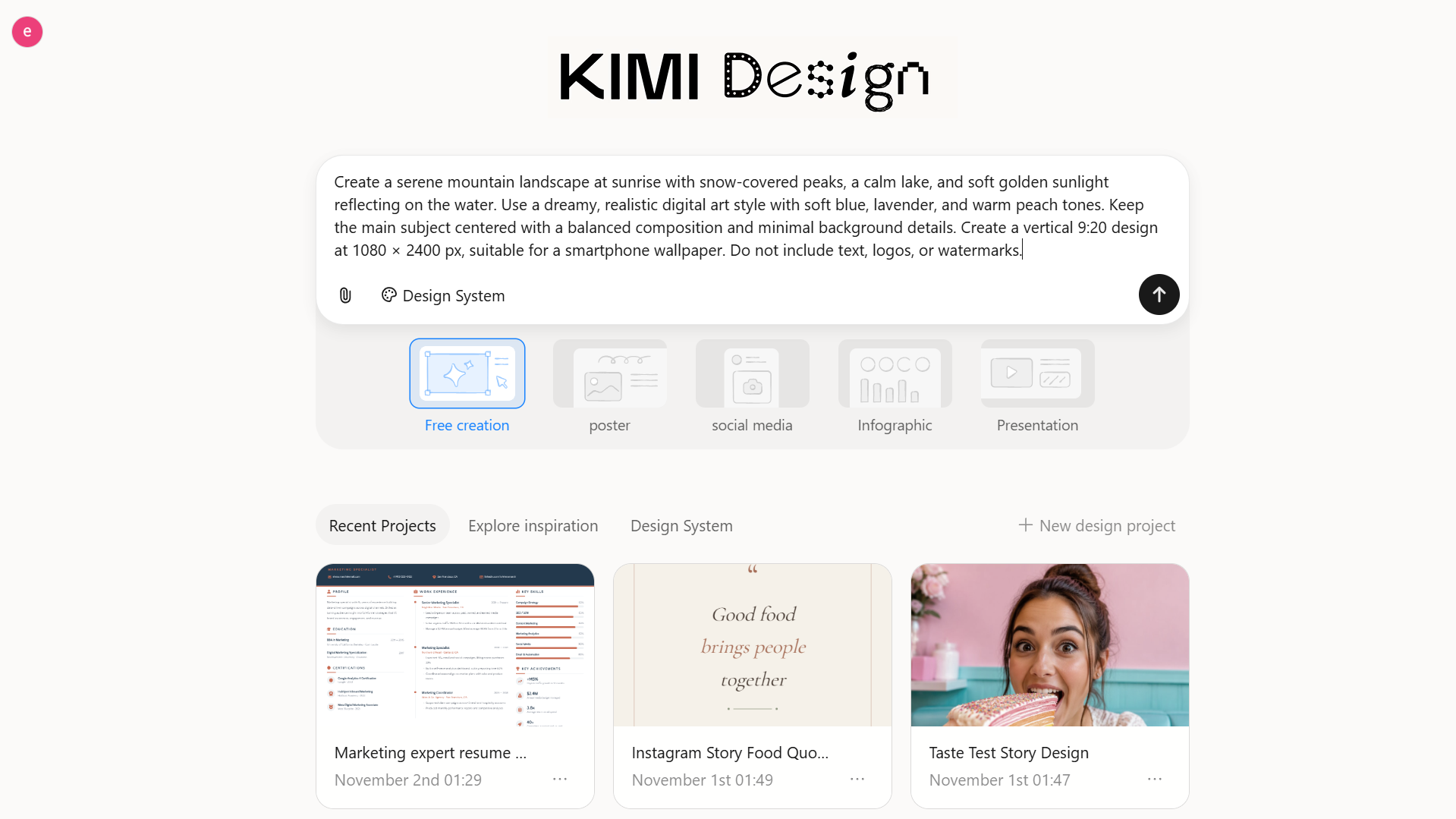
Creating a custom phone wallpaper is easier with an AI design generator like Kimi Design. It allows you to generate unique wallpapers from simple text prompts and customize the results to match your preferred style. You can describe the subject, colors, background, and visual details to create a personalized design. By specifying your phone's screen ratio and resolution, you can also make the wallpaper fit your display more accurately.
Step 1: Write a clear prompt
Start by describing the wallpaper you want to create. Include the main subject, visual style, background, color palette, and composition. Specify a portrait aspect ratio, such as 9:19.5 or 9:20, to suit your phone screen.
Example prompt:
Step 2: Refine the wallpaper with AI
Review the generated wallpaper and identify any details that need improvement. Use additional prompts to adjust colors, lighting, background elements, or subject placement. You can also refine the composition to keep important details visible and avoid areas covered by phone interface elements.
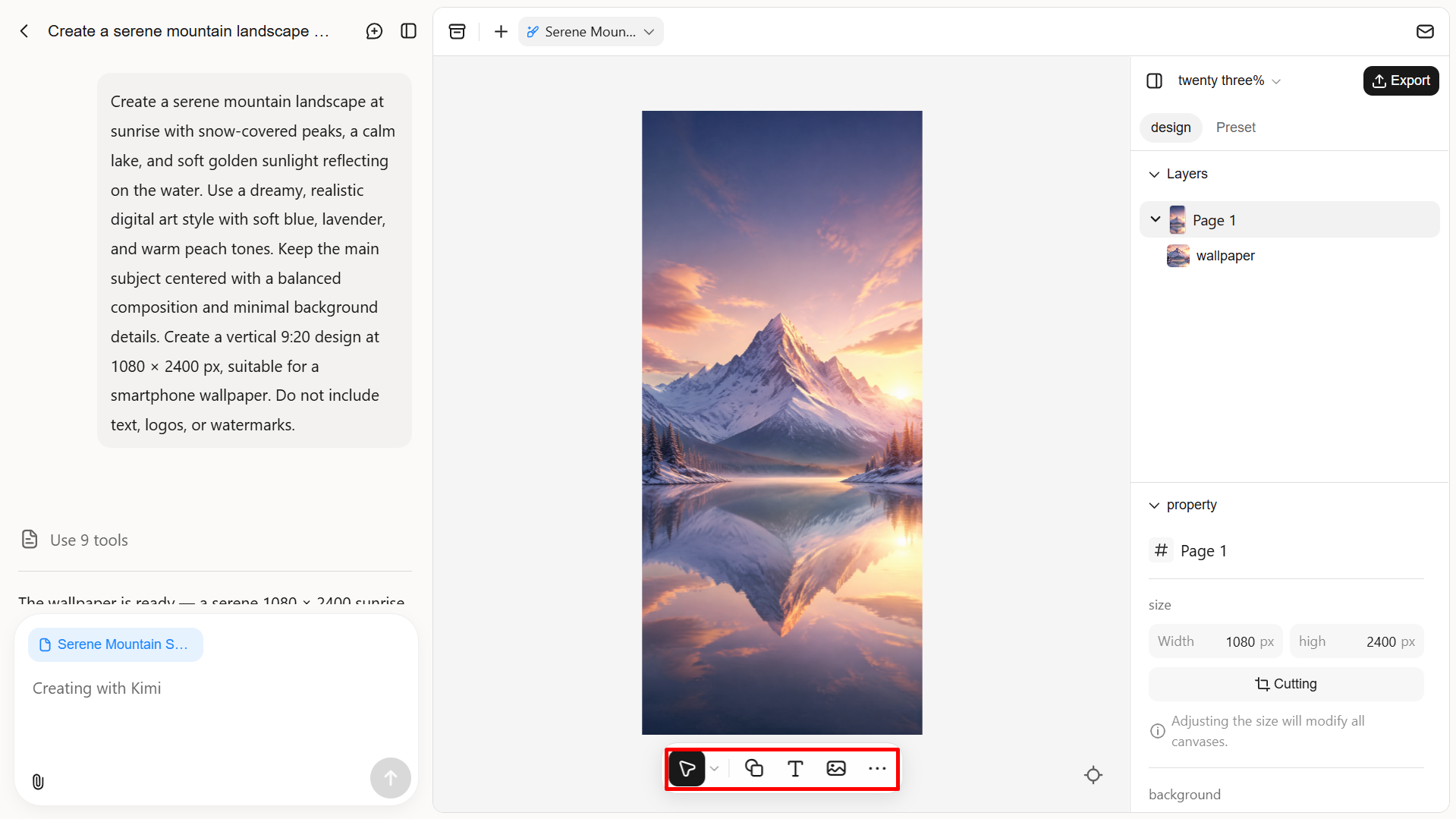
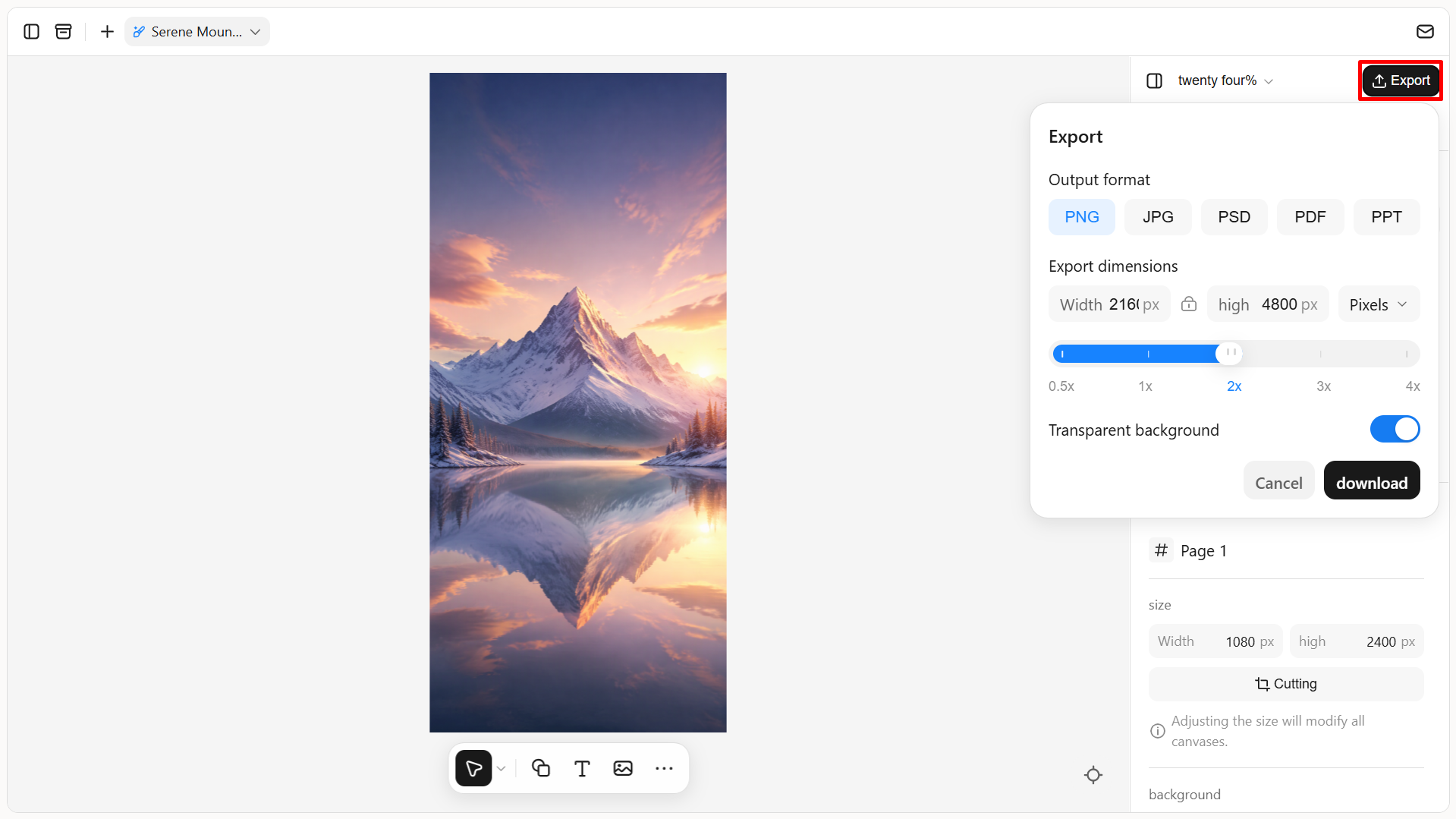
Step 3: Review and export the final design
Preview the wallpaper to check its composition, image quality, and aspect ratio. Make sure the resolution matches your target phone wallpaper dimensions and that no important details are cropped. Once satisfied, export the final design in a suitable format, such as PNG or JPG, and set it as your phone wallpaper.
Key features of Kimi Design
Kimi Design offers several useful tools that make creating and customizing phone wallpapers easier. Its AI-powered features help turn simple ideas into personalized designs with minimal effort. The following are some key features worth exploring.
Create personalized phone wallpapers from your ideas: Turn your imagination into a phone wallpaper with Kimi Design. Describe the look you want, from minimalist backgrounds and dreamy landscapes to cute illustrations and abstract patterns. You can also upload reference images to guide the design and create wallpapers that reflect your personal style, without starting from a blank canvas.
Explore creative wallpaper styles with custom designs: Go beyond ordinary backgrounds with phone wallpapers tailored to your preferences. Create nature-inspired scenes, aesthetic gradients, floral patterns, cartoon illustrations, galaxy themes, or motivational quote designs. Experiment with colors, typography, compositions, and visual elements to give your screen a fresh look.
Fine-tune every detail with flexible editing options: Want to change the background color, move an illustration, or add a personal quote? Simply describe the changes in the chat or comment on specific design elements to request targeted edits. You can also manually adjust text, images, shapes, colors, and layouts to make your wallpaper look just right.
Create phone-ready wallpapers and export in multiple formats: Design vertical wallpapers for lock screens and home screens, with layouts tailored to your preferred screen proportions. Refine the composition to leave room for clocks, widgets, and app icons, then export your finished design in PNG, JPG, or PSD format for easy use and sharing.
Tips for creating high-quality phone wallpapers
Choosing the correct dimensions is only one part of creating an appealing wallpaper. Image quality, composition, and visual balance also affect how well it looks on your screen. Keep the following tips in mind when designing or selecting a wallpaper.
Match the screen resolution
Choose an image that matches your phone's native screen resolution or has a higher resolution. This helps preserve sharpness and prevents unnecessary stretching or pixelation.
Choose the right aspect ratio
Match the image's aspect ratio to your phone's display to minimize unwanted cropping. For example, some modern smartphones use a 9:19.5 or 9:20 ratio.
Keep important elements visible
Position the main subject away from areas covered by the clock, notifications, app icons, and widgets. Leave enough negative space to maintain a balanced composition.
Use high-quality source images
Start with sharp, high-resolution images rather than compressed or blurry pictures. This is particularly important when creating phone wallpaper dimensions for larger or high-density displays.
Choose a suitable image format
Use PNG for graphics, illustrations, and images with fine details. JPG is suitable for photographs and offers smaller file sizes, making both formats practical for phone wallpapers.
Balance visual details and readability
Avoid overly busy backgrounds, excessive patterns, or distracting colors. A clean composition makes the wallpaper more visually appealing and keeps app icons and interface elements easy to recognize.
Conclusion
Choosing the right phone wallpaper dimensions helps your images look sharp, properly aligned, and visually appealing on any smartphone. Whether you use an iPhone or Android device, always check its screen resolution and aspect ratio before downloading or creating a wallpaper. Pay attention to image quality, subject placement, and screen elements to avoid unwanted cropping or blurry results. You can also use Kimi Design to create personalized AI wallpapers that match your preferred style and fit your phone screen more accurately.