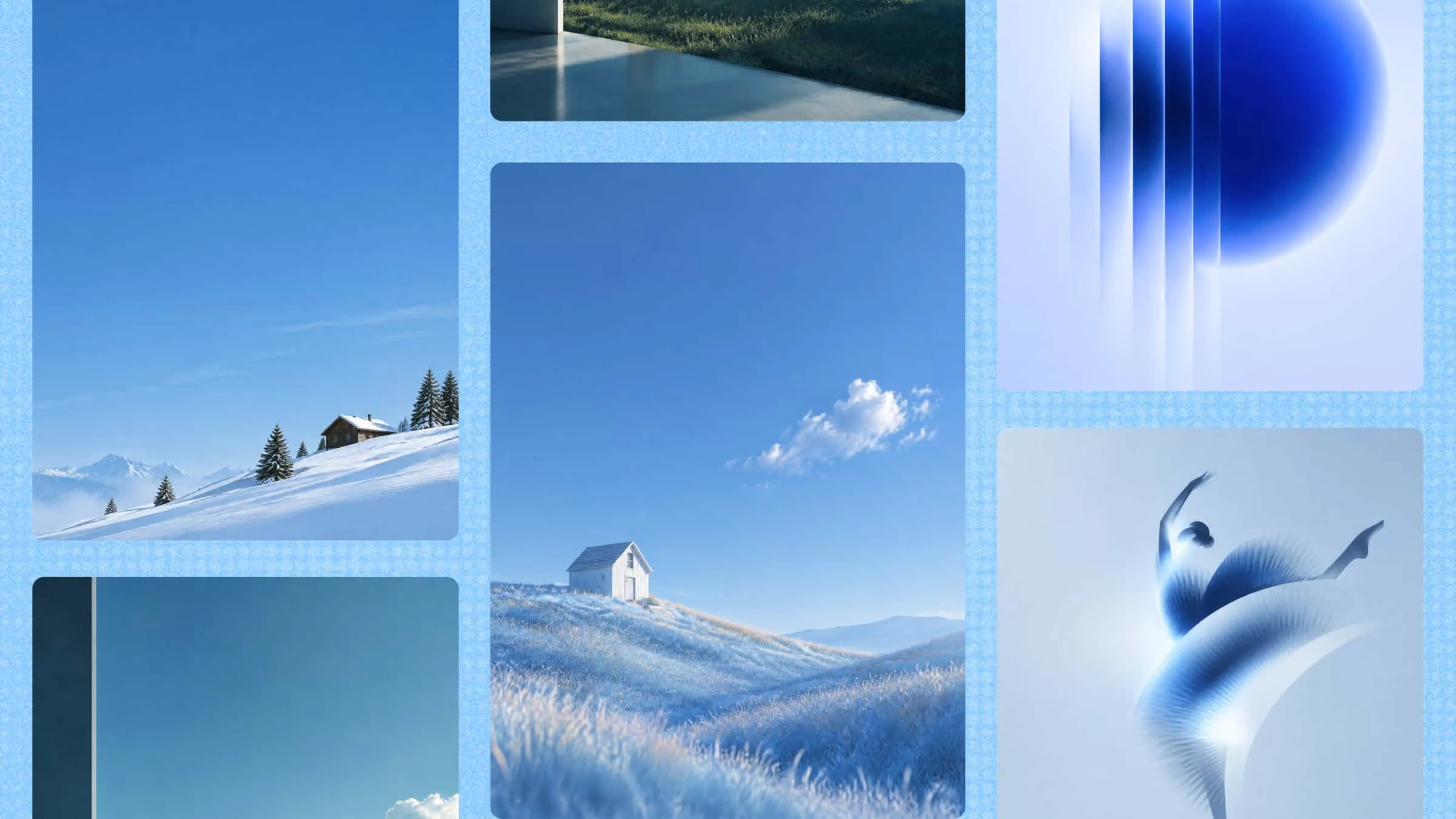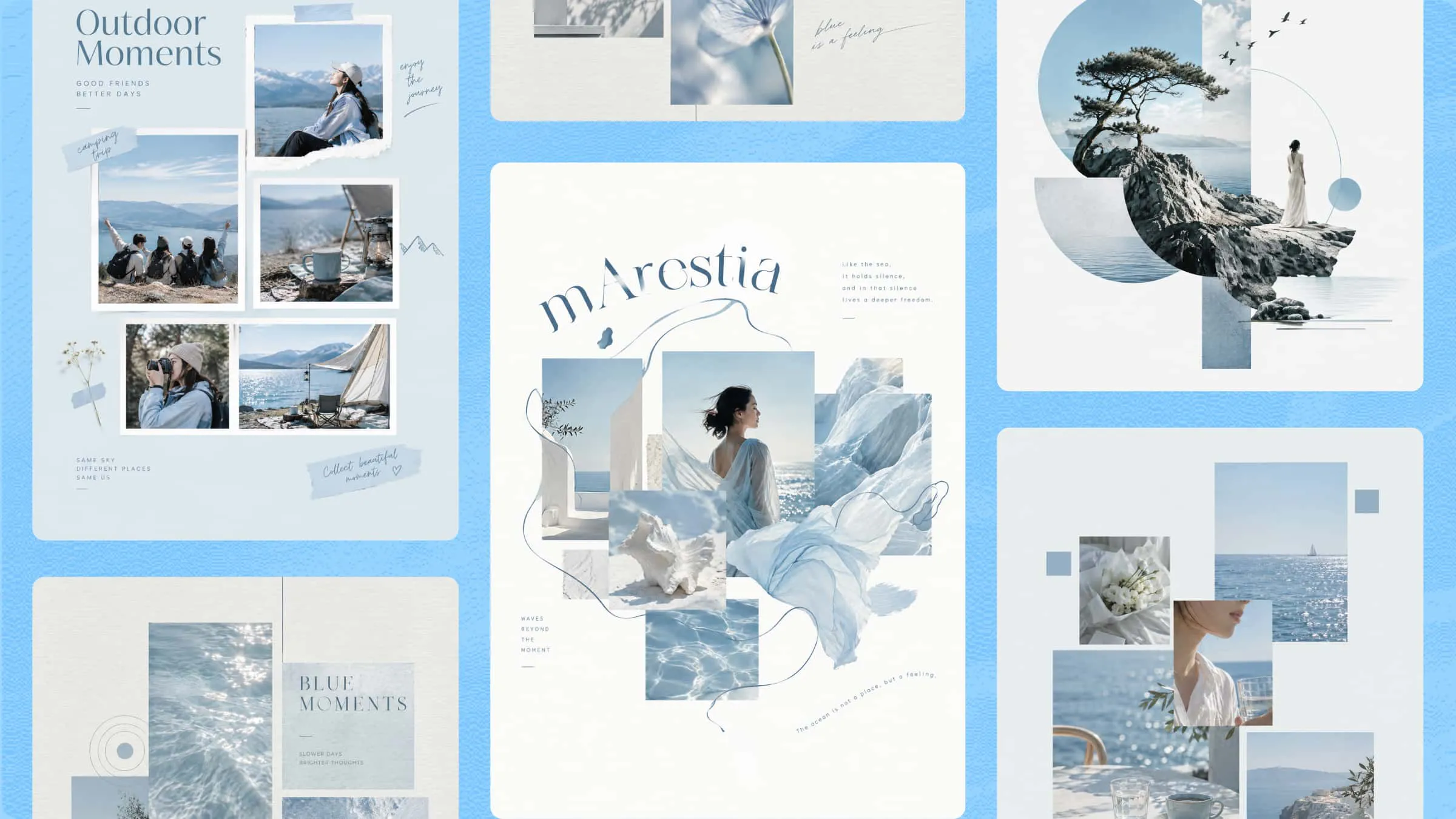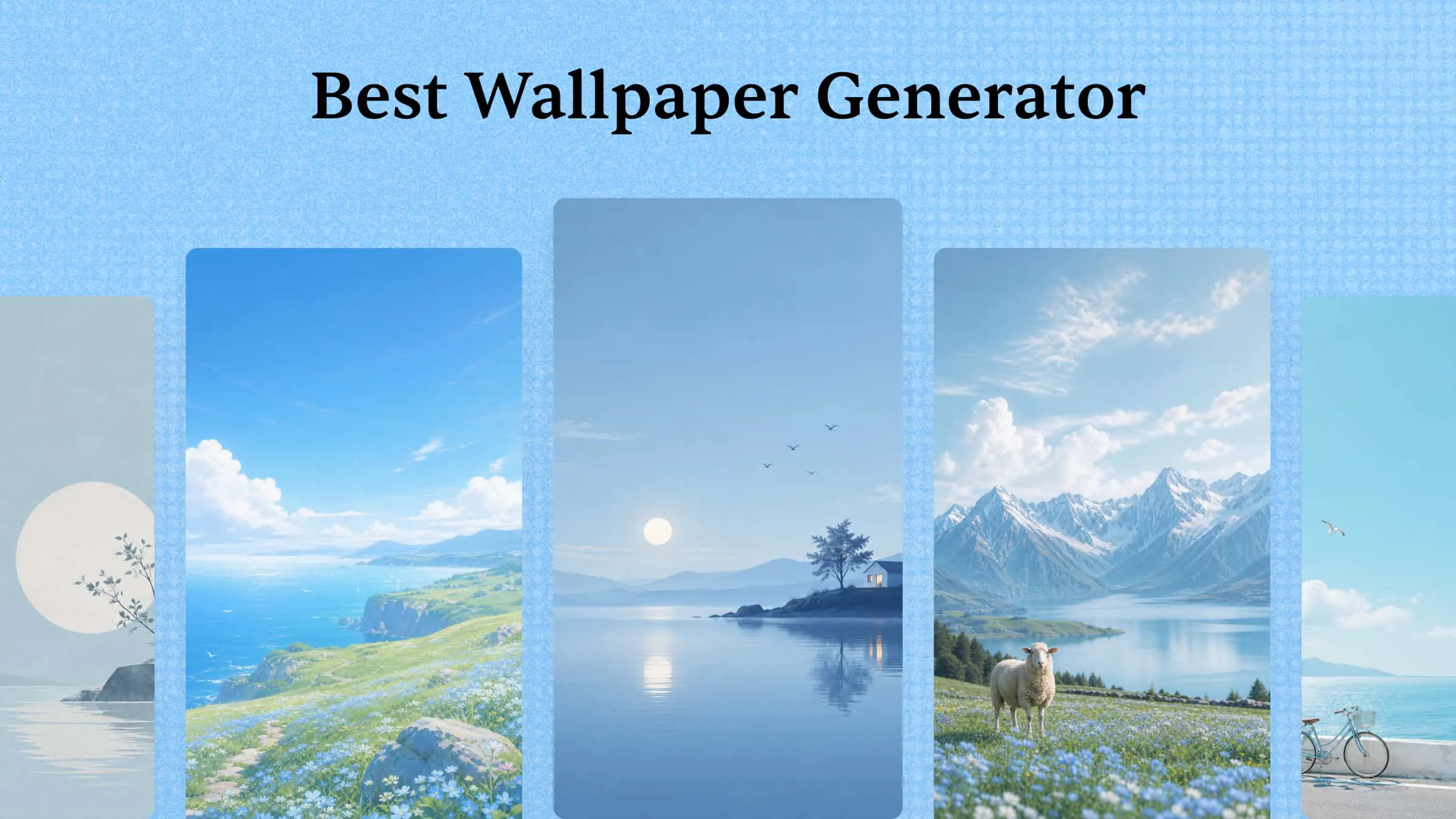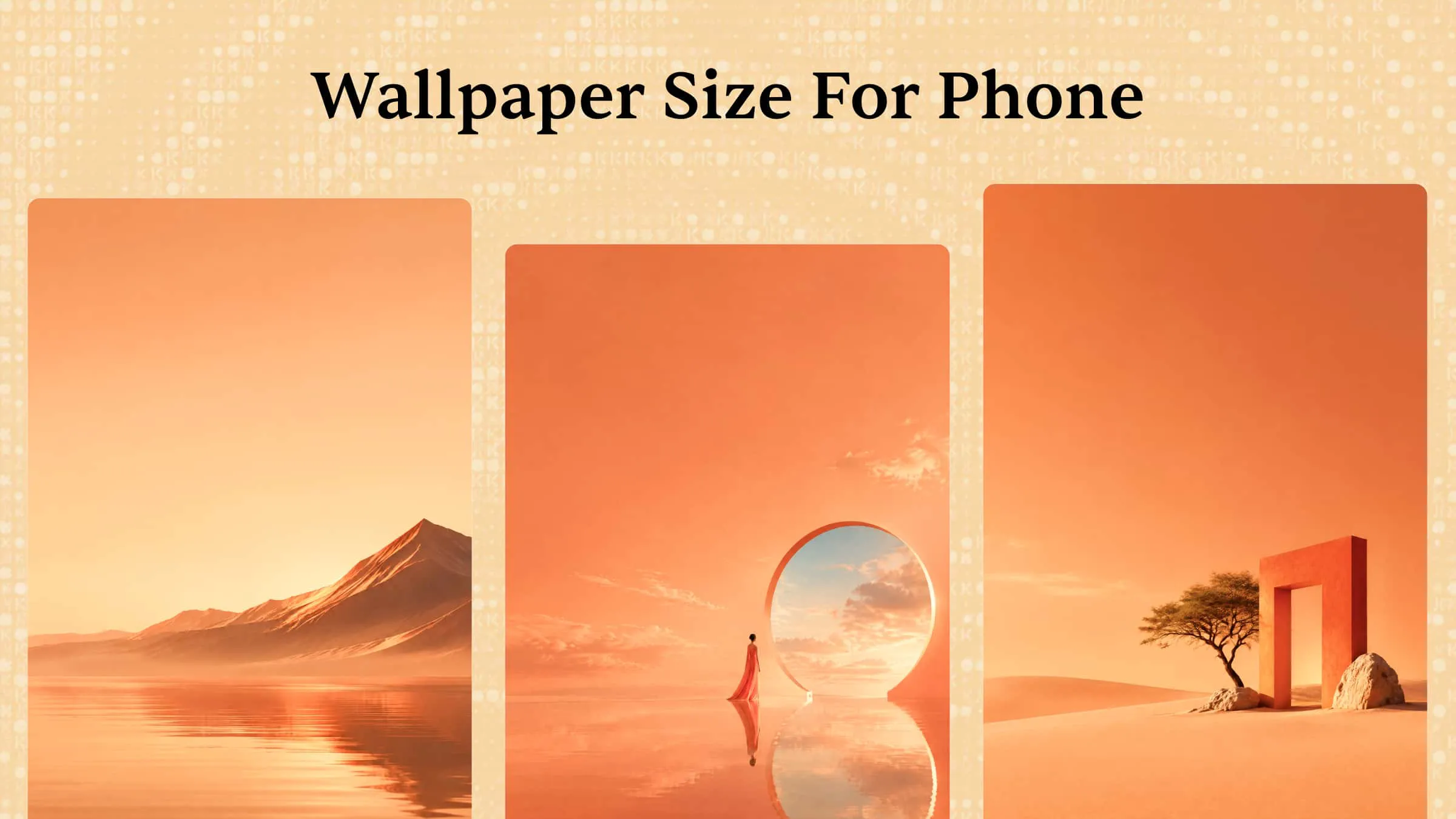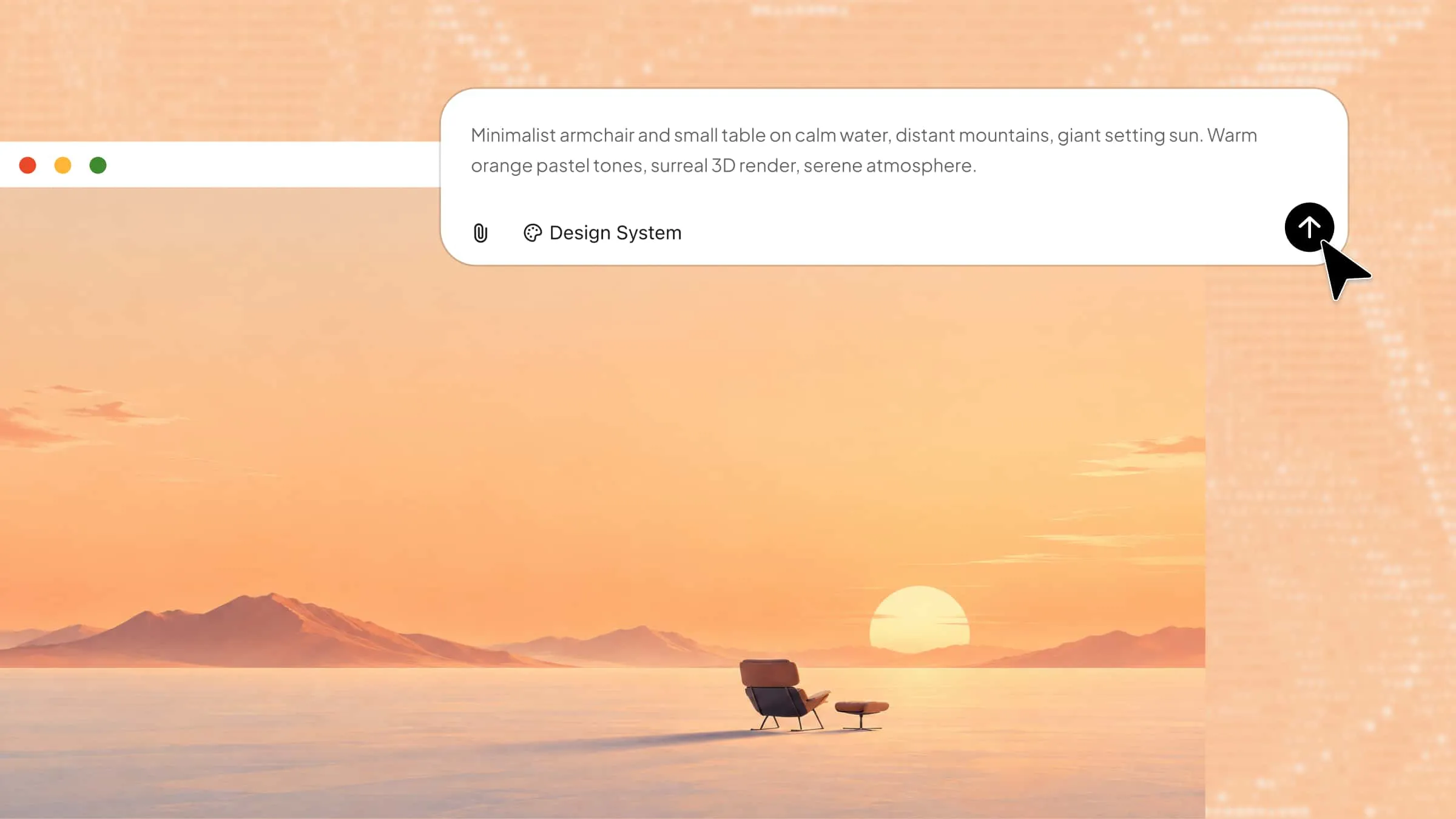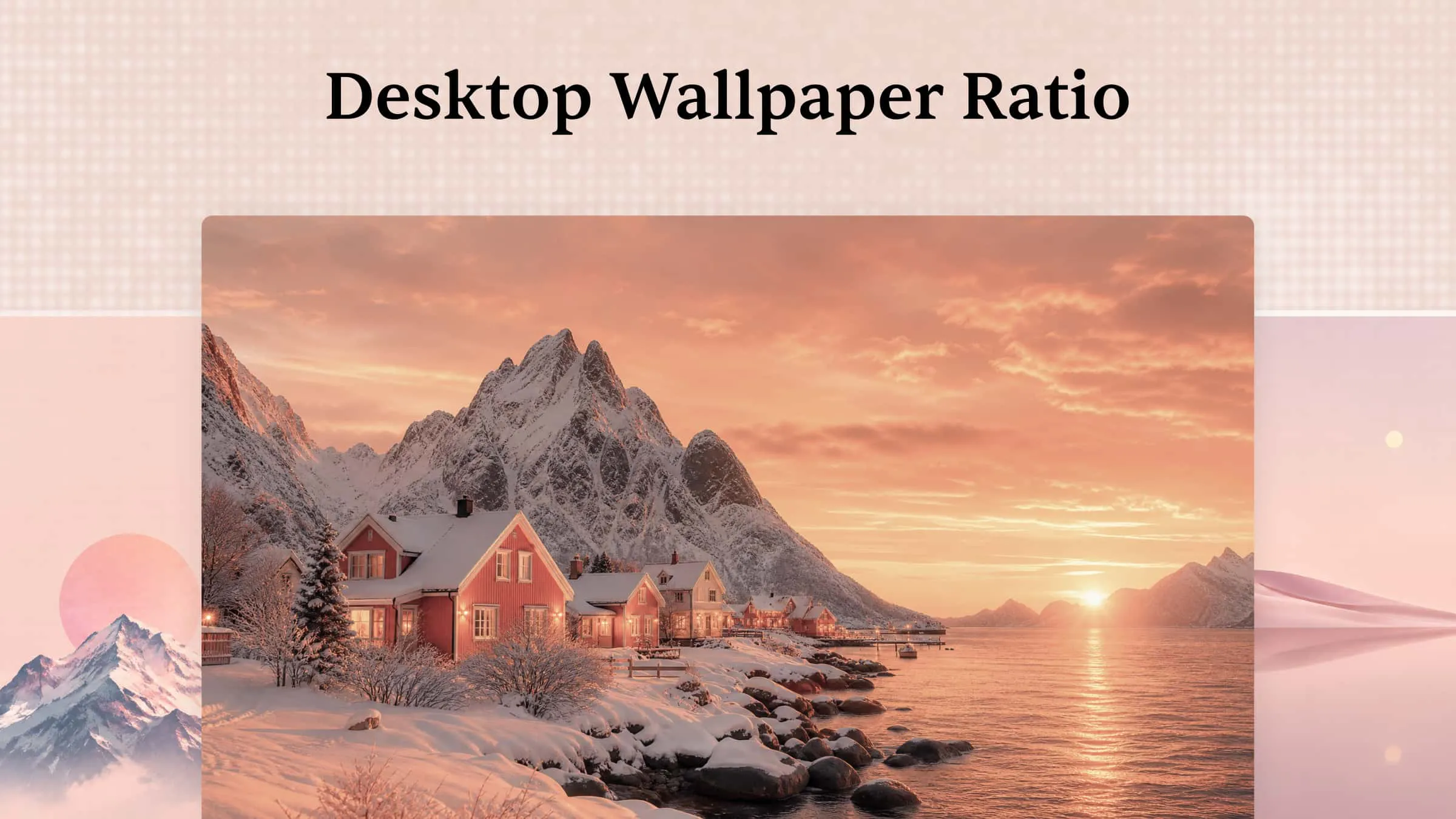
Ever set a beautiful wallpaper on your PC only to find it stretched, blurry, or awkwardly cropped across the screen? These issues often occur when the image doesn't match your monitor's resolution or aspect ratio. Knowing the correct PC wallpaper dimensions helps you avoid these problems and achieve a sharp, well-fitted background. This guide covers standard wallpaper sizes and resolutions to help you choose the right fit for your display.
PC wallpaper size chart: Common resolutions and aspect ratios
PC wallpaper dimensions are typically measured in pixels, with width listed before height. Resolution determines the level of detail an image can display, while the aspect ratio represents the proportional relationship between its width and height. The following chart highlights common desktop and laptop resolutions along with their corresponding aspect ratios.
| Resolution | Aspect ratio | Display category |
|---|---|---|
| 1280 × 720 | 16:9 | HD |
| 1366 × 768 | Approximately 16:9 | Common laptop resolution |
| 1600 × 900 | 16:9 | HD+ |
| 1920 × 1080 | 16:9 | Full HD (1080p) |
| 1920 × 1200 | 16:10 | WUXGA |
| 2560 × 1440 | 16:9 | QHD (1440p) |
| 2560 × 1600 | 16:10 | WQXGA |
| 3840 × 2160 | 16:9 | 4K UHD |
| 3840 × 2400 | 16:10 | High-resolution display |
| 5120 × 2880 | 16:9 | 5K |
| 7680 × 4320 | 16:9 | 8K |
The chart covers several popular display types, from Full HD to 4K. Full HD remains a common choice for everyday monitors, while QHD and 4K offer higher resolutions for larger and sharper displays. Some laptops and productivity monitors also use a 16:10 aspect ratio, providing more vertical screen space than the standard 16:9 format.
For the best results, choose a wallpaper that matches your monitor's native resolution. Images with fewer pixels may look blurry when enlarged, while those with a different aspect ratio may be cropped or leave empty spaces around the desktop. Matching the PC wallpaper size in pixels to your display helps maintain image clarity and a proper fit.
Wallpaper dimensions for different monitor setups
PC displays come in different sizes and aspect ratios, so a single wallpaper resolution may not work equally well across all setups. Standard monitors, ultrawide displays, and multi-monitor workstations each require different image dimensions for a proper fit. Choosing a resolution that matches your display helps keep the wallpaper clear and prevents unwanted stretching or cropping.
Standard desktop monitors
Most standard desktop monitors use a 16:9 aspect ratio, making it one of the most common formats for computer wallpapers. Depending on the display resolution, typical desktop wallpaper sizes include:
1920 × 1080 px for Full HD monitors
2560 × 1440 px for QHD monitors
3840 × 2160 px for 4K monitors
5120 × 2880 px for 5K displays
You can also use a higher-resolution image on a lower-resolution monitor if both share the same aspect ratio. For example, a 3840 × 2160 px wallpaper can fit a 1920 × 1080 px display without changing its proportions. However, larger files may take up more storage space than necessary.
Ultra-wide monitors
Ultra-wide monitors offer a wider viewing area than standard desktop displays, so they require wallpapers with wider aspect ratios. Common PC wallpaper dimensions for ultra-wide screens include:
2560 × 1080 px: Suitable for entry-level ultra-wide displays with a 21:9 aspect ratio.
3440 × 1440 px: Commonly used for 21:9 ultra-wide monitors.
3840 × 1600 px: Suitable for wider 24:10 displays.
5120 × 1440 px: Designed for super-ultrawide displays with a 32:9 aspect ratio.
These resolutions provide useful starting points, but always prioritize your monitor's actual pixel dimensions over general aspect ratio labels. For example, 3440 × 1440 px is commonly classified as 21:9, although its precise ratio is slightly wider.
A standard 16:9 wallpaper may not fill an ultra-wide screen correctly. Depending on your display settings, the image may be stretched, cropped, or surrounded by empty space. For the best results, choose an image that matches your desktop wallpaper ratio and monitor's full width. Keep important subjects away from the edges to prevent unwanted cropping.
Dual-monitor and multi-monitor setups
Dual-monitor and multi-monitor workstations require a wider wallpaper when you want a single image to extend across multiple screens. The total image dimensions depend on the resolution and arrangement of your monitors.
For two monitors with the same resolution placed side by side, add their widths while keeping the height unchanged.
3840 × 1080 px: For two Full HD (1920 × 1080 px) monitors.
5120 × 1440 px: For two QHD (2560 × 1440 px) monitors.
7680 × 2160 px: For two 4K (3840 × 2160 px) monitors.
This calculation works when both displays have matching resolutions and are arranged horizontally. If your monitors have different resolutions, orientations, or scaling settings, the combined desktop dimensions may vary.
When creating a continuous wallpaper, consider how the image will appear across the central seam between screens. Avoid placing faces, text, logos, or other important details along this dividing line. Wide landscapes, abstract patterns, and panoramic scenes are often suitable choices.
Alternatively, you can assign a separate wallpaper to each monitor. This approach offers greater flexibility and works particularly well when displays have different resolutions or orientations. Choose the appropriate PC wallpaper size for each screen to maintain image quality and proper alignment.
Mac display resolutions
MacBooks and iMacs also use different native display resolutions depending on the model and generation. Laptop screens vary in resolution and aspect ratio, even when their physical sizes are similar. The following examples show the display resolutions of several Mac devices:
MacBook Air 13-inch (M1): 2560 × 1600 px
MacBook Air 13-inch (M2): 2560 × 1664 px
MacBook Air 15-inch (M2): 2880 × 1864 px
MacBook Pro 14-inch: 3024 × 1964 px
MacBook Pro 16-inch: 3456 × 2234 px
iMac 24-inch: 4480 × 2520 px
iMac 27-inch: 5120 × 2880 px
These are model-specific examples rather than universal Mac display dimensions. Resolutions may vary across generations, so check your device's specifications before creating or downloading a wallpaper.
Windows laptop display resolutions
Windows laptops come in a wider range of screen sizes, resolutions, and aspect ratios. Common configurations include:
HD: 1366 × 768 px (16:9)
Full HD (FHD): 1920 × 1080 px (16:9)
WUXGA: 1920 × 1200 px (16:10)
QHD: 2560 × 1440 px (16:9)
QHD+: 2560 × 1600 px (16:10)
4K UHD: 3840 × 2160 px (16:9)
These are representative resolutions, not guaranteed specifications for every Windows laptop. Check your device's native display resolution and aspect ratio before choosing a wallpaper. If you're creating wallpapers for multiple devices, prepare separate versions to ensure each image fits its screen properly.
How to create a PC wallpaper with Kimi Design
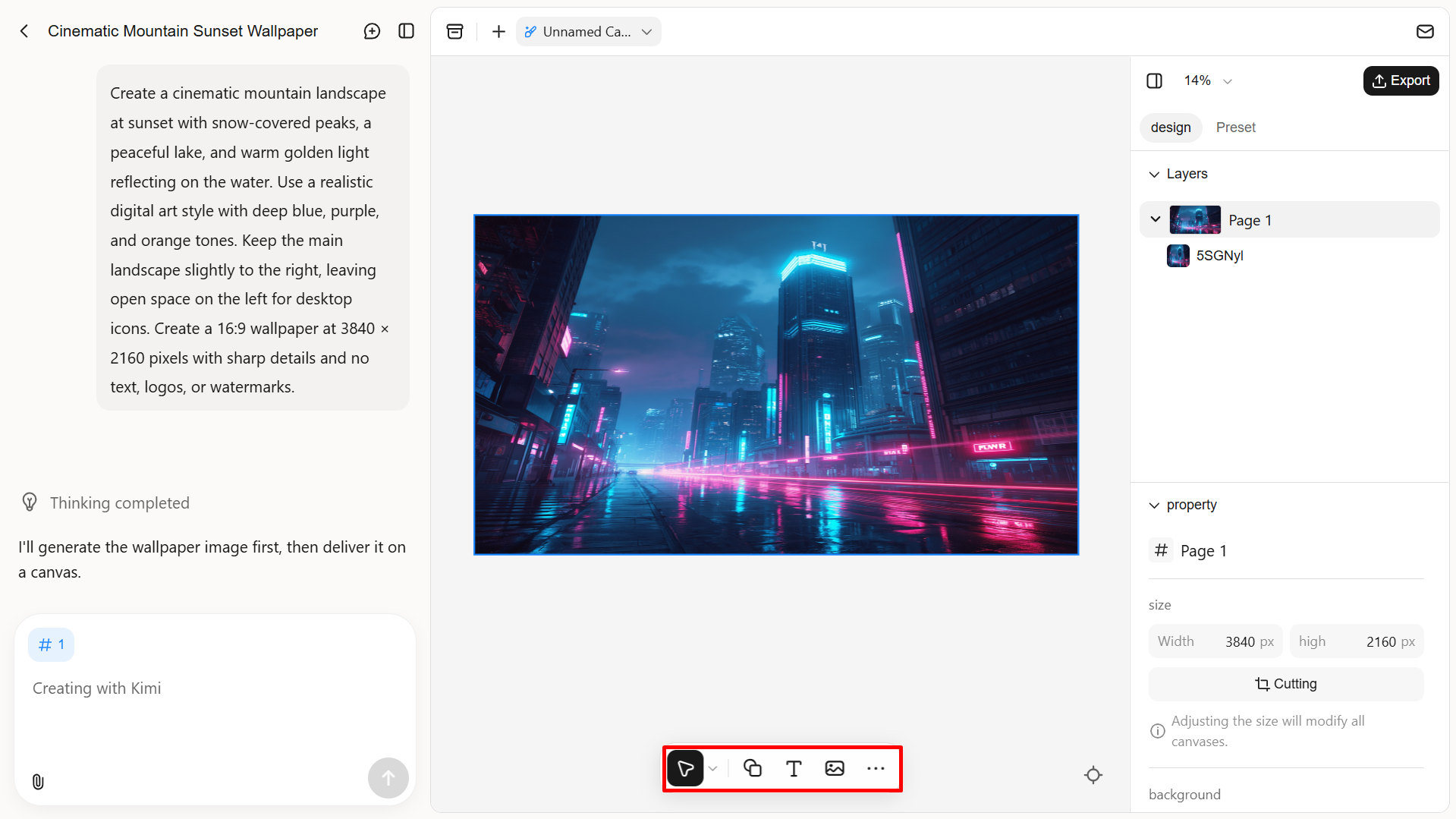
Kimi Design, an AI design generator, makes it easy to turn your creative ideas into personalized desktop wallpapers using AI. You can describe your preferred subject, visual style, colors, and background to generate a design that suits your desktop. Follow these steps to create a wallpaper that fits your screen:
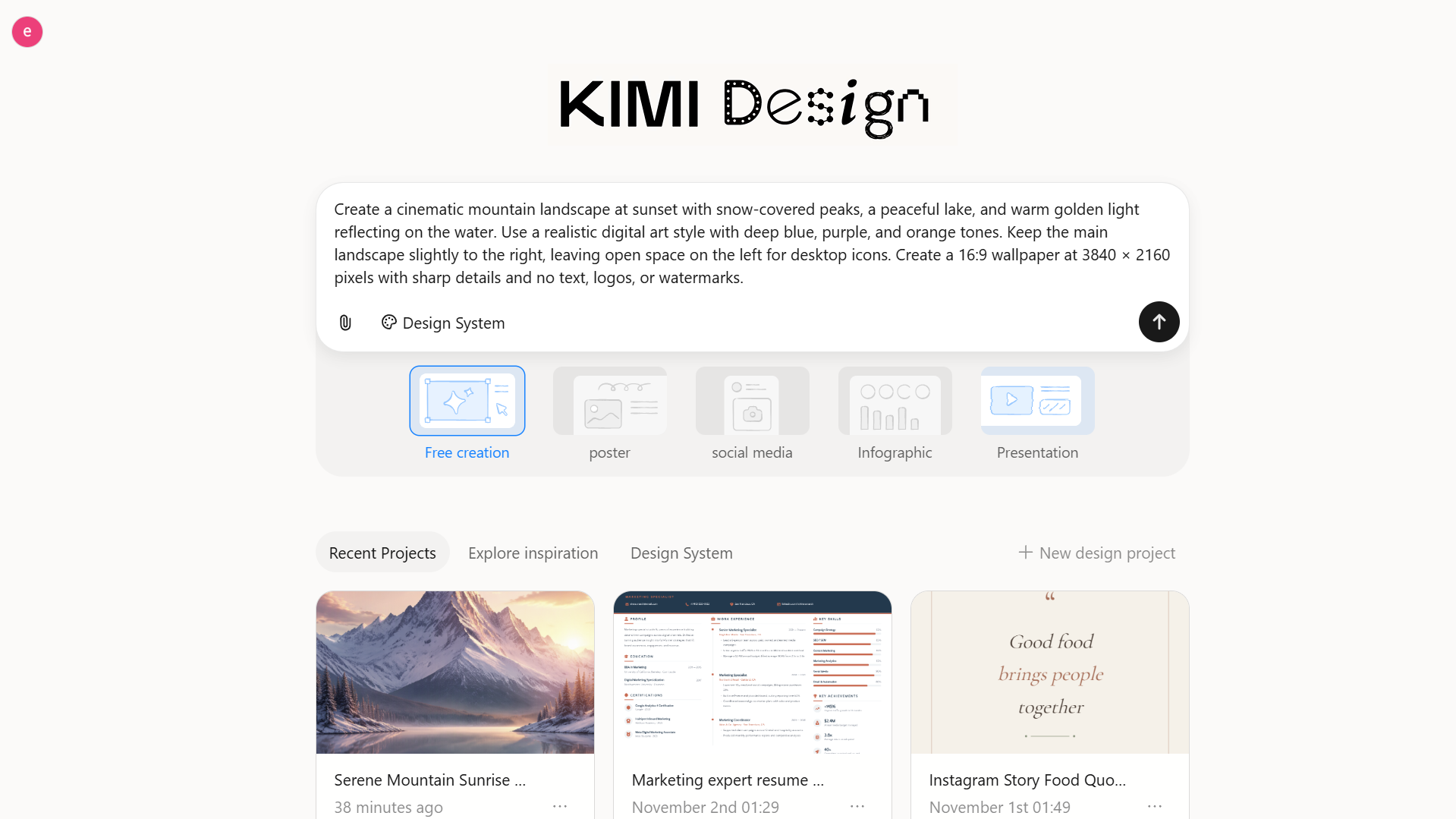
Step 1: Describe your wallpaper idea
Start by writing a clear prompt that explains the wallpaper you want. Include the main subject, art style, color palette, lighting, and background details. Also, specify your monitor's resolution and aspect ratio to achieve a better fit.
Example prompt:
Step 2: Let Kimi Design create your wallpaper
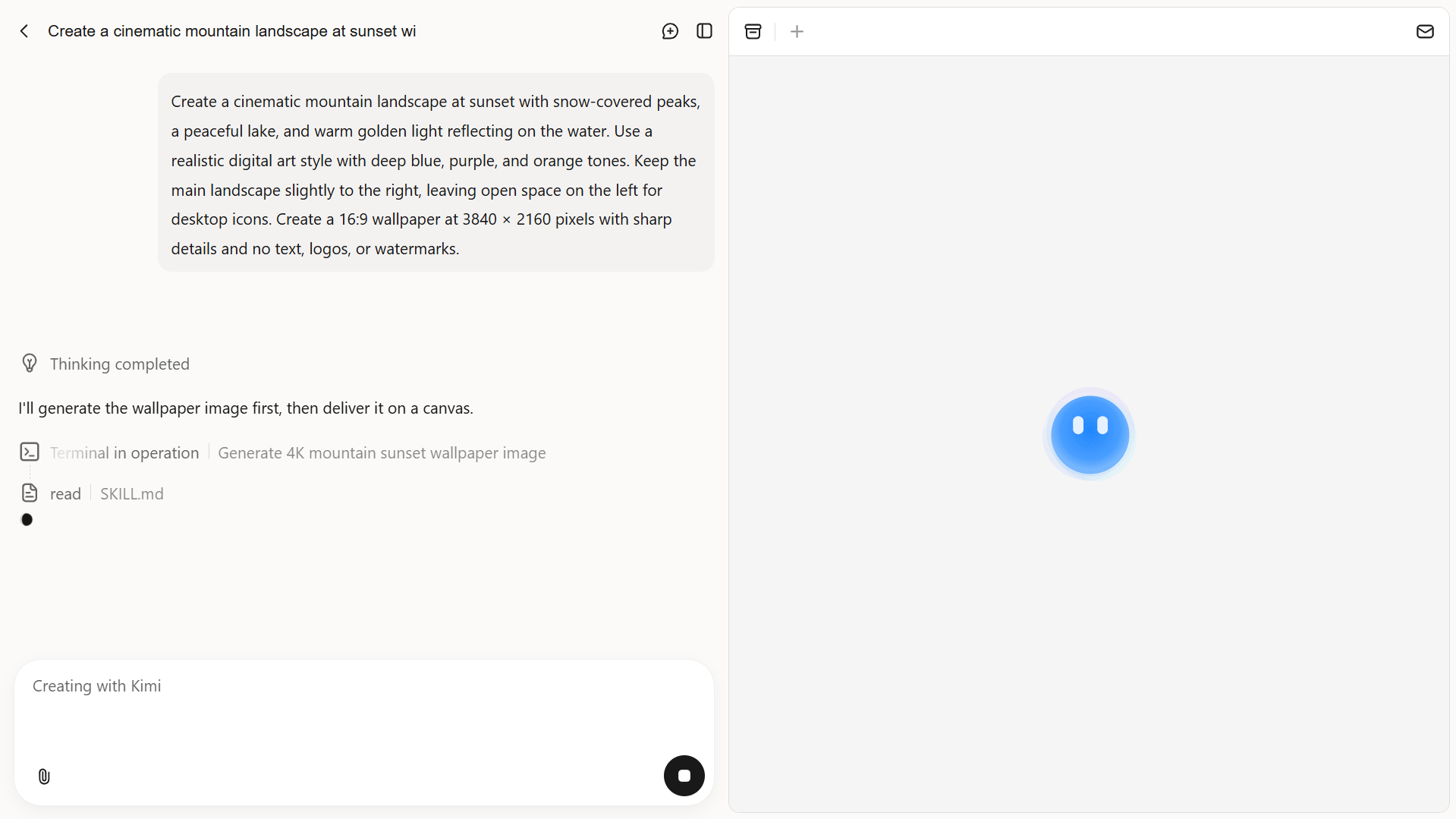
Enter your prompt into Kimi Design and generate the initial wallpaper. Review the result to see how well it matches your idea, including its composition, colors, and overall appearance.
Step 3: Refine the wallpaper with AI
If the first result needs improvement, use additional prompts to adjust the lighting, colors, background, or subject placement. You can also simplify busy areas or create more empty space for desktop icons and shortcuts.
Step 4: Review and export the final design
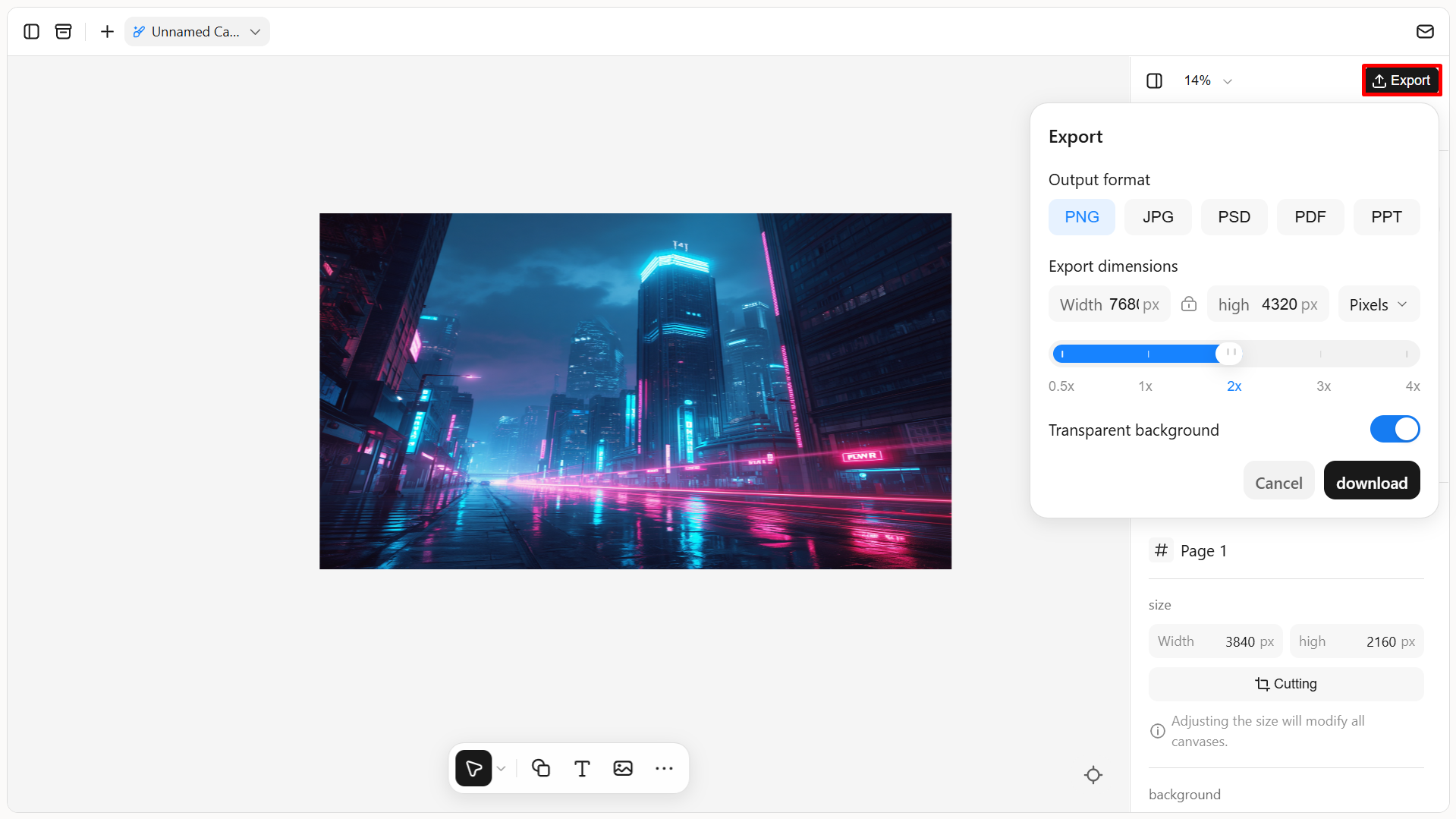
Check the wallpaper's resolution, aspect ratio, and image quality before finalizing it. Make sure the composition fits your monitor without unwanted cropping or stretching. Once satisfied, export the design in a suitable format, such as PNG or JPG, and set it as your desktop background.
Key features of Kimi Design
Create a PC wallpaper that feels uniquely yours: Describe your preferred style, theme, color palette, or meaningful elements to create a personalized PC wallpaper that reflects your taste, interests, or personal inspiration. Whether you have a specific aesthetic in mind or want to include symbols and details with special meaning, Kimi Design turns your ideas into a distinctive design. You can also upload reference images to incorporate into the composition, then customize the layout and dimensions to create a high-resolution wallpaper that fits your computer screen.
Customize and optimize wallpaper layouts: Refine colors, typography, images, shapes, and layouts through chat prompts, element-specific comments, or manual canvas editing. Adjust individual elements, fine-tune spacing, and reposition key visuals while maintaining a balanced composition. You can also leave clear areas for desktop icons, shortcuts, and widgets, adapting your wallpaper to different screen proportions, including 16:9, 16:10, and ultra-wide displays.
Refine designs with version history: Review previous edits and roll back to an earlier version whenever you want to explore a different wallpaper direction. This lets you experiment with alternative color combinations, layouts, visual elements, and design details without losing earlier work. Compare creative directions and continue refining your preferred composition until it matches your vision.
Export wallpapers in multiple formats: Download your finished designs as PNG, JPG, or PSD for different uses and workflows. Choose PNG for crisp graphics and transparent backgrounds, JPG for convenient everyday wallpaper use, or PSD to preserve editable design layers for further adjustments in compatible software. This gives you more flexibility when saving, sharing, and continuing to work on your wallpaper designs.
Smart tips for creating PC wallpapers
A well-designed wallpaper should do more than look attractive; it should also fit your display without losing image quality or important details. Keep these practical tips in mind when creating or choosing a desktop background.
Match the wallpaper to your screen resolution
Choose an image that matches your monitor's native resolution for the best display quality. Using the correct PC wallpaper dimensions helps prevent unnecessary scaling, blurriness, and pixelation.
Preserve the original aspect ratio
Maintain the image's original proportions when resizing it to fit your screen. This prevents stretching and distortion, especially when adapting wallpapers for different monitor sizes.
Keep important elements away from screen edges
Position the main subject and other essential details away from the edges of the image. This reduces the risk of unwanted cropping and keeps the composition balanced across different displays.
Consider desktop icons and taskbars
Leave enough open space where desktop icons and shortcuts usually appear. Also, avoid placing important visual elements behind the taskbar, so the wallpaper remains clean and easy to view.
Design with multiple monitors in mind
If you use multiple displays, consider their combined resolution and arrangement before creating a wallpaper. For a continuous background, position important subjects away from the edges where the screens meet.
Export in a suitable image format
Choose PNG for detailed graphics, illustrations, and designs that require crisp edges. JPG works well for photographic wallpapers because it offers good image quality with smaller file sizes.
Conclusion
Choosing the right PC wallpaper dimensions makes a noticeable difference in how your desktop looks and feels. Whether you use a standard monitor, an ultra-wide display, or a laptop, matching the wallpaper to your screen resolution and aspect ratio helps prevent blurriness, stretching, and unwanted cropping. Always check your device's display specifications before downloading or creating a background. You can also use Kimi Design to generate personalized wallpapers that match your preferred style and fit your screen more accurately.