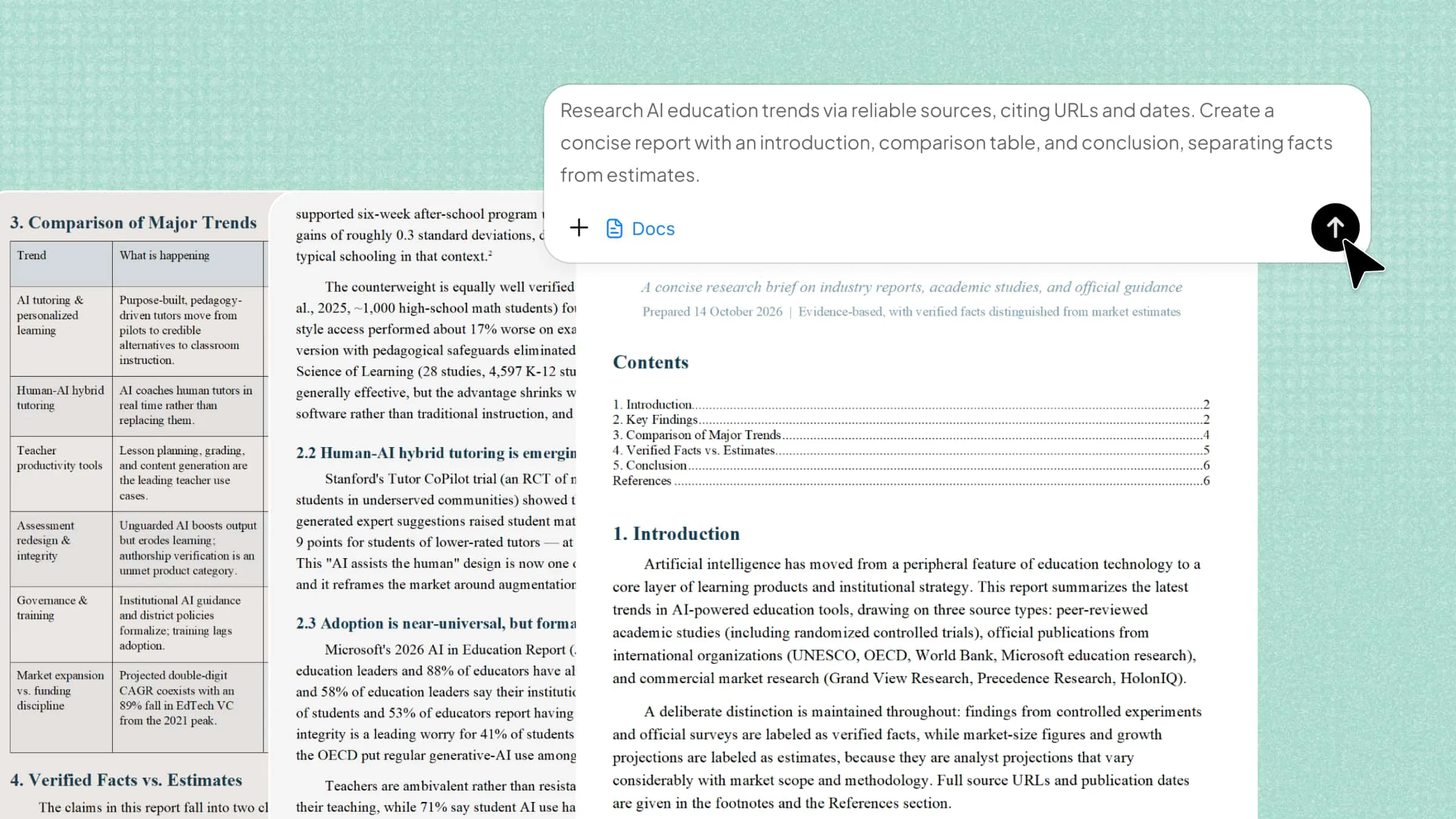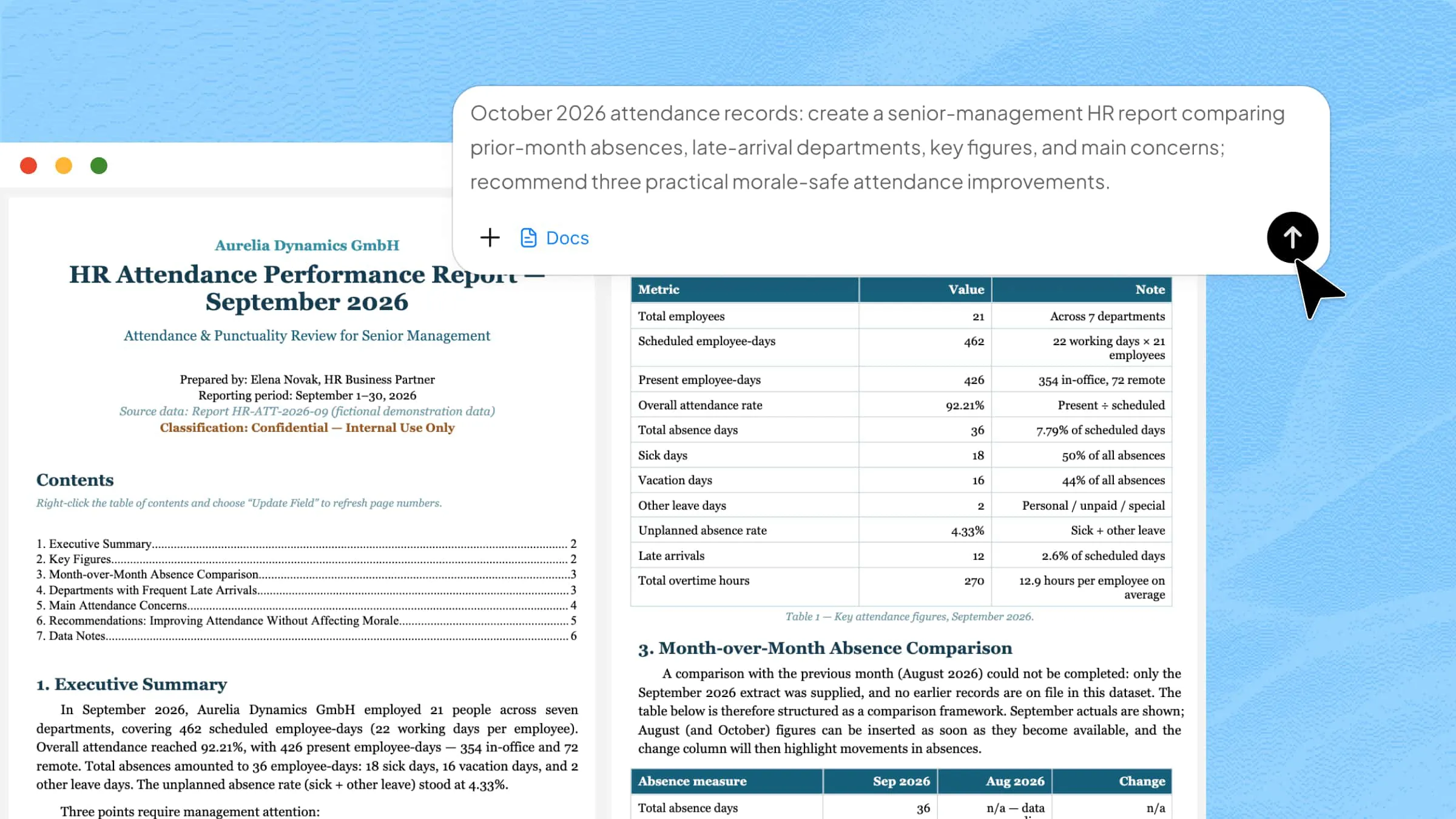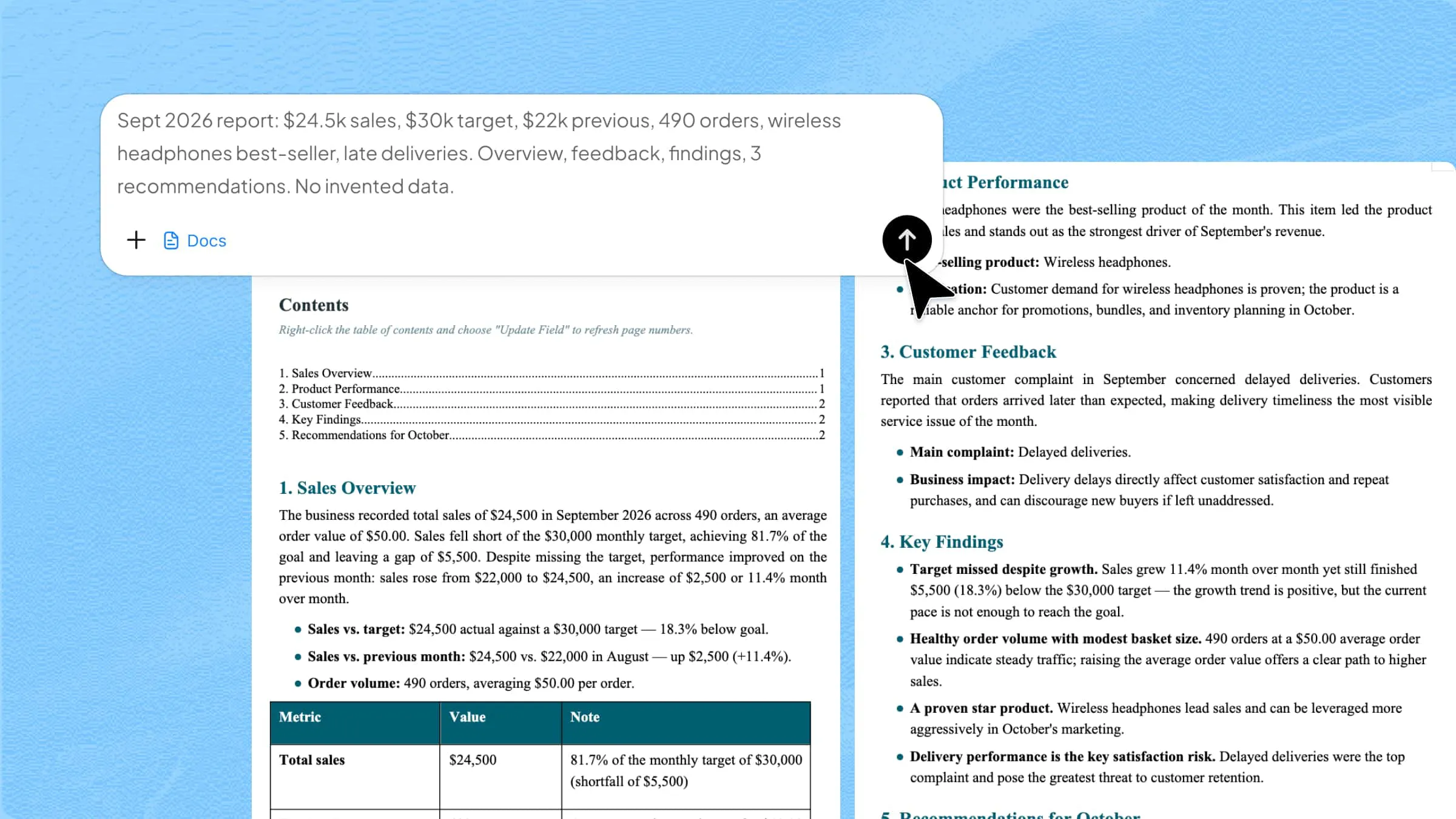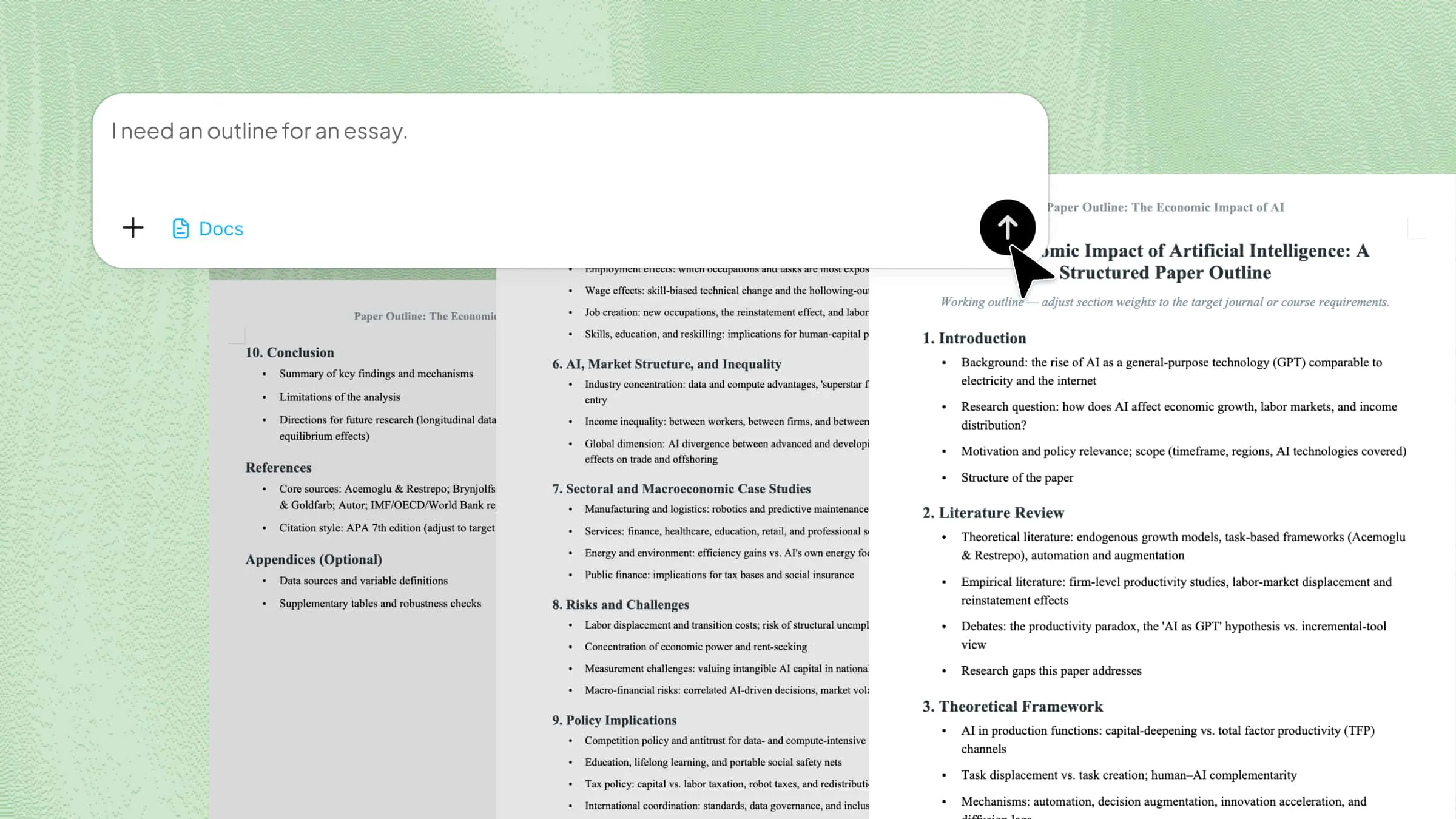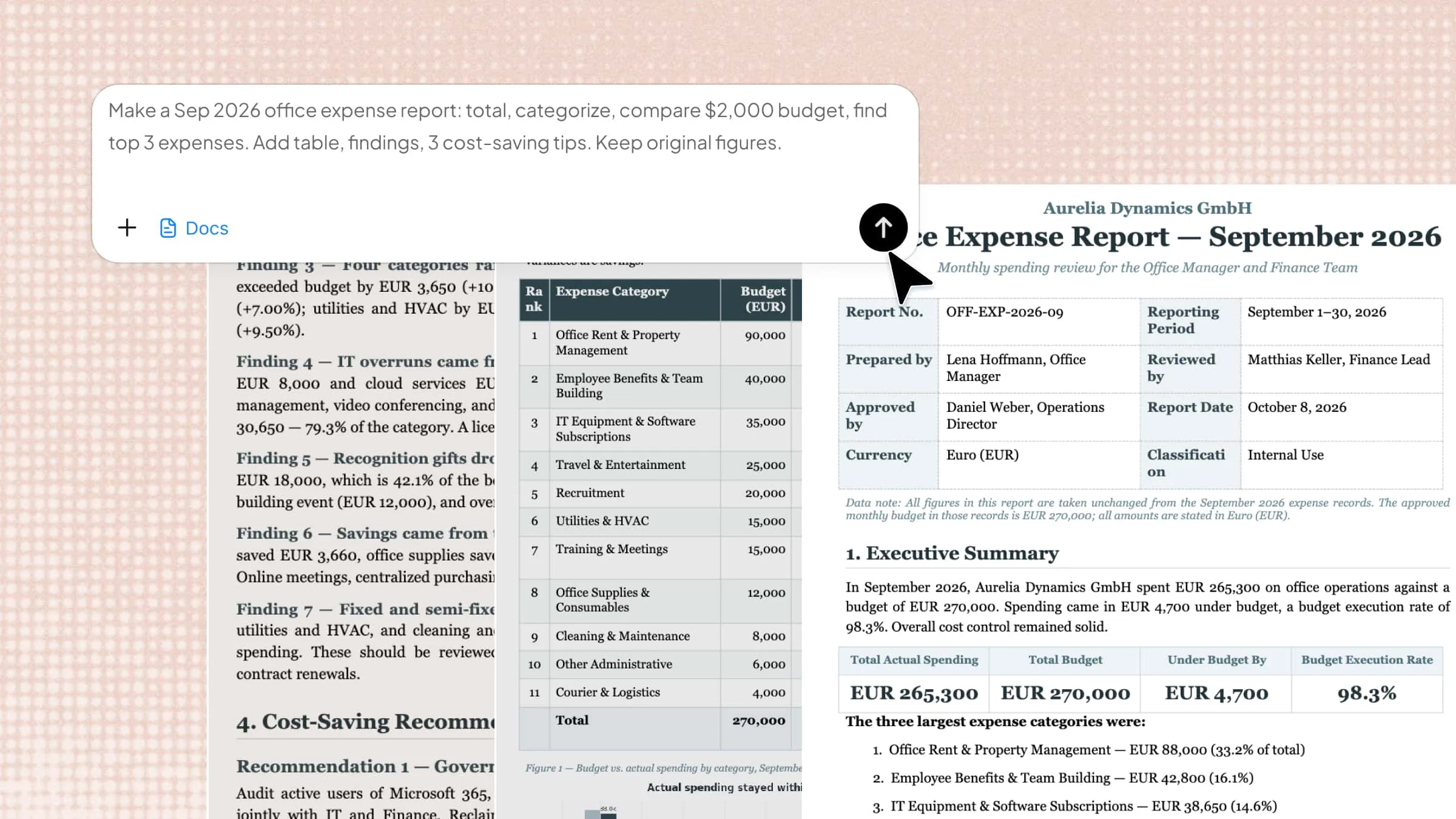
Office work often involves the same tasks every day, from writing reports and formatting files to preparing proposals and sorting documents. These small tasks can take hours, leaving less time for work that really matters. Office automation helps reduce this workload by using tools to handle repetitive tasks faster and with less effort. Read on to explore its types, practical uses, and how you can get started with automation tools.
What is office automation
Office automation means using digital tools to handle everyday office tasks with less manual effort. It helps people write reports, organize files, manage emails, and prepare documents faster. By reducing repetitive work, it saves time and lets employees focus on more important tasks. It also helps teams stay organized and complete their daily work with fewer mistakes.
How does office automation work
Office automation works by using digital software to handle routine tasks that people usually do by hand. These tools can create reports, organize files, send emails, and format documents with less effort. Some tools follow set rules, while AI tools can also understand instructions and generate content.
To get started, you choose a tool that fits your task and provide the details or instructions it needs. The tool then completes the task automatically or helps you finish it faster. You can review the results, make changes, and share the final work with your team or clients in minutes.
What are the main types of office automation
Office automation covers different tasks across a business, from handling customer requests to managing internal records. Each type focuses on a specific area to reduce manual work and improve efficiency. The two main types are explained below.
Back office automation: Back office automation handles internal tasks that keep a business running smoothly. It can automate activities like payroll, invoice processing, data entry, and record management. This reduces manual work and helps employees complete tasks faster with fewer errors.
Front office automation: Front office automation focuses on tasks that involve customers and clients directly. It helps businesses manage customer questions, process complaints, track leads, and handle routine requests. This allows employees to respond faster and provide a better customer experience.
How to automate daily office tasks with Kimi Docs
Kimi Docs, an AI document agent, helps automate daily office tasks by turning rough notes, raw data, and simple instructions into well-structured documents. You can use it to draft reports, format files, summarize information, and prepare proposals without spending hours doing everything manually. Follow the steps below to see how Kimi Docs can make your daily office work faster and easier.
Step 1: Upload files and describe your task
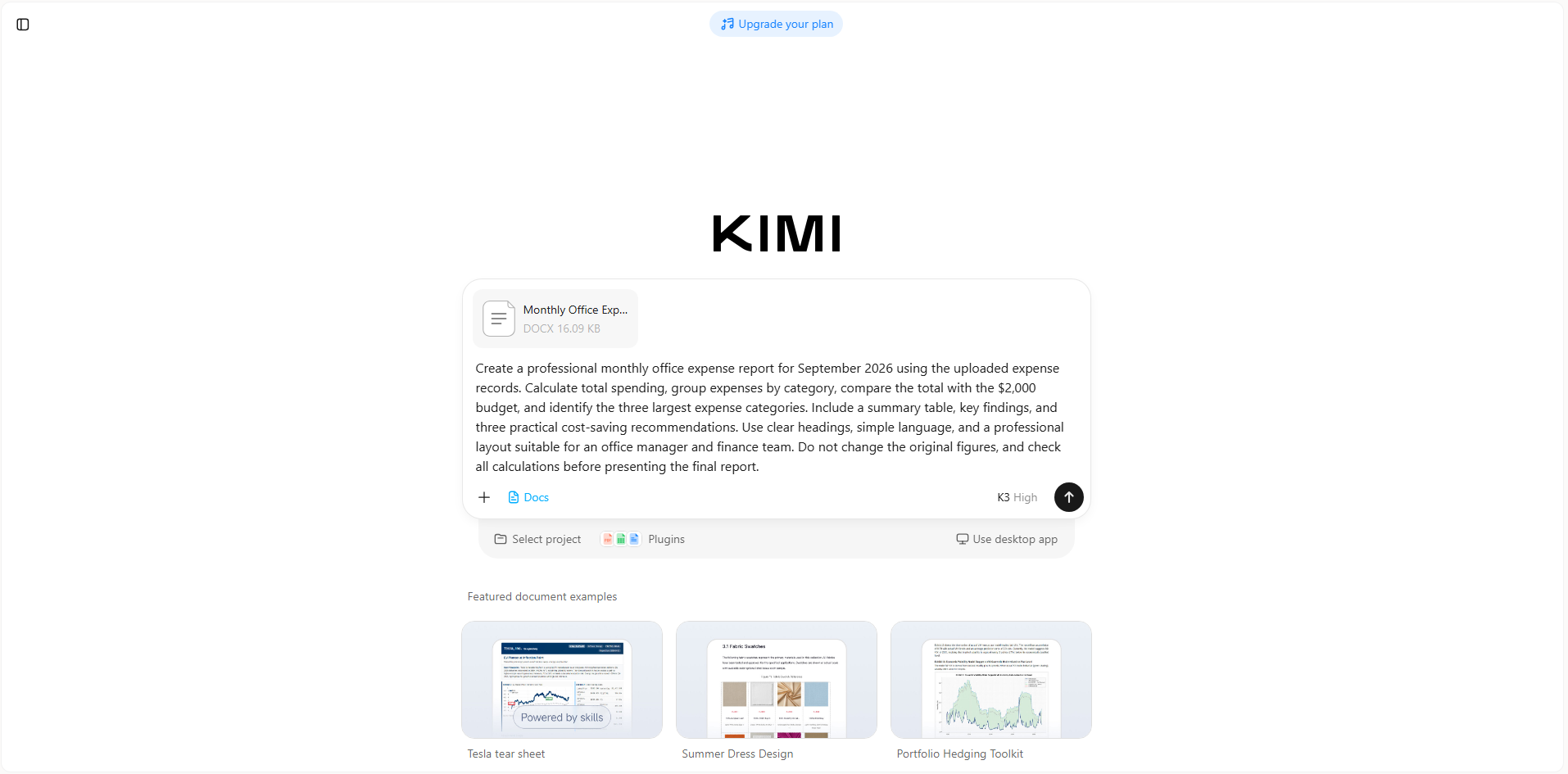
Upload the office expense records to Kimi Docs and explain what you need. It will use the information to organize your data and create a structured report with clear headings and tables.
Example prompt:
Step 2: Provide feedback and refine the document with AI
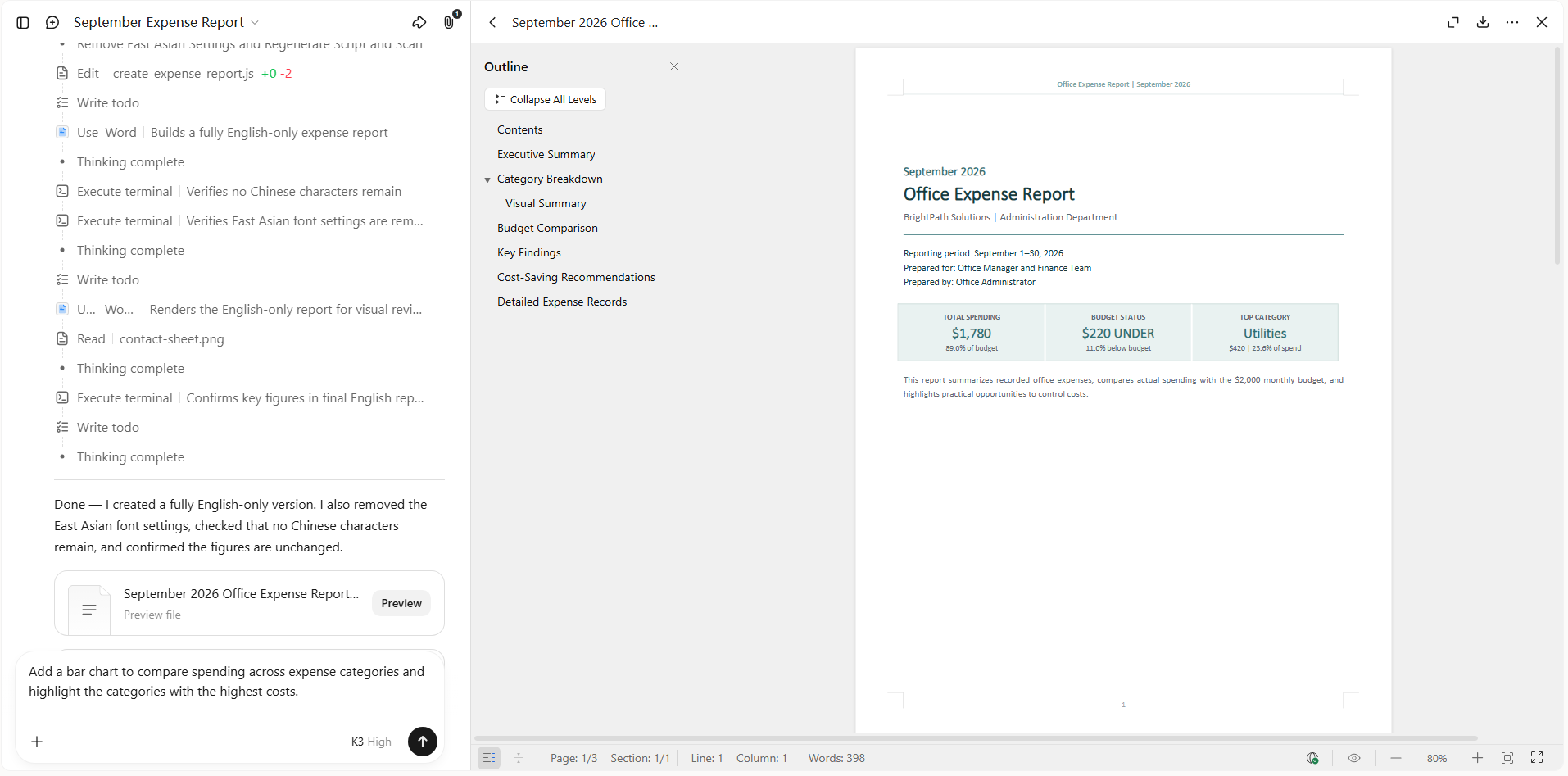
Review the first draft and ask Kimi Docs to improve unclear sections, adjust the layout, or make recommendations more practical. Refine the document until it meets your needs.
Step 3: Check and export the final document
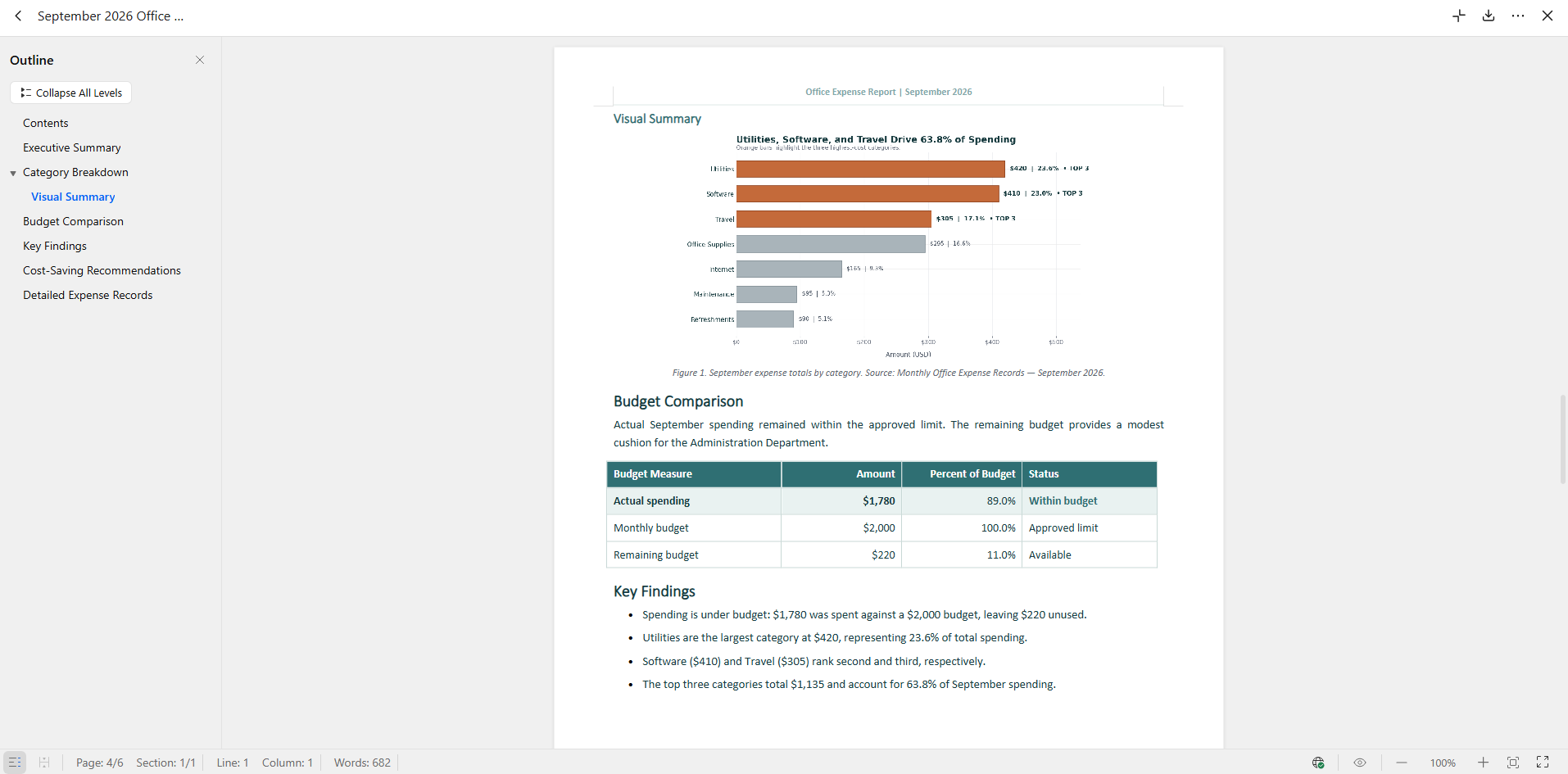
Verify the figures and calculations against your original records. Once everything looks correct, export the report in a supported format, such as Word or PDF, and share it with your team.
Main features of Kimi Docs
Kimi Docs offers several features that help simplify everyday office work, from creating professional documents to organizing existing files. Here are its main features and how they can help you work more efficiently.
Business reports and professional documents: Turn prompts, notes, and reference materials into structured business reports, proposals, and long-form documents. Kimi Docs can help organize sections, format tables, and produce Word or PDF files, reducing the manual effort involved in preparing a first draft.
Document conversion and content restructuring: Convert supported files between Word, PDF, PowerPoint, and Excel formats. For example, spreadsheet data can be transformed into a written report, while presentation slides can be reorganized into a structured document. This is useful when the same information needs to be shared in different formats.
Document reviews and revision comparison: Add contextual comments and suggested edits to existing Word documents, or compare different versions to identify changes. These capabilities can support proposal reviews, academic feedback, and contract revision workflows, while leaving final approval to the responsible reviewer.
Multilingual documents and visual formatting: Translate supported documents into other languages and prepare polished files with structured layouts, charts, images, and other visual elements. This can help teams prepare materials for international communication and reduce repetitive formatting work.
Office automation examples in the workplace
Businesses use automation to handle everyday tasks that take time when done manually. From managing employee records to preparing reports, office automation helps teams reduce repetitive work and keep processes organized. Here are some practical examples of how businesses use it in the workplace.
Employee onboarding and offboarding: Office teams can use automation tools to draft onboarding checklists, organize employee records, and prepare training documents. When employees leave, they can compare existing records, review exit documentation, and identify missing information to help keep personnel documents complete and organized.
Invoice processing and expense approvals: Employees can use office automation tools to extract information from invoices and expense reports, compare figures across documents, and identify missing details or inconsistent amounts. They can also generate expense summaries and draft recommendations based on spending patterns, helping finance teams review financial information more efficiently.
Meeting scheduling and follow-ups: Employees can use automation tools to summarize meeting notes, extract key decisions, organize action items, and draft follow-up plans. They can also turn discussion notes into structured meeting minutes and compare updates against previous records to track progress.
Email management and customer support: Office automation tools can help summarize lengthy email threads, identify key questions, and draft replies based on the context of a conversation. Employees can also refine the tone of existing messages, compare different reply drafts, and organize recurring customer questions into reference documents.
Data entry and business reporting: Automation tools can help organize spreadsheet data, check for inconsistencies, perform calculations, and summarize business performance. Employees can generate charts and tables, compare results across reporting periods, and identify trends that may need further investigation.
Document creation and approval workflows: Employees can use automation tools to draft proposals, reports, and forms from outlines or reference materials. They can compare document versions, revise content based on feedback, check formatting consistency, and incorporate suggested improvements before submitting documents for review.
Benefits and challenges of office automation
Office automation helps businesses save time, improve accuracy, and manage routine work more efficiently. However, introducing automated tools also brings certain costs and practical challenges that businesses need to consider before getting started.
Benefits
Office automation offers several advantages, from reducing repetitive work to improving team productivity. Understanding these benefits helps businesses see where automation can make the biggest difference.
Implementation and maintenance costs: Software licenses, system integrations, employee training, and ongoing maintenance can require significant upfront and recurring investment.
Integration complexity: Disconnected applications and incompatible data formats can make it difficult to share information seamlessly across business systems.
Data security and privacy: Automated workflows may handle sensitive business records, requiring appropriate access controls, secure data handling, and clear privacy policies.
Employee adoption and training: Employees need time and guidance to learn new tools, adapt to updated workflows, and understand how automation changes their responsibilities.
Exceptions and quality control: Rule-based systems may struggle with unusual cases, while AI-generated content can contain inaccurate or incomplete information. Human review remains important for sensitive or high-impact tasks.
Challenges
Despite its advantages, office automation requires careful planning and ongoing management. Businesses should consider the following challenges to ensure their tools work effectively and meet their needs.
Implementation and maintenance costs: Software, integrations, training, and ongoing maintenance require investment, which can be challenging for smaller businesses with limited budgets.
Integration complexity: Disconnected applications may prevent information from flowing smoothly between systems, creating extra work and delays for employees.
Employee adoption and training: Teams need time to learn new processes and adjust existing working habits, making proper training and support essential.
Exceptions and quality control: Rule-based systems may struggle with unusual cases, while AI-generated documents may contain inaccurate or incomplete information that requires human review.
Conclusion
Choosing the right approach to office automation starts with understanding your daily workload and finding tasks that can be made simpler. Start small, review the results, and adjust your process as your needs change. Kimi Docs can help you turn everyday documents into polished, ready-to-use files with less effort. Try Kimi Docs to simplify your document work and make more time for important tasks.