Nothing ruins a good YouTube banner faster than text getting cut off or important visuals disappearing on smaller screens. Choosing the right YouTube banner dimensions gives you a reliable starting point and helps your design look good across every device. With the right size in place, you can focus more on your channel style and less on fixing layout problems. Continue reading to find the ideal YouTube channel banner dimensions in 2026.
YouTube banner size requirements
The recommended YouTube channel banner size is 2560 × 1440 pixels, which gives your channel art enough space to look sharp on large screens. Keep important text and logos within the 1235 × 338 pixel safe area, so they remain visible on all devices. Your banner should also be 6 MB or smaller, with JPG, PNG, GIF, or BMP as supported formats. The table below covers these requirements along with the other important sizes:
Know your YouTube banner safe area
The YouTube banner includes a recommended 1235 × 338 pixel safe area for important text and logos within the full 2560 × 1440 pixel canvas. Keep essential text and logos inside this area to reduce the risk of them being cropped on different screen sizes. Other visual elements can extend beyond the safe area to support the overall banner design.
Why correct YouTube banner dimensions matter
Getting the size right does more than prevent a few cropping issues. The correct dimensions help your banner look polished, keep your branding clear, and make the design work smoothly across different screens. Here's why choosing the right YouTube banner dimensions matters:
Prevent important content from being cropped
Using the correct YouTube banner image size keeps important text, logos, and visuals inside the visible area. This helps prevent key parts of your design from being cut off on mobile, desktop, or TV, so viewers can see everything clearly without missing important details or information.
Keep your channel branding consistent
A properly sized banner gives your channel a consistent look wherever viewers see it. Following the recommended YouTube banner aspect ratio also makes it easier to keep your colors, logo, and other branding elements in the right place across every screen and device for a more recognizable channel identity.
Maintain image quality
Starting with the right YouTube banner image size helps your design stay sharp instead of looking blurry or stretched. A high-quality image also gives your channel a more polished appearance and makes your visual content feel more professional while creating a stronger first impression for visitors.
Create a balanced composition
The correct YouTube banner ratio gives you enough space to arrange text, images, and other elements without making the design feel crowded. It also helps you place the most important details where viewers can easily notice them without making the layout feel too busy or difficult to understand at a quick glance.
Improve the viewing experience
A well-sized banner looks clear and natural across different devices and screen sizes. When nothing feels cropped, stretched, or out of place, viewers get a smoother experience when they visit your channel and can focus on your message right away without being distracted by awkward or misplaced elements.
Reduce the need for repeated resizing
Choosing the right dimensions of the YouTube channel banner from the start can save you from constantly adjusting the same design. You can create one strong banner and make only small changes when needed instead of rebuilding the design for every screen size.
Create a YouTube banner that fits your channel: Kimi Design
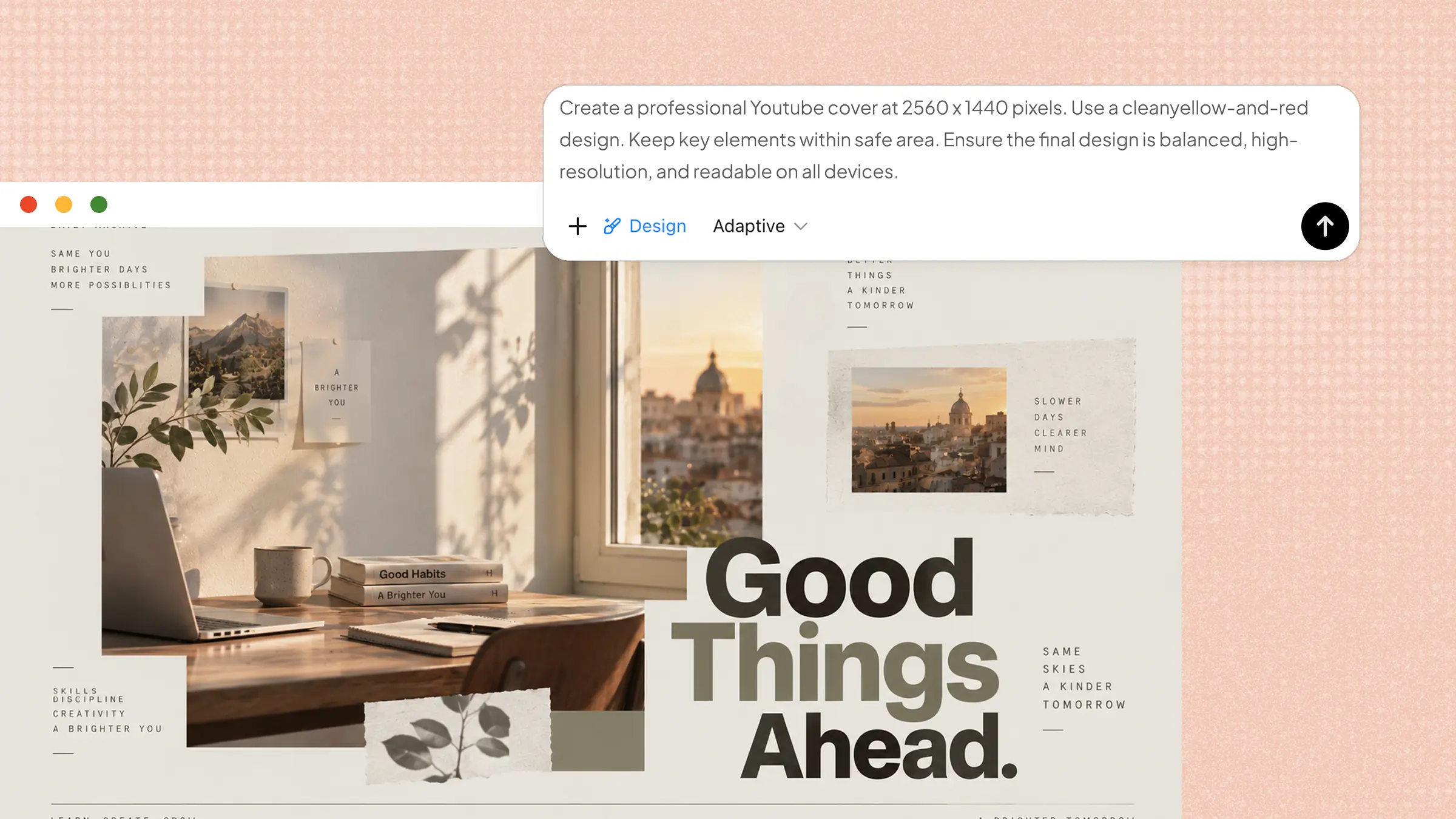
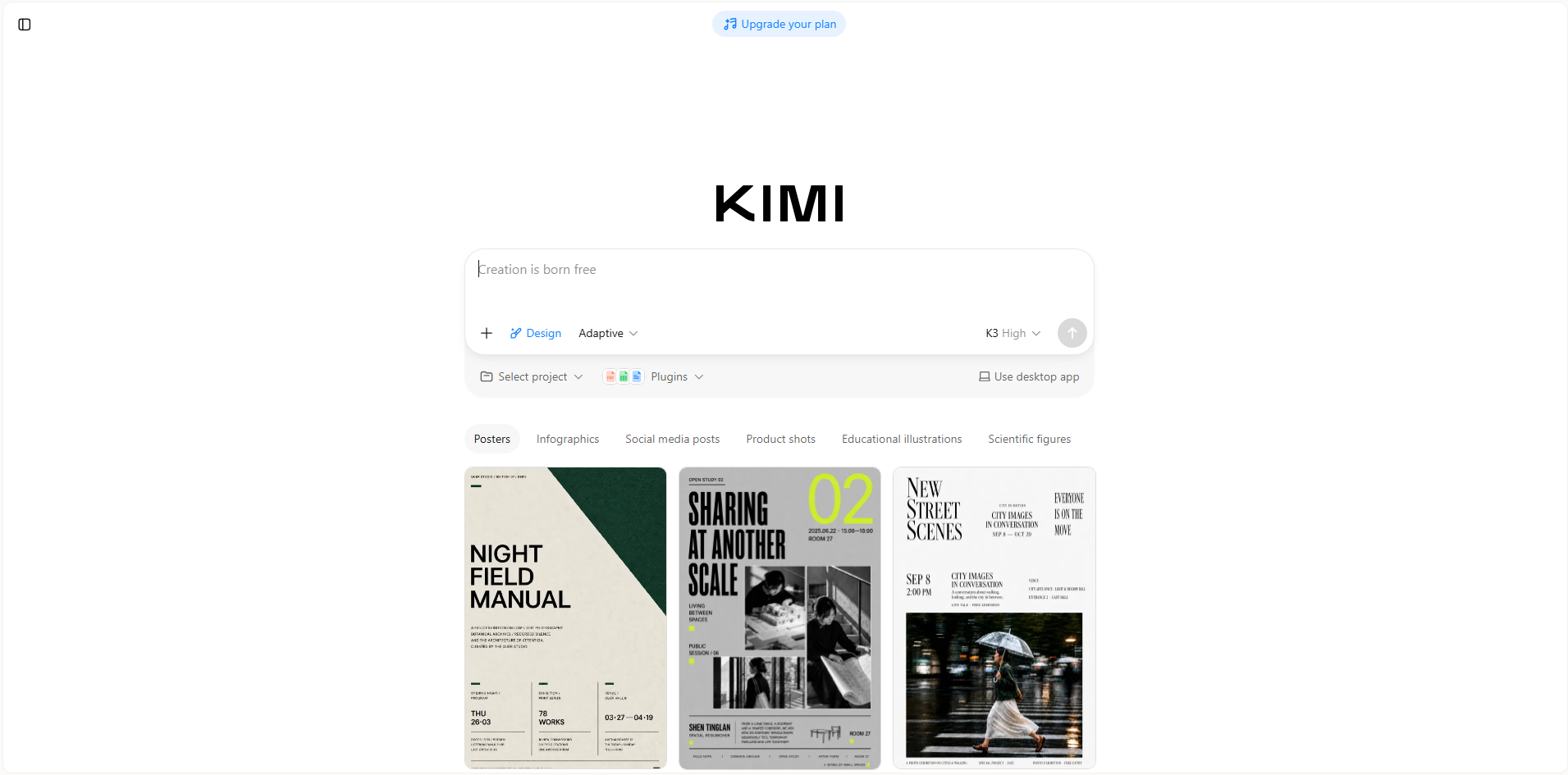
Kimi Design is an AI-powered design tool that helps you create YouTube banners from simple text prompts, images, videos, or visual references. It can turn your ideas into a complete banner layout while handling composition, typography, colors, and imagery. You can then refine individual elements through simple prompts instead of rebuilding the design manually.
Key features
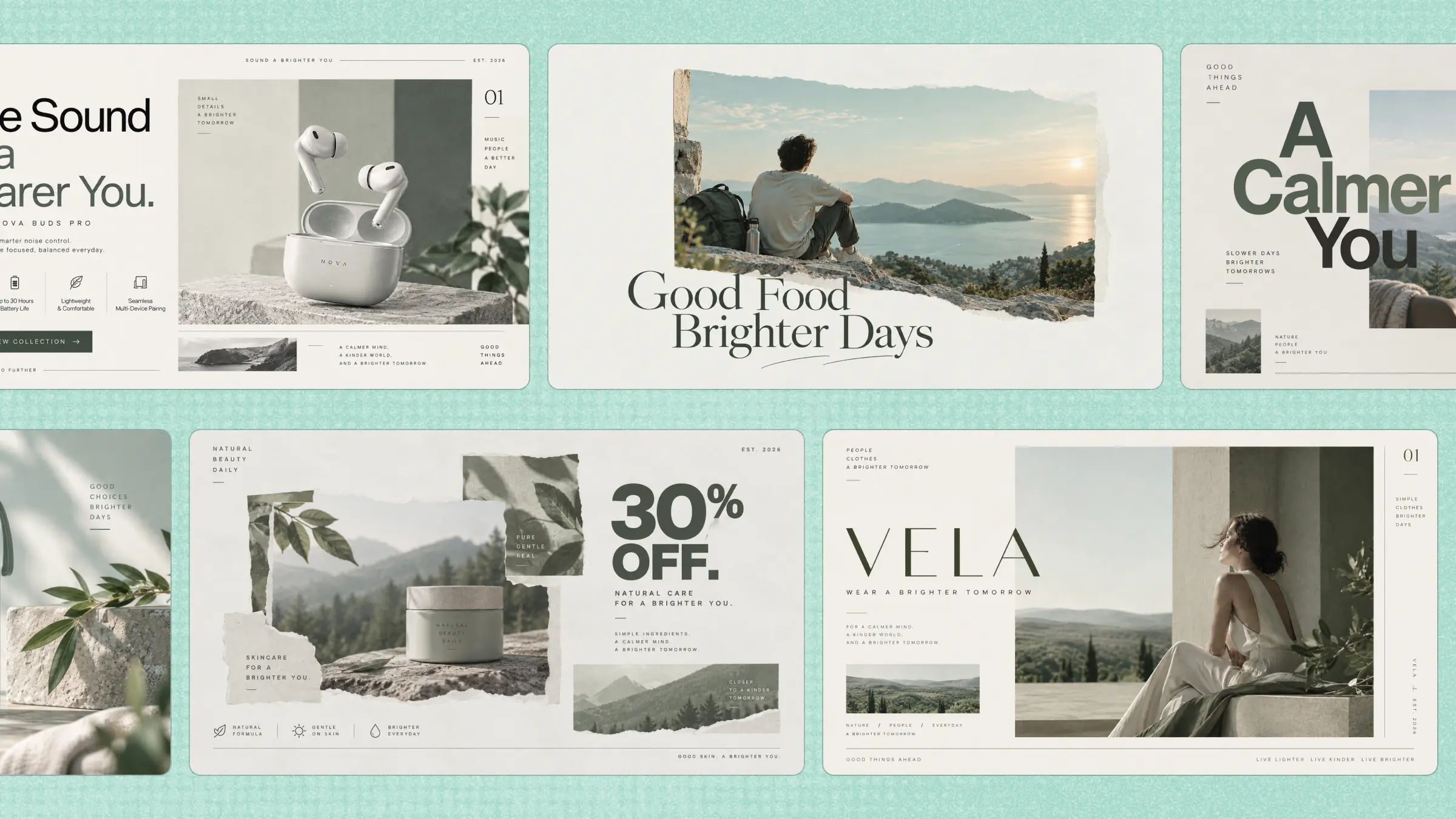
Turn your channel idea and visual materials into a polished banner: Describe your channel, content focus, visual direction, or preferred style, then upload images, videos, and visual references. Kimi Design brings your ideas and materials together into a complete banner with a considered layout, typography, colors, and imagery.
Create a visual style that matches your channel: Adjust the banner's colors, typography, imagery, and overall visual direction to reflect your content and personality. Build a cohesive look that helps visitors quickly understand what your channel is about.
Keep important content visible across different screens: Design with desktop, mobile, and TV displays in mind, positioning key text, logos, and visuals within the safe area. This helps your main message remain visible even when the banner is cropped differently.
Refine the banner with conversations or hands-on edits: Ask Kimi Design to change the layout, rewrite text, replace imagery, or adjust the visual style through conversation. You can also select specific elements and make targeted changes directly on the canvas.
Export your finished banner in a suitable format: Once your banner is ready, export the final design in a suitable format for your YouTube channel. Keep the finished visuals, text, and layout intact so the banner is ready to upload and use across your channel.
How to create YouTube banners using Kimi Design
Getting the dimensions right is only the first part of creating a great channel banner. With Kimi Design, you can quickly turn your ideas and visual references into a design that fits your channel. Follow the steps below to get started and refine your banner with ease:
Step 1: Define your YouTube banner
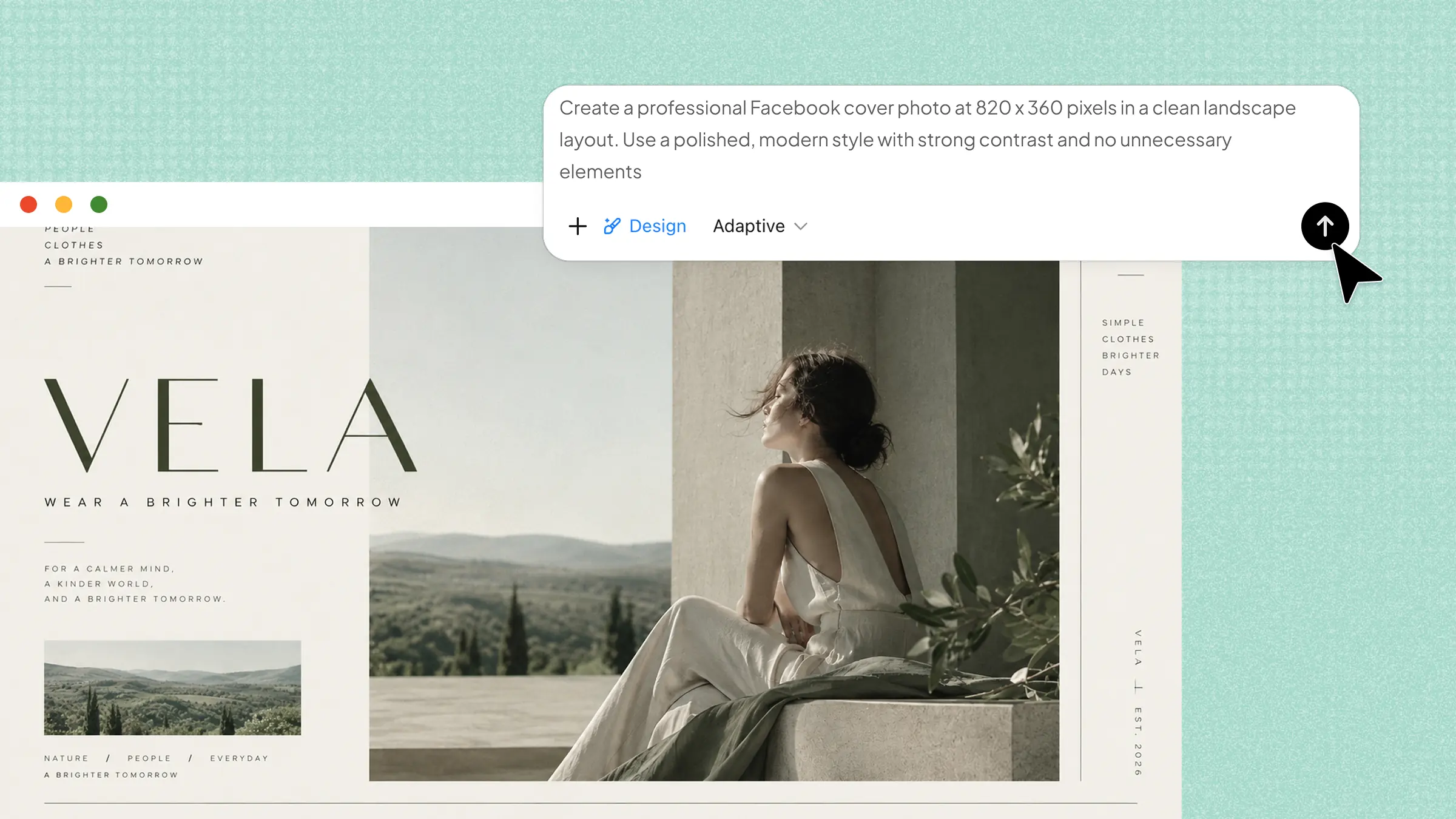
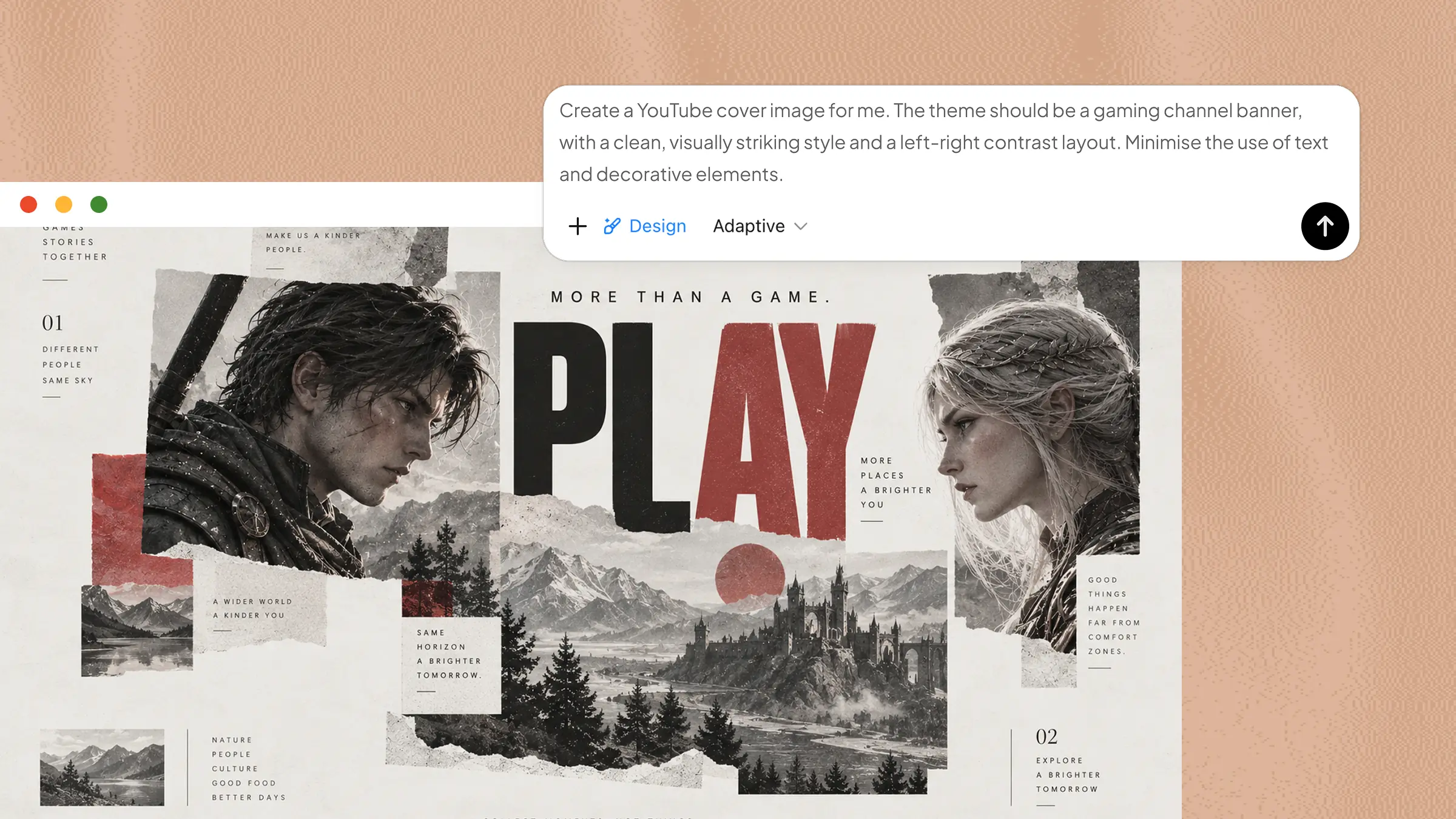
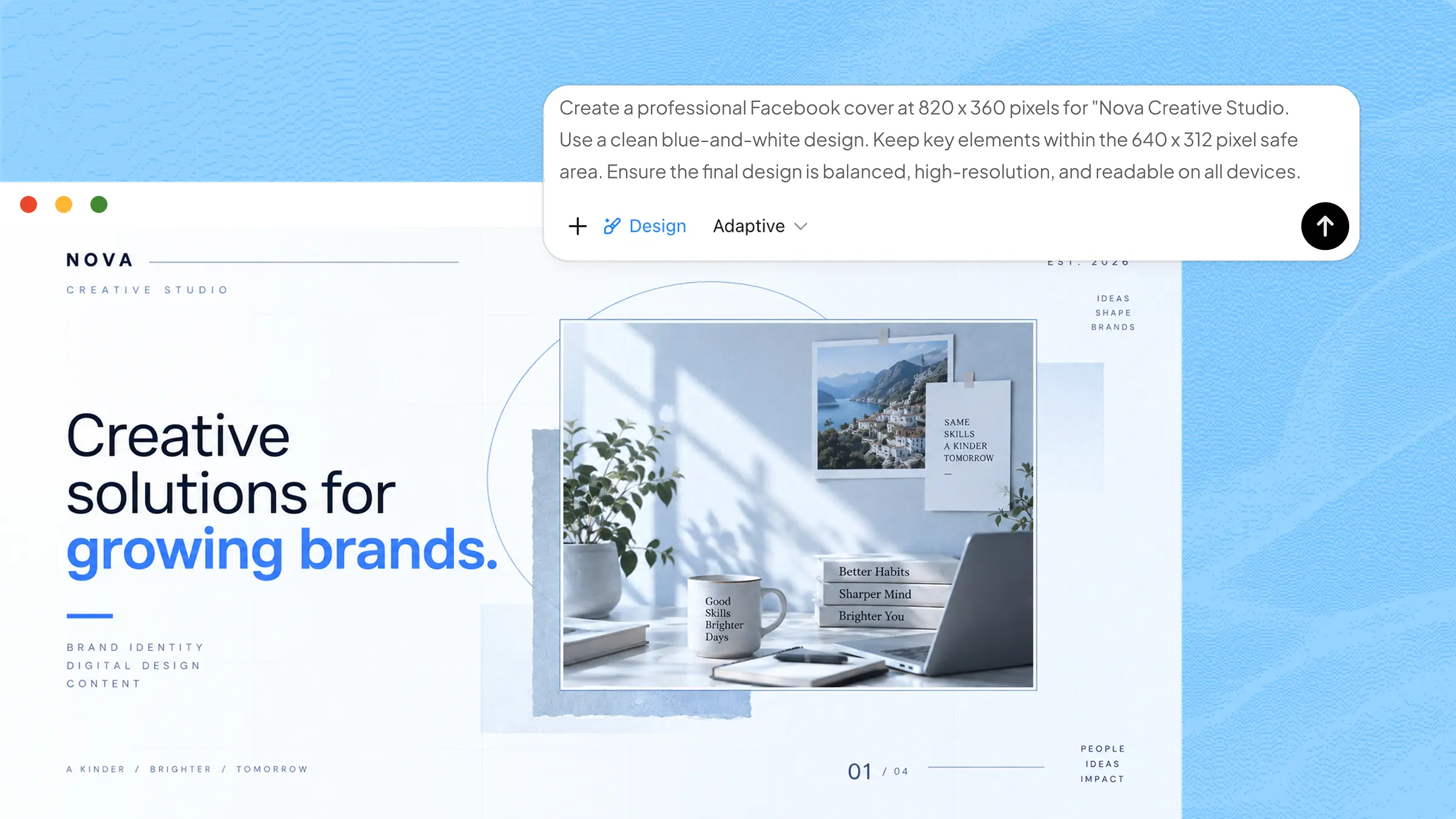
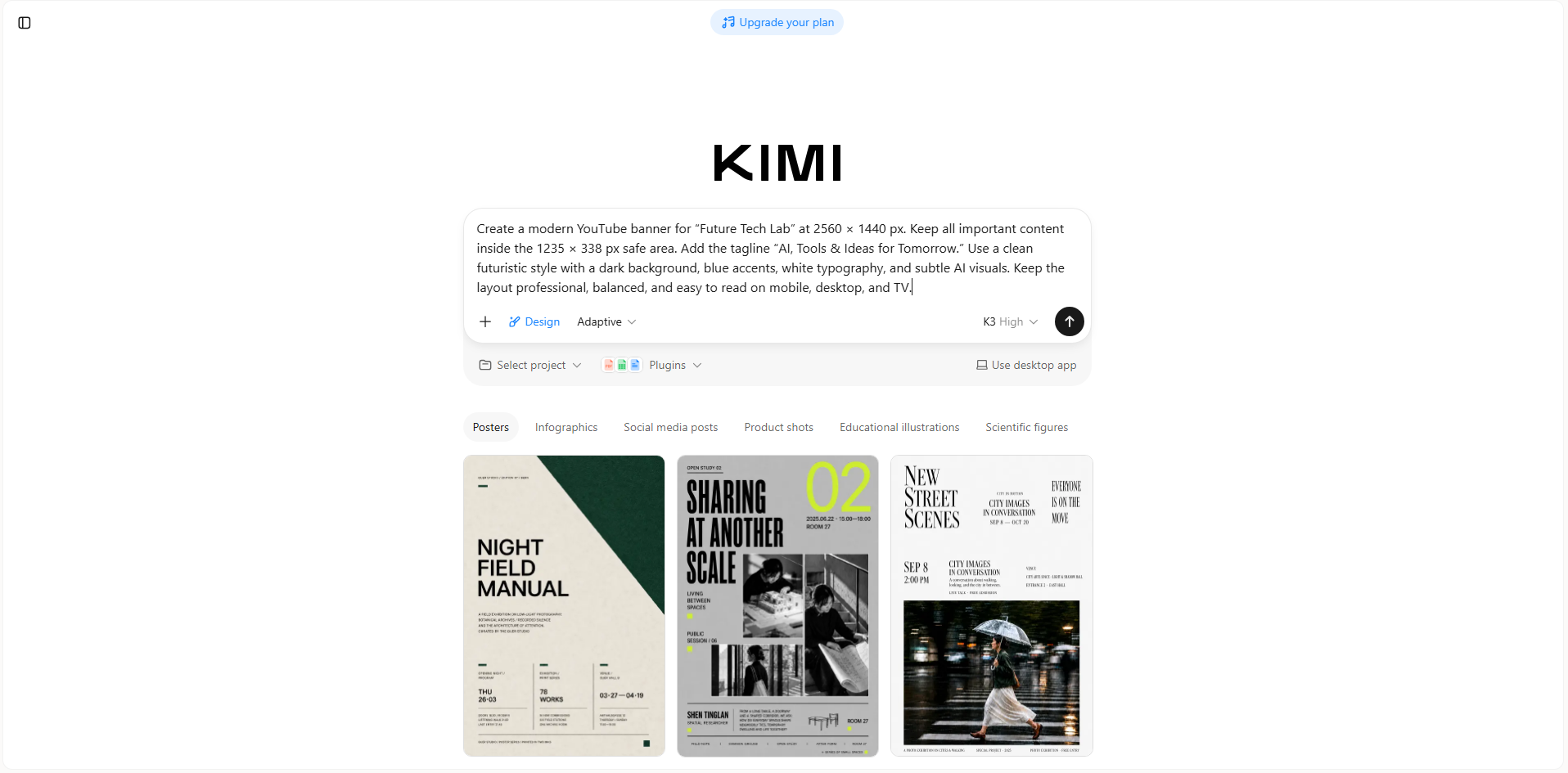
Start by telling Kimi Design what you want your banner to look like. Include your channel name, style, colors, key text, and the required dimensions, so the AI has a clear direction from the beginning.
Example prompt:
Step 2: Let Kimi Design generate the banner
Submit your prompt and let Kimi Design turn your idea into a complete banner. It will build the layout, typography, colors, and visuals based on your instructions.
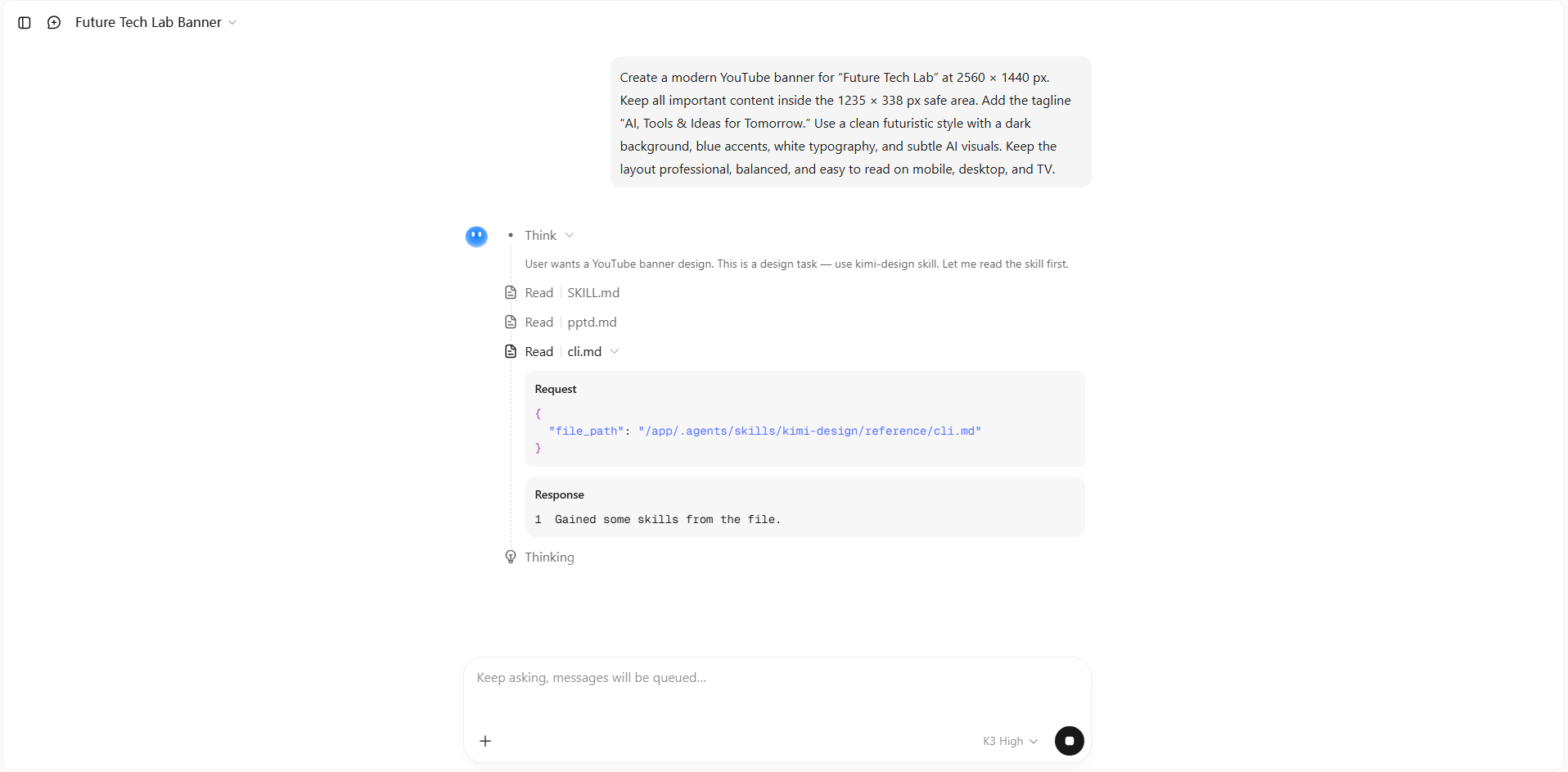
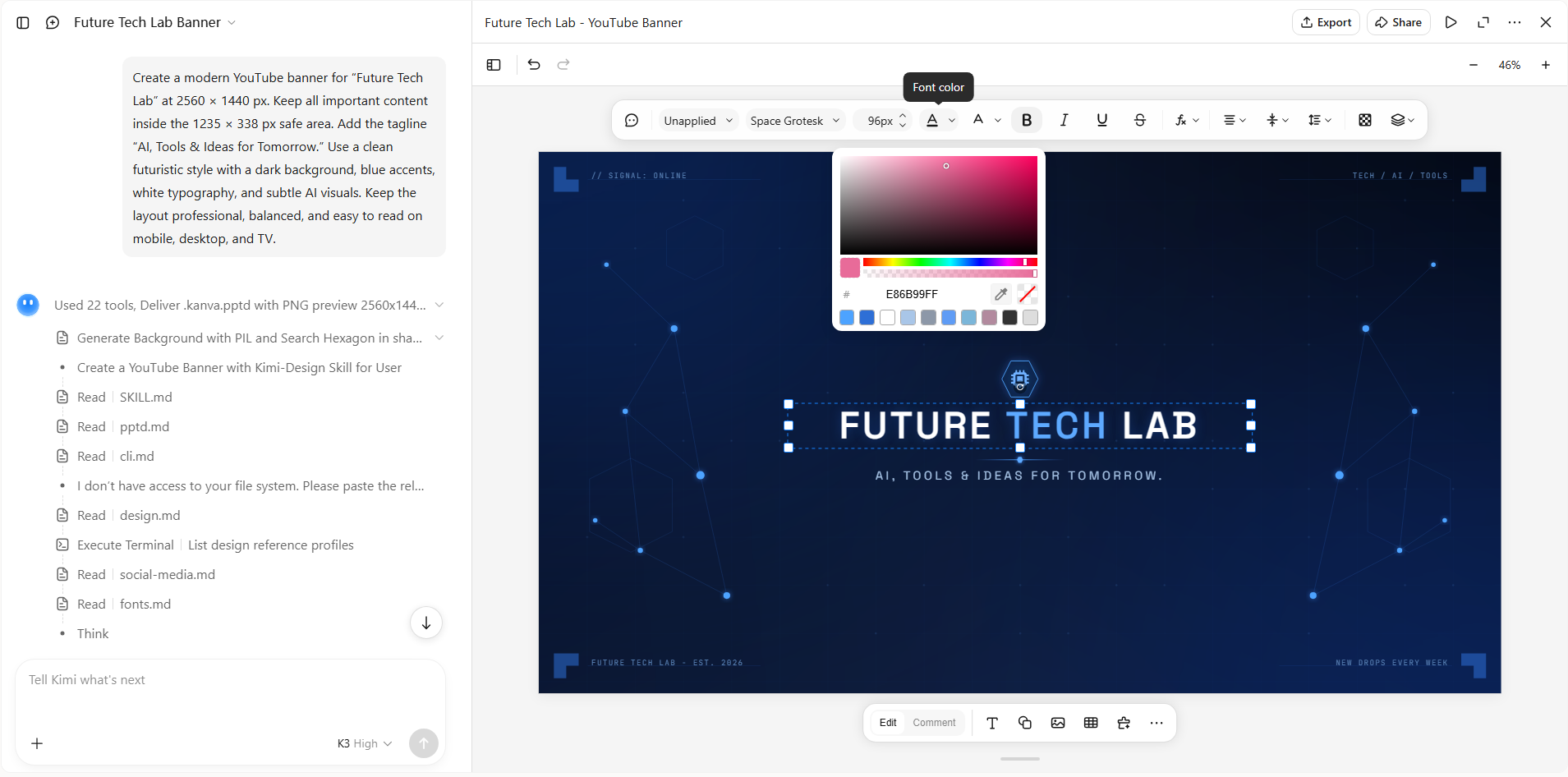
Step 3: Refine the banner with AI editing
If something needs changing, you can refine your banner without starting over. Use Kimi Design's editing tools to make adjustments manually, or use simple prompts to ask AI to move text, change colors, replace visuals, or adjust the overall layout.
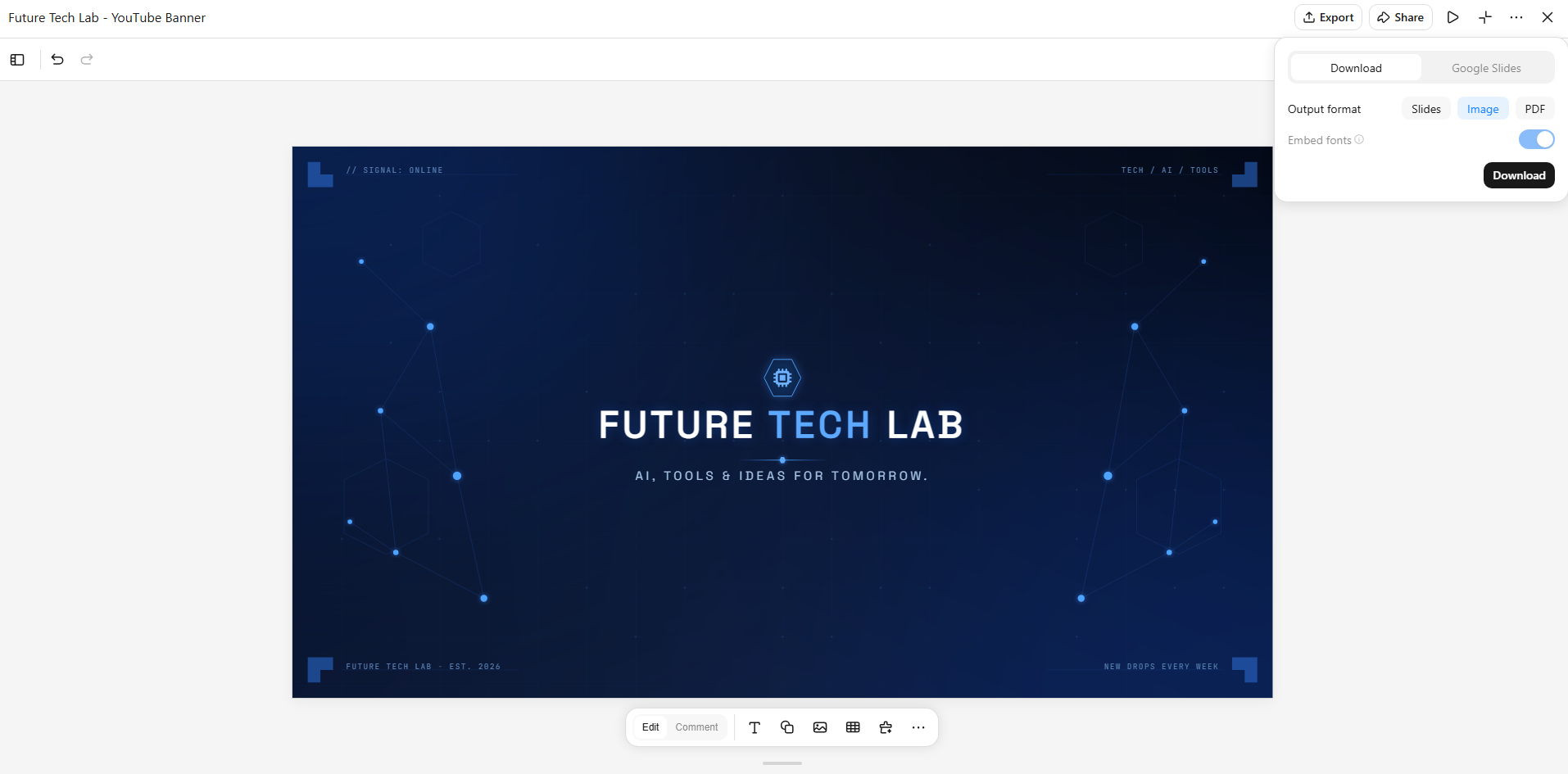
Step 4: Review and export your banner
Before exporting, check that important text and visuals stay within the safe area and remain easy to read. Make sure the banner looks balanced across different screen sizes, then export the finished design and upload it to your YouTube channel.
Tips for creating a good YouTube banner
A strong YouTube banner is not just about getting the size right. The design also needs to look clear, represent your channel, and make a good first impression on visitors. Before you publish your banner, keep these practical tips in mind:
Start with the right dimensions and resolution
Begin with the recommended 2560 × 1440 pixel canvas and keep important content inside the safe area. Using the right size and resolution from the start helps your banner stay sharp and prevents unwanted cropping or stretching when viewers see it on different devices.
Make your channel identity and content clear
Your banner should quickly tell visitors what your channel is about and what they can expect. Use your channel name, colors, visuals, or a short tagline to create a clear identity that feels connected to your content and gives new visitors an instant sense of your brand.
Prioritize key information
Not every detail needs to appear on your banner, so focus on what matters most. Keep your channel name, main message, and other essential information easy to spot without filling the design with too many elements that could distract viewers from your core message.
Keep text readable and the layout balanced
Choose clear fonts and a size that remains easy to read on smaller screens. Give your text and visuals enough space so the banner does not feel crowded, while keeping the main elements visually balanced and making every important detail easy to notice at a glance.
Preview before publishing
Always check how your banner looks before adding it to your channel. Preview it across different screen sizes to make sure important text, logos, and visuals are visible, and nothing is unexpectedly cut off before you make the banner live for your audience.
Conclusion
A well-designed banner can make your channel feel more professional and memorable from the first visit. Getting the YouTube banner dimensions for all devices right gives your design a strong foundation without limiting your creativity. With Kimi Design, you can turn your ideas into polished channel art with less manual work. Try Kimi Design to create a banner that fits your channel's style and message.