Ever wished you could see what Agent is up to while it researches? The pages it's visiting, the things it's clicking, and the information it's finding?
Or wanted to make a quick edit to a webpage, only to find yourself taking screenshots, drawing circles, and typing out exactly what needs to change?
Now, you can collaborate with Agent directly on the webpage.
Kimi Code Desktop has introduced a built-in browser, placing task-related webpages on the right side of the session panel. While Agent researches, clicks links, or downloads files, you can see what it is doing and take over at any time. If something looks wrong, annotate it directly on the page, add a short comment, and Agent can continue from there.
This makes working in Kimi Code feel more natural and seamless, with a dedicated web browser built directly into your Agent workflow.
Kimi Code Desktop built-in browser
Next, we will use two concrete examples to see how it works: first, help a café owner polish their landing page; then help a business travel coordinator gather the information needed for a tram route.
Start with a tab
Open any conversation in Kimi Code Desktop and choose whichever method feels most convenient.
Open in panel
Expand the right panel, click “+”, select “Browser”, then enter a URL in the address bar.
Use a shortcut
On Mac, press ⌘T; on Windows, press Ctrl+T to create a browser tab directly.
Let Agent open it
Ask Agent to use the built-in browser when carrying out a task.
Use it yourself, or hand it to Agent
A shared interface for more native human–Agent collaboration
Want easier interaction without switching windows back and forth while you work?
You can open the window in the right panel and use it just like a regular browser. Enter URLs, click links, scroll through pages, and fill out forms—it can do it all.
Enter a URL yourself and work on the page
Want to direct Agent as usual, while seeing more clearly where it is making changes and what it is doing?
You can watch Agent work almost like a livestream. In the right panel, long streams of operations become visual interactions.
For example, tell Kimi in the conversation: “Open the project homepage, click ‘Contact Us’, and see whether it goes to the contact page.” It will follow its plan step by step. You can watch in the right panel, or click “Take over” to try it yourself.
Let Agent click and check the page on its own
Click “Take over” to operate it manually
Annotate proactively, so Kimi understands and resolves requests precisely
Beyond simple scrolling, typing, or submitting, you can now collaborate with Agent on webpages in more complex and detailed ways.
Click “Annotate Page” to the right of the address bar to enter annotation mode. Move the cursor over the element you want to change, wait for it to highlight, then click to select it.
To annotate multiple elements together, drag a box around the corresponding area.
Click a webpage element to highlight the selected area
Drag to select an area and comment them together
In the pop-up panel, write your feedback and click “Add to composer”. The annotation and comment will enter the conversation input box together. When selecting a single element, you can also attach a screenshot to help the model understand more precisely.
For more detailed control and changes, expand the element details to view and edit them, or quickly copy and enter CSS class names.
Write your feedback and comment to the input box
Expand element details to view more information
No more switching back and forth between chat and the browser, or writing lengthy prompts just to explain where something is on the page.
Now, you can guide Agent directly on the webpage, select specific elements, and make precise edits with ease.
For more advanced operations, see 👉 The Built-in Browser Guide.
Case 1|Help a Café Owner Build a Landing Page
Imagine you run an independent specialty coffee shop. Besides selling coffee, you also offer the same beans served in your store.
Customers want to buy those products again and keep up with your seasonal launches. You want a webpage that brings products, the in-store menu, and new releases and event announcements together, so every customer can check them anytime.
Don’t know how to code? Just open Kimi Code and describe the page you want with natural language.
I run a specialty coffee shop and want to build a website for my store. We focus on pour-over coffee and single-origin beans, so I'd like the overall style to feel minimal and premium — like a specialty café. The website should showcase our main coffee beans (including origin, flavor notes, and price) with beautiful imagery. I also need a pre-order feature where customers can leave their name, phone number, and the beans they want for in-store pickup. Finally, please include our store address and opening hours on the site.Check as It Goes, iterate through browser self-review
After writing the first version of the code, Kimi Code automatically uses the built-in browser to open the preview and check the result.
For example, it can review layouts across mobile, tablet, and desktop screens, and click through the menu step by step. After changing the code, it can refresh the page and check again, repeating until it can deliver a working result.
Test all interactive elements on the page
Switch to mobile view to check the layout
Review it yourself, and annotate anything you want to change
Kimi Code can troubleshoot errors, but you know the product’s aesthetics and brand best.
You can keep watching the browser window on the right and walk through every feature and design detail like a customer. Review and adjust as you go, polishing each detail carefully.
For example, want to tweak the homepage headline or its design? Simply click “Annotate Page” next to the address bar, select the headline, and tell Kimi what you'd like to change.
You could say something like: “Change this landscape picture to a potrait of a farmer.” Once click “Add to composer,” your annotation and feedback will appear together in the chat input, ready for Agent to act on.
You can also select multiple elements at once, annotate each one, and add them to the input box. In this turn, Agent can understand annotations across layout, copy, functionality, and more, then make each change one by one.
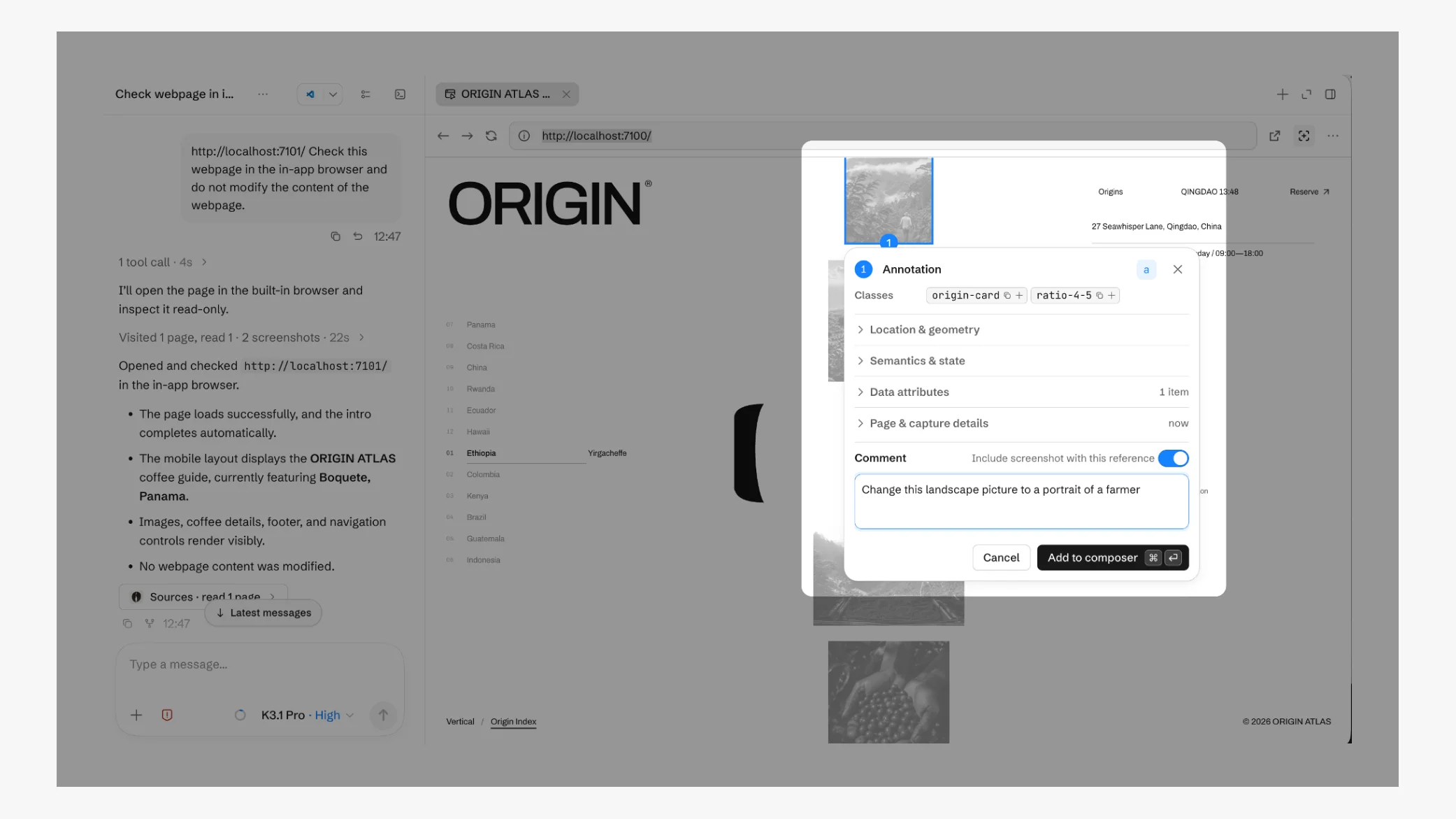
Click the homepage title and write feedback in the annotation panel
After several rounds of refinement, Agent will gradually polish the front-end design and feature arrangement, getting closer to the café Landing Page you have in mind.
A fully functional landing page optimized for mobile users
With the built-in browser, Kimi Code’s interaction throughout this process feels closer and more natural.
Case 2|Prepare a Travel Route Map for Visiting Clients
Imagine you're leading sales and hosting clients at the Hong Kong office. After a meeting, you decide to take them on a little tour of the city, traveling from North Point to Sai Ying Pun.
With Hong Kong's winding streets and complex road network, how do you make sure everyone knows where they're going?
Try creating a route map with Kimi. It can mark key stops along the way and highlight the neighborhoods you'll pass through, giving everyone a clear picture of the journey at a glance.
This small task can improve the client travel experience, but it requires complex research and spatial planning. You need two sources of information: tram stops along the route and 3D base maps covering the corridor. Then you analyze where they overlap spatially and draw a clear route guide.
Open Kimi Code and give it a task like this:
We are hosting clients in Hong Kong. After the meeting, we want to take the tram from North Point toward Sai Ying Pun. Use the built-in browser to find official routes and stops, identify the 3D base-map tiles covering the neighborhoods along the way, download the required files to the project, and list their sources and usage requirements.Start with complex research to map the route and tiles
Kimi Code carries out this multi-step research task in built-in browser, navigating to the Hong Kong government's open data portal, locating the Lands Department's 3D map, and reviewing the download instructions.
The maps are available as individual tiles, each identified by a tile number. Simply downloading the tiles at the starting point and destination wouldn't be enough. So Kimi Code goes a step further: it finds the official PDF index, works out the tile numbering system, and cross-references it with official tram stop coordinates to identify all the tiles needed to cover the route.
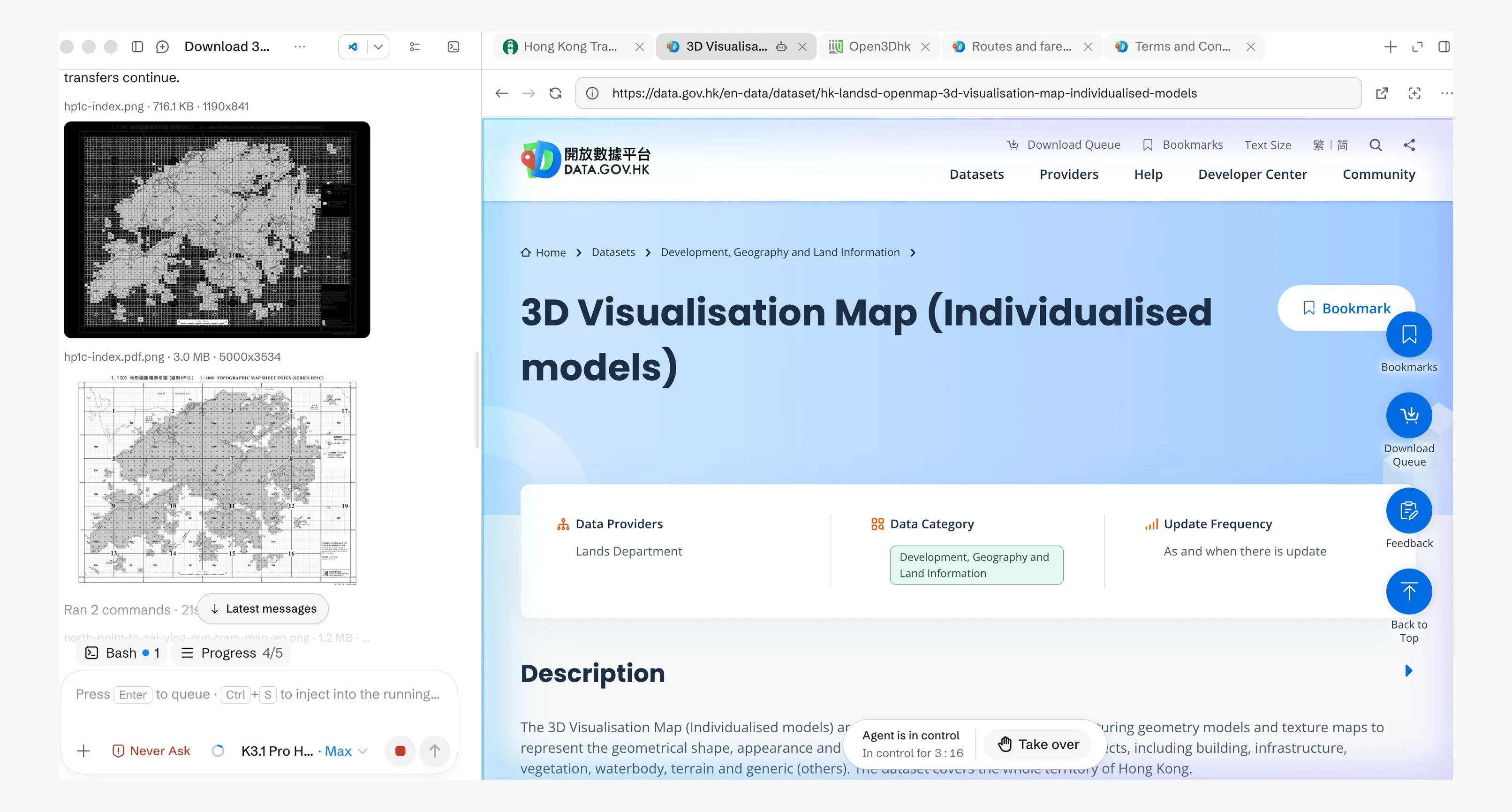
The official PDF tile index is on the right; the Agent’s route-checking log is on the left
Collect, Analyze, and Put Data to Work
By the end of the task, Kimi Code had assembled 20 zipped packages of 3D base-map tiles covering the entire route. It also provided a table of stops and their coordinates, along with a checklist documenting the required tile numbers, download sources, and usage requirements.
Agent then brought the data together, overlaying the two spatial datasets to generate a clear, annotated route map, as shown below.
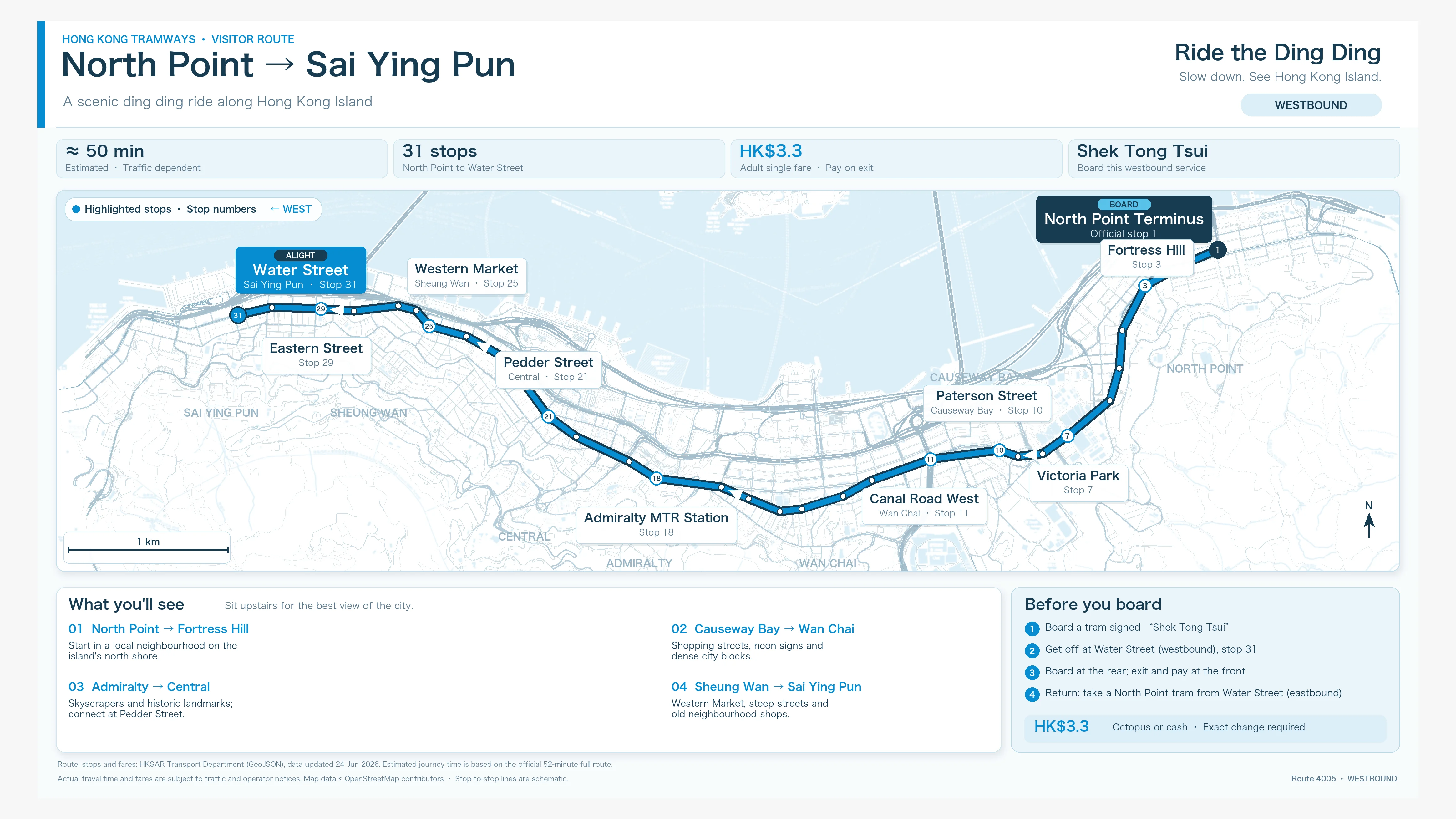
Highlights the westbound route and major stops, with nearby landmarks, fares, and riding tips
Next, you can share this route map with clients as a travel reference so everyone understands the route and key reminders.
If the route changes later, you can follow the checklist back to the official sources to verify it.
The built-in browser gives Agent a dedicated space to view and interact with webpages. You can hand off web tasks to Kimi Code and step in whenever you want. You can also annotate pages directly to point out exactly what needs attention or a change. These capabilities remove the little frictions that can get in the way of human-AI collaboration, making the entire experience feel more seamless and intuitive.
We're always looking at how people use our products and finding ways to improve the experience, refine the harness, and make human-AI collaboration even more powerful.
Next time you work with Kimi Code, give the built-in browser a try! :)