Device Management
Kimi supports signing in to the same account on multiple devices. With Device Management, you can see which devices your account is currently signed in on and remove devices you no longer use or don't recognize.
Where to find it?
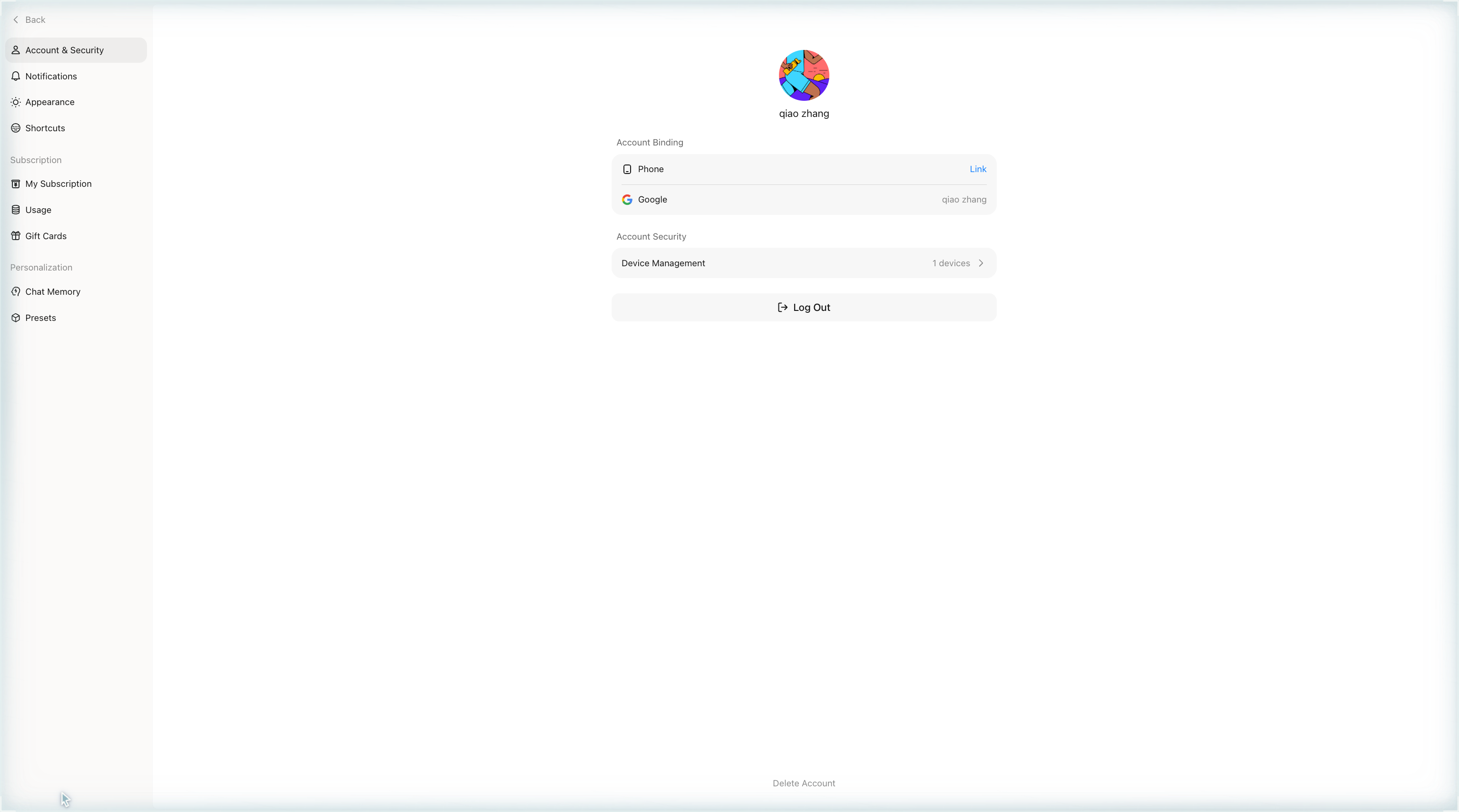
Web: click your avatar in the bottom-left corner → Settings → Account & Security → Device Management.
App: Me → Settings → Account Security → Manage Devices.
Sign-in and binding options depend on your region: on kimi.ai (overseas), accounts sign in with Google or phone; on kimi.com (mainland China), accounts sign in with phone or WeChat. The screenshots below show both.
About the device list
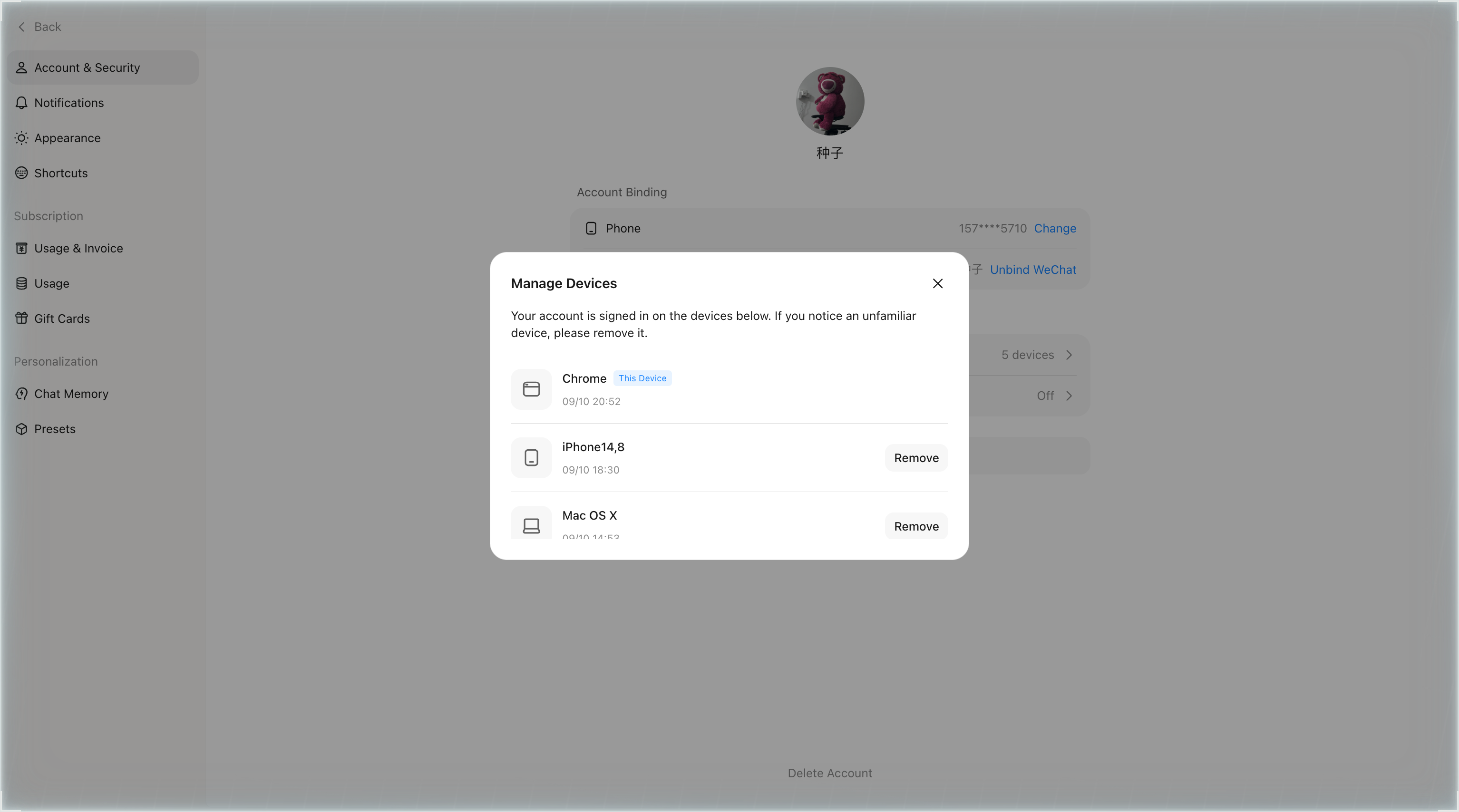
Devices are sorted by most recent activity first. Each device card shows:
- Device type icon: phone / PC / Web
- Device name: e.g. "iPhone 16 Pro Max" or "MacBook Pro"; if the model can't be identified, the raw system string is shown
- Sign-in location: the city resolved from the sign-in IP; shown as "Unknown" if resolution fails
- Last active time: the current device always shows "Just now"; other devices show the exact time
In addition:
- Your current device is pinned to the top with a This Device badge
- The list only shows devices active within the past year; devices inactive for over a year are no longer shown
How to remove a device?
- In the device list, click Remove next to the device.
- Confirm in the dialog. The device will be signed out of your Kimi account.
If you notice an unfamiliar device, remove it and change your account password promptly. When there are more than 3 devices other than this one, a Remove All button appears at the bottom of the page, which signs out all devices except the current one.
Was this article helpful?