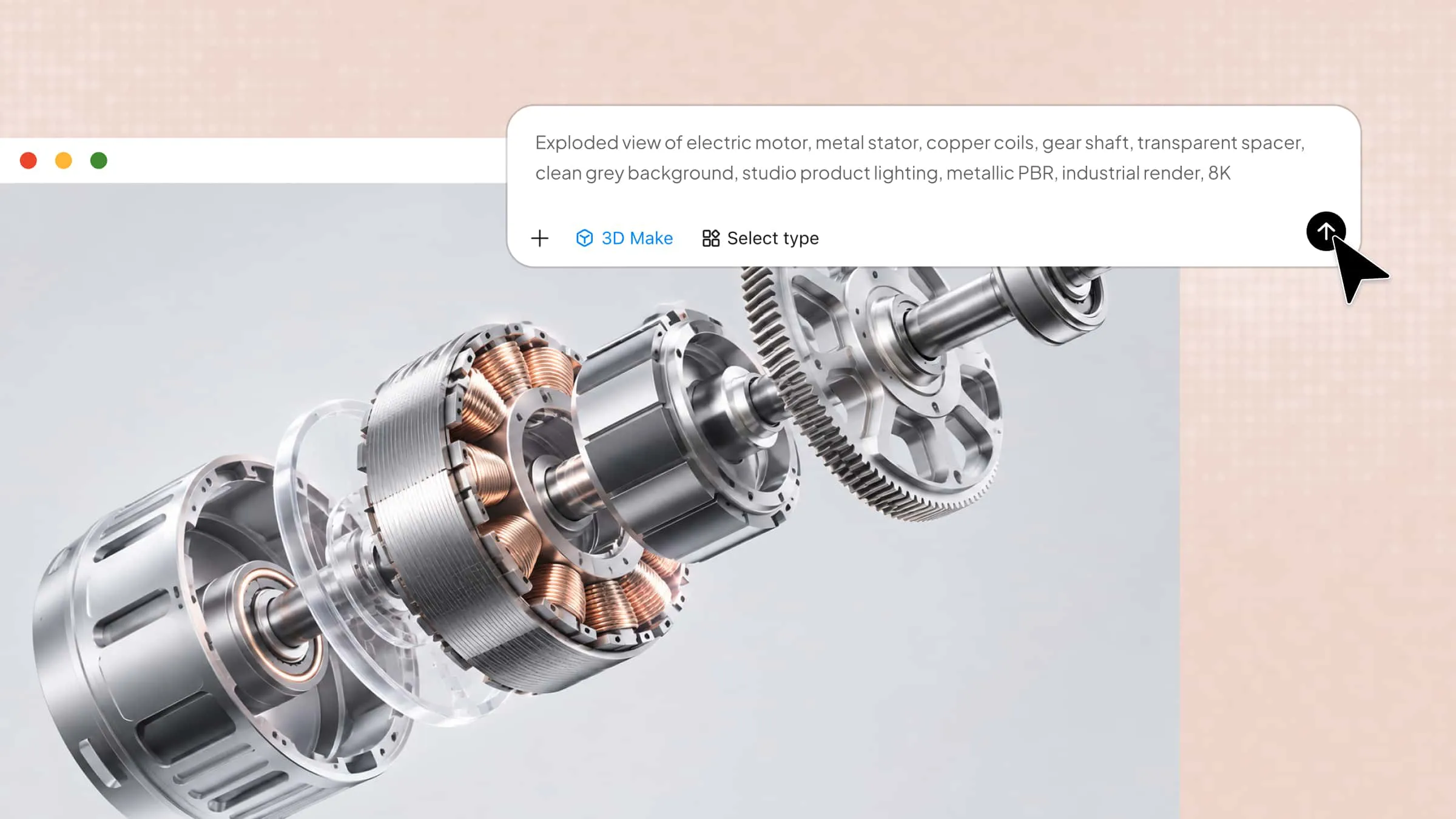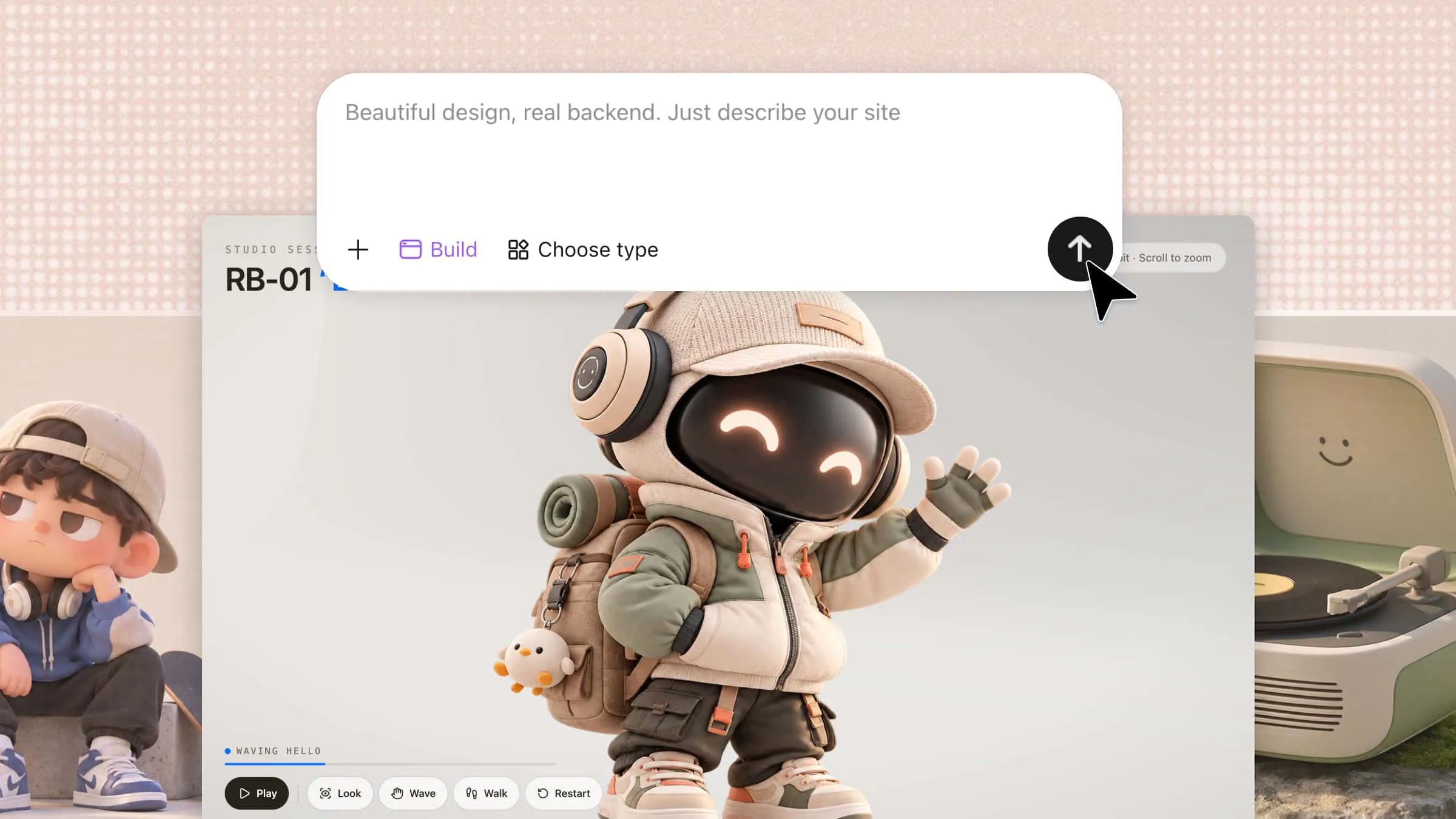
Have an idea for an animated character, a product scene, or a world you want to bring to life? 3D animation software can help you turn that idea into something you can see, shape, and animate. With options ranging from established creative tools to newer AI-powered approaches, there's more than one way to get started. Read this article to find 10 3D animation software options that suit your skills and creative goals.
Overview of 10 3D animation software options
Each tool offers different features, workflows, and levels of complexity. The table below highlights their key capabilities and ideal use cases to help you choose the right software for your 3D animation projects.
| Tool | Core features | Ease of use | Suitable for |
|---|---|---|---|
| Kimi 3D Make | AI-powered 3D model generation from text prompts and images, reference-based creation, prompt-based editing | Beginner-friendly | Rapid 3D prototyping, concept visualization, and creative projects |
| Blender | 3D modeling, sculpting, rigging, keyframe animation, physics simulations, and rendering | Moderate to advanced | 3D films, game assets, and complete animation projects |
| Adobe Mixamo | Automatic humanoid rigging, ready-made motion library, animation preview, and FBX export | Beginner-friendly | Adding character animations to games and prototypes |
| Autodesk Maya | Advanced rigging, keyframe animation, deformation, simulation, and visual effects | Advanced | Professional character animation, film production, and VFX |
| Daz Studio | Customizable 3D characters, posing, clothing, scene lighting, and rendering | Beginner to intermediate | Digital human characters, illustrations, and visual storytelling |
| Cinema 4D | MoGraph, procedural modeling, character animation, materials, and rendering | Intermediate | Motion graphics, animated typography, and advertising |
| iClone | Real-time character animation, motion capture, facial animation, lip-sync, and timeline editing | Beginner to intermediate | Animated videos, virtual presenters, and dialogue-driven scenes |
| Spline | Browser-based 3D design, timeline animation, event-based interactions, and web integration | Beginner-friendly | Interactive websites, product showcases, and 3D web experiences |
| Autodesk 3ds Max | Polygon modeling, spline modeling, keyframe animation, scene management, and rendering | Intermediate to advanced | Architectural visualization, game environments, and product animation |
| Unreal Engine | Sequencer, Control Rig, animation retargeting, motion capture workflows, and real-time rendering | Intermediate to advanced | Game cinematics, virtual production, and interactive 3D experiences |
Explore 10 professional 3D animation software
From detailed character animation to AI-powered 3D modeling, each tool offers a different way to bring your ideas to life. Let's explore 10 professional options, their key features, and what each can offer for your creative projects.
Kimi 3D Make
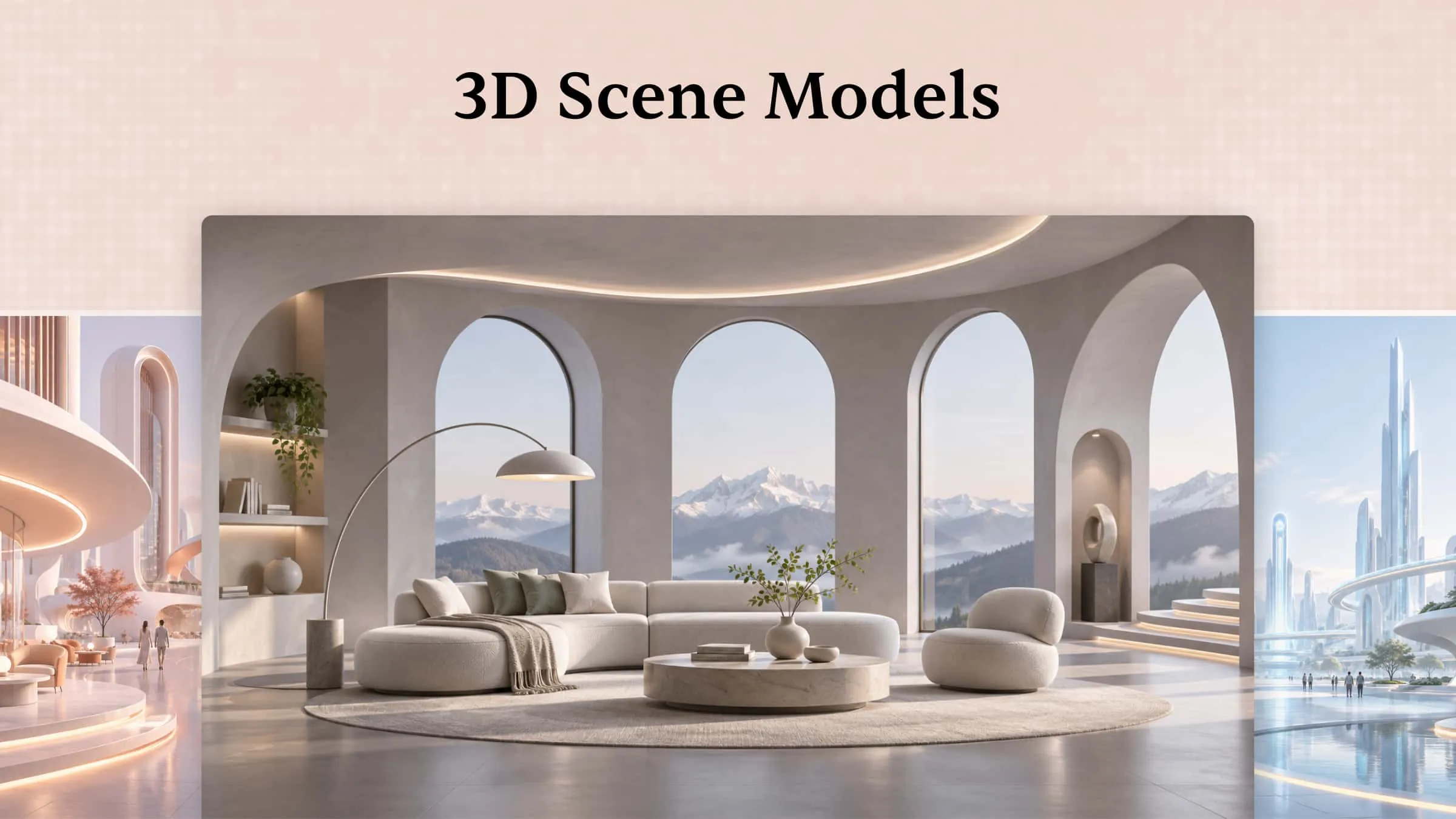
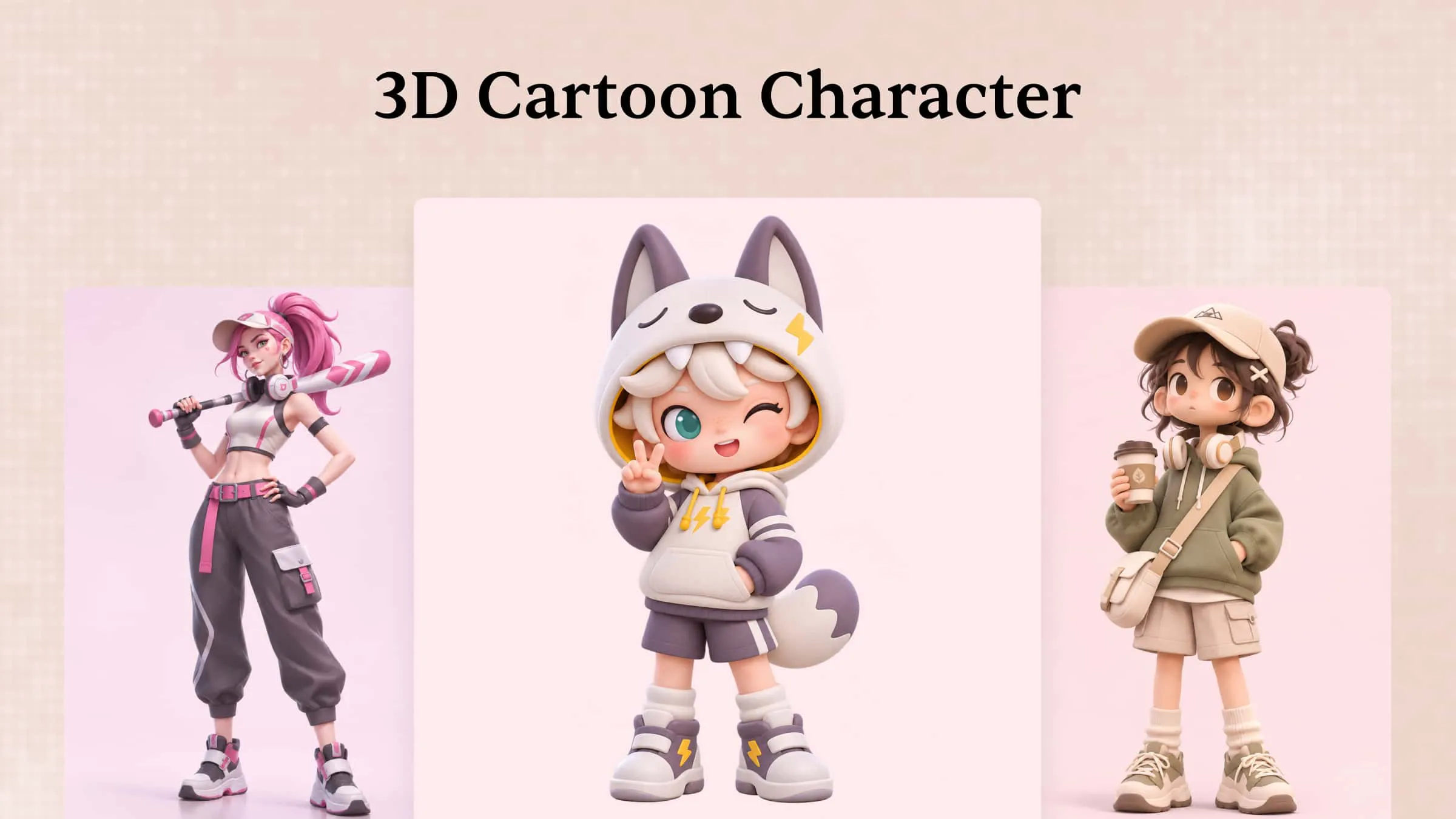
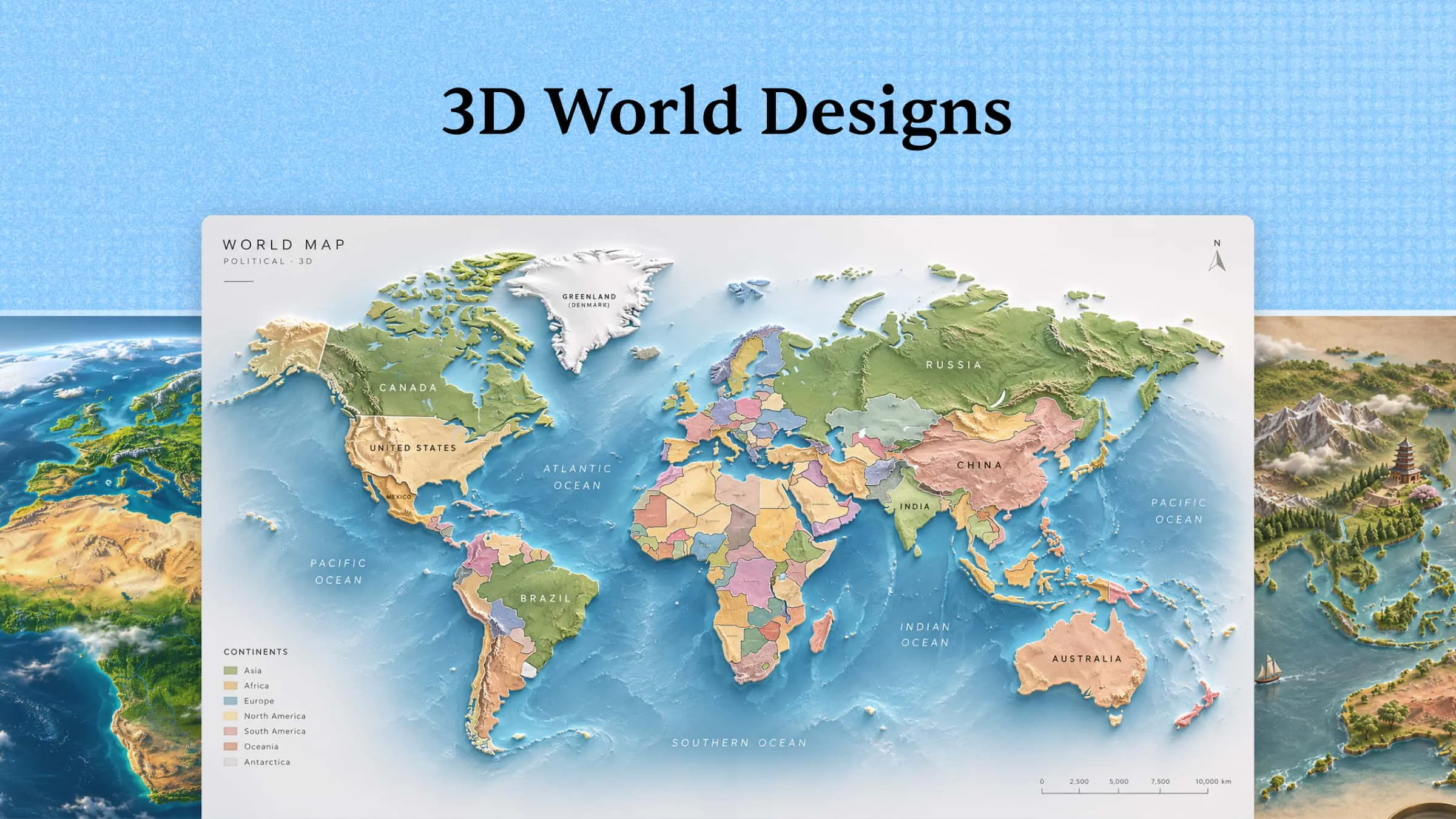
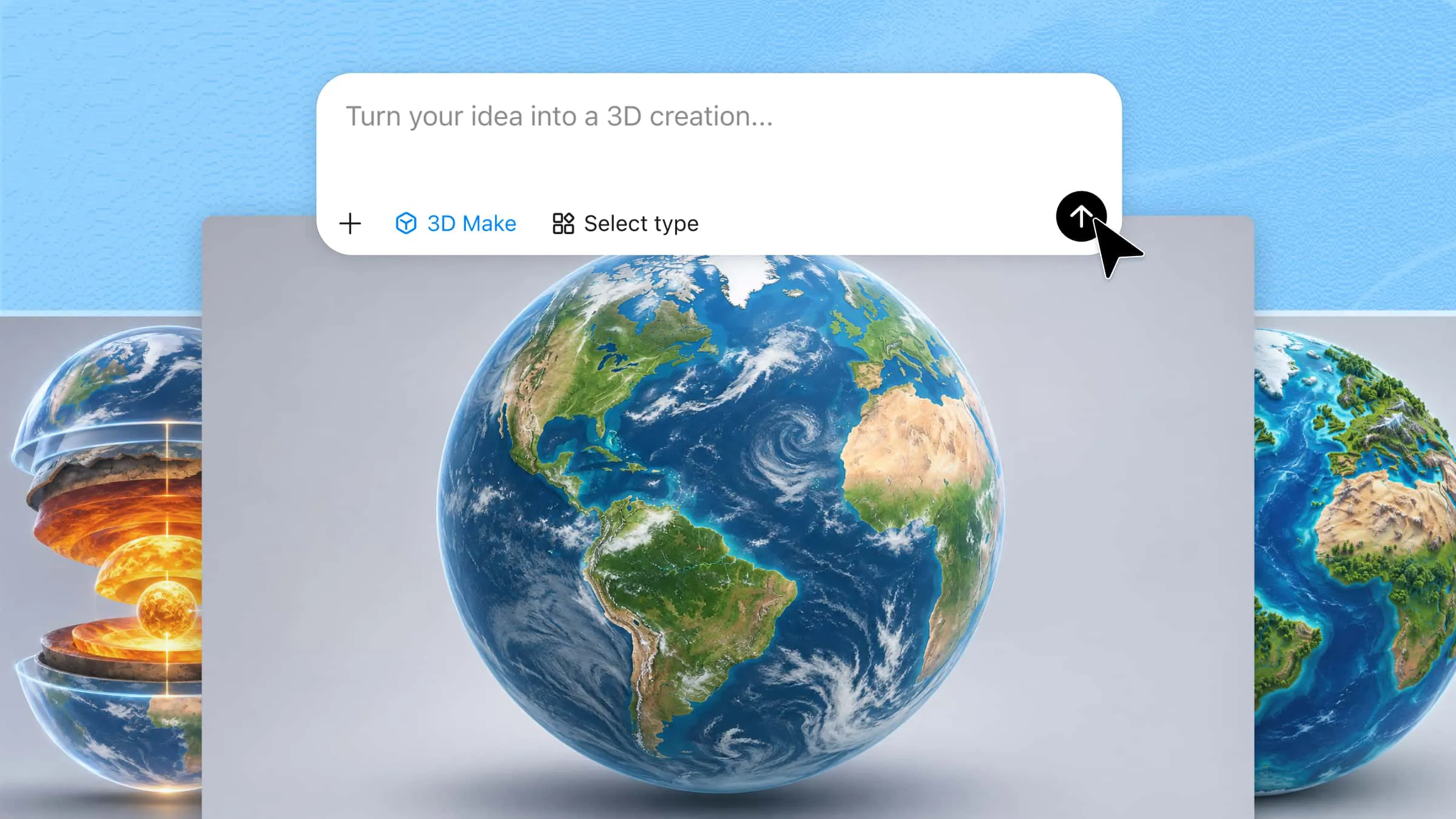
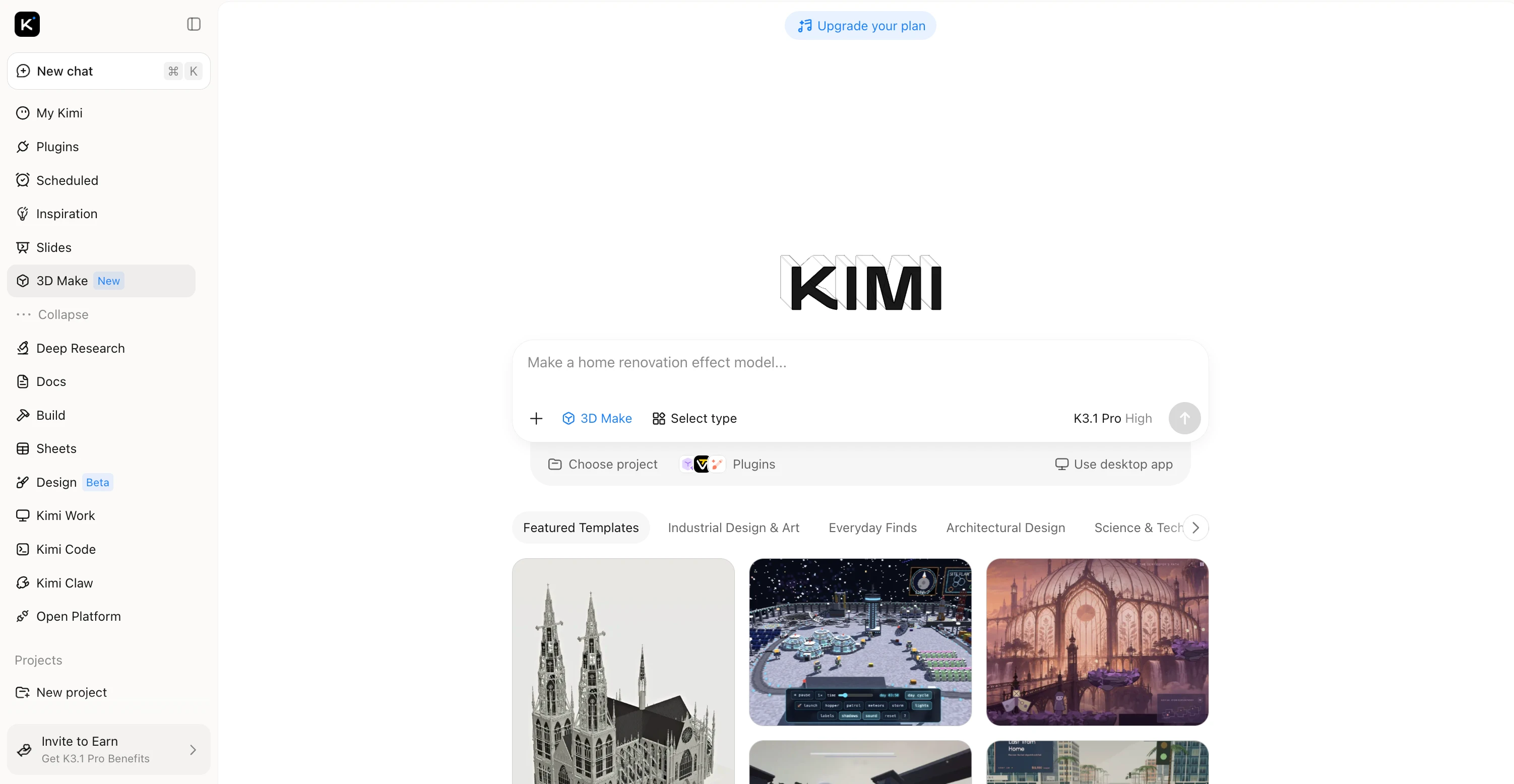
Kimi 3D Make offers a different approach to 3D creation by turning text prompts and images into 3D models. Instead of building every shape manually, you can describe what you want and let AI generate a starting model. You can then refine the result through simple chat instructions to adjust its shape, details, and overall appearance.
Main features
Kimi 3D Make makes 3D creation easier with AI-powered tools that help you turn ideas into models and refine them through chat. Here are its main features and how they support your creative workflow.
Bring 3D characters and objects to life
Animate characters, props, and environments by defining how they move and interact within a scene. Build animations around actions such as walking, jumping, rotating, or picking up objects to communicate movement and tell visual stories.
Recreate reference styles with high fidelity
Upload a reference image and use it as a visual guide for generating 3D designs. Reproduce the reference's distinctive shapes, proportions, colors, and stylistic details to create models that stay closer to the original visual direction.
Edit 3D animations with prompts
Use natural language prompts to refine how objects move, adjust animation effects, and modify scene details. Make iterative changes based on the generated results to bring your animation closer to your intended motion and visual style.
Take 3D models into advanced workflows
For more advanced 3D modeling and editing, use Kimi Work to access desktop tools through plugins, including Blender for detailed modeling and animation and Tripo 3D for text-to-3D and image-to-3D generation. Depending on the tool and workflow, you can work with formats such as FBX, STL, USDZ, BLEND, GLB, glTF, and OBJ to support further editing, animation, and game development.
Suitable for
Creating 3D models from reference images for product concepts
Turning written ideas into visual prototypes for presentations
Exploring different shapes and designs during early-stage product development
Making quick 3D assets for concept visualization and creative projects
How to make 3D animations with Kimi 3D Make
You can get started with Kimi 3D Make by describing your idea and refining the generated 3D model through chat. Follow these steps to turn your concept into a 3D asset.
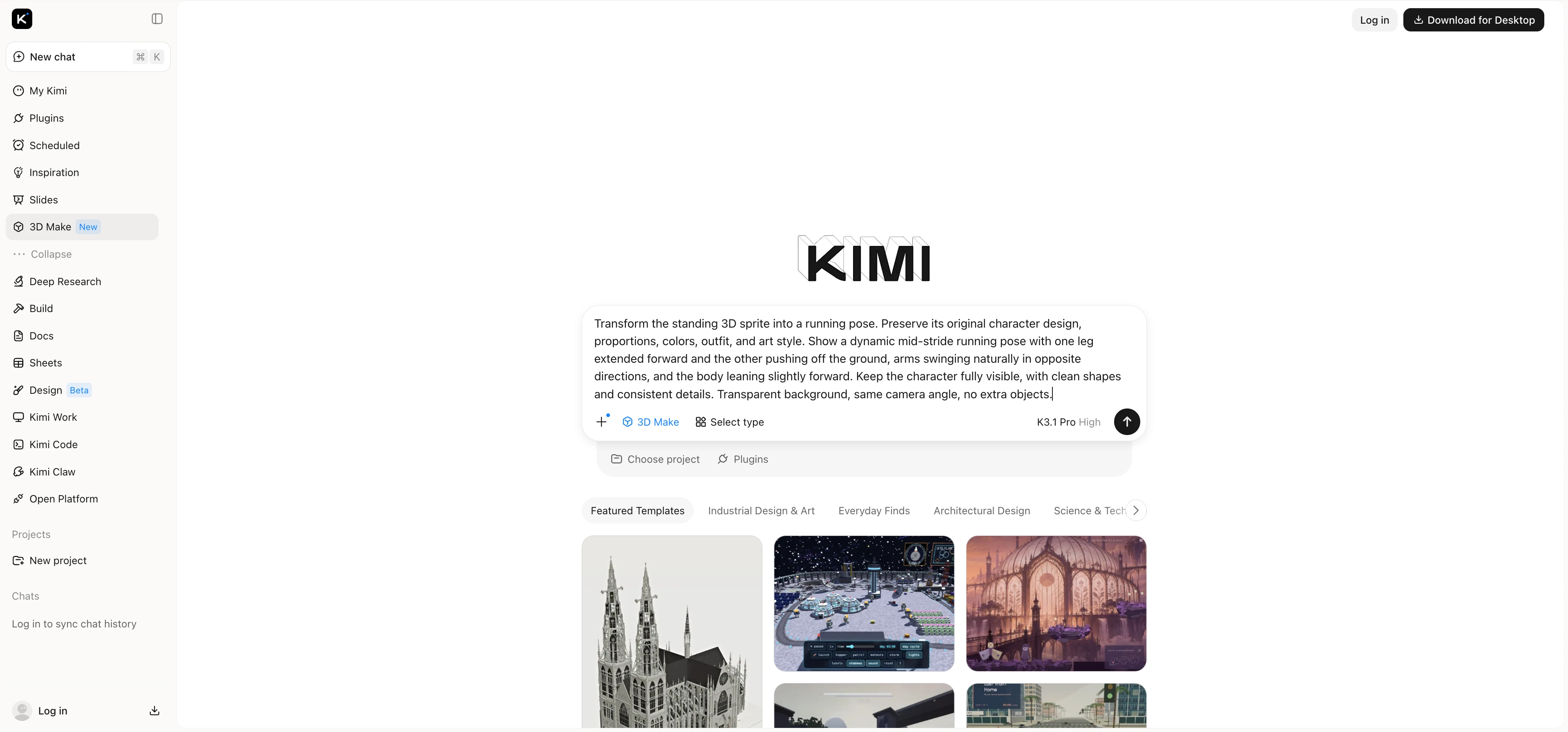
Step 1: Upload your materials and enter a prompt
Upload a clear image of your standing 3D sprite to establish the character's original appearance. Then describe the desired running pose, including leg positions, arm movements, and body posture. Specify which visual details should remain unchanged to maintain consistency with the original design.
Example prompt:
Step 2: Generate and refine the 3D model
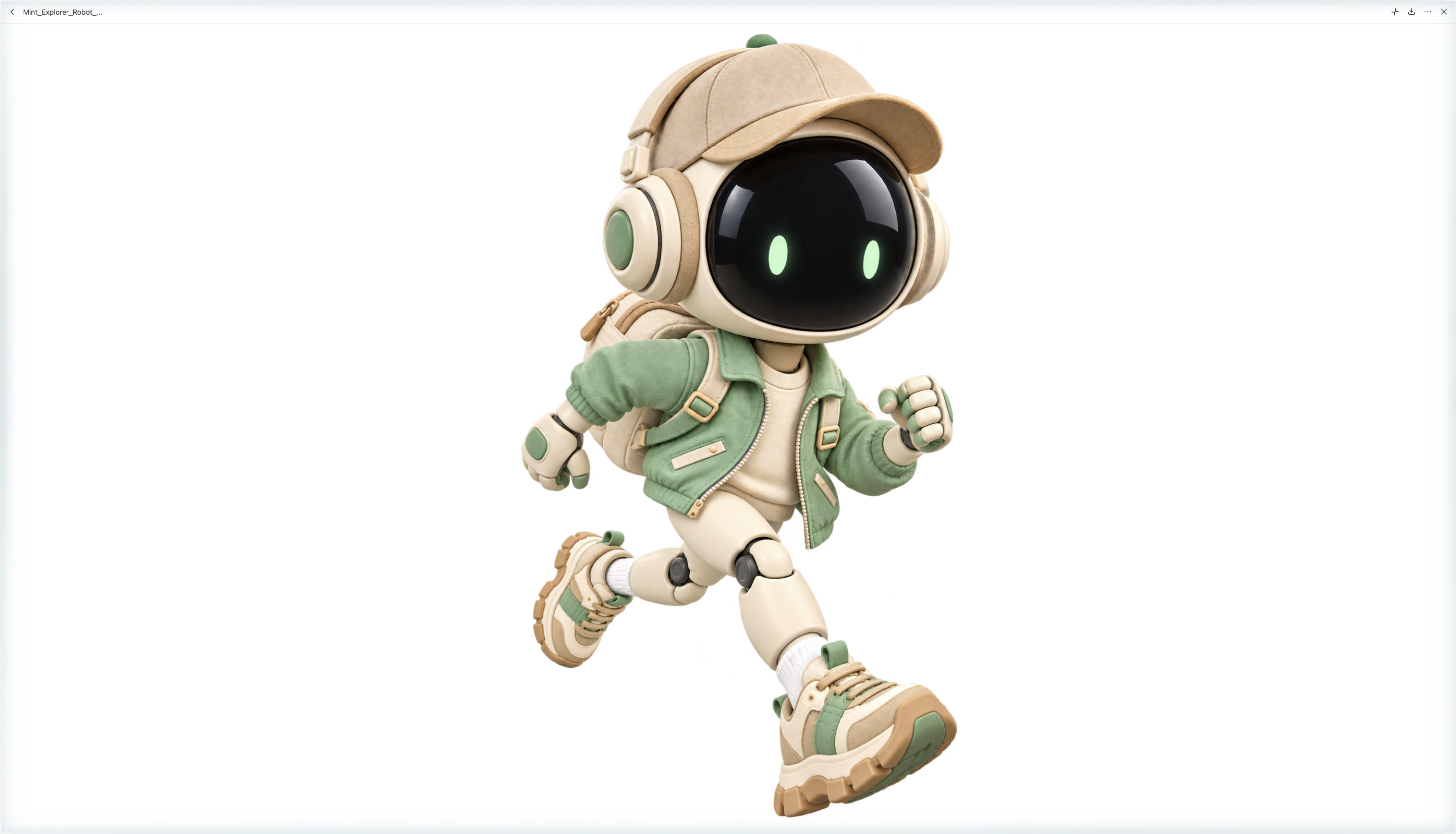
Review the generated result to see whether the running pose looks natural and the character retains its original features. If the pose needs adjustment, enter follow-up prompts to modify specific details, such as the position of the legs, the angle of the arms, or the forward lean of the body.
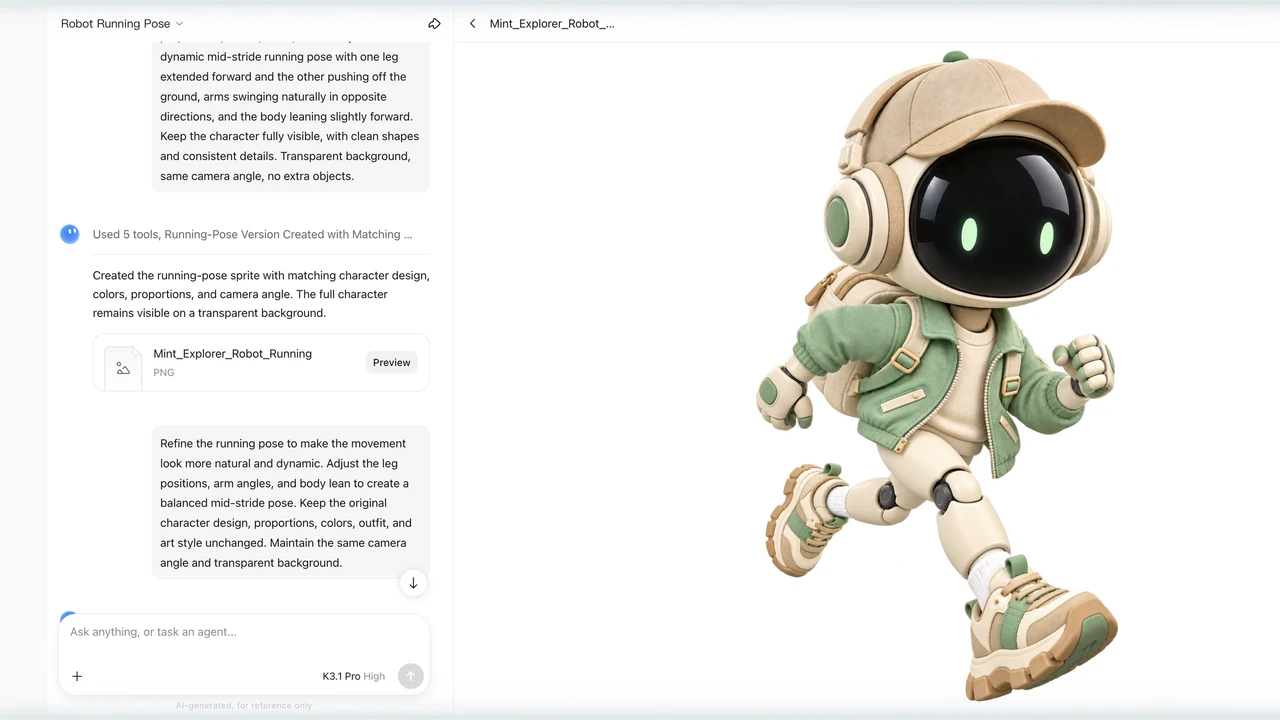
Step 3: Review the final result
Check the completed model from different angles, paying attention to the running posture, limb positions, and consistency with the original sprite. Make any final adjustments needed to improve the pose and preserve the character's visual identity. When you're satisfied with the result, check the available export or download options for your intended 3D workflow.
Blender
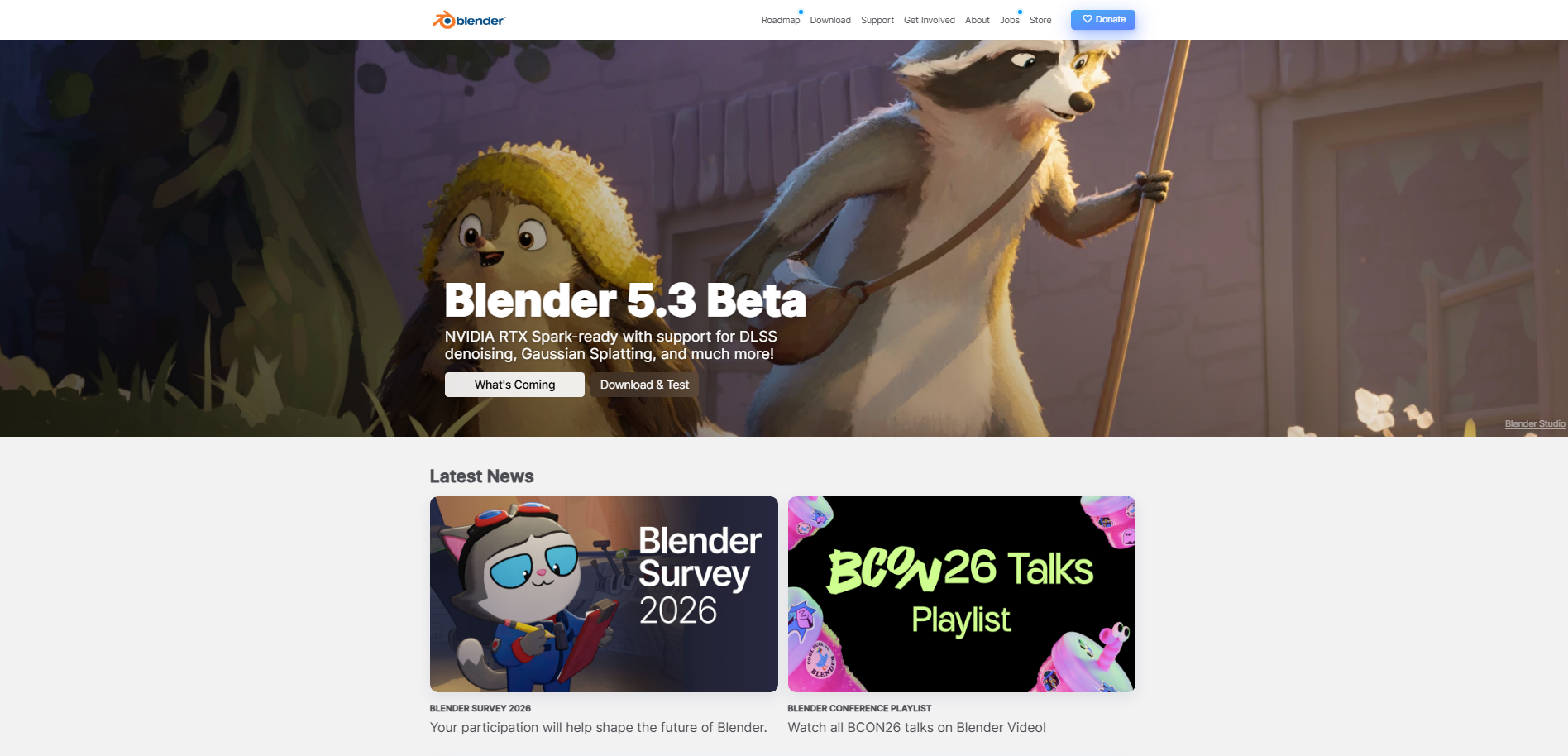
Blender is an open-source 3D creation suite for modeling, rigging, animation, and rendering. It lets artists build characters, objects, environments, and complete animated scenes. Its keyframe system and skeletal tools provide control over character movement. Cycles and Eevee help render everything from realistic visuals to stylized animations.
Main features
3D modeling and sculpting: Build characters, props, and environments using mesh-editing and sculpting tools. Refine shapes and details before animating your models.
Character rigging and animation: Connect skeletons to character meshes to control movement. Use keyframes and inverse kinematics for actions such as walking and jumping.
Physics simulations and visual effects: Simulate cloth, particles, and physical interactions. Create effects such as falling objects, flowing fabric, and environmental motion.
Rendering and compositing: Render scenes with Cycles or Eevee and combine visual elements using compositing tools. Adjust lighting, colors, and effects for the final output.
Suitable for
Producing short animated films and independent videos
Creating game characters, props, and animation assets
Simulating physical effects for product demonstrations
Developing complete 3D projects on a limited budget
Adobe Mixamo
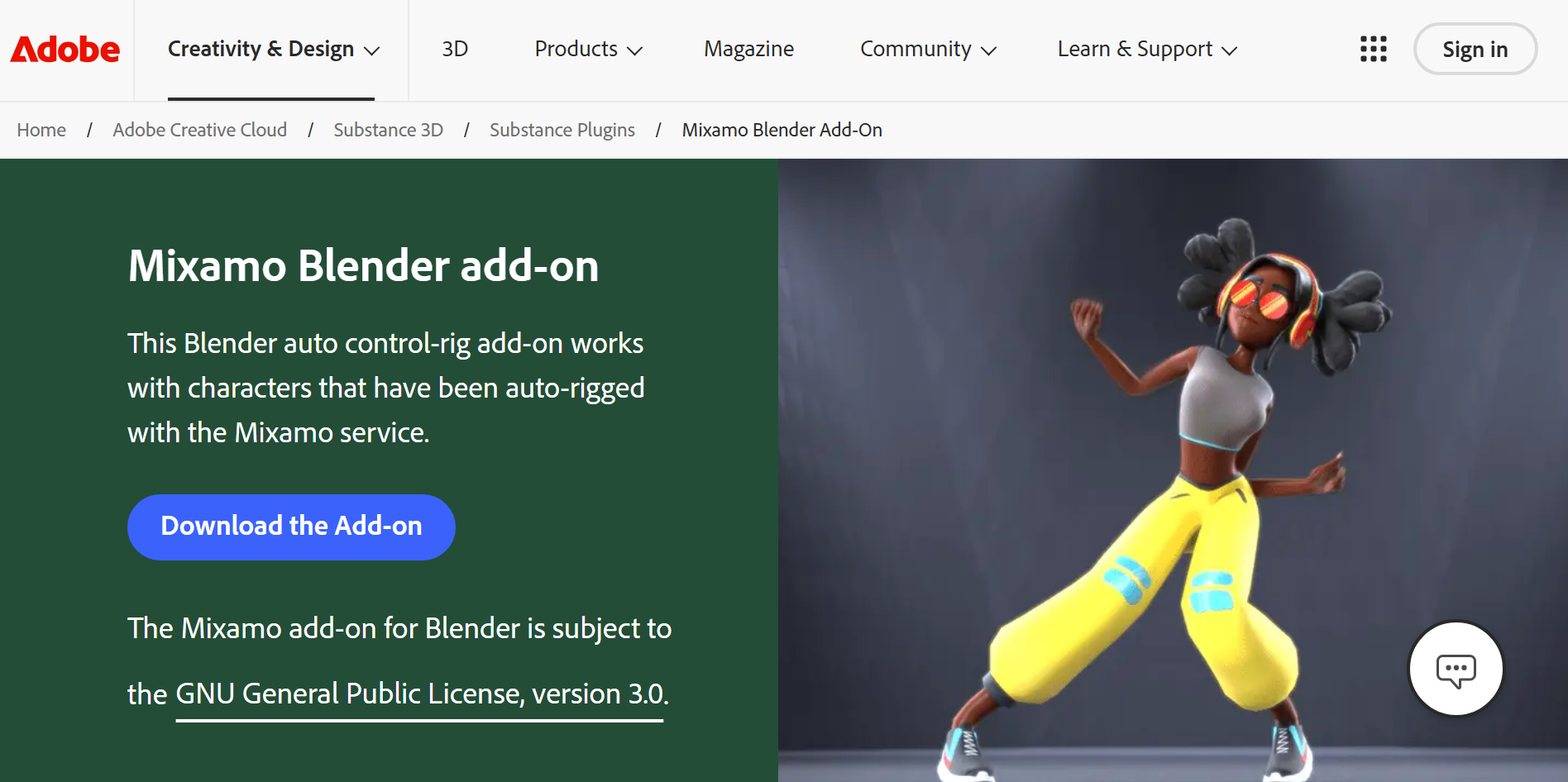
Adobe Mixamo is a browser-based character animation tool that simplifies rigging and applying motion to 3D characters. It can automatically rig compatible humanoid models, reducing the need for manual setup. Its animation library includes ready-made movements that users can preview and apply. Mixamo helps prepare characters for games, prototypes, and animation projects with minimal effort.
Main features
Automatic character rigging: Upload a compatible humanoid model and mark key body points. Mixamo generates a skeleton that allows the character to use supported animations.
Ready-made motion library: Choose from movements such as walking, running, dancing, and fighting. Apply animations without creating each movement manually.
Animation adjustment controls: Adjust available settings, such as arm spacing and movement intensity. Preview the motion to find a suitable result for your character.
Downloadable animation assets: Export characters and animations in supported formats, including FBX. Import these files into compatible 3D applications and game engines.
Suitable for
Adding walking and running animations to game characters
Rigging humanoid models for prototypes and student projects
Preparing characters for Unity or Unreal Engine
Testing character movements before creating custom animations
Autodesk Maya
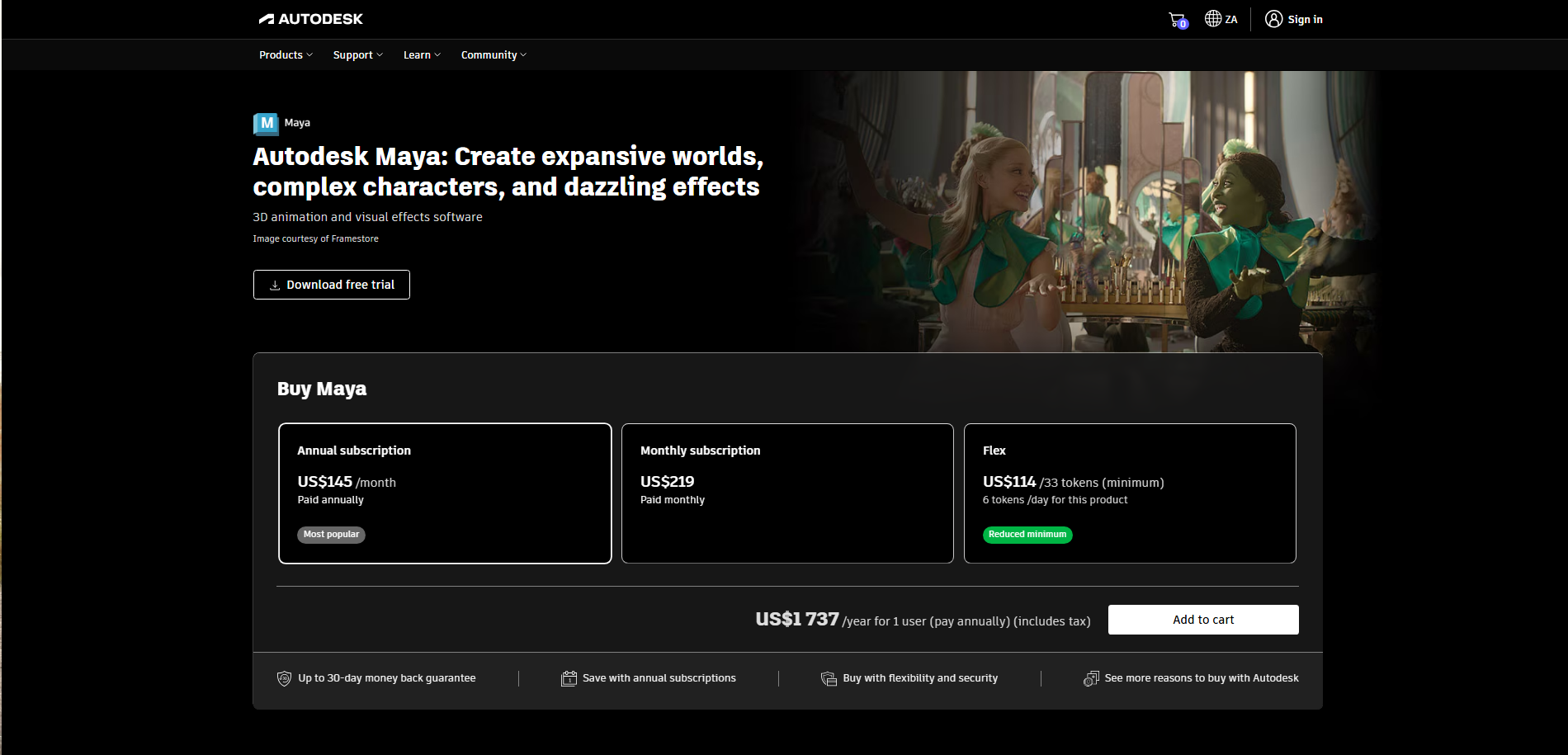
Autodesk Maya is a professional 3D application widely used for character animation, visual effects, and film production. It provides detailed controls for skeletons, deformations, keyframes, and animation curves. Artists use it to create complex character performances and coordinate movement across detailed scenes. Maya also includes simulation, rendering, and scripting tools for demanding production workflows.
Main features
Advanced character rigging: Build custom skeletons and control systems for complex characters. These controls help animators create detailed body movements and expressions.
Keyframe and graph editor animation: Set key poses and adjust animation curves to control timing and speed. Refine transitions and subtle movements with precise controls.
Character deformation tools: Control how a character's mesh bends and changes during movement. Improve the appearance of joints, facial expressions, and body poses.
Visual effects and rendering: Create simulations and prepare detailed scenes for rendering. Combine lighting, materials, and effects for film-quality results.
Suitable for
Animating expressive characters for films and television
Producing complex character rigs for professional projects
Creating visual effects for cinematic scenes
Developing detailed animation sequences for studio productions
Daz Studio
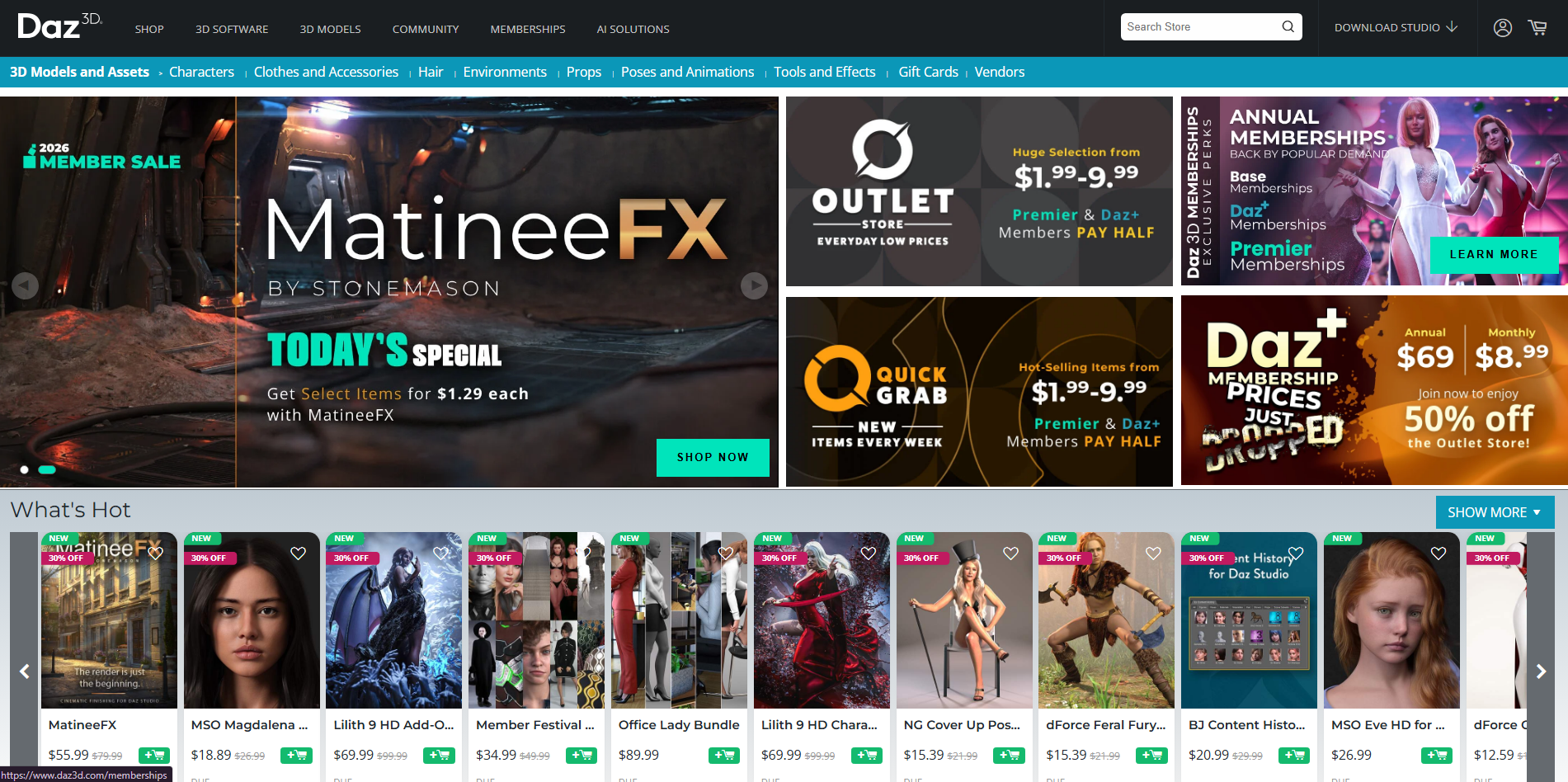
Daz Studio is a 3D character creation and rendering application focused on digital people and posed scenes. It offers ready-made characters, clothing, hair, props, and environments that users can customize. Its posing and animation tools help create character movements without building everything from scratch. The software is especially useful for character-focused visuals, storytelling, and scene composition.
Main features
Customizable 3D characters: Adjust character appearance, body proportions, facial features, and skin details. Add clothing and hair to create distinctive digital people.
Character posing and animation: Position body parts using pose controls and available animation tools. Create simple movements and sequences for storytelling.
Clothing and accessory systems: Dress characters using compatible clothing and accessories. Fit items to character shapes to create cohesive scenes.
Rendering and scene lighting: Set up cameras, materials, and lights to produce detailed images. Use Iray rendering for realistic skin, fabrics, and environments.
Suitable for
Creating digital human characters for illustrations
Producing posed scenes for comics and visual storytelling
Designing character portraits and promotional artwork
Developing character concepts before animation production
Cinema 4D
Cinema 4D is a professional 3D design and animation application developed by Maxon. It is widely used for motion graphics, advertising, product visualization, and animated typography. Its timeline, procedural tools, and MoGraph system help artists create complex movements efficiently. Integrated rendering options support polished visuals for broadcast, marketing, and digital content.
Main features
MoGraph animation tools: Animate repeated objects, text, and geometric shapes using effectors and procedural controls. Create complex motion graphics without keyframing every object individually.
Procedural modeling: Build and modify shapes using generators and non-destructive workflows. Adjust parameters to explore different designs without rebuilding models.
Character animation tools: Rig characters and control their movements using joints and animation systems. Develop character actions alongside other elements in a scene.
3D rendering and materials: Apply materials, lighting, and camera settings to produce finished visuals. Use supported rendering workflows for product shots and animated sequences.
Suitable for
Creating animated logos and promotional graphics
Producing motion graphics for advertisements and social media
Animating product demonstrations for marketing campaigns
Designing moving typography and abstract visual sequences
iClone
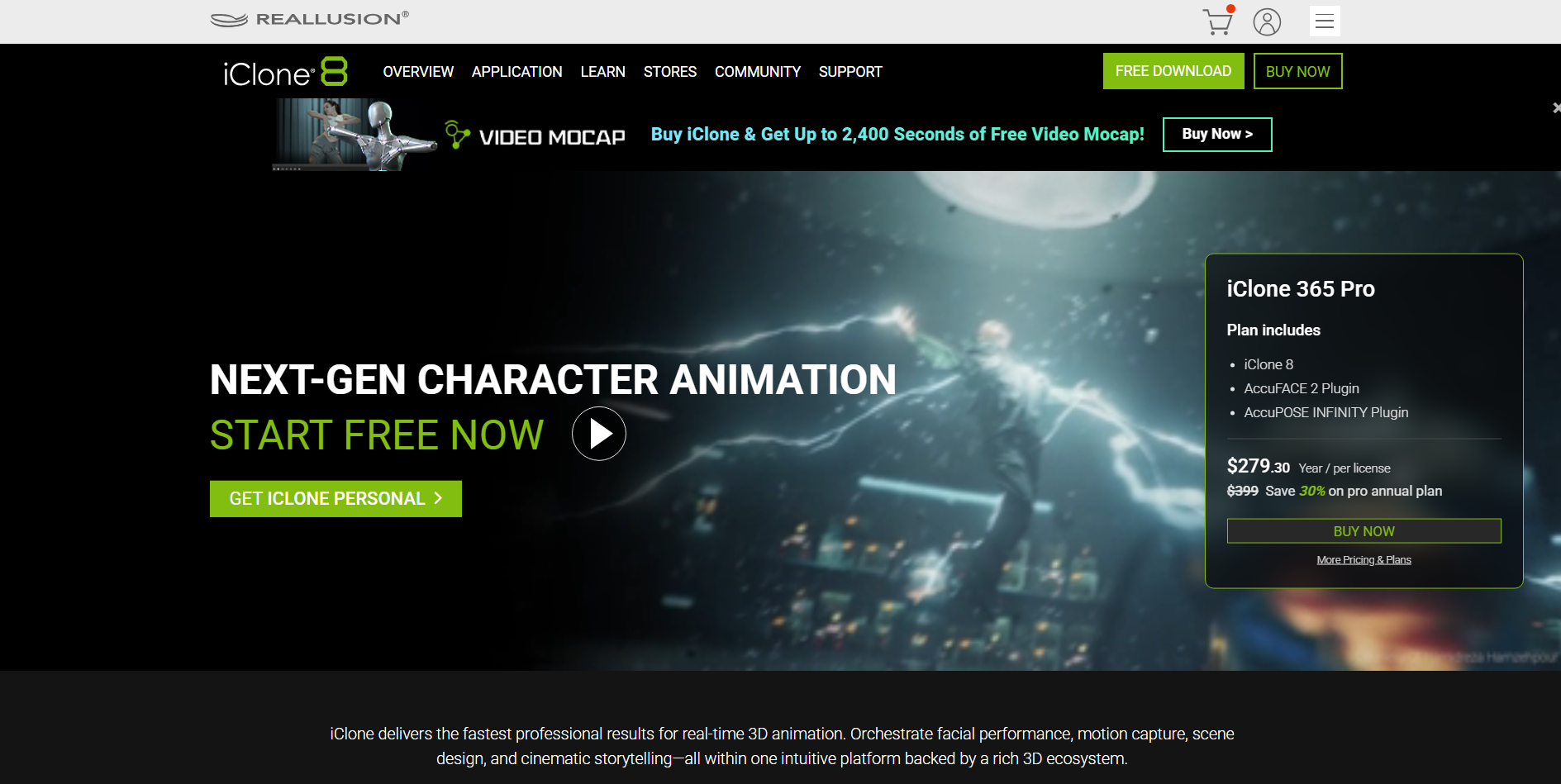
iClone is a real-time 3D character animation application developed by Reallusion. It focuses on character performance, facial animation, motion editing, and scene production. Users can work with digital characters, apply motion-capture data, and synchronize speech with facial movements. Its real-time workflow makes it useful for creating animated videos without relying entirely on traditional frame-by-frame techniques.
Main features
Real-time character animation: Animate digital characters and preview their movements as you work. Adjust poses and actions without waiting for lengthy rendering processes.
Motion capture integration: Apply compatible motion-capture data to characters to reproduce human movement. Refine the resulting animation to suit the scene.
Facial animation and lip-sync: Synchronize facial movements with dialogue and audio. Adjust expressions to make characters appear more engaged during conversations.
Timeline and motion editing: Combine, trim, and refine animation clips using timeline controls. Build longer sequences from individual actions and transitions.
Suitable for
Producing dialogue-driven animated videos
Creating virtual presenters and digital characters
Animating characters using motion-capture recordings
Developing short films and story-based animations
Spline
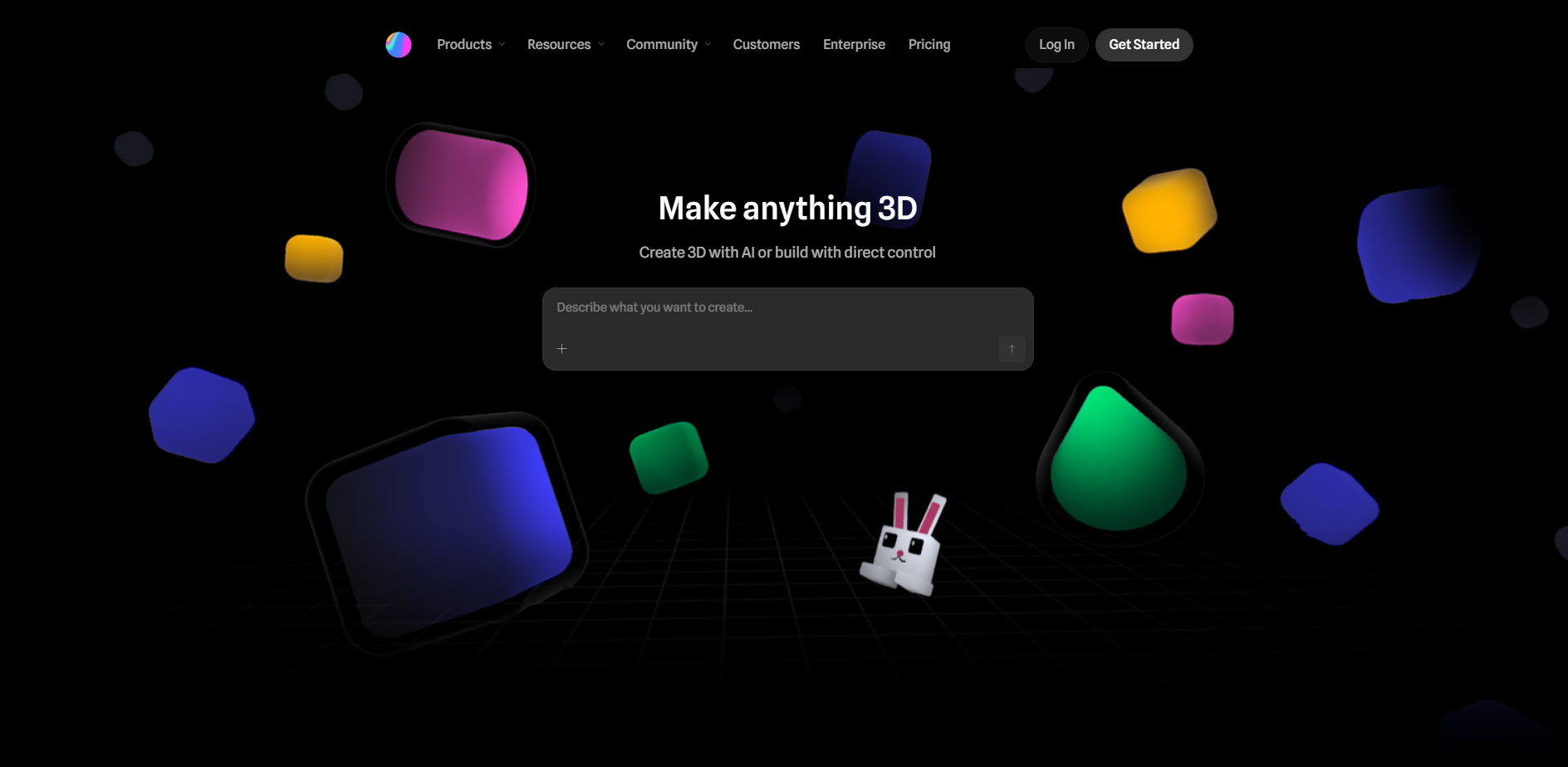
Spline is a browser-based 3D design tool that makes interactive 3D content accessible through a visual interface. It allows users to create objects, arrange scenes, and animate elements without a traditional production pipeline. Its timeline and event-based interactions support movement in response to user actions. Spline is particularly useful for web experiences, interactive graphics, and lightweight 3D presentations.
Main features
Browser-based 3D modeling: Create and edit 3D objects directly in a web-based workspace. Build simple shapes and scenes without installing a full desktop application.
Timeline-based animation: Animate object positions, rotations, scales, and other supported properties. Combine these changes to create smooth movement within a scene.
Interactive event controls: Connect animations to triggers such as clicks, hovering, or other user interactions. Make 3D objects respond to visitors on a webpage.
Web-ready 3D experiences: Embed or export supported 3D content for compatible web projects. Create interactive product displays and visual elements for websites.
Suitable for
Building interactive 3D website elements
Creating animated product showcases for online stores
Designing clickable 3D presentations and portfolios
Developing lightweight interactive visuals for landing pages
Autodesk 3ds Max
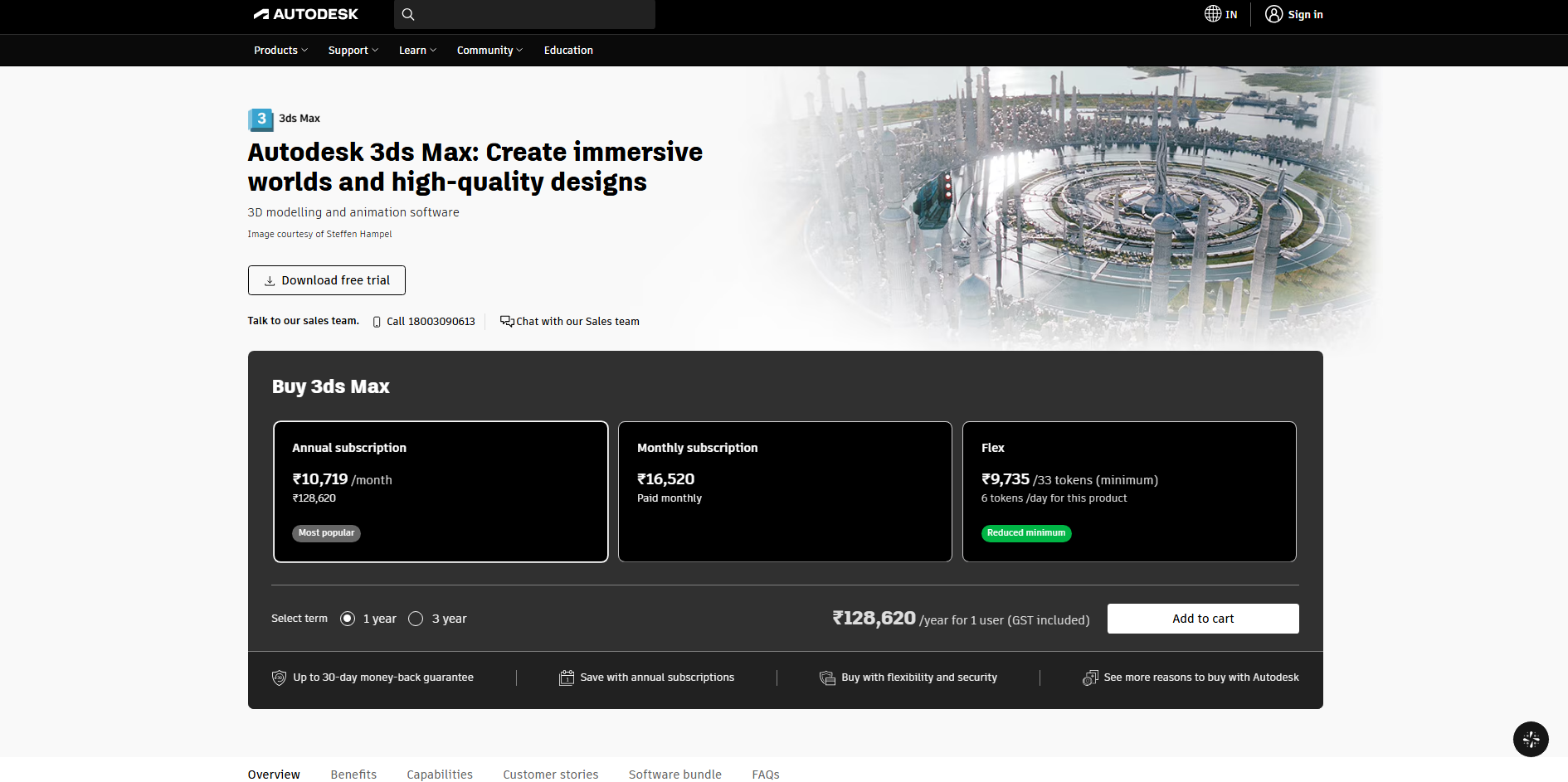
Autodesk 3ds Max is a 3D modeling, animation, and rendering application used in architectural visualization, game production, and design. It provides polygon modeling tools, character animation systems, and scene management features. Artists can animate objects, cameras, and lights while building detailed environments. Its rendering integrations help produce polished architectural scenes, product visuals, and cinematic content.
Main features
Polygon and spline modeling: Build detailed objects, furniture, structures, and environments using editable geometry. Refine shapes to meet specific design requirements.
Keyframe animation: Animate objects, cameras, and other scene elements over time. Adjust movement and timing to create sequences for presentations or games.
Character rigging and animation: Use available rigging systems to control character movement. Build skeletal animations for characters and other articulated objects.
Architectural rendering: Set up materials, lighting, and cameras for realistic visualizations. Produce detailed images and animations of buildings and interior spaces.
Suitable for
Creating architectural walkthroughs and property presentations
Animating objects and environments for video games
Producing product visualization for advertising
Developing detailed interior and exterior design animations
Unreal Engine
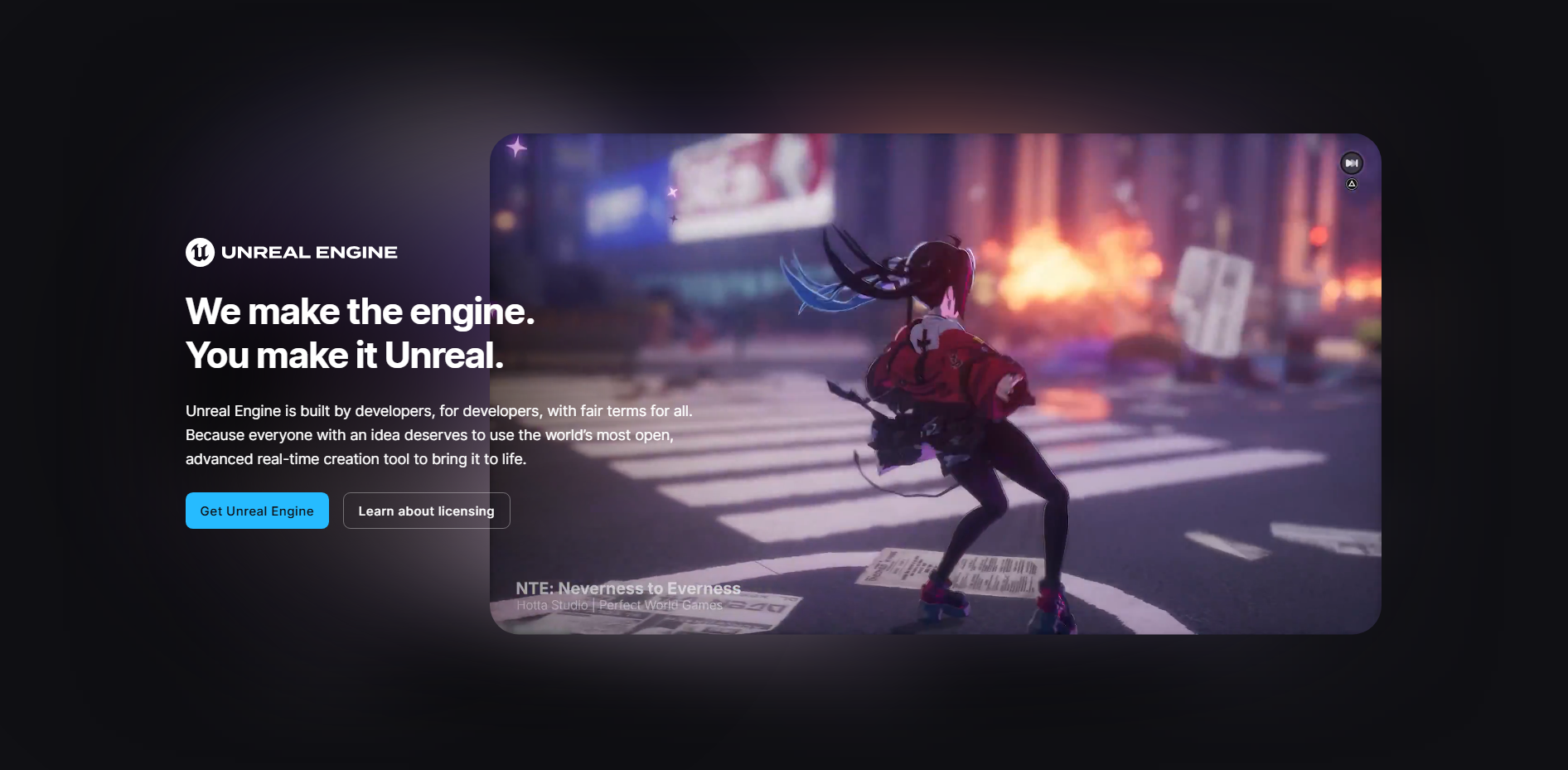
Unreal Engine is a real-time 3D development platform used for games, virtual production, and interactive experiences. Its animation systems let creators build character movements, control skeletal meshes, and combine animation sequences. Tools such as Sequencer support cinematic scene creation, while Control Rig enables character animation directly within the engine.
Main features
Sequencer cinematic tools: Arrange animations, camera movements, lighting, and scene events on a timeline. Create cinematic sequences for trailers, cutscenes, and virtual productions.
Control Rig animation: Create and adjust character rigs within Unreal Engine. Animate body parts and refine poses without constantly switching applications.
Motion capture and animation retargeting: Transfer compatible animation data between characters with skeletons. Reuse movement across multiple characters while adjusting it to fit their proportions.
Real-time rendering: Preview animated scenes with real-time lighting and visual effects. Make adjustments quickly while developing cinematic or interactive content.
Suitable for
Creating cinematic cutscenes for video games
Producing real-time animated scenes for virtual production
Developing interactive architectural walkthroughs
Building immersive training and simulation experiences
How to choose a suitable 3D animation software
Choosing 3D animation software depends on your project needs, computer specifications, and preferred workflow. Keep these key factors in mind to find a tool that fits your requirements and budget. Consider the following tips before making your choice.
Ease of use and learning curve
Choose software that matches your experience and the time you can spend learning. Simple interfaces and ready-made templates help beginners get started, while tutorials and community support make learning easier. Also, consider how quickly you can complete everyday tasks without needing constant guidance.
Modeling, rigging, and animation tools
Check whether the software supports the tasks you need, from building 3D objects to animating characters. Features such as skeletal rigging, facial controls, and motion capture are useful for character animation, while keyframes and object controls suit product videos.
Rendering quality and speed
Look at how the software handles lighting, shadows, textures, and movement. Real-time rendering speeds up previews, while advanced rendering engines can produce detailed visuals for final projects. Consider whether the results meet your quality expectations without making production unnecessarily slow.
System requirements and performance
Check the required processor, graphics card, memory, and storage before installing the software. Complex models need more computing power, so lighter tools may work better on less powerful computers. Compare the recommended specifications with your current setup to avoid unexpected performance issues.
Compatibility and export formats
Make sure the software supports the formats your project requires, such as FBX, OBJ, or glTF. Check whether models, textures, and animation data transfer correctly to other 3D applications, game engines, or video editors. Good compatibility also makes collaboration easier when several people work on the same production.
Conclusion
Every animation project starts with an idea, and the right tools can help you take it further. Choosing software for 3D animation that also fits your workflow makes it easier to experiment and develop your concepts. Kimi 3D Make offers another way to get started with 3D creation. Describe your idea or upload an image to generate a model you can refine through chat. Give it a try and bring your next concept into 3D.