Office work often involves repetitive tasks such as managing emails, preparing reports, updating spreadsheets, and organizing documents. These activities consume valuable time and increase the risk of human error. Automation examples in real life show how businesses can simplify daily operations with the right tools. This article explores 15 practical office automation examples and explains how tools help automate routine tasks and improve productivity.
Overview of 15 popular office automation examples
The table below highlights 15 office automation system examples, how each one works, example tools, and the main benefit it offers.
| Office automation example | How it works | Key benefit |
|---|---|---|
| Email management | Sorts messages, filters spam, and sends automatic replies. | Saves time and organizes communication. |
| Meeting scheduling | Checks availability, sends invitations, and sets reminders. | Simplifies meeting coordination. |
| Document creation and management | Generates, edits, and organizes business documents. | Improves consistency and file access. |
| Task assignment and project tracking | Assigns tasks, updates progress, and tracks deadlines. | Keeps projects organized. |
| Data entry and spreadsheet processing | Transfers data, applies formulas, and removes duplicates. | Reduces manual work and errors. |
| Report generation and dashboards | Collects data and creates reports or updated dashboards. | Supports faster decision-making. |
| Employee onboarding and offboarding | Coordinates forms, training, and account access tasks. | Simplifies employee transitions. |
| Recruitment and interview scheduling | Organizes applications and schedules interviews. | Reduces hiring administration. |
| Leave requests and attendance tracking | Routes leave requests and records working hours. | Improves attendance management. |
| Expense management and reimbursement | Collects receipts and routes expense claims for approval. | Simplifies expense processing. |
| Invoice processing and payment reminders | Extracts invoice details and sends payment reminders. | Helps reduce payment delays. |
| Customer support and internal help desks | Creates tickets and directs requests to relevant teams. | Speeds up request handling. |
| Marketing email and social media scheduling | Schedules campaigns, posts, and follow-up messages. | Maintains consistent communication. |
| Desk, meeting room, and visitor management | Handles room bookings, desk reservations, and visitor records. | Improves workplace coordination. |
| Workflow integration and automated notifications | Connects applications and triggers actions or alerts. | Reduces repetitive tasks across systems. |
15 office automation examples in real life to check out
Office automation covers a wide range of activities, from scheduling meetings to processing invoices and managing employee records. Each process offers opportunities to reduce manual effort and improve accuracy. Here are 15 office automation system examples that demonstrate how businesses can streamline everyday workflows.
Email management and automated responses
Email automation helps employees manage high volumes of messages without handling every task manually. Systems can sort incoming emails, filter spam, and direct messages to the right departments. Automated replies can confirm that a message has been received or provide answers to common questions.
Meeting scheduling and calendar management
Automated scheduling tools help employees arrange meetings without lengthy email exchanges. They can check calendar availability, suggest suitable time slots, and send invitations to participants. Calendar reminders notify attendees before meetings begin and help reduce missed appointments. This makes it easier for teams to coordinate schedules and manage their time effectively.
Document creation and management
Document automation allows employees to create contracts, reports, invoices, and letters using predefined templates and information from forms or databases. A common example of an office automation system is software that generates documents, tracks revisions, and manages file access. These features help businesses maintain consistent records and find important documents quickly.
Task assignment and project tracking
Project management software is a practical office automation system example that can assign tasks, notify employees about responsibilities, and update task statuses. Dashboards display completed work, pending activities, and upcoming deadlines, helping teams stay organized.
Data entry and spreadsheet processing
Automated tools can transfer data from online forms, emails, and digital documents into spreadsheets or databases. Spreadsheet features can also apply formulas, calculate totals, remove duplicates, and sort records according to specific criteria.
Report generation and dashboard updates
Preparing business reports often involves collecting information from several sources and arranging it into tables, charts, or summaries. Reporting software can gather data automatically and generate daily, weekly, or monthly reports based on predefined settings. Dashboards can display updated sales figures, expenses, employee performance, and project metrics in one place.
Employee onboarding and offboarding
When an employee joins or leaves a company, HR teams must complete administrative tasks and coordinate with other departments. Employee onboarding and offboarding are useful office automation system examples, as automated workflows can distribute forms, schedule training, and notify IT staff to create or revoke account access. Digital checklists also help HR teams track documents and outstanding tasks, reducing the risk of missed steps.
Recruitment and interview scheduling
Applicant tracking systems can organize candidate profiles, send application confirmations, and move applicants through different hiring stages. Scheduling software helps find suitable interview times and sends invitations or reminders automatically. Faster coordination creates a smoother experience for candidates and allows recruiters to focus on assessing applicants' skills and suitability.
Leave requests and attendance tracking
Automated HR software is among the practical office automation systems that allow employees to submit leave requests online, route them for approval, and update leave balances automatically. Attendance systems can also record working hours and flag missing entries, helping HR teams maintain accurate records and plan staffing needs.
Expense management and reimbursement
Expense management software allows them to upload receipts digitally and categorize spending through a centralized platform. Automated workflows can check claims against company policies, flag missing details, and forward submissions to authorized managers. A streamlined approval process improves expense visibility and helps finance teams handle reimbursements with less paperwork.
Invoice processing and payment reminders
Invoice automation software can extract invoice details, match them with purchase orders, and route documents for approval. Businesses can also schedule payment reminders to notify customers about upcoming or overdue invoices. Timely processing and consistent follow-ups help maintain organized financial records, reduce administrative delays, and support better cash flow management.
Customer support and internal help desks
Help desk software is one of the useful office automation system examples, as it creates support tickets, categorizes issues, and assigns them to the appropriate employees. Chatbots can answer common questions, while automated notifications keep users updated and help teams resolve requests more efficiently.
Marketing email and social media scheduling
Automation platforms for marketing allow employees to schedule content in advance, send targeted email campaigns, and trigger follow-up messages based on customer actions. Some tools also collect engagement data, including email clicks and social media interactions. A planned publishing schedule maintains a consistent brand presence and gives marketers more time to improve their campaigns.
Desk, meeting room, and visitor management
Workplace management systems allow employees to reserve desks and meeting rooms online, check availability, and receive booking confirmations. Visitor management tools can send digital invitations, record guest details, and notify reception staff when visitors arrive. Better coordination of office spaces and check-in procedures creates a more organized workplace experience.
Workflow integration and automated notifications
Workflow automation connects compatible tools so that one action can trigger several related tasks. For example, a new customer inquiry could create a CRM record, notify the sales team, and send an acknowledgment email automatically. Connected applications reduce manual handoffs, keep relevant employees informed, and help routine processes move forward smoothly.
Explore smarter ways to handle office documents with Kimi tools
Managing office documents often involves repetitive tasks such as drafting reports, editing files, summarizing information, and organizing records. Together, these tools can help simplify everyday office work and reduce manual document handling.
Kimi Work: Automate multi-step office workflows
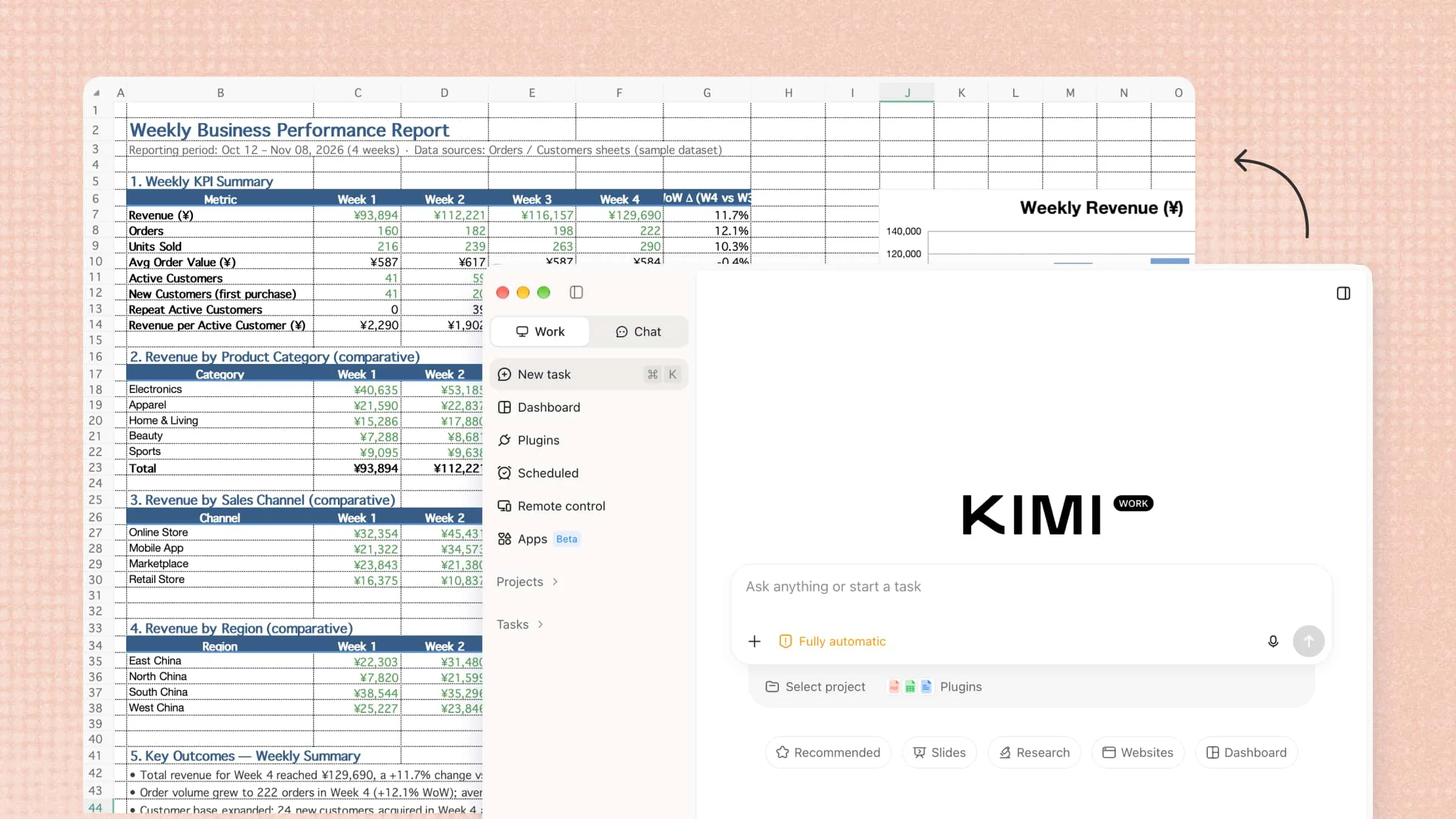
Kimi Work helps streamline these processes by working with local files, automating multi-step tasks, and producing documents, spreadsheets, and presentations directly on your computer.
Web research, email communication, and local file management: Ask Kimi Work to search the internet for relevant information, draft or send emails, and read, organize, or process files on your computer. These capabilities can support tasks such as gathering market research, preparing email updates, and organizing project documents within a connected workflow.
Extend office workflows with plugins: Connect plugins to bring external tools and services into your workflow. For example, use the Notion plugin to create task lists, organize project information, and manage work with databases or Kanban boards. This helps connect information management and project coordination within a more integrated workflow.
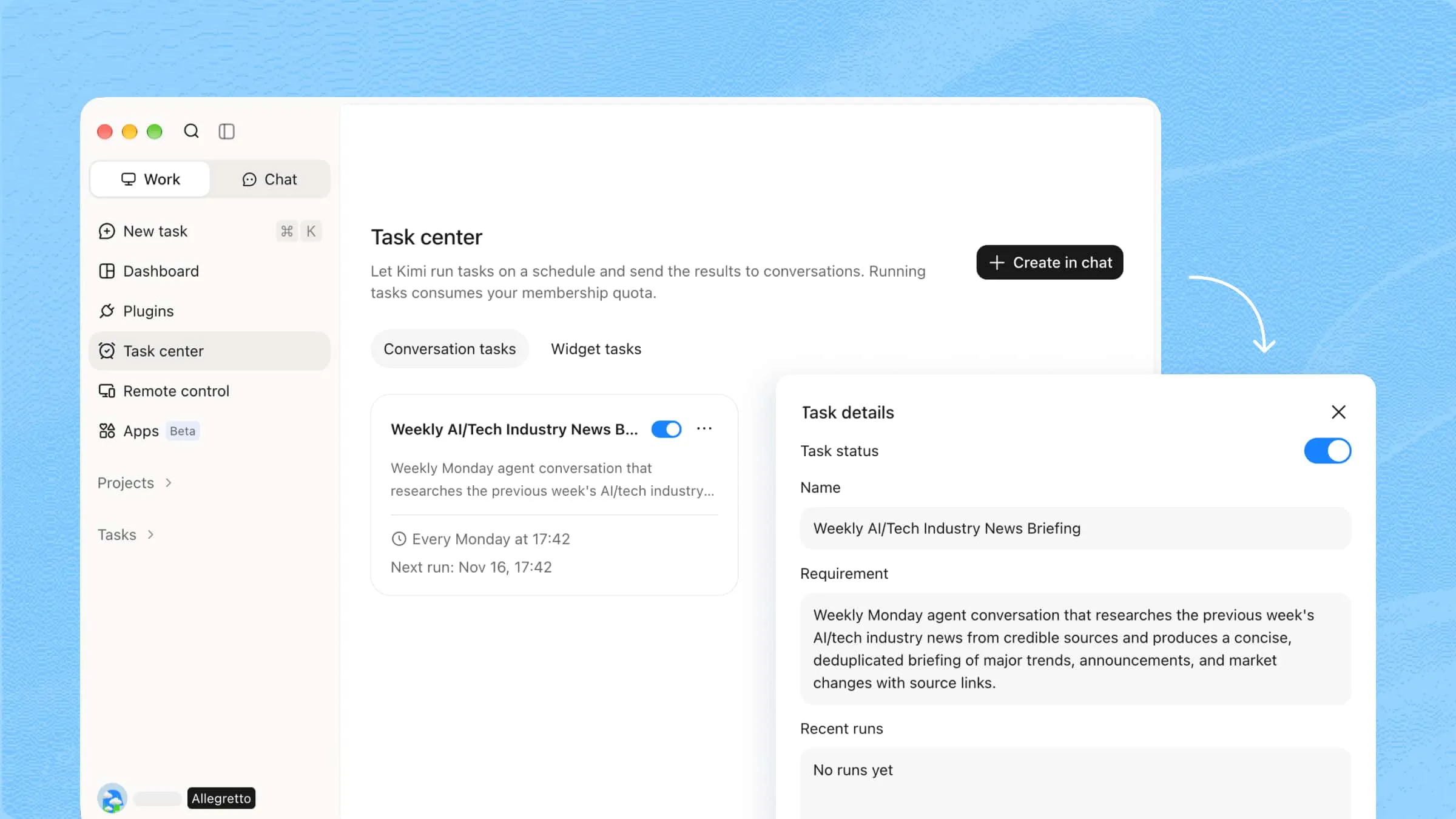
Task automation with scheduled workflows: Set up scheduled tasks for recurring work, such as collecting updates, organizing information, or preparing regular summaries. This helps reduce the need to repeat the same manual steps each time a task comes around.
Kimi Docs: Automate everyday document tasks
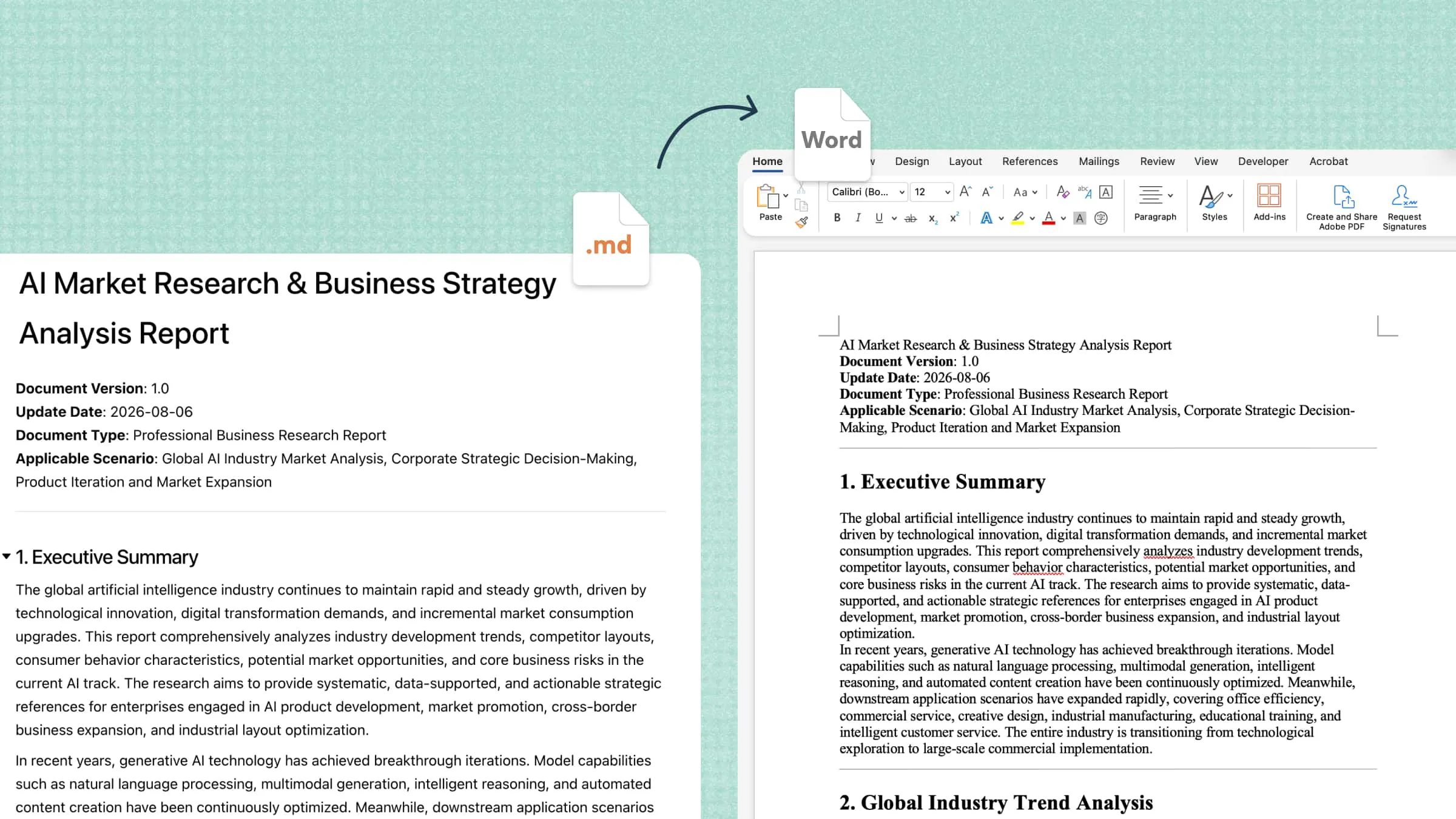
Kimi Docs, an AI document agent, focuses on document creation and editing, allowing you to generate professional Word documents and PDFs, revise existing files, and organize content with consistent formatting.
Business document drafting: Turn prompts, notes, and reference materials into structured documents, including business reports, proposals, meeting summaries, and internal announcements. This gives you a starting draft that can be reviewed and adapted to your needs.
Document editing and refinement: Improve existing drafts by revising unclear sentences, adjusting tone, reorganizing sections, and improving readability. This is helpful when preparing client communications, updating internal guidelines, or polishing business documents.
Document translation and format conversion: Translate document content into another language and adapt it for different audiences or purposes. You can also convert document content into a suitable output format for sharing, editing, or archiving, helping reduce manual work when preparing multilingual materials or reusing existing documents.
How to use Kimi for office automation
Kimi Work can help automate routine office activities by handling recurring tasks, organizing information, and reducing repetitive manual work. Its Scheduled Tasks feature is useful for setting up tasks that need to run at specific times or on a recurring schedule. The following steps explain how to use a scheduled task and review its results.
Use Kimi Work to automate scheduled tasks
Step 1: Open the scheduled tasks feature
Open Kimi Work on your desktop, locate the "Scheduled" feature, and click "Create".
Step 2: Configure the schedule and task requirements
Describe the task clearly, including the information Kimi needs, the expected output, and any instructions it should follow. Set the required schedule, such as a daily, weekly, or specific-time task, using the options available in your version of Kimi Work.
Step 3: Review the scheduled task and its results
Check the task details before saving or activating the schedule. Once the task runs, review its output to confirm that it meets your requirements. If the results need improvement, adjust the instructions or schedule and review the next run.
Use Kimi Docs for document automation
Kimi Docs can help turn written instructions into structured documents, reducing the time spent drafting and formatting content manually. With a clear prompt, you can describe the document's purpose, required sections, and preferred format.
Step 1: Describe the document you need
Start by explaining the type of document you want to create, its purpose, target audience, and key information. Include formatting requirements so Kimi can organize the content to match your needs.
Step 2: Generate and refine the document
Submit your prompt and review the draft Kimi produces. Check whether the document includes all the requested sections and follows your formatting instructions.
Step 3: Review and export the document
Read the final document carefully to verify names, dates, decisions, and other important details. Once the content meets your requirements. Download options are available in Kimi Docs to save the document in a supported format.
Tips for efficient office automation
Efficient office automation starts with choosing the right tasks and tools for your team's needs. These tips can help simplify daily operations, reduce errors, and improve productivity.
Start with repetitive tasks: Identify routine activities such as data entry, email sorting, and appointment reminders that take up employees' time. Automating these tasks reduces manual effort and allows staff to focus on more valuable work
Map out the workflow before automating: Outline each step of a process, including who handles it and what information is required. A clear workflow helps you identify delays, remove unnecessary steps, and automate tasks more effectively.
Choose tools that fit your existing workflow: Select automation software that matches your team's requirements and works with your current applications. Compatible tools make adoption easier and reduce the need to switch between disconnected systems.
Use standardized templates and input formats: Create consistent templates for reports, invoices, forms, and other frequently used documents. Standardized formats help automation tools process information accurately and reduce inconsistencies across records.
Keep human review in important steps: Automate routine tasks while keeping human approval for sensitive transactions, contracts, and important decisions. These checkpoints help catch errors and prevent automated mistakes from causing bigger problems.
Measure results and refine workflows: Track processing time, error rates, and overall productivity to assess whether automation is meeting your goals. Use the results and employee feedback to identify problems and make improvements where needed
Conclusion
To sum up, office automation systems offer businesses a practical way to manage daily responsibilities more efficiently and reduce dependence on manual processes. From routine administrative work to document creation and workflow management, the right solutions can make a noticeable difference in productivity. Tools like Kimi Work and Kimi Docs provide useful options for automating scheduled tasks and creating professional documents, helping teams work smarter and focus on business priorities.