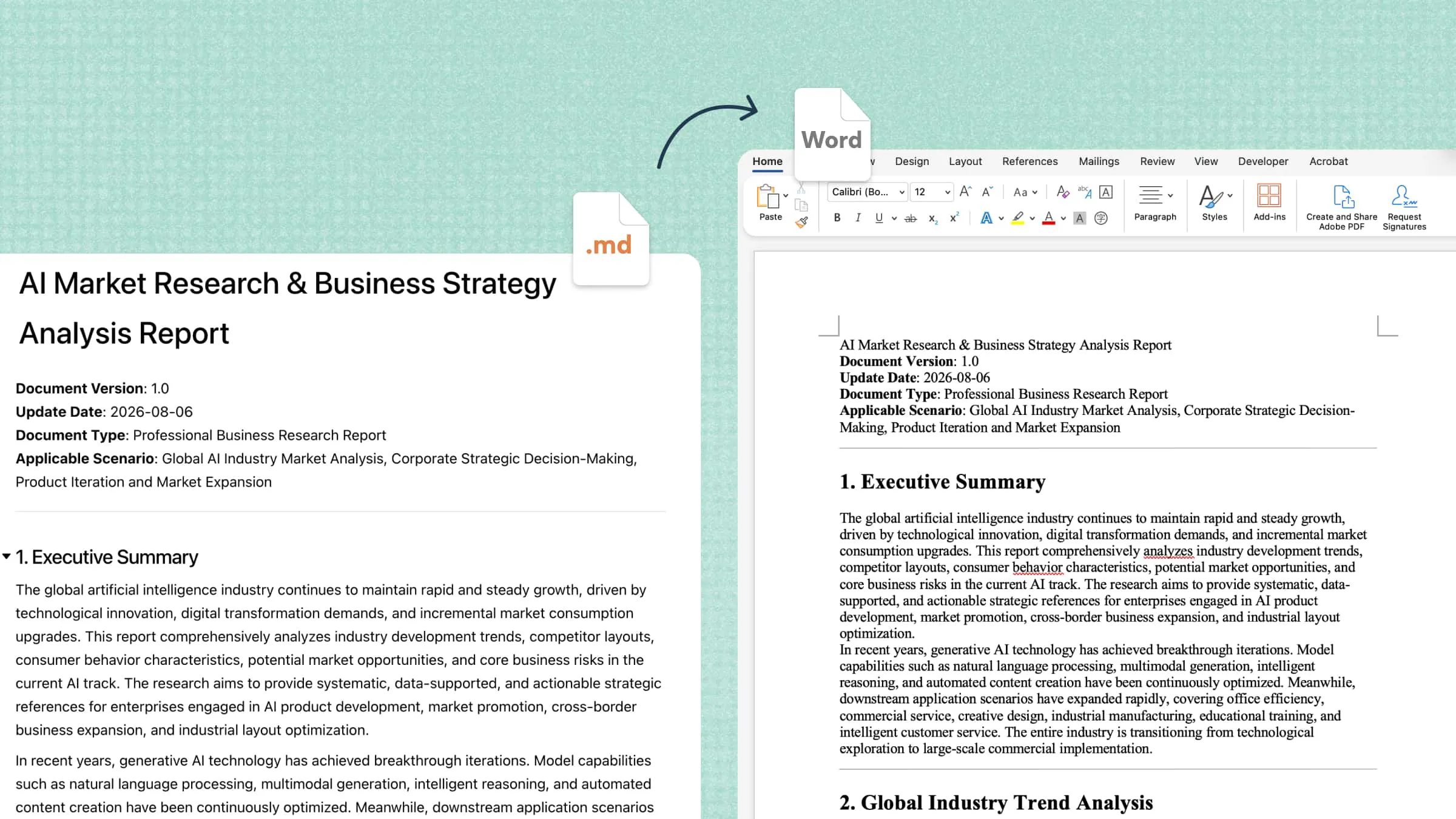
When do you need to convert Markdown to Word document
Polishing AI Drafts into Deliverables
AI assistants might generate content in Markdown by default. Converting these drafts to Word turns raw AI output into polished reports and proposals you can actually submit.
Sharing Technical Docs Beyond the Dev Team
README files, API references, and system specs live in Markdown, but stakeholders outside engineering work in Word. Conversion makes your documentation readable, commentable, and editable for the whole team.
Submitting Academic and Research Work
Researchers often draft Markdown for its simplicity, then face DOCX-only submission systems. A clean conversion keeps citations, tables, and structure ready for review and tracks changes.
Preparing Formal Business Documents
Proposals, bids, and white papers drafted in Markdown need professional formatting before they reach clients. Word conversion gives you the editable, standards-compliant file that formal processes demand.
Streamlining Team Review Cycles
Meeting notes, requirement lists, and decision logs written in Markdown become collaboration-ready in Word. Teammates can comment, suggest, and track changes without learning any new tools.
Overview of the 4 methods to convert Markdown to a Word document
There is more than one way to turn a Markdown file into a Word document. The available methods differ greatly in ease of use, formatting accuracy, and efficiency: some require almost no effort, while others leave you adjusting the output item by item. Which one suits you best depends mainly on how complex your file is and how much time you are willing to spend fixing formatting. Before you start, here is a quick look at what each method is suitable for.
How to convert Markdown to Word online using an AI tool
Kimi Docs is an AI document agent that creates, converts, reviews, and visualizes documents in minutes instead of hours. It converts files between formats seamlessly without losing data, and understands your content rather than just moving text from one format to another. For Markdown to Word conversion, that means your headings, tables, and structure carry over accurately, ready to share or submit.
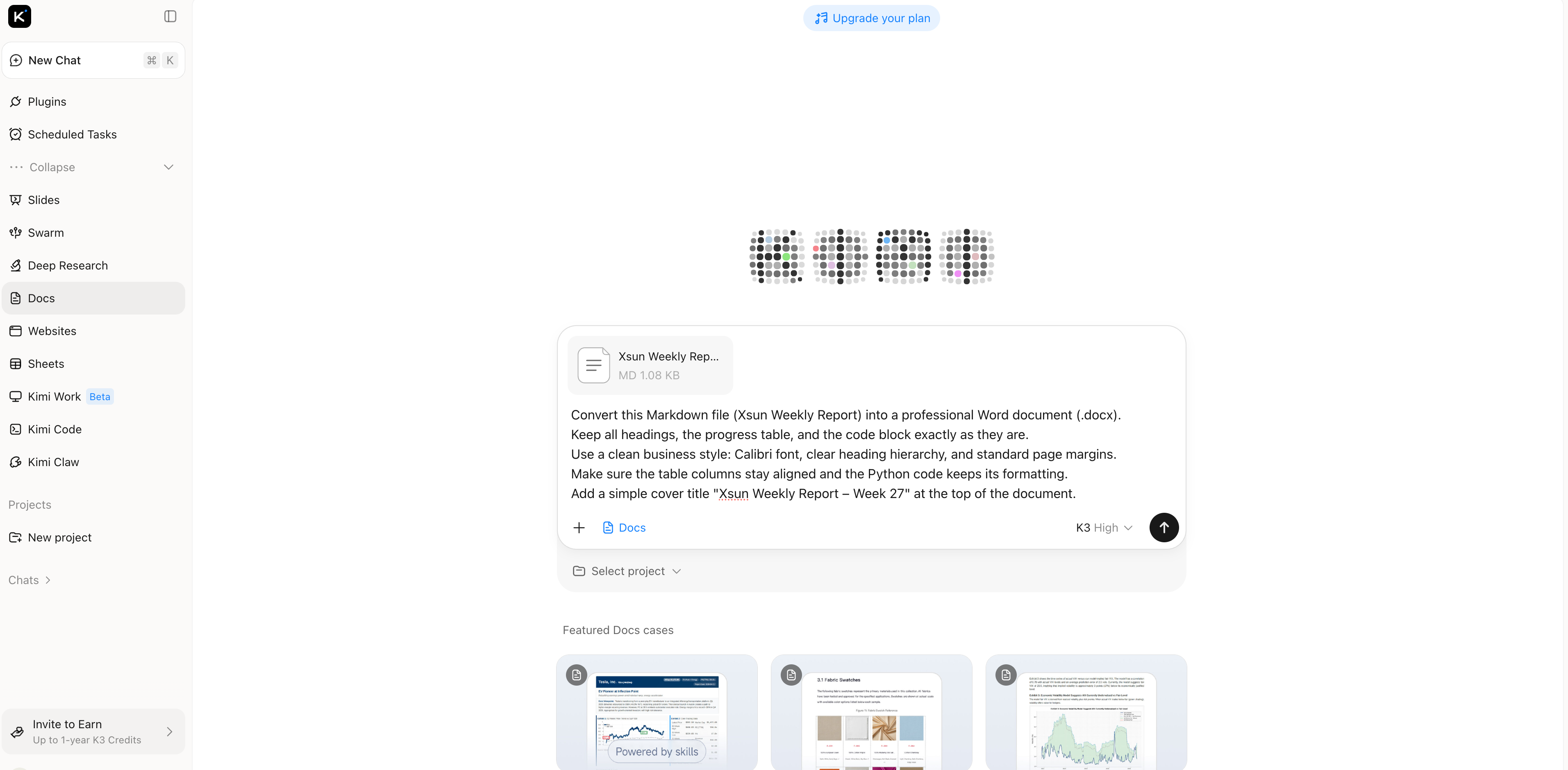
Step 1: Upload your Markdown file and enter a clear prompt
Upload your MD file to Kimi Docs and describe what you need, such as the output format, heading structure, table styles, or any specific layout requirements. Clear instructions help Kimi understand your expectations and convert your Markdown into a well-organized Word document that matches your needs.
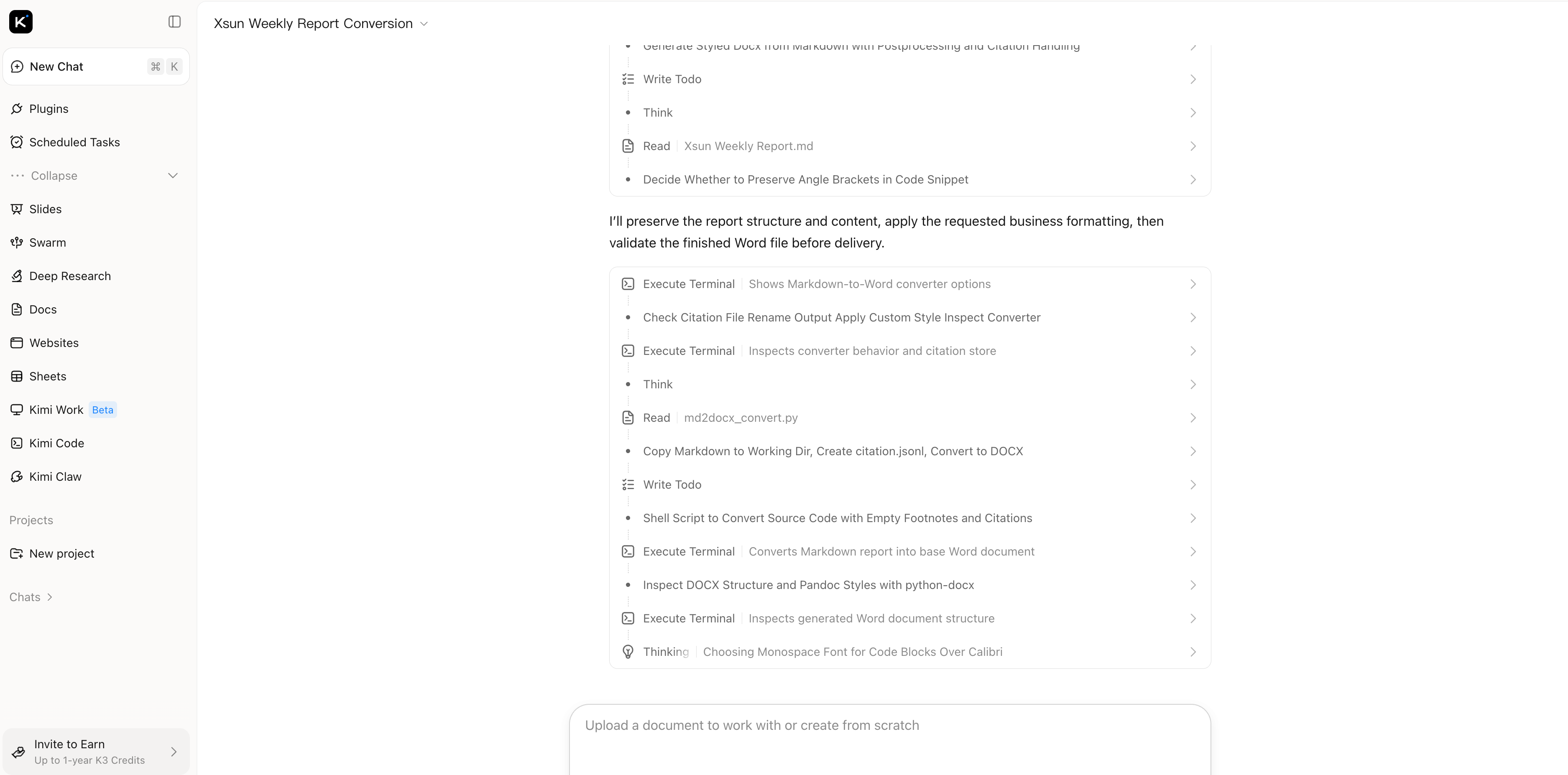
Step 2: Let Kimi Docs convert your Markdown accurately
Kimi analyzes your Markdown file, recognizes headings, tables, lists, code blocks, and other elements, then rebuilds your content with its original hierarchy and formatting intact. The converted document looks clean and professional without manual fixes.
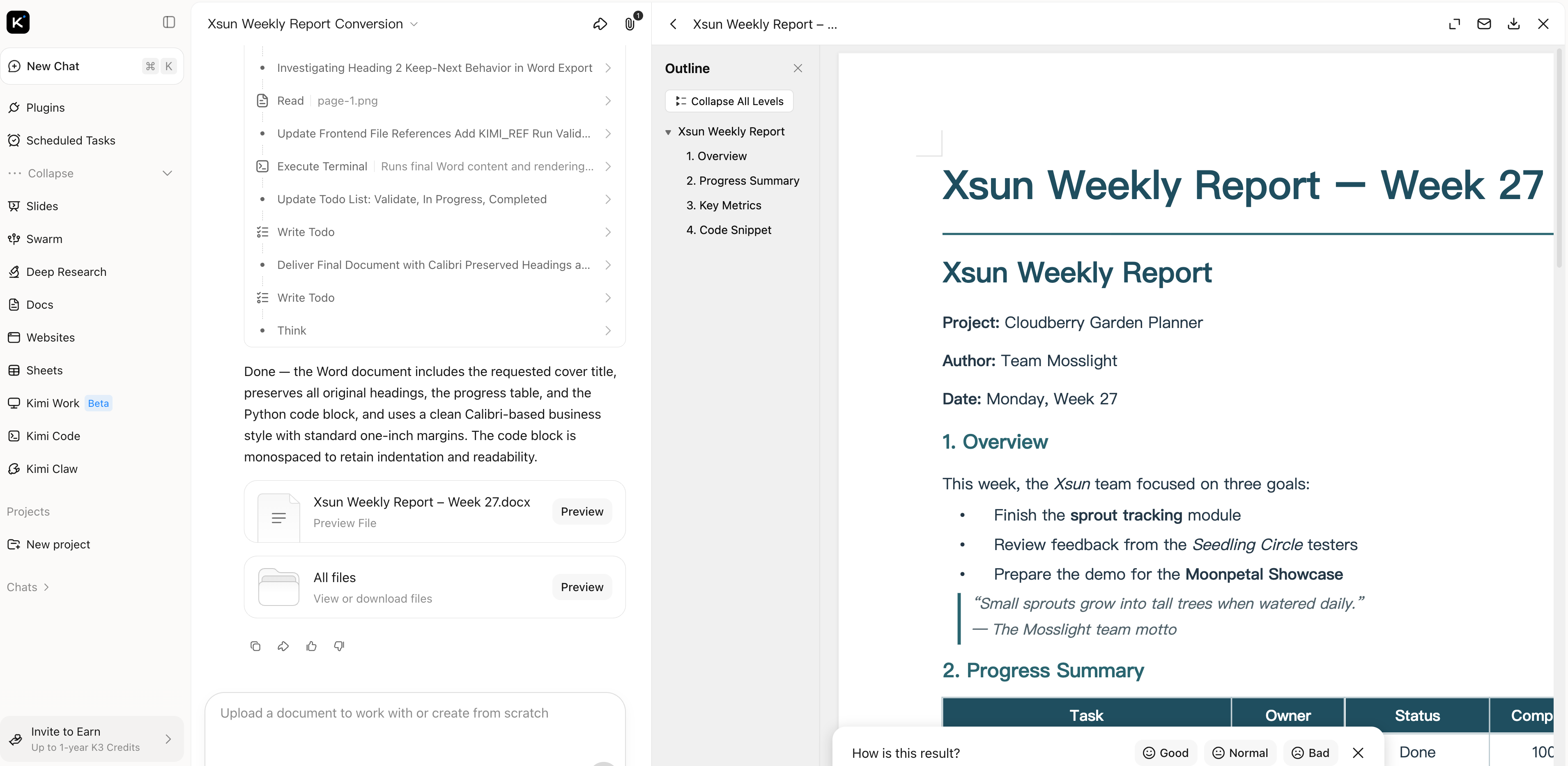
Step 3: Review and download your Word document
Preview the converted document to check that every heading, table, and detail is in its right place, then download it as a Word file. The result is a polished, ready-to-share document that works smoothly for submission, collaboration, and further editing.
Why choose Kimi Docs to convert your Markdown file
Seamless conversion without losing data
Converts files between formats seamlessly, designed to keep your document clean and ready to use, with no data lost along the way.
Content-aware transformation
Kimi Docs does not just recognize formats, it understands content. Instead of a plain text dump, your Markdown draft can become a well-structured, professional Word document
Rich support for professional elements
If your Markdown contains code blocks, tables, LaTeX formulas, or checklists, Kimi Docs supports these elements and helps your document meet professional and academic standards.
Visual enhancement and clean layout
Kimi Docs can automatically handle text-image integration, professional cover layouts, and data chart visualization, so your converted document looks clear and visually engaging.
One tool for your document workflow
Beyond this conversion, Kimi Docs works across Word, PDF, PowerPoint, and Excel, and even offers document translation and version comparison, so your later editing and sharing needs are covered too.
How to convert Markdown to Word using an online converter
Markdown to Word is an online converter built specifically for MD to a Word document conversion. It runs entirely in your browser with no registration required, processes files locally on your device, and supports .md and .markdown files up to 10 MB.
Step 1: Upload or paste your Markdown content
Open markdowntoword.io in your browser. Drag your Markdown file into the upload area, or paste your content directly into the editor. Both .md and .markdown files are supported.
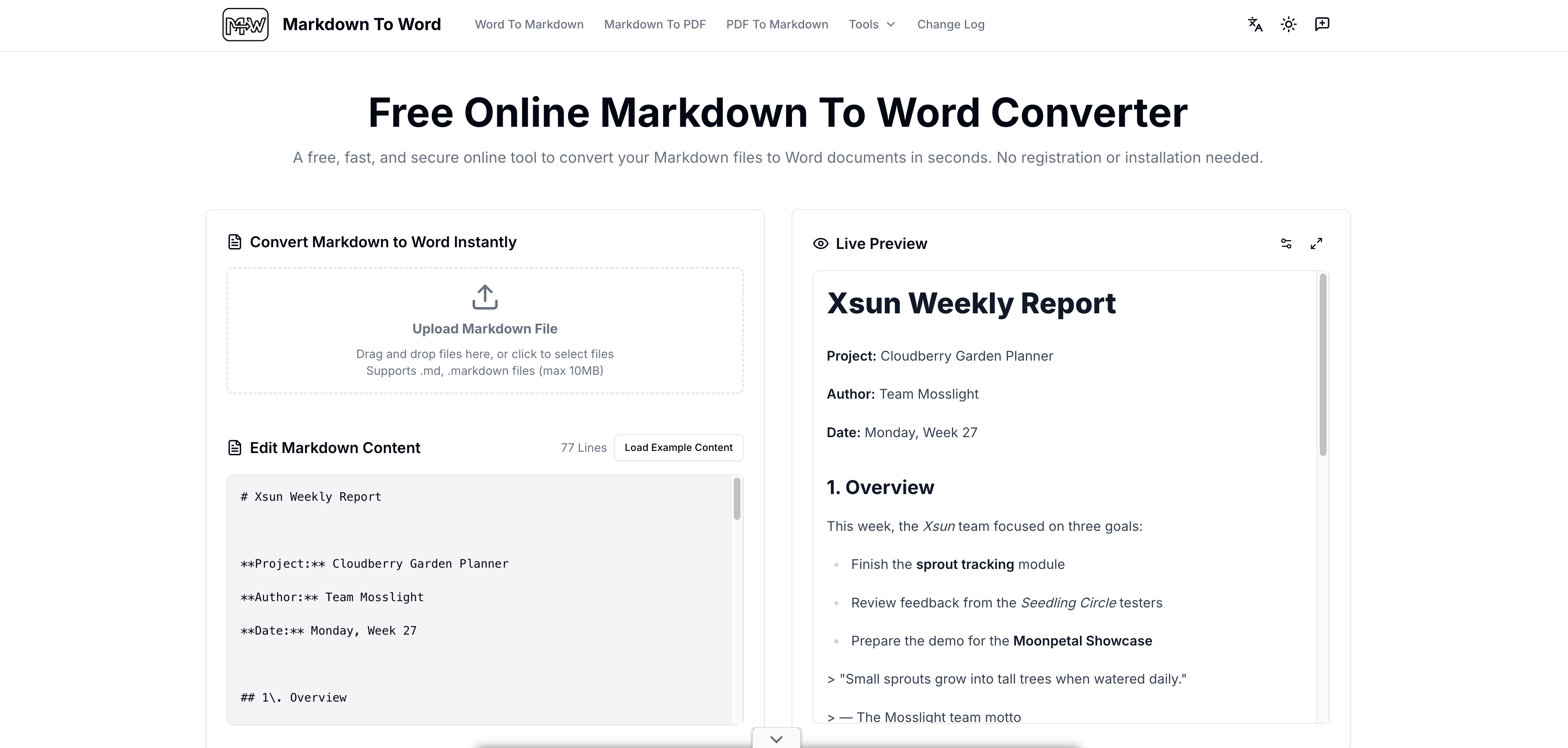
Step 2: Review and fine-tune in the live preview
Check the real-time preview to see how your headings, tables, and lists will appear in Word. If anything needs adjustment, you can edit the text and structure directly in the editor until everything looks right.
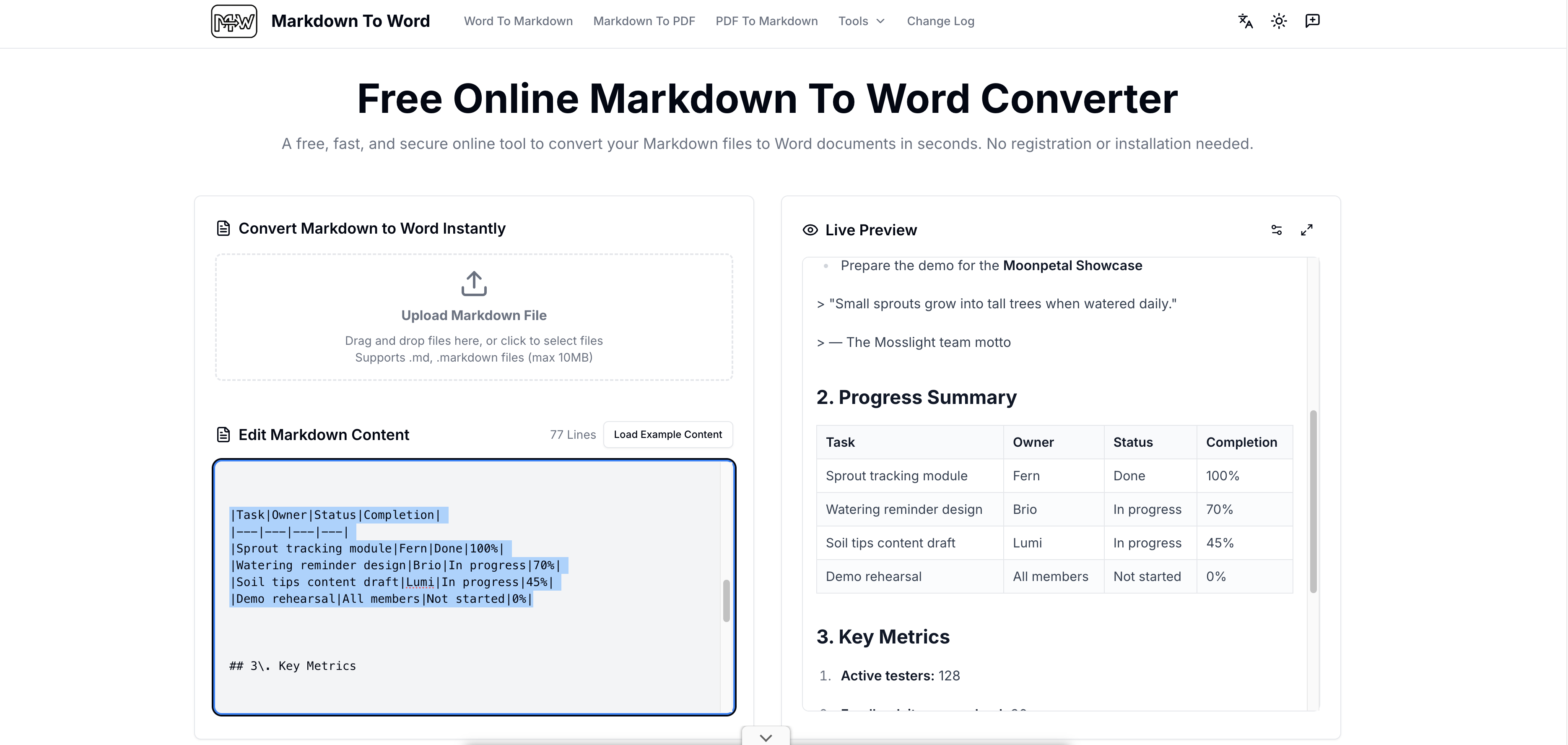
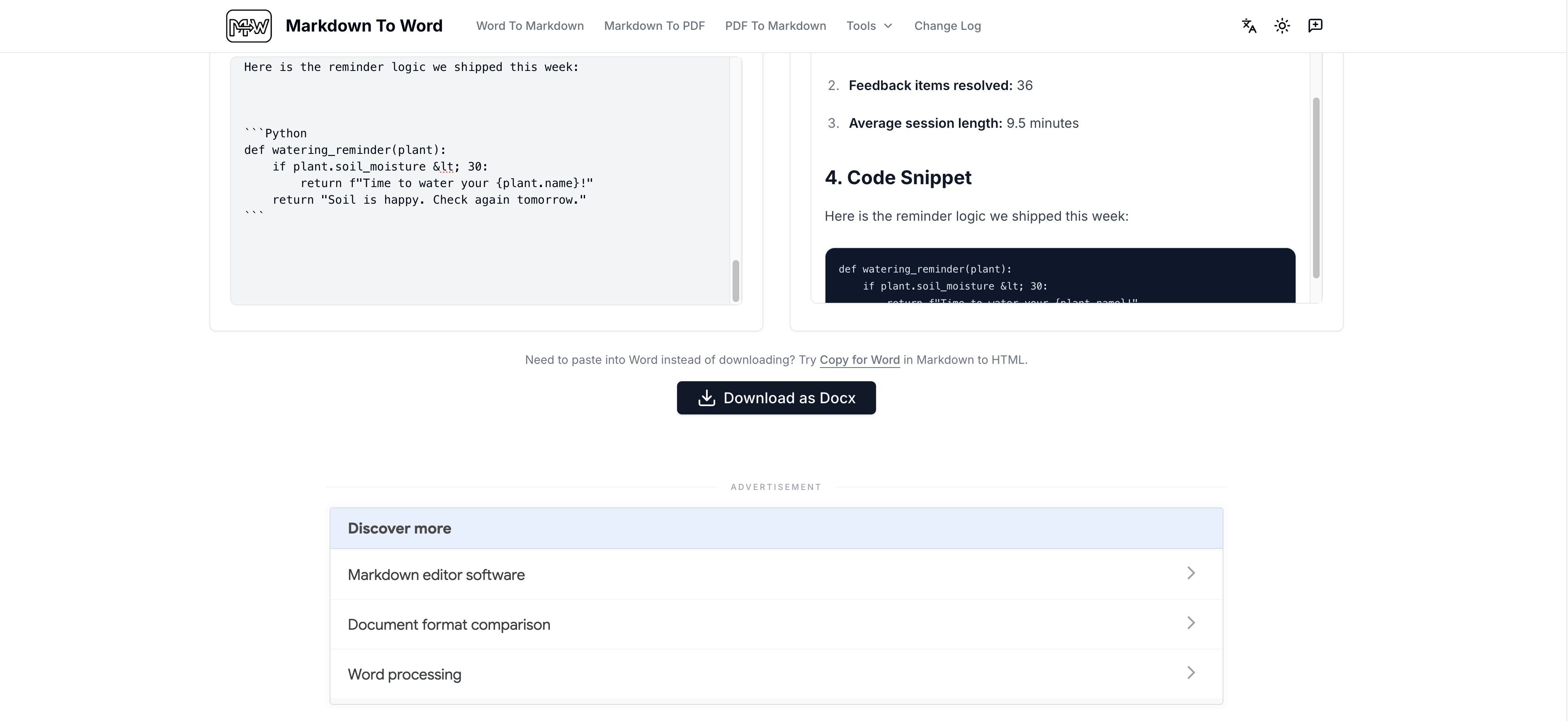
Step 3: Download your Word document
Click to export your DOCX file, then open it in Microsoft Word, Google Docs, or WPS to check the result. The tool converts headings into Word styles and keeps tables, code blocks, and typography in place.
How to convert Markdown to Word using a command-line script (Pandoc)
Pandoc is a open-source document converter that runs on your own computer. It works offline, handles batch conversion well, and is a popular choice among developers and technical writers.
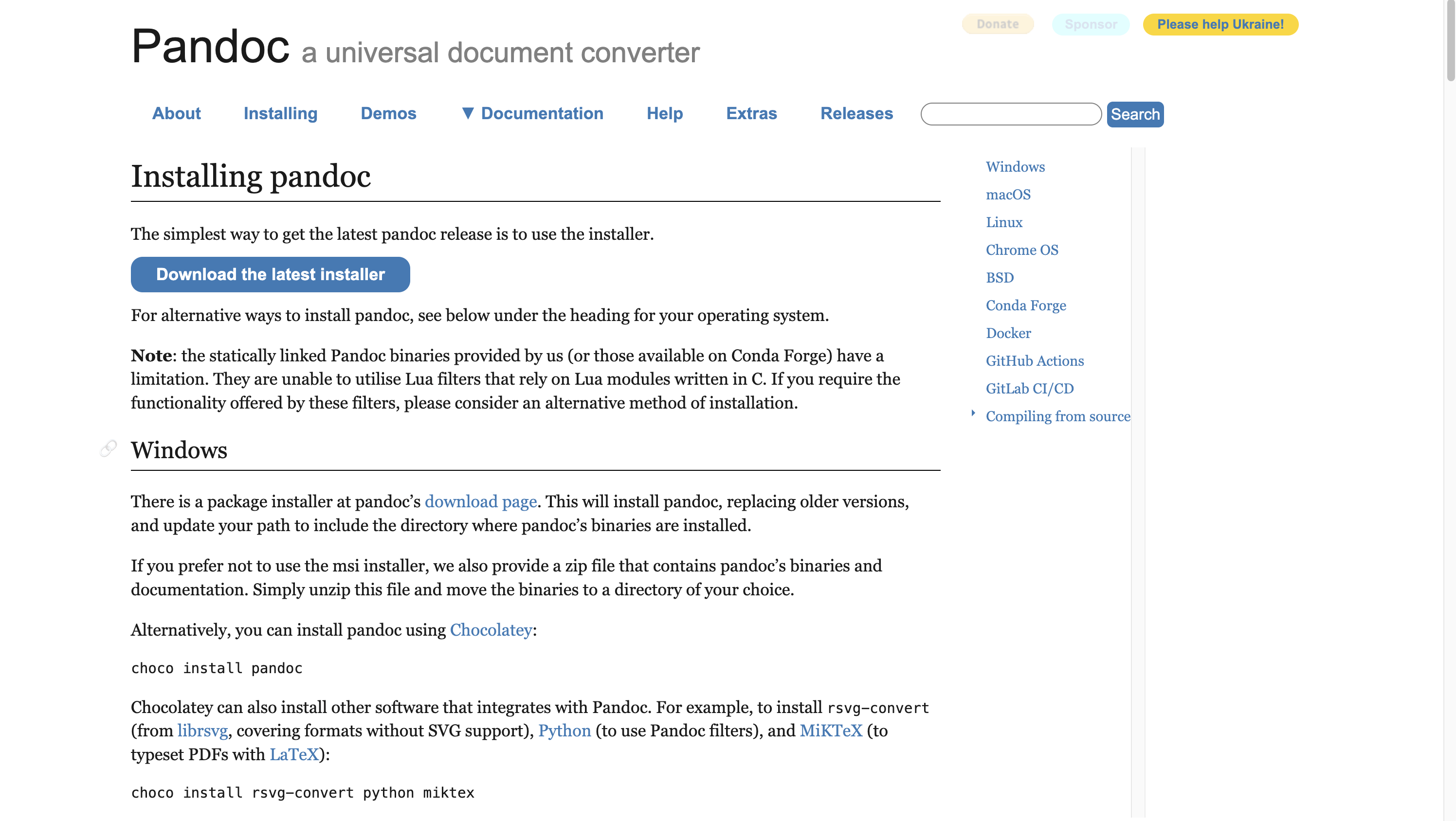
Step 1: Install Pandoc on your computer
Download Pandoc from its official website and install it on Windows, macOS, or Linux. The installation takes only a few minutes, and the tool works completely offline afterward.
Step 2: Run a simple conversion command
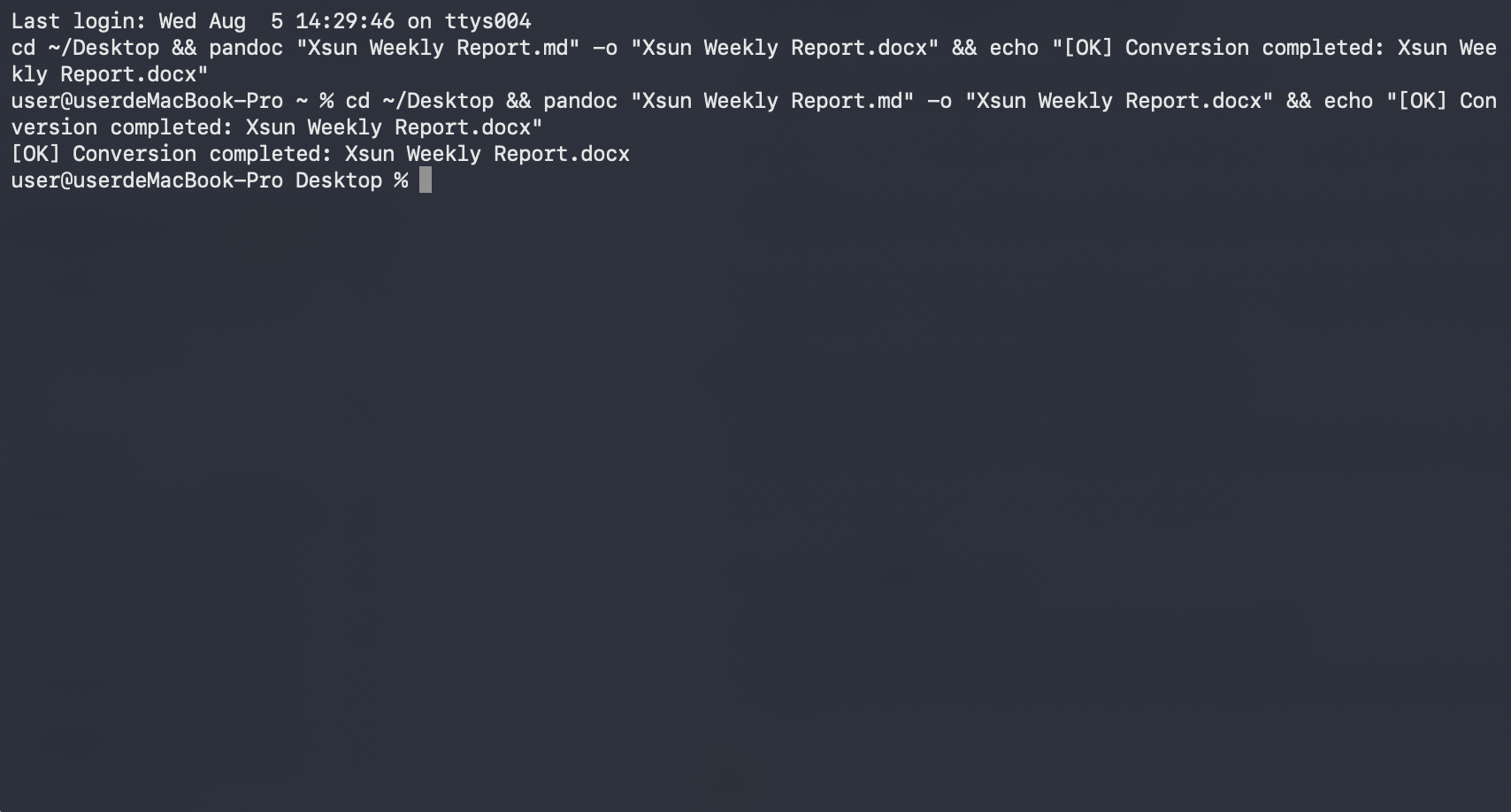
Open your terminal or command prompt, navigate to your Markdown file's folder, and run: pandoc your-file.md -o output.docx. Pandoc reads your Markdown structure, including headings, tables, and lists, and converts it into a DOCX file in seconds.
Step 3: Open and check your Word document
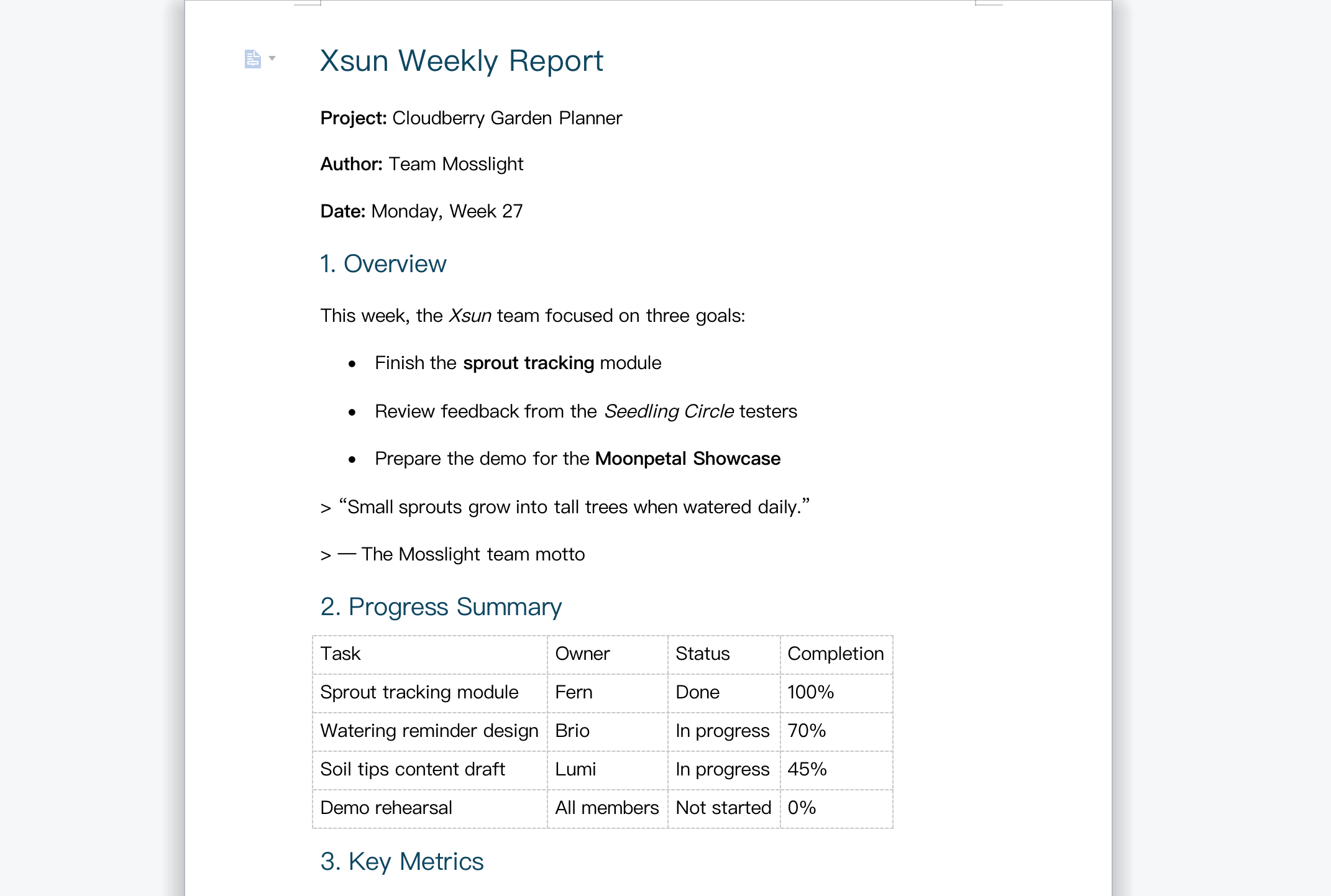
Open the output file in Microsoft Word and check that headings, tables, and lists appear correctly. For custom styling, you can convert again using a reference document that defines your preferred fonts and heading styles.
How to convert Markdown to Word manually in Microsoft Word
If you already have Microsoft Word installed, you do not need any extra tools for a quick, basic conversion. Since Markdown files are plain text, Word can open them directly and save them as DOCX.
Step 1: Open your MD file in Microsoft Word
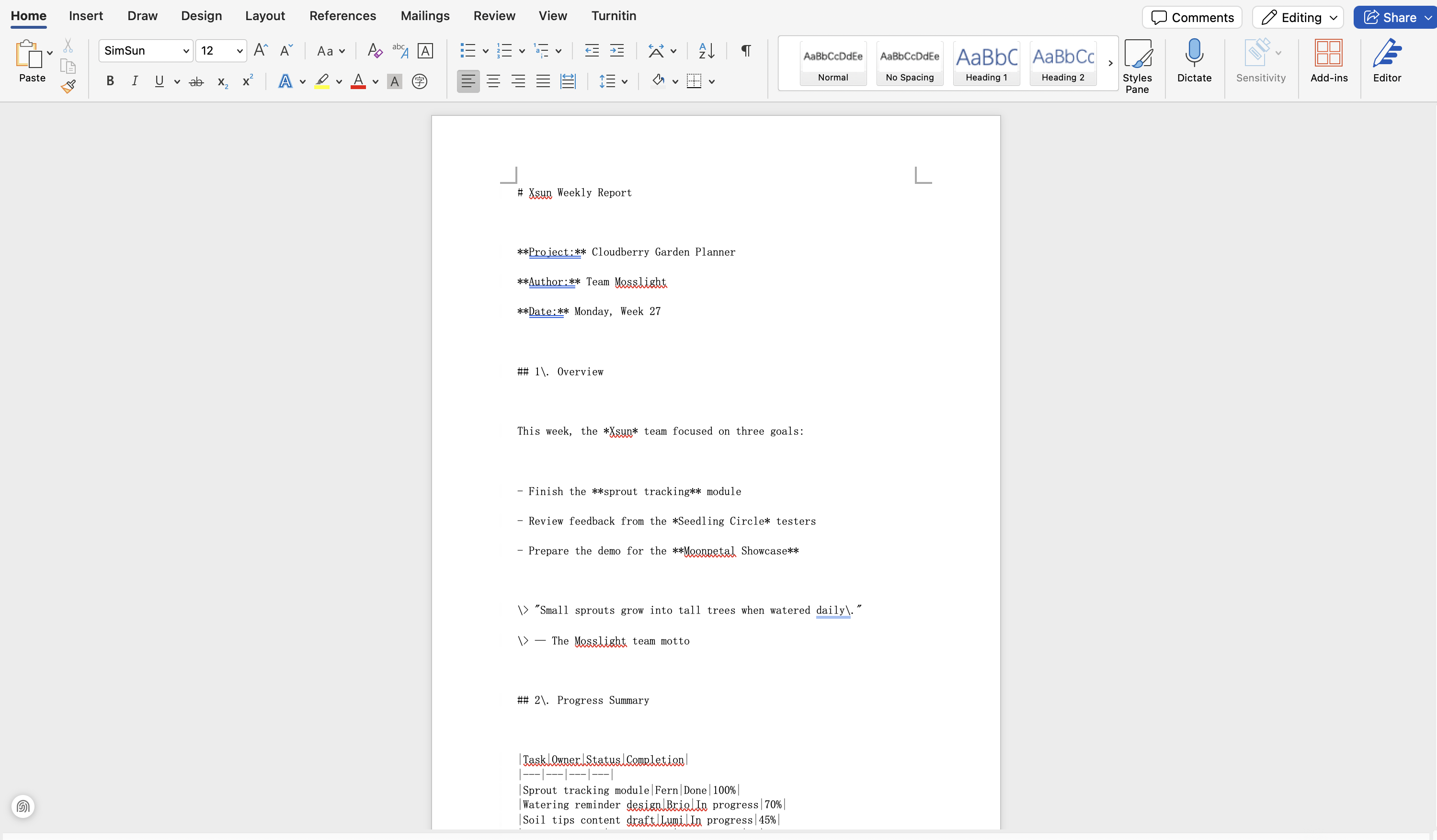
Right-click your Markdown file, choose "Open with," and select Microsoft Word. You can also open it from Word's File menu. The file opens as plain text, with all your content visible.
Step 2: Clean up and format your content
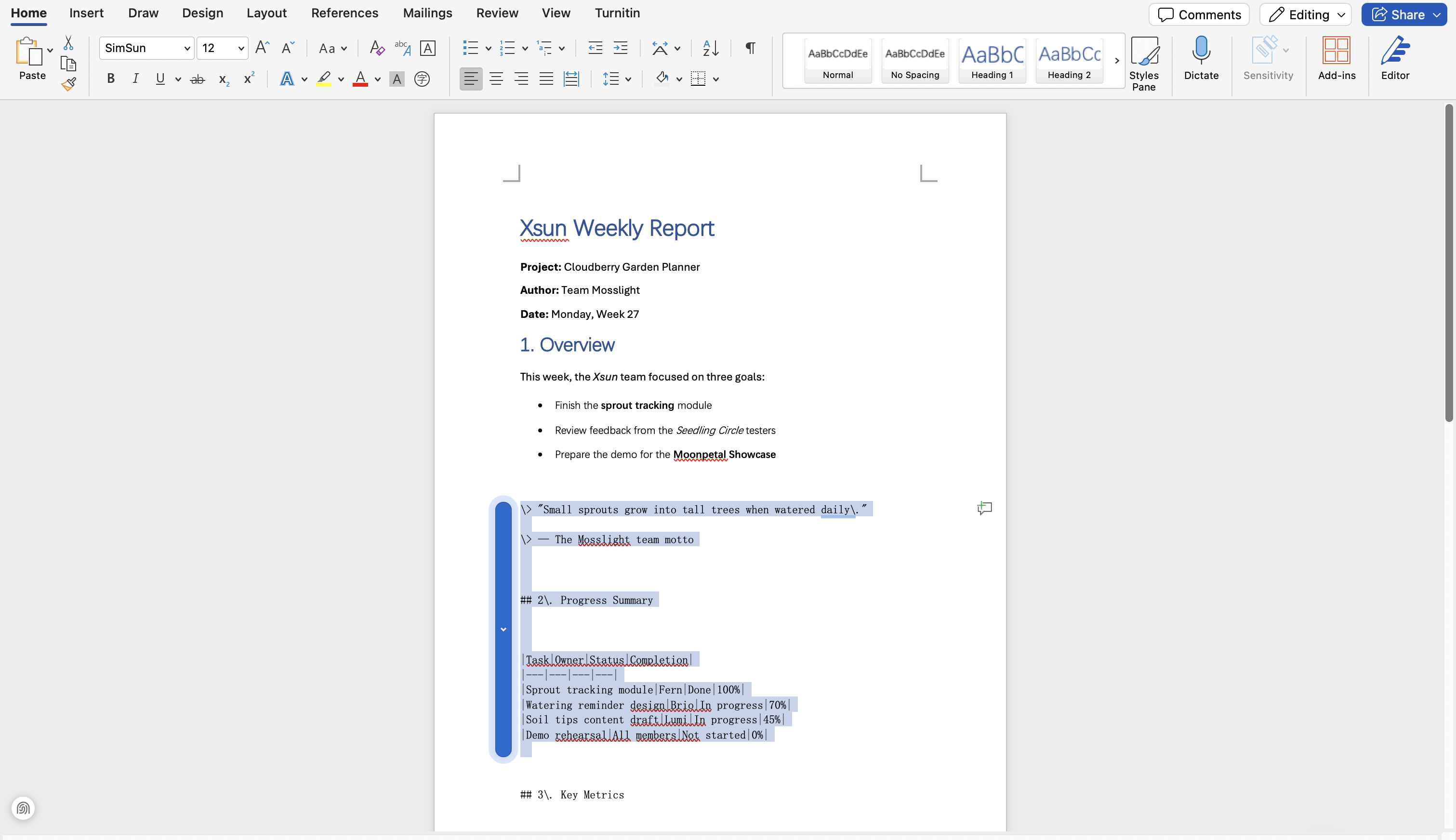
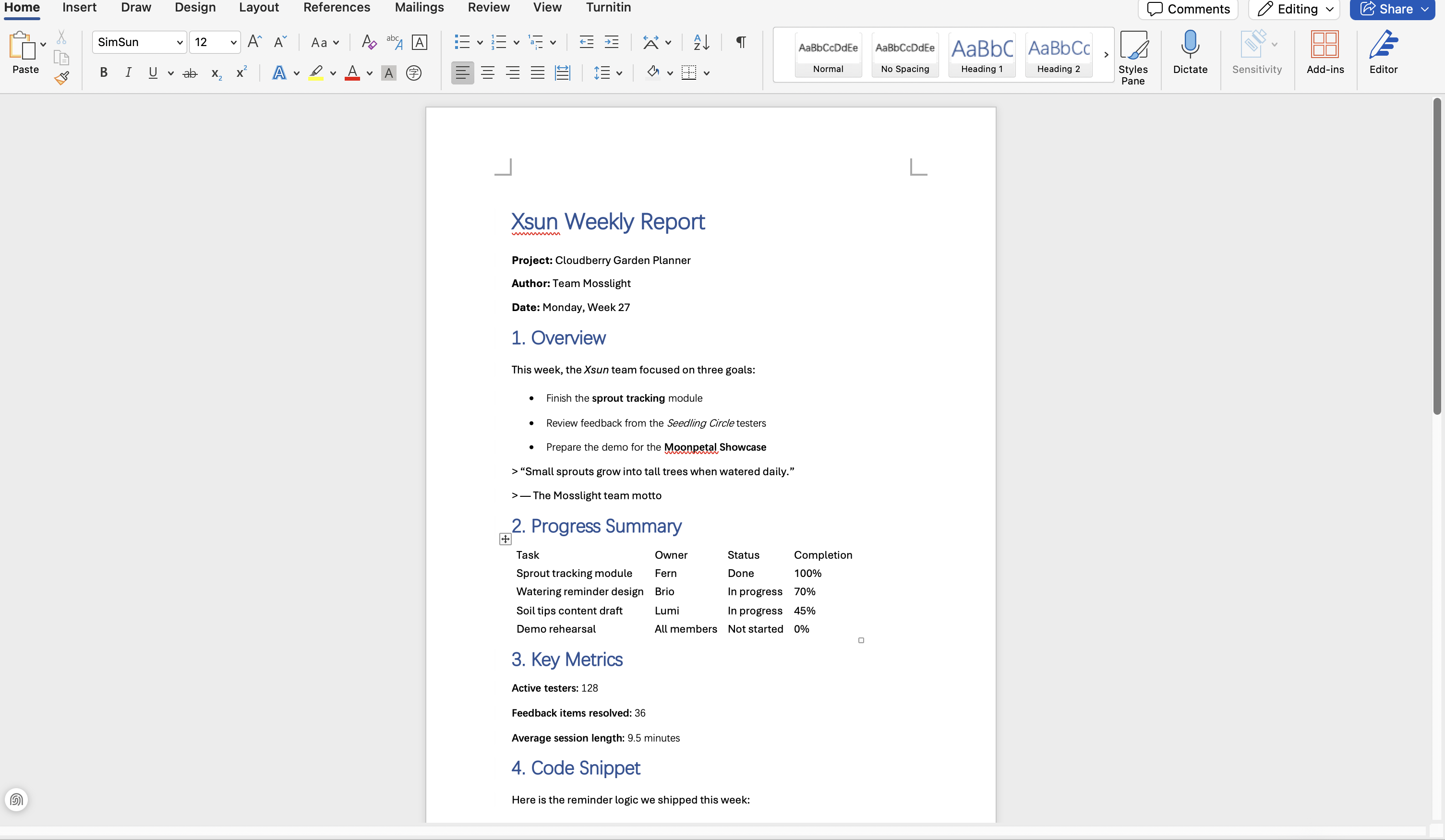
Word does not read Markdown symbols, so characters like #, **, and table dividers remain visible as plain text. Remove these symbols and apply Word's built-in heading styles, lists, and tables where needed. For short, simply structured files. This takes only a few minutes.
Step 3: Save your file as DOCX
Go to File, then Save As, and choose Word Document (.docx) as the format. Your Markdown content is now a Word file, ready for sharing and editing.
Tips for a smooth Markdown to Word conversion
No matter which method you choose, a few simple habits can save you from the most common conversion problems, such as lost formatting, wrong output formats, or last-minute surprises before sharing. Keep these six tips in mind to get a clean, accurate Word document every time.
Keep your original Markdown file
Always save a copy of your source Markdown file before converting. If anything looks off in the Word version, you can adjust the Markdown and convert again instead of fixing everything by hand.
Use DOCX as your output format
DOCX is the modern Word standard and works better with today's editors, submission systems, and collaboration tools than the older DOC format.
Check complex elements after conversion
Tables, code blocks, nested lists, and LaTeX formulas are the most likely elements to shift during conversion. Scan these first in your converted document rather than reading the whole file line by line.
Write a clear prompt for AI converters
When using an AI document agent like Kimi Docs, tell it exactly what you need, such as heading structure, table styles, or layout preferences. Specific instructions lead to more accurate results and less manual cleanup.
Preview before you share
Open the converted Word document and scroll through it completely before sending it to clients, professors, or teammates. A one-minute preview can catch formatting issues that would otherwise look unprofessional.
Match the tool to the task
For quick one-off files, online converters or Word's built-in features may be enough. For batch jobs, Pandoc works offline at scale. For documents with heavy formatting or files that need further editing, an AI document agent like Kimi Docs gives you accurate results with the least manual work.
Conclusion
All four methods get your Markdown into Word, each with its own strength: online converters handle quick one-off files, Pandoc covers offline batch jobs, Microsoft Word's built-in features work for short simple drafts, and Kimi Docs takes care of the heavy lifting, converting your MD file online with headings, tables, and structure accurately preserved in minutes. Pick the method that fits your file, and spend your time on the content itself, not on manual cleanup.