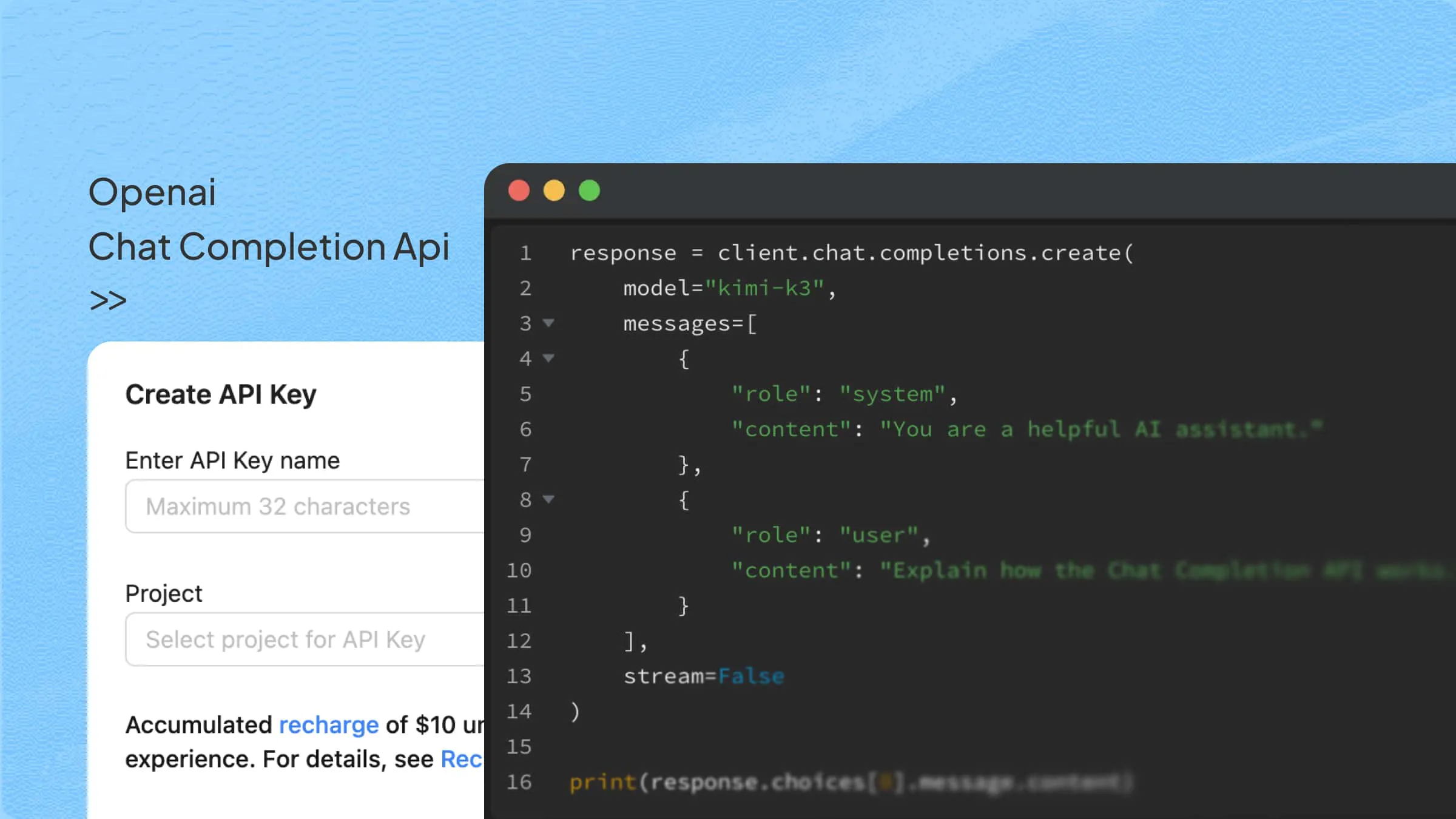
Whether you are building an AI chatbot or adding conversational features to an application, understanding how AI handles conversations is important. The Chat Completion API makes this possible by connecting applications with AI models to generate relevant, human-like responses. With features like Python integration, streaming, and tool calling, developers can build more interactive applications. Let's explore how it works, how to use it, and how providers like Kimi API support flexible AI development.
What is the Chat Completions API
The Chat Completions API is an interface that lets applications send a sequence of messages to an AI model and receive an assistant response, supporting both single-turn and multi-turn conversations. For example, you can use Kimi K3.1 Pro to answer a question about Python decorators and then ask a follow-up question:
First request: Send the user message, "What is a Python decorator?" Kimi returns an assistant message explaining the concept.
Second request: To continue the conversation, send the previous user message, Kimi's complete assistant message, and a new user message: "Can you give me an example?"
The messages array carries the context needed for each request. Three key design decisions make this interface widely adopted:
Application-managed history: Applications manage conversation history and include the relevant context in each request, giving developers control over what the model sees.
Common message roles: Common roles include
system(instructions),user(input),assistant(model output, echoed back for multi-turn context), andtool(function-call results). Together, they help express instructions, dialogue, and tool interactions.Flexible capabilities: Depending on model support, the interface can handle streaming, tool calling, visual inputs, and structured outputs. Kimi K3.1 Pro supports these capabilities.
How to use the Chat Completions API with Kimi
The following examples use Kimi K3.1 Pro and the OpenAI Python SDK to demonstrate how to configure the client, send requests, handle responses, and implement tool calling:
Quickstart: Call Kimi with the OpenAI Python SDK
Install the OpenAI Python SDK:
Set your Kimi API key as an environment variable:
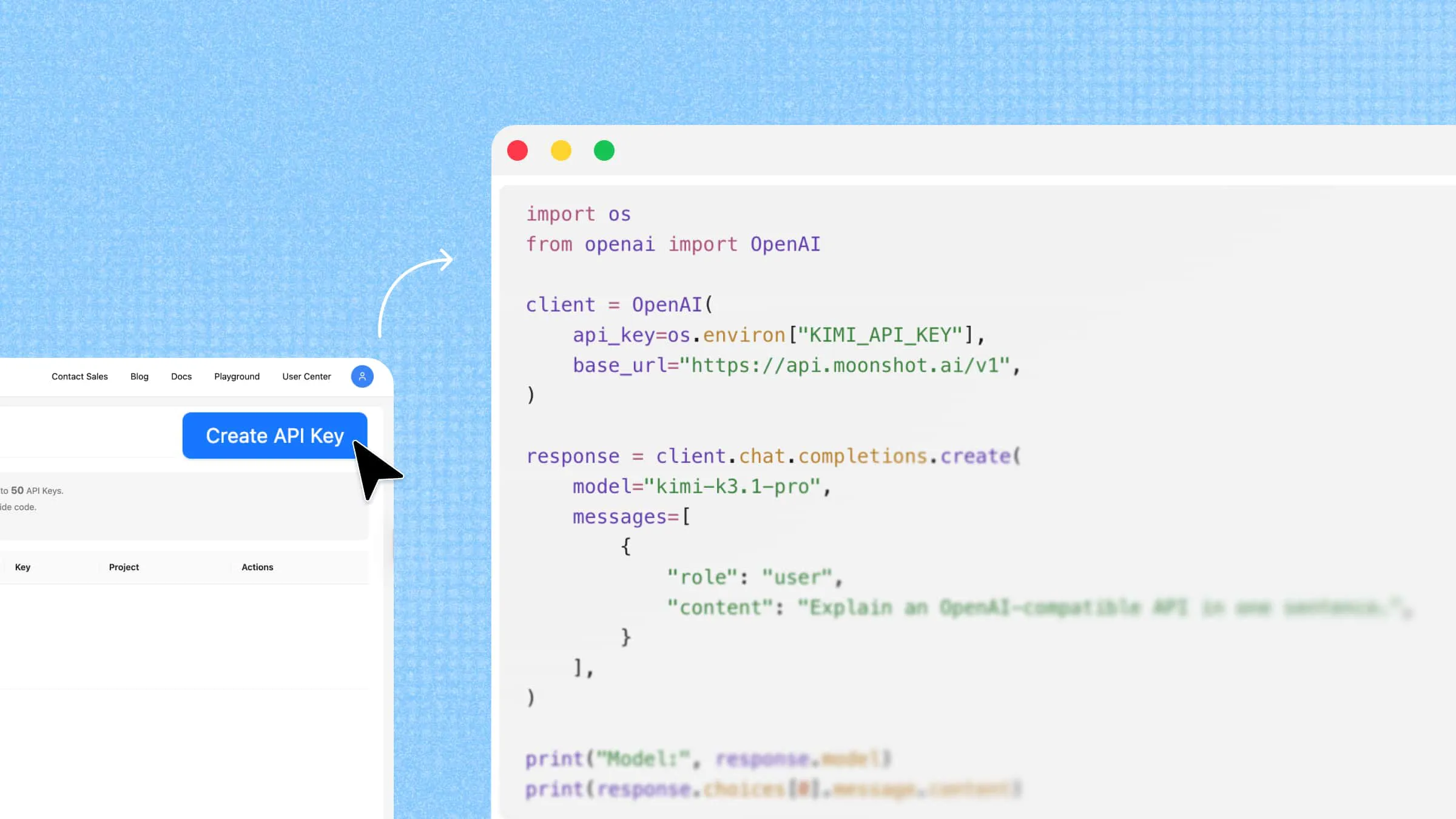
You don't need an OpenAI API key. The OpenAI Python SDK serves as the client library, while your Kimi API key and base URL authenticate and route requests to Kimi.
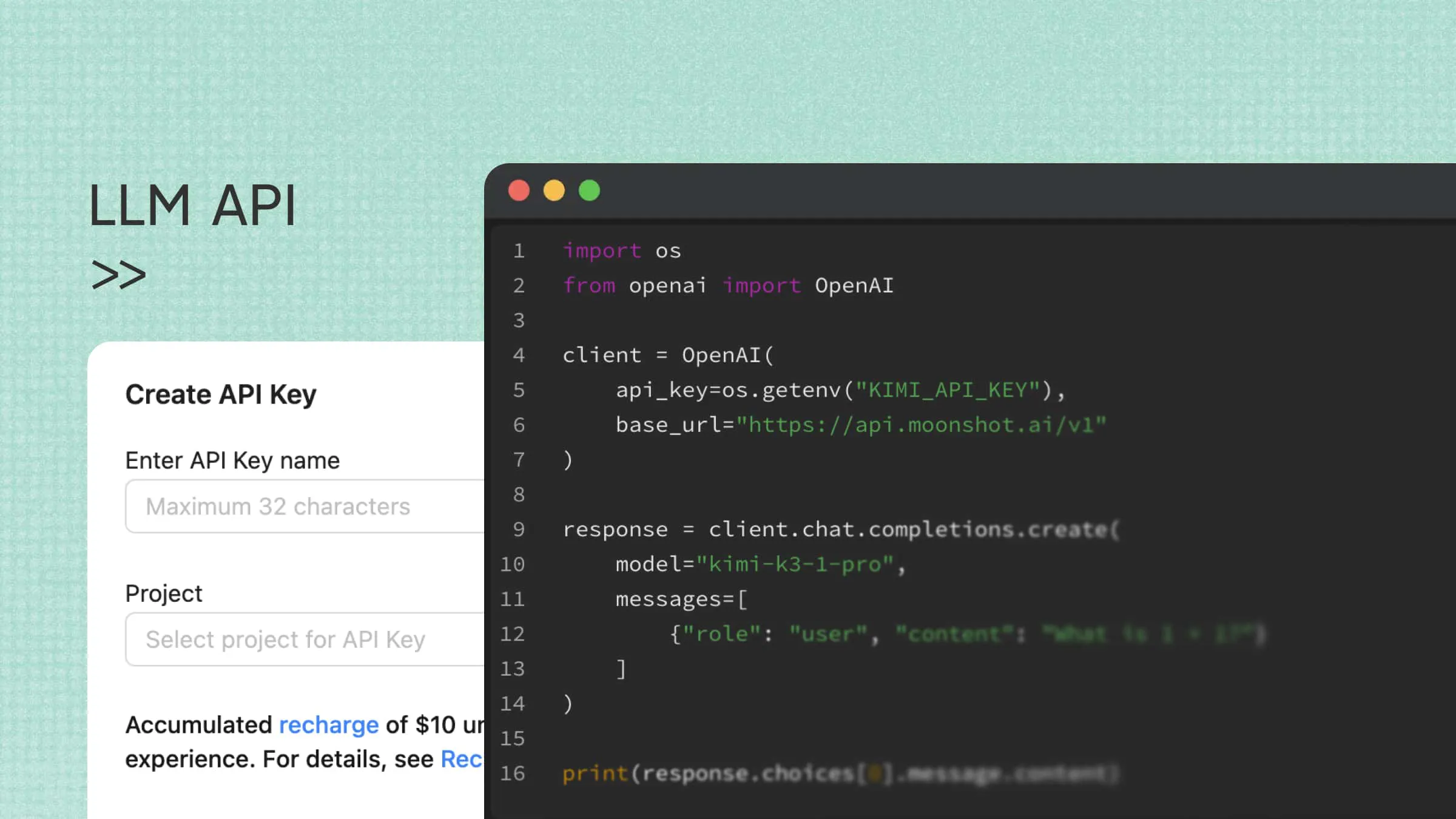
Initialize the client and send your first request:
This example uses Kimi's international API endpoint. For the official setup and model details, see the Kimi K3.1 Pro Quickstart.
Key parameters
These parameters cover the main options available when calling Kimi K3.1 Pro through the Chat Completions API:
| Parameter | Purpose |
|---|---|
model | Specifies the model ID, such as kimi-k3.1-pro. |
messages | Provides conversation messages, including previous user inputs and assistant replies. Supports text and multimodal content. |
reasoning_effort | Controls reasoning depth. Accepts low, high, or max (default). |
max_completion_tokens | Sets the maximum generation budget, including both reasoning tokens and final-answer tokens. Input tokens are counted separately, but the combined input and generated tokens must fit within the model's context window. |
stream | Set to true to receive the response incrementally rather than waiting for the complete output. |
tools | Defines functions the model can request the application to execute. |
response_format | Controls output formatting. Supports json_object for JSON mode and json_schema for schema-constrained structured output. |
Note: Kimi K3.1 Pro uses fixed sampling settings. Do not add temperature or top_p to requests. See the Chat Completions API reference for parameter details and supported values.
Reading the response
After a successful request, you can access the main response fields through the returned completion object:
choices[0].message– Contains the assistant's reply, includingcontentortool_callswhen the model requests a function.choices[0].finish_reason– Indicates why generation stopped, such asstop,length, ortool_calls.usage– Provides token usage information, including input, output, and cached token counts when available.
For a basic text response, read choices[0].message.content. If the model returns tool_calls, your application needs to execute the requested functions and submit their results in a follow-up request
Streaming example
Set stream=True to receive Kimi's response in incremental chunks. The following example reuses the client configured above and prints the final answer as it arrives:
Kimi K3.1 Pro returns reasoning content separately from the final answer. This example only prints delta.content, so it displays the final response without processing the separate reasoning_content field.
Tool calling in brief
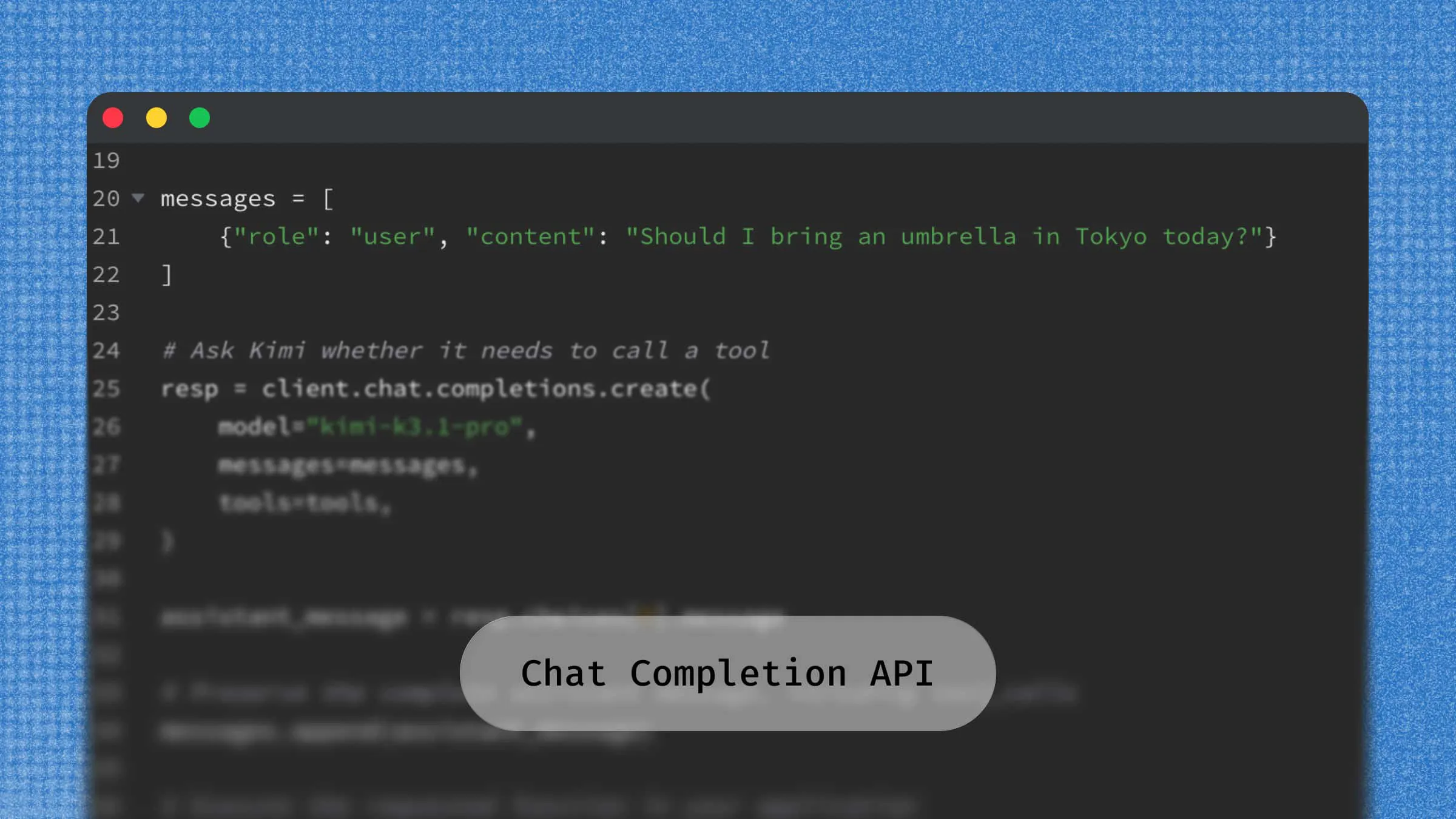
Tool calling lets Kimi request external functions when a task requires information or actions beyond the model's own response. For example, if a user asks, "Should I bring an umbrella in Tokyo today?", Kimi can request a get_weather function to retrieve the forecast.
The workflow has three steps:
Declare the function: Define
get_weatherand its expected arguments under thetoolsparameter.Execute the tool: Kimi returns a
tool_callsentry with the function name and arguments. Your application executes the corresponding function and retrieves the weather data.Send the result back: Append Kimi's complete assistant message and the tool result (using the matching
tool_call_id) to the conversation, then call Kimi again to generate a user-facing answer.
The following example reuses the client configured above. Before running it, make sure you have implemented a get_weather(city) function that returns JSON-serializable weather data. The function is executed by your application, not by Kimi.
Here, get_weather() represents a function implemented by your application, not a function executed directly by Kimi. Kimi decides when to request it and provides the arguments; Your application performs the actual operation and returns the result.
In production, implement a loop that processes each tool call, appends the corresponding results to the conversation, and sends the updated messages back to Kimi. Repeat this cycle until the model returns a final answer without requesting additional tools.
Why "OpenAI-compatible" matters when choosing a provider
Many providers support the OpenAI Chat Completions format, allowing developers to reuse familiar SDKs and request structures. Switching typically involves updating the base URL, API key, and model ID, then checking supported parameters and response handling. When comparing providers, consider the following factors:
Compatibility fidelity: Verify that streaming, tool calling, structured outputs, and
usagereporting work as your application expects. Compatibility with the same API format does not guarantee identical feature support or response behavior across providers.Model quality for your workload: Your language mix and task types matter more than generic benchmarks.
Context window: Long-context models can simplify some document workflows by processing more source material in a single request.
Cost mechanics: Caching and batch discounts often outweigh headline per-token prices.
Ecosystem breadth: Additional compatible endpoints, such as Responses and Anthropic Messages, can provide more integration options and flexibility as your application evolves.
Kimi API: A standout OpenAI-compatible provider
Kimi API, developed by Moonshot AI, is worth considering if you're looking for an OpenAI-compatible provider, particularly for Chinese-language applications, long-document processing, and coding agents. It combines familiar API integration patterns with Kimi's long-context and reasoning capabilities.
Drop-in compatible
If your application already uses the OpenAI Python SDK, you can integrate Kimi without rewriting your entire request workflow. Simply update the API configuration, including the base_url, api_key, and model ID, while keeping the familiar Chat Completions interface.
For example, the following code reads a local report from report.txt, sends its contents to Kimi K3.1 Pro for summarization, and streams the generated response:
Here, the client reuses the Kimi client initialized earlier with your API key read from an environment variable. Choose the base URL according to your region: https://api.moonshot.ai/v1 for the international platform or https://api.moonshot.cn/v1 for users accessing the API in mainland China.
This approach lets you retain your existing OpenAI SDK workflow while using Kimi models for tasks such as document summarization and other API-powered applications.
Where Kimi differentiates
A flagship model with a 1M-token context window: Kimi K3.1 Pro supports a context window of up to 1M tokens and native visual understanding. Developers can work with extensive codebases, book-length documents, and image inputs in a single workflow, making it suitable for complex reasoning, coding, and multimodal applications.
Flexible cost optimization: Kimi API supports automatic context caching for repeated request prefixes and Batch API inference for large-scale tasks that do not require real-time responses. Cache billing and Batch pricing depend on the model and applicable pricing rules. Check the official Kimi API pricing for current rates and billing details.
Compatibility across API ecosystems: Kimi provides OpenAI-compatible Chat Completions and Responses API endpoints, as well as an Anthropic Messages-compatible endpoint. Developers can integrate Kimi K3.1 Pro into existing workflows using familiar SDKs and API formats, with adjustments based on the endpoint and supported features.
Conclusion
Getting started with the Chat Completions API is straightforward: configure your API credentials, send a request, and read the generated response from choices[0].message.content. Once your first API call works, you can expand your integration based on your application's needs by adding multi-turn conversations, streaming responses, or tool calling. Ready to build with Kimi? Get your Kimi API key and start making API requests.
FAQ
messages array and returns responses through a choices array. The Responses API uses a more flexible input and output structure that supports different content types and tool interactions. Conversation state management varies by provider. With Kimi's Responses API, applications should include the relevant conversation history in each request rather than rely on response-ID chaining.base_url to Kimi's API endpoint, the api_key to your Kimi API key, and the model to a supported Kimi model ID. Then, test your integration to verify that the parameters and features your application relies on, such as streaming and tool calling, are supported.