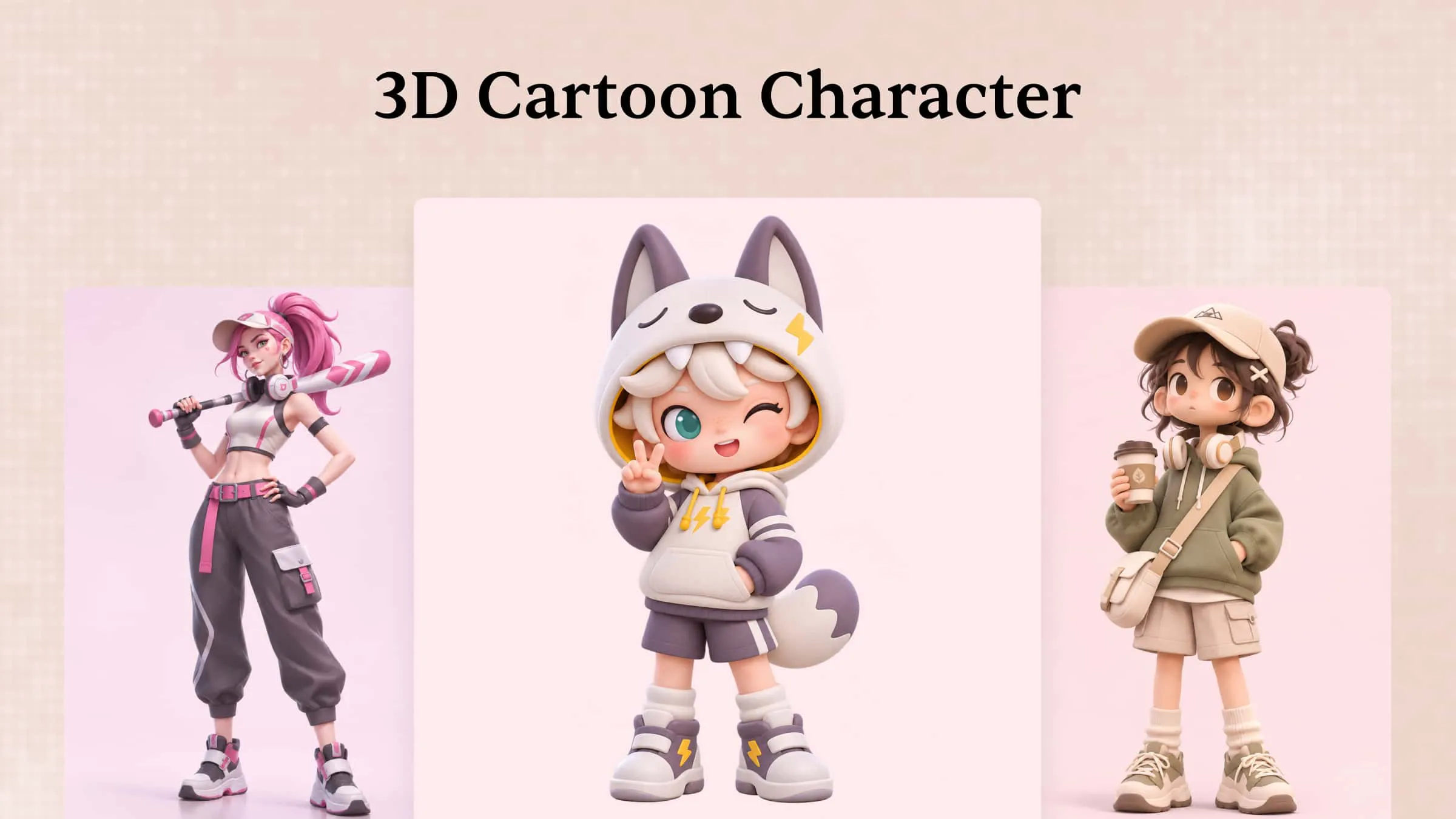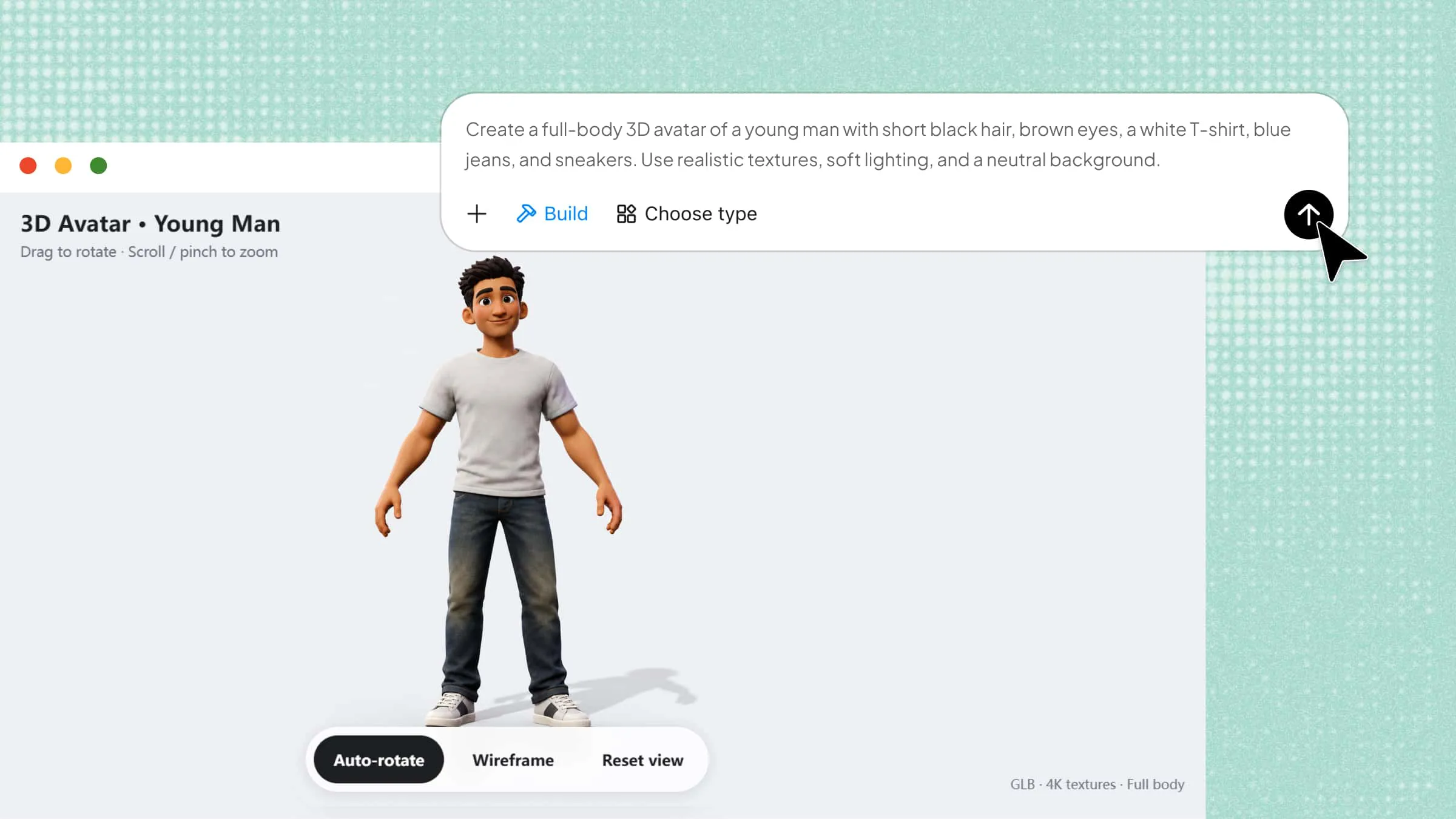
Your digital identity deserves more than a generic profile picture, but creating a personalized 3D character can seem difficult without design experience. From choosing facial features to customizing hairstyles and outfits, every detail can feel like a challenge. AI tools make it easier to turn your ideas into a unique digital character without complicated modeling software. In this guide, you'll learn how to create a 3D avatar step by step, even as a beginner.
How to create a 3D avatar in simple steps
Creating a personalized 3D avatar doesn't have to involve complicated modeling software or advanced design skills. Kimi 3D Make offers an AI-assisted approach that helps you turn a simple text description into a customized digital character. You can describe your avatar's facial features, hairstyle, clothing, and preferred style, then refine the design to suit your needs. Follow the steps below to learn how to create your own 3D avatar with Kimi 3D Make.
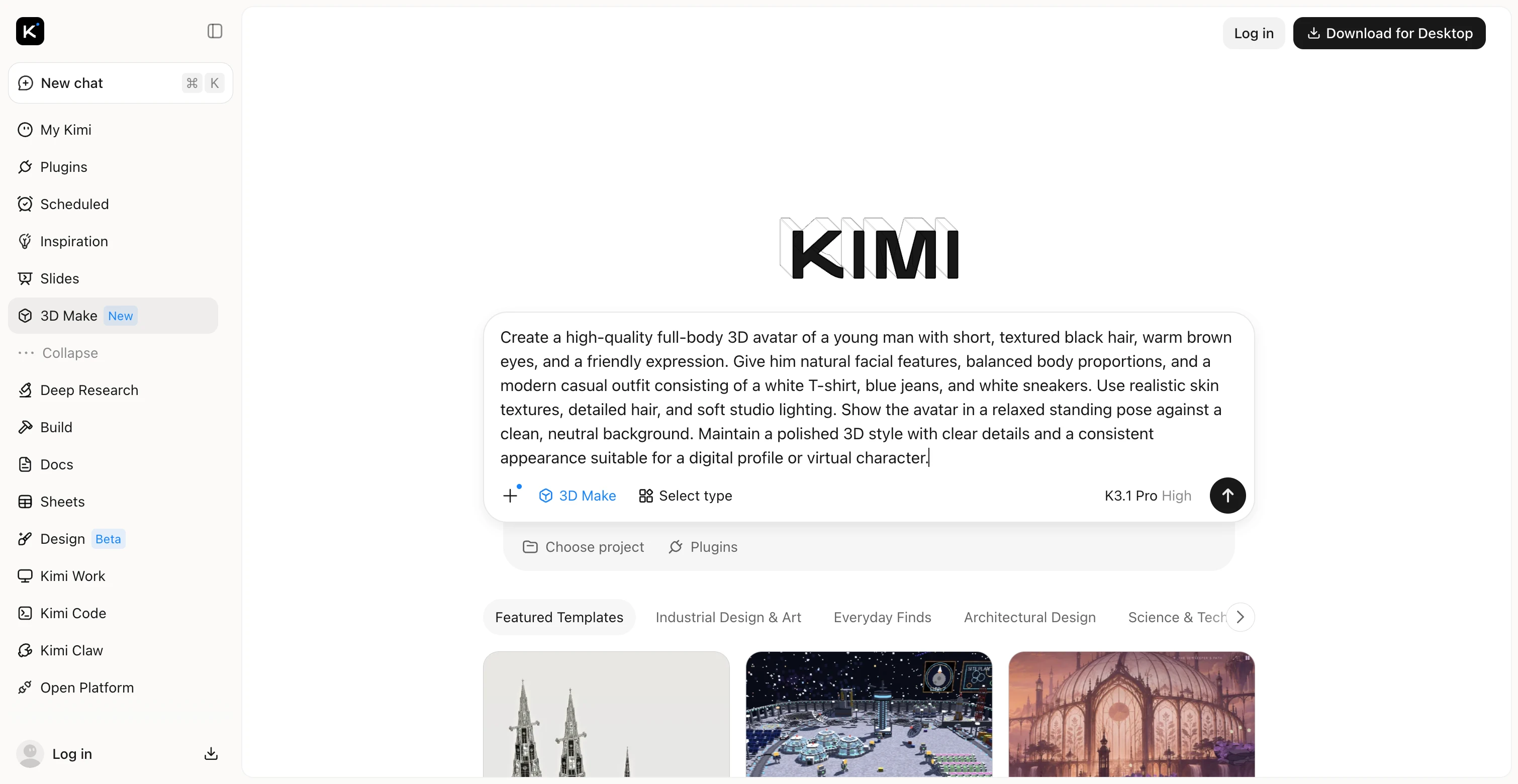
Step 1: Describe your desired 3D avatar
Start by describing the avatar you want to create, including its facial features, hairstyle, clothing, body proportions, and artistic style. If you want to create your own 3D avatar, provide enough detail to help the AI understand your vision.
Example prompt:
Step 2: Let Kimi 3D Make generate your 3D avatar
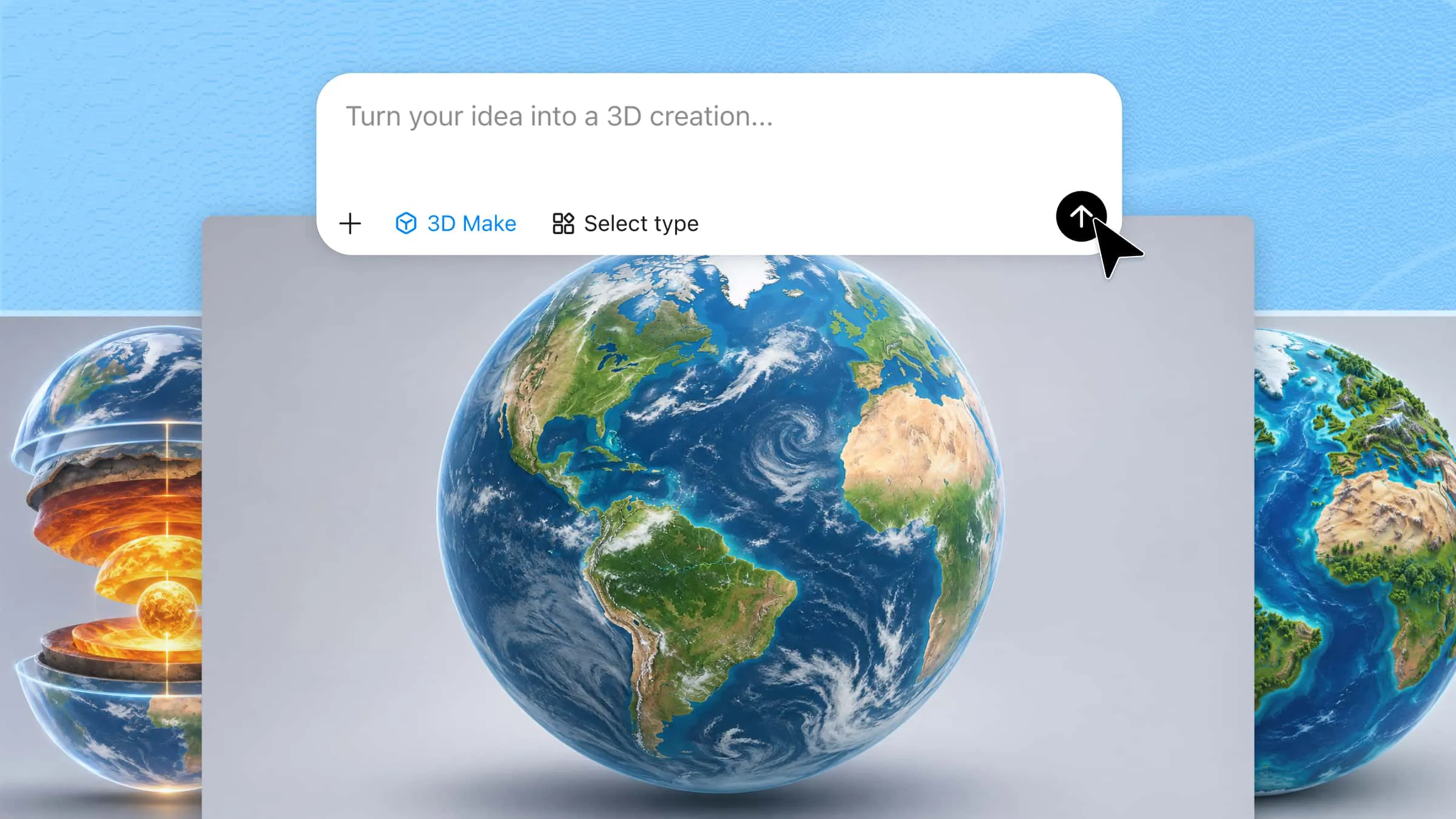
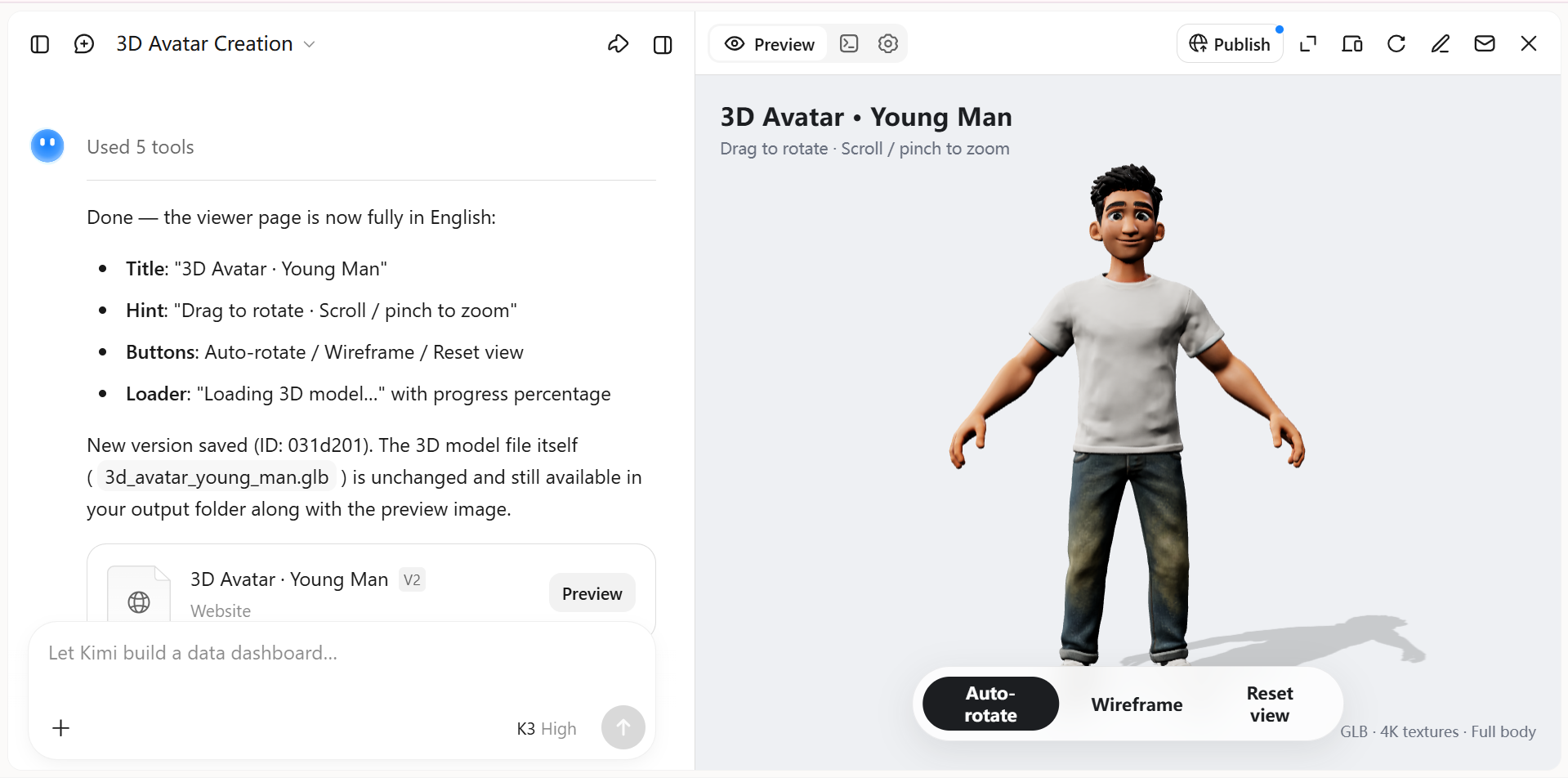
Enter your prompt into Kimi 3D Make and let the AI generate a design based on your description. Review the result to see whether the avatar's appearance, outfit, and overall style match your expectations.
Step 3: Customize the avatar's appearance with AI
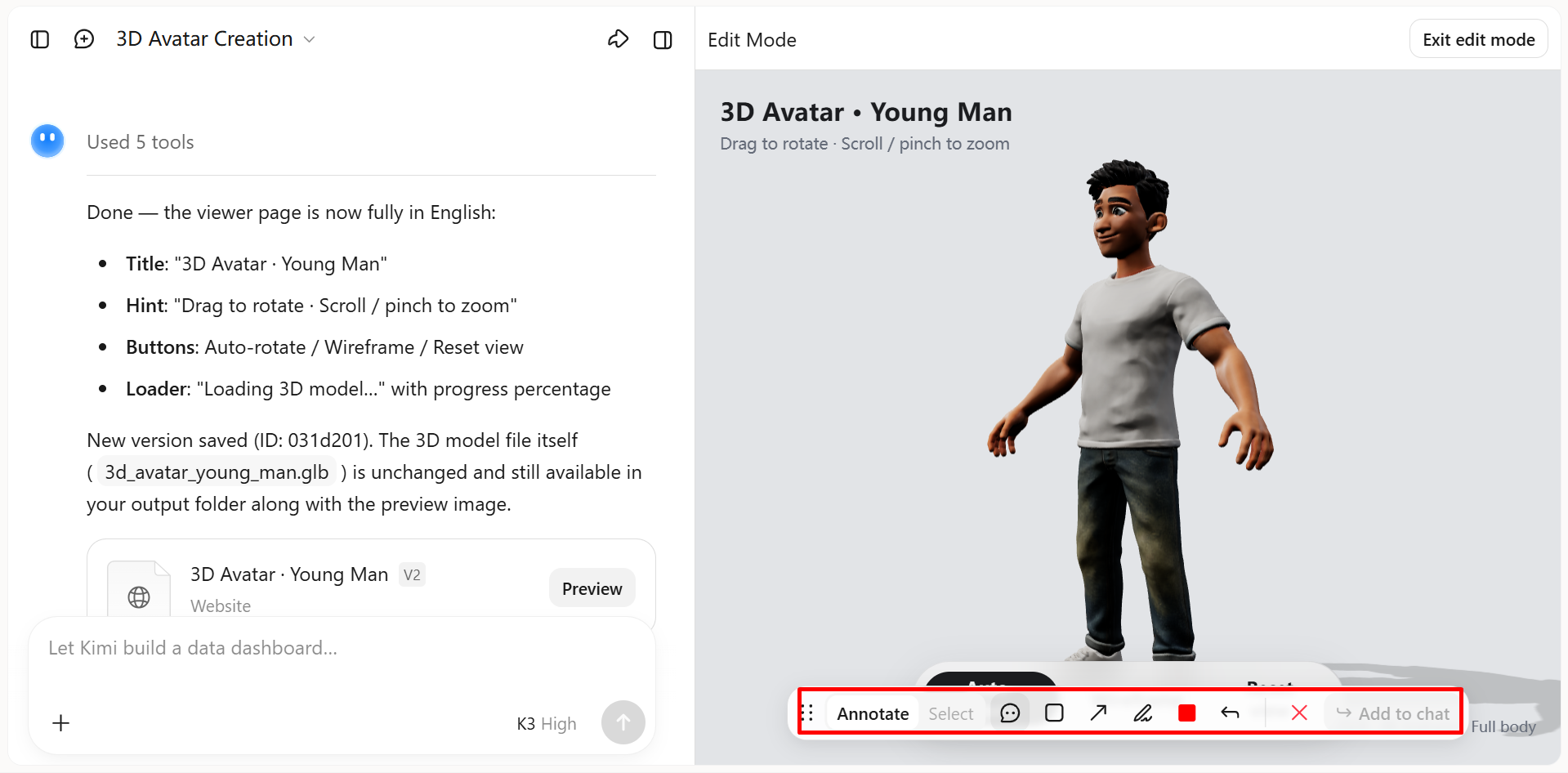
Make changes to specific features, such as hairstyle, clothing, facial expression, or colors. You can provide follow-up prompts, add comments, or edit the design manually where supported to make your avatar more personalized.
Step 4: Preview and export your finished 3D avatar
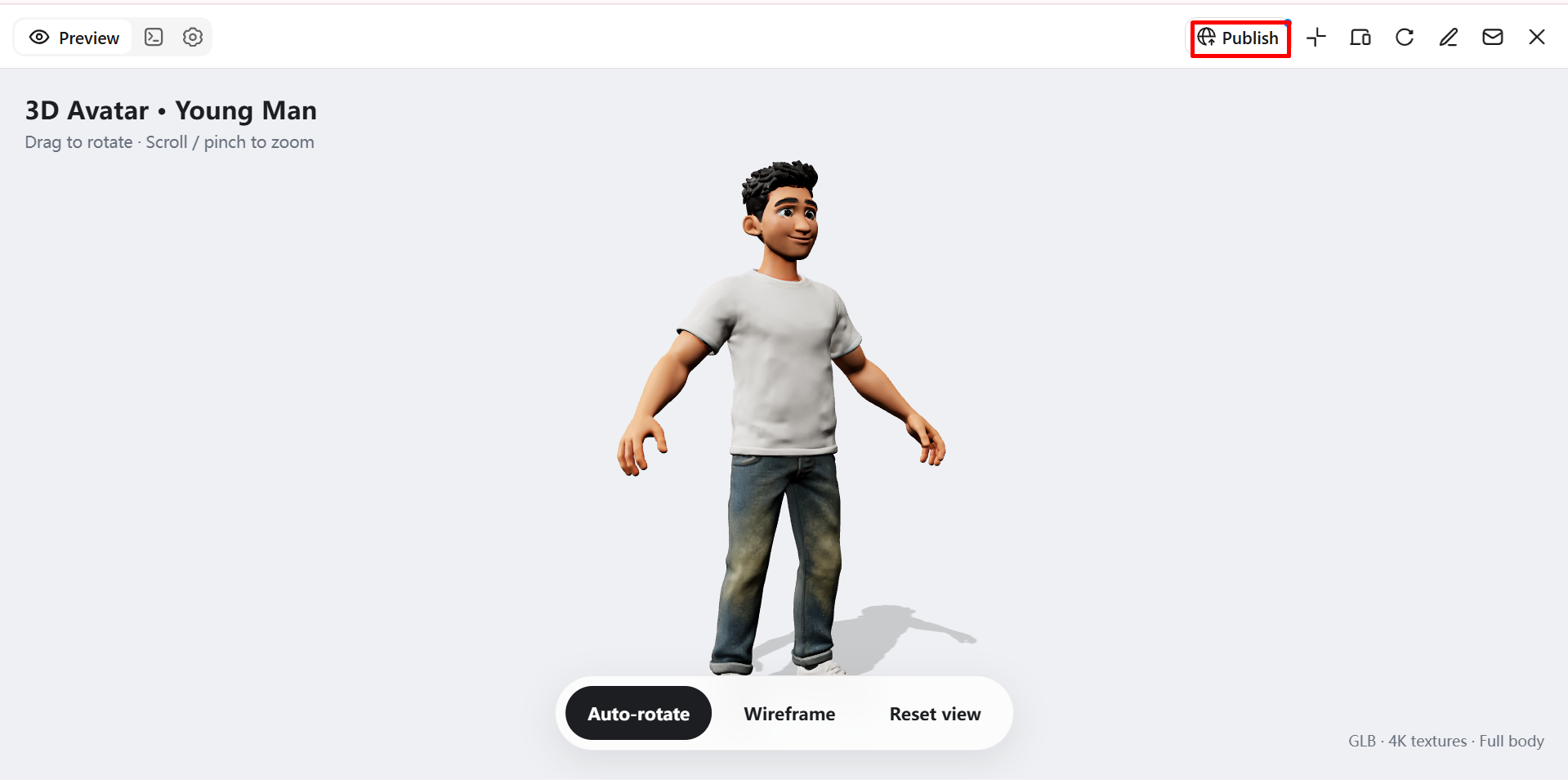
Preview your 3D avatar from different angles and refine any remaining details. When you're satisfied with the result, prompt Kimi 3D Make to generate a supported format such as GLB, glTF, or OBJ. You can also publish your avatar online for web-based viewing or export it for use in compatible 3D software, virtual environments, games, and other creative projects.
Why choose Kimi 3D Make to create 3D avatars
Designing a personalized avatar can be difficult without modeling skills or the right tools. Kimi 3D Make helps simplify the process by turning your ideas into digital characters with AI. Here's why it's worth considering when you want to make a 3D avatar.
Generate 3D avatars from text and image references
Describe your avatar's appearance, hairstyle, clothing, accessories, and personality, or upload a reference image. Kimi 3D Make helps turn your ideas into 3D avatar designs without requiring you to build every detail manually.
Personalize avatar features with flexible editing
Adjust facial features, body proportions, outfits, colors, and accessories using chat instructions, comments on specific elements, or manual edits. Refine individual details while keeping your preferred design direction.
Create visually polished avatars with distinctive styles
Kimi 3D Make generates detailed 3D avatars with cohesive visual styles, expressive features, and distinctive appearances. Create polished character concepts for virtual identities, personal branding, games, and digital storytelling.
Design avatars for different digital experiences
Develop avatar concepts for social profiles, virtual communities, gaming projects, digital storytelling, and presentations. Tailor the appearance to the intended audience and setting, whether you need a playful mascot or a polished virtual persona.
Expand avatar development with specialized 3D tools
Use Kimi Work plugins such as Blender and Tripo 3D for more advanced workflows. Tripo 3D can generate models from text and images, while Blender supports detailed mesh editing, rigging, and animation. Depending on the tool, exported formats such as GLB, glTF, OBJ, and FBX can support further editing and integration.
Tips for writing effective prompts to create 3D avatars
A well-written prompt helps AI understand your vision and generate a more accurate design. When you create a 3D avatar with AI, focus on specific visual details and use these tips to improve your results.
Describe the avatar's defining features first
Start with the most recognizable features, such as face shape, eye color, hairstyle, and skin tone. Clear descriptions help the AI generate an avatar that matches your idea or reference image.
Specify the visual style you want
Decide whether you prefer a realistic cartoon, anime, or stylized 3D appearance. Mentioning the intended style in your prompt helps maintain consistency across facial features, textures, and proportions.
Give clothing and accessories a clear purpose
Describe the outfit, footwear, and accessories that suit your avatar's personality or intended use. For example, casual clothing works well for a social profile, while futuristic outfits can suit a gaming character.
Use precise language for body proportions and pose
Specify whether you want a full-body avatar, a waist-up portrait, or a close-up view. Include details about posture, body proportions, and expression to help the AI create a more balanced design.
Choose colors and materials deliberately
Mention specific colors, fabric types, and surface finishes instead of relying on vague descriptions. Terms such as matte black, brushed metal, or soft cotton help communicate the intended appearance more clearly.
Refine one aspect at a time
If the first result isn't quite right, use follow-up prompts to adjust individual features instead of rewriting the entire description. This makes it easier to customize your 3D avatar while keeping the elements you already like.
Conclusion
Creating a 3D avatar no longer has to involve complex modeling tools or advanced design skills. With Kimi 3D Make, you can turn your ideas into personalized digital characters, adjust their appearance with AI prompts, and explore different styles with less effort. Start with a clear description and a few defining features to create a 3D avatar that suits your style, whether for a profile, a game, or a creative project.