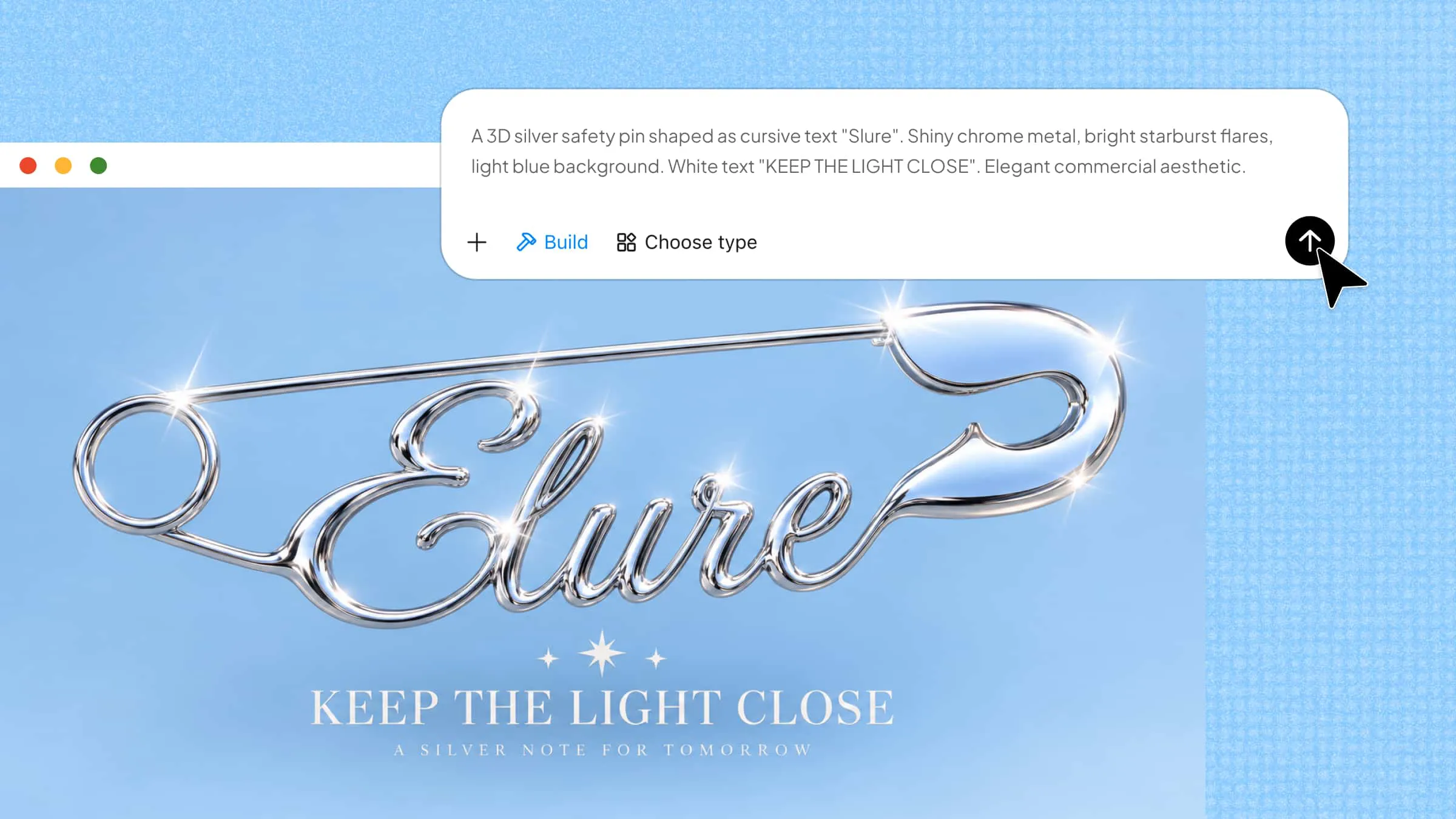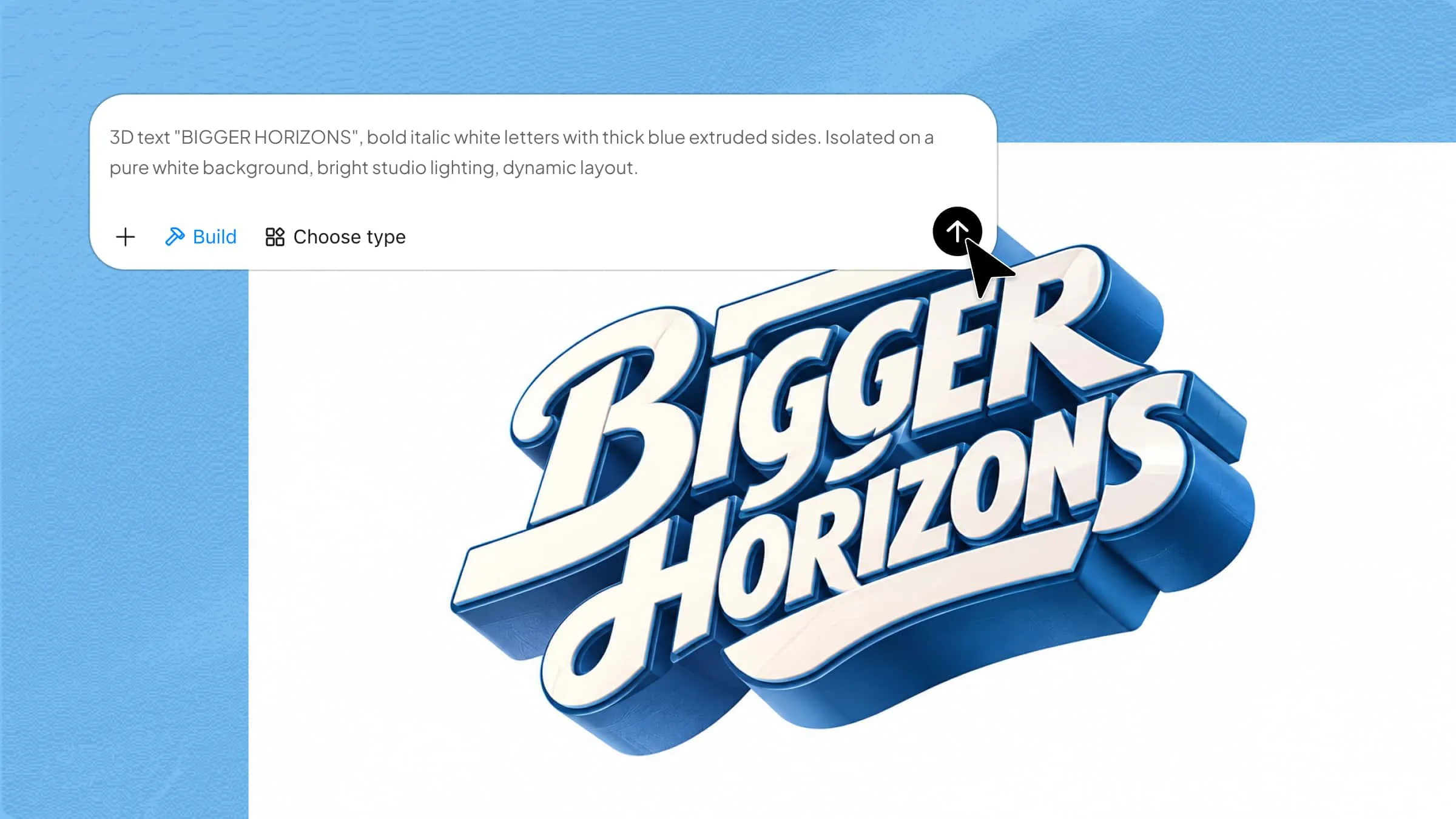
Have you ever wondered how to make ordinary words look like they are popping out of the screen? 3D text in Blender lets you add depth, bevels, and realistic lighting to make your text look more polished. You can use these effects for video titles, logos, posters, and many other creative projects. Follow this guide to learn how to create 3D text in Blender step by step.
How to make 3D text in Blender step by step
Creating 3D text in Blender is easier than it may seem, even if you are new to the software. You can start with a simple text object, adjust its depth, and give the letters smooth edges for a more polished look. Once the text is ready, you can add materials and lighting to make it stand out. Follow these steps to create your own 3D text from scratch.
Step 1: Add text to your Blender scene
Open Blender and start a new project. Select the default cube and delete it if you want a clean workspace.
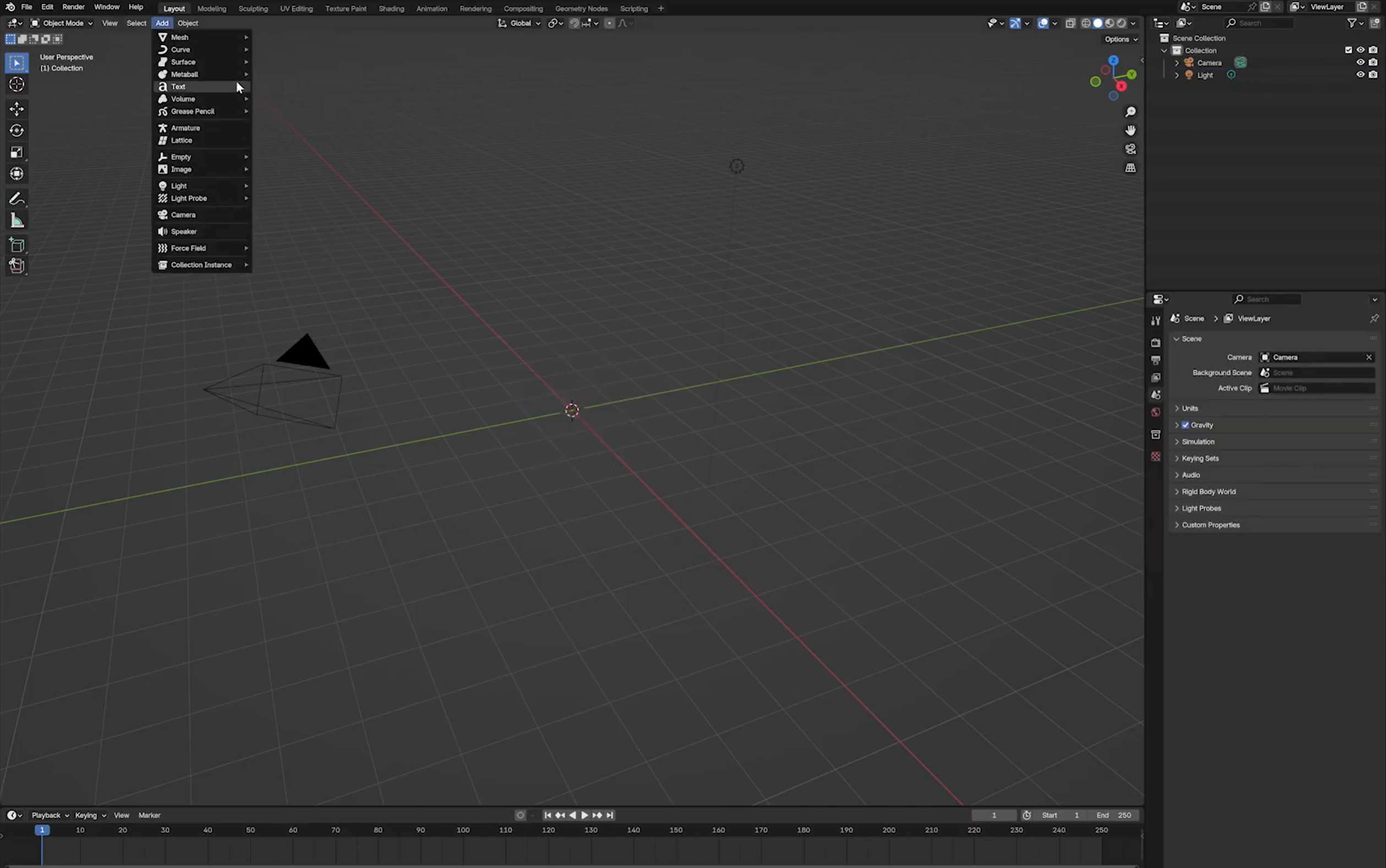
Press Shift + A to open the Add menu, then select "Text" under "Add".
Press Tab to enter "Edit Mode". Delete the default text and type the word or phrase you want to turn into 3D text. Press Tab again to return to Object Mode.
Step 2: Customize the font and character spacing
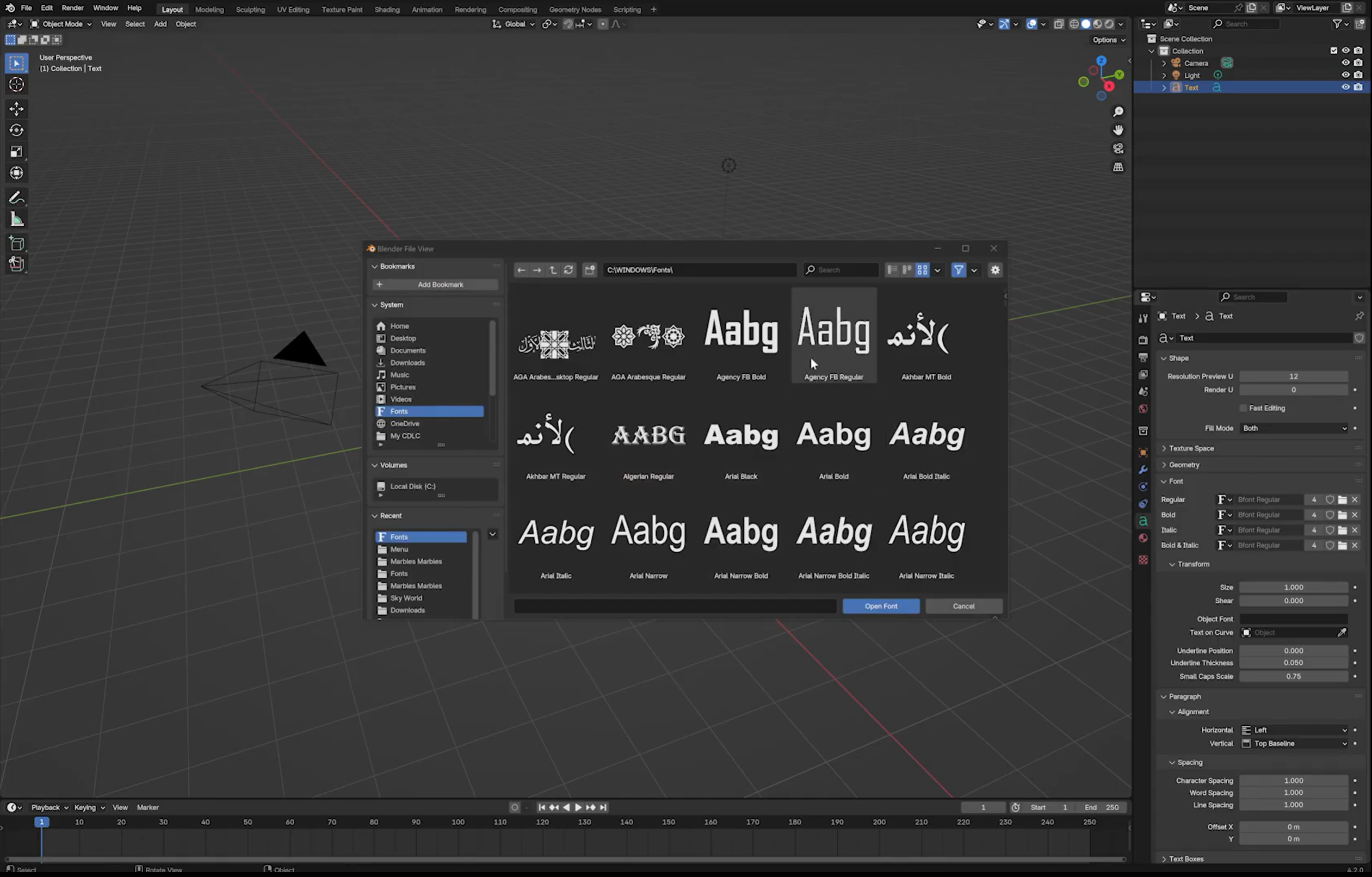
Select the text object and open "Object Data Properties", identified by the green text icon in the "Properties" panel.
Find the "Font" section and choose a font that suits your design. You can select an available font or load a font file from your computer.
Adjust "Character Spacing" to control the distance between letters. Increase it slightly if the text looks crowded, or reduce it to create a more compact appearance.
Step 3: Add depth and refine the text edges
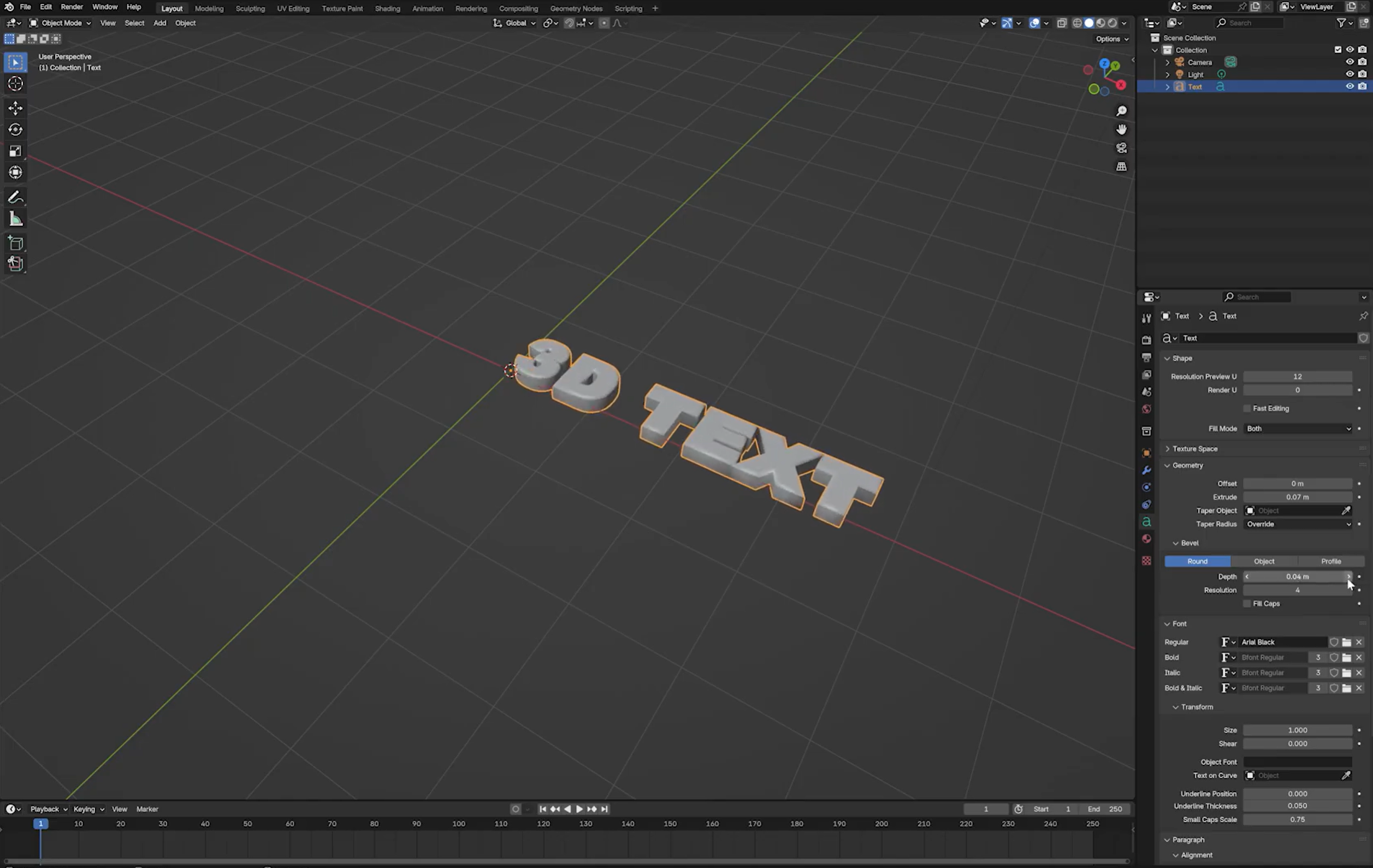
In "Object Data Properties", expand the "Geometry" section to access the text's extrusion and bevel settings.
Increase "Extrude" to give the letters depth and turn flat text into a 3D object. Adjust the value until the thickness looks balanced with the font size.
Optionally, increase "Bevel Depth" to soften the edges and adjust "Bevel Resolution" to control their smoothness. Keep the bevel subtle if you want to preserve sharp letter shapes.
Step 4: Convert the text into a mesh
When you're satisfied with the text's font, spacing, and depth, select the text object in Object Mode.
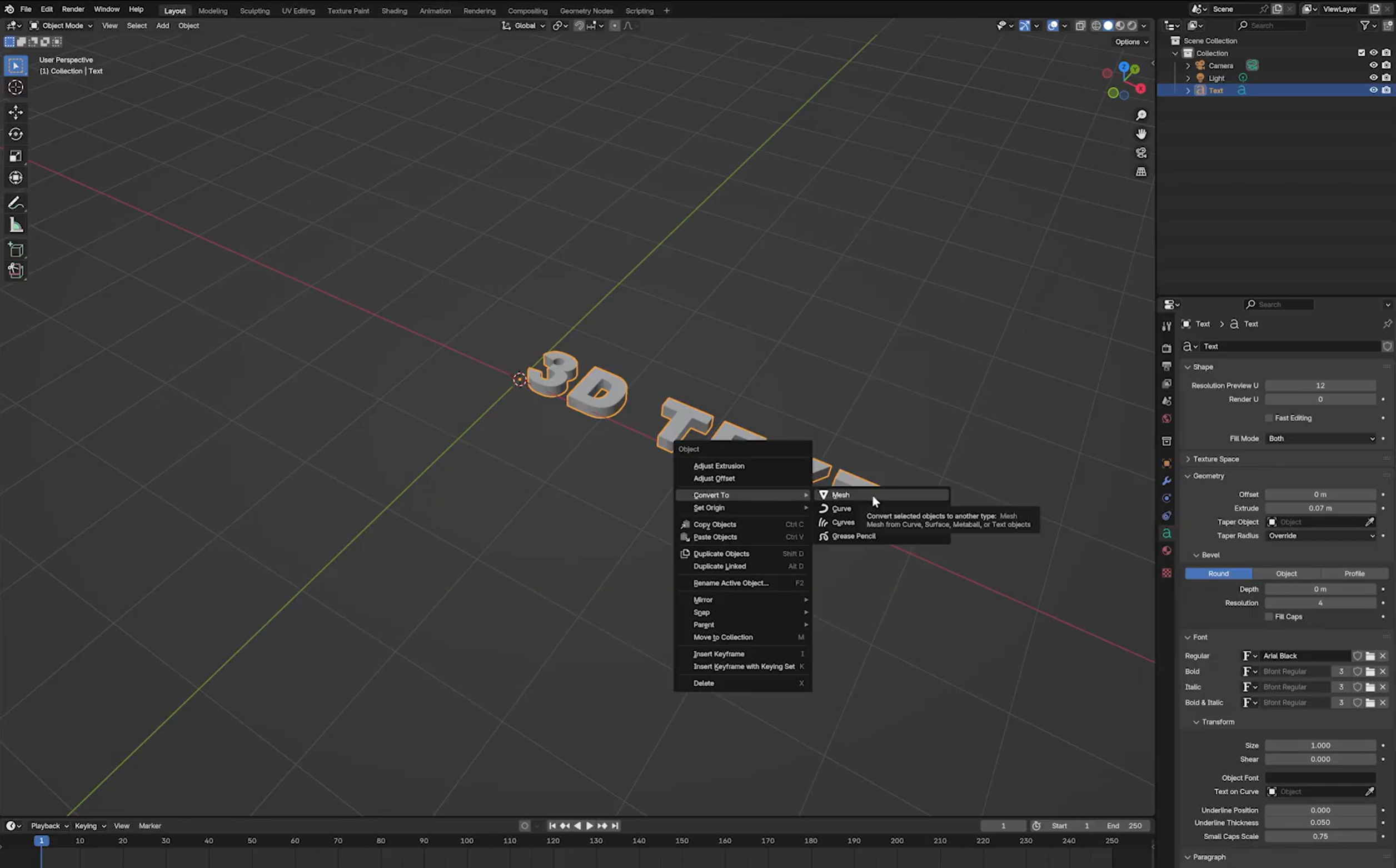
Right-click the object and choose "Convert to Mesh" from the conversion options. Depending on your Blender version, you may also find this option under "Object" > "Convert".
Converting text to a mesh changes it from an editable text object into mesh geometry, allowing you to work with its vertices, edges, and faces. Make sure you've finalized the wording first, as editing the text itself will no longer be as straightforward.
Step 5: Improve mesh topology if needed
After conversion, inspect the letters in Edit Mode to check whether the mesh topology is suitable for your intended use.
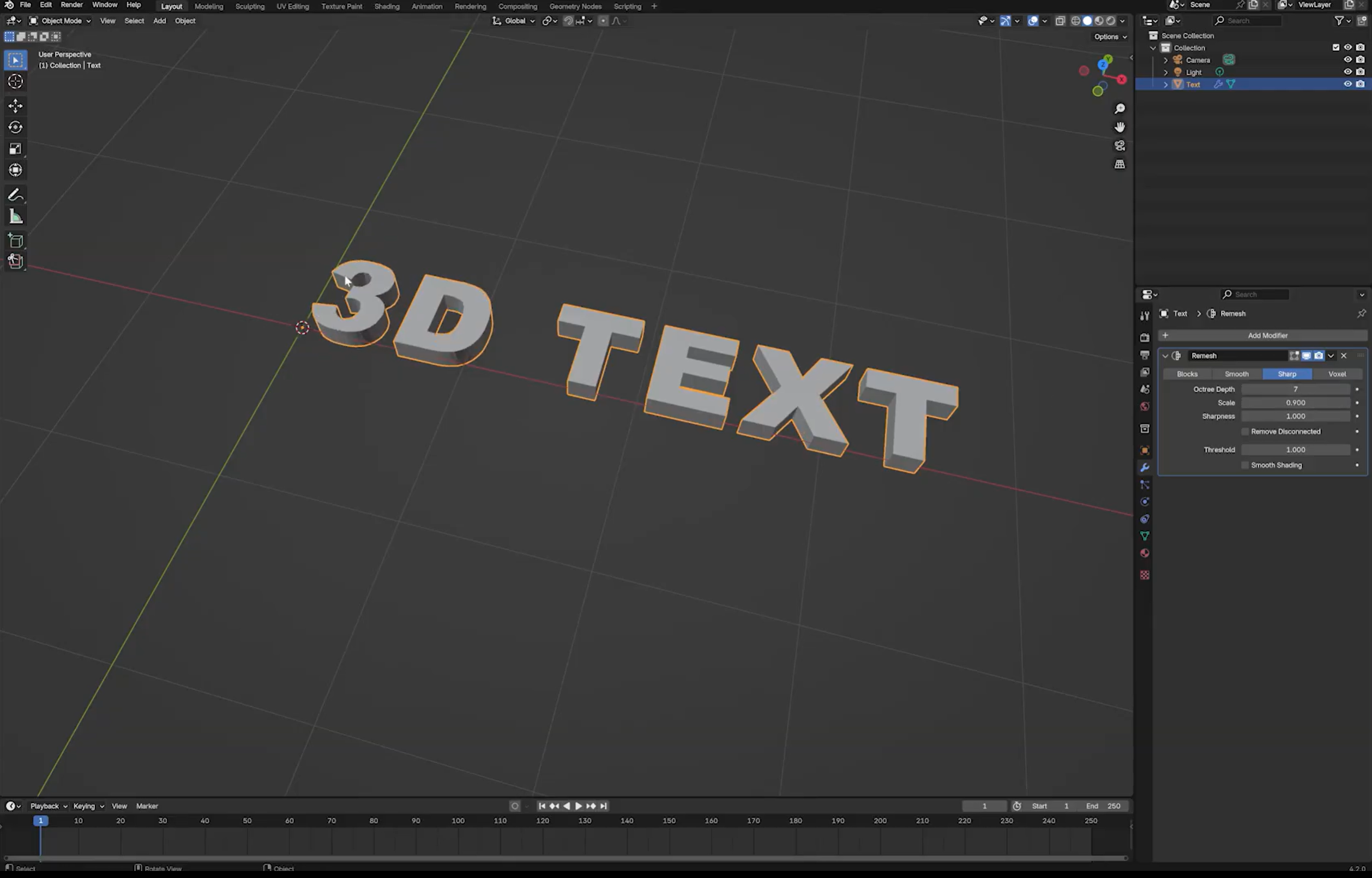
If the geometry contains irregular or uneven topology, you can try adding a "Remesh Modifier" from the "Modifier Properties" panel.
In "Sharp" mode, adjust "Octree Depth" to control the remesh resolution. In "Voxel" mode, adjust "Voxel Size" instead. The appropriate settings depend on the model's scale, shape, and required level of detail.
Preview the result before applying the modifier. Remeshing can change fine details and letter contours, so compare the output with the original text. This technique is most useful when the text has relatively sharp edges; Beveling may make the results less predictable.
Dos and don'ts for creating 3D text in Blender
Small adjustments can make a big difference in how your 3D text looks in Blender. Keep these dos and don'ts in mind to create clean, readable text without making your design look too heavy or crowded:
Dos
Use clear and bold fonts
Choose fonts that are easy to read, even when viewed from a distance. Bold letters also make the depth and shape of your 3D text more noticeable.
Add bevels for smooth edges
Use a small bevel to soften sharp corners and give your letters a polished look. Adjust the bevel depth carefully so the text keeps its original shape.
Set proper lighting
Place your lights where they highlight the front and sides of the text. Balanced lighting adds depth and shadows without making some parts too dark or too bright.
Check text spacing
Make sure the letters have enough space between them to remain clear and readable. Adjust the character spacing if the words look too crowded or spread out.
Apply materials before rendering
Choose suitable colors and materials to give your text the finish you want. Preview them in the scene to check how they look under your lighting before rendering.
Don'ts
Avoid thin or fancy fonts
Very thin letters and decorative fonts can become difficult to read when viewed from different angles. Choose a style that keeps each letter clear after adding depth and bevels.
Skip too much extrusion
Excessive extrusion can make letters look bulky and hide their front shape. Increase the depth gradually until the text looks three-dimensional without becoming too thick.
Do not ignore camera angle
A poor camera angle can hide parts of the text or make the letters look distorted. Position the camera to show both the front and depth clearly while keeping the entire design in frame.
Avoid heavy polygon counts
Too much geometric detail can slow down your scene, especially when working with complex fonts or many text objects. Keep bevel resolution and other geometry settings at a reasonable level for smoother performance.
Never forget to save often
Save your Blender project regularly, especially after making major changes to fonts, materials, or lighting. Use Ctrl + S to save your progress and avoid losing your work if something goes wrong.
Bonus tip: A beginner-friendly way to create 3D text with Kimi Build
Creating 3D text in Blender gives you plenty of control, but adjusting fonts, depth, materials, and lighting can take time when you're just starting out. If you want to explore different text styles without building everything from scratch, an AI tool can help you get ideas faster.
Kimi Build offers a simple way to explore creative designs using text prompts and images. You can use it to develop visual ideas for bold lettering, experiment with different styles, and find inspiration for your next 3D text project before refining the final look in Blender.
How to make 3D text using Kimi Build
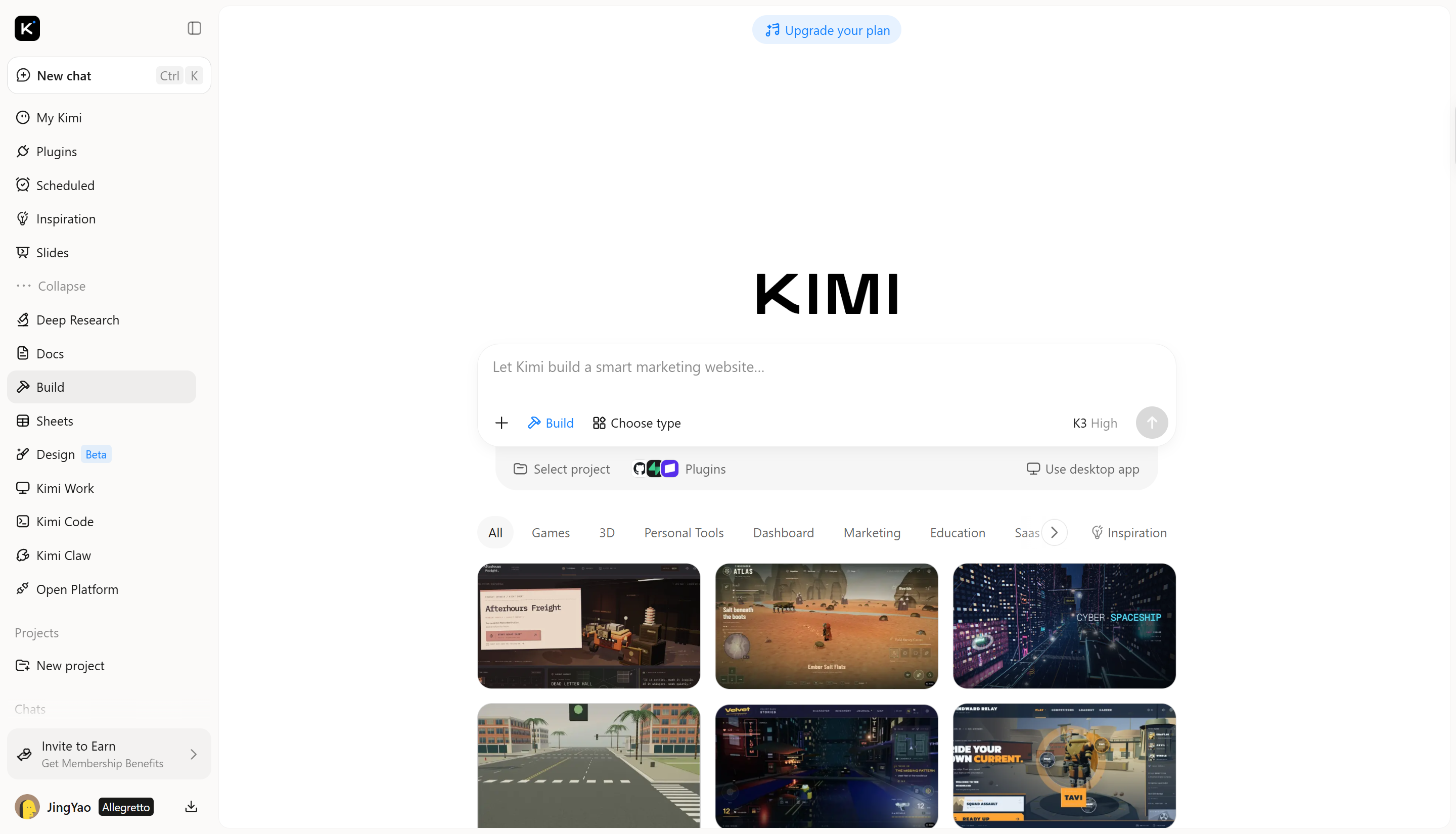
Kimi Build helps you explore bold text styles and creative ideas without starting from scratch. Follow the steps below to get started and create visuals for your 3D text project.
Step 1: Describe your 3D text design
Start by opening Kimi Build and describing the text design you want to create. Be specific about the words, font style, colors, depth, and lighting so the result matches your idea more closely.
Example prompt:
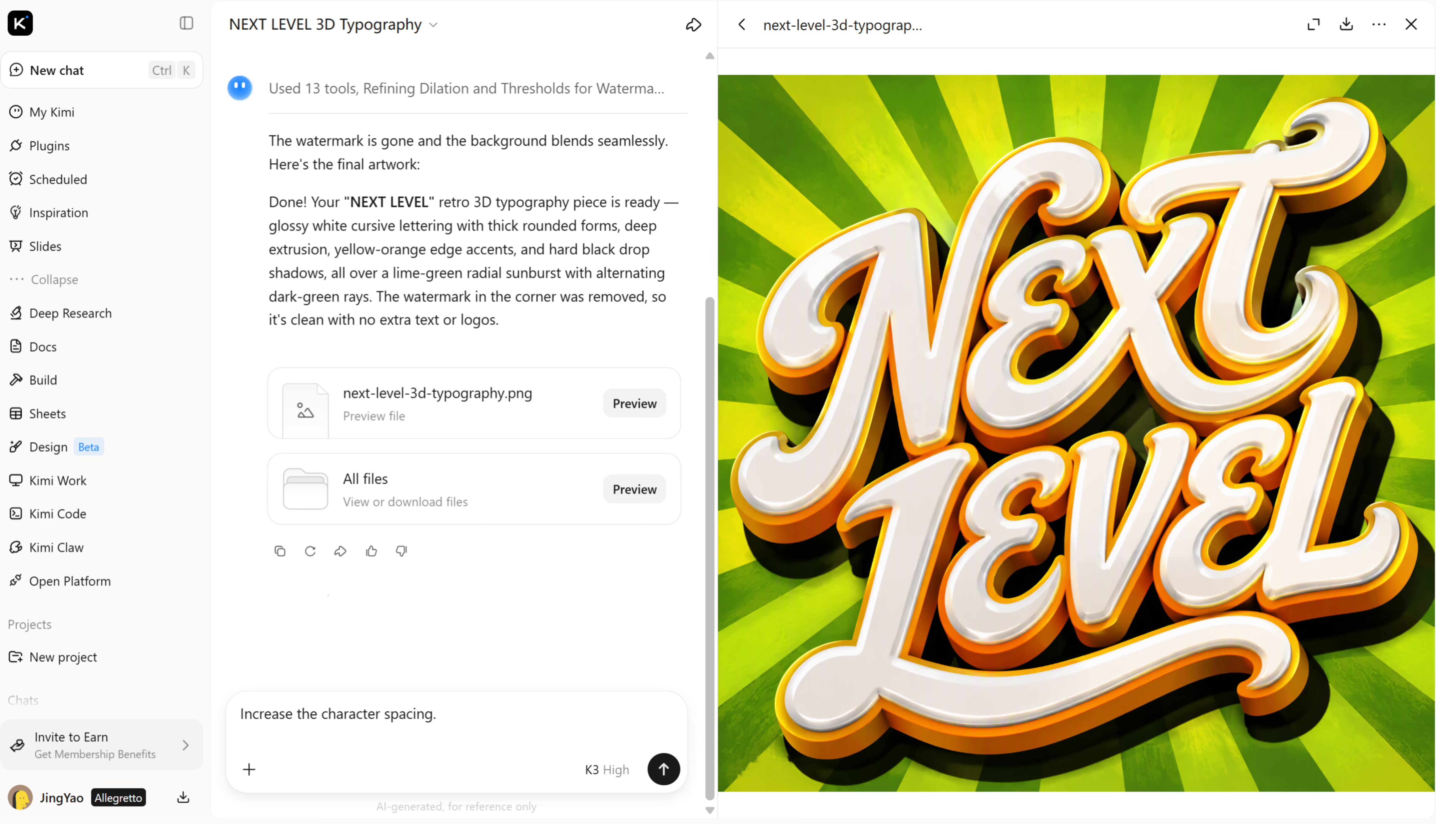
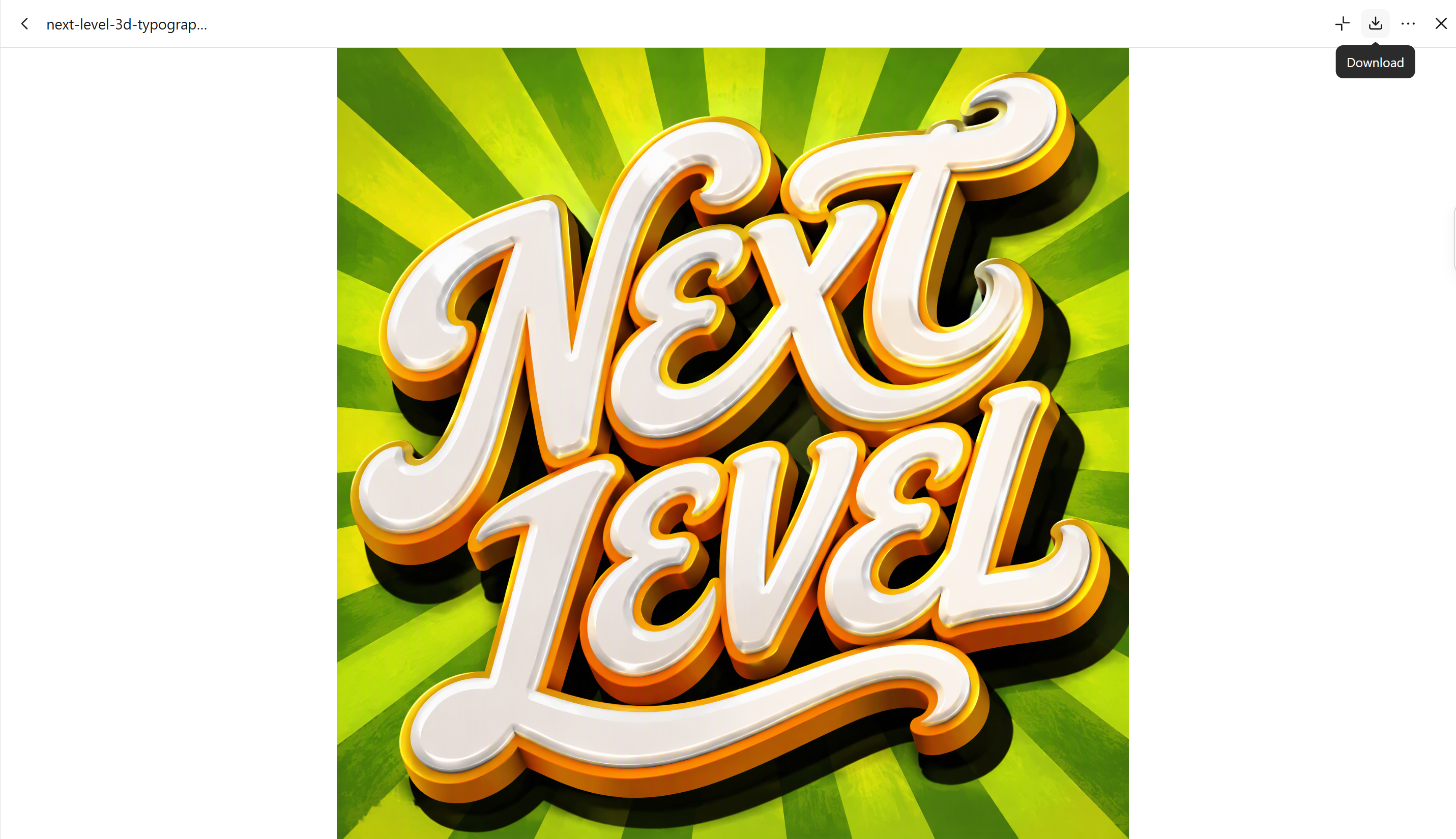
Create bold 3D text reading "NEXT LEVEL" in a flowing, connected cursive script, matching the uploaded reference image. Use glossy white lettering with thick rounded edges, deep extrusion, yellow-orange accent outlines, and dramatic black drop shadows. Place the text over a vibrant lime-green radial sunburst background with alternating dark-green rays. Use dynamic tilted lettering, strong directional lighting, glossy highlights, and a retro 3D typography aesthetic. Keep the text large, legible, and visually dominant. No extra text, logos, or watermarks.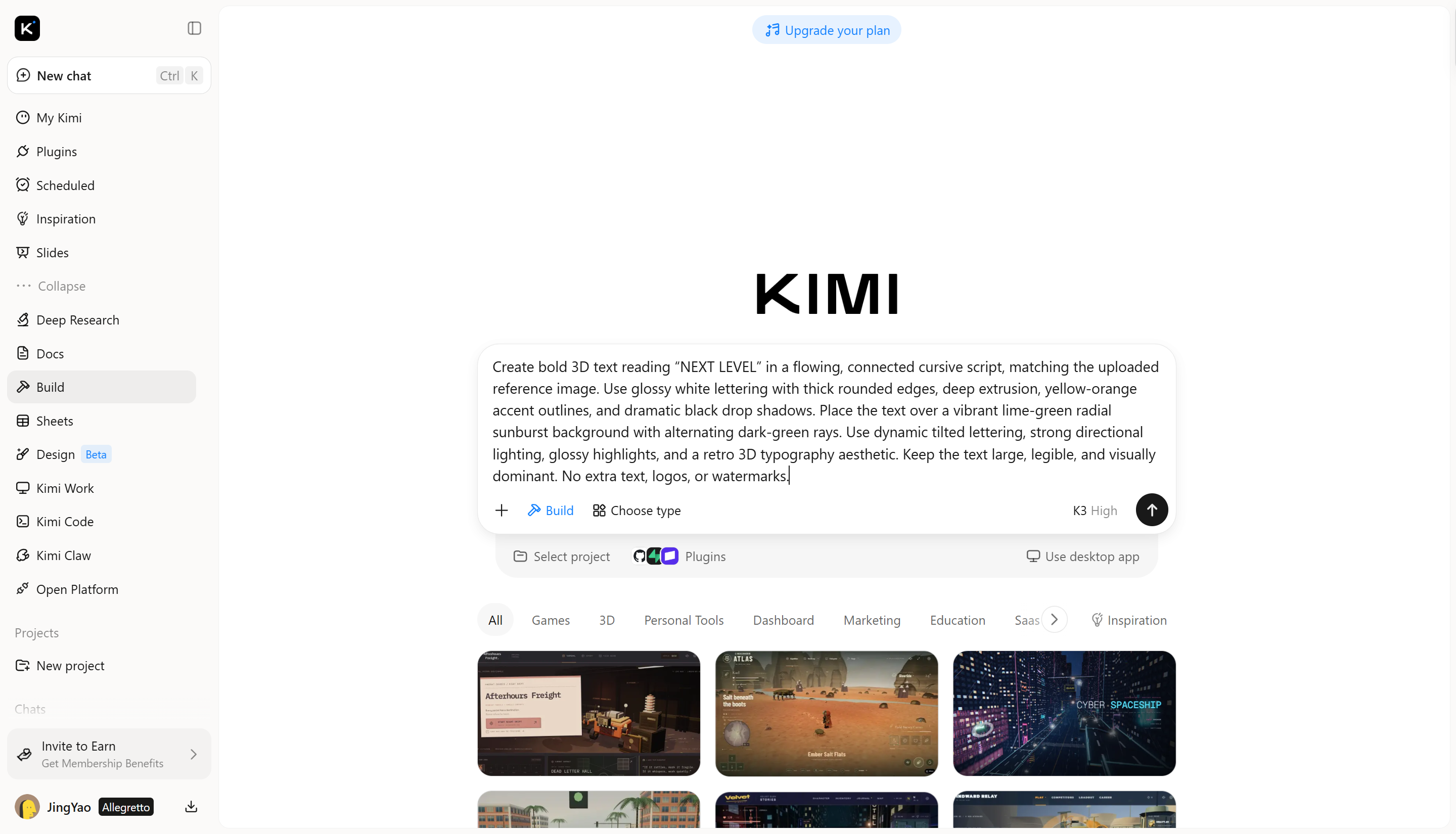
Step 2: Edit and refine the 3D text
Once Kimi Build generates the initial design, review the lettering, colors, and overall appearance. Use a follow-up prompt to adjust specific details instead of starting over.
Step 3: Review and export your design
Before exporting, check whether the text is spelled correctly, the letters are sharp, and the lighting looks balanced. Make sure the final design matches your original idea and works for your intended project.
Key features of Kimi Build
Turn ideas into dimensional 3D typography
Describe your desired lettering, from chrome-finished characters and bold geometric forms to soft, inflated text. Kimi Build generates 3D text designs from your prompt, helping you bring creative concepts to life with distinctive shapes and visual depth.
Customize lettering with precise design adjustments
Adjust your 3D text through conversational prompts, element-specific comments, or manual editing. Refine letter shapes, colors, surface textures, extrusion depth, lighting, and shadows to bring your typography closer to your intended visual style.
Create 3D lettering for different design projects
Use Kimi Build to create dimensional text for logos, promotional posters, product graphics, social media visuals, and video titles. Adapt your lettering to different creative contexts while maintaining a consistent visual direction across your designs.
Explore variations and export finished designs
Experiment with different typography treatments and revisit previous versions whenever you want to make changes. Export your finished visuals in supported formats, including PNG and JPG, for use in presentations, digital content, and other creative projects.
Expand 3D workflows with specialized tools
For more advanced modeling, rendering, and animation, Kimi Work provides access to tools such as Blender and Tripo 3D through plugins. Use Blender for detailed scene creation and rendering, or Tripo 3D to generate 3D models from text prompts and images. Supported formats vary by tool and may include FBX, STL, USDZ, BLEND, GLB, glTF, and OBJ.
Conclusion
Learning how to make 3D text in Blender gives you greater control over lettering, materials, lighting, and depth. With practice, you can create custom typography for logos, posters, and other design projects. If you prefer a faster, prompt-based approach, Kimi Build offers an alternative by generating 3D text designs from simple descriptions, letting you explore different styles and refine your ideas.