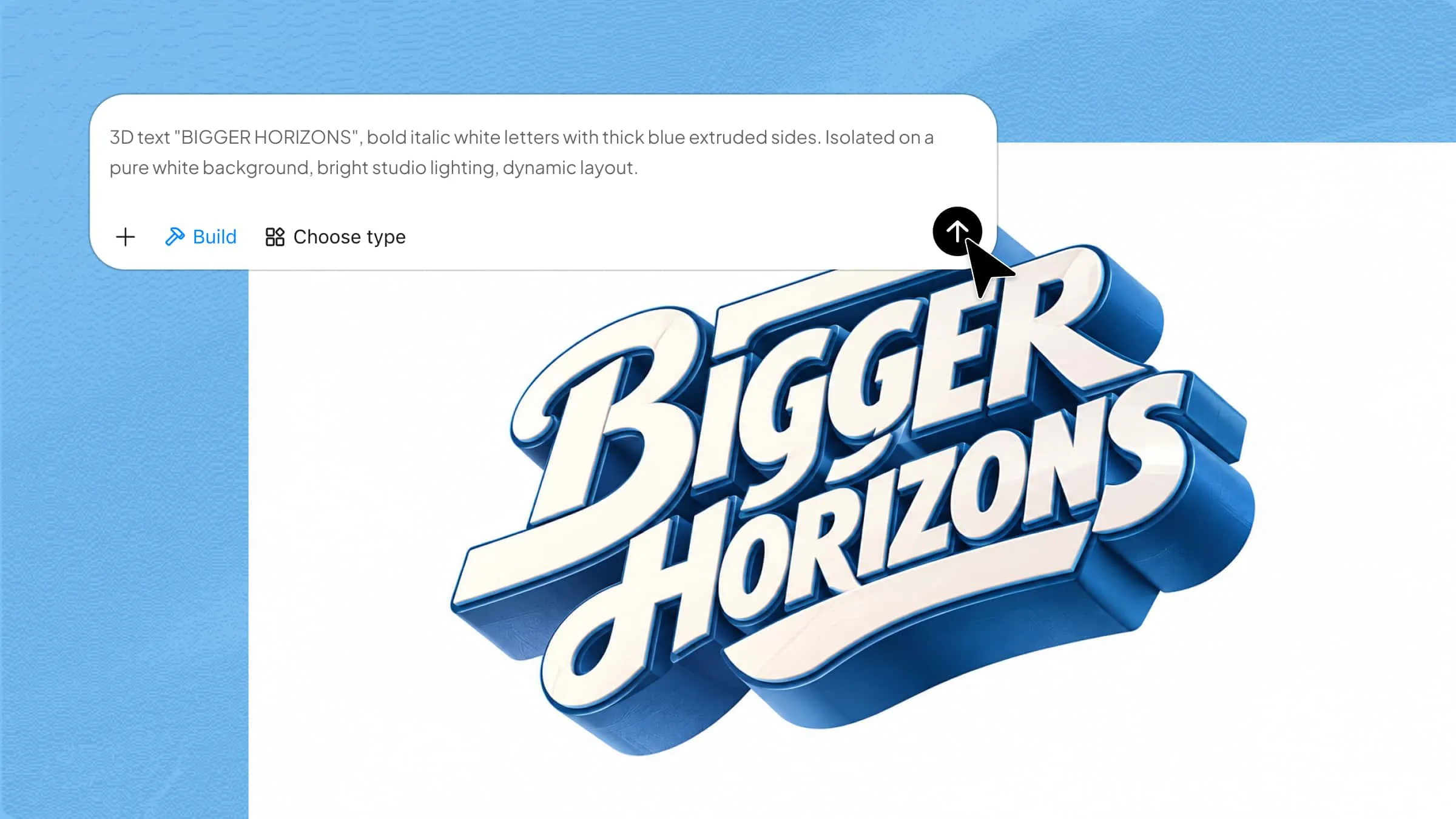
Have a picture you want to turn into a 3D scene or use as a reference for your next project? Blender lets you import images into your workspace to guide your modeling, add colors, and improve your designs. You can use images as visual references or apply them as textures to make your models look more realistic. In this article, you will learn how to import an image into Blender and use it effectively in your projects.
How to import an image into Blender
Blender offers a few simple ways to bring an image into your project, depending on whether you want to use it as a reference or apply it to a 3D object. Let's go through the steps for each method so you can choose the one that works best for your project.
Import a reference image into Blender
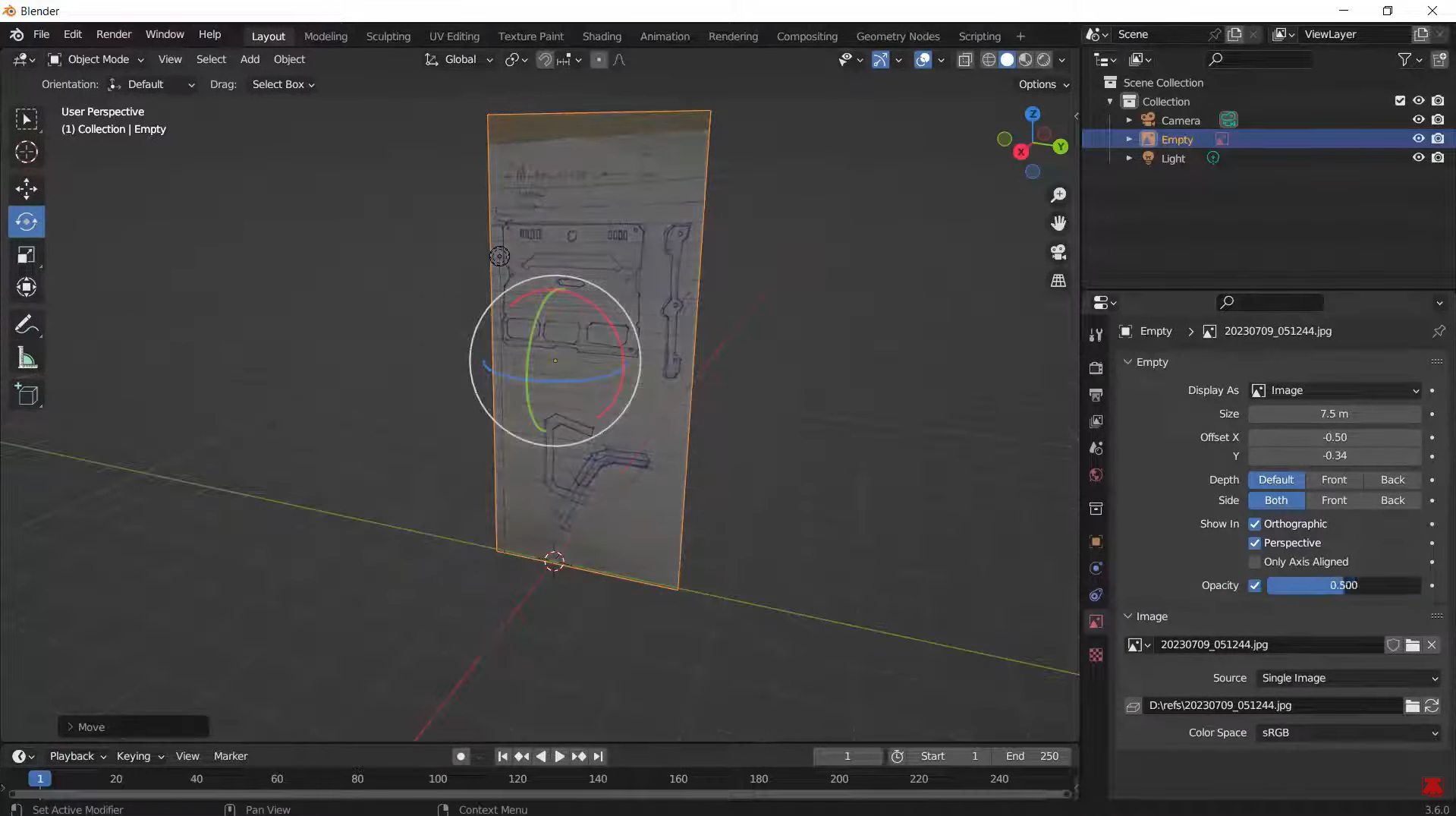
A reference image helps you follow the shape and proportions of an object while building its 3D model in Blender. You can add a picture to your scene, adjust its position and angle, and make it transparent so you can see your model more clearly as you work. Here's how to import a photo in Blender.
Step 1: Add your reference image
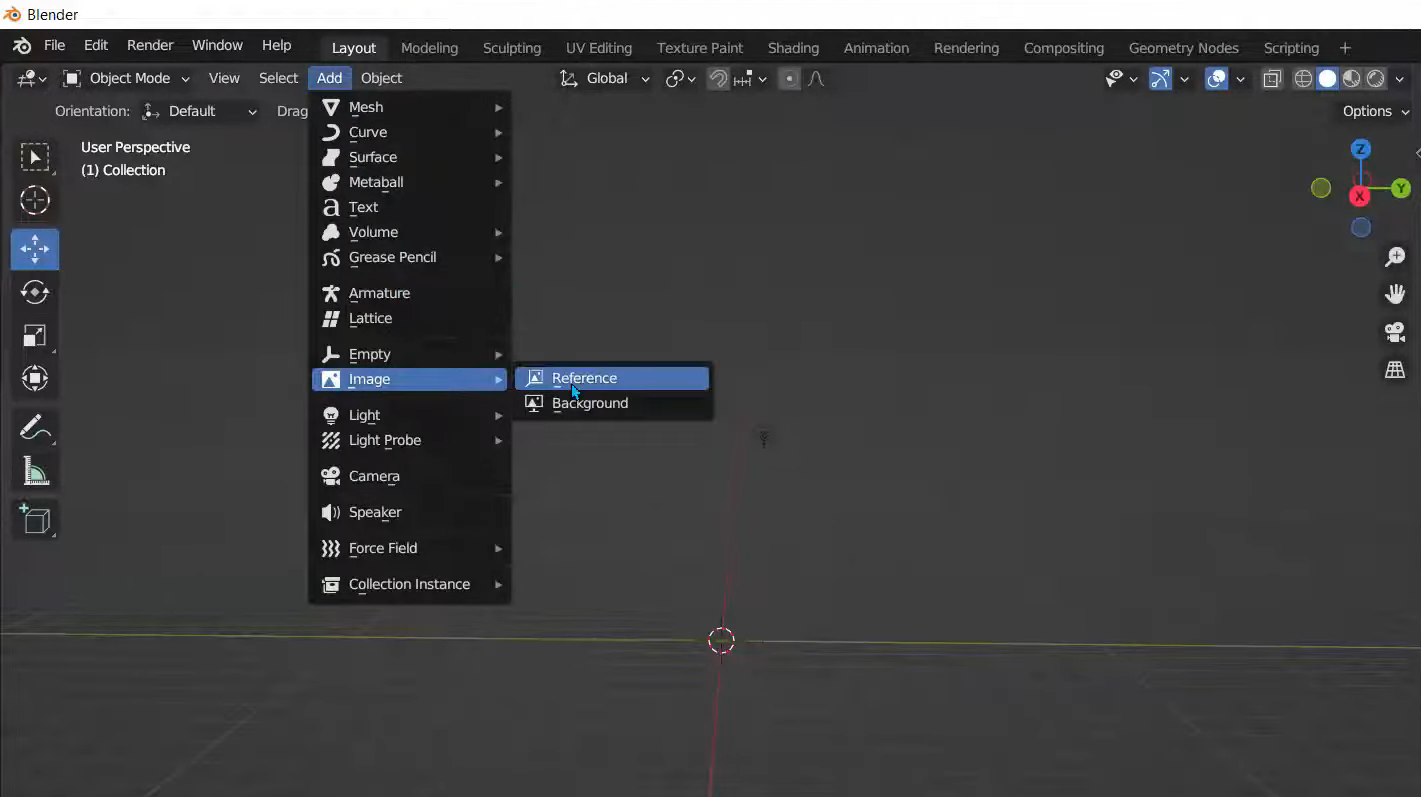
Open Blender and go to "Add" > "Image" > "Reference". Find the image you want to use on your computer, select it, and load it into your scene. The image will appear in the 3D Viewport, ready for you to position it.
Step 2: Adjust the image position and rotation
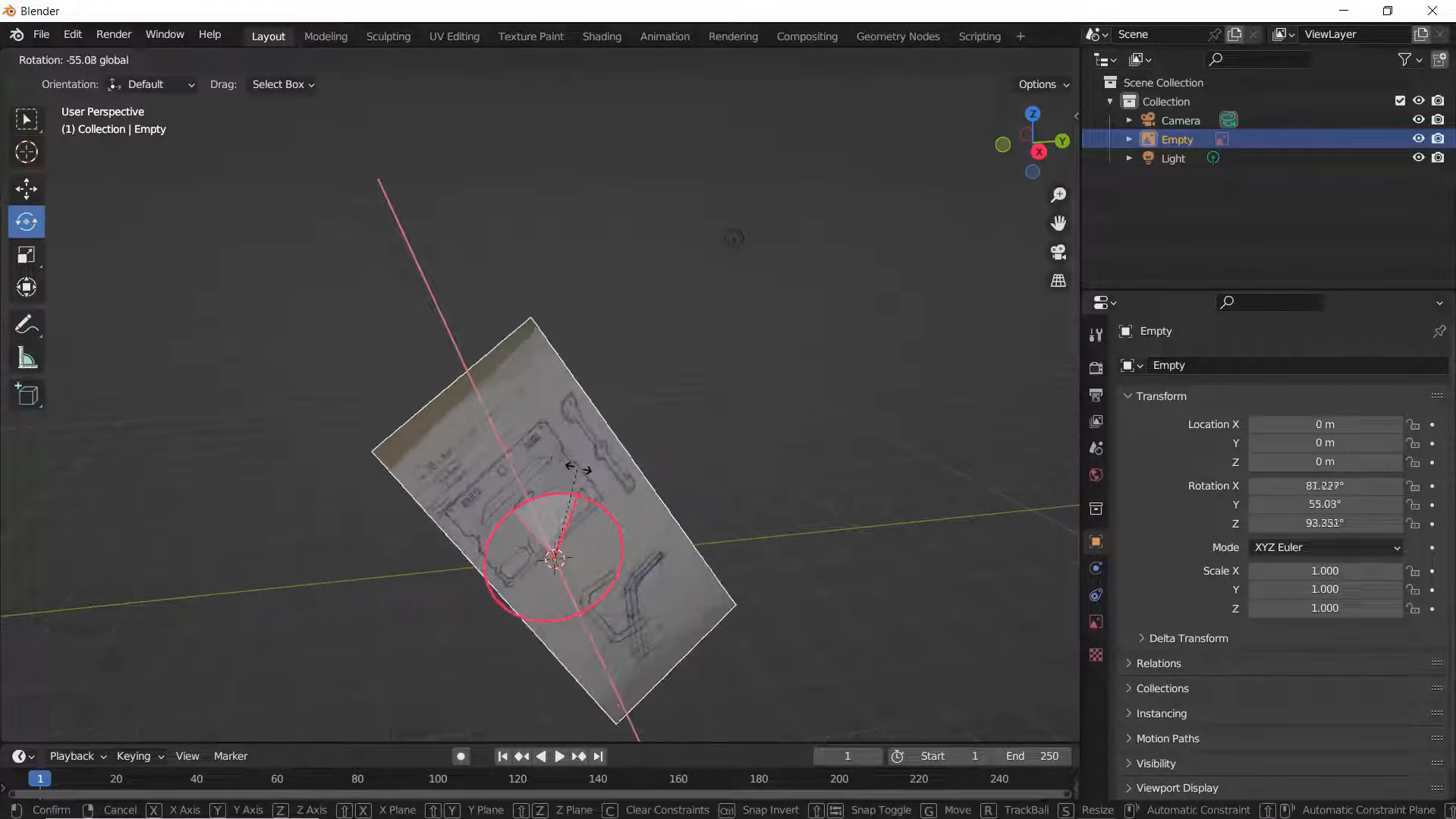
Select the image and use the rotation and scale controls to adjust its angle and size. You can also press G followed by Z to move it along the Z-axis, helping you place it where you need it for modeling.
Step 3: Adjust the image opacity
With the reference image selected, open its Object Data Properties and find the opacity setting. Lower the opacity to make the image more transparent, allowing you to see your 3D model through it while you work.
Import an image texture into Blender
You can also import an image into Blender as a texture to give a 3D object a more realistic look. For example, you can add a wood image to a plane to create a wooden floor or use a picture to add color and detail to another surface. Blender offers two ways to do this: through Material Properties or the Shader Editor. Follow these steps to import an image as a texture in Blender.
Step 1: Add a plane and switch to Material Preview
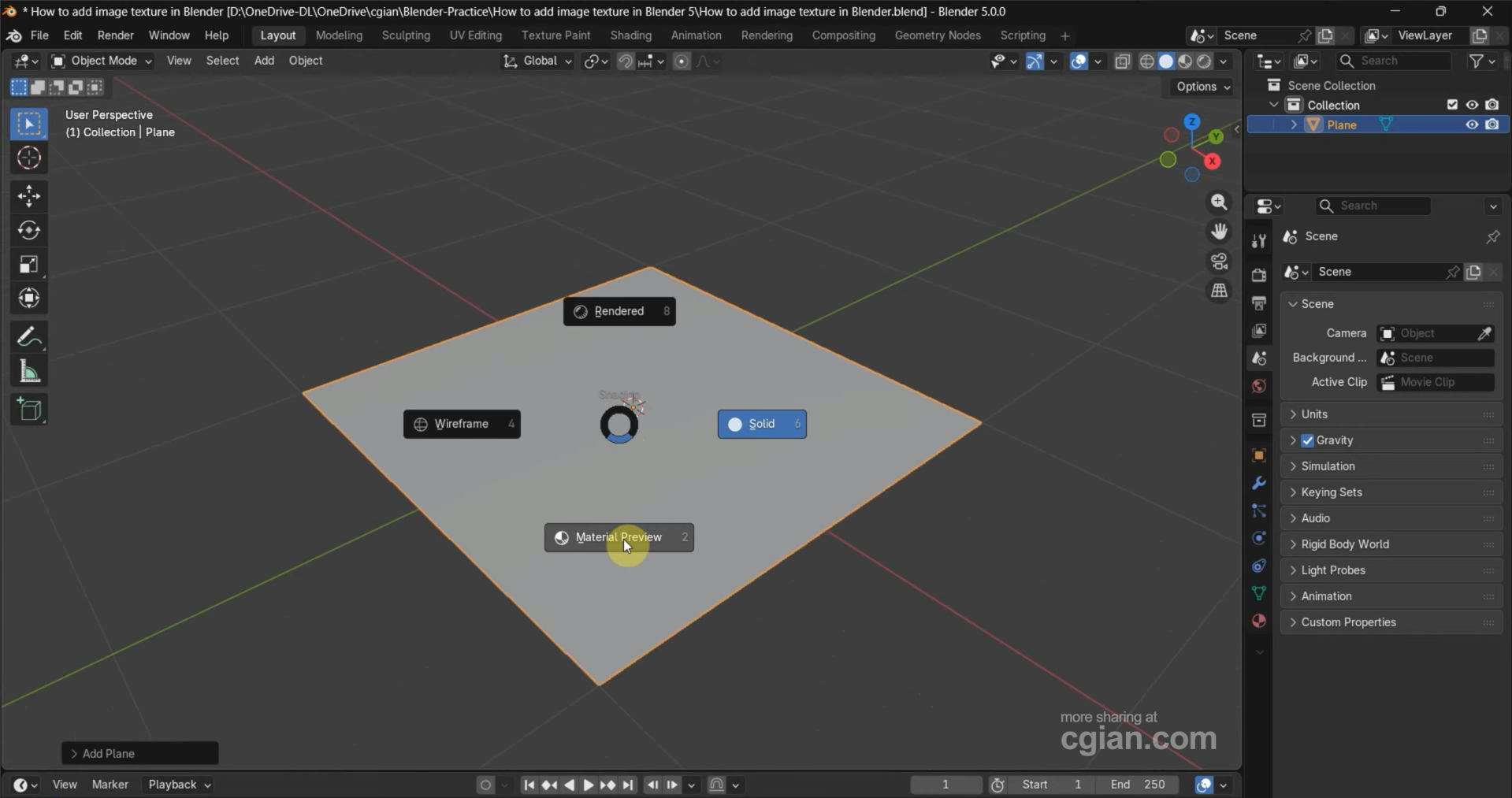
Open Blender and add a plane by pressing Shift + A and selecting "Mesh" > "Plane". Then switch to "Material Preview" using the viewport shading options in the top-right corner. This lets you see how the image texture looks on the plane as you apply it.
Step 2: Add an image texture through Material Properties
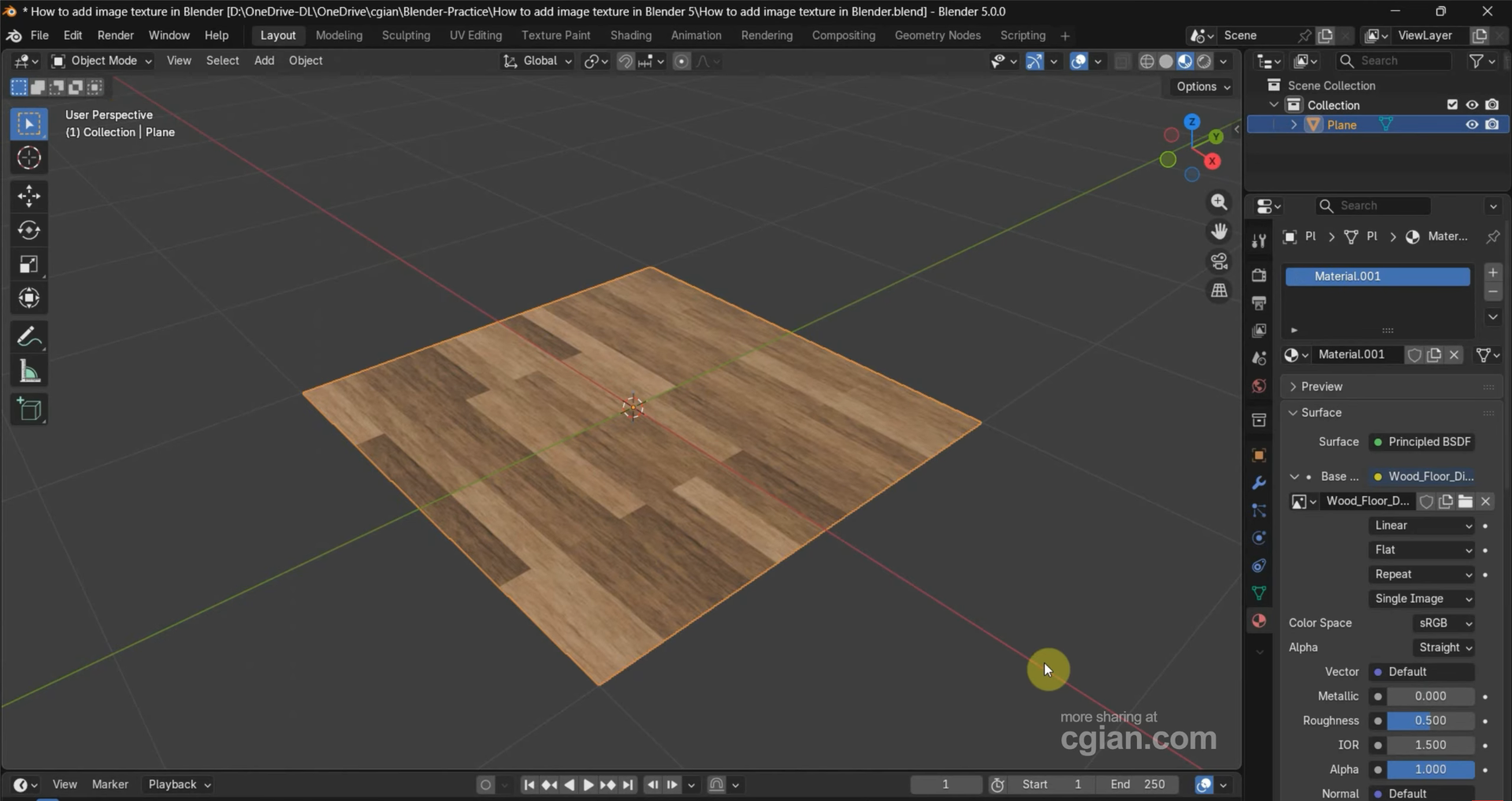
Select the plane and open "Material Properties" in the Properties panel. Create a new material, find "Base Color", click the small circle beside it, and choose "Image Texture". Click "Open", select your image, and confirm to apply it to the plane.
Step 3: Add an image texture through the Shader Editor
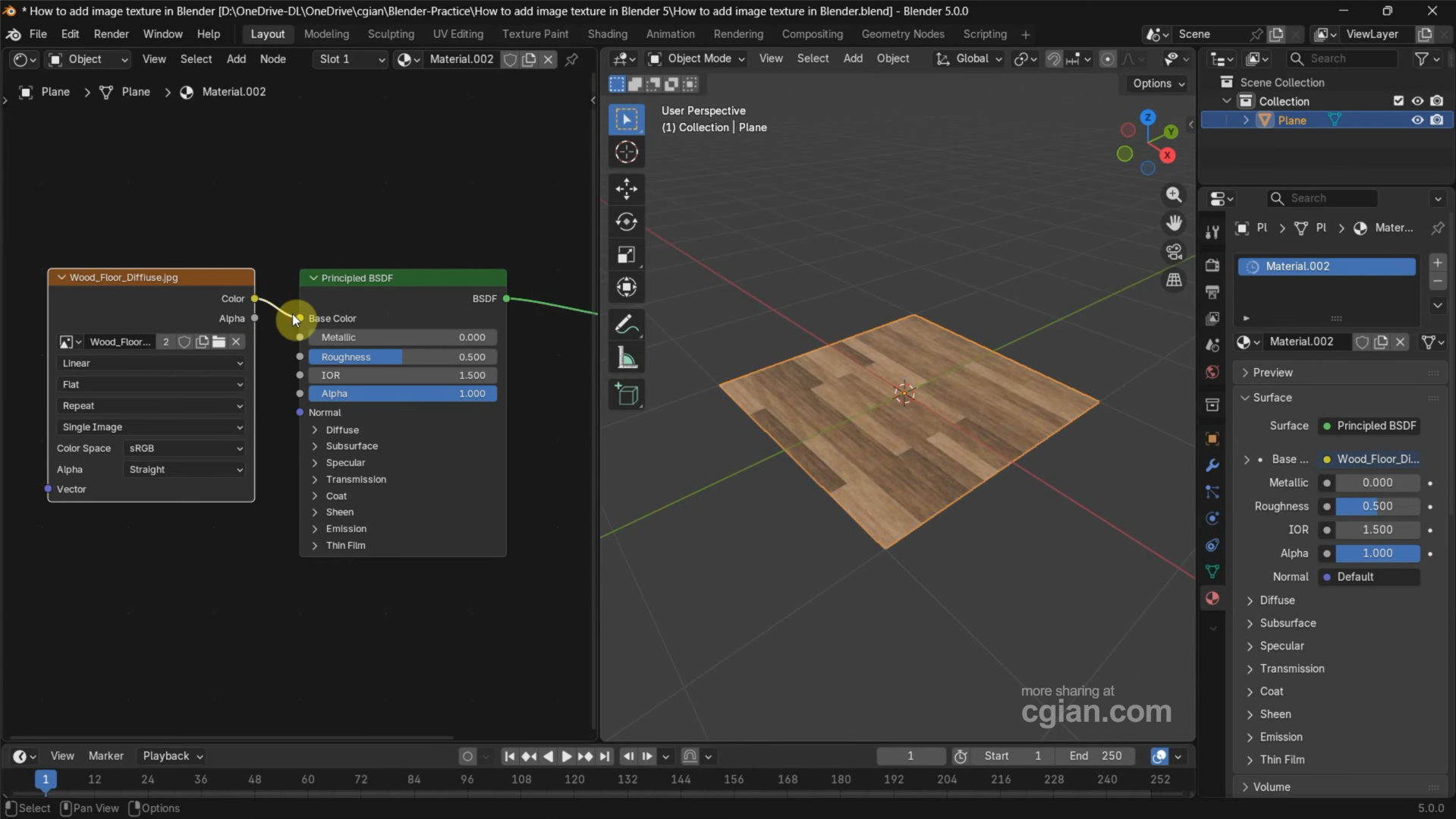
Alternatively, switch one of your viewports to "Shader Editor" and create a new material. Press Shift + A, search for "Image Texture", and add the node. Click "Open" to select your image, then connect the node's "Color" output to the "Base Color" input of the Principled BSDF shader. Your image will now appear as a texture on the plane.
Add an image to the plane in Blender
You can add an image to a plane in Blender without manually creating a material or connecting texture nodes. The "Import Images as Planes" add-on does this for you by creating a plane that matches your image and applying the image as its texture. Follow these steps to enable the add-on and bring your image into the scene:
Step 1: Enable the Import Images as Planes add-on
In Blender, open "Edit" > "Preferences" and search for "plane" in the add-ons section. Find and enable "Import-Export: Import Images as Planes" to make the image import option available in your workspace.
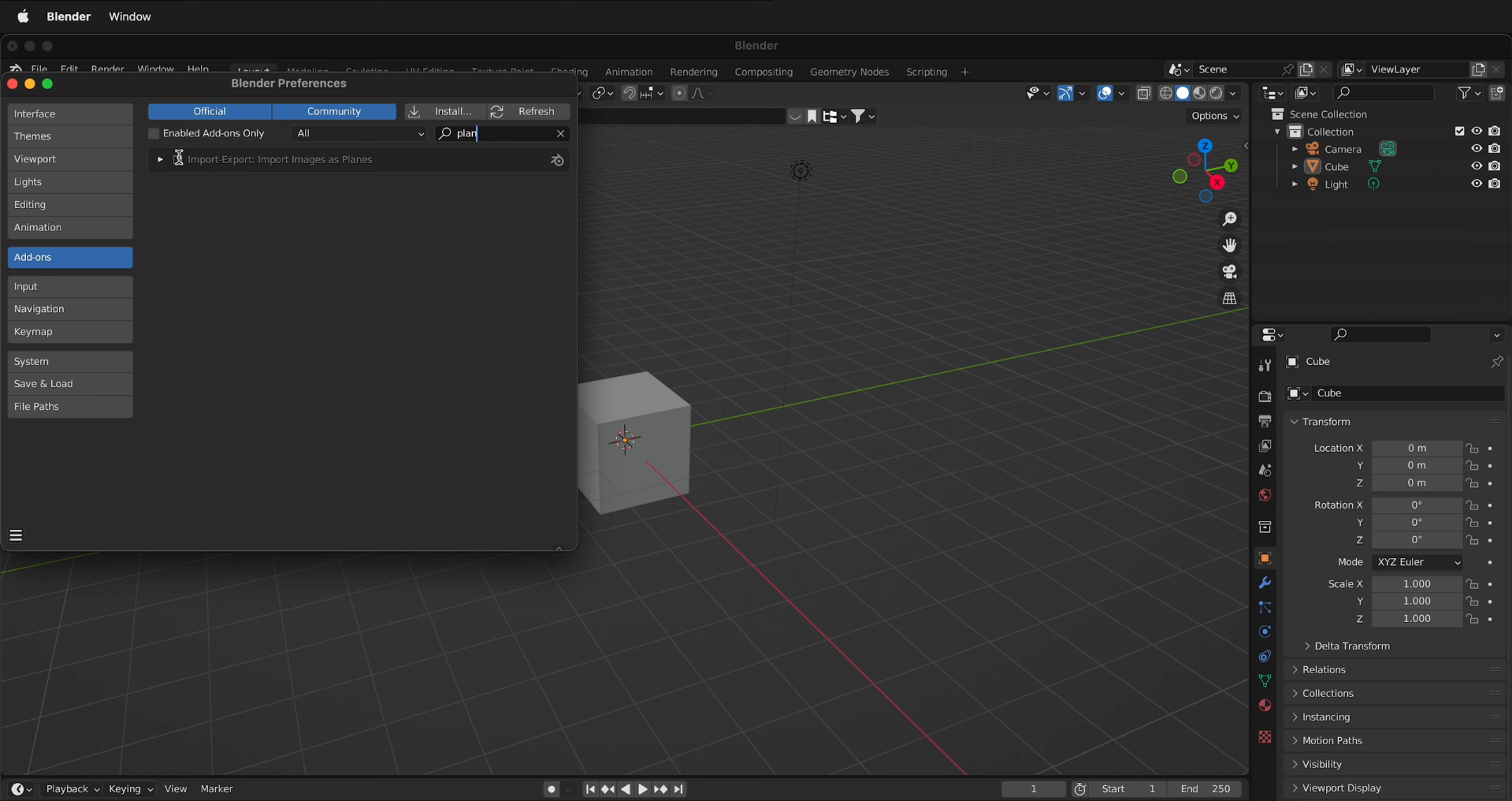
Step 2: Choose the image to import
Press Shift + A in the 3D Viewport and go to "Image" > "Images as Planes". Select the image from your computer and click "Import Images as Planes" to add it to the scene. Blender will automatically create a plane with your image applied as its texture.
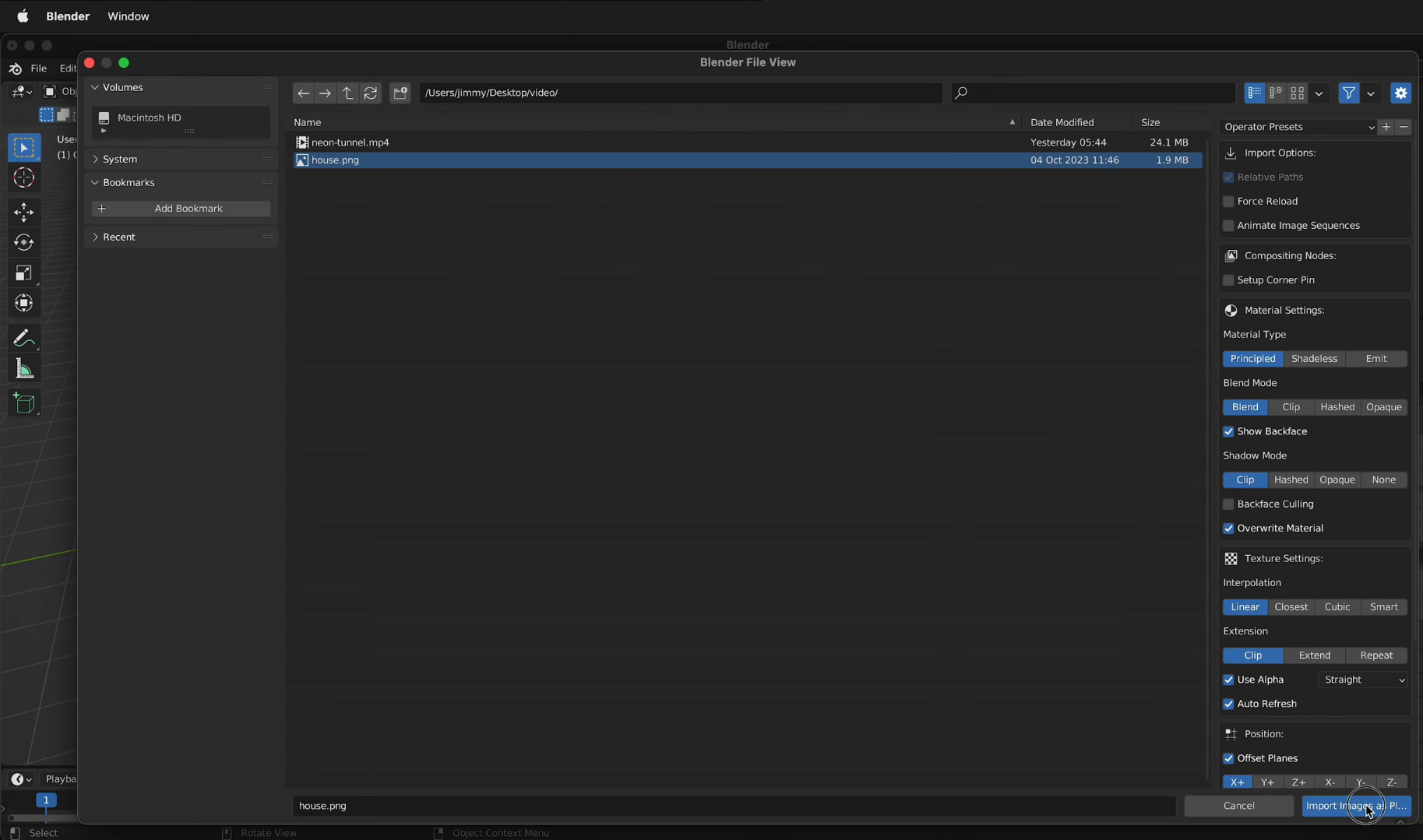
Step 3: Adjust the viewport shading
If the image appears blank or you can only see the plane, switch the viewport shading to "Material Preview" using the shading options in the top-right corner. This lets you see the image texture on the plane, ready for you to position, scale, or use in your 3D project.
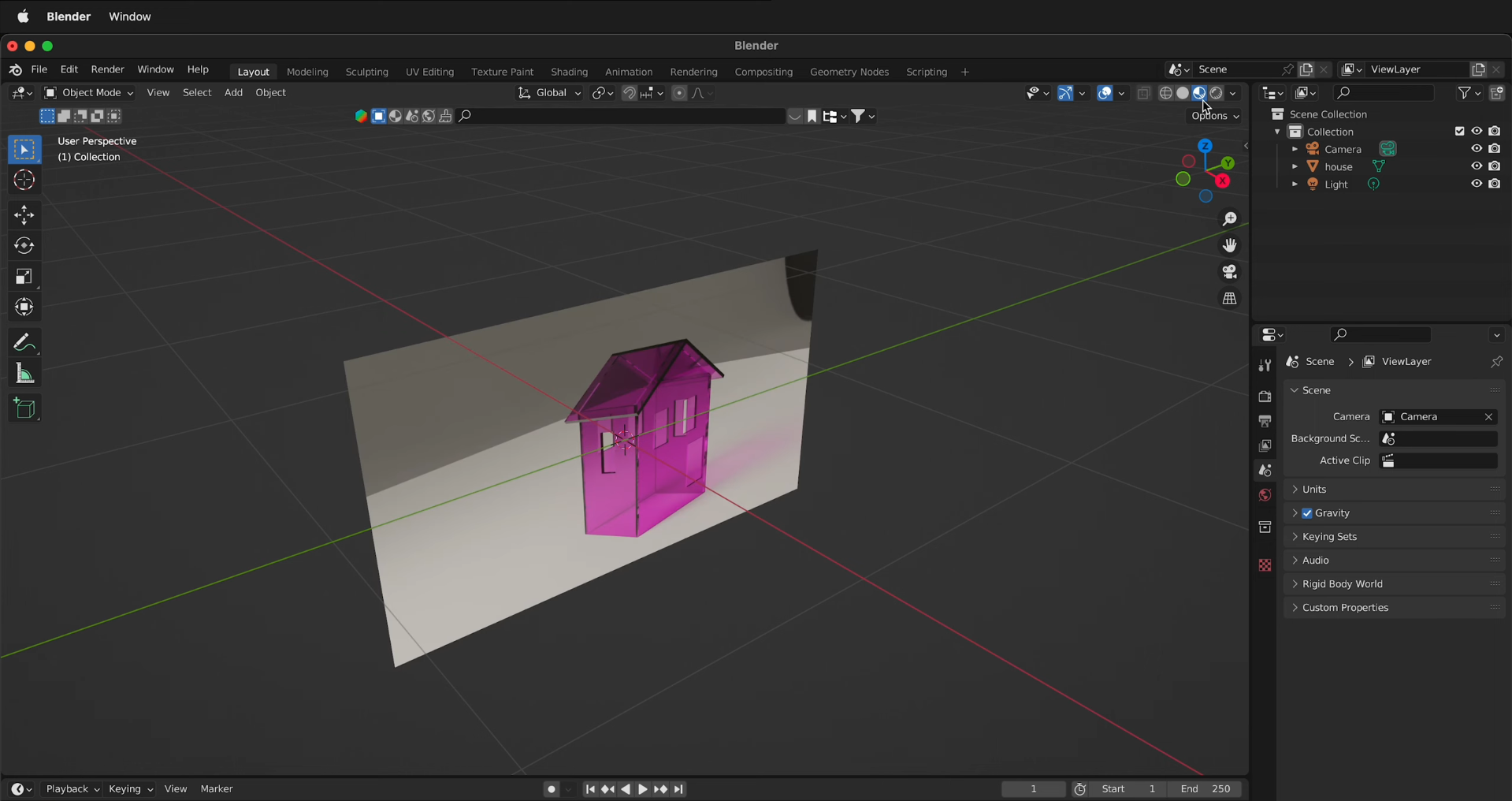
Practices for a smooth image import in Blender
Getting an image into Blender is only the first step. Making sure it looks right in your scene matters just as much. A few small adjustments can help you avoid blurry references, stretched textures, and alignment issues as you work. Here are some useful tips to get better results when importing images into Blender.
Start with a high-resolution image
Choose a clear, high-resolution image so you can see fine details while modeling or applying textures. Blurry images can make it difficult to match shapes and colors, especially when working on detailed objects. For textures, use an image with enough detail for the size and viewing distance of your 3D object.
Lower reference image opacity
Reduce the opacity of your reference image when you need to see your 3D model through it. This makes it easier to compare the model with the image without losing sight of important edges and shapes. Adjust the opacity until both the reference and your model are easy to see.
Use orthographic view for alignment
Use Blender's front, side, or top orthographic views to align your model with a reference image. These views remove perspective distortion, making it easier to compare proportions and match outlines accurately. Press Numpad 1 for the front view, Numpad 3 for the side view, and Numpad 7 for the top view.
Connect textures to Base Color
When adding an image texture through the Shader Editor, connect the texture node's Color output to the Principled BSDF shader's Base Color input. This allows the image to control the object's visible surface color. If the texture does not appear, check the connection and make sure the correct image is loaded.
Unwrap your model with UV mapping
UV mapping tells Blender how a 2D image should fit across the surface of a 3D model. Without suitable UV mapping, a texture may look stretched, distorted, or appear in the wrong places. For most models, switch to Edit Mode, select the faces you want to texture, and use "UV" > "Unwrap" to create a suitable layout.
Enable the Import Images as Planes add-on
If you frequently place images directly into a scene, enable the "Import Images as Planes" add-on. It creates a plane and applies the selected image as a texture, saving you from setting up the material manually. This method is especially useful for reference boards, product images, posters, and other flat visuals.
Keep the aspect ratio for planes
Preserve the original width-to-height ratio when scaling a plane that contains an image. Changing the proportions unevenly can stretch the image and make objects or designs look unnatural. If you need to resize the plane, scale it proportionally, so the image retains its original appearance.
Switch to Material Preview to check
Use "Material Preview" in the viewport shading options to check whether your image texture appears correctly on the model. This mode displays materials and textures without requiring a full render. If the image looks missing or incorrect, check the material, texture connections, and UV mapping before continuing.
Bonus tip: Easily create 3D models from images with Kimi Build
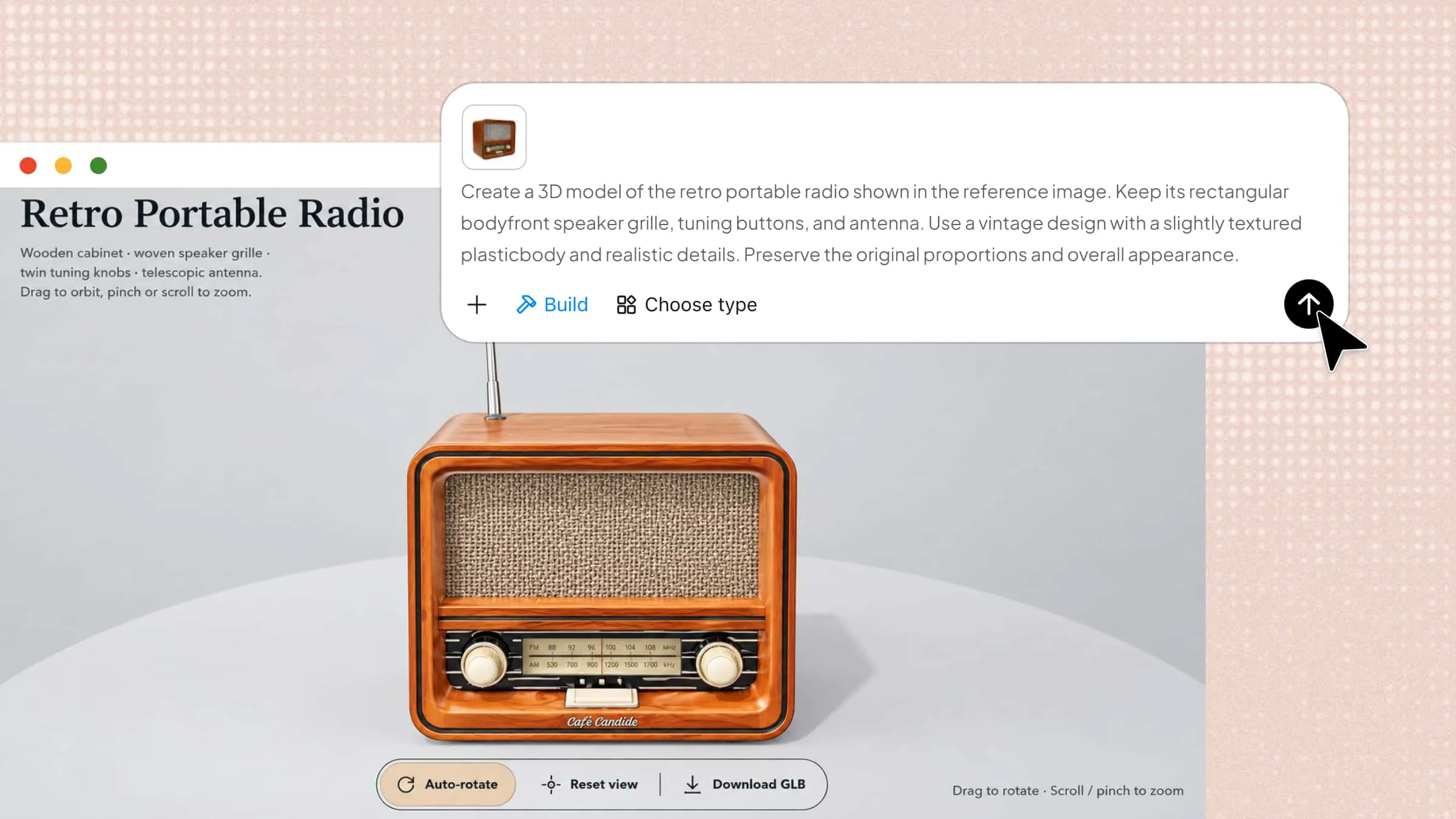
Kimi Build is an AI-powered tool that turns text prompts and reference images into detailed 3D models. You can upload a picture, let the AI generate a 3D version of it, and explore the result from different angles. It supports a faster way to bring your ideas into 3D while giving you a model to work with in Blender. This makes it useful for creating objects, exploring designs, and adding new assets to your 3D projects.
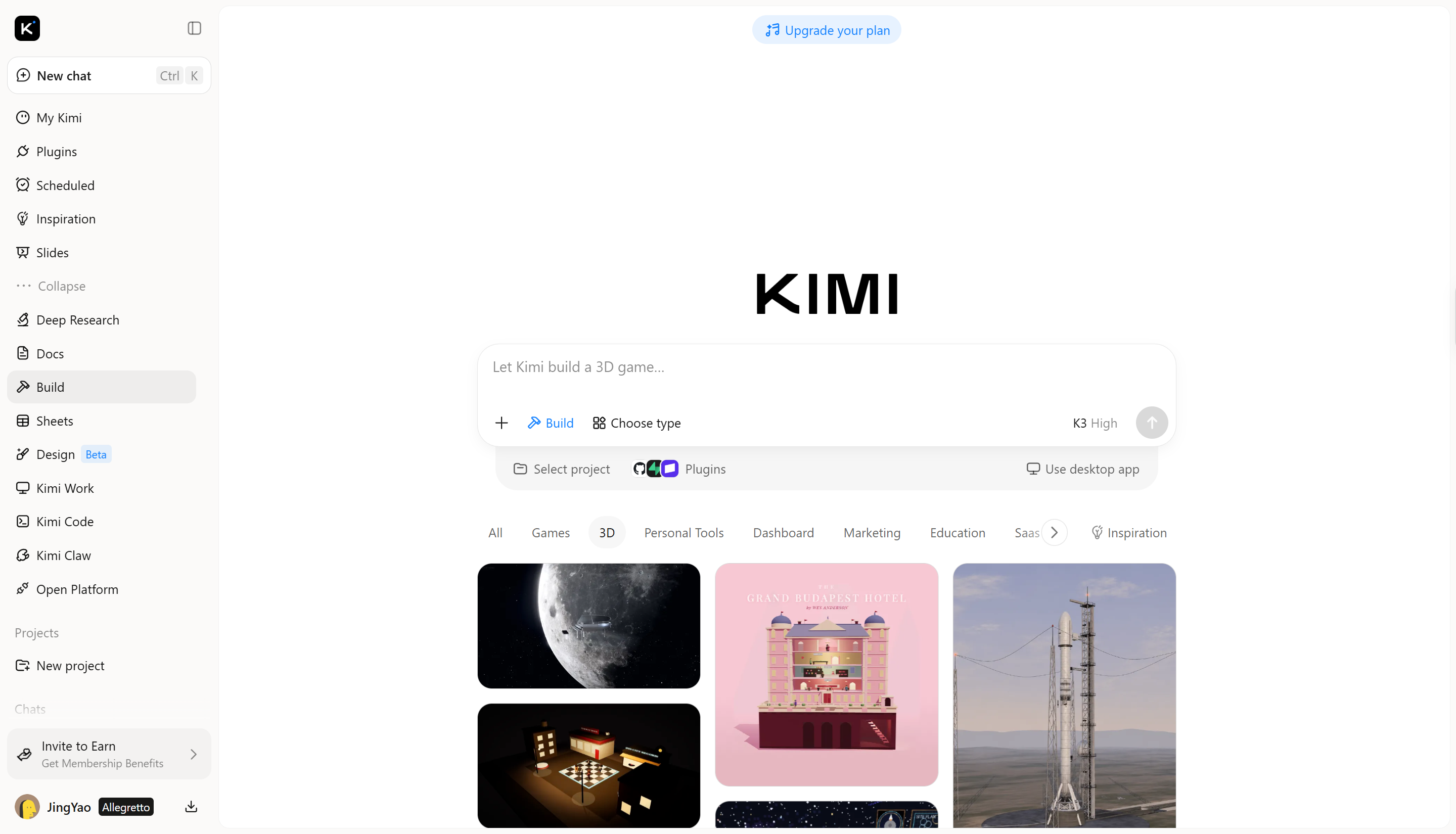
How to convert an image to a 3D model with Kimi Build
Turning a picture into a 3D model with Kimi Build starts with choosing the right image and letting AI generate the model based on its visual details. You can then review the result and prepare it for use in Blender. Follow the steps below to create your 3D model from an image.
Step 1: Upload your reference
Choose a clear image of a retro portable radio against a plain background and upload it to Kimi Build. A front-facing image works well because it shows the main design features.
Example prompt:
Create a 3D model of the retro portable radio shown in the reference image. Keep its rectangular body, front speaker grille, tuning buttons, and antenna. Use a vintage design with a slightly textured plastic body and realistic details. Preserve the original proportions and overall appearance.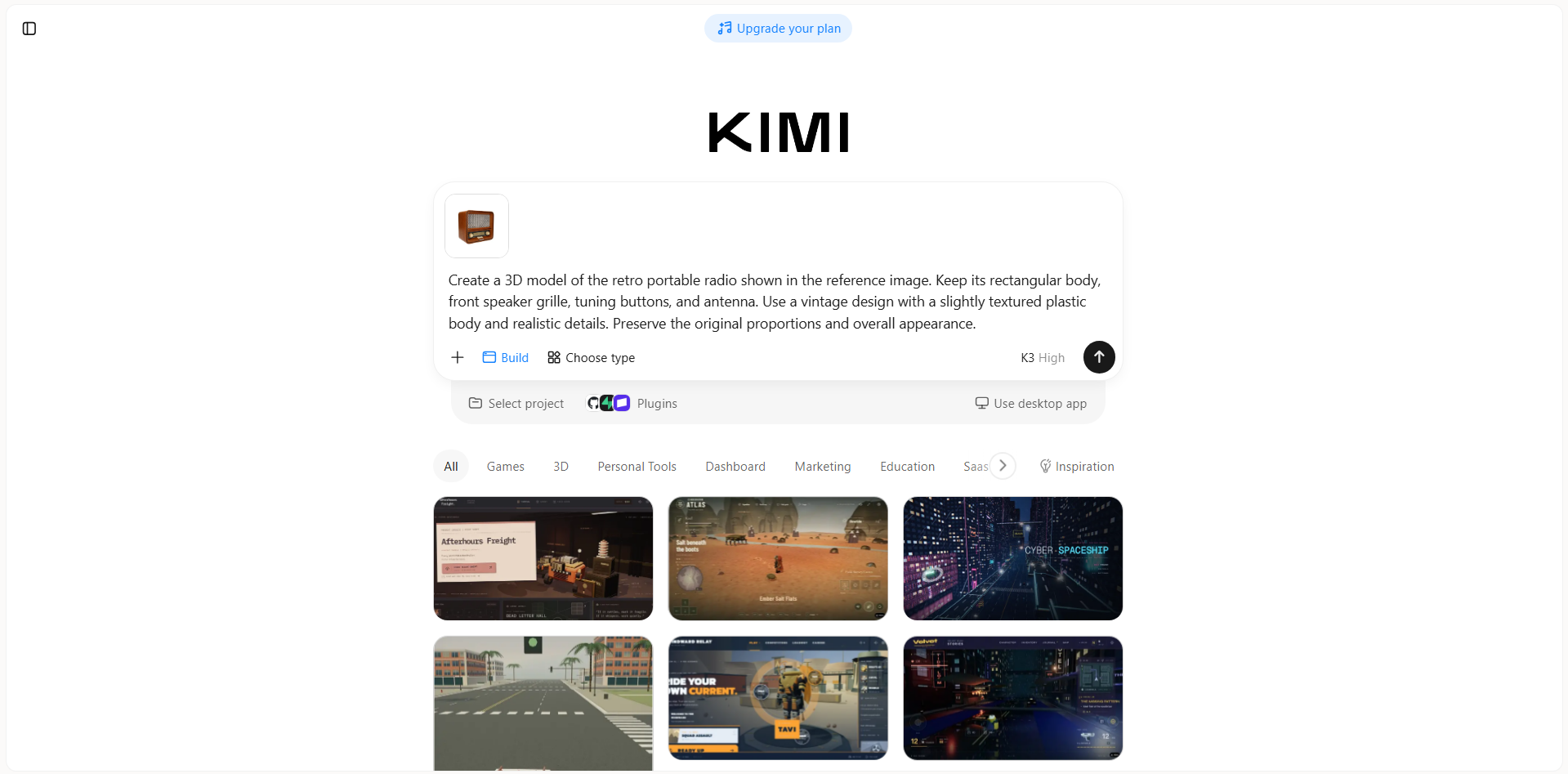
Step 2: Edit your 3D model
Once Kimi Build generates the radio, inspect its shape and visible features in the preview. If some details need improvement, enter text prompts to adjust the speaker grille, refine the controls, or change the surface finish.
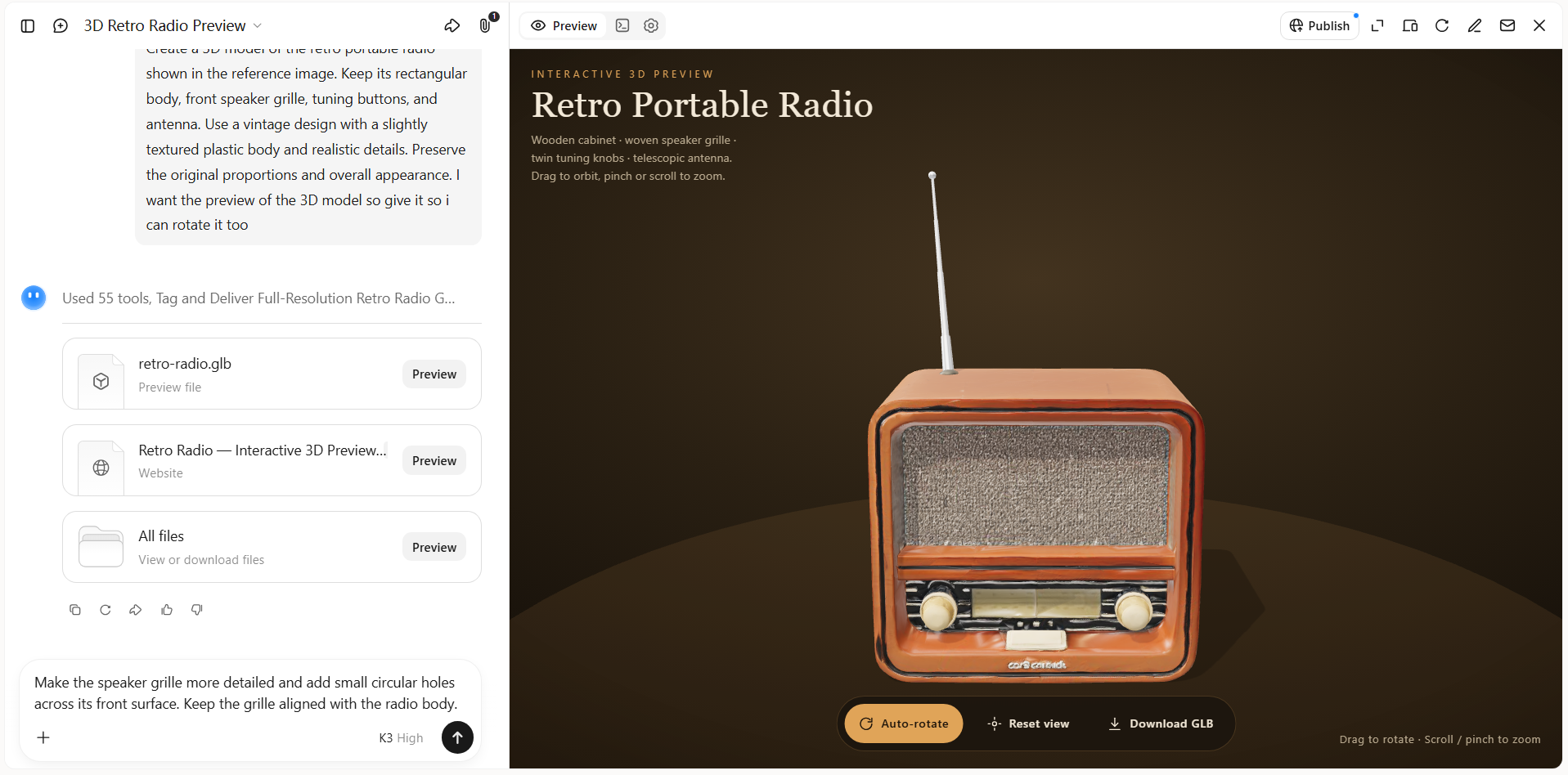
Step 3: Review and download
Inspect the final model from the front, sides, and back to check its shape and details. When you're satisfied, export your finished 3D model for use in creative projects, product presentations, digital content, or online publishing.
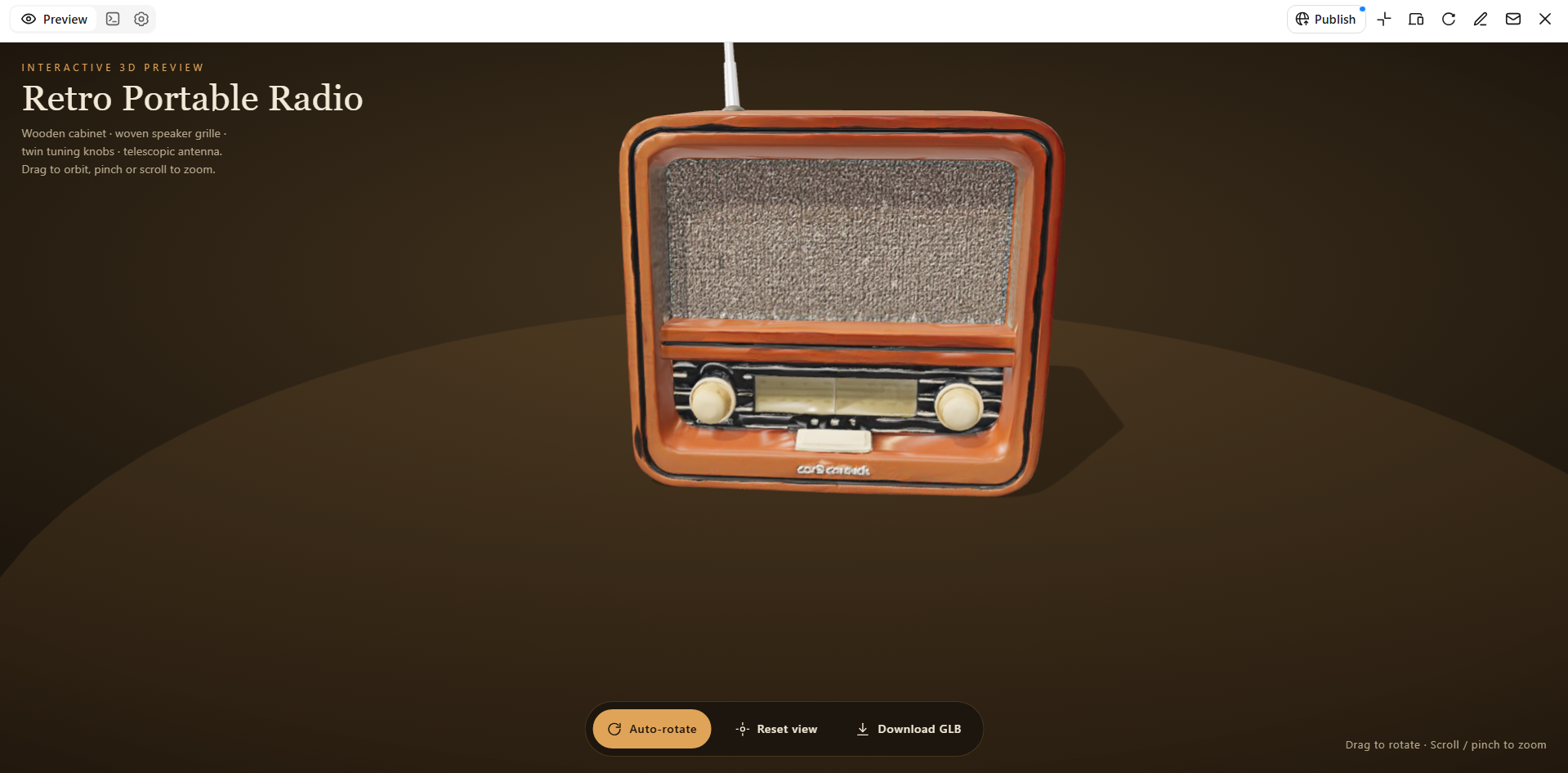
Key features
Bring concepts to life in 3D: Transform written descriptions or visual references into 3D models with Kimi Build. Explore ideas for characters, products, props, and other objects without building every shape from scratch.
Add visual depth with detailed textures: Create 3D assets with surface details and textures that make objects look more realistic or stylized. Use them to develop visual concepts for presentations, games, product mockups, and creative projects.
Edit and refine your 3D models: Use Kimi Build's editing tools to refine your models through natural-language prompts, comments on specific elements, or manual adjustments. Describe the changes you want in the chat, leave comments to target particular parts, or directly adjust features, colors, textures, and shapes on the canvas while preserving the elements you want to keep.
Adapt 3D assets to different projects: Create models for a range of visual applications, from product concepts and marketing materials to game assets and digital scenes. Build on existing references to explore new ideas and develop assets for different creative needs.
Take 3D models into advanced workflows: When your project requires more control over modeling, animation, or asset generation, Kimi Work lets you access tools such as Blender and Tripo 3D through plugins. Use Blender for detailed modeling and animation, or Tripo 3D to generate 3D models from text prompts and images. Depending on the tool, you can work with formats such as FBX, STL, USDZ, BLEND, GLB, glTF, and OBJ for further editing and development.
Conclusion
Learning how to import a photo in Blender helps you work with visual references, add textures, and bring more detail to your 3D projects. The right method depends on whether you want to guide your modeling or apply an image to an object. With a little practice, you can make your workflow easier and your results more polished. For a new way to explore your ideas, try Kimi Build to turn your images into 3D models.