Adding text to a Blender project is simple, but customizing it to match your design requires a few adjustments. You may want to change the wording, choose a different font, or resize the text to fit your scene. Once you learn how to edit text in Blender, you can make these changes easily and create lettering that suits your project. Read on for a step-by-step guide to editing text and customizing its appearance.
Why edit text in Blender
Editing text in Blender gives you greater control over its appearance and how it fits into your 3D design. You can change the wording, experiment with different styles, and prepare text for animation or other creative projects. Here are some key benefits of using Blender to edit text.
Non-destructive editing
Blender lets you edit text without turning it into a 3D mesh first. You can correct spelling, replace words, and adjust the text whenever you need to. This makes it easy to change and edit text in Blender without starting your design from scratch.
Custom fonts
You can use different fonts to match the style of your project, whether you are creating a logo, a poster, or a 3D title. Blender lets you load font files and apply them to your text object. This gives you more freedom to edit text and create designs that fit your needs.
Animation-ready
Text objects in Blender can be used in animations to create moving titles, labels, and other visual effects. You can animate their position, rotation, and scale to make the words move around your scene. If you want to add text in Blender for a video or animation, you can start with a simple text object and build from there.
Modifier flexibility
Blender modifiers can help you change the appearance of text after converting it into a mesh. For example, you can use modifiers to add thickness, smooth shapes, or create other effects. This gives you more ways to customize your design when basic text settings are not enough.
G****reater control over text geometry
Blender lets you adjust text alignment, spacing, extrusion, and bevel settings to match your design without converting it to a mesh. These options help you refine the lettering while keeping the text editable. You can experiment with different appearances and finalize the wording before moving on to advanced modeling.
Reusable assets
Once you create a text style that works well, you can reuse it in other Blender projects. Save your text objects in a project file or asset library and use them again whenever needed. This saves time and helps you maintain a consistent look across logos, titles, product designs, and other 3D scenes.
How to edit text in Blender
Blender lets you add text, change its content, and adjust its appearance directly in the 3D workspace. You can edit words, choose fonts, change spacing, and add depth without creating a new object for every change. Here's how to edit text in Blender step by step.
Step 1: Add a text object
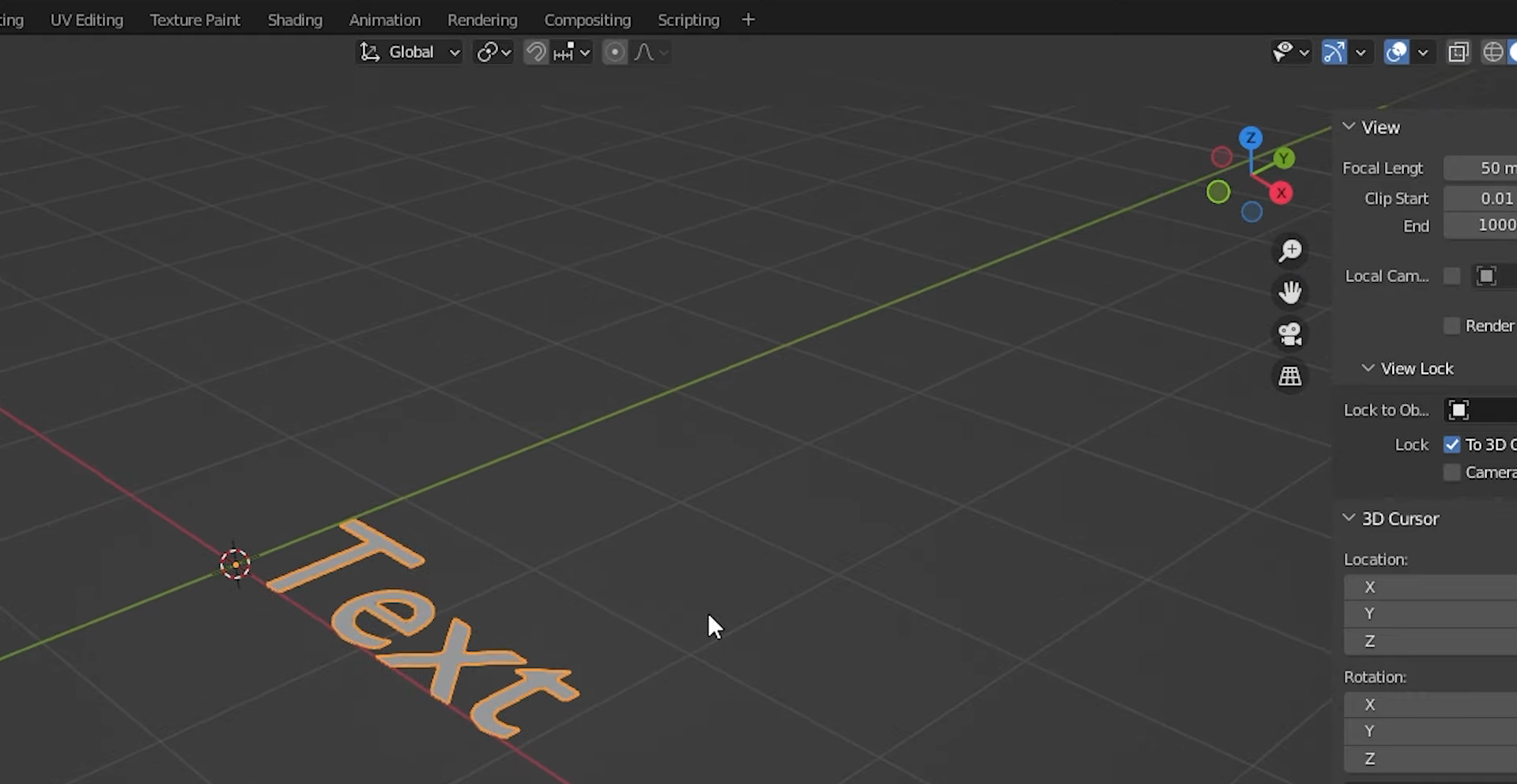
Open Blender and press Shift + A in the 3D Viewport to open the Add menu.
Select "Text" under the "Curve" category to add a text object to your scene.
The default word "Text" will appear. Use G, R, and S to move, rotate, and scale the object.
Step 2: Change the text content
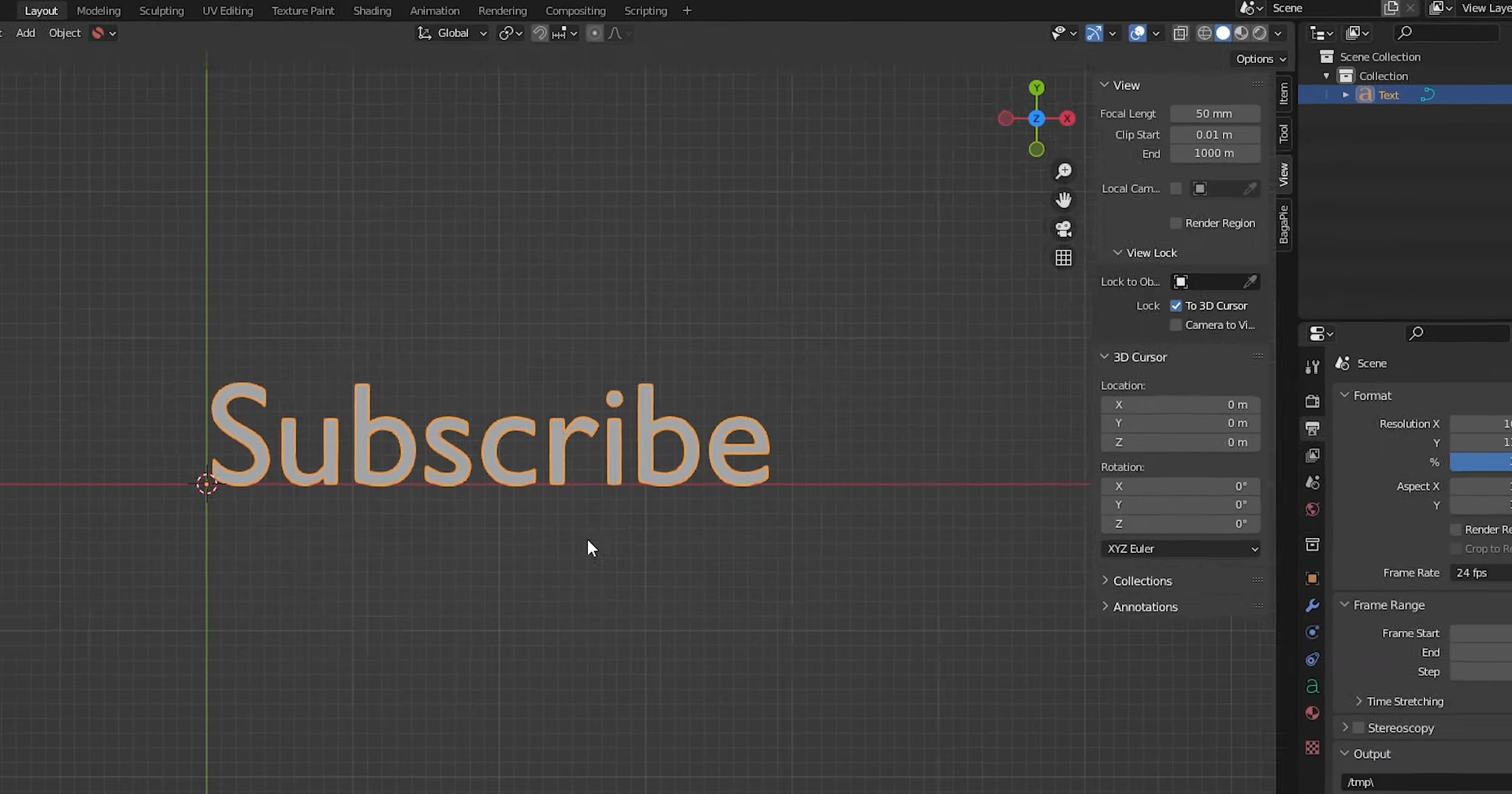
Select the text object and press Tab to enter "Edit Mode".
Use Backspace to remove the default text, then type your desired words using the keyboard.
Press Tab again to return to "Object Mode" and view your updated text in the scene.
Step 3: Customize the font and size
Select the text object and open "Object Data Properties", shown by the green letter "A" icon in the Properties panel.
Expand the "Font" section and click the folder icon beside "Regular" to browse for a font file on your computer.
Under "Transform", adjust "Size" to change the font size and "Shear" to slant the letters.
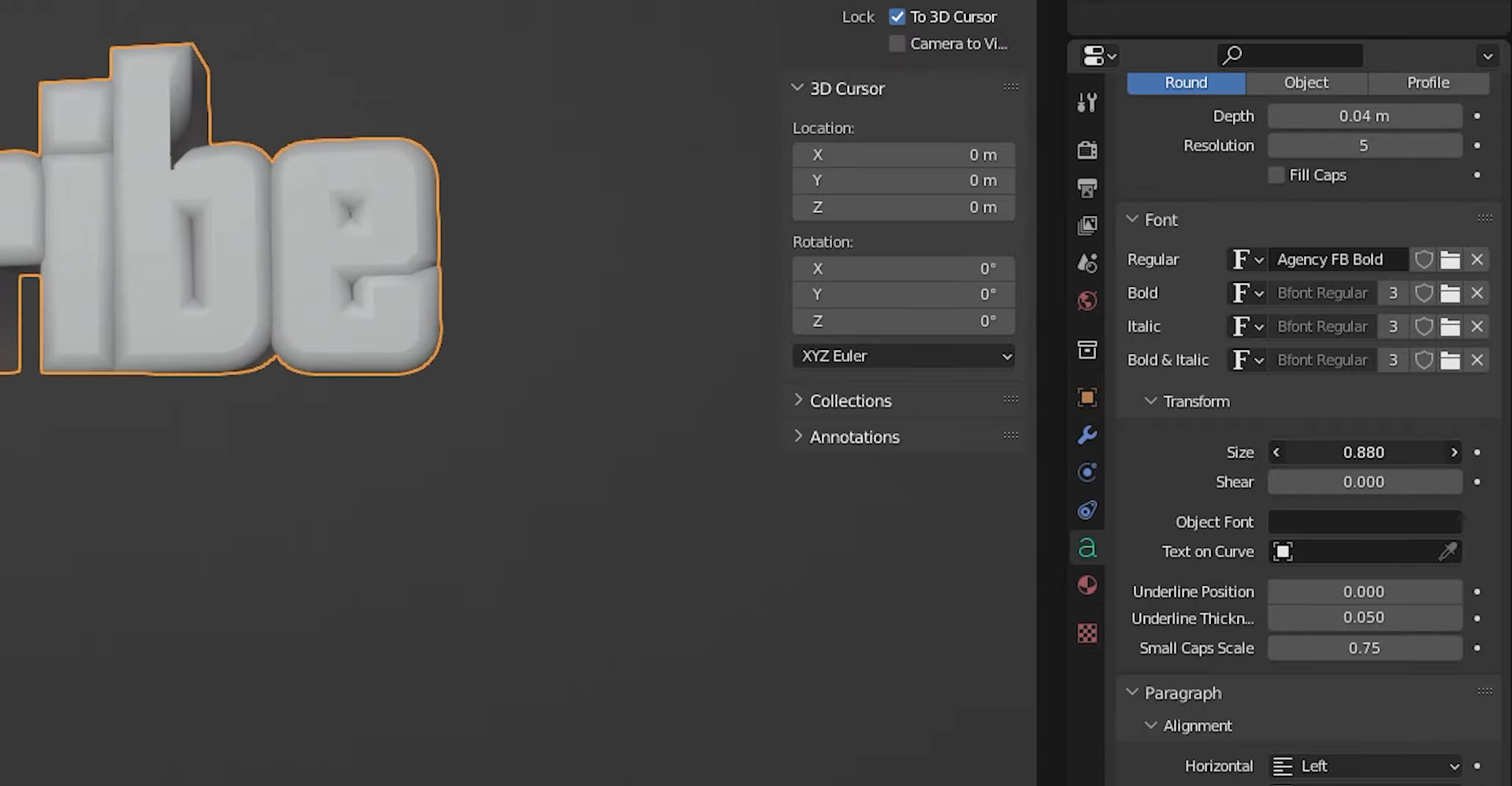
Step 4: Adjust text depth and edges
In "Object Data Properties", find the "Geometry" section to access the text's depth and edge settings.
Increase "Extrude" to give the text 3D depth, and adjust the "Bevel" to soften or round its edges.
Change "Bevel Depth" to control the rounding amount and "Resolution" to make the bevel look smoother or simpler.
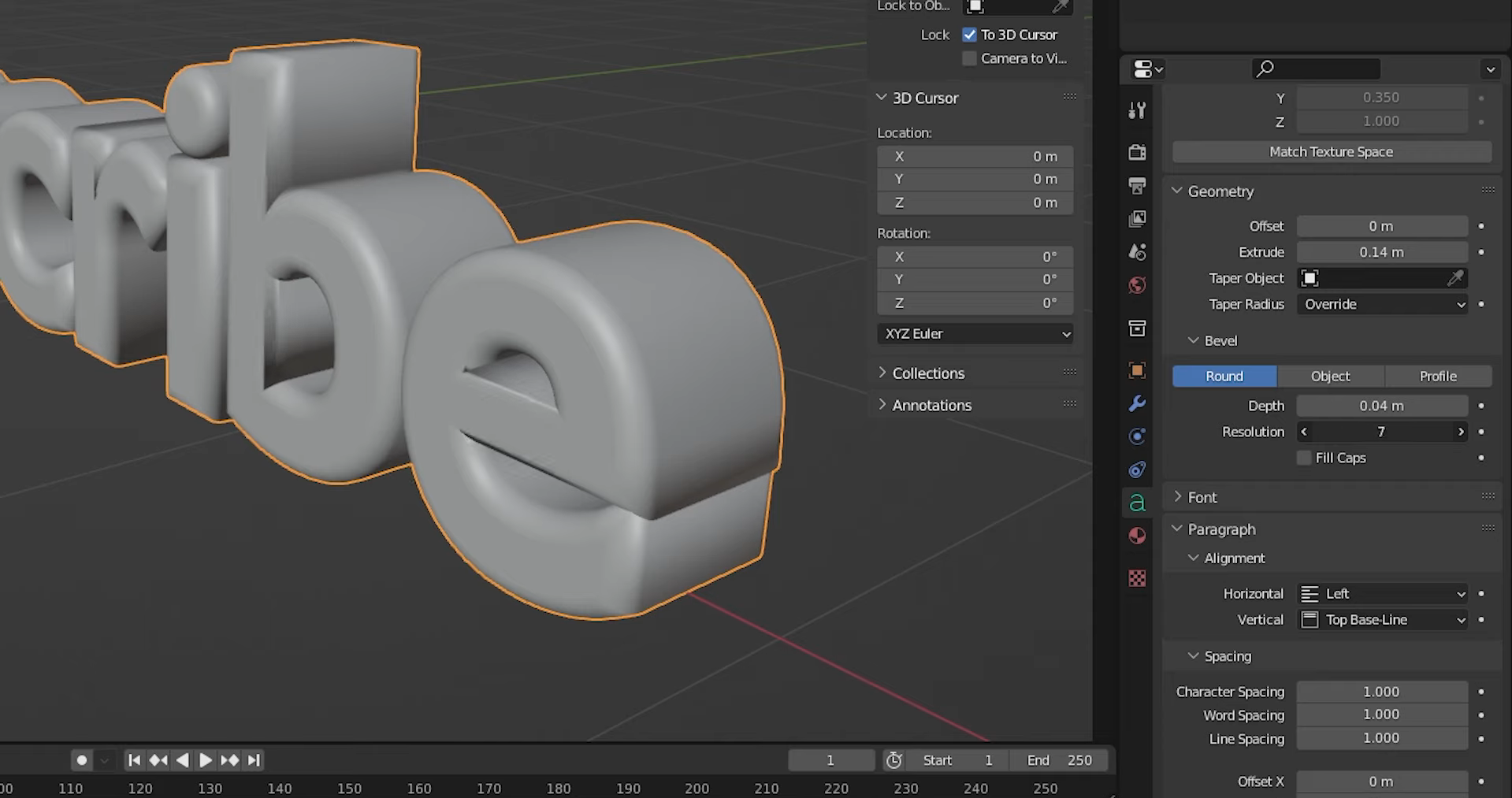
Step 5: Adjust spacing and alignment
Open the "Paragraph" section in "Object Data Properties" to control how the text is arranged.
Change "Alignment" to position the text to the left, center, or right, and adjust "Character Spacing" to increase or reduce gaps between letters.
If your text has multiple words or lines, adjust "Word Spacing" and "Line Spacing" to improve its layout.
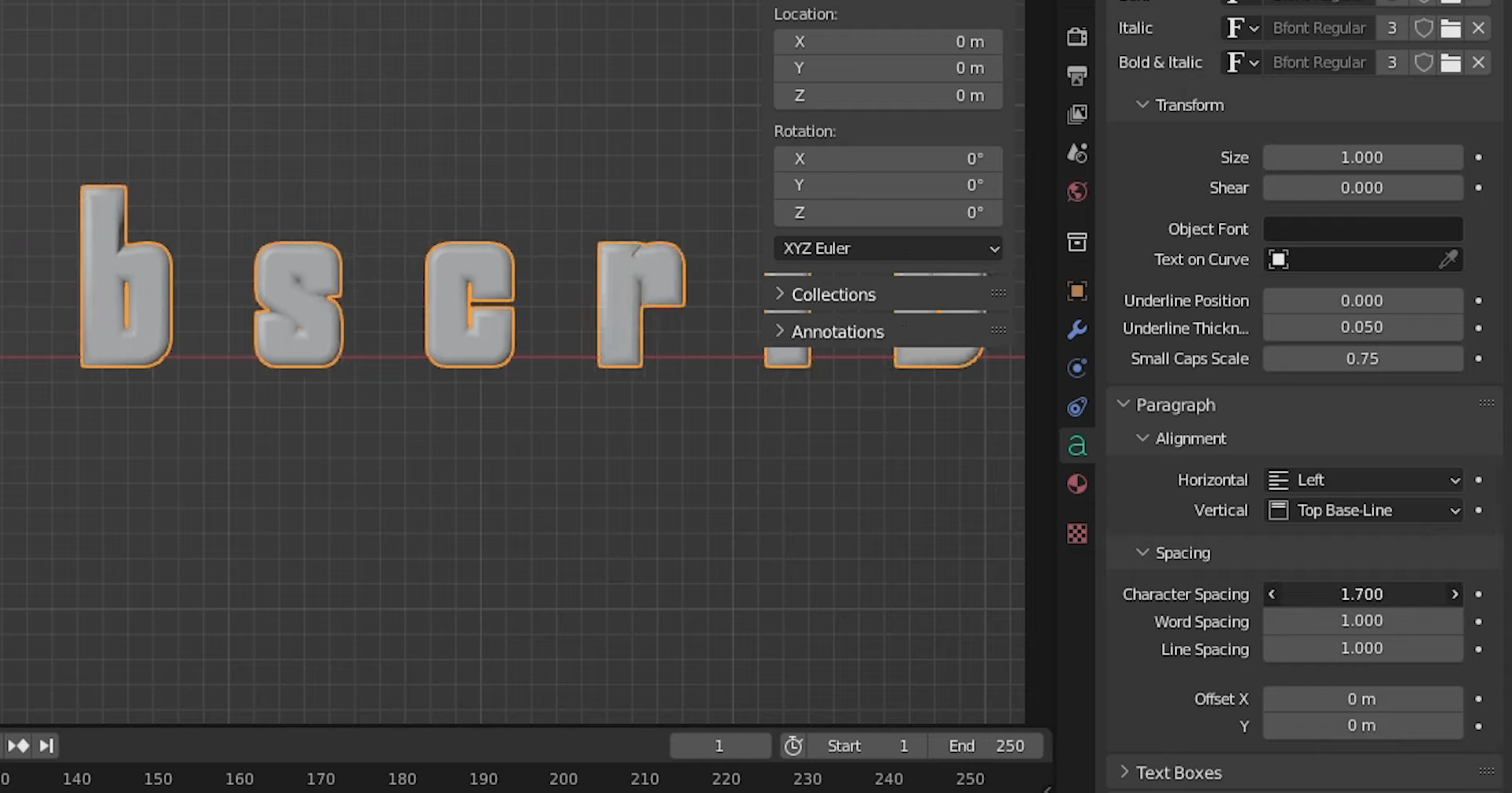
Expert tips for adding and editing text in Blender
Small changes can make your 3D text look much cleaner and more professional. The right font, depth, spacing, and material can help your text stand out without making the design look too busy. Keep these tips in mind when adding text in Blender and editing it for your next project.
Use bold fonts for cleaner depth
Bold fonts often work better for 3D text because their thicker letters remain easy to read after adding depth. Thin fonts can look weak or become harder to see when viewed from certain angles. Choose a font that matches your design and keeps the words clear.
Keep extrusion modest for a refined look
Adding too much extrusion can make text look bulky and distract viewers from the words themselves. Start with a small value and increase it until the depth looks right from your chosen viewing angle. A little depth is often enough to give your text a polished 3D appearance.
Always bevel edges to catch light
Beveling creates small, rounded edges that help light reflect across the surface of your text. In Blender, open "Object Data Properties" and adjust "Bevel Depth" under "Geometry" to control the effect. Keep the bevel subtle for a clean finish, or increase it slightly for a softer, more noticeable style.
Fine-tune kerning for balanced spacing
Even with a good font, uneven gaps between letters can make your text look awkward. Adjust "Character Spacing" under the "Paragraph" section to create a more balanced layout. Check the text from the front view to make sure the letters look evenly spaced, and the words remain easy to read.
Convert to mesh only when finished
Keeping text as a text object lets you change words, fonts, and settings anytime. Converting it to a mesh allows detailed geometry edits but removes direct text editing. Finalize your text first, then select "Object" → "Convert" → "Mesh" when needed.
Use a simple backdrop to make text pop
A busy background can make even well-designed 3D text difficult to read. Use a plain surface or a simple scene with enough contrast to separate the letters from their surroundings. You can also adjust the lighting and camera angle to make the text easier to see without adding unnecessary details.
Match material tone to the project mood
Your text material helps set the mood of your design. Bright colors and shiny surfaces suit playful or futuristic styles, while muted tones create a professional look. When editing text in Blender, match the materials and lighting to your project's style.
An AI-powered way to create and edit 3D text: Kimi Build
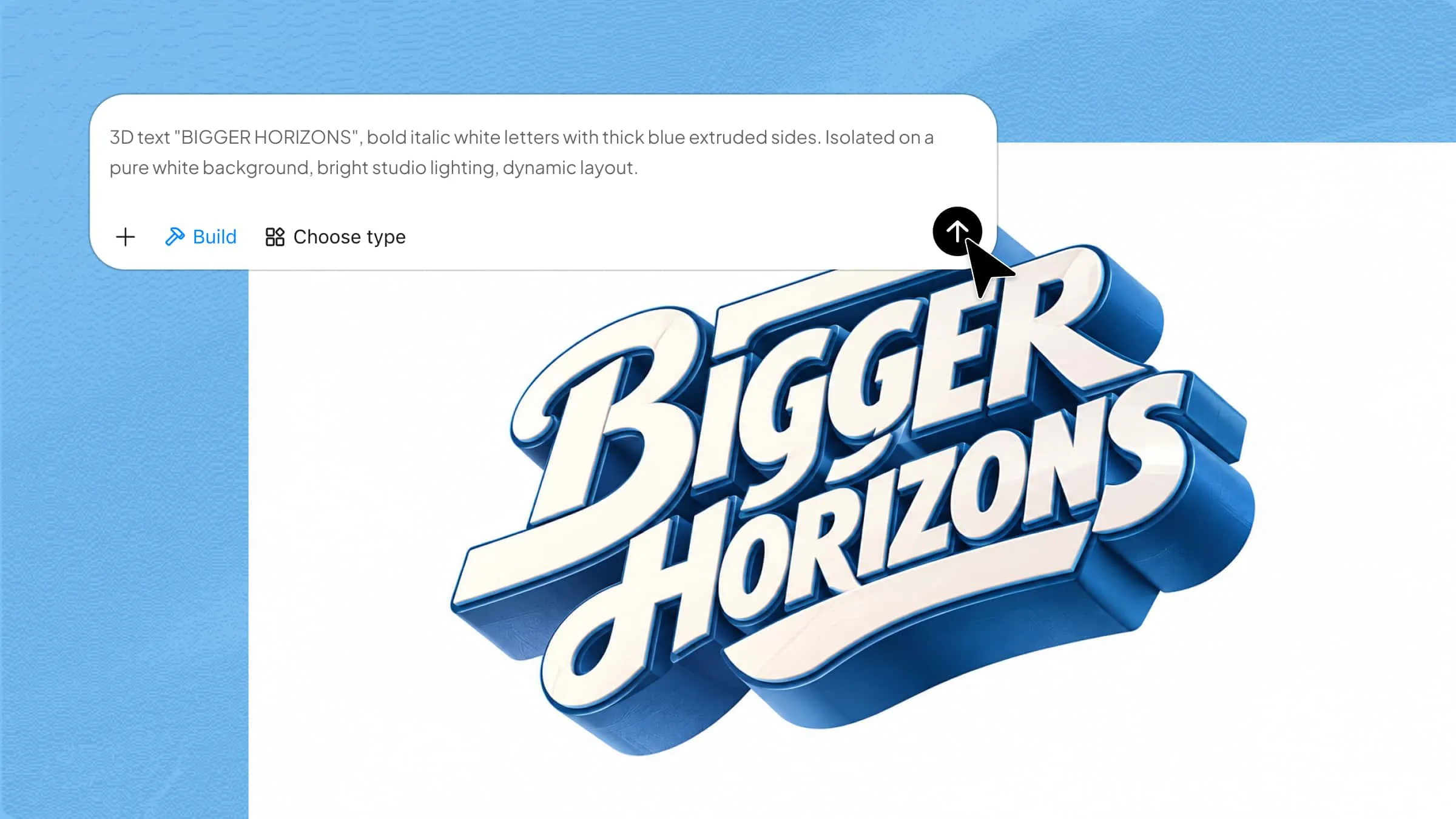
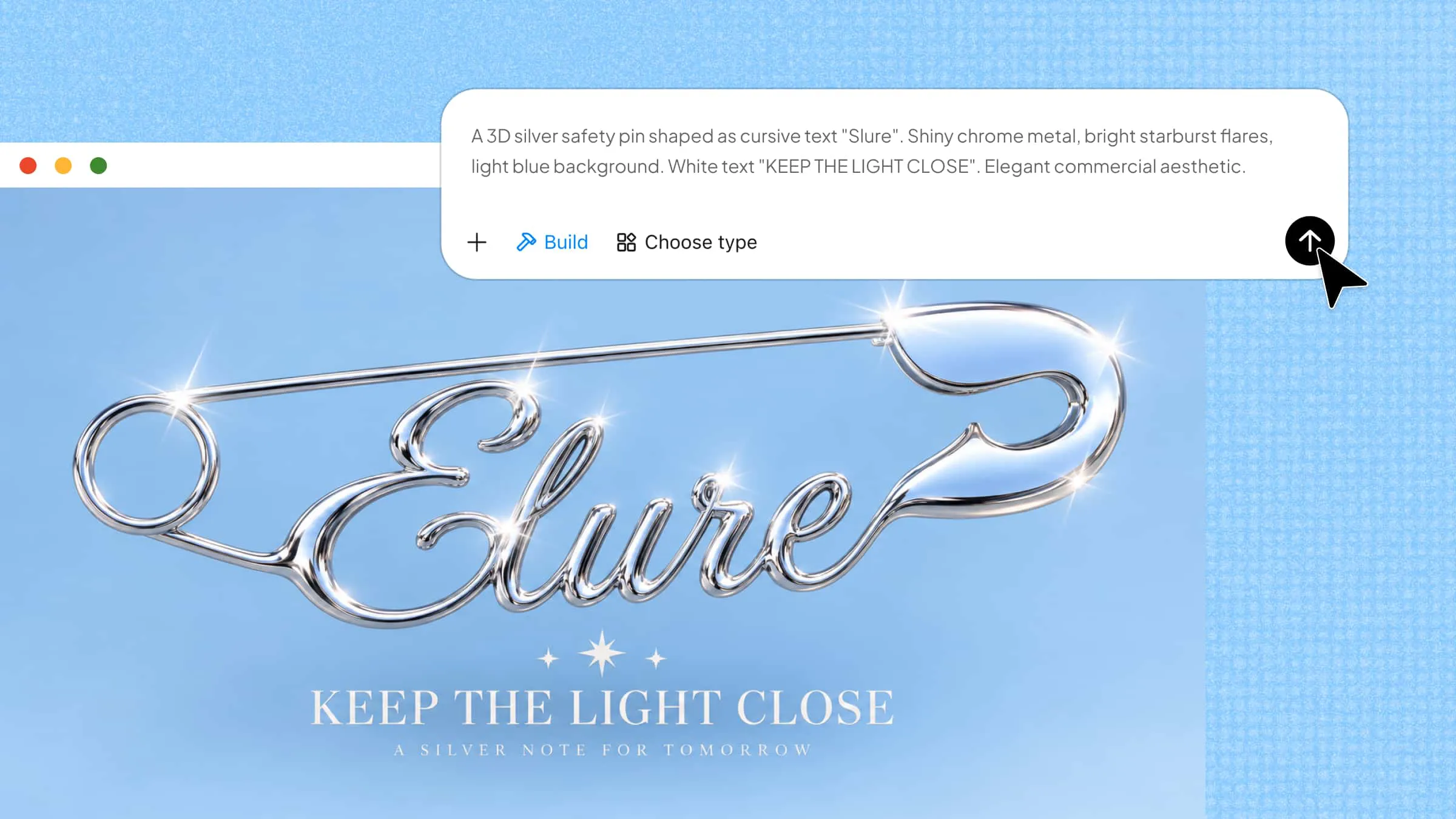
Blender offers detailed control over fonts, depth, bevels, and spacing, giving you flexibility when designing 3D text. If you want to explore different lettering concepts, Kimi Build lets you generate 3D models from text prompts and images, then refine their shapes and materials using natural-language instructions.
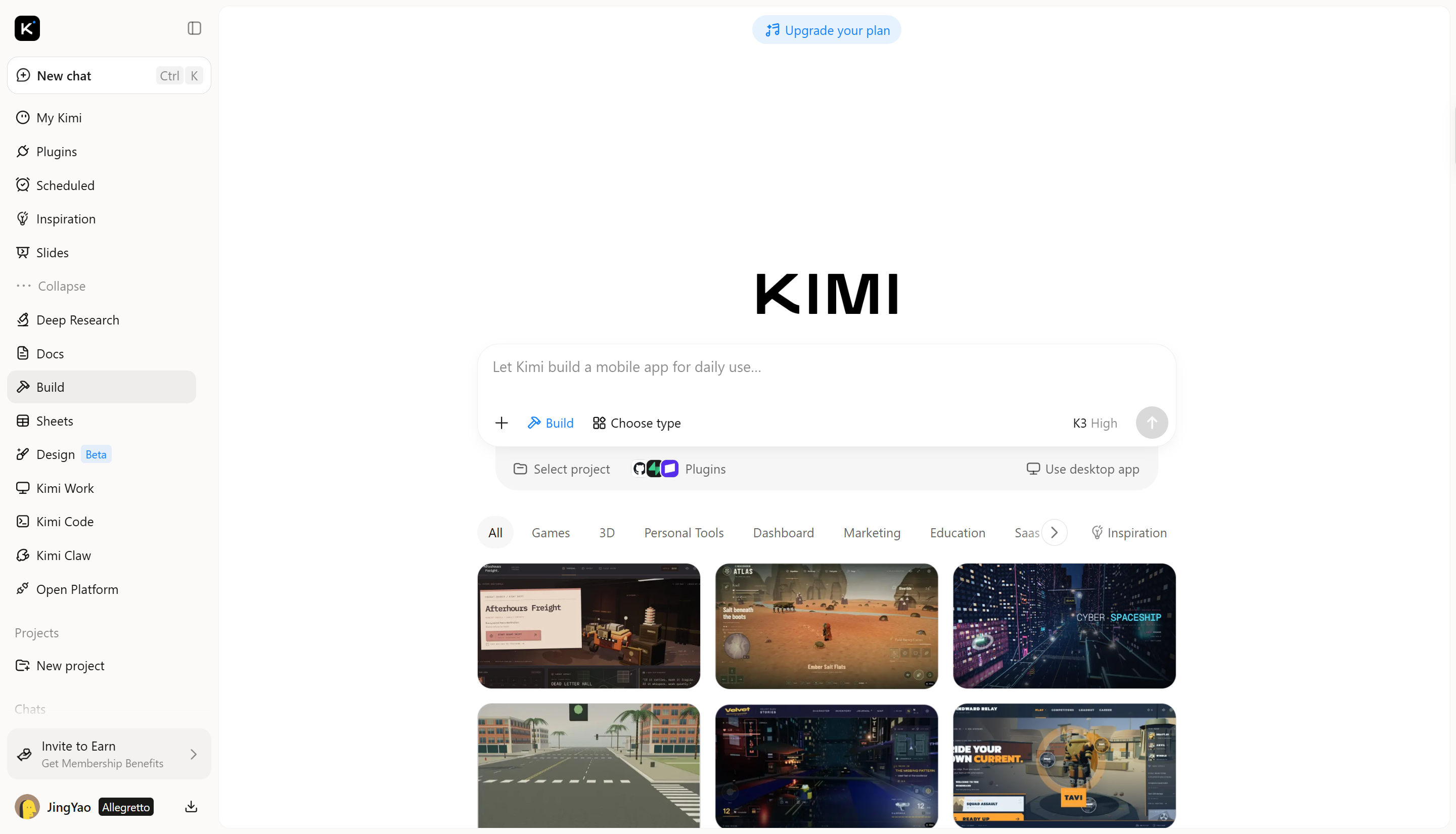
How to add and edit 3D text using Kimi Build
Kimi Build helps you turn text ideas into 3D designs using simple prompts. You can describe the style, depth, and colors you want, then refine the result. Follow these steps to create and customize 3D text with Kimi Build.
Step 1: Describe your 3D text design
Open Kimi Build and describe the text you want to create, including its font style, materials, lighting, and background.
Example prompt:
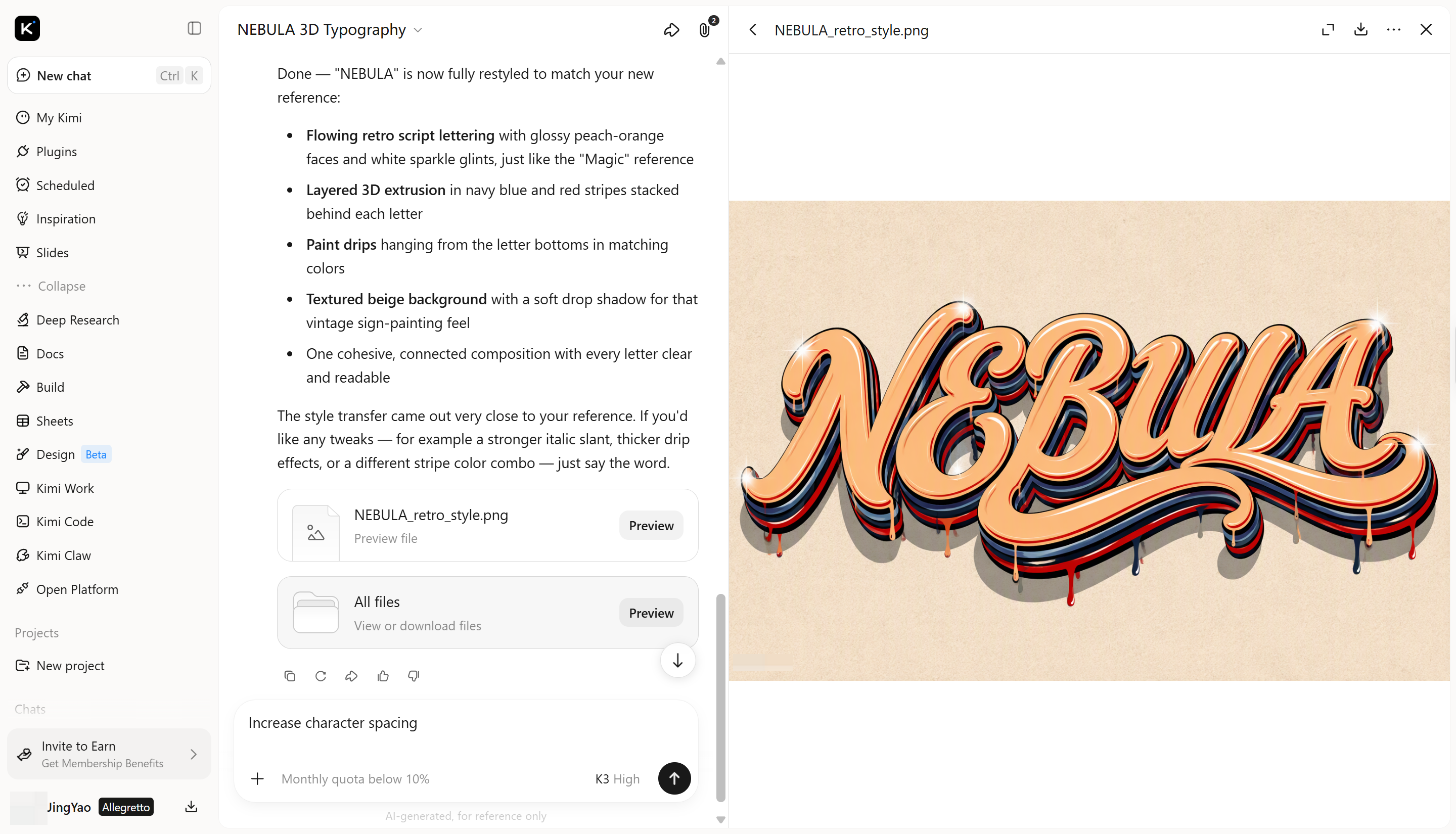
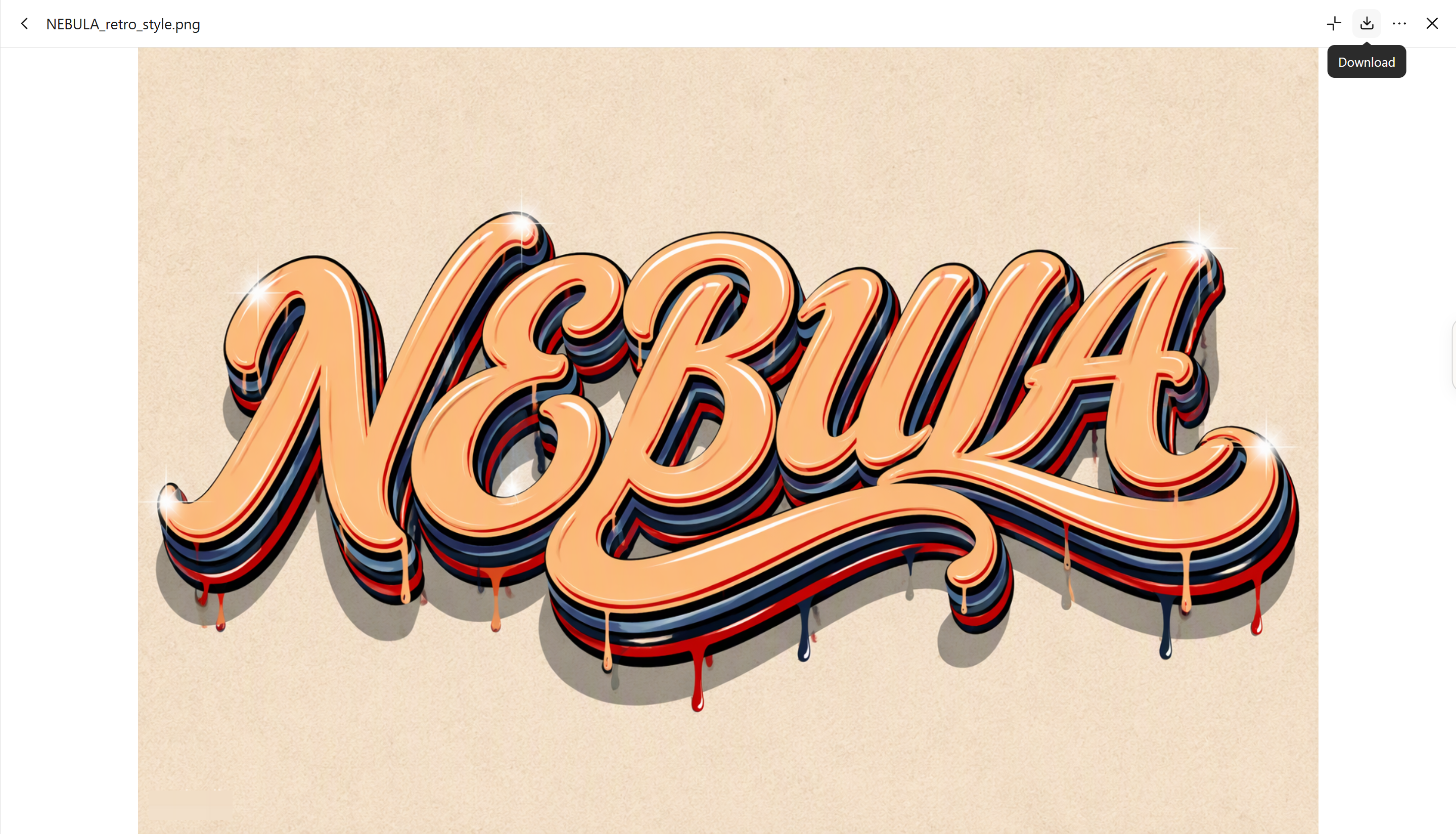
Retro vintage 3D typography spelling the single word "NEBULA" in bold flowing script lettering, in the style of classic hand-painted sign art. The letters have glossy peach-orange cream colored faces with smooth airbrushed shading and bright white sparkle glints on the curves. Behind each letter, multiple layered offset 3D extrusion outlines in deep red and navy blue horizontal stripes create a stacked retro depth effect. Small dripping paint drops hang from the bottoms of the letters, with matching red and navy drips. Soft gray drop shadow beneath the text. Light beige cream textured paper background with subtle grain.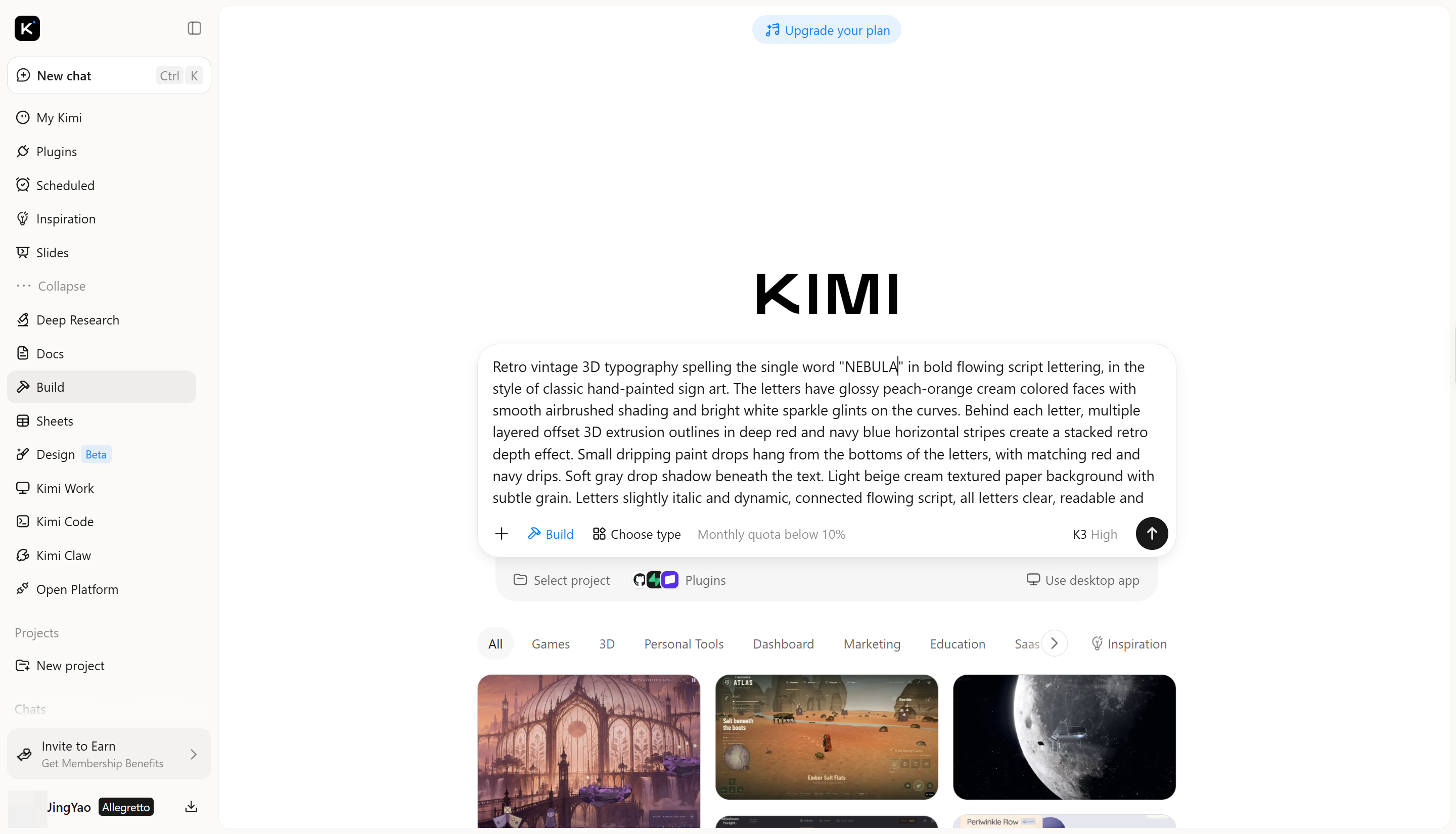
Step 2: Edit and refine the 3D text
Once the first design is ready, use a follow-up prompt to improve specific details instead of generating everything again. You can adjust the material, lighting, depth, or overall appearance to make the text look closer to your vision.
Step 3: Review and export your design
Review the final model to check the letter shapes, depth, reflections, and overall quality, making any last changes if needed. Once satisfied, export your design in a supported format, such as JPG or PNG.
Key features of Kimi Build
Create expressive 3D text from simple prompts
Turn a text idea into dimensional lettering by describing its shape, material, and overall appearance. Whether you want reflective metallic letters, colorful bubble typography, or sculpted 3D characters, Kimi Build helps you explore visual directions without starting from a blank canvas.
Shape the appearance of every letter
Fine-tune your typography with natural-language instructions, comments on individual elements, and manual edits. Adjust colors, textures, letter proportions, extrusion depth, lighting, and shadows to develop a design that matches your creative vision.
Apply 3D typography across visual content
Generate lettering for brand identities, campaign graphics, event titles, digital advertisements, and motion design concepts. Kimi Build helps you develop distinctive text visuals for different platforms and purposes, from eye-catching headlines to decorative typographic elements.
Revisit creative directions and save your output
Compare design iterations by reviewing version history and restoring earlier results when necessary. Once your 3D text is ready, export it as PNG or JPG for further use in your design workflow.
Continue into advanced modeling and rendering
When your project requires more detailed 3D production, use Kimi Work to access Blender and Tripo 3D through plugins. Blender supports detailed modeling, scene setup, and rendering, while Tripo 3D helps create models from text and image references. Depending on the tool and workflow, you can continue working with formats such as GLB, glTF, OBJ, FBX, STL, USDZ, and BLEND.
Conclusion
Creating great 3D text is all about finding the right balance between clear lettering and creative design. Once you know how to make text in Blender, you can bring your ideas to life with styles that suit your project. If you want to explore new looks without starting from scratch, give Kimi Build a try. Use simple prompts to experiment with different 3D text styles and turn your ideas into eye-catching designs.
FAQ
Tab to enter Edit Mode, then use your keyboard to select, replace, or delete characters. You can also adjust character spacing to change the gaps between letters. For more detailed shape edits, convert the text into a mesh.Tab to enter Edit Mode and change the words. If it is a mesh, you can edit its geometry but cannot directly change the text. Keep a copy of the original text object if you need to change the wording later.