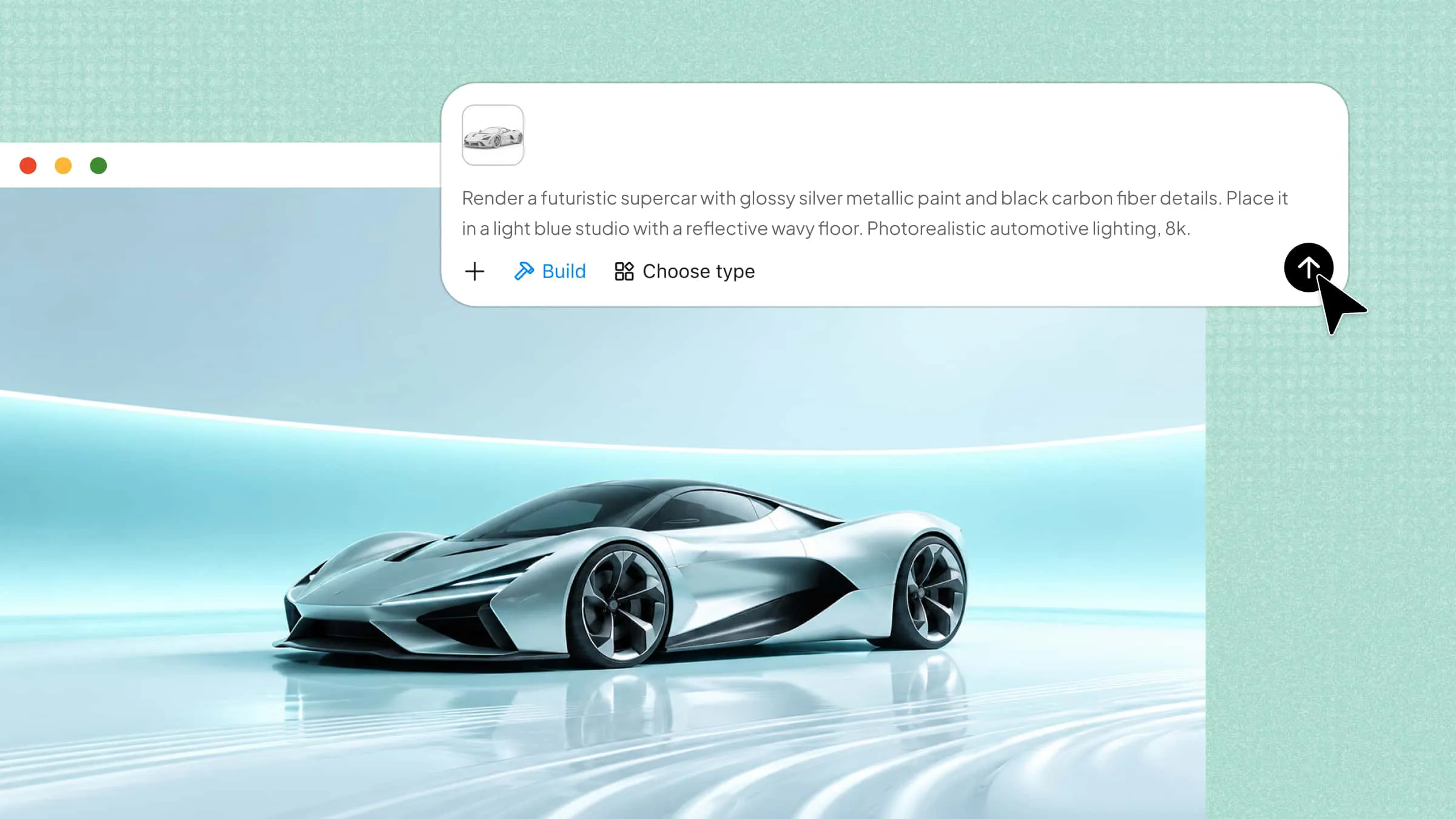
A 3D model may look great on screen, but rendering brings its details, shadows, and colors together to create a polished final image. Achieving a clean, realistic result involves more than simply clicking a button, especially when you want every detail to look right. Learning how to render with Blender helps you turn your models into high-quality visuals with a straightforward workflow. This guide walks you through the key rendering steps, from setting up your scene to producing the final image.
Why choose Blender for image rendering
Choosing the right rendering tool can make a big difference in how your final images look and how easily you can create them. Blender offers a range of useful features that help beginners and experienced artists bring their ideas to life. Here are some reasons why it is a popular choice for image rendering.
Free and open source
Blender is free to download and use, so you can create and render 3D images without paying for a subscription. Its open-source nature also allows developers to improve the software and add new features. This makes it a great choice for students, hobbyists, and professional artists.
Powerful Cycles and Eevee engines
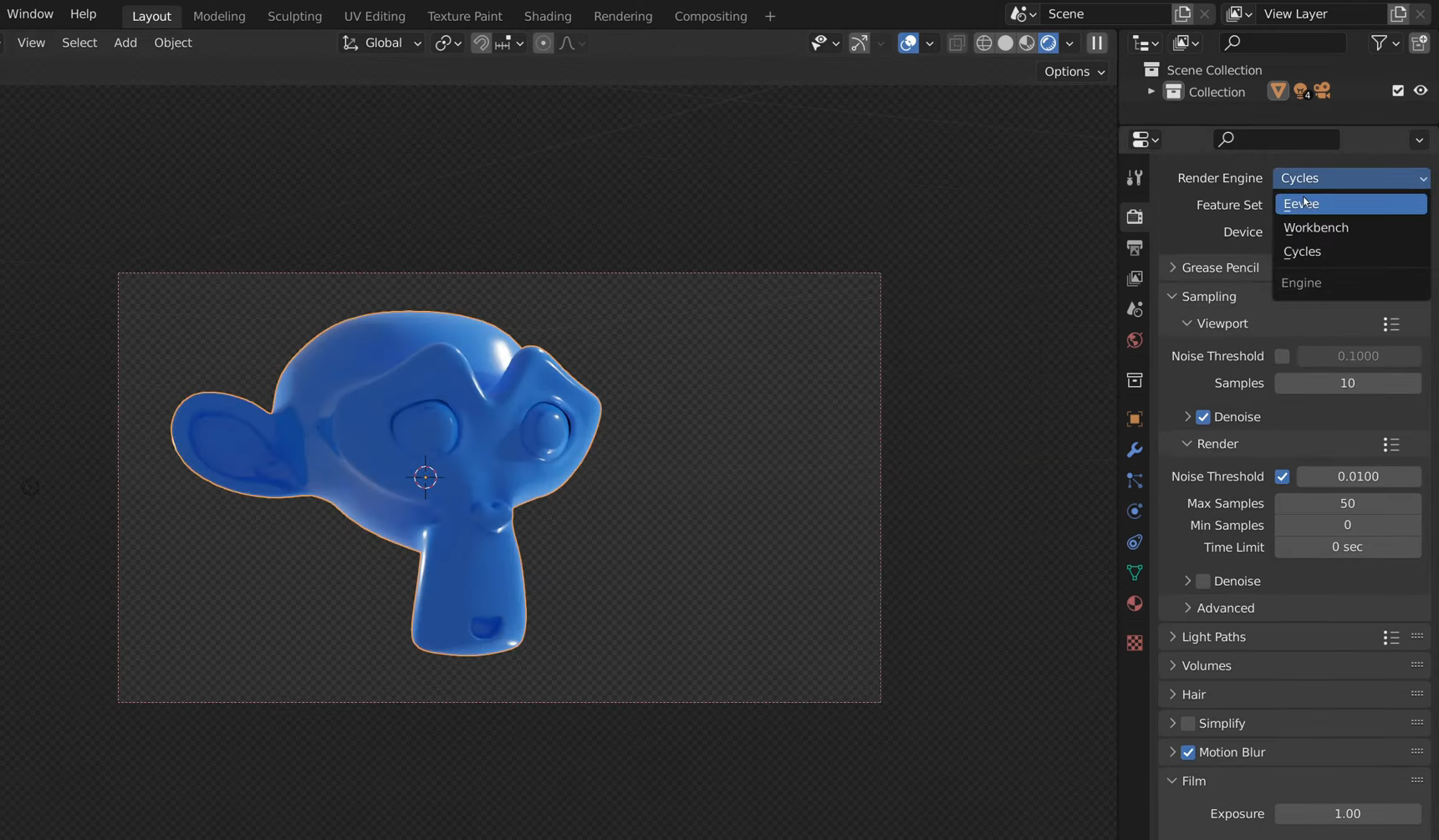
Blender offers two main rendering engines, Cycles and Eevee, each suited to different needs. Cycles focuses on realistic lighting, shadows, and reflections, making it useful for detailed images. Eevee delivers results quickly, which makes it a good option when you need fast previews or stylized visuals.
Realistic lighting and materials
You can adjust lighting, surface textures, colors, and materials to make your models look more lifelike. Soft shadows, shiny reflections, and detailed surfaces help create realistic results with just a few adjustments. These features allow you to bring your creative ideas to life with greater visual detail.
Fast GPU rendering
Blender can use your computer's graphics processing unit (GPU) to speed up rendering when your hardware supports it. This is especially useful for detailed models, complex scenes, and high-resolution images. The actual speed depends on your graphics card, scene complexity, and rendering engine.
All-in-one modeling for rendering
The software lets you create 3D models, apply materials, set up lights, position cameras, and render images in one place. You can complete the entire process without switching between different applications. This integrated workflow makes it easier to refine your models and preview how they will appear in the final image.
Large community support
Blender has a large community that shares tutorials, tips, and helpful resources online. If you need help with lighting, camera settings, or rendering problems, you can often find a guide to solve them. This support makes learning Blender easier for beginners and experienced artists alike.
How to render an image in Blender
Rendering an image in Blender is simple once your scene, lighting, and camera are ready. You just need to choose the right rendering engine, adjust the quality settings, and save the final result. Follow these steps to render your image and get it ready to use.
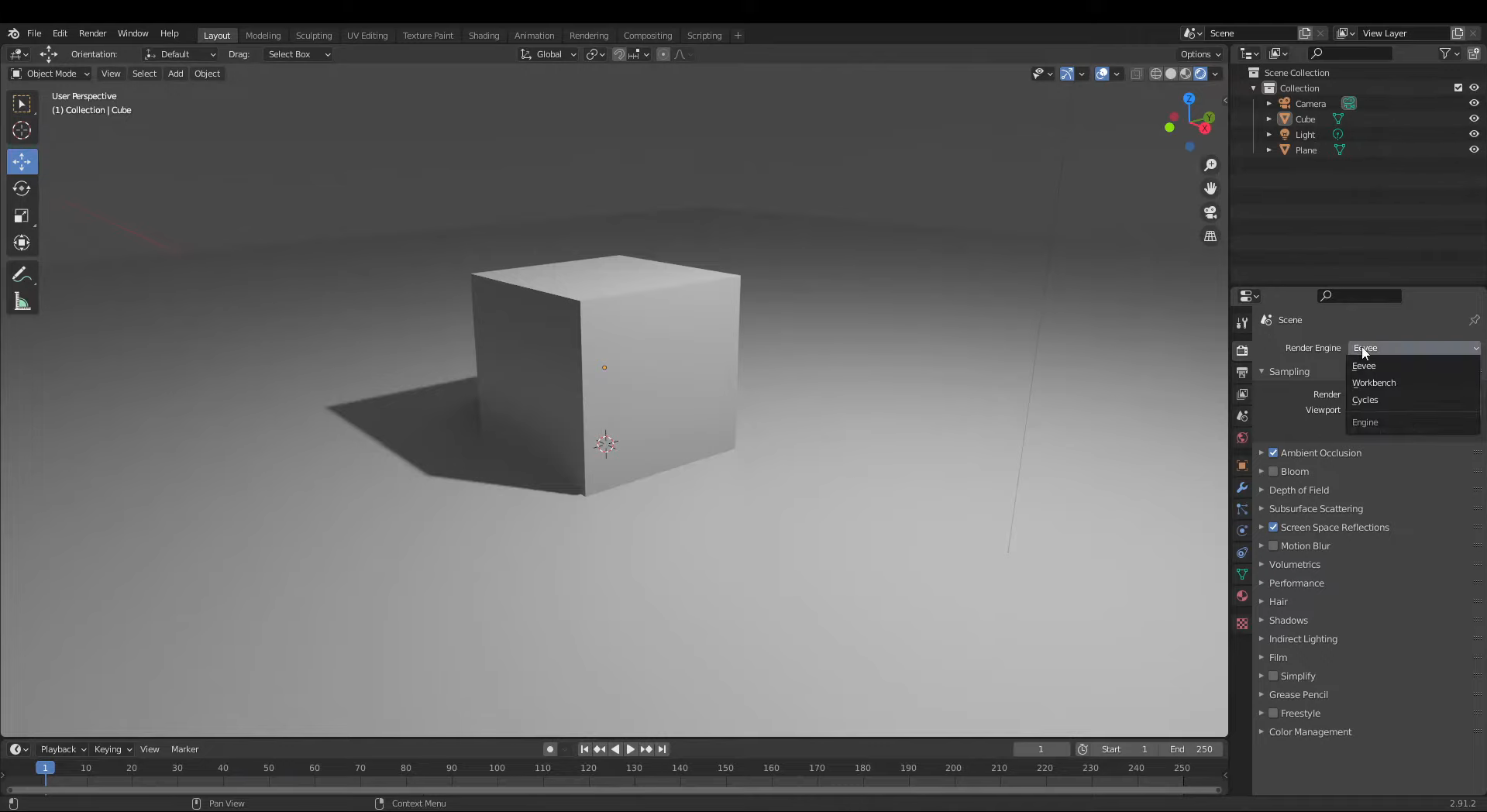
Step 1: Choose the rendering engine
Open your project and enable Rendered Viewport Shading using the shading icons in the top-right corner of the 3D Viewport.
Go to "Render Properties" and choose Cycles for realistic lighting or Eevee for faster rendering.
If you're using Cycles, adjust the "Render Samples" setting. Higher samples usually reduce noise but increase rendering time.
Check your lighting and materials in the preview and make any necessary adjustments.
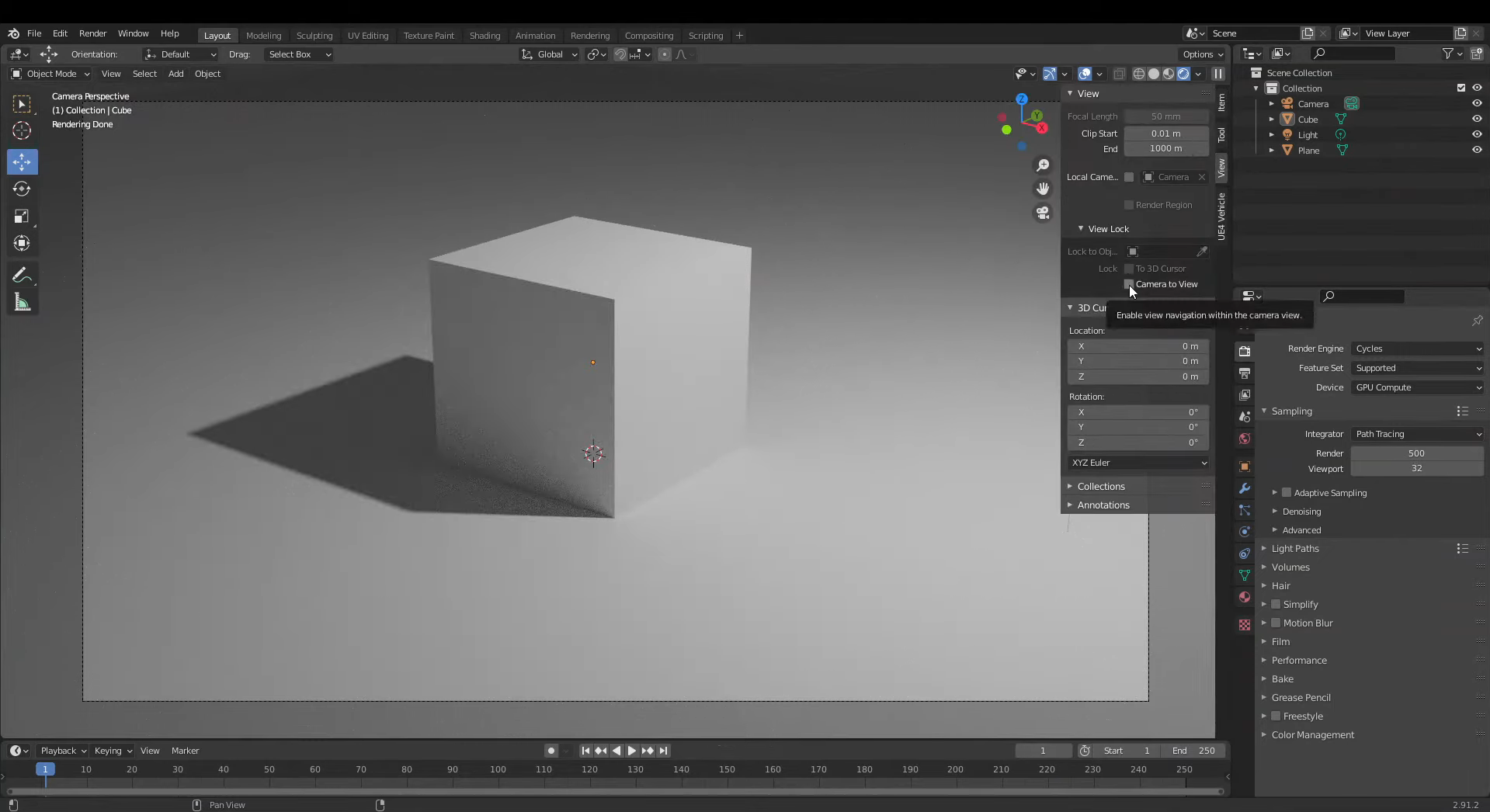
Step 2: Set up the camera view
Press Numpad 0 to switch to the active camera view and see how your scene will appear in the final image.
Press N to open the viewport sidebar, then find "View" and enable "Camera to View" if you want to adjust the camera by moving around the viewport.
Position your model within the frame and make sure the important details are visible.
Disable "Camera to View" when you're happy with the composition to avoid accidental camera movements.
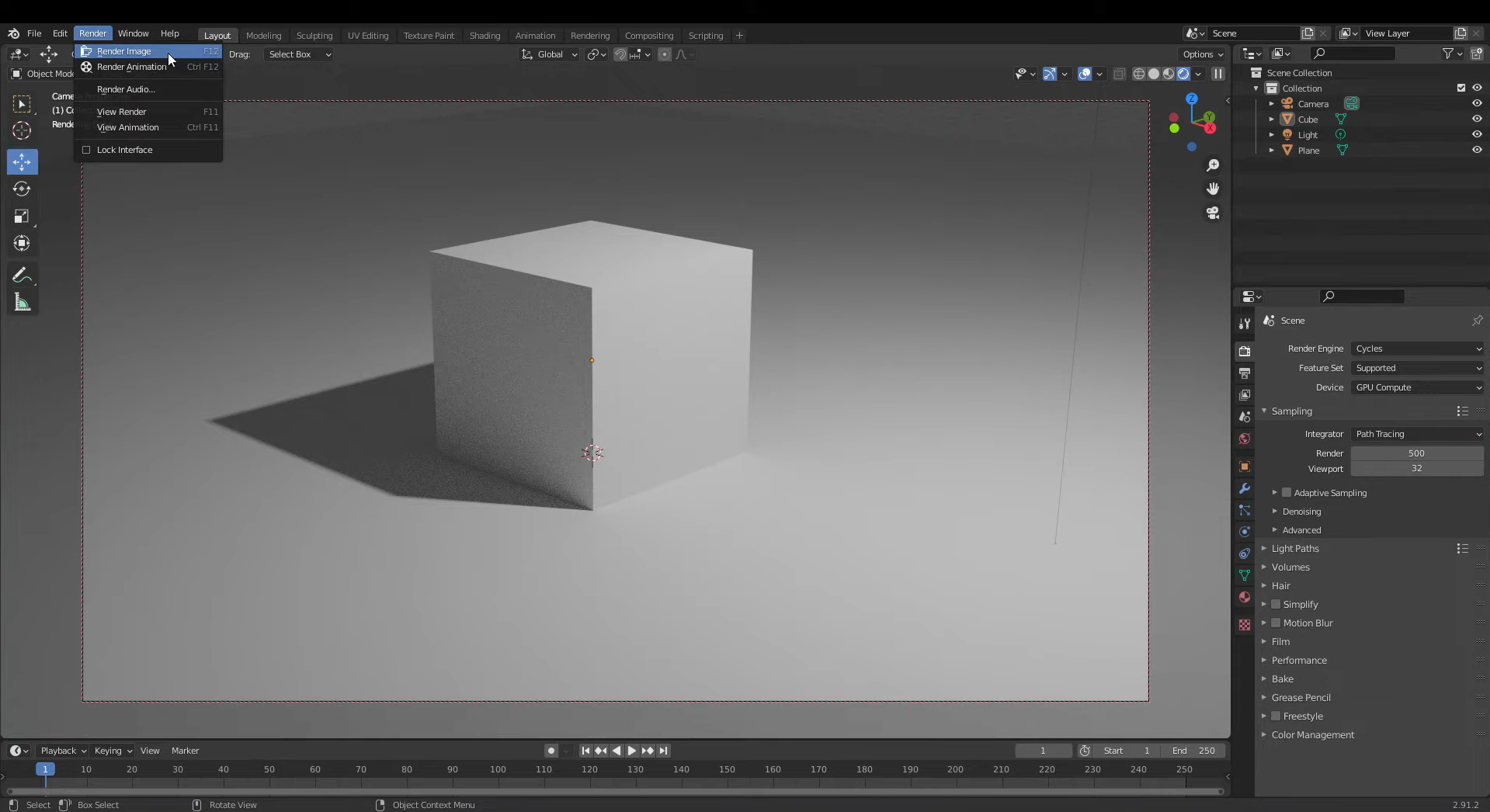
Step 3: Render the image
Open the "Render" menu at the top of Blender and select "Render Image", or press F12.
Wait for Blender to process the scene using your selected engine and settings.
Once rendering finishes, inspect the image for noise, unwanted shadows, or missing details.
If needed, return to your scene, make adjustments, and render the image again.
Step 4: Save the final image
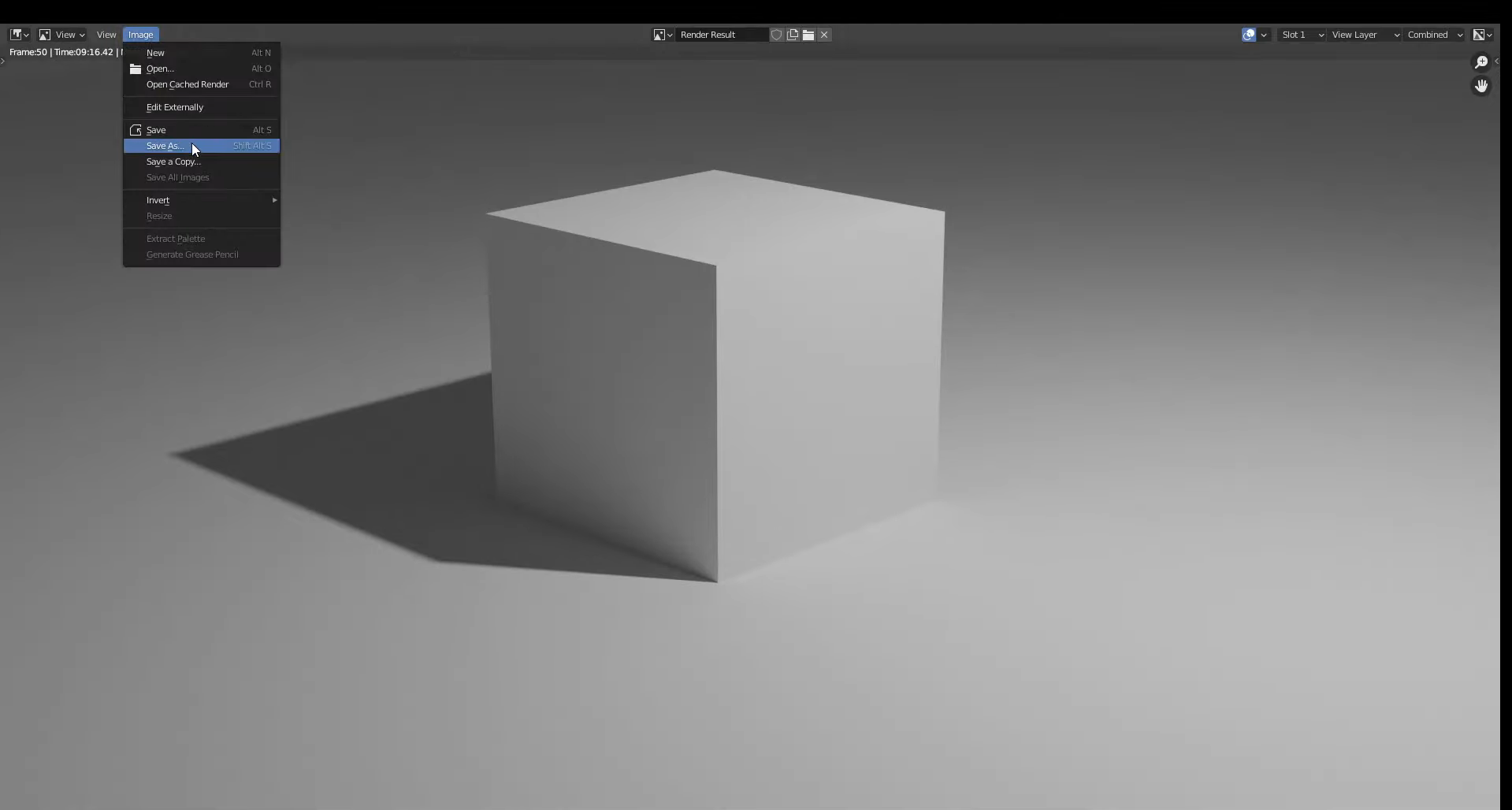
In the Render Result window, open "Image" and select "Save As".
Choose your preferred folder and enter a suitable filename.
Select an image format, such as PNG for high quality or JPEG for a smaller file size.
Click "Save As" to store your rendered image on your computer, ready to share or use in your project.
How to render in Blender without a background
Sometimes, you may want to use a 3D model in a poster, product image, or other design without keeping the original scene behind it. Blender lets you remove the background while keeping your model, lighting, and shadows intact. Here's how to render an image with transparency and save it correctly.
Step 1: Enable a transparent background
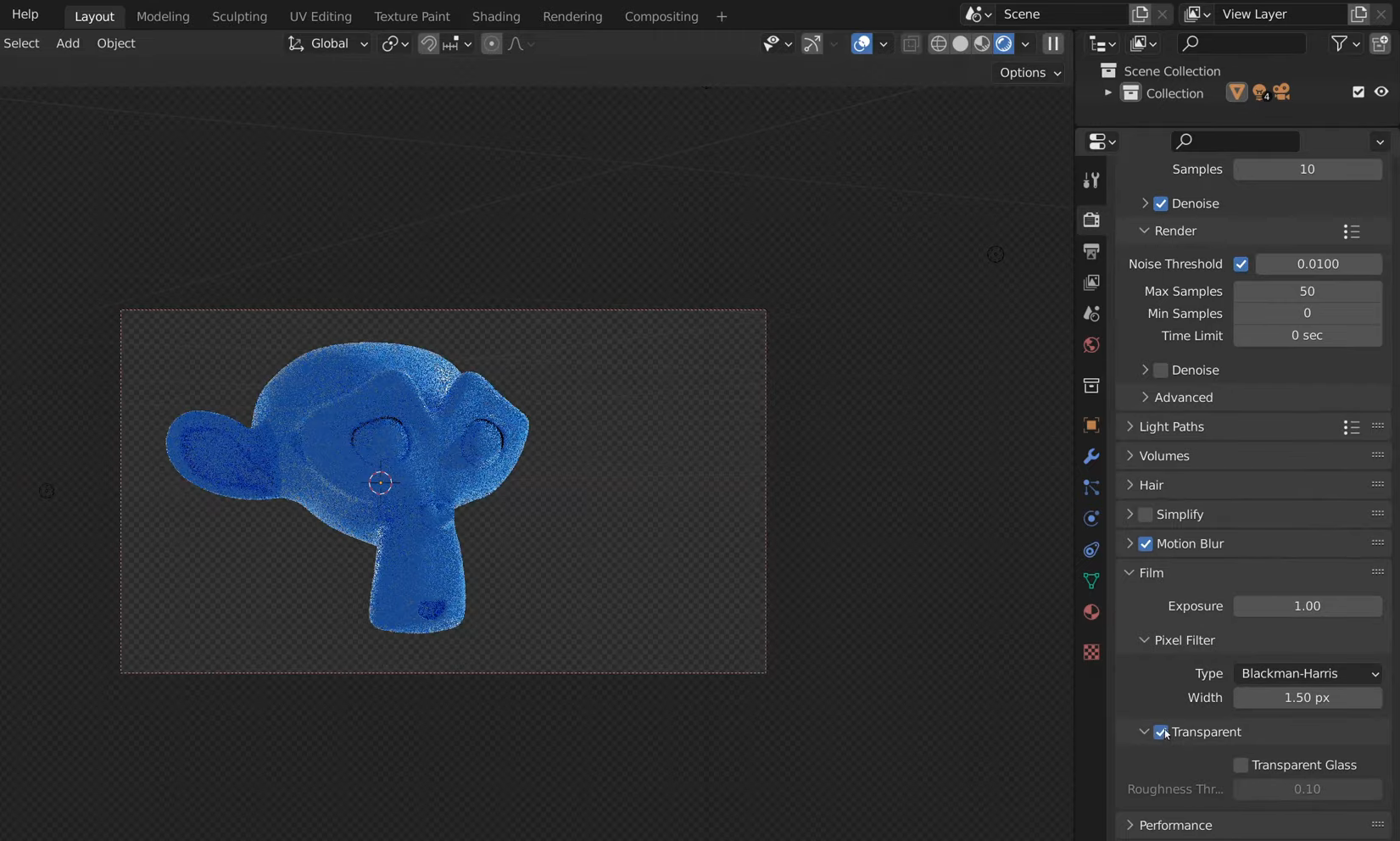
Open your project and go to "Render Properties" in the Properties Editor.
Find the "Film" section and enable "Transparent" to remove the world background from your final render.
This setting works with both Cycles and Eevee, so you can use your preferred rendering engine.
Keep your scene lighting and materials as they are, then check the rendered preview to confirm that your model remains visible against a transparent background.
Step 2: Render your image
Press F12 or select "Render Image" from the "Render" menu to start rendering.
Wait for Blender to finish processing your scene with the transparent background enabled.
Check the Render Result window. A checkerboard pattern usually indicates transparent areas rather than a solid background.
If the background still appears solid, return to "Render Properties" and make sure "Film" → "Transparent" is enabled before rendering again.
Step 3: Save the image with transparency
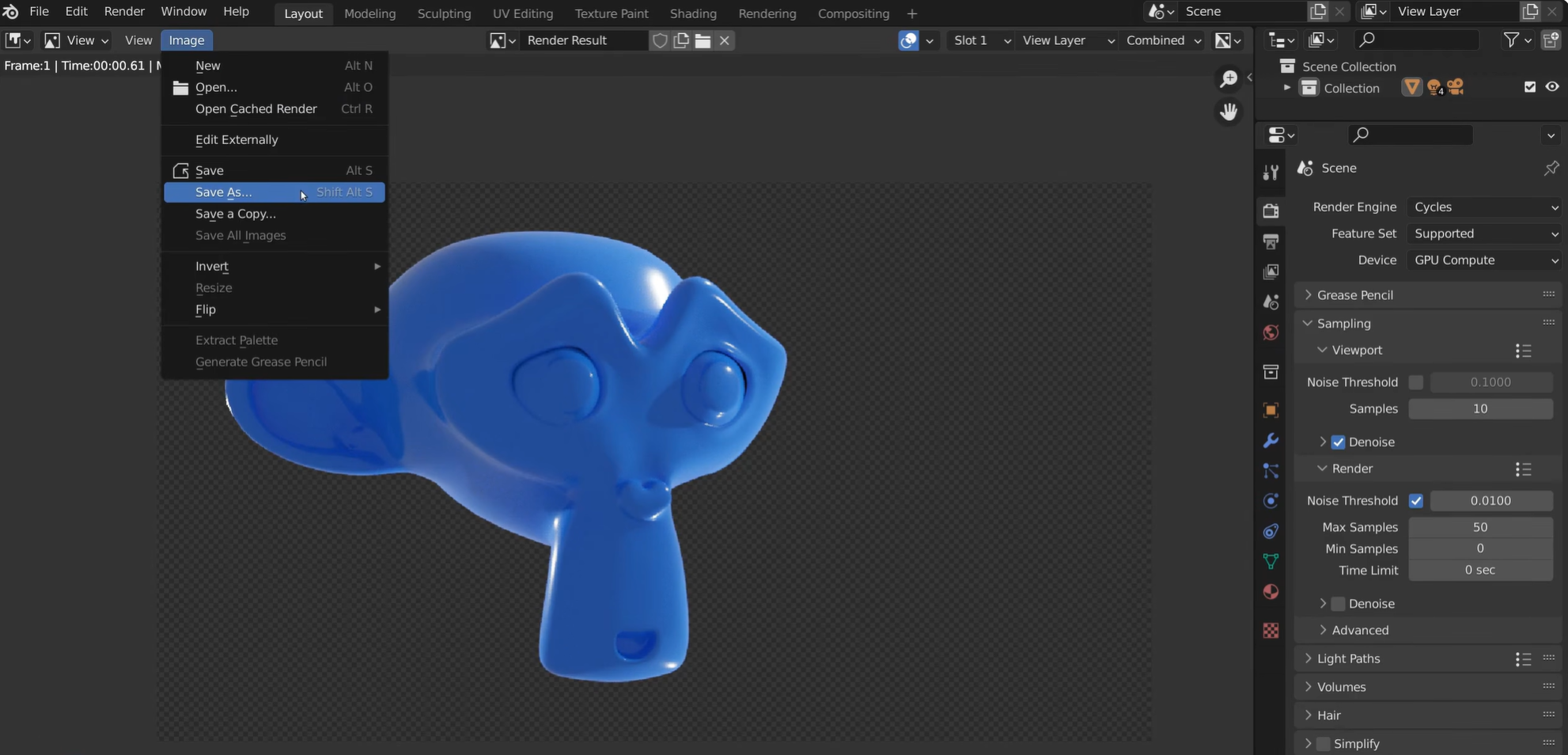
In the Render Result window, select "Image" → "Save As" to open the image-saving options.
Set the file format to "PNG" because JPEG does not support transparent backgrounds.
Under the color settings, choose "RGBA" instead of "RGB" so the saved image includes an alpha channel for transparency.
Choose your destination folder, enter a filename, and click "Save As" to save the image with its transparent background intact.
Step 4: Add a new background if needed
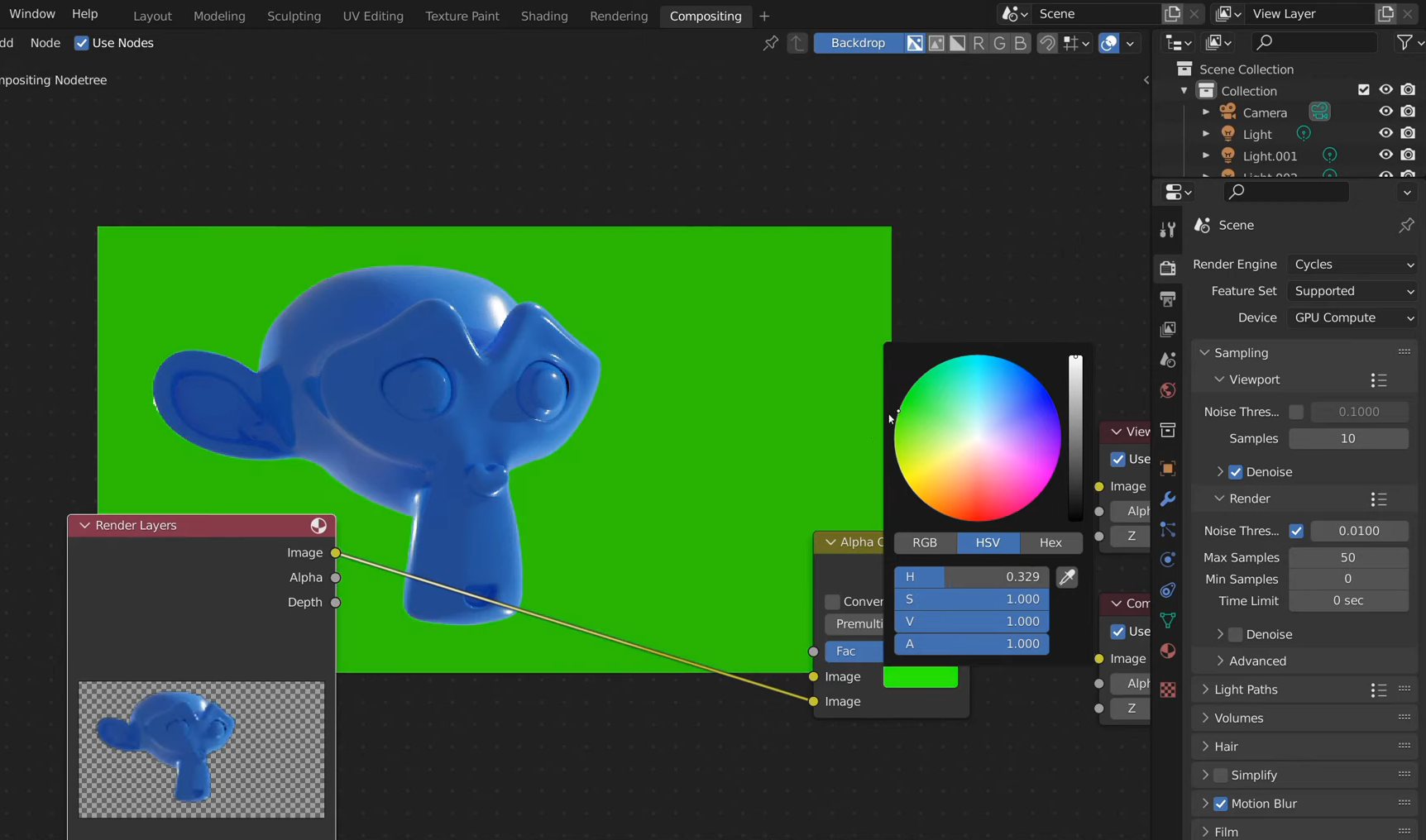
Open the "Compositing" workspace and enable "Use Nodes" to work with Blender's compositor.
Press Shift + A, search for "Alpha Over", and add the node to combine your rendered model with a new background.
Connect the "Render Layers" image output to the lower image input of the Alpha Over node, then connect your background image or color to the upper input.
Connect the Alpha Over output to the "Composite" node, adjust the background image size if needed, and render again to create your final composition.
Troubleshooting common rendering issues in Blender
Even after setting up your scene correctly, you may run into problems that affect the final image or slow down the rendering process. Most of these issues can be fixed by adjusting a few settings or checking your scene setup. Here are some common rendering problems in Blender and how to solve them.
Black render: check lights and world
A black render often means your scene lacks sufficient lighting or has incorrect light settings. Check that your lights are enabled, positioned correctly, and bright enough to illuminate the model. If you're using an HDRI, check the world settings as well.
Noisy images: raise samples or denoise
Grainy images often appear when Blender doesn't have enough samples to calculate lighting accurately. Increase the render sample count under Render Properties, especially when using Cycles. You can also enable denoising to reduce noise without significantly increasing render time.
Slow renders: lower samples, use GPU
Complex models, detailed materials, and high sample counts can make rendering slow. Reduce unnecessary details or lower the sample count to speed things up. You can also enable GPU rendering if your hardware supports it for faster and smoother rendering performance overall.
Missing textures: pack or relink images
Missing textures usually mean Blender cannot locate the image files used by your materials. Check the image texture nodes in the Shader Editor and relink any missing files. Use File → External Data → Pack Resources to keep external resources with your project.
Washed-out colors: fix color management
Washed-out colors can result from incorrect exposure, lighting, or color management settings. Find Color Management in Blender's render-related settings and review the exposure and view transform. Adjust these options until the colors look closer to your intended result.
Out of memory: reduce texture size
Blender may run out of memory when working with large textures, complex geometry, or many objects. Reduce oversized texture resolutions and remove details you don't need. If the problem continues, lower the render resolution or simplify the scene.
Bonus tip: Create render-ready 3D models with Kimi Build
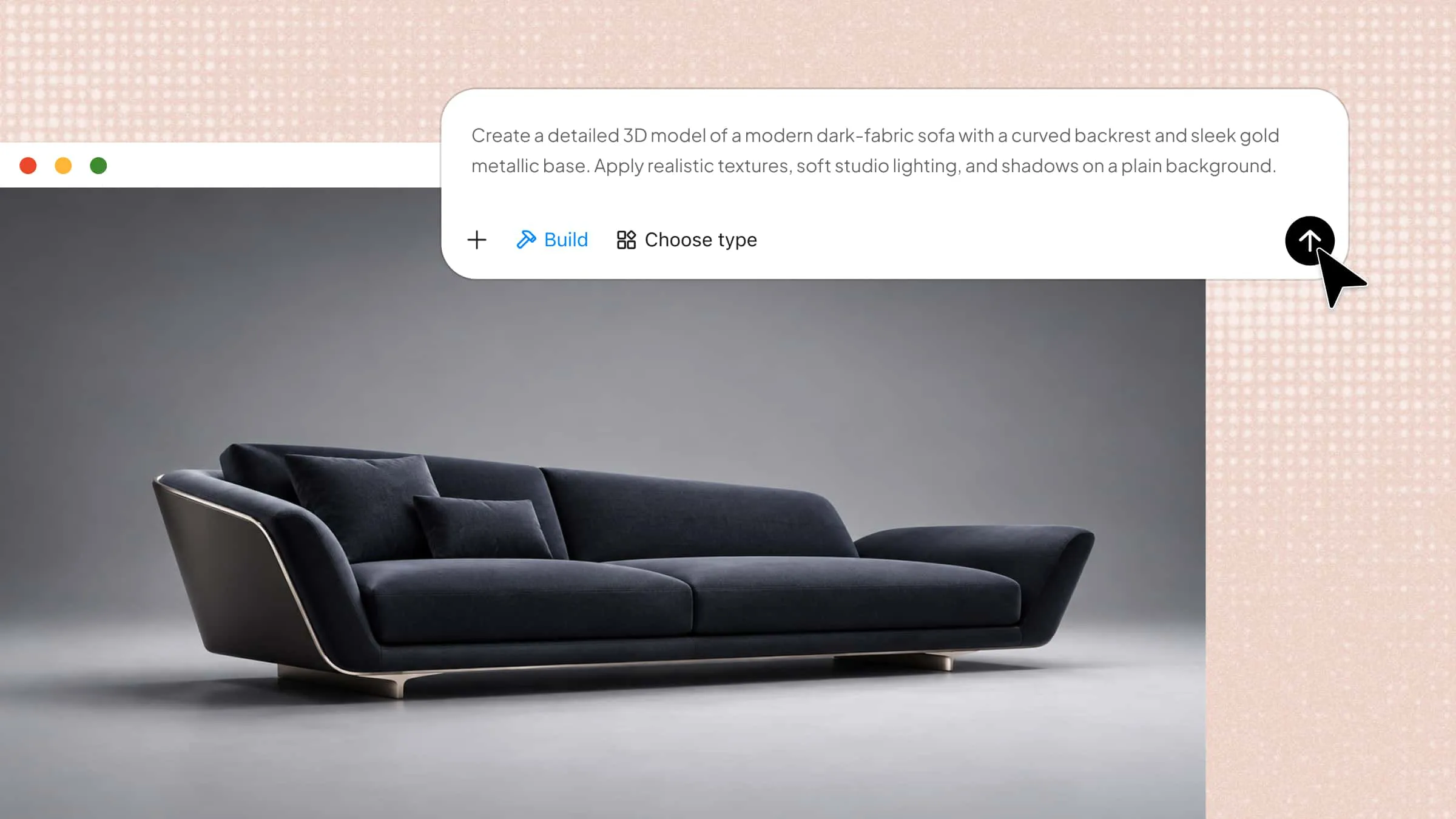
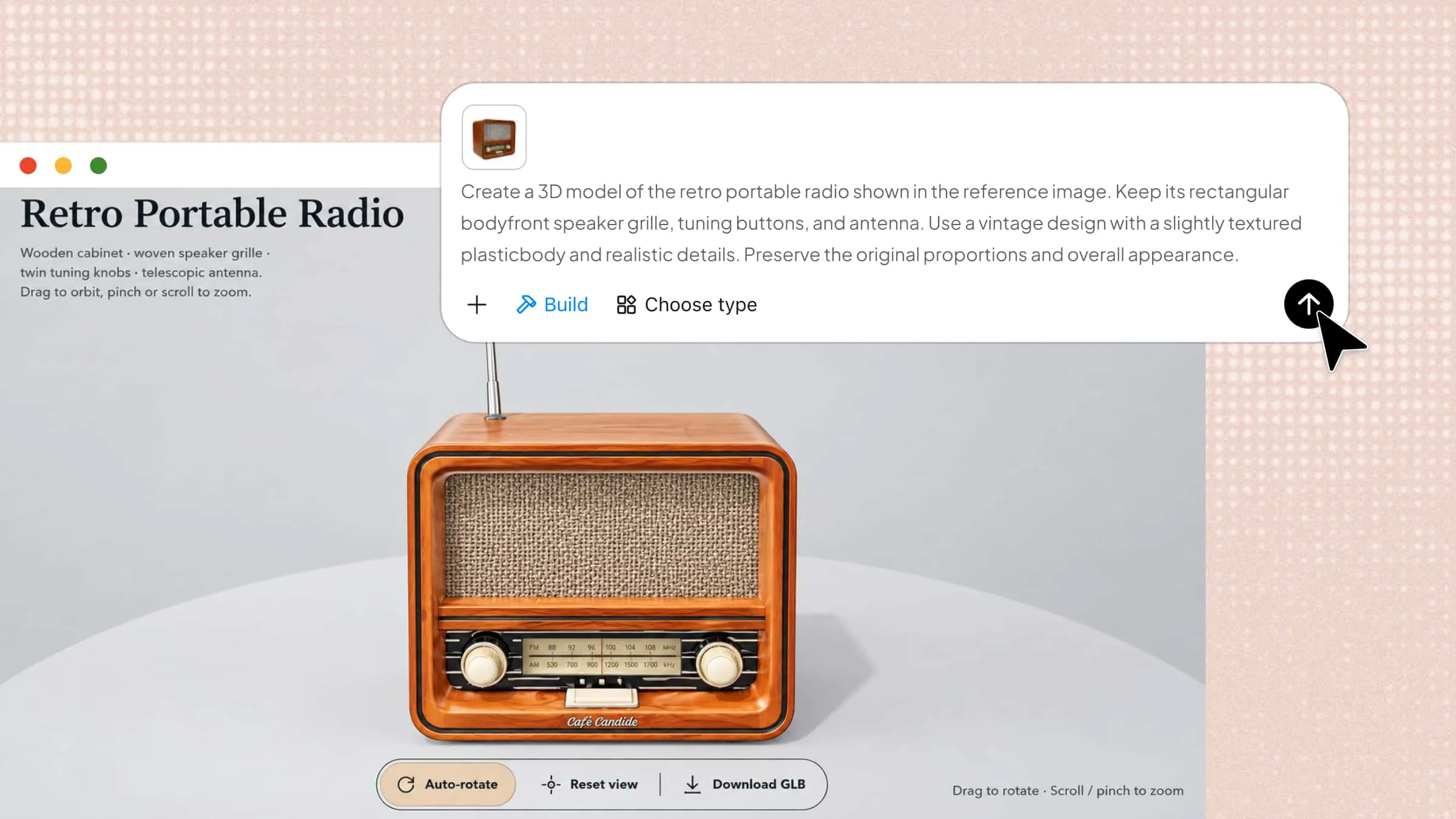
A good render depends on the quality of your 3D model, so getting the shape and details right before rendering can save you time and effort. If you don't want to build everything from scratch, Kimi Build makes it easy to create 3D models from text prompts or reference images. You can generate a model, refine its details, and use it as a starting point for your Blender rendering workflow.
How to make 3D models using Kimi Build
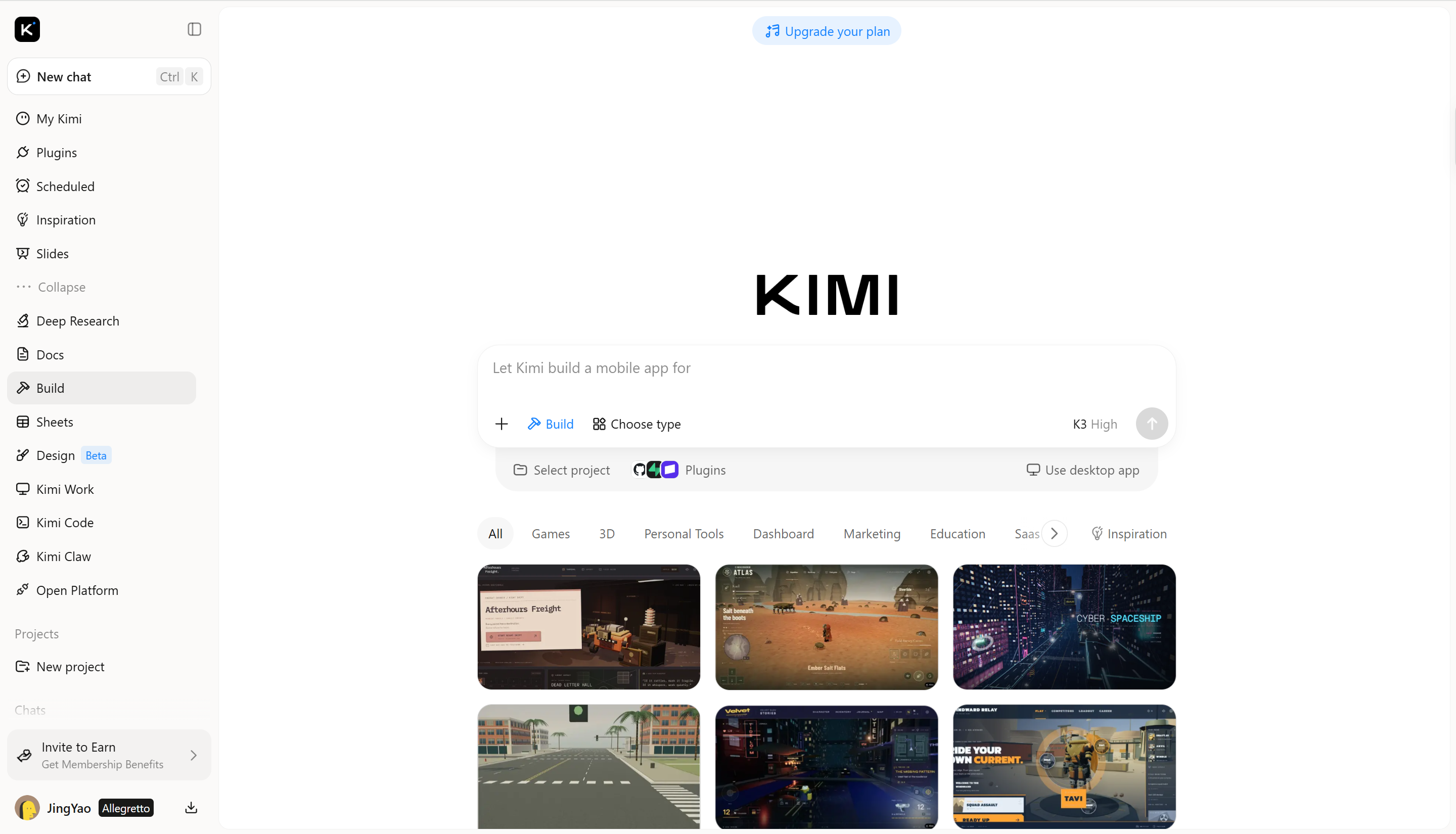
You don't need advanced modeling skills to get started with a 3D project. Kimi Build lets you turn your ideas into 3D models using text prompts or reference images, making it easier to create assets for your Blender scenes. Follow these steps to create your own 3D model and prepare it for rendering.
Step 1: Enter your prompt and upload a reference
Start by uploading your reference image to Kimi Build, then enter a prompt describing the model you want to create.
Example prompt:
Create a detailed 3D model of a futuristic mechanical keyboard inspired by the reference image. Include a transparent smoked-acrylic case, individual sculpted keycaps, subtle RGB lighting elements, and metallic internal components visible through the casing. Maintain accurate proportions, clean geometry, and realistic materials. Prepare the model for rendering in Blender.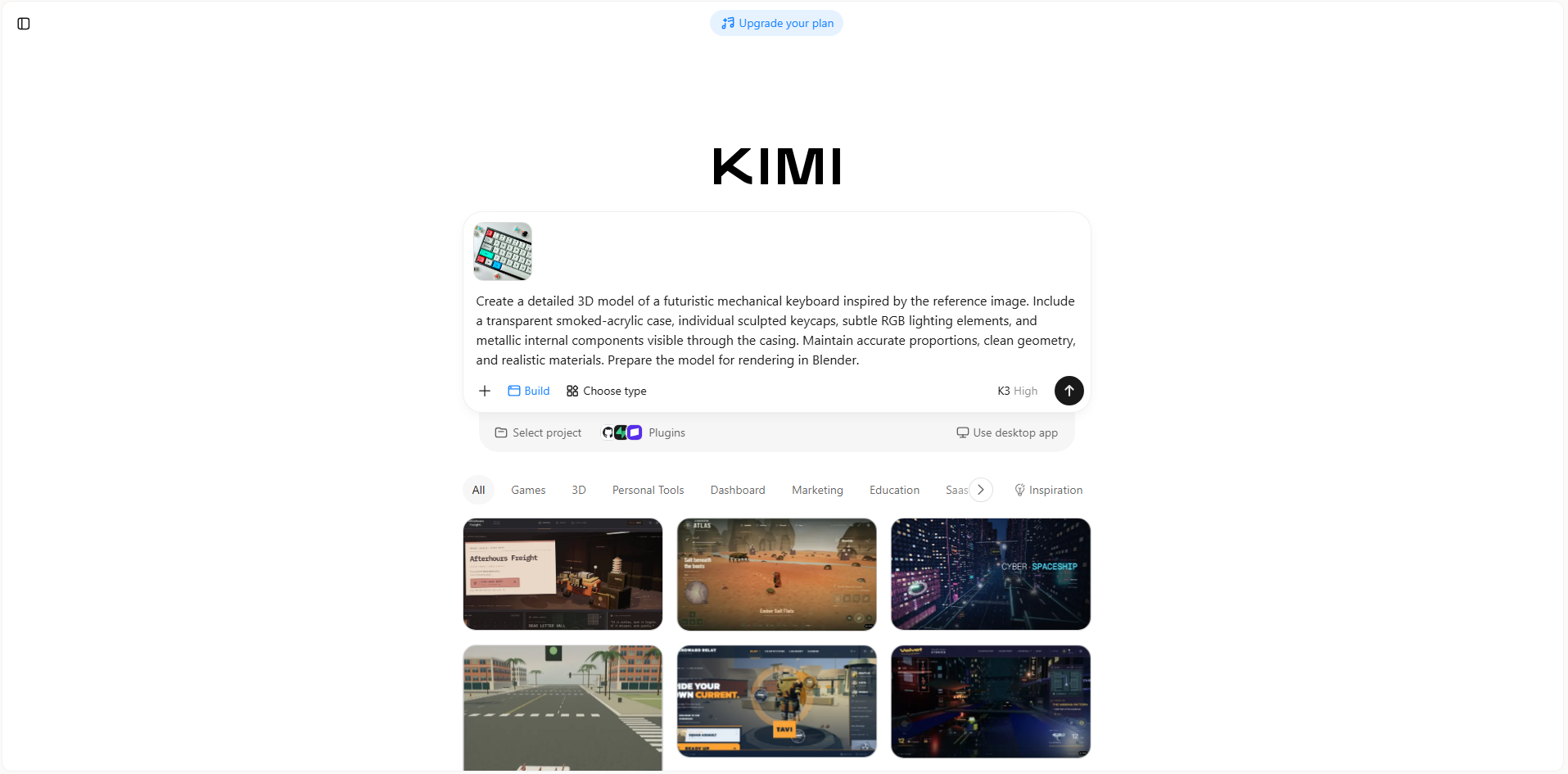
Step 2: Edit your 3D model
Review the generated model and check its shape, proportions, and details. Use follow-up prompts to adjust specific parts, refine the materials, or improve its overall appearance.
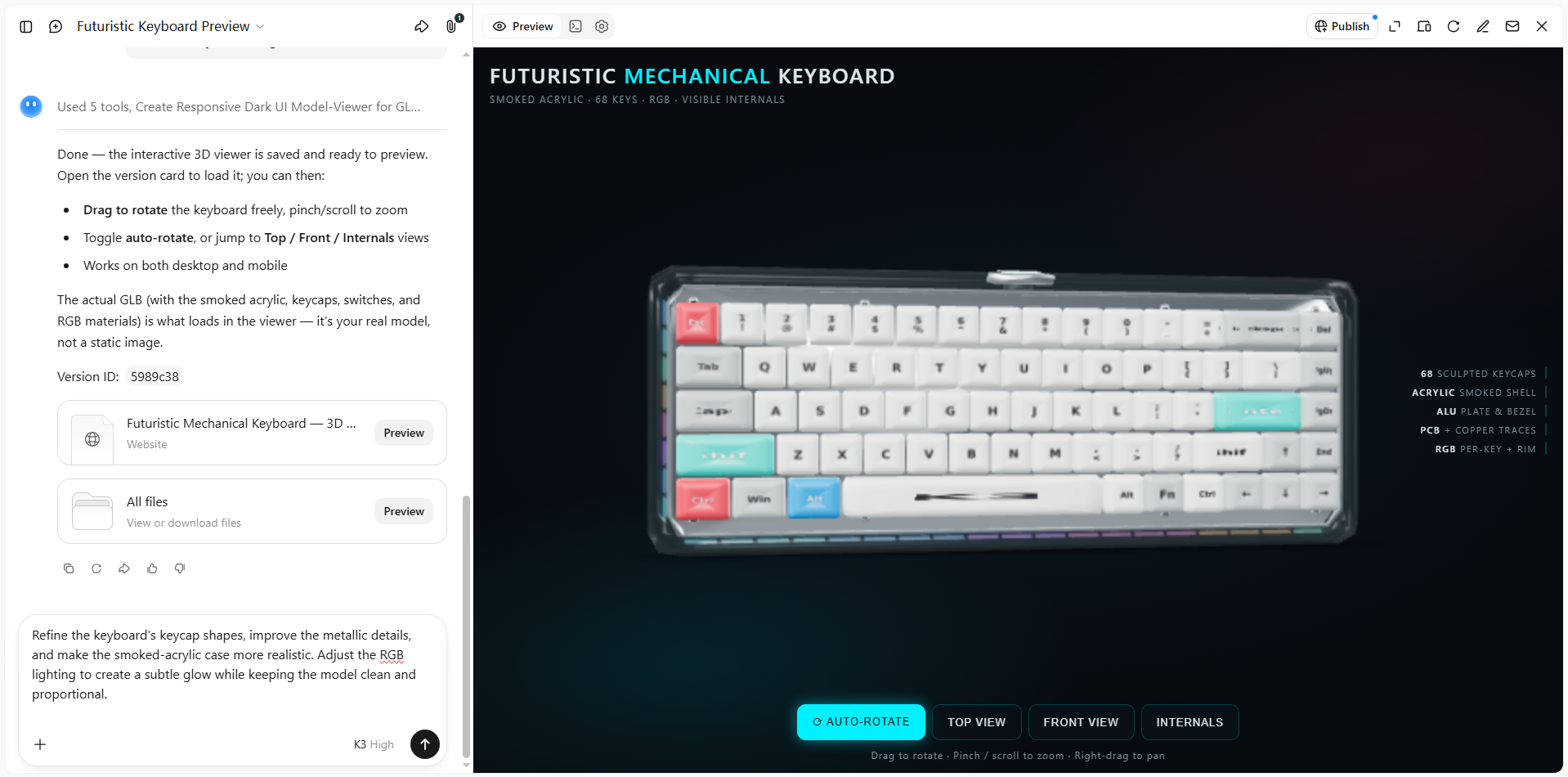
Step 3: Review and export your 3D model
Once you're happy with the result, export your finished 3D model for use in creative projects, product showcases, digital content, or online publishing.
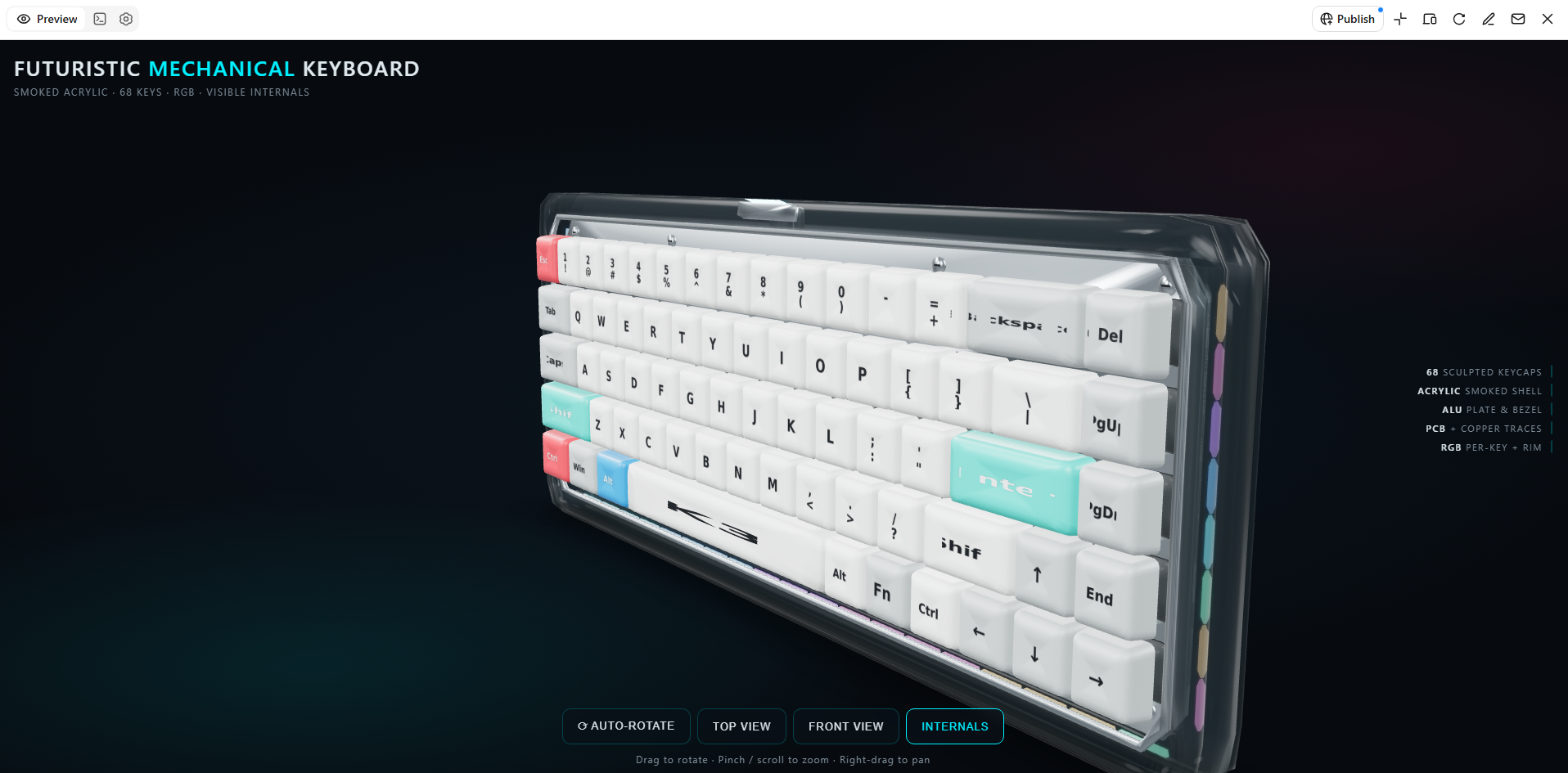
Key features
Turn ideas into render-ready 3D models: Use Kimi Build to transform text prompts and visual references into 3D models. Start with a concept sketch, product reference, or written description to develop models for rendering and visualization.
Bring models to life with detailed surfaces: Add visual depth with textures and surface finishes that bring out material, shape, and style. Create more expressive renders for product concepts, digital scenes, and creative presentations.
Explore different rendering styles: Experiment with prompts and reference images to explore different appearances, shapes, and visual directions. Refine your model concept to better match the intended look and purpose of your project.
Refine models with flexible editing tools: Enter prompts in the chat to describe the changes you want, comment on specific elements for targeted adjustments, or edit details manually. Fine-tune individual parts and refine the overall design while maintaining control over the final result.
Extend rendering workflows with specialized tools: For more advanced modeling, rendering, and animation, Kimi Work provides access to tools such as Blender and Tripo 3D through plugins. Use Blender for detailed scene setup and rendering, or Tripo 3D to generate models from text prompts and images. Depending on the tool, formats such as FBX, STL, USDZ, BLEND, GLB, glTF, and OBJ can support further editing and development.
Conclusion
Understanding how to render in Blender helps you turn simple 3D scenes into polished visuals while giving you more control over the final result. With practice, you can improve your rendering skills and create images that match your creative goals. If you want to save time on modeling, try Kimi Build to turn your ideas into 3D assets and explore new possibilities for your next project.