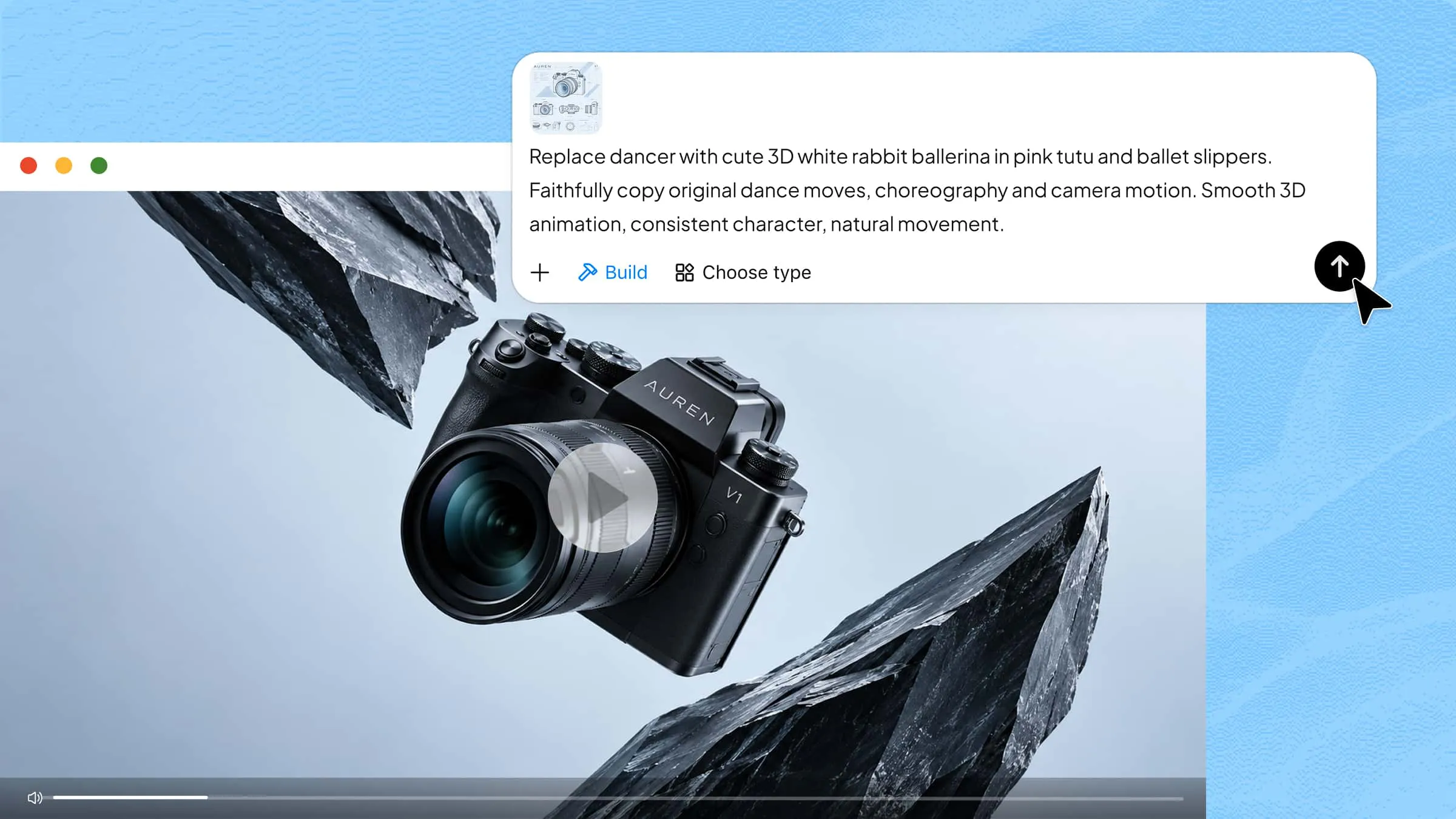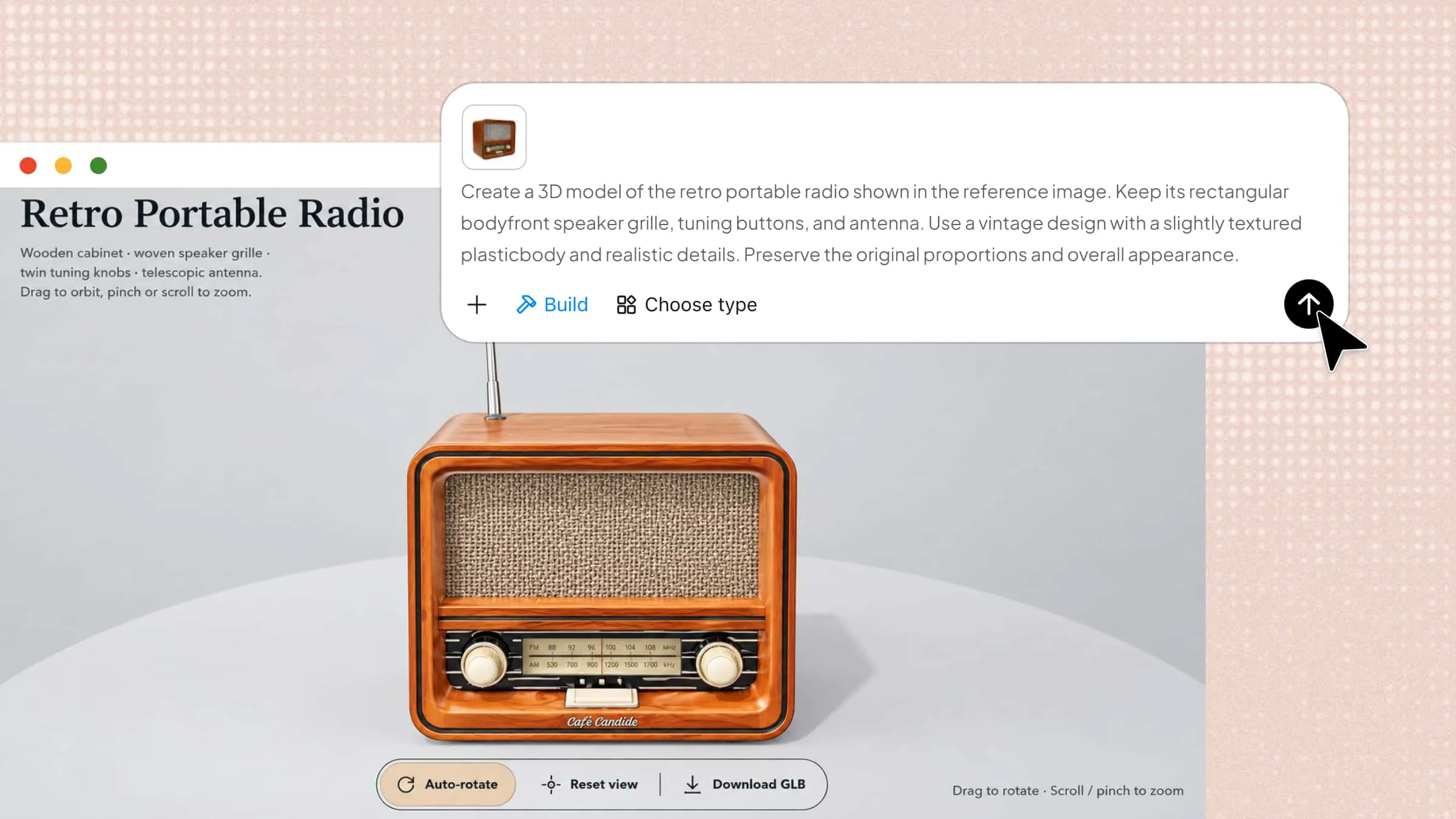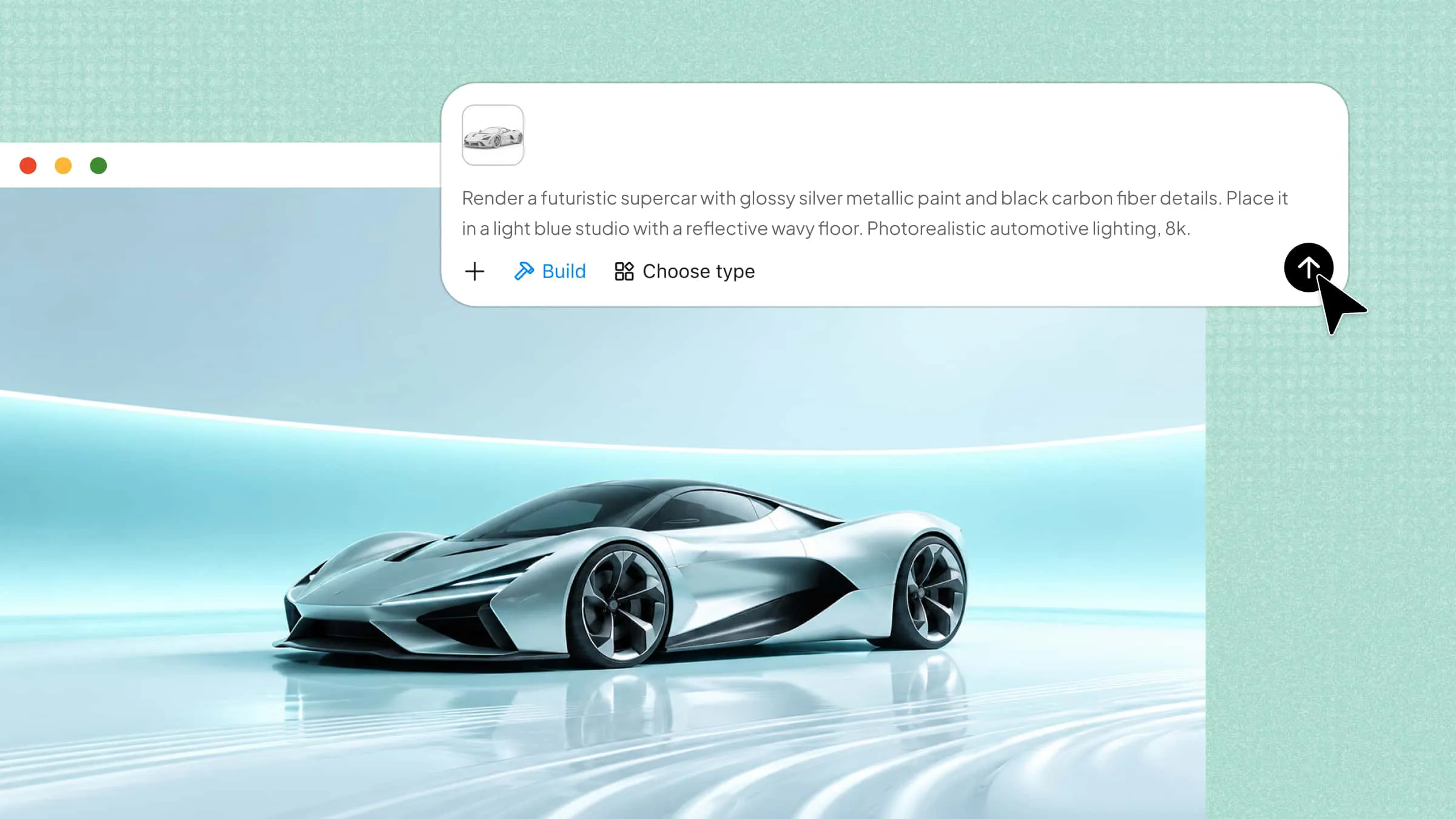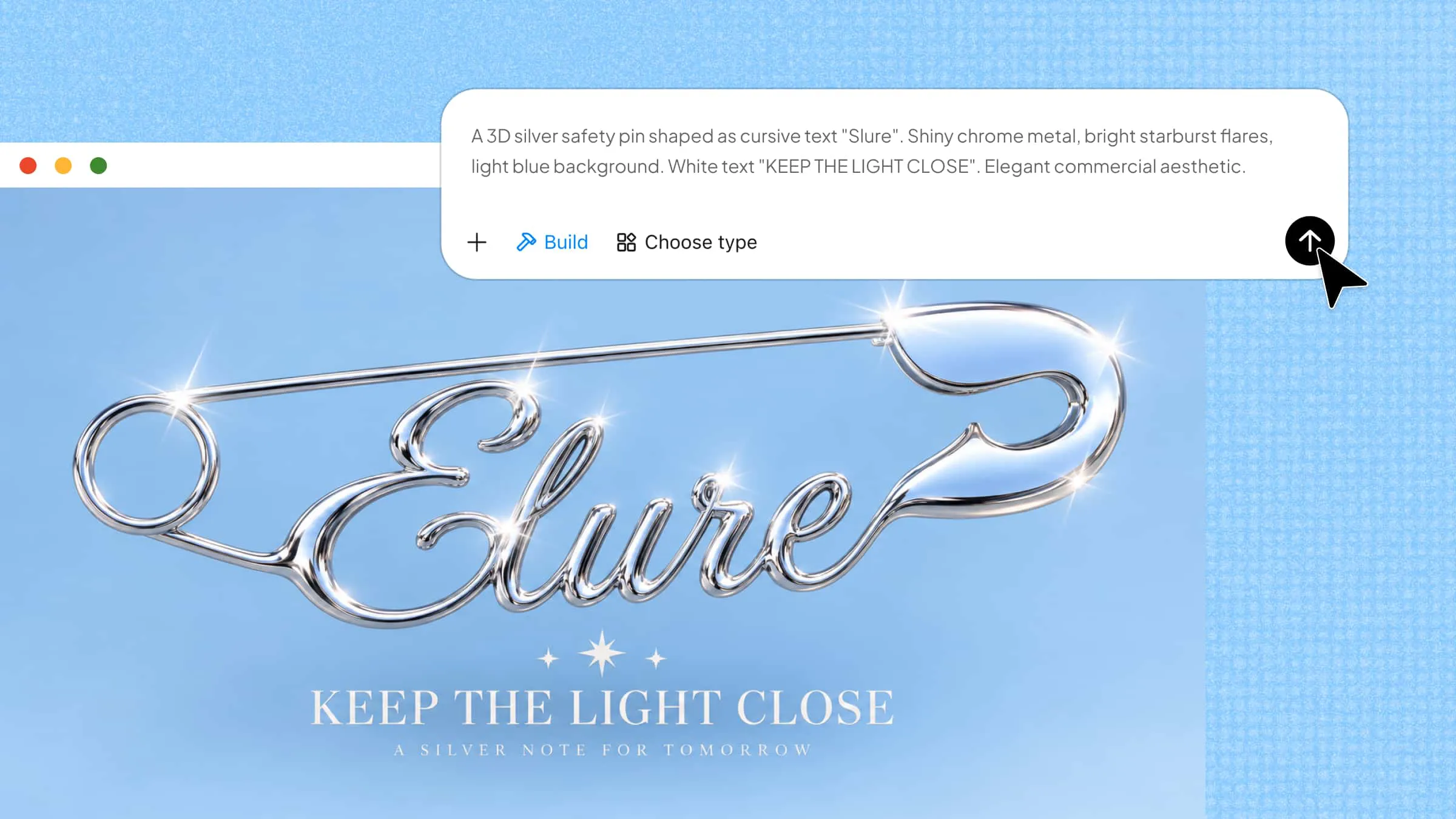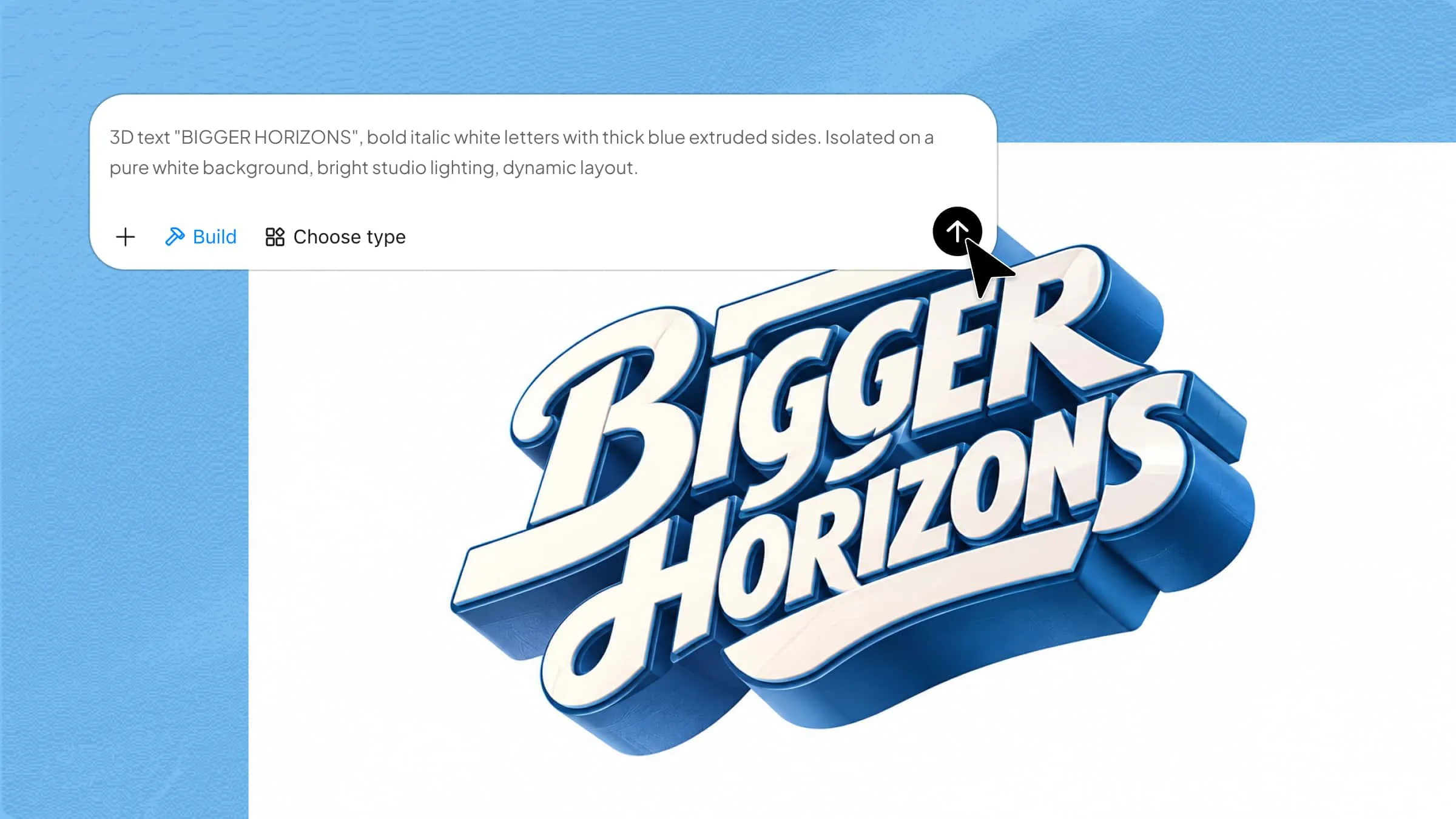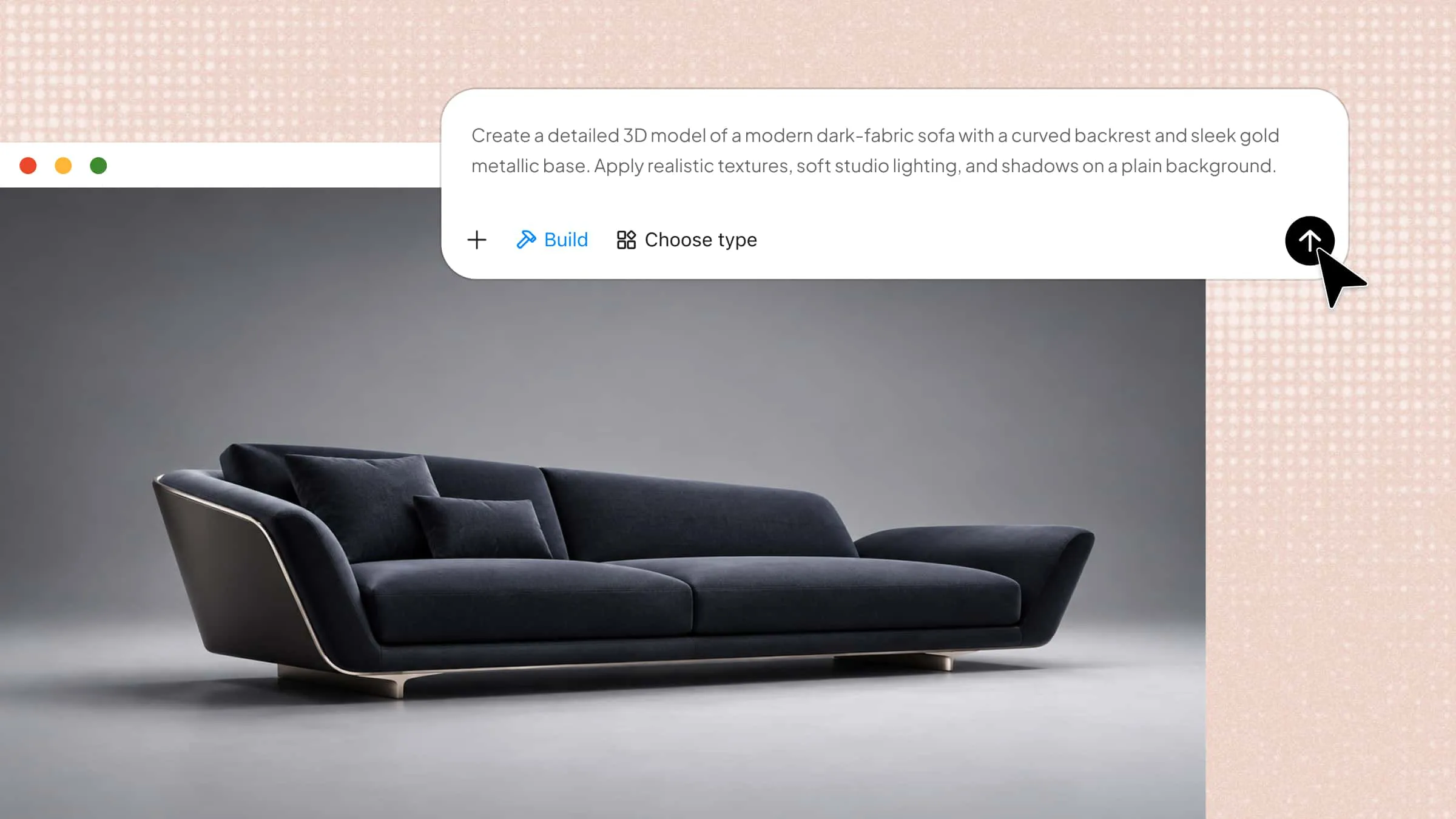
You have a great idea for a 3D design, but turning it into a realistic model can feel confusing when you're just starting out. Knowing which tools to use, how to shape objects, and where to begin can make the process seem harder than it is. With the right approach, you can build your first model without advanced design experience. This guide explains how to make a 3D model from scratch, covering each step from choosing the software to adding the final details.
How to make a 3D model with Kimi Build in simple steps
Kimi Build makes 3D modeling more accessible by helping you turn your ideas into designs without needing advanced technical skills. Its AI-powered workflow simplifies the creation process, making it easier for beginners to get started. Follow the steps below to learn how to create 3D models with Kimi Build.
Step 1: Describe the 3D model you want to create
Start by describing the object you want to build in Kimi Build. Include details about its shape, dimensions, materials, colors, textures, and intended use to help the AI understand your idea. A clear prompt makes it easier to create a 3D model online that matches your vision.
Example prompt:
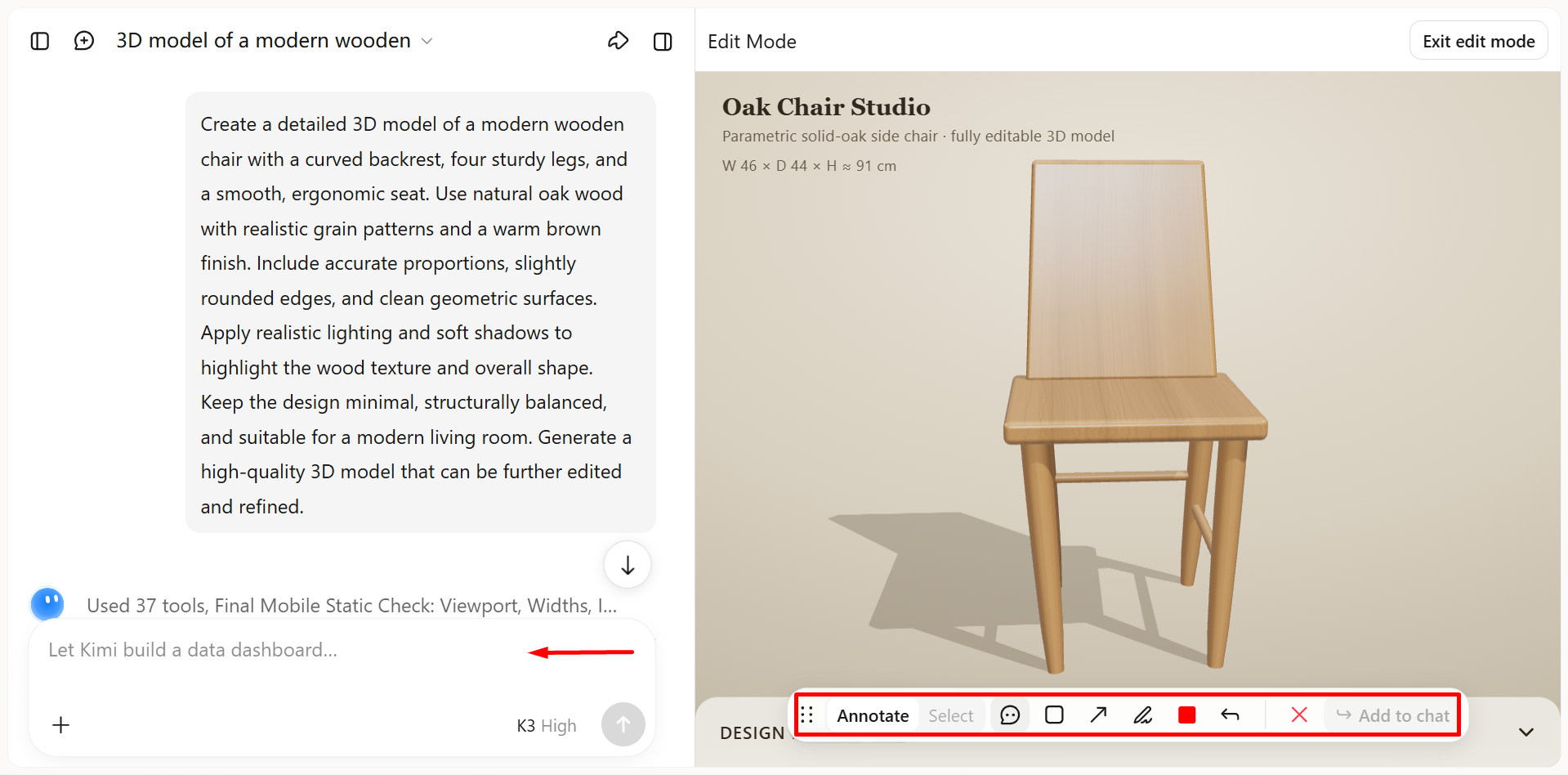
Create a detailed 3D model of a modern wooden chair with a curved backrest, four sturdy legs, and a smooth, ergonomic seat. Use natural oak wood with realistic grain patterns and a warm brown finish. Include accurate proportions, slightly rounded edges, and clean geometric surfaces. Apply realistic lighting and soft shadows to highlight the wood texture and overall shape. Keep the design minimal, structurally balanced, and suitable for a modern living room. Generate a high-quality 3D model that can be further edited and refined.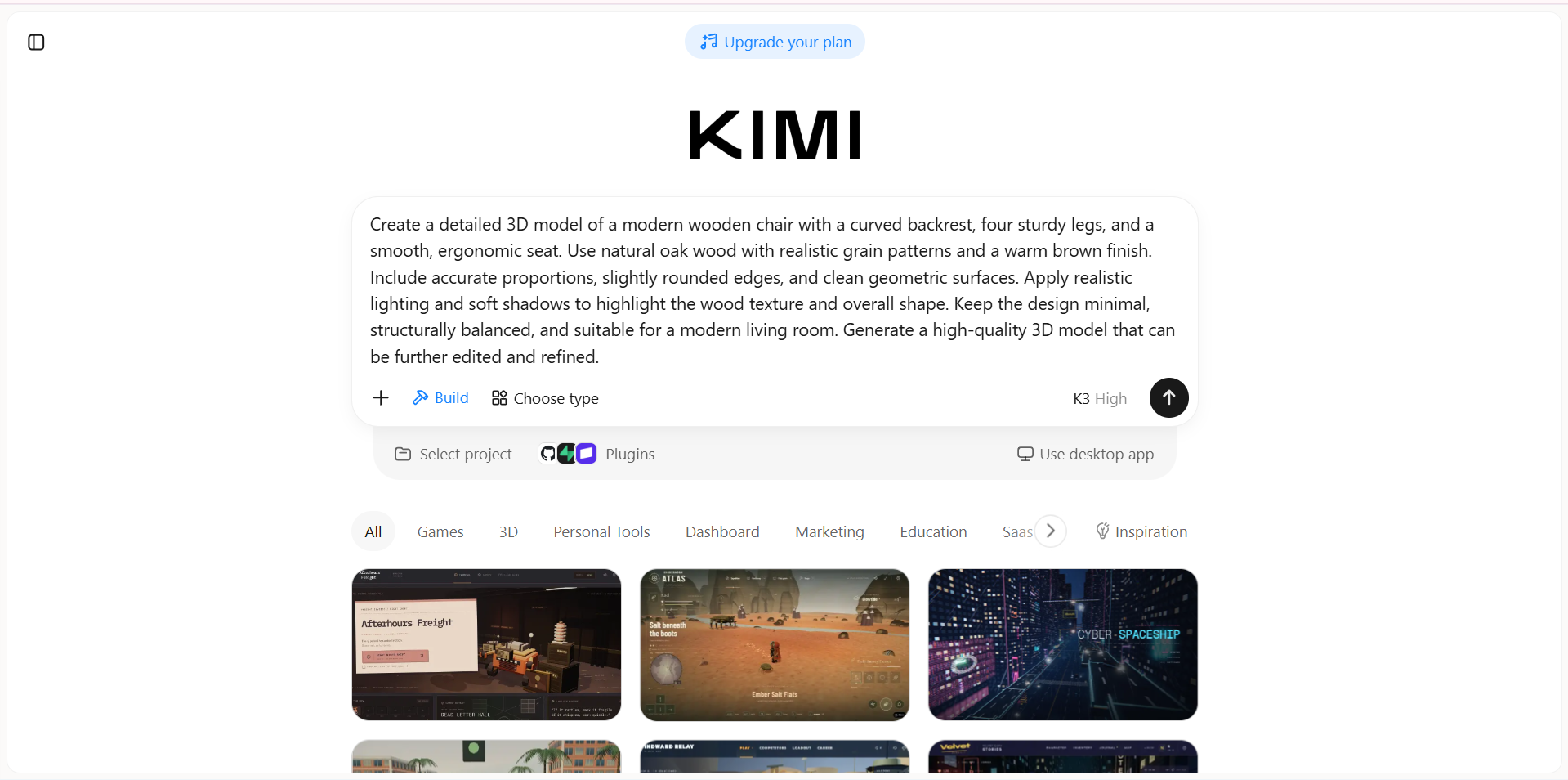
Step 2: Generate your 3D model with AI
Submit your prompt to Kimi Build to generate the initial design. Once the result appears, check whether the tool has created the type of model you described.
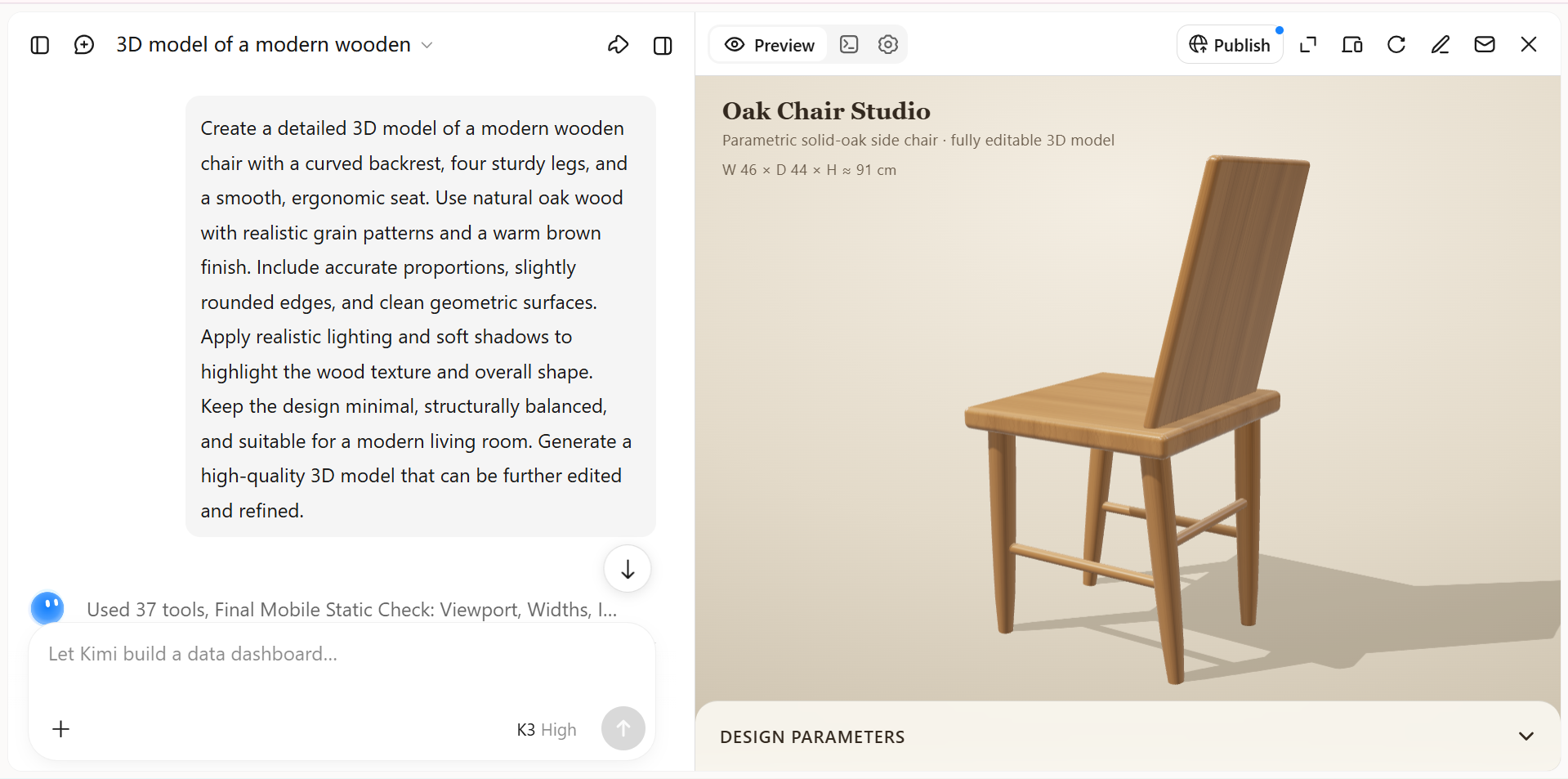
Step 3: Refine the model's shape and details
Review the model for any missing details, incorrect proportions, or unwanted features. You can edit it manually, add comments to highlight specific areas for improvement, or give the AI a prompt to fix issues and adjust the design. Continue refining the model until it matches your expectations.
Step 4: Review and export your finished 3D model
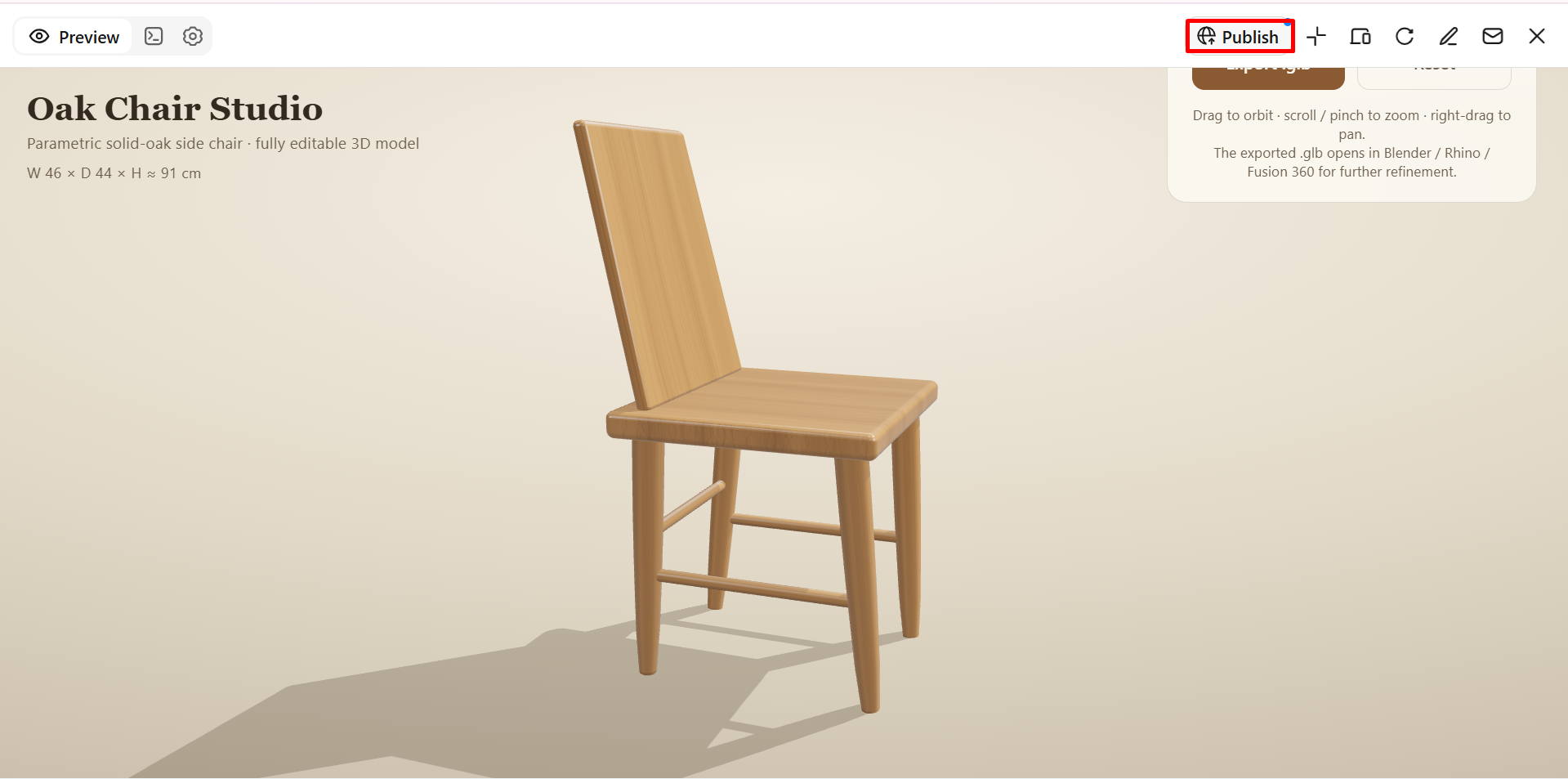
Inspect your finished 3D model from different angles and refine any details as needed. You can prompt Kimi Build to generate the model in your required supported format such as GLB, glTF, and OBJ, publish it for display on the web, or export it for use in other tools and projects. Choose the option that best fits how you plan to share, display, or continue working with your model.
Why choose Kimi Build to create 3D models
Creating a 3D model from scratch can be challenging when you're unfamiliar with design software and modeling techniques. Kimi Build simplifies the process with AI-powered tools that help beginners turn their ideas into digital designs. Here's why it's worth considering when learning how to make a 3D model.
Generate 3D models from text and image references
Describe the object you want to create or upload a reference image to guide the design. Kimi Build transforms your ideas into detailed 3D models with well-defined shapes, balanced proportions, and cohesive visual styles, helping you create polished concepts for products, characters, objects, and more.
Refine model shapes and visual details
Adjust your model as your design takes shape. Use natural-language instructions, comment on specific elements, or make manual edits to refine proportions, surfaces, and other details. Explore variations and improve the result without rebuilding the entire model from scratch.
Create 3D models for diverse applications
Develop 3D assets for product visualization, digital scenes, game concepts, branding visuals, and other creative projects. Adapt the model's appearance to suit your intended use, whether you are developing a product concept or creating visual assets for digital content.
Export models for further editing and development
Export your finished models in supported formats such as GLB, glTF, and OBJ. Bring your assets into compatible 3D software for additional editing, visualization, or integration into broader creative workflows.
Extend modeling capabilities with Kimi Work
Use Kimi Work plugins such as Blender and Tripo 3D to explore more advanced 3D workflows. Generate models from text or images with Tripo 3D, then use Blender for detailed modeling, rigging, animation, and rendering. Depending on the tool and workflow, formats such as FBX, STL, USDZ, and BLEND support further development for game projects, 3D printing preparation, and AR experiences.
Tips for designing creative 3D models
Once you know how to create a basic model, a few practical techniques can help you improve its appearance and functionality. Whether you're designing a product, a character, or a decorative object, these tips will help you create 3D models with better detail and a more professional finish.
Start with clear references and simple shapes
Gather reference images to understand the object's shape, proportions, and overall structure before you begin. Break complex designs into basic shapes to make the modeling process easier and keep the initial design manageable.
Refine proportions and structural details
Pay attention to the size and relationship of each component to maintain a balanced design. Refine edges, joints, and surface details to make your model look more realistic and visually consistent.
Experiment with colors, materials, and textures
Choose materials that suit the purpose of your design, such as wood for furniture or metal for mechanical objects. Experiment with different colors and textures to add depth and give your model a more distinctive appearance.
Use AI prompts to explore creative variations
Try different prompts to explore alternative shapes, styles, and design features without starting from scratch. For example, you can ask AI to create a minimalist version of an object or suggest a more futuristic design.
Review and refine the model from multiple angles
Inspect your model from the front, sides, back, and top to identify imperfections that may not be visible from one view. Make adjustments to uneven surfaces, proportions, or missing details before finalizing the design.
Design with the final application in mind
Consider how you plan to use your model before deciding on its level of detail and complexity. A model intended for 3D printing may require specific structural dimensions, while one designed for animation or visualization may need different geometry and surface details.
Conclusion
Creating a 3D model from scratch becomes much easier when you have the right tools and a clear plan. Kimi Build helps simplify the process by letting you turn ideas into designs with AI, refine details through prompts or manual edits, and explore different styles. If you're learning how to make a 3D model, start with a simple project and gradually experiment with more complex designs as your skills improve.