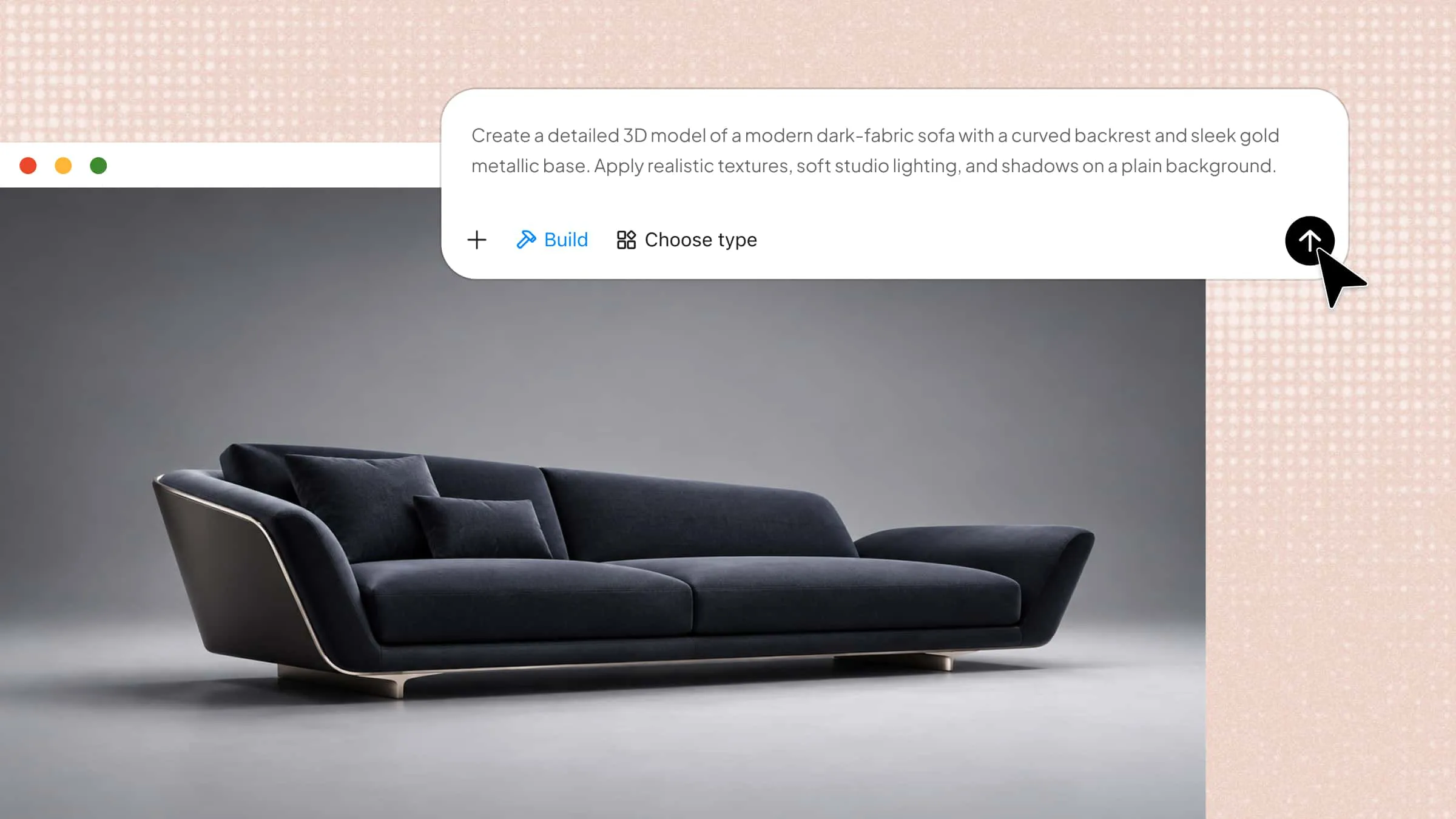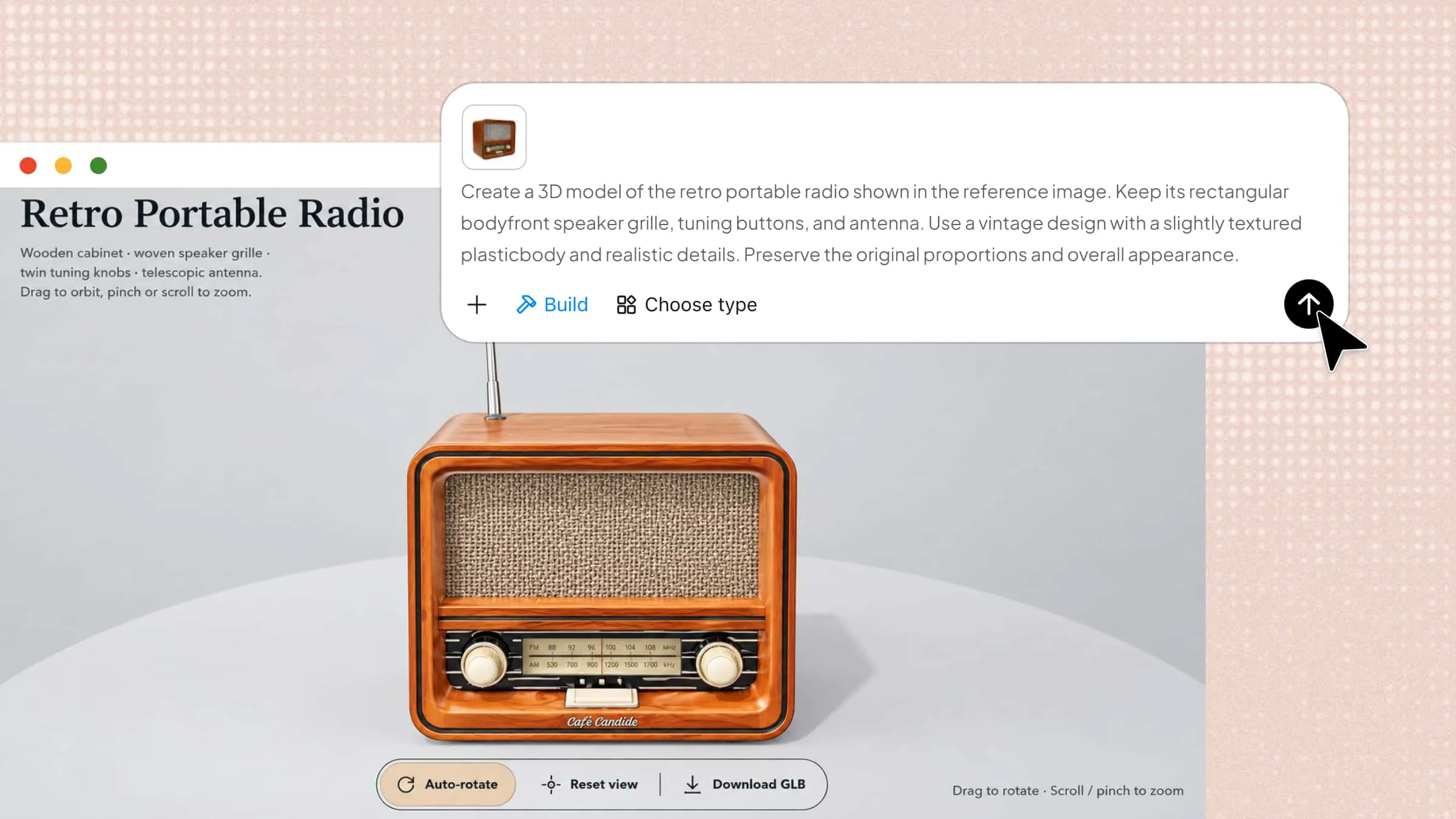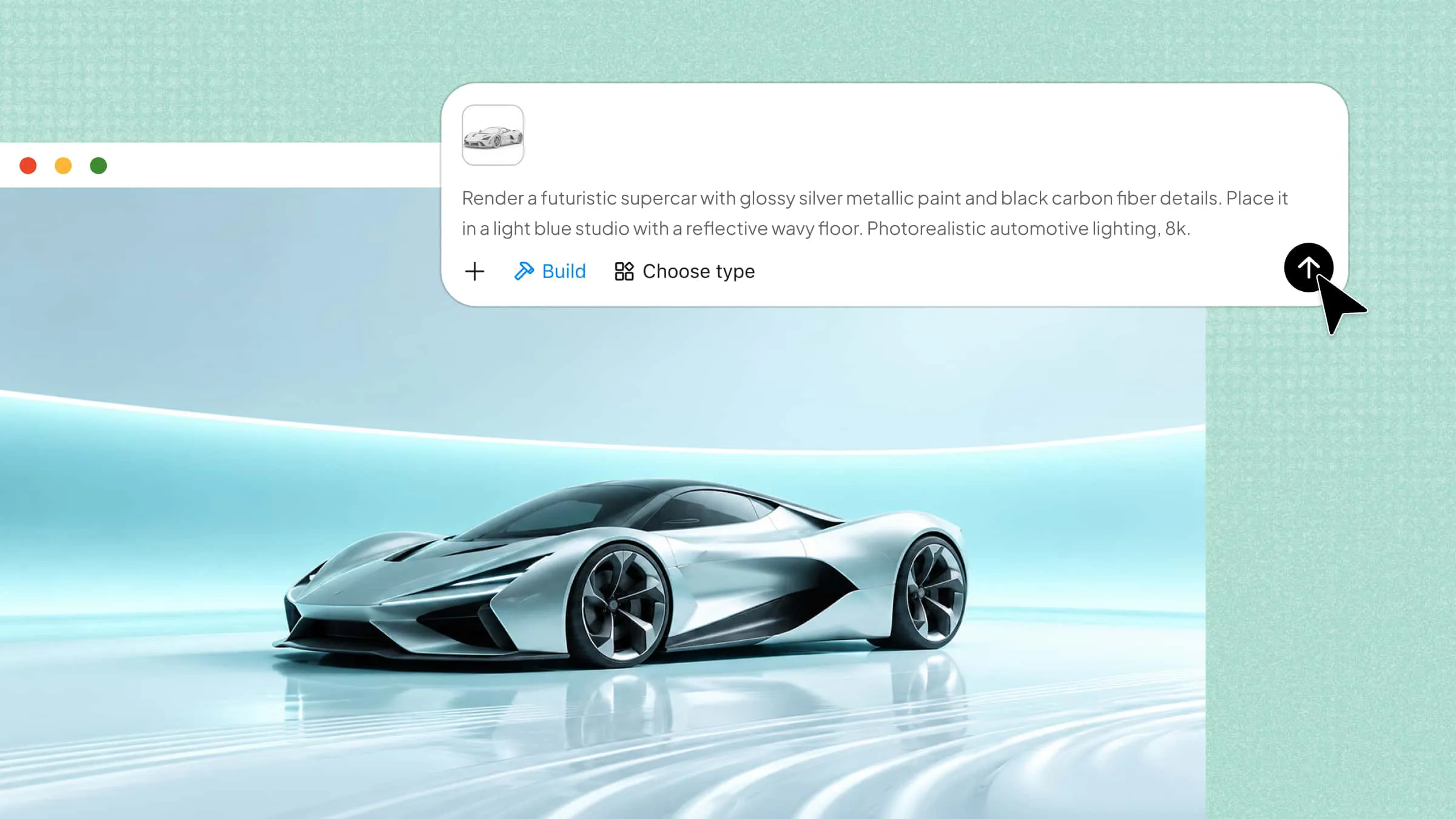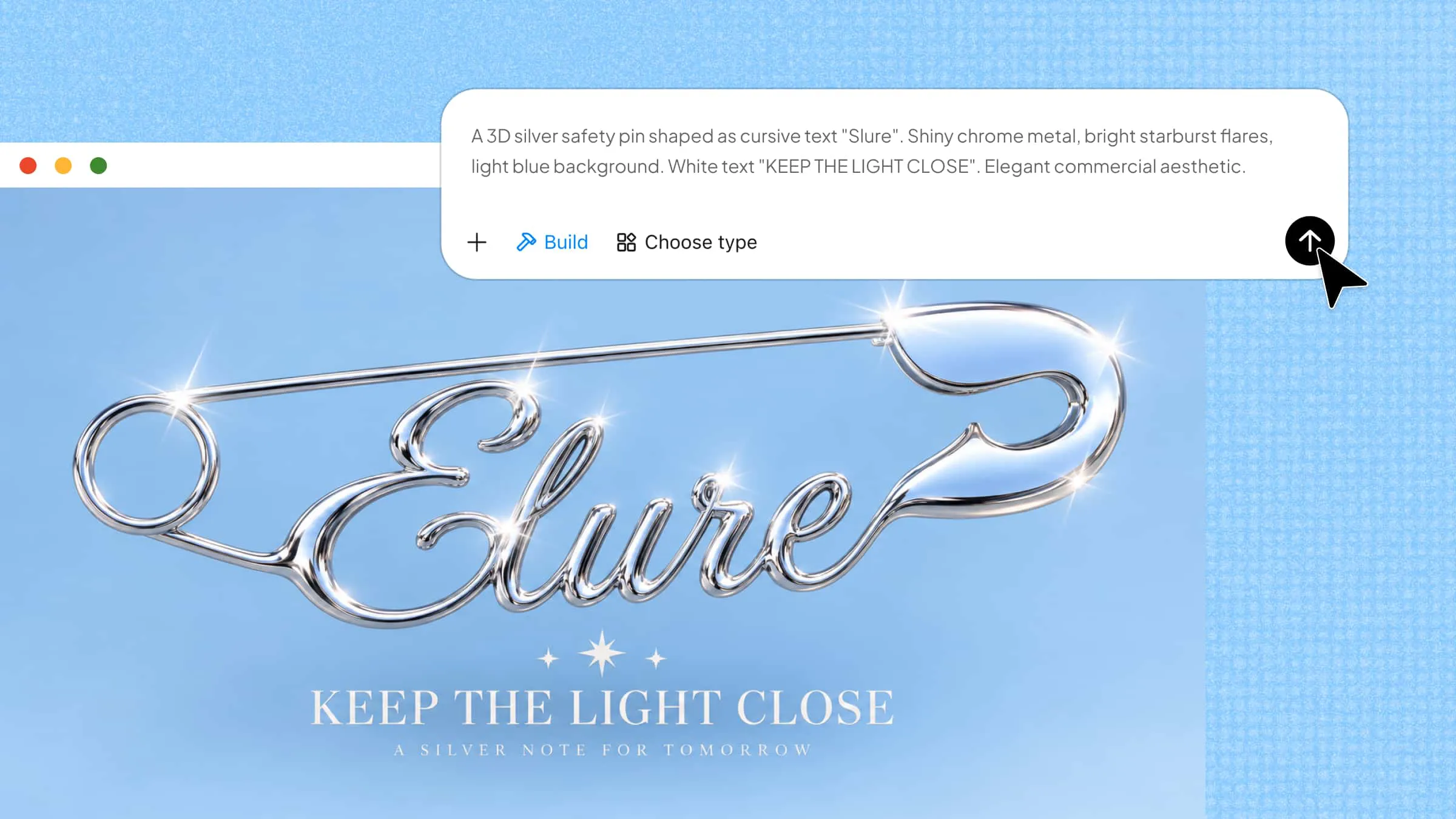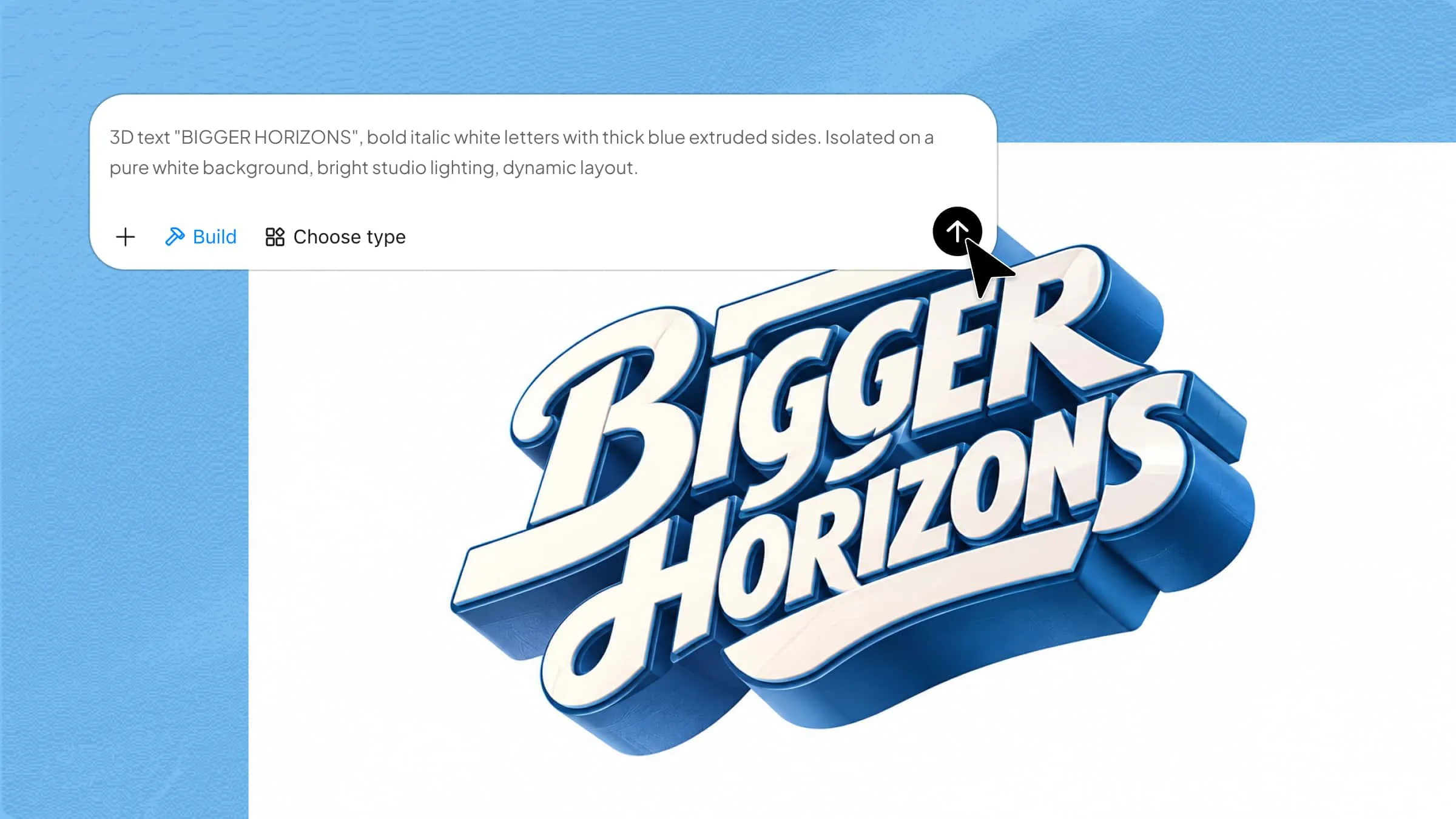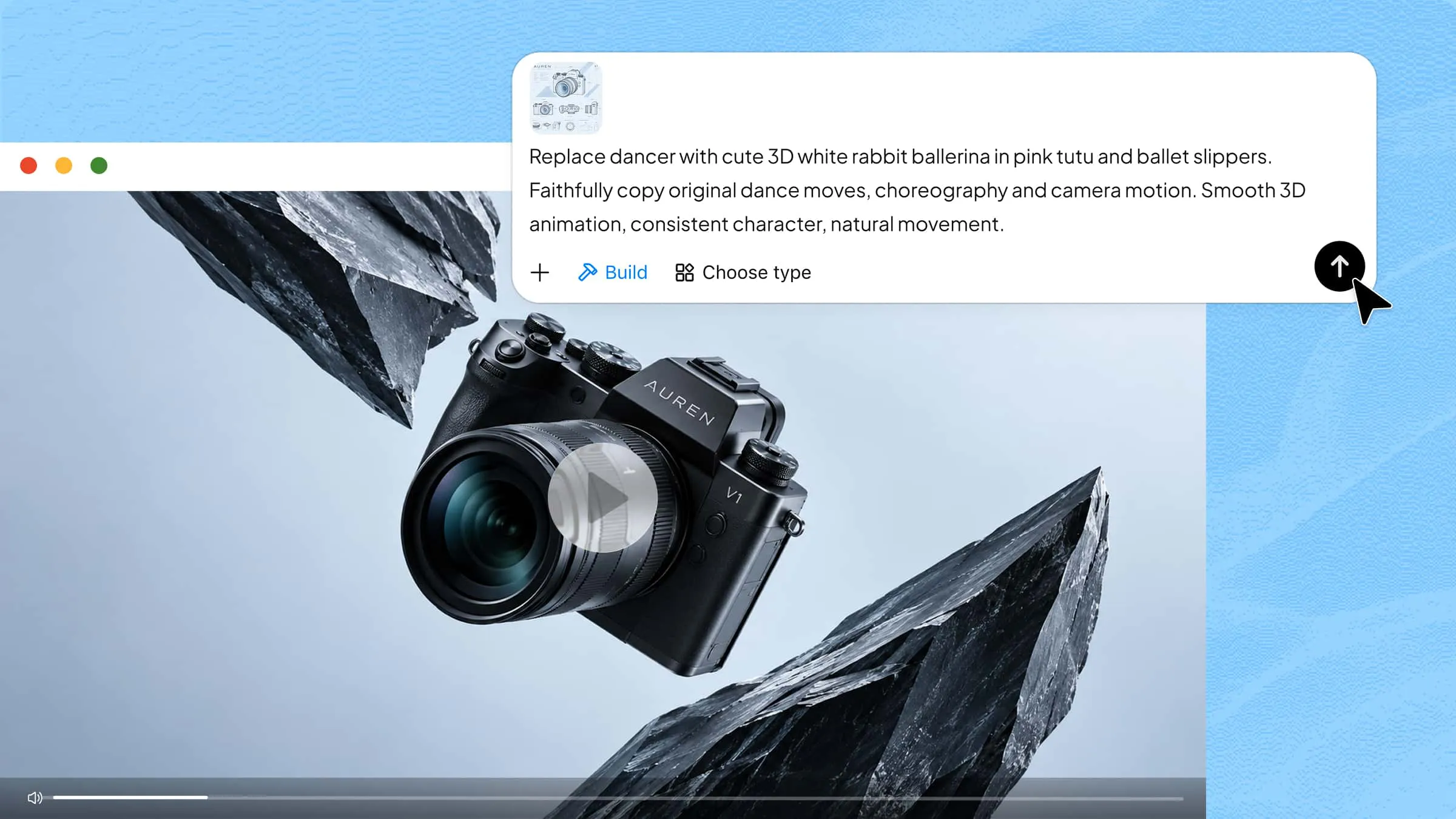
Turning a flat image into a 3D model can be challenging, especially when you need realistic depth, accurate proportions, and detailed shapes. Blender provides modeling tools to help you build 3D objects from 2D references, although the process often requires manual adjustments. Learning how to convert a 2D image to 3D in Blender can make it easier to create assets for animation, games, and design projects.
Why convert 2D images to 3D in Blender
Converting a 2D image into a 3D model in Blender gives you more control over how your design looks and behaves. You can adjust shapes, explore different viewing angles, refine details, and reuse your models across digital projects. Here are the key benefits of turning flat images into 3D models.
Adds depth and realism
A 2D image has a certain height and width. But it lacks actual depth. After conversion, the 3D model adds volume. This makes objects look more realistic. You can shape surfaces and add details. Moreover, you can create shadows that match the object's appearance.
View from any angle
A flat image has only one fixed perspective. A 3D model enables you to rotate the object and view it from different angles. This helps when you need to inspect hidden areas and adjust proportions. You can even present your design from multiple viewpoints.
Easy animation and lighting
Once your model is ready, you can animate it in Blender and customize its appearance. Adjust light positions, refine shadows, and experiment with different lighting setups to create dynamic scenes and engaging product animations.
Full control over textures
In Blender, you can change colors, apply textures, and adjust surface properties. You can make an object look metallic, wooden, or glossy. This control helps you create a completely different appearance.
Great for games and printing
You can use 3D models in video games, product visualizations, and other digital projects. You can also prepare suitable models for 3D printing. However, printed objects need proper geometry, sufficient thickness, and a suitable mesh structure.
Free and open source
Basically, Blender is free to download and use. You do not need a paid subscription to start modeling. It includes tools for modeling, texturing, animation, and rendering. This image-to-3D Blender AI makes it a practical choice for freelancers and experienced 3D artists.
How to turn images into 3D in Blender
Blender lets you turn flat images into 3D objects by tracing their outlines, converting them into meshes, and adding thickness to create depth. This image-to-3D workflow works particularly well for simple logos, text, icons, and graphics with clear outlines. Follow these steps to create a 3D model from a 2D image in Blender.
Step 1: Import your image and prepare the plane
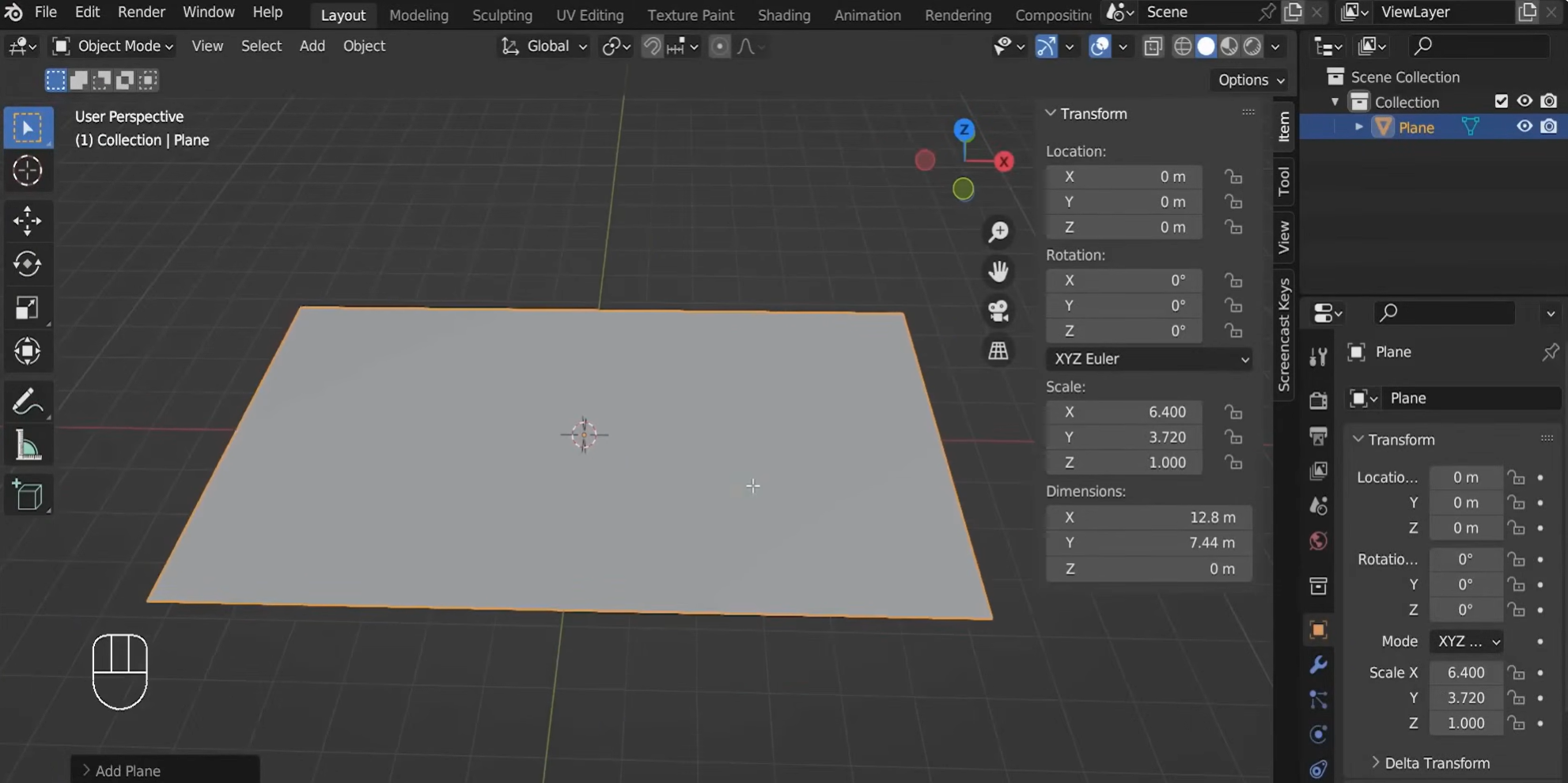
Open Blender, delete the default objects, and add a plane. In the "Item" panel, adjust its dimensions to match your reference image's aspect ratio. For example, for an image measuring 1280 × 744 pixels, set the plane dimensions to 12.80 × 7.44.
Step 2: Create surface details with a Displace modifier
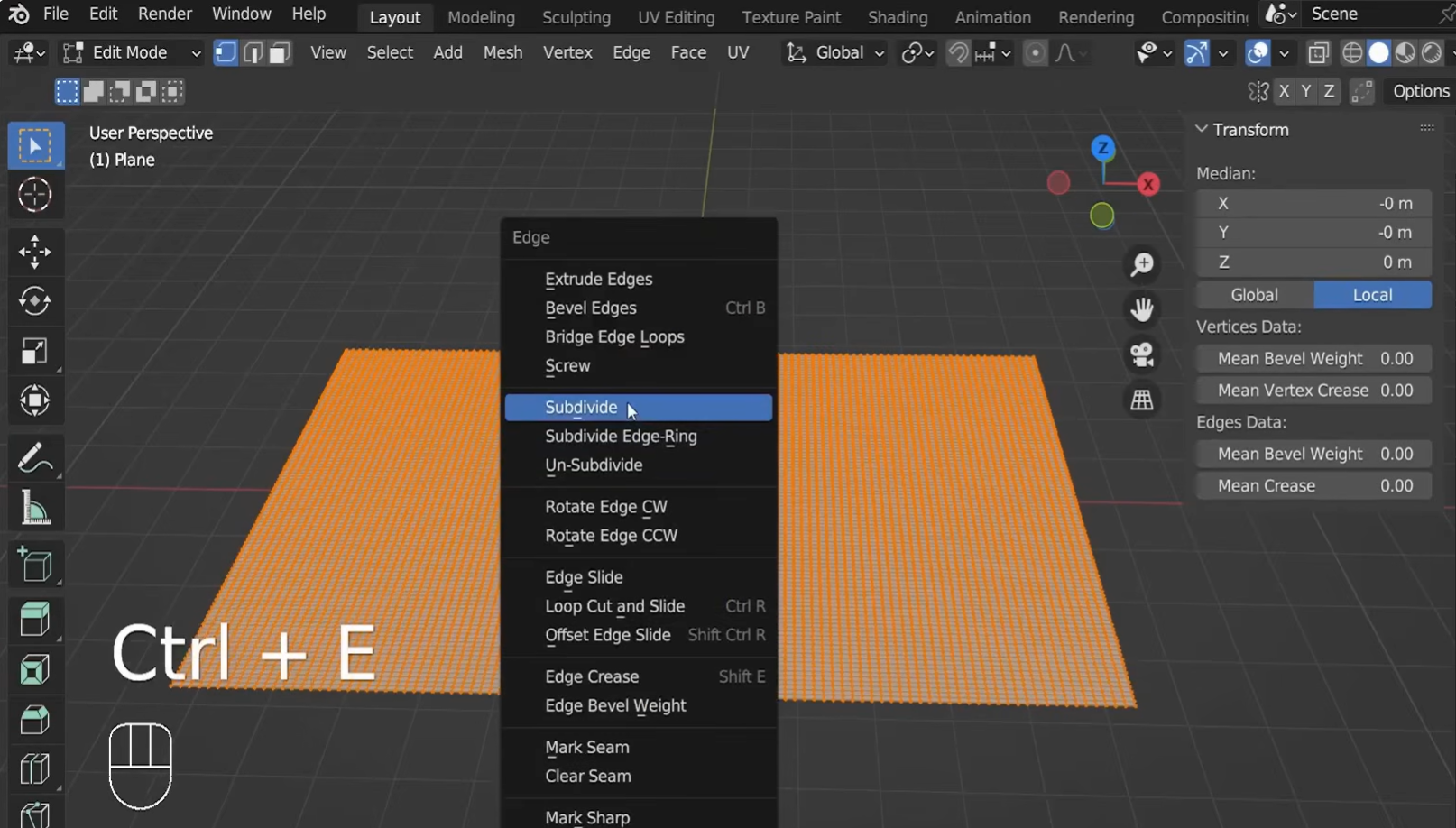
Enter "Edit Mode" by pressing Tab, right-click the plane, and select "Subdivide". Increase the number of cuts to create enough vertices to capture the image's details.
Return to "Object Mode", open "Modifier Properties", and add a "Displace" modifier. Under "Texture Properties", create a new image texture and open your reference image.
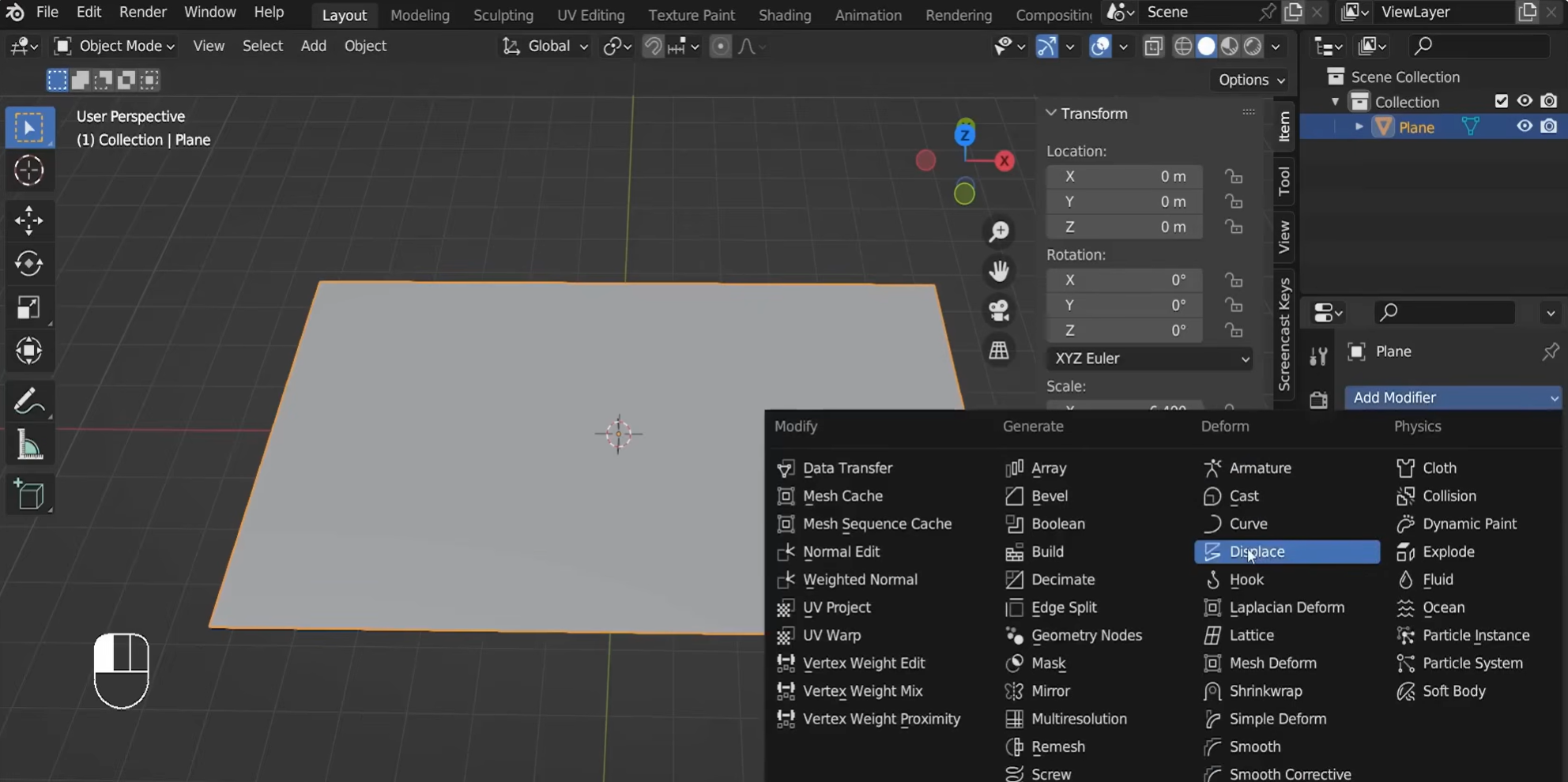
Adjust the modifier's "Strength" value to control the displacement depth. Positive and negative values change the displacement direction.
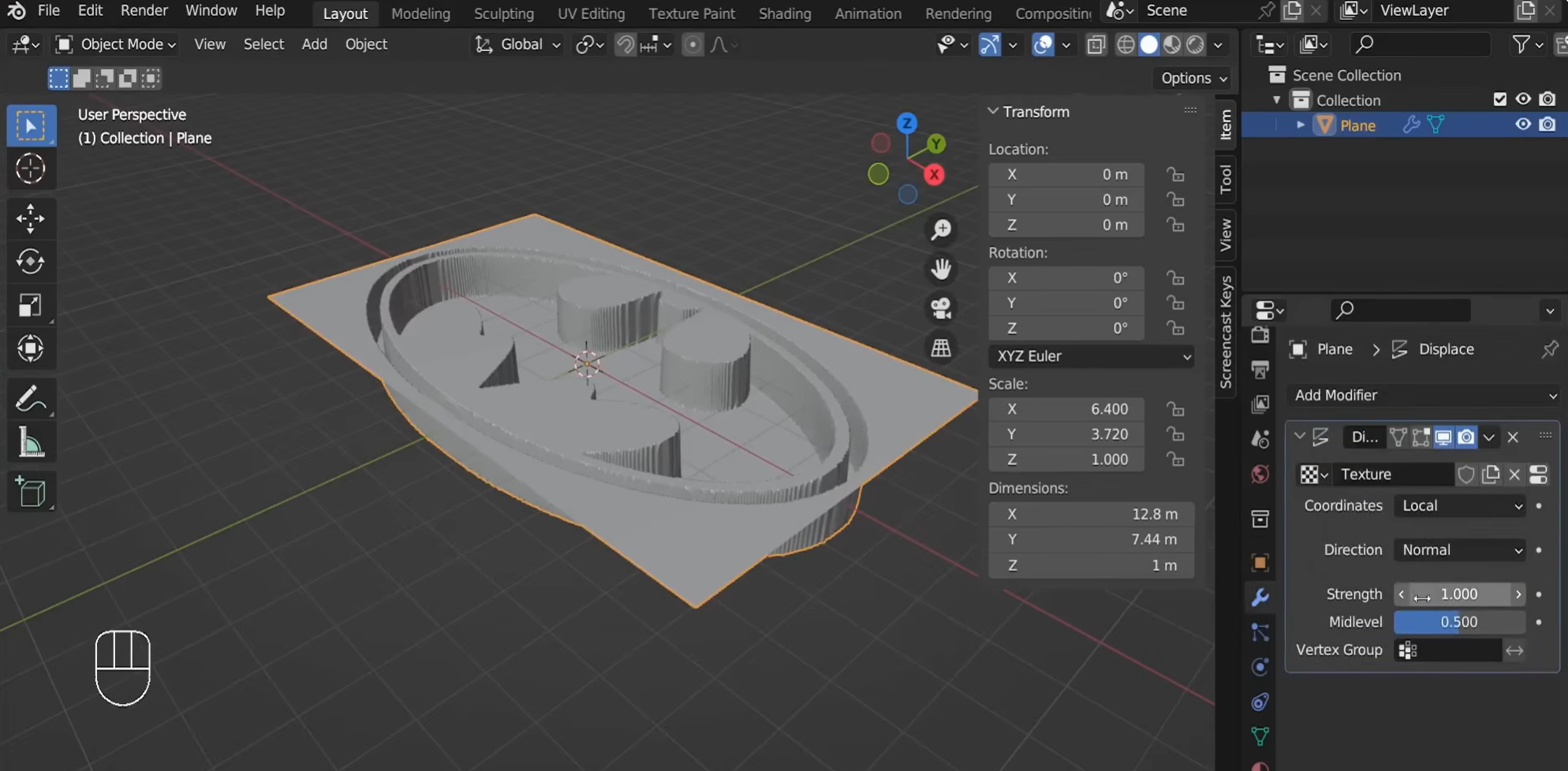
Step 3: Refine the displaced shape
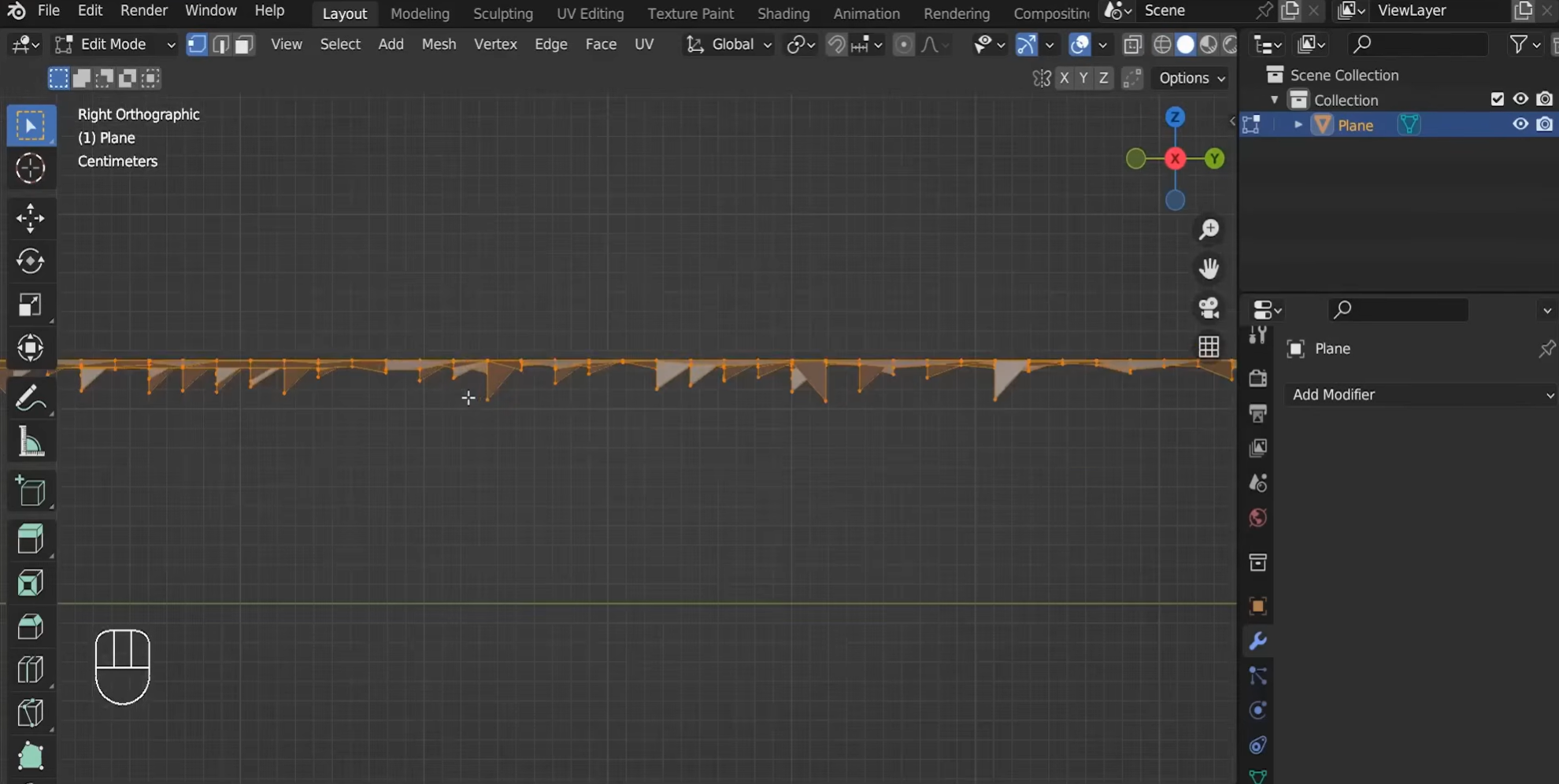
Apply the "Displace" modifier once the shape looks right. Switch to a side orthographic view, enter "Edit Mode", and use "Wireframe" view to select and delete unwanted lower faces. Flatten the bottom vertices along the Z-axis if needed.
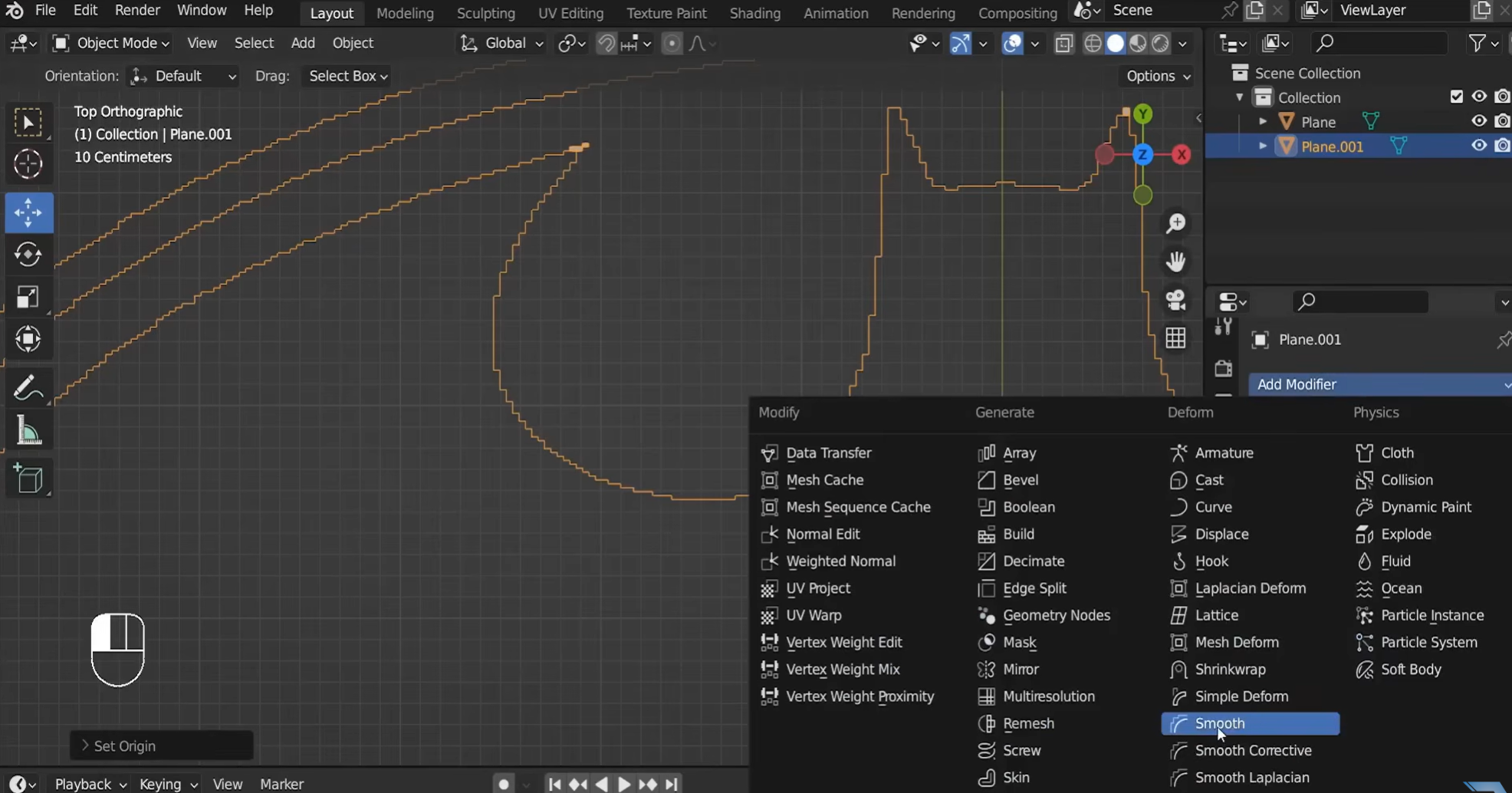
Next, add a "Smooth" modifier to reduce jagged edges and soften height transitions. Adjust the smoothing iterations, such as 30, then apply the modifier when satisfied.
Step 4: Clean up the mesh and close open boundaries
Reduce unnecessary geometry using "Un-Subdivide" in "Edit Mode", adjusting the iterations to preserve the main details. Clean up overlapping vertices and open edges, then fill missing faces or use "Bridge Edge Loops" to connect corresponding boundaries. This step helps create a cleaner mesh before adding thickness.
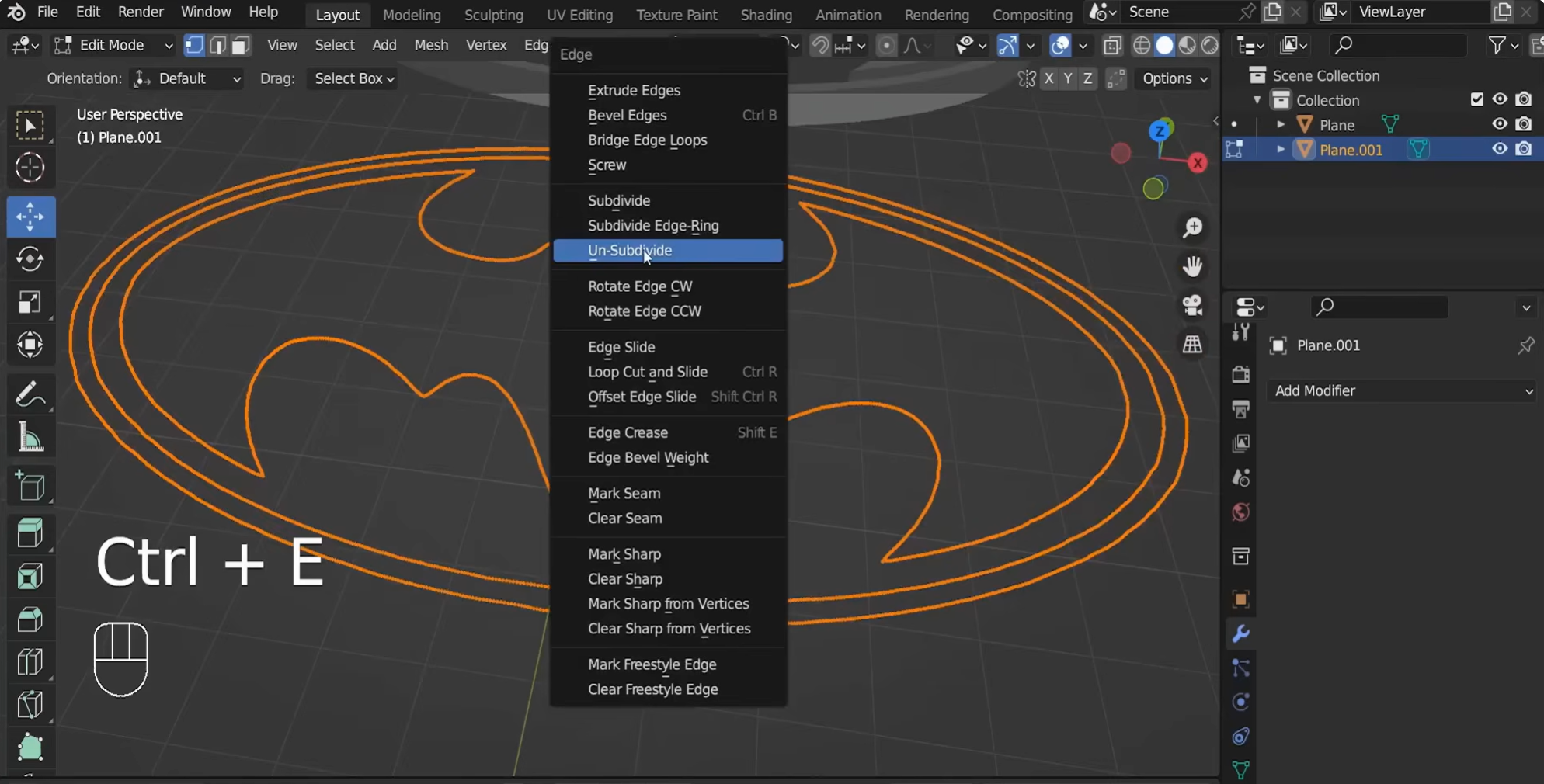
Step 5: Add thickness and finalize the model
Add a "Solidify" modifier and adjust its "Thickness" value to turn the surface into a solid object. If the normals appear incorrect, enter "Edit Mode", select all vertices, and press Shift + N to recalculate them.
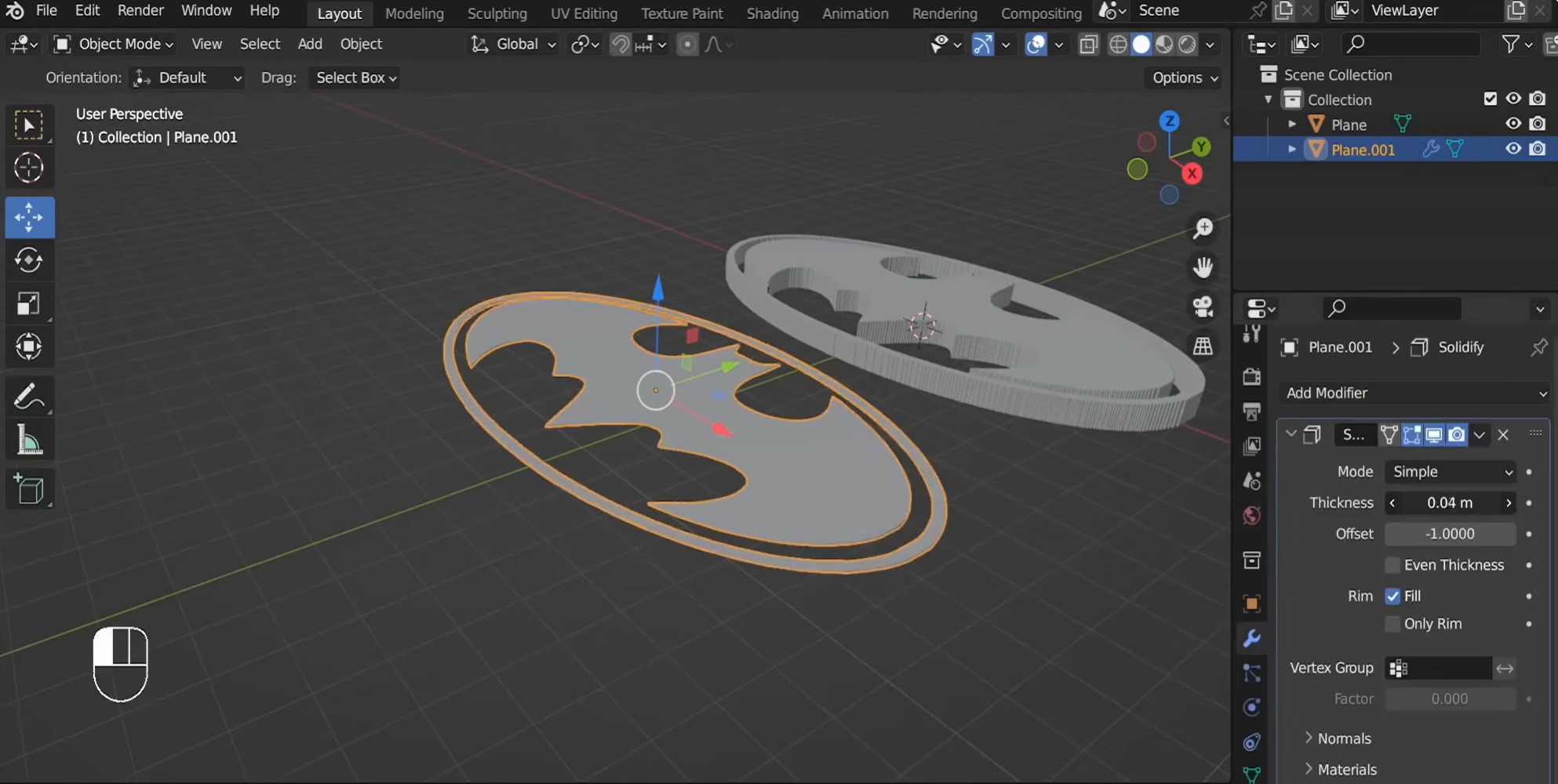
Finally, apply smooth shading and add a "Bevel" modifier to soften sharp edges. Inspect the result from different angles and adjust the material and lighting to finish the model.
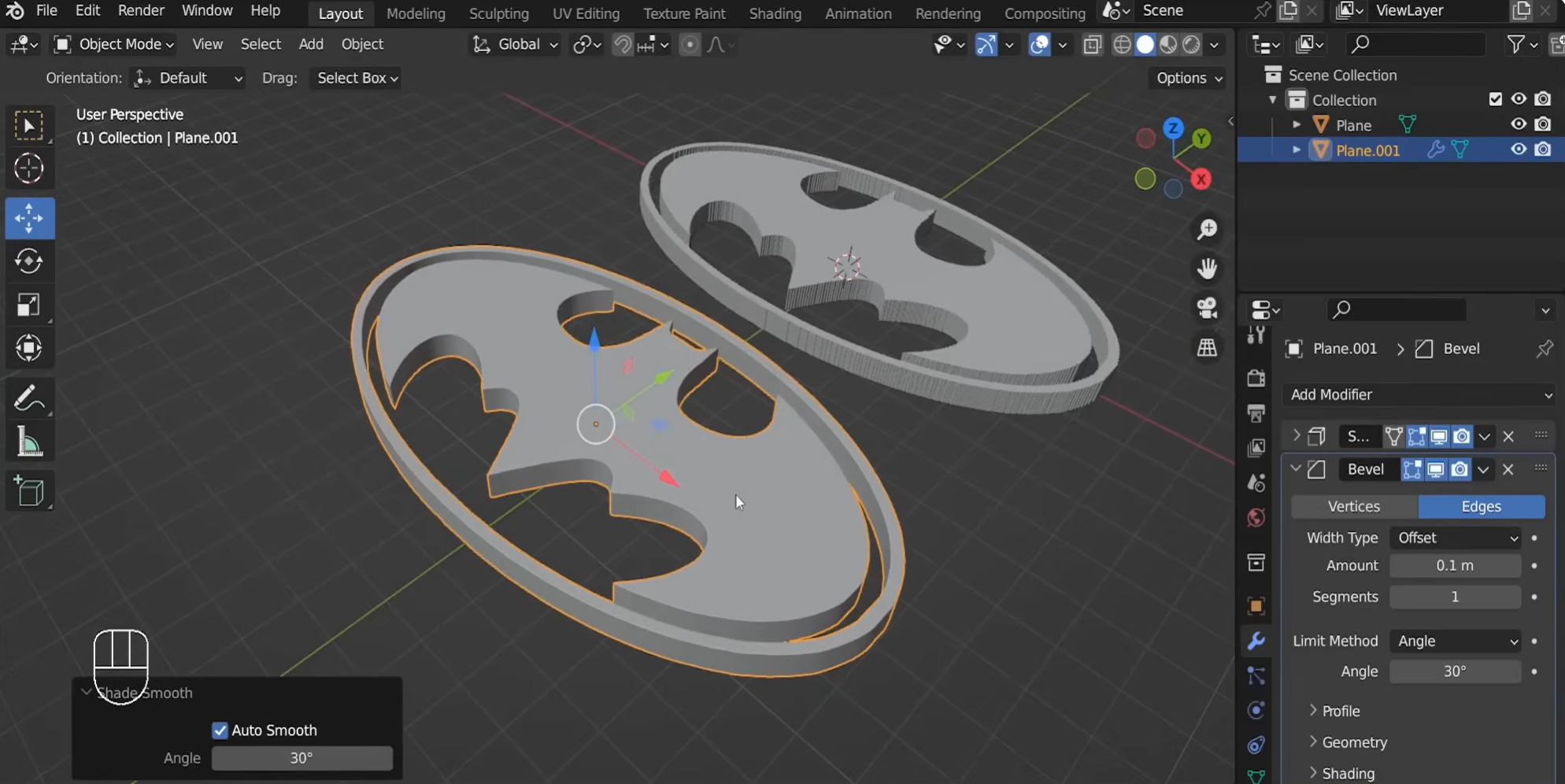
Common problems when turning images into 3D in Blender
Converting a 2D image into a 3D model in Blender can require a few adjustments. You may notice problems with depth. Sometimes the 3D model's texture quality and geometry are distorted. A basic understanding of these common issues helps you fix them early.
Models that look flat due to insufficient depth
In Blender, a model may still look flat if it lacks sufficient depth, especially when it is created from a 2D image with clear outlines but little information about its shape. Increase the extrusion depth gradually and adjust the thickness until the model has the desired 3D appearance.
Blurry textures from low-resolution images
Sometimes, the low-resolution images lose detail. This especially happens when you use textures on a 3D model. The image edges may appear blurry. You can start with the highest-quality image available. If possible, use a larger image with sharp edges to preserve details during texturing.
Messy geometry caused by irregular mesh topology
Tracing an image can produce overlapping vertices and unnecessary geometry. These problems may affect extrusion, shading, and later editing. You need to inspect the mesh in Edit Mode. So, remove unwanted vertices where appropriate.
Incorrect model scale compared with the reference image
Your 3D model may appear too large or too small compared with the reference image, often due to inconsistent dimensions during import. Check the image and model scale before adding details, and compare their proportions in Blender to keep the model aligned with the reference.
Reference images missing from the viewport
During conversion, a reference image disappears from view while you work. It may be hidden and moved outside the current view. Check the Outliner to see whether the image object is hidden. You can also select it and frame the object in the viewport to locate it quickly.
Rough edges caused by insufficient mesh smoothing
Curved shapes and rounded details in an image-to-3D model may appear jagged when the mesh has too few vertices. Flat shading can also make surfaces look uneven. Add geometry where needed and apply appropriate smoothing to improve the model's appearance. Inspect the converted 3D model in Blender, as smoothing alone cannot fix underlying geometry issues.
Slow viewport performance from high subdivision levels
High subdivision levels increase polygon counts and can slow down Blender, especially when working with complex models. You may experience lag when navigating the viewport or editing objects. Keep subdivision levels low while modeling, then increase them for the final render if needed.
Bonus tip: an easy way to convert an image to a 3D model
Creating a 3D model from an image in Blender requires manual work to adjust shapes, depth, and details. For a faster approach, Kimi Build uses AI to turn a reference image into a 3D model based on your instructions. Upload your image, describe the desired result, and let Kimi Build generate the model. You can then refine the design for your creative project.
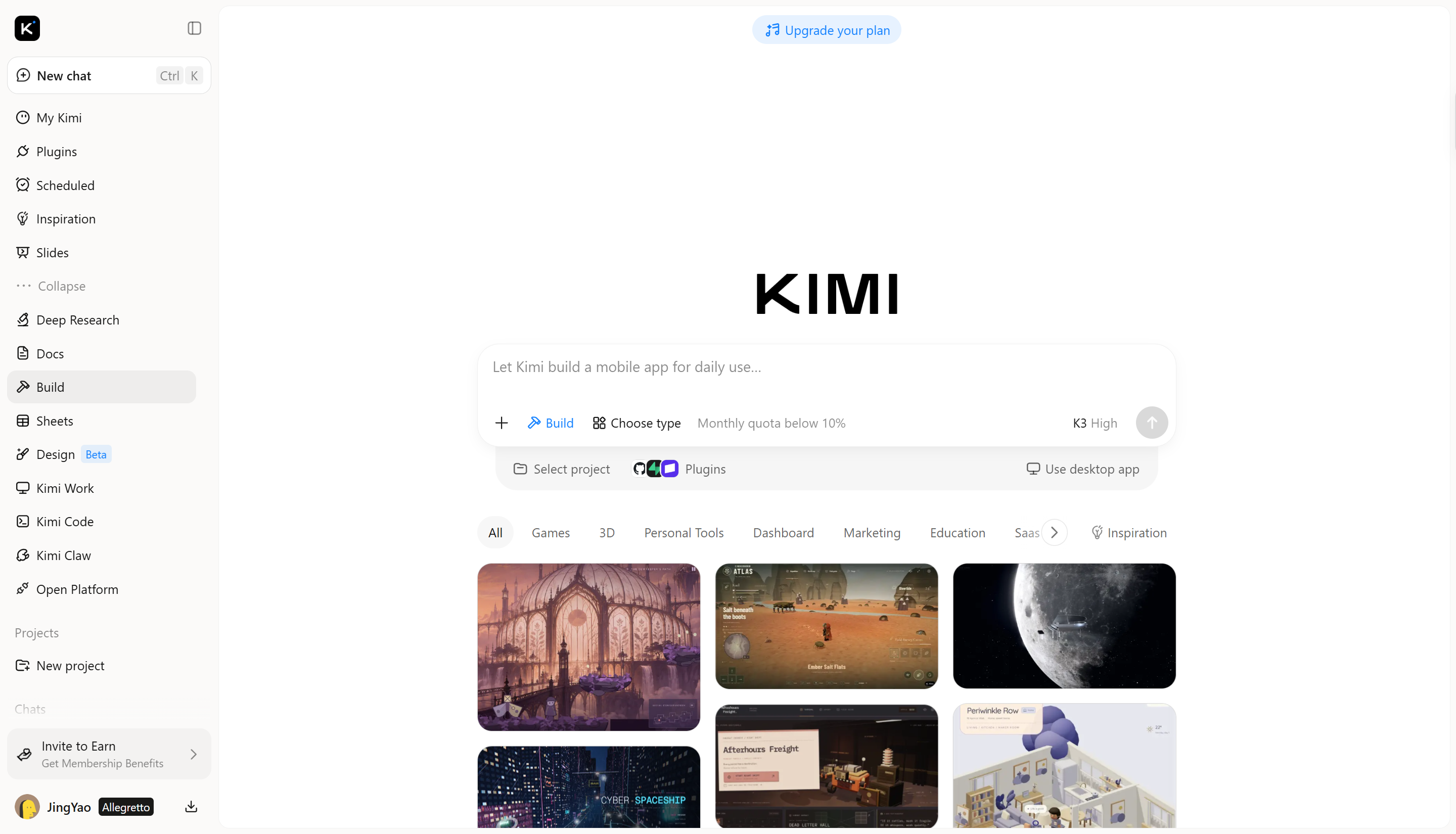
How to turn an image into 3D using Kimi Build
Kimi Build lets you create 3D models from reference images and text prompts. Follow these steps to turn a 2D image into a 3D model and refine the result to match your creative vision.
Step 1: Upload a reference image and describe your 3D model
Open Kimi Build and upload a clear reference image of the object you want to recreate. Then, write a prompt describing its shape, proportions, colors, materials, textures, and distinctive features. Specific instructions help communicate the visual details you want to preserve.
Convert the uploaded image of a ceramic flower vase into a detailed 3D model, preserving its original shape, proportions, colors, and decorative patterns. Recreate the smooth ceramic surface, subtle texture, and fine details with realistic materials. Add soft lighting, natural shadows, and gentle reflections to highlight the vase's curves. Display the model from a three-quarter angle against a simple background with a clean, realistic 3D finish.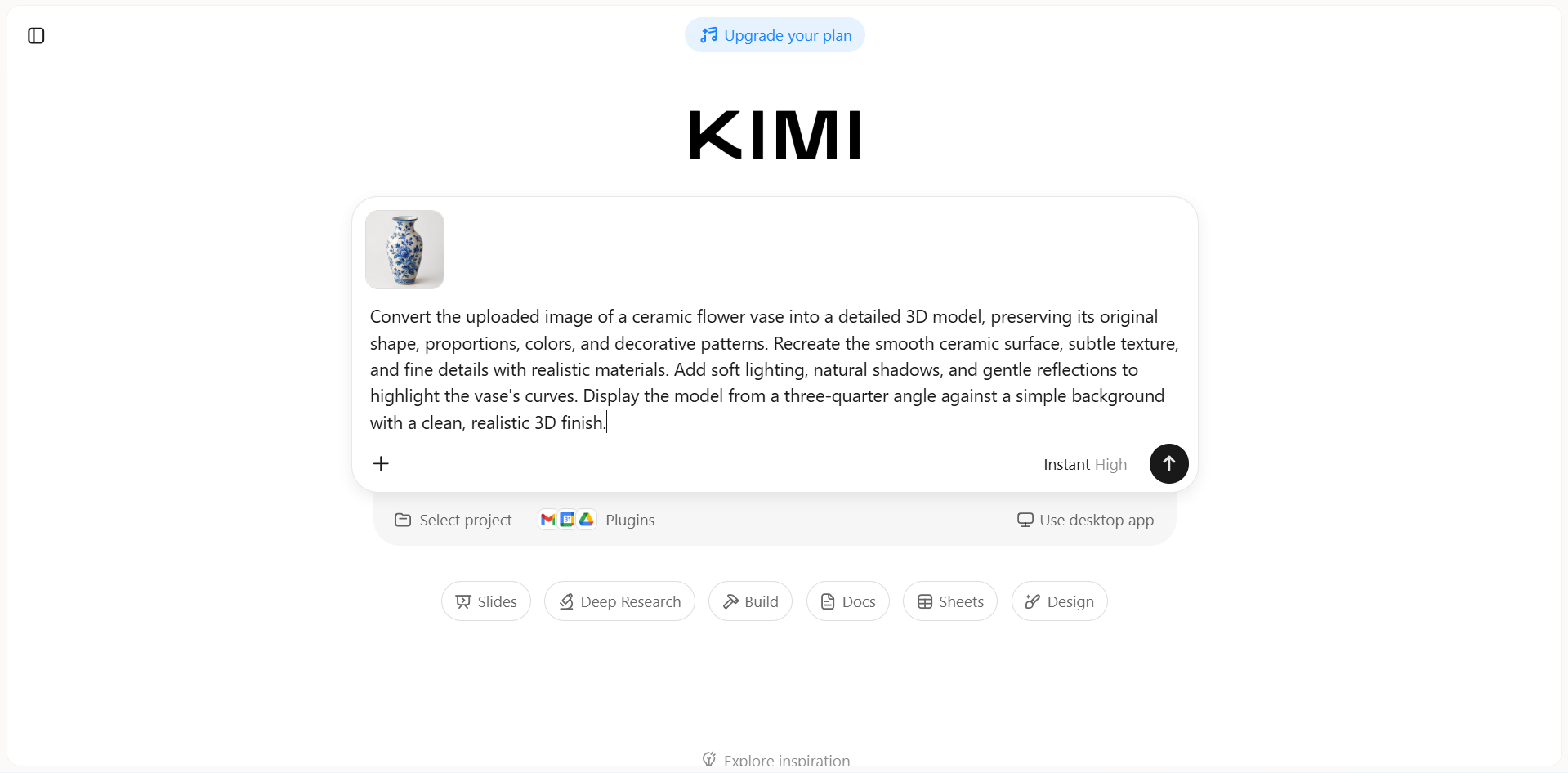
Step 2: Generate and refine your 3D model
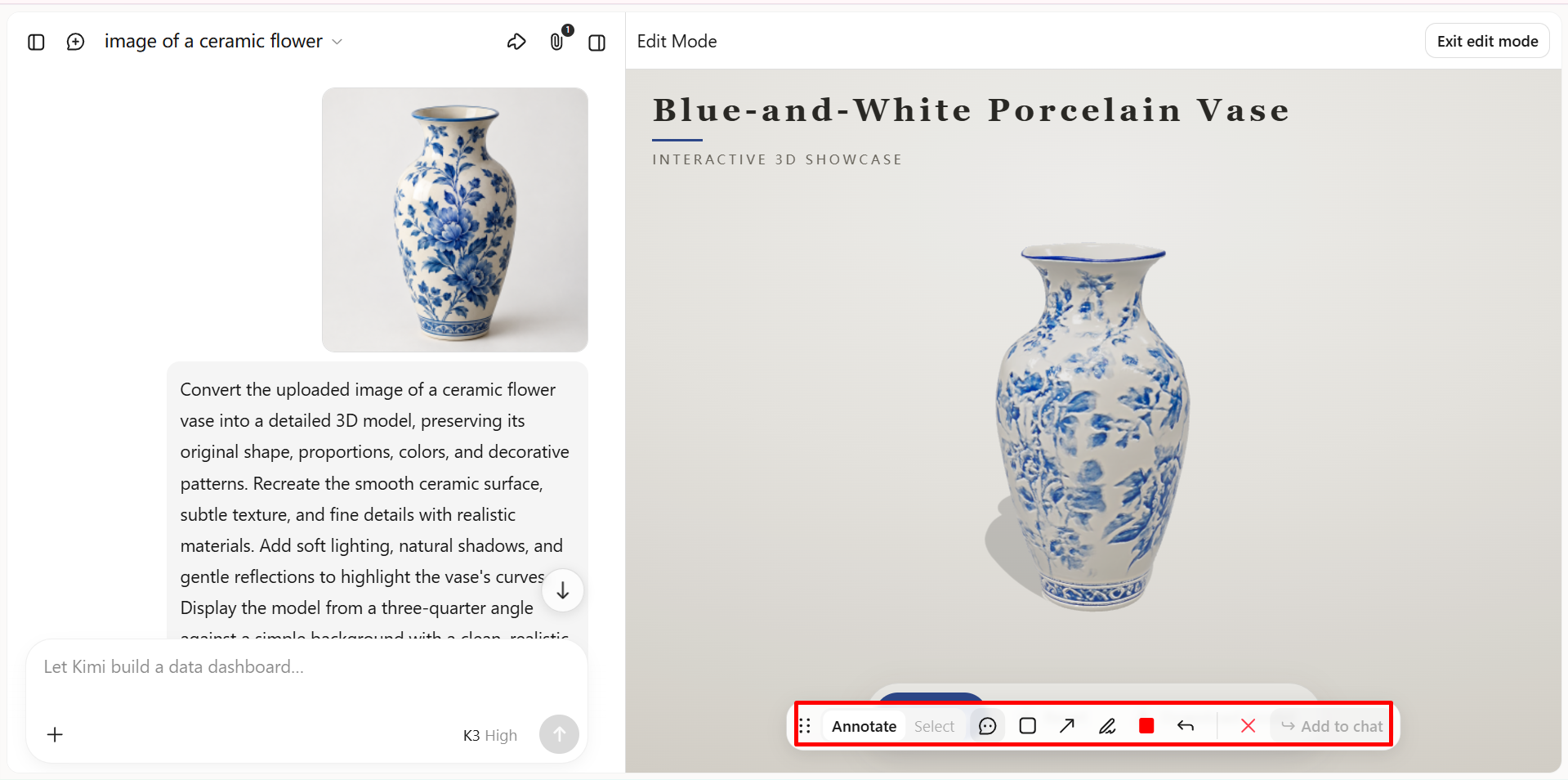
Submit your prompt and allow Kimi Build to generate the 3D model. Once the result is ready, inspect it from different angles and check whether the shape, proportions, colors, and surface details align with your reference image.
If you notice any differences, use follow-up prompts to refine specific features. For example, you can ask Kimi Build to adjust the vase's proportions, refine its curved silhouette, or better match the original color and decorative patterns. Review each result and make further adjustments as needed to achieve your desired look.
Step 3: Export your 3D model for further use
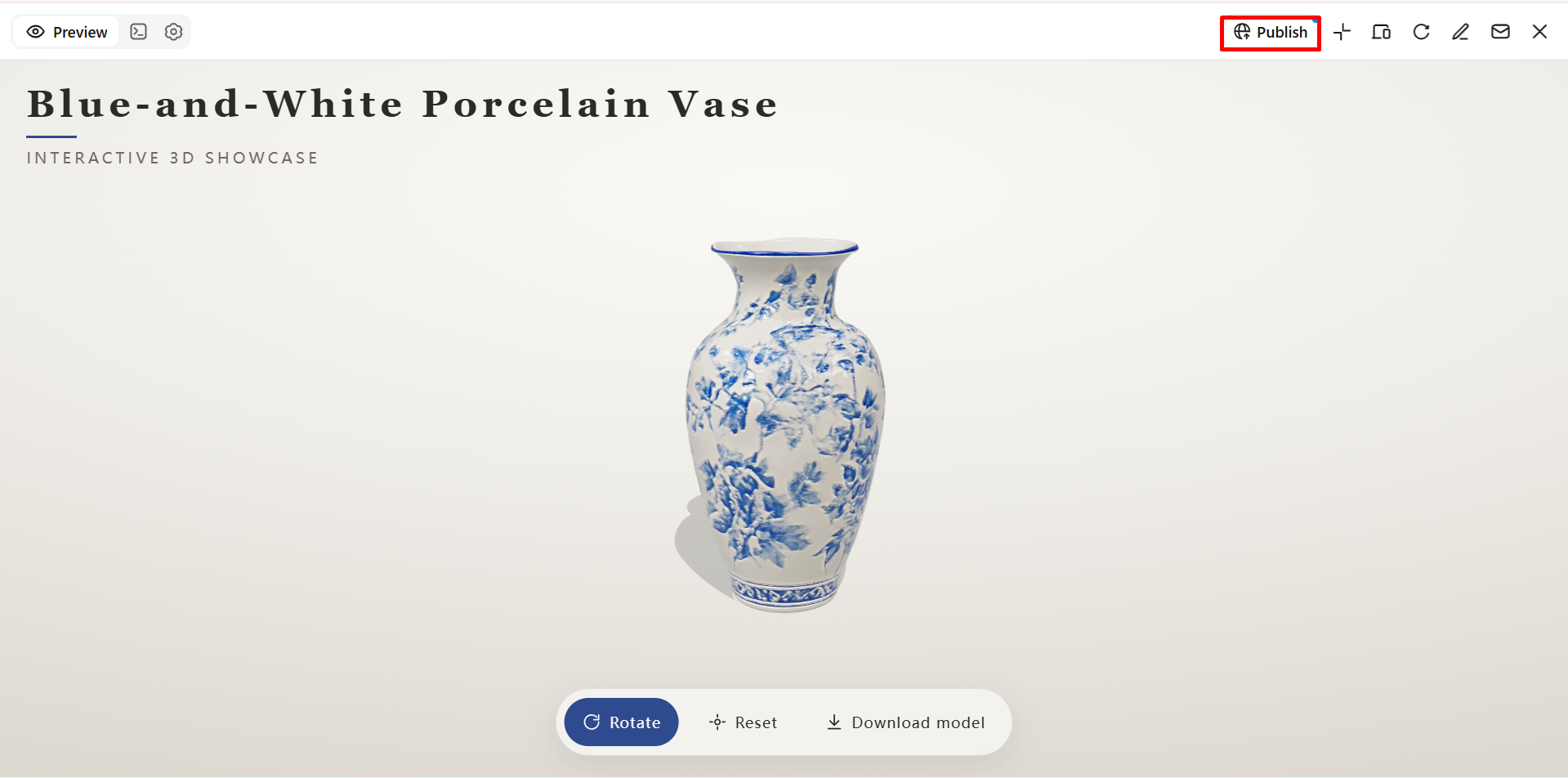
When you're satisfied with the model, export it in a format supported by Kimi Build. Choose a format that fits your intended workflow and the software you plan to use next.
Key features of Kimi Build
Generate 3D models from images and text prompts
Use a reference image, a text prompt, or both to create 3D assets with Kimi Build. Turn visual references and written ideas into 3D designs for objects, products, and creative concepts, with greater flexibility to explore different shapes and styles.
Create detailed models with depth and realistic surfaces
Develop 3D designs with distinctive shapes, curved surfaces, layered structures, and material details. Refine the model's overall appearance to create more convincing assets for product visualization, digital scenes, and creative projects.
Customize models with smart editing
Describe the changes you want in natural language, comment on specific elements, or edit details manually. Adjust shapes, proportions, and visual features through iterative revisions without having to restart the entire design.
Export 3D assets for different applications
Export your creations in supported formats for further editing and development. Kimi Build supports GLB, glTF, and OBJ, while Kimi Work plugins extend your options with formats such as FBX, STL, USDZ, and BLEND for compatible workflows involving game development, 3D printing preparation, AR experiences, and Blender.
Conclusion
In conclusion, converting an image into a 3D model in Blender offers plenty of creative possibilities, allowing users to adjust shapes, geometry, textures, and other details. Kimi Build provides an innovative and flexible way to generate 3D models from text prompts and reference images in just a few minutes, giving users more ways to explore their creative ideas.
FAQ
A to select the geometry, then press E to extrude it. Adjust the depth as needed.