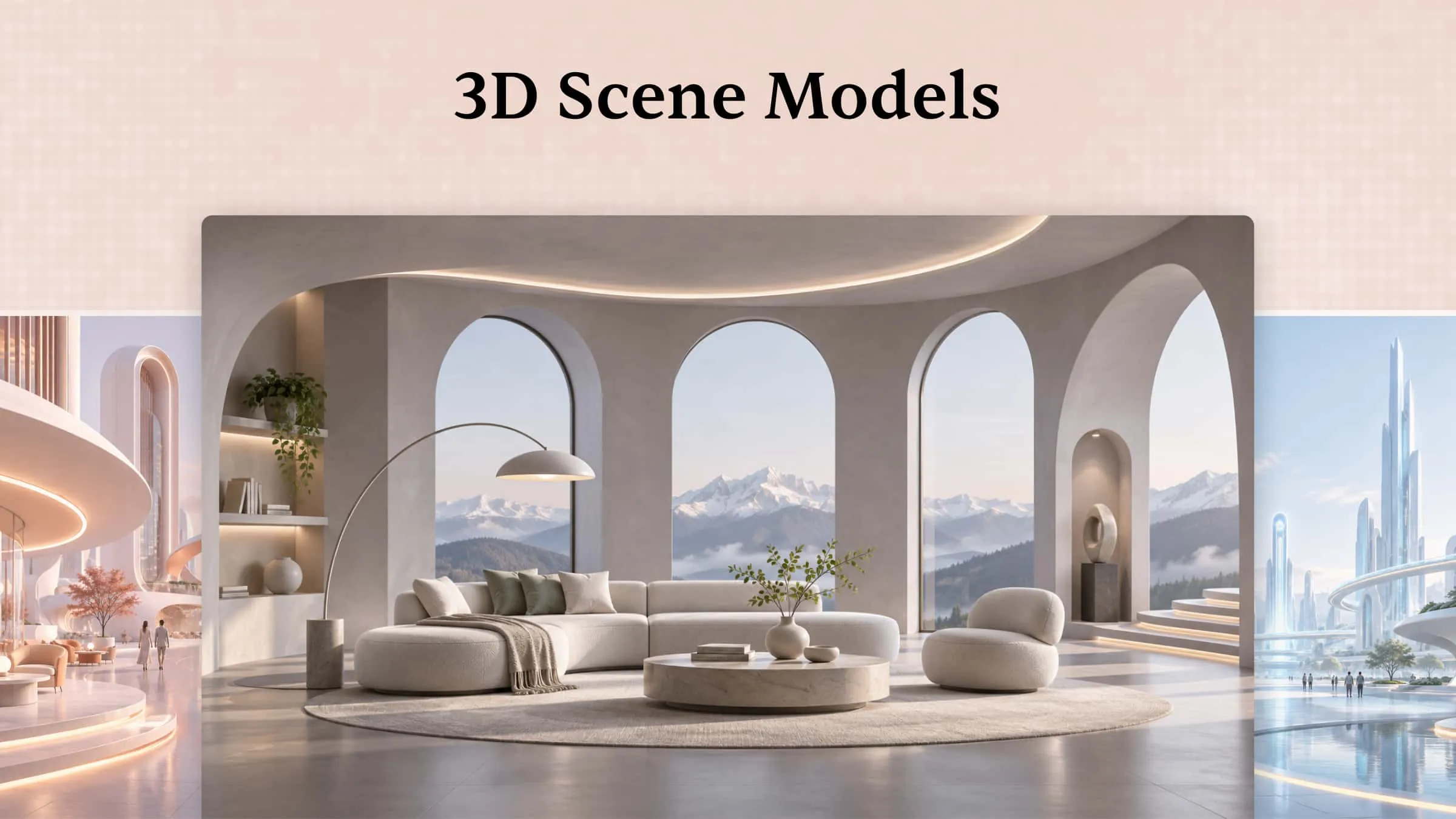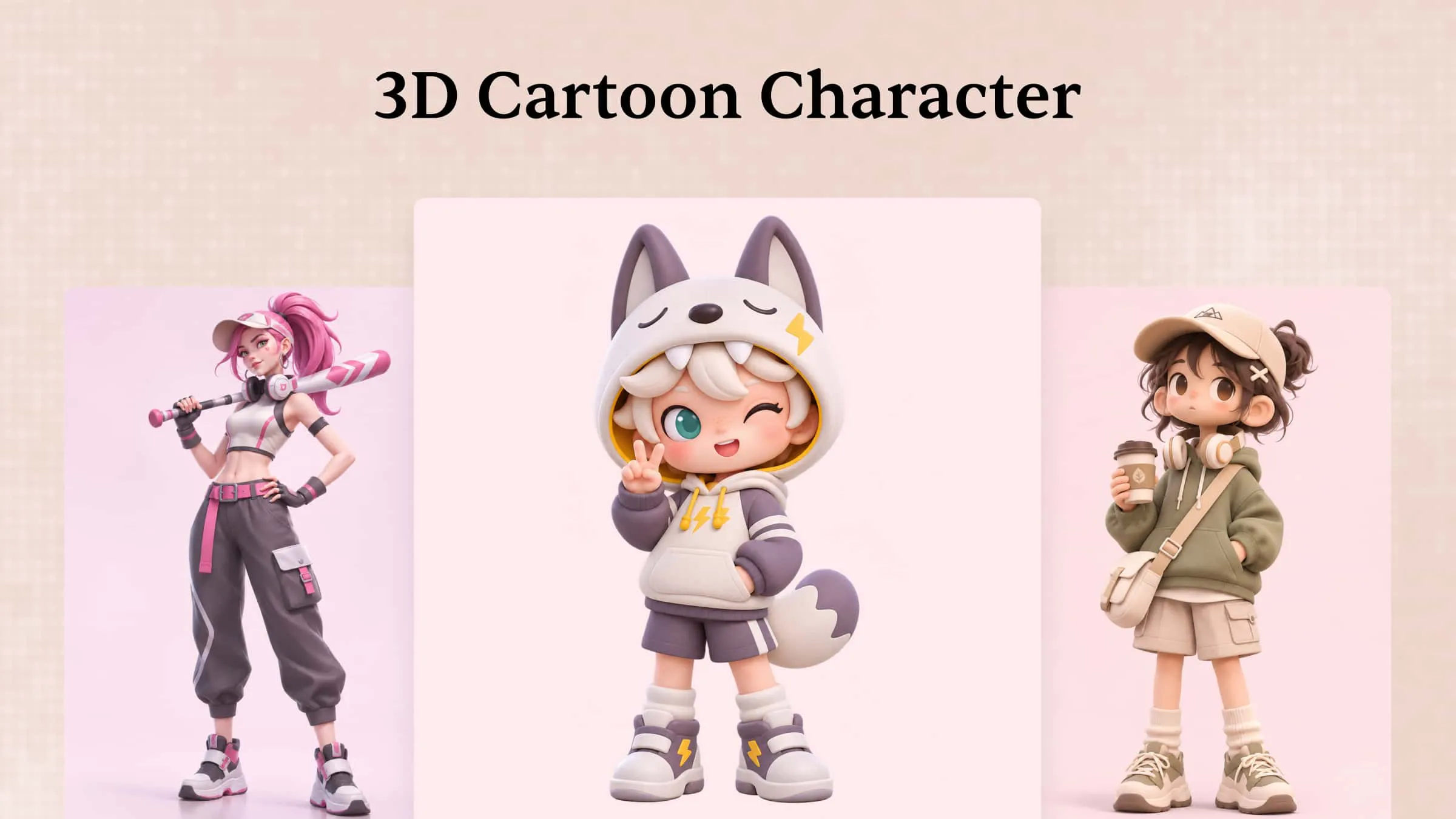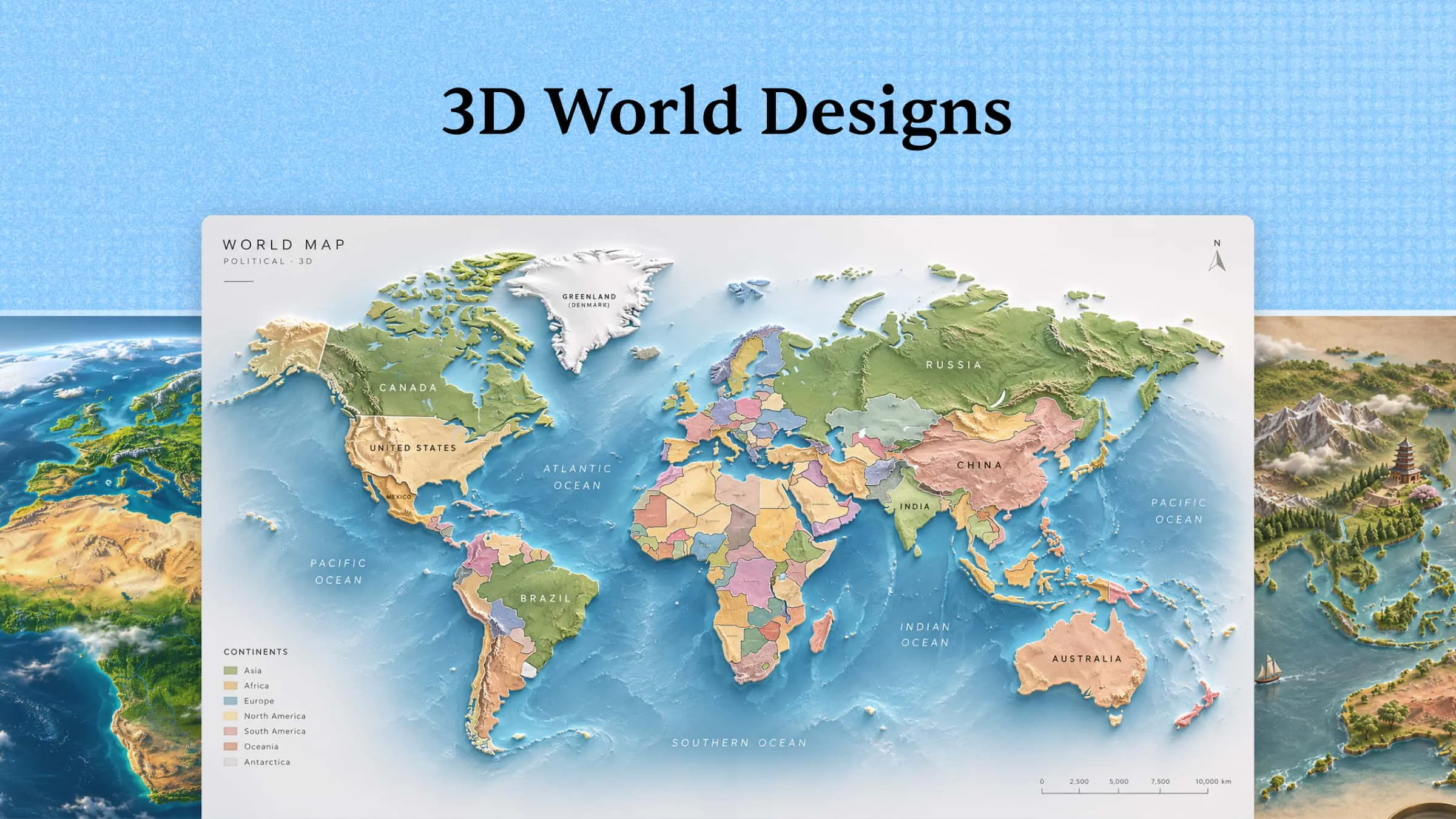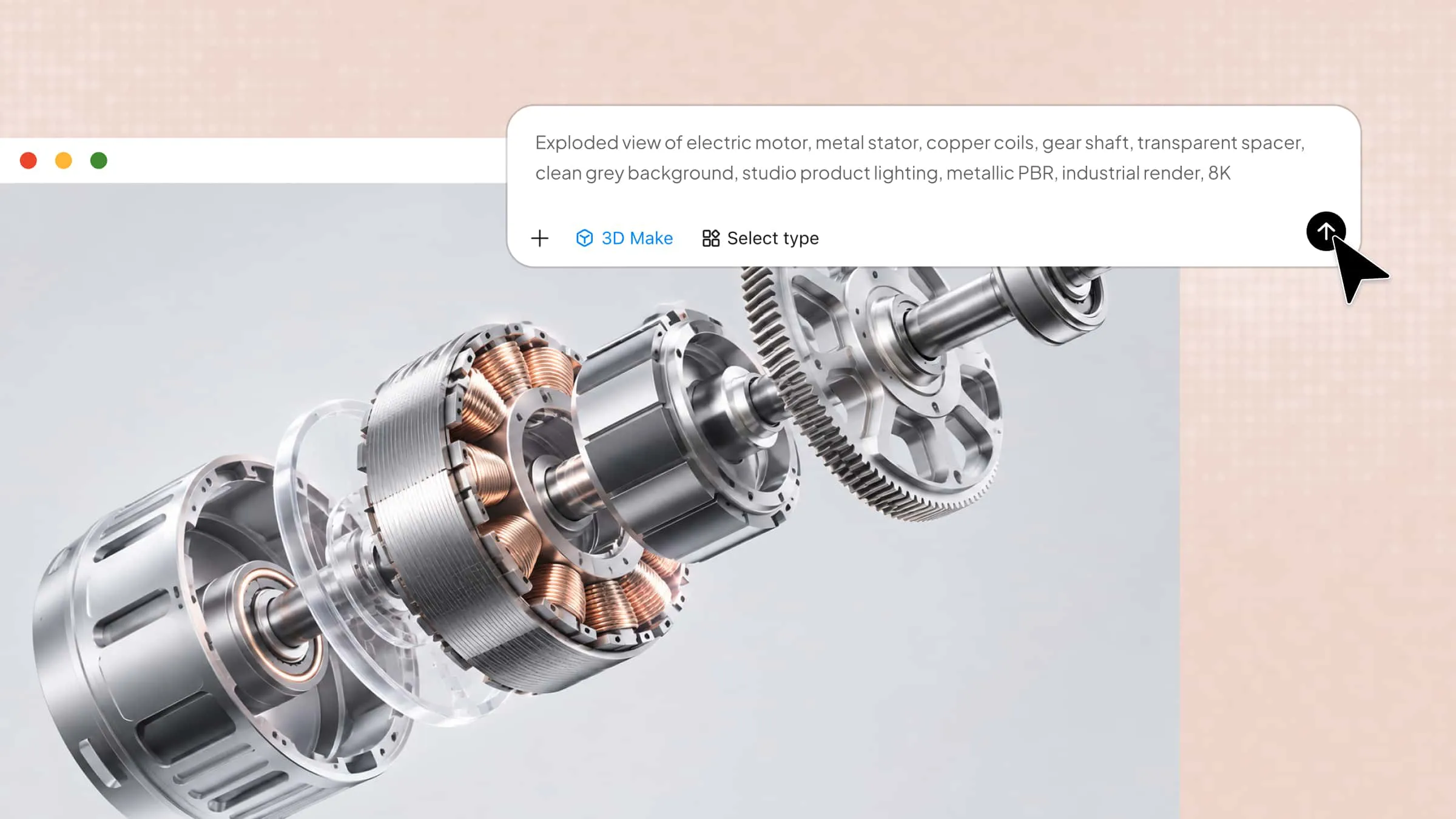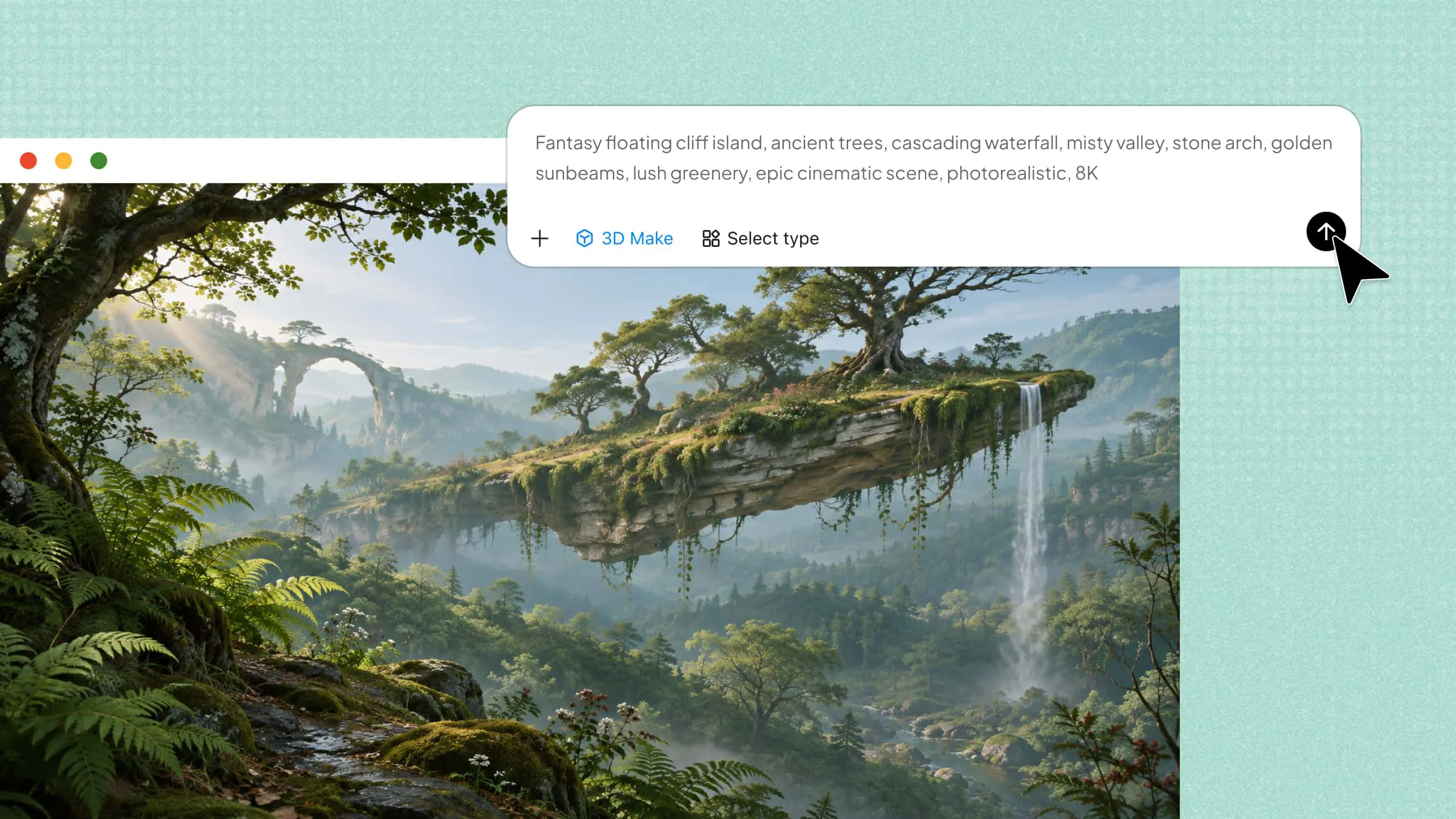
From imaginary landscapes to detailed city scenes, 3D worlds let you transform almost any idea into an immersive visual experience. However, creating these environments can be challenging without experience in 3D design or modeling software. AI-powered tools make the process more accessible by turning text descriptions and visual references into virtual environments, reducing the need for manual modeling. In this article, explore how to create a 3D world, discover practical tips, and bring your ideas to life.
How to create a 3D world using AI
Creating a 3D world no longer requires building every object, texture, and environment from scratch. With Kimi 3D Make, you can turn simple text descriptions or reference images into detailed 3D assets and virtual environments. It also lets you refine your creations through natural-language instructions, adjust visual details, and export models in formats that suit different projects.
Follow these steps to use AI to bring your 3D world to life.
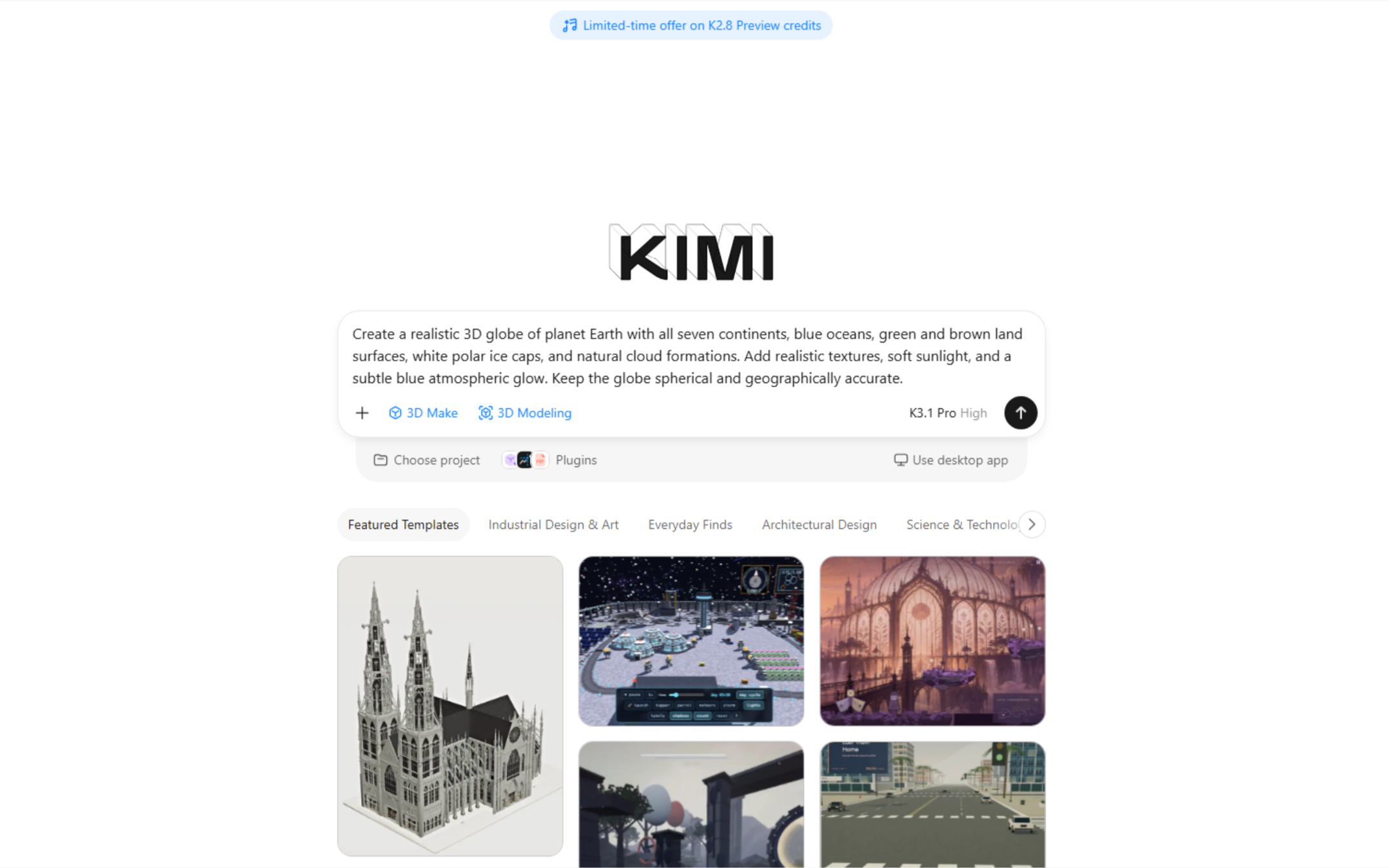
Step 1: Enter a detailed 3D world prompt
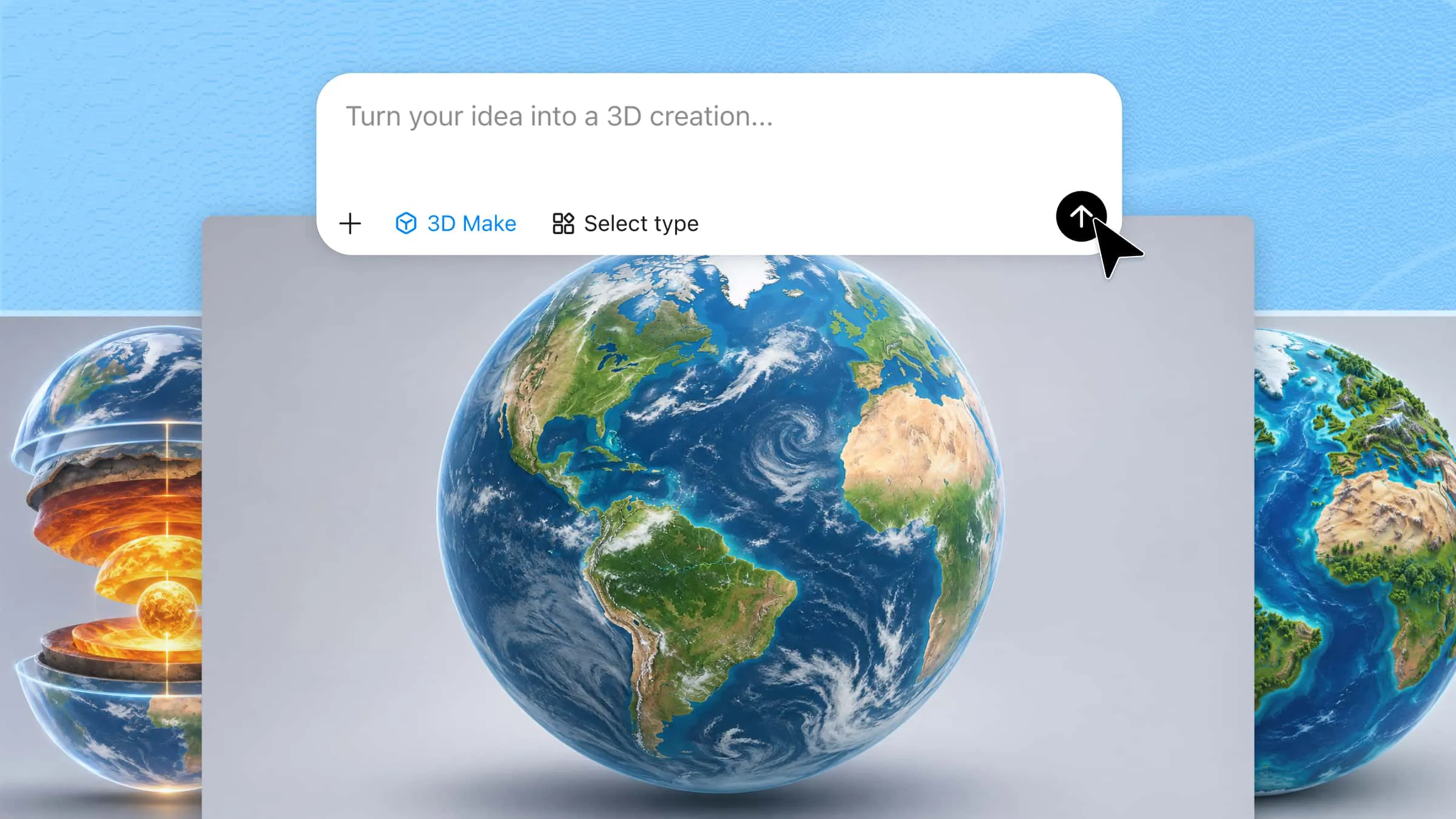
Start by opening Kimi 3D Make and describing the virtual environment you want to create. Be specific about the setting, objects, materials, lighting, and overall atmosphere, so the AI has a clear idea of your vision.
Example prompt:
Step 2: Let AI generate your 3D world design
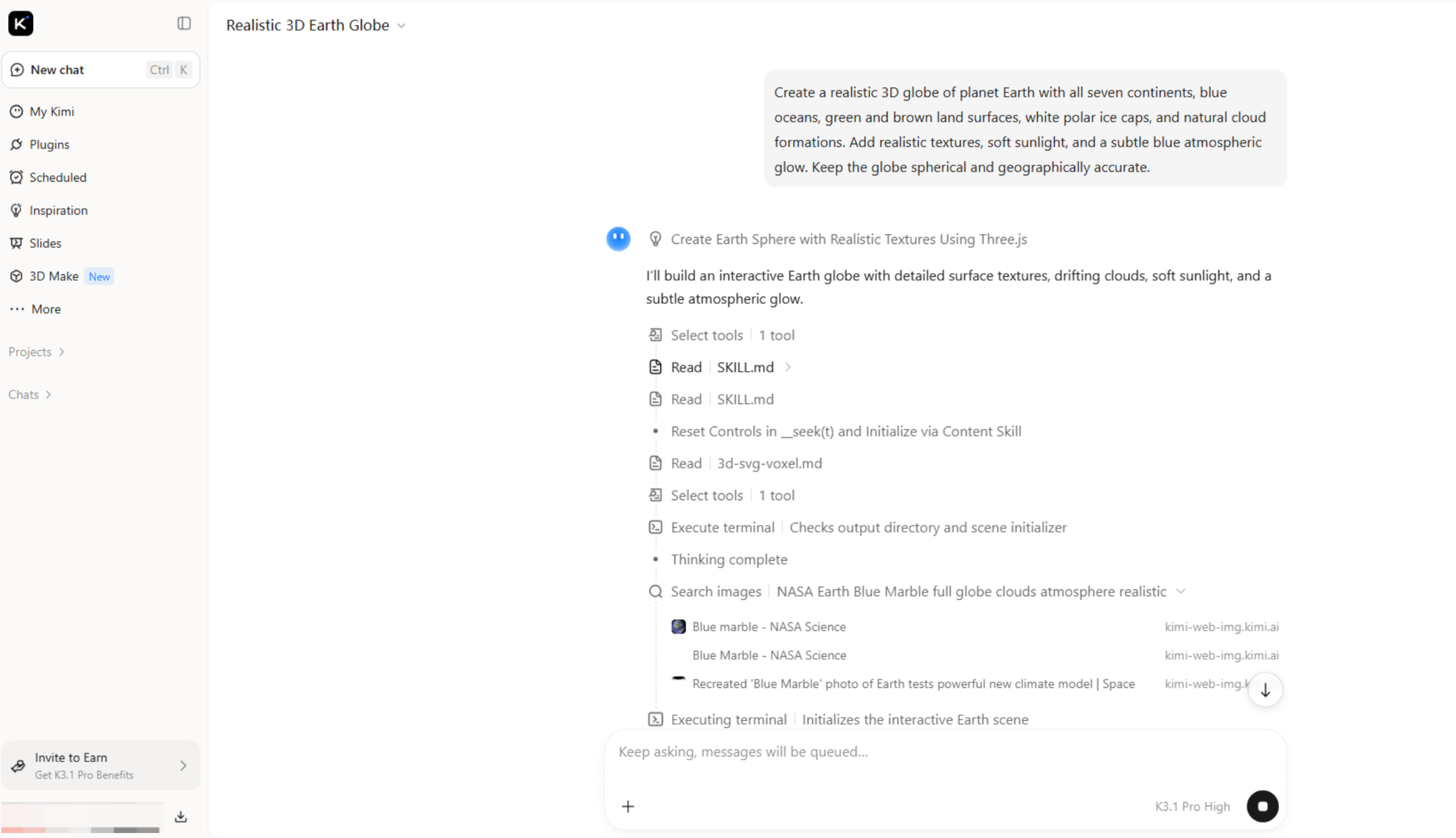
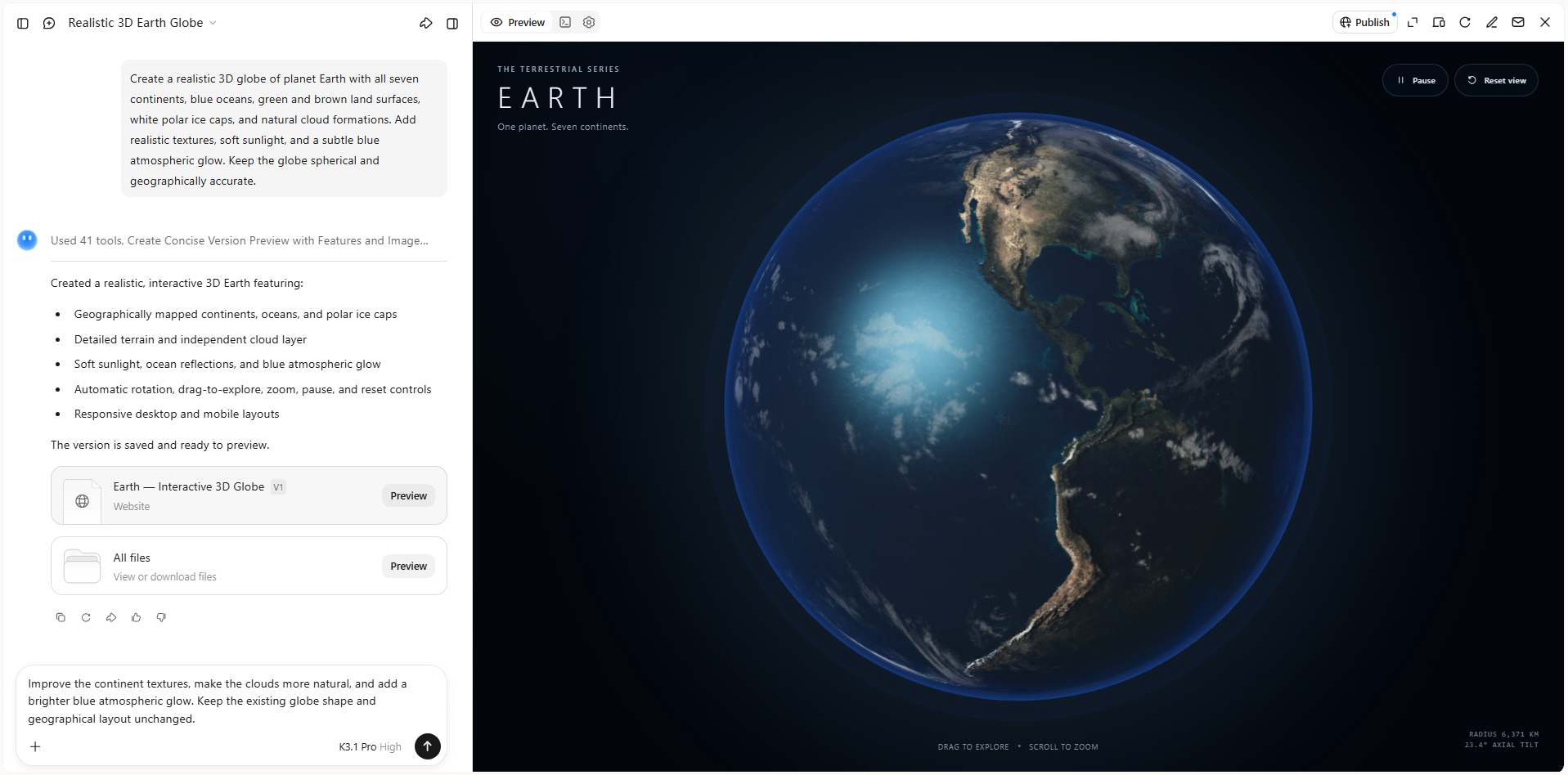
Kimi 3D Make will turn your description into a 3D Earth model, bringing together the continents, oceans, clouds, and surface details. Once it is ready, preview the globe and check its overall appearance.
Step 3: Refine and edit the 3D world
Refine your design by entering text prompts in the chat to make changes. For more precise adjustments, click "Edit" to comment on specific elements or manually modify details such as shapes, colors, and layouts.
Step 4: Preview and export your finished 3D world
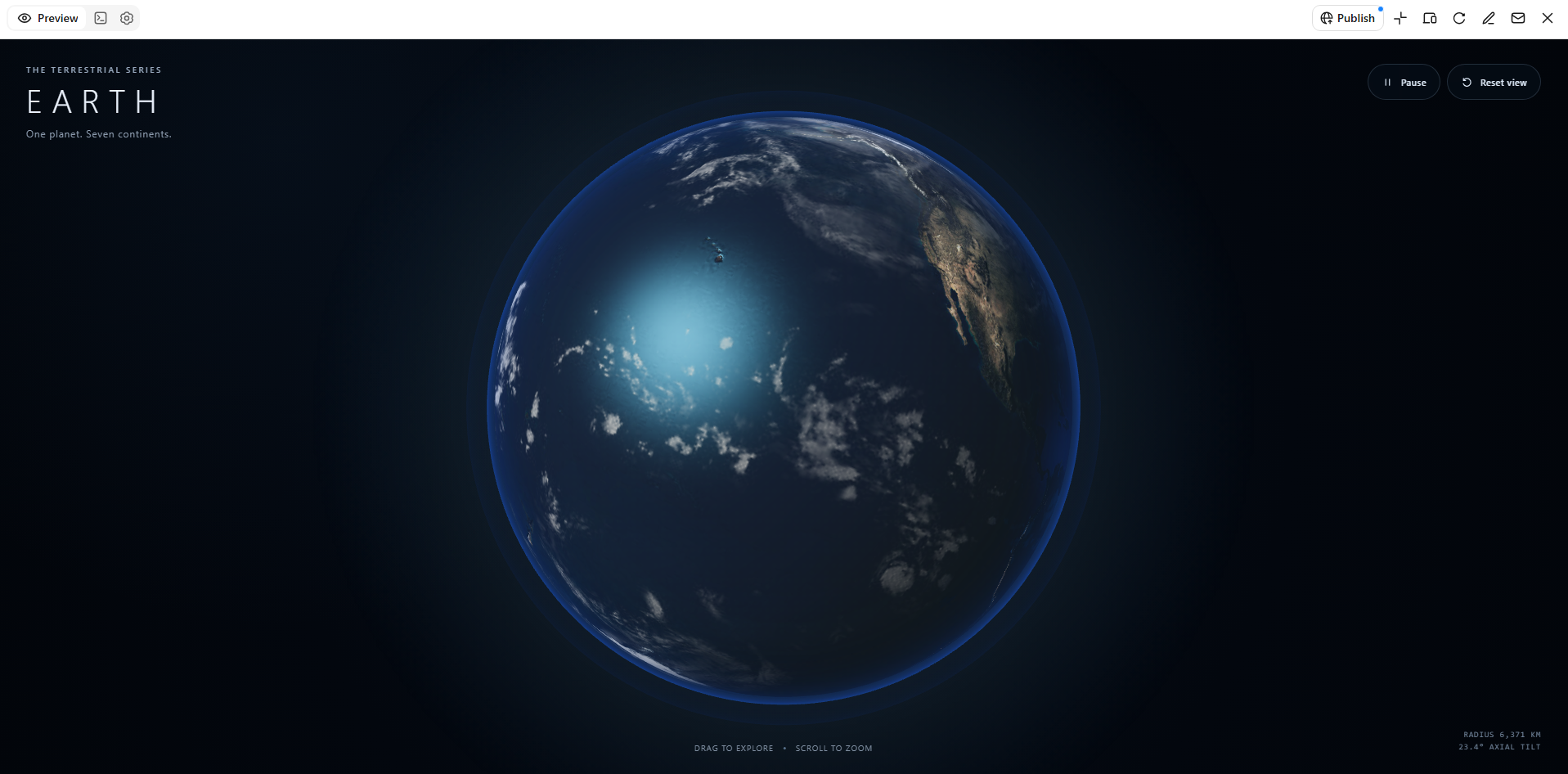
Preview your 3D world and publish it as a webpage to share with others. You can also enter additional prompts to generate exportable 3D files in formats such as GLB, glTF, or OBJ for use in compatible software and creative projects.
Why use Kimi 3D Make to create a 3D world
Creating a 3D world with AI makes the design process easier, but choosing the right tool also matters. Kimi 3D Make offers several features that help you turn ideas into 3D models, customize their details, and prepare them for different projects. Here are some key reasons to use it for your 3D creations:
Generate 3D models from text and images
Kimi 3D Make supports text-to-3D and image-to-3D generation, helping turn creative concepts and visual ideas into 3D assets. Whether you envision a fantasy landscape, a futuristic city, or an alien planet, you can start with a description or an image and bring your ideas into a 3D workflow.
Create realistic and aesthetically refined 3D models
Kimi 3D Make helps generate visually appealing models with balanced proportions, refined shapes, and cohesive design details. From natural landscapes and architectural structures to intricate environmental elements, the generated assets can feature realistic appearances and carefully considered visual styles, giving your 3D world a more polished and immersive look.
Refine models with prompt-based editing
Kimi 3D Make supports follow-up prompt-based adjustments, allowing you to modify generated models without recreating them from scratch. You can request changes to shapes, proportions, colors, and other visual details to explore variations and improve the final result.
Export models in multiple formats
Download your generated 3D assets in GLB or BLEND formats for use in compatible 3D software and creative workflows. This makes it easier to continue editing, organize assets, and incorporate them into broader world-building projects.
Tips to create more impressive 3D worlds
Small design choices can have a big impact on how your 3D world looks and feels. From choosing the right lighting to adding depth and detail, each element helps make the final scene more engaging. Here are some useful tips to take your 3D creations to the next level.
Start with one clear theme
Decide what kind of 3D world you want to create before writing your prompt. It could be a realistic Earth globe, a futuristic planet, or a miniature city. Having one clear theme helps you choose the right details and keeps the entire design consistent.
Write detailed and specific prompts
Describe what you want the model to include instead of using broad instructions. Mention important features such as shapes, textures, colors, objects, and their placement. Clear prompts give the AI better direction and help it produce results closer to your expectations.
Use lighting to add depth
Lighting can change how your 3D world looks and feels. Use soft sunlight for natural scenes, warm lighting for a cozy atmosphere, or cooler tones for futuristic designs. Good lighting also helps highlight surface details and makes objects look more realistic.
Add variety in terrain and objects
Avoid making every part of your 3D world look the same. Include different landforms, buildings, natural features, or surface details depending on your theme. For example, an Earth model can include green land, brown mountain ranges, blue oceans, and white polar regions to create more visual variety.
Keep scale and proportions consistent
Make sure the size of different objects looks natural in relation to one another. Buildings should not appear too large compared to their surroundings, and smaller details should fit the overall scale of the scene. Consistent proportions help make your 3D world look more believable and balanced.
Refine results with small changes
Do not expect the first generated model to be perfect. Review the result and identify the details that need improvement, such as lighting, textures, shapes, or object placement. Make small changes through follow-up prompts so you can improve the design without changing parts that already look good.
Conclusion
Understanding how to make a 3D model is a useful first step toward turning your creative ideas into something you can see and explore. The best results come from having a clear vision, experimenting with different designs, and making thoughtful improvements along the way. If you want to make this process easier, give Kimi 3D Make a try. Turn your ideas into 3D creations and explore what you can build with a simple prompt.