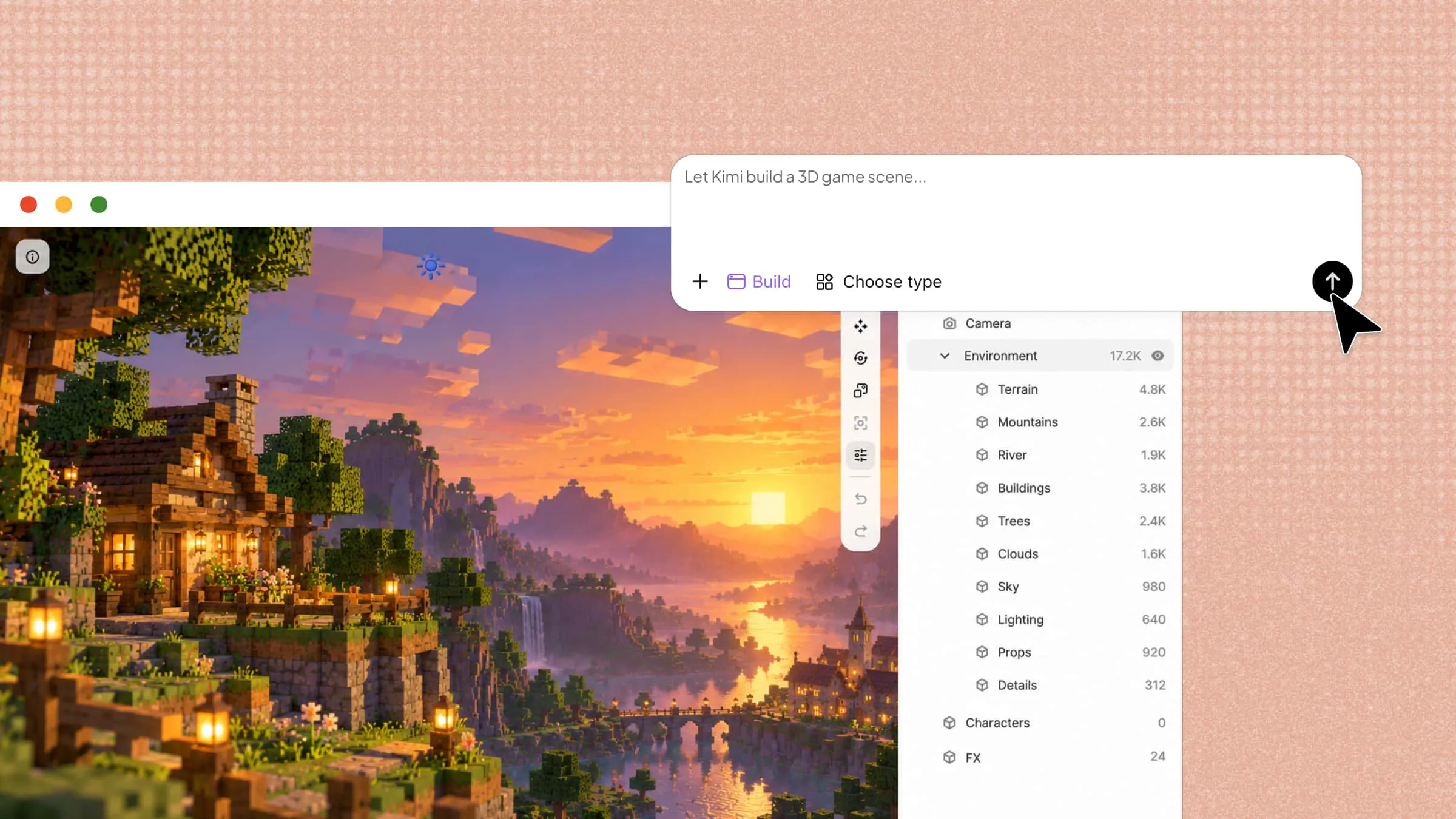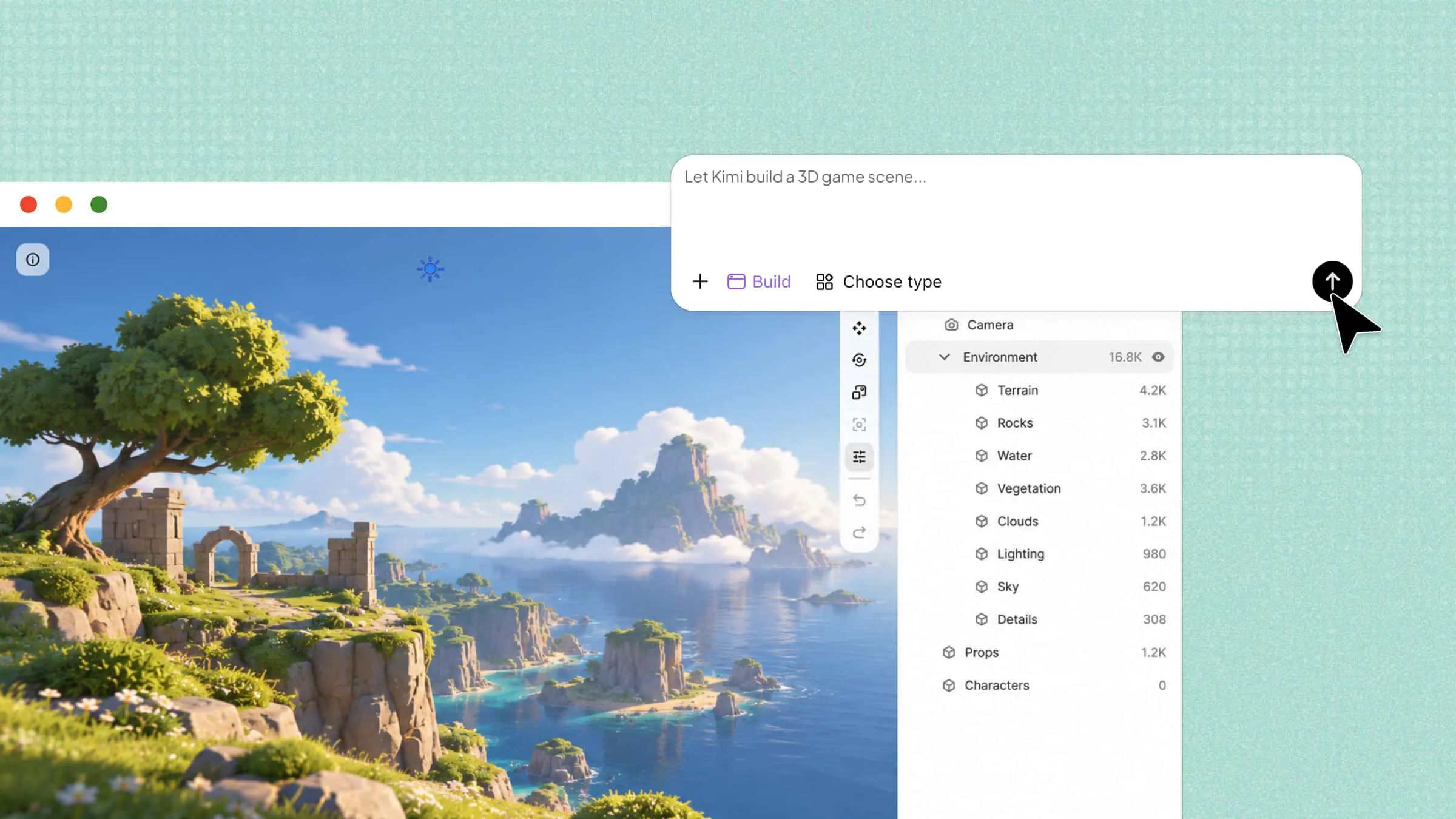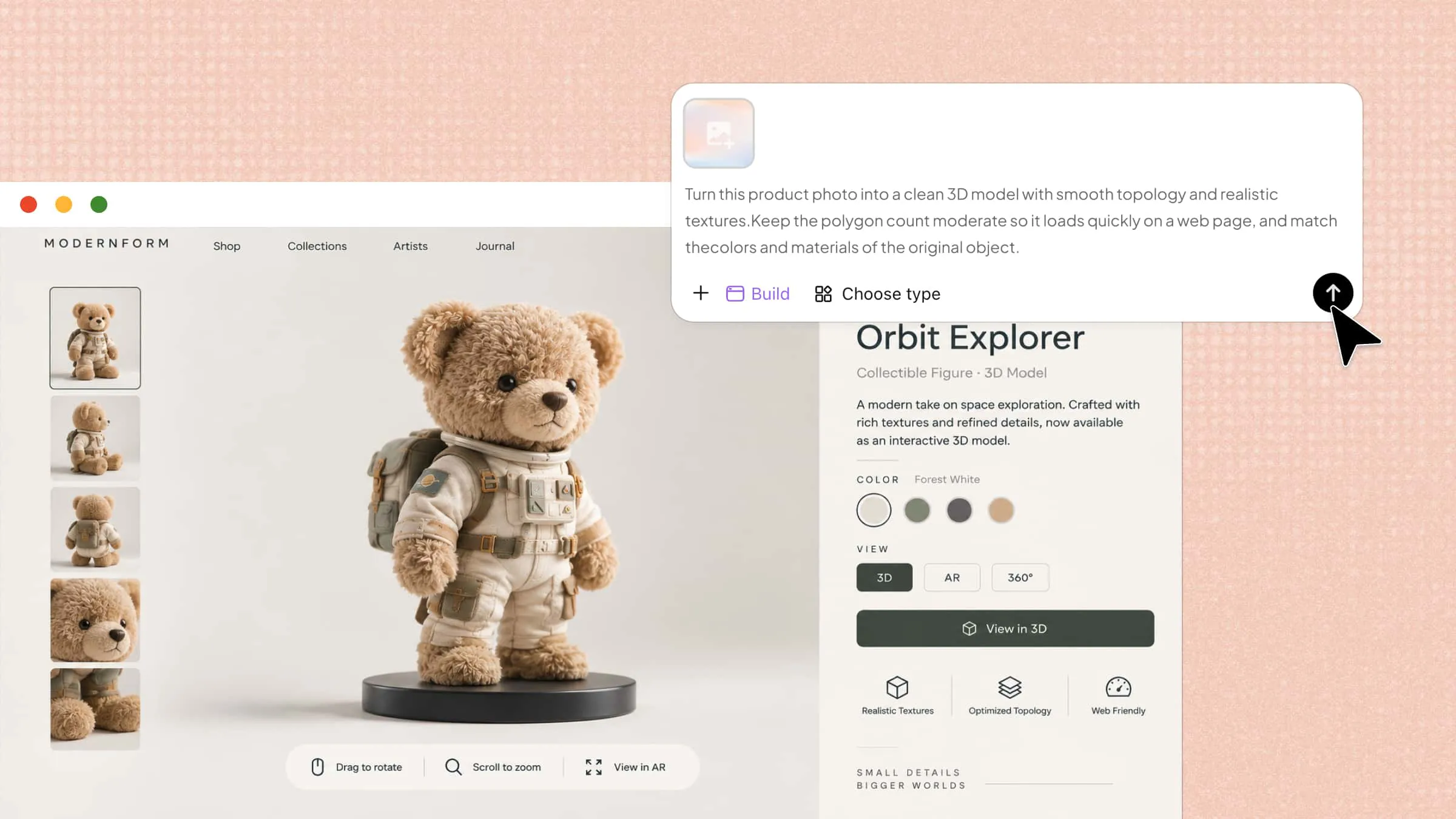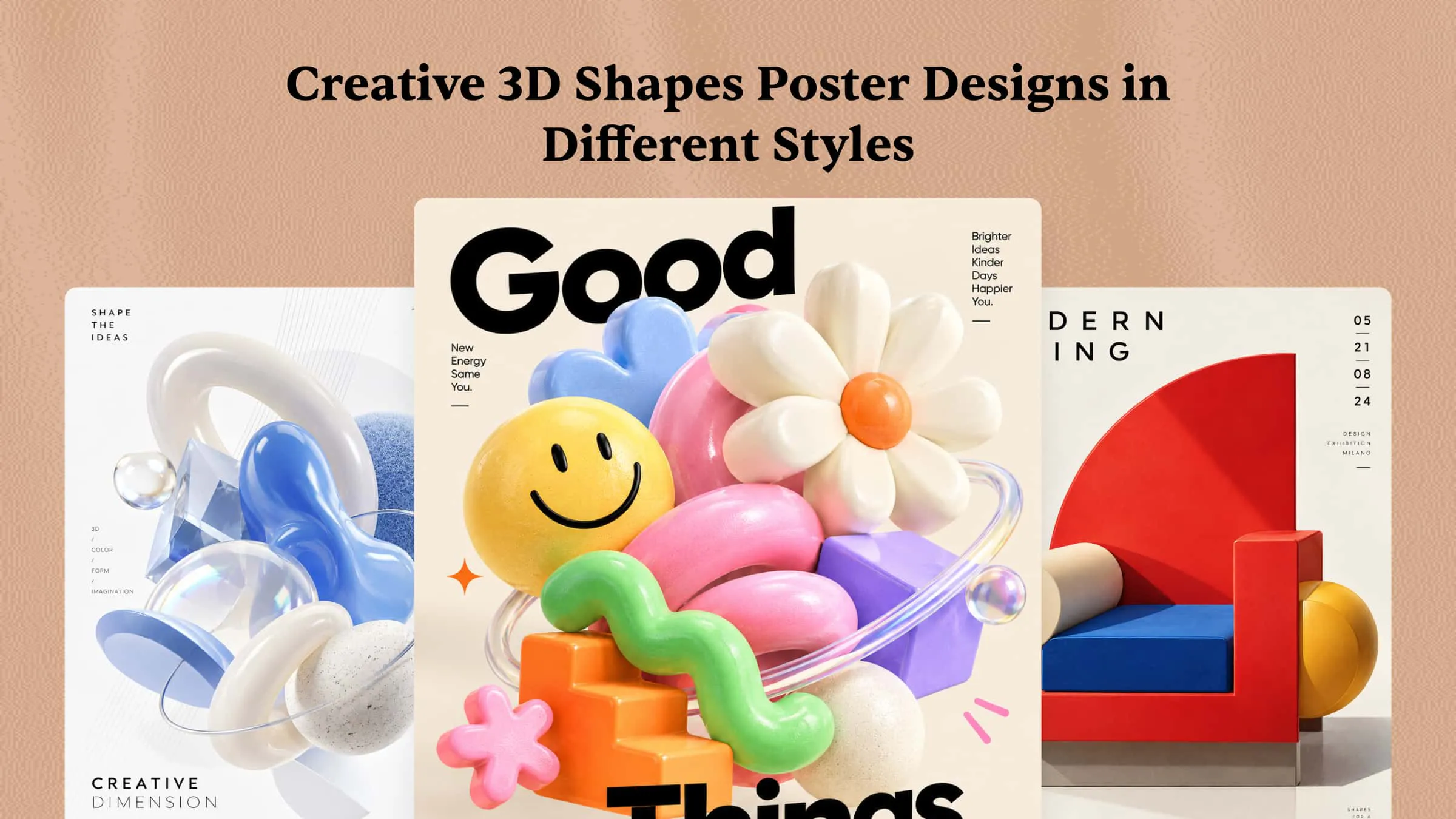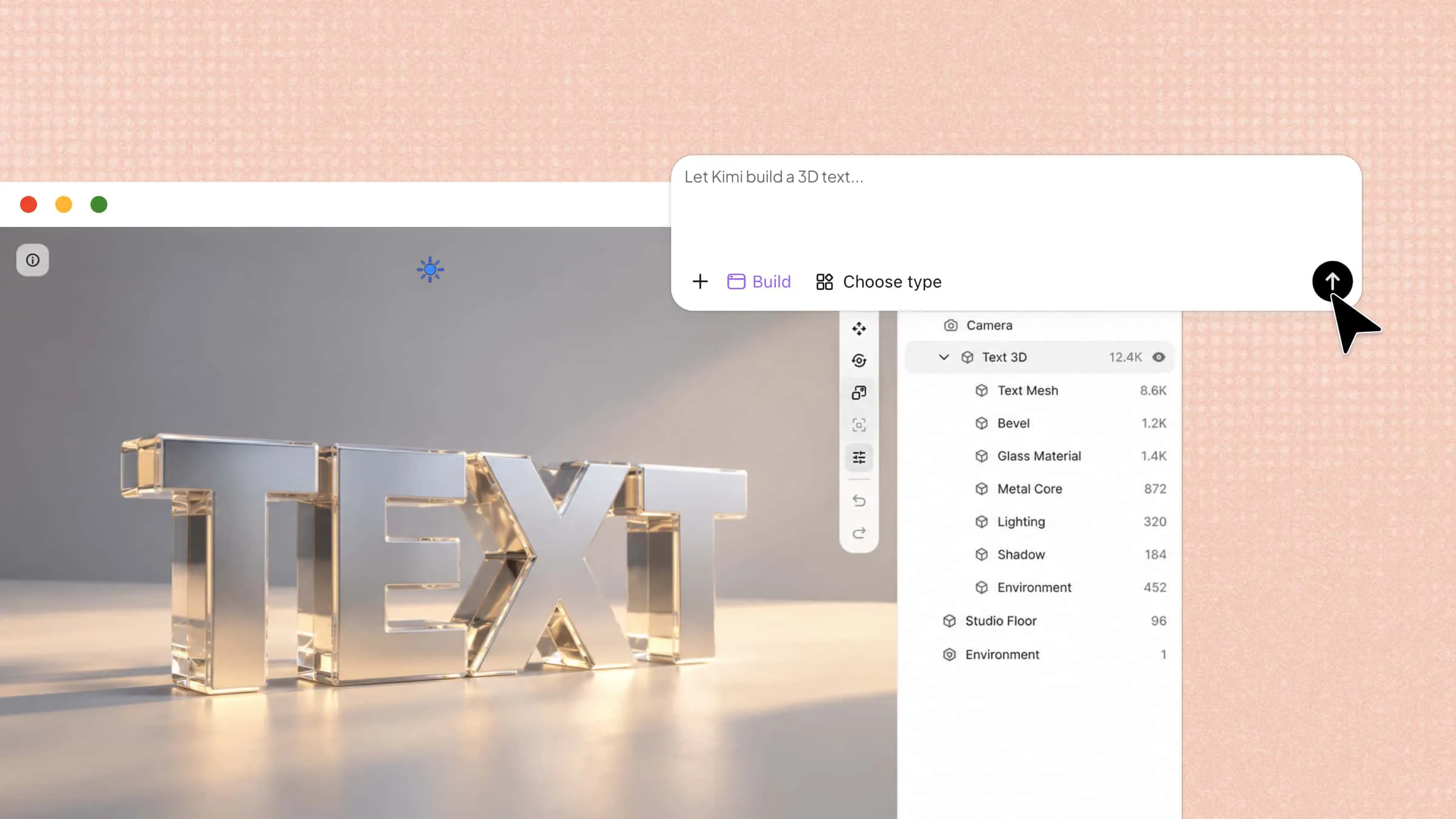
Plain text can look dull when you want your logo, poster, or social media post to stand out. A 3D text generator can turn simple words into bold, eye-catching designs with depth, color, and realistic effects. Some tools are free and easy to use, while others offer more control over lighting, textures, and 3D shapes. Read this article to find 10 free and paid 3D text generators for your next creative project.
Overview of 10 3D text makers
Each 3D text generator offers a different approach, from AI-powered creation and realistic 3D modeling to text effects and animation. Compare their features and use cases below to find a tool that fits your design needs.
| Tool | How it creates 3D text | Key strengths | Suitable for |
|---|---|---|---|
| Kimi Build | AI generation from text prompts and image references | Prompt-based styling, material and lighting control, iterative refinement | 3D lettering concepts, logos, posters, and digital content |
| FlexClip | Text effects and animation in a video editor | Animated titles, text styling, layered compositions | Video intros, social clips, and promotional videos |
| Adobe Photoshop | Layer styles and visual effects | Editable text layers, bevels, shadows, gradients, and textures | Detailed 3D-style typography in posters and graphics |
| DesignEvo | Logo text styling and decorative effects | Simple editing, curved text, shadows, and glow effects | Wordmarks, small business logos, and badge designs |
| Blender | Actual 3D text objects with extrusion and beveling | Geometry control, materials, lighting, and rendering | 3D lettering models, animation, and professional renders |
| FontSpace | Uses ready-made 3D-style typefaces | Wide font selection, previews, downloadable font files | Finding dimensional fonts for use in other design tools |
| Canva | TypeExtrude and other text effects | Adjustable extrusion, colors, outlines, and templates | Social graphics, thumbnails, posters, and presentations |
| 3D AI Studio | AI-powered 3D model generation from text and images | Multiple generation engines, interactive preview, model downloads | Prompt-based 3D asset and lettering concepts |
| Meshy | AI text-to-3D and image-to-3D workflows | AI texturing, model preview, mesh tools, multiple export formats | 3D assets for games, rendering, and prototyping |
| Kling AI | AI image and video generation | Cinematic scenes, motion effects, reference-guided visuals | Animated 3D-style titles and promotional content |
10 free and paid 3D text generators for stunning visuals
The right tool can make a big difference in how your text looks, whether you need a quick design or a detailed 3D effect. Some generators focus on simple text styles, while others offer more creative options for professional projects. Here are 10 AI 3D text generators that can help with your next project.
Kimi Build
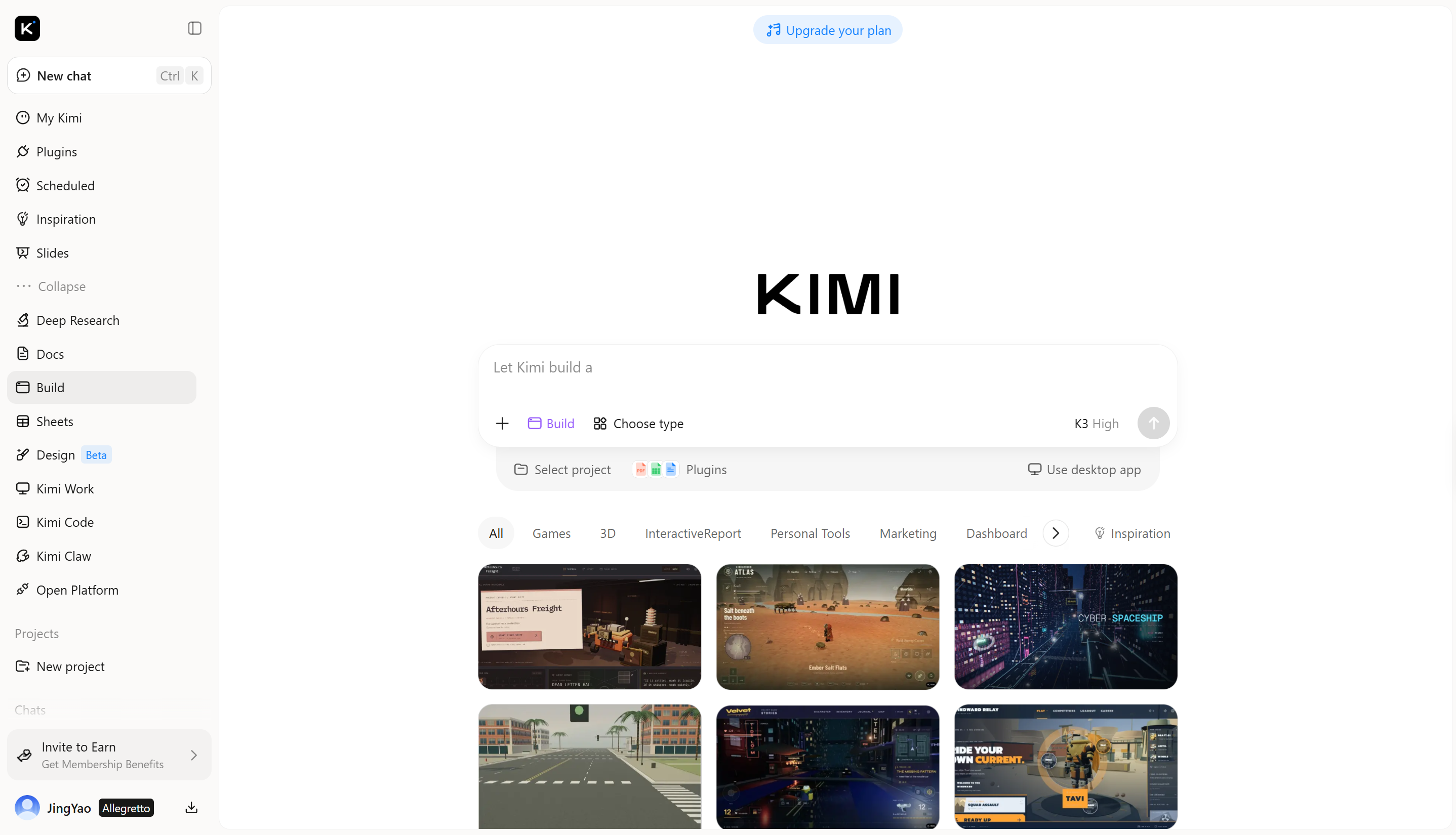
Kimi Build lets you create 3D text visuals from written prompts and image references. You can describe the text style, shape, colors, materials, and lighting you want, then adjust the result with follow-up prompts. This makes it useful for creating stylized 3D lettering for logos, posters, and digital content. It also supports AI-powered 3D asset creation for more detailed visual projects.
Main features
Kimi Build offers several features that help you create and customize 3D text for different visual projects. Here are the key features to know before you start creating your designs.
Generate 3D text from simple prompts
Describe your words or phrases, preferred shapes, materials, and visual direction to generate dimensional lettering. Turn a simple text prompt into 3D text with extruded forms, visible depth, and spatial details that bring your message beyond flat typography.
Create dimensional lettering with realistic effects
Transform text into eye-catching 3D visuals featuring metallic surfaces, glossy finishes, transparent materials, beveled edges, and dramatic lighting. Generate lettering with distinct shapes, depth, highlights, and shadows to achieve anything from sleek futuristic designs to bold, sculptural text.
Refine 3D text through flexible iteration
Adjust colors, materials, extrusion depth, lighting, shadows, and surrounding elements by describing the changes you want. Explore different visual directions and refine the details until the 3D lettering matches your creative vision.
Apply 3D lettering to real-world projects
Use generated 3D text in brand logos, promotional posters, social media graphics, video titles, gaming visuals, and advertising materials. Create distinctive text-based assets that add depth to headlines, strengthen visual identity, and make key messages stand out across digital and print designs.
Suitable for
3D logo and branding concepts
Promotional posters and banners
Social media graphics and video titles
Creative typography for digital projects
How to create 3D text and fonts with Kimi Build
Creating 3D text with Kimi Build starts with a simple prompt and a clear idea of the style you want. Follow these steps to generate your design, adjust its appearance, and get the result closer to your vision.
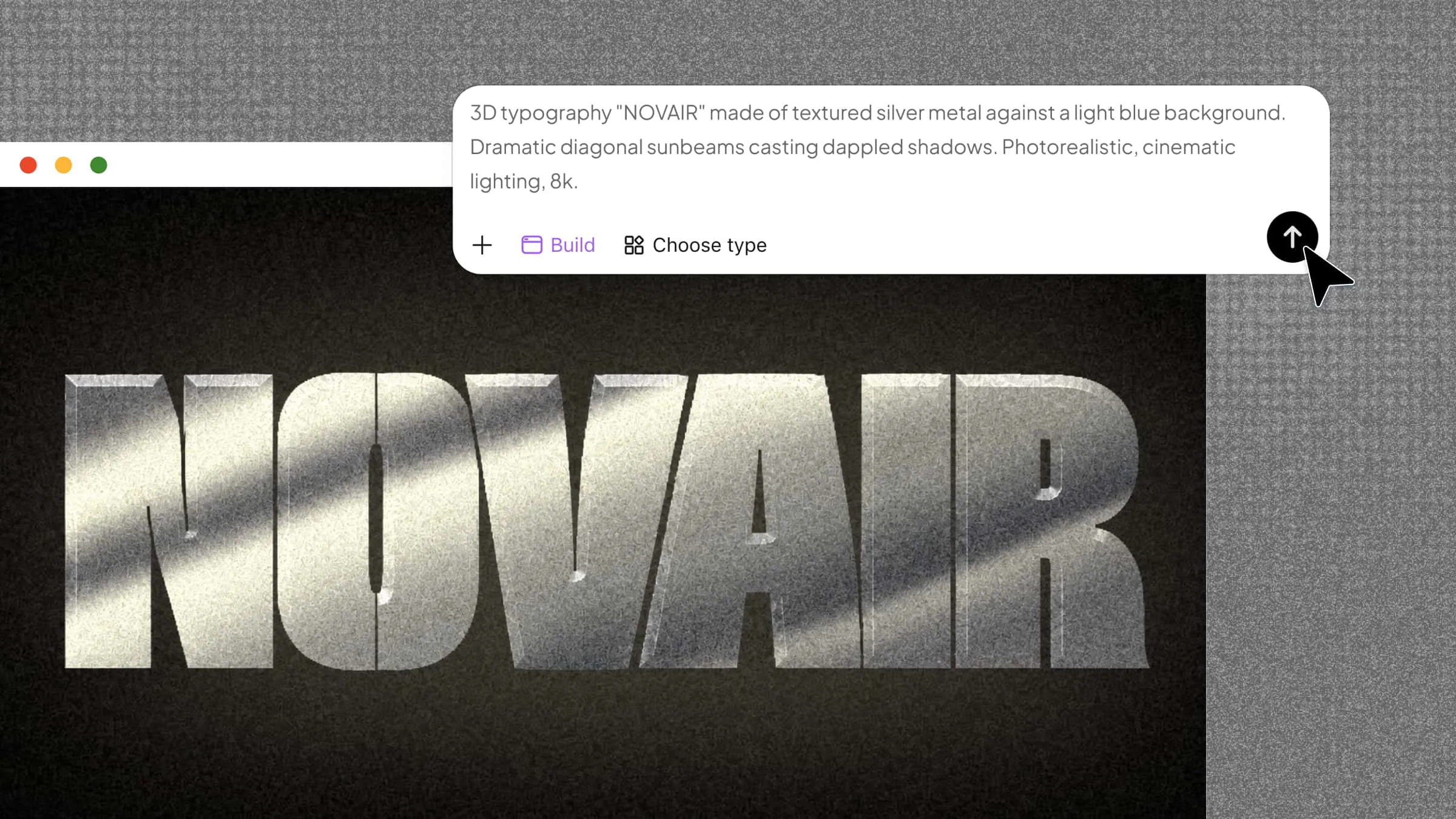
Step 1: Enter your prompt
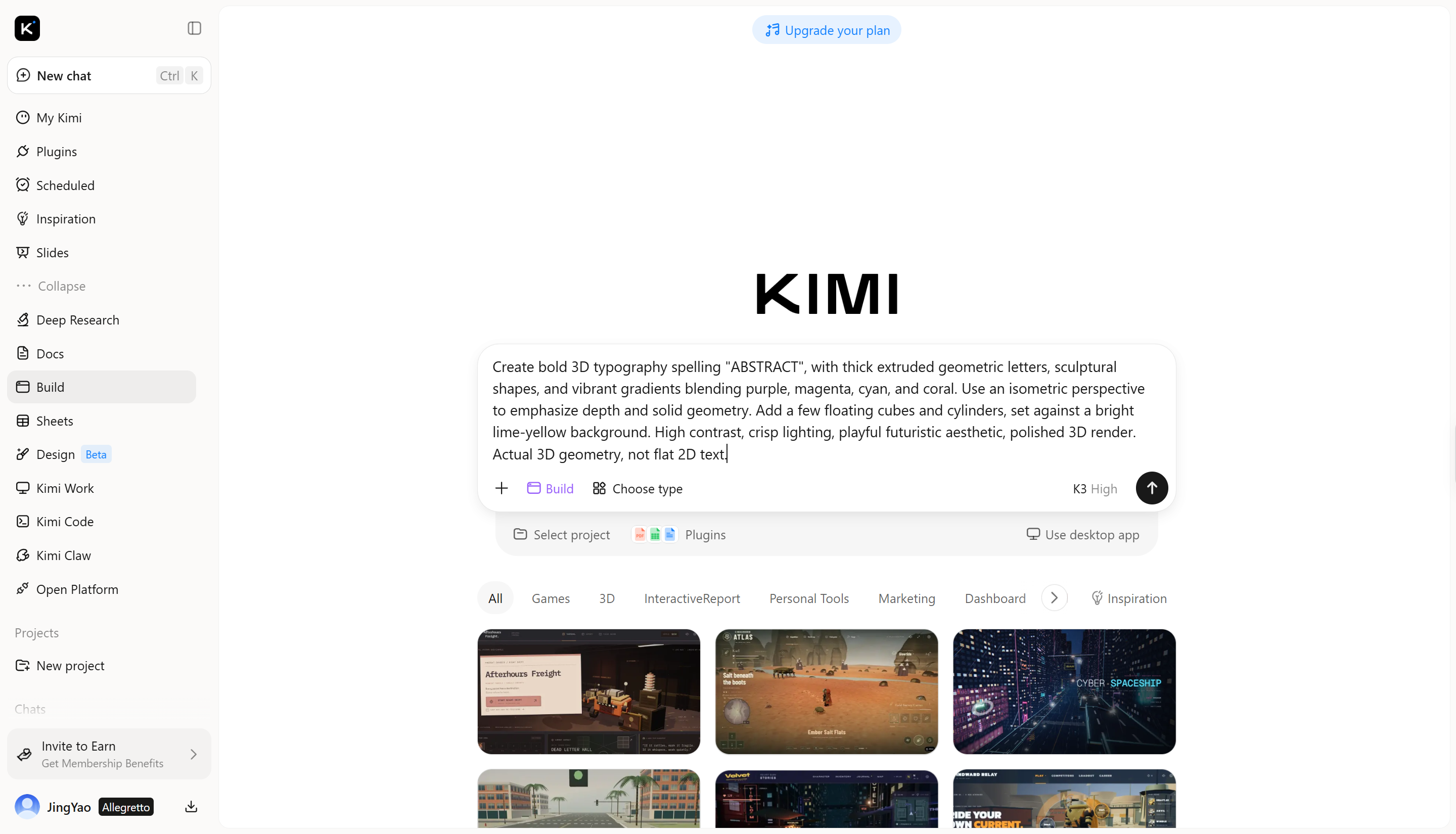
Open Kimi Build and describe the exact 3D text design you want. Specify the words, font style, depth, materials, colors, and lighting to guide the result.
Example prompt:
Step 2: Edit and refine
Review the generated design and adjust details that do not match your vision. For example, ask Kimi Build to make the letters thicker, increase their depth, change the metallic finish, or soften the shadows while keeping the text unchanged.
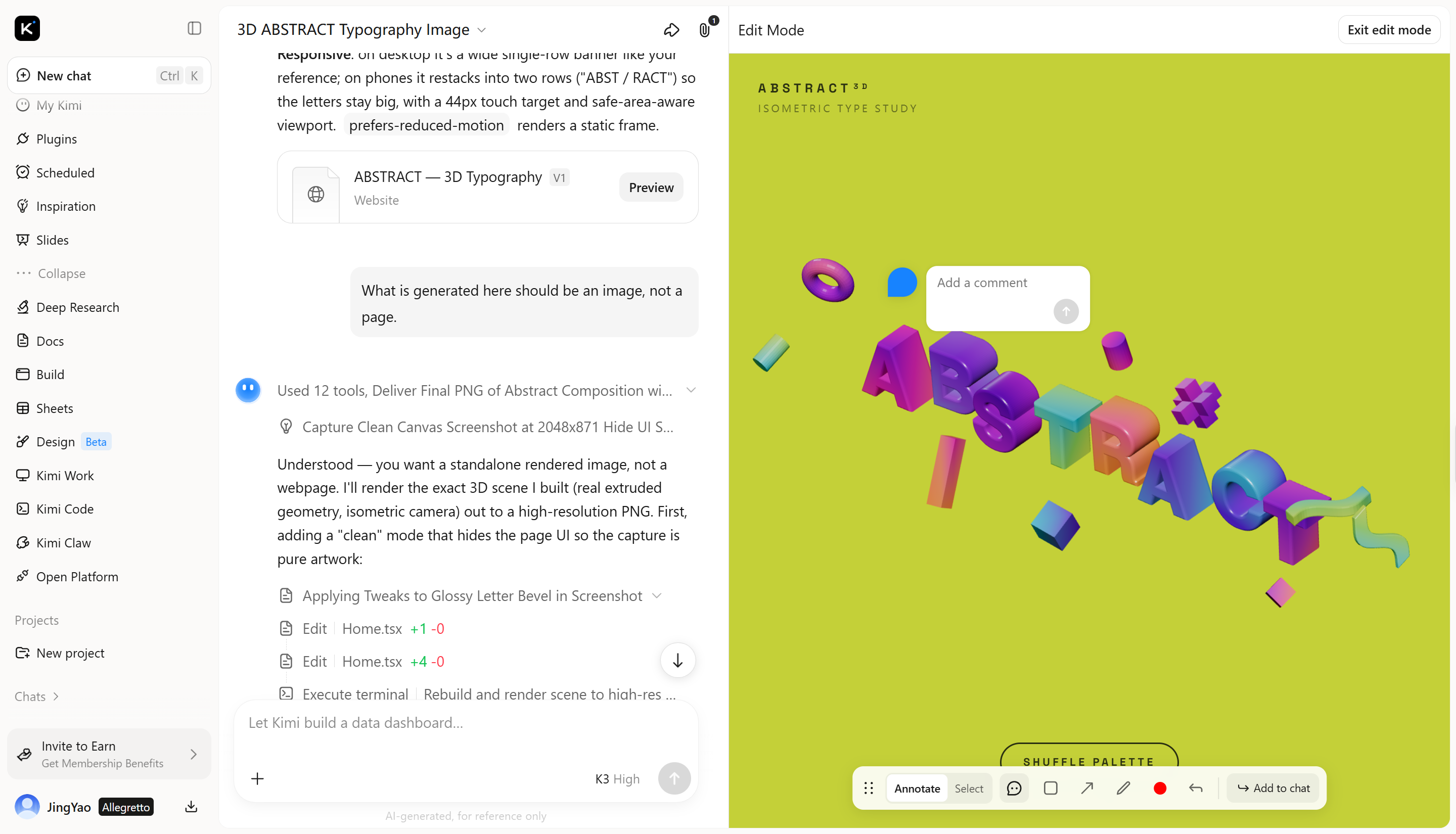
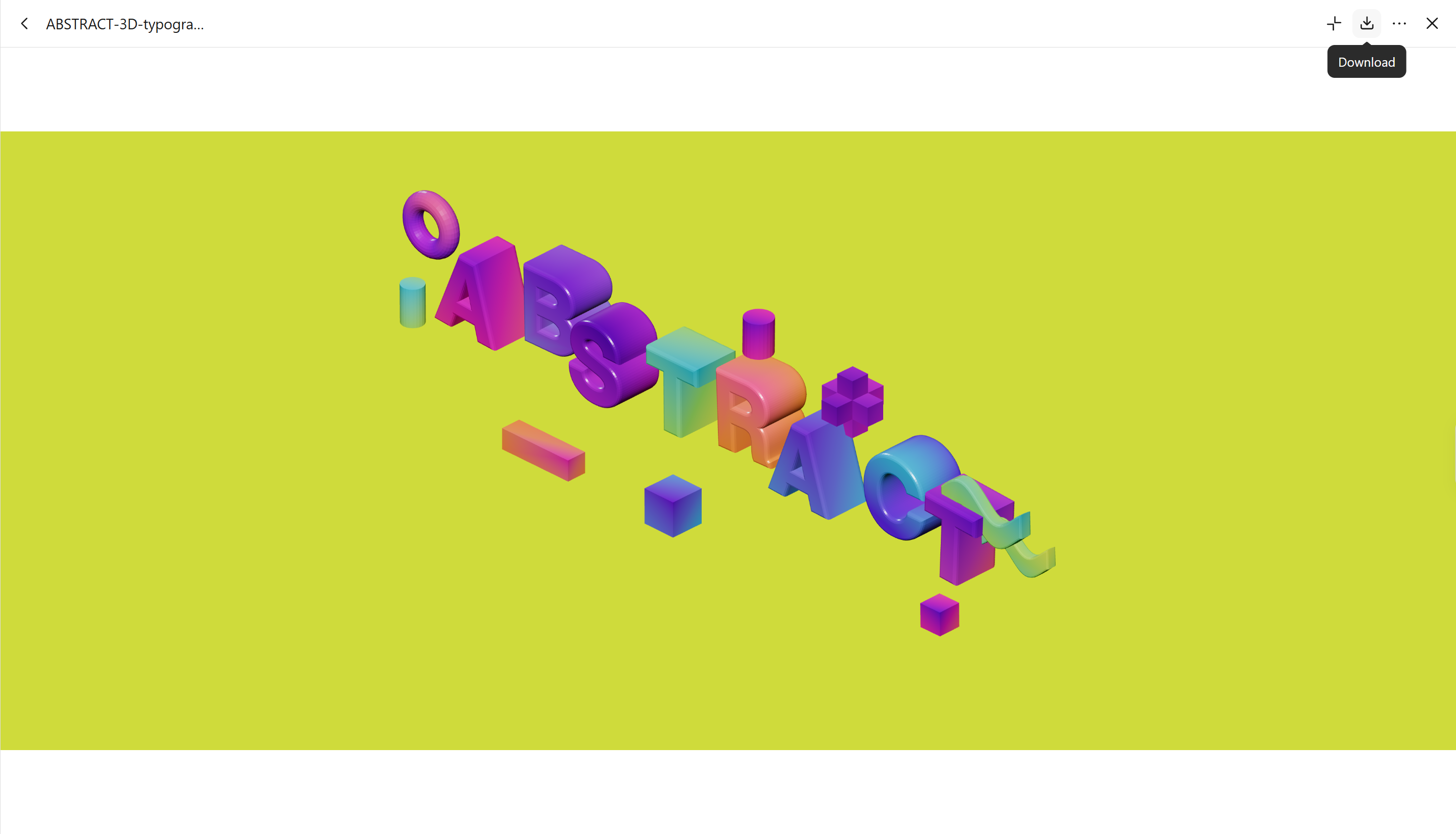
Step 3: Export and share
Once you are happy with the result, check the available output and sharing options in Kimi Build. Save or share the generated visual using the supported options, then use it in your poster, logo concept, presentation, or social media content.
FlexClip
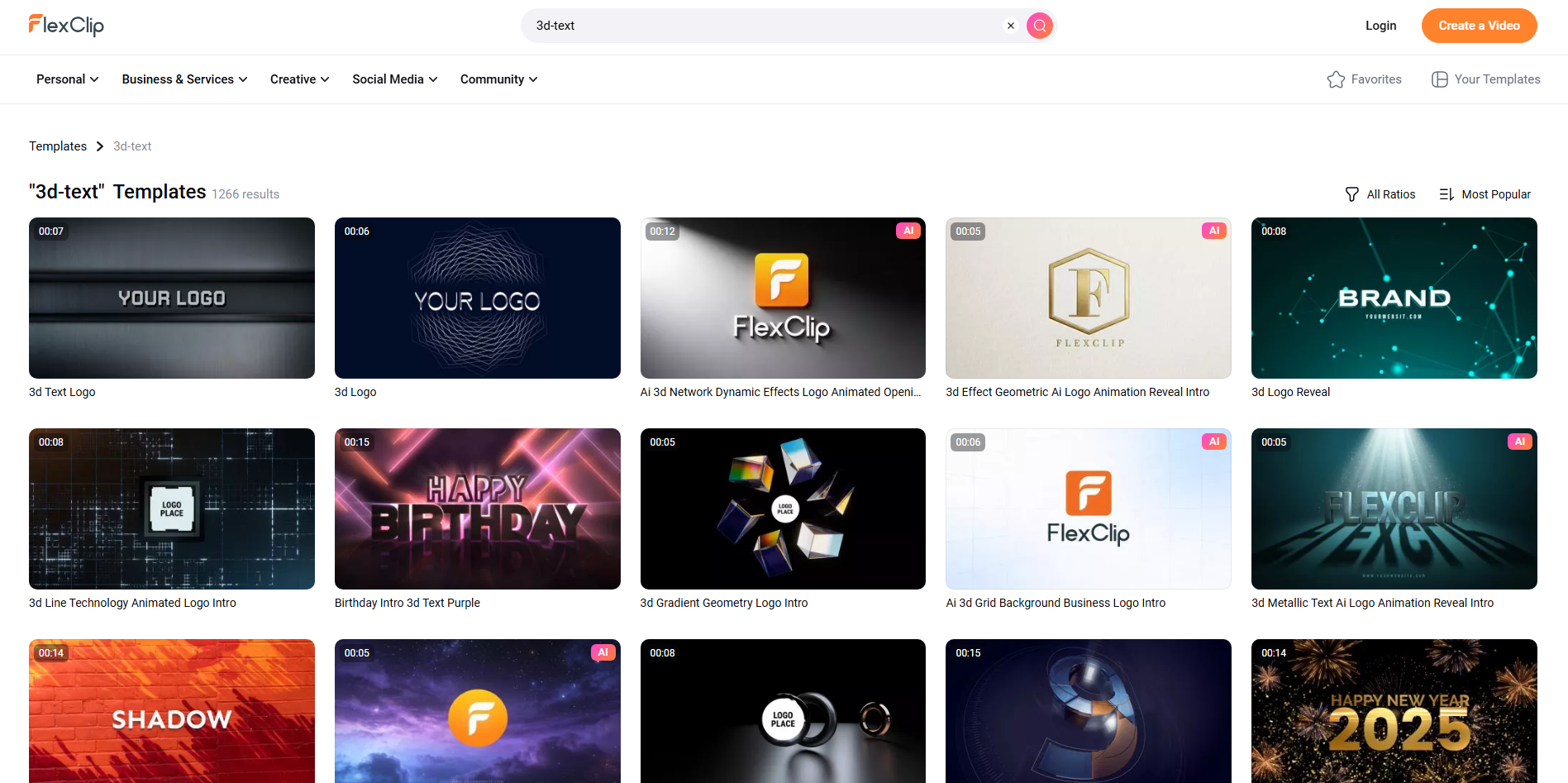
FlexClip is an online video editor that helps you create text-based visuals for videos, promotional content, and social media. You can add titles, animate lettering, and combine text with backgrounds, images, and video clips. Its editing tools are useful for giving words a dimensional look through visual effects, shadows, and motion. It is best suited to 3D-style text in video projects rather than creating editable 3D geometry.
Main features
Animated text effects: Add movement to titles and headings to make them more noticeable in video intros, advertisements, and short social clips.
Text styling and customization: Adjust font styles, colors, sizes, and placement to fit your design, keeping the text consistent with the rest of your video.
Layered visual composition: Combine text with footage, images, shapes, and backgrounds to create a more dimensional appearance without building a 3D model.
Video export and sharing: Export completed projects as videos for use on social platforms, websites, presentations, and other digital channels.
Suitable for
Animated 3D-style titles for videos
YouTube intros and outros
Social media promotional clips
Short advertisements with bold lettering
Photoshop
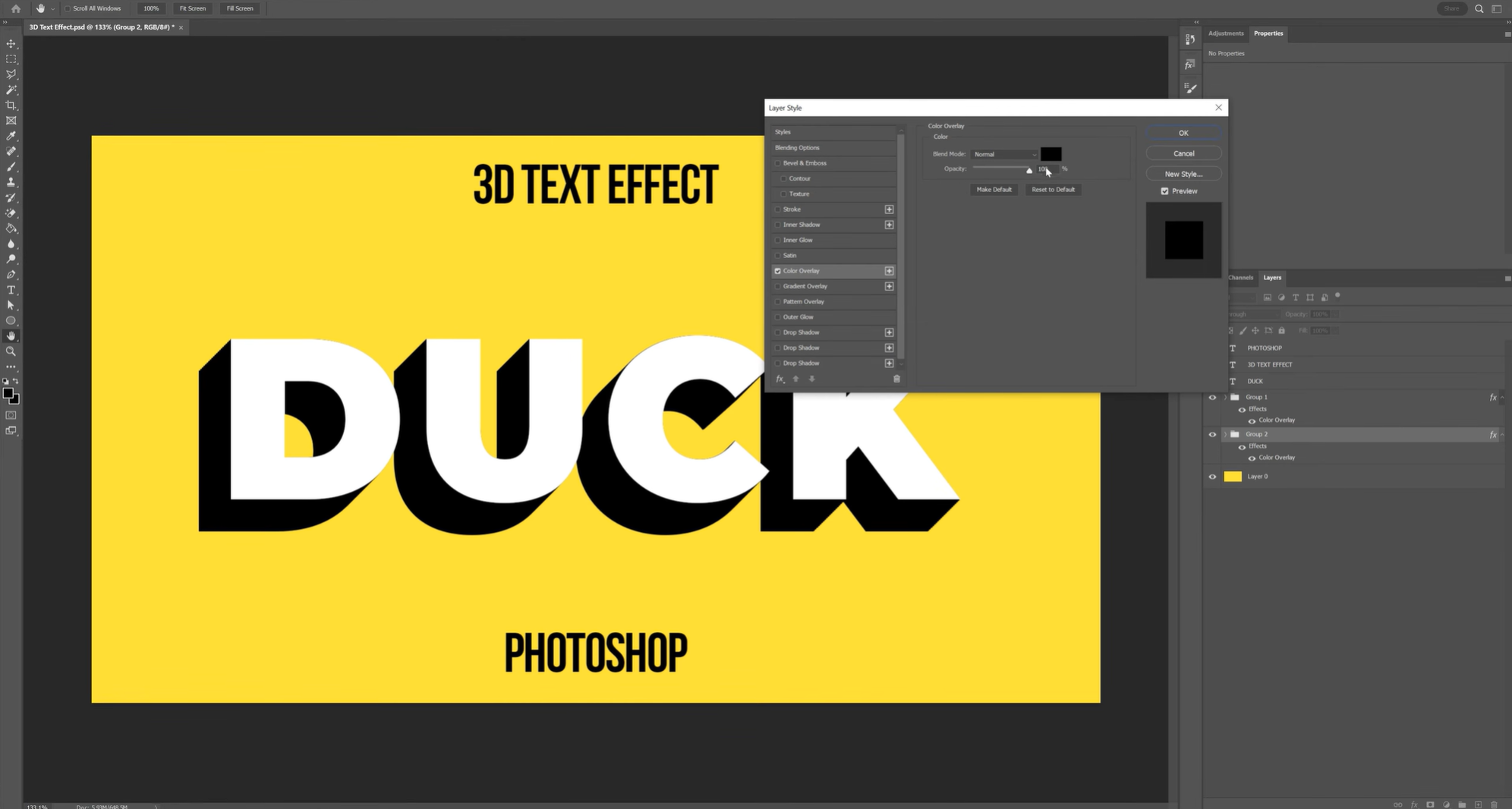
Adobe Photoshop is a raster graphics editor that offers detailed control over typography and visual effects. Its editable type layers let you change words, fonts, sizes, and spacing while working on a design. You can apply layer styles, shadows, strokes, gradients, and perspective effects to create the appearance of depth. It is useful when you want to design polished 3D-style text as part of a larger image.
Main features
Editable text layers: Change the wording, font, size, and alignment without rebuilding the entire composition, making it easier to test different lettering styles.
Layer styles and shadows: Use effects such as bevels, strokes, and shadows to give flat text more depth and make the letters stand out against the background.
Gradient and texture effects: Combine colors, overlays, and image textures to create metallic, glossy, or stone-like finishes for decorative typography.
Precise image composition: Place your text alongside photographs, illustrations, and other graphic elements to create complete posters, banners, and advertising visuals.
Suitable for
Professional poster and banner typography
Metallic or glossy 3D-style lettering
Product advertisements and promotional graphics
Detailed text effects for digital artwork
Designevo
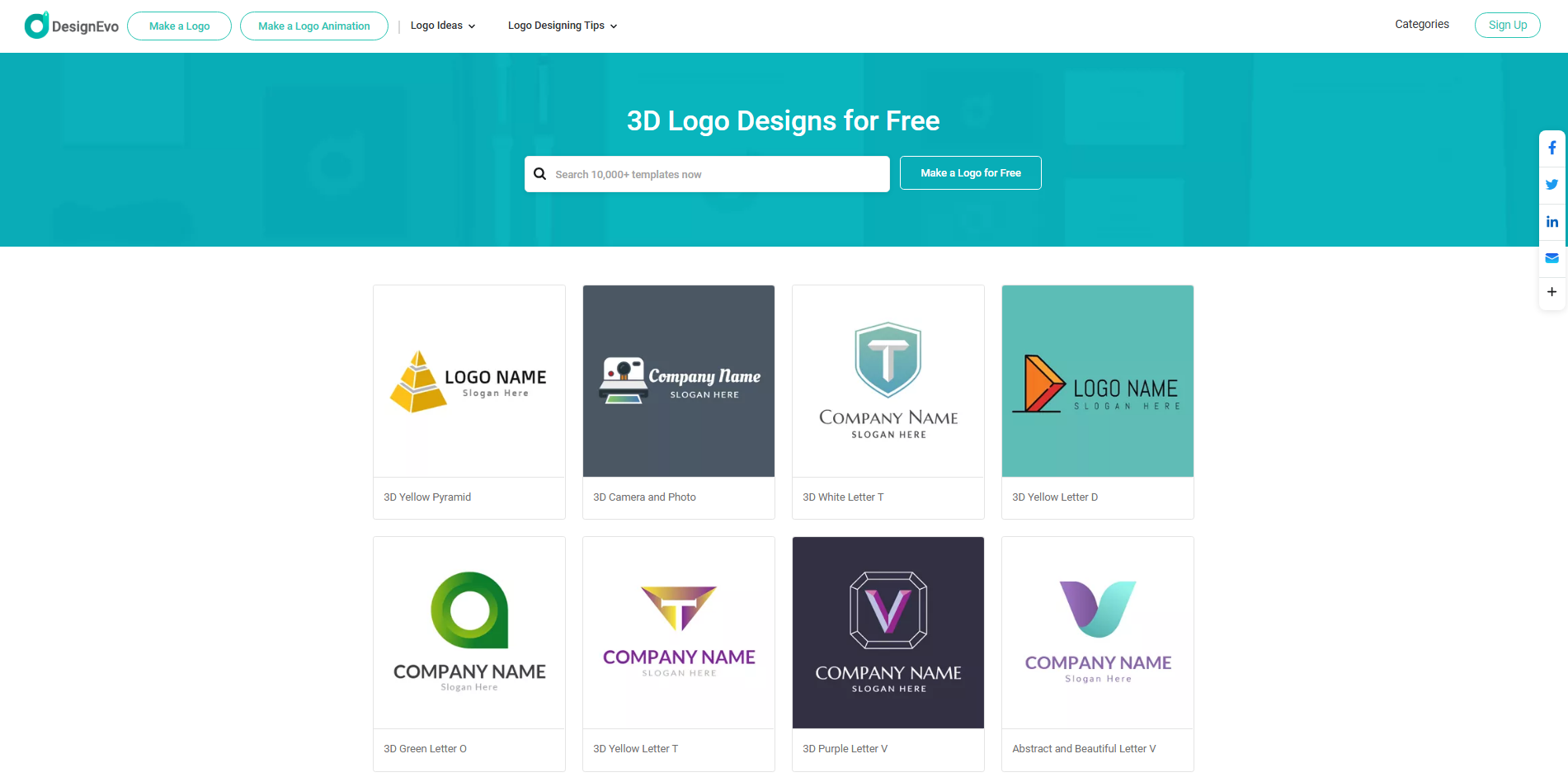
DesignEvo is an online logo maker designed to help users build branded graphics with text, icons, and ready-made layouts. It includes text customization options such as font selection, color changes, curved lettering, shadows, and glow effects. These controls can help you create logo text with a sense of depth without using a full 3D modeling program.
Main features
Customizable text styling: Adjust font size, color, spacing, and alignment to make your logo lettering fit your brand identity.
Shadow and glow effects: Add shadows or glowing edges to separate the text from its background and create a more dimensional visual style.
Curved and rotated text: Change the direction or shape of lettering to fit circular logos, badges, and other compact layouts.
Logo layout editing: Combine text with icons and graphic elements, then arrange them into a cohesive logo design.
Suitable for
Small business logo concepts
Decorative brand names and wordmarks
Badge-style and circular logo designs
Simple promotional graphics with stylized text
Blender
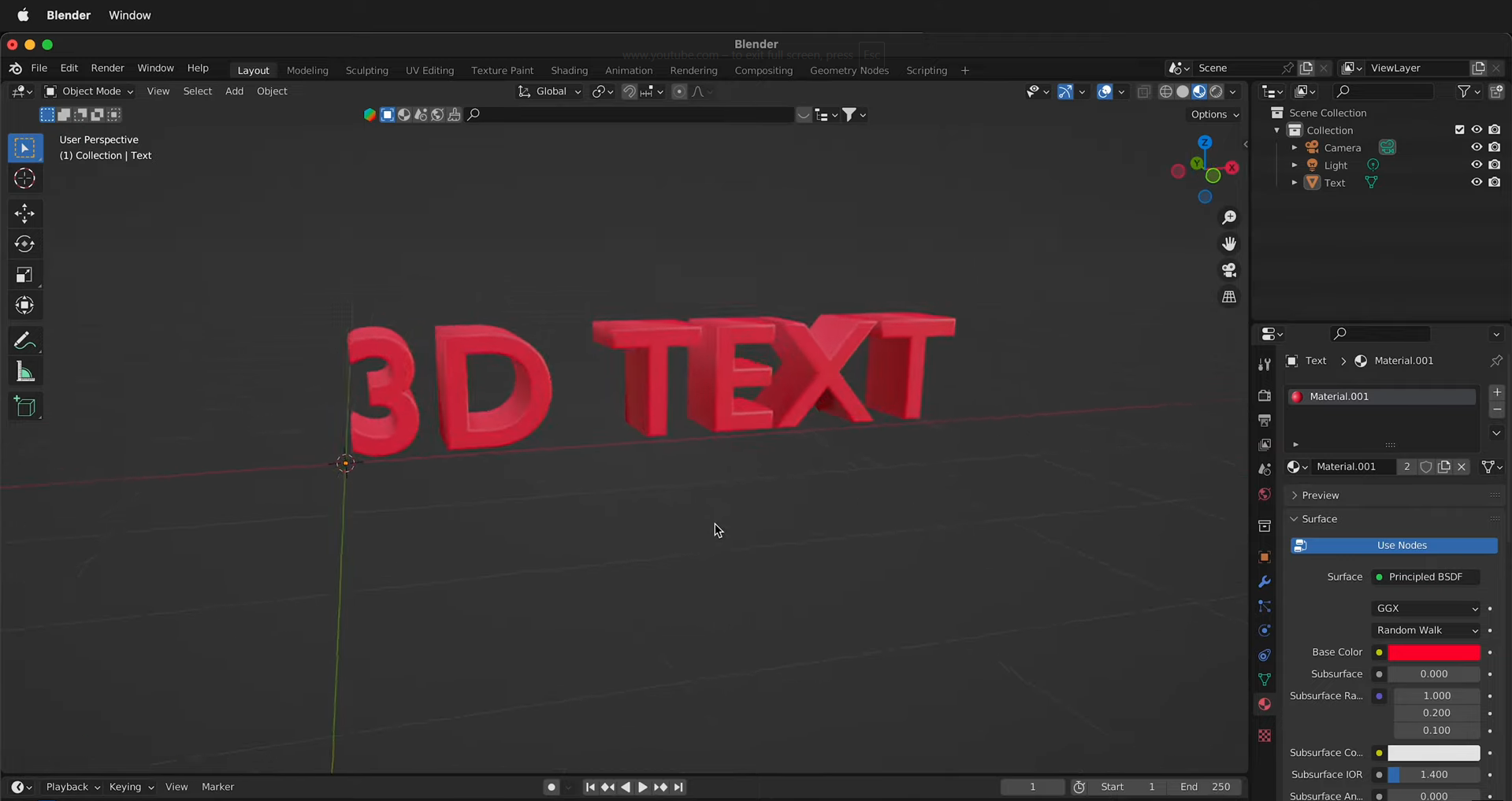
Blender is a free, open-source 3D creation application that lets you build actual three-dimensional text. Its text objects support font selection, alignment, spacing, extrusion, and bevel settings, giving you control over the shape and thickness of individual letters. You can convert text into a mesh and work with it like other 3D objects.
Main features
Text extrusion and beveling: Add depth to flat letters by extruding them and soften their edges with bevel settings for a more polished 3D appearance.
External font support: Import supported font files, including TrueType and OpenType, to create lettering in styles that match your project.
Materials and lighting: Apply materials and position lights to create metallic, plastic, glass-like, or other surface appearances.
Mesh conversion and rendering: Convert text into mesh geometry when needed, then render the scene to produce a finished image of your 3D lettering.
Suitable for
Real 3D text models and lettering
Product branding and 3D logo renders
Cinematic titles and opening sequences
Custom typography for animation and games
FontSpace
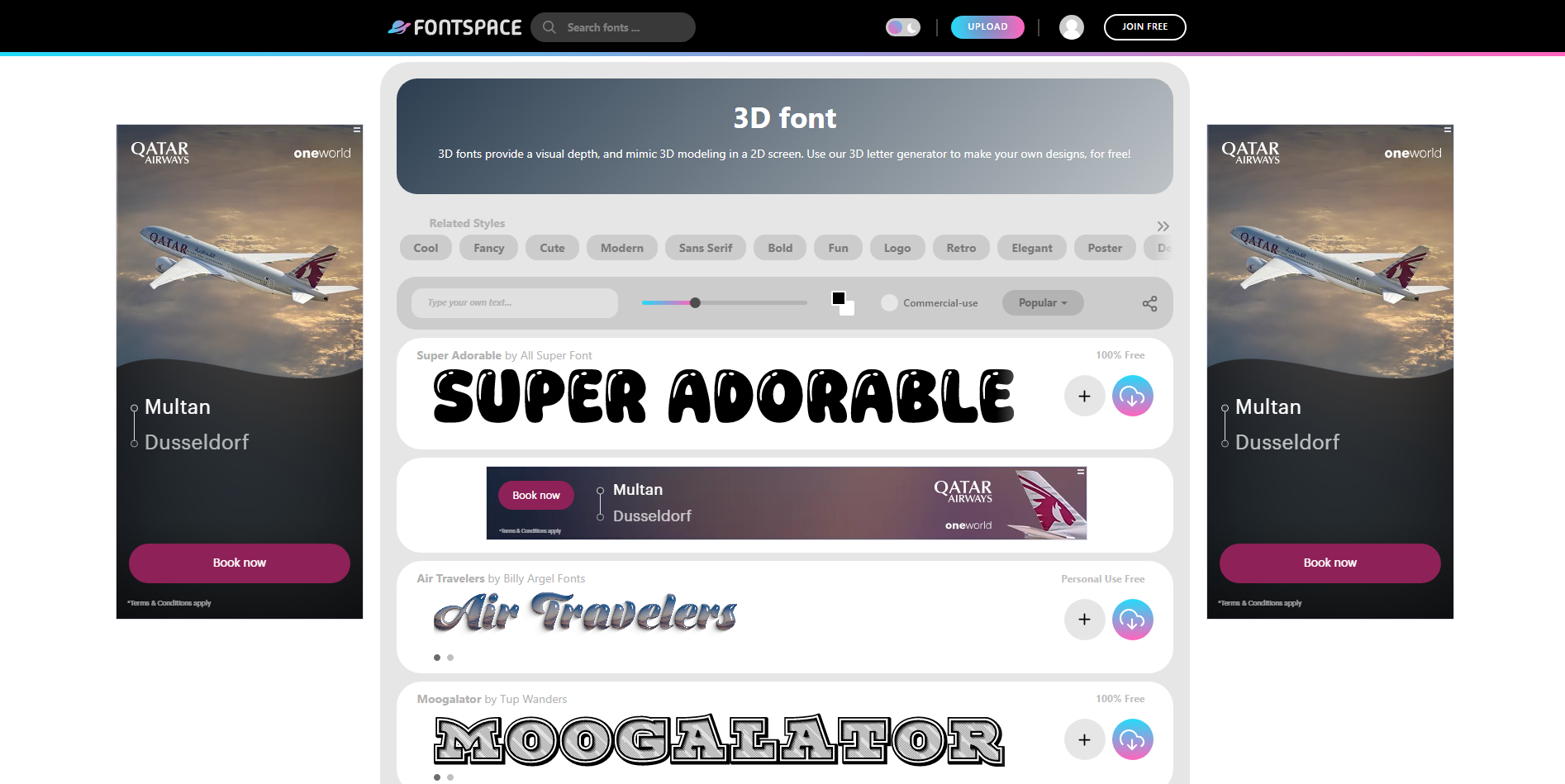
FontSpace is a font discovery platform where you can browse and download typefaces in many styles, including 3D, block, shadow, and decorative lettering. Its 3D font collections help you find ready-made letter designs without creating the effect from scratch. You can preview examples and enter your own text on supported font pages to see how the lettering looks.
Main features
Dedicated 3D font collections: Browse fonts with dimensional, outlined, shadowed, and block-style designs to find a suitable starting point for your project.
Font previews: Preview available typefaces and, on supported pages, test your own words before choosing a font.
Downloadable font files: Download fonts and use them in compatible design software to create text graphics, posters, or other artwork.
Font licensing information: Check the listed usage terms for each typeface, since some fonts are free for personal use while others allow commercial use.
Suitable for
Finding 3D-style fonts for graphic design
Creating bold poster headlines
Decorative text for invitations and event graphics
Adding dimensional lettering to designs in other applications
Canva
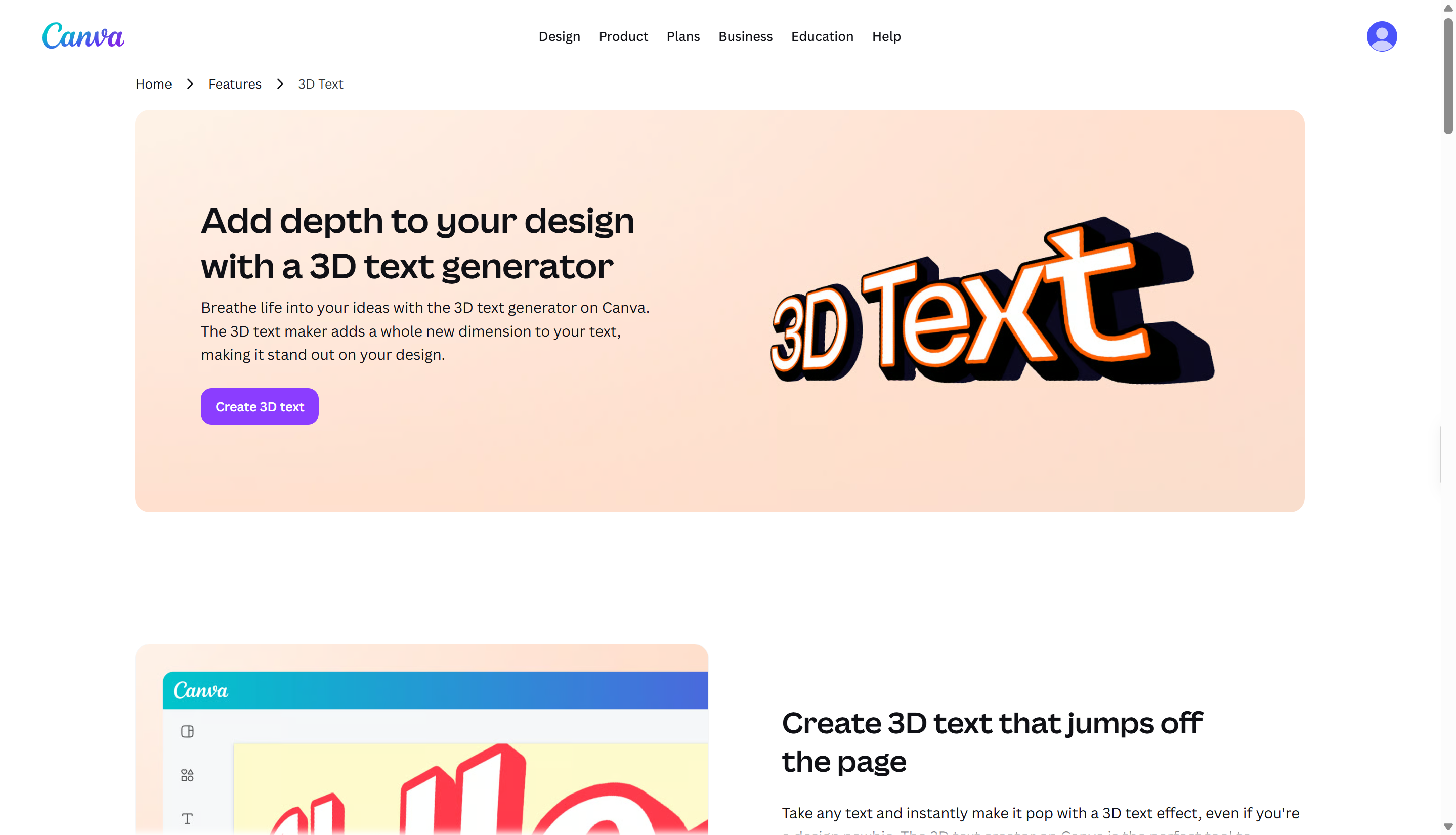
Canva is an online design platform with text effects that can give ordinary lettering a dimensional appearance. Its TypeExtrude app adds 3D extrusion, with controls for extrusion length, angle, outline thickness, and color. You can combine these effects with Canva's existing templates, fonts, shapes, and image elements to build a complete design.
Main features
3D text extrusion: Extend letters to create visible depth and adjust the extrusion angle and length to suit the design.
Custom extrusion colors: Choose different colors for the text and its extruded sides to create contrast, gradients, or bold visual effects.
Outline and text effects: Adjust outline thickness and explore other effects, such as shadows, curved text, and lifted lettering.
Ready-made design layouts: Add your text to templates for social posts, posters, presentations, and marketing materials without starting from a blank canvas.
Suitable for
Social media graphics with 3D lettering
YouTube thumbnails and video covers
Promotional posters and banners
Presentations with bold dimensional headings
3D AI Studio
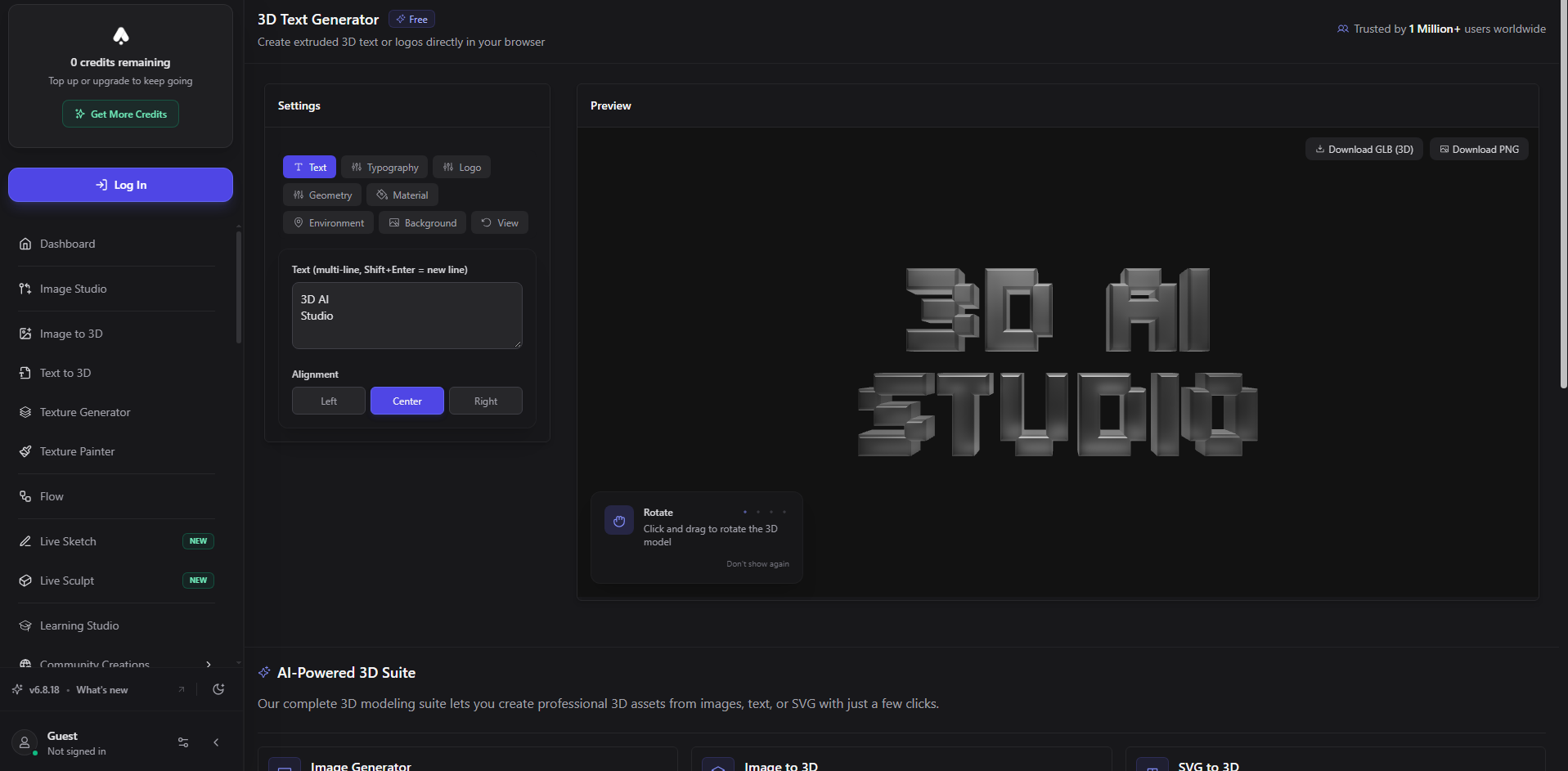
3D AI Studio is an AI-powered platform that turns written descriptions and images into three-dimensional models. It provides access to multiple AI generation engines, allowing users to explore different approaches to creating 3D assets. You can inspect generated models in a 3D viewer before downloading them in supported formats.
Main features
Text-to-3D generation: Describe the lettering or object you want and let the AI generate a 3D model from your prompt.
Multiple AI engines: Choose from available generation models to explore different shapes, levels of detail, and visual results.
Interactive 3D preview: Rotate the generated model and inspect its appearance before deciding whether it fits your project.
Model downloads: Export generated assets in supported formats, such as GLB, OBJ, FBX, and STL, for use in other 3D workflows.
Suitable for
Creating 3D lettering concepts from prompts
Generating text-shaped objects for visual experiments
Exploring 3D logo and branding concepts
Preparing 3D assets for other design applications
Meshy
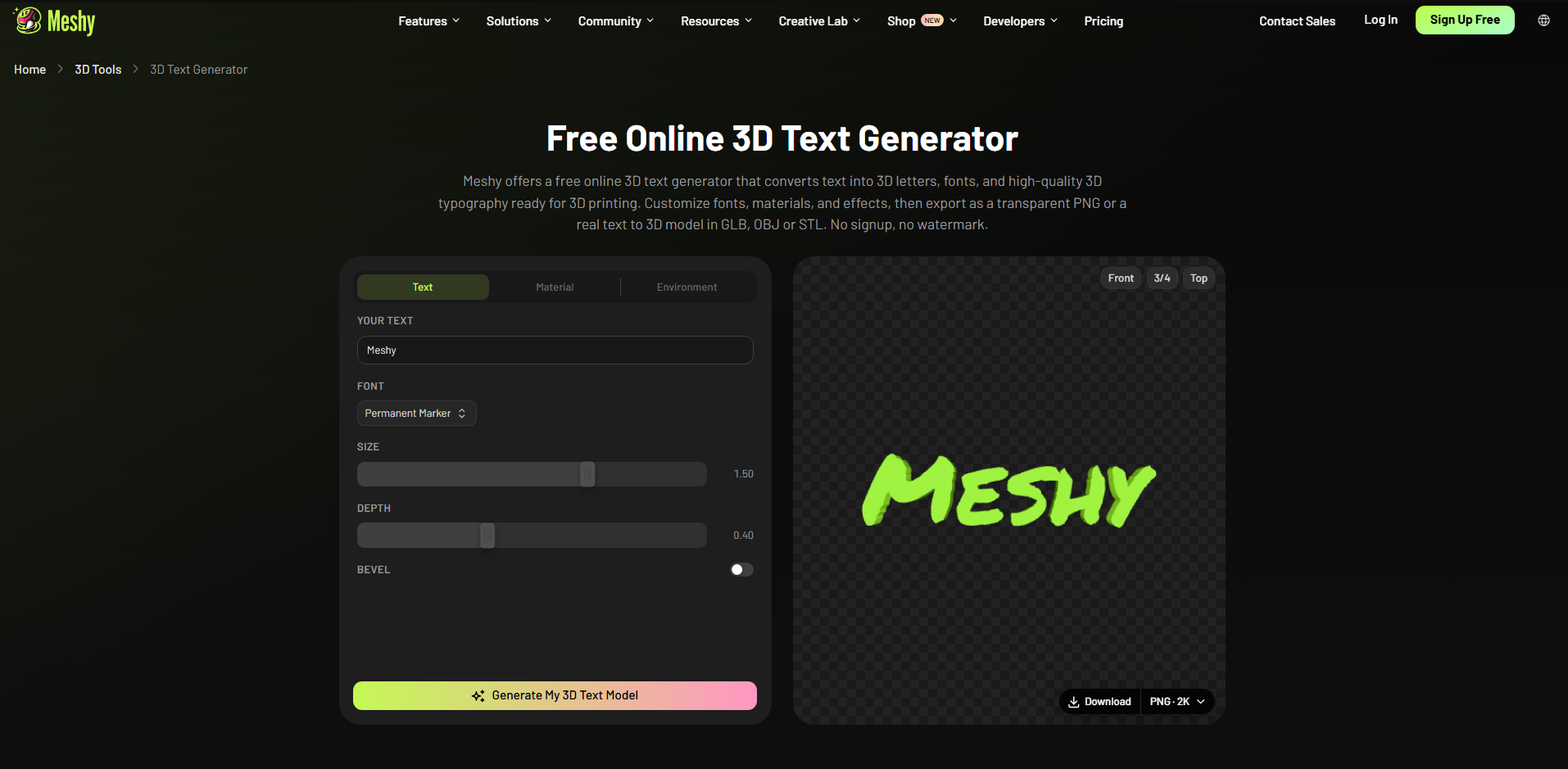
Meshy is an AI 3D creation platform that generates models from text prompts and reference images. Its text-to-3D workflow creates model geometry first, which can then be textured and downloaded for use in compatible applications. You can inspect the result in an interactive viewer and use additional tools to adjust textures or optimize the model.
Main features
Text-to-3D modeling: Describe the shape, material, and style of your intended lettering or object to generate a three-dimensional model.
AI texturing: Apply generated surface details and materials to give a model a more realistic, metallic, painted, or stylized finish.
Model inspection and optimization: Preview the mesh and use available remeshing tools to improve its geometry for a particular workflow.
Multiple export formats: Download supported formats such as FBX, OBJ, GLB, STL, and BLEND for further editing, rendering, or 3D printing.
Suitable for
Exploring 3D lettering and logo concepts
Creating stylized text-shaped 3D objects
Building assets for games and virtual environments
Preparing custom 3D objects for rendering or printing
Kling AI
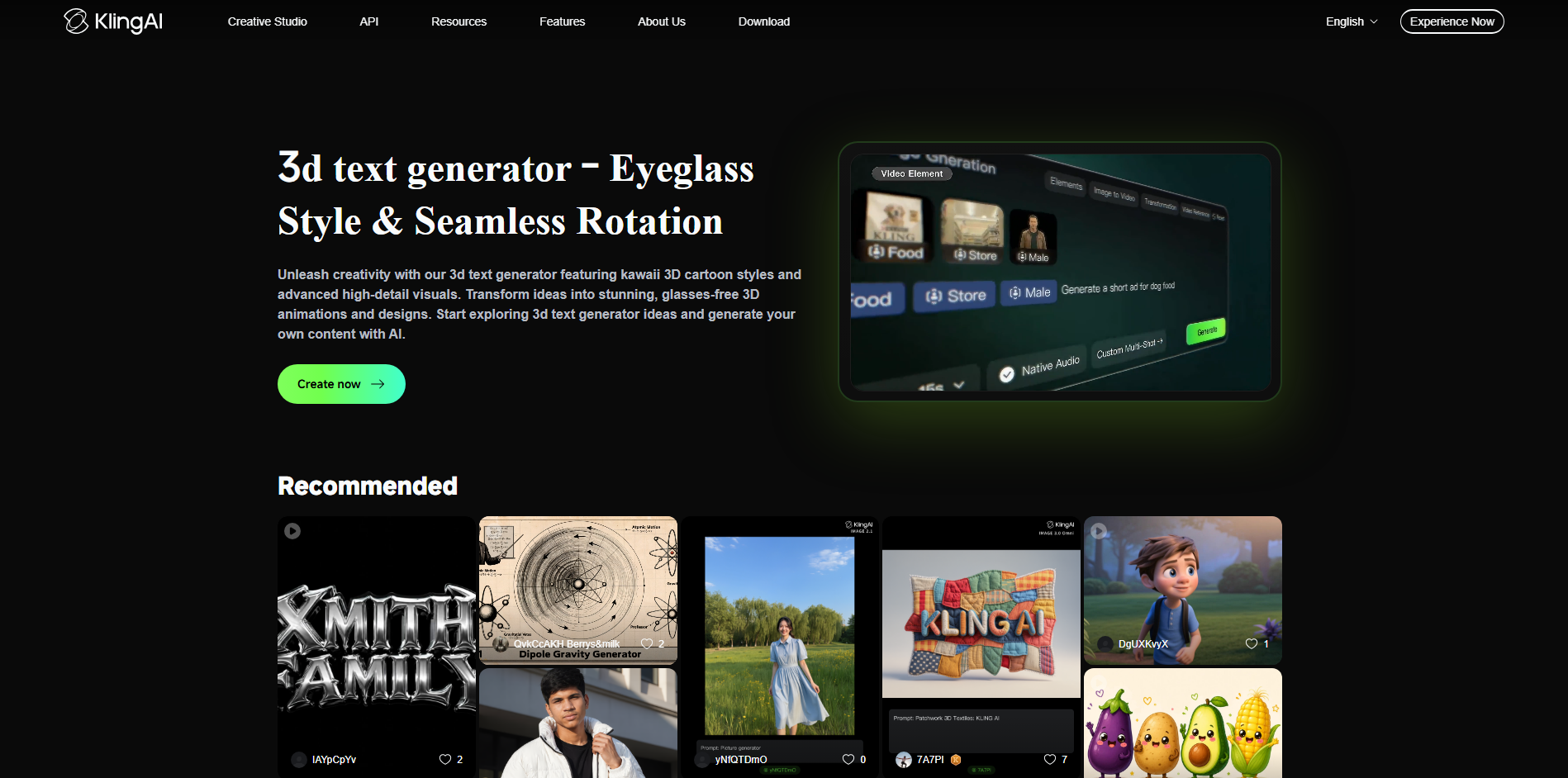
Kling AI is an AI creative platform focused on generating images and videos from prompts and visual references. It can be useful for creating cinematic text visuals in which lettering appears with dramatic lighting, motion, or elaborate surroundings. By describing the typography and the scene you want, you can explore ideas for animated titles and promotional content.
Main features
Prompt-based visual creation: Describe the intended text appearance, colors, materials, and surroundings to guide the creation of a stylized visual.
AI video generation: Create video sequences from supported prompts and references, making it useful for animated title concepts and promotional clips.
Motion and cinematic effects: Explore moving camera perspectives, dramatic lighting, and scene transitions to make text-based visuals feel more dynamic.
Reference-guided creation: Where supported, use an image reference to guide the visual style and help maintain a consistent look across a creative sequence.
Suitable for
Cinematic 3D-style title animations
Animated typography for social media videos
Dramatic promotional and advertising visuals
Concept videos featuring stylized lettering
Tips for choosing a 3D font generator
Choosing the right tool depends on the type of lettering you want to create and how you plan to use it. Some tools focus on ready-made fonts, while others offer detailed customization or actual 3D models. Keep these tips in mind when comparing an online 3D text generator for your next project.
Check available 3D font styles
Look for a variety of styles, including bold, metallic, outlined, curved, and extruded lettering. A good 3D font generator should offer enough options to match different design needs, from logos to posters. Preview the available styles before choosing a tool.
Compare text customization features
Check whether you can adjust font size, letter spacing, depth, colors, shadows, and lighting. A flexible 3D letter generator gives you more control over the final appearance without requiring you to start over. These options are especially useful when you want a specific look for your design.
Check overall design quality
Look closely at the edges, shadows, textures, and depth of the generated letters. A reliable online 3D text generator should produce clear, readable text without distorted characters or uneven spacing. Test a few different words to see how consistently it handles your designs.
Consider ease of use
Choose a tool that fits your experience level and workflow. Beginners may prefer ready-made styles and simple controls, while experienced designers might need advanced lighting, material settings, or mesh editing. A straightforward interface can save time when creating multiple text designs.
Look for watermark-free exports
Some tools add watermarks to images created with free plans or limit clean exports to paid subscriptions. Check the export conditions before spending time designing your text. If you plan to use the lettering in client projects or branded content, make sure you can export it without unwanted marks.
Review supported export formats
Check whether the tool lets you export images, transparent PNGs, or other formats suited to your project. If you need editable 3D geometry, look for formats such as OBJ, FBX, or GLB. The right export options make it easier to move your lettering into other design tools.
Conclusion
Good 3D lettering should make your message clearer and more engaging, not distract from it. Exploring free and paid 3D text generators helps you find the right balance between creative freedom, quality, and cost. Choose a tool that fits your workflow and gives you room to experiment. If you want to create custom text visuals from prompts, give Kimi Build a try. Start with your own idea and shape the result to match your vision.