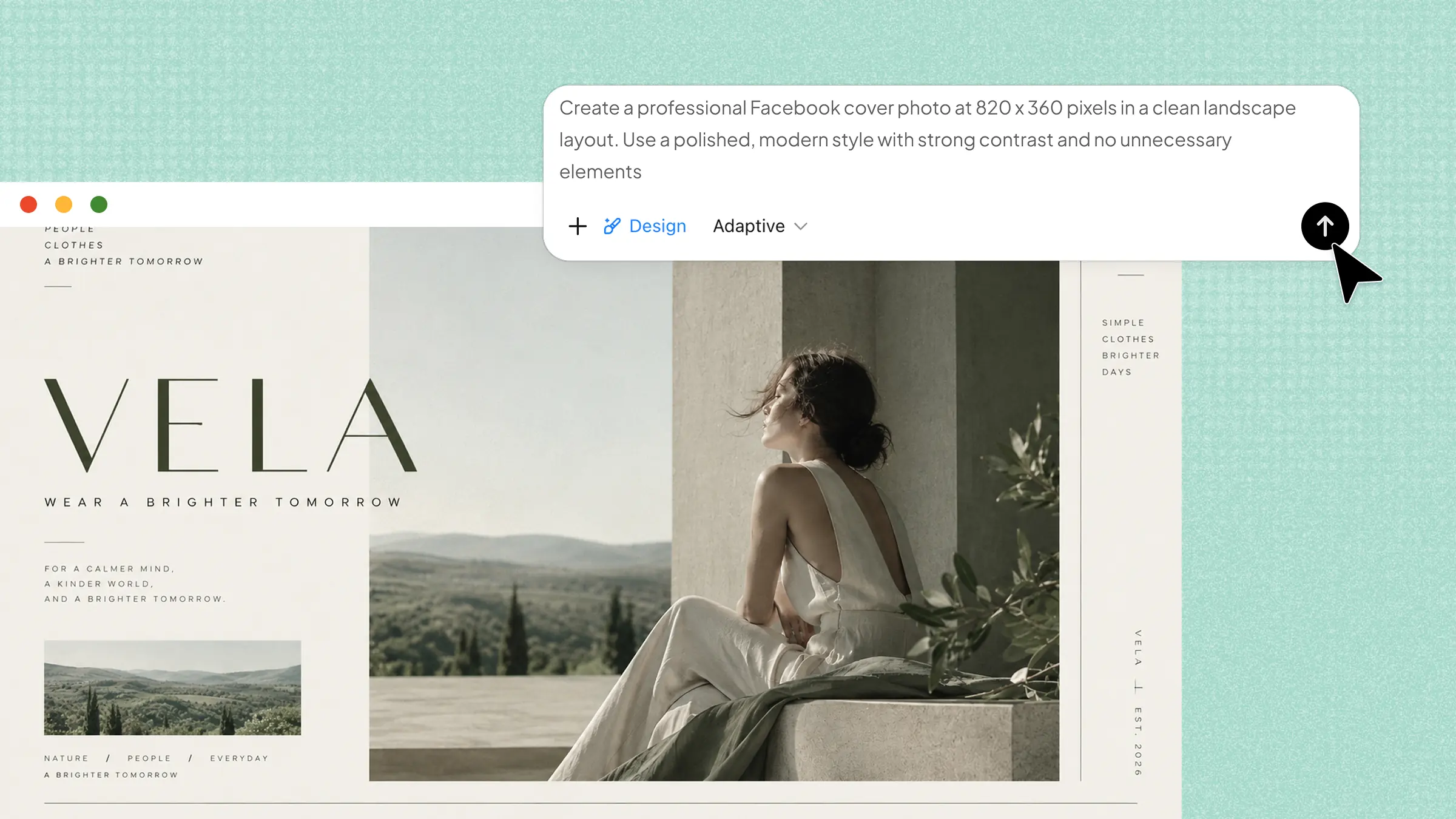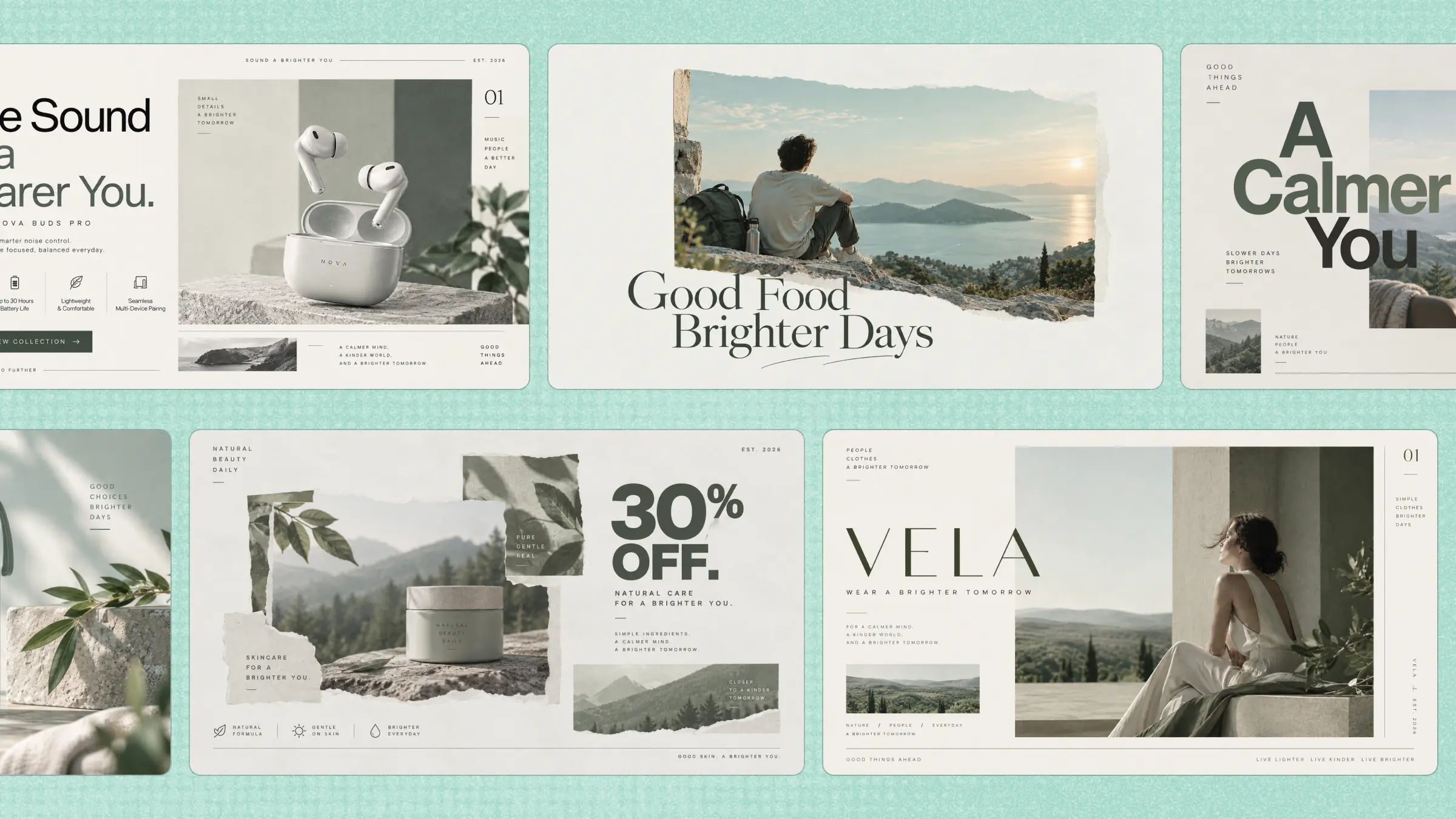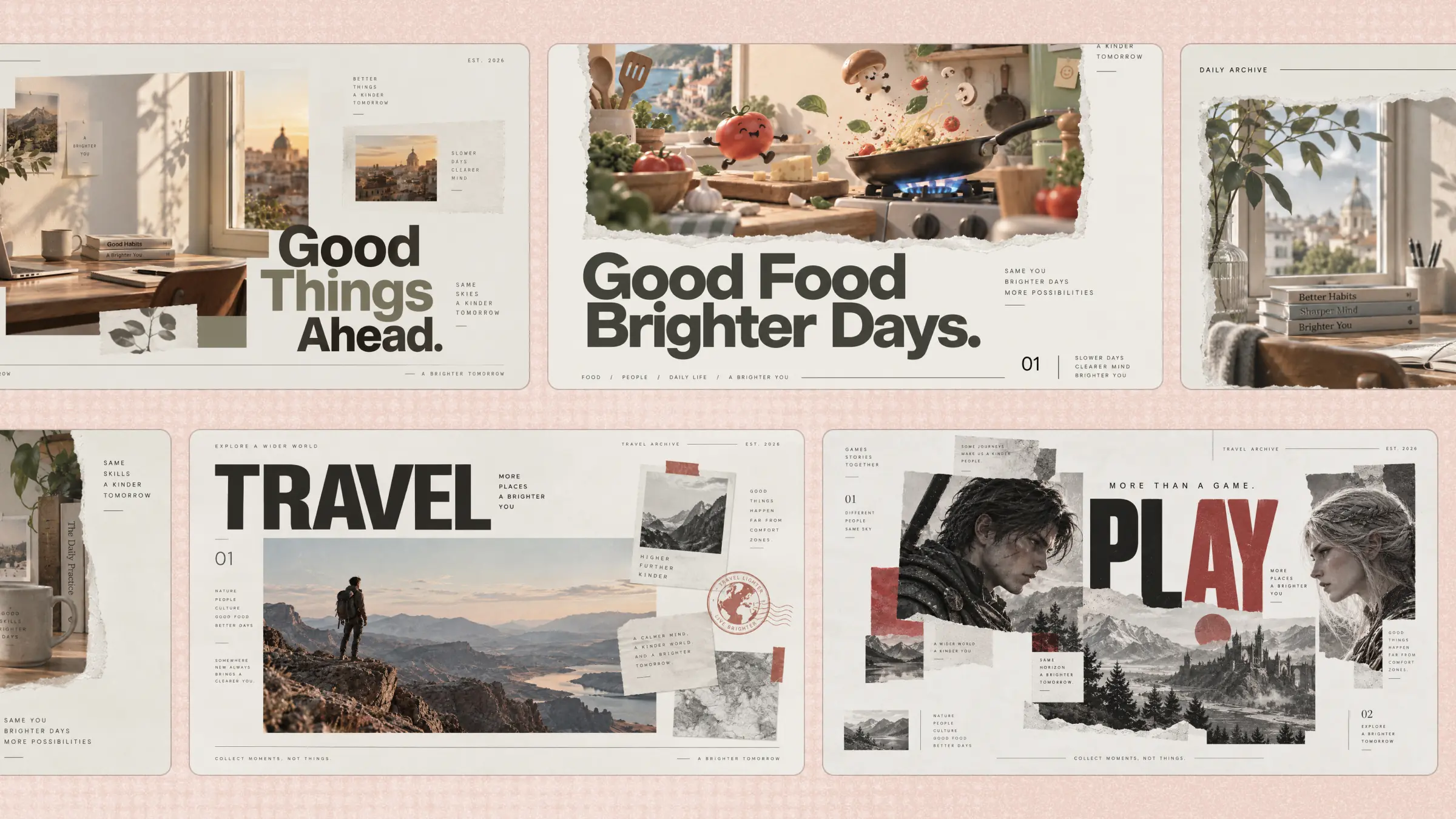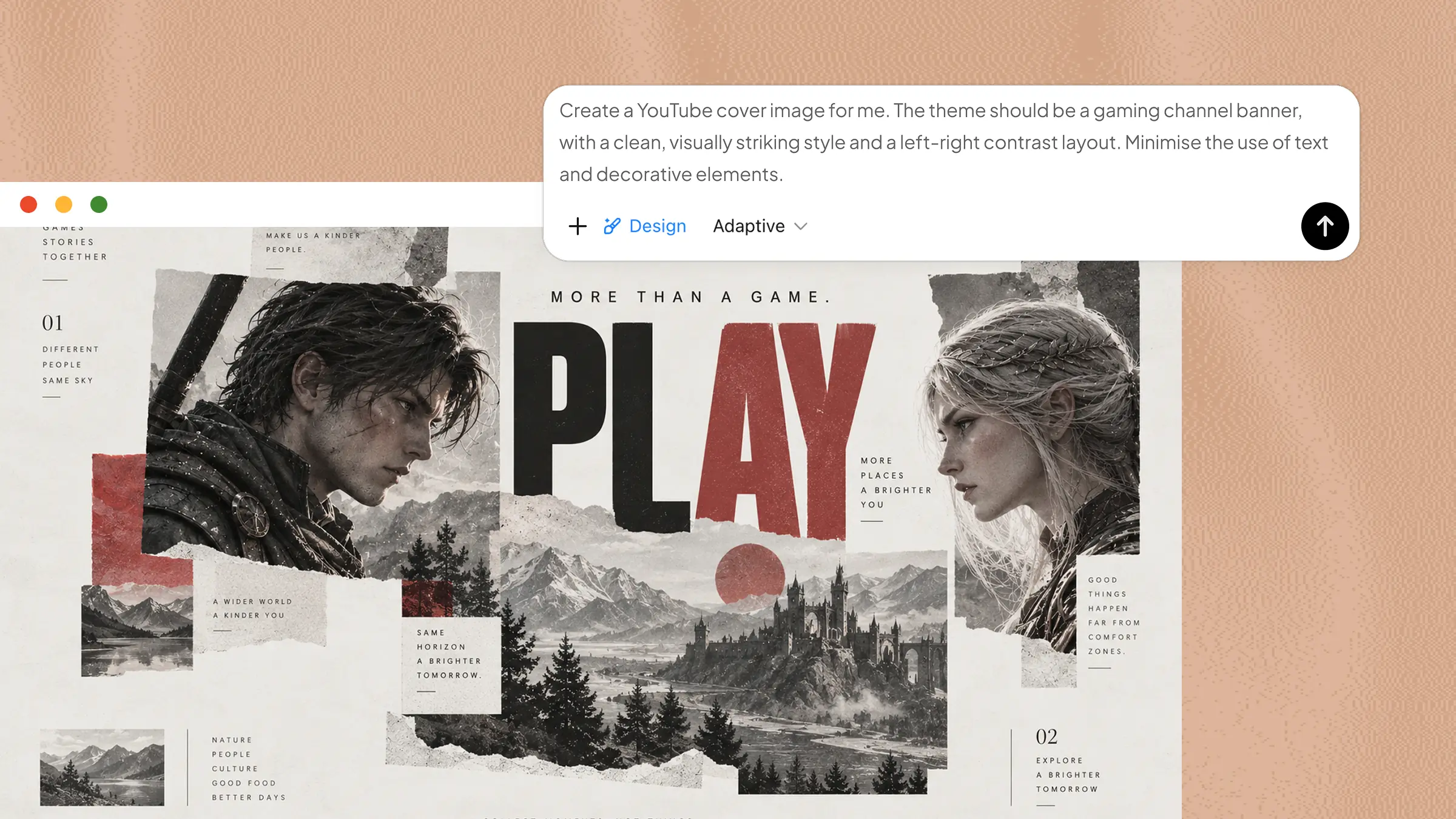
Designing a YouTube banner can be frustrating when you are not sure where to place text, images, and other important details. What looks right on a computer may appear cropped or unbalanced on a phone, making your channel look less polished. A simple layout and the right design tools can help you avoid these problems and create a banner that works anywhere. In this article, you will learn how to create a YouTube banner that looks professional across all devices.
How do you make a YouTube banner with AI
A good YouTube banner should show what your channel is about while keeping the design simple and easy to notice. If creating that balance feels difficult, an AI design tool can take much of the work off your hands.
Kimi Design lets you make a YouTube banner online by simply describing what you want. It can generate custom layouts, graphics, and text based on your channel style and ideas. You can then adjust the design until it feels right for your channel. With a few simple prompts, you can create a professional-looking banner without starting everything from scratch.
Step 1: Define your banner design details
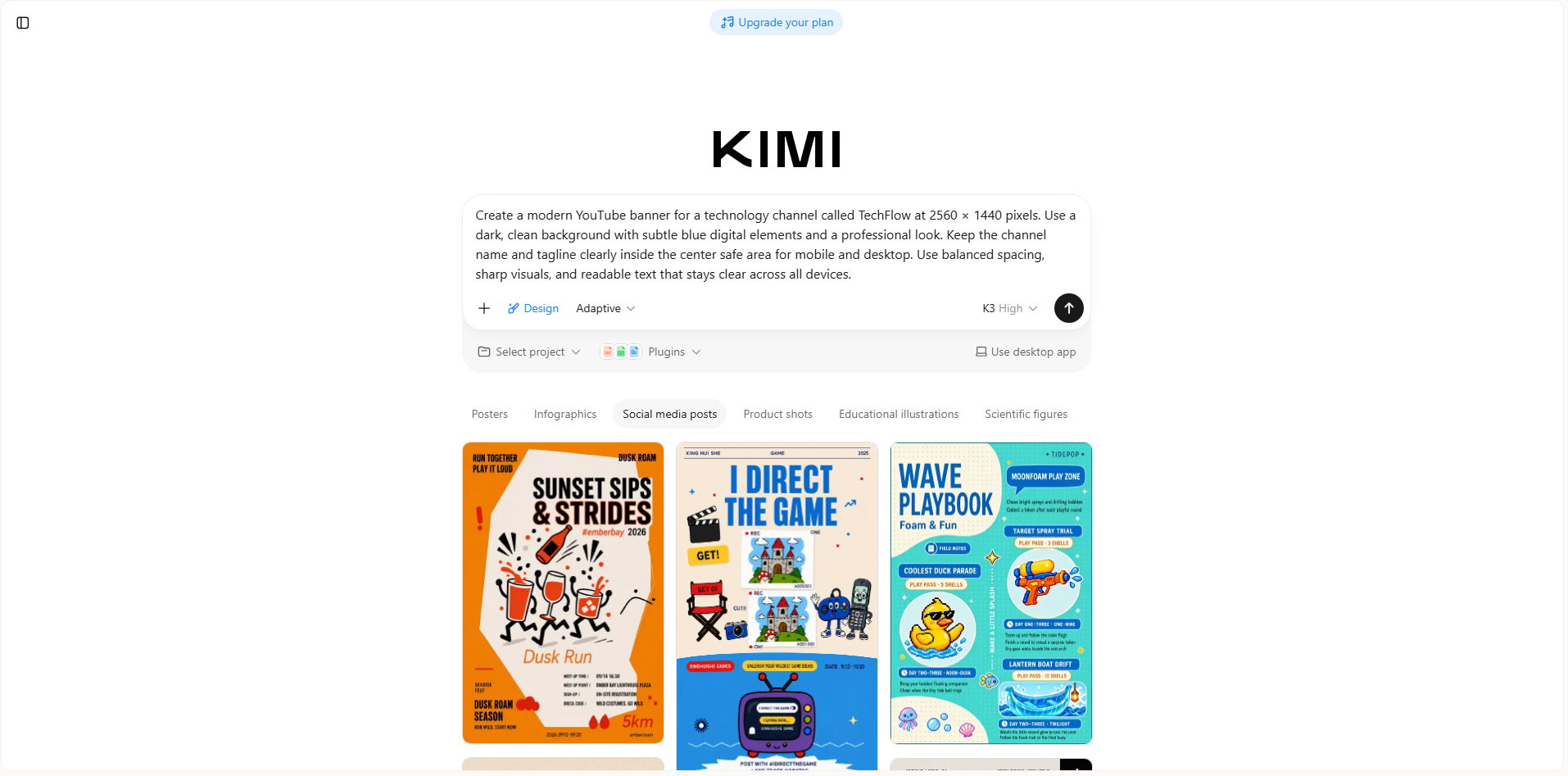
Before generating your banner, it helps to decide what you want it to look like. Think about your channel style, the message you want viewers to see, and the visuals that can represent your content. A clear idea gives the AI enough direction to create a banner that feels relevant to your channel.
Set the right dimensions
YouTube recommends a banner size of 2560 × 1440 pixels for the best results across different devices. Keeping the correct dimensions from the start helps prevent your banner from looking stretched, blurry, or poorly cropped.
Focus on the safe area
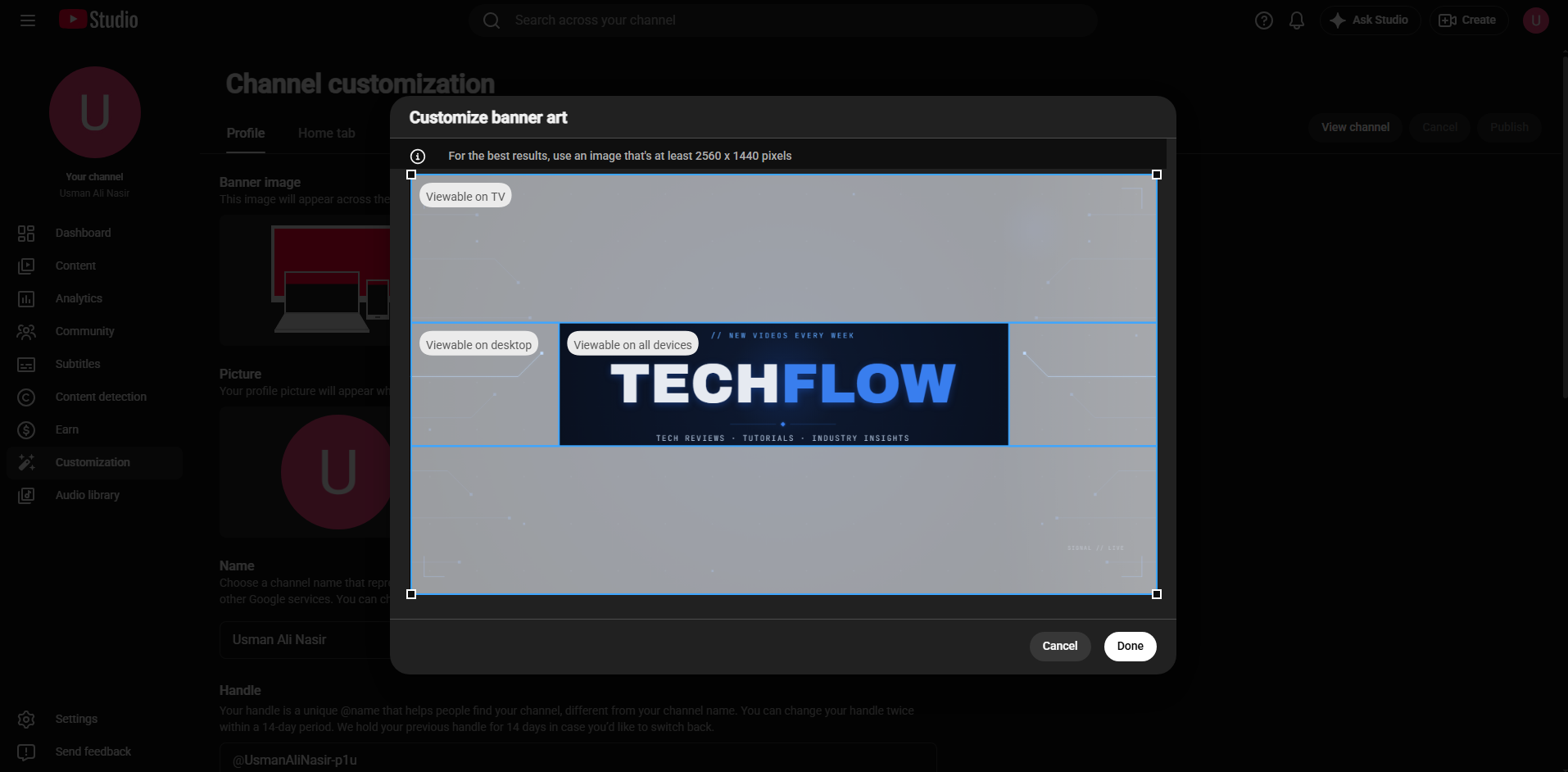
Important elements such as your channel name, logo, and main message should stay in the center safe area. This helps keep them visible when YouTube crops the banner differently on desktop, mobile, and other screens.
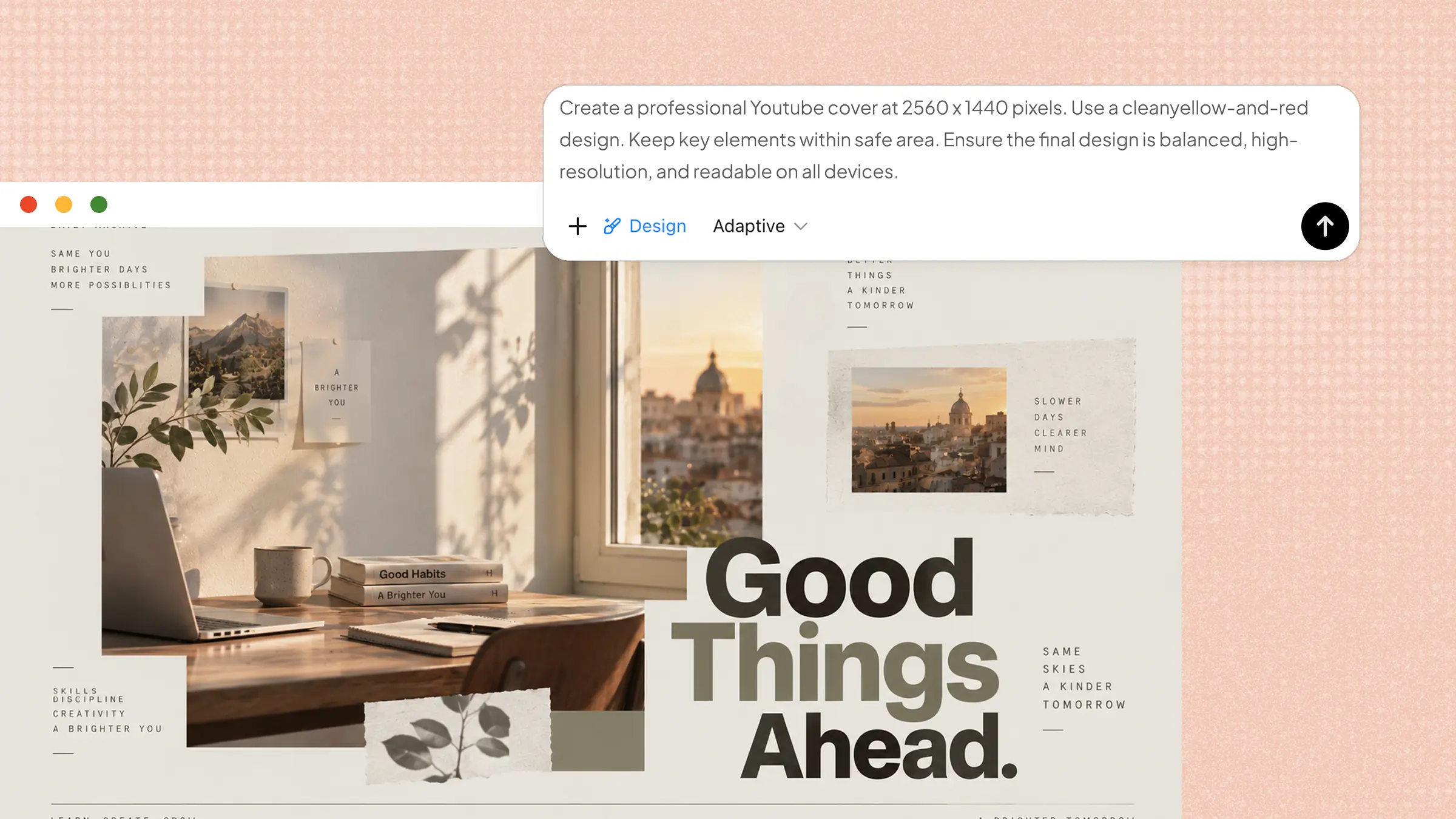
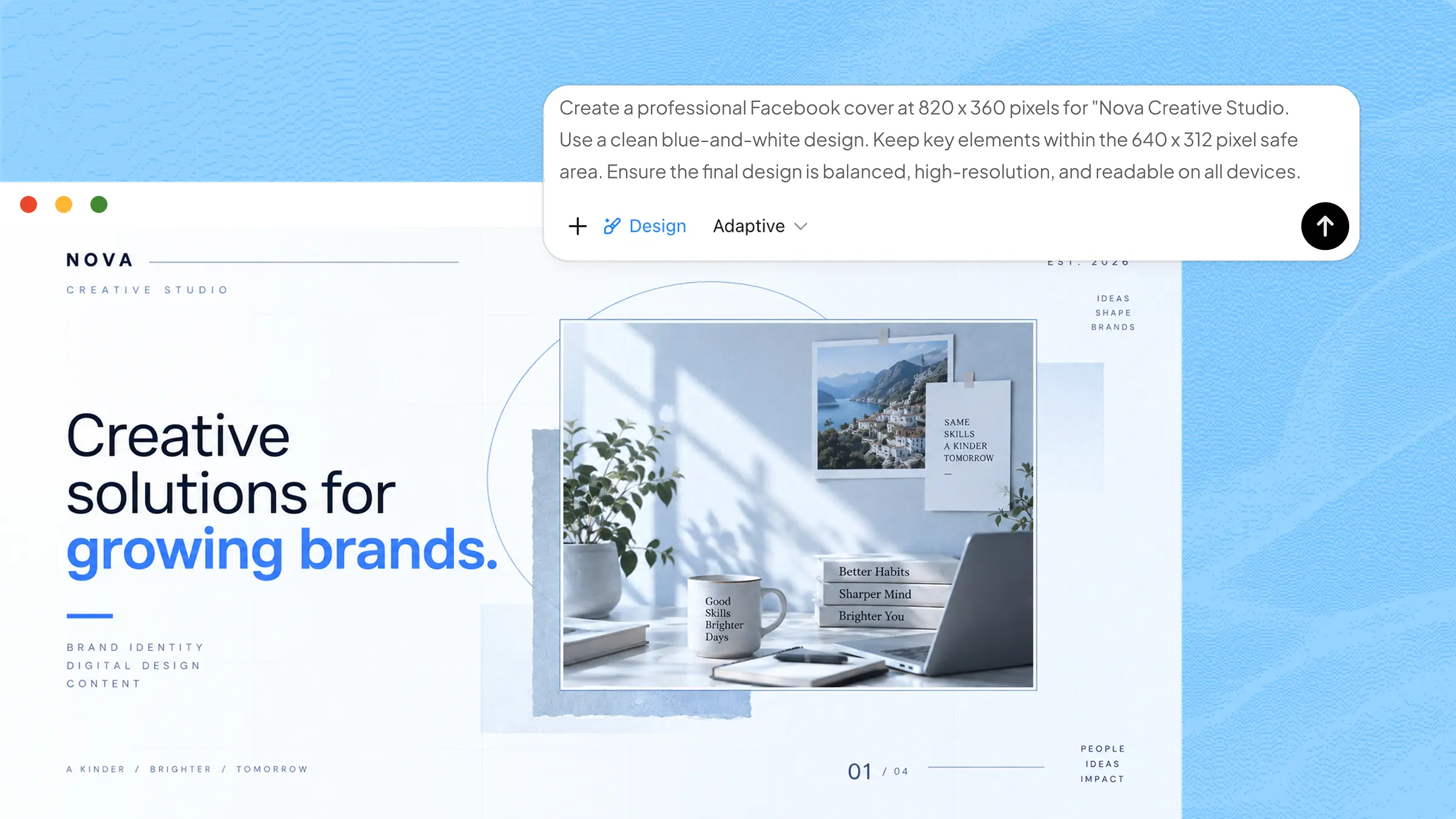
Example prompt:
Step 2: Let AI generate the YouTube banner
Once your idea and prompt are ready, let AI handle the first version of your banner. Kimi Design can turn your description into a complete layout with visuals, text, and design elements that fit your chosen style. This gives you a polished starting point without having to build every part manually.
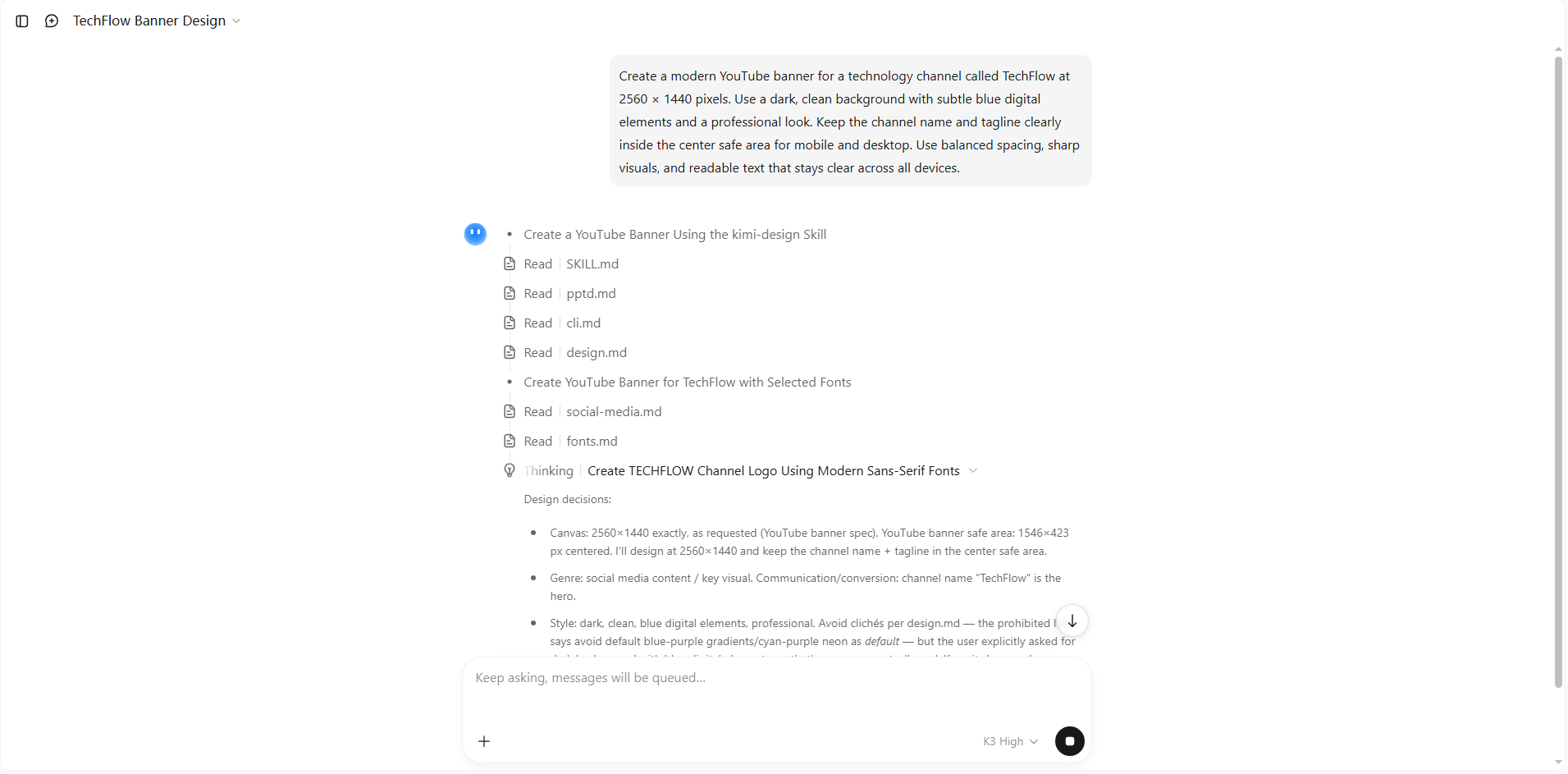
Step 3: Edit your YouTube banner
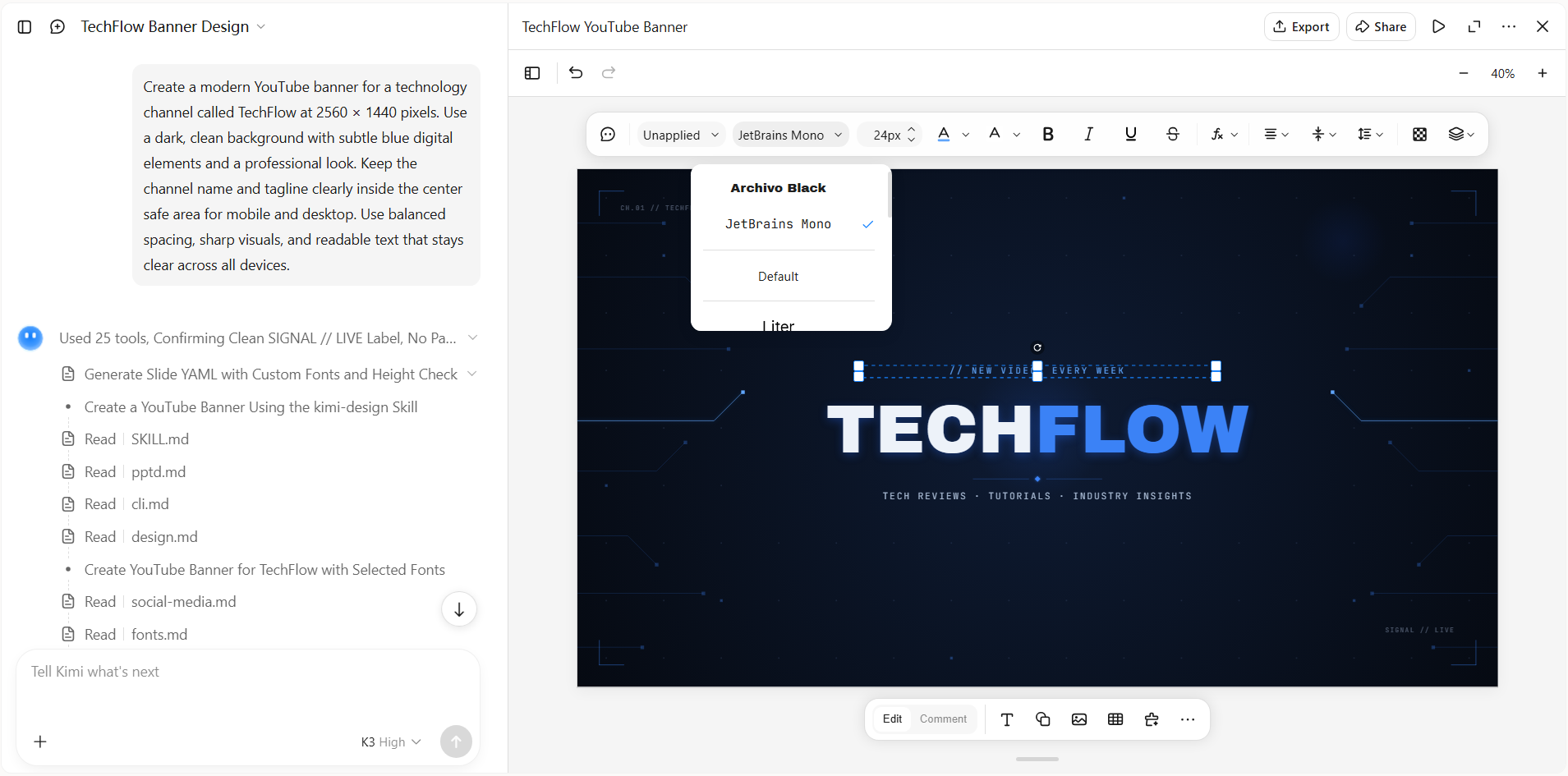
Your first design does not have to be the final one. Look at the text, images, spacing, and overall balance, then adjust anything that does not feel right. You can refine the colors, change the wording, move elements, or ask Kimi Design to create a different version until the banner matches your channel.
Step 4: Review and export the banner
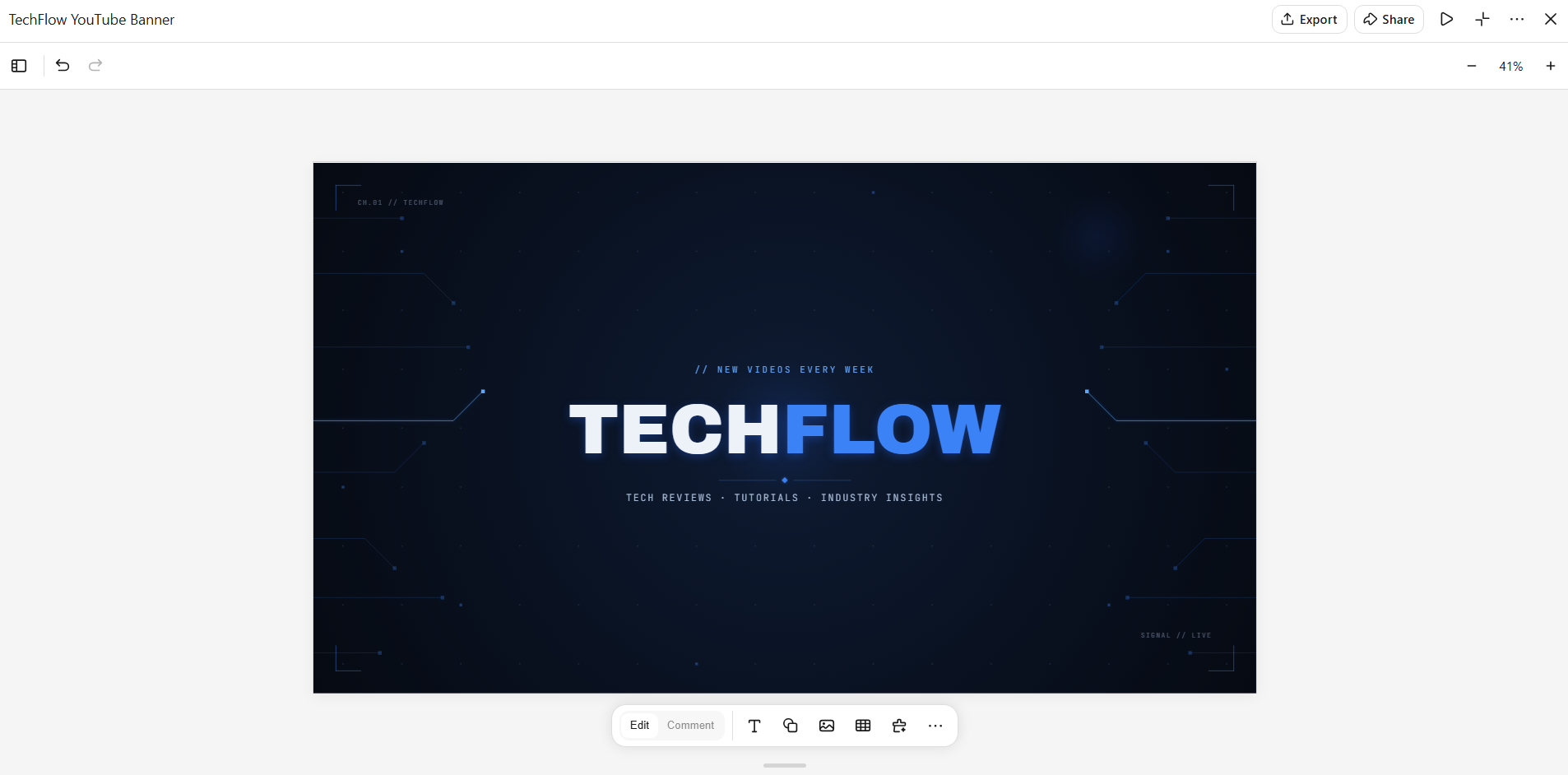
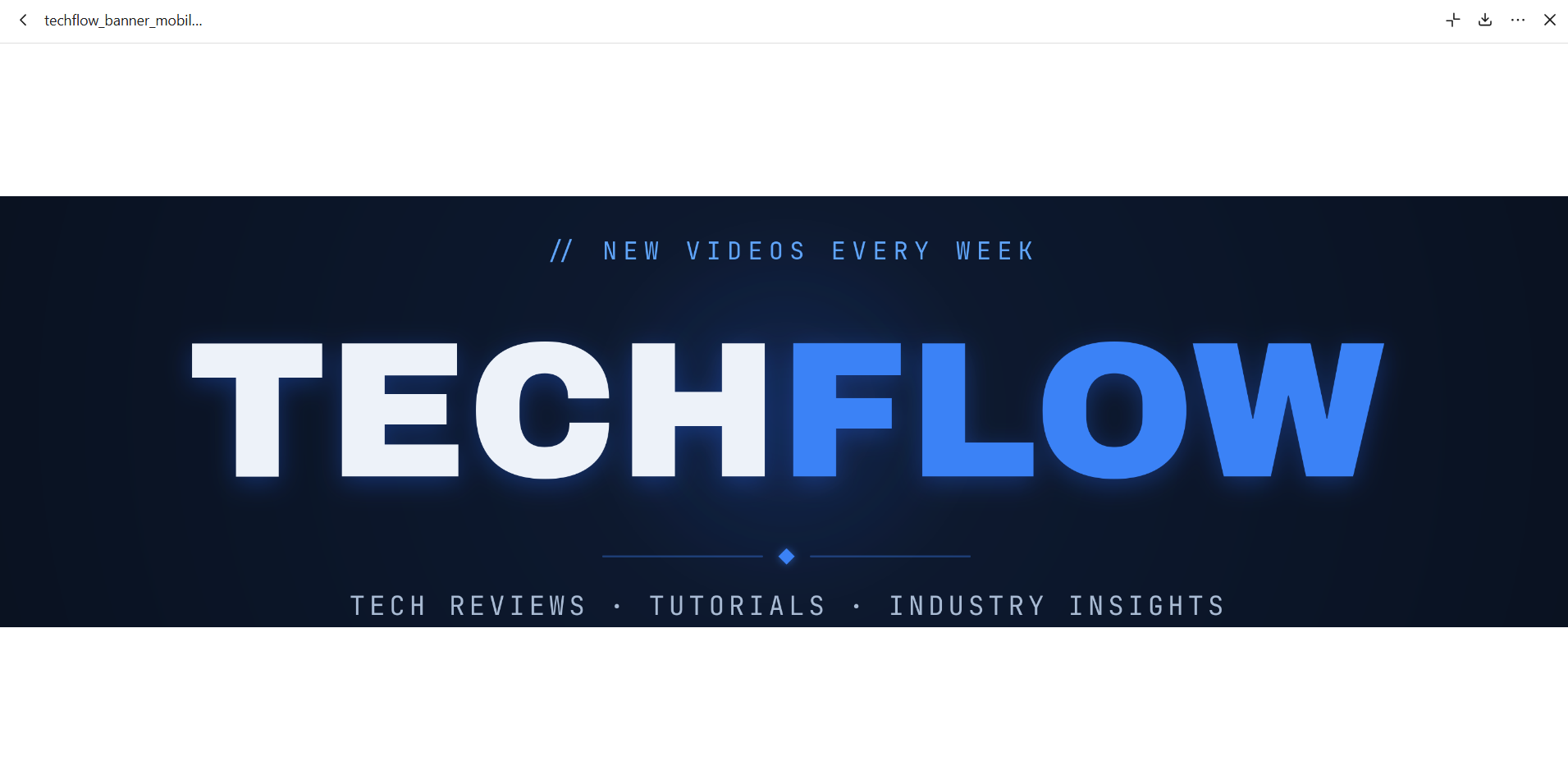
Before exporting, preview your banner on both desktop and mobile to make sure important text and visuals remain visible. Pay close attention to the center safe area, as mobile screens show less of the full banner. Once everything looks clear and balanced across both previews, export the finished banner and upload it to your YouTube channel.
Step 5: Upload to YouTube
Go to YouTube Studio, select Customization, and open the Branding tab. Upload your banner image, adjust the crop as needed, and check the preview on different screen sizes. When everything looks right, click Publish in the top-right corner to apply your changes.
Why use Kimi Design for custom YouTube banners?
The look of your channel can say a lot before viewers watch a single video. From your colors and images to your channel name and tagline, every detail can help create a stronger first impression. Kimi Design gives you a simple way to bring these details together in one custom banner.
Turn your channel idea into a polished banner
Describe your channel, content theme, visual direction, or the message you want to feature. You can also upload images, videos, and other visual references, and Kimi Design turns them into a cohesive YouTube banner with a considered layout, typography, color palette, and imagery.
Make your channel identity stand out
Bring your channel name, tagline, logo, content focus, or other signature elements into the design. Kimi Design helps arrange these elements into a visual style that gives viewers a quick sense of what your channel is about.
Build a banner with a clear visual hierarchy
Combine headlines, images, graphics, and decorative elements without letting them compete for attention. Create a balanced composition that keeps the most important channel information prominent.
Edit your banner through conversation or manually
Ask Kimi Design to explore a different visual style, adjust the composition, rewrite banner text, or replace imagery through conversation. You can also comment on specific areas or directly edit text, images, shapes, colors, and positions.
Export your final banner while still keeping your previous versions
Try different creative directions while keeping previous versions available for comparison. When the design is ready, export it in formats such as PNG, JPG, or PDF for your YouTube channel or further editing.
Tips for making your YouTube banner look appealing
A good YouTube banner should catch attention without making the channel feel crowded or confusing. Small design choices can make a big difference in how professional and memorable your channel looks. Keep these tips in mind when you make a YouTube banner.
Make your channel identity instantly recognizable
Use your channel name, logo, colors, or other visual elements that viewers can quickly connect with your content. Keep these details clear and place them where they are easy to notice. A recognizable identity can help viewers remember your channel when they see it again.
Choose high-quality visuals that fit your content
Use sharp images and graphics that match the topic and style of your channel. Avoid blurry, stretched, or unrelated visuals that can make the banner look less professional. The right imagery should support your content and give viewers an idea of what your channel offers.
Keep your message short and readable
Your banner does not need to say everything about your channel. Use a short tagline or message that quickly tells viewers what they can expect from your content. Choose a clear font and make sure the text remains easy to read on both large and small screens.
Create a clean, well-balanced composition
Give each element enough space so the banner does not feel crowded. Arrange your text, images, and graphics in a way that naturally guides the viewer's attention toward the most important information. A simple and balanced layout can make a YouTube banner project look polished and professional.
Keep your banner consistent with your thumbnails
Your banner and thumbnails should feel like they belong to the same channel. Use similar colors, fonts, visual styles, or other design elements to create a consistent look. This makes your channel feel more organized and helps viewers recognize your content across YouTube.
Conclusion
Knowing how to make a YouTube banner that fits gives you a solid base for building a more professional-looking channel. From the overall style to the way your content is presented, each design choice can help your channel feel more consistent and memorable. You can use AI to make the creative process faster while still keeping control of the final result. Start creating your next banner with Kimi Design and bring your channel idea to life.