Have you ever wanted to transform an existing image into something new without losing its original charm? Traditional editing can take time and effort, especially when changing styles, colors, or backgrounds. Generate Images from Images with AI to turn your reference visuals into creative designs with simple text prompts. This guide walks you through the process step by step and helps you choose the right tools for your needs.
How to create an AI image from an image
AI image generators make it easier to transform existing visuals into new designs without advanced editing skills. Instead of starting from scratch, you can use a reference image to guide the results and describe the changes you want.
Kimi Design is an AI design generator for creating AI images from reference images. You can upload an existing visual, enter a prompt describing your desired changes, and generate a new design based on your input. It helps you explore different styles, compositions, and visual ideas with less manual effort. Follow these steps to learn how to generate image-to-image using Kimi Design.
Step 1: Upload your image and write a prompt
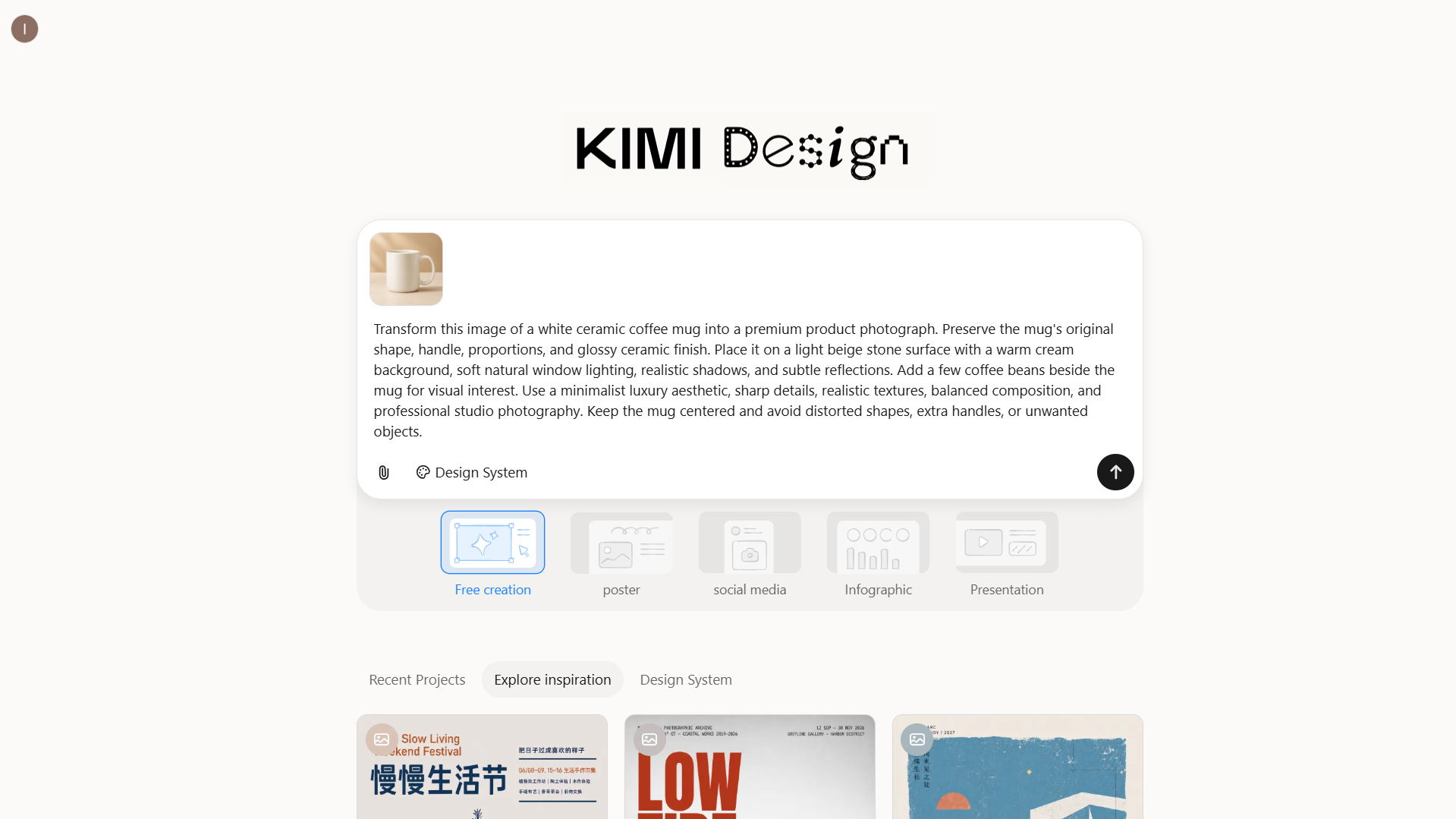
Upload a reference image to Kimi Design and describe how you want to transform it. Specify the style, colors, background, lighting, and details you want to keep or change.
Example prompt:
Step 2: Let Kimi Design generate the image
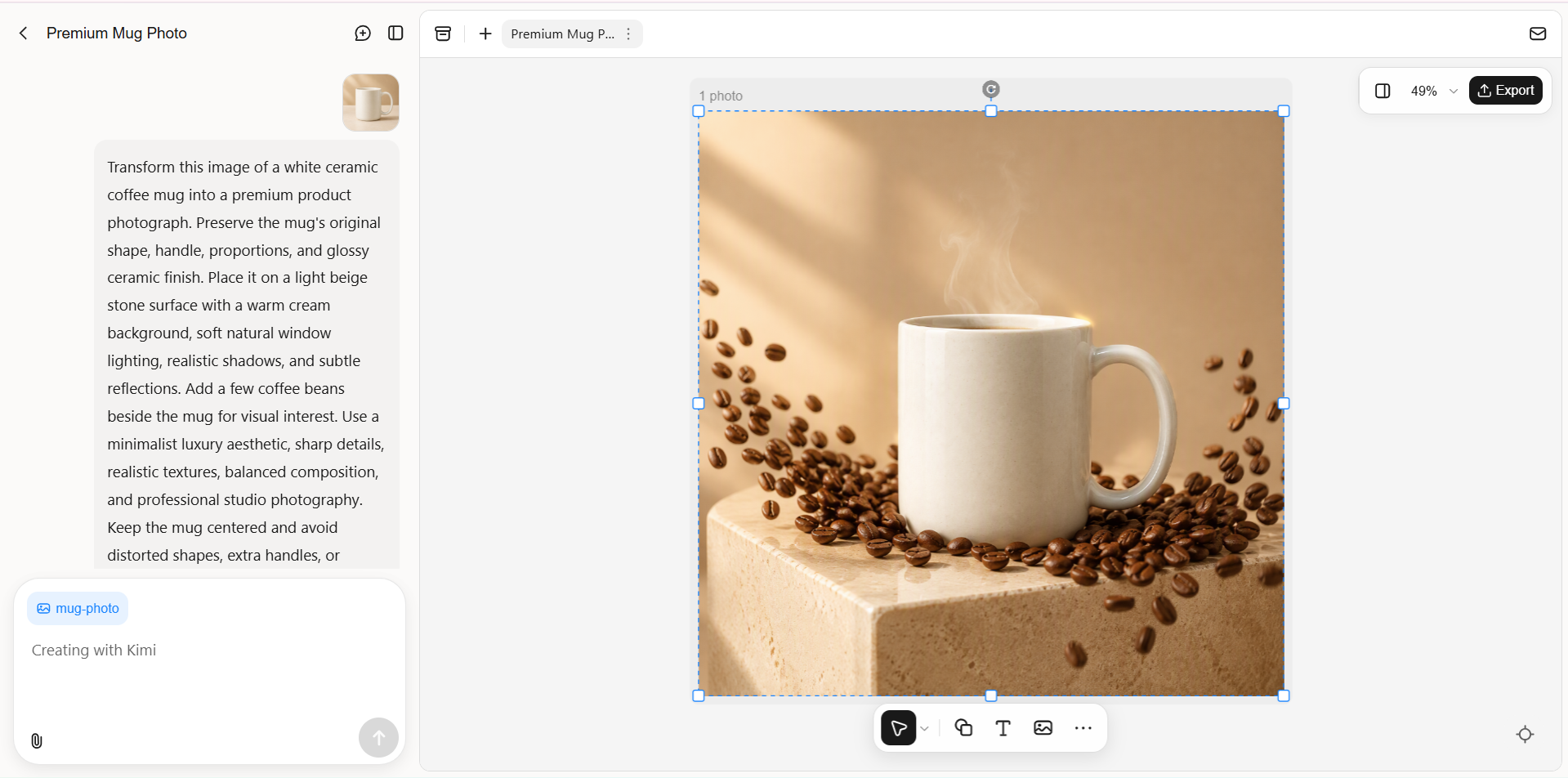
Submit your prompt and let Kimi Design use the uploaded image as a reference for the new design. Review the generated result to check whether the object retains its essential features and the new background, lighting, and style match your instructions.
Step 3: Edit the generated image with AI
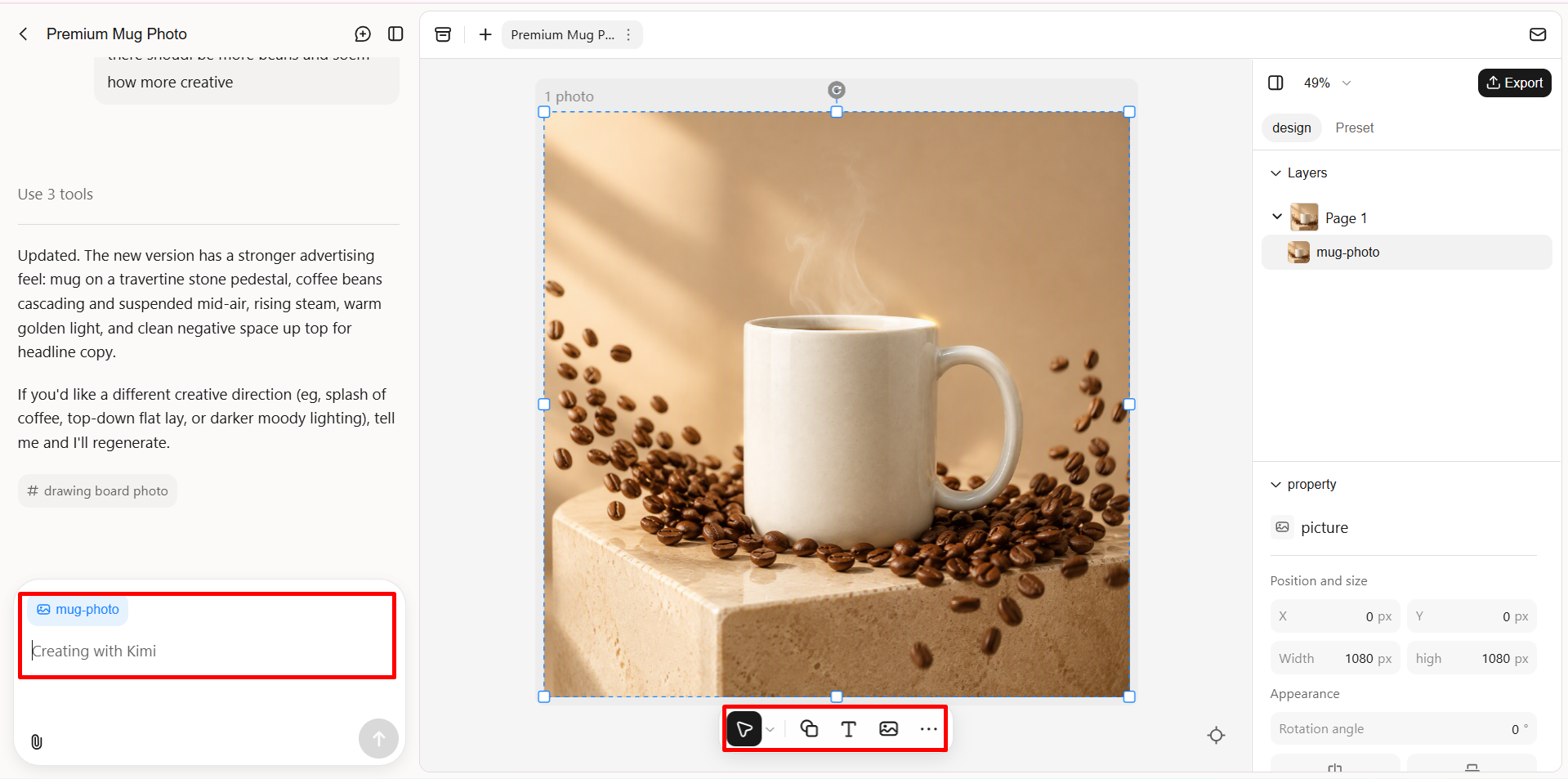
If the result does not match your vision, adjust the prompt with more specific instructions. You can change the object's color, materials, surroundings, or lighting while preserving its original shape and important details. Generate additional variations until you find a suitable result.
Step 4: Review and export your final image
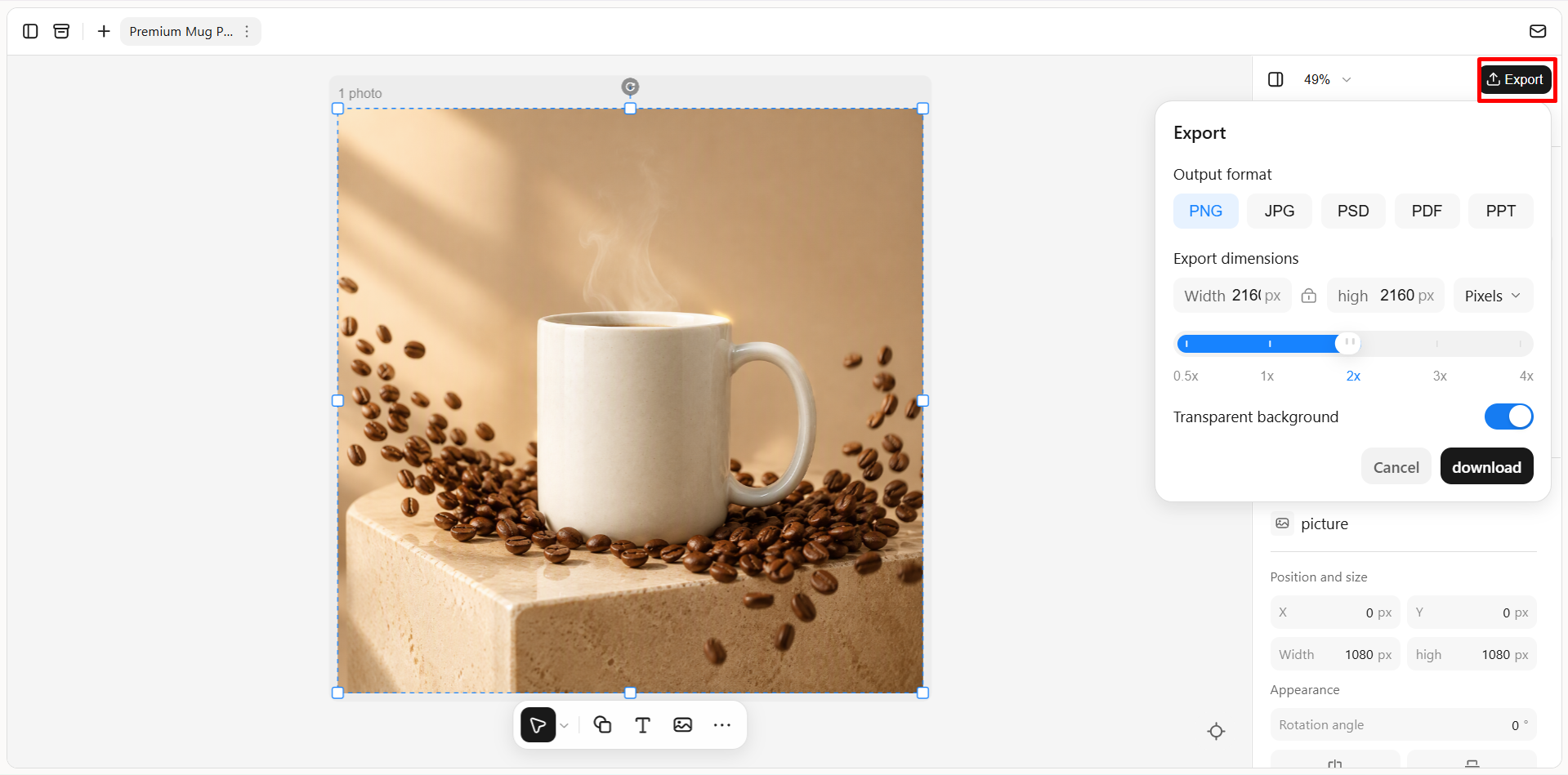
Check the final image for distorted shapes, inconsistent textures, unwanted elements, and visual errors. Make any necessary adjustments, then download the finished image using Kimi Design's available export options for your intended use.
What makes Kimi Design stand out for image-to-image creation
Choosing the right tool can make image-to-image generation easier and more effective. Kimi Design offers several useful features that can help users transform reference images, explore creative variations, and refine their designs with simple prompts. Let's look at what makes it stand out.
Generate new designs from reference images and text prompts
Upload an existing image and describe the changes you want in a text prompt. Kimi Design uses your visual reference and instructions to create a new design, helping you explore different ideas while drawing on the original image's style, composition, or subject.
Explore visual styles for different industries
Adapt reference images to different visual styles according to the industry scenario, from minimalist and vintage aesthetics to bold, modern, and editorial designs. Refine colors, typography, textures, and composition to match your industry, brand identity, and creative goals.
Refine designs with comments and manual edits
Use natural-language prompts to revise your design, or comment on specific elements to request targeted changes. Kimi Design also lets you manually edit text, images, shapes, and other components, giving you more control than flat image output.
Export designs in suitable formats for different uses
Export your finished designs in formats such as PNG, JPG, PDF, or PPTX. Use them for online content, marketing materials, presentations, and print projects, with editable elements available for further adjustments.
Tips for transforming images with AI
From choosing the right reference image to refining visual details, a few practical techniques can help you get better results. The following tips cover how to guide the design process, maintain key elements, and achieve a result that matches your creative goals.
Use clear, high-quality reference images
Upload a sharp image with good lighting and a clearly visible subject. A high-quality reference helps the AI understand the object's shape, colors, and details more accurately.
Write specific, detailed prompts
Describe the subject, background, lighting, materials, colors, and visual style you want. Include which elements to preserve and what to change in the reference image. Clear instructions help the AI produce results that better match your vision.
Match aspect ratio to final use
Choose dimensions that suit your intended platform, such as square images for product listings or vertical images for social media stories. Setting the right aspect ratio early helps maintain a balanced composition and reduces unnecessary cropping.
Refine results in small steps
Change one or two details at a time, such as the background, lighting, or color palette. This makes it easier to identify which instructions improve the image and helps you refine the result without changing everything at once.
Test multiple variations before finalizing
Generate several versions with slightly different prompts or styles to compare creative directions. Kimi Design's version history lets you revisit earlier designs and restore previous versions, making it easier to explore alternatives without losing work you want to keep.
Conclusion
Learning how to generate images from images helps you transform existing visuals into new designs without starting from scratch. By choosing clear reference images, writing detailed prompts, and refining the results step by step, you can create visuals that match your vision. Kimi Design streamlines the process with AI-powered design generation and editing tools, allowing you to explore different styles, adjust visual details, and create designs that suit your needs.