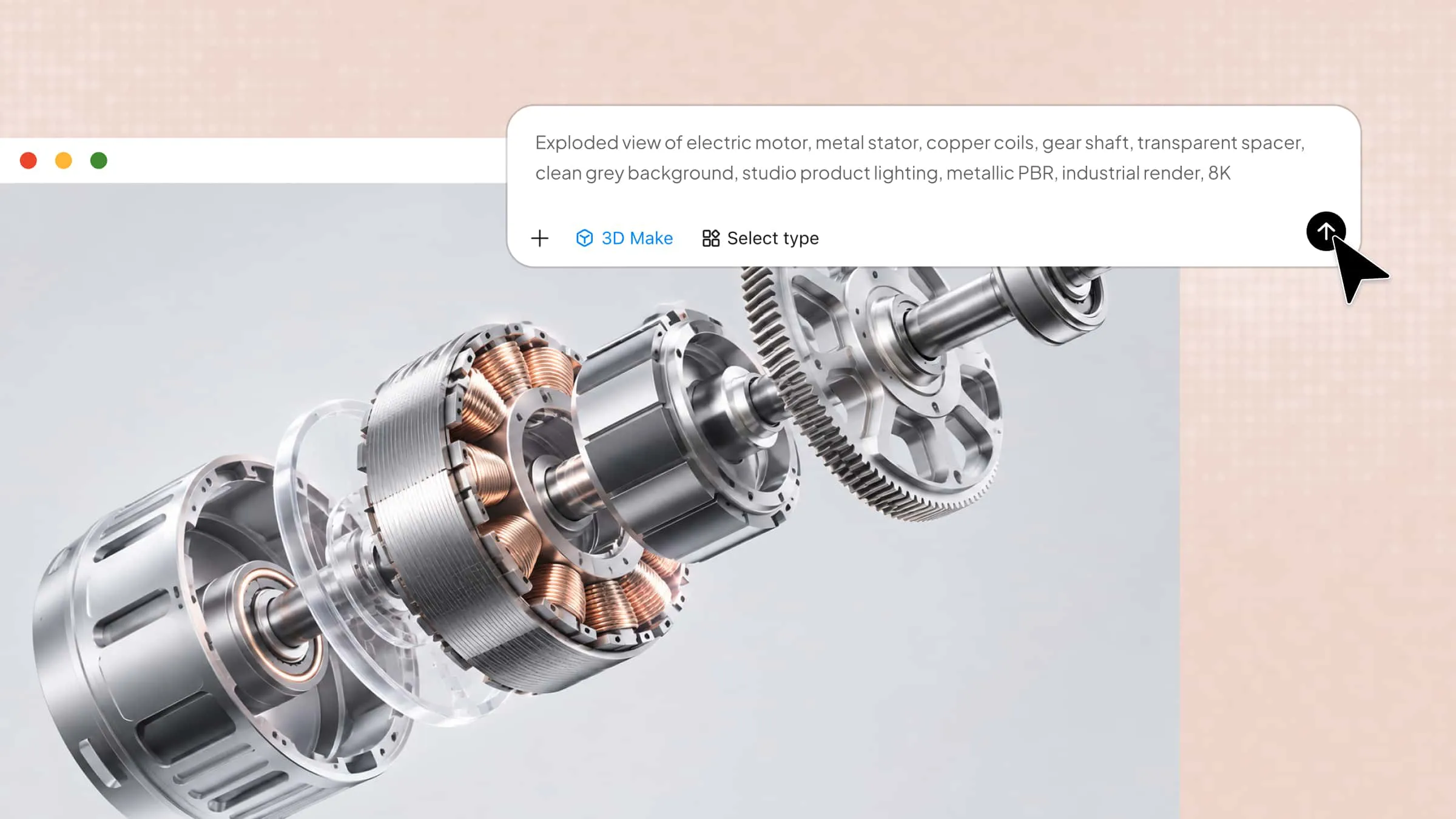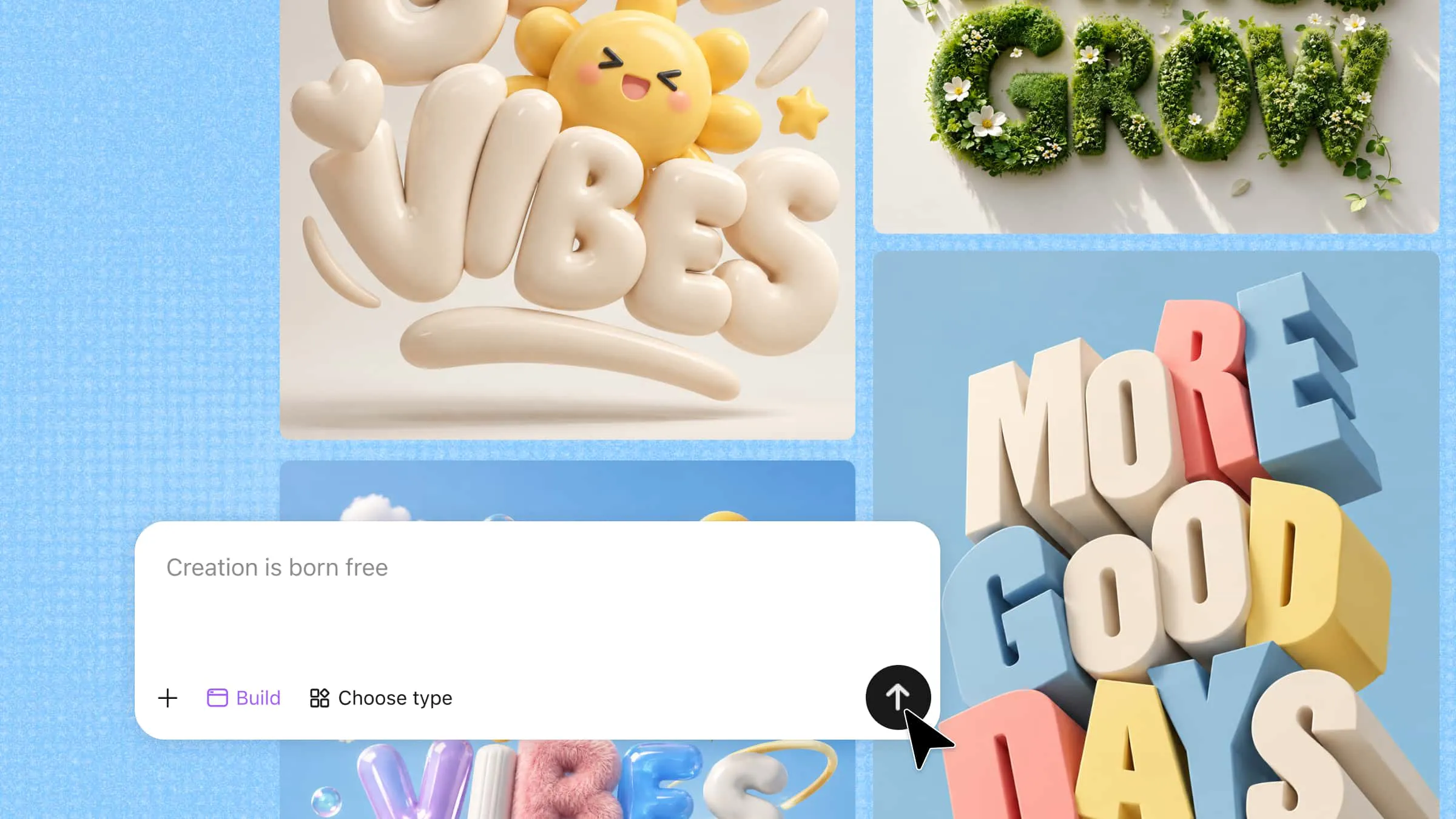
3D text can make a simple title, logo, or poster feel more creative by adding depth and making the words stand out. You don't need advanced design skills to make 3D text when you have a clear idea of how you want it to look. By playing with shapes, colors, materials, and lighting, you can turn plain words into something that catches the eye. Read on to learn how to make 3D text step by step using Kimi 3D Make and bring your ideas to life.
How to create 3D text with AI in simple steps
Kimi 3D Make makes it easy to turn a simple text idea into 3D typography without creating every detail from scratch. You can describe the look you want and refine the result by adjusting its shape, colors, materials, and lighting. Follow these simple steps to create your own 3D text with AI.
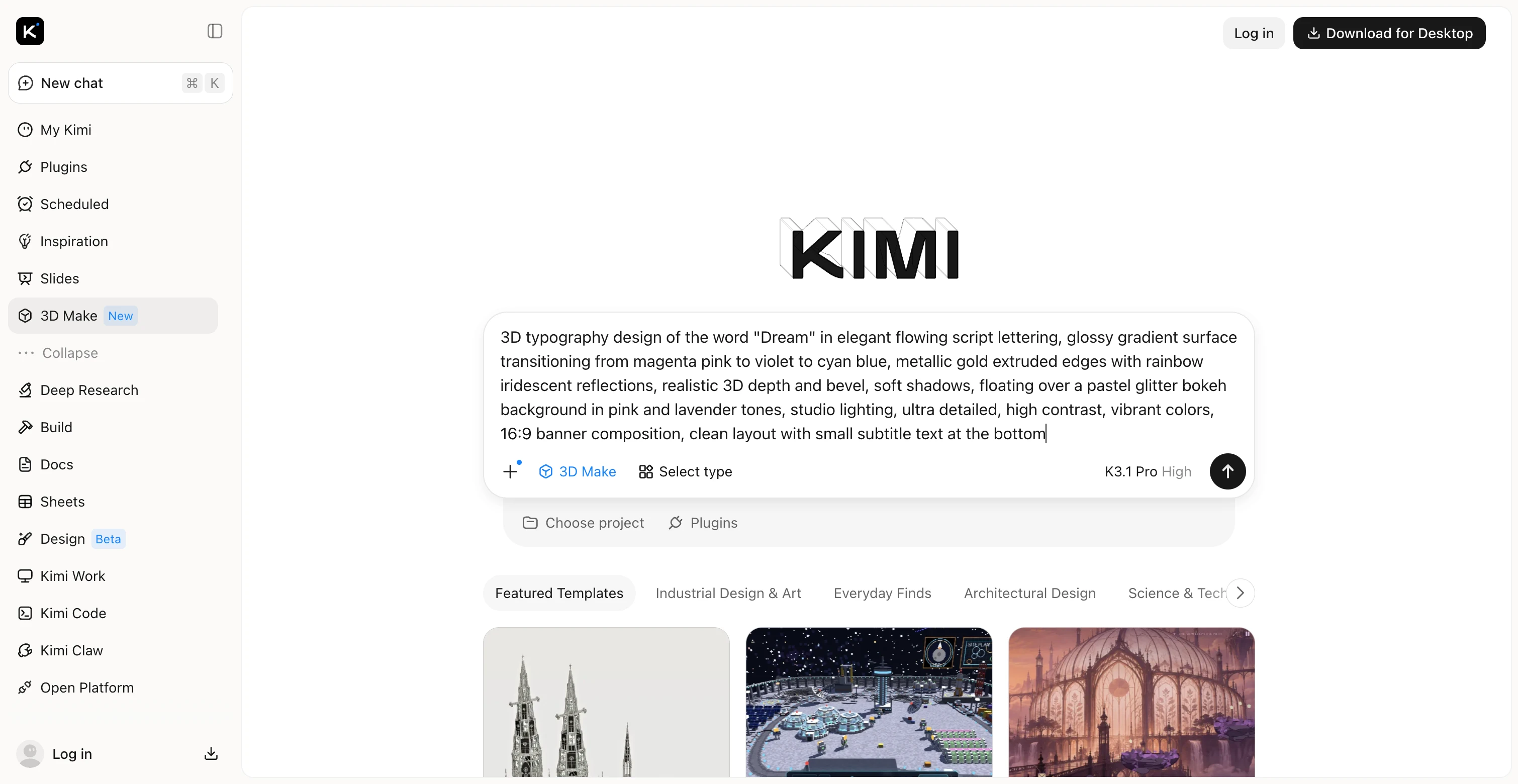
Step 1: Describe your desired 3D text design
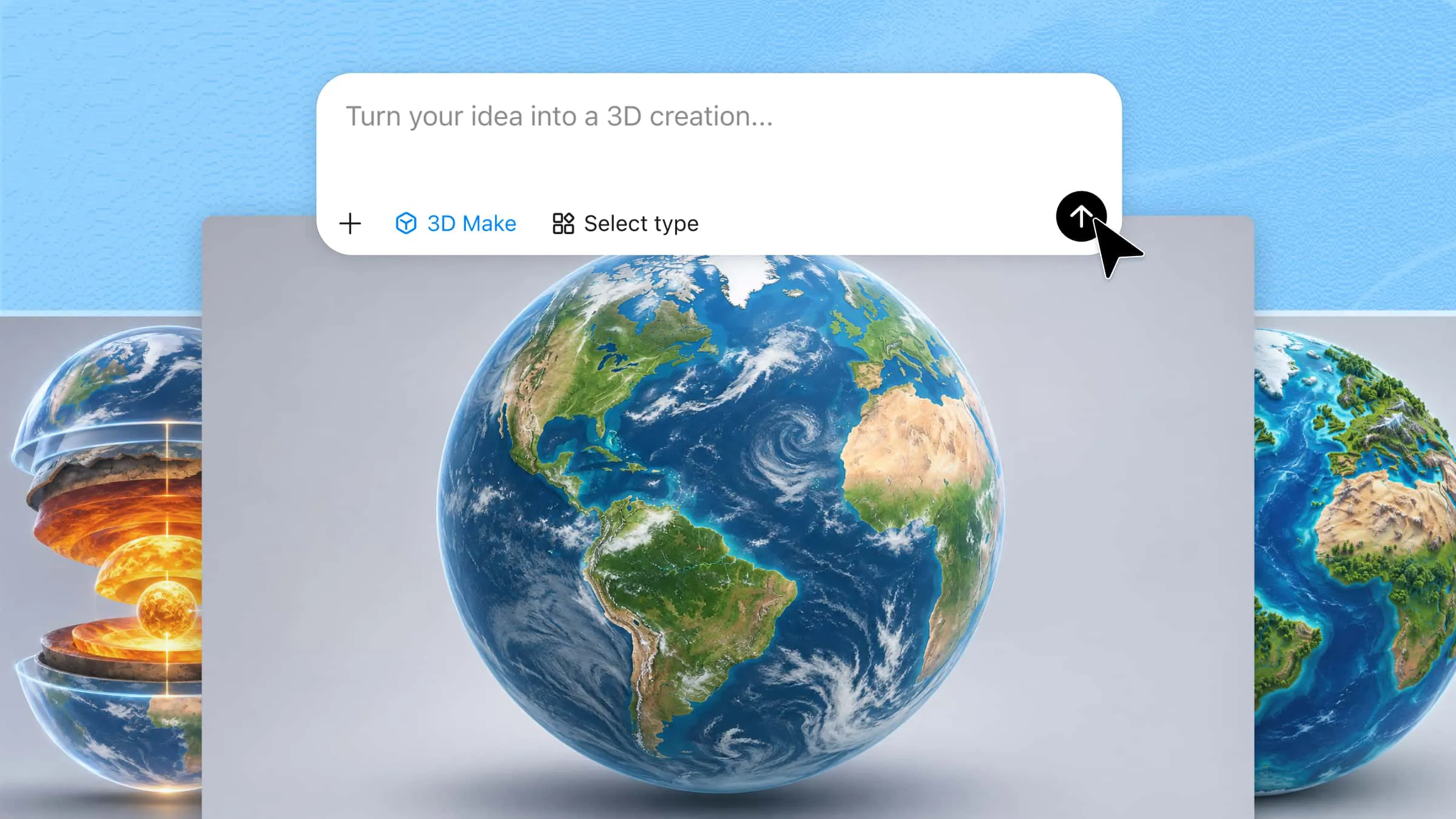
Start by opening Kimi 3D Make and describing the text you want to create. Include the exact words, font style, colors, materials, background, and lighting, so the AI has a clear idea of your design.
Example prompt:
Step 2: Let Kimi 3D Make generate the text
Submit your prompt and let Kimi 3D Make process your instructions to create the 3D text design. The AI interprets your description, including the lettering style, colors, materials, and lighting, to shape the visual result.
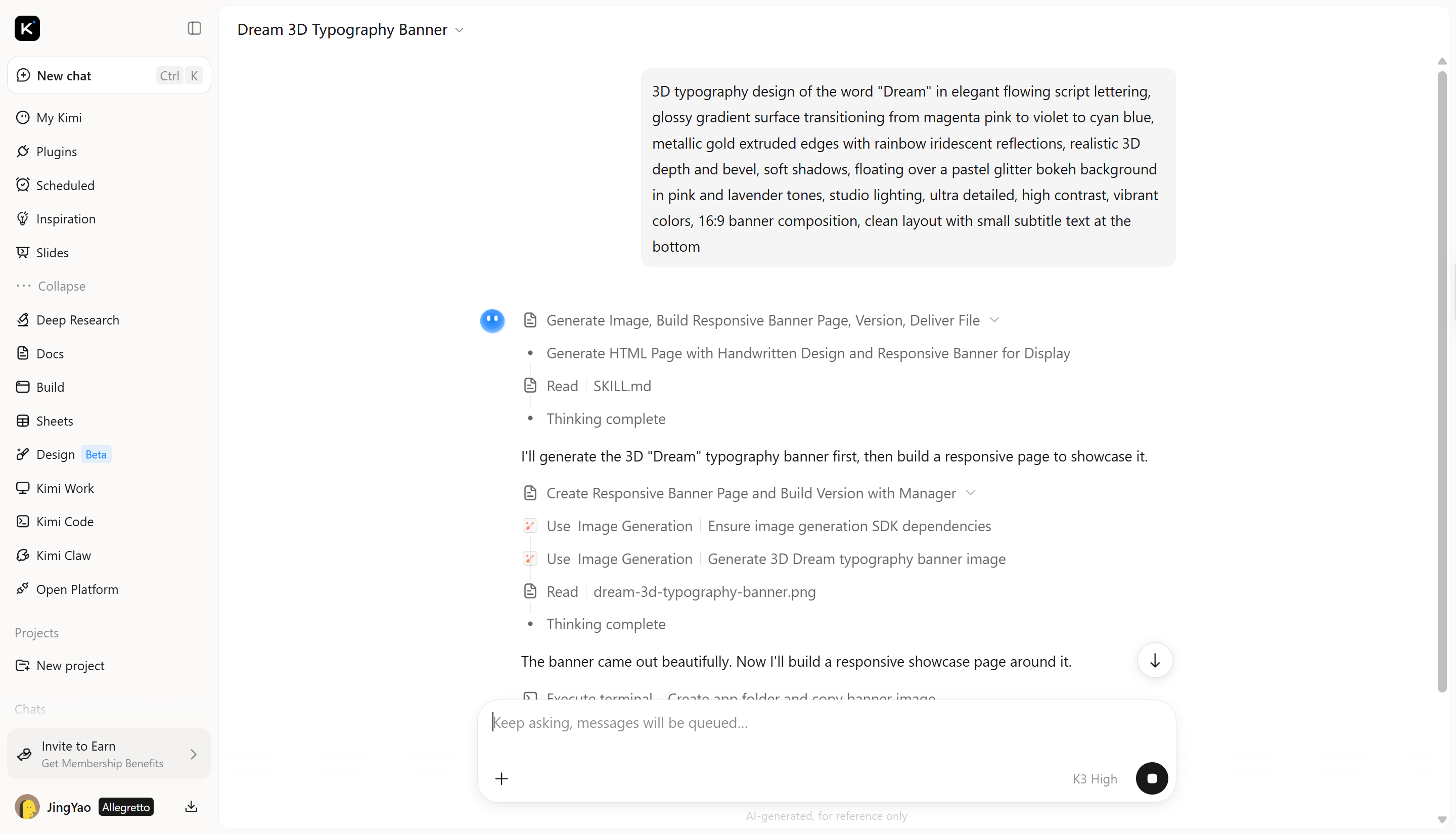
Step 3: Adjust depth, effects, and appearance with AI
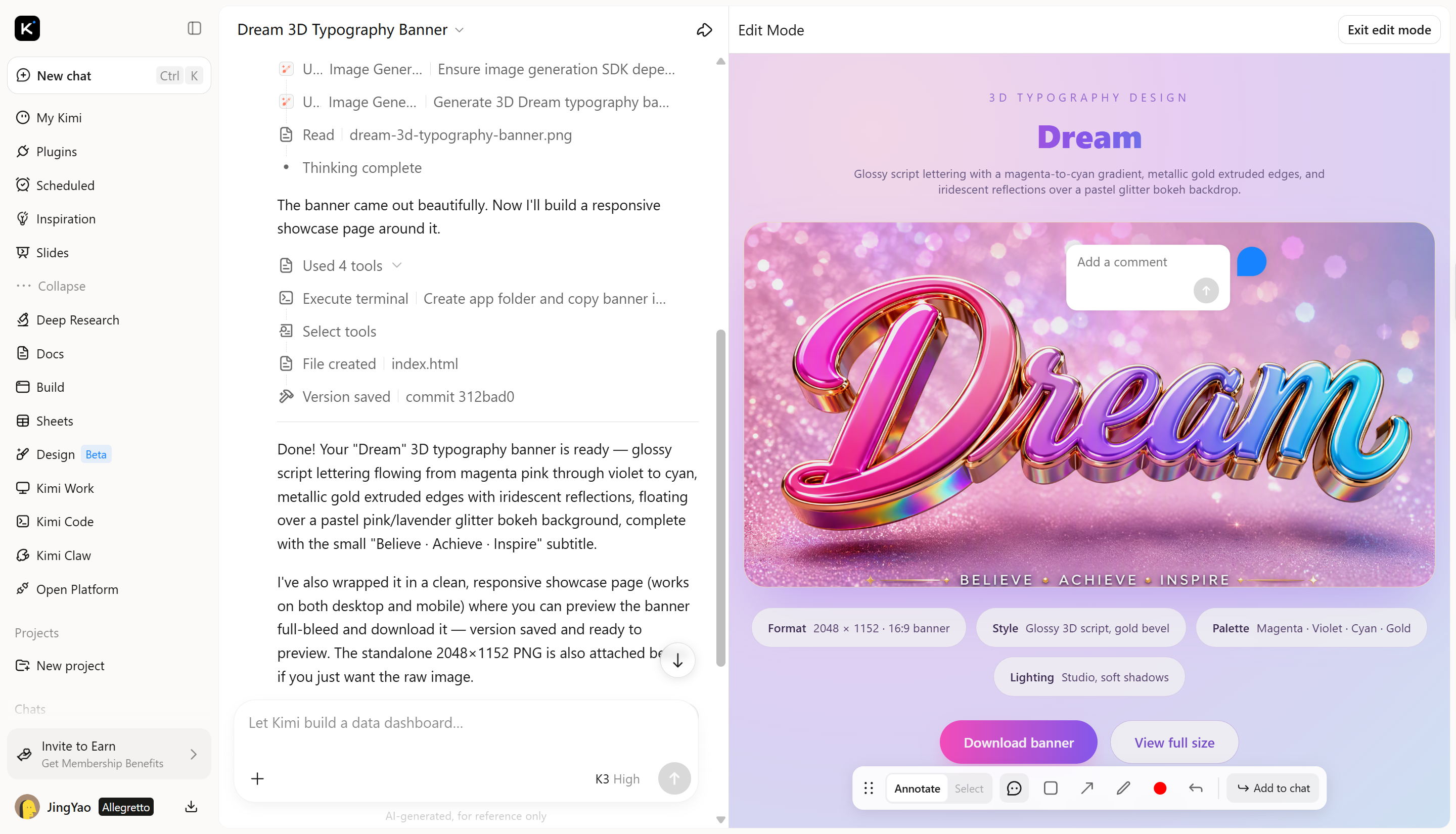
Once the first version is ready, click "Edit" to refine your design. You can comment on a specific element to request targeted changes or enter a prompt in the chat box to adjust details across the design. For example, make the letters thicker, add stronger reflections, soften the neon glow, or change the viewing angle to show more depth. Make small adjustments one at a time to fine-tune the result.
Step 4: Preview and export the finished 3D text
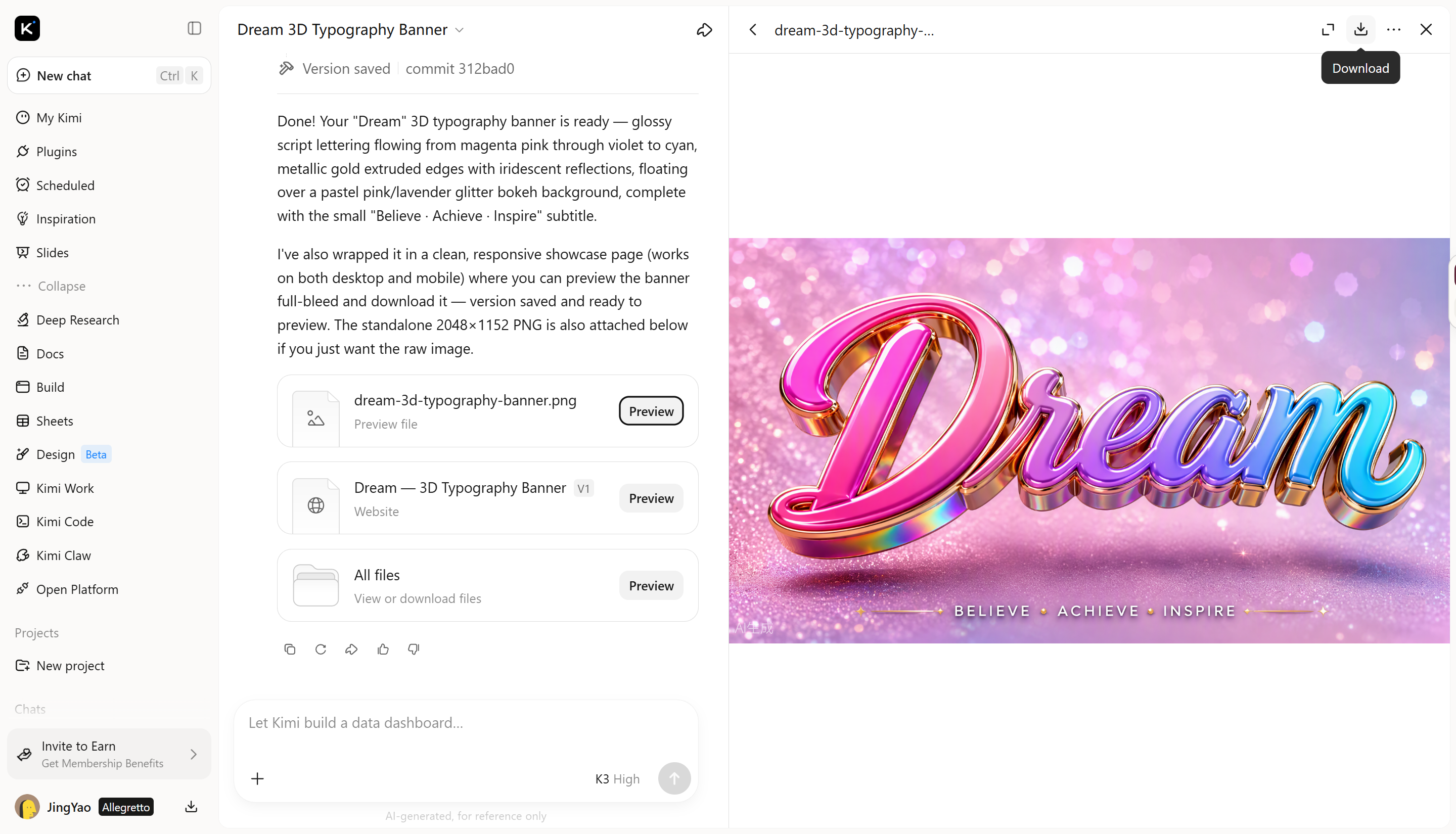
Preview your design at full size and check the lettering, spacing, and lighting. Make sure it fits your intended use, whether it's a poster, logo, or social media graphic. Once satisfied, use the available export or download option to save it.
Why choose Kimi 3D Make for creating 3D text
Creating 3D text online is easier when you can refine your design without starting over each time. Kimi 3D Make helps you explore different looks through simple prompts, making it easier to bring your ideas to life. Here's why it's worth considering for your next 3D text project.
Turn text concepts into 3D lettering
Start with a word, headline, or short phrase, then describe the look you want or upload a reference image. Kimi 3D Make can recreate the reference's lettering style, colors, materials, and overall visual aesthetic to help you achieve a closer match to your intended design.
Customize the look with targeted changes
Fine-tune your design by adjusting letter shapes, depth, colors, surface finishes, and shadows. Use specific prompts to revise individual visual elements, test alternative treatments, and develop a more cohesive result without restarting from scratch.
Integrate 3D text into visual compositions
Kimi 3D Make supports creating 3D text for posters, logos, social media graphics, video title cards, and promotional designs. Incorporate dimensional lettering into different visual compositions to create cohesive designs with text that stands out alongside other visual elements.
Export 3D text for different projects
Export your finished design in supported image formats, such as PNG and JPG, for use in posters, social media graphics, presentations, and other visual projects. Save your preferred version and incorporate it into your existing creative workflow.
Explore advanced 3D workflows with Kimi Work
For more advanced projects, download Kimi Work to access tools such as Blender, Tripo 3D, and other plugins for extended 3D modeling and editing capabilities. Export assets in formats such as GLB, glTF, OBJ, FBX, STL, USDZ, and BLEND for workflows including game development, 3D printing preparation, Apple AR experiences, and further editing in Blender.
Tips for designing creative 3D text
Designing 3D text is about more than making letters look thick or raised. Small choices like font shape, lighting, and spacing can change how your text looks and feels. Keep these tips in mind to create 3D text online that looks clear, balanced, and fits your creative idea.
Choose fonts that work well in 3D
Start with a font that stays easy to read when you add depth. Bold, simple letters often work well because their shapes remain clear from different angles. Thin or highly decorative fonts can also work, but avoid adding too many effects that make the text difficult to read.
Match materials to your design concept
Think about the mood you want before deciding how your text should look. Metallic finishes can give letters a sleek, modern feel, while glass-like surfaces can create a lighter, futuristic look. When creating 3D text online, describe the visual style you want clearly so the AI can generate a design that matches your concept.
Control extrusion depth and bevels
Extrusion gives letters their thickness, while bevels soften or shape their edges. Too little depth may make the text look almost flat, whereas too much can make the letters bulky or harder to read. Aim for a balance that adds dimension without taking attention away from the words themselves.
Use lighting to emphasize depth
Lighting separates the front surfaces, sides, and edges of your letters. Soft shadows add realism, while rim lighting highlights their shape. When you make 3D text online, adjust the lighting to bring out depth without overpowering the design.
Create contrast between text and background
Your text should stand out clearly from whatever sits behind it. For example, bright lettering can work well on a dark background, while darker text may look stronger against a lighter surface. If both use similar colors or brightness levels, the letters can blend into the background and lose their visual impact.
Refine one visual detail at a time
Focus on one adjustment at a time, such as letter shape, depth, or lighting. This makes it easier to compare results and see what works. Gradual changes help you achieve a polished design with a clear and consistent visual style, without unnecessary effects.
Conclusion
Learning how to make 3D text opens up new ways to make your words more creative and expressive. With a clear idea and a few thoughtful design choices, you can create text that suits your project. Try Kimi 3D Make to explore your ideas with AI and turn your next concept into a design of your own.