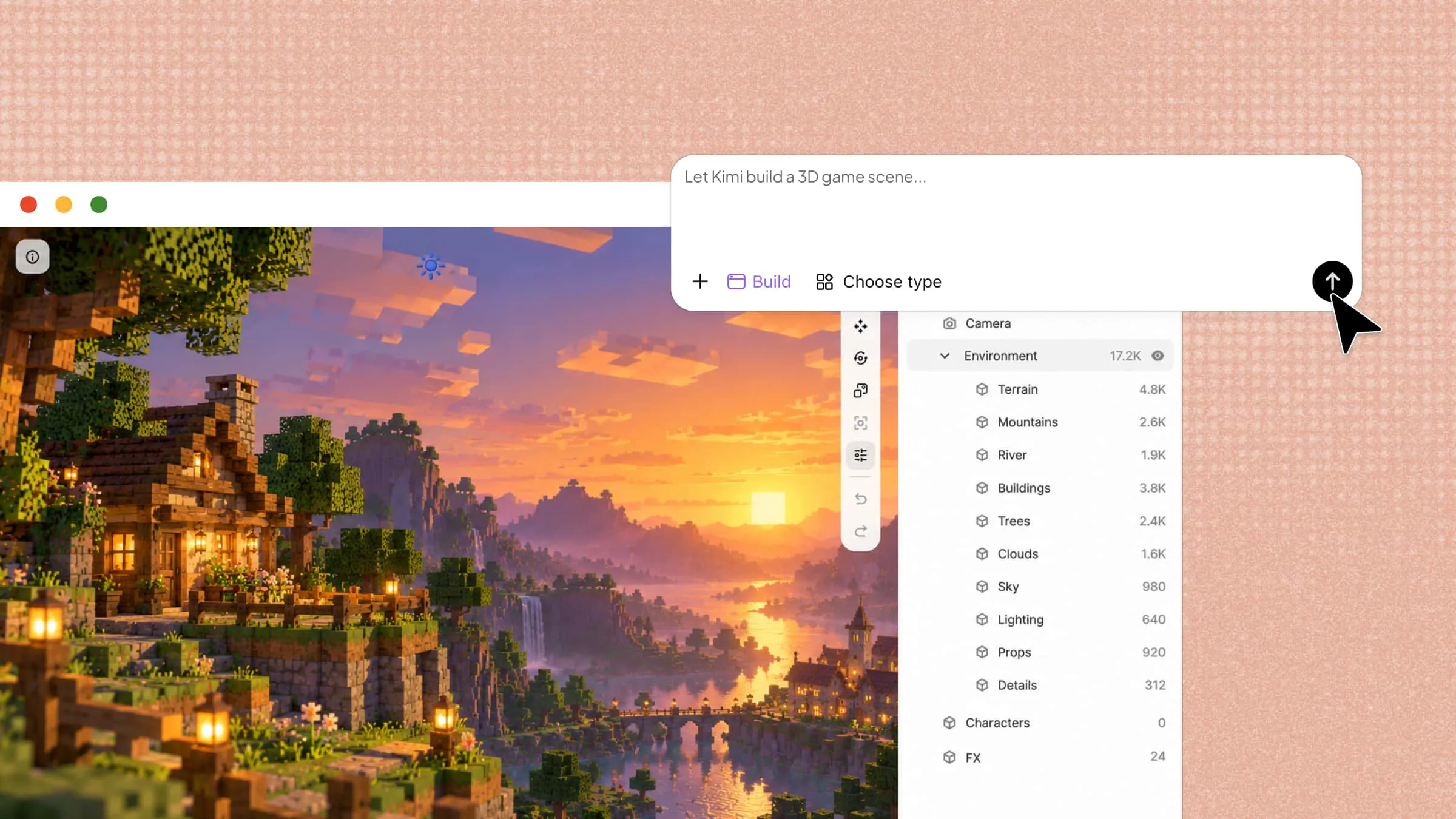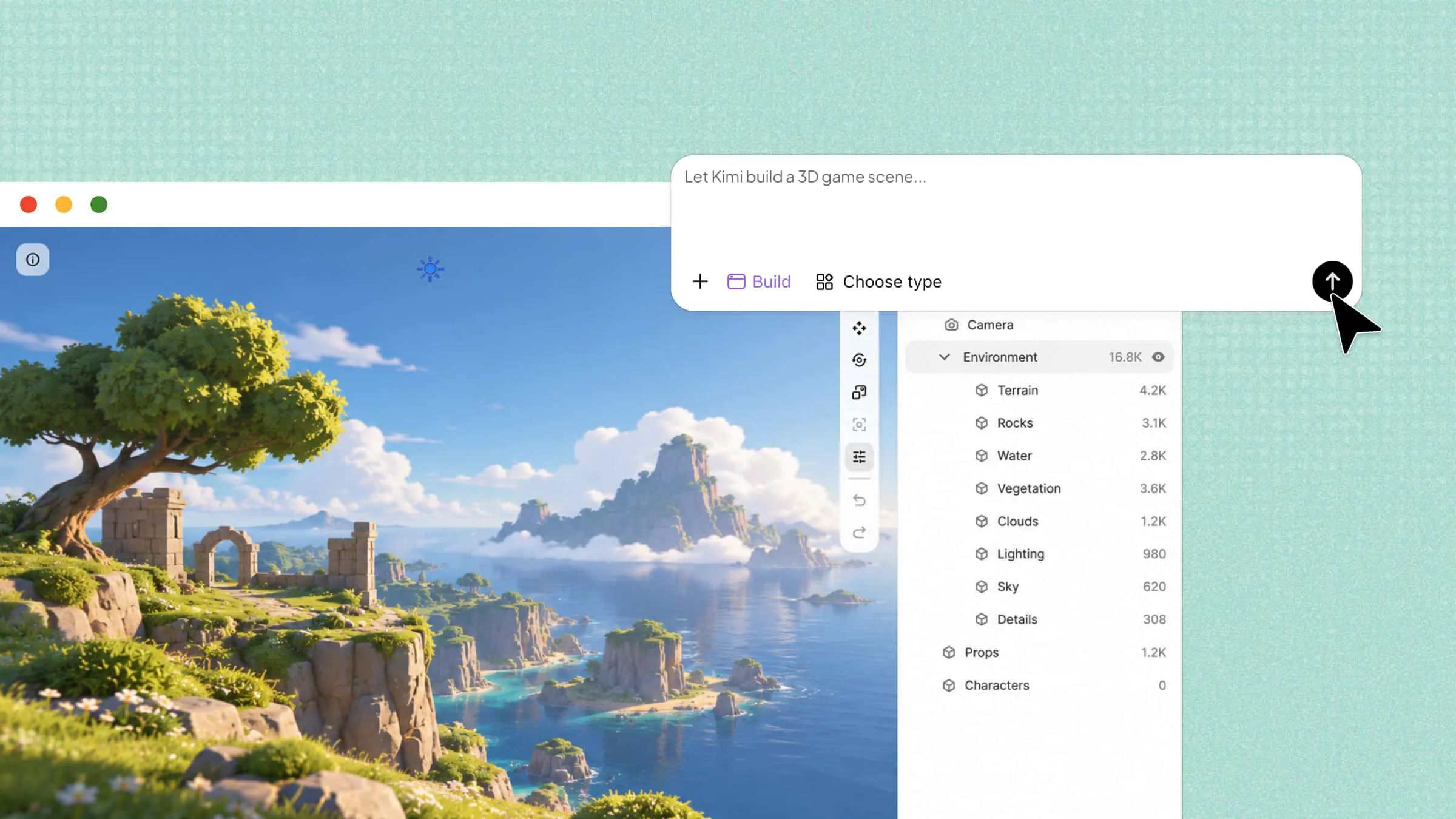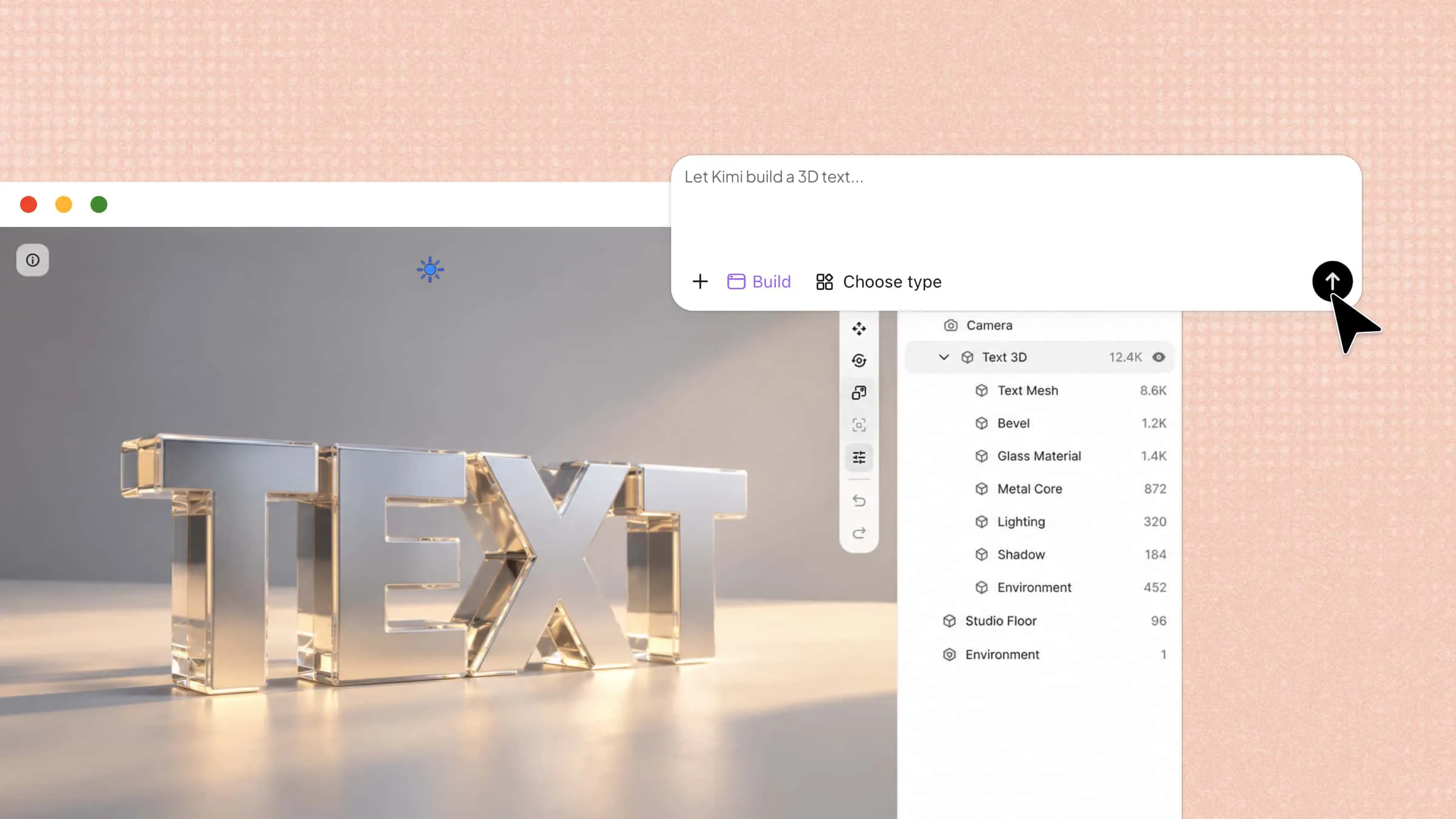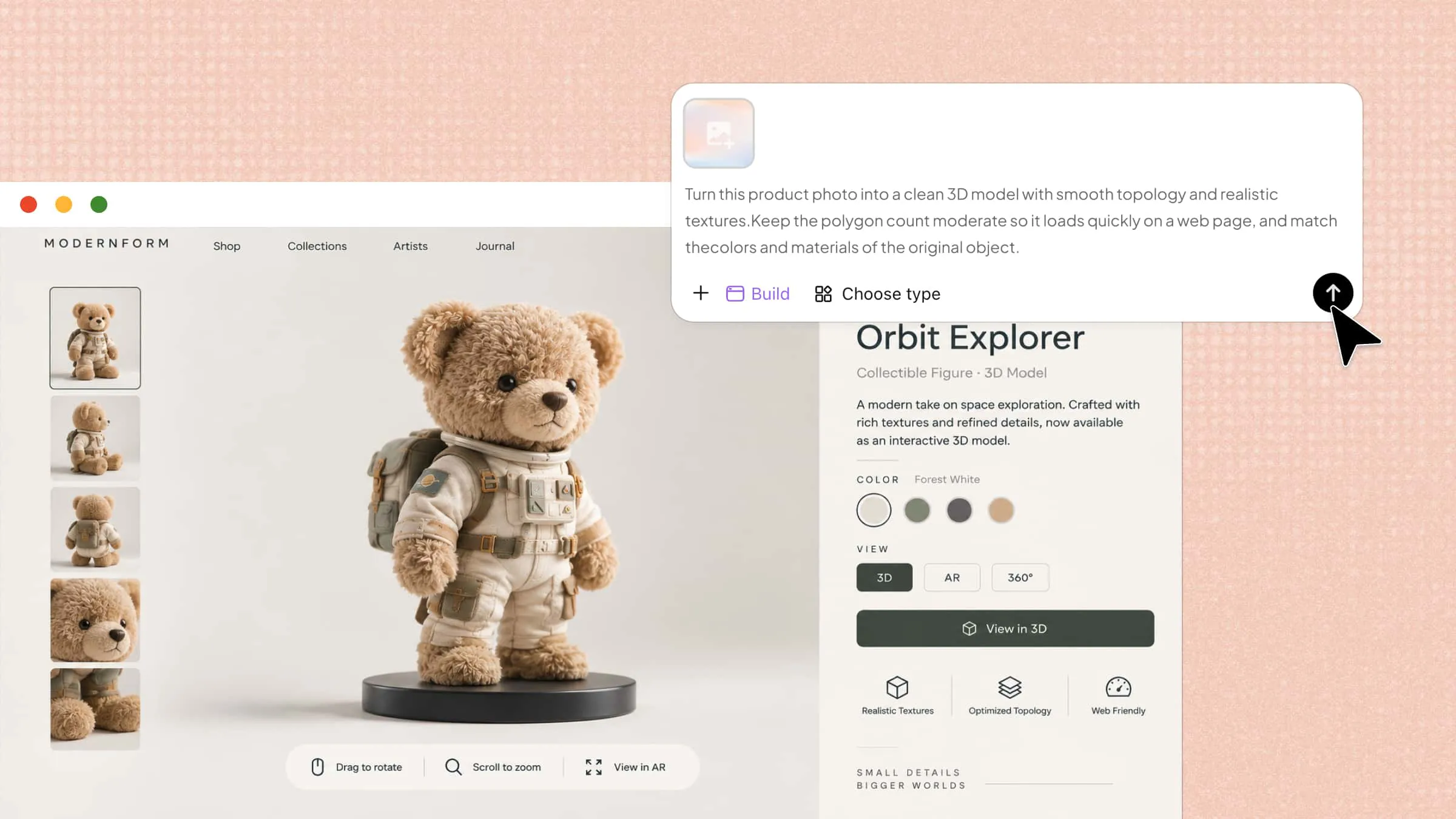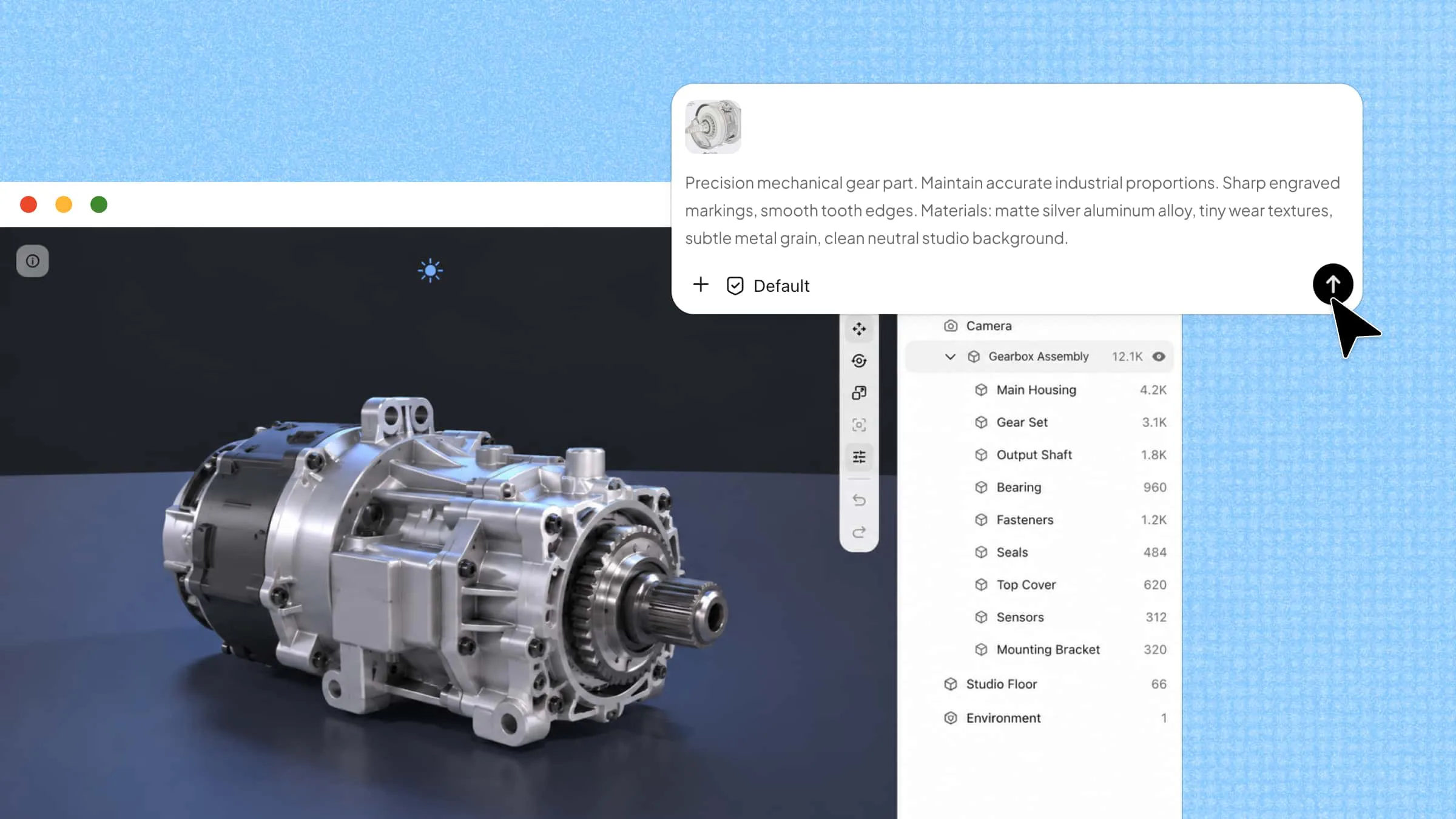
Want to turn a 2D image into a 3D model? Kimi Work is an image-to-3D model tool that is free to download, helping you bring flat illustrations, hand-drawn sketches, and product concepts into 3D. You can explore new creative ideas without getting bogged down in complicated modeling software. Read on to learn how Kimi Work works and how to use it to turn your image references into 3D creations.
Build 3D models from references with an AI-powered desktop workflow
Kimi Work brings AI-powered capabilities into a desktop workflow, helping users develop visual concepts from reference images and creative inputs. Instead of relying entirely on manual modeling, users can explore AI-assisted workflows to shape ideas for 3D assets, digital scenes, and other visual projects. Its desktop-based approach makes it easier to keep creative tasks organized while working toward a desired result.
Key features
Kimi Work offers several features designed to make the 3D creation process more accessible and flexible. From using reference images to guiding the output with text prompts, these capabilities help you shape your ideas with greater control. Here are the key features to explore.
Start with an image and describe what you need
Upload a reference image to Kimi Work and explain the 3D asset you want to create. Describe the object, proportions, details, materials, or intended use so Kimi can understand both the visual reference and your requirements.
Let AI work with Blender to build the model
Use Kimi Work alongside Blender to turn your reference into a 3D asset. Instead of manually completing every modeling step, you can give instructions in natural language and let Kimi handle tasks within the desktop workflow.
Refine the model through iterative instructions
3D creation rarely ends with the first result. Tell Kimi Work what needs to change, such as proportions, geometry, materials, or specific details, and continue refining the model through multiple iterations.
Keep the workflow connected to your desktop tools
Kimi Work is designed for longer, multi-step tasks rather than one-off generation. Combine your reference files, AI instructions, Blender, and other desktop tools in one workflow to take a model from an initial idea to a more finished asset.
System requirements to use Kimi Work for turning images into 3D models
Before using Kimi Work, check that your computer meets the operating system and hardware requirements. The following sections outline the requirements for Windows and Mac.
Windows requirements
Operating system: Windows 10 or later
Mac requirements
Operating system: macOS 12 or later
Processor: Apple Silicon required
For both Windows and Mac, a stable internet connection is recommended for AI processing and online features. You also need a Kimi account to use Kimi Work. Depending on your workflow, you may need to grant access to local files or allow browser interactions. Make sure your computer has enough free storage for the app, reference images, local files, and temporary files, as well as sufficient RAM for AI workflows, local file processing, and 3D modeling tasks.
How to create a 3D model from an image with Kimi Work
Kimi Work provides a desktop workspace for exploring AI-assisted image-to-3D creation. To get started, follow the steps below to set up your reference image and work through the process:
Step 1: Download and install Kimi Work
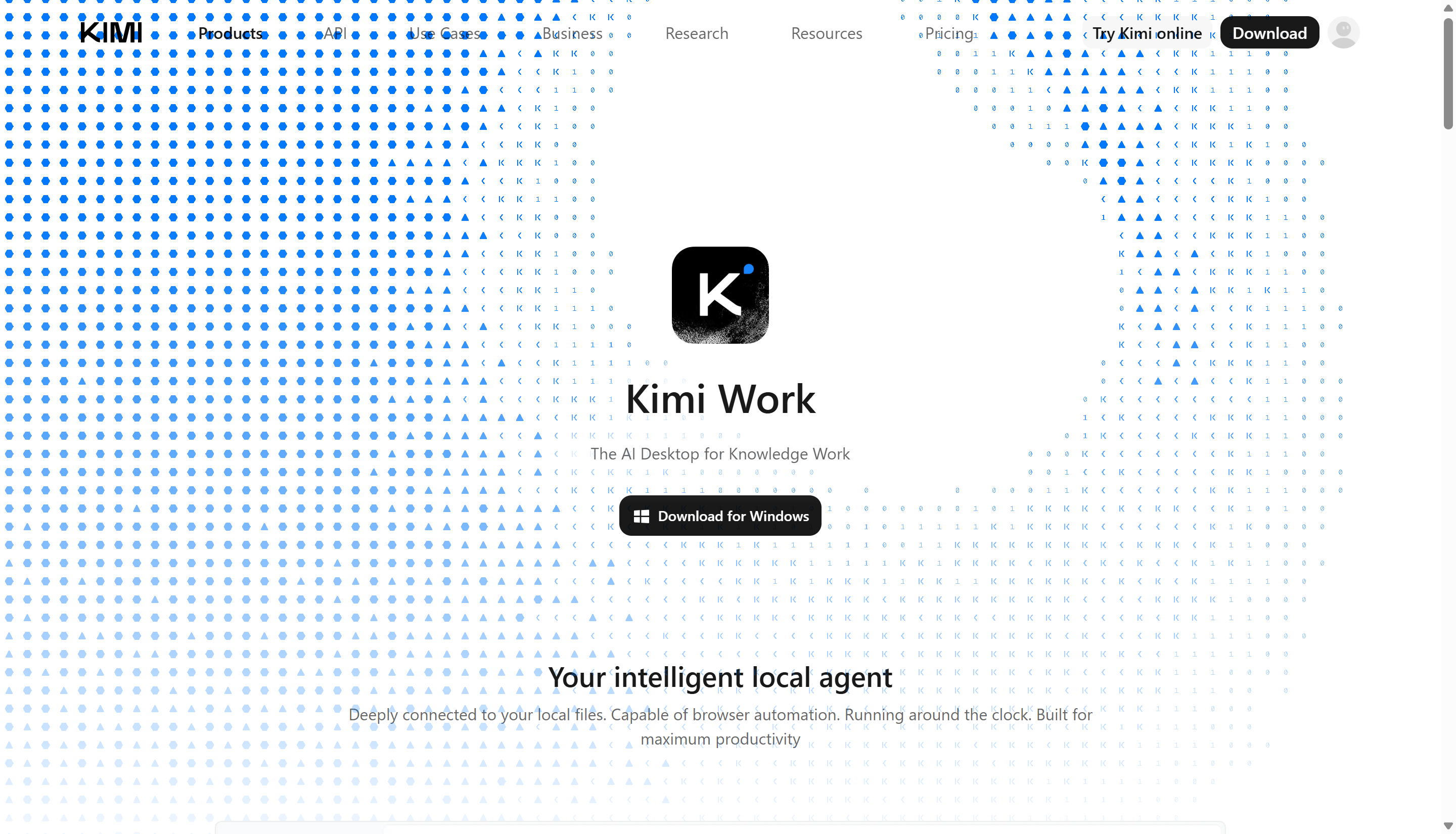
Start by downloading Kimi Work for your computer. Choose the version that matches your operating system, run the installer, and open the application once the setup is complete.
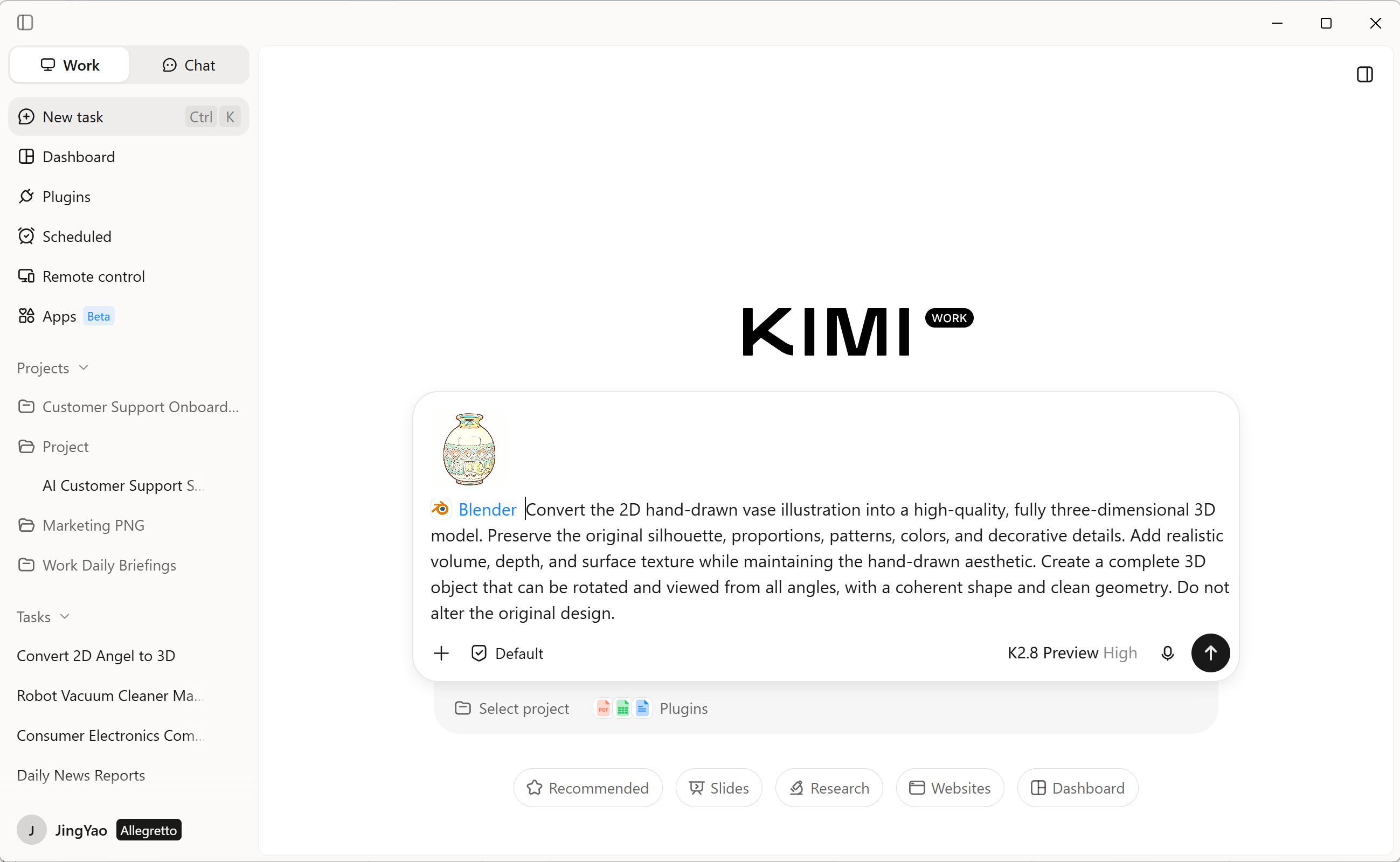
Step 2: Add your reference image and prompts
Upload a clear image of the object you want to recreate as a 3D model. Then, enter a specific prompt that describes its shape, materials, colors, and important details.
Example prompt:
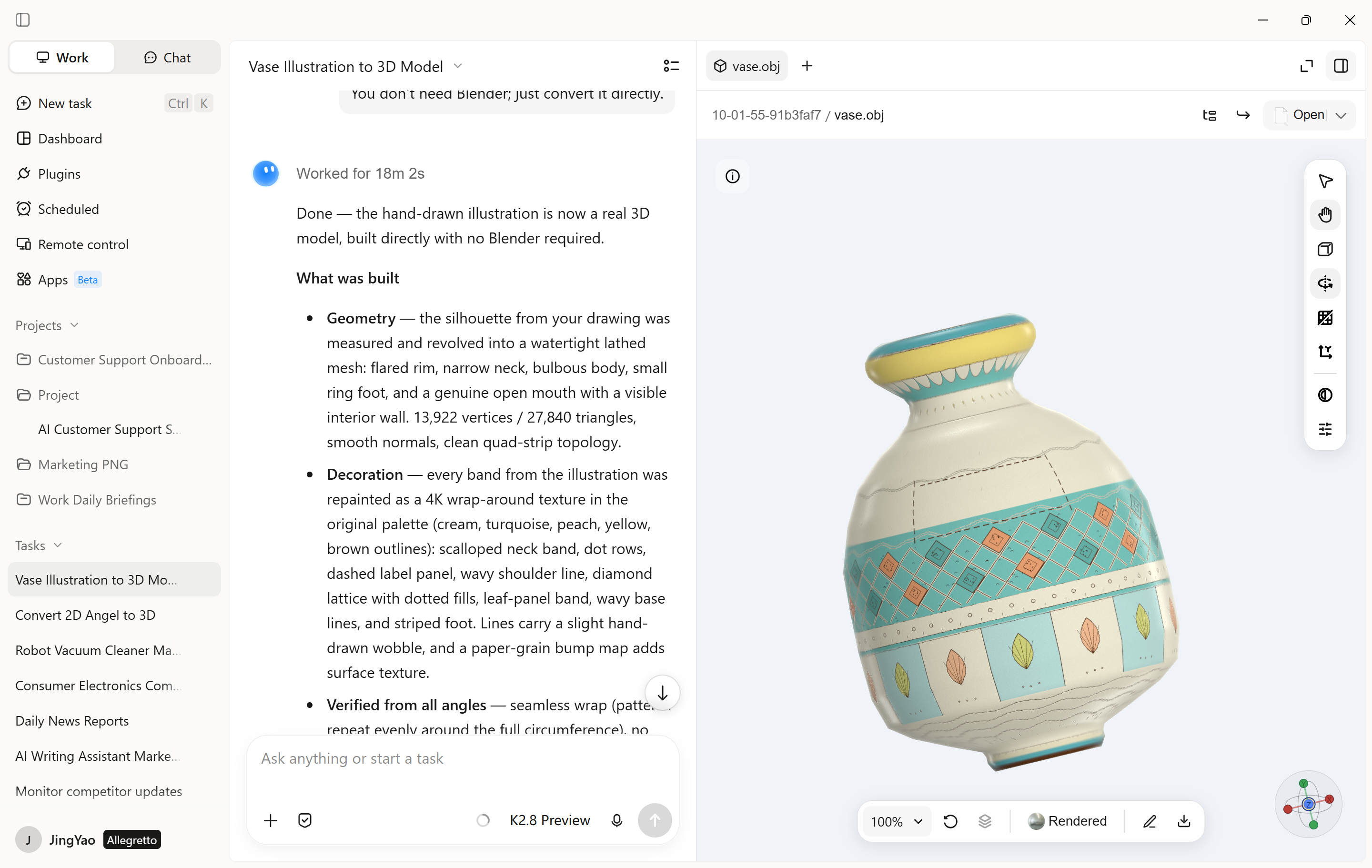
Step 3: Inspect and refine the result
Review the generated 3D model against your reference image, checking its shape, proportions, surface details, and colors. To make changes, enter specific instructions in the chat to have the AI refine the result. For more targeted adjustments, open "Edit" to comment on individual elements and ask the AI to modify them, or manually adjust the model to fine-tune the details.
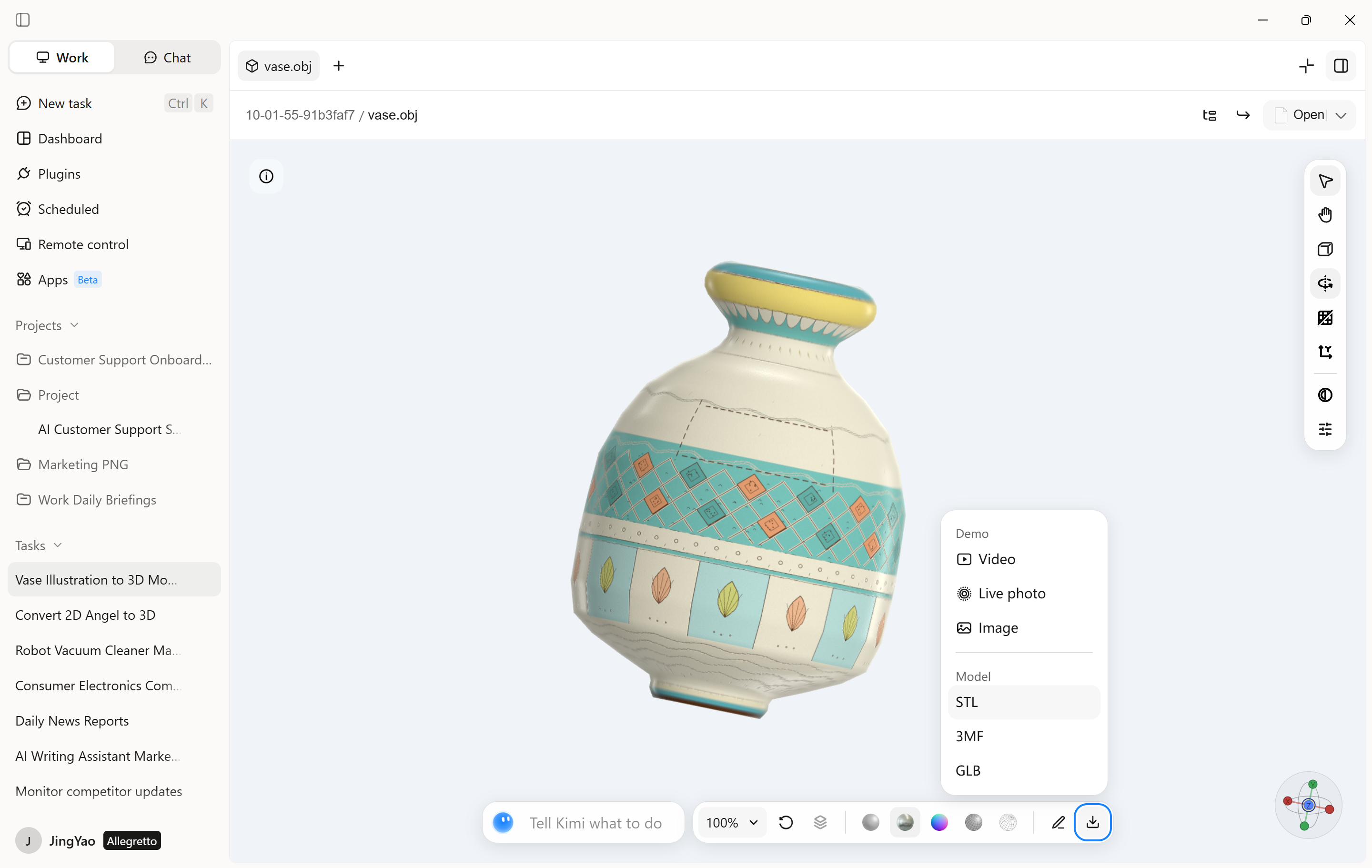
Step 4: Export the finished asset
Once you're happy with the result, check the available export options in Kimi Work. Choose a suitable file format if one is offered, then save the asset to your computer. Before using it in a game engine or 3D design application, verify that the exported format is compatible with your intended workflow.
Turn image references into 3D assets for different workflows
Image-to-3D workflows can support different creative and technical projects, from game development to physical product design. Each use case has its own requirements for model quality, structure, and compatibility. Here's how you can use image references across different workflows.
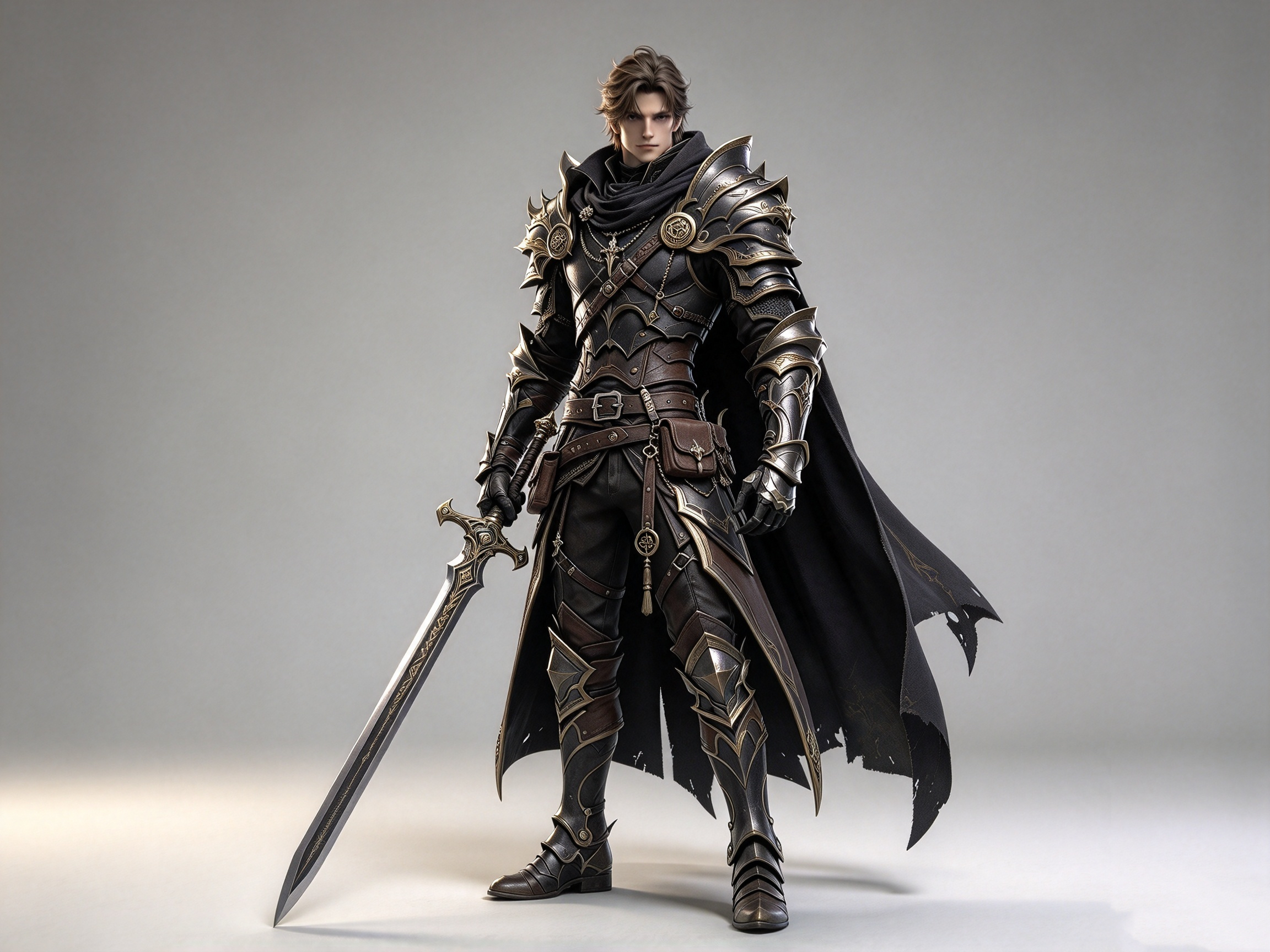
Game development
Game developers can use image references to explore characters, props, and environmental objects. Kimi Work can support the early design process for game assets. Detailed prompts help define the object's shape, materials, and visual style. Check the final asset for compatibility with your game engine.
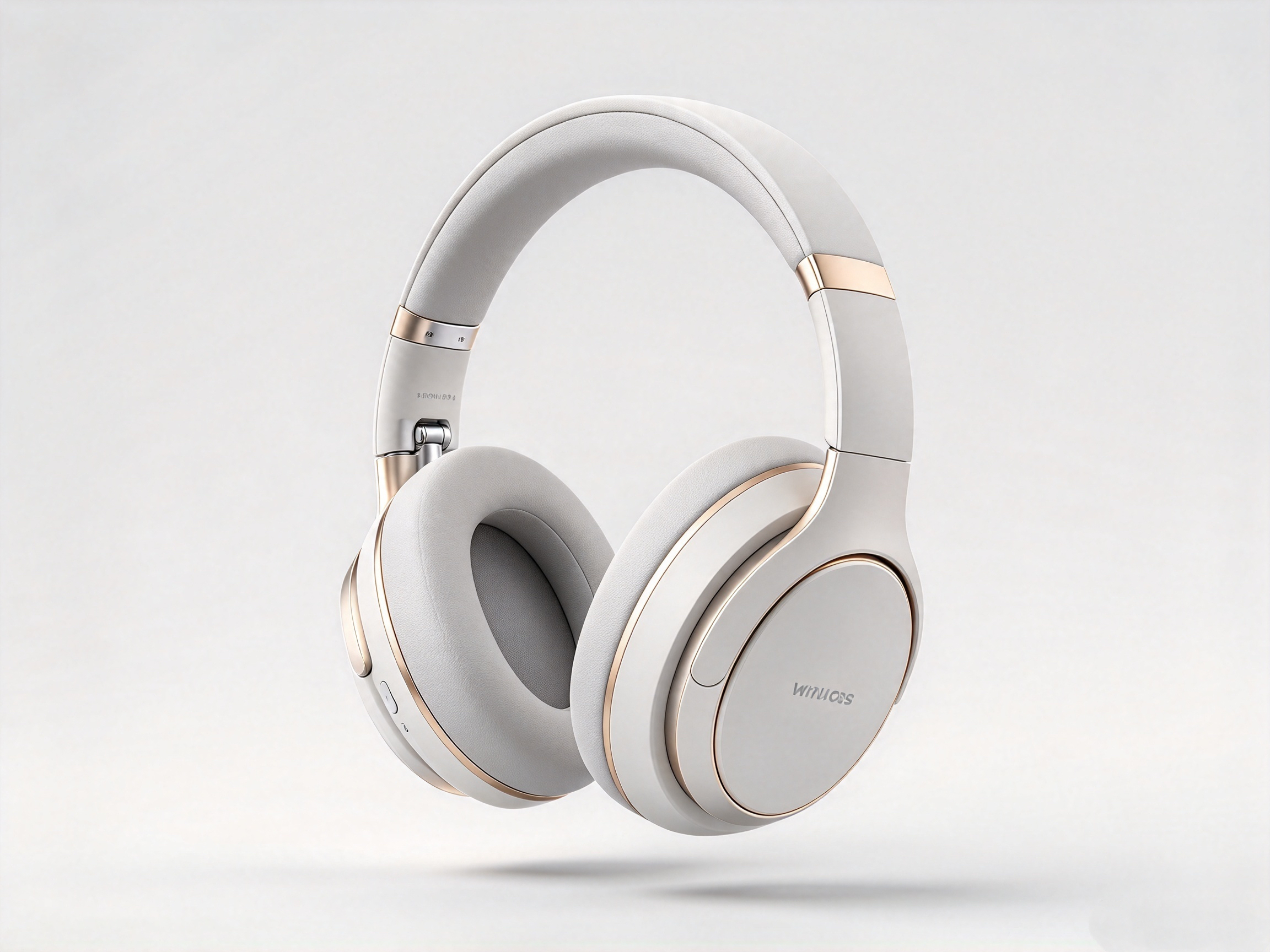
Product design and visualization
Product designers can explore a product's shape, materials, and finish using reference images. Kimi Work can help develop visual concepts before detailed modeling or manufacturing. Clear prompts make it easier to communicate design choices. Verify measurements and structural details in CAD software before production.
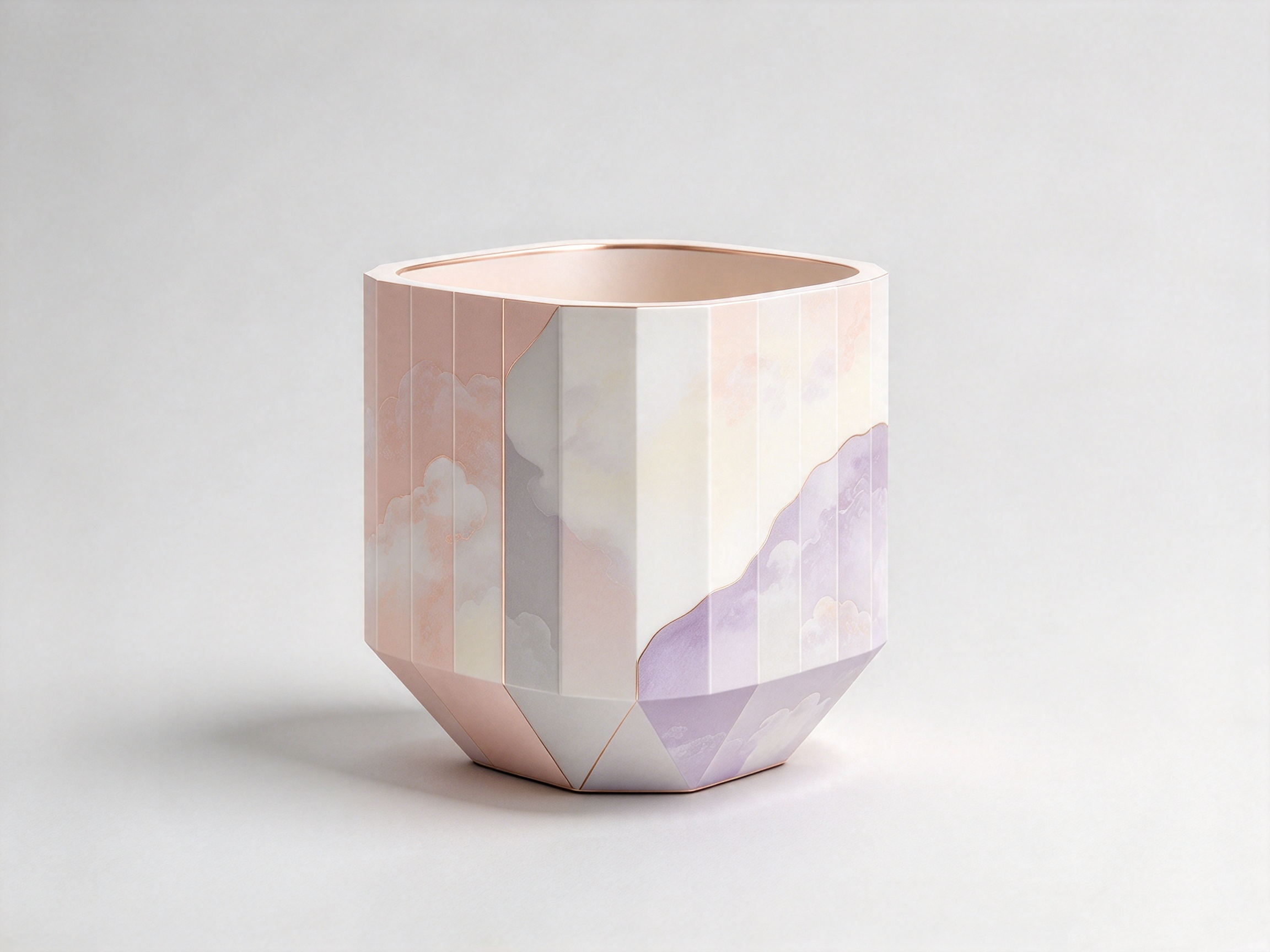
3D printing preparation
Image references can inspire decorative objects, accessories, and simple physical models. However, a 3D design may need repairs and adjustments before printing. Use prompts that describe the object's shape and structure clearly. Check wall thickness, scale, and watertight geometry in suitable software.
Creative experimentation
Image references also let you explore unusual shapes, materials, and artistic styles. Kimi Work can help you develop concepts for digital art, collectibles, and personal projects. Change one prompt detail at a time to explore different results. Check geometry if you plan to use the asset in other applications.
Conclusion
Bringing a visual idea to life can open the door to new creative projects, from digital artwork to game assets. Kimi Work gives you a desktop workspace to explore how AI can support your modeling process. Before choosing a free download image-to-3D model converter, consider the tools and workflow your project requires. Give Kimi Work a try and see whether it matches your needs. Start with an idea and explore where it takes you.