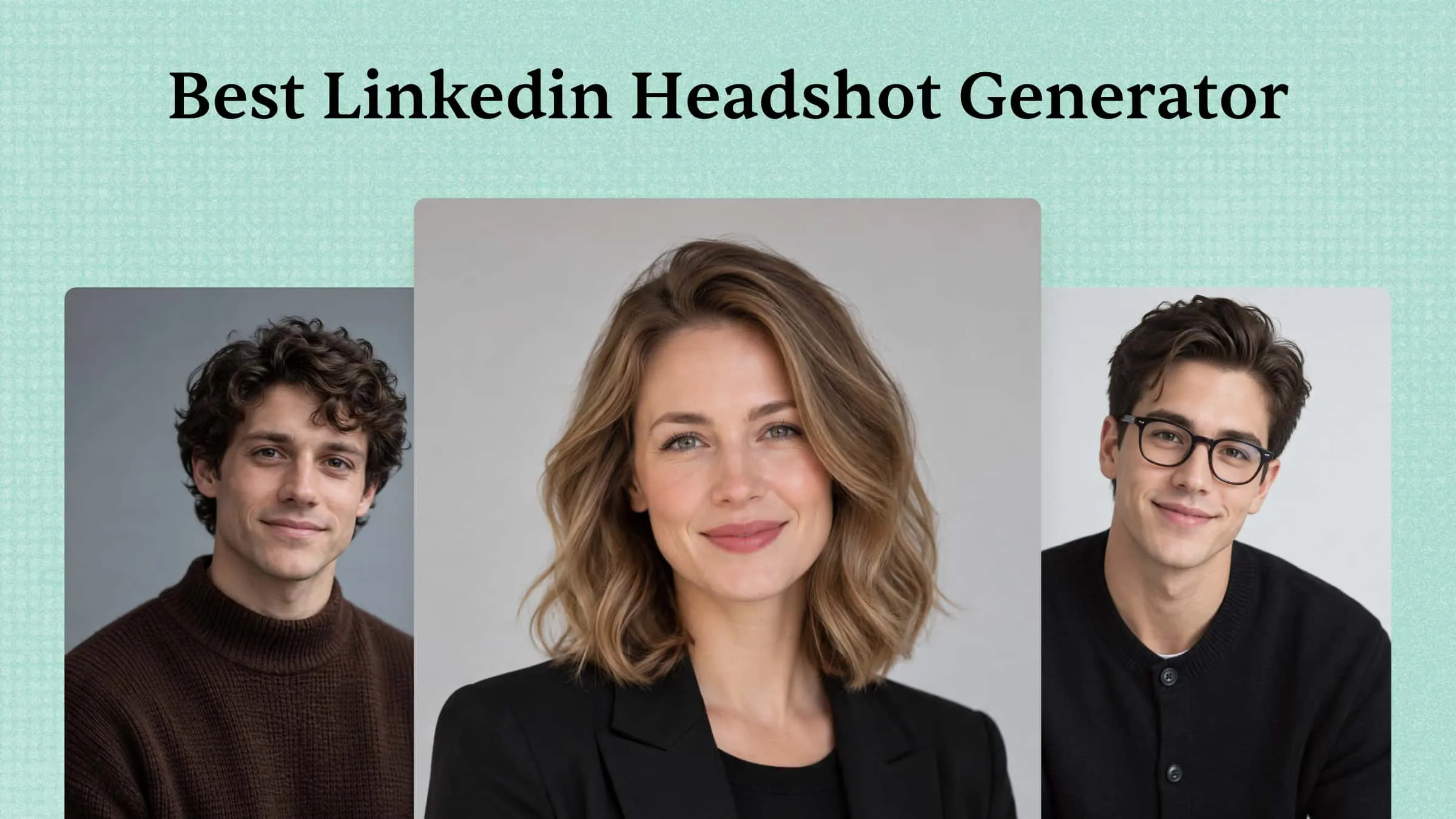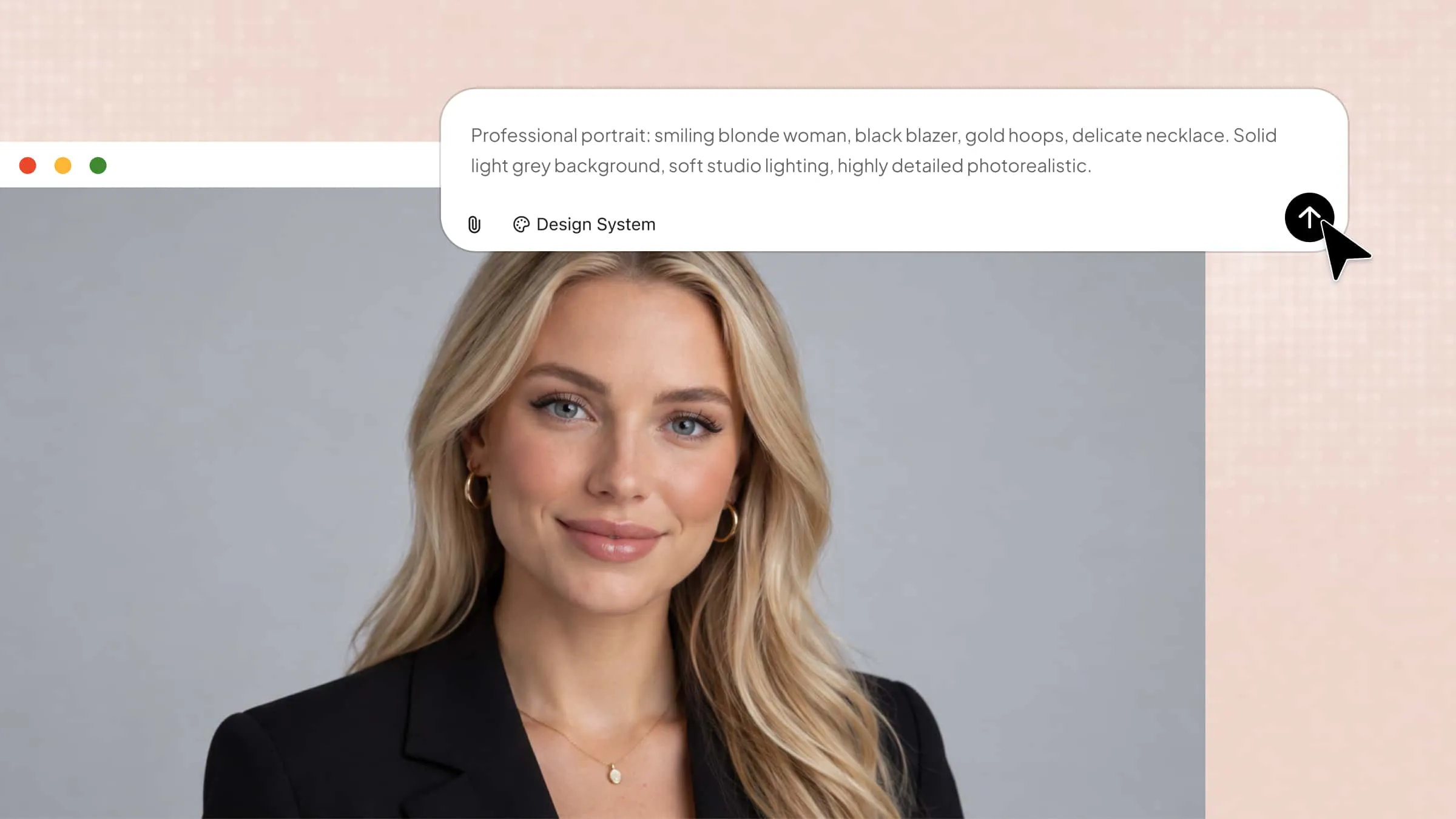
If you want a professional-looking photo for your LinkedIn profile, resume, or business page, you don't always need to book a photographer or visit a studio. With AI tools, you can create a professional headshot using a regular photo and experiment with different outfits, backgrounds, lighting, and styles. You can also adjust the final look to match your professional image without spending hours editing. Read this article to discover how to make a professional headshot with AI.
How to create professional headshots with AI
Creating a professional headshot doesn't have to involve expensive photography sessions or complicated editing. With the right AI tool, you can turn an ordinary photo into a polished portrait that suits your professional needs.
Kimi Design, an AI design generator, makes this process simple by letting you create professional-looking headshots from your own photos. You can explore different clothing styles, backgrounds, lighting, and portrait looks to find what suits you best. It also gives you the flexibility to customize your results and export your finished images in different sizes and formats.
Follow these simple steps to create your own professional headshots with Kimi Design:
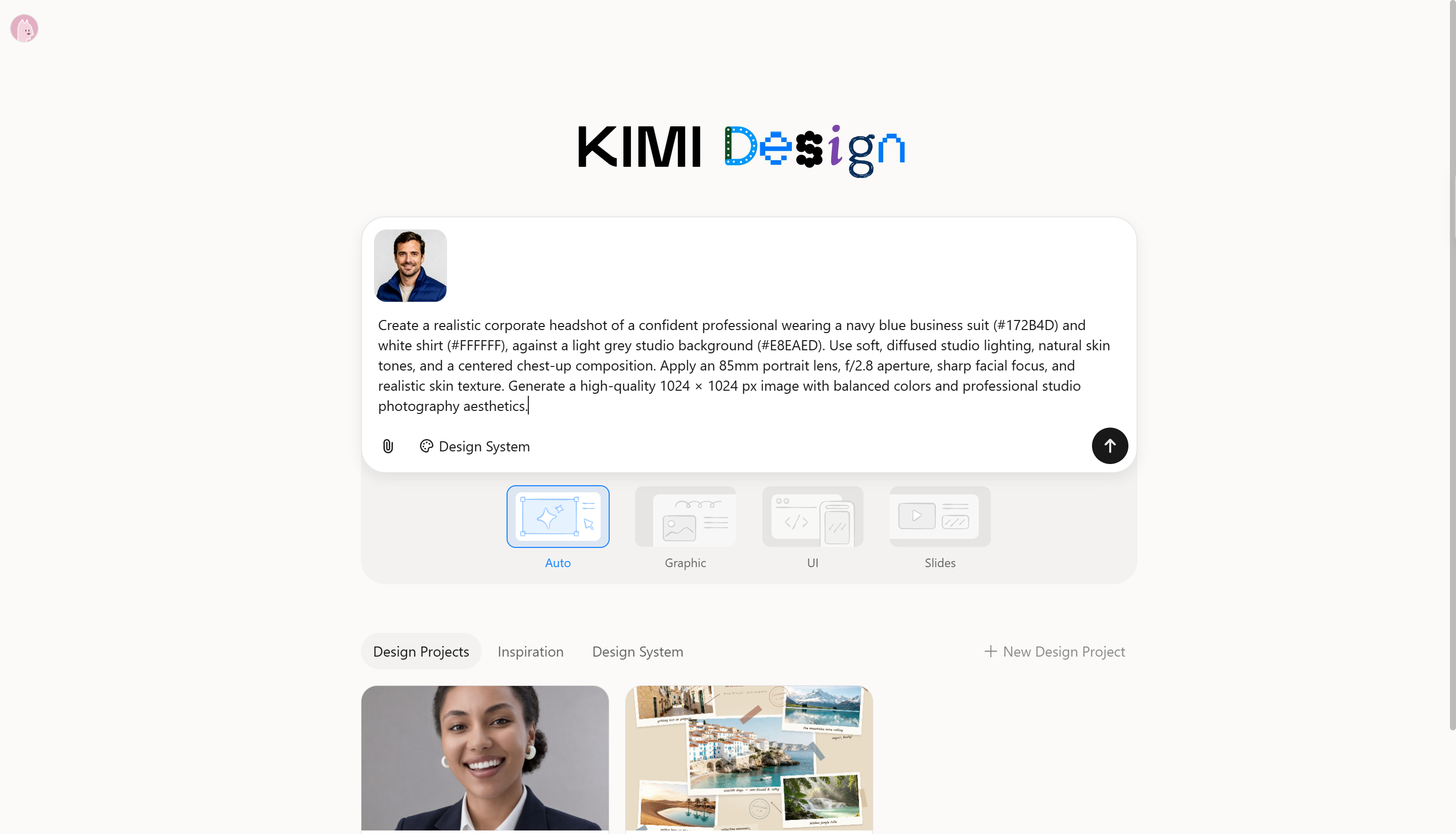
Step 1: Write a prompt for your professional headshot
Start by describing how you want your professional headshot to look, including clothing, background, lighting, framing, and image quality. Then upload your own photo as a facial reference so Kimi Design can retain your facial features and identity. After entering your prompt and uploading the image, let Kimi Design process your instructions and generate the headshot. Wait for the generation to finish, then review the result.
Example prompt:
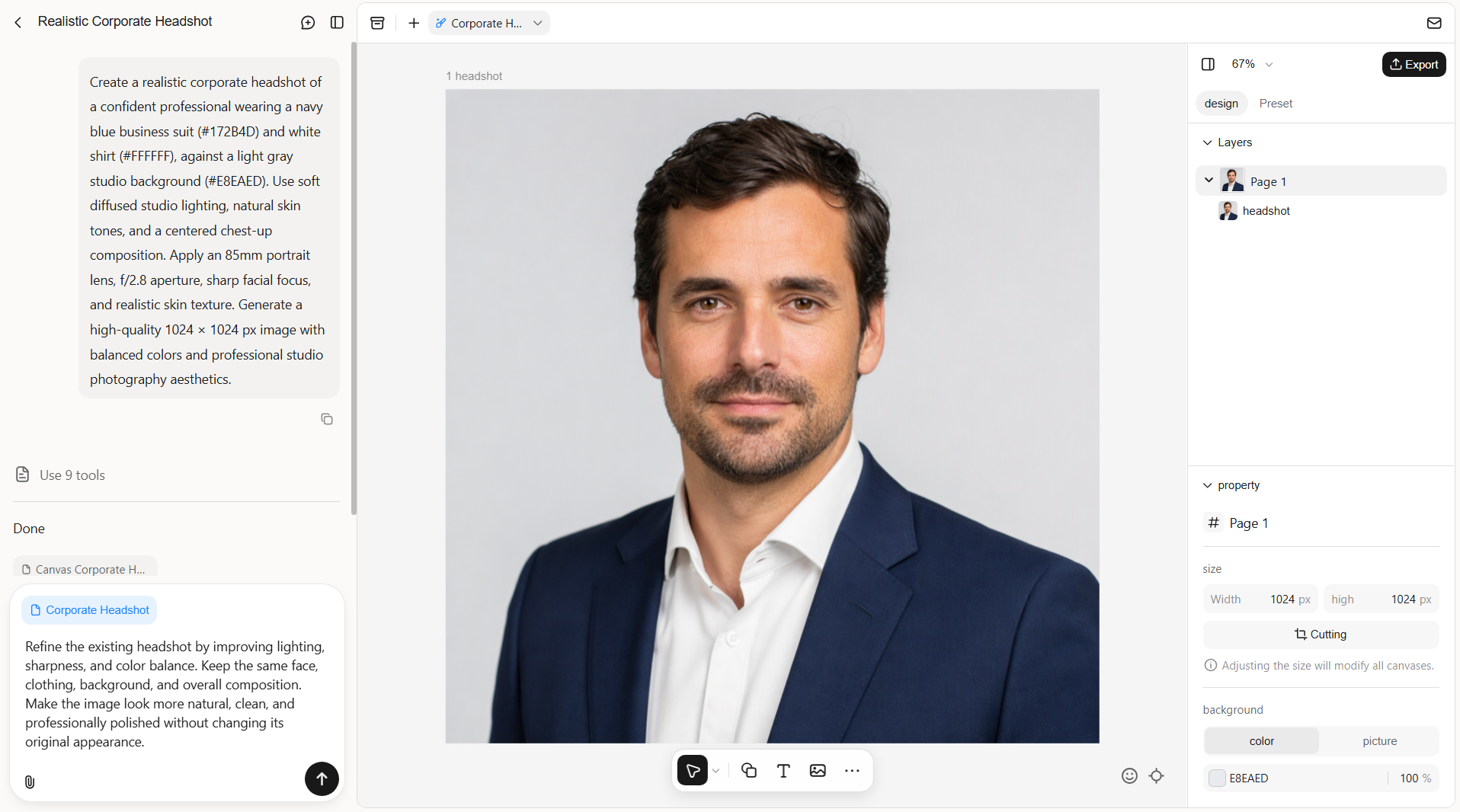
Step 2: Edit and refine the headshot
Review the generated portrait and check its clothing, background, lighting, and facial details. If anything needs improvement, enter additional instructions to change specific elements, such as the suit color, background shade, or lighting.
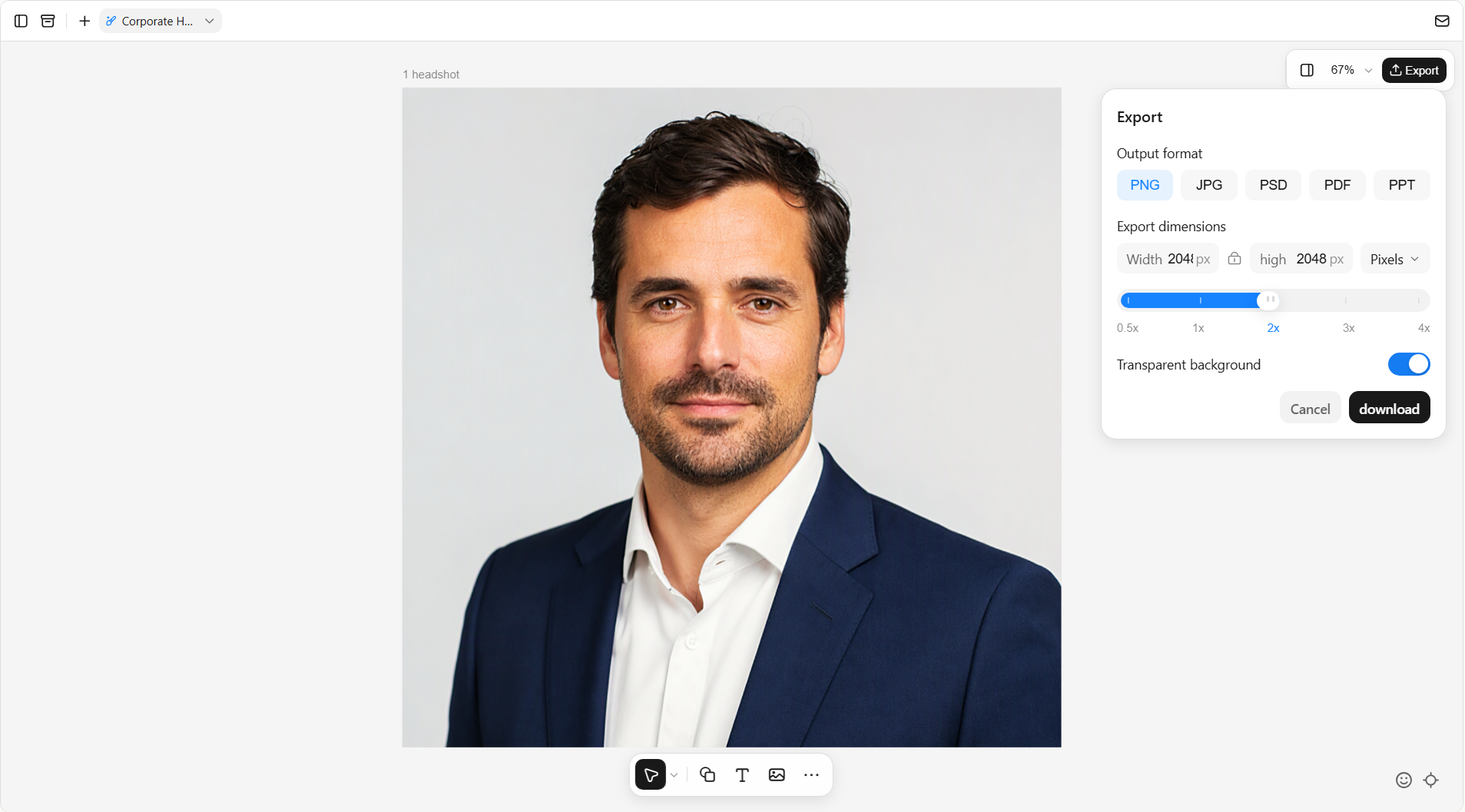
Step 3: Export your final headshot
Once you're happy with the result, use the download or export option to save your headshot. For online profile photos, a square PNG or JPG at 1024 × 1024 pixels is a practical choice. If you're using the image on a company website, resume, or presentation, adjust the aspect ratio and dimensions to fit the intended layout. For print materials, check the required physical size and resolution to ensure the image remains sharp.
Why choose Kimi Design to create a professional headshot
Creating a professional headshot is easier when you have control over how the final portrait looks. Kimi Design offers several useful features that make it simple to generate and customize portraits for different professional needs. Here are some of the key features that make Kimi Design a useful choice.
Create professional headshots from text prompts and reference photos
Describe your desired headshot, including clothing, background, lighting, pose, camera angle, and overall appearance, or upload an existing photo as a visual reference. Kimi Design transforms your ideas and reference images into polished, personalized portraits that match your professional image and preferred appearance.
Explore different headshot styles, sizes, and professional uses
Experiment with AI-generated headshot styles, from formal corporate portraits and business casual looks to creative personal branding photos. Customize portrait compositions and dimensions for different uses, including LinkedIn profiles, resumes, company websites, business cards, and professional portfolios. Generate multiple variations to find the right look for each purpose, and use version history to revisit earlier designs or restore previous versions as you refine your headshot.
Customize AI headshots with flexible editing tools
Refine your headshot using natural-language prompts in the chat or comments on specific elements. Request targeted changes to clothing, facial details, lighting, or backgrounds, or manually adjust visual elements, text, and colors. Combine AI-powered edits with manual controls to fine-tune your portrait and achieve your preferred professional look.
Export professional headshots in flexible formats and sizes
Export your finished headshots in PNG, JPG, or PSD formats for different professional uses. Customize PNG or JPG dimensions in pixels or centimeters to fit profile photos, resumes, and other platforms. You can also export PSD files with editable layers for further adjustments in compatible design software.
Common uses of AI professional headshots
A professional headshot can be useful across many platforms, helping you present a consistent and polished image wherever people learn about your work. Some common uses include:
LinkedIn profile photos
A professional headshot can make your LinkedIn profile look more complete and approachable. It helps recruiters, employers, and potential clients put a face to your name. Choose a clean background and natural expression to create a positive first impression.
Resumes and CVs
Adding a professional headshot to your resume or CV can give it a more personal touch, especially in countries or industries where photos are commonly used. Choose a simple portrait with neat clothing and good lighting. Make sure the image matches the professional tone of your application.
Company team pages
Businesses can use AI-generated headshots to maintain a consistent look across their team pages. Employees can have portraits with similar backgrounds, lighting, and framing without arranging separate photography sessions. This helps create a more organized and professional company website.
Business cards and email signatures
A small professional headshot can make business cards and email signatures more personal. It helps clients and colleagues recognize you and adds a friendly touch to everyday business communication. Use a clear, well-cropped image that remains recognizable at a smaller size.
Speaker and author bios
Professional headshots are useful for conference introductions, event websites, author profiles, and online publications. A polished portrait helps readers and audiences connect your name with your work. Choose a style that suits your industry while keeping your appearance natural and approachable.
Tips to make professional headshots with AI
Getting a natural and professional result depends on more than just choosing an AI tool. Small details like photo quality, clothing, lighting, and image size can make a big difference in the final portrait. Keep these tips in mind to get better results when creating your AI headshots.
Start with a clear, high-quality reference photo
Start with a well-lit, high-resolution photo that clearly shows your face, with minimal background distractions. A sharp, unobstructed image helps the AI capture your facial features and preserve your identity when generating a professional headshot.
Choose an outfit that matches your professional image
Your clothing should suit your industry and the impression you want to create. Business suits work well for corporate roles, while smart casual outfits may be better for creative fields. Include specific clothing colors and styles in your prompt when you create a headshot with AI.
Use a clean and appropriate background
Choose a simple background that keeps attention on your face rather than distracting viewers. Light grey, white, and soft beige are good choices for professional portraits. You can also select a background that matches your company's branding or personal style.
Pay attention to lighting and facial details
Soft, balanced lighting helps create a natural appearance and keeps facial features clear. Avoid excessive effects, unnatural skin smoothing, or strong shadows. When you make a headshot with AI, ask for realistic skin texture and natural facial expressions.
Generate multiple styles and compositions
Try different outfits, backgrounds, camera angles, and portrait styles before choosing your final image. Comparing a few variations helps you find a look that suits your professional needs. Keep the overall appearance consistent with your personal or business image.
Choose the right dimensions for each platform
Check the recommended image dimensions before exporting your headshot. A square 1:1 image works well for LinkedIn, while larger, high-resolution portraits are useful for websites and presentations. Choosing the right size also helps prevent unwanted cropping and loss of image quality.
Conclusion
A professional headshot can help you present yourself with confidence wherever your work takes you. AI makes it easier to explore different looks and find a portrait that feels right for your professional image. Whether you need a fresh profile picture or a portrait for your business, you can create headshots with AI without making the process complicated. Give Kimi Design a try and see what kind of professional portraits you can create.