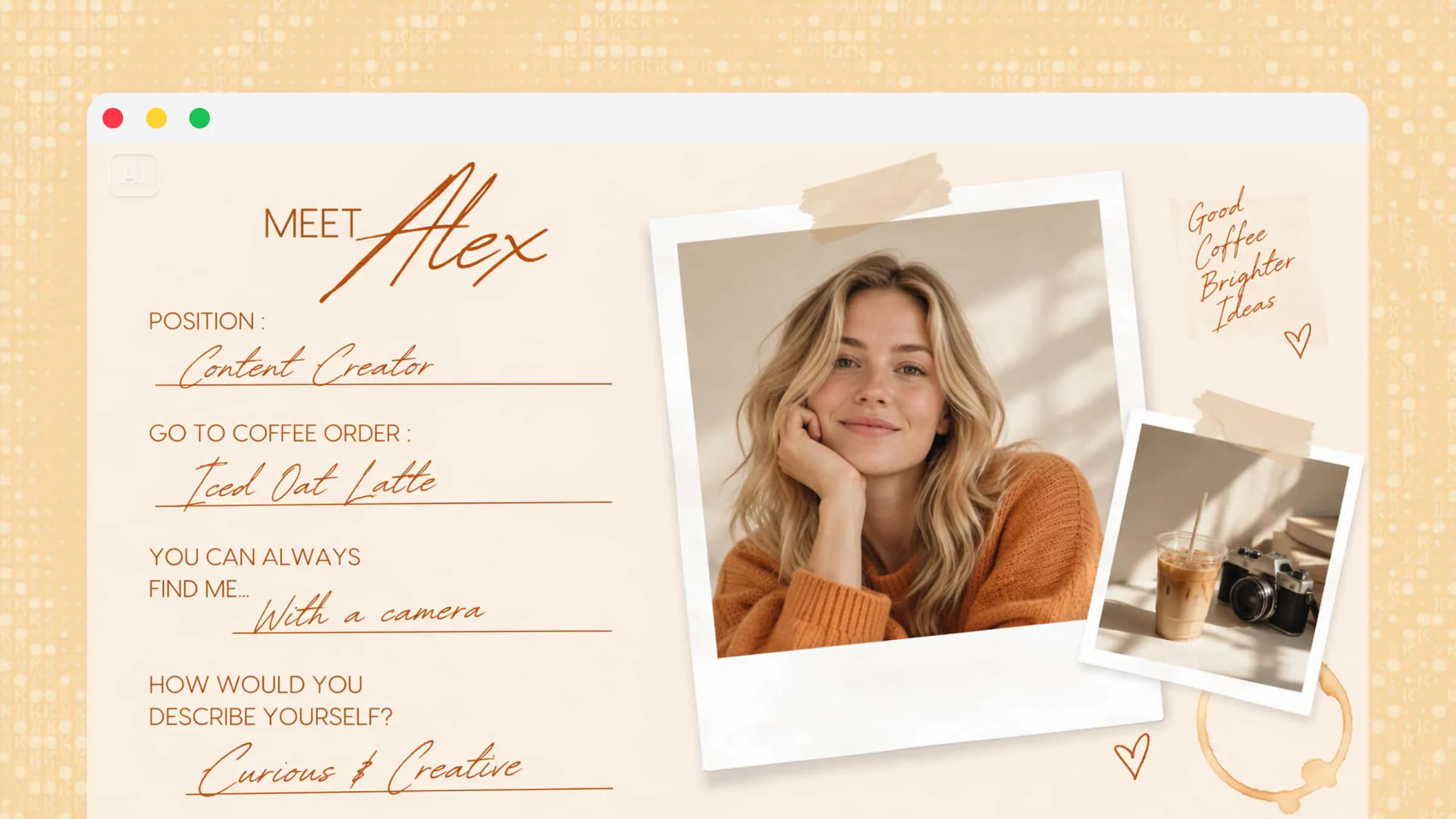
Whether you want to collect outfit ideas, plan a trip, or create a mood board, Pinterest collages bring your favorite images together in one place. You can mix pictures, try different layouts, and create designs that match your style. In this article, you will learn how to make a collage on Pinterest and explore creative ways to design your own.
How to create a collage on Pinterest
Pinterest makes it easy to bring your favorite images together and turn them into creative collages. You can start with a blank canvas, use a ready-made template, or add images directly from existing Pins. Let's explore these three methods step by step so you can choose the one that works best for your design.
Method 1: Build a collage from scratch
Creating a collage on Pinterest is simple, whether you want to use existing designs or build something entirely your own. The platform offers different tools to add images, text, and personal touches to your designs. You can also save your finished collage to your profile and download it whenever you need it. Here's how to make a Pinterest collage from scratch:
Step 1: Open Pinterest and start a collage
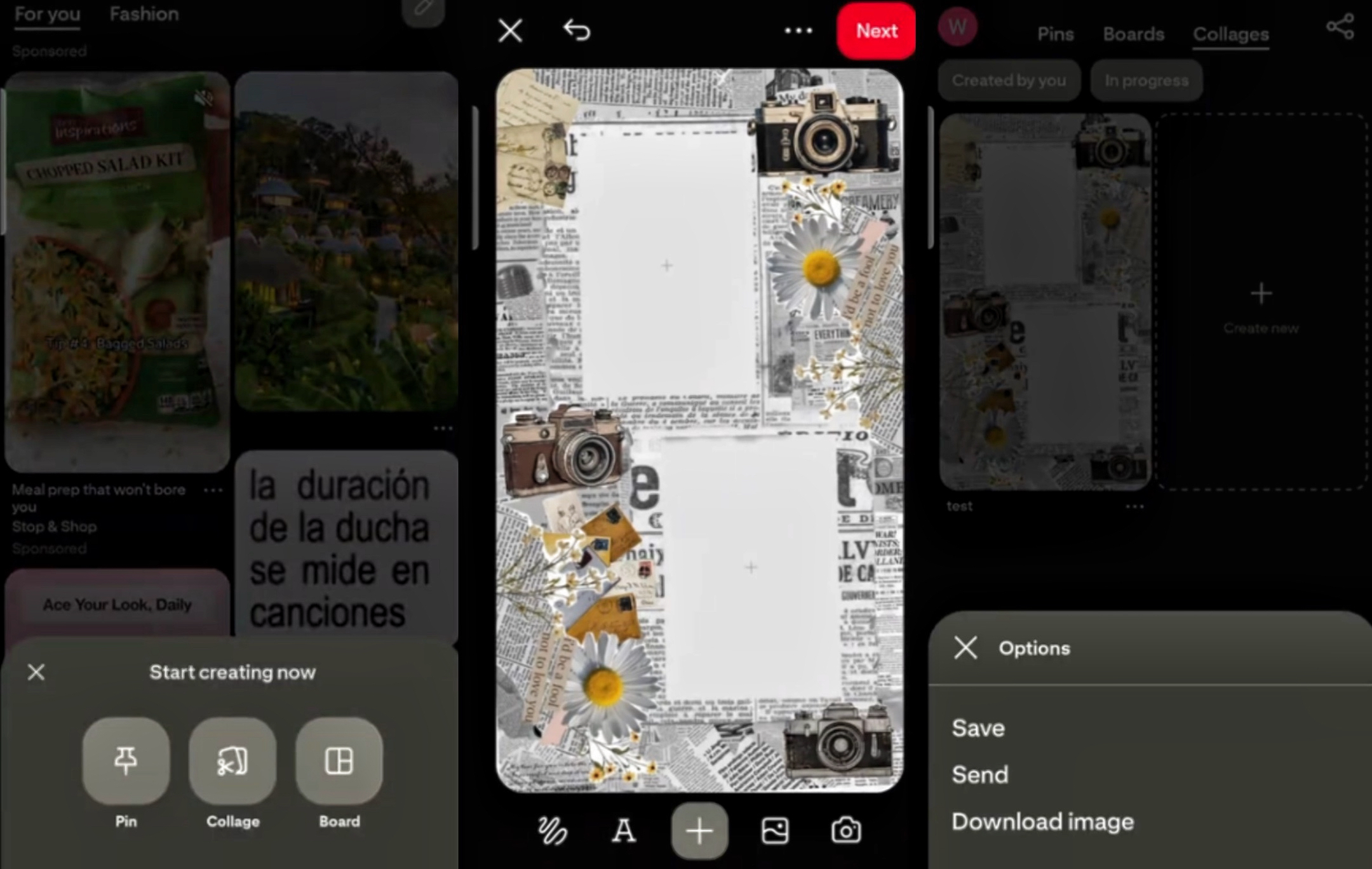
Open the Pinterest app and tap the "+" button in the bottom menu. Select "Collage" from the available options to open the collage editor.
Step 2: Choose a design and customize it
You can either select an existing collage and tap "Remix" or start from scratch. Add images, text, and drawings, and arrange them however you like to create your design.
Step 3: Save and download your collage
When your design is ready, tap "Next" and add a title and description. Tap "Publish" to publish the collage as a Pin. Before publishing, you can also save the collage as a draft or download it to your device from the collage composer.
Method 2: Start with a template
If you don't want to spend time arranging every element yourself, Pinterest also offers ready-made collage templates. These templates give you a starting layout that you can easily adjust with your own images and text. You can explore different themes and choose a design that suits your idea. Here's how to find and customize a collage template on Pinterest:
Step 1: Open the template library
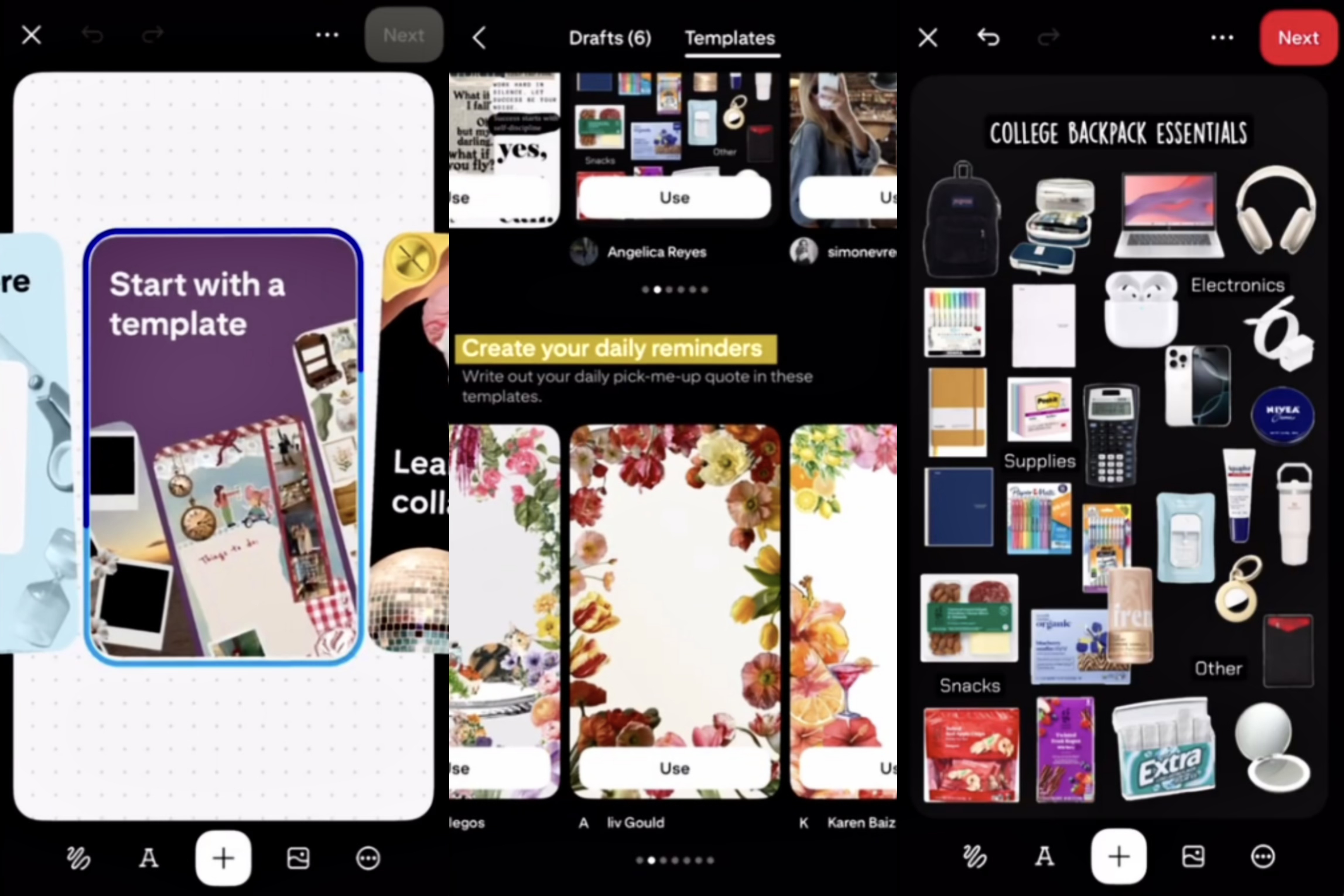
Open the collage editor and scroll down to find the "Start with a template" option. Tap it to explore available designs, including "Top Picks" and themed templates for birthdays, mood boards, and daily reminders.
Step 2: Choose a template
Browse the available options and select a design that matches your collage idea. Tap "Use" to open it in the editor.
Step 3: Customize your template
Swap existing cutouts for your own pictures and add text or other elements. You can also move items around and adjust the layout to make the template match your personal style.
Method 3: Add directly from a Pin
You can add images directly from existing Pinterest Pins to a collage without uploading them manually. Pinterest lets you turn selected parts of a Pin into cutouts and add them to a new or existing collage. Follow these steps to get started.
Step 1: Open a Pin
Find a Pin you want to use and open it in close-up view.
Step 2: Add the Pin to a collage
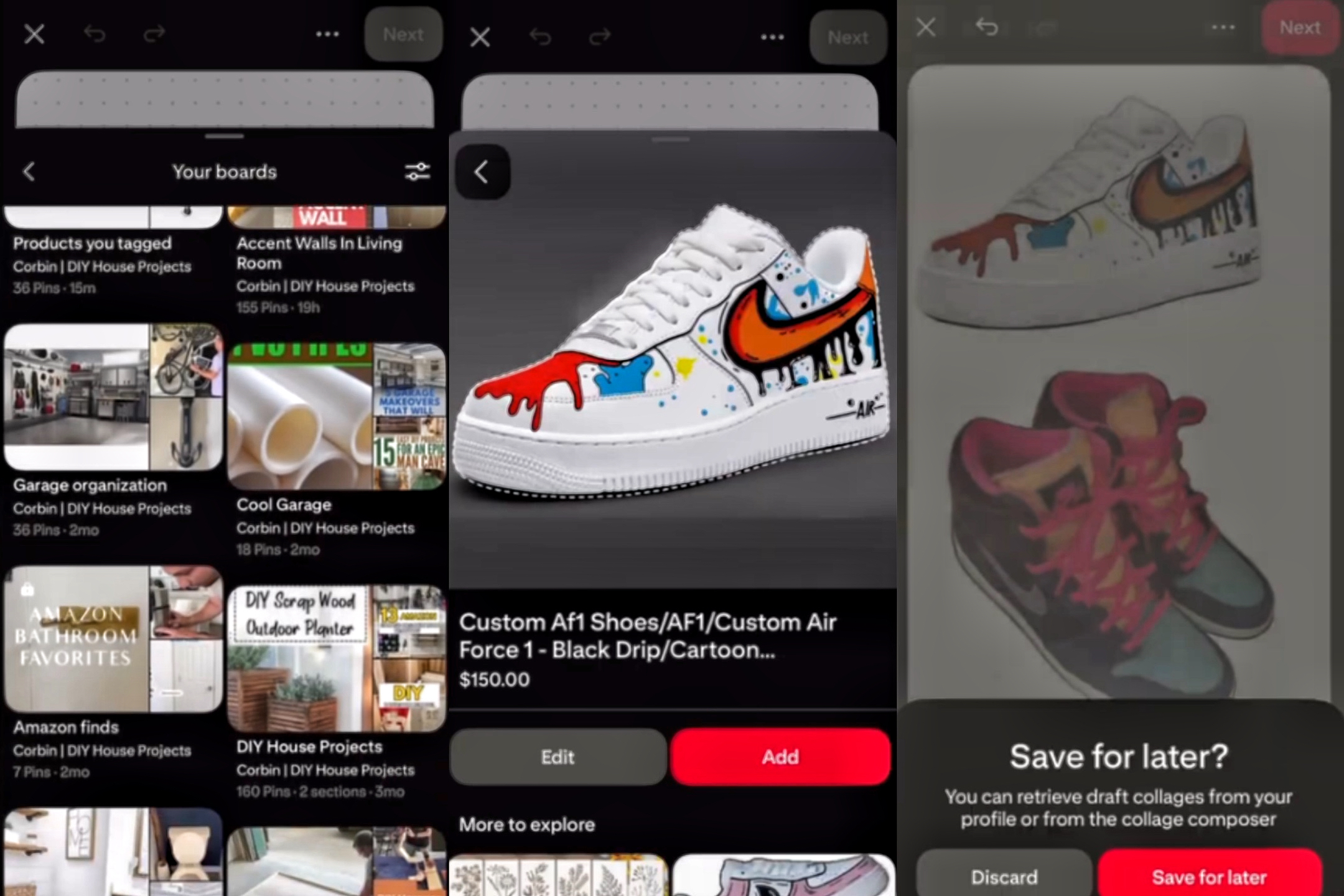
Tap the three-dot menu and select "Add to collage". Choose whether to add the Pin to a new collage or an existing draft.
Step 3: Select and customize the cutout
Select the portion of the Pin you want to turn into a cutout. Use the available editing tools to adjust your selection, then tap "Add" or "Edit" to continue.
Step 4: Arrange your collage
Repeat the process to add cutouts from other Pins. Drag and reposition the images to create your desired layout, then customize your collage with text, backgrounds, and other design elements.
How to make a collage for Pinterest using an AI tool
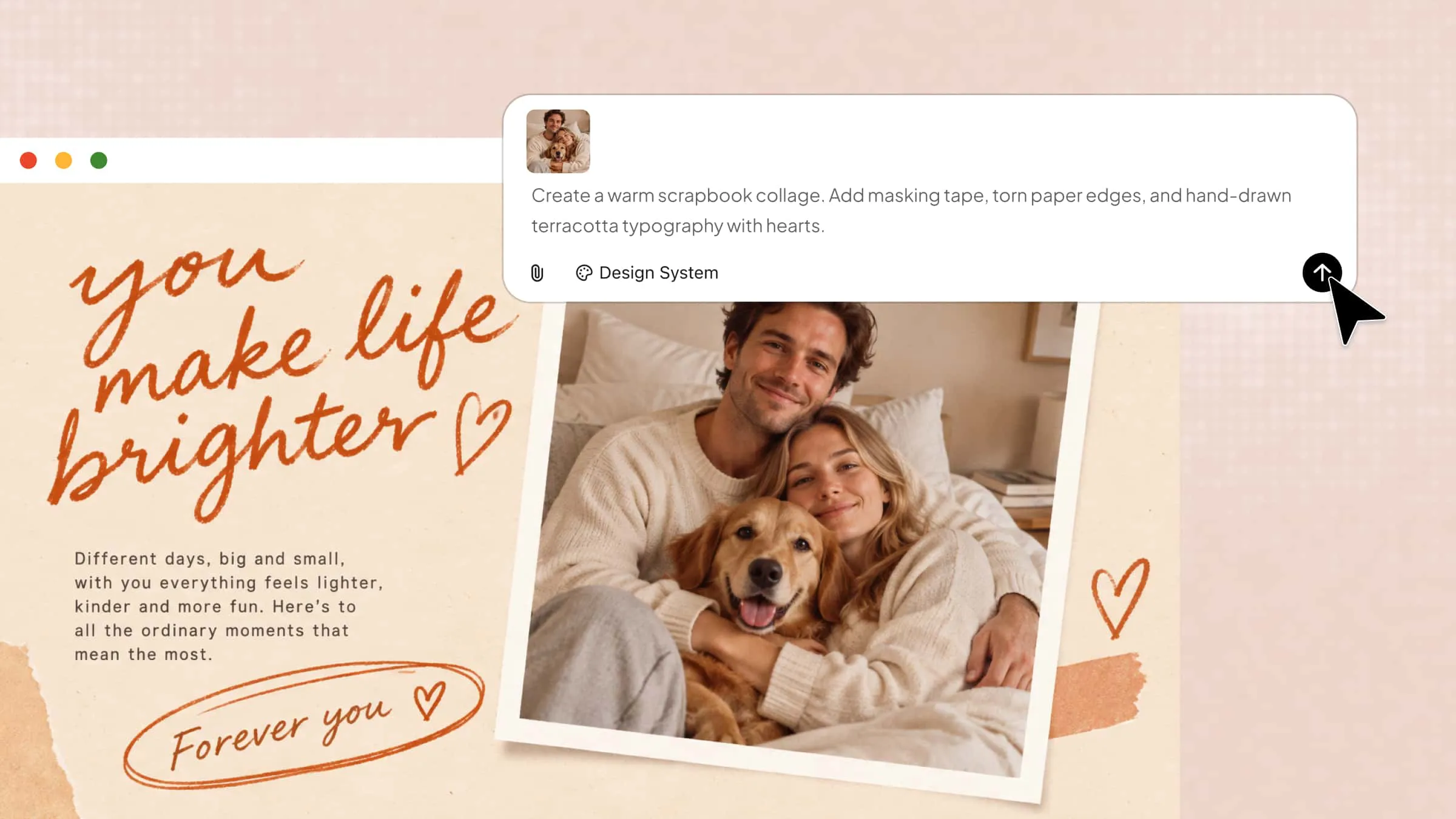
Kimi Design, an AI design generator, makes it easy to turn your creative ideas into eye-catching Pinterest collages. You can use AI to generate custom designs, combine images, explore different layouts, and add personal touches without spending hours editing. It also lets you customize your designs to match your style and inspiration. Follow these steps to create a Pinterest collage using Kimi Design:
Step 1: Upload images and describe the desired layout
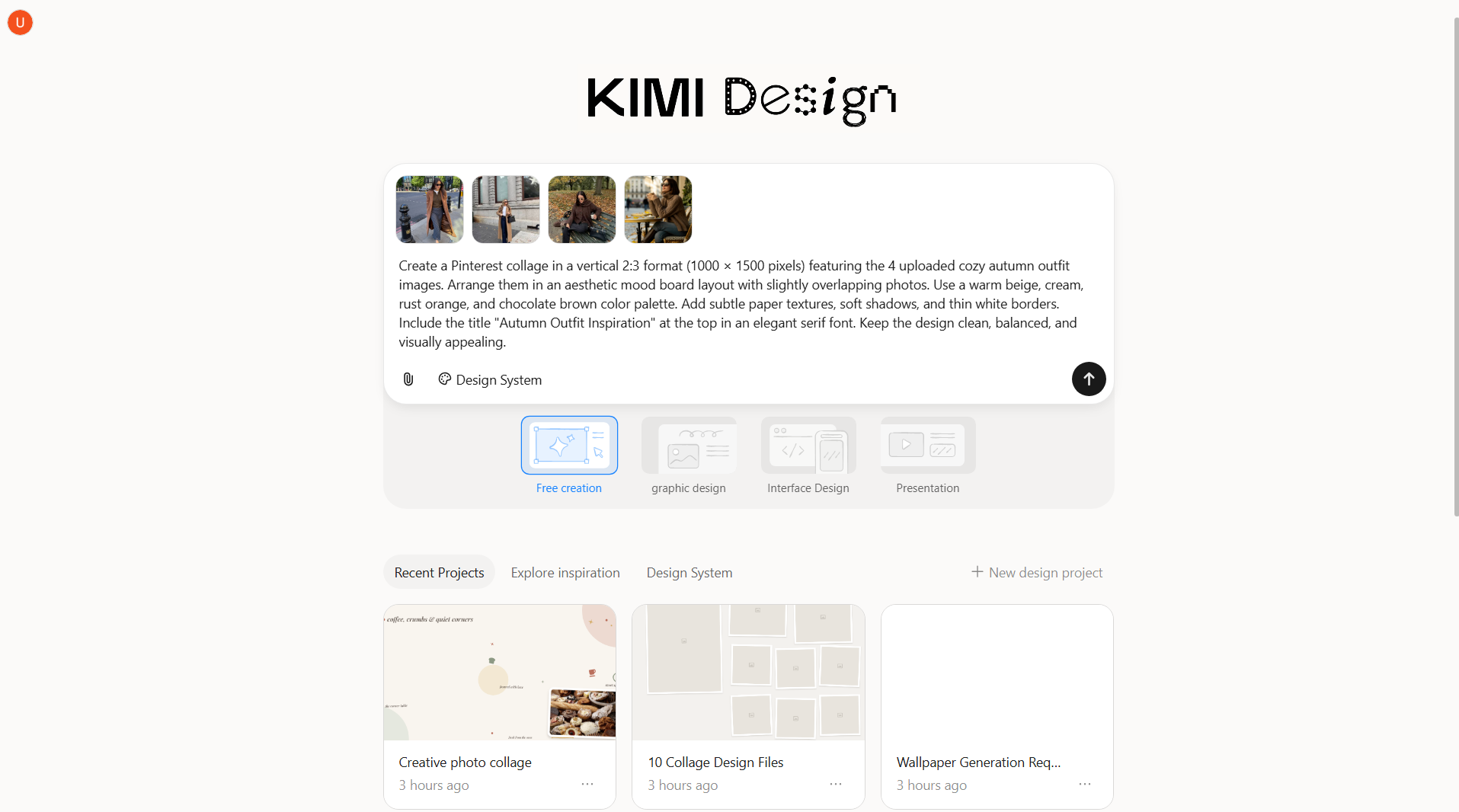
Start by opening Kimi Design and uploading the images you want to include in your Pinterest collage. Then, enter a detailed prompt describing the layout, dimensions, colors, and overall style you want.
Example prompt:
Step 2: Make changes using AI editing options
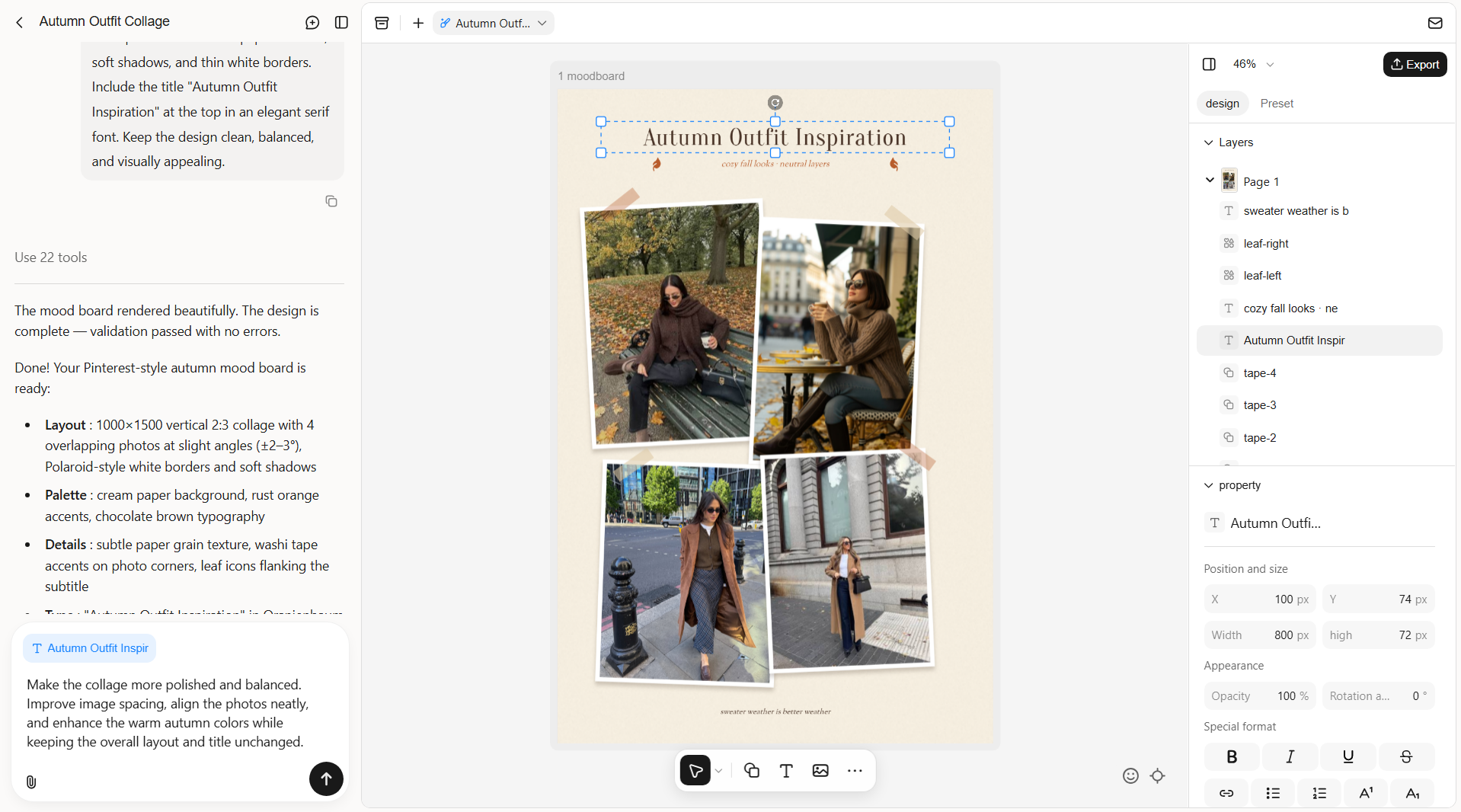
Once Kimi Design generates your collage, review the layout and see if it matches your idea. Enter prompts in the chat box to adjust image placement, change background colors, refine text, or add decorative elements. You can also manually adjust individual elements on the canvas to fine-tune the composition until you are happy with the result.
Step 3: Review the finished design and export it
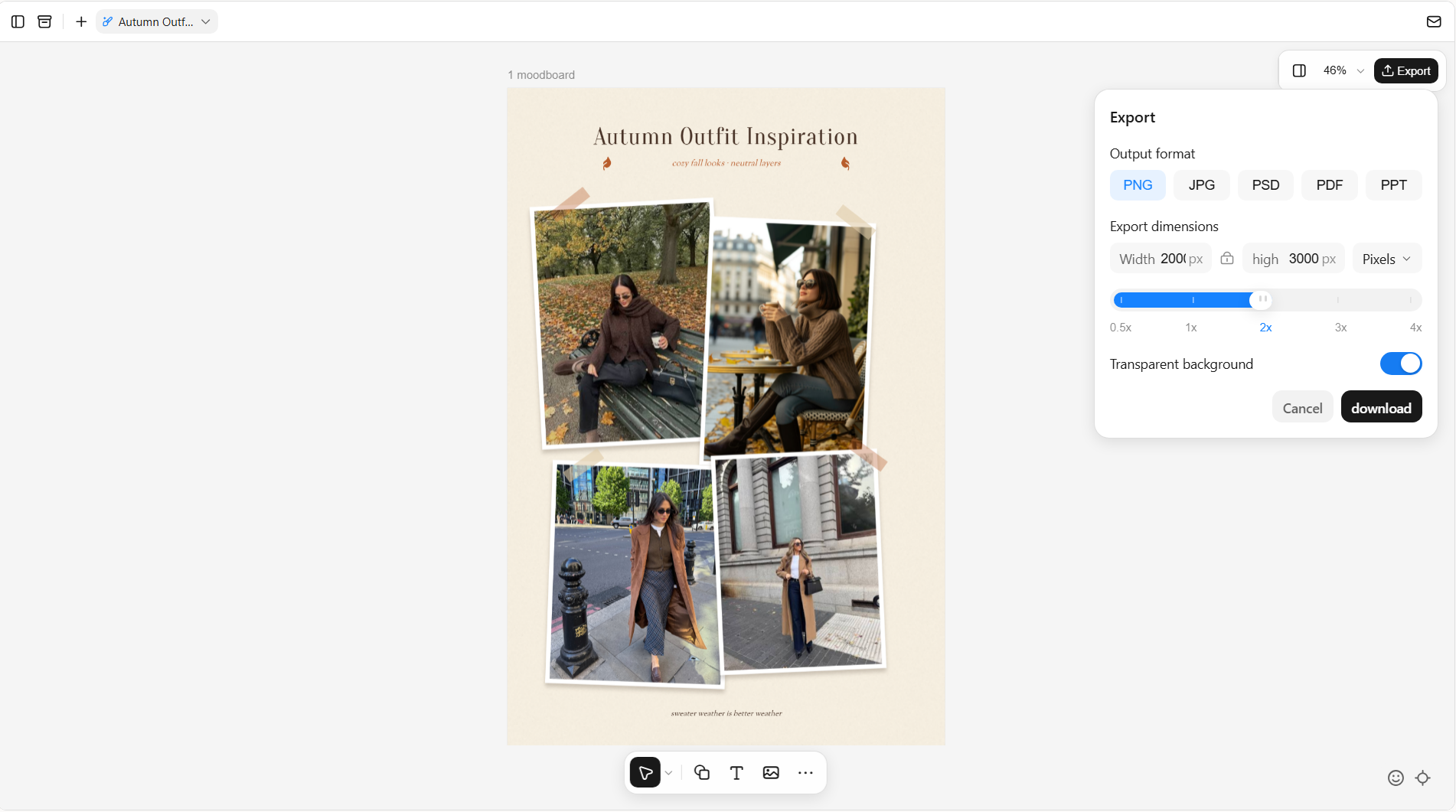
Check that all images, text, and decorative elements are properly arranged and nothing important is cropped. Once everything looks good, export a high-quality PNG or JPG. Then create a standard image Pin on Pinterest, upload the exported file, and select a board. The uploaded file will be a static image Pin, not a native interactive Pinterest collage.
Key features of Kimi Design
Kimi Design offers useful features to make Pinterest collage creation easier and more creative. You can generate custom layouts, edit images with AI, and personalize your designs. Here are some key features to explore.
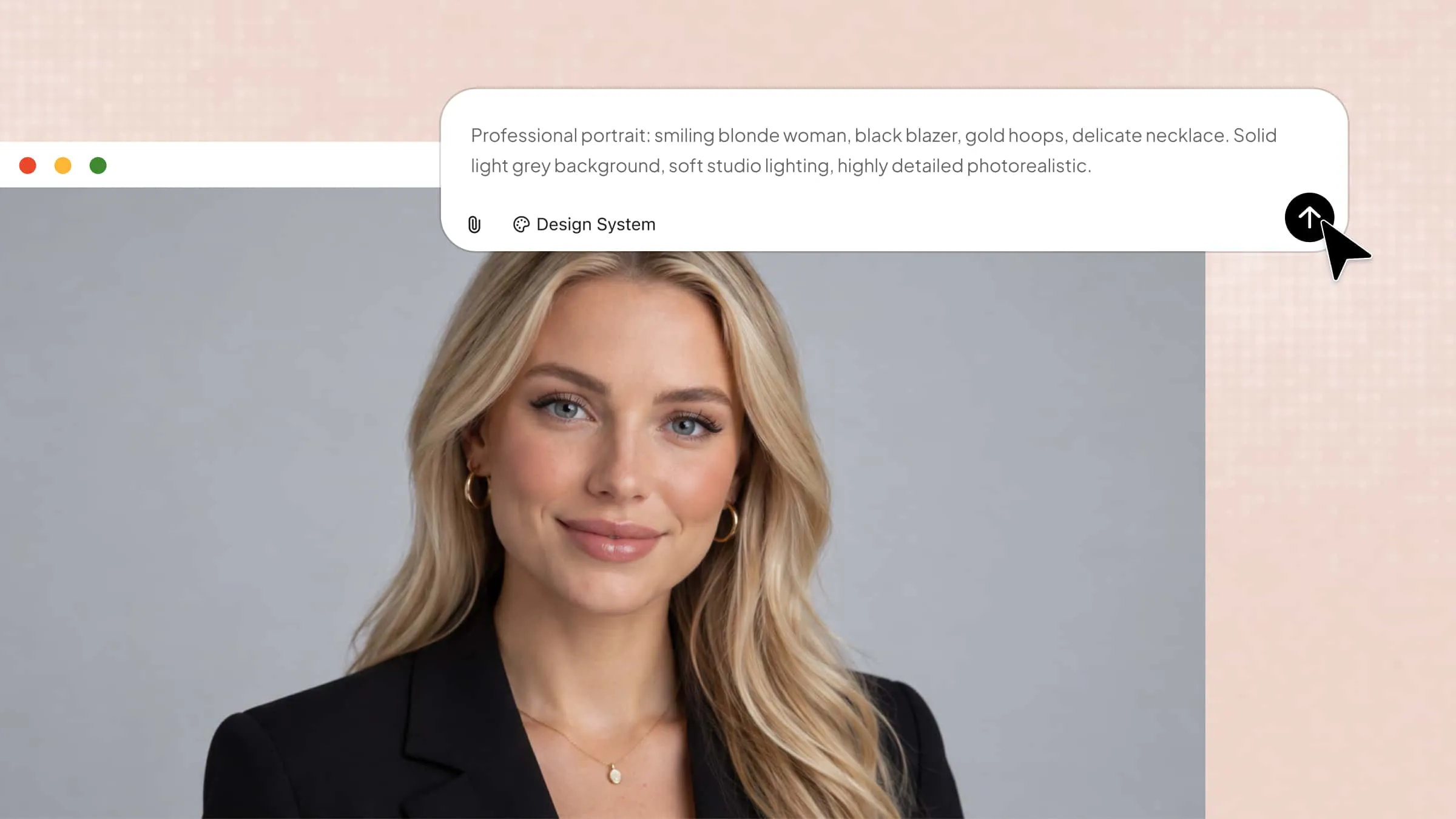
Create Pinterest collages from simple text prompts
Describe your collage theme, visual style, photo arrangement, color palette, and preferred elements. Whether you want an outfit inspiration board, interior design mood board, wedding collage, or travel inspiration collection, Kimi Design turns your ideas into custom designs. You can also upload reference images to guide the composition and visual direction.
Combine images into creative Pinterest layouts
Bring multiple images together in visually engaging compositions. Explore mood boards, scrapbook layouts, magazine-style collages, overlapping photo frames, and asymmetrical arrangements. Add captions, color swatches, stickers, and decorative elements to organize your inspiration and make your Pinterest collages more expressive.
Customize Pinterest collages with flexible editing tools
Refine your designs through natural-language prompts in the chat or comments on specific elements. You can also manually adjust images, text, shapes, colors, and layouts to achieve your desired look. Version history lets you revisit earlier designs and restore previous versions while experimenting with different compositions.
Export Pinterest collages in flexible sizes and formats
Export your finished collages in PNG, JPG, or PSD formats for different uses. Customize PNG or JPG dimensions in pixels or centimeters to suit Pinterest Pins and other social media formats. You can also export PSD files with editable layers for further adjustments in compatible design software.
Creative ideas for making collages on Pinterest
Pinterest collages are a fun way to bring different ideas, images, and inspirations together in one place. You can create designs for personal projects, special occasions, or simply to explore your creative side. Here are some collage ideas to help you get started.
Create a seasonal mood board
Bring together images that capture the feel of your favorite season. Include seasonal colors, clothing, decorations, flowers, and outdoor scenes to create a mood board that reflects the time of year. You can also update it whenever a new season arrives to keep your inspiration fresh.
Build an outfit inspiration collage
Combine pictures of clothing, shoes, bags, and accessories to create different outfit ideas. You can experiment with color combinations and styles to plan everyday looks or special occasion outfits. Add a few fashion trends or celebrity-inspired looks to make your collage more interesting.
Design a home decor inspiration board
Collect pictures of furniture, lighting, wall art, rugs, and decorative items that match your preferred interior style. Arrange them together to explore color schemes and find inspiration for decorating your space. You can also create separate collages for different rooms, such as your bedroom, kitchen, or living room.
Make a travel inspiration collage
Add pictures of destinations, famous landmarks, beaches, hotels, and local food to your collage. It is a great way to collect travel ideas and plan the places you want to visit on your next trip. Include maps or short notes to remember interesting locations and activities.
Create a personal vision board
Bring together images, quotes, and words that represent your personal goals and future plans. Include career ideas, fitness goals, travel dreams, and other things that motivate you to keep moving forward. Place your most important goals in the center to make them stand out.
Put together a wedding inspiration board
Combine pictures of wedding dresses, floral arrangements, decorations, invitations, and venue ideas. You can use different layouts and color themes to collect inspiration for your dream wedding. Add ideas for wedding cakes, table settings, and photography styles to complete the board.
Make a food and recipe collage
Add pictures of your favorite meals, desserts, ingredients, and cooking ideas to create an attractive food collage. You can also group recipes by occasion, cuisine, or meal type for easy inspiration. Include small recipe notes or ingredient lists to make your collage more useful.
Create a beauty inspiration collage
Bring together images of makeup looks, skincare products, hairstyles, nail designs, and beauty accessories. Experiment with different themes and color palettes to create a collage that reflects your personal beauty style. You can also include seasonal makeup trends and skincare routines for fresh ideas.
Conclusion
Understanding how to make a Pinterest collage gives you a simple way to bring your ideas together and share them creatively. The best designs are not always complicated; a clear theme, good images, and a little creativity can make a big difference. Try different styles until you find what works best for your ideas. For more creative freedom, give Kimi Design a try and turn your inspiration into custom Pinterest collages.