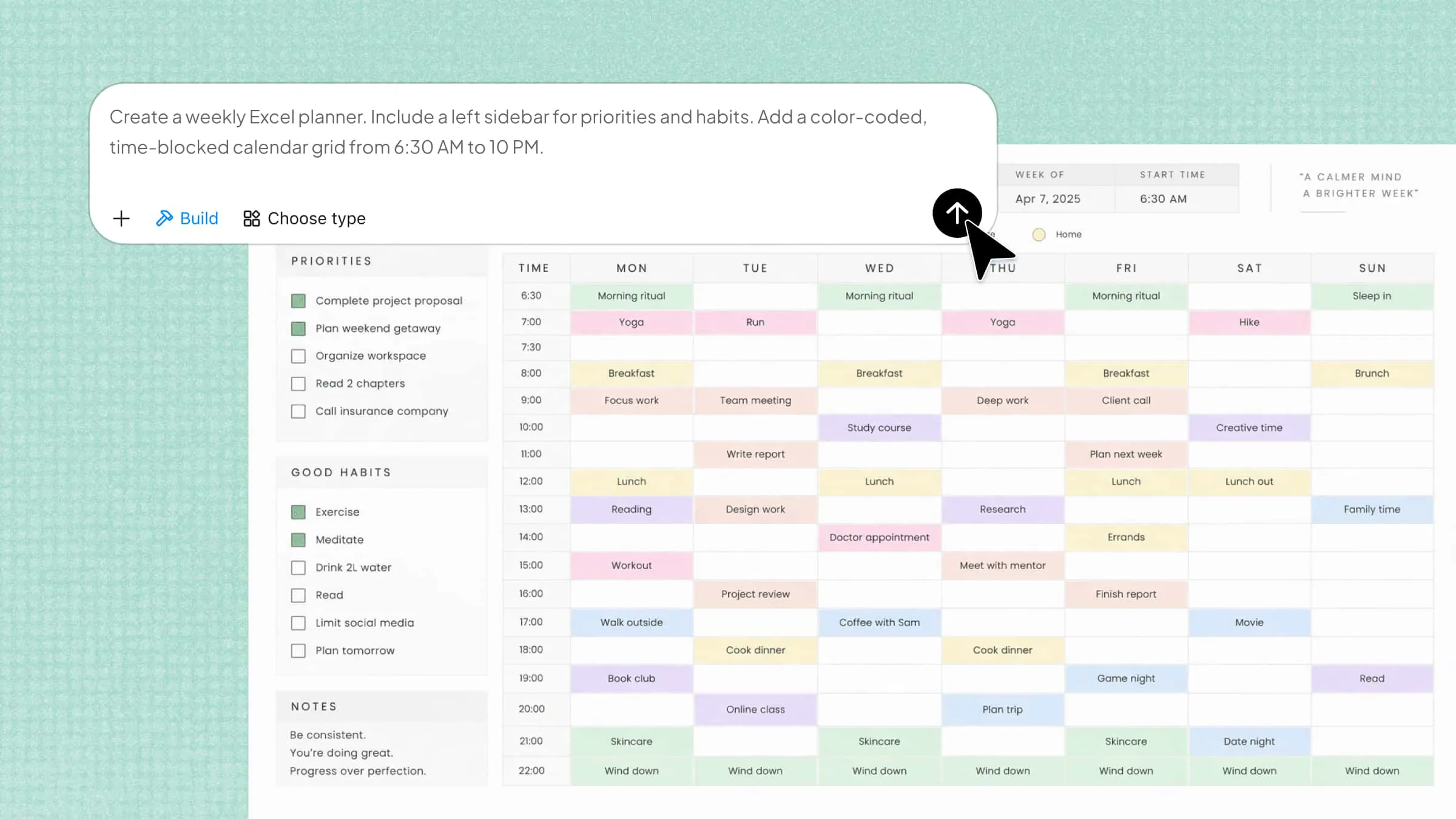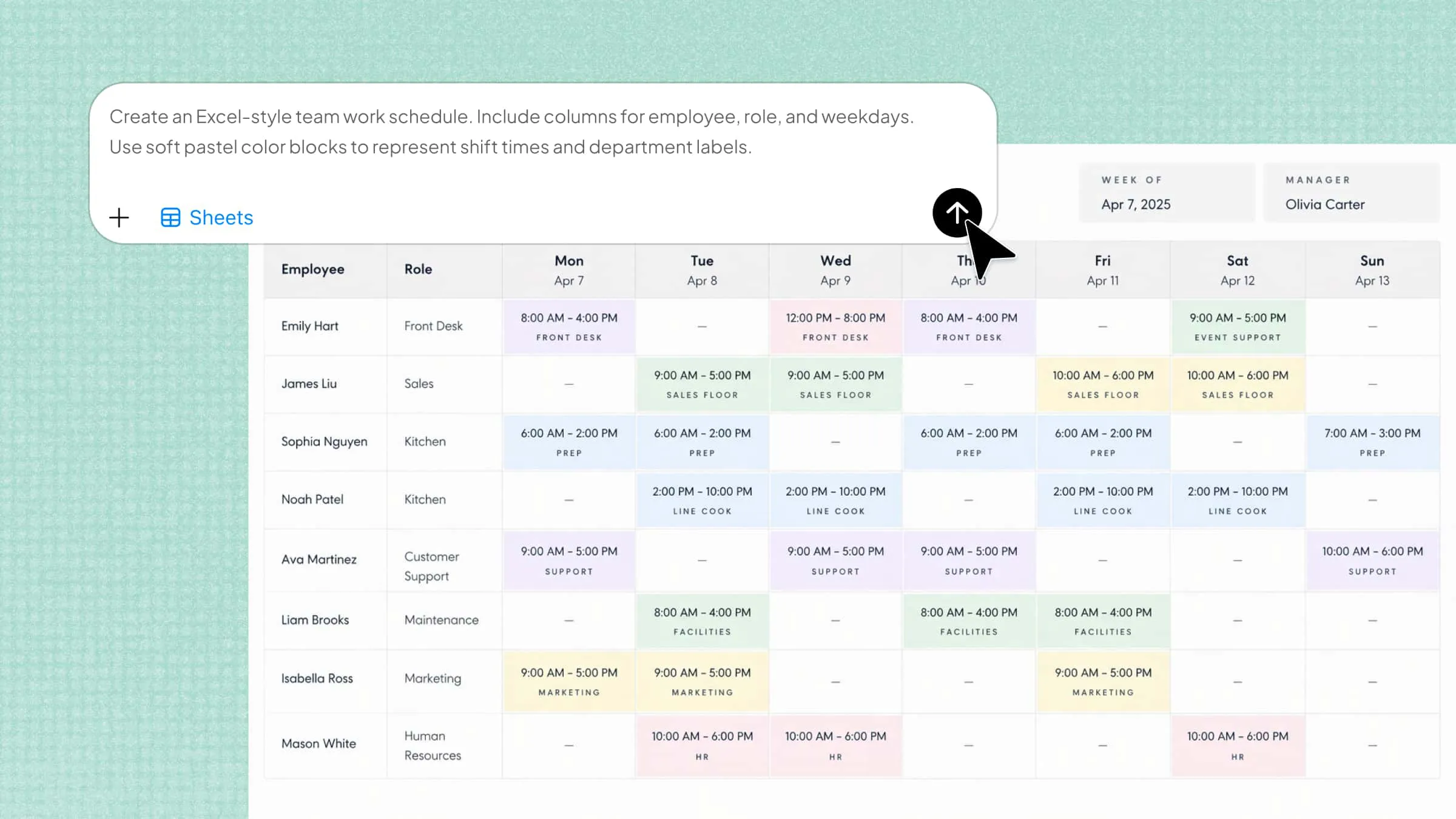
An employee work schedule template in Excel gives managers a structured way to coordinate shift rotations, prevent staffing gaps, and keep working hours within planned limits. The challenge becomes greater when teams have different roles, part-time arrangements, overnight duties, or changing availability. This guide examines 10 Excel templates, explaining how each format handles specific scheduling requirements and supports smoother workforce planning.
Overview of 10 employee work schedule templates in Excel
Each employee's work schedule template in Excel serves a different purpose, depending on team size, working hours, and shift arrangements. The table below lists 10 useful formats and their key features.
| Employee schedule template | Main purpose | Key details included | Suitable for |
|---|---|---|---|
| Weekly work schedule | Plan shifts for seven days | Employee names, shifts, days off, weekly hours | Small and medium teams |
| Monthly work schedule | Organize staff duties for a full month | Dates, shifts, leave, monthly hours | Businesses with monthly rosters |
| Employee shift schedule | Assign staff to different daily shifts | Morning, evening, night shifts, timings | Retail stores and service teams |
| Rotating shift schedule | Alternate shifts over a set cycle | Rotation dates, shift times, rest days | 24-hour operations |
| Part-time employee schedule | Manage reduced working hours | Availability, assigned days, weekly hour limits | Part-time staff and flexible teams |
| Employee availability schedule | Track when staff can work | Available days, preferred hours, unavailable dates | Managers planning staff coverage |
| 4-on-4-off work schedule | Arrange four workdays followed by four days off | Rotation cycle, shift dates, rest periods | Round-the-clock workplaces |
| 2-2-3 work schedule | Organize shifts across a 14-day cycle | Workdays, rest days, alternating weekends | Continuous operations |
| Attendance and work schedule | Compare planned shifts with actual attendance | Clock-in times, absences, overtime, total hours | HR and payroll teams |
| Departmental work schedule | Organize assignments by department | Staff names, roles, shifts, working hours | Businesses with multiple departments |
10 types of employee work schedule templates in Excel
Employee scheduling needs vary depending on team size, working hours, and shift arrangements. With Kimi Sheets, you can create customized employee work schedule templates in Excel to organize fixed shifts, flexible hours, rotating schedules, and staff assignments. Simply describe your workforce requirements to generate a structured spreadsheet that makes shift planning and staff coordination easier. Here are 10 practical examples for different workplace needs.
Weekly employee work schedule
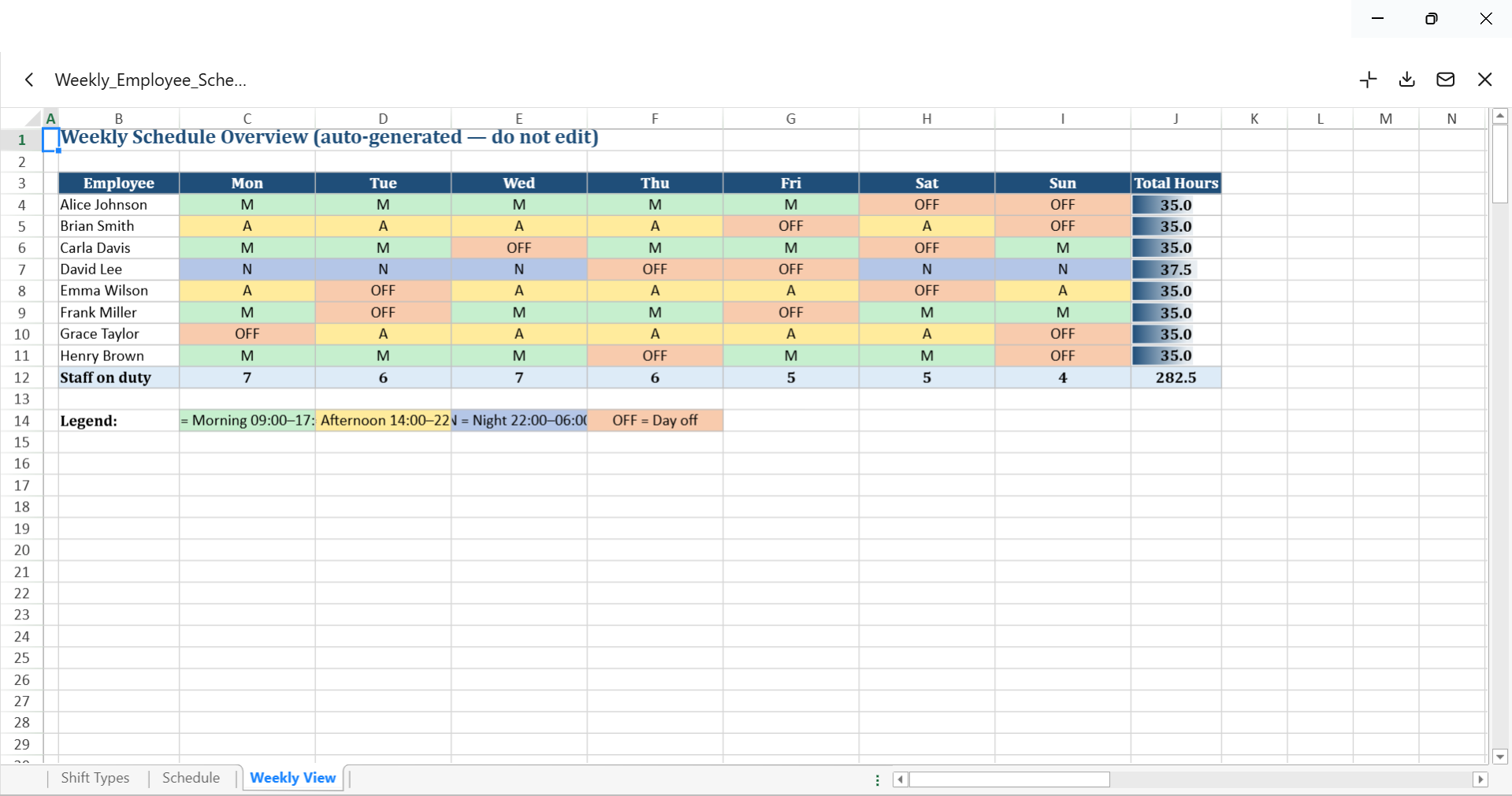
A weekly employee schedule template in Excel organizes staff shifts across the week, with separate sections for employee names, scheduled working hours, and days off. It helps managers plan daily coverage, distribute working hours among team members, and keep track of shift responsibilities.
How to use
Step 1: Enter your prompt
Open Kimi Sheets and enter a prompt with the required schedule details, including employee names, working days, shift timings, and weekly hours.
Prompt:
Step 2: Let AI generate your template
Kimi Sheets creates a spreadsheet with daily shift columns, employee details, and sections for weekly hour totals.
Step 3: Review and export the template
Check the shift assignments and working hours, make any necessary changes, then download the completed template in Excel format.
Monthly employee work schedule
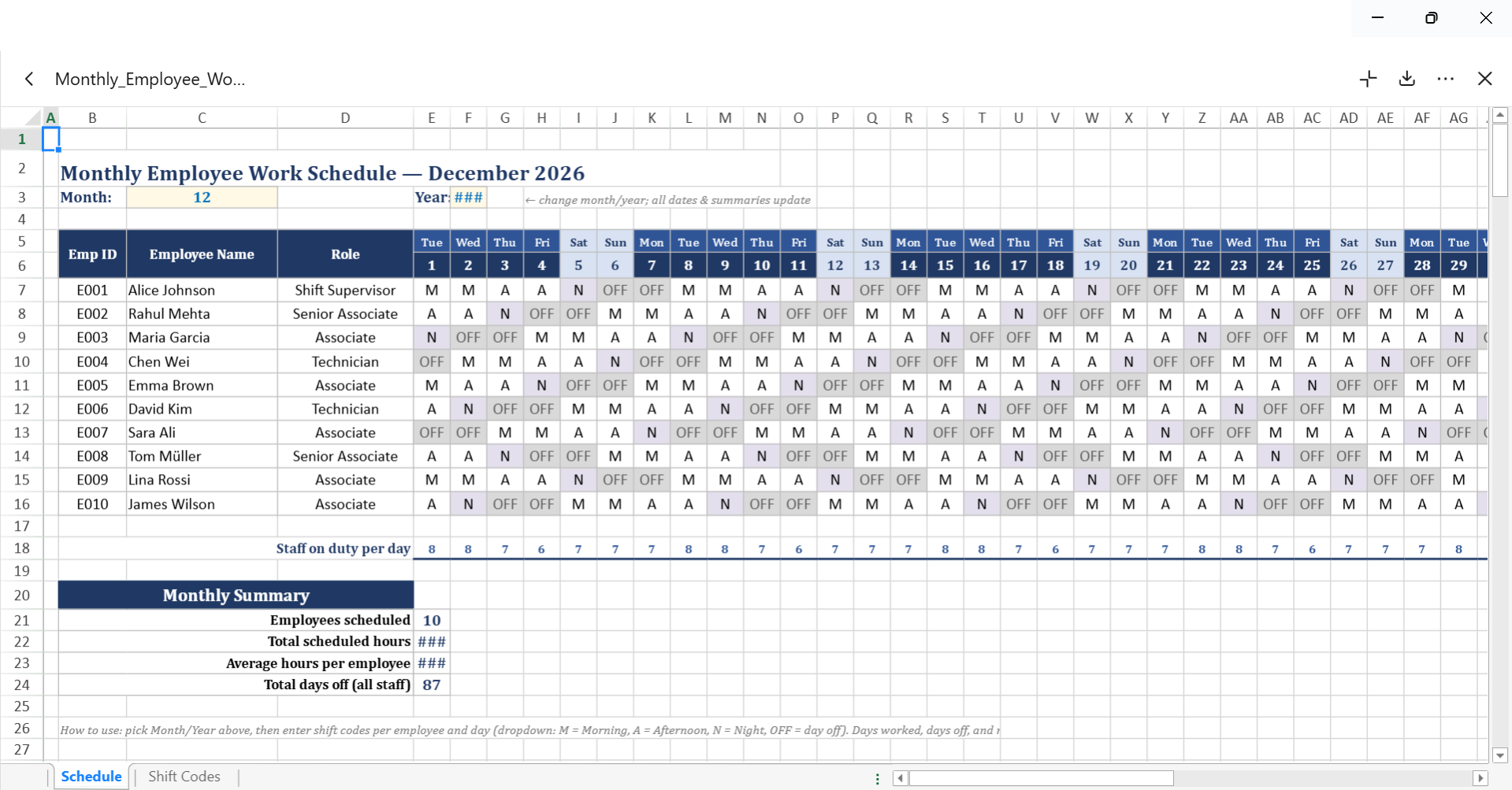
A monthly employee work schedule template in Excel displays staff assignments, shift timings, and leave days for the entire month. It helps managers plan staffing needs during busy periods, holidays, and planned absences. The format also provides a clear overview of each employee’s scheduled hours, making it easier to manage workforce coverage and prevent scheduling gaps.
How to use
Step 1: Enter your prompt
Open Kimi Sheets and provide the month, employee details, shift timings, weekly days off, and leave information.
Prompt:
Step 2: Let AI generate your template
Kimi Sheets organizes the information into a monthly calendar, with separate sections for employee details, assigned shifts, and working hours.
Step 3: Review and export the template
Assign staff to the required dates, mark holidays and approved leave, and confirm that monthly hours are correct. Export the spreadsheet to distribute the schedule among employees.
Employee shift schedule
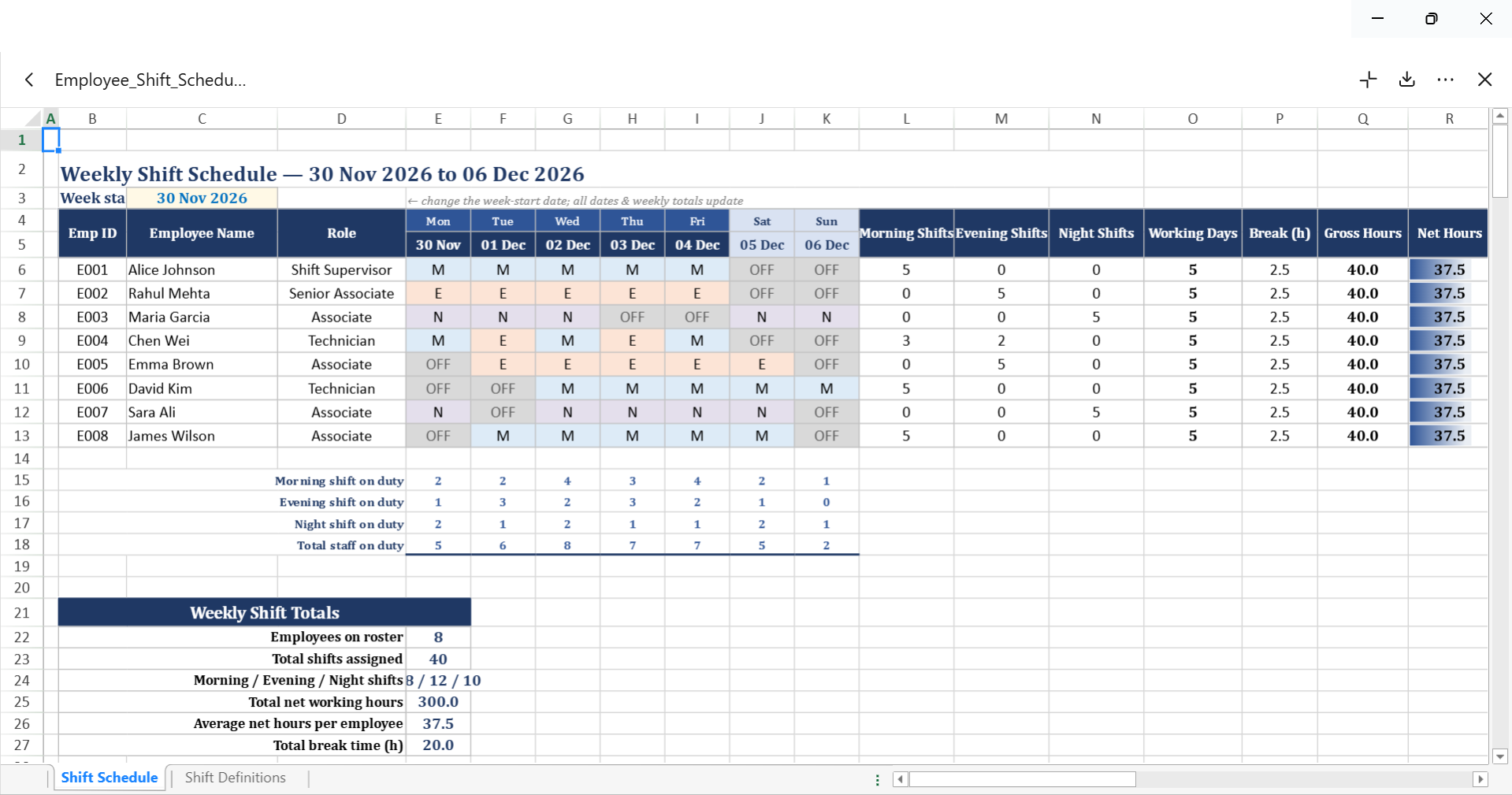
An employee shift schedule divides the workday into time slots, such as morning, evening, and night shifts. It lists the staff members assigned to each period, along with their start and end times. This employee time schedule template in Excel helps businesses maintain smooth operations by ensuring adequate staffing throughout the day.
How to use
Step 1: Enter your prompt
Open Kimi Sheets and enter the number of employees, shift categories, working hours, and required staff for each time slot.
Prompt:
Step 2: Let AI generate your template
Kimi Sheets arranges the details into a structured table, separating each shift and its assigned employees.
Step 3: Review and export the template
Add staff names to their respective time slots, check for overlapping hours, and confirm that every shift has enough coverage. Export the final sheet in Excel format.
Rotating shift schedule
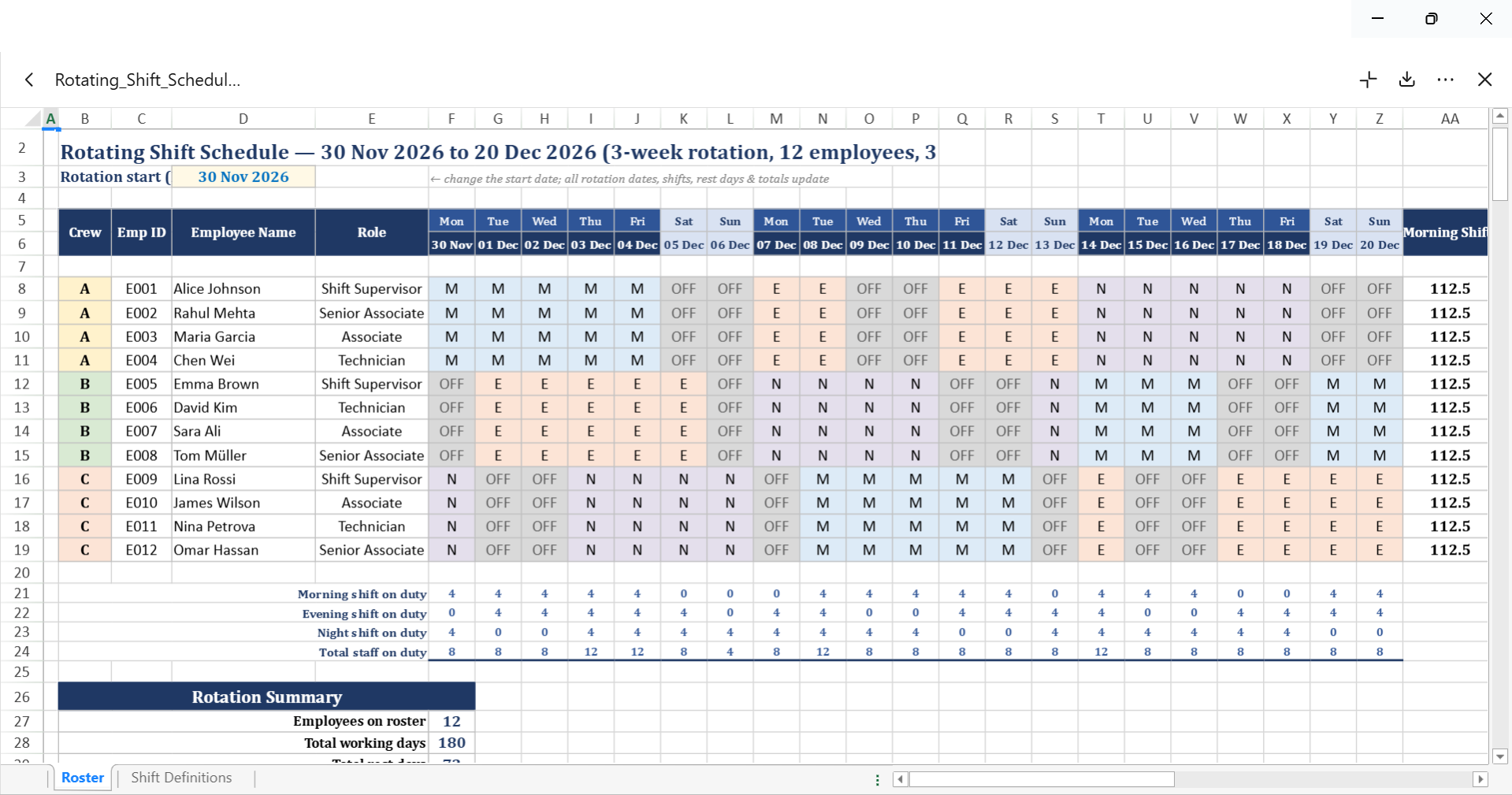
A rotating shift schedule assigns employees to different time slots over a planned cycle, allowing them to alternate between morning, evening, and night shifts. A daily employee schedule template in Excel helps managers organize these rotating shifts, track individual working hours, and maintain consistent service coverage throughout the day.
How to use
Step 1: Enter your prompt
Go to Kimi Sheets and mention how often employees should switch shifts, which time slots are included, and how many rest days each person receives.
Prompt:
Step 2: Let AI generate your template
Kimi Sheets organizes the requested details into a table that shows when each employee moves from one shift to another.
Step 3: Review and export the template
Check whether employees receive the correct rest days and whether each time slot has enough staff. Make changes to the assignments before exporting the Excel file.
Part-time employee schedule
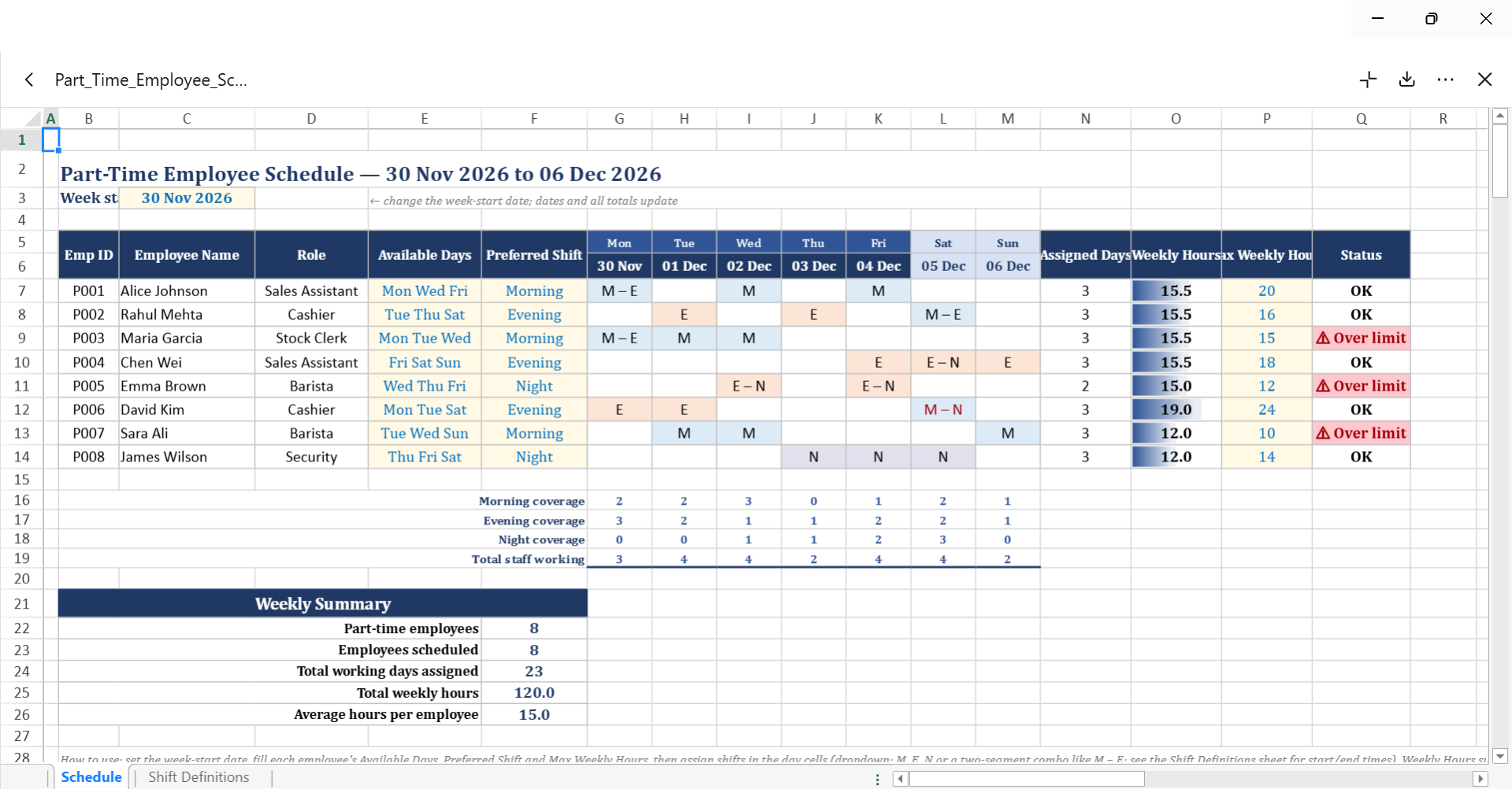
A part-time employee schedule outlines the working days and hours assigned to staff who work fewer hours than full-time employees. It includes availability, shift timings, and weekly hour limits to help managers plan suitable assignments. This format is useful for businesses with flexible staffing needs, such as retail stores, restaurants, and customer service teams.
How to use
Step 1: Enter your prompt
Open Kimi Sheets and provide the employee names, available days, preferred shifts, and maximum weekly working hours.
Prompt:
Step 2: Let AI generate your template
Kimi Sheets arranges the information into a spreadsheet with separate fields for staff availability, assigned shifts, and weekly hour limits.
Step 3: Review and export the template
Enter the actual shift assignments and compare them with each employee's availability. Correct any scheduling conflicts before exporting the Excel file for staff reference.
Employee availability schedule
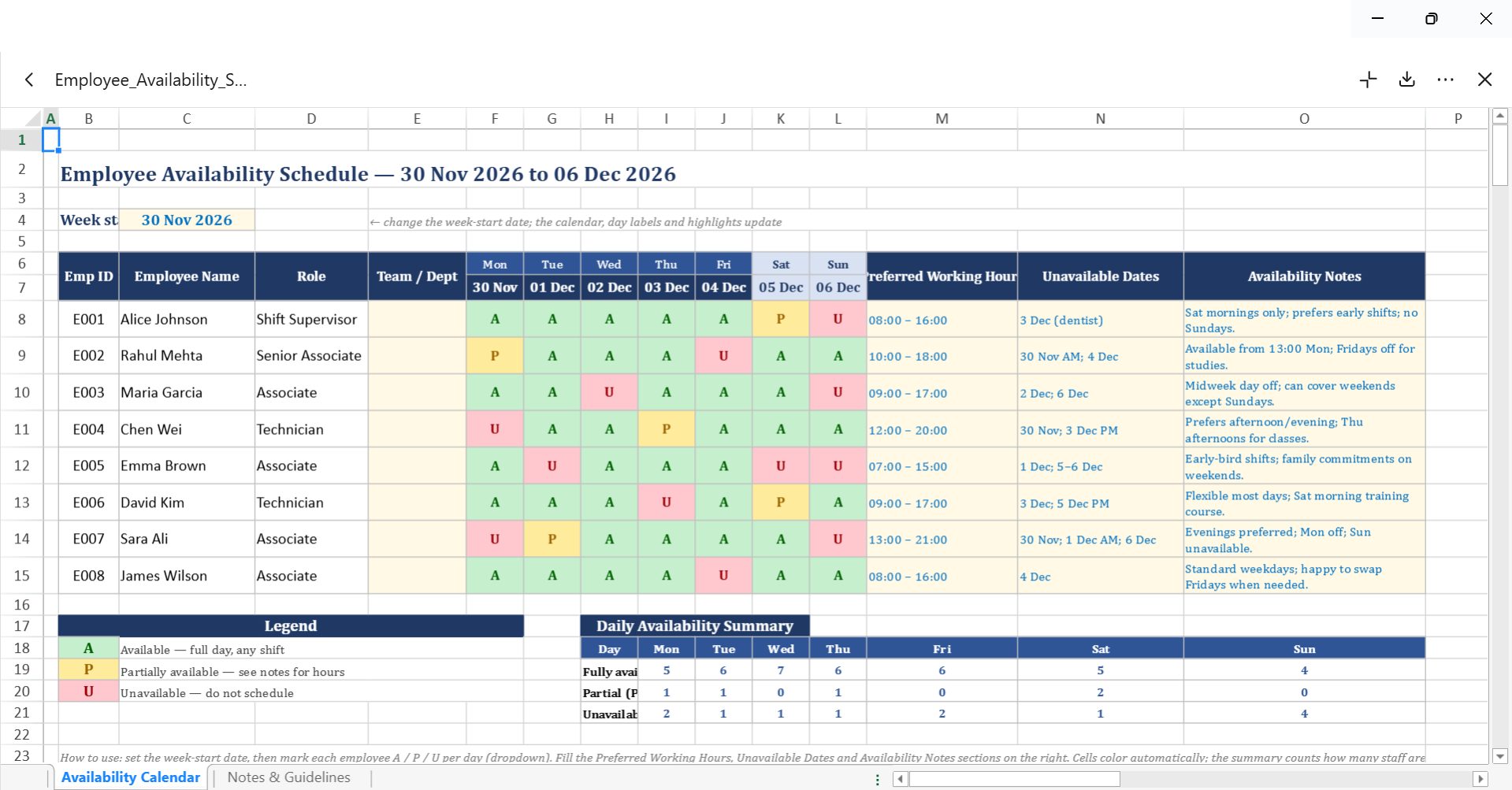
An employee availability schedule lists the specific days and time slots each team member can work. Managers use it to match staff preferences with business needs, plan coverage in advance, and reduce last-minute changes caused by unavailable workers.
How to use
Step 1: Enter your prompt
Open Kimi Sheets and provide the employee list, working preferences, available time slots, and planned absences.
Prompt:
Step 2: Let AI generate your template
Kimi Sheets creates a weekly availability grid with separate entries for each employee's free days and preferred working hours.
Step 3: Review and export the template
Mark unavailable periods, check for missing employee details, and confirm that the information is correct. Export the spreadsheet to use when assigning shifts.
4-on-4-off work schedule
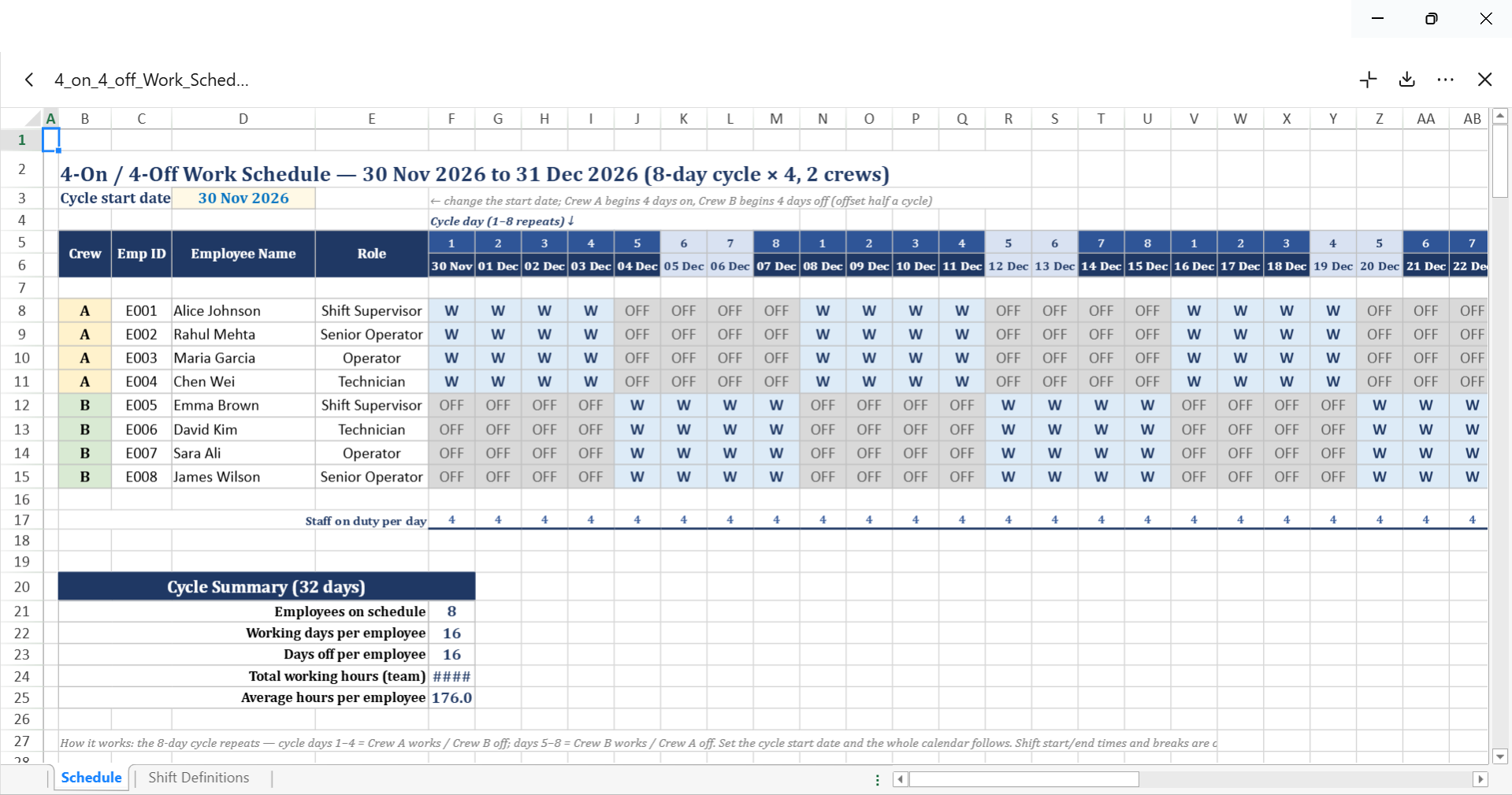
A 4-on-4-off work schedule divides employee time into a simple eight-day cycle: four days on duty followed by four consecutive days off. An employee work schedule template in Excel records shift dates, working hours, and rest periods for each team member. It helps managers coordinate staff rotations, maintain adequate coverage, and plan upcoming work cycles more efficiently.
How to use
Step 1: Enter your prompt
Start by opening Kimi Sheets and explaining the eight-day rotation, employee details, shift timings, and start date.
Prompt:
Step 2: Let AI generate your template
Kimi Sheets converts the instructions into an eight-day calendar, with work periods and rest days arranged for each employee.
Step 3: Review and export the template
Check the rotation dates, correct any overlapping assignments, and confirm the four-day rest periods. Save the final spreadsheet in Excel format for workplace use.
2-2-3 work schedule
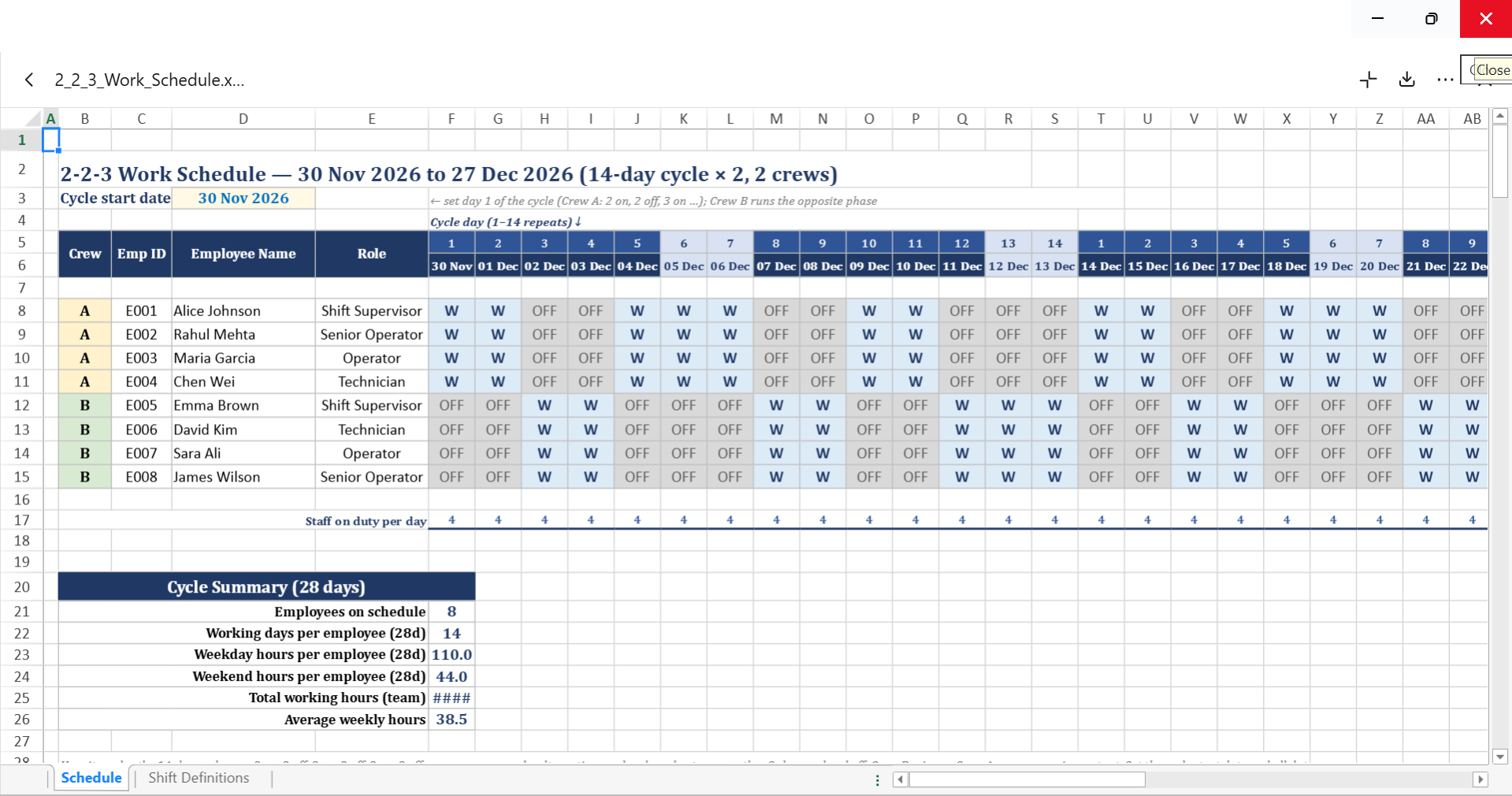
A 2-2-3 work schedule uses a 14-day rotation to divide working days and rest periods between employees. Staff work two days, take two days off, and return for three days, followed by a reversed pattern in the next week. This arrangement is common in 24-hour workplaces because it maintains shift coverage while giving employees every other weekend off.
How to use
Step 1: Enter your prompt
Go to Kimi Sheets and explain the 14-day schedule, including employee names, workdays, rest periods, and shift timings.
Prompt:
Step 2: Let AI generate your template
Kimi Sheets lays out both weeks on a calendar, showing the alternating workdays and rest periods for each employee.
Step 3: Review and export the template
Compare both weeks to confirm the rotation is correct. Check weekend assignments and working-hour totals before saving the spreadsheet as an Excel file.
Employee attendance and work schedule
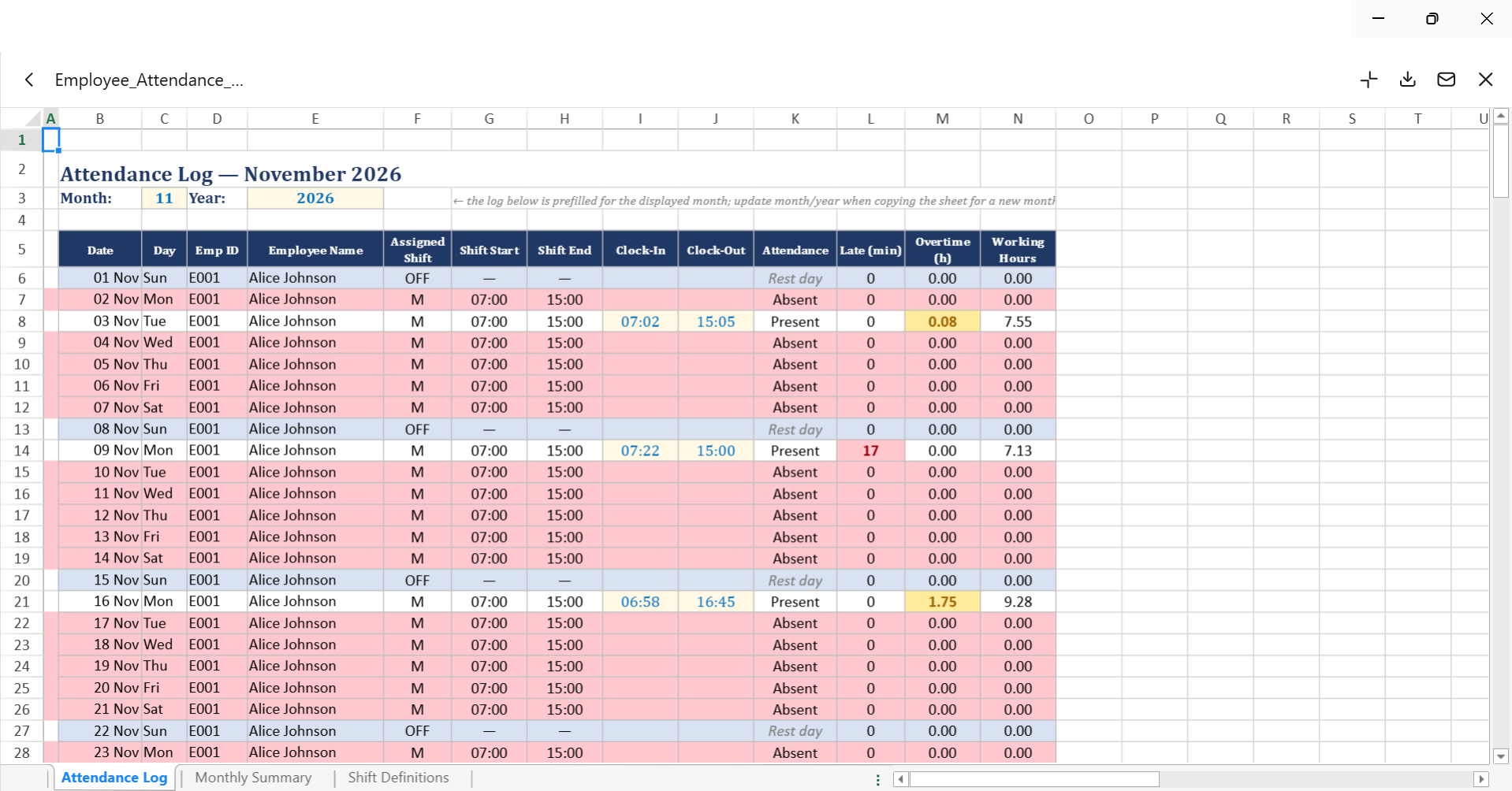
An employee attendance and work schedule template in Excel combines staff scheduling with daily attendance monitoring, creating a record of both planned and actual working hours. It includes employee details, assigned shifts, clock-in and clock-out times, absences, late arrivals, and overtime. Managers can compare scheduled hours with actual attendance, identify recurring attendance issues, and maintain accurate records for payroll calculations and monthly workforce reviews.
How to use
Step 1: Enter your prompt
Start Kimi Sheets and outline the employee details, scheduled shifts, attendance dates, clock-in and clock-out times, and overtime records needed in the spreadsheet.
Prompt:
Step 2: Let AI generate your template
Kimi Sheets organizes shift assignments and attendance fields into a spreadsheet, with a separate section for monthly attendance summaries.
Step 3: Review and export the template
Enter daily attendance records, compare actual hours with scheduled shifts, and check overtime or absence entries. Export the completed workbook for payroll and staff records.
Departmental employee work schedule
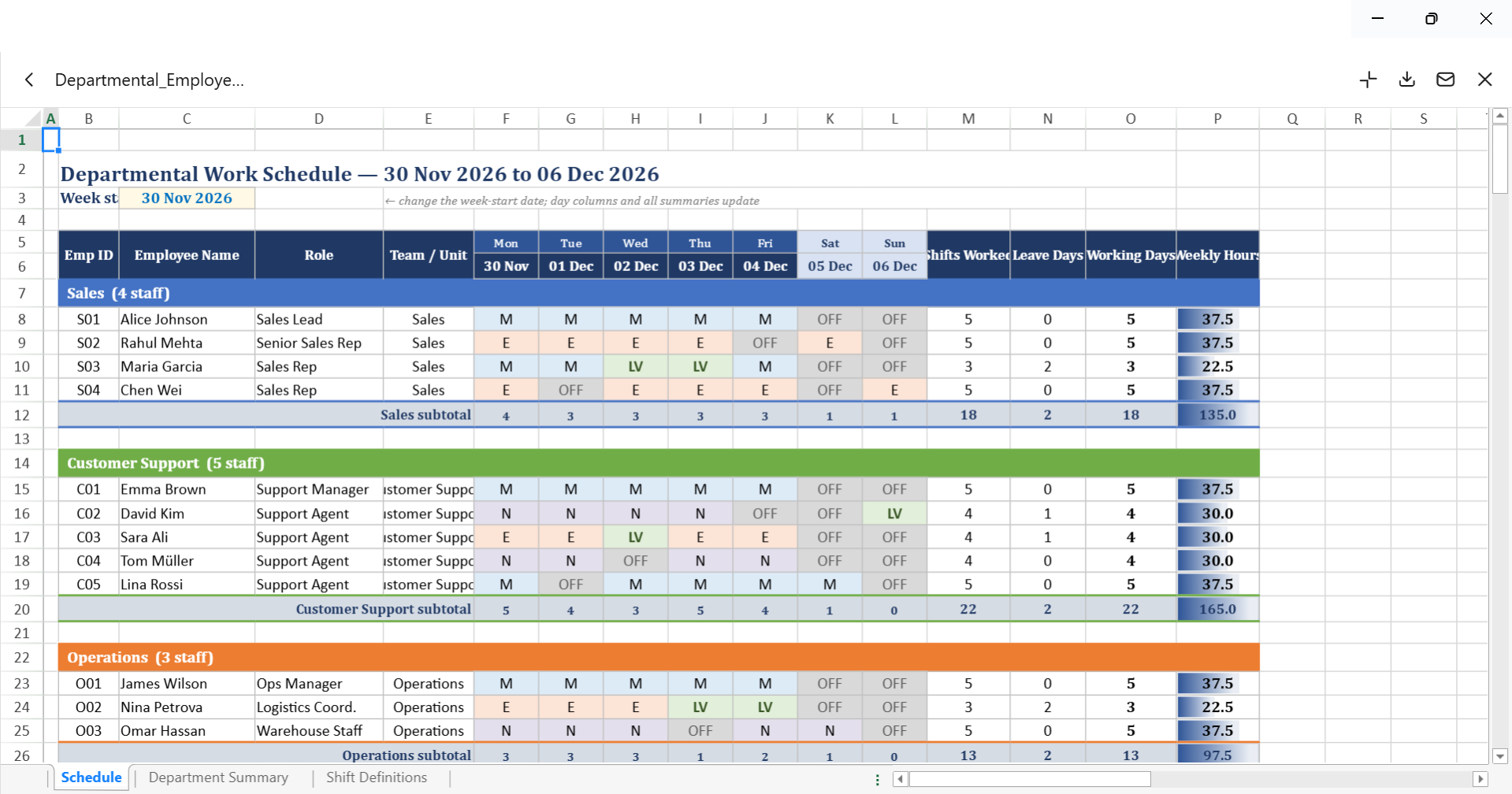
A departmental employee work schedule separates staff assignments by business units, such as sales, finance, operations, and customer support. It records team members, designated shifts, working hours, and scheduled workdays within each department. The employee time schedule template in Excel helps department heads assess staffing requirements, coordinate activities across departments, and assign staff based on operational needs.
How to use
Step 1: Enter your prompt
Start Kimi Sheets and name the departments that need separate schedules. Include staff names, job roles, assigned shifts, and weekly working hours.
Prompt:
Step 2: Let AI generate your template
Kimi Sheets builds a department-wise layout, grouping employees under their respective teams rather than placing everyone in one shared list.
Step 3: Review and export the template
Compare staffing levels across departments, identify teams with overlapping shifts or insufficient coverage, and make the necessary changes. Export the workbook to distribute schedules among department heads.
Why use Kimi Sheets for creating employee schedules
Kimi Sheets, an AI Excel agent, provides useful features that simplify spreadsheet creation and give managers more control over employee scheduling. Here are some key capabilities that make it a practical option:
Generate employee schedules from simple instructions: Describe your scheduling requirements, such as employee names, working days, shift times, and departments. Kimi Sheets can turn these instructions into a structured Excel schedule, reducing manual setup.
Automate working-hour calculations with Excel formulas: Generate formulas to calculate daily and weekly working hours, total shifts, overtime, and other scheduling figures. This makes it easier to track workloads and reduces repetitive calculations.
Manage multiple employee schedules across worksheets: Organize schedules by employee, department, or month using linked worksheets. When relevant data changes, connected calculations and summaries can update automatically, making larger scheduling plans easier to maintain.
Organize attendance and scheduling data: Upload existing employee records and use AI-powered data cleaning to standardize formats, organize employee information, and remove duplicate entries. This helps maintain consistent scheduling and attendance records.
Visualize workforce allocation and scheduling patterns: Turn scheduling data into charts, summaries, and interactive dashboards. Review working hours, shift distribution, and staffing patterns to identify potential scheduling gaps and support workforce planning.
Tips for creating employee work schedules
Employee scheduling requires careful planning to account for changing workloads, staff availability, and operational demands. These practical tips cover important factors that help managers build reliable schedules, handle shift changes, and keep daily work organized.
Assess staffing needs
Review the tasks, operating hours, and expected workload for each department before assigning employees. For example, a retail store may need more staff during weekends, while a support team may require coverage across morning and evening hours.
Consider employee availability
Collect employees' available days, preferred shifts, and planned leave before preparing the roster. Compare this information with required working hours, so assignments do not conflict with existing commitments or exceed agreed hour limits.
Distribute shifts fairly
Rotate weekend duties, night shifts, and less popular working hours among eligible employees. Keep a record of previous assignments to prevent certain team members from repeatedly receiving the same demanding shifts.
Allow sufficient rest time
Check the gap between an employee's finishing time and their next scheduled start. Avoid back-to-back shifts with insufficient recovery time, and account for meal breaks, weekly rest days, and applicable workplace rules.
Prepare for unexpected changes
Identify employees who can cover essential duties when someone reports sick or takes emergency leave. Keep alternative shift arrangements ready and update affected team members whenever an assignment changes.
Review and share schedules in advance
Verify shift coverage, overlapping assignments, overtime, and weekly working-hour totals before publishing the roster. Share the final schedule early enough for employees to arrange transport, personal commitments, and shift exchanges.
Conclusion
A good employee schedule should match the way your workplace runs rather than follow a fixed format. Some teams need a simple weekly roster, while others require detailed records for rotating shifts, attendance, or departmental duties. Choose a template that suits your staff and make changes as your business grows. Kimi Sheets can also prepare an employee schedule template in Excel around your required columns, work patterns, and calculations.