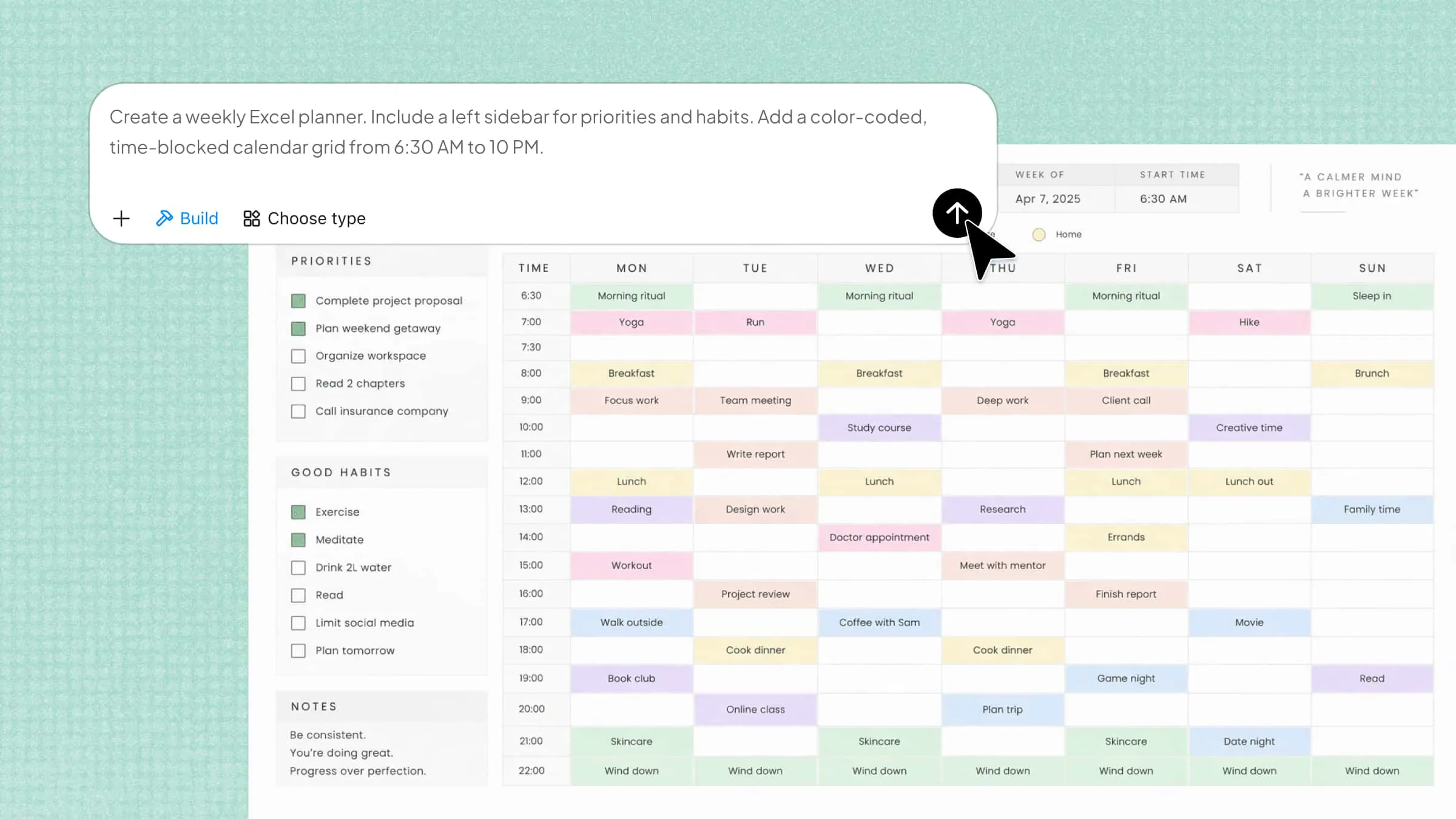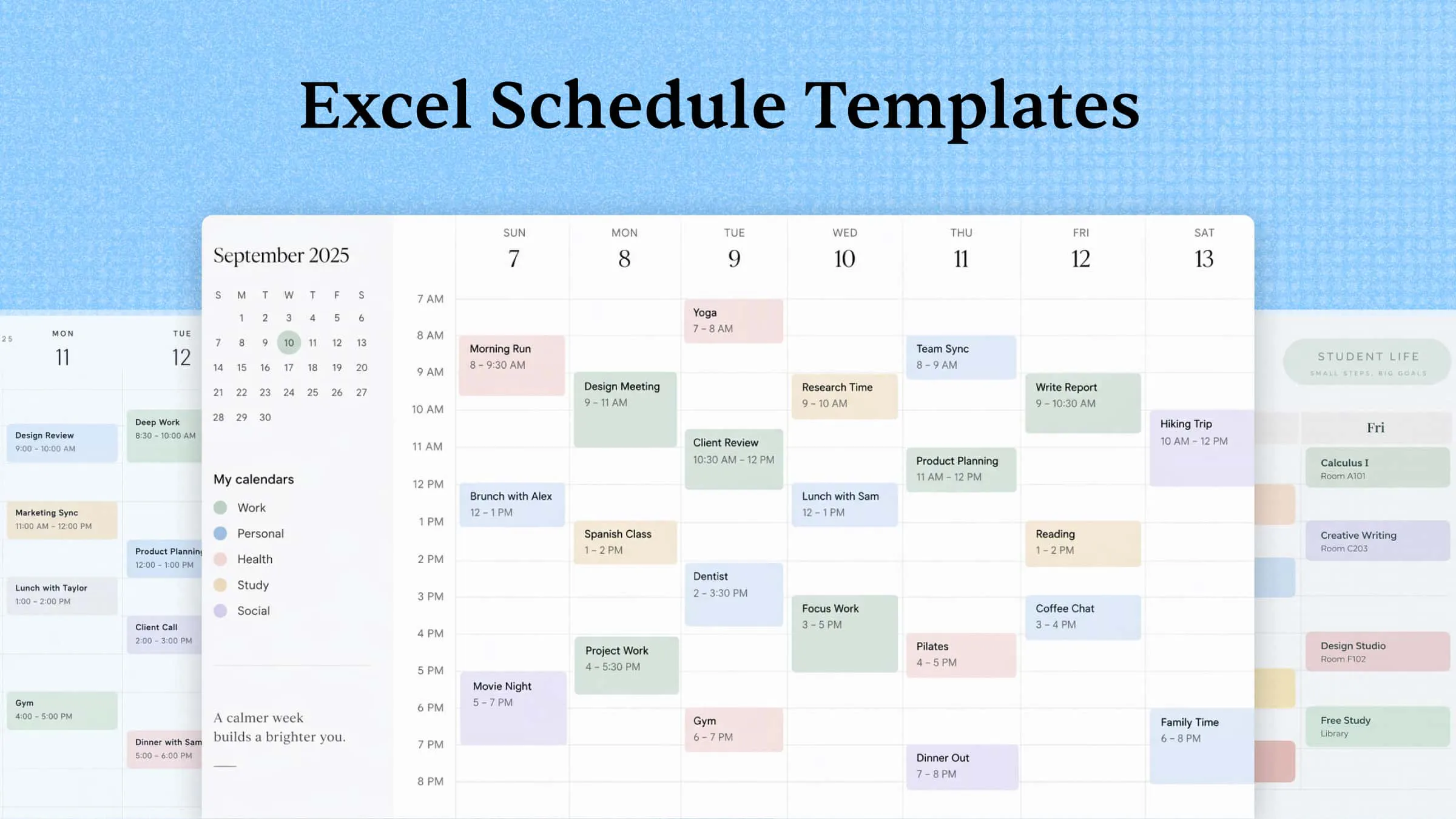
Keeping track of tasks, deadlines, and meetings gets messy fast without a clear plan. An Excel schedule template can fix that, but building one from scratch takes more time than most people have. Setting up dates, formatting rows, and adjusting layouts often turns into a chore of its own. In this article, you will discover 10 ready-to-use Excel schedule templates for work, study, and daily life, plus easy steps to build your own in minutes.
Overview of 10 Excel schedule templates
You can use Kimi Sheets to create different types of Excel schedule templates, from simple daily to-do lists to detailed project timelines. The following table introduces 10 practical schedule examples, their intended uses, and key features to help you choose a format that fits your planning needs.
| Template | Suitable for | Main purpose | Suitable for |
|---|---|---|---|
| Daily schedule template | Individuals and professionals | Organize daily tasks, time slots, priorities, and notes. | Planning one day hour by hour |
| Weekly schedule template | Students, employees, and individuals | Plan work, classes, workouts, and personal activities for seven days. | Planning a full week of tasks and appointments |
| Monthly schedule template | Individuals and teams | Track monthly events, appointments, deadlines, and important dates. | Long-range planning and key dates |
| Employee work schedule template | Managers and team leaders | Assign employee shifts, monitor working hours, and ensure staff coverage. | Managers staffing a team |
| Student study schedule template | Students | Organize study sessions, subjects, assignments, exams, and breaks. | Tracking project phases and deadlines |
| Project schedule template | Project managers and teams | Track project tasks, deadlines, assigned owners, and progress. | Students and teachers |
| Class schedule template | Students and teachers | Arrange class periods, subjects, instructors, and classroom locations. | Remote and hybrid teams |
| Shift rotation schedule template | Managers and shift-based teams | Manage rotating shifts, employee assignments, and scheduled days off. | Booking meetings and client calls |
| Content calendar schedule template | Content creators and marketing teams | Plan content topics, publishing dates, platforms, authors, and status. | Marketing and content teams |
| Event planning schedule template | Event planners and organizers | Coordinate event tasks, deadlines, vendors, budgets, and progress. | Organizing events, launches or celebrations |
Explore 10 Excel schedule templates for better time planning
A good schedule only helps if it keeps up with your changing plans. Keeping it current is tough when every new task or shifted deadline means reworking rows and columns by hand. Kimi Sheets, an AI Excel agent, takes that effort off your plate by turning a simple text prompt into a ready-to-use template. When your plans change, you can describe the updates and let it adjust the file for you. Here are 10 Excel schedule timeline templates you can create with Kimi Sheets, each suited to a different way of planning your time.
Daily schedule template
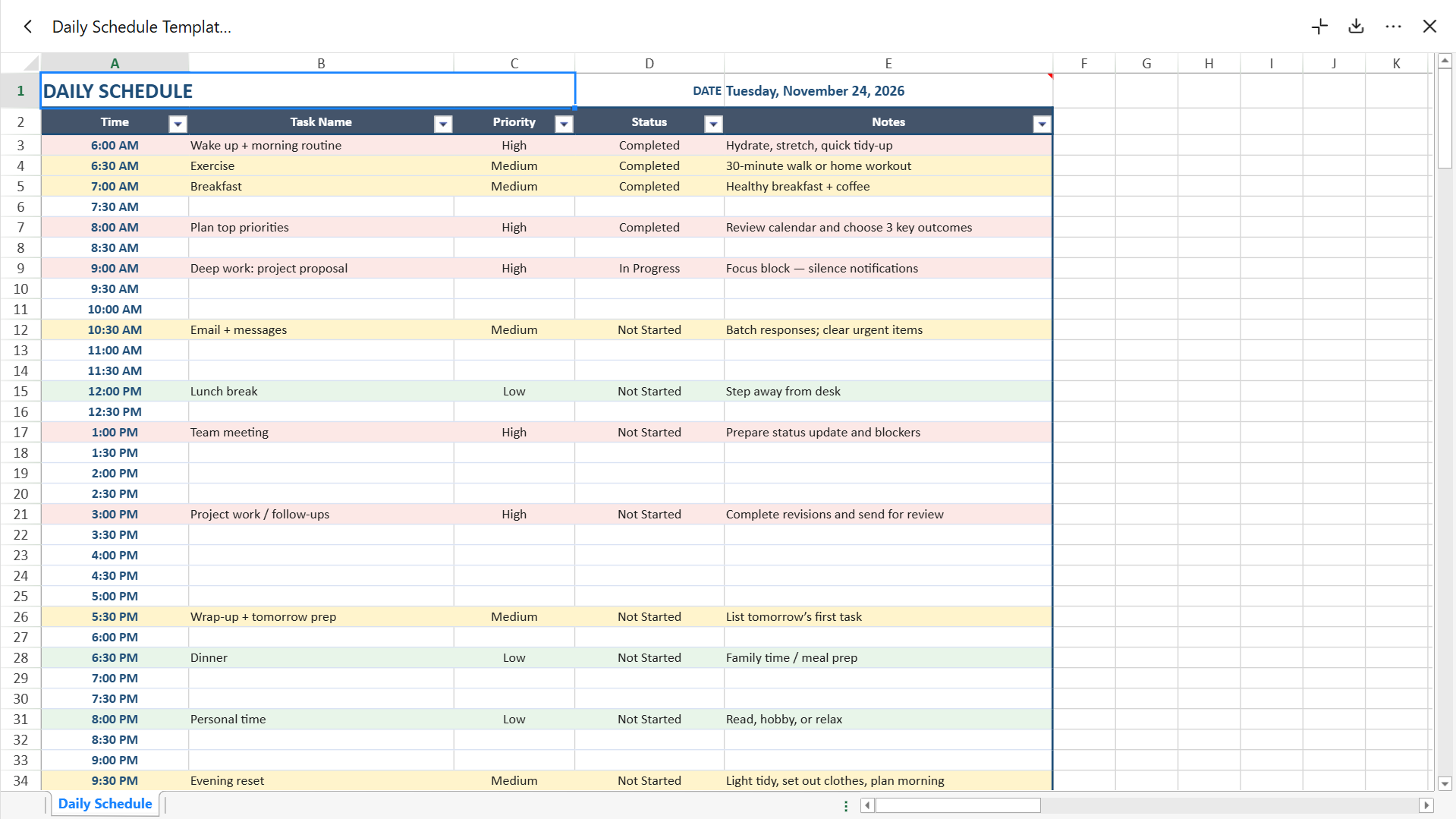
A daily Excel schedule template breaks your day into time slots, so you know exactly what comes next. It works well for managing work hours, appointments, and personal tasks in one place. Planning hour by hour also makes it easier to spot gaps and avoid overbooking yourself.
How to use
Step 1: Enter your prompt
Open Kimi Sheets and describe the daily schedule you want, including time slots, task names, priority levels, and a notes column.
Prompt:
Step 2: Let AI generate your template
Let the AI build your daily planner. If the time blocks feel too long or too short, adjust your prompt to change the intervals or add more columns.
Step 3: Review and export the template
Check that the time slots run in order and each task has enough room. Once it looks right, download the file in Excel format.
Weekly schedule template
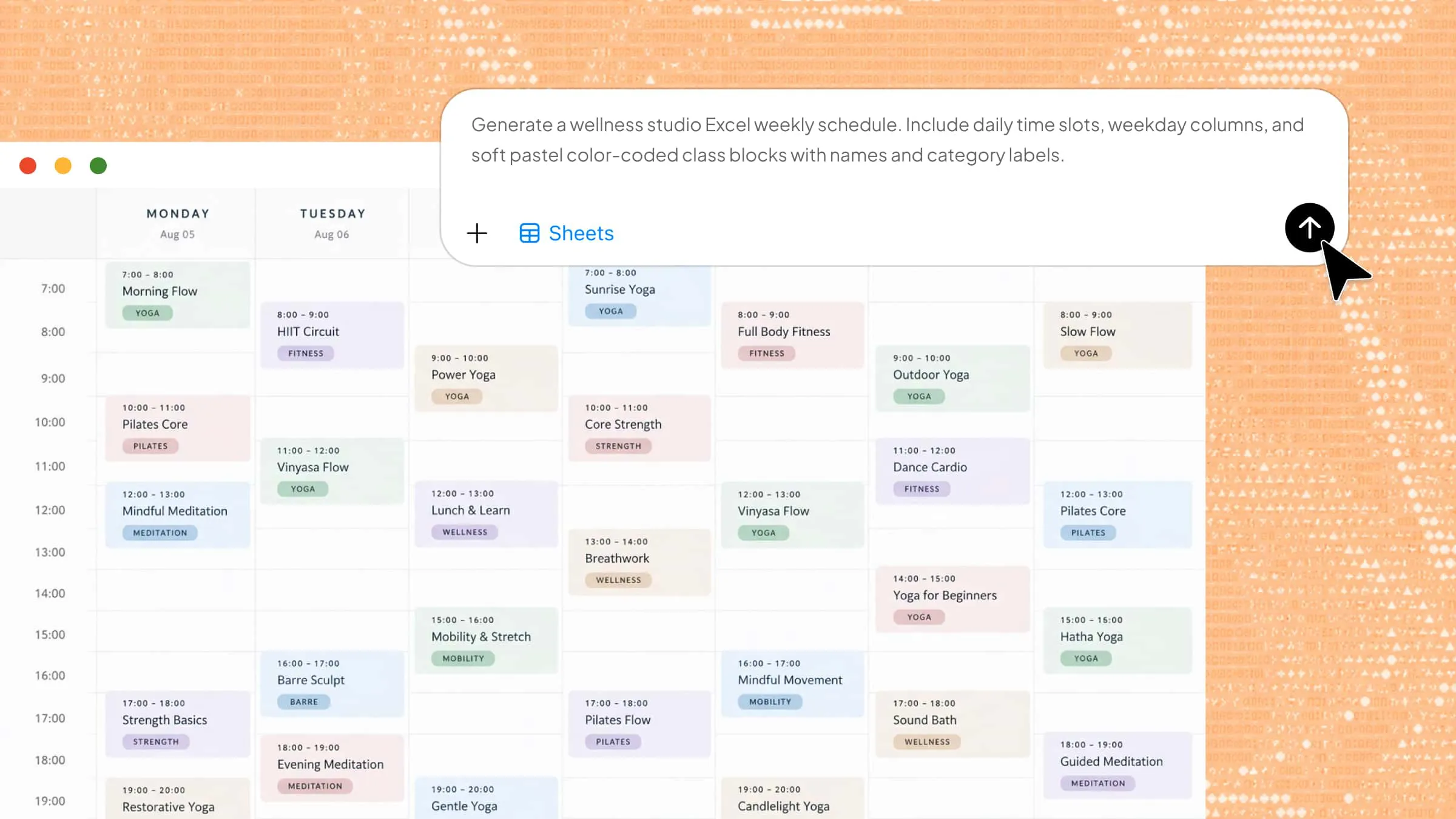
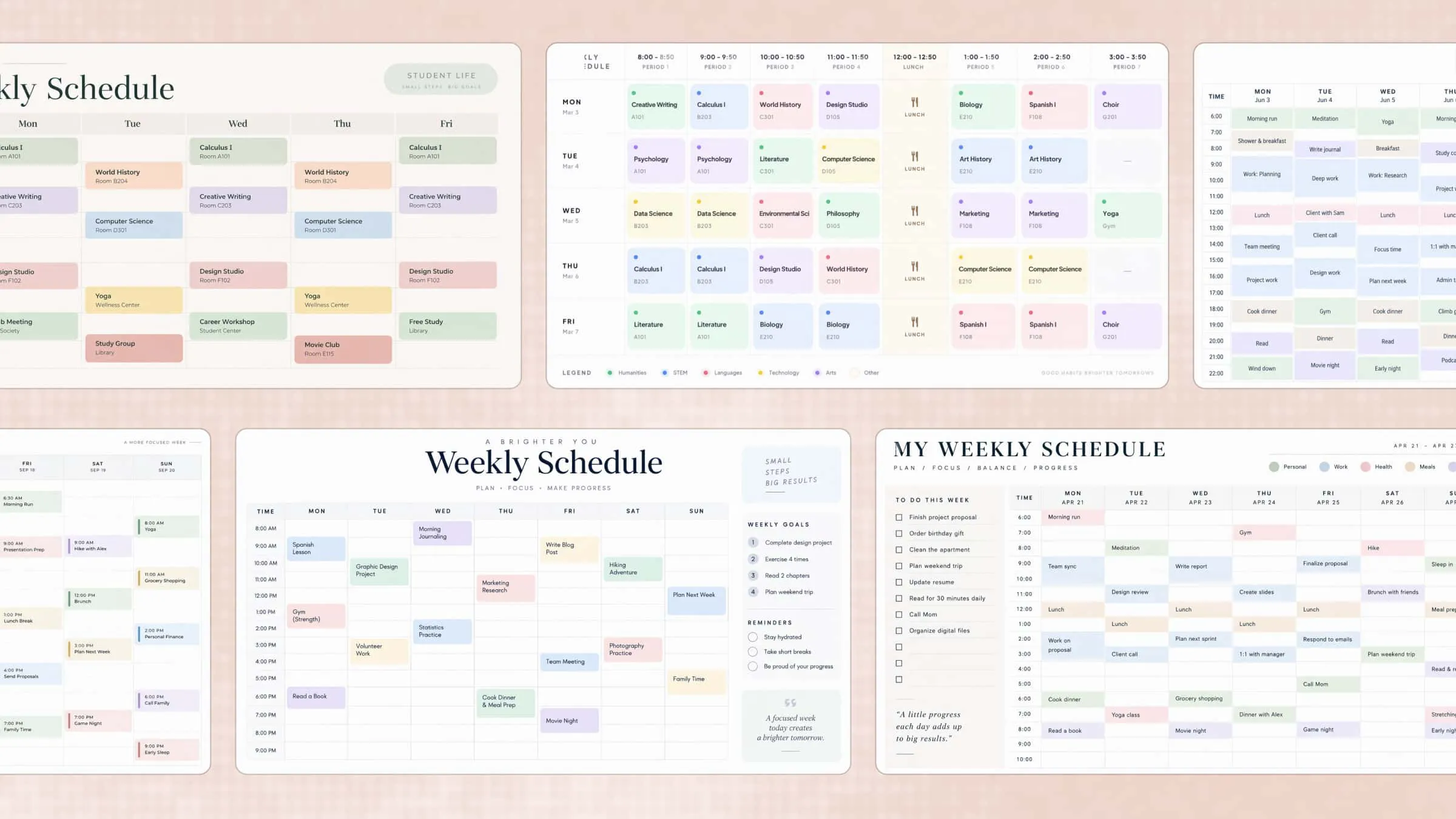
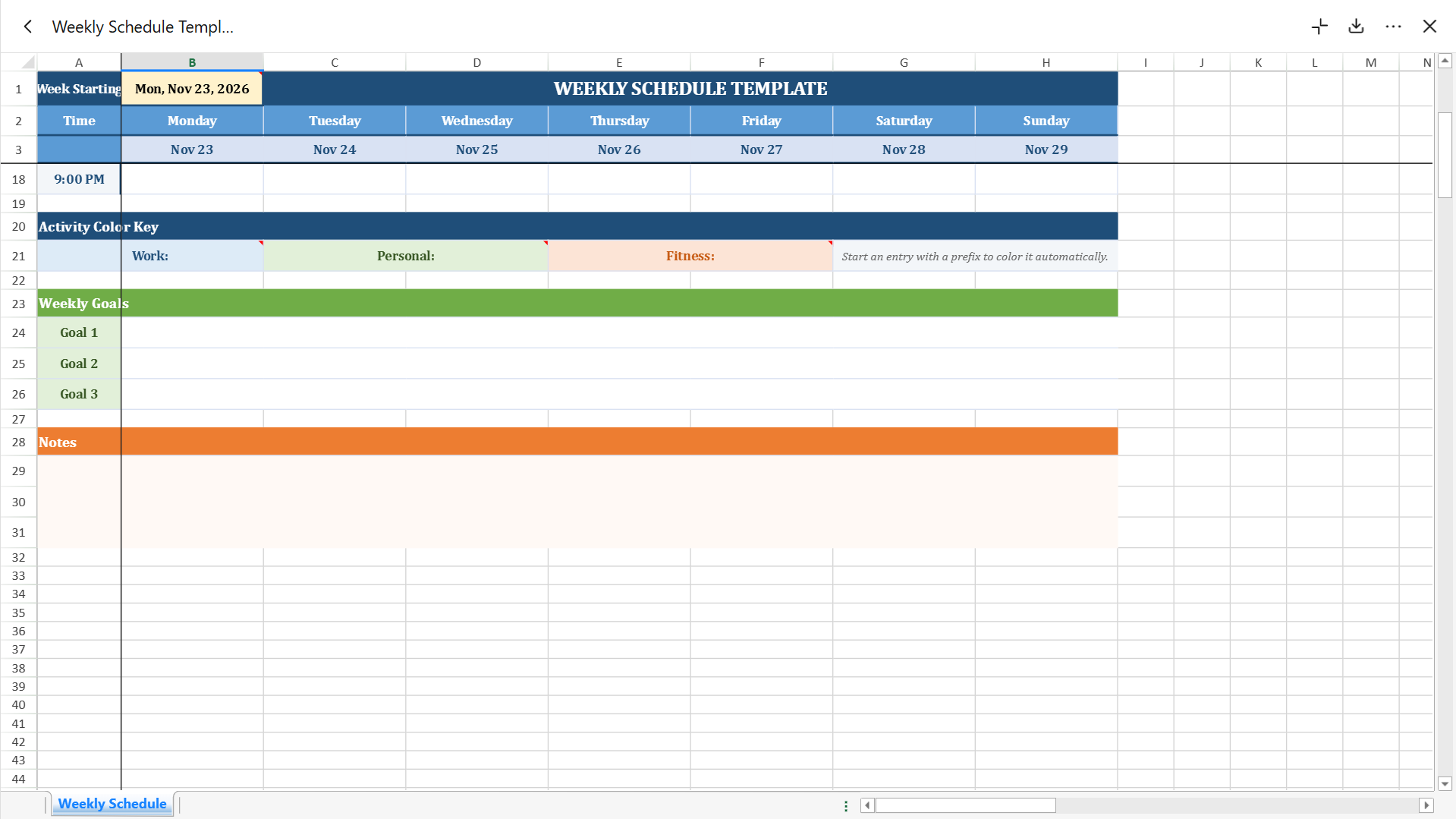
When you need a wider view, a weekly Excel Schedule template lays out all seven days side by side. You can balance work, classes, workouts, and errands without losing track of any of them. Seeing the full week at a glance also helps you spread out your workload more evenly.
How to use
Step 1: Enter your prompt
Open Kimi Sheets and describe your weekly layout, with all seven days as columns and time slots or task categories as rows.
Prompt:
Step 2: Let AI generate your template
Let the AI create your weekly schedule. To include weekends, add color coding, or split work and personal tasks, mention it in a follow-up prompt.
Step 3: Review and export the template
Make sure every day lines up correctly, and the layout is easy to scan. Export the final schedule as an Excel file.
Monthly schedule template
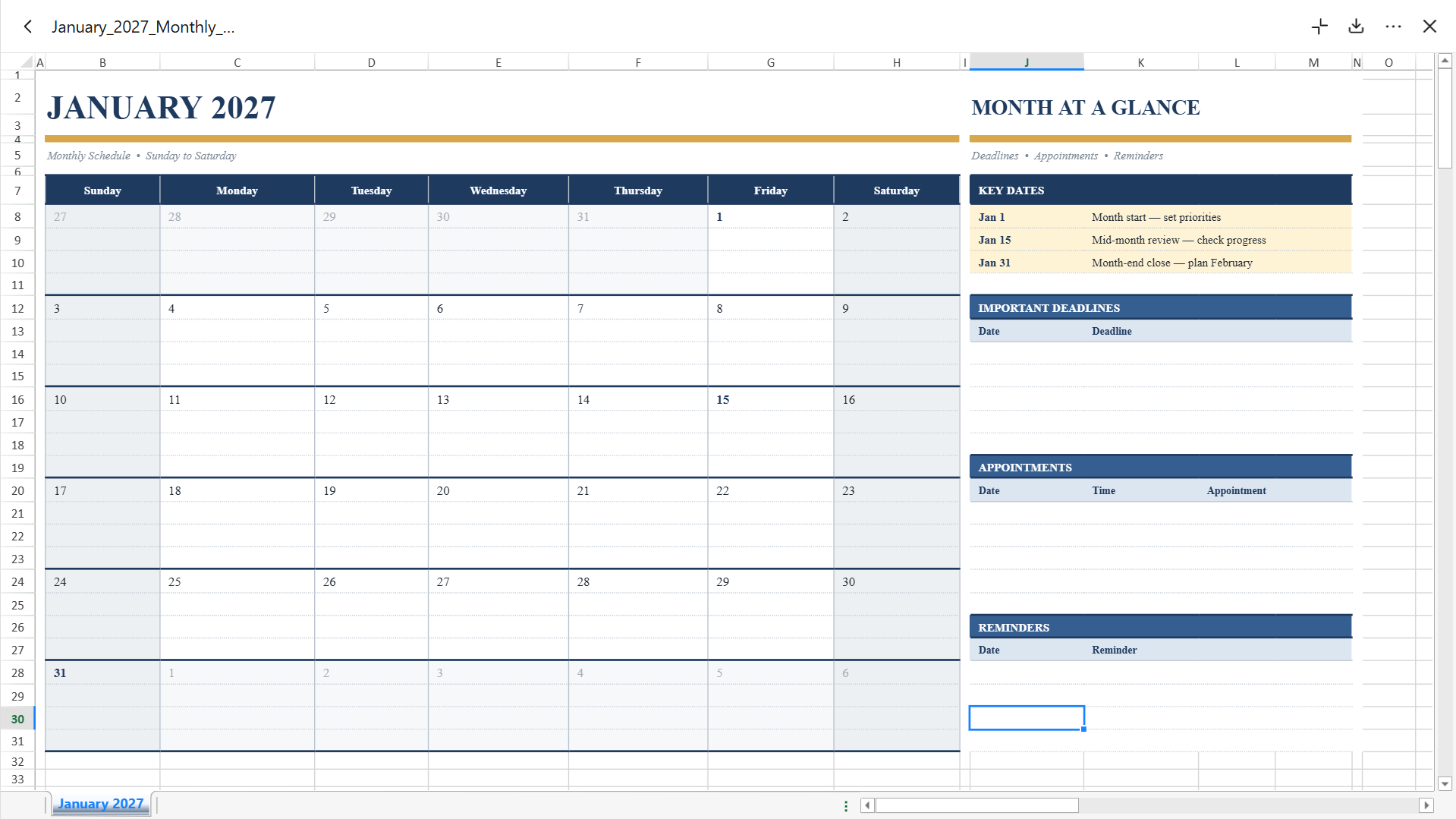
A monthly Excel schedule template gives you the big picture, showing deadlines, events, and key dates across the whole month. It's useful for planning ahead, whether you're tracking bill payments, project milestones, or upcoming trips. Having everything in one calendar view keeps important dates from slipping through the cracks.
How to use
Step 1: Enter your prompt
Open Kimi Sheets and describe the monthly calendar you need, including the month, date grid, event labels, and a space for deadlines.
Prompt:
Step 2: Let AI generate your template
Let the AI turn your description into a monthly calendar. If key dates are hard to spot, ask it to highlight them with colors or bold text.
Step 3: Review and export the template
Confirm the dates match the correct weekdays and your events are in place. Download the calendar in Excel format when you're done.
Employee work schedule template
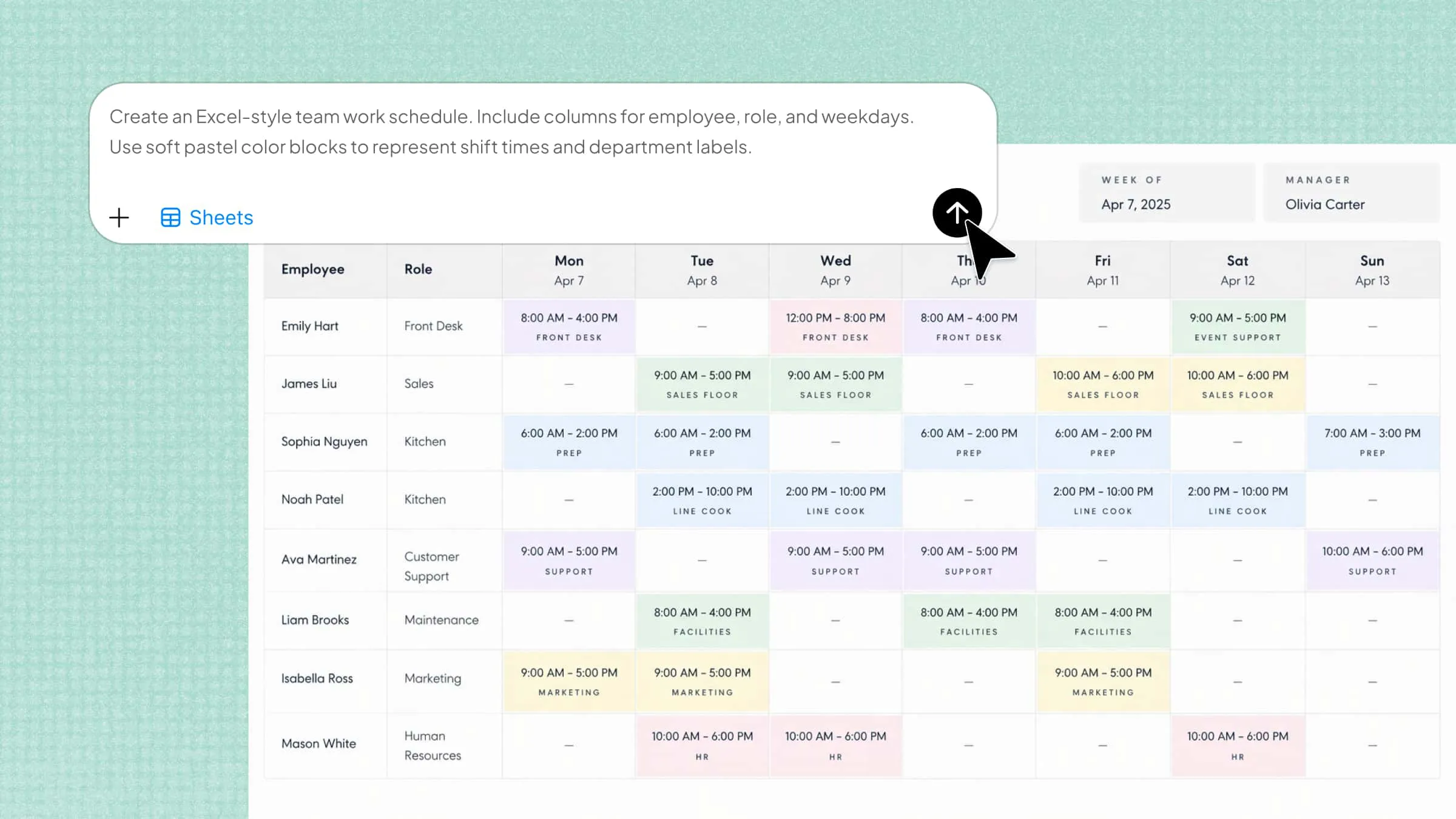
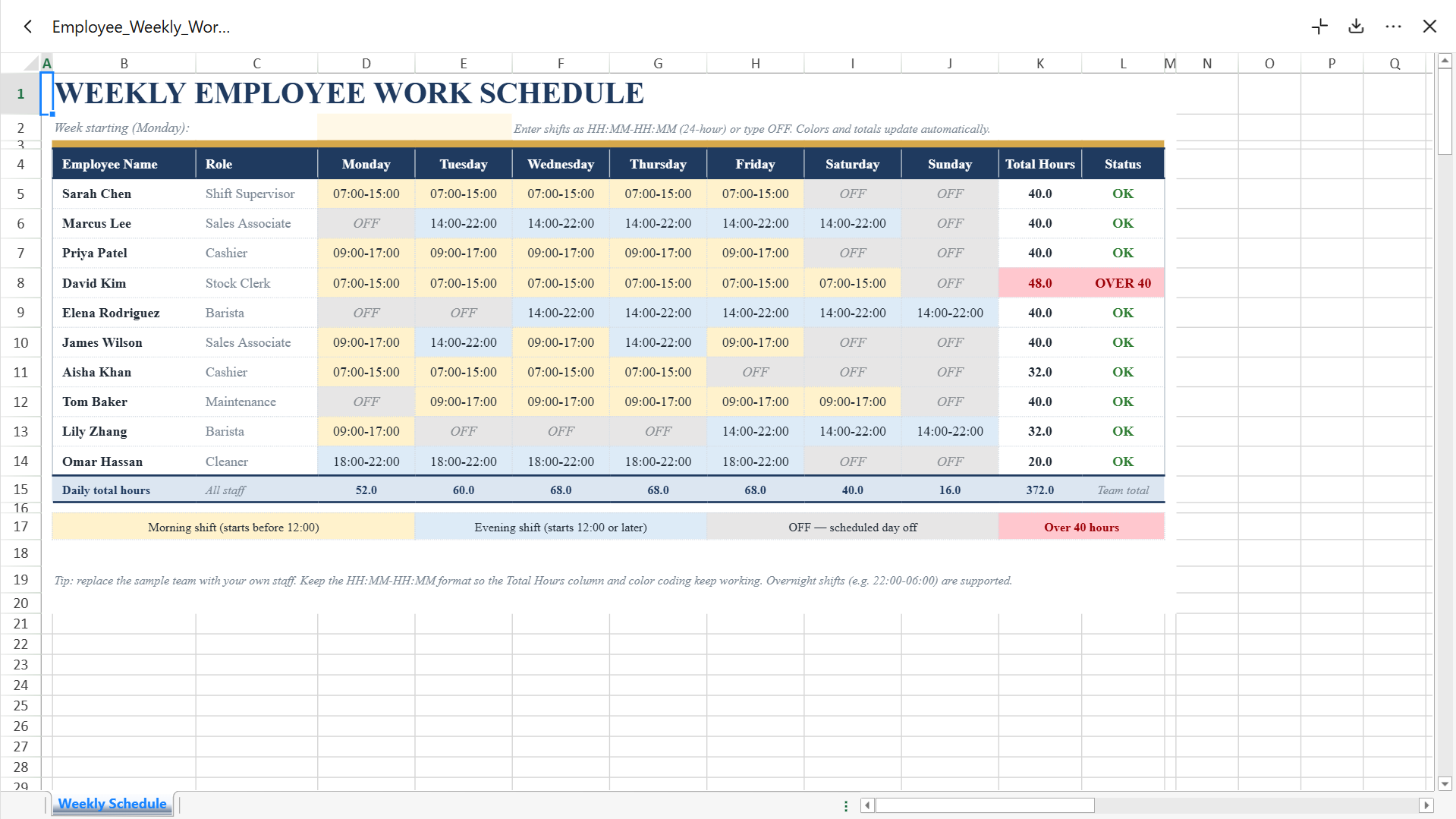
An employee monthly Excel work schedule template displays each team member's shifts, working days, and assigned roles in an organized grid. Managers can use it to ensure adequate coverage during busy hours, prevent shift overlaps, and track total working hours. Employees can also refer to the schedule to check their shifts and stay informed of any changes.
How to use
Step 1: Enter your prompt
Open Kimi Sheets and describe your team schedule, with employee names, roles, shift times, working days, and a total hours column.
Prompt:
Step 2: Let AI generate your template
Let the AI create the staff schedule. If you need overtime tracking or a weekly hours summary, add those details to your prompt.
Step 3: Review and export the template
Check that shifts don't overlap and the total hours add up correctly. Export the schedule as an Excel file to share with your team.
Student study schedule template
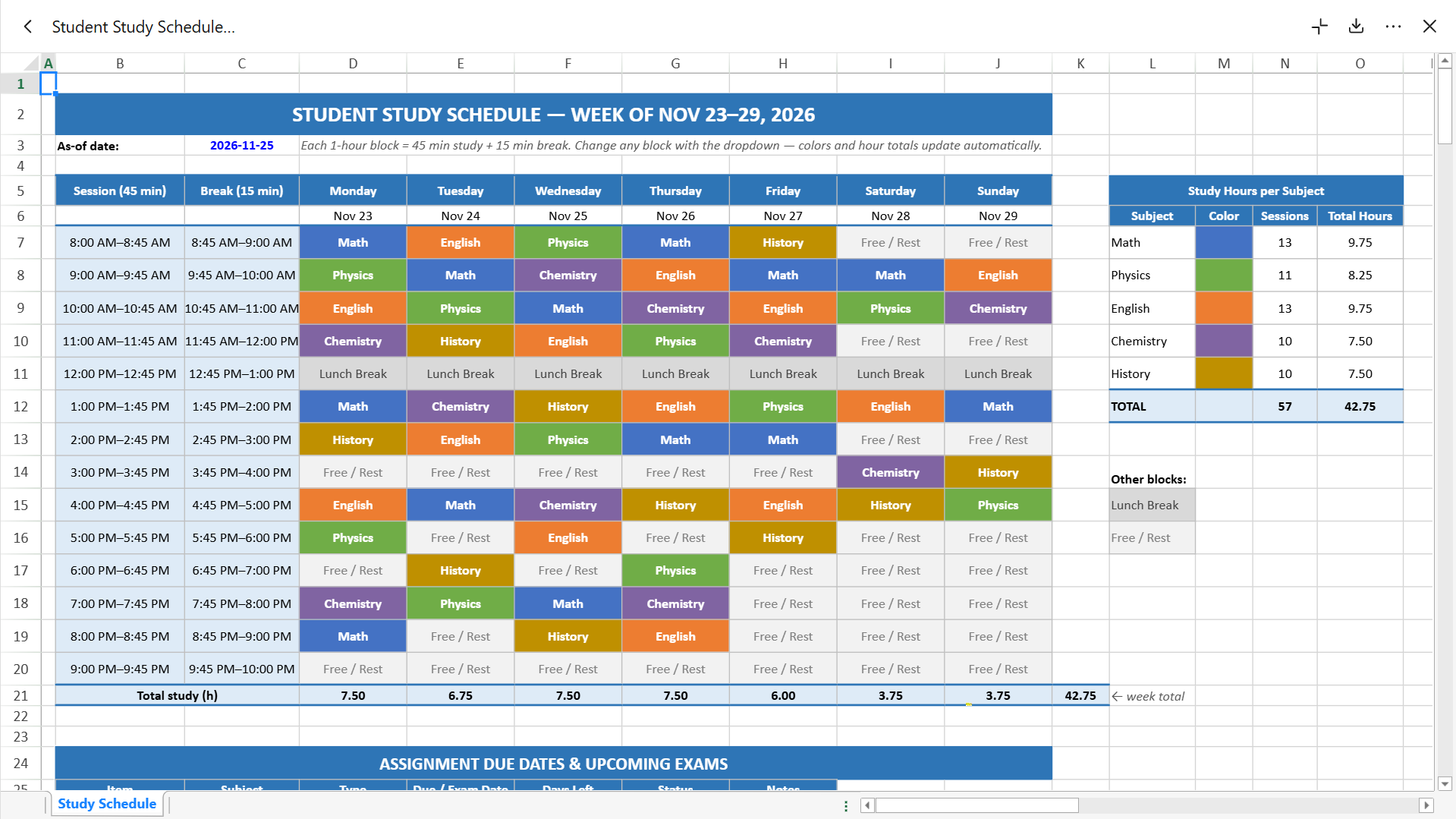
This template helps students divide their time between subjects, assignments, and exam prep. Setting aside fixed study blocks each day makes steady progress easier than last-minute cramming. With an Excel schedule planner template, you can also add breaks and free time to keep your routine balanced.
How to use
Step 1: Enter your prompt
Open Kimi Sheets and describe your study plan, listing subjects, study hours, assignment due dates, exam dates, and break times.
Prompt:
Step 2: Let AI generate your template
Let the AI organize your study sessions. If one subject needs more time, update your prompt to rebalance the hours across the week.
Step 3: Review and export the template
Review the plan to make sure it feels realistic and leaves room for rest. Download it in Excel format and keep it handy.
Project schedule template
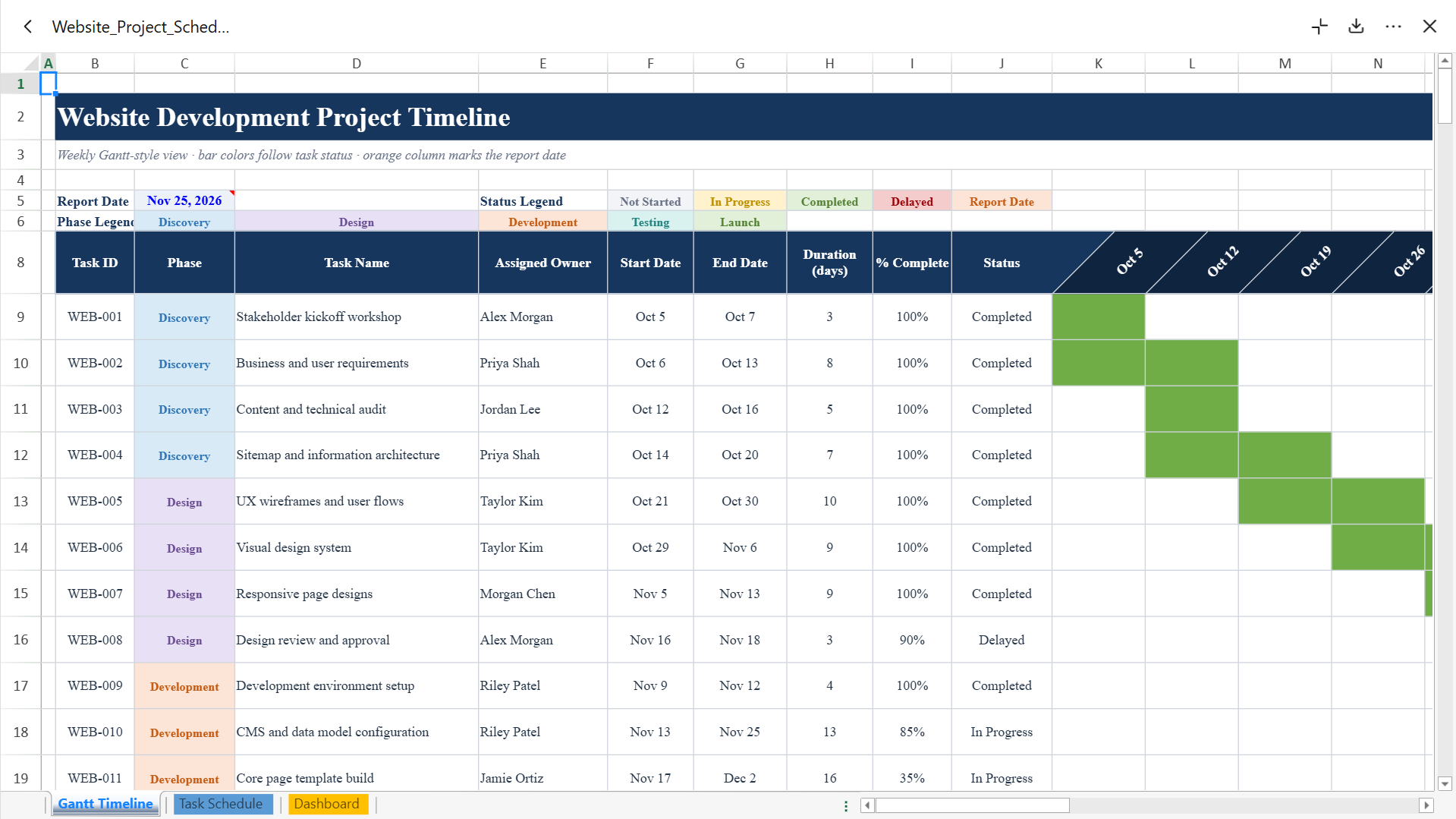
For teams managing multiple tasks, a project Excel schedule template lists each task along with its start date, deadline, and assigned team member. This organized timeline makes task sequences and dependencies easier to understand. It also helps identify potential delays early, giving teams time to adjust plans before they affect the overall project.
How to use
Step 1: Enter your prompt
Open Kimi Sheets and describe your project timeline, including task names, start dates, end dates, owners, duration, and status.
Prompt:
Step 2: Let AI generate your template
Let the AI build your project schedule. To track progress visually, ask it to add a percentage complete column or a timeline view.
Step 3: Review and export the template
Check that task dates follow a logical order and that every task has an owner. Export the schedule in Excel format for your team.
Class schedule template
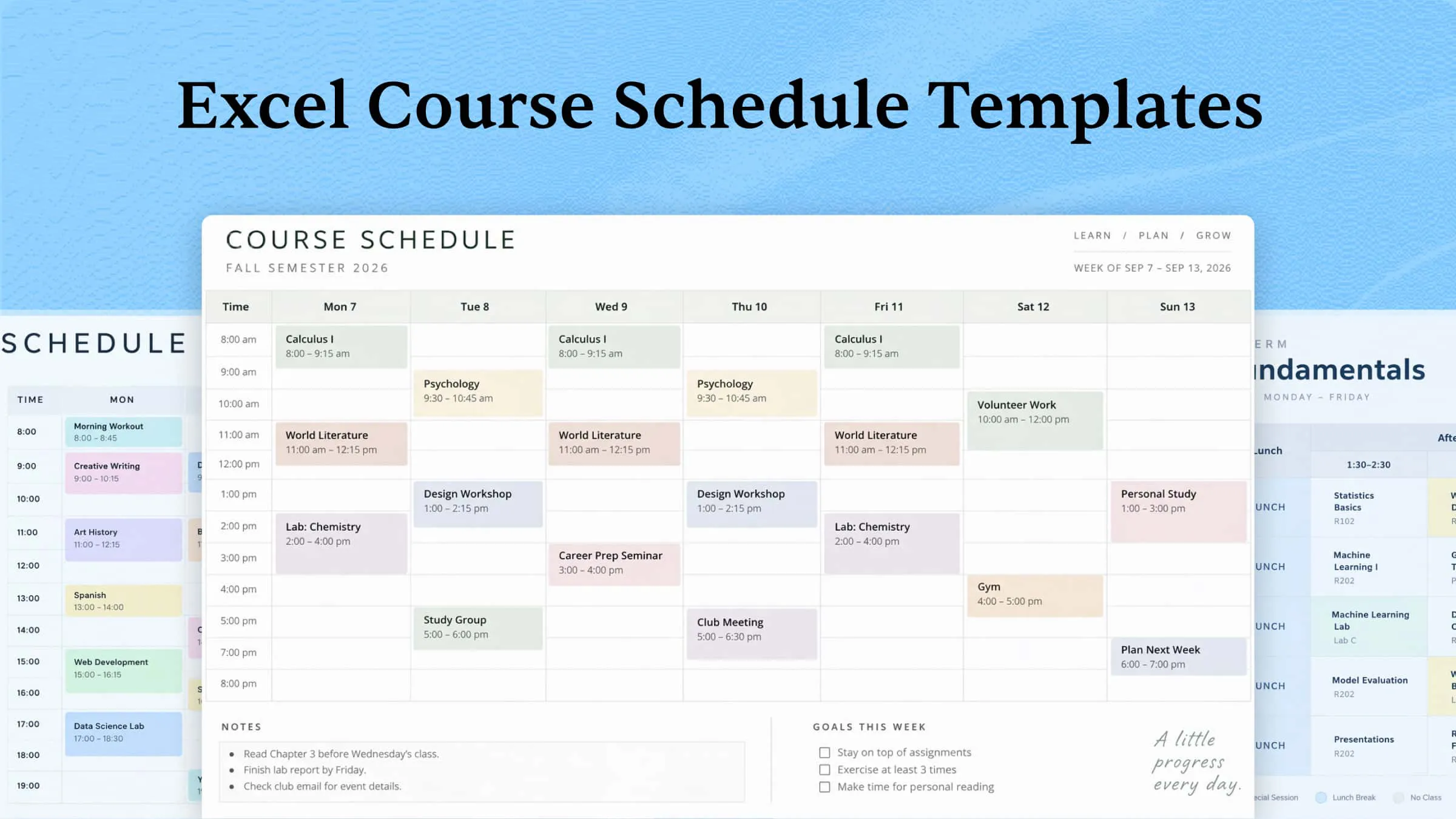
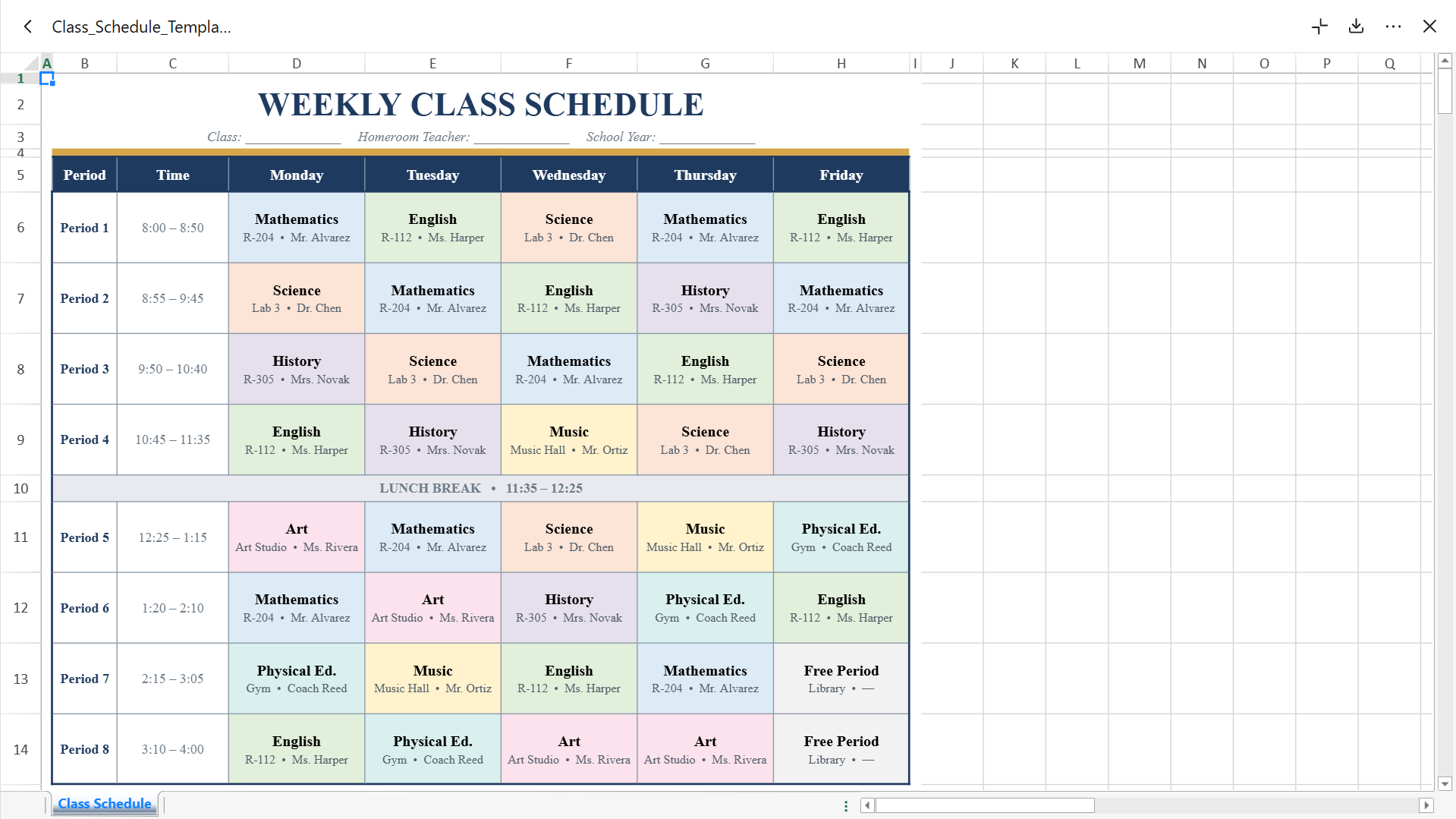
A simple Excel class schedule template is a weekly timetable with days of the week across the top and time slots down the side. Each cell contains a class name and details such as the room number and instructor. This layout allows students and teachers to view their entire weekly class schedule at a glance.
How to use
Step 1: Enter your prompt
Open Kimi Sheets and describe your timetable, with weekdays across the top, class periods down the side, and details like room numbers and instructors.
Prompt:
Step 2: Let AI generate your template
Let the AI create the class timetable. If you want each subject in a different color or need extra periods, mention it in your prompt.
Step 3: Review and export the template
Confirm each class sits in the right slot and the grid is easy to read. Download the timetable as an Excel file.
Shift rotation schedule template
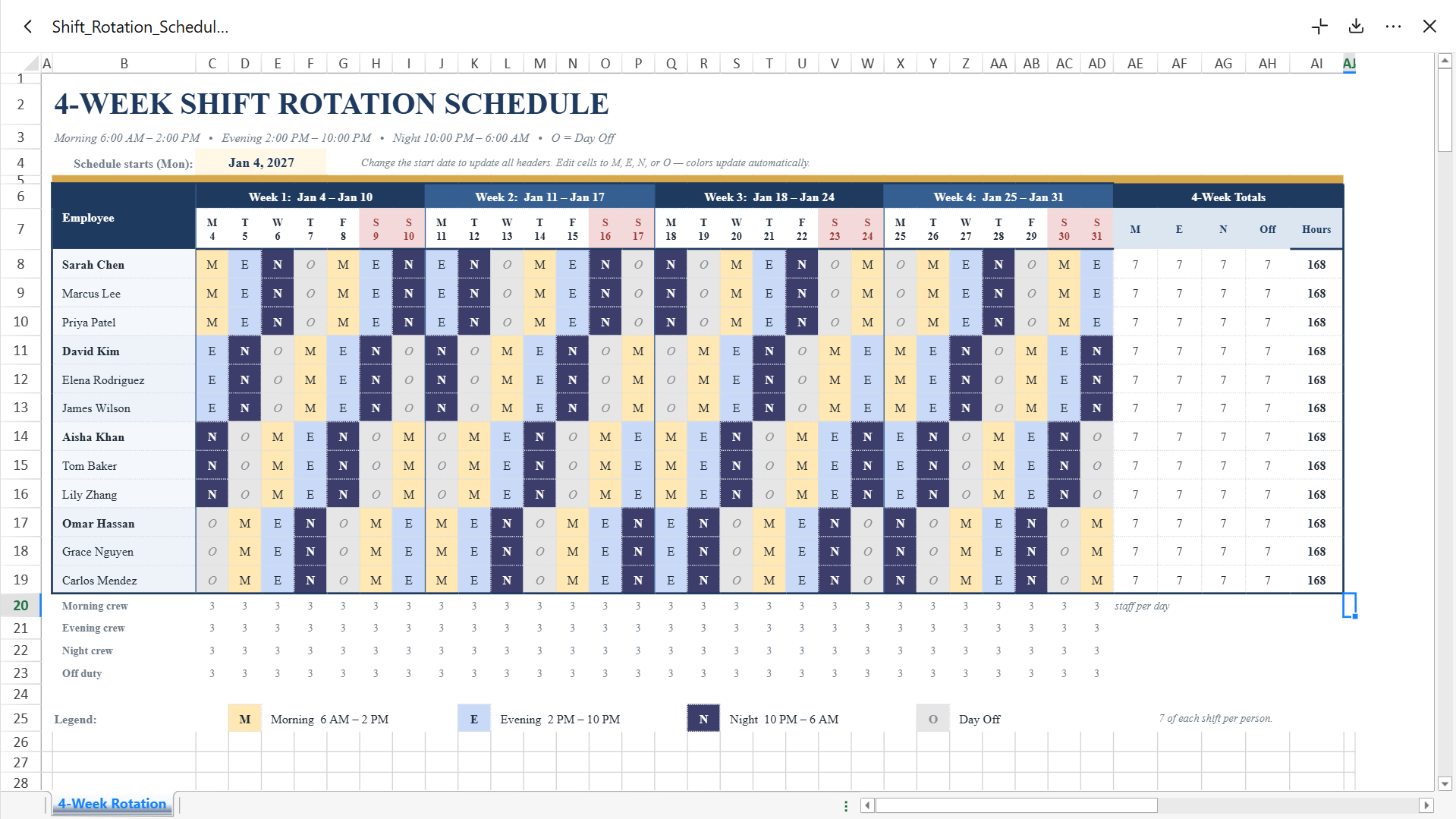
This template sets up a repeating cycle where employees move between morning, evening, and night shifts. This Excel schedule template lists each worker's name against the dates, with their assigned shift marked for every day. The rotation pattern repeats automatically, so hours stay fair and every shift is covered.
How to use
Step 1: Enter your prompt
Open Kimi Sheets and describe your rotation, including employee names, shift types, rotation cycle length, and the date range.
Prompt:
Step 2: Let AI generate your template
Let the AI set up the shift rotation. If the pattern doesn't balance shifts fairly, adjust the prompt to change the cycle or shift order.
Step 3: Review and export the template
Check that every shift is covered, and no one works back-to-back night shifts by mistake. Export the rotation schedule in Excel format.
Content calendar schedule template
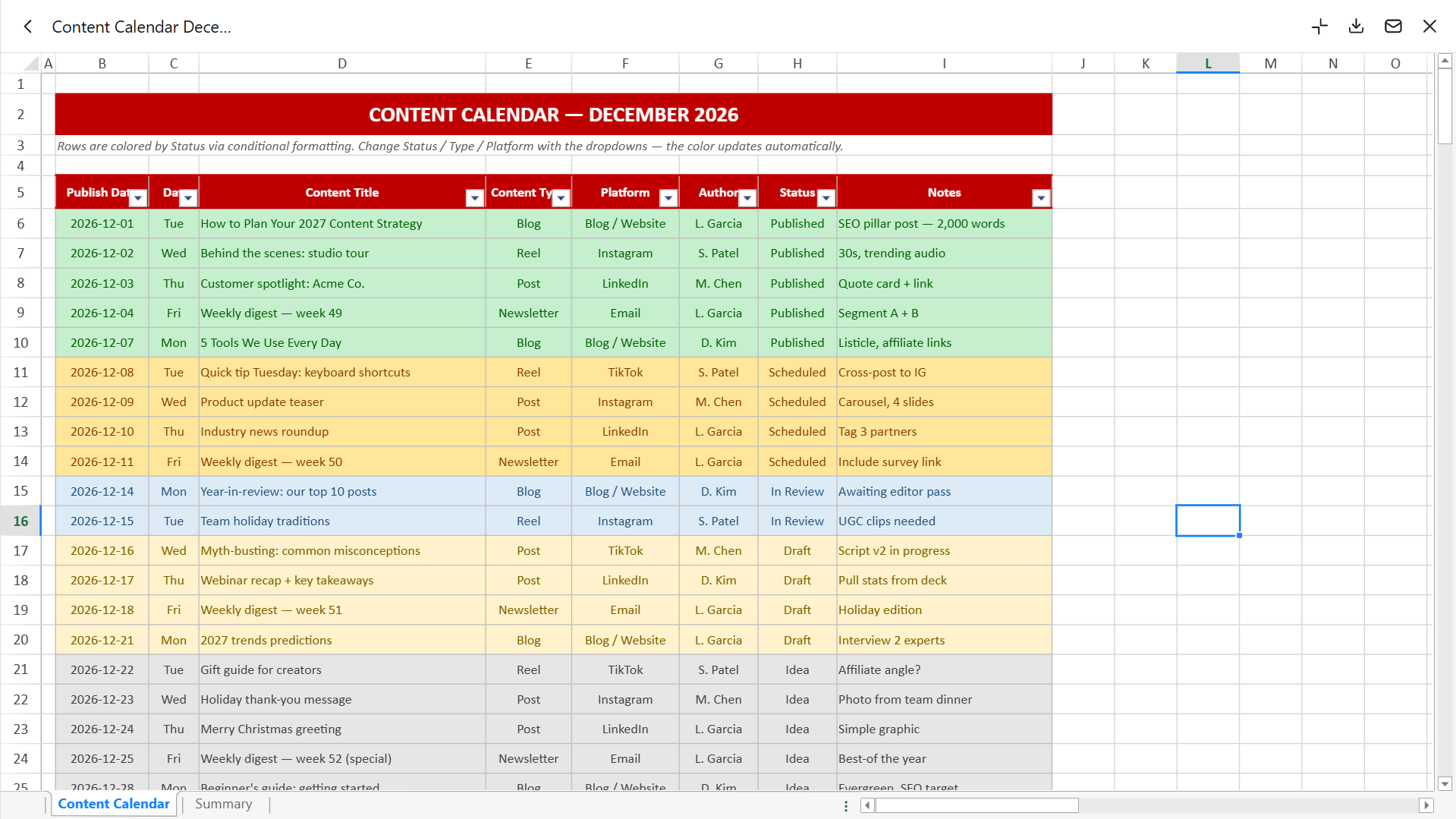
Built around publishing dates, a content calendar template has columns for the topic, platform, author, publish date, and status. Each row represents one piece of content, from blog posts to social media updates. Status labels like "draft," "in review," and "published" show how each item is moving along.
How to use
Step 1: Enter your prompt
Open Kimi Sheets and describe your content plan, with columns for topic, content type, platform, author, publish date, and status.
Prompt:
Step 2: Let AI generate your template
Let the AI create your content calendar. To add dropdown status labels or separate tabs for each platform, include that in your prompt.
Step 3: Review and export the template
Make sure publishing dates are spread out, and each piece has an owner. Download the calendar as an Excel file.
Event planning schedule template
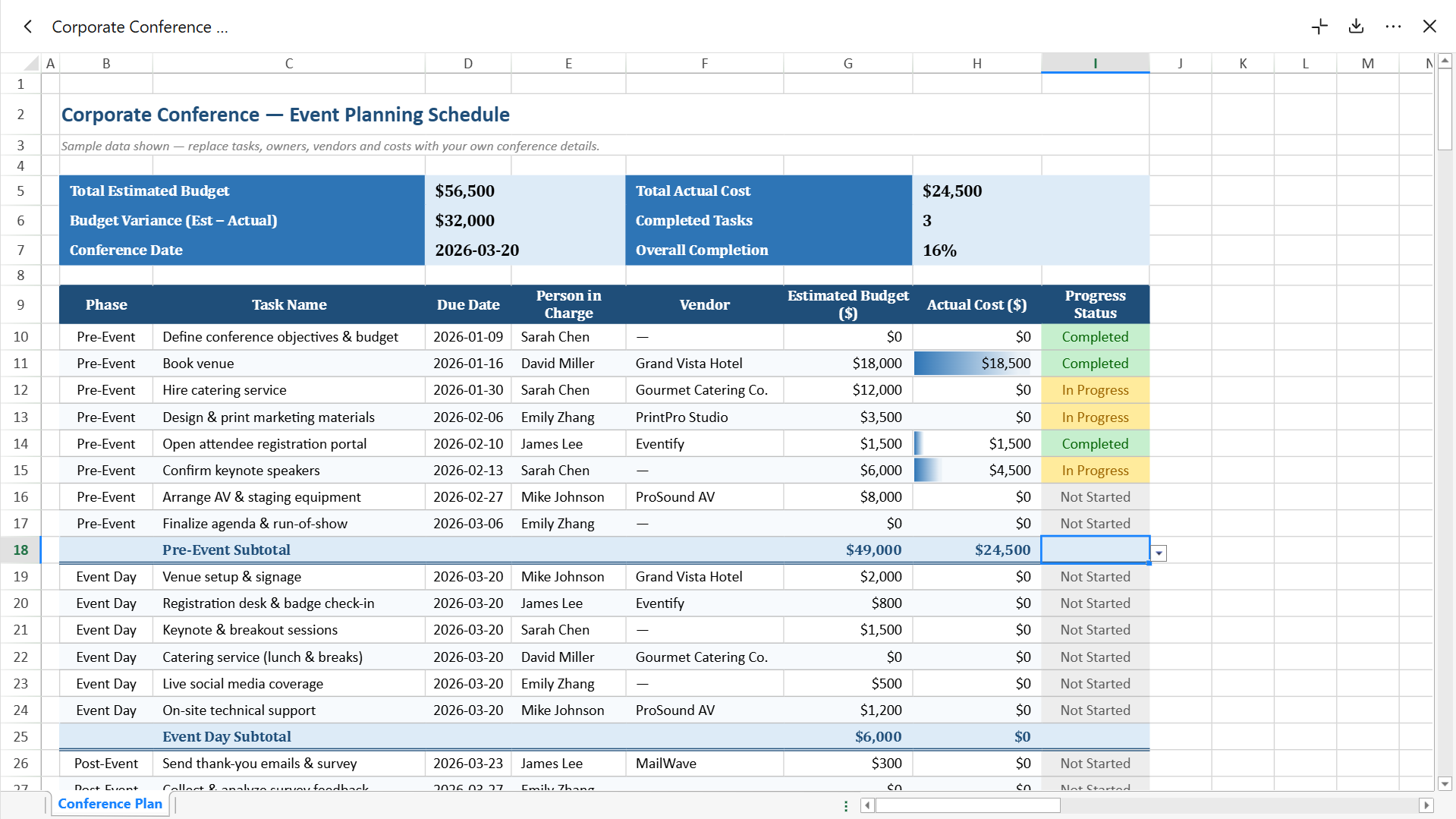
An event planning Excel schedule template breaks an event into tasks and arranges them on a timeline leading up to the big day. Columns cover the task name, due date, person in charge, budget, and progress. Following the list step by step makes sure every detail, from venue booking to final checks, gets done on time.
How to use
Step 1: Enter your prompt
Open Kimi Sheets and describe your event plan, listing tasks, due dates, people in charge, budget, vendors, and progress status.
Prompt:
Step 2: Let AI generate your template
Let the AI build your event schedule. If you want tasks grouped by phase, such as pre-event, event day, and post-event, add that to your prompt.
Step 3: Review and export the template
Review the timeline to confirm all tasks are due before the event date and the budget looks right. Export the plan in Excel format.
What makes Kimi Sheets useful for Excel schedules
Kimi Sheets goes beyond creating a basic layout and helps you manage your schedule from start to finish. Here's a closer look at the features that make planning in Excel faster and easier.
Turn scheduling requirements into organized spreadsheets: Instead of manually setting up rows, columns, and task categories, describe the schedule you need in natural language. Kimi Sheets can interpret your instructions and generate a structured Excel file based on your scheduling requirements, whether you're planning daily activities, employee shifts, or project timelines.
Handle scheduling data with AI-powered analysis: Work with large amounts of scheduling information without sorting through every entry manually. Kimi Sheets can organize data, identify patterns, clean inconsistent records, and help you make sense of task assignments, working hours, and deadlines.
Create and apply formulas without writing them from scratch: Use natural-language instructions to generate spreadsheet formulas for calculating working hours, tracking task completion, counting assignments, and summarizing deadlines. Kimi Sheets also supports formula-based calculations that update when the underlying data changes.
Bring scheduling data to life with charts and dashboards: Go beyond static rows and columns by turning schedule information into visual summaries. Create charts and dashboards to examine workload distribution, compare task progress, and understand how time is allocated across projects or teams.
Manage related scheduling information across worksheets: Keep different projects, teams, or time periods organized in separate worksheets while maintaining connections between related data. Kimi Sheets supports multi-worksheet operations and complex spreadsheet logic, making it easier to work with schedules that involve multiple groups or planning periods.
Make changes without rebuilding the spreadsheet: When deadlines shift, tasks are reassigned, or priorities change, describe the updates you need in natural language. Kimi Sheets can help modify existing data, adjust formulas, reorganize columns, and refine spreadsheet layouts while reducing repetitive manual editing.
Export schedules for further use: Once your schedule is ready, review the spreadsheet and download it in Excel format. You can also convert spreadsheet content into formats such as PDF or CSV when you need to share schedules, prepare reports, or work with other applications.
Simple tips for creating Excel schedules
A template gives you a solid starting point, but how you set it up decides how useful it really is. A few small habits can make your schedule clearer, easier to follow, and much simpler to keep up to date. Here are some practical tips to get more out of every Excel schedule template you create.
Define your main goals before you start: Think about what you want your schedule to help you with, whether it's meeting deadlines, balancing shifts, or building a study routine. Clear goals help you decide which columns, time slots, and details to include. Without them, the sheet can quickly fill up with things you don't need.
Use color coding to separate tasks and priorities: Colors let you understand your schedule at a quick glance. Try red for urgent tasks, green for completed ones, and a separate shade for each project or category. Stick to a few colors so the sheet stays easy on the eyes.
Schedule your most important work first: Block time for high-priority tasks before filling in smaller ones. Most people focus better early in the day, so placing key work in the morning often leads to better results. Less urgent tasks can then fit around these blocks.
Add buffer time between tasks and meetings: Things rarely run exactly on time. Leaving 10 to 15 minutes between activities gives you room to handle delays, take a short break, or prepare for what's next. This small gap keeps one late task from pushing your whole day off track.
Freeze header rows to keep dates in view: Long schedules get confusing when you scroll down and lose sight of the dates or column names. Excel's Freeze Panes option keeps your header row in place while the rest of the sheet moves. You'll always know which day or category you're looking at.
Use simple formulas to track hours and deadlines: Basic formulas can save you a lot of manual work. SUM can add up total hours, while TODAY combined with a date column can show how many days are left before a deadline. Since the numbers update on their own, your schedule stays accurate without extra effort.
Review and update your schedule every week: Plans change, so your schedule should change with them. Set aside a few minutes each week to mark finished tasks, move unfinished ones, and add anything new. Regular check-ins keep your schedule realistic and useful.
Conclusion
Whether you're mapping out a busy workday, rotating staff shifts, or preparing for exams, the right Excel schedule template keeps your time organized and your goals within reach. Each of the 10 templates above fits a different planning need, so you can start with the one closest to your routine. With Kimi Sheets, a short prompt is all it takes to create a schedule and keep adjusting it as your plans change.