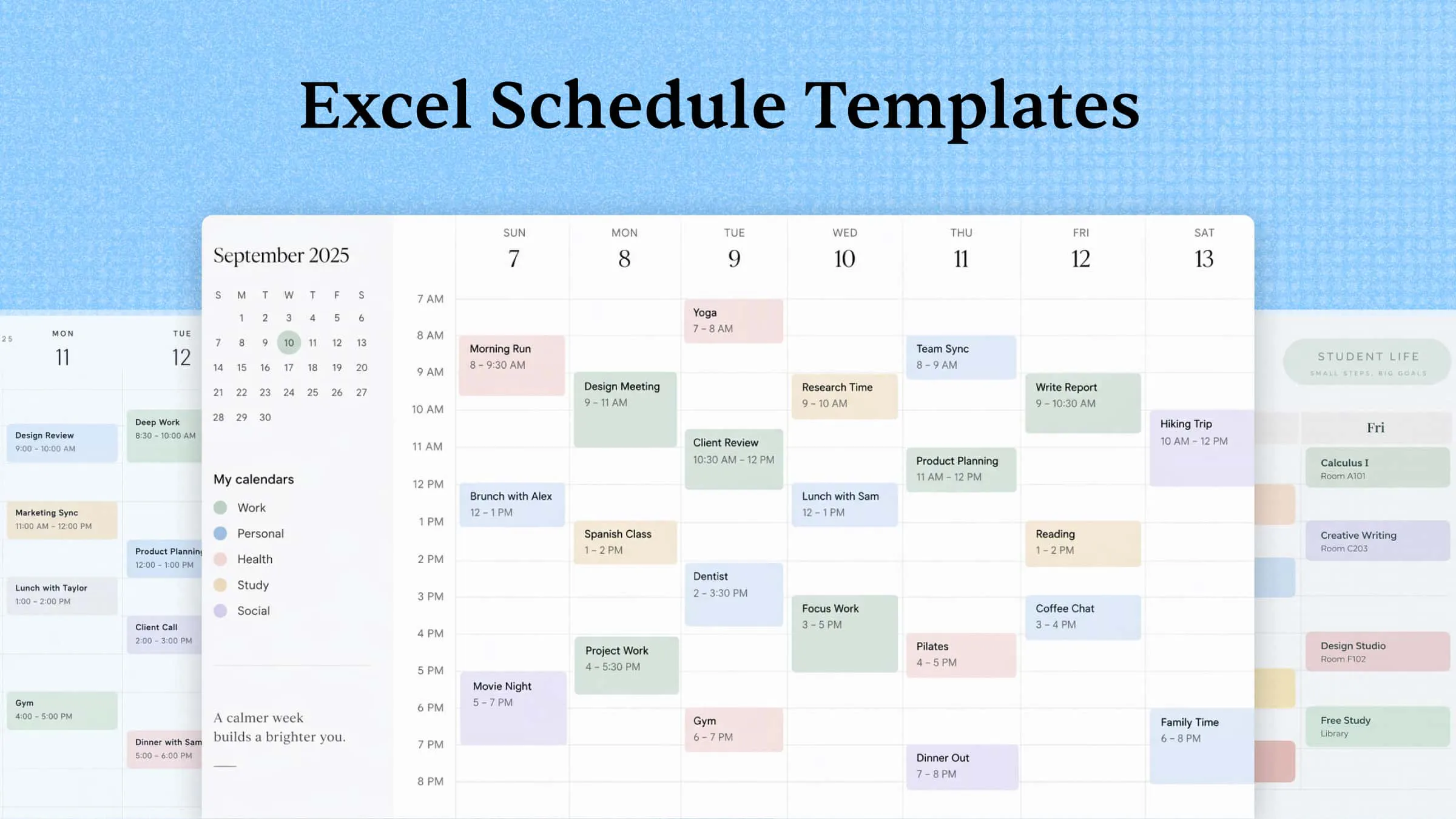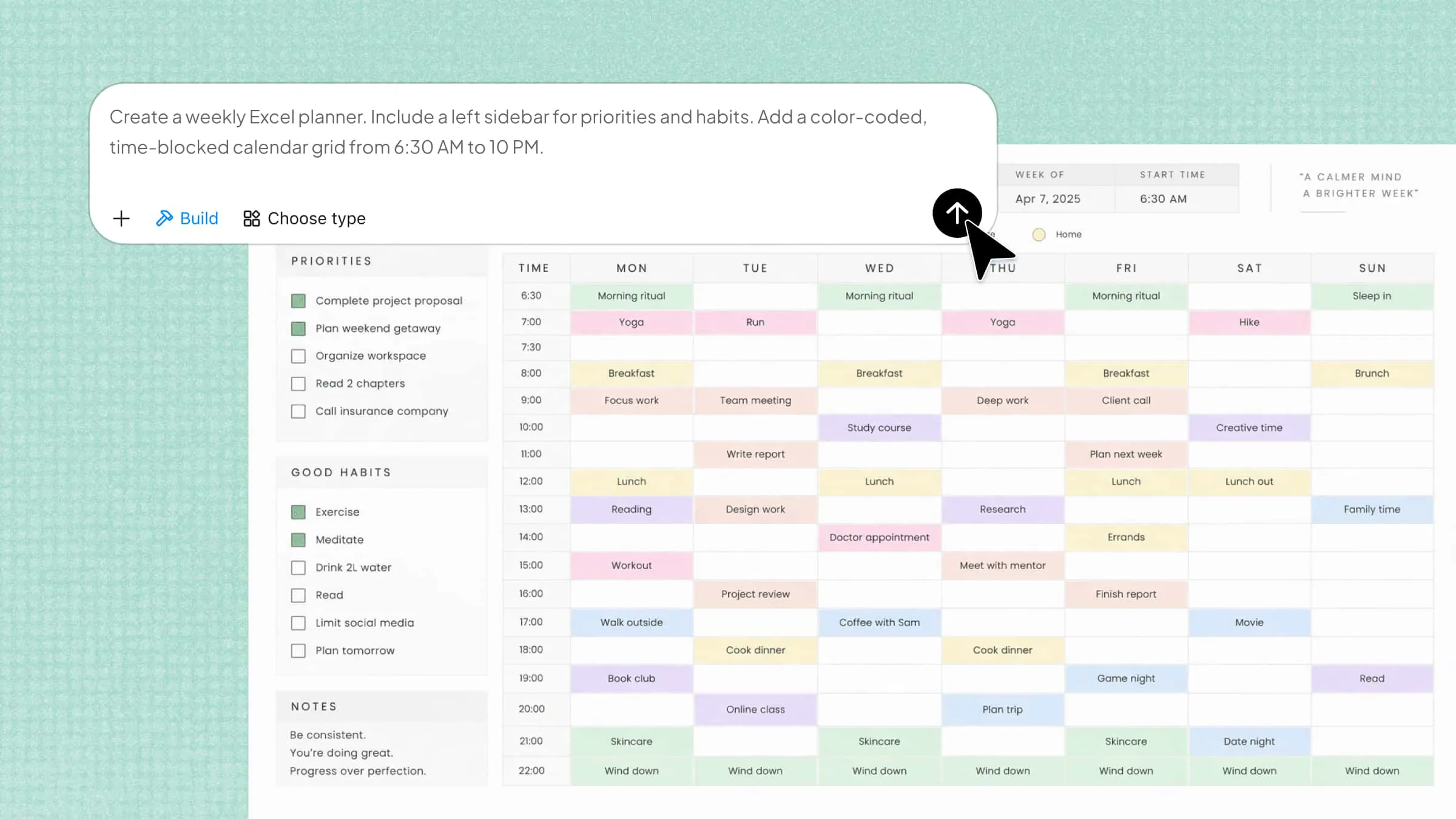
Keeping track of tasks, appointments, and deadlines can become difficult without a clear plan. A disorganized schedule often leads to missed commitments and poor time management. Excel offers a simple way to organize your daily, weekly, or monthly activities in one place. This guide explains how to create a schedule in Excel with easy steps and useful formatting tips to help you manage your time more effectively.
What types of schedules can you create in Excel
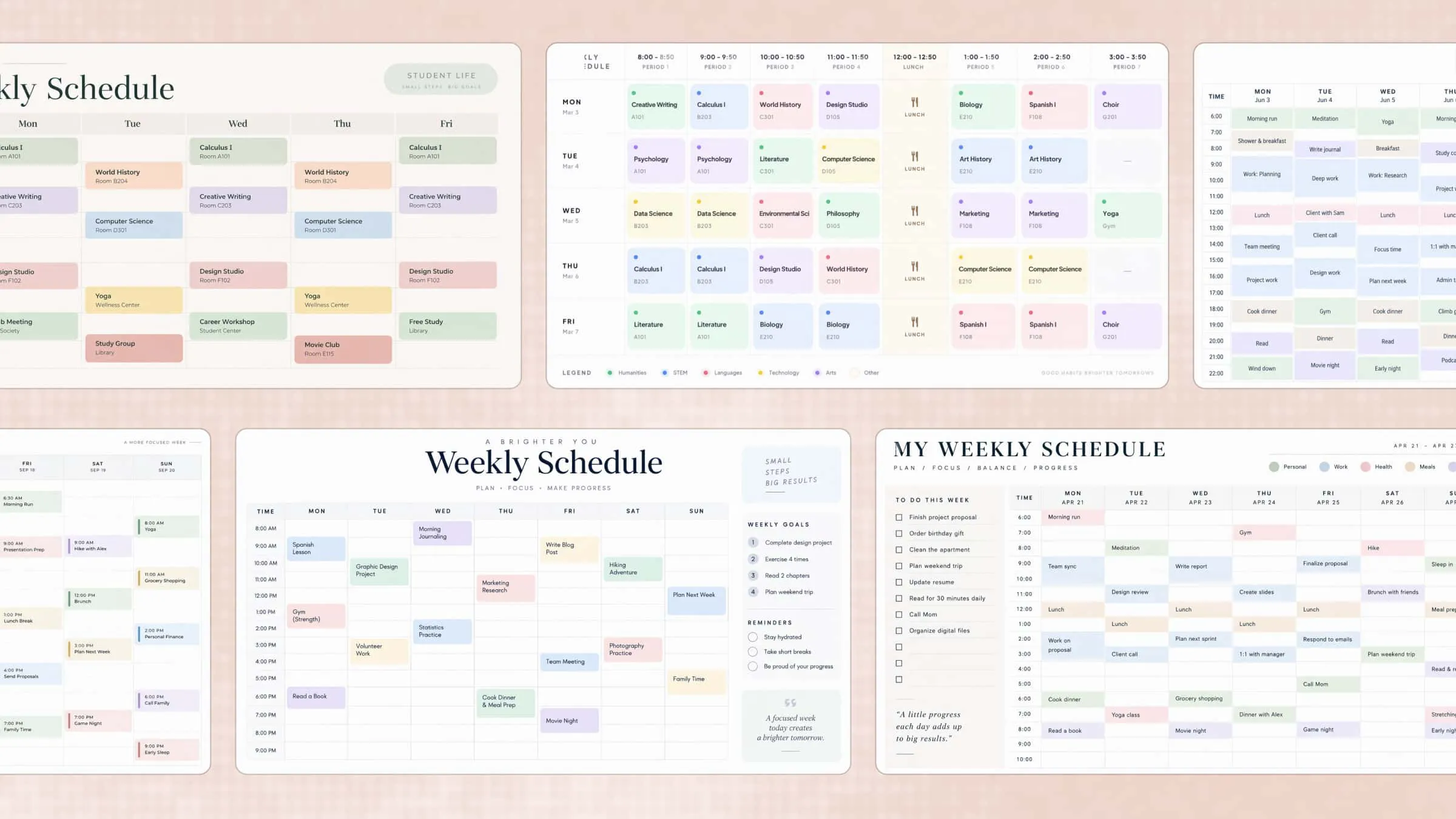
Excel offers flexible scheduling options for different personal, academic, and professional needs. Before learning how to create a schedule in Excel, explore these common schedule types to choose the format that best fits your routine.
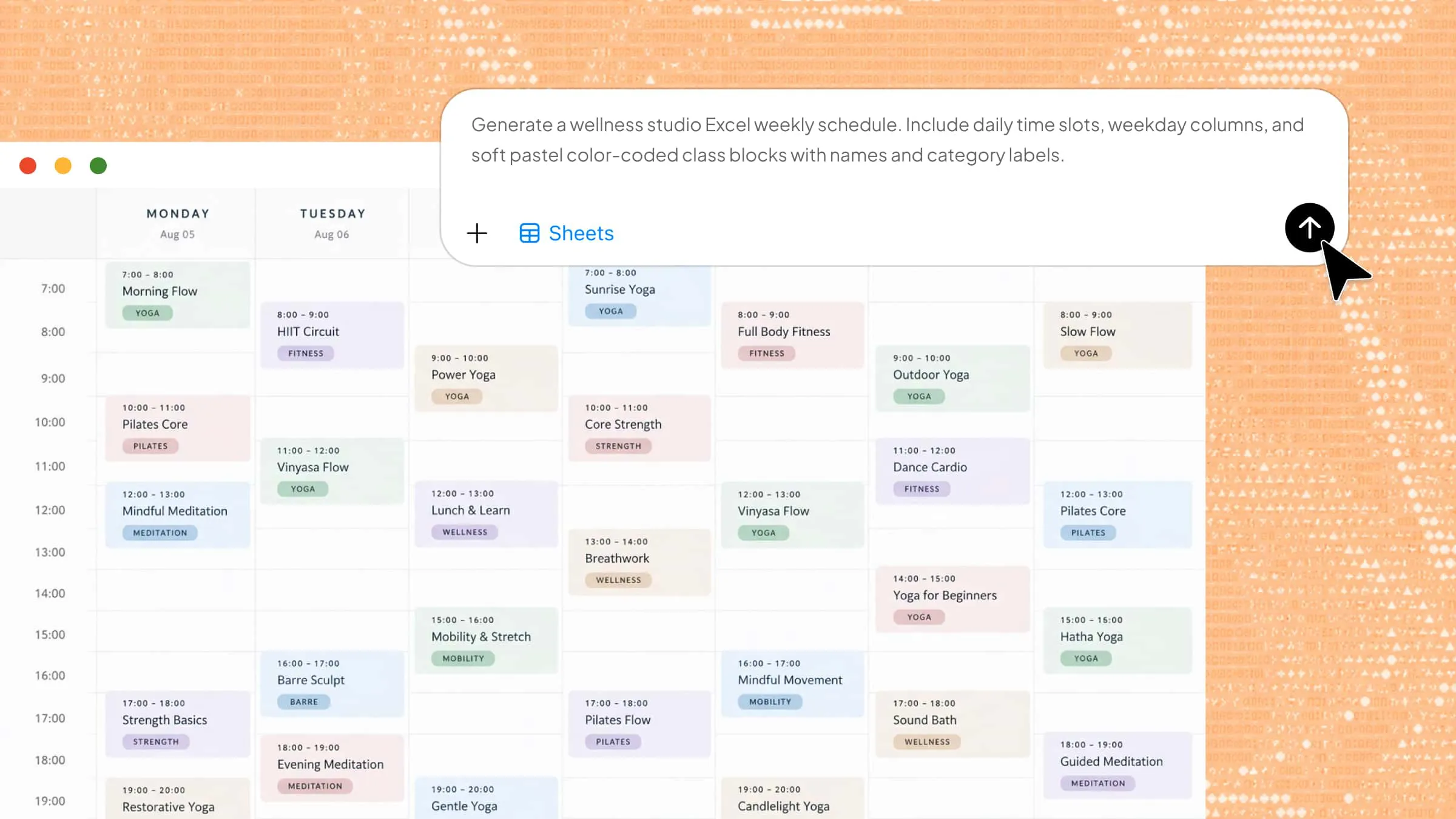
Weekly schedule
A weekly schedule helps you organize tasks, appointments, and activities across seven days. You can assign time slots to each responsibility, track priorities, and plan your week more effectively.
Daily schedule
A daily schedule divides your day into specific time slots for meetings, tasks, breaks, and personal activities. It helps you manage daily responsibilities and stay on track with your routine.
Monthly schedule
A monthly schedule provides an overview of important dates, deadlines, events, and appointments. You can use it to plan upcoming activities and monitor long-term commitments in one worksheet.
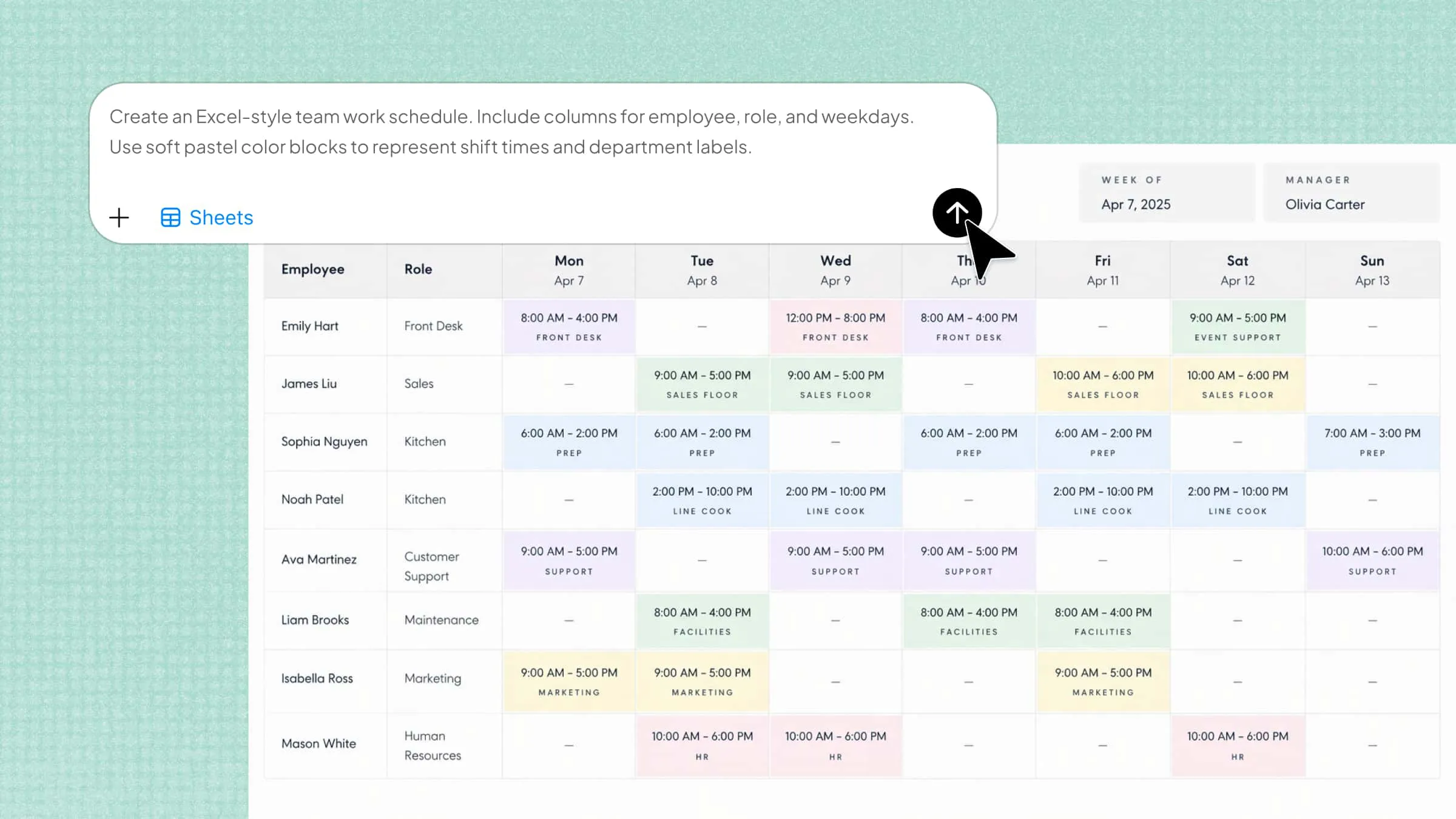
Employee shift schedule
An employee shift schedule helps managers organize staff working hours, assign shifts, and manage weekly rotations. Excel makes it easier to track employee availability and avoid scheduling conflicts.
Project schedule
A project schedule outlines tasks, milestones, deadlines, and assigned responsibilities. You can use it to monitor progress, coordinate team activities, and keep projects on track.
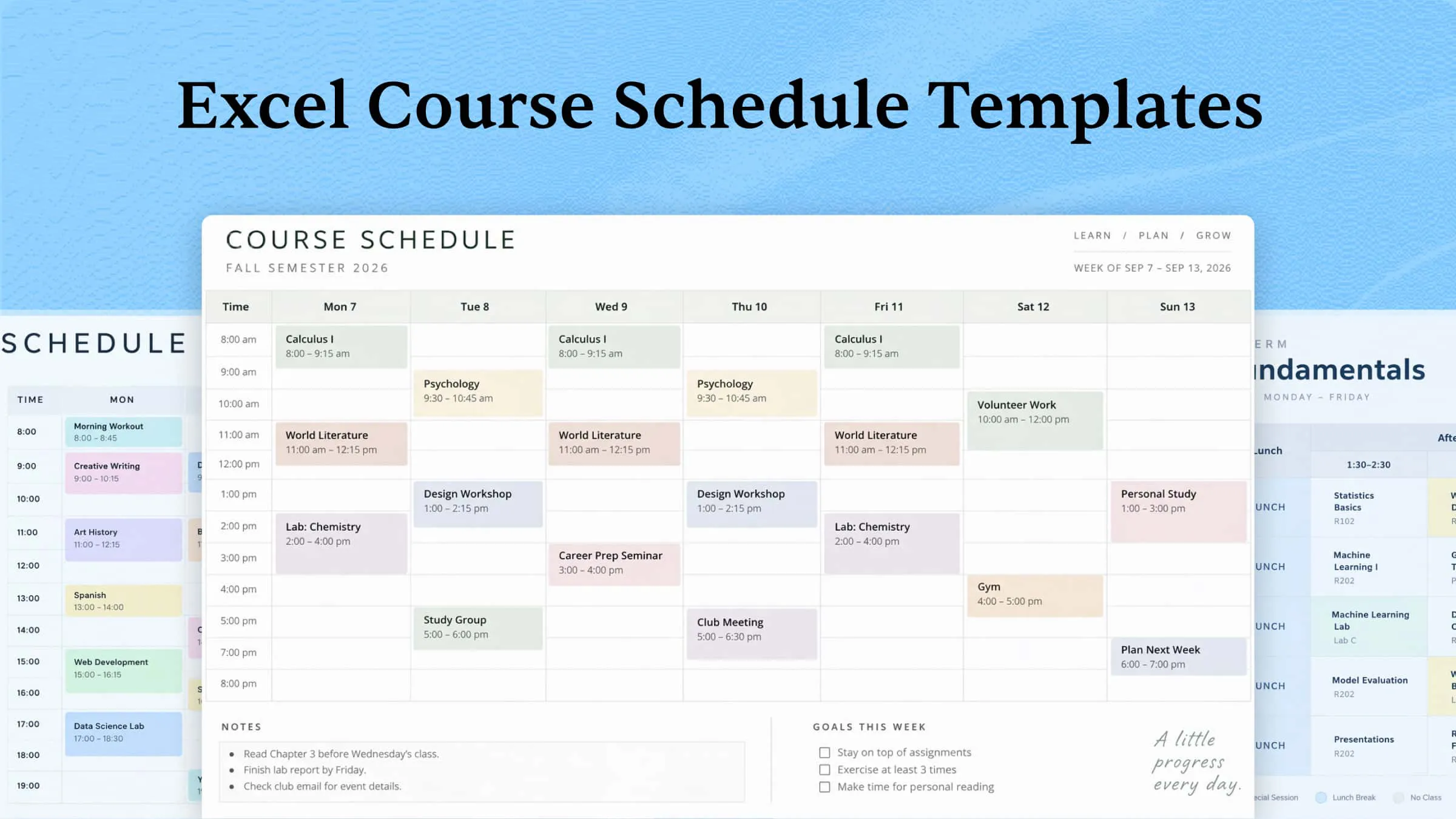
Class schedule
A class schedule organizes subjects, lecture timings, study sessions, and breaks throughout the week. Students can use it to manage academic commitments and maintain a consistent study routine.
How to make schedules in Excel using AI
Creating schedules manually in Excel can be time-consuming, especially when managing multiple tasks and deadlines. AI tools simplify the process by helping you organize information and build structured schedules more efficiently.
Kimi Sheets, an AI Excel agent, makes spreadsheet creation easier by helping you generate, organize, and analyze spreadsheet data with AI. You can use it to structure scheduling information, arrange tasks, and create organized tables based on your requirements. It also helps simplify spreadsheet work through AI-powered assistance, making it useful for beginners who want to manage schedules more efficiently. In the following steps, we'll learn how to make a schedule in Excel.
Step 1: Upload your file and write a prompt
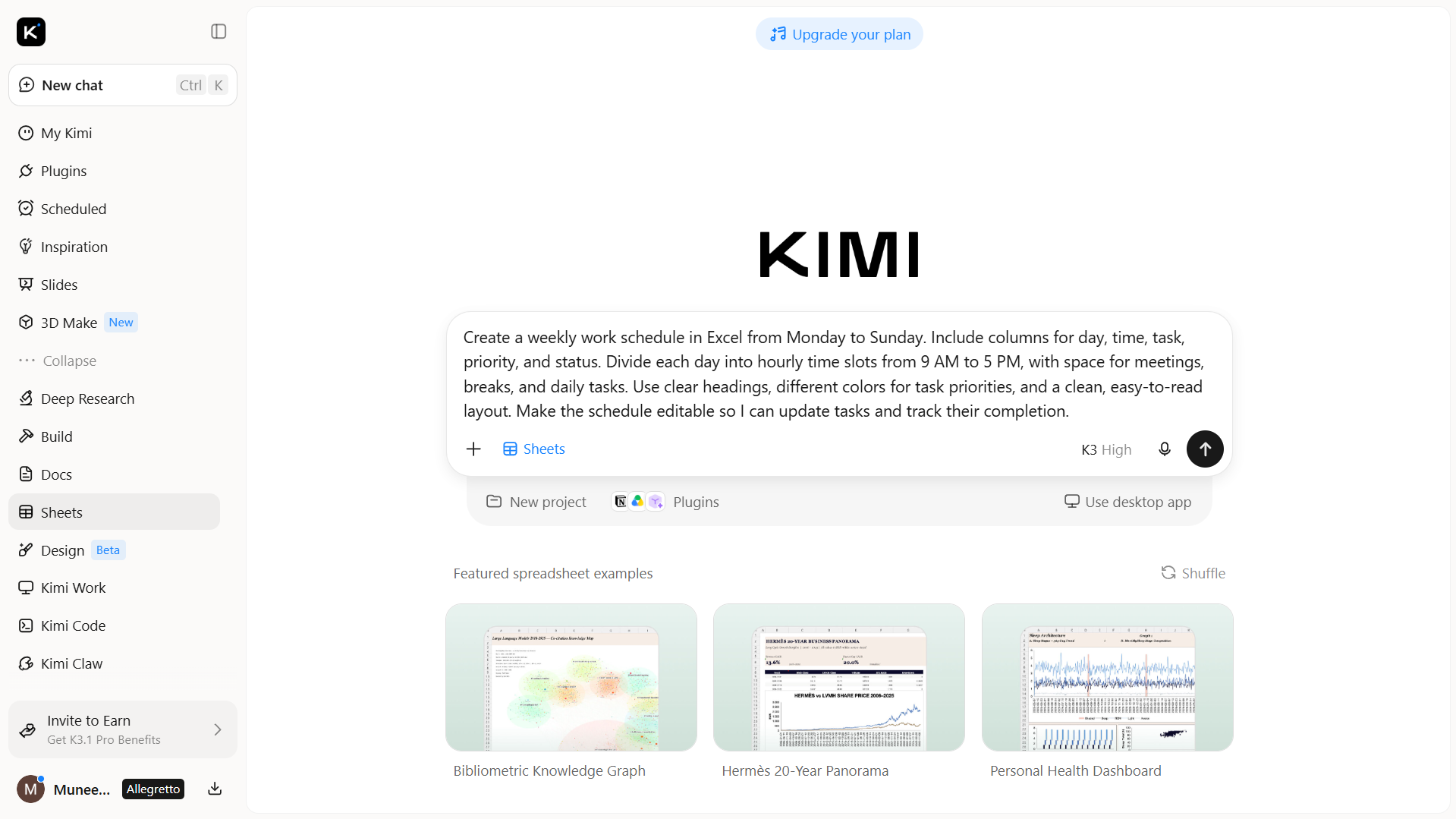
Open Kimi Sheets and upload an existing spreadsheet if you have one, or start with a blank file. Write a clear prompt describing your schedule type, required columns, time slots, dates, and formatting preferences.
Example prompt:
Step 2: Let Kimi Sheets generate output
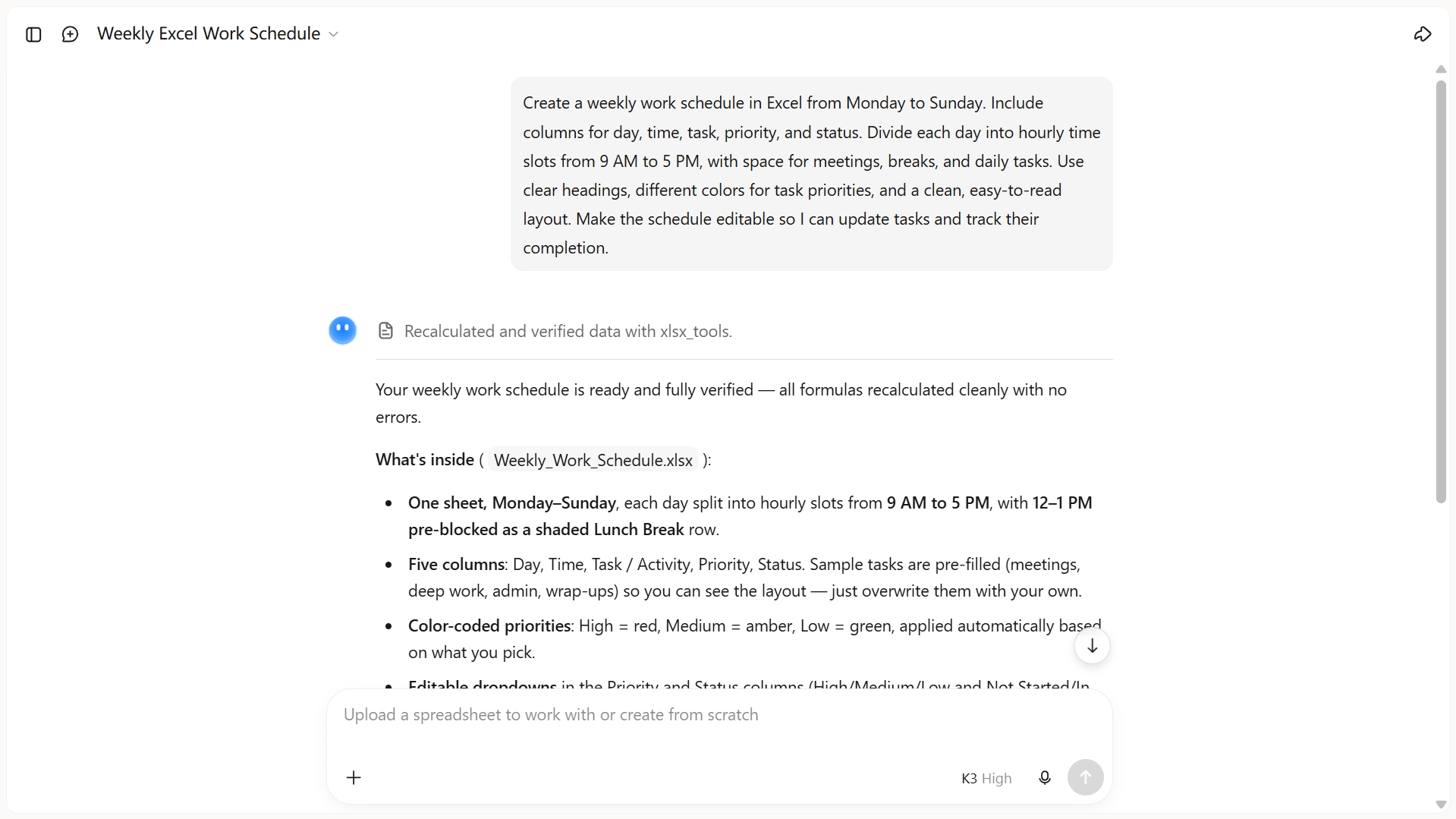
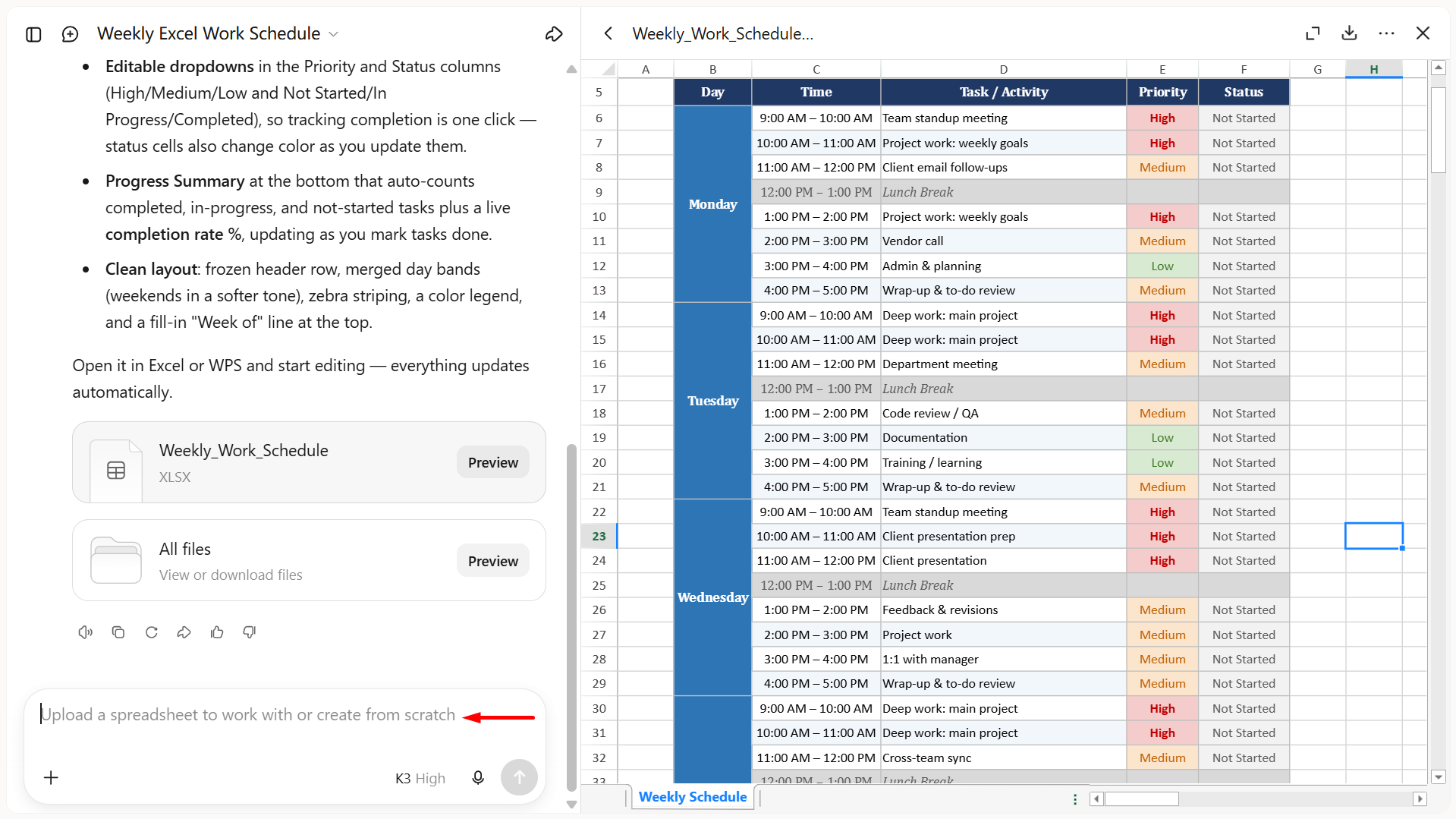
Submit your prompt and let Kimi Sheets organize the information into a structured spreadsheet. Review the generated rows, columns, time slots, and formatting to ensure they match your scheduling requirements.
Step 3: Edit your schedule in Excel
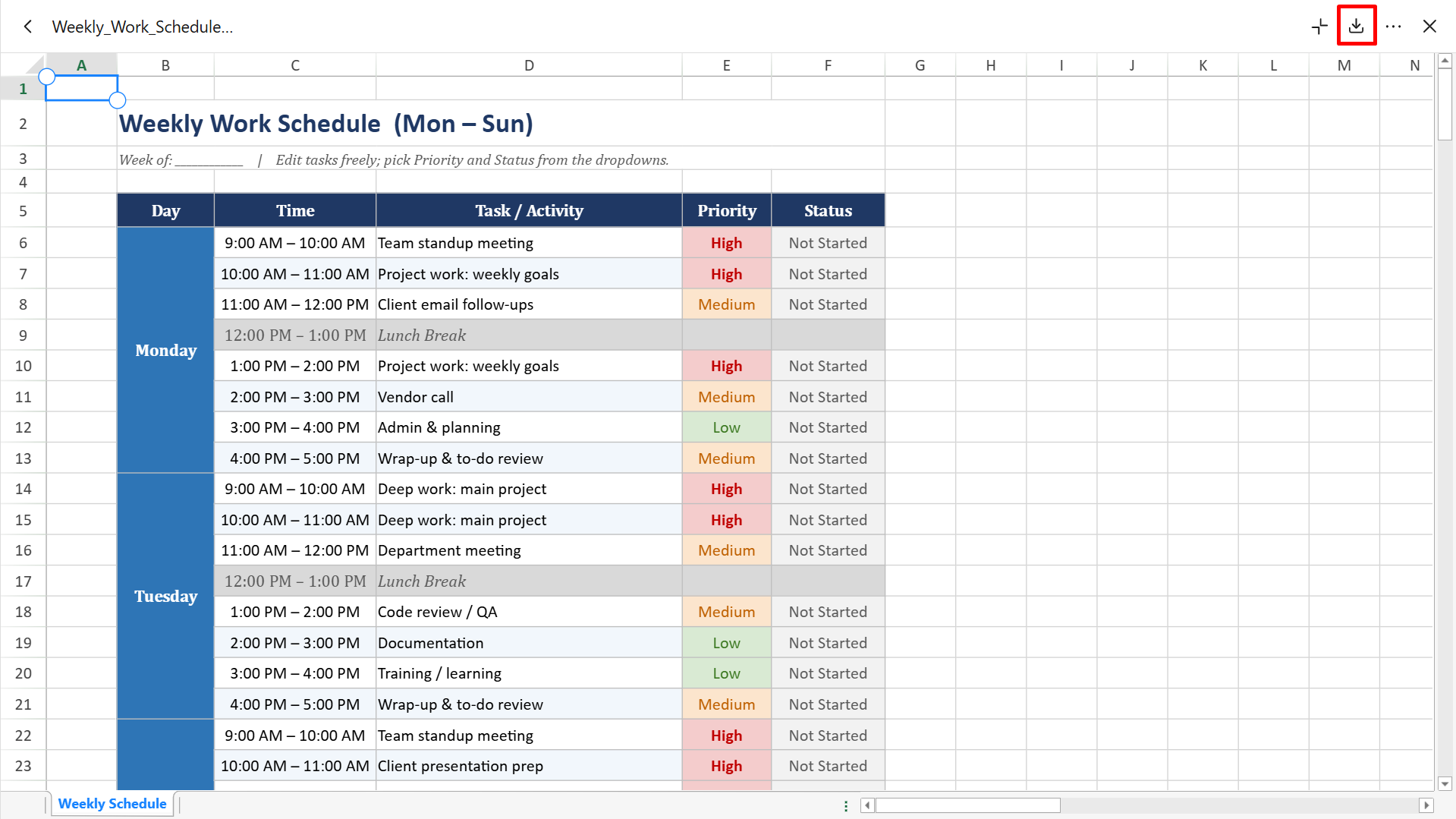
Download or open the generated spreadsheet in Excel to make further adjustments. Add your tasks, update dates and timings, change colors, and customize the layout according to your daily or weekly routine.
Step 4: Preview and export Excel file
Review the completed schedule to check for missing information, formatting issues, and incorrect time slots. Once everything looks right, save or export the file in Excel format (XLSX) so you can access and update it whenever needed.
Why use Kimi Sheets to create a schedule in Excel
Now that you've seen how AI can simplify schedule creation, choosing the right tool can make the process even more efficient. Kimi Sheets offers several useful features that help you organize spreadsheet data, customize schedules, and manage tasks with less manual effort.
Generate and customize Excel schedules with natural-language instructions: Describe your scheduling requirements, including dates, tasks, time slots, priorities, and deadlines. Kimi Sheets can turn your instructions into a structured Excel spreadsheet. You can also upload an existing workbook and request changes through natural language, such as reorganizing tasks, updating deadlines, adjusting layouts, or refining formulas.
Organize scheduling data with intelligent formatting: Automatically arrange tasks, dates, and time slots into a clear spreadsheet layout. Kimi Sheets applies consistent formatting, alignment, cell styles, and structured layouts to make daily, weekly, or project schedules easier to read and manage.
Automate scheduling calculations with Excel formulas: Generate native Excel formulas to calculate task durations, working hours, deadlines, and completion rates. You can also use formulas such as IF, COUNTIF, and SUM to track task statuses and summarize scheduling information.
Manage complex schedules across multiple worksheets: Create interconnected worksheets to organize different projects, teams, or scheduling periods. Kimi Sheets supports multi-worksheet logic, allowing related data and calculations to stay connected when values change.
Visualize schedules with charts and dashboards: Turn scheduling data into charts and interactive dashboards to review workload distribution, task progress, and time allocation. Automatically generated visualizations make it easier to identify patterns and understand scheduling information.
Export and reuse your schedules: Preview the generated spreadsheet, edit its contents, and download the finished Excel file. You can also convert spreadsheets into formats such as PDF, Word, and CSV for sharing, reporting, or further use.
Tips for making professional-grade schedules in Excel
A well-structured schedule makes it easier to manage responsibilities, track progress, and avoid missed deadlines. Whether you're making a schedule in Excel for personal use or professional tasks, these tips will help you create a clear, organized, and easy-to-update spreadsheet.
Define your scheduling goals and structure
Determine the purpose of your schedule before adding data to Excel. Decide whether you need a daily, weekly, monthly, or project-based layout and include only the columns relevant to your activities.
Use consistent date and time formats
Apply the same date and time formats throughout your worksheet to keep information clear and organized. Consistent formatting also makes it easier to sort, filter, and review scheduled activities.
Organize tasks into clear categories
Group similar activities into categories such as meetings, assignments, deadlines, and personal tasks. This makes your schedule easier to navigate and helps you identify responsibilities quickly.
Apply color coding strategically
Use different colors to distinguish task priorities, activity types, or completion statuses. For example, highlight urgent deadlines in red and complete tasks in green to make important information easier to identify.
Use Excel formulas to automate calculations
Apply formulas such as SUM, COUNTIF, and IF to calculate working hours, count completed tasks, and track schedule statuses. This reduces manual calculations and helps keep your schedule accurate as tasks and timelines change.
Highlight deadlines and overlapping tasks
Use conditional formatting to highlight approaching deadlines, overdue activities, and conflicting time slots. This helps you identify scheduling issues early and make adjustments before they affect your plans.
Build in flexibility for unexpected changes
Leave extra time between important activities to accommodate delays, urgent tasks, or unexpected meetings. An adjustable schedule makes it easier to update responsibilities without reorganizing the entire worksheet.
Conclusion
Excel makes it easy to organize daily tasks, manage deadlines, and plan personal or professional activities in one place. By following the steps and using AI tools like Kimi Sheets, you can create structured schedules without spending hours on manual formatting. Whether you're making a schedule in Excel for work, study, or personal commitments, the right layout and automation features can help you manage your time more effectively.